1
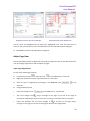
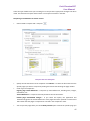
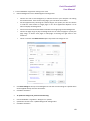
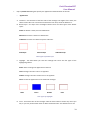
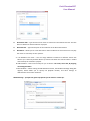
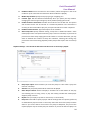
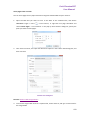
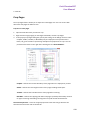
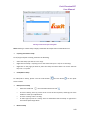
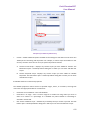
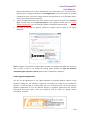
Foxit PhantomPDF User Manual Please refer to “Actions tab for the button properties” . 4. Options tab for the combo box properties You can create a list of items from which the user selects with the Options tab. Item – Accepts the text and space character that you type for options that you want to appear in the menu for the field. Add – Moves the current entry in Item to Item List. Export value – Where you type in a value to represent the item if the data will be exported. If left blank, the entry for Name in the General tab is used as the export value. Item list – Displays the choices that will be available in the list. Note: The highlighted item in the Item List box appears as the default selected item in the combo box field. To change the default item, highlight another item from the list. Delete – Removes the selected item from the list. Up/Down – Change the order in which the items are listed in the combo box list. These buttons are not available if Sort Items is selected. Sort items – Arranges the listed items numerically and alphabetically. A numerical sort (if applicable) is performed before an alphabetical sort. Allow user to enter custom text – Enable users to enter a value other than the ones in the list. Commit selected value immediately – Saves the value as soon as the user selects it. If this option is not selected, the value is saved only when the user tabs out of the current field or clicks another form field. 5. Format tab for the combo box properties The Format tab in the combo box properties dialog box enables you to format the field values. Select one of the categories listed below: None – No additional options are available. The input in a combo box with this property does not require any specific formatting. Number – Automatically imposes the selected formatting options on numeric data entries. A. B. C. D. Decimal places – Sets the number of digits that appear to the right of the decimal point. Separator style – Sets the placement of commas and periods. Currency symbol – Sets the type of currency, such as Dollars, Euros, or Pounds. Negative Number Style – Sets how negative numbers are displayed. You can choose Show parentheses, Use red text, neither, or both. Percentage – Automatically imposes the selected formatting options on numeric data expressed as a percentage. 173