1
Using The Ulead Video Studio Software
This guide is designed to get you started with capturing video and audio. It is not intended to be a
replacement for the included help files, instructions or user guides included with the product itself.
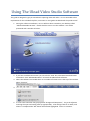
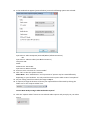
1. During the software installation, an icon will have been created on your desktop called
“Ulead VideoStudio SE DVD”. Double click this icon to run the software. You will be
presented with a window as below:
2. If you have a widescreen monitor you can tick the “16:9” box, otherwise leave both boxes
unchecked. Click “VideoStudio Editor” to launch the Video Studio software.
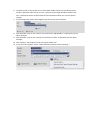
3. When the software has loaded there are a number of buttons across the top of the window.
Select “Capture”
4. Click “Capture Video”
5. In some cases a window may pop up titled “Change Field Properties”. This is the software
scanning the input and setting itself up appropriately. A bar will go from 0% to 100%, and
when it is completed the “OK” button will become highlighted. Click it to continue.