1
Bunkspeed Drive Suite User Guide
Saving and Outputting
Outputting Images
Turntable
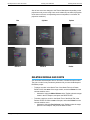
Here’s how you make a series of high quality renderings that show your
models rotating 360 degrees around their own centers, or together around the
world origin:
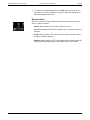
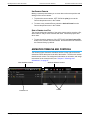
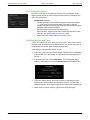
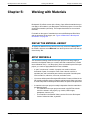
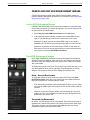
1. Click the Render Button located in the right corner of the Toolbar.
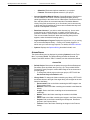
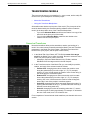
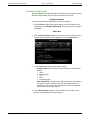
2. In the Render Options dialog, choose the Turntable type.
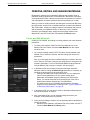
3. In the Render Options page, select the basic rendering options.
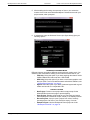
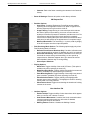
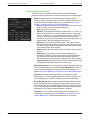
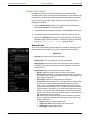
4. In the Turntable Options page, select the options controlling the turntable.
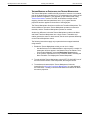
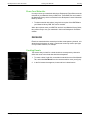
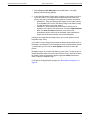
5. LEFT-CLICK Start Turntable Render to start the rendering process. The
HUD will show the progress. When completed, DriveSuite will save the
rendered images in the Images Library by default.
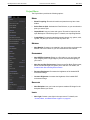
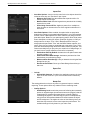
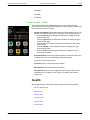
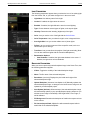
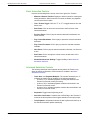
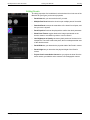
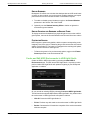
TURNTABLE OPTIONS
Output File
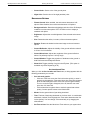
•
Filename: Give the file to be output a filename.
•
Image Format: Select the format of the output images.
•
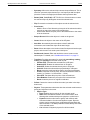
Render Output Passes renders specialized output passes that you can
use in post-processing software (such as Photoshop) to enhance the
normal output pass. The drop-down options allow you to select which
output passes you would like. For details, see the extended explanation of
“Render Output Passes” in “Render (High Quality)” on page 103.
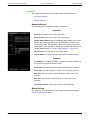
•
Movie Format: Select the format of the output movie.
•
Include Alpha: If enabled, the output file includes an alpha channel.
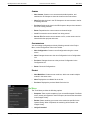
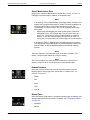
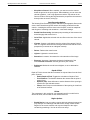
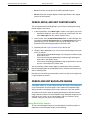
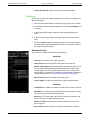
Animation
Copyright © Bunkspeed, Inc. 2002-2014
•
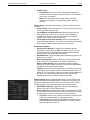
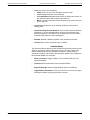
Create Movie: If enabled, DriveSuite encodes the animation data into a
movie format using the parameters below:
•
Start Angle: Sets the initial angle of the turntable(s) on the first frame of
the animation.
•
End Angle: Sets the final angle of the turntable(s) on the last frame.
•
Direction: Lets you spin the turntable either clockwise or
counterclockwise.
•
Number of Frames: Sets the total number of frames to render in the
entire sequence.
•
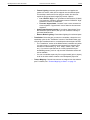
Start Frame: Sets the first frame to render in the animation sequence.
•
End Frame: Sets the last frame to render in the animation sequence.
107