1
Clearing Jammed Roll Paper
iPF6450
5
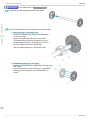
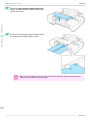
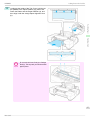
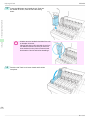
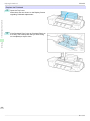
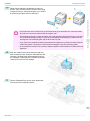
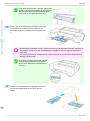
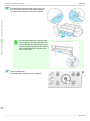
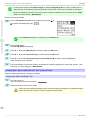
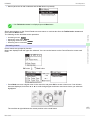
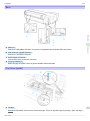
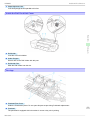
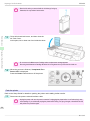
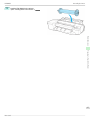
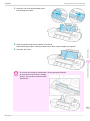
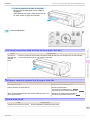
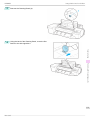
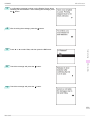
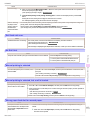
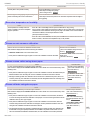
Fold an A4 sheet lengthwise four times and insert it
through the gap of the Back Cover. Push the scrap
out toward the Platen.
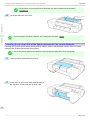
6
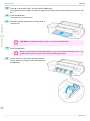
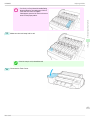
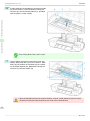
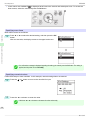
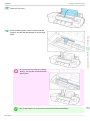
Remove the scrap when it is pushed out onto the Platen.
7
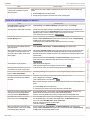
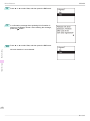
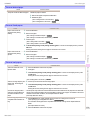
If any scraps remain inside the paper feed slot, repeat steps 5 and 6.
8
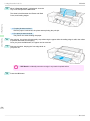
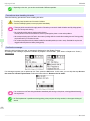
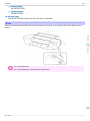
Close the Top Cover.
9
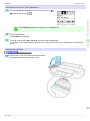
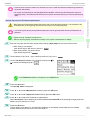
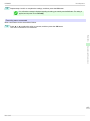
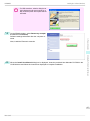
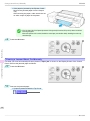
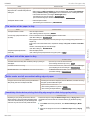
Turn the printer off. (See "Turning the Printer On and Off.") →User's Guide
• For instructions on removing scraps from the paper feed slot after clearing jammed roll paper, see "Clearing Jammed
Important
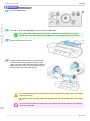
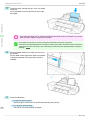
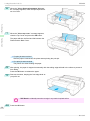
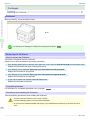
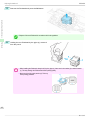
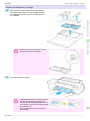
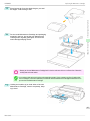
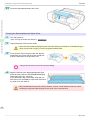
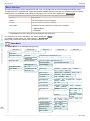
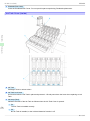
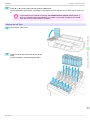
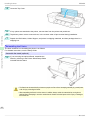
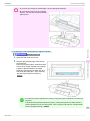
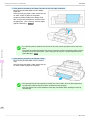
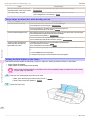
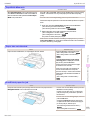
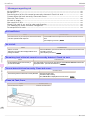
Open the Roll Feed Unit Cover. Use commercially
available scissors or the like to cut the paper of the
loaded roll.
Problems Regarding Paper
1
Paper (Paper Feed Slot)." →P.102
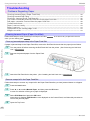
Troubleshooting
Clearing Jammed Roll Paper
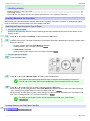
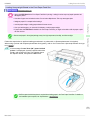
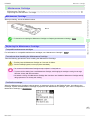
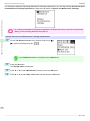
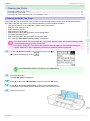
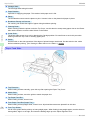
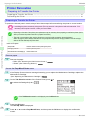
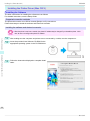
If paper from a roll becomes jammed, "Paper jam" is shown on the Display Screen of the Control Panel. Remove
the jammed paper as follows.
• When cutting paper, be careful to avoid injury or damage to the printer.
Caution
• If it is difficult to perform operations from the front of the printer, perform operations from the back of the printer.
Note
If the printer has a Spectrophotometer Unit (option), lowering the Up-down Unit makes it easier to perform operations from the front of the printer. (See "Lowering the Up-down Unit of the Spectrophotometer Unit (option)
Manually.") →P.16
103
Basic Guide