1
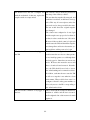
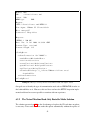
• Start for User: onlineshopping
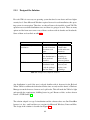
1. The user can go now directly to the tab “Build” and do the same as for the Red VM:
• Format: VMware/VirtualBox (.vmdk)
Version: 1.0.0
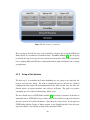
1. Then click on the button “Build”. After this, a progress bar should appear. It is
necessary to wait until the image is created and a Download link is available.
2. When the download link is available, it is necessary to click on it and save the file on
the user’s hard drive. The file will have also around 300MB.
5.1.2.3
Creating the Green VM
To create the Green VM, we are going to use other template. The following steps should
be made:
1. Go to “Home” and click on the “Create new appliance” link in the upper-right.
2. On the subsection “OpenSUSE 11.1” (which is the current version as the thesis is
written) click on the link “KDE 4 desktop”.
3. Go to the bottom of the page and make sure the option “32-bit” is select on “Select
your architecture”
4. On the subsection “Name your appliance”, introduce “GreenVM” and click on “Create
appliance”
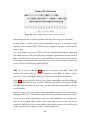
5. After this, the Start menu will show asking you to navigate through the tabs to generate the appliance. The first is software, and the user should click in the tab “Software” or in “Switch to the Software tab to continue” link.
6. On the “Software” tab click on “Add repositories” on the section “Software sources”.
7. Now we need to write “Mozilla” under “Add and remove repositories” and click on
“+ add” for “Mozilla openSUSE_11.1”.
75