1
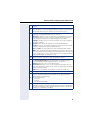
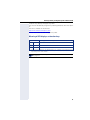
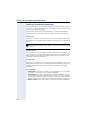
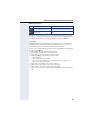
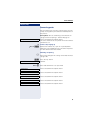
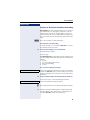
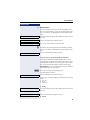
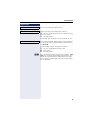
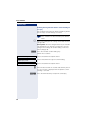
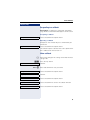
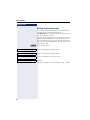
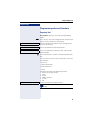
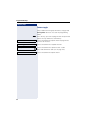
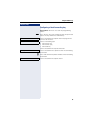
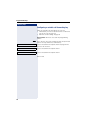
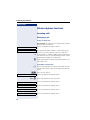
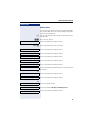
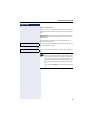
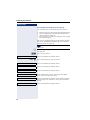
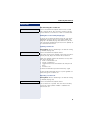
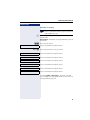
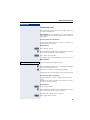
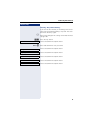
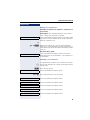
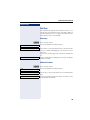
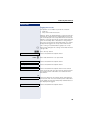
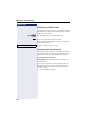
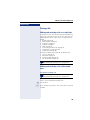
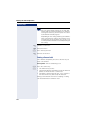
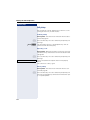
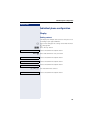
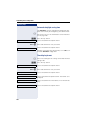
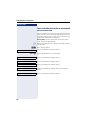
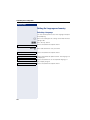
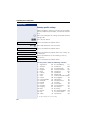
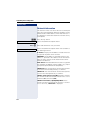
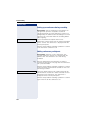
Individual phone configuration Step by step Ringer file = Ring file f Select and confirm the option shown. Ring file? f Confirm. Required ringtone file[1Select ] or "pattern." You will immediately hear the associated ringer melody. Confirm current ringtone file. Save & Exit l Select and confirm the option shown. Pattern melody z You can also configure this setting via the Web interface page 190. Prerequisite: You have choosen the "pattern" ringtone, see page 164. Settings Press the key shown. User Select and confirm the option shown. if nec.j Enter and confirm the user password. Audio Select and confirm the option shown. Settings? Select and confirm the option shown. Ringer melody = 2 f Select the required pattern melody[] between 1 and 8 (e. g. 4). You will immediately hear the corresponding Ringer melody. Confirm the selected Ringer melody. Save & Exit l Select and confirm the option shown. Pattern sequence z You can also configure this setting via the Web interface page 190. Prerequisite: You have choosen the "pattern" ringtone, see page 164. Settings Press the key shown. User Select and confirm the option shown. if nec.j Enter and confirm the user password. 1. The phone displays the current setting. 164