1
Sampling and Sample Mapping
Editing a Sample
14.3
Editing a Sample
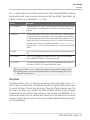
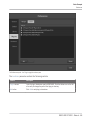
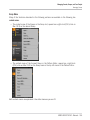
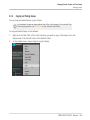
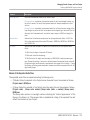
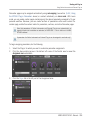
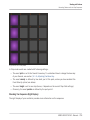
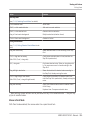
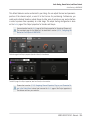
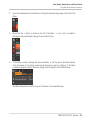
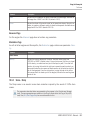
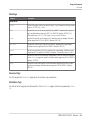
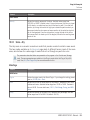
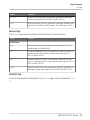
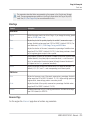
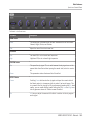
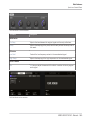
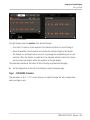
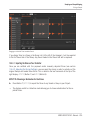
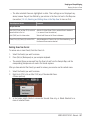
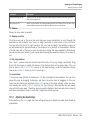
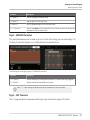
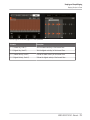
The Edit page of the Sample Editor in the software and its equivalent the EDIT page of the Sampling mode on your controller allow you to adjust the start and end points of a Sample or Slice
and to apply various destructive audio processing functions to any part of the Sample.
Which Sample Is Shown in the Edit Page?
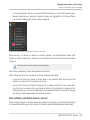
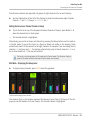
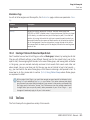
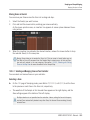
The Edit page (EDIT page on your controller) always displays the Sample of the Zone currently
selected (see section ↑14.5.4, Selecting and Managing Zones in the Zone List for more information on selecting Zones), and all your actions in that page will affect this particular Sample.
For example:
▪ If you have just recorded a Sample, it will directly appear here. If you have recorded more
than one Sample, the Sampled selected in the Recording History (by default the last recorded Sample) will appear here — see section ↑14.2.4, Checking Your Recordings for
more information on the Recording History.
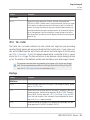
▪ If the Sample in that Sound is already split into Slices, each Slice has its own Zone and
the Slice of the focused Zone will appear here. See section ↑14.4, Slicing a Sample for
more information on slicing Samples.
14.3.1
►
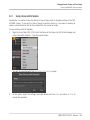
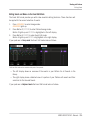
Using the Edit Page
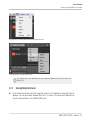
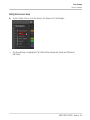
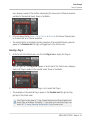
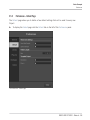
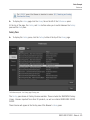
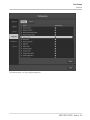
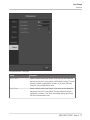
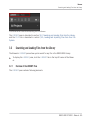
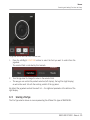
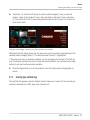
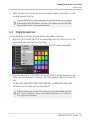
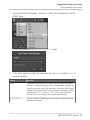
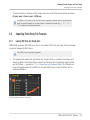
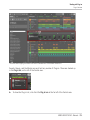
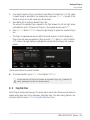
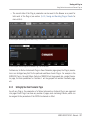
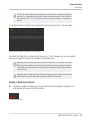
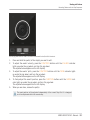
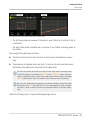
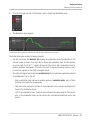
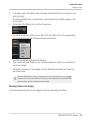
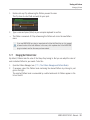
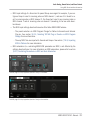
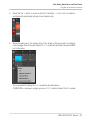
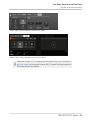
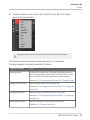
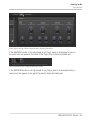
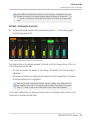
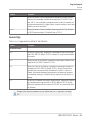
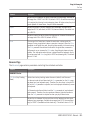
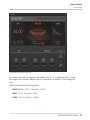
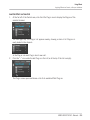
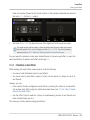
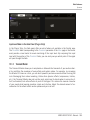
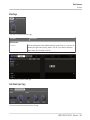
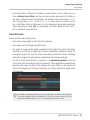
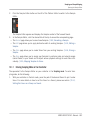
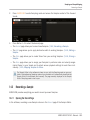
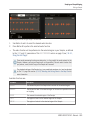
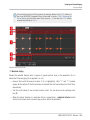
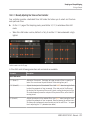
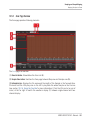
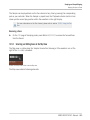
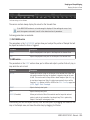
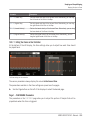
In the Sample Editor, click the Edit tab at the top to open the Edit page.
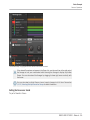
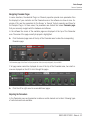
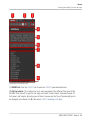
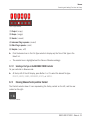
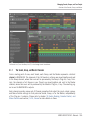
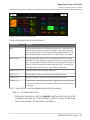
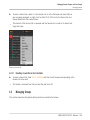
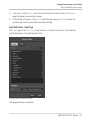
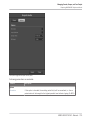
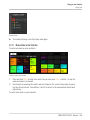
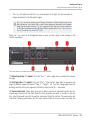
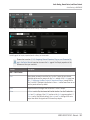
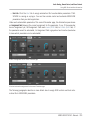
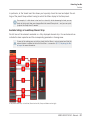
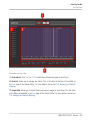
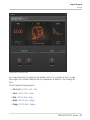
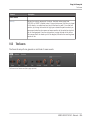
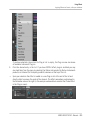
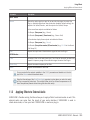
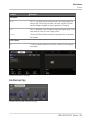
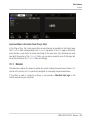
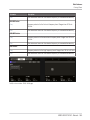
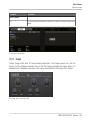
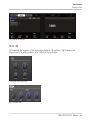
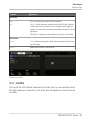
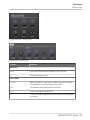
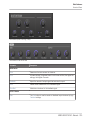
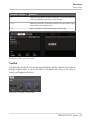
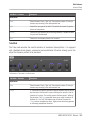
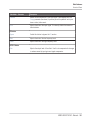
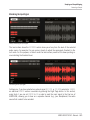
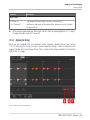
The Edit page looks as follows:
MASCHINE STUDIO - Manual - 649