1
Interference Mapping Mode
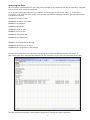
In order to Interference Map, the instrument must be in both the Interference Analyzer and Interference Mapping mode.
1. Access the Main Menu by pressing the Menu key on the keypad.
2. Press the Interference Analyzer soft key icon.
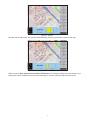
3. Press the Measurements soft key to load up the Measurements submenu. (Figure 5)
4. In the new submenu, press soft key Interference Mapping. (Figure 5)
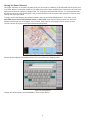
5. The instrument then turns on Interference Mapping, and by pressing Interference Mapping once again,
you enter the Interference Mapping menu. (Figure 6)
An alternative method would be through the keypad function of Shift + Mode (9).
1. Press the Shift + Mode (9) key.
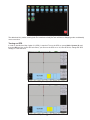
2. In the pop-up menu, scroll down until Interference Analyzer is selected. (Figure 4)
3. Press Enter on the keypad. The instrument then opens the Measurements submenu. (Figure 5)
4. In the new submenu, press soft key Interference Mapping. (Figure 5)
5. The instrument then turns on Interference Mapping, and by pressing Interference Mapping once again, you
enter the Interference Mapping menu. (Figure 6)
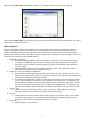
Figure 3: Entering the Interference Mode
The main menu contains the icon, Interference Analyzer. Pressing it enters the instrument in the interference
analysis mode.
Figure 4: Mode Pop-Up Menu
3