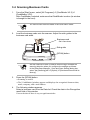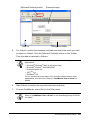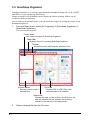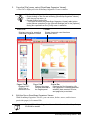
1
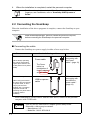
ATTENTION
• Be sure to use the supplied AC adapter and AC cable.
• Be sure to use the supplied USB cable.
The operation with any commercially available USB cable is not
guaranteed.
• If only the USB cable is used, the ScanSnap does not operate. Be
sure to use two types of cables, Power and USB cables, to connect
the ScanSnap to a personal computer.
• When connecting to a USB hub, be sure to use the first stage USB
hub that is closest to the computer. If you use the second or later hub
stages, the scanner may not operate properly.
• When connecting with a USB 2.0 cable, make sure that the USB port
to connect to and hub must be USB 2.0-compliant. Note that if
connected with a USB 1.1 cable, the scanning speed become slow.
When a USB 2.0-compliant port is available, it is recommended that
the USB 2.0-compliant port be used.
•When connecting with the USB bus power cable:
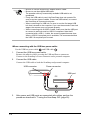
Use the USB bus power cable
and USB cable
.
1.
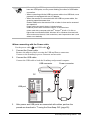
Connect the USB bus power cable.
Remove the adhesive label covering the USB and Power connectors
Connect to the ScanSnap’s Power connector and a personal computer.
2.
Connect the USB cable.
Connect the USB cable to both the ScanSnap and personal computer.
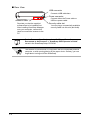
USB connector
Power connector
USB port
PC
3.
19
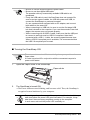
After power and USB ports are connected with cables, perform the
procedure described in "Turning the ScanSnap ON" (page 20).