1
Using Mentor Embedded Sourcery Probe to Program Flash Devices
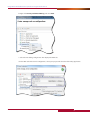
6. Click Debug to download the flash utility to your target and run it. This opens the Debug perspective in the
CodeBench IDE. If you see the dialog box below, click Yes:
7. By default, the debugger stops at Main, click
to run the Flash Utility. The Flash Utility displays the flash
configuration settings similar to the ones below in the target_flash Debug console:
************************************************
Target Flash Programmer v3.1.4.1 - LE
Flash Device : AT49BV6416B x16 8MEG Boot Bottom
Devices : 1-Series 1-Parallel 1-Total
Sector Groups : 2
Sector Count : 8 127
Sector Size : 8K 64K (bytes)
Device Base : 0x10000000
Device Offset : 0x00000000
Device Buffer : 0 (bytes, max = 0)
************************************************
8. Configure your flash settings:
The flash configuration settings must be correct for the Flash Utility to work properly. The following
sections explain how to set the flash settings.
NOTE: If configuration file for your target exists in your workspace with the following name
targetflash_be.cfg (Big Endian) or targetflash_le.cfg (Little Endian), the Flash Utility will automatically
load it when it starts.
a. Make the Console that contains the Target Flash Programmer large enough to see everything.
b. Type 1 in the Console to set the Flash Device. First, it will ask for the flash part vendor, then, it will ask
for the flash device type. For some flash parts it will also ask for the device width (8 vs. 16 bit) and
sector organization (top vs. bottom boot mode). After you set the flash type, the Flash Utility will
display the new flash configuration settings so you can check. The Sector Groups, Sector Count,
and Sector Size fields should reflect the details of the part type that you selected.
c. Return to the Main menu.
d. Type 3 to set the Device Base Address and set it to the first address of the flash device.
e. Optionally, type 4 to set a Device Offset.
9. Type 10 to display the Configuration menu and then select 9 to save your configuration settings to a
file that you can load the next time you run the Flash Utility.
a. This creates targetflash_be.cfg (Big Endian) or targetflash_le.cfg (Little Endian) in your project
workspace.
b. Type 0 to return to the Main menu.
w w w. m e nto r. co m
7