1
4
5
6
7
8
9
1
0
1
1
4. Click Reset your password now, and then follow the procedure on how to recover
your password.
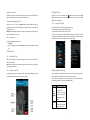
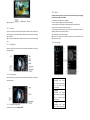
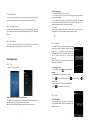
add to a playlist, delete,
search, share, set as ringing
tune and etc.
Playlists:
Displayed with playlists’
name;hold one,you can play,
edit and etc.
Display the playlists
turn off shuffle
turn on shuffle
turn off play all
turn on play all
single repeat
Pause/Play
Forward
14.0.1 Using Gmail/Google Mail
Gmail/Google Mail is Google’s web-based email service. Gmail/Google Mail is
configured when you first set up your phone. Depending on your synchronization
settings, Gmail/Google Mail on your phone is automatically synchronized with your
Gmail/Google Mail account on the web.
14.0.1.1
To Open Gmail/Google Mail
Backward
Play processing bar
Tips: Random party broadcast from play lists is a random choice of part of the song
to play, "all random play" is randomly play an album or list of all the songs
Google Apps
14.0 Signing in to Your Google Account
Signing in to your Google Account lets you synchronize Gmail/Google Mail, Calendar,
and Contacts between your phone and the web. You also need to sign into a Google
Account to use Google Apps such as Google Talk™ and Google Play Store. When you
turn on the phone for the first time, you are given the option to sign in to your
Google Account.
1. In the Setup accounts screen, tap Google account > Yes > Next.
2. Tap Sign in. Enter your user name and password, and then tap Sign in. After
signing in, all emails, contacts, and calendar events on your Google Account will
automatically synchronize with your phone.
Note: Tap Create if you do not have a Google Account yet.
Retrieving your Google Account password
If you forgot your Google Account password, you can retrieve it by doing the
following:
1. On your computer, open your browser and go to http://google.com/accounts.
2. On the right side of the page, click I cannot access my account.
3. In the Please select your issue section, select I forgot my password.
15
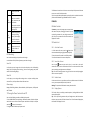
The Inbox conversations list (here in after referred to as Inbox) is your default
Gmail/Google Mail view. All your received emails are delivered to your Inbox.
14.0.1.2
To Refresh Gmail/Google Mail
Press Refresh to send or receive new emails and to synchronize your emails with your
Gmail/Google Mail account on the web.
14.0.1.3
Creating and Sending Emails
14.0.2 To Create and Send an Email
1. In the Inbox, press
and then tap Compose.
2. Enter the message recipient’s email address in the To field. If you are sending the
email to several recipients, separate the email addresses with a comma. You can add
as many message recipients as you want.
Note: If you want to send a carbon copy (Cc) or a blind carbon copy (Bcc) of the email
to other recipients, press MENU and then tap Add Cc/Bcc.
3. Enter the email subject, and then compose your email.
Tips: If you want to add a picture attachment, press Attach. Select the picture you
want to attach, and then tap OK.
16