1
5
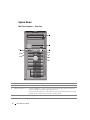
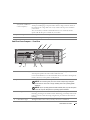
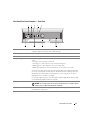
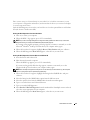
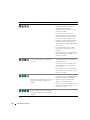
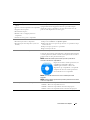
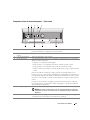
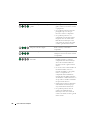
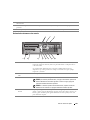
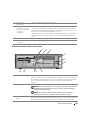
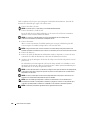
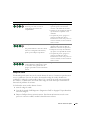
diagnostic lights
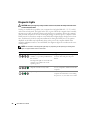
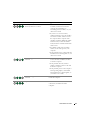
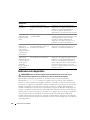
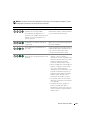
Use these lights to help you troubleshoot a computer problem based on the diagnostic
code. For more information, see "Diagnostic Lights" on page 36.
6
power button
Press this button to turn on the computer.
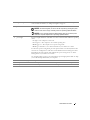
NOTICE: To avoid losing data, do not turn off the computer by pressing the power
button for 6 seconds or longer. Instead, perform an operating system shutdown.
NOTICE: If your operating system has ACPI enabled, when you press the power
button the computer will perform an operating system shutdown.
7
power light
The power light illuminates and blinks or remains solid to indicate different operating
states:
• No light — The computer is turned off.
• Steady green — The computer is in a normal operating state.
• Blinking green — The computer is in a power-saving mode.
• Blinking or solid amber — See "Power Problems" in your online User’s Guide.
To exit from a power-saving mode, press the power button or use the keyboard or the
mouse if it is configured as a wake device in the Windows Device Manager. For more
information about sleep modes and exiting from a power-saving mode, see "Power
Management" in your online User’s Guide.
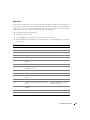
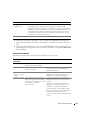
See "System Lights" on page 35 for a description of power light patterns that can help
you troubleshoot problems with your computer.
8
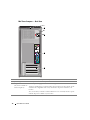
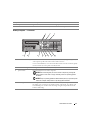
hard-drive activity light
This light flickers when the hard drive is in use.
9
headphone connector
Use the headphone connector to attach headphones and most kinds of speakers.
10
microphone connector
Use the microphone connector to attach a microphone.
Quick Reference Guide
9