1
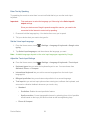
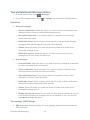
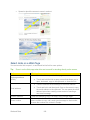
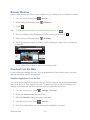
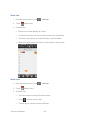
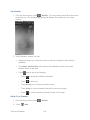
Synchronize an Outlook Calendar See HTC Sync. Change Calendar Settings You can change Calendar settings to specify how it displays events and how it notifies you of upcoming events. 1. From the Home screen, touch 2. In any Calendar view, touch > Calendar. > Settings. Reminder settings • All calendars: Select this check box to use the same event reminder settings for all types of calendars. If you clear this check box, you can set different reminder settings for each calendar. • Apply settings to: Select the calendar you want to apply the changes to. • Set alerts & notifications: Configure event reminders to open an alert, send you a notification, or turn off event notifications on your device. • Default reminder time: Choose how soon before an event you want to be notified. • Select ringtone: Choose a ringtone to sound when you receive an event reminder. Calendar view setting • First day of week: Set the month and week views to start on a Sunday or Monday. • Include weather: Select this check box to show weather information in the day view events list. • City: If weather is included, by default, day view displays your current location’s weather. You can change it to display the weather of another city. About the Calendar Widget You can add a Calendar widget to your Home screen. The widgets offer different calendar views. Touching a day or event on the widget brings you to the Calendar app. Calculator Your device comes with a built-in calculator. Tools and Calendar 205