1
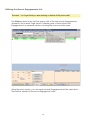
Linking Documents and Programs
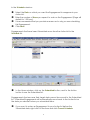
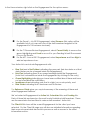
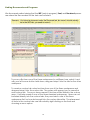
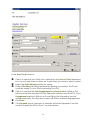
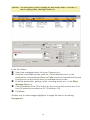
We discovered earlier training that the WIP (work in progress), Sent, and Received spaces
are where the files needed for the task can be linked.
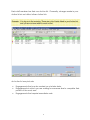
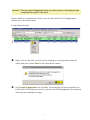
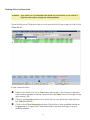
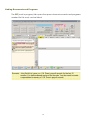
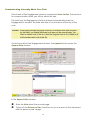
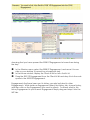
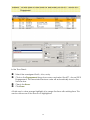
Scenario: You linked a document under the Received tab, but since it should actually
be in the WIP tab, you need to move it.
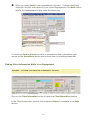
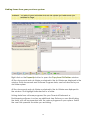
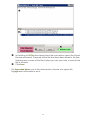
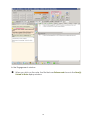
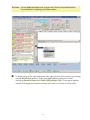
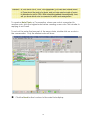
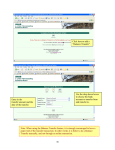
To move a file from one of the three workspaces to a different one, select it and
with your left mouse button held down, drag and drop it into the tab for the other
workspace.
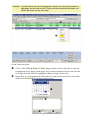
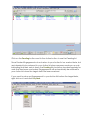
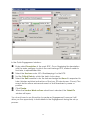
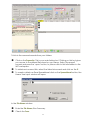
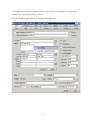
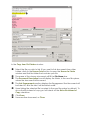
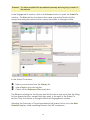
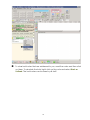
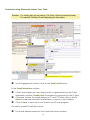
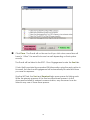
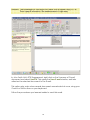
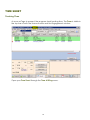
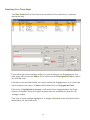
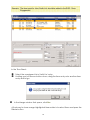
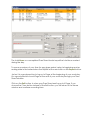
To create a custom tab, select an item from one of the three workspaces and
drag and drop it into the custom tab. The system with prompt you to name this
new custom tab. Once you have named it, the item will be linked in the custom
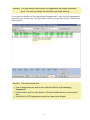
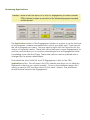
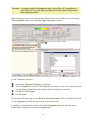
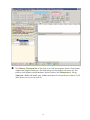
area – it will also remain in one of the three standard workspaces. Items can not
be linked directly into the custom tabs; they must exist in one of the three
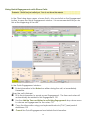
workspaces first, but can be brought into the custom tabs after. The placement
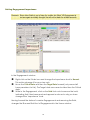
of items in the custom tabs can be sorted by right clicking on the item and
choosing a move option.
22