1
ADOBE READER 8 76
User Guide
3 Click in the first form field you want to fill in, either to select that option or to place an I-beam pointer in the field
so you can start typing.
4 After making a selection or entering text, do any of the following:
• Press Tab or Shift+Tab to accept the form field change and go to the next or previous field.
• Press the Up Arrow or Left Arrow key to select the previous radio button in a group of radio buttons, or press the
Down Arrow or Right Arrow key to select the next radio button.
• Press Esc to reject the form field change and deselect the current form field. If you’re viewing the form in Full
Screen mode, pressing Esc a second time causes you to exit Full Screen mode.
Note: If the current form field is a single-line text box, you can press Enter (Windows/UNIX) or Return (Mac OS) to
accept your typing and deselect the field. If the current field is a check box, pressing Enter or Return turns the check box
on or off. In a multiline text form field, pressing Enter or Return creates a paragraph return in the same form field. In all
cases, you can press Enter on the keypad to accept the change and deselect the current form field.
5 After you fill in the form fields, do any of the following:
• Click the submit form button, if one exists. Clicking this button sends the form data to a database across the web
or over your company intranet.
• Choose File > Save A Copy, and specify a location for the copy.
Note: If the form author gave Reader users extended rights, the saved copy will include the entries you made in the form.
Otherwise, the saved copy will be blank.
• Print the form.
Clear a form in a browser
❖ Do either of the following:
• Select the reset form button, if one exists. You cannot undo this action.
• Quit the browser, and start again.
Note: Clicking the web browser’s Reload or Refresh button, the Back or Go Back button, or following a link to another
page may not completely clear the form.
Clear unsaved form entries
❖ Choose File > Revert.
Change the Auto-Complete options
The Auto-Complete feature stores any entries that you type in a PDF form field, and then suggests or even automatically enters responses that match your typing in other form fields. The suggestions appear in a pop-up menu, from
which you can select a match. The Auto-Complete feature is off by default, so you must enable it in the forms preferences if you want to use it.
If you want to remove an entry from the Auto-Complete memory—such as a misspelled entry that you found and
corrected later—you can edit the list in the preferences.
Enable the Auto-Complete feature
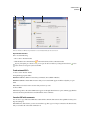
1 Choose Edit > Preferences (Windows/UNIX) or choose Reader > Preferences (Mac OS).
2 Select Forms on the left.