1
Base document
payCOMweb User Manual
3.
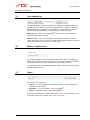
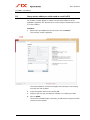
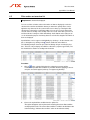
If necessary, set additional filters for other columns.
The list only displays those orders which satisfy all the selected filter conditions.
4.
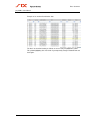
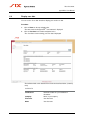
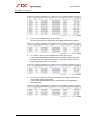
To sort the list, click the column heading of the column to be sorted.
In the example illustrated below the list is sorted according to the amount and in
ascending order. The sorted column and the sort order (ascending or descending) are displayed by means of a red arrow.
5.
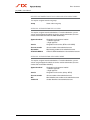
To reverse the sorting order of the list (ascending or descending) simply click the
corresponding column heading again.
In the example illustrated below the list is sorted with the amount appearing in
descending order.
Version 1.2 / 06.06.2014
29