1
mx4100_us_qck.book
86 ページ
2008年8月1日 金曜日 午前11時0分
STORING A DESTINATION
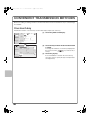
The procedure for storing e-mail addresses in one-touch keys for Scan to E-mail is explained below.
Stored e-mail addresses can be retrieved quickly and easily.
If you frequently send images to the same group of destinations, those destinations can be stored as a group.
To store destinations for the other modes of the network scanner function, see "STORING DESTINATION
ADDRESSES FOR EACH SCAN MODE IN THE ADDRESS BOOK" in "5. SCANNER / INTERNET FAX" in the
Operation Guide.
Storing an individual key
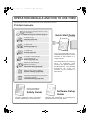
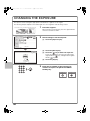
SYSTEM
SETTINGS
System Settings
Admin Password
Total Count
Default Settings
List Print
(User)
Paper Tray
Settings
Address Control
Fax Data
Receive/Forward
Printer Condition
Settings
Document Filing
Control
(1)
USB-Device Check
Exit
1
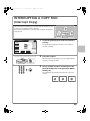
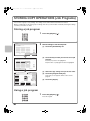
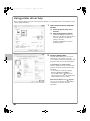
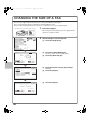
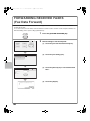
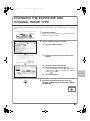
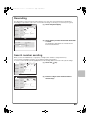
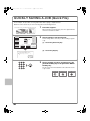
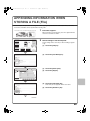
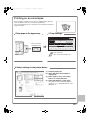
Press the [SYSTEM SETTINGS] key.
2
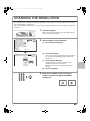
Select settings in the touch panel.
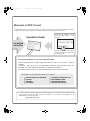
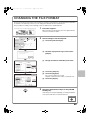
(1) Touch the [Address Control] key.
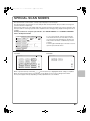
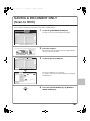
(2) Touch the [Address Book] key.
System Settings
Address Control
Back
Address Book
(2)
Custom Index
Program
F-Code Memory Box
Add New
(3)
Index Switch
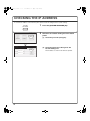
(3) Touch the [Add New] key.
Back
Address Book
Sort Address
All
AAA AAA
BBB BBB
1
CCC CCC
DDD DDD
2
EEE EEE
FFF FFF
GGG GGG
HHH HHH
ABC
Sorting Order
Search Number
III III
JJJ JJJ
Freq.
ABCD
EFGH
IJKL
MNOP
QRSTU
VWXYZ
etc.
System Settings
Cancel
Address Control
Address Type:
E-mail
Search Number:
1
Address Name
(Required):
KKK KKK
Initial (Optional):
K
(4)
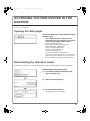
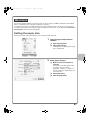
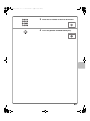
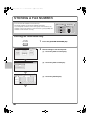
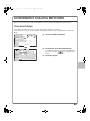
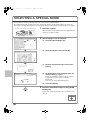
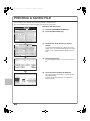
(4) Select [E-mail] from the "Address Type" select
box.
(5) Touch the "Address Name" text box.
(1-999)
Key Name:
Custom Index:
OK
(5)
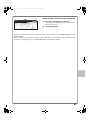
A text entry screen appears. Enter the name of the
destination.
(6)
User 1
Register this Address to be added to the [Frequent Use] index.
(7)
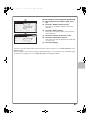
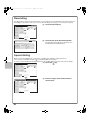
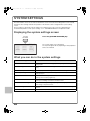
(6) Touch the "Initial" text box.
A text entry screen appears. Enter search characters
for the destination.
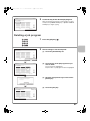
(7) Touch the scroll bar to move the screen.
86