1
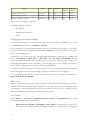
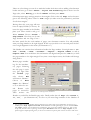
30 Special Characters To insert Special Characters, go to menu Insert › Special Character. If you need a particular character or even a complete string of characters very often, say “[…]”, and don’t want to keep on typing the sequence out, you can mark it once, go to Tools › AutoCor rect Options and type in on the left hand side under Replace a simple sequence of simple letters such as “xxx”. Then press New and confirm with OK. Now your off. Every time you write “ xxx ” with a leading space and a space after, it will automatically get replaced by a “[…]”. 31 Mouse Clicks • a double-click will mark a whole word • a triple-click will mark a complete sentence • a quadruple-click will mark a complete paragraph • a right-click will offer you a context menu • click-hold-and-pull on a marked area allows you to relocate it • in combination with Ctrl you can mark several non-adjacent passages • in combination with Alt you can mark a rectangular text block 32 Shortcuts OpenOffice Writer has a bunch of shortcuts to make life easier: • Ctrl + 0 the paragraph in which the cursor is standing will change to Text Body • Ctrl + 1 the paragraph in which the cursor is standing will change to Heading 1 • Ctrl + 2 the paragraph in which the cursor is standing will change to Heading 2 • Ctrl + 3 the paragraph in which the cursor is standing will change to Heading 3 • Ctrl + 4 the paragraph in which the cursor is standing will change to Heading 4 • Ctrl + i marked text will change to italics • Ctrl + b marked text will change to bold • Ctrl + m marked text will loose all individual formatting – only the paragraph style will remain active 34 • Ctrl + s save file • Ctrl + p print file