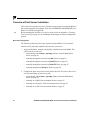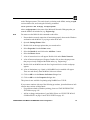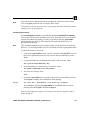
1
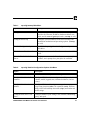
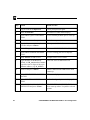
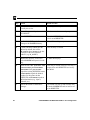
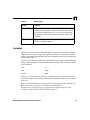
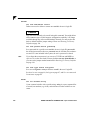
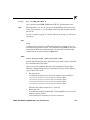
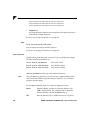
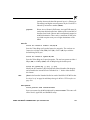
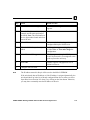
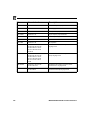
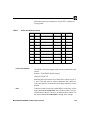
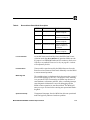
Step
Action
Result of Action
6
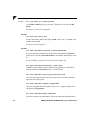
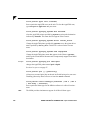
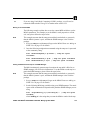
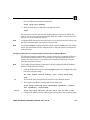
Press <Escape>.
Returns to PCONSOLE’s Main Menu.
7
Select PRINT SERVER INFORMATION.
A list of existing print servers displays.
8
Select one of the print servers and
press <Enter>.
Display’s PRINT SERVER INFORMATION menu.
9
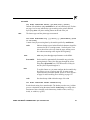
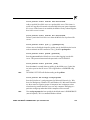
Select PRINT SERVER CONFIGURATION.
Brings up this menu.
10
Select PRINTER CONFIGURATION.
Displays a list of printers associated with
the print server.
11
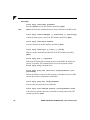
Select or create a printer name which
you want to install as a remote printer
and press <Enter>.
PRINTER N CONFIGURATION window
displays where N equals the selected
printer.
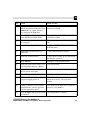
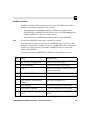
12
Put the cursor on the Type field and
press <Enter>.
A list of options comes up.
13
Select REMOTE
OTHER/UNKNOWN.
This displays in the Type field.
14
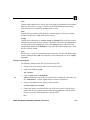
Ignore the other fields and press
<Escape> to save these changes.
Takes you back to the list of printers.
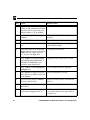
15
Press <Escape> until you are at the
PRINT SERVER CONFIGURATION
menu again.
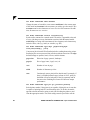
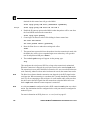
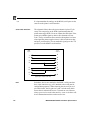
Displays this menu.
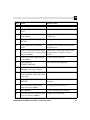
16
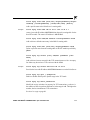
Select QUEUES SERVICED BY
PRINTER.
A list of defined printers for this print server
is shown.
17
Select the printer you previously
defined and press <Enter>.
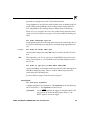
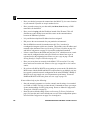
An empty queue list comes up.
18
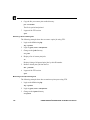
Press <Insert>.
A list of available queues displays.
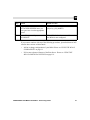
19
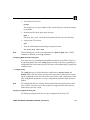
Select the queue you want this printer
to service and press <Enter>.
Prompts you for a priority.
CONFIGURING THE M204 FOR NOVELL: Host Configuration
57