1
Axio Installation and User Guide.book Page 155 Monday, July 14, 2008 8:00 AM
155
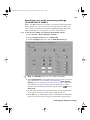
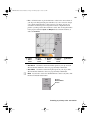
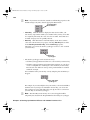
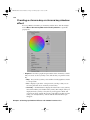
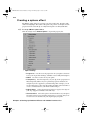
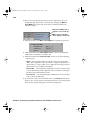
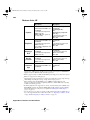
Aperture Use this to widen or narrow the aperture of the indicator
to increase or decrease the range of colors on which you want to key.
$ Softness
Sets the amount of softness applied to the range of colors
specified in the aperture region.
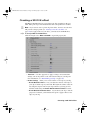
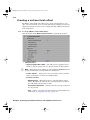
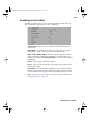
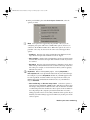
• Saturation Key This lets you select colors to be keyed (affected by the
color correction) based on their saturation value. Pale colors have a low
saturation value, while vivid colors have a high saturation value.
$
Select this to enable the Saturation Key properties and
saturation key indicator in the selective key graph.
$
Enable
$
Low Clip
$
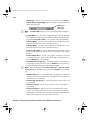
Low Gain Use this to set the range of saturation values you want to
be partially affected based on the value set by the Low Clip control.
As you increase the Low Gain setting, more pixels are partially
affected by the color correction. If you decrease the Low Gain control,
less pixels are partially affected.
Use this to select the lower saturation values to be keyed.
A Low Gain setting of 100 provides the widest range for maximum
color correction. Alternately, a gain setting of 0 creates a key where
saturation values are either completely affected or left untouched. You
can think of the Low Gain control as defining an “Affected to
Untouched” range for keying the pale colors in your image.
$
High Gain This control is similar to the Low Gain setting, except
you use it to set the range of higher saturation values you want to be
partially affected based on the value set by the High Clip control. As
you increase the High Gain setting, less pixels are partially affected
by the color correction. If you decrease the High Gain setting, more
pixels are partially affected. You can think of the High Gain control
as defining an “Untouched to Affected” range for keying the vivid
colors of your image.
$
High Clip This control is similar to Low Gain, except you use it to
select the higher saturation values to be keyed.
¦Note The values you can select using the Low Clip and Low Gain
controls are dependent on the High Clip and High Gain controls, and
vice versa. This prevents the low and high controls from keying on the
same values.
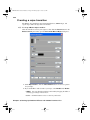
This type of key lets you select areas to be keyed (affected
by the color correction) based on their luminance value.
• Luma Key
$
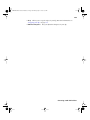
Enable Select this to enable the Luma Key properties and luma key
indicator in the selective key graph.
$
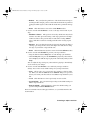
Low Clip Use this to select the lower (darker) luminance values to
be keyed. A Low Clip setting of 0 represents black, and a setting of
Creating a secondary color correction