1
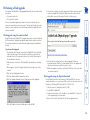
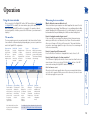
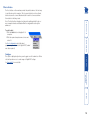
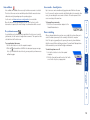
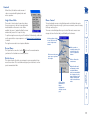
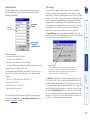
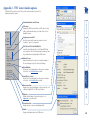
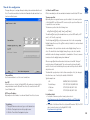
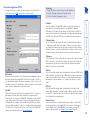
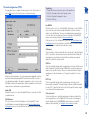
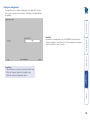
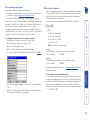
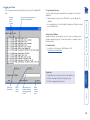
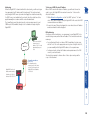
To re-synchronise the mouse 1 Use the Hosts button to select the required computer. 2 Click the button and then click OK in the subsequent pop-up message. Note: If you find that this doesn’t work, you may need to perform a mouse calibration again. Power switching When configured (and where you have access rights) this option allows you to control the mains power input to the currently selected host computer. Note: This option is generally used to power cycle remote systems that have failed to respond. Before switching a system off, ensure that all attempts have first been made to power it down through normal means. To switch a system on or off 1 Use the Hosts button to select the required computer. 2 Click the Power button and then select the Switch on or Switch off option, as appropriate. To change the access mode 1 Click one of the arrow buttons adjacent to the Shared/Private indicator. If you find that your local mouse pointer and that of the host are not correctly synchronised, use this feature to re-align their movements. This operation is also selectable from the Controls menu. Up to four users can be simultaneously logged-in and all will view the same host. If you need to perform a sensitive task that should not be viewed by other users, you can change the access mode to Private. This action prevents other users connecting at the same time. Re-synchronise mouse Access mode - shared/private Auto calibrate will calibrate the mouse only if relative mouse mode is selected. This detects the mouse motion and will report back that the mouse has been calibrated correctly depending upon the operating system. See the notes on Advanced mouse configuration for more details. Once this has been done, providing you use the ‘Hosts’ button to switch between host computers, the video settings for each machine will be re-used. Auto calibrate 15