1
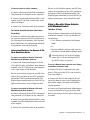
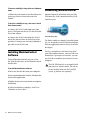
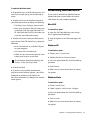
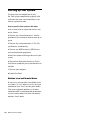
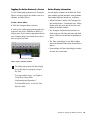
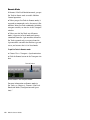
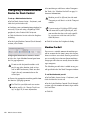
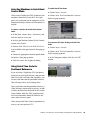
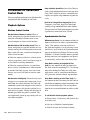
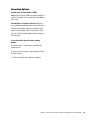
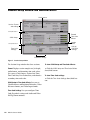
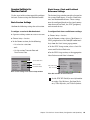
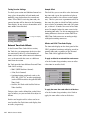
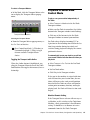
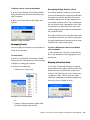
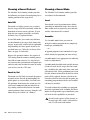
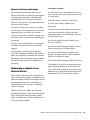
Testing Session Settings Sample Offset To check your session and MachineControl settings, place the machine in Local mode and manually start playback on the external machine. If Pro Tools is receiving time code, the current location will be shown in the Incoming Time display. Be sure to reset the machine to Remote mode when finished. This field lets you set an offset value for incoming time code (up to the equivalent of plus or minus one frame at the current session sample rate). This lets you create a permanent offset to fine-tune the point at which Pro Tools synchronizes relative to incoming time code. For example, a value of –50 makes an event in Pro Tools occur 50 samples before the same event in the incoming time code. Use this to compensate for timing differences between various SMPTE-toMIDI Time Code converters or analog-to-digital/digital-to-analog converters. Incoming Time display Incoming Time display Offsets and SYNC Time Code Display External Time Code Offsets In the External Time Code Offsets section, Pro Tools lets you compensate for devices that are consistently offset by a fixed number of frames (such as some color–corrected video masters), or for material that starts at a different time than the session. Pro Tools provides four different External Time Code Offset settings: The time code display on the front panel of the SYNC peripheral continues to display actual incoming time code, regardless of any External Time Code Offset applied in Pro Tools. To apply an offset to an external time code source: In the Session Setup window, enter an offset value time in an offset field. • MMC (MIDI Machine Control) • 9-Pin (Deck Control) • Synchronization peripherals such as the SYNC HD, SYNC I/O, or other peripherals (such as MIDI interfaces that provide MIDI Time Code). • Satellite (Pro Tools with Satellite Link or Video Satellite) External Time Code Offsets in the Session Setup window To apply the same time code offset to all devices: Unique values can be defined for each of these types of offsets, or you can link all to adjust in unison. Positive and negative offset values can be entered to offset Pro Tools time code display later or earlier, respectively. 24 MachineControl Guide In the Session Setup window, select Link to apply the same offset value to all devices.