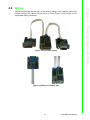
1
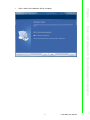
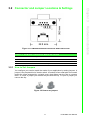
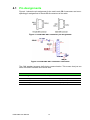
User Manual PCM-2680 2-Port CAN-Bus Mini PCIe Module with Isolation Protection Copyright The documentation and the software included with this product are copyrighted 2013 by Advantech Co., Ltd. All rights are reserved. Advantech Co., Ltd. reserves the right to make improvements in the products described in this manual at any time without notice. No part of this manual may be reproduced, copied, translated or transmitted in any form or by any means without the prior written permission of Advantech Co., Ltd. Information provided in this manual is intended to be accurate and reliable. However, Advantech Co., Ltd. assumes no responsibility for its use, nor for any infringements of the rights of third parties, which may result from its use. Acknowledgements Intel and Pentium are trademarks of Intel Corporation. Microsoft Windows and MS-DOS are registered trademarks of Microsoft Corp. All other product names or trademarks are properties of their respective owners. Product Warranty (2 years) Advantech warrants to you, the original purchaser, that each of its products will be free from defects in materials and workmanship for two years from the date of purchase. This warranty does not apply to any products which have been repaired or altered by persons other than repair personnel authorized by Advantech, or which have been subject to misuse, abuse, accident or improper installation. Advantech assumes no liability under the terms of this warranty as a consequence of such events. Because of Advantech’s high quality-control standards and rigorous testing, most of our customers never need to use our repair service. If an Advantech product is defective, it will be repaired or replaced at no charge during the warranty period. For outof-warranty repairs, you will be billed according to the cost of replacement materials, service time and freight. Please consult your dealer for more details. If you think you have a defective product, follow these steps: 1. Collect all the information about the problem encountered. (For example, CPU speed, Advantech products used, other hardware and software used, etc.) Note anything abnormal and list any onscreen messages you get when the problem occurs. 2. Call your dealer and describe the problem. Please have your manual, product, and any helpful information readily available. 3. If your product is diagnosed as defective, obtain an RMA (return merchandize authorization) number from your dealer. This allows us to process your return more quickly. 4. Carefully pack the defective product, a fully-completed Repair and Replacement Order Card and a photocopy proof of purchase date (such as your sales receipt) in a shippable container. A product returned without proof of the purchase date is not eligible for warranty service. 5. Write the RMA number visibly on the outside of the package and ship it prepaid to your dealer. PCM-2680 User Manual Part No. 2003268010 Edition 1 Printed in Taiwan March 2013 ii Declaration of Conformity CE This product has passed the CE test for environmental specifications when shielded cables are used for external wiring. We recommend the use of shielded cables. This kind of cable is available from Advantech. Please contact your local supplier for ordering information. FCC Class A Note: This equipment has been tested and found to comply with the limits for a Class A digital device, pursuant to part 15 of the FCC Rules. These limits are designed to provide reasonable protection against harmful interference when the equipment is operated in a commercial environment. This equipment generates, uses, and can radiate radio frequency energy and, if not installed and used in accordance with the instruction manual, may cause harmful interference to radio communications. Operation of this equipment in a residential area is likely to cause harmful interference in which case the user will be required to correct the interference at his own expense. Technical Support and Assistance 1. 2. Visit the Advantech web site at www.advantech.com/support where you can find the latest information about the product. Contact your distributor, sales representative, or Advantech's customer service center for technical support if you need additional assistance. Please have the following information ready before you call: – Product name and serial number – Description of your peripheral attachments – Description of your software (operating system, version, application software, etc.) – A complete description of the problem – The exact wording of any error messages Packing List Before setting up the system, check that the items listed below are included and in good condition. If any item does not accord with the table, please contact your dealer immediately. Mini PCIe CAN-bus main communication interface board Two CAN-bus transceiver boards Two 20 cm FPC cables Industrial Communication Driver, Utility and PCI communication card user's manual in UNO DVD-ROM iii PCM-2680 User Manual Safety Precaution - Static Electricity Follow these simple precautions to protect yourself from harm and the products from damage. To avoid electrical shock, always disconnect the power from your PC chassis before you work on it. Don't touch any components on the CPU card or other cards while the PC is on. Disconnect power before making any configuration changes. The sudden rush of power as you connect a jumper or install a card may damage sensitive electronic components. PCM-2680 User Manual iv Contents Chapter 1 Introduction..........................................1 1.1 Introduction ............................................................................................... 2 1.1.1 Controller Area Network................................................................ 2 1.1.2 Optical Isolation Protection ........................................................... 2 Features .................................................................................................... 2 Specifications ............................................................................................ 3 Ordering Information ................................................................................. 3 1.2 1.3 1.4 Chapter Chapter Chapter 2 Driver and Advantech Device Manager Installation5 2.1 Advantech Device Manager Installation.................................................... 6 3 Hardware Installation ..........................9 3.1 3.2 3.3 Initial Inspection ...................................................................................... 10 Connector and Jumper Locations & Settings.......................................... 11 Figure 3.1 PCM-2680 CAN-bus transceiver board silk screen .. 11 Table 3.1: PCM-2680 Transceiver Board Silk Screen............... 11 3.2.1 How to Set Jumpers.................................................................... 11 Figure 3.2 How to set jumpers................................................... 11 3.2.2 Terminator Resistor Setup (JP1) ................................................ 12 Table 3.2: PCM-2680 Terminator Resistor Jumper Setting....... 12 Card Installation ...................................................................................... 12 4 Pin Assignments and Wiring ............13 4.1 Pin Assignments ..................................................................................... 14 Figure 4.1 PCM-2680 DB-9 connector pin assignments ........... 14 Figure 4.2 PCM-2680 DB-9 connector schematics ................... 14 Table 4.1: PCM-2680 Pin Description ....................................... 14 Wiring ...................................................................................................... 15 Figure 4.3 FPC cable wiring ...................................................... 15 Figure 4.4 Wiring on module side .............................................. 15 4.2 v PCM-2680 User Manual PCM-2680 User Manual vi Chapter 1 1 Introduction This chapter provides a general description of the PCM-2680. Sections include: Introduction Features Specifications Ordering Information 1.1 Introduction PCM-2680 is special purpose communication card that offers connectivity to Controller Area Networks (CAN) on your PC. With its built-in CAN controllers, PCM-2680 provides bus arbitration and error detection with an automatic transmission repetition. This drastically reduces the chance of data loss and ensures system reliability. You can run both CAN controllers independently at the same time. The PCM-2680 operates at baud rates up to 1Mbps and can be installed with a Mini PCIe slot. 1.1.1 Controller Area Network CAN is a serial bus system suited for networking "intelligent" I/O devices as well as sensors and actuators within a machine or plant. Characterized by its multi-master protocol, real-time capability, error correction, high noise immunity, and the existence of many different silicon components, the CAN serial bus system, originally developed by Bosch for use in automobiles, is increasingly being used in industrial automation. 1.1.2 Optical Isolation Protection Onboard optical isolators protect your PC and equipment against damage from ground loops, increasing system reliability in harsh environments. 1.2 Features Mini PCIe bus specification 1.2 compliant Operates two separate CAN networks at the same time High speed transmission up to 1 Mbps 16 MHz CAN controller frequency Optical isolation protection of 2,500 VDC ensures system reliability I/O address automatically assigned by PCI PnP LED indicates Transmit/Receive status on each port Windows DLL library and examples included Supports Windows CE5/CE6/XP/7 driver and utility Supports Linux 2.4.xx / 2.6.xx; QNX 6.3x/6.4.x/6.5.x Intel x86 hardware platform PCM-2680 User Manual 2 Chapter 1 1.3 Specifications Bus Interface: Mini PCIe bus spec. 1.2 compliant Ports: 2 Protocol: CAN 2.0 A/B Communication Controller: NXP SJA-1000 CAN Transceiver: NXP 82C251 Signal Support: CAN_H, CAN_L CAN Controller Frequency: 16 MHz Speed (bps): Up to 1 Mbps programmable transfer rate Isolation Protection: 2,500 VDC Connector: Dual DB9 male connectors Power Consumption: 5 V @ 400 mA (Typical) Dimensions: 50.95 x 30 mm (CAN-bus main board), 32.5 x 36.5 mm (CAN-bus transceiver board) Operating Temperature: -20 ~ 75°C (-4 ~ 167°F) (refer to IEC 68-2-1, 2) Storage Temperature: -25 ~ 85°C (-13 ~ 185°F) Operating Humidity: 5 ~ 95% Relative Humidity, non-condensing 1.4 Ordering Information PCM-2680-AE: 2-port CAN-bus Mini PCIe Module with Isolation Protection (CANbus transceiver board included) 3 PCM-2680 User Manual Introduction PCM-2680 User Manual 4 Chapter 2 2 Driver and Advantech Device Manager Installation This chapter shows how to install the driver and Advantech Device Manager. Sections include: Driver Installation 2.1 Advantech Device Manager Installation Advantech provides WDM CAN driver that allows you to configure your hardware and store the settings in your Windows registry. You must install the WDM CAN driver if you want to add and manage Advantech CAN cards. Please follow the steps below to install Advantech CAN WDM Driver. 1. Select “Next” to continue the installation. PCM-2680 User Manual 6 After a while, the installation will be complete. Chapter 2 2. Driver and Advantech Device Manager Installation 7 PCM-2680 User Manual 3. After the physical hardware has been installed, the card will be automatically detected. PCM-2680 User Manual 8 Chapter 3 3 Hardware Installation This chapter covers inspection and installation of hardware and drivers. Sections include: Initial Inspection Jumper Locations & Setting Card Installation 3.1 Initial Inspection You should find the following items inside the shipping package: Mini PCIe communication interface card Industrial Communication Driver, Utility and Mini PCIe communication card user's manual in UNO DVD-ROM PCM-2680 was carefully inspected mechanically and electrically before it was shipped. It should be free of marks and scratches and in perfect working order when received. As you unpack the PCM-2680, check for signs of shipping damage (damaged box, scratches, dents, etc.). If it is damaged or it fails to meet specifications, notify our service department or your local sales representative immediately. Also notify the carrier. Retain the shipping carton and packing material for inspection by the carrier. After inspection we will make arrangements to repair or replace the unit. When you handle the PCM-2680, remove it from its protective packaging by grasping the rear metal panel. Keep the antivibration packing. Whenever you remove the card from the PC, store it in this package for protection. Warning! Discharge your body’s static electric charge by touching the back of the grounded chassis of the system unit (metal) before handling the board. You should avoid contact with materials that hold a static charge such as plastic, vinyl and Styrofoam. Handle the board only by its edges to avoid static damage to its integrated circuits. Avoid touching the exposed circuit connectors. We also recommend that you use a grounded wrist strap and place the card on a static dissipative mat whenever you work with it. PCM-2680 User Manual 10 Table 3.1: PCM-2680 Transceiver Board Silk Screen Item Description CN1 FPC Connector CN2 DB-9 Male Connector JP1 Terminator Resistor Jumper 3.2.1 How to Set Jumpers You configure your card to match the needs of your application by setting jumpers. A jumper is the simplest kind of electric switch. It consists of two metal pins and a small metal clip (often protected by a plastic cover) that slides over the pins to connect them. To “close” a jumper you connect the pins with the clip. To “open” a jumper you remove the clip. Figure 3.2 How to set jumpers 11 PCM-2680 User Manual Hardware Installation Figure 3.1 PCM-2680 CAN-bus transceiver board silk screen Chapter 3 3.2 Connector and Jumper Locations & Settings 3.2.2 Terminator Resistor Setup (JP1) You can set the terminator resistor if necessary to match impedance. Each port has a separate resistor located on its own transceiver board. Table 3.2: PCM-2680 Terminator Resistor Jumper Setting Status Value of Terminator Resistor (Ω) PIN 2-3 Open mode None PIN 1-2 Close mode 120 Ohms Note! It is suggested to set the terminator resistor to 120 Ω to maintain a satisfactory baud rate performance. 3.3 Card Installation Note! Make sure you have installed the driver before installing the card. We strongly recommend that you install the software driver before installing the hardware into your system, since this will guarantee a smooth and trouble-free installation process. Warning! Turn off your PC’s power supply whenever you install or remove the Mini PCIe communication card or its cables. Static electricity can easily damage computer equipment. Ground yourself by touching the chassis of the computer (metal) before you touch any boards. 1. 2. 3. 4. 5. 6. 7. 8. 9. 10. 11. 12. 13. 14. 15. 16. 17. 18. 19. Turn off the computer. Turn the power off to any peripheral devices (such as printers and monitors). Disconnect the power cord and any other cables from the back of the computer. Turn the PC if necessary to gain access to the cables. Remove the PC’s cover (refer to your user’s guide if necessary). Locate the expansion slots or passive back-plane (at the rear of the PC) and choose any unused slot. Remove the screw that secures the expansion slot cover to the PC (save the screw to secure the interface card retaining bracket). Remove the anti-vibration card clamp if supplied. Carefully grasp the upper edge of the Mini PCIe communication card. Align the hole in the retaining bracket with the hole on top of the expansion slot. Align the gold striped edge connector with the expansion slot socket. Press the board firmly into the socket. Replace the screw in the expansion slot’s retaining bracket. Replace anti-vibration cardholder. Install two CAN-bus transceiver boards. Connect the FPC cables between the Mini PCIe board and the transceiver boards. Replace the PC’s cover. Connect the cables you removed in step 3. Turn the computer power on. The board is now installed in the computer. See Chapter 4 for information on cabling. PCM-2680 User Manual 12 Chapter 4 4 Pin Assignments and Wiring This chapter covers the pin assignment for the CAN connector, and the wiring of the two transmission wires. Sections include: Pin Assignments Wiring 4.1 Pin Assignments Figure 4.1 shows the pin assignment for the card’s male DB-9 connectors and corresponding pin assignments of female DB-9 connectors of the cable. Figure 4.1 PCM-2680 DB-9 connector pin assignments Figure 4.2 PCM-2680 DB-9 connector schematics The CAN standard supports half–duplex communication. This means that just two wires are used to transmit and receive data. Table 4.1: PCM-2680 Pin Description Pin Signal Description 2 CAN_L LOW-level CAN voltage input/output 3 GND Ground 7 CAN_H HIGH-level CAN voltage input/output PCM-2680 User Manual 14 CAN-bus main board has two FPC connectors for wiring to two CAN-bus transceiver boards through FPC cables. Please ensure to follow Figure 4.3 and Figure 4.4 for appropriate wiring in between. Pin Assignments and Wiring Figure 4.3 FPC cable wiring Figure 4.4 Wiring on module side 15 Chapter 4 4.2 Wiring PCM-2680 User Manual www.advantech.com Please verify specifications before quoting. This guide is intended for reference purposes only. All product specifications are subject to change without notice. No part of this publication may be reproduced in any form or by any means, electronic, photocopying, recording or otherwise, without prior written permission of the publisher. All brand and product names are trademarks or registered trademarks of their respective companies. © Advantech Co., Ltd. 2013