1
Designing Labels
Create Serialized Data Variable Fields (Counters)
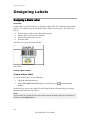
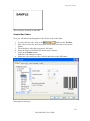
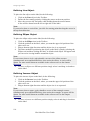
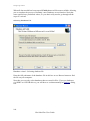
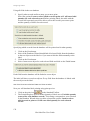
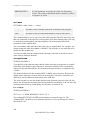
Now create a counter field on the label. The value of that variable field will
automatically increase by one on every label.
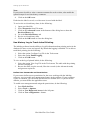
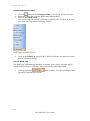
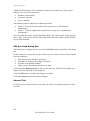
1. Click on the small arrow next to the
display a list of available variable types.
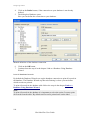
2. Select New Counter from the list.
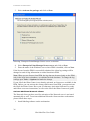
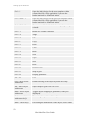
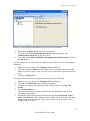
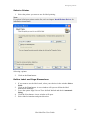
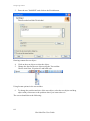
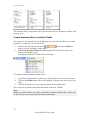
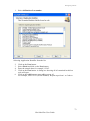
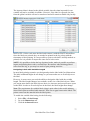
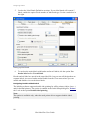
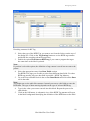
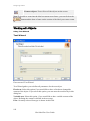
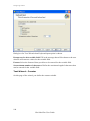
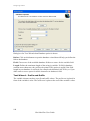
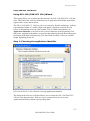
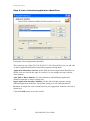
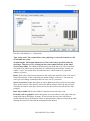
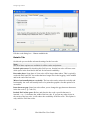
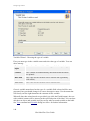
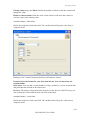
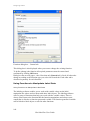
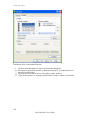
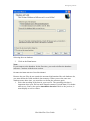
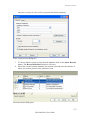
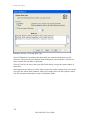
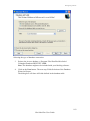
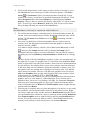
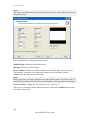
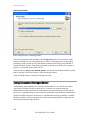
3. A dialog box with counter properties opens.
icon in the Toolbox to
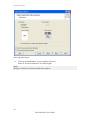
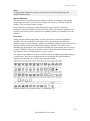
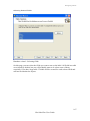
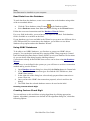
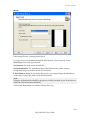
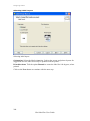
Creating new counter variable field
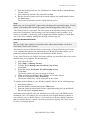
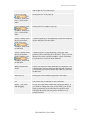
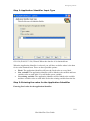
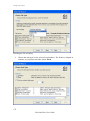
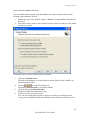
4. Leave everything as default so that the counter will always start from 1 and
increase by one on each label.
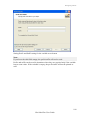
5. Click on the Finish button.
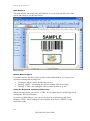
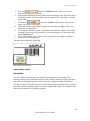
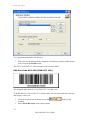
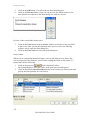
6. Click on the label where the counter should be placed.
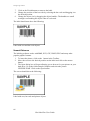
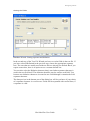
The new variable is linked to the text object on the label.
Note:
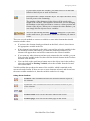
Typically, the counter will increase by 1 on each label. For example, 1, 2, 3, 4, 5, etc.
You can also define different incremental steps.
Create Date and Time Variable Fields
Content of the variable field can be filled automatically with the date or time stamp
from the computer clock or printer clock (for supported printer models).
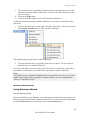
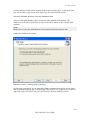
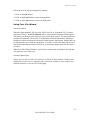
1. Click on the small arrow next to the
icon in the Toolbox to
display a list of available variable types.
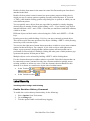
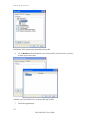
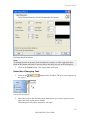
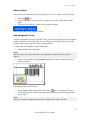
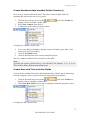
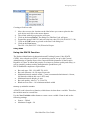
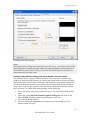
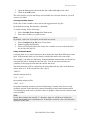
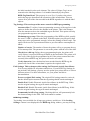
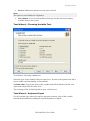
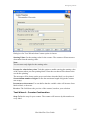
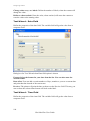
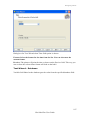
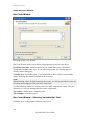
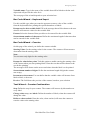
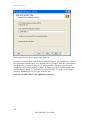
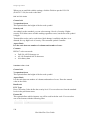
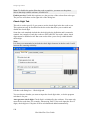
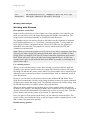
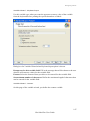
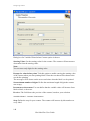
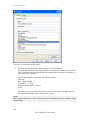
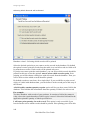
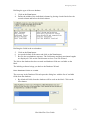
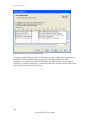
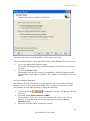
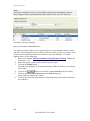
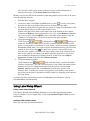
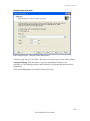
2. Select New Date Field from the list. A dialog box with date properties opens.
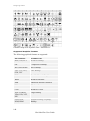
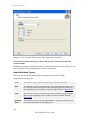
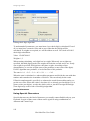
Creating new date variable field
71
NiceLabel Pro User Guide