1
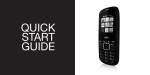
QUICK
START
GUIDE
1. REMOVE BACK COVER
2. INSERT SIM CARDS AND
MEMORY CARD
3. INSERT BATTERY
4. CHARGE FOR 8 HOURS BEFORE
TURNING ON.
5. TURN CELL PHONE ON AND
WAIT FOR INITIAL SETUP
6. MULTIMEDIA PLAYER
CONNECT PHONE TO COMPUTER VIA USB
CABLE TO TRANSFER MUSIC
7. LED LIGHT
EXTEND THE ANTENNA FOR TV AND
FM RADIO USAGE.
PRESS AND HOLD THE CENTER BUTTON
TO TURN ON AND OFF THE LED LIGHT
USER
MANUAL
P730
UNPACKING
Check the product box for the following
items:
INTRODUCING
YOUR MOBILE
PHONE
Learn about your mobile
phone’s layout, and keys.
Mobile phone
Battery
Travel adapter (charger)
User manual
The supplied accessories perform best for your phone.
PHONE LAYOUT
From the front view of your phone you
will observe the following elements:
From the back view of your phone you
will observe the following elements:
KEYS
The following table offers you a quick
description about the phone’s keys:
KEY
FUNCTION
NAVEGATION
Function
KEY
Function
CALL SIM 2
Perform the action indicated in the
Perform theFUNCTION
action indicated in the
bottom of the screen.
CALL SIM 3
bottom of the screen.
Open the list of recent calls or make a
call to
Open the list
of recent
a the displayed number. You can
CALL
SIMcalls
2 or make
call to the displayed number. Youanswer
can an incoming call.
answer an incoming call.
Open the list of recent calls or make a
Open the list
of recent
calls
a the displayed number. You can
call to
CALL
SIM
3 or make
call to the displayed number. Youanswer
can an incoming call.
answer an incoming call.
a call or reject an incoming call.
In standby mode, you can access the Ends a call or reject an incomingEnds
call. down for 3 seconds to turn on /
In standbyNAVEGATION
mode, you can access
the
user-defined
functions, In Menu mode, Hold down for
HANG
UPto turnHold
3 seconds
onthe
/ phone.
user-defined functions, In Menu scroll
mode,through menuHANG
off
options. UP
off the phone.
scroll through menu options.
BUTTON
standby mode, press and hold the
In standby mode,
press and holdInthe
CENTRAL
Enter numbers, text and / or special
button
text and / or special
button to turn on the flashlight, In
Menuto turn on the flashlight, In MenuEnter numbers,
0123.......9
characters.
mode, select the highlighted
menu
0123.......9
characters.
mode, selectBUTTON
the highlighted menu
option or confirm an action.
option or confirm an action.
CALL SIM 1
Opena the list of recent calls or make a
Open the list of recent calls or make
the down 3 seconds to change the
to the displayed number. You can Hold down 3 seconds to changeHold
call to the displayed
number.
can
CALL SIM
1 Youcall
sound profile to vibrate.
#
sound profile to vibrate.
answer an incoming call. #
answer an incoming call.
CENTRAL
INSTERT SIM AND BATTERY
PREPARING
YOUR MOBILE
PHONE
Get started setting up your
mobile phone for its first use.
When you subscribe to a cellular service,
you will receive a Subscriber Identity
Module (SIM) card, with subscription
details, such as your personal identification
number (PIN) and optional servies.
To install the SIM cards and battery,
1. Remove the battery cover.
2. Insert SIM cards.
Your phone has 3 SIM card slots to allow
you use 3 SIM cards and switch between
them.
• Place the SIM card in the phone with
the gold- colored contacts facing down.
• Without inserting a SIM card, you can
use your phone’s non-network services
and some menus.
3. Insert the battery.
4. Replace the battery cover.
INSERT A MEMORY
CARD(OPTIONAL)
1. Remove the battery cover.
To store additional multimedia files, you
must insert a memory card. Your phone
accepts microSD™ or microSDHC™
memory cards up to 32 GB (depending on
memory card manufacturer and type).
Formatting the memory card on a
PC may cause incompatibility with your
phone. Format the memory card only on
the phone.
2. Unlock the memory card holder
3. Lift the memory card holder and insert
a memory holder with the label side facing
up.
4. Close the memory card holder
5. Lock the memory card holder.
6. Replace the battery cover.
To remove the memory card, remove the battery cover,
unlock and lift the memory card holder, and remove the
memory card.
ON AND OFF
USING BASIC
FUNCTIONS
Learn how to perform basic
operations of your mobile
phone.
To turn your phone on,
1. Press and hold [
].
2. Enter your PIN and press < OK >
(if necessary).
ACCESS MENUS
To access your phone’s menus,
1. In Idle mode, press the left soft key <
Menu > to access Menu mode.
2. Use the Navigation key to scroll to a
menu or option.
3. Press < Select>, < OK>, or the Confirm
key to confirm the highlighted option.
4. Press <Back> to move up one level;
Press [
] to return to Idle mode.
USE BASIC CALL FUNCTIONS
Learn to make or answer calls in this
section
Make a call:
1. In Idle mode, enter an area code and a
phone number.
2. Press [
] to dial the number.
3. To end the call, press [
].
Answer a call:
1. When a call comes in, press [
2. To end the call, press [
].
].
SEND AND VIEW MESSAGES
In this section, learn to send and view text
(SMS), multimedia (MMS).
To send a text or multimedia message:
1. In Menu mode, select Messages –>
Create new message –> Message.
2. Enter a destination number and scroll
down.
3. Enter your message text.
For sending as a text message, skip to
step 5. For attaching multimedia, continue
with step 4.
4. Press < Options> –> Add multimedia
and add an item.
5. Press < Options> –> Send to send the
message.
Add contacts
Learn the basics of using the phonebook
feature.
Add a new contact:
1. In Idle mode, enter a phone number and
press <Options>.
2. Select Save –> a memory location
(phone, SIM1, or SIM2) –> New.
3. Select a number type (if necessary).
4. Enter contact information.
5. Press < Options > –> Save to add the
contact to memory.
Find a contact
1. In Menu mode, select Phonebook.
2. Enter the first few letters of the name
you want to find.
3. Select the contact’s name from the
search list.
Once you have found a contact, you can
call the contact by pressing [
]
LISTEN TO MUSIC
Learn how to listen to music via the music
player or FM radio.
Listen to the FM radio:
1. Plug the supplied headset into the
phone’s multifunction jack.
2. In Menu mode, select FM radio.
3. Press the Confirm key to start the radio.
4. Control the FM radio using the following
keys:
KEY
FUNCTIONS
Controls the FM radio functions, turning
NAVEGATION on or off, change channels, channel
scanning.”
Listen to music files:
After transferring music files to the “My
Music” folder of your phone or memory
card,
1. In Menu mode, select Multimedia
–>Audio Player.
2. Select a music category –> a music file.
3. Control playback using the following
keys:
KEY
FUNCTIONS
Controls audio player functions, turning on
NAVEGATION or off, change Music, search music.
Using the flashlight
To turn on or off the flashlight, press and
keep pressing the center button for about
3 seconds.
Browse the web
Learn to access your favorite web pages.
Browse web pages:
1. In Menu mode, select Browser –>
Home –> a SIM card (if necessary) to
launch your service provider’s homepage.
2. Navigate web pages using the following
keys:
USING THE CAMERA
Learn the basics to capture
and view photos.
Capture photos
1. In Menu mode, select Camera to turn
on the camera.
2. Aim the lens at the subject and make
any adjustments.
3. Press the Confirm key to take a photo.
The photo is saved automatically.
4. Press < Back> to take another photo
(step 2).
View taken photos
Press the left soft key then choose Photos
to access to the photos gallery quickly.
Camera options
Entering in the Camera options you will be
able to configure the following options:
Camera settings:
Select a shutter sound every time you take
a picture.
Change the exposure value to adjust the
photo brightness.
Change the Anti-flicker value to eliminate
the fluorescent effect on the photos.
Adjust the contrast to differentiate dark
and light areas.
Modify the delay timer to take self-photos.
Change the continuous shot number to
take a series of photos.
Image settings:
You can change the image size.
You can adjust the image quality.
White balance:
Chose a color scheme according to the
ambient.
Scene mode:
Allow you to select the night mode (extra
light) or let the phone to choose the best
mode.
Effect settings:
Add a color effect to the photos taken.
Storage:
Let you choose where to store the photos
taken.
Restore default:
Restore the camera setting to the factory
values.
GENERAL SECURITY
Don’t make or receive
handheld calls while driving.
And never text while driving.
SECURITY
INFORMATION
Please remember to obey
relevant rules and regulations
whenever use your phone. This
will prevent bad effect from you
and the environment.
Don’t use at petrol stations.
Keep your phone at least 15
mm away from your ear or
body while making calls.
Your phone may produce a
bright or flashing light.
Small parts may cause a
choking.
Don’t dispose of your phone
in fire.
Avoid contact with liquids.
Keep your phone dry.
Your phone can produce a
loud sound.
Switch off when told to in
aircrafts and airports.
Avoid contact with anything
magnetic.
Don’t take your phone apart.
Keep away from pacemakers
and other electronic medical
devices.
Switch off when near
explosive materials or
liquids.
Avoid extreme temperatures.
Only use approved
accessories.
Switch off when asked to in
hospitals and medical
facilities.
Don’t rely on your phone for
emergency communications.