1
Customer’s Record
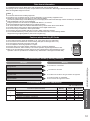
The model number and serial number of this product can be found on its back cover. You should note this serial number in
the space provided below and retain this book, plus your purchase receipt, as a permanent record of your purchase to aid
in identification in the event of theft or loss, and for Warranty Service purposes.
Model Number
Serial Number
Anotación del cliente
El modelo y el número de serie de este producto se encuentran en su panel posterior. Deberá anotarlos en el espacio
provisto a continuación y guardar este manual, más el recibo de su compra, como prueba permanente de su adquisición,
para que le sirva de ayuda al identificarlo en el caso de que le sea sustraído o lo pierda, y también para disponer de los
servicios que le ofrece la garantía.
Modelo
Número de serie
Panasonic Consumer Electronics Company,
Division of Panasonic Corporation of North America
One Panasonic Way, Secaucus
New Jersey 07094 U.S.A.
© 2011 Panasonic Corporation of North America. All Rights Reserved.
© 2011 Panasonic Corporation of North America. Todos los Derechos Reservados.
Panasonic Canada Inc.
5770 Ambler Drive
Mississauga, Ontario
L4W 2T3 CANADA
Printed in U.S.A.
Impreso en EE.UU.
M0111-0
Model No.
Número de modelo
TC-P42S30
TC-P46S30
TC-P50S30
Owner’s Manual
42”/46”/50” Class 1080p Plasma HDTV
(41.6/46.0/49.9 inches measured diagonally)
Manual de usuario
Televisión de alta definición de 1080p y
clase 42”/46”/50” de Plasma
(41,6/46,0/49,9 pulgadas medidas diagonalmente)
For assistance (U.S.A./Puerto Rico), please call:
1-877-95-VIERA (958-4372)
www.panasonic.com/help
For assistance (Canada), please call:
1-866-330-0014
www.vieraconcierge.ca
Para solicitar ayuda (EE.UU./Puerto Rico), llame al:
1-877-95-VIERA (958-4372)
www.panasonic.com/help
English
Thank you for purchasing this Panasonic product.
Please read these instructions before operating your set and retain them for future
reference. The images shown in this manual are for illustrative purposes only.
Español
Gracias por su decisión de comprar este producto marca Panasonic.
Lea estas instrucciones antes de utilizar su televisor y guárdelas para consultarlas en
el futuro. Las imágenes mostradas en este manual tienen solamente fines ilustrativos.
TQB2AA0604
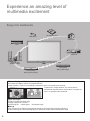
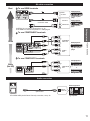
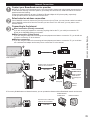
Experience an amazing level of
multimedia excitement
Enjoy rich multimedia
SD memory card
USB device
Camcorder
VCR
Cable box
Amplifier with
Speaker system
DVD player/
Blu-ray Disc player
DVD recorder/
Blu-ray Disc recorder
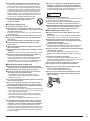
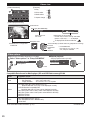
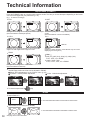
■ Do not display a still picture for a long time
This causes the image to remain on the plasma screen
(“Image retention”). This is not considered a malfunction and is not covered by the warranty.
4:3
Typical still images
12
To prevent the “Image retention”, the screen saver is
automatically activated after a few minutes if no signals are
sent or no operations are performed.
● Channel number and other logos
● Image displayed in 4:3 mode
● SD Card photo ●Video game ●Computer image
■ Set up
● Do not place the unit where it’s exposed to sunlight or other bright light (including reflections).
● Use of some types of fluorescent lighting may reduce the remote control’s transmission range.
2
VIERA Link™ is a trademark of
Panasonic Corporation.
HDMI, the HDMI logo and HighDefinition Multimedia Interface are
trademarks or registered trademarks
of HDMI Licensing LLC in the United
States and other countries.
Contents
Please read before using the unit
SDXC Logo is a trademark of SD3C, LLC.
DLNA®, the DLNA Logo and DLNA
CERTIFIED™ are trademarks,
service marks, or certification
marks of the Digital Living Network
Alliance.
Manufactured under license from Dolby Laboratories.
Dolby and the double-D symbol are trademarks of Dolby
Laboratories.
HDAVI Control™ is a trademark of Panasonic Corporation.
TM
Basic Features
TV ················································· 17
• Watching
VIERA TOOLS ···································· 20
• Using
content from external devices ······· 21
• Watching
• Using Media player ······································· 22
Advanced Features
Link “HDAVI Control ”···················· 28
• VIERA
Network services ································ 34
••Using
Network Connections·································· 35
TM
TM
• Network settings ········································· 36
• Using EASY IPTV ······································· 39
• Using DLNA feature ···································· 40
• Network Camera ········································· 41
and Setting Channels ······················· 42
• Editing
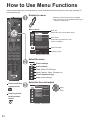
to Use Menu Functions························· 44
••How
Picture settings ··········································· 45
Advanced
• Audio settings ············································· 46
• Timer settings ············································· 46
• Lock ···························································· 47
• Closed caption ············································ 47
• Setup ·························································· 48
Support Information
List for parental control ···················· 49
• Ratings
Information ···································· 50
• Technical
and Cleaning ········································ 53
• Care
Asked Questions (FAQ) ·············· 54
• Frequently
57
• Specifications················································
····························································· 58
• Index
Warranty
• Limited
(for U.S.A. and Puerto Rico only) ················· 59
Services Directory
• Customer
(for U.S.A. and Puerto Rico) ························· 60
• Limited Warranty (for Canada) ····················· 61
Support Information
This product is licensed under the AVC patent portfolio
license for the personal and non-commercial use of a
consumer to (i) encode video in compliance with the AVC
Standard (“AVC Video”) and/or (ii) decode AVC Video
that was encoded by a consumer engaged in a personal
and non-commercial activity and/or was obtained from a
video provider licensed to provide AVC Video. No license
is granted or shall be implied for any other use. Additional
information may be obtained from MPEG LA, LLC.
See http://www.mpegla.com.
Accessory····················· 7
• Accessories/Optional
·················································· 10
• Connections
Controls ······································· 12
• Identifying
• First Time Setup············································ 13
Basic
This product qualifies for ENERGY
STAR in the “Home Use” setting
and this is the setting in which
energy savings will be achieved.
Any modifications to the “Home
Use” setting or other factory default
settings could result in greater
energy consumption beyond
levels that meet ENERGY STAR
qualifications.
Getting started
Getting started
“AVCHD” and the “AVCHD” logo
are trademarks of Panasonic
Corporation and Sony Corporation.
• Safety Precautions·········································· 4
3
Safety Precautions
CAUTION
RISK OF ELECTRIC SHOCK
DO NOT OPEN
WARNING: To reduce the risk of electric shock, do not remove cover or back.
No user-serviceable parts inside. Refer servicing to qualified service personnel.
WARNING:
The lightning flash with
arrowhead within a triangle is
intended to tell the user that
parts inside the product are a risk
of electric shock to persons.
The exclamation point within a
triangle is intended to tell the
user that important operating
and servicing instructions are in
the papers with the appliance.
To reduce the risk of fire or electric shock, do not expose this apparatus to rain or moisture.
Do not place liquid containers (flower vase, cups, cosmetics, etc.) above the set
(including on shelves above, etc.).
Important Safety Instructions
1)
2)
3)
4)
5)
6)
7)
Read these instructions.
Keep these instructions.
Heed all warnings.
Follow all instructions.
Do not use this apparatus near water.
Clean only with dry cloth.
Do not block any ventilation openings. Install in
accordance with the manufacturer’s instructions.
8) Do not install near any heat sources such as radiators,
heat registers, stoves, or other apparatus (including
amplifiers) that produce heat.
9) Do not defeat the safety purpose of the polarized or
grounding-type plug. A polarized plug has two blades with
one wider than the other. A grounding type plug has two
blades and a third grounding prong. The wide blade or the
third prong are provided for your safety. If the provided
plug does not fit into your outlet, consult an electrician for
replacement of the obsolete outlet.
10) Protect the power cord from being walked on or pinched
particularly at plugs, convenience receptacles, and the
point where they exit from the apparatus.
11) Only use attachments / accessories specified by the
manufacturer.
12) Use only with the cart, stand, tripod,
bracket, or table specified by the
manufacturer, or sold with the apparatus.
When a cart is used, use caution when
moving the cart / apparatus combination to
avoid injury from tip-over.
13) Unplug this apparatus during lightning storms or when
unused for long periods of time.
14) Refer all servicing to qualified service personnel. Servicing
is required when the apparatus has been damaged in any
way, such as power-supply cord or plug is damaged, liquid
has been spilled or objects have fallen into the apparatus,
the apparatus has been exposed to rain or moisture, does
not operate normally, or has been dropped.
15) To prevent electric shock, ensure the grounding pin on the
AC cord power plug is securely connected.
WARNING/CAUTION (TV set)
WARNING
Small parts can present choking hazard if accidentally
swallowed.
Keep small parts away from young children.
Discard unneeded small parts and other objects,
including packaging materials and plastic bags/sheets to
prevent them from being played with by young children,
creating the potential risk of suffocation.
■ Set up
This Plasma TV may fall and can cause personal injury or
even death if not installed correctly. To prevent personal
injury or death, follow these warnings:
● Install the Plasma TV in accordance with the
manufacturer’s recommended pedestal or stand,
corresponding hardware and installation instructions.
This Plasma TV is for use only with the following
optional accessories. Use with any other type of optional
accessories may cause instability. The following accessories
are manufactured by Panasonic Corporation.
• Wall-hanging bracket (Angled)
TY-WK4P1RW
4
● Be sure to ask a qualified technician to carry out the
installation and set-up.
Two or more people are required to install or remove the
television.
● Some wall mounts (wall-hanging brackets) are not
designed to be mounted to walls with steel studs or old
cinder block constructions.
Ask your dealer or licensed contractor to properly secure
the wall-hanging bracket.
● Do not route the TV’s power cord inside the wall.
The power cord was not designed for in-wall mounting.
Doing so can lead to fire hazard.
● Do not place the Plasma TV or its stand on a sloped or
unstable surface.
The Plasma TV may fall or tip over.
● Do not support the Plasma TV on a non-specified
pedestal.
● Do not place the Plasma TV on furniture that can easily
be used as steps, such as a chest of drawers.
● Do not climb or allow children to climb on the Plasma TV
● Place or install the Plasma TV where it cannot be
pushed, pulled over or knocked down.
● Route all cords and cables such that they cannot be
tripped over or pulled by curious children.
● Do not place any objects on top of the Plasma TV.
If water spills onto the Plasma TV or foreign objects get
inside it, a short-circuit may occur which could result in
fire or electric shock. If any foreign objects get inside the
Plasma TV, please consult an Authorized Service Center.
In the unlikely event that you receive a shock from this
product it is possible that your household outlet may be
wired improperly. Have an electrician verify that the TV’s
outlet is properly wired. If the symptom persists, have the
TV serviced by a qualified authorized technician.
● To prevent the spread of fire, keep candles
or other open flames away from this
product at all times
■ AC Power Supply Cord
To prevent fire or electric shock:
● The Plasma TV is designed to operate on a 120 V AC,
60 Hz service. Insert the power cord plug as far as it will
go into the wall socket.
If the plug is not fully inserted, heat may generate, which
could cause a fire.
● The included power cord is for use with this unit only.
● Do not use any power cord other than that provided
with this TV.
● Do not handle the power cord plug with wet hands.
● Do not do anything that might damage the power
supply cord.
● When disconnecting the power supply cord, hold the
plug, not the cord.
● Do not use the power supply cord if the plug or cord is
damaged.
Replace the cord or contact your Authorized Service Center.
● Do not use a 3-prong to 2-prong AC plug adapters to
connect your TV’s plug to the wall outlet.
Doing so will defeat the TV plug’s safety feature, which
can lead to a shock hazard. If the wall outlet does not
accommodate a 3-prong plug, have a qualified electrician
replace your outlet and check the associated wiring.
■ Handling the power supply cord
● Insert the power plug fully into the socket outlet. (If the
power plug is loose, it could generate heat and cause fire.)
● Ensure that the power plug is easily accessible.
● Ensure the earth pin on the power plug is securely
connected to prevent electrical shock.
• An apparatus with CLASS I construction shall be
connected to a power socket outlet with a protective
earthing connection.
● Do not touch the power plug with a wet hand. (This may
cause electrical shock.)
● Do not use any power cord other than that provided
with this TV. (This may cause fire or electrical shock.)
● Do not damage the power cord. (A damaged cord may
cause fire or electrical shock.)
• Do not move the TV with the cord plugged in the socket outlet.
• Do not place a heavy object on the cord or place the cord
near a high-temperature object.
• Do not twist the cord, bend it excessively, or stretch it.
• Do not pull on the cord. Hold onto the power plug body
when disconnecting cord.
• Do not use a damaged power plug or socket outlet.
● If water or an object gets inside the Plasma TV, if the
Plasma TV is dropped, or if the enclosure becomes
damaged, unplug the power supply cord immediately.
A short-circuit may occur, which could cause a fire. Contact
an Authorized Service Center for an evaluation.
CAUTION
● Do not cover the ventilation holes.
Doing so may cause the Plasma TV to overheat, which can
cause a fire or damage to the Plasma TV.
● Leave a space of 3 15/16” (10 cm) or more at the top,
left and right, and 2 3/4” (7 cm) or more at the rear.
● When using the pedestal, keep the space between the
bottom of the TV and the pedestal or stand surface
clear from objects that may obstruct ventilation.
■ When Moving the Plasma TV
● Be sure to disconnect all cables before moving the
Plasma TV.
Moving the TV with its cables attached might damage the
cables which, in turn, can cause fire or electric shock.
● To prevent an electric shock, disconnect the power
plug from the wall outlet as a safety precaution before
carrying out any cleaning.
● Transport only in upright position.
Transporting the unit with its display panel facing upright or
downward may cause damage to the internal circuitry.
● Using a dry cloth, clean any dust from the power supply
cord and plug regularly.
Build-up of dust on the power cord plug can increase
humidity, which might damage the insulation and cause a
fire.
This Plasma TV radiates infrared rays;
therefore, it may affect other infrared communication
equipment. Install your infrared sensor in a place away from
direct or reflected light from your Plasma TV.
The TV will still consume some power as long as the
power supply cord is connected to the wall outlet.
● Display panel is made of glass. Do not apply strong
force or impact to the display panel.
This may cause damage resulting in injury.
● The TV is heavy. TV should be handled by 2 or more
people. Support as shown to avoid injury by the TV
tipping or falling.
● If a problem occurs (such as no picture or no sound),
or if smoke or an abnormal odor is detected from the
Plasma TV, unplug the power supply cord immediately.
Continued use of the TV under these conditions might
cause a fire or permanent damage to the TV. Have the TV
evaluated by an Authorized Service Center. Servicing of the
TV by unauthorized personnel is strongly discouraged due
to its high voltage.
5
CEA CHILD SAFETY NOTICES
WARNING
Flat panel displays are not always supported on the
proper stands or installed according to the manufacturer’s
recommendations. Flat panel displays that are inappropriately
situated on dressers, bookcases, shelves, desks, speakers,
chests or carts may fall over and may cause personal injury or
even death.
The consumer electronics industry (of which Panasonic is
a member) is committed to making home entertainment
enjoyable and safe. To prevent personal injury or death, be
sure to follow the following safety guidelines:
TUNE INTO SAFETY:
• One size does NOT fit all. Follow the manufacturer’s
recommendations for the safe installation and use of your
flat panel display.
• Carefully read and understand all enclosed instructions for
proper use of this product.
• Don’t allow children to climb on or play with furniture and
television sets.
• Don’t place flat panel displays on furniture that can easily be
used as steps, such as a chest of drawers.
• Remember that children can become excited while watching
a program, especially on “larger than life” flat panel
displays. Care should be taken to install the display where it
cannot be pushed, pulled over, or knocked down.
• Care should be taken to route all cords and cables
connected to the flat panel display so that they cannot be
pulled or grabbed by curious children.
WALL MOUNTING: IF YOU DECIDE TO WALL MOUNT
YOUR FLAT PANEL DISPLAY, ALWAYS:
• Use a mount that has been recommended by the display
manufacturer and/or listed by an independent laboratory
(such as UL, CSA, ETL).
• Follow all instructions supplied by the display and wall
mount manufacturers.
• If you have any doubts about your ability to safely
install your flat panel display, contact your retailer about
professional installation.
• Make sure the wall where you are mounting the display
is appropriate. Some wall mounts are not designed to
be mounted to walls with steel studs or old cinder block
construction. If you are unsure, contact a professional
installer.
• A minimum of two people are required for installation. Flat
panel displays can be heavy.
Panasonic recommends that a qualified installer perform
the wall-mount installation. See page 4.
The American Academy of Pediatrics discourages
television viewing for children younger than two years
of age.
FCC STATEMENT
This equipment has been tested and found to comply with the limits for an Other Class B digital device, pursuant to Part 15 of the
FCC Rules. These limits are designed to provide reasonable protection against harmful interference in a residential installation.
This equipment generates, uses and can radiate radio frequency energy and, if not installed and used in accordance with the
instructions, may cause harmful interference to radio communications. However, there is no guarantee that interference will not
occur in a particular installation. If this equipment does cause harmful interference to radio or television reception, which can be
determined by turning the equipment off and on, the user is encouraged to try to correct the interference by one or more of the
following measures:
• Reorient or relocate the receiving antenna.
• Increase the separation between the equipment and receiver.
• Connect the equipment into an outlet on a circuit different from that to which the receiver is connected.
• Consult the Panasonic Service Center or an experienced radio/TV technician for help.
FCC Caution:
To assure continued compliance, follow the attached installation instructions and use only shielded interface cables
when connecting to peripheral devices. Any changes or modifications not expressly approved by Panasonic Corp. of
North America could void the user’s authority to operate this device.
Responsible Party:
Contact Source:
email:
Panasonic Corporation of North America
One Panasonic Way, Secaucus, NJ 07094
Panasonic Consumer Electronics Company
1-877-95-VIERA (958-4372)
[email protected]
CANADIAN NOTICE:
For Model TC-P42S30, TC-P46S30, TC-P50S30
This Class B digital apparatus complies with Canadian ICES-003.
6
Accessories/Optional Accessory
Accessories
Check you have all the items shown.
Accessories
Remote Control
Transmitter
N2QAYB000570
Batteries for the
Remote Control
Transmitter (2)
AC cord
AA Battery
TBL5ZX0029 (TC-P42S30)
TBL5ZX0032
(TC-P46S30, TC-P50S30)
Owner’s Manual
Child safety
Quick start guide
Product Registration Card (U.S.A.)
Wall-hanging bracket
(angle)
TY-WK4P1RW
Please contact your nearest Panasonic dealer to purchase the recommended
wall-hanging bracket. For additional details, please refer to the wall-hanging
bracket installation manual.
Rear of the TV
a
Screw for fixing the TV onto the wall-hanging bracket
(not supplied with the TV)
Depth of screw:
minimum 0.67” (17.0 mm),
maximum 0.87” (22.0 mm)
b
M8
a: 15.7” (400 mm)
b: 11.8” (300 mm)
Holes for wall-hanging
bracket installation
(View from the side)
Accessories/Optional Accessory
Optional Accessory
How to assemble
(p. 8)
Getting started
Pedestal
Warning
In order to maintain the TV’s performance and safety, be absolutely sure to ask your dealer or a licensed
contractor to secure the wall-hanging brackets.
Carefully read the instructions accompanying optional accessories, and be absolutely sure to take steps to
prevent the TV from tipping over.
Handle the TV carefully during installation since subjecting it to impact or other forces may cause product
damage.
Take care when fixing wall brackets to the wall. Always ensure that there are no electrical cables or pipes in the
wall before hanging bracket.
When using the angled-type wall hanging bracket, please ensure that there is sufficient space for the connecting
cables not to press against the wall when the TV is tilted forward.
For safety reasons, remove units no longer being used from their wall-mounted locations.
7
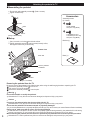
Attaching the pedestal to TV
■Assembling the pedestal
Fix securely with assembly screws A (Total 4 screws).
Tighten screws firmly.
A
Accessories
A
Assembly screws
(4 of each)
A
Pole
XYN5+F20FN
size (M5 × 20) (Silver)
Base
B
Front
THEL088N (for 42”)
THEL087N (for 46”, 50”)
size (M5 × 25) (Black)
(Image: TBL5ZX0032)
■Set-up
Carry out work on a horizontal and level surface.
Tighten assembly screws B (total 4 screws) loosely at first,
then tighten them firmly to fix securely.
Bracket (1)
Bottom view
B
Rear side
Base (1)
Arrow
mark
Arrow
mark
Hole for pedestal
installation
Pole
Base
(Image: TC-P50S30)
Removing the pedestal from the TV
Be sure to remove the pedestal in the following way when using the wall hanging bracket or repacking the TV.
Remove the assembly screws B from the TV.
Pull out the TV from the pedestal.
Remove the assembly screws A from the pole.
Warning
Do not disassemble or modify the pedestal.
Otherwise the TV may fall over and become damaged, and personal injury may result.
Caution
8
Do not use any pedestal other than that provided with this TV.
Otherwise the TV may fall over and become damaged, and personal injury may result.
Do not use the pedestal if it becomes warped or physically damaged.
If you use the pedestal when it is physically damaged, personal injury may result. Contact your nearest Panasonic Dealer immediately.
During set-up, make sure that all screws are securely tightened.
If sufficient care is not taken to ensure screws are properly tightened during assembly, the pedestal will not be strong
enough to support the TV, and it might fall over and become damaged, and personal injury may result.
When removing the pedestal, do not remove the pedestal by any methods other than the specified procedure.
Otherwise the TV and/or pedestal may fall over and become damaged, and personal injury may result.
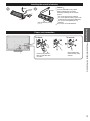
Installing the remote’s batteries
Open
Close
Hook
Note the correct polarity
(+ or -).
Caution
Incorrect installation may cause
battery leakage and corrosion,
resulting in damage to the remote
control.
not mix old and new batteries.
• Do
not mix different battery types (such
• Do
as alkaline and manganese batteries).
not use rechargeable (Ni-Cd)
• Do
batteries.
Do not burn or break batteries.
To attach
Keep pushing both
sides until they snap
and pull.
Accessories/Optional Accessory
Insert it firmly until the
tabs on both sides click
into place.
To remove
Getting started
Power cord connection
9
Connections
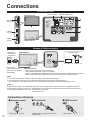
Connection Panels
LAN connector
Front of the TV
DIGITAL AUDIO OUT
A
SD card
slot (p.22)
B
USB1/2
connector
C
HDMI 3
terminal
Back of the TV
Antenna or Cable connection
* See page 9
(Power cord
connection)
VHF/UHF Antenna
Back of the TV
Cable TV
Power Cord
(Connect after all the
other connections have
been made.)
or
VHF/UHF Antenna
• NTSC (National Television System Committee):
ATSC (Advanced Television Systems Committee):
Digital TV Standards include digital high-definition television (HDTV), standard-definition television
(SDTV), data broadcasting, multichannel surround-sound audio and interactive television.
Cable
● You need to subscribe to a cable TV service to enjoy viewing their programming.
● You may need to subscribe to a high-definition (HD) cable service to enjoy HD programming.
The connection for high-definition can be done with the use of an HDMI or Component Video cable. (p. 11)
Note
● When using a Cable box, external equipment and video cables shown in this manual are not supplied with the TV.
● When disconnecting the power cord, be absolutely sure to disconnect the power cord plug from the wall outlet first.
● For additional assistance, visit us at: www.panasonic.com/help
www.panasonic.ca
Connection references
■ Antenna terminal
■ Pin terminals
red
■ HDMI terminal
blue green
green
● Firmly tighten by hand.
10
● Match colors of plugs and terminals.
● Insert firmly.
● Insert firmly.
AV cable connection
Best
To use HDMI terminals
AV Equipment
HDMI
AV OUT
e.g. Blu-ray Disc
player
AV Equipment
DVI OUT
HDMI-DVI
Conversion cable
L
AUDIO OUT
e.g. Blu-ray Disc
player
R
Getting started
● VIERA Link connection, please refer to p. 29
● The HDMI connection is required for a 1080p signal.
To use COMPONENT terminals
Y
red
green green
PB COMPONENT
Good
blue
blue
VIDEO OUT
AV Equipment
PR
red
red
e.g. Blu-ray Disc
player
L
white
red
white white AUDIO
R OUT
red
red
Connections
green
blue
To use COMPOSITE terminals
AV Equipment
Basic
(Not HD)
yellow
yellow yellow
L
white
COMPOSITE
white white OUT
e.g. DVD Recorder
or
R
red
red
red
e.g. VCR
Audio connection
Audio equipment
Optical cable
● For HDMI-ARC (Audio Return Channel) connection, see p. 28
DIGITAL
AUDIO IN
e.g. Amplifier
11
Identifying Controls
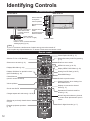
TV controls/indicators
Front of the TV
Back of the TV
Selects channels
in sequence
Volume up/down
Displays the Main
Menu
Remote control sensor
Within about 23 feet
(7 meters) in front of
the TV set
Changes the input
mode
Chooses Menu and
Submenu entries
Power indicator
(on: red, off: no light)
POWER button
C.A.T.S. sensor
Plasma C.A.T.S. (Contrast Automatic
Tracking System) (p. 45)
Note
● The TV consumes a small amount of electric energy even when turned off.
● Do not place any objects between the TV remote control sensor and remote control.
Remote control
Closed Caption On/Off (p. 17)
Switches TV On or Off (Standby)
Selects Secondary Audio Programming
(p. 17)
Select source to watch (p. 21)
Exits from menu screen
VIERA Link menu (p. 32-33)
Displays Main Menu (p. 44)
Displays Sub Menu for special functions
(when available) (p. 18)
Display VIERA TOOLS Menu (p. 20)
Viewing from SD Card (p. 22-27)
Selects/OK/Change
Colored buttons
(used for various functions)
Volume up/down
Channel up/down, when viewing from
ANT/Cable source
Sound mute On/Off
Displays or removes the channel
banner (p. 17)
Changes aspect ratio and zoom(p. 18, 50)
Operates the Favorite channel list
function (p. 18)
Switches to previously viewed channel
or input
External equipment operations
(p. 33)
12
Go back to previous menu
Numeric keypad to select any channel
or press to enter alphanumeric input in
menus
Use for digital channels. (p. 17)
First Time Setup
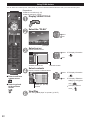
The first time setup screen is displayed only when the TV is turned on for the first time after the power cord
is inserted into a wall outlet and when “Auto power on” (p. 48) is set to “No”.
Turn the TV On with the POWER button
(Remote)
(TV)
or
or
Select your language
Language / Idioma / Langue
Step 1 of 7 / Paso 1 de 7 / Étape 1 de 7
Select your language
Seleccione su idioma
Sélection de la langue
English
Español
select
Français
OK
Getting started
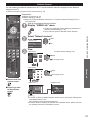
Configure your viewing mode
OK
Select your country
Country
Step 2 of 7
Select the country where this TV is being used.
U.S.A.
Canada
select
Other
OK
OK
Select
RETURN
Select your viewing mode (Be sure to select “Home use”)
Set viewing mode
Step 3 of 7
Select your viewing environment
Home use
First Time Setup
Identifying Controls
Select
Selección
Sélection
select
Store Demonstration
OK
OK
Select
RETURN
● Please confirm your selection (Home Use) before pressing OK button.
■ If you select “Store Demonstration” by mistake in ,
confirmation screen will be displayed.
You are selecting the store demonstration mode.
Yes
No
If you select “Yes”, the picture mode will regularly reset
to “Vivid” and a Picture Refresh message will be displayed on the
screen.
select
OK
● Select “No” and return to previous screen .
● If you select “Yes”, Screen enters the store demonstration mode.
To display the “Set viewing mode” screen again as shown above and
select “Home Use”, do one of the following:
• Press and hold down the side POWER button for at least five seconds.
• Unplug power cord for 30 seconds and plug it again.
Note
● If you use any other step other than
then turn the TV off, or if you used
the EXIT button to quit before completing the settings, the next time you turn
the TV on, “First time setup” will not be automatically displayed.
• The settings up to that point are saved.
• You can start “First time setup”. (p. 48)
● Language, ANT/Cable setup, Input labels, Clock can also be changed from
the Settings Menu. (p. 48)
13
ANT/Cable setup
Do you use a Cable, Satellite or Fiber Optic box with this TV?
ANT/Cable setup
Step 4 of 7
Do you use a Cable, Satellite or Fiber Optic box with this TV?
Yes
No
OK
Select
Return
Yes
No
b Select connection type
for Cable or Satellite box
and go to (Input labels)
a Select signal type
(Cable/Antenna)
ANT/Cable setup
Step 4 of 7
ANT/Cable setup
Step 4 of 7
How does the TV receive its programming content?
Cable service
(No box)
Which wiring method is used to connect your box to the TV?
Over-the-Air Antenna
select
Antenna/Cable in
AV IN
HDMI
Composite
OK
Select
Antenna
Cable In
Component
OK
Antenna
Cable In
OK
Return
Select
Return
Select scan type
Auto program
Step 4 of 7
select
Start scanning for available channels in your area?
Yes
No
OK
OK
Select
Return
Yes
Start scanning
Auto program
1%
Progress
Number of analog channels
0
Number of digital channels
This may take some time to complete.
Press RETURN to quit
RETURN
Press to exit from
a menu screen
Complete scanning
Auto program
Number of analog channels
10
Number of digital channels
0
Press to go back to
the previous screen
Auto program completed.
Press OK to continue.
OK
RETURN
Label the inputs for easy identification (Label inputs)
Note
About broadcasting
systems
Analog (NTSC):
Conventional
broadcasting
Digital (ATSC):
New
programming
that allows
you to view
more channels
featuring
high-quality video
and sound
14
To name each input, follow the instructions on screen.
When done, select NEXT and press OK to go to the next step.
Label inputs
Step 5 of 7
What is connected to HDMI 1 ?
For your convenience, you may name each input for easy identification.
The labels will be shown in the “Input select” menu.
set
HDMI 1
HDMI 2
HDMI 3
Component
Video
Next
HDMI
OK
Select
Return
Customize label
select
Video
or
GAME
GAME
Next
OK
Select
RETURN
1 @. 2 ABC 3 DEF
4 GHI 5 JKL 6 MNO
7PQRS 8 TUV 9WXYZ
LAST 0 - ,
ABC
abc
Follow the instructions on
screen to complete the
following operations.
--> To edit the labels to match your connected devices.
Label: [BLANK] Blu-ray/CABLE/SATELLITE/DVD/DVD REC/DVR/GAME/HOME
THTR/RECEIVER/COMPUTER/MEDIA CTR/MEDIA EXT/VCR/CAMERA/
MONITOR/AUX/OTHER/Not used
• Select “Not used” for any back-panel input that has no device connected to it.
Afterward, the input will be skipped when pressing INPUT, for your convenience.
• The input labels can be changed at any time from the TV’s setup menu
Configure Network settings
Select the Network type
Network settings
Step 6 of 7
Select Ethernet cable of wireless network.
Ethernet cable
Wireless(Wifi)
Set later
Set later:
Go to
You can set in “Setup” menu later.
Wireless (WiFi): Start “Wireless network” (p. 16)
OK
Select
Return
Select the setting mode
Network settings
Step 6 of 7
Checks for proper network connection, settings and
communication to the Internet and server
automatically.
Automatic
Manual
Automatic: Press OK to start setup automatically.
Error screen is displayed when
Network connection has failed.
Manual:
Go to Manual setting.
Getting started
OK
Select
Manual
RETURN
Automatic
■ Manual setting
Start connection test
Network settings
Step 6 of 7
Connection test
Network settings
Connection test
Connection
error
Select
Change
RETURN
Complete “Network settings”
Manual
Helpful information is displayed when you
successfully complete “Network settings”.
Network settings
First Time Setup
IP setting mode
Automatic
IP address
192.168.0.4
Subnet mask
255.255.255.0
Default gateway
192.168.0.1
DNS setting mode
Automatic
DNS
192.168.0.1
Proxy address
Proxy port
Connect test
Mac address
00-00-aa-cc-33-ab
Test in progress...
RETURN
Step 6 of 7
Configure settings of the network connection.
Check Ethernet cable connection
Validate IP address
Check for IP address duplication
Check connection to the Internet
Check communication with EASY IPTV server.
■ Error screen
Step 6 of 7
Network settings
Step 6 of 7
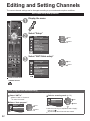
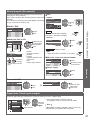
Connection test
Network settings are complete.
You can use EASY IPTV.
EASY IPTV lets you enjoy Internet contents on
your VIERA TV.
Check Ethernet cable connection
Validate IP address
Check for IP address duplication
Check connection to the Internet
Check communication with EASY IPTV server.
Connection to local network (router) failed.
Ensure wireless network availability
Retry
OK
Manual
Set later
OK
Select
Return
RETURN
Retry: Go to “Start connection test”
Set later: Go to
Press to exit from
a menu screen
Adjust the Clock (Set clock)
When done, select NEXT and press OK to go to the next step.
■ Manual setting
Set clock
■ Press to go back to
Step 7 of 7
Adjust the TV's date and time
Mode
Year
Month
Day
Hour
Minute
Time zone
DST
Next
the previous screen
Select
Change
Edit
set
Manual
------- - ---
DST
Minutes
select
or
OK
10
0
9
RETURN
Follow the instructions on
screen to complete the
following operations.
0 - 9
RETURN
■ Auto setting
Set clock
Step 7 of 7
Adjust the TV's date and time
2011/4/5 6:00 AM
Mode
Year
Month
Day
Hour
Minute
Time zone
DST
Next
Select
Change
Auto
EST
Off
RETURN
Manual: Adjust the clock manually (Year/Month/Day/Hour/Minute)
Auto: The clock is adjusted automatically via Internet service. Only
available when the TV is on a network. -->Set “Network settings” first.
Time zone Select your time zone. (EST/CST/MST/PST/AKST/HST/NST/AST)
Mode
DST
Set DST (Daylight Saving Time) setting. (On/Off)
On: Advances the clock one hour from the time it is set according to the
time zone.
15
Complete First time setup
Congratulations! You are done.
The First time setup can be repeated at any time.
Press MENU and select SETUP; then “First time setup”.
Congratulations!
Setup is complete.
Enjoy your Panasonic VIERA TV.
OK
RETURN
To watch TV via a Cable box, Satellite receiver, or any other source (DVD,
DVR, gaming device, etc.), press the INPUT button and select the appropriate
input.
■ About wireless LAN
● Wireless LAN adapter and Access point need to be obtained separately.
Press to exit from
a menu screen
■ Press to go back to
the previous screen
For the latest information on applicable LAN adapters, check the following website:
http://Panasonic.com/NetConnect
● Check that the Access point supports WPS*.
(If it does not support WPS, the encryption key of the Access point is required when
configuring settings.)
● Follow the instructions on the Access point setup screen and configure the appropriate
security settings.
For more details on setting of Access point, please refer to operating manual for the Access
point.
● We recommend using 11n (5 GHz) for the wireless system between the wireless
LAN adapter and Access point.
Communication is also possible with 11a, 11b, and 11g (2.4 GHz), but the
communication speed may be slower.
● If the wireless system of the Access point is changed, devices that could connect by
wireless LAN may no longer be able to connect.
● When EASY IPTV, Network camera, DLNA, or other device is using the network, do
not disconnect the wireless LAN adapter.
● Keep the TV away from the following devices as much as possible:
Wireless LAN, microwaves, and other devices that use 2.4 GHz and 5 GHz signals.
Otherwise, the TV failures such as malfunction may occur due to the radio wave
interference.
* WPS: Wi-Fi Protected Setup
■ Wireless network (First time setup) in
Display “Wireless network”
Select the connection method
select
Wireless network
Please choose connection method:
Search for wireless networks
WPS (Wi-Fi Protected Setup using push button)
OK
● Follow the directions on screen to complete the setting.
● See page 37 for more information.
16
Watching TV
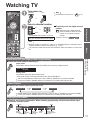
Turn power on
(Remote)
Note
Please select correct input -->
(TV)
(p. 21)
or
Select a channel number
or
When tuning to a digital channel,
press the button to enter the minor
number in a compound channel
number.
down
• Also available side CH button on the unit.
[For Cable/Satellite box connection]
- Use your connected box’s remote control.
example: CH15-1:
Getting started
To directly enter the digital channel
number
up
Note
Basic
Reselect “Cable” or “Antenna” in “ANT in” of “ANT/Cable setup” to switch the signal
reception between cable TV and antenna. (p. 14, 42)
The channel number and volume level remain the same even after the TV is turned
off.
■ Other Useful Functions
Listen with SAP (Secondary Audio Programming)
Digital mode
Press SAP to select next Audio track (if available) when receiving a digital channel.
Audio track 1 of 2
(English)
Analog mode
Press SAP to select the desired Audio mode.
• Each press of SAP will change the Audio mode. (Stereo/SAP/Mono)
Watching TV
First Time Setup
■ Select the Audio mode for watching TV
SAP is not available when watching TV with a Cable or Satellite box connected via HDMI.
Contact your Cable or Satellite operator for instructions on enabling SAP with their box.
Closed Caption
■ Switches the Closed Caption mode On or Off
Closed caption Off
Closed caption On
Closed caption On mute
Closed Caption is not available when watching TV with a Cable or Satellite box connected via HDMI.
Contact your Cable or Satellite operator for instructions on enabling CC with their box.
Displaying Information
■ Displays and removes information. When watching programming via the Antenna/Cable input,
shows the channel banner.
Clock
Channel
THE NEWS
15-2
12:30 PM
ABC-HD CC SAP TV-G 1080i Standard 4:3
30
Station
SAP
Signal
identifier
indication
resolution
Closed caption
Rating Level
Picture
mode
Sleep timer
remaining time
Aspect ratio
17
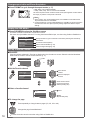
Change aspect ratio and Zoom the picture
■ Press FORMAT to cycle through the aspect modes (p. 50)
• 480i, 480p: FULL/JUST/4:3/ZOOM
• 1080p, 1080i, 720p: FULL/H-FILL/JUST/4:3/ZOOM
Use when the picture does not fill the whole screen (bars appears on either side of
the image) or portions of the picture is trimmed.
Note
1. Some content, such as film-based movies, are available in extra-wide format.
Top and bottom bars are unavailable.
2. Connected devices, such as Cable/Satellite box, DVD/Blu-ray players and game
consoles have their own aspect (format) settings. Adjust the device’s aspect
settings.
Display the SUB MENU
■ Press SUB MENU to show the Sub Menu screen
This menu consists of shortcuts to convenient functions.
Sub menu is only available when the TV is using the Antenna/Cable input, not when using Cable or Satellite box.
SUB
MENU
Setup SUB MENU
Specify favorites or type of channels to view when pressing the channel up/
down button.
Set favorite channel (below)
Edit the channel identifier (p. 43)
Check the signal strength (p. 43)
Channel surf mode
All
Set favorite
Edit CH caption
Signal meter
Call up a favorite channel
■ FAVORITE
Channel numbers registered in Favorite are displayed on the favorite tune screen. Select the desired broadcast
station with the cursor or use the number buttons. (p. 17)
Favorite channels
1
select
1/3
26-1
2
or
3
4
5
■ Set the Favorite channel
SUB
MENU
Setup SUB MENU
Channel surf mode
All
Set favorite
1
1/3
select the list
number
26-1
2
Set favorite
3
Edit CH caption
4
Signal meter
5
save the displayed
channel
or
select the list number
(to save the channel
without pressing OK)
■ Delete a favorite channel
Set favorite
1
1/3
select
26-1
2
3
4
5
delete
(while holding down)
■ To change the page
Press repeatedly to change between pages (1/3, 2/3, 3/3 or exit)
Changes the page forward/backward
18
● Favorite channels cannot be set when using Cable or Satellite box.
■ Other Useful operations
Entering characters
You can use the remote control keys to enter the alphanumeric characters.
■ Switches input mode
Menu
Proxy setting
Proxy address
1 4 8
ABC → abc → 123
Proxy port
0
■ Press each number key
to cycle through the
alphanumeric character
OK
Select
RETURN
ABC → abc
1 @. 2 ABC 3 DEF
4 GHI 5 JKL 6 MNO
7PQRS 8 TUV 9WXYZ
LAST 0 - ,
Delete
Navigation area
● You can also use a USB keyboard (not supplied) to enter the alphanumeric characters.
● Keyboard type (p. 48)
Password setting/entering
You need to enter the password when you access locked channel or inputs.
Input your 4-digit password
Password
Enter password.
* * * -
● If it is your first time entering the password, enter the password twice in
order to register it.
● Make a note of your password. Do not forget it. (If you have forgotten
your password, consult your local dealer.)
● When you select a locked channel, a message will be displayed that
allows you to view the channel after you input your password.
● Change password (p. 47)
You can operate non-character keys as remote control keys.
■ Key chart
Keyboard key
Remote key
Keyboard key
Remote key
UP/DOWN/LEFT/RIGHT
Cursor key
F4
Input
Enter
OK
F5
Channel Down(-)
BackSpace
Return (when you do not
F6
Channel up(+)
input character)
0-9
0-9
F7
Volume Down(-)
F1
Menu
F8
Volume up(+)
F2
VIERA Tools
F9(Red)/F10(Green)/
Color key
F11(Blue)/F12(Yellow) (Red/Blue/Yellow/Green)
F3
Submenu
Watching TV
Operate USB keyboard
Basic
Menu
● For more details on setting and operation of the USB keyboard, please also read the operating manuals for the USB
keyboard.
● Some keyboards do not have these keys.
19
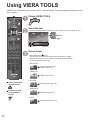
Using VIERA TOOLS
VIERA TOOLS is the easy way to access the TV’s special features. They are displayed as shortcut icons on
the TV screen.
Display VIERA TOOLS
Select the item
● The icons displayed differ depending on your country or area you select. (p. 13)
select
next
(example)
EASY IPTV
Set each item
Using EASY IPTV
p. 39
Part of Icons on VIERA TOOLS screen above provide you usable
Internet service such as VOD (Video-on-demand), Music distributer
or social networking service etc.
Game mode
Change to “Game” mode.
Picture mode (p. 45)
VIERA Link
VIERA Link (p. 32-33)
Eco mode
Press to exit from
a menu screen
ECO/energy saving (p. 48)
Media player
Press to go back
to the previous
screen
Media player (p. 22-27)
DLNA
Using DLNA feature (p. 40)
20
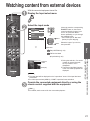
Watching content from external devices
With the connected equipment turned On
Display the Input select menu
Select the input mode
Input select
1
ANT/Cable In
Not used
2
HDMI 1
GAME
3
HDMI 2
4
HDMI 3
5
Component
6
Video
or
AUX
select
(example)
enter
(shortcut) press the corresponding
NUMBER button on the remote
control to select the input of your
choice. Or, press the INPUT
button repeatedly, to cycle through
the available inputs.
* set unused input to “Not used”
(below) for quick skipping.
Select the input of your choice,
then press OK.
Setup ANT/Cable (p. 42)
Basic
Input label
Edit Device labels
Input labels (p. 48)
Terminal
Label
(example)
● During the selection, if no action
is taken for several seconds,
the “Input select” menu
disappears.
● The terminal and label (names)
of the connected equipment are
displayed.
Note
● The input label will be displayed on the “Input select” screen if the Input label was
customized.
● For side input terminals (HDMI 3), “GAME” Input label is set as default.
Operate the connected equipment directly or using the
remote control supplied with the equipment
Note
For
● details, see the manual for the connected equipment.
Watching content from external devices
Using VIERA TOOLS
HDMI 1
GAME
21
Using Media Player
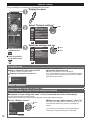
You can view still and motion images and play music saved on a USB flash memory and an SD card.
Basic features for Media player
■ Available contents and features
Photos
Media Player
Videos
Photos
Media Player
All photos
Music
Videos
Media Player
Titles/Folders view
Trip1
Trip2
Trip3
Trip4
Trip5
Room
Nature1
Nature2
Nature3
Nature4
Nature5
Nature6
2009_4
2009_7
My Music_1
Music
My Music_2
Folders
My Music_3
2009_9
Select
SUB MENU
Slideshow
OK
Select
SD memory card
Info
RETURN
Sort
Drive select
SUB MENU
Play
Media select
OK
RETURN
SD memory card
Info
Drive select
Select
SUB MENU
Play Folder
Media select
OK
SD memory card
Info
RETURN
Drive select
Media select
SUB
MENU
Drive select
Media Player
Media select
Photos
All photos
Media Player
Information panel
Photos
All photos
Media Player
Option menu
Photos
All photos
1/70
Media Player
Photo
All photos
Setup SUB MENU
Slideshow settings
File name:
Thumbnails size
100-0001.jpg
Date:
Select
15/04/2011
Size:
OK
RETURN
640x480
Drive select
Media Select
OK
OK
Select
RETURN
Select
SUB MENU
Slideshow
SD memory card
Select
OK
RETURN
Sort
Info
Drive select
SD memory card
RETURN
Select
SUB MENU
Slideshow
SD memory card
Media select
OK
Photos
RETURN
Sort
Videos
Info
Music
Media select
SD memory card
Device select
select
select
OK
OK
Select
SUB MENU
Slideshow
OK
RETURN
Sort
Info
Drive select
SD memory card
Media select
Displays data information.
(File name, Date, and Size etc.)
*Information differs depending
on selected data.
Select
SUB MENU
Slideshow
OK
RETURN
Sort
SD memory card
Info
Drive select
Media select
Option menu
Photos --> p. 24-25
Videos --> p. 26
Music --> p. 27
Media information
■ Inserting or removing an SD card/USB flash memory
SD card
● Insert the card
● Remove the card
USB flash memory
● Insert the device
● Remove the device
Gently insert the SD Card
label surface facing front.
Insert straight in
Label surface
Push until a
click is heard
Press in lightly
on SD Card,
then release.
Cutout
● Compliant card type (maximum capacity):
SDXC Card (64 GB), SDHC Card (32 GB), microSDHC
Card (32 GB), SD Card (2 GB), miniSD Card (2 GB),
microSD Card (2 GB) (requiring microSDHC Card/
miniSD Card/microSD Card/ adapter)
● If a microSDHC Card, miniSD Card or microSD Card is
used, insert / remove it together with the adapter.
● Media player only supports USB Mass storage
class devices.
● For more information and cautions on SD card and USB flash memory (p. 51)
22
Pull straight out
Viewing Contents
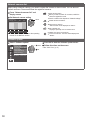
Insert a Media (SD card or USB flash memory)
• Auto play setting
Image viewer auto play (p. 48)
Display Media player
or
(example)
Select Drive
(Display connected drive)
Media Player
select
Drive select
OK
OK
Select
RETURN
SD memory card
Select the Media
Basic
Media Player
select
Media select
OK
OK
Select
RETURN
Photos
Videos
Music
SD memory card
Select the data (Photos/Videos/Music)
How to view the data differs depending on data storage conditions.
Using Media player
Select Title/Folder
Media Player
Photos
Sort by Date
23/10/2009
25/10/2009
01/11/2009
05/11/2009
10/11/2009
24/11/2009
01/12/2009
03/12/2009
20/12/2009
22/12/2009
22/11/2009
23/11/2009
select
OK
Select
OK
SUB MENU
Slideshow
RETURN
Sort
SD memory card
Info
Drive select
Media select
(e.g. Photos)
Select file
Media Player
Photos
All photos
select
■ Press to exit from
OK
Select
SUB MENU
Slideshow
OK
RETURN
Sort
SD memory card
Info
Drive select
Media select
(e.g. Photos)
a menu screen
View or Play
■ Press to go back to
Single view
the previous screen
select
OK
Rotate
Prev.
Stop
Next
RETURN
(e.g. Photos)
Thumbnail / Playback view image
and operation are differ depending
on selected contents.
● Photos view --> p. 24-25
● Videos view --> p. 26
● Music view --> p. 27
23
Photos view
[Photos thumbnail]
Media Player
[Features]
Photos
Select
SUB MENU
Slideshow
OK
RETURN
Sort
All photos
● Slideshow setting
● Sort
● Drive select
● Media select
SD memory card
Info
Drive select
Media select
[Photos playback screen]
Photo status
Slideshow
Single view
● To display/hide
Single view
Guide and Banner
Navigation Guide
Slideshow
Single view
Rotate
Prev.
Rotate
Prev.
Stop
Next
RETURN
Stop
Prev.
Next
RETURN
Stop
Next
RETURN
Sort
Display “Sort select” menu and select item
select
Displayed each view
Media Player
Photos
Sort by Date
Folders
Sort by date
23/10/2009
25/10/2009
01/11/2009
05/11/2009
10/11/2009
24/11/2009
01/12/2009
03/12/2009
20/12/2009
22/12/2009
22/11/2009
23/11/2009
Sort by month
OK
Select
SUB MENU
Slideshow
OK
RETURN
Sort
Info
Drive select
SD memory card
• Folders
(ascending order of
numeric/alphabetical)
• Sort by month
(ascending order of
the month)
• Sort by date
Media select
(e.g. Sort by date)
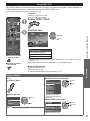
Photo options
Display “Setup SUB MENU” and select item
select
SUB
MENU
Setup SUB MENU
Slideshow settings
Thumbnails size
24
OK
■ Slideshow settings (p. 25)
■ Thumbnails size
To change the number of photos on a thumbnail screen
at a time
(7 × 4 ⇔ 10 × 6)
Slideshow
Display “Slideshow settings”
Adjust items and select “Slideshow start”
Media Player settings
Photo
Slideshow
All photos
Start Slideshow
Frame
Off
Photo effect
Off
Transition effect
Photo size
Off
Off
Display interval
Normal
Repeat playback
On
RETURN
Select
OK
RETURN
Sort
Off
Photo effect
Off
SD memory card
Info
Drive select
Media select
(example)
OK
Off
Photo size
Select
SUB MENU
Slideshow
Frame
Transition effect
Soundtrack settings
Change
select
Start Slideshow
Normal
Burst playback
Slideshow settings
Normal
Burst playback
Off
Display interval
Normal
Repeat playback
On
● To stop in mid-cycle Press
Soundtrack settings
Select
Change
RETURN
(example)
■ Slideshow settings
Settings
Frame*
Photo effect*
Select “Soundtrack
settings”
Slideshow settings
Select “User select”
Soundtrack settings
Start Slideshow
Media Player
Photos
All photos
select
OFF
Frame
Off
Music 1
Photo effect
Off
Music 2
Transition effect
Off
Music 3
Normal
Music 4
Burst playback
Off
Music 5
Display interval
Normal
Repeat playback
On
Photo size
Select the song and register
Soundtrack settings
This song
All songs in folder
Select
Select
User selected
SUB MENU
Slideshow
Auto
User selected
OK
OK
RETURN
Soundtrack settings
(example)
Using Media player
■ Soundtrack settings
Basic
Item Description
Select the Frame (Off/Array/Collage/Drift(with calendar)/Drift/Gallery(with calendar)/Gallery/Cinema)
Select the display effect (Off/Sepia/Gray scale)
Select the Transition effect shown between photos (Off /Fade in/Wipe ↓/Wipe ↑/Wipe →/Wipe ←/
Slide in ↓/Slide in ↑/Slide in →/Slide in ←/Zoom in/Comb ↑↓/Comb →←/Dissolve/Checker
Transition effect
wipe/Motion/Random)
Removes the black borders that are added according to the size of the photo being displayed. (Normal/Zoom)
Photo size*
Burst playback*
Continuously plays photos that were shot continuously. (On/Off)
Set “Display interval” each image is displayed in the Slideshow mode.
Display interval
(Short/Fast/Normal/Slow/Very slow)
Repeat playback Turn the Slideshow Repeat (cycle) function on or off (Off/On).
Select the music (Off/Music 1/Music 2/Music 3/Music 4/Music 5/User selected*/Auto*)
Soundtrack
User selected: Plays the soundtrack registered in the “Soundtrack settings”. (below)
settings
Auto: Plays the songs on the SD card or USB flash memory.
• Picture quality may become lower depending on the slideshow settings.
• Picture setting may not work depending on the slideshow settings.
* When using DLNA (DMP mode) feature these menus are not displayed.
DMP: Digital media player p. 34
03 XXXX
OK
RETURN
Sort
Info
Drive select
SD memory card
Media select
This song: Register current music.
All songs in folder : Register the
music in a folder.
25
Videos view
[Videos thumbnail]
Media Player
[Features]
Videos
● Play
● Drive select
● Media select
● Aspect change
Titles/Folders view
Trip1
Trip2
Trip3
Trip4
Trip5
Room
Nature1
Nature2
Nature3
Nature4
Nature5
Nature6
2009_4
2009_7
2009_9
Select
SUB MENU
Play
OK
SD memory card
Info
RETURN
Drive select
Media select
[Videos playback screen]
SD
01/04/2010 15:34
Movie banner
00:00.10
00:00.03
Drive type (SD/USB/DLNA)
SD
01/04/2010 15:34
00:00.10
00:00.03
Date and time or
File name
RETURN
● To display/hide Guide and Banner
Navigation area
● Subtitles are not supported
in MKV file.
30 seconds skip (In DLNA mode only (depends on content))
Forward
• Forward/Reverse
Play/Pause
Five level of 1 to 5 (x2, x5, x,30,
Stop
x70, x100) are available.
Reverse
RETURN
Video options
■ Repeat playback
Displayed menu will differ depending on contents.
Select “Video options” in “Setup SUB MENU”
SUB
MENU
Elapsed time of current movie
* Counter may not work correctly with DLNA
feature. In this case “--:--:--”is displayed.
Set play repeat function (On/Off)
Video options
Setup SUB MENU
Repeat playback
Video options
On
select
next
Compatible Data format for Media player (SD card/USB flash memory)/DLNA
Media
Compatible format
Photo
• JPEG files (DCF and EXIF standards)
Sub-sampling
- 4:4:4, 4:2:2 and 4:2:0
Image resolution
- 8 × 8 to 30,712 × 17,272 pixels
Videos
• SD-Video Files (SD-Video Standard Ver.1.3)
Modified data with a PC may not be displayed correctly.
• AVCHD Standard compatible files
Modified data with a PC may not be displayed correctly.
• MP4 files (Video codec H.264 | Audio codec MP3/AC-3/LPCM)
• MKV files (Video codec H.264 | Audio codec MP3/AC-3/LPCM)
• MPEG-2 PS files*
• MPEG-2 TS files*
Music
• MP3 files (MPEG Audio Layer-3)
• AAC files (MPEG2-AAC / MPEG4-AAC)
• LPCM files*
● For more data format information. (p. 51)
26
* For DLNA only.
Music view
[Music thumbnail]
Media Player
My Music_1
[Features]
Music
My Music_2
Select
SUB MENU
Play Folder
● Play folder
● Drive select
● Media select
Folders
My Music_3
OK
SD memory card
Info
RETURN
Drive select
Media select
[Music playback screen]
Navigation area
AAAAAA
BBBBBBB
XXXXXXX
Forward
Play/Pause
Stop
Reverse
RETURN
00:00.05 / 00:00.49
RETURN
Artist name
Album name
Song name
● To display/hide Guide and Banner
Elapsed time of current song
* Counter may not work correctly with
DLNA feature.
In this case “--:--:--”is displayed.
Select “Music options” in “Setup SUB MENU”
■ Repeat playback
Set play repeat function (Off/Repeat Folder/One
song)
Setup SUB MENU
Music options
Music options
Other settings in Media player
Display “Menu”
On
Repeat playback
■ Adjust the Picture and Audio
Picture
1/2
Reset to defaults
Vivid
Picture mode
Select the item
select
Picture
Audio
VIERA Link
OK
Contrast
0
Brightness
0
Color
0
Tint
0
Sharpness
0
select
adjust
example: Picture menu
Picture menu/Audio menu
(p. 45-46)
■ Use VIERA Link function
select
VIERA Link control
Recorder
Set
select
Using Media player
next
Menu
Basic
Music options
SUB
MENU
• Forward/Reverse
Five level of 1 to 5 (x2, x5, x,30,
x70, x100) are available.
change
Speaker output
TV
Back to TV
VIERA Link menu (p. 32)
27
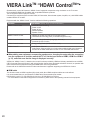
VIERA LinkTM “HDAVI ControlTM”
Simultaneously control all Panasonic “HDAVI Control” equipped components using one button on the TV remote.
Enjoy additional HDMI Inter-Operability with compatible Panasonic products.
This TV supports “HDAVI Control 5” function.
Connections to equipment (DVD recorder DIGA, HD Camcorder, Home theater system, Amplifier, etc.) with HDMI cables
enables VIERA Link controls.
Equipment with the “HDAVI Control” function enables the following operations:
Version
Operations (See p. 30-33, for more information)
HDAVI Control or later
Input Switching
• Automatic
on link
• Power
off link
• Power
speakers
• Default
• Speaker control
Link control only with the TV’s remote control
• VIERA
• Unselected device energy save (for available equipment only)
setting information (Language, time. etc.)
• Provides
• Automatic lip-sync function
• Energy saving mode (with Quick Start mode)
Return Channel
• Audio
Audio Return Channel (ARC) is a function that enables digital sound signals to
HDAVI Control 2 or later
HDAVI Control 3 or later
HDAVI Control 4 or later
HDAVI Control 5
be sent via an HDMI cable back from the TV to a connected audio device.
■ When adding new equipment, reconnecting equipment or changing the setup after the connection,
turn the equipment on and then switch the TV on. Set the input mode to HDMI1, HDMI 2 or HDMI 3
(p. 21), and make sure that the image is displayed correctly.
VIERA Link “HDAVI Control”, is based on the control functions provided by HDMI and industry standard known as HDMI
CEC (Consumer Electronics Control), with unique function that we have developed and added. As such, its operation with
other manufacturers’ equipment that supports HDMI CEC cannot be guaranteed.
Please refer to the individual manuals for other manufacturers’ equipment supporting the VIERA Link function.
■ HDMI cable
This function needs an HDMI compliant (fully wired) cable. Non-HDMI-compliant cables cannot be utilized.
It is recommended that you use Panasonic’s HDMI cable. Recommended part number:
RP-CDHS15 (4.9 ft/1.5 m), RP-CDHS30 (9.8 ft/3.0 m), RP-CDHS50 (16.4 ft/5.0 m)
* For more details on the external equipment’s connections, please refer to the operating manual for the equipment.
28
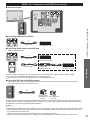
VIERA Link™ Connections (with VIERA Link function)
■ Terminal overview
Back of the TV
VIERA LinkTM “HDAVI ControlTM”
■ Connecting DVD Recorder (DIGA)
HDMI cable
DVD recorder (DIGA)
with VIERA Link function
■ Connecting Home theater system/AV amp
HDMI 1 is recommended.
HDMI cable
Home theater systems
with VIERA Link function
Optical cable
AV amp with
VIERA Link function
DVD recorder (DIGA)
with VIERA Link function
Advanced
No optical cable is necessary when connecting a Home Theater supporting “HDAVI control 5” with an HDMI
cable. Audio will be supported via ARC (Audio Return Channel) (p. 28)
● One AV amp and one DVD recorder (DIGA) can be operated with this unit.
■ Connecting HD Camcorder/Digital camera
Press INPUT and select an available HDMI terminal, then connect the camcorder to this input. After connection,
confirm the HDAVI control functions. (p. 30-33)
HDMI / mini HDMI cable
LUMIX
HD Camcorder
with VIERA Link with VIERA Link
function
function
If connection (or setting) of equipment compatible with HDAVI control is changed, switch the power of this unit Off and
On again while the power of all equipment is On (so that the unit can correctly recognize the connected equipment) and
check that the connected equipment playback operates.
Note
● Individual HDMI equipment may require additional menu settings specific to each model. Please refer to their respective manuals.
● When audio from other equipment connected to this unit via HDMI is output using “DIGITAL AUDIO OUT” of this unit,
the system switches to 2CH audio.
(When connecting to an AV amp via HDMI, you can enjoy higher sound quality.)
● Some devices use Mini-HDMI terminal. HDMI (type A) to Mini-HDMI (type C) cable or adapter should be used.
29
VIERA Link settings and Available features
To use all VIERA Link functions: After everything is connected, in VIERA Link settings menu, set “VIERA Link” to “On”.
Some features are disabled depending on the “HDAVI Control” version of the equipment.
Please check the list (p. 28)
Display the menu
Select “VIERA Link settings” in “Setup”
Menu
Setup
1/2
Channel surf mode
All
select
Language
Clock
next
ANT/Cable setup
Input labels
Anti image retention
Network settings
VIERA Link settings
Select “VIERA Link”
Menu
VIERA Link settings
select
On
VIERA Link
Power on link
No
Power off link
Yes
Energy saving mode
Quick start
Unselected device energy save
No (stay on)
TV
Default speakers
Select “On”
Press to exit from
a menu screen
(default is On)
change
Select and make other settings
Press to go back
to the previous
screen
Menu
VIERA Link settings
VIERA Link
On
Power on link
No
Power off link
Yes
Energy saving mode
Quick start
Unselected device energy save
No (stay on)
Default speakers
30
TV
select
Automatic Input Switching
When using a Blu-ray Disc player, DVD player/recorder or Home theater system, the TV will automatically change to
the appropriate input, when playback begins on one of those devices.
• For a Home theater system the speakers automatically switch to the theater system.
Power on link
Yes: The TV is turned on automatically and switches to the appropriate HDMI input whenever VIERA Link compatible
equipment is initially turned on and the Play mode is selected.
Power off link
When “Yes” is selected and the TV is turned off, all connected VIERA Link compatible equipment is also automatically
turned off.
• A Panasonic DVD Recorder will not turn off if it is still in Rec mode.
• The TV remains on even if the VIERA Link compatible equipment is turned off.
Quick Start: When TV is turned off, all connected VIERA Link compatible equipment is moved to ECO Standby mode*
automatically under these conditions.
• Power off link:(Yes), The connected equipment has “HDAVI Control 4 or later (with Quick Start mode)”
* Minimum power consumption of Standby condition for the equipment.
Unselected device energy save
Yes: The connected VIERA Link compatible equipment will be turned off automatically when not in use under these
conditions.
• The connected equipment has “HDAVI Control 2 or later” (for available equipment only)
[ Example of timing for operation ]
• When the input is switched from the HDMI.
Default speakers
“TV” is the default setting. To set the Home theater system as Default speakers, change the Default speakers setting
from “TV” to “Theater”. Sound will be output from the Home theater whenever the TV is powered on.
VIERA LinkTM “HDAVI ControlTM”
Energy saving mode
Automatic lip-sync function
Minimizes lip-sync delays between the picture and audio when you connect to a Panasonic theater system or
Amplifier.
The following information about the TV settings can be transmitted to each piece of equipment (Recorder/Home
theater/Player) that has “HDAVI Control 3 or later” function connected to a TV with an HDMI cable.
Recorder
Home theater
Player
On Screen Display Language setting
(English/Español/Français)
Transmittable data
○
○
○
Panel Aspect Ratio
(16:9 fixed)
○
○
○
Closed caption information
(Mode/CC type/Digital setting)
○
---
---
Channel information
(Input signal/Channel list/Caption information)
○
---
---
Advanced
TV provided setting information
Note
● There is a possibility that all the GUI language information might be set from equipment that has an HDMI CEC
function connected to the TV with an HDMI cable. Depending on the operating conditions or the specification for
each piece of equipment the setting may or may not be applied.
● For more details on the external equipment’s operation, please refer to the operating manual for the equipment.
31
VIERA Link menu and Available features
Some features are disabled depending on the “HDAVI Control” version of the equipment.
Please check the list (p. 28)
Display the VIERA Link menu
or
This function is not available depending on your country or area you select. (p. 13)
select
next
(example)
Select the item
select
VIERA Link control
Recorder
Speaker output
TV
Back to TV
in the VIERA Link menu may be grayed out
• Items
if no compatible equipment is connected (must be
HDAVI Control 2 or later) or if the equipment has
not initiated a connection with the TV. In that case,
switch the equipment’s power Off and On while the
TV is On.
For further details, see “VIERA Link” on page 30.
Select
Press to exit from
a menu screen
VIERA Link control
Home theater
Press to go back
to the previous
screen
Speaker output
TV
Back to TV
Set
32
change
Speaker control
You can select the Home theater or TV speakers for audio
output.
Control the theater speakers with the TV remote control.
This function is available only when a Panasonic Amplifier
or Player theater is connected.
select
change
Recorder
Volume up / down
Mute
Select “Speaker output”
Select “Home theater” or “TV”
VIERA Link control
■ Home theater: Adjustment for the equipment
Speaker output
sound of the TV is muted.
• The
the equipment is turned off, the TV speakers
• When
take over.
“Home theater” turns the equipment on
• Selecting
automatically if it is in Standby mode.
■ TV: The TV speakers are on.
TV
Back to TV
In the VIERA Link menu, you can select HDMI connected equipment and access it quickly. Continue using your TV
remote control to operate the equipment, pointing it at the TV.
● If there is more than one equipment item, a number
Select “VIERA Link control”
after the name indicates the number of items. (e.g.
Select the equipment you want to access
Recorder 1/Recorder 2/Recorder 3...)
(Recorder/Home theater/Player/Camcorder/LUMIX/
● The number of equipment items that can be connected
Digital camera/Network camera)
is three for recorders, and a total of three for Home
● Using VIERA TOOLS (p. 20)
theater/Player/Camcorder/LUMIX/Digital camera/
select
Network camera.
VIERA Link control
change
Recorder
Speaker output
TV
You can select available items
only.
Back to TV
■ Available TV remote control buttons
Note
● There is a limit to the number of HDMI connectors.
Operate the equipment with the TV remote
control, pointing it at the TV
● To operate the equipment, read the manual of the
VIERA LinkTM “HDAVI ControlTM”
VIERA Link control only with the TV’s remote control
equipment.
Whether an operation is available differs depending on the connected equipment.
Play
Set/Access
Stop
Return to previous menu
Reverse/Forward
Display the functions
menu on the equipment
Available when the purpose of the keys
is displayed on screen
Exit
SUB
MENU
-
Skip Reverse/Forward
Pause
Advanced
Move the cursor/Select
Closed caption
Channel Up/Down
SAP (Select Audio Mode)
0-9
Select digital subchannel
Back to TV
Returns the input selection of the device selected with the VIERA Link Control to the TV input.
Select “Back to TV”
select
VIERA Link control
Recorder
Speaker output
OK
TV
Back to TV
33
Using Network services
Available Network service and features
■ Using EASY IPTV
p. 39
■ Using DLNA feature (Home network)
p. 40
This TV is a DLNA Certified™ product.
DLNA (Digital Living Network Alliance) is a standard that makes DLNA Certified digital electronics easier and more
convenient to use on a home network. To learn more, visit www.dlna.org.
It allows you to share photos, videos and music stored in the DMS (for example, PC with windows 7 installed, etc.)
connected to your home network, and enjoy watching them on the TV screen as DMP.
DMS (Digital Media Server)
Ensure the connected equipment has a DLNA Certified media server.
Store photos, videos or music into the media server, and then you can watch them on the TV.
“Windows 7” is the server software that has been tested for the performance with this TV (current as of January, 2011).
For installing, read the manual of the server software.
● The DLNA control function of Windows 7 is not supported with this TV.
● When a server software for the media server is installed on the PC, the data may be at risk of being accessed
by other people. Please take care of the settings and connections under the network circumstances at the office,
hotel or even at home when not using a router.
DMP (Digital Media Player)
Finds the content on DMS and provides playback.
■ Using Network camera
34
p. 41
Network Connections
Contact your Broadband service provider
NOTICE: If you don’t have Internet service by your local provider, please order a high-speed Internet service at
no less than the following connection speed. If you already have such service, make sure that the connection
speed exceeds the following.
● Required speed (effective): at least 1.5 Mbps for SD and 6 Mbps for HD picture quality, respectively.
● Dial-up Internet service cannot be used for EASY IPTV.
Select wired or wireless connection
If the Cable/DSL modem is close to the TV and you have only one TV set, you may choose a wired connection.
If the Cable/DSL modem is far from the TV and/or you have more TVs in the house, you may want to use a
wireless network.
Connecting to the Internet
Wired connection (Directly connected)
If you are not using the network for connecting anything else but the TV, you could just connect the TV
directly to the Cable/DSL Ethernet connection.
Wired connection (Using Router)
Wireless connection
If you are using the network for connecting various equipments and want to connect the TV, you could also
use a wireless LAN adapter and Access point to connect the TV to the Internet
A
Internet
LAN cable
Modem
Back of the TV
B
Using Network services
If you are using the network for connecting various equipments and want to connect the TV, you should use
a router to connect the TV to the Internet
Internet
Ensure to use a LAN straight
cable for this connection.
Modem
Home network
(DLNA feature)
Back of the TV
C
Hub, Router
or
Access point
DLNA Certified
media server
(for example, PC,
etc.)
Advanced
LAN cable
Network
camera
● To use only DLNA features or Network camera, you can operate the features without Broadband network environment.
DLNA Certified
media server
Network camera
Ensure to use a LAN cross
cable for this connection.
LAN cable
Back of the TV
35
Network settings
This is a setting for connecting to a broadband environment.
Display the menu
Select “Network settings”
Menu
Setup
1/2
select
Channel surf mode
All
Language
Clock
ANT/Cable setup
Input labels
Anti image retention
Network settings
VIERA Link settings
Select the settings and set
■ Press to exit from
Menu
a menu screen
select
Network settings
Connection test
adjust
Network connection Wireless (WiFi)
Wireless network
IP address/DNS settings
■ Press to go back to
the previous screen
Network cameras list
Software update
Mac address
00-0b-97-7c-65-e9
Connection test
Check that the Network settings are as shown below, and then start “Connection test”.
Select “Connection test” and press OK
(It takes a while to cancel the test.)
Displayed Connection test screen
Connection test
Check Ethernet cable connection
Validate IP address
Check for IP address duplication
Check connection to the Internet
Check communication with EASY IPTV server.
Complete Connection test
Success-->Completion screen is displayed.
Error-->Follow the directions on screen to complete the setting.
If you perform the Proxy settings, check the Proxy address
and the Proxy port number.
Test in progress...
Network connection
Select Network type (Ethernet cable/Wireless (WiFi))
Wireless network (Confirm Current settings and status)
This setting is performed only when “Wireless (WiFi)” is selected in “Network connection” above.
■ Displayed “Current settings and status” screen (If connected with wireless LAN adapter)
You can confirm the AP connection status.
(SSID/Wireless type/Security type/Encryption type/Connection status /Signal strength)
Press “Wireless network”
select
SSID :
Wireless type :
Security type:
Encryption type :
Connection status :
Signal strength :
Connect using these settings?
OK
Yes
36
When you change “Wireless network” -->Press “No”
Wireless network
See “Sets / Changes wireless network setting” on p. 37
and follow the directions on screen to complete the
setting.
You need to be “Connected” to use network devices.
Please set Access point settings to “Connected”.
No
(example)
Wireless network (Wireless network setting)
■ Sets / Changes wireless network setting
Press “Wireless network” and display setting screen
Follow the directions on screen to complete the setting
Wireless network
select
Please choose connection method:
OK
Search for wireless networks
WPS (Wi-Fi Protected Setup using push button)
WPS (Wi-Fi Protected Setup using PIN number)
Manual settings
* Wi-Fi Protected Setup is an easy setting of the Wi-Fi
Alliance’s certification
● For more details on setting of an Access point, please
refer to operating manual for the Access point.
IP address/DNS settings
Select “IP/DNS setting mode” and set to
“Automatic”
(When IP/DNS automatic acquisition in DHCP can be
used)
Menu
select
IP address/DNS settings
IP setting mode
IP address
Automatic
192.168.0.5
Subnet mask
255.255.255.0
Default gateway
192.168.0.254
DNS setting mode
DNS
Automatic
OK
■ Manual setting
Select “IP/DNS setting mode” and set to “Manual”
Select the item and press OK
Check the specifications of the broadband router and
enter each IP address.
Or Enter each IP address as was specified by the
provider
IP address
0 .
10I
0OK
.
0 .
Using Network services
Search for Wireless networks:
Select an Access point from the ones searched for
automatically, and configure the settings as instructed
on the screen.
WPS (Wi-Fi Protected Setup* using push button):
You can connect the Access point to press the
buttons.
WPS (Wi-Fi Protected Setup using PIN number):
Set the PIN code that is displayed on the TV on the
Access point.
Manual settings:
Manually set SSID, Security type, and Encryption type
to match the settings of the Access point to which to
connect.
● When connecting by 11n (5 GHz), select “AES” as the
Encryption type for the wireless LAN.
0
192.168.0.20
The acquired address is displayed.
Each IP address is acquired automatically
Advanced
If you are using a broadband router, IP automatic
acquisition in DHCP can be used under normal
circumstances. If you are not sure, check with the person
who installed the equipment, or check the instructions for
each device.
Proxy setting
Set only if specified by the provider. It is not required for normal household use.
■ Proxy address
Select “Proxy setting”
Menu
select
IP address/DNS settings
IP setting mode
Automatic
IP address
192.168.0.5
Subnet mask
255.255.255.0
Default gateway
192.168.0.254
DNS setting mode
DNS
OK
Automatic
192.168.0.20
Proxy setting
Proxy setting
select
Proxy address
Proxy port
■ Proxy port
This number is specified by the provider together with the
Proxy address.
Select item and press OK
Menu
This is the address of the relay server that is connected
to the target server instead of the browser and sends
data to the browser. Setting is only required if specified
by the provider.
0
OK
Enter address or port number and press OK
● Entering characters (p. 19)
37
Network cameras list
Before using a Network camera, you need to register the camera as shown below. You can also set
Default camera or Disconnect/Delete the registered cameras.
Press “Network cameras list” and
display screen
Start camera search.
● Before you start to search for a camera, switch the
camera to registration mode.
Set Network camera setting
select
Network cameras list
Camera name
Model
Status
Camera 1
BL-C210A
Connected
...
...
...
...
...
...
...
...
...
...
...
...
...
...
...
...
...
...
...
...
...
Select
Default
Delete camera information.
Disconnect to camera.
“Disconnected” will be displayed in “Status”.
Set to default use.
Displayed “(Default)” next to camera name.
OK
RETURN
Find cameras
Disconnect
● Search condition also depends on “Network settings”
Delete
Default camera
● For this operation, please refer to the operating
manual for the Network camera.
(Available only when reconnecting)
Connect to Camera. “Connect” will be displayed in
“Status”.
Software update
Select “Software update”
Menu
Network settings
select
● Set “Clock” first. (p. 15)
Connection test
Network connection Wireless (WiFi)
Wireless network
IP address/DNS settings
Network cameras list
Software update
Mac address
38
00-0b-97-7c-65-e9
Press OK to start the Software update screen
Follow directions on the screen
OK
Using EASY IPTV
This function allows you to access Internet services, such as VOD (Video-on-demand), music distribution or
social networking service etc, easily with selecting the VIERA TOOLS icon.
● You need broadband environment to use this service.
Preparations
● Network connections (p. 35)
● Network settings (p. 36-38)
Display VIERA TOOLS
Select the item
select
Using Network services
next
(example)
■ Press to exit from
a menu screen
■ Press to go back to
the previous
Services contents
VOD (Video-On-Demand)
Music distribution/Radio service
SNS (Social Network Service)
● Not all EASY IPTV services are available depending on your country or area your
select. (p. 13)
● Available EASY IPTV services are subject to change without notice.
Advanced
■ Using USB keyboard
● USB connections (p. 51)
● Keyboard type (p. 48)
● Operate USB keyboard/Entering characters (p. 19)
Other settings
■ Adjust the Picture and Audio
In
Display “Menu”
Picture
1/2
Reset to defaults
Vivid
Picture mode
Select the item
Menu
select
Picture
Contrast
0
Brightness
0
Color
0
Tint
0
Sharpness
0
Set
OK
adjust
example: Picture menu
Picture menu/Audio menu
(p. 45-46)
■ Use VIERA Link function
Audio
VIERA Link
select
select
VIERA Link control
Recorder
change
Speaker output
TV
Back to TV
VIERA Link menu (p. 32)
39
Using DLNA feature
You can share the contents (Photo, Video, Music etc.) stored in DLNA Certified media server with your home network system.
Preparations
● Network connections (p. 35)
● Network settings (p. 36-38)
Display VIERA TOOLS
Select the “DLNA”
select
next
(example)
Select server
Display available server.
select
DLNA server
A
5
g
● To display Information
SERVER1
SERVER2
SERVER3
next
Select
SUB
MENU
OK
RETURN
Info
3
(DLNA server list)
Total listed number
Available DLNA servers
Select contents
Display contents of selected server.
DLNA server
SERVER1 > Photos > All photos
■ Press to exit from
Size:
3648x2736
Screen format
JPEG
a menu screen
Select
SUB
MENU
OK
RETURN
P000102
P000135
P000180
P000214
P000251
P000276
P000293
M10025
M10042
M10054
M10078
2008-10-05
2008-11-20
2008-12-07
2008-12-10
2008-12-19
2008-12-25
2009-01-06
2009-01-12
2009-01-20
2009-01-28
2009-02-09
Info
■ Press to go back
to the previous
screen
09:54
13:18
11:31
15:20
12:39
14:06
13:52
15:56
10:08
14:48
19:58
● To display Information
next
● To display “Slideshow
settings” (p. 25) (photo
28
Slideshow
Contents type (File list)
Thumbnail
only)
● To display Optional
menu
View/Play
See “Using Media player” to operate. (p. 22-27)
40
select
SUB
MENU
Network Camera
You can operate the Network camera from the TV remote and also check the images from the Network
camera on your TV.
● VIERA Link control only with the TV’s remote control (p. 33)
Preparations
● Network connections (p. 35)
● Network settings (p. 36-38)
● Before connecting the Network camera to the TV, please complete “IP setting” and run
“Connection test”
With all connected equipment turned on
Display “VIERA Link” menu
● If there is no registered camera displayed, please set it in
Network Camera settings. (p. 38)
● There is also an option to start with sensor detection.
select
VIERA Link control
Network camera
Speaker output
OK
TV
Back to TV
View
● Default camera setting (p. 38)
4 split screen
Multi screen
(1/4)
Camera name
Camera 1
Model
select
BL-C210A
Select
Using Network services
Select “Network camera”
OK to Single screen
OK
RETURN
4 cam / 8 cam
9 split screen
(1/9)
Camera name
Camera 1
Model
select
BL-C210A
OK 1 - 9
Select
OK to Single screen
RETURN
4 cam / 8 cam
Advanced
Multi screen
■ Press to exit from
a menu screen
Single screen
Navigation area
Single screen
■ Press to go back
to the previous
screen
Camera name
Camera 1
Model
Tilt
Pan
Tilt
1 0
RETURN
9
Pan
RETURN
BL-C210A
Preset position
Home position
1 0
9
Preset position
Home position
Note
● A number of VIERA-compatible network cameras can be found at the following sites:
http://www.panasonic.com/
http://panasonic.net/pcc/products/netwkcam/
● For more details on setting and operation of the Network camera, please also read
the operating manuals for the Network camera.
41
Editing and Setting Channels
The current channel settings can be changed according to your needs and reception conditions.
ANT/Cable setup and operation
Display the menu
Select “Setup”
Menu
Setup
1/2
next
Channel surf mode
All
Language
select
Clock
ANT/Cable setup
Input labels
Anti image retention
Network settings
VIERA Link settings
Select “ANT/Cable setup”
Menu
Setup
1/2
next
Channel surf mode
All
Language
select
Clock
ANT/Cable setup
Input labels
Anti image retention
Network settings
VIERA Link settings
Press to exit from
a menu screen
Auto program (Set automatically)
Automatically searches and adds available channels to the memory.
Select “ANT in”
Select a scanning mode (p. 14)
Select “Cable” or “Antenna”
Or select “Not used”.
Menu
All channels
Analog only
select
ANT/Cable setup
ANT in
Auto program
Cable
next
Manual program
Signal meter
42
OK
Digital only
Select “Auto program”
Menu
Auto program
select
● After the scanning is completed, select “Apply”.
(see p. 43 ).
● All previously saved channels are erased.
Manual program (Set manually)
Use this procedure when changing the channel setup or
changing the channel display.
Also, use this to add or skip channels from the channel list
manually.
You can select a channel tuning mode (Digital only/Analog
only) in “Channel surf mode”(p. 48)
Edit
● Caption
Edit CH caption
Channel
Select
Apply
Favorite
Add
...
Yes
3
...
...
Yes
4
...
...
Yes
5
...
...
select
next
Caption
Select or edit the station identifier.
(maximum 7 characters available)
Yes
6
Y
● Favorite
Select the item to edit
Set favorite
Manual program
Apply
select the item
to edit (Caption/
Favorite/Add)
Cancel
2
Caption
...
...
Yes
3
...
Favorite
...
Add
Yes
4
...
...
Yes
5
...
...
Yes
6
...
...
Yes
Favorite
...
Yes
...
...
Yes
Caption
Add
...
...
Yes
8
9
Select
OK
3
Set favorite Select the number
Proceed to
next page
Go back to the previous
page
● Add
• Caption:
Changes the station
•
Next page
set
next
RETURN
Prev.page
select
2
...
7
1/3
26-1
1
•
Press OK to select “Yes (add)” or “No (skip)”
identifier
Favorite:
Registers channels to the
Favorite List
Add:
Adds or skips channels
Move the cursor to a channel number
Manual program
Edit
Apply
2
Channel
Caption
...
3
...
Cancel
Favorite
Editing and Setting Channels
2
Channel
Delete
Cancel
Caption
...
Edit
RETURN
ABC → abc
Manual program
Edit
set
OK
Select “Edit”
Channel
or
change
80-101
@ D---A
Caption
select
Add
...
Yes
...
Yes
press OK to tune
to the channel.
Select “Apply”
Apply
el
Caption
...
Cancel
Favorite
...
select
Add
Yes
OK
Advanced
l program
To cancel the Edit
Changes will be lost. Continue?
Manual program
Edit
Channel
Apply
2
Caption
...
3
4
5
Cancel
Favorite
Yes
Add
...
Yes
...
...
Yes
...
...
Yes
...
...
Yes
No
select
next
OK
(returns to “ANT/
Cable setup”)
select “Yes”
Signal meter (Check signal strength)
Check the signal strength if interference is found or freezing occurs on a digital image.
Menu
● If the signal is weak, check the antenna.
Signal meter
--
Channel
If no problem is found, consult your local dealer.
Tune manually
or
Signal strength
Current
86%
Peak level
98%
Signal intensity
change
channel
OK
Note
● Not available if “Cable” is selected in “ANT in” (see p. 42).
● Available only for digital antenna channels.
43
How to Use Menu Functions
Various menus allow you to set the picture, sound, and other functions so that you can enjoy watching TV
best suited for you.
Display the menu
● Shows the functions that can be adjusted.
● Some functions will be disabled depending on
the type of input signal.
Menu structure
Menu
Menu bar
Press OK to move to the Menu items.
Input labels
HDMI 1
HDMI 2
HDMI 3
Menu items
Press OK to proceed to the next
screen if available.
Component
Video
Select or enter the name of the device
connected to the HDMI 1 terminal.
Help information
Select
Change
Operation guide
RETURN
Customize label
(example: Input labels)
Select the menu
Menu
Picture settings
Audio settings
Timer (Sleep, On/Off timer)
Lock (Channel, Game, Program etc.)
Closed Caption setting
Setup (other settings)
Press to exit from
a menu screen
Select the item and adjust
Menu
Picture
1/2
Reset to defaults
Vivid
Picture mode
Press to go back
to the previous
screen
Contrast
0
Brightness
0
Color
0
Tint
0
Sharpness
0
(example: Picture menu)
44
adjust
or
select
● “Reset to default” will be grayed out if no changes are made in the following menus:
“Picture”, “Audio and Closed caption” .
Picture settings
Adjust the image or picture quality
Settings
Items
Reset to defaults
Picture mode
Vivid
Standard
Cinema
Game
Custom (Photo)
Color mgmt.
C.A.T.S.
Video NR
Resets all picture adjustments to factory default settings except for “Advanced
picture”.
Provides enhanced picture contrast and sharpness for viewing in a well-lit
room.
Recommended for normal viewing conditions with subdued room lighting.
For watching movies in a darkened room. It provides a soft, film-like picture.
For playing video games.
Customizes each item according to your taste.
Photo is displayed in JPEG menu.
Adjusts the color, brightness, etc. for each picture mode to suit your taste
• Display range
Contrast/Brightness/Color/Sharpness : 0 - 100
Tint
: -50 - +50
Cool 2/1/Normal/ Selects a choice of Cool (blue), Normal, or Warm (red) color.
Warm 1/2
On: Enhances green and blue color reproduction, especially outdoor scenes.
Off/On
Automatically adjusts the screen brightness according to the ambient lighting
Off/On
Off/Weak/
Medium/Strong
condition.
Reduces noise, commonly called snow. Leave it off when receiving a strong signal.
HDMI settings
adjustments
HDMI/DVI RGB
Auto/
range (HDMI 1-3) Standard
(16-235)/
Nonstandard
Contents type
(HDMI 1-3)
Off/Auto/Photo/
Graphics
Advanced
• Some menus are grayed out depending on the input signal or condition.
(e.g. “Zoom adjustments” will be grayed out if the aspect is not set to Zoom.)
Changes the format (aspect ratio).
Aspect
Screen format
FULL/H-FILL/
adjustments
JUST/4:3/ZOOM Lets you choose the aspect depending on the format of
received signal. (p. 50)
Selects between 95 % (Size 1) or 100 % (Size 2) for the
HD size
Size 1/Size 2
scanning area with High-definition signal.
Select “Size 1” if noise is generated on the edges of the screen.
● Size 1: Selected item for “HD size”. Scanning 95 %
● Size 2: Selected item for “HD size”. Scanning 100 %
Adjusts the horizontal display range to reduce noise of both side
H size
Size 1/Size 2
edges of an image.
Size 2: Adjusts the image size according to the aspect mode to
reduce noise. (p. 50)
Adjusts vertical alignment and size when aspect setting is “ZOOM”.
Zoom
How to Use Menu Functions
Contrast,
Brightness,
Color, Tint,
Sharpness
Color temp.
Item Description
Prevents the blown out highlights and blocked up shadows when
a wide-range signal is received. Selects between standard RGB
range (16-235 bits) or non-compliance (0-255 bits).
Auto: Switches the RGB range (Standard (16-235)/
Nonstandard) depending on the HDMI signal information.
Sets content type to each HDMI input.
Auto: Switches content type automatically depending on the
HDMI signal information.
Photo: Best setting for JPEG viewing.
Graphics: Best setting for On-Screen display of connected
equipment.
45
Settings
Items
Item Description
• Some menus are grayed out depending on the input signal or condition.
(e.g. “3:2 pulldown” will be grayed out if the input signal is high definition or you are viewing photos, etc.)
Minimizes noise and cross-color in the picture.
Advanced
3D Y/C filter
Off/On
picture
Color matrix
SD/HD
Block NR
Mosquito NR
Off/On
Off/On
Black level
3:2 pulldown
24p Direct in
Dark/Light
Off/On/Auto
60Hz/48Hz
Audio settings
Reduces HDTV flicker noise in the contoured sections of an
image
Selects Dark or Light. Valid only for external input signals.
Adjusts the picture recorded in 24 fps for optimum quality.
48Hz: Achieves more cinematic playback by reproducing the
movie contents at twice the speed of 24 frames per second.
Adjust Audio quality
Settings
Items
Reset to defaults
Bass
Treble
Balance
Advanced audio A.I. sound
Surround
Bass boost
Item Description
Resets Bass, Treble, and Balance adjustments to factory default settings.
Increases or decreases the bass response.
Increases or decreases the treble response.
Emphasizes the left / right speaker volume.
Off/On
Equalizes overall volume levels across all channels and
external inputs.
Off/On
Off/On
Enhances audio L/R response when listening to stereo.
Volume leveler
Enhances bass sound and provides powerful sound.
Minimizes volume disparity after switching to external inputs.
TV speakers
Off/On
HDMI 1-3 in
Digital/
Component/
Video
Timer settings
Selects image resolution of component-connected devices.
SD: Standard Definition
HD: High Definition
Only used with 480p video signal.
Reduces noise of specific digital signals of DVD, Cable box, etc.
Switches to “Off” when using external speakers.
Off: “A.I. sound”, “Surround”, “Bass boost” and “Volume leveler”
do not work if “Off” is selected.
The default setting is “Digital” for the HDMI connection. (Digital
input signal)
Select audio input terminal when DVI cable is connected.
(Analog audio input signal)
The TV can automatically turn On/Off at the designated date and time.
If the Timer settings are grayed out, first set the clock (see p. 48) and make sure “Auto power on” is set to “No” (see p. 48)
Settings
Sleep (Off timer)
Timer 1-5
(On/Off timer)
Items
Sleep (minutes)
Timer set
Inputs
Channel
Day
On time
Off time
46
Item Description
Off/15/30/60/90
Select how long for the TV to automatically turn off.
Enables or disables this timer. (Off/On)
Sets the input to select when the TV turns on.
Sets the channel to select when the TV turns on.
Sets the day when the TV turns on.
[SUN/MON/TUE/WED/THU/FRI/SAT(displays the nearest future date)
MON-FRI/SAT-SUN/DAILY/Every SUN/Every MON/Every TUE/Every
WED/Every THU/Every FRI/ Every SAT]
Sets the time when the TV turns on. The TV will turn off after 90 minutes or as
specified.
Sets the time when the TV turns off within 24 hours.
Lock
Locks specified channels or shows to prevent children from watching objectionable content.
You will be asked to enter your password each time you display the Lock menu.
• Password setting/entering (p. 19)
Set “Custom” in “Mode” to specify “Channel”, “Game”, “Program” and “EASY IPTV” settings.
Settings
Mode
(EASY IPTV)*
Item Description
Unlocks all the Lock settings of “Channel”, “Game”, “Program” and “EASY IPTV”.
Locks all the inputs regardless of the Lock settings of “Channel”, “Game”, “Program” and “EASY IPTV”.
Locks specified inputs of “Channel”, ”Game”, “Program” and “EASY IPTV”.
Channel 1-7
On/Off
Mode
MPAA
U.S.TV
C.E.L.R.
C.F.L.R
On/Off
Set channel lock status. (Off/All/Custom)
All: Locks all channels
Off: Unlocks all channels
Custom: Locks specified channels. Set “Channel 1” - “Channel 7”
Select a channel to lock. (Select up to 7 (1-7) channels to block.)
Locks Channel 3, Channel 4, and external inputs.
Set program lock status. (Off/On) “V-chip” technology enables restricted shows to lock
according to TV ratings. On: Set each rating level (MPAA, US.TV, C.E.L.R., C.F.L.R.)
Select U.S. movie ratings to lock.
For more
U.S. TV program ratings.
information
Canadian English ratings.
(p. 49)
Canadian French ratings.
On: Locks EASY IPTV. When you select EASY IPTV icon on VIERA TOOLS screen,
the EASY IPTV Lock screen is displayed. Type the correct password to enter the
screen.
* The menus displayed differ depending on your county or area you select (p. 13)
Change the password. Input the new 4-digit password twice.
Change password
• This television is designed to support the “Downloadable U.S. Region Rating System” when available.
(Available only in U.S.A.)
• The Off rating is independent of other ratings.
• When placing a lock on a specific-age-based-rating level, the Off rating and any other more restrictive ratings will also be blocked.
Closed caption
How to Use Menu Functions
Channel
(These channels
will be blocked
regardless of the
program rating.)
Game
Program
(To set a rating
level)
Items
Off
All
Custom
Mode
Display closed caption
The television includes a built-in decoder that is capable of providing a text display of the audio.
The program being viewed must be transmitting the Closed caption (CC) information. (p. 52)
Analog
Digital
Item Description
Resets all Closed caption settings to factory default settings.
On: To display Closed captions.
CC on mute: To display Closed captions when the audio is muted.
(When not using, select “Off”).
Choose the Closed caption service of Analog broadcasting.
CC1-4/T1-4
CC1-4: Information related to pictures (Appears at the bottom of the screen)
T1-4: Textual information (Appears over the entire screen)
Primary/Second./ The Digital Closed caption menu lets you configure the way you choose to view
the digital captioning.
Service 3/4/5/6
Digital setting
Size
(Set display
Font
settings
Style
in digital program)
Foreground
Fore. opacity
Background
Back. opacity
Outline
Advanced
Settings
Items
Reset to defaults
Mode
On/Off/
CC on mute
Text size
Text font
Text style (Raised, Depressed, etc.)
Color of text
Opacity of text
Color of text box
Opacity of text box
Outline color of text (Identify the setting options on the screen)
• The settings in “Analog” or “Digital” depend on the broadcaster.
47
Setup
Settings
Channel surf
mode
Language
Clock
ANT/Cable setup
Input labels
(Display labels
of connected
devices)
Anti Image
retention
(Prevent Image
retention)
Other function settings
Items
All/Favorite/
Digital only/
Analog only
English/Español/
Français
Item Description
Sets the mode to select the channel with the Channel up/down button.
Favorite: Only channels registered as FAVORITE. (p. 18)
Selects the screen menu language.
Adjusts the clock. (p. 15)
See p. 42-43 for more detail.
Selects the terminal and label of the external equipment.
Devices connected to external input terminals can be labeled for easier identification during the
input selection. (Input select (p. 21))
Terminals: HDMI 1-3/Component/Video
Label: [BLANK] Blu-ray/CABLE/SATELLITE/DVD/DVD REC/DVR/GAME/HOME THTR/
RECEIVER/COMPUTER/MEDIA CTR/MEDIA EXT/VCR/CAMERA/MONITOR/AUX/
OTHER/Not used
• You can also enter the label name directly. (Entering characters (p. 19))
Pixel orbiter
(Wobbling)
4:3 side bars
(4:3 mode only)
Scrolling bar
Enable/Disable
Enable: Shifts the display image automatically.
Changes the brightness of the side bar
The recommended setting is “Bright” to prevent the panel
“Image retention”. (p. 53)
Press “OK” to start the horizontal “Scrolling” on the screen.
[Scrolling bar]
• Press any key except the POWER key to return to previous
screen.
• You will return to the previous screen if no key operation has
been performed for 15 minutes.
Off/Dark/Mid/
Bright
Network settings See p. 36-38 for more detail.
VIERA Link settings See p. 30-31 for more detail.
No signal for 10
To conserve energy, the TV automatically turns off when NO SIGNAL and NO
ECO/energy
OPERATION continue for more than 10 minutes.
saving
minutes
• Not in use when “Auto power on” is set to “Yes”, or “On/Off Timer” is set.
(Stay on/ Power
• “No signal for 10 minutes was activated” will be displayed for about 10 seconds
TV off)
when the TV is turned on for the first time after the power was turned off by “No
No activity for 3
hours
(Stay on/ Power
TV off)
Keyboard type
signal for 10 minutes”.
• The on-screen display will flash 3, 2 and 1 to indicate the last three (3) remaining
minutes prior to the shut-off.
To conserve energy, the TV automatically turns off when no operation of remote and
side panel key continues for more than 3 hours.
• Not in use when “Auto power on” is set to “Yes”, or “On/Off Timer” is set.
• “No activity for 3 hours was activated” will be displayed for about 10 seconds when
the TV is turned on for the first time after the power was turned off by “No activity
for 3 hours”.
• The on-screen display will flash 3, 2 and 1 to indicate the last three (3) remaining
minutes prior to the shut-off.
Select keyboard type. Operate USB keyboard (p. 19)
(U.S./Canadian French/Canadian Multilingual Standard/Spanish (Latin
America)/Spanish (Spain))
Advanced setup Auto power on
(No/Yes)
Image viewer
auto play
First time setup
About
Reset to defaults
48
Turns TV On automatically when the cable box or connected device is turned On.
TV AC cord must be plugged into this device. TV turns on every time the power is restored.
Slideshow/Photos/ Sets the media contents or playback type to play back SD
cards automatically.
Videos/Music/
Set later: “Image viewer settings” menu will be displayed repeatedly.
Set later/Off
“Using Media player” (p. 22)
Restarts the first time setup from “Language” setting. (p. 13)
Displays TV version and software license.
Performing Reset will clear all settings made with Setup, such as channel settings.
• Password setting/entering (p. 19)
Ratings List for parental control
“V-chip” technology enables you to lock channels or shows according to standard ratings set by the
entertainment industry.
■ U.S. MOVIE RATINGS (MPAA)
NR
G
PG
PG-13
R
NC-17
X
NO RATING (NOT RATED) AND NA (NOT APPLICABLE) PROGRAMS. Movie which has not been rated or
where rating does not apply.
GENERAL AUDIENCES. All ages admitted.
PARENTAL GUIDANCE SUGGESTED. Some material may not be suitable for children.
PARENTS STRONGLY CAUTIONED. Some material may be inappropriate for children under 13.
RESTRICTED. Under 17 requires accompanying parent or adult guardian.
NO ONE 17 AND UNDER ADMITTED.
ADULTS ONLY.
Age-based
Group
NR
(Not Rated)
Age-based
Ratings
TV-NR
TV-Y
Youth
TV-Y7
TV-G
TV-PG
Guidance
TV-14
TV-MA
•
•
•
•
•
•
•
•
•
•
•
•
•
•
•
Possible Content
Selections
Viewable
Blocked
Viewable
Blocked
FV Blocked
Viewable
Blocked
Viewable
Blocked
D,L,S,V (all selected)
Any combination of
D, L, S, V
D,L,S,V (all selected)
Any combination of
D, L, S, V
L,S,V (all selected)
Any combination of
L, S, V
Description
Not Rated.
All children. The themes and elements in this program are specifically
designed for a very young audience, including children from ages 2-6.
Directed to older children. Themes and elements in this program may
include mild physical or comedic violence, or may frighten children
under the age of 7.
General audience. It contains little or no violence, no strong language,
and little or no sexual dialogue or situations.
Parental guidance suggested. The program may contain infrequent
coarse language, limited violence, some suggestive sexual dialogue
and situations.
Parents strongly cautioned. This program may contain sophisticated
themes, sexual content, strong language and more intense violence.
Ratings List for parental control
How to Use Menu Functions
■ U.S. TV PROGRAMS RATINGS (U. S. TV)
Mature audiences only. This program may contain mature themes,
profane language, graphic violence, and explicit sexual content.
FV: Fantasy/Cartoon Violence. V: Violence S: Sex L: Offensive Language D: Dialogue with sexual content.
■ CANADIAN ENGLISH RATINGS (C. E. L. R.)
C
C8+
G
PG
14+
18+
Exempt - Exempt programming includes: news, sports, documentaries and other information programming,
talk shows, music videos, and variety programming.
Programming intended for children under age 8. No offensive language, nudity or sexual content.
Programming generally considered acceptable for children 8 years and over. No profanity, nudity or sexual content.
General programming, suitable for all audiences.
Parental Guidance suggested. Some material may not be suitable for children.
Programming contains themes or content which may not be suitable for viewers under the age of 14. Parents
are strongly cautioned to exercise discretion in permitting viewing by pre-teens and early teens.
18+ years old. Programming restricted to adults. Contains constant violence or scenes of extreme violence.
Advanced
E
■ CANADIAN FRENCH RATINGS (C. F. L. R.)
E
G
13 ans+
16 ans+
18 ans+
Caution
● The V-Chip system that is used in this set is capable of blocking “NR” programs (non rated, not applicable and none) as
per FCC Rules Section15.120(e)(2). If the option of blocking “NR” programs is chosen “unexpected and possibly confusing
results may occur, and you may not receive emergency bulletins or any of the following types of programming:”
• Emergency Bulletins (Such as EAS messages, weather warnings and others)
• Locally originated programming • News • Political • Public Service Announcements • Religious • Sports • Weather
Support Information
8 ans+
Exempt - Exempt programming.
General - Programming intended for audience of all ages. Contains no violence, or the violence content is
minimal or is depicted appropriately.
8+ General - Not recommended for young children. Programming intended for a broad audience but contains
light or occasional violence. Adult supervision recommended.
Programming may not be suitable for children under the age of 13. Contains either a few violent scenes or one
or more sufficiently violent scenes to affect them. Adult supervision strongly suggested.
Programming may not be suitable for children under the age of 16. Contains frequent scenes of violence or
intense violence.
Programming restricted to adults. Contains constant violence or scenes of extreme violence.
49
Technical Information
Aspect Ratio (FORMAT)
Press the FORMAT button to cycle through the aspect modes. This lets you choose the aspect depending on the format
of the received signal and your preference. (p. 18)
(e.g.: in case of 4:3 image)
● FULL
● JUST
JUST
FULL
Enlarges the 4:3 image horizontally to the screen’s side edges. Stretches to justify the 4:3 image to the four corners of the
(Recommended for anamorphic picture)
screen.
(Recommended for normal TV broadcast)
● H-FILL
● 4:3
H-FILL
Side bar
Enlarges the 4:3 image horizontally to the screen’s side
edges. The side edges of the image are cut off.
● ZOOM
Standard
(Note that “Image retention” of the side bar may occur from
displaying it for a long time.)
Note
ZOOM
● 480i (4:3), 480i (16:9), 480p (4:3), 480p (16:9):
FULL, JUST, 4:3 or ZOOM
● 1080p / 1080i / 720p:
FULL, H-FILL, JUST, 4:3 or ZOOM
Enlarges the 4:3 image to the entire screen.
(Recommended for Letter Box)
● Zoom adjustments
Vertical image position and size can be adjusted in “ZOOM”.
Select “Zoom adjustments” on the “Picture” menu. (p. 45)
V-position: Vertical position adjustment
V-size: Vertical size adjustment
● To reset the aspect ratio
(OK)
H size
● Aspect Ratio: 4:3
Size 1
Size 2
● The width will be decreased on both sides to reduce noise.
● Aspect Ratio: FULL/JUST(H-FILL/ZOOM)
Size 1
50
See page 45 for more information
Size 2
● The width will be increased on both sides to reduce noise.
Data format information
● Compatible Data format for Media player (SD card/USB flash memory)/DLNA p. 26
DCF (Design rule for camera file system): A Japan Electronics and Information Technology Industries Association’s standard
EXIF: Exchangeable Image File Format
Note
● Format the card with the recording equipment.
● The picture may not appear correctly on this TV depending on the recording equipment used.
● Display may take some time when there are many files and folders.
● The function (VIERA Image Viewer/Media player) cannot display Motion JPEG and still image not DCF formatted (i.e. TIFF, BMP).
● Data modified with a PC may not be displayed.
● Images imported from a PC must be compatible with EXIF 2.0, 2.1 and 2.2.
● Partly degraded files might be displayed at a reduced resolution.
● All “.JPG” extension data in the card and USB flash memory will be read in Photo viewer Mode.
● The folder and file names may be different depending on the digital camera used.
● Do not use two-byte characters or other special codes.
● The card may become unusable with this TV if file or folder names are changed.
● For the suitable SD Memory Cards, please confirm the latest information on the following website.
http://panasonic.jp/support/global/cs (This site is in English only)
Cautions when handling SD Cards
● Use an SD Card which meets SD standards. If not, it may cause the TV to malfunction.
● Do not remove the card while the unit is accessing data (this can damage card or unit).
● Do not touch the terminals on the back of the card.
● Do not subject the card to high pressure or impact.
● Insert the card in the correct direction (otherwise, card or unit may be damaged).
● Electrical interference, static electricity or erroneous operation may damage the data or card.
● Back up the recorded data at regular intervals in case of deteriorated or damaged data or erratic
32 mm
mm
2.1
operation of the unit. (Panasonic is not liable for any deterioration or damage of recorded data.)
24 mm
SD Card/USB flash memory warning messages
Message
Meaning
● The device is not inserted.
No media. Device removed.
● The device is removed.
No photos/ No movies/No music files to play/ No
playable media
● The device has no data or this type of data is not supported.
Cannot read file
● The file is broken or unreadable.
● The TV does not support the format.
Recommended USB device connections
1
2
Connections (Recommended)
A: Flash memory
A: Wireless LAN adapter
A: Keyboard
A: Flash memory B: Keyboard
A: Wireless LAN adapter B:Keyboard
A: Flash memory B:Wireless LAN adapter
Memory
A/B: each USB terminal
Wireless LAN
Keyboard
adapter
A
A
A
A
A
B
A
B
B
Support Information
Number of
USB device
Technical Information
No media. Please insert an SD memory card or USB
storage device.
51
VIERA LinkTM “HDAVI ControlTM”
HDMI connections to some Panasonic equipment allow you to interface automatically. (p. 29)
● This function may not work normally depending on the equipment condition.
● The equipment can be operated by other remote controls with this function on even if the TV is in Standby mode.
● Image or sound may not be available for the first few seconds when playback starts.
● Image or sound may not be available for the first few seconds when input mode is switched.
● Volume function will be displayed when adjusting the volume of the equipment.
● If you connect equipment that has “HDAVI Control 2 or later” function to the TV with an HDMI cable, the sound from the
DIGITAL AUDIO OUT terminal can be output as multi-channel surround.
● “HDAVI Control 5” is the newest standard (current as of December, 2010) for the HDAVI Control compatible equipment.
This standard is compatible with the conventional HDAVI equipment.
HDMI connection
HDMI (high-definition multimedia interface) allows you to enjoy high-definition digital images and high-quality sound by connecting
the TV unit and HD devices.
HDMI-compatible equipment (*1) with an HDMI or DVI output terminal, such as a Cable or Satellite box or a DVD player, can be
connected to the HDMI connector using an HDMI compliant (fully wired) cable.
● HDMI is the world’s first complete digital consumer AV interface complying with a non-compression standard.
● If the external equipment has only a DVI output, connect to the HDMI terminal via a DVI to HDMI adapter cable (*2).
● When the DVI to HDMI adapter cable is used, connect the audio cable to the audio input terminal.
● Audio settings can be made on the “HDMI 1 in”, “HDMI 2 in” or “HDMI 3 in” menu screen. (p. 46)
Applicable audio signal sampling frequencies (L.PCM): 48 kHz, 44.1 kHz, 32 kHz
(*1): The HDMI logo is displayed on an HDMI-compliant device.
(*2): Enquire at your local digital equipment retailer shop.
Caution
● Use with a PC is not assumed.
● All signals are reformatted before being displayed on the screen.
● If the connected device has an aspect adjustment function, set the aspect ratio to “16:9”.
● These HDMI connectors are “type A”.
● These HDMI connectors are compatible with HDCP (High-Bandwidth Digital Content Protection) copyright protection.
● A device having no digital output terminal may be connected to the input terminal of either “COMPONENT”, or “VIDEO” to
receive analog signals.
● The HDMI input terminal can be used with only the following image signals: 480i, 480p, 720p, 1080i and 1080p.
Match the output setting of the digital device.
● For details of the applicable HDMI signals, see p. 53.
DIGITAL AUDIO OUT terminal
You can enjoy your Home theater by connecting a Dolby Digital (5.1 channel) decoder and “Multi Channel” amplifier to the
DIGITAL AUDIO OUT terminals.
Caution
● Depending on your DVD player and DVD-Audio software the copyright protection function may operate and disable optical
output.
● When an ATSC channel is selected, the output from the DIGITAL AUDIO OUT jack will be Dolby Digital. When an NTSC
channel is selected, the output will be PCM.
● When playing a movie on SD Card Movie player, when the sound has been recorded in Dolby Digital, the output from the
DIGITAL AUDIO OUT terminal will be Dolby Digital. When the sound is recorded in other formats, the output will be PCM.
Closed Caption (CC)
● For viewing the CC of digital broadcasting, set the aspect to FULL (If viewing with H-FILL, JUST, ZOOM or 4:3;
characters might be cut off).
● The CC can be displayed on the TV only when the receiver (such as a Cable box or satellite receiver) has the CC set
to ON within the device itself. Check with your Cable or Satellite provider for instructions. The TV’s CC button does not
operate the Satellite or Cable box’s CC function.
● If the CC is set to On on both the receiver and TV when the signal is 480i (except for the HDMI connection), the CC
may overlap on the TV.
● If a digital program is being output in analog format, the CC data will also be output in analog format.
● If the recorder or output monitor is connected to the TV, the CC needs to be set up on the recorder or output monitor.
52
4:3 side bars
Do not display a picture in 4:3 mode for an extended period, as this can cause
“Image retention” to remain on either or both sides of the display field.
To reduce the risk of such “Image retention”, change the brightness of the side
bars.
See page 48 for more information
● The side bar may flash (alternate black/white) depending on the picture.
Side Bar
Image retention
4:3
Screen
Display
Input signal that can be displayed
* Mark: Applicable input signal for Component (Y, PB, PR), HDMI
horizontal frequency (kHz) vertical frequency (Hz)
525 (480)/60i
15.73
59.94
525 (480)/60p
31.47
59.94
750 (720)/60p
45.00
59.94
1,125 (1,080)/60i
33.75
59.94
1,125 (1,080)/60p
67.43
59.94
1,125 (1,080)/60p
67.50
60.00
1,125 (1,080)/24p
26.97
23.98
1,125 (1,080)/24p
27.00
24.00
COMPONENT
HDMI
*
*
*
*
*
*
*
*
*
*
*
*
Note
● Signals other than those shown above may not be displayed properly.
● The above signals are reformatted for optimal viewing on your display.
Care and Cleaning
First, unplug the Power cord plug from the wall outlet.
Display panel
Cabinet
Pedestal
● Cleaning
Wipe the surfaces with a soft, dry cloth. If the unit is particularly dirty, clean it using a cloth soaked with water to which a small
amount of mild liquid dish soap has been added and then wipe with a dry cloth.
Do not use products such as solvents, thinner, or household wax for cleaning, as they can damage the surface coating. (If
using a chemically-treated cloth, follow the instructions supplied with the cloth.)
● Do not attach sticky tape or labels, as they can make the surface of the pedestal dirty. Do not allow long-term contact with
rubber, vinyl products, or the like. (Doing so will cause deterioration.)
Support Information
If the cabinet becomes dirty, wipe it with a soft, dry cloth.
● If the cabinet is particularly dirty, soak the cloth in a weak mild liquid dish soap and then wring the cloth dry.
Use this cloth to wipe the cabinet and then wipe it dry with a dry cloth.
● Do not allow any mild liquid dish soap to come into direct contact with the surface of the Plasma TV.
If water droplets get inside the unit, operating problems may result.
● Avoid contact with volatile substances such as insect sprays, solvents, and thinner; otherwise, the quality of the cabinet surface
may be adversely affected or the coating may peel off.
● Do not let articles made from rubber or PVC be in contact with the TV for long periods of time.
Care and Cleaning
Technical Information
The front of the display panel has been specially treated. Wipe the panel surface gently using only a cleaning cloth or a soft, lintfree cloth.
● If the surface is particularly dirty, soak a soft, lint-free cloth in diluted mild liquid dish soap (1 part mild liquid dish soap diluted
by 100 times the amount of water) and then wring the cloth to remove excess liquid. Use this cloth to wipe the surface of the
display panel, then wipe it evenly with a dry cloth of the same type until the surface is dry.
● Do not scratch or hit the surface of the panel with fingernails or other hard objects. Furthermore, avoid contact with volatile
substances such as insect sprays, solvents, and thinner; otherwise, the quality of the surface may be adversely affected.
53
Frequently Asked Questions (FAQ)
If there is a problem with your TV, please refer to the table below to determine the symptoms, then carry out the
suggested check. If this does not solve the problem, visit the Panasonic web site for further assistance. (see cover)
Questions
Picture
54
Answers
How do I view the picture from
devices such as a: Cable/
Satellite box, game console,
Blu-ray or DVD player?
Press the INPUT button on the remote to select the correct
input source.
Check that the device is turned on and functioning
correctly.
Why is there no picture or just
a blue, black or snowy screen
being displayed?
Check if the power cord is plugged in and the TV is turned
on (front red LED light should be on; not blinking)
Press the INPUT button on the remote to select the correct input source.
Ensure all connections are correct and secure.
When using external video source, such as a Cable/Satellite box or
DVD player, check that the device is on and functioning correctly.
Press MENU on the TV’s remote control. If the menu is
displayed, then the TV is working; recheck above steps.
Why doesn’t the picture look
like it is in High Definition?
Press the INFO button on the remote to confirm the type of signal
being received (p. 17). HD signal should be 720P, 1080i or 1080p.
Select a High Definition channel from your HD source
(Cable, Satellite or fiber optic service). HD channels
sometimes broadcast non-HD content.
Ensure that your HD source (HD box, Blu-ray player, etc.)
is connected to the TV with an HDMI or Component cable
and set to output an HD video signal.
Why do black bars appear on
the top and bottom and/or sides
of the screen?
Change the format (aspect ratio) of the picture by pressing
the FORMAT button on the remote control. (p. 18)
Check the aspect settings on your external video source,
such as Cable/Satellite box, DVD/Blu-ray Disc player, etc.
Note: Some content, such as film-based movies, are available in
extra-wide format. Top and bottom bars are unavoidable.
Why is the picture snowy when
“ANT/Cable in” is selected?
When using a cable service (without a box), check that all
connections are secure.
When using a cable or satellite box, change the connection
(wiring) to Composite, Component or HDMI. (p. 11)
If you’re using an antenna, then check that connections are
secure. Change the position or direction of the antenna and
check the “Signal meter”. (p. 43)
Why is the picture chaotic and/
or torn and/or with a buzz in the
speakers?
Check if electrical products such as kitchen appliances,
fluorescent lights or light dimmers are nearby. They may
interfere with the TV’s picture.
Try viewing a picture from another device, such as a DVD player
or a game console, to narrow down the source of the problem.
Why is there a black box on the
screen?
Change settings of Closed Caption (CC). (p. 17, 47)
Why is the screen blank and the
power indicator blinking?
The TV has gone into shutdown mode to protect itself. Try unplugging
it for a few minutes and connecting it again. If there was a temporary
power surge on the AC line it may now be OK. If the blinking returns,
call 1-877-95VIERA (U.S.A.) or 1-866-330-0014 (Canada).
Why do some small spots on
the screen remain bright or
dark?
The Plasma panel is made up of a few million pixels and
is produced with advanced technology through an intricate
process. Sometimes a few pixels may be bright or dark.
These pixels do not indicate a defective panel and will have
no impact on the performance of the TV.
Questions
Answers
Sound
Check that the correct SAP (Secondary Audio Program) is
selected by pressing the SAP button on the remote control.
Check that all connections of external equipment
connected to the TV are secure.
When using Cable or Satellite box, check the device’s audio
settings. (example: try changing the box’s Audio Range to ‘narrow’)
Why is there a clicking, ticking
or buzzing sound coming from
the TV unit?
When TV power is turned on or shut off there are electrical
components that make a click sound. This is normal operation.
Changes in the temperature and humidity of the room may
cause thermal expansion and contraction that can produce
sounds. This is not a sign of faulty operation or a malfunction.
What is the easiest and best
way to connect a High-Definition
Cable or Satellite box to the TV?
Use an HDMI cable. It carries both digital video and audio
signal in HD. HDMI cable is the only cable needed to
connect an HD device to the TV.
Why does the CC button not
display Closed Caption?
When viewing TV via an HDMI connected device, such as
a Cable or Satellite box, CC must be enabled at the device.
Closed Caption is available only at supported TV programming.
Why does the screen and back
cover of the TV get warm?
The main unit radiates heat and some of the parts may
become hot. This is normal operation and does not affect
the performance of the set.
Ensure good ventilation.
Do not block the ventilation holes of the TV and do not
place the TV on top of other equipment.
Why doesn’t the Remote
Control work?
Check that the batteries are fresh, are of the same type
and are installed with the correct polarity (+ & -).
To operate other devices, such as changing channels when
using Cable or Satellite boxes or operating non-Panasonic
Blu-ray players, use the remote supplied with the device.
Why is the “ANT/Cable” option
at the top of the “Input select”
menu gray-out and cannot be
selected?
During “First time setup”, you indicated in step - that
you are using Cable or Satellite box and in step - b that
the box is connected to one of the TV’s AV inputs. In this
case, the Antenna/Cable input is deactivated to prevent
unintentional switching into unused tuner. To re-activate,
press MENU, select SETUP and repeat “First time setup”.
Some menu items are grayedout and cannot be selected.
Why?
Depending on certain modes or the selected input, some
options are not available. For example, Zoom adjustments are
only available when the FORMAT is changed to zoom mode.
Support Information
Why is the sound unusual,
distorted, low volume or in
another language?
Frequently Asked Questions (FAQ)
Other
Why is there no sound coming
from the TV?
Make sure the volume is up and MUTE is off.
Confirm the TV speakers are set to ON by pressing MENU
and selecting “Audio” --> “Advanced audio”. (p. 46)
Check that the correct SAP (Secondary Audio Program) is
selected by pressing the SAP button on the remote control. (p. 17)
If the TV is connected to a Panasonic Home Theater via HDMI
cable, then check VIERA Link controls. (p. 33)
If the TV is connected to a Home Theater via optical cable,
then: Check the connection, the audio system is on, the
correct input is selected.
Check “HDMI 1 in”, “HDMI 2 in” or “HDMI 3 in” analog/
digital audio settings. (p. 46)
55
Questions
How do I get EASY IPTV to work
on my TV?
Answers
1. You need a broadband (high speed) Internet service with a
speed of no less than 1.5 Mbps (p. 35).
2. Connect the TV to the Internet through your router by an
Ethernet cable or a compatible Panasonic USB wireless
adapter.
3. Run the “Connections Test”, under the Network Settings
menu.
If Connection test fails, then check with your Internet
service provider or router/modem manufacturer if there are
firewall, content filter or proxy settings that may block the
TV from accessing the Internet.
Networking
How do I check for the latest
software (firmware) version for
my TV?
In the main menu, select “Setup”. Highlight “Network
Settings” and press OK. Select “Software Update”. The
current version and latest version software will be shown. If
software update is “grayed out”, the TV is not connected to
the Internet. If newer version is available, update your TV.
Follow the on-screen instructions, do not power off the TV
until the update is complete. Be patient; firmware update
may take a while.
Can I use any USB WiFi adapter
to connect the TV to my
wireless network?
The TV’s internal software was designed to work with
Panasonic’s wireless adapter model DY-WL10*. Check
www.panasonic.com/NetConnect for updated information.
How do I reset my TV to all
factory defaults and settings?
In the main menu, select “Setup”. Highlight “Reset to
Defaults” and press OK. Enter your password (if created
earlier) or create a temporary new password. Select Yes to
reset the TV.
* Model number is subject to change without notice.
56
Specifications
TC-P42S30
TC-P46S30
TC-P50S30
AC 120 V, 60 Hz
Power Source
Plasma Display
Power
Consumption panel
Rated Power
Consumption
293 W
299 W
339 W
Standby condition
0.2 W
0.2 W
0.2 W
Drive method
AC type
Aspect Ratio
16:9
Visible screen size
(W × H × Diagonal)
42 ” class (41.6 inches
measured diagonally)
46 ” class (46.0 inches
measured diagonally)
50 ” class (49.9 inches
measured diagonally)
(No. of pixels)
40.1 ” × 22.5 ” × 46.0 ”
43.5 ” × 24.4 ” × 49.9 ”
36.2 ” × 20.4 ” × 41.6 ”
(921 mm × 518 mm × 1,057 mm) (1,019 mm × 573 mm × 1,169 mm) (1,105 mm × 622 mm × 1,268 mm)
2,073,600 (1,920 (W) × 1,080 (H)) [5,760 × 1,080 dots]
Sound
Audio Output
20 W [10 W + 10 W] (10 % THD)
VHF/ UHF: 2 - 69, CATV: 1 - 135
Operating Conditions
Temperature:
Humidity:
32 °F – 104 °F (0 °C – 40 °C)
20 % – 80 % RH (non-condensing)
VIDEO IN
VIDEO:
AUDIO L-R:
RCA PIN Type × 1
RCA PIN Type × 2
COMPONENT IN
Y:
PB, PR
AUDIO L-R:
1.0 V [p-p] (including synchronization)
±0.35 V [p-p]
RCA PIN Type × 2 0.5 V [rms]
HDMI 1-3
TYPE A Connector × 3
This TV supports “HDAVI Control 5” function.
USB 1-2
USB 2.0 Type A connector x 2 (DC5V MAX500mA)
LAN
(for IPTV)
RJ45 (10BASE-T/100BASE-TX)
Card slot
SD CARD slot × 1
DIGITAL AUDIO OUT
PCM / Dolby Digital, Fiber Optic
1.0 V [p-p] (75 Ω)
0.5 V [rms]
•
3D Y/C FILTER
V-Chip
VIERA IMAGE VIEWER
FEATURES
CLOSED CAPTION
EASY IPTV
Media player
HDAVI Control 5
Mass
40.2 ” × 26.6 ” × 11.4 ”
(1,020 mm × 675 mm × 288 mm)
TV Set only
40.2 ” × 25.2 ” × 2.2 ” (2.8 ”)
44.1 ” x 27.4 ” x 2.2 ” (2.8 ”)
47.5 ” × 29.3 ” × 2.2 ” (2.8 ”)
(1,020 mm × 640 mm × 54 mm (70 mm)) (1,118 mm × 695 mm × 54 mm (70 mm)) (1,204 mm × 744 mm × 54 mm (70 mm))
Including pedestal
49.7 lb. (22.5
)
57.4 lb. (26.0
)
62.9 lb. (28.5
)
TV Set only
41.9 lb. (19.0
)
48.6 kg (22.0
)
54.1 lb. (24.5
)
[TC-P46S30]
2.2 ”
(54 mm)
44.1 ” (1,118 mm)
2.8 ”
(70 mm)
26.6 ” (675 mm)
25.2 ” (640 mm)
15.8 ”
(400 mm)
11.4 ” (288 mm)
2.8 ”
(70 mm)
[TC-P50S30]
2.2 ”
(54 mm)
28.8 ” (730 mm)
27.4 ” (695 mm)
40.2 ” (1,020 mm)
2.8 ”
(70 mm)
47.5 ” × 30.7 ” × 12.8 ”
(1,204 mm × 779 mm × 324 mm)
2.2 ”
(54 mm)
47.5 ” (1,204 mm)
18.2 ”
(460 mm)
12.8 ” (324 mm)
18.2 ”
(460 mm)
Support Information
[TC-P42S30]
44.1 ” × 28.8 ” × 12.8 ”
(1,118 mm × 730 mm × 324 mm)
30.7 ” (779 mm)
29.3 ” (744 mm)
Dimensions
(W×H×D)
Including pedestal
Specifications
Frequently Asked Questions (FAQ)
Connection Terminals
Channel Capability
(Digital/Analog)
12.8 ” (324 mm)
Note
Design and Specifications are subject to change without notice. Mass and Dimensions shown are approximate.
57
Index
A
B
C
D
E
F
H
I
L
M
N
P
R
58
Accessories ............................................................. 7
Ant/Cable .......................................................... 14,42
Antenna ............................................................ 10,14
Audio ...................................................................... 46
Audio, Advanced .................................................... 46
Auto Power ON ...................................................... 48
Auto Program ......................................................... 42
Battery ..................................................................... 9
Cable .................................................................10,11
Care & Cleaning .................................................... 53
CC Closed Caption ...................................... 17,47,52
Channel ............................................. 14,17-18,42-43
Channel Surf Mode ........................................... 18,48
Clock ................................................................. 15,48
Colored Buttons ..................................................... 12
Component ........................................................11,57
Composite ...............................................................11
Connections ...................................................... 10-11
Customer Service Directory ................................... 60
DLNA ........................................................... 20,34,40
EASY IPTV .................................................. 20,34,39
ECO/energy ...................................................... 20,48
Exit ......................................................................... 12
FAQ’s ................................................................ 54-56
Favorite .................................................................. 18
First Time Setup ........................................... 13-16,48
Format .............................................................. 18,50
HDAVI Control........................................................ 28
HDMI .............................................................11,52,57
Home Use .............................................................. 13
Image Viewer Auto ................................................. 48
Info ......................................................................... 17
Input .................................................................. 21,48
Language .......................................................... 13,48
Last ........................................................................ 12
Lock / Parental contorol .................................... 47,49
Media player ................................................ 20,22-27
Menu ...................................................................... 44
Movies/Video ......................................................... 26
Music ..................................................................... 27
Mute ....................................................................... 12
Network camera ...................................... 33-35,38,41
Network services .................................... 15,34-38,48
Pedestal ................................................................ 7,8
Photo ................................................................ 24-25
Picture, Advanced .................................................. 46
Picture settings ...................................................... 45
Power ..................................................................... 12
Remote Control ...................................................... 12
Reset ..................................................................... 48
S
Safety ....................................................................... 4
SAP ........................................................................ 17
Scan .................................................................. 14,42
SD Card ............................................................ 22,51
Signal Meter ........................................................... 43
Sleep ...................................................................... 46
Specifications ......................................................... 57
Store Demonstration .............................................. 13
Sub menu .............................................................. 18
T Technical Information ........................................ 50-53
Timer ...................................................................... 46
U USB ............................................................. 22,51,57
V VIERA Link ................................................... 20,28-33
VIERA TOOLS ....................................................... 20
Viewing contents .................................................... 23
Volume ................................................................... 12
W Warranty ........................................................... 59,61
Watching TV, DVD, Blu-ray, etc. ....................... 17,21
Wireless LAN Adapter ....................................... 16,35
Z Zoom ................................................................. 18,50
Limited Warranty (for U.S.A. and Puerto Rico only)
PANASONIC CONSUMER ELECTRONICS COMPANY,
DIVISION OF
PANASONIC CORPORATION OF NORTH AMERICA
One Panasonic Way
Secaucus, New Jersey 07094
Panasonic Plasma Television
Limited Warranty
Limited Warranty Coverage
If your product does not work properly because of a defect in materials or workmanship, Panasonic Consumer
Electronics Company (referred to as “the warrantor”) will, for the length of the period indicated on the chart below, which
starts with the date of original purchase (“Limited Warranty period”), at its option either (a) repair your product with new
or refurbished parts, (b) replace it with a new or a refurbished equivalent value product, or (c) refund your purchase price.
The decision to repair, replace or refund will be made by the warrantor.
PLASMA TV CATEGORIES
Up to 42” (diagonal)
46” (diagonal) and larger
PARTS
LABOR
1 (ONE) YEAR
1 (ONE) YEAR
SERVICE
Carry-In
On-Site
On-Site or Carry-in Service
For On-Site or Carry-In Service in the United States and Puerto Rico call 1-877-95-VIERA (1-877-958-4372).
On-site service where applicable requires clear, complete and easy access to the product by the authorized servicer
and does not include removal or re-installation of an installed product. It is possible that certain on-site repairs will not
be completed on-site, but will require that the product or parts of the product, at the servicer’s discretion be removed for
shop diagnosis and/or repair and then returned.
Limited Warranty Limits And Exclusions
This Limited Warranty ONLY COVERS failures due to defects in materials or workmanship, and DOES NOT COVER
normal wear and tear or cosmetic damage, nor does it cover markings or retained images on the glass panel resulting
from viewing fixed images (including, among other things, non-expanded standard 4:3 pictures on wide screen TV’s,
or onscreen data in a stationary and fixed location). The Limited Warranty ALSO DOES NOT COVER damages which
occurred in shipment, or failures which are caused by products not supplied by the warrantor, or failures which result
from accidents, misuse, abuse, neglect, bug infestation, mishandling, misapplication, alteration, faulty installation,
set-up adjustments, misadjustment of consumer controls, improper maintenance, power line surge, lightning damage,
modification, or commercial use (such as in a hotel, office, restaurant, or other business), rental use of the product,
service by anyone other than a Factory Service Center or other Authorized Servicer, or damage that is attributable to acts
of God.
Some states do not allow the exclusion or limitation of incidental or consequential damages, or limitations on how long an
implied Limited Warranty lasts, so the exclusions may not apply to you.
This Limited Warranty gives you specific legal rights and you may also have others rights which vary from state to state. If
a problem with this product develops during or after the Limited Warranty period, you may contact your dealer or Service
Center. If the problem is not handled to your satisfaction, then write to the warrantor’s Consumer Affairs Department at
the addresses listed for the warrantor.
Support Information
THERE ARE NO EXPRESS WARRANTIES EXCEPT AS LISTED UNDER “LIMITED WARRANTY COVERAGE”.
THE WARRANTOR IS NOT LIABLE FOR INCIDENTAL OR CONSEQUENTIAL DAMAGES RESULTING FROM THE
USE OF THIS PRODUCT, OR ARISING OUT OF ANY BREACH OF THIS LIMITED WARRANTY. (As examples, this
excludes damages for lost time, cost of having someone remove or re-install an installed unit if applicable, or travel to
and from the servicer. The items listed are not exclusive, but are for illustration only.) ALL EXPRESS AND IMPLIED
WARRANTIES, INCLUDING THE LIMITED WARRANTY OF MERCHANTABILITY, ARE LIMITED TO THE PERIOD OF
THE LIMITED WARRANTY.
Limited Warranty (for U.S.A. and Puerto Rico only)
Index
During the “Labor” Limited Warranty period there will be no charge for labor. During the “Parts” Limited Warranty period,
there will be no charge for parts.
You must carry-in your product or arrange for on-site service during the Limited Warranty period. If non-rechargeable
batteries are included, they are not warranted. This Limited Warranty only applies to products purchased and serviced
in the United States or Puerto Rico. This Limited Warranty is extended only to the original purchaser of a new product
which was not sold “as is”. A purchase receipt or other proof of the original purchase date is required for Limited Warranty
service.
PARTS AND SERVICE (INCLUDING COST OF AN ON-SITE SERVICE CALL, WHERE APPLICABLE) WHICH ARE
NOT COVERED BY THIS LIMITED WARRANTY ARE YOUR RESPONSIBILITY.
59
Customer Services Directory (for U.S.A. and Puerto Rico)
Customer Services Directory (United States and Puerto Rico)
Obtain Product Information and Operating Assistance; locate your nearest Dealer or Service Center;
purchase Parts and Accessories; or make Customer Service and Literature requests by visiting our Web
Site at:
http://www.panasonic.com/help
or, contact us via the web at:
http://www.panasonic.com/contactinfo
You may also contact us directly at:
1-877-95-VIERA (958-4372)
Monday-Friday 9 am-9 pm; Saturday-Sunday 10 am-7 pm, EST.
■ For hearing or speech impaired TTY users, TTY: 1-877-833-8855
Accessory Purchases (United States and Puerto Rico)
Purchase Parts, Accessories and Instruction Books on line for all Panasonic Products by visiting our Web
Site at:
http://www.pstc.panasonic.com
or, send your request by E-mail to:
[email protected]
You may also contact us directly at:
1-800-332-5368 (Phone) 1-800-237-9080 (Fax Only) (Monday - Friday 9 am to 9 pm, EST.)
Panasonic Service and Technology Company
20421 84th Avenue South,
Kent, WA 98032
(We Accept Visa, MasterCard, Discover Card, American Express, and Personal Checks)
■ For hearing or speech impaired TTY users, TTY: 1-866-605-1277
60
Limited Warranty (for Canada)
Panasonic Canada Inc.
5770 Ambler Drive, Mississauga, Ontario L4W 2T3
PANASONIC PRODUCT – LIMITED WARRANTY
Panasonic Canada Inc. warrants this product to be free from defects in material and workmanship under normal use and
for a period as stated below from the date of original purchase agrees to, at its option either (a) repair your product with
new or refurbished parts, (b) replace it with a new or a refurbished equivalent value product, or (c) refund your purchase
price. The decision to repair, replace or refund will be made by Panasonic Canada Inc.
Viera TV (42” & over)
In-home service
One (1) year, parts (including panel) and labour.
Viera TV (under 42”)
Carry-in service
One (1) year, parts (including panel) and labour.
In-home Service will be carried out only to locations accessible by roads and within 50 km of an authorized Panasonic
service facility.
This warranty is given only to the original purchaser, or the person for whom it was purchased as a gift, of a Panasonic
brand product mentioned above sold by an authorized Panasonic dealer in Canada and purchased and used in Canada,
which product was not sold “as is”, and which product was delivered to you in new condition in the original packaging.
IN ORDER TO BE ELIGIBLE TO RECEIVE WARRANTY SERVICE HEREUNDER, A PURCHASE RECEIPT OR
OTHER PROOF OF DATE OF ORIGINAL PURCHASE, SHOWING AMOUNT PAID AND PLACE OF PURCHASE IS
REQUIRED
LIMITATIONS AND EXCLUSIONS
This warranty ONLY COVERS failures due to defects in materials or workmanship, and DOES NOT COVER normal
wear and tear or cosmetic damage. The warranty ALSO DOES NOT COVER damages which occurred in shipment, or
failures which are caused by products not supplied by Panasonic Canada Inc., or failures which result from accidents,
misuse, abuse, neglect, mishandling, misapplication, alteration, faulty installation, set-up adjustments, misadjustment
of consumer controls, improper maintenance, power line surge, lightning damage, modification, introduction of sand,
humidity or liquids, commercial use such as hotel, office, restaurant, or other business or rental use of the product, or
service by anyone other than a Authorized Servicer, or damage that is attributable to acts of God. Dry cell batteries are
also excluded from coverage under this warranty.
THIS EXPRESS, LIMITED WARRANTY IS IN LIEU OF ALL OTHER WARRANTIES, EXPRESS OR IMPLIED,
INCLUDING ANY IMPLIED WARRANTIES OF MERCHANTABILITY AND FITNESS FOR A PARTICULAR PURPOSE.
IN NO EVENT WILL PANASONIC CANADA INC. BE LIABLE FOR ANY SPECIAL, INDIRECT OR CONSEQUENTIAL
DAMAGES RESULTING FROM THE USE OF THIS PRODUCT OR ARISING OUT OF ANY BREACH OF ANY
EXPRESS OR IMPLIED WARRANTY. (As examples, this warranty excludes damages for lost time, travel to and from the
Authorized Servicer, loss of or damage to media or images, data or other memory or recorded content. This list of items is
not exhaustive, but for illustration only.)
WARRANTY SERVICE
For product operation and information assistance, please contact:
Our Customer Care Centre:
1-800 #:
1-866-330-0014
Email link: “Contact us → email” on www.vieraconcierge.ca
For product repairs, please contact Viera Customer Care Agent using the above contact info.
Support Information
In certain instances, some jurisdictions do not allow the exclusion or limitation of incidental or consequential damages, or
the exclusion of implied warranties, so the above limitations and exclusions may not be applicable. This warranty gives
you specific legal rights and you may have other rights which vary depending on your province or territory.
Limited Warranty (for Canada)
Customer Services Directory (for U.S.A. and Puerto Rico)
In-home service requires clear, complete and easy access to the product by the Authorized Servicer and does not include
removal or re-installation of an installed product. If removal is required to service the product, it will be at the discretion of
the Servicer and in no event will Panasonic Canada Inc. or the Servicer be liable for any special, indirect or consequential
damages.
IF YOU SHIP THE PRODUCT TO A SERVICENTRE
Carefully pack and send prepaid, adequately insured and preferably in the original carton.
Include details of the defect claimed, and proof of date of original purchase.
61
TC-P50S30
50" Plasma HDTV
SPECIFICATIONS
Dimensions (W x H x D)
Mass
Power Source
Rated Power Consumption
Standby condition
47.5" (1,204 mm) x 30.7" (779 mm) x 12.8" (324 mm)
(Including pedestal)
47.5" (1,204 mm) x 29.3" (744 mm) x 2.2" (2.8") (54mm (70 mm))
(TV Set only)
62.9 lb. (28.5 kg) (Including pedestal)
54.1 lb. (24.5 kg) (TV Set only)
AC 120 V, 60 Hz
399 W
0.2 W
DIMENSIONS
JACKS
Top View
Side Panel
Front View
Side View
2.8 (70)
47.5 (1204)
29.3 (744)
2.2 (54)
Side view with the
pedestal (option)
attached
Back View
15.8 (400)
5.6
(140)
11.9 (300)
30.7 (779)
Rear Panel
5.2 (132)
18.2 (460)
12.8 (324)
Note:
To make sure that the Plasma Television fits the cabinet properly when a high degree of
precision is required, we recommend that you use the Plasma Television itself to make
the necessary cabinet measurements. Panasonic cannot be responsible for
inaccuracies in cabinet design or manufacture.
Specifications are subject to change without notice.
Non-metric weights and measurements are
approximate.
P110118
TC-P46S30
46" Plasma HDTV
SPECIFICATIONS
Dimensions (W x H x D)
Mass
Power Source
Rated Power Consumption
Standby condition
44.1" (1,118 mm) x 28.8" (730 mm) x 12.8" (324 mm)
(Including pedestal)
44.1" (1,118 mm) x 27.4" (695 mm) x 2.2" (2.8") (54mm (70 mm))
(TV Set only)
57.4 lb. (26.0 kg) (Including pedestal)
48.6 lb. (22.0 kg) (TV Set only)
AC 120 V, 60 Hz
299 W
0.2 W
DIMENSIONS
JACKS
Top View
Side Panel
Front View
Side View
2.8 (70)
44.1 (1118)
27.4 (695)
2.2 (54)
Side view with the
pedestal (option)
attached
Back View
15.8 (400)
5.5
(138)
11.9 (300)
28.8 (730)
Rear Panel
5.2 (132)
18.2 (460)
12.8 (324)
Note:
To make sure that the Plasma Television fits the cabinet properly when a high degree of
precision is required, we recommend that you use the Plasma Television itself to make
the necessary cabinet measurements. Panasonic cannot be responsible for
inaccuracies in cabinet design or manufacture.
Specifications are subject to change without notice.
Non-metric weights and measurements are
approximate.
P110118
TC-P42S30
42" Plasma HDTV
SPECIFICATIONS
Dimensions (W x H x D)
Mass
Power Source
Rated Power Consumption
Standby condition
40.2" (1,020 mm) x 26.6" (675 mm) x 11.4" (288 mm)
(Including pedestal)
40.2" (1,020 mm) x 25.2" (640 mm) x 2.2" (2.8") (54mm (70 mm))
(TV Set only)
49.7 lb. (22.5 kg) (Including pedestal)
41.9 lb. (19.0 kg) (TV Set only)
AC 120 V, 60 Hz
293 W
0.2 W
DIMENSIONS
JACKS
Top View
Side Panel
Front View
Side View
2.8 (70)
40.2 (1020)
25.2 (640)
2.2 (54)
Side view with the
pedestal (option)
attached
Back View
15.8 (400)
5.7
(143)
26.6 (675)
11.9 (300)
Rear Panel
4.4 (111)
15.8 (400)
11.4 (288)
Note:
To make sure that the Plasma Television fits the cabinet properly when a high degree of
precision is required, we recommend that you use the Plasma Television itself to make
the necessary cabinet measurements. Panasonic cannot be responsible for
inaccuracies in cabinet design or manufacture.
Specifications are subject to change without notice.
Non-metric weights and measurements are
approximate.
P110118