1
Remove a Widget
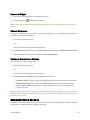
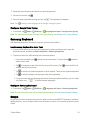
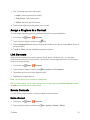
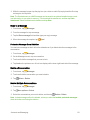
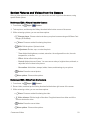
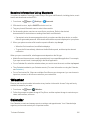
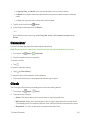
1. From home, touch and hold on a widget to undock it.
2. Drag the widget to Remove and release it.
Note: Removing a widget does not delete the widget; it just removes the widget from the Home screen.
Choose Wallpapers
Change the look of the home and lock screens with wallpaper. You can display a favorite picture, or choose from preloaded wallpapers.
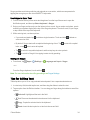
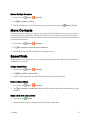
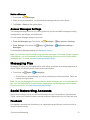
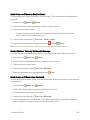
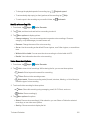
1. From home, pinch the screen.
– or –
Touch and hold an empty space on the screen.
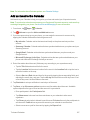
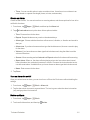
2. Tap Wallpapers, and then choose Home screen, Lock screen, or Home and lock screen.
3. Tap a wallpaper to see a sample, and then tap Set as wallpaper. Configure Home Screen Settings
Choose options for the Home screen.
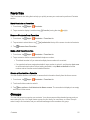
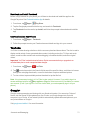
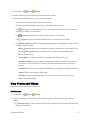
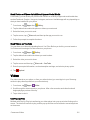
1. From home, pinch the screen.
– or –
Touch and hold an empty space on the screen.
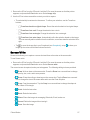
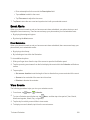
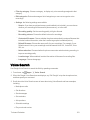
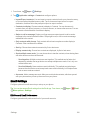
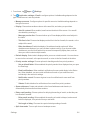
2. Tap Home screen settings, and then enable these options:
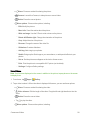
l Transition effect: Display a page-turning effect as you scroll through the Home screens.
l Flipboard Briefing: View all Flipboard Briefing updates on the Home screen. When enabled, Flipboard Briefing displays on the far-left screen. For more information, see Flipboard Briefing. Note: If Flipboard Briefing is disabled, your home screens will "swipe through," meaning you can swipe in either direction from the main Home screen and swipe through all the screens to return to the main Home screen. Extended Home Screens
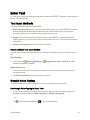
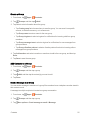
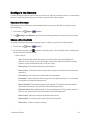
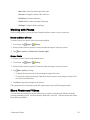
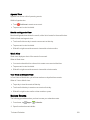
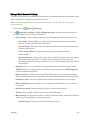
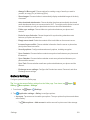
In addition to the main Home screen, your phone has up to six extended Home screens to provide more space for adding shortcuts, widgets, and more.
Phone Basics
20