1
BlackBerry Bold 9780 Smartphone
Version: 6.0
User Guide
To find the latest user guides, visit www.blackberry.com/docs/smartphones.
SWDT643442-941426-0810104747-001
Contents
Quick Help..................................................................................................................................................................................................................................................
Top 10..........................................................................................................................................................................................................................................................
Find important keys...................................................................................................................................................................................................................................
Start using your device..............................................................................................................................................................................................................................
Discover the Home screen........................................................................................................................................................................................................................
Personalize your device.............................................................................................................................................................................................................................
Ask a question online.................................................................................................................................................................................................................................
9
9
12
13
22
23
29
Shortcuts.....................................................................................................................................................................................................................................................
BlackBerry basics shortcuts......................................................................................................................................................................................................................
Phone shortcuts..........................................................................................................................................................................................................................................
Message shortcuts.....................................................................................................................................................................................................................................
Typing shortcuts.........................................................................................................................................................................................................................................
File and attachment shortcuts..................................................................................................................................................................................................................
Media shortcuts..........................................................................................................................................................................................................................................
Browser shortcuts.......................................................................................................................................................................................................................................
Calendar shortcuts.....................................................................................................................................................................................................................................
Search shortcuts.........................................................................................................................................................................................................................................
Troubleshooting: Shortcuts.......................................................................................................................................................................................................................
30
30
30
31
32
33
33
34
35
36
36
Phone...........................................................................................................................................................................................................................................................
Phone basics...............................................................................................................................................................................................................................................
Emergency calls..........................................................................................................................................................................................................................................
Volume.........................................................................................................................................................................................................................................................
Voice mail....................................................................................................................................................................................................................................................
Speed dial....................................................................................................................................................................................................................................................
Call waiting, call forwarding, and call blocking......................................................................................................................................................................................
Fixed dialing and smart dialing................................................................................................................................................................................................................
Conference calls.........................................................................................................................................................................................................................................
Call logs.......................................................................................................................................................................................................................................................
Multiple phone numbers...........................................................................................................................................................................................................................
Phone options.............................................................................................................................................................................................................................................
Phone shortcuts..........................................................................................................................................................................................................................................
Troubleshooting: Phone............................................................................................................................................................................................................................
37
37
39
40
41
42
42
44
46
47
48
49
51
52
Voice commands........................................................................................................................................................................................................................................
Perform an action using a voice command.............................................................................................................................................................................................
Available voice commands........................................................................................................................................................................................................................
Change the language for voice commands............................................................................................................................................................................................
Turn off choice lists for voice commands................................................................................................................................................................................................
55
55
55
56
56
Change the options for voice prompts....................................................................................................................................................................................................
Improve voice recognition.........................................................................................................................................................................................................................
Troubleshooting: Voice dialing.................................................................................................................................................................................................................
56
56
57
Messages.....................................................................................................................................................................................................................................................
Email............................................................................................................................................................................................................................................................
PIN messages.............................................................................................................................................................................................................................................
Text messages............................................................................................................................................................................................................................................
Security options for messages..................................................................................................................................................................................................................
Attachments...............................................................................................................................................................................................................................................
S/MIME-protected messages...................................................................................................................................................................................................................
IBM Lotus Notes native encrypted messages.........................................................................................................................................................................................
PGP protected messages..........................................................................................................................................................................................................................
Message shortcuts.....................................................................................................................................................................................................................................
File and attachment shortcuts..................................................................................................................................................................................................................
Troubleshooting: Messages......................................................................................................................................................................................................................
58
58
73
77
85
86
88
88
89
89
90
91
Files..............................................................................................................................................................................................................................................................
File basics....................................................................................................................................................................................................................................................
Managing files and attachments.............................................................................................................................................................................................................
File and attachment shortcuts..................................................................................................................................................................................................................
Troubleshooting: Attachments.................................................................................................................................................................................................................
96
96
98
101
101
Media...........................................................................................................................................................................................................................................................
Music...........................................................................................................................................................................................................................................................
Podcasts......................................................................................................................................................................................................................................................
Videos..........................................................................................................................................................................................................................................................
Video camera..............................................................................................................................................................................................................................................
Camera........................................................................................................................................................................................................................................................
Pictures........................................................................................................................................................................................................................................................
Voice notes..................................................................................................................................................................................................................................................
Ring Tones..................................................................................................................................................................................................................................................
Media storage.............................................................................................................................................................................................................................................
Transferring and downloading media files.............................................................................................................................................................................................
Supported audio and video file formats..................................................................................................................................................................................................
Media shortcuts..........................................................................................................................................................................................................................................
Troubleshooting: Media.............................................................................................................................................................................................................................
103
103
106
107
109
110
112
114
115
117
120
122
122
123
Ring tones, sounds, and alerts..................................................................................................................................................................................................................
About ring tones, sounds, and alerts.......................................................................................................................................................................................................
Change your ring tone, notifiers, or reminders.......................................................................................................................................................................................
Add a custom profile..................................................................................................................................................................................................................................
126
126
126
126
Add a contact alert.....................................................................................................................................................................................................................................
Silence your device....................................................................................................................................................................................................................................
Flashing LED...............................................................................................................................................................................................................................................
Change alarm notification options..........................................................................................................................................................................................................
Turn on event sounds................................................................................................................................................................................................................................
Troubleshooting: Ring tones, sounds, and alerts...................................................................................................................................................................................
127
127
127
128
128
128
Browser........................................................................................................................................................................................................................................................
Browser basics............................................................................................................................................................................................................................................
Browser bookmarks....................................................................................................................................................................................................................................
RSS feeds....................................................................................................................................................................................................................................................
Browser options..........................................................................................................................................................................................................................................
Browser security.........................................................................................................................................................................................................................................
Browser push..............................................................................................................................................................................................................................................
Browser shortcuts.......................................................................................................................................................................................................................................
Troubleshooting: Browser.........................................................................................................................................................................................................................
130
130
133
134
135
137
138
139
140
Calendar......................................................................................................................................................................................................................................................
Calendar basics..........................................................................................................................................................................................................................................
Meetings.....................................................................................................................................................................................................................................................
Conference call meetings.........................................................................................................................................................................................................................
Synchronizing calendar.............................................................................................................................................................................................................................
Calendar options........................................................................................................................................................................................................................................
Calendar shortcuts.....................................................................................................................................................................................................................................
Troubleshooting: Calendar........................................................................................................................................................................................................................
142
142
144
146
147
149
150
151
Contacts......................................................................................................................................................................................................................................................
Contact basics............................................................................................................................................................................................................................................
Customizing contacts................................................................................................................................................................................................................................
Synchronizing contacts.............................................................................................................................................................................................................................
Personal distribution lists..........................................................................................................................................................................................................................
Multiple contact lists.................................................................................................................................................................................................................................
Contact list options....................................................................................................................................................................................................................................
Troubleshooting: Contacts........................................................................................................................................................................................................................
152
152
153
154
156
157
157
158
Clock............................................................................................................................................................................................................................................................
Get the date and time from the wireless network automatically.........................................................................................................................................................
Set the date and time................................................................................................................................................................................................................................
Change what appears on the screen when your device is charging...................................................................................................................................................
Change the clock face...............................................................................................................................................................................................................................
Display a second time zone on the clock................................................................................................................................................................................................
Turn on the alarm.......................................................................................................................................................................................................................................
159
159
159
159
160
160
160
Silence the alarm.......................................................................................................................................................................................................................................
Change alarm notification options..........................................................................................................................................................................................................
Turn on bedside clock mode.....................................................................................................................................................................................................................
Set options for bedside clock mode.........................................................................................................................................................................................................
Use the stopwatch.....................................................................................................................................................................................................................................
Use the timer..............................................................................................................................................................................................................................................
Change timer notification options...........................................................................................................................................................................................................
Troubleshooting: Clock..............................................................................................................................................................................................................................
160
161
161
161
161
162
162
162
Tasks and memos.......................................................................................................................................................................................................................................
Create a task or memo..............................................................................................................................................................................................................................
Send a task or memo.................................................................................................................................................................................................................................
Change or delete a task or memo............................................................................................................................................................................................................
Change the status of a task......................................................................................................................................................................................................................
Hide completed tasks................................................................................................................................................................................................................................
Show tasks in the calendar.......................................................................................................................................................................................................................
Synchronizing tasks and memos..............................................................................................................................................................................................................
About categories........................................................................................................................................................................................................................................
Categorize a contact, task, or memo........................................................................................................................................................................................................
Create a category for contacts, tasks, or memos....................................................................................................................................................................................
Turn off the prompt that appears before you delete items...................................................................................................................................................................
163
163
163
163
163
163
164
164
165
166
166
166
Typing..........................................................................................................................................................................................................................................................
Typing basics..............................................................................................................................................................................................................................................
Typing input methods................................................................................................................................................................................................................................
Typing options............................................................................................................................................................................................................................................
Spelling checker.........................................................................................................................................................................................................................................
Custom dictionary......................................................................................................................................................................................................................................
AutoText......................................................................................................................................................................................................................................................
Typing shortcuts.........................................................................................................................................................................................................................................
Troubleshooting: Typing............................................................................................................................................................................................................................
167
167
167
169
170
171
172
173
174
Keyboard.....................................................................................................................................................................................................................................................
Change the keyboard layout.....................................................................................................................................................................................................................
Change the default keyboard for portrait view......................................................................................................................................................................................
Assign an application to a Convenience key..........................................................................................................................................................................................
Change the default currency symbol.......................................................................................................................................................................................................
Set the cursor speed..................................................................................................................................................................................................................................
Turn on key tones.......................................................................................................................................................................................................................................
Set the trackpad sensitivity.......................................................................................................................................................................................................................
Turn off trackpad sounds...........................................................................................................................................................................................................................
Troubleshooting: Keyboard.......................................................................................................................................................................................................................
175
175
175
175
175
176
176
176
176
177
Language.....................................................................................................................................................................................................................................................
About typing input languages..................................................................................................................................................................................................................
Change the language................................................................................................................................................................................................................................
Use a shortcut for switching typing input languages when you are typing.......................................................................................................................................
Add a display language.............................................................................................................................................................................................................................
Delete a language......................................................................................................................................................................................................................................
Troubleshooting: Language......................................................................................................................................................................................................................
178
178
178
178
178
179
179
Screen display.............................................................................................................................................................................................................................................
Set options for backlighting......................................................................................................................................................................................................................
Use a picture as your device wallpaper...................................................................................................................................................................................................
Change the display font............................................................................................................................................................................................................................
Organizing applications on the Home screen........................................................................................................................................................................................
Add a message that appears when your device is locked.....................................................................................................................................................................
Turn on LED notification for wireless coverage......................................................................................................................................................................................
Use grayscale or reverse contrast for the screen display......................................................................................................................................................................
Themes........................................................................................................................................................................................................................................................
Troubleshooting: Display...........................................................................................................................................................................................................................
180
180
180
180
180
181
181
182
182
183
GPS technology..........................................................................................................................................................................................................................................
About GPS technology..............................................................................................................................................................................................................................
Turn on GPS technology............................................................................................................................................................................................................................
Set the GPS receiver that you use to track your movement.................................................................................................................................................................
Get your GPS location...............................................................................................................................................................................................................................
Prevent others from tracking your location............................................................................................................................................................................................
Turn off location aiding.............................................................................................................................................................................................................................
Troubleshooting: GPS technology............................................................................................................................................................................................................
184
184
184
184
185
185
185
186
Maps............................................................................................................................................................................................................................................................
Map basics..................................................................................................................................................................................................................................................
Map options................................................................................................................................................................................................................................................
Map shortcuts.............................................................................................................................................................................................................................................
Troubleshooting: Maps..............................................................................................................................................................................................................................
187
187
189
190
190
Applications................................................................................................................................................................................................................................................
About multitasking.....................................................................................................................................................................................................................................
Keep an application running in the background and switch to another application........................................................................................................................
Close an application so that it is not running in the background........................................................................................................................................................
About adding applications........................................................................................................................................................................................................................
About social networking applications......................................................................................................................................................................................................
About instant messaging applications....................................................................................................................................................................................................
191
191
191
191
192
192
193
Require your device password before adding an application...............................................................................................................................................................
Delete an application................................................................................................................................................................................................................................
View properties for an application...........................................................................................................................................................................................................
View the size of an application database................................................................................................................................................................................................
Troubleshooting: Applications..................................................................................................................................................................................................................
193
193
193
194
194
BlackBerry Device Software......................................................................................................................................................................................................................
About updating the BlackBerry Device Software...................................................................................................................................................................................
Update the BlackBerry Device Software over the wireless network....................................................................................................................................................
Return to or delete the previous version of the BlackBerry Device Software.....................................................................................................................................
Update the BlackBerry Device Software from a web site.....................................................................................................................................................................
Update the BlackBerry Device Software using the BlackBerry Desktop Software............................................................................................................................
Troubleshooting: BlackBerry Device Software.......................................................................................................................................................................................
195
195
195
196
196
197
197
Manage Connections.................................................................................................................................................................................................................................
Manage Connections basics.....................................................................................................................................................................................................................
Mobile network...........................................................................................................................................................................................................................................
Wi-Fi technology........................................................................................................................................................................................................................................
Bluetooth technology................................................................................................................................................................................................................................
198
198
200
204
209
Power and battery......................................................................................................................................................................................................................................
Turn off your device...................................................................................................................................................................................................................................
Set your device to turn on and turn off automatically...........................................................................................................................................................................
Reset the device.........................................................................................................................................................................................................................................
Check the battery power level..................................................................................................................................................................................................................
Extend battery life......................................................................................................................................................................................................................................
216
216
216
216
216
216
Memory and media cards..........................................................................................................................................................................................................................
About media cards.....................................................................................................................................................................................................................................
Supported media cards.............................................................................................................................................................................................................................
Turn off media card support.....................................................................................................................................................................................................................
Repair files stored on your media card or on your device.....................................................................................................................................................................
About compression....................................................................................................................................................................................................................................
About file encryption.................................................................................................................................................................................................................................
Turn on encryption.....................................................................................................................................................................................................................................
Best practice: Conserving memory on your device................................................................................................................................................................................
Troubleshooting: Storage and media cards............................................................................................................................................................................................
218
218
218
218
218
219
219
219
220
220
Search..........................................................................................................................................................................................................................................................
Search for an item......................................................................................................................................................................................................................................
Set the types of items that are included in searches.............................................................................................................................................................................
Search for messages..................................................................................................................................................................................................................................
221
221
221
221
Message search criteria............................................................................................................................................................................................................................
Do more with your message search results............................................................................................................................................................................................
Search for text in a message, in a file, or on a web page......................................................................................................................................................................
View, change, or delete a saved search...................................................................................................................................................................................................
Search for a contact in your organization's address book....................................................................................................................................................................
Search shortcuts.........................................................................................................................................................................................................................................
222
222
223
223
223
224
SIM card......................................................................................................................................................................................................................................................
About the SIM card phone book...............................................................................................................................................................................................................
Add a contact to your SIM card................................................................................................................................................................................................................
Copy contacts from your SIM card to your contact list.........................................................................................................................................................................
Copy a contact from your contact list to your SIM card........................................................................................................................................................................
Change or delete a SIM card contact......................................................................................................................................................................................................
Store text messages on your SIM card....................................................................................................................................................................................................
Change the display name for a phone number......................................................................................................................................................................................
About SIM card security............................................................................................................................................................................................................................
Protect your SIM card with a PIN code...................................................................................................................................................................................................
Change the SIM card PIN code................................................................................................................................................................................................................
225
225
225
225
225
226
226
226
226
227
227
Security........................................................................................................................................................................................................................................................
Security basics............................................................................................................................................................................................................................................
Password keeper........................................................................................................................................................................................................................................
Encryption...................................................................................................................................................................................................................................................
Memory cleaning........................................................................................................................................................................................................................................
Certificates..................................................................................................................................................................................................................................................
PGP keys.....................................................................................................................................................................................................................................................
Certificate servers......................................................................................................................................................................................................................................
Key store......................................................................................................................................................................................................................................................
Smart cards.................................................................................................................................................................................................................................................
VPN settings...............................................................................................................................................................................................................................................
Verify security software manually............................................................................................................................................................................................................
Third-party application control................................................................................................................................................................................................................
Troubleshooting: Security.........................................................................................................................................................................................................................
228
228
229
231
233
234
236
237
237
238
239
240
240
242
Service books and diagnostic reports......................................................................................................................................................................................................
Accept, delete, or restore a service book.................................................................................................................................................................................................
Run a diagnostic report.............................................................................................................................................................................................................................
View, submit, or delete a diagnostic report.............................................................................................................................................................................................
Set a default recipient for diagnostic reports.........................................................................................................................................................................................
I cannot run or submit a diagnostic report.............................................................................................................................................................................................
View the version number of the BlackBerry Device Software on your device....................................................................................................................................
Submit a Wi-Fi diagnostic report..............................................................................................................................................................................................................
244
244
244
244
245
245
245
245
Set options for Wi-Fi diagnostic reports..................................................................................................................................................................................................
246
Synchronization..........................................................................................................................................................................................................................................
About synchronization...............................................................................................................................................................................................................................
Reconcile email over the wireless network.............................................................................................................................................................................................
Delete email on your device and in your email application on your computer..................................................................................................................................
Synchronize organizer data over the wireless network.........................................................................................................................................................................
About synchronization conflicts...............................................................................................................................................................................................................
Manage email reconciliation conflicts.....................................................................................................................................................................................................
Manage data synchronization conflicts...................................................................................................................................................................................................
About backing up and restoring device data..........................................................................................................................................................................................
Empty the deleted items folder on your computer from your device...................................................................................................................................................
Troubleshooting: Synchronization...........................................................................................................................................................................................................
247
247
247
247
248
248
248
249
249
249
250
Accessibility options..................................................................................................................................................................................................................................
About accessibility options.......................................................................................................................................................................................................................
Screen accessibility options......................................................................................................................................................................................................................
Audio and phone accessibility options....................................................................................................................................................................................................
Typing accessibility options......................................................................................................................................................................................................................
251
251
251
252
254
Calculator....................................................................................................................................................................................................................................................
Use the calculator......................................................................................................................................................................................................................................
Convert a measurement............................................................................................................................................................................................................................
256
256
256
BrickBreaker................................................................................................................................................................................................................................................
About BrickBreaker....................................................................................................................................................................................................................................
BrickBreaker capsules................................................................................................................................................................................................................................
BrickBreaker scoring..................................................................................................................................................................................................................................
Play BrickBreaker.......................................................................................................................................................................................................................................
Adjust the volume......................................................................................................................................................................................................................................
Set the paddle speed.................................................................................................................................................................................................................................
257
257
257
258
258
258
259
Word Mole game........................................................................................................................................................................................................................................
Word Mole game basics.............................................................................................................................................................................................................................
Single-player games..................................................................................................................................................................................................................................
Multiplayer games.....................................................................................................................................................................................................................................
Troubleshooting: Word Mole.....................................................................................................................................................................................................................
260
260
261
262
263
Glossary.......................................................................................................................................................................................................................................................
264
Legal notice.................................................................................................................................................................................................................................................
269
User Guide
Quick Help
Quick Help
Top 10
BlackBerry® device users have spoken! Here are the top 10 things they want to know how to do on their devices.
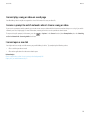
Change your ring tone, notifiers, or reminders
1. On the Home screen, click the Sound and Alert Profiles icon.
2. Click Change Sounds > Sounds for Selected Profile > Ring Tone.
• Click a tone.
• To use a tone that is on your BlackBerry® device or on a media card, click Select Music. Find and click an audio file.
3. Press the
key > Save.
Set up an email address
1. On the Home screen, click the Setup icon.
2. In the Setup section, click the Email Accounts icon.
3. Follow the screens to set up your email address. When your email address is set up correctly, you receive a confirmation message. To view
and manage your email messages, on the Home screen, click the Messages icon.
Note: In some cases, you might see the following options. If so, select one of the options.
• Internet Mail Account: Use this option to associate your BlackBerry® device with one or more existing email accounts (for example,
Windows Live™ Hotmail®) or to create a new email address for your device.
• Enterprise Account: If your administrator gave you an enterprise activation password, use this option to associate your device with your
work email account using the BlackBerry® Enterprise Server.
If you are trying to set up a Internet email account (for example, Windows Live™ Hotmail®) or a new email address for your device, and do not
see this option, contact your administrator or wireless service provider.
About adding applications
Depending on your wireless service provider and region, you might have the option to add or update applications using the BlackBerry App
World™ storefront, the BlackBerry® Desktop Software, or the Application Center. You might also be able to download applications from a web
page (try visiting mobile.blackberry.com from your BlackBerry device), or from an application offered by your wireless service provider.
Additional terms and conditions might apply to software and services made available through the BlackBerry App World™ storefront, the
BlackBerry Desktop Software, or the Application Center. Data charges might apply when you add or use an application over the wireless
network. For more information, contact your wireless service provider.
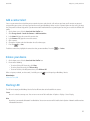
BlackBerry App World
9
Quick Help
User Guide
If you have BlackBerry App World on your device, you can search for and download games, social networking applications, personal productivity
applications, and much more. Using an existing PayPal® account, you can buy and download items over the wireless network to your device.
To download BlackBerry App World, visit www.blackberryappworld.com.
For more information about managing applications using BlackBerry App World, click the BlackBerry App World icon. Press the
Help.
key >
BlackBerry Desktop Software
If you have the BlackBerry Desktop Software installed on your computer, you can connect your device to your computer to add, update, remove,
or restore applications. You can also add applications to your device that you have downloaded to your computer, without having to use the
wireless network.
To download the BlackBerry Desktop Software, visit www.blackberry.com/desktop.
For more information about managing applications using the BlackBerry Desktop Software, see the Help in the BlackBerry Desktop Software.
Application Center
If you have the Application Center on your device, you can add, update, or return to the previous version of a select number of applications that
are hosted by your wireless service provider. Depending on your wireless service provider, this feature might not be available.
For more information about managing applications using the Application Center, click the Application Center icon. Press the
Help.
Download a theme
Depending on your wireless service provider, this feature might not be supported.
1. On the Home screen or in a folder, click the Options icon.
2. Click Display > Screen Display.
key > Download Themes.
3. Press the
Use a picture as your device wallpaper
1. On the Home screen, click the Media icon > Pictures icon.
2. Browse to a picture.
key > Set As Wallpaper.
3. Press the
Supported audio and video file formats
Type
File format
Audio
•
•
•
10
.mp3
.m4a
.wma
key >
Quick Help
User Guide
Type
Video
File format
•
.wav
•
•
•
•
•
•
•
.mp4
.mov
.3gp
.3gp2
.avi
.asf
.wmv
Transfer a file from your computer to your device using your device as a USB memory
drive
You must use the BlackBerry® Desktop Software to manage and preserve the information or the encryption that is associated with your media
files when you transfer files between your BlackBerry device and your computer.
1. Connect your device to your computer using a USB cable.
2. Do one of the following:
• If you want to transfer most types of files, in the dialog box that appears on your device, select the USB option.
• If you want to transfer media files that are protected with DRM, in the dialog box that appears on your device, select the media transfer
option.
3. If necessary, type a password. Your device appears as a drive on your computer.
4. Drag a file from a location on your computer to a folder on your device.
To view the transferred file on your device, disconnect your device from your computer and find the file.
Related topics
Transfer your media files from your computer to your device using BlackBerry Desktop Software, 120
Open, close, or switch between tabs
Do one of the following:
key > Tabs. Click the New Tab icon.
• To open a new tab, in the browser, press the
• To open a new tab for a link on a web page, highlight the link. Press the
key > Open Link in New Tab.
key > Tabs. Click a tab.
• To switch between tabs, in the browser, press the
key > Tabs. Highlight a tab. Click the icon.
• To close a tab, in the browser, press the
Reconcile email over the wireless network
You can set the Wireless Reconcile option for each email address that is associated with your BlackBerry® device.
1. On the Home screen, click the Messages icon.
11
Quick Help
User Guide
2.
3.
4.
5.
Press the
key > Options > Email Reconciliation.
If the Message Services field appears, set this field to the appropriate email account.
Select the Wireless Reconcile check box.
key > Save.
Press the
If your device is associated with a Microsoft® Outlook® email account, you must use the synchronization tool of the BlackBerry® Desktop
Software to reconcile email in personal folders. For more information, see the Help in the BlackBerry Desktop Software.
Add a signature to your work email
To perform this task, your email account must use a BlackBerry® Enterprise Server that supports this feature. For more information, contact
your administrator.
For information about completing this task for a personal email account that you have on your BlackBerry device (such as Google Mail™ or
Windows Live™ Hotmail®), visit blackberry.com/docs/smartphones and click BlackBerry Internet Service manuals under the Email Setup
Manuals section.
1.
2.
3.
4.
5.
6.
On the Home screen, click the Messages icon.
Press the
key > Options > Email Preferences.
If the Message Services field appears, set this field to the appropriate email account.
Select the Use Auto Signature check box.
In the field that appears, type a signature.
key > Save.
Press the
Your signature is added to your email after you send it.
Find important keys
Find out what the keys do and learn how to move around the screen on your BlackBerry® device.
About the Menu key and Escape key
The Menu key on your BlackBerry® device provides you with a full list of available actions for an application. The Menu key and the Escape key
help you switch between screens and applications quickly and easily.
Key
Actions
Menu key
•
•
•
on the Home screen or in an application, press to open the menu
on the Home screen or in an application, press and hold to switch applications
on a menu, press to select a highlighted menu item
Escape key
•
press to return to the previous screen
12
Quick Help
User Guide
Key
Actions
•
press to close a menu
About multitasking
Your BlackBerry® device supports multitasking, which allows you to run more than one application at a time. During a call, for example, you
might want to switch to the calendar application to view your appointments or switch to the contacts application to look up a contact. While
you are playing a song, you might want to switch to the messages application to reply to a message.
There are also shortcuts for most applications that can help you to perform common tasks quickly.
Note: The more applications that you have running, the more memory and battery power your device uses. To optimize the performance of
your device, try to close applications when you are finished with them.
Related topics
Keep an application running in the background and switch to another application, 191
Close an application so that it is not running in the background, 191
Move around the screen with the trackpad
•
•
To move the cursor in any direction and highlight items, slide your finger on the trackpad.
To select an item, select a field or check box, or open a link, highlight the item. Click (press) the trackpad.
Select commands using pop-up menus
Pop-up menus are available in most applications, and appear in the center of the screen. You can use the pop-up menu when you are viewing
a message, for example, to file, forward, or reply to the message.
• To open a pop-up menu, click and hold an item on the screen.
• To select a command, click the icon.
• To see additional commands, click the Full Menu icon.
Start using your device
Visit the Setup application
The Setup application helps you learn about navigation and typing, change options to personalize your BlackBerry® device, and set up network
connections, such as Wi-Fi® connections and Bluetooth® connections. You can also set up email addresses and social networking accounts.
The Setup application should appear automatically the first time that you turn on your device.
1. If the Setup application does not appear automatically, on the Home screen or in a folder, click the Setup icon.
2. Click a section to change options or to complete a short series of prompts that help you set the options.
13
User Guide
Quick Help
Turn on or turn off a network connection
You should keep network connections turned off in certain places, such as on an airplane or in a hospital. For more information, see the Safety
and Product Information booklet for your BlackBerry® device.
On the Home screen, click the connections area at the top of the screen, or click the Manage Connections icon.
• To turn on a network connection, select the check box beside a connection type.
• To turn off a network connection, clear the check box beside a connection type.
• To turn on the network connections that were turned on previously, click Restore Connections.
Find your phone number
Do one of the following:
key. Your phone number appears at the top of the screen.
• To view your active phone number, from the Home screen, press the
• If you have multiple phone numbers associated with your BlackBerry® device, to view a list of your phone numbers, from the Home
key. Click the phone number at the top of the screen. If your wireless service plan supports text messaging, the
screen, press the
first phone number in the list is the phone number that you use to send and receive text messages.
Related topics
About multiple phone numbers, 48
Set up an email address
1. On the Home screen, click the Setup icon.
2. In the Setup section, click the Email Accounts icon.
3. Follow the screens to set up your email address. When your email address is set up correctly, you receive a confirmation message. To view
and manage your email messages, on the Home screen, click the Messages icon.
Note: In some cases, you might see the following options. If so, select one of the options.
• Internet Mail Account: Use this option to associate your BlackBerry® device with one or more existing email accounts (for example,
Windows Live™ Hotmail®) or to create a new email address for your device.
• Enterprise Account: If your administrator gave you an enterprise activation password, use this option to associate your device with your
work email account using the BlackBerry® Enterprise Server.
If you are trying to set up a Internet email account (for example, Windows Live™ Hotmail®) or a new email address for your device, and do not
see this option, contact your administrator or wireless service provider.
Feature availability
The following items affect the availability of features on your BlackBerry® device. The features discussed are meant as examples, and are not
inclusive of every feature that might or might not be available on your device.
Device model
14
User Guide
Quick Help
Features such as an internal GPS receiver, Wi-Fi® connection capability, and the camera and video camera are dependent on your device
model. To find feature specifications for your device model, visit www.blackberry.com/go/devices.
Wireless service plan
A wireless service plan with phone or voice is required for you to use the phone application and to send and receive text messages.
A wireless service plan with data is required for you to use the browser service and instant messaging applications, and to send and receive
email messages and PIN messages.
For more information, contact your wireless service provider.
BlackBerry Internet Service and BlackBerry Enterprise Server
Once you have a data plan, you must set up your email address or third-party instant messaging account in order to send and receive
email messages, use third-party instant messaging applications, and use some browser options.
If you are an individual user, when you set up your email address or instant messaging account, you are associating it with the BlackBerry®
Internet Service.
If you are a corporate user, your administrator sets up your email account by associating it with a BlackBerry® Enterprise Server. Your
administrator might set options that determine the features and settings that are available on your device. To view the IT policies that
have been set by your administrator, click Security > Security Status Information > IT Policy Viewer.
Wireless service provider
Features such as text messages, location-based services, and some phone features are dependent on your wireless service provider's
offerings. For more information, contact your wireless service provider.
Wireless network
The wireless network that your device is connected to might affect the availability of some features. Depending on your wireless service
provider and available roaming options, different wireless networks are available. Some wireless networks do not support features such
as call blocking, call forwarding, or cell broadcasting. For more information, contact your wireless service provider.
Related topics
Wireless networks that your device connects to, 198
BlackBerry Device Software, 195
Find more information, 18
Wireless synchronization
Reconcile email over the wireless network
You can set the Wireless Reconcile option for each email address that is associated with your BlackBerry® device.
1. On the Home screen, click the Messages icon.
2. Press the
key > Options > Email Reconciliation.
3. If the Message Services field appears, set this field to the appropriate email account.
4. Select the Wireless Reconcile check box.
key > Save.
5. Press the
15
Quick Help
User Guide
If your device is associated with a Microsoft® Outlook® email account, you must use the synchronization tool of the BlackBerry® Desktop
Software to reconcile email in personal folders. For more information, see the Help in the BlackBerry Desktop Software.
Synchronize organizer data over the wireless network
Research In Motion recommends that you regularly create and save a backup file on your computer, especially before you update any software.
Maintaining an up-to-date backup file on your computer might allow you to recover device data if your device is lost, stolen, or corrupted by
an unforeseen issue.
1.
2.
3.
4.
In the Contacts application, Calendar application, Tasks application, or MemoPad, press the
If necessary, click a calendar or contact list.
Select the Wireless Synchronization check box.
key > Save.
Press the
key > Options.
If you use the BlackBerry® Internet Service, you must use the synchronization tool of the BlackBerry® Desktop Software to synchronize calendar
data. For more information, see the Help in the BlackBerry Desktop Software.
Clock and time zone
Set the date and time
1. On the Home screen or in the Applications folder, click the Clock icon.
2. Press the
key > Set Time.
• To get the date and time from the wireless network automatically, change the Update Time field to Automatic. Note that you must
be connected to the wireless network.
• To set the date and time manually, change the Update Time field to Manual. Click the Set Time or Set Date field. Change the time
or date. Click the trackpad.
3. Do any of the following:
• To receive a prompt when your device detects a new time zone, change the Auto Update Time Zone field to Prompt.
• To have your device update the time zone automatically when it detects a new time zone, change the Auto Update Time Zone field
to On.
key > Save.
4. Press the
Get the date and time from the wireless network automatically
To perform this task, your BlackBerry® device must be connected to the wireless network.
1.
2.
3.
4.
16
On the Home screen or in the Applications folder, click the Clock icon.
Press the
key > Set Time.
Change the Set Time field to Automatic.
Do one of the following:
• To receive a prompt when your device detects a new time zone, change the Auto Update Time Zone field to Prompt.
User Guide
Quick Help
• To have your device update the time zone automatically when it detects a new time zone, change the Auto Update Time Zone field
to On.
5. Press the
key > Save.
Connect to a Wi-Fi network
1. On the Home screen, click the connections area at the top of the screen, or click the Manage Connections icon.
2. Click Set Up Wi-Fi.
3. If you want to connect to a public hotspot or to a Wi-Fi® network that does not require authentication, select the Show Open networks
only check box.
4. Click the Wi-Fi network that you want to connect to.
5. If the Wi-Fi network requires authentication, type a password for the network.
The name of the Wi-Fi network appears at the top of the Home screen.
Bluetooth technology options
Turn on Bluetooth technology
1. On the Home screen, click the connections area at the top of the screen, or click the Manage Connections icon.
2. Select the Bluetooth check box.
To turn off Bluetooth® technology, clear the Bluetooth check box.
Pair with a Bluetooth enabled device
You must pair your BlackBerry® device with a Bluetooth® enabled device before you can connect to it. For more information about preparing
the Bluetooth enabled device for pairing, see the documentation that came with the Bluetooth enabled device.
1.
2.
3.
4.
On the Home screen, click the connections area at the top of the screen, or click the Manage Connections icon.
Click Bluetooth Options > Add New Device > Search.
Click a Bluetooth enabled device.
If necessary, do one of the following:
• If the Bluetooth enabled device does not have a keyboard (for example, a wireless headset), on your BlackBerry device, type the pairing
passkey that either appears on the Bluetooth enabled device or is provided in the documentation that came with the Bluetooth enabled
device. The passkey is most often a numeric or alphanumeric code.
• If the Bluetooth enabled device has a keyboard (for example, a laptop), type a pairing passkey of your choice on both devices.
Related topics
Turn on Bluetooth technology, 17
Change the display font
1.
On the Home screen or in a folder, click the Options icon.
17
User Guide
Quick Help
2. Click Display > Screen Display.
3. Change the font fields.
4. Press the
key > Save.
Change the language
1. On the Home screen or in a folder, click the Options icon.
2. Click Typing and Input > Language.
• To change the display language, change the Display Language field.
• To change the typing language, change the Typing Language field.
• To change the language for voice commands, change the Voice Dialing field.
key > Save.
3. Press the
Find more information
•
•
•
•
Help on your device: Find step-by-step instructions in the user guide for your BlackBerry® device. Click Help on the Home screen or in
an application menu.
www.discoverblackberry.com: Find software, applications, and accessories for your device.
Your wireless service provider web site: Find information about your wireless network or wireless service plan.
www.blackberry.com/go/declarationofconformity: View the Declaration of Conformity made under Directive 1999/5/EC (HG nr.
88/2003).
Troubleshooting: Basics
I cannot make or receive calls
Try performing the following actions:
• Verify that your BlackBerry® device is connected to the wireless network.
• Verify that your wireless service plan includes phone or voice services.
• If you cannot make calls and fixed dialing is turned on, verify that the phone number for your contact appears in your fixed dialing list
or turn off fixed dialing.
• If you have traveled to another country and you have not changed your smart-dialing options, dial the full phone number, including
the country code and area code, for your contact.
• If you are not receiving calls, verify that call blocking and call forwarding are turned off.
• Your device or your SIM card might support more than one phone number, even if you only have one phone number. Verify that your
phone number is set as your active phone number.
• If you have more than one phone number associated with your device, verify that the phone number that you want to make calls from
and receive calls to is set as your active phone number.
Related topics
Fixed dialing and smart dialing, 44
Call waiting, call forwarding, and call blocking, 42
Switch the active phone number, 49
18
User Guide
Quick Help
I am not receiving messages
Try the following actions:
•
•
•
•
•
•
•
•
Verify that your BlackBerry® device is connected to the wireless network. If you are not in a wireless coverage area, you should receive
messages when you return to a wireless coverage area.
If you created an email address or added an existing email address to your device using the email setup screen in the Setup application,
verify that you have received an activation message on your device from the BlackBerry® Internet Service. If you have not received an
activation message (the message might take a short period of time to arrive), in the Setup application, open the email setup screen to send
a service book to your device.
If you have not received a registration message from the wireless network, register your device.On the Home screen or in a folder, click
the Options icon. Click Advanced Options > Host Routing Table. Press the
key > Register Now.
Verify that data service is turned on.
If you use email filters, verify that the options for email filters are set correctly.
Verify that email forwarding is turned on and that you have selected all the email folders, including your inbox folder, that you want to
receive email from.
If you have a Wi-Fi® enabled device and if your device uses a software token to connect to a Wi-Fi network or to log in to a VPN, reset your
device and connect to the Wi-Fi network or log in to the VPN again.
Verify that your device is not blocking messages. For more information, contact your administrator.
Related topics
Turn on or turn off data service or set roaming options, 200
Turn on or turn off a network connection, 14
Wireless coverage indicators, 198
Change, prioritize, or delete an email filter, 71
Forward messages from a specific email folder to your device, 65
I am not receiving text messages
Depending on your wireless service plan, this feature might not be supported.
Verify that your BlackBerry® device is connected to the wireless network. If you are not in a wireless coverage area, you should receive messages
when you return to a wireless coverage area.
I cannot save media files
Your BlackBerry® device memory or media card might not have enough available memory to store media files.
Try the following actions:
• If you are trying to save a media file to your device memory, delete old data or messages from your device.
• If you are trying to save a media file on your media card, delete old media files.
• In the camera options, verify that the Image Size field is not set to Large. Large pictures use more memory than smaller pictures.
Related topics
Delete messages, 62
19
Quick Help
User Guide
Move, rename, or delete a file, 98
The battery is not charging
Depending on how you charge your BlackBerry® device, try performing the following actions:
•
•
•
•
•
Verify that the USB cable is securely connected to your device and a USB port.
Try connecting your device to another USB port on your computer, a USB port on a different computer, a USB hub, or try using a travel
charger.
Verify that BlackBerry device USB drivers are installed on your computer. When you install BlackBerry® Desktop Software from the CD
that came with your device, the correct USB drivers should be installed. You can also download the latest version of BlackBerry Desktop
Software from www.blackberry.com.
Verify that your computer is not in standby, hibernate, or sleep mode.
Some USB hubs might not provide enough power. Plug the hub into a power outlet (if available) and reconnect your device.
Email is not reconciling over the wireless network
Try the following actions:
• Verify that your BlackBerry® device is connected to the wireless network.
• Verify that wireless email reconciliation is turned on.
• Reconcile email manually. On the Home screen, click the Messages icon. Press the
key > Reconcile Now.
Organizer data is not synchronizing over the wireless network
Try the following actions:
• Verify that your BlackBerry® device is connected to the wireless network.
• Verify that wireless data synchronization is turned on in the Contacts application, Calendar application, Tasks application, and
MemoPad.
• If you use the BlackBerry® Internet Service, you must use the synchronization tool of the BlackBerry® Desktop Software to synchronize
calendar data. For more information, see the Help in the BlackBerry Desktop Software.
The time on my device is incorrect
1. On the Home screen or in the Applications folder, click the Clock icon.
2. Press the
key > Set Time.
3. Try one of the following actions:
> Update Time.
• If the Set Time field is set to Automatic, press the
• If you have traveled to a different time zone, set the Time Zone field to display the correct time zone.
• If you are in a region that has recently made changes to daylight saving time or has switched to a different time zone, you might need
key > Get Time Zone
to update the time zone data on your BlackBerry® device. To update the time zone data, press the
Updates. For this feature to be supported, your wireless service plan must include data services (such as email messages or browser
service). If your email account uses a BlackBerry® Enterprise Server, you might not be able update your time zone data. For more
information, contact your administrator.
20
User Guide
Quick Help
I cannot connect to a Wi-Fi network
Depending on your BlackBerry® device model, the Wi-Fi® feature might not be supported.
Try the following actions:
• Verify that you have turned on the connection to the Wi-Fi network.
• Verify that you are in a Wi-Fi coverage area.
• If the Wi-Fi network does not appear in the Set Up Wi-Fi application, it might be hidden. If you know the network name, try connecting
to the Wi-Fi network manually.
• In the Set Up Wi-Fi application, verify that the options for the Wi-Fi network are correct.
• If you switched Wi-Fi networks manually, switch to another Wi-Fi network or set your BlackBerry device to scan for available Wi-Fi
networks.
• If your wireless service provider supports UMA, verify that your connection preference is not set to Mobile Network Only.
• If your email account uses a BlackBerry® Enterprise Server, your device might prevent you from connecting to certain wireless access
points. For more information, contact your administrator.
• If you are using the Push Button Setup method, verify that the access point is enabled with Wi-Fi Protected Setup™, and that it has
been set to send its profile. Verify that another device is not also attempting to connect at the same time, and that not more than one
access point within range is in this mode.
• If you use PEAP, EAP-TLS, EAP-FAST, EAP-TTLS, or EAP-SIM to connect to a Wi-Fi network, verify that you have installed the root
certificate for the certificate authority server that created the certificate for the authentication server.
• If you use EAP-TLS to connect to a Wi-Fi network, verify that you have added your authentication certificate to your device.
Related topics
Turn on or turn off a network connection, 14
Connect to a Wi-Fi network, 17
Connect to a Wi-Fi network manually, 205
I cannot pair with a Bluetooth enabled device
Try the following actions:
• Verify that your BlackBerry® device is compatible with the Bluetooth® enabled device. For more information, see the documentation
that came with the Bluetooth enabled device.
• If you do not know the passkey for your Bluetooth enabled device, see the documentation that came with the Bluetooth enabled device.
• If your BlackBerry device does not detect the Bluetooth enabled device that you want to pair with, try making your BlackBerry device
discoverable for a short period of time. Many car kits need to discover your BlackBerry device rather than your BlackBerry device
discovering the car kit. On the Home screen, click the connections area at the top of the screen, or click the Manage Connections
icon. Click Bluetooth Options. Click Add New Device. Click Listen. Bluetooth enabled devices can detect your BlackBerry device for
2 minutes.
• Turn off encryption for Bluetooth connections between your BlackBerry device and the Bluetooth enabled device. On the Home screen,
click the connections area at the top of the screen, or click the Manage Connections icon. Click Bluetooth Options. Highlight a
Bluetooth enabled device. Press the
key > Device Properties. Clear the Encryption check box. Press the
key > Save.
21
User Guide
Quick Help
Discover the Home screen
Change the theme, and wallpaper, and organize with folders.
Switch themes
1.
2.
3.
4.
On the Home screen or in a folder, click the Options icon.
Click Display > Screen Display.
In the Theme section, click a theme.
Click Activate.
To delete a theme, click the theme. Click Delete.
Use a picture as your device wallpaper
1. On the Home screen, click the Media icon > Pictures icon.
2. Browse to a picture.
3. Press the
key > Set As Wallpaper.
Add, change, or delete a folder on the Home screen
On the Home screen, do one of the following:
key > Add Folder. Type a name for the folder. To change the folder icon style, click the folder icon.
• To add a folder, press the
Click a folder icon style. Click Add.
key > Edit Folder. Change the folder name or folder icon style. Click Save.
• To change a folder, highlight a folder. Press the
key > Delete.
• To delete a folder, highlight a folder. Press the
Find or hide an application icon
Depending on your theme, you might not be able to hide some application icons.
On the Home screen or in a folder, do any of the following:
• To see all your application icons, press the
key > All.
key > Hide.
• To hide an application icon, highlight the icon. Press the
• To show all hidden application icons, press the
key > Show All.
key > Hide. A check mark should not appear beside the Hide
• To stop hiding an application icon, highlight the icon. Press the
field.
22
User Guide
Quick Help
Change what happens when you type on the Home screen
Depending on your typing input language, you might not be able to use shortcut keys to open applications.
1.
On the Home screen, press the
key > Options.
• To search your BlackBerry® device or the Internet when you type on the Home screen, change the Launch by Typing field to Universal
Search.
• To open applications when you press shortcut keys, change the Launch by Typing field to Application Shortcuts.
key > Save.
2. Press the
Personalize your device
Make your BlackBerry® device your own by setting preferred options and adding your personal information.
Automatic shutoff and lock
Set a device password
1.
2.
3.
4.
5.
6.
On the Home screen or in a folder, click the Options icon.
Click Security > Password.
Select the Enable check box.
Click Set Password.
Type a password.
Press the
key > Save.
To turn off your BlackBerry® device password, clear the Enable check box.
Set your device to turn on and turn off automatically
1.
2.
3.
4.
5.
6.
7.
On the Home screen or in a folder, click the Options icon.
Click Device > Auto On/Off.
Select the Weekday check box.
Specify the times when your BlackBerry® device should turn on and turn off on weekdays.
Select the Weekend check box.
Specify the times when your device should turn on and turn off on weekends.
key > Save.
Press the
23
User Guide
Quick Help
Navigation and typing
Change the display font
1.
2.
3.
4.
On the Home screen or in a folder, click the Options icon.
Click Display > Screen Display.
Change the font fields.
Press the
key > Save.
Change the language
1. On the Home screen or in a folder, click the Options icon.
2. Click Typing and Input > Language.
• To change the display language, change the Display Language field.
• To change the typing language, change the Typing Language field.
• To change the language for voice commands, change the Voice Dialing field.
3. Press the
key > Save.
Set the cursor speed
1.
2.
3.
4.
On the Home screen or in a folder, click the Options icon.
Click Typing and Input > Keyboard.
Change the Key Rate field.
Press the
key > Save.
Set the trackpad sensitivity
You can set how the trackpad responds to your touch. A high sensitivity level requires less pressure than a lower sensitivity level.
1. On the Home screen or in a folder, click the Options icon.
2. Click Typing and Input > Trackpad Sensitivity.
3. Change the Horizontal Sensitivity field and Vertical Sensitivity field.
4. Press the
key > Save.
Assign an application to a Convenience key
Your BlackBerry® device has one or more Convenience keys on the side of the device. Depending on your theme, you might not be able to
change the application that is assigned to a Convenience key.
1. On the Home screen or in a folder, click the Options icon.
2. Click Device > Convenience Keys.
3. Change the Right Side Convenience Key Opens field or Left Side Convenience Key Opens field.
4. Press the
key > Save.
24
User Guide
Quick Help
Add a signature to your work email
To perform this task, your email account must use a BlackBerry® Enterprise Server that supports this feature. For more information, contact
your administrator.
For information about completing this task for a personal email account that you have on your BlackBerry device (such as Google Mail™ or
Windows Live™ Hotmail®), visit blackberry.com/docs/smartphones and click BlackBerry Internet Service manuals under the Email Setup
Manuals section.
1.
2.
3.
4.
5.
6.
On the Home screen, click the Messages icon.
key > Options > Email Preferences.
Press the
If the Message Services field appears, set this field to the appropriate email account.
Select the Use Auto Signature check box.
In the field that appears, type a signature.
key > Save.
Press the
Your signature is added to your email after you send it.
Add a message that appears when your device is locked
1.
2.
3.
4.
On the Home screen or in a folder, click the Options icon.
Click Display > Message on Lock Screen.
Type the text that you want to appear on the screen when your device is locked.
key > Save.
Press the
File transfer and download
Transfer a file from your computer to your device using your device as a USB memory drive
You must use the BlackBerry® Desktop Software to manage and preserve the information or the encryption that is associated with your media
files when you transfer files between your BlackBerry device and your computer.
1. Connect your device to your computer using a USB cable.
2. Do one of the following:
• If you want to transfer most types of files, in the dialog box that appears on your device, select the USB option.
• If you want to transfer media files that are protected with DRM, in the dialog box that appears on your device, select the media transfer
option.
3. If necessary, type a password. Your device appears as a drive on your computer.
4. Drag a file from a location on your computer to a folder on your device.
To view the transferred file on your device, disconnect your device from your computer and find the file.
Related topics
Transfer your media files from your computer to your device using BlackBerry Desktop Software, 120
25
User Guide
Quick Help
About adding applications
Depending on your wireless service provider and region, you might have the option to add or update applications using the BlackBerry App
World™ storefront, the BlackBerry® Desktop Software, or the Application Center. You might also be able to download applications from a web
page (try visiting mobile.blackberry.com from your BlackBerry device), or from an application offered by your wireless service provider.
Additional terms and conditions might apply to software and services made available through the BlackBerry App World™ storefront, the
BlackBerry Desktop Software, or the Application Center. Data charges might apply when you add or use an application over the wireless
network. For more information, contact your wireless service provider.
BlackBerry App World
If you have BlackBerry App World on your device, you can search for and download games, social networking applications, personal productivity
applications, and much more. Using an existing PayPal® account, you can buy and download items over the wireless network to your device.
To download BlackBerry App World, visit www.blackberryappworld.com.
For more information about managing applications using BlackBerry App World, click the BlackBerry App World icon. Press the
Help.
key >
BlackBerry Desktop Software
If you have the BlackBerry Desktop Software installed on your computer, you can connect your device to your computer to add, update, remove,
or restore applications. You can also add applications to your device that you have downloaded to your computer, without having to use the
wireless network.
To download the BlackBerry Desktop Software, visit www.blackberry.com/desktop.
For more information about managing applications using the BlackBerry Desktop Software, see the Help in the BlackBerry Desktop Software.
Application Center
If you have the Application Center on your device, you can add, update, or return to the previous version of a select number of applications that
are hosted by your wireless service provider. Depending on your wireless service provider, this feature might not be available.
For more information about managing applications using the Application Center, click the Application Center icon. Press the
Help.
Phone options
Change your ring tone, notifiers, or reminders
1. On the Home screen, click the Sound and Alert Profiles icon.
2. Click Change Sounds > Sounds for Selected Profile > Ring Tone.
• Click a tone.
• To use a tone that is on your BlackBerry® device or on a media card, click Select Music. Find and click an audio file.
3. Press the
key > Save.
26
key >
Quick Help
User Guide
Add a contact alert
You can create contact alerts that allow you to customize ring tones and alerts for calls and messages from specific contacts or groups of
contacts. When you receive a call or message from the contact, your BlackBerry® device uses the assigned ring tone or alert, even if you select
the Silent profile or Vibrate Only profile. If you do not want to be notified with the assigned ring tone or alert, you can select the All Alerts Off
profile.
1. On the Home screen, click the Sound and Alert Profiles icon.
2. Click Change Sounds > Sounds for Contacts > Add Contact Alert.
3. In the Name field, type the name of the contact alert.
4. In the Contacts field, type the name of the contact.
5. Click a contact.
6. Change the ring tone and alert information for calls and messages.
7. Press the
key > Save.
To delete a contact alert, highlight the contact alert that you want to delete. Press the
key > Delete.
Set up speed dial for a contact
1.
2.
3.
4.
5.
From the Home screen, press the Send key.
Press the
key > View Speed Dial List.
In the Speed Dial Numbers list, click an unassigned key.
Click a contact.
If necessary, click a phone number for the contact.
To make a call using speed dial, from the Phone application, the Home screen, a message, or a message list, press and hold the key that you
assigned to the contact.
Change the default volume for calls
You can increase or decrease the default volume for calls. The higher you set the volume percentage, the louder the volume is.
key.
1. From the Home screen, press the
2. Press the
key > Options > In-call Settings.
3. Change the Default Call Volume field.
key > Save.
4. Press the
Contact options
Add a contact
•
To add a contact using the Contacts application, on the Home screen, click the Contacts icon. At the top of the screen, click New
Contact. Type the contact information. Press the
key > Save.
27
User Guide
Quick Help
•
key > Add
To add a contact from a message, call log, or web page, highlight the contact name, number, or email address. Press the
key > Save.
to contacts. If necessary, add contact information. Press the
Change or delete a contact picture
1.
2.
3.
4.
On the Home screen, click the Contacts icon.
Highlight a contact.
Press the
key > Edit.
Highlight the contact picture.
• To change the contact picture, press the
• To delete the contact picture, press the
5. Press the
key > Replace Picture. Highlight a picture. Press the
> Delete Picture.
key > Select.
key > Save.
Map options
Add a bookmark for a location or route
1. On the Home screen, click the Maps icon.
2. On a map, press the
key > Add As Favorite > OK.
Clock options
Change the clock face
You can set a different clock face for the clock, stopwatch and timer.
1. On the Home screen or in the Applications folder, click the Clock icon.
2. Press the
key > Options.
3. Change the Clock Face field, Stopwatch Face field or Timer Face field.
key > Save.
4. Press the
Turn on the alarm
1.
2.
3.
4.
On the Home screen or in the Applications folder, click the Clock icon.
Press the
key > Set Alarm.
On the trackpad, slide your finger up or down to highlight On or Weekdays.
Click the trackpad.
At the top of the Home screen, a clock indicator appears.
To set additional alarms or to set alarms for certain days of the week, you can schedule alarms through the Calendar application.
Related topics
Turn off your device, 216
28
User Guide
Quick Help
Ask a question online on page
29
Shortcuts
User Guide
Shortcuts
Depending on the typing input language that you are using, some shortcuts might not be available.
BlackBerry basics shortcuts
Depending on the typing input language that you are using, some shortcuts might not be available.
Move the cursor
Slide your finger on the trackpad.
Move back a screen
Press the
key.
Return to the Home screen when you are not on a call
Press the
key.
View more applications on the Home screen
Click All
Open a menu in an application to access options and available
actions
Press the
Move to a list item or menu item
Type the first letter of the item.
Select a highlighted menu item
Press the
View available values in a field
Press the Alt key.
Switch between the selected sound profile and the Vibrate sound
profile
Press and hold the Q key.
Delete a highlighted item
Press the Backspace/Delete key.
key.
key.
Phone shortcuts
Depending on the typing input language that you are using, some shortcuts might not be available.
Change your ring tone
From the Home screen, press the
key. Press the
key > Phone Ring
Tones.
Check your voice mail
Press and hold 1.
Set up speed dial for a contact
From the Home screen or in the phone application, press and hold the key that you
would like to assign speed dial to.
Add an extension to a phone number
Press the Alt key and X. Type the extension number.
Type a letter in a phone number field
Press the Alt key and the letter key.
Insert a plus sign (+) when typing a phone number
Press O
30
Shortcuts
User Guide
Turn on or turn off the speakerphone during a call
Press the key on the keyboard.
Stop listening to a call with a wireless headset
Press the key on the keyboard.
Change the active phone number
From the Home screen, press the
key. Click your phone number at the top of
the screen. Click a phone number.
Message shortcuts
Depending on the typing input language that you are using, some shortcuts might not be available.
In a message
Reply to a message
Press R
Reply to all in an email or a PIN message
Press L
Forward a message
Press F
File an email message
Press I
View or hide the email address of a contact
Highlight the contact in the To or From field. Press Q.
Move to the last cursor position after you close and reopen a received
email or PIN message
Press G
Move to the next message
Press N
Move to the previous message
Press P
In your message inbox
Open a message
Press the
Compose a message from a message inbox
Press C
key.
Mark a message as opened or unopened
Press the Alt key and U.
Add a flag to a message
Press W
View all flagged messages
Press the Alt key and F.
View received messages and received call logs
Press the Alt key and I.
View sent messages
Press the Alt key and O.
View voice mail messages
Press the Alt key and V.
View text messages
Press the Alt key and S.
View call logs
Press the Alt key and P.
View all your messages
Press the
key.
Move around your message inbox
31
Shortcuts
User Guide
Move up a screen
Press the Shift key and the Space key.
Move down a screen
Press the Space key.
Move to the top of a message inbox
Press T
Move to the bottom of a message inbox
Press B
Move to the next unopened item
Press U
Move to the next related message
Press J
Move to the previous related message
Press K
Typing shortcuts
Depending on the typing input language that you are using, some shortcuts might not be available.
Insert a period
Press the Space key twice. The next letter is capitalized.
Insert an at sign (@) or a period (.) in an email address field
Press the Space key.
Capitalize a letter
Press and hold the letter key until the capitalized letter appears.
Turn on CAP lock
Press the Alt key and the Right Shift key. To turn off CAP lock, press
the Left Shift key or Right Shift key.
Type a symbol
Press the Symbol key. Type the letter that appears below the symbol.
Type the alternate character on a key
Press the Alt key and the character key.
Type an accented or special character
Press and hold the letter key and, on the trackpad, slide your finger
left or right. For example, to type ü, press and hold U and slide your
finger left until ü appears. Release the letter key when the accented
or special character appears.
Type a number in a text field
Press and hold the Alt key and press the number key.
Type a number in a number field
Press a number key. You do not need to press the Alt key.
Turn on NUM lock
Press the Alt key and the Left Shift key. To turn off NUM lock, press
the Left Shift key or Right Shift key.
Highlight a line of text
Press the Left Shift key or Right Shift key and, on the trackpad, slide
your finger up or down.
Highlight text character by character
Press the Left Shift key or Right Shift key and, on the trackpad, slide
your finger left or right.
Cut highlighted text
Press the Left Shift key or Right Shift key and the Backspace/
Delete key.
Copy highlighted text
Press the Alt key and click the trackpad.
32
Shortcuts
User Guide
Paste text
Press the Left Shift key or Right Shift key and click the trackpad.
File and attachment shortcuts
Depending on the typing input language that you are using, some shortcuts might not be available.
Search for text in a file or an attachment
Press F
Move to the last cursor position after closing and reopening a file or
an attachment
Press G
In a spreadsheet
Move to a specific cell
Press G
View the content of a cell
Press the Space key
Switch worksheets
Press V. Highlight a worksheet. Press the Enter key.
View or hide columns or rows
Press H
In a presentation
Switch presentation views
Press M
Move to the next slide when viewing a presentation in slide view
Press N
Move to the previous slide when viewing a presentation in slide view
Press P
Move to the last cursor position after closing and reopening a
presentation that you were viewing in text view or in text and slide
view
Press G
Media shortcuts
Depending on the typing input language that you are using, some shortcuts might not be available.
Audio and video files
Pause an audio or video file
Press the
key.
Resume playing an audio or video file
Press the
key.
Play the next song
Press and hold the Volume Up key on the right side of your device.
Play the previous song
Press and hold the Volume Down key on the right side of your device.
33
Shortcuts
User Guide
Turn the audio boost feature on if you are using a headset
When playing an audio or a video file, press the Volume Up key until
you reach the highest volume setting, and then press the Volume
Up key four times quickly.
Pictures
Zoom in
Press 3
Zoom out
Press 9
Zoom to the original size
Press 7
Pan up
Press 2
Pan down
Press 8
Pan right
Press 6
Pan left
Press 4
Return to the center
Press 5
Rotate
Press L
Fit to the screen size
Press 1
Camera and video camera
Zoom in
Press the Volume Up key.
Zoom out
Press the Volume Down key.
Take a picture
Press the key.
Change the flash setting for a picture or turn on low-light mode for
a video
Press the Space key.
Browser shortcuts
Depending on the typing input language that you are using, some shortcuts might not be available.
Insert a period (.) in the web address field
Press the Space key.
Insert a slash mark (/) in the web address field
Press the Shift key and the Space key.
Stop loading a web page
Press the Escape key.
Close the browser
Press and hold the Escape key.
On a web page
34
Shortcuts
User Guide
Quickly switch between tabs
Press W
Zoom in to a web page
Press I
Zoom out from a web page
Press O
Go to the start page
Press G
Return to the home page
Press H
Open the bookmark list
Press K
Add a bookmark
Press A
View a list of web pages that you have visited
recently
Press Y
Refresh a web page
Press R
Find text on a web page
Press F. To find the next instance of the text, press V.
Open the browser options
Press S
Move around a web page
Move up a screen
Press the Shift key and the Space key.
Move down a screen
Press the Space key.
Move to the top of a web page
Press T
Move to the bottom of a web page
Press B
Calendar shortcuts
Depending on the typing input language that you are using, some shortcuts might not be available.
For shortcuts to work in Day view, in the general calendar options, clear the Enable Quick Entry check box.
Schedule an appointment
Press C
Change to Agenda view
Press A
Change to Day view
Press D
Change to Week view
Press W
Change to Month view
Press M
Move to the next day, week, or month
Press the Space key.
Move to the previous day, week, or month
Press the Shift key and the Space key.
Move to the current date
Press T
35
Shortcuts
User Guide
Move to a specific date
Press G
Search shortcuts
Depending on the typing input language that you are using, some shortcuts might not be available.
Search for an item on your BlackBerry® device
Start typing on the Home screen.
Search for a contact in a list of contacts
Type part or all of a contact name, or type initials separated by a space.
Search for text in a message
Press S
Search for text in a file or an attachment
Press F
Search for text on a web page
Press F
Search for text in a presentation
Press F
Note: You can change what happens when you type on the Home screen.
To search for text in a presentation, you must view the presentation in text view or in text and slide view.
Troubleshooting: Shortcuts
I cannot use a shortcut
Depending on the typing input language that you are using, some shortcuts might not be available.
Try changing the typing input language.
Related topics
Change the language, 18
36
Phone
User Guide
Phone
Phone basics
Find your phone number
Do one of the following:
key. Your phone number appears at the top of the screen.
• To view your active phone number, from the Home screen, press the
• If you have multiple phone numbers associated with your BlackBerry® device, to view a list of your phone numbers, from the Home
key. Click the phone number at the top of the screen. If your wireless service plan supports text messaging, the
screen, press the
first phone number in the list is the phone number that you use to send and receive text messages.
Related topics
About multiple phone numbers, 48
Make a call
1.
Do one of the following:
• If your BlackBerry® device is unlocked, press the
key.
• If your device is locked and you do not want to unlock it, press the
key > Place Call.
2. Type a phone number or contact name.
key.
3. Press the
To end the call, press the
key.
Related topics
Add a pause or a wait to a phone number, 152
Available voice commands, 55
Turn on dialing from the Lock screen, 49
Answer a call
Press the
key.
To end a call, press the
key.
Related topics
Change your ring tone, notifiers, or reminders, 9
37
Phone
User Guide
Answer a second call
Depending on your wireless service provider and wireless network, this feature might not be supported.
During a call, press the
key.
• To answer the incoming call and place the current call on hold, click Answer - Hold Current.
• To answer the incoming call and end the current call, click Answer - Drop Current.
To return to the first call, press the
key > Swap or Flash.
Change your ring tone, notifiers, or reminders
1. On the Home screen, click the Sound and Alert Profiles icon.
2. Click Change Sounds > Sounds for Selected Profile > Ring Tone.
• Click a tone.
• To use a tone that is on your BlackBerry® device or on a media card, click Select Music. Find and click an audio file.
3. Press the
key > Save.
Mute a call
During a call, press the
To turn off mute, press the
key on the top of your device.
key again.
Place a call on hold
If your BlackBerry® device is connected to a CDMA network, you cannot place a call on hold.
During a call, press the
To resume a call, press the
key > Hold.
key > Resume.
Turn on the speakerphone
CAUTION: Do not hold the BlackBerry® device near your ear while you use the speakerphone. Hearing damage can occur. For more information,
see the Safety and Product Information booklet for your device.
During a call, press the key on the keyboard.
To turn off the speakerphone, press the key again.
Related topics
Bluetooth technology, 209
38
Phone
User Guide
Dial an extension
1. Press the X key.
2. Type the extension number.
Dial using numbers or letters
When you type a letter in a phone number, your BlackBerry® device dials the number that is associated with the letter on a conventional phone
keypad.
• To type a number, press a number key.
• To type a letter, press and hold the Alt key. Press the letter key.
Switch applications during a call
During a call, press the
key > Switch Application.
Note: If you switch to a different application and you want to end the call, press the
key.
About using a headset
You can purchase an optional headset to use with your BlackBerry® device.
If you use a headset, you can use a headset button to answer or end a call, or to turn on or turn off mute during a call. Depending on your device
model, you might be able to use a headset button to make a call using a voice command.
Depending on your headset, you might also be able to use a headset button to pause, resume, skip, or adjust the volume of audio or video files.
For more information about using the headset, see the documentation that came with your headset.
Emergency calls
About emergency calls and Emergency Callback Mode
If you are outside of a wireless coverage area and the SOS wireless coverage indicator appears at the top of the screen, you can call only
emergency numbers. Your BlackBerry® device is designed to allow emergency calls even when your device is locked. Depending on your device
model and the wireless network that your device is connected to, your device is also designed to allow emergency calls when the SIM card is
not inserted. If the connection to the wireless network is turned off when you initiate an emergency call, your device is designed to connect to
the wireless network automatically. You can make emergency calls by typing only official emergency access numbers (for example, 911 or 112).
Note: You should not rely on any wireless device for essential communications, including medical emergencies. Emergency numbers may vary
by location and emergency calls may be blocked or impeded by network, environmental, or interference issues.
39
User Guide
Phone
If your device is connected to a CDMA network, when you end an emergency call, your device enters Emergency Callback Mode. This mode
allows the operator to call you back or find your approximate location. Depending on your wireless service provider, Emergency Callback Mode
is active for 5 minutes or until you make a non-emergency call. In Emergency Callback Mode, you cannot send and receive messages or browse
web pages.
If your device supports GPS and you make an emergency call, an emergency operator might be able to use GPS technology to find your
approximate location.
Make an emergency call
Do one of the following:
• If your keyboard or BlackBerry® device is unlocked, from the Home screen, press the
key. Type the emergency number. Press
key.
the
• If your device is locked, press the
key > Emergency. Press the
key.
key. Type the emergency number. Press the
• If your keyboard is locked, press the key on the top of your device. Press the
key.
Volume
Adjust the volume
•
•
•
To increase the volume, press the Volume Up key on the right side of your BlackBerry® device.
To decrease the volume, press the Volume Down key on the right side of your device.
key on the top of your device. To turn off mute, press the
key again. If you press the
To mute the volume, press the
during a call, your device mutes the call so that you can hear others on the call, but they cannot hear you.
Related topics
Mute a call, 38
Amplify the volume using the audio boost feature, 105
Improve sound quality for media files, 105
Change the default volume for calls
You can increase or decrease the default volume for calls. The higher you set the volume percentage, the louder the volume is.
1. From the Home screen, press the
key.
2. Press the
key > Options > In-call Settings.
3. Change the Default Call Volume field.
key > Save.
4. Press the
40
key
User Guide
Phone
Improve sound quality during a call
You cannot change sound quality when you are using a Bluetooth® enabled headset.
1. During a call, press the
key > Enhance Call Audio.
2. Select a bass or treble option.
Improve sound quality for all calls
You cannot change sound quality when you are using a Bluetooth® enabled headset.
key.
1. From the Home screen, press the
2. Press the
key > Options > Enhanced Audio.
3. Change the Phone Call Audio field or Headset Call Audio field.
key > Save.
4. Press the
Voice mail
About your voice mail greeting and voice mail password
Depending on your wireless service provider, the method for changing your voice mail greeting or voice mail password might differ. You should
be able to access the options for changing your voice mail greeting or voice mail password when you check your voice mail. For more information,
contact your wireless service provider.
Check your voice mail
Depending on your theme, you might be able to check your voice mail from the Home screen.
1. From the Home screen, press the
key.
key > Call Voice Mail.
2. Press the
Change the voice mail access number and password
If a voice mail access number is not already set on your BlackBerry® device, you can type the access number for a different voice mail system.
Note: If you change the voice mail password on your device, you must also call your voice mail system to change the password there. Otherwise,
the password for your voice mail is not updated in your voice mail system.
1.
2.
3.
4.
From the Home screen, press the Send key.
Press the
key > Options > Voice Mail.
Type a voice mail access number and a password.
Press the
key > Save.
41
User Guide
Phone
Change how many times your device rings before the call goes to voice mail
To change how many times your BlackBerry® device rings before the call is forwarded to voice mail, you must call your wireless service provider's
voice mail system. Each wireless service provider has a different voice mail system. For more information, contact your wireless service provider.
1. Call your wireless service provider's voice mail system.
2. Listen to your options and follow the audible prompts.
Speed dial
Set up speed dial for a contact
1.
2.
3.
4.
5.
From the Home screen, press the Send key.
Press the
key > View Speed Dial List.
In the Speed Dial Numbers list, click an unassigned key.
Click a contact.
If necessary, click a phone number for the contact.
To make a call using speed dial, from the Phone application, the Home screen, a message, or a message list, press and hold the key that you
assigned to the contact.
Change the contact that is assigned to a speed dial key
1.
2.
3.
4.
key.
From the Home screen, press the
key > View Speed Dial List.
Press the
Highlight a contact or phone number.
key.
Press the
• To change the contact that is assigned to a speed dial key, click Edit. Click a new contact.
• To assign the contact to a different speed dial key, click Move. In the Speed Dial Numbers list, click a new speed dial key.
• To delete the contact from the Speed Dial Numbers list, click Delete.
Call waiting, call forwarding, and call blocking
Turn on call waiting
To perform this task, your wireless service provider must set up your SIM card or BlackBerry® device for this service.
1. From the Home screen, press the
key.
key > Options > Call Waiting.
2. Press the
42
User Guide
Phone
3. Select the Enabled check box.
4. Press the
key > Save.
To turn off call waiting, clear the Enabled check box.
About call forwarding
Depending on your wireless service provider, one or more call forwarding phone numbers might already be available on your SIM card or
BlackBerry® device. You might not be able to change or delete these phone numbers or add new ones.
For more information, contact your wireless service provider.
Forward calls
To perform this task, your wireless service provider must set up your SIM card or BlackBerry® device for this service.
key.
1. From the Home screen, press the
2. Press the
key > Options > Call Forwarding.
• To forward all calls to a call forwarding number, change the Forward Calls field to Always. Change the Forward All Calls field to a
call forwarding number.
• To forward unanswered calls only, change the Forward Calls field to Conditional. Change the If Busy, If No Reply, and If Not
Reachable fields to a call forwarding number.
key > Save.
3. Press the
Your call forwarding settings apply to all subsequent incoming calls, until you change your settings again.
To stop forwarding calls, change the Forward Calls field to Never.
Add, change, or delete a call forwarding number
To perform this task, your wireless service provider must set up your SIM card or BlackBerry® device for this service.
1. From the Home screen, press the Send key.
key > Options > Call Forwarding.
2. Press the
key.
3. Press the
• To add a call forwarding number, click New Number. Type a phone number. Press the key on the keyboard.
key > Edit. Change the phone
• To change a call forwarding number, click Edit Numbers. Highlight a phone number. Press the
number. Press the key on the keyboard.
• To delete a call forwarding number, click Edit Numbers. Click a phone number. Click Delete.
key > Close.
4. Press the
43
Phone
User Guide
About call blocking
The blocked calling feature allows you to block all incoming calls or block incoming calls only when roaming. You can also block all outgoing
calls and all outgoing international calls, or you can block outgoing international calls only when roaming.
To use the blocked calling feature, your BlackBerry® device must use a SIM card, and your wireless service provider must set up your SIM card
for this service and provide you with a call blocking password. Depending on your wireless service provider and wireless network, this feature
might not be supported.
Block calls
To perform this task, your BlackBerry® device must use a SIM card, and your wireless service provider must set up your SIM card for this service
and provide you with a call blocking password.
1.
2.
3.
4.
5.
From the Home screen, press the
key.
key > Options > Call Barring.
Press the
Highlight a call blocking option.
Press the
key > Enable.
Type your call blocking password.
To stop blocking calls, highlight a call blocking option. Press the
key > Disable.
Change the call blocking password
1. From the Home screen, press the
key.
key > Options > Call Barring.
2. Press the
3. Press the
key > Change Password.
Fixed dialing and smart dialing
Depending on your wireless service provider and wireless network, this feature might not be supported.
About fixed dialing
If you turn on fixed dialing, you can only make calls to contacts that appear in your fixed dialing list and to official emergency access numbers
(for example, 911 or 112).
If your wireless service plan includes SMS text messaging, you can also send SMS text messages to contacts that appear in your fixed dialing
list.
To use fixed dialing, your wireless service provider must set up your SIM card for this service and provide you with a SIM card PIN2 code.
Depending on your wireless service provider and wireless network, this feature might not be supported.
44
Phone
User Guide
Turn on fixed dialing
To perform this task, your BlackBerry® device must use a SIM card, and your wireless service provider must set up your SIM card for this service
and provide you with a SIM card PIN2 code.
1.
2.
3.
4.
5.
From the Home screen, press the
key.
key > Options > FDN Phone List.
Press the
key > Enable FDN Mode.
Press the
Type your PIN2 code.
Press the key on the keyboard.
To turn off fixed dialing, press the
key > Disable FDN Mode.
Add, change, or delete a contact in your fixed dialing list
To perform this task, your wireless service provider must set up your SIM card for this service and provide you with a SIM card PIN2 code.
1. From the Home screen, press the Send key.
2. Press the
key > Options > FDN Phone List.
key > New. Type your PIN2 code. Press the
key. Type a name and phone number.
• To add a contact, press the
• To change a contact, press the
key > Edit. Change the contact information.
key > Delete.
• To delete a contact, highlight a contact. Press the
3. Press the
key > Save.
About smart dialing
With the smart-dialing feature, you can set a default country code and area code for phone numbers so that you do not have to dial a country
code and area code each time that you make a call, unless the country code or area code are different from the default codes that you set.
Some country codes are not supported by the smart-dialing feature.
In the smart-dialing options, you can also specify the main phone number for an organization that you call frequently so that you can quickly
call a contact in that organization by dialing only the extension for the contact. If you add contacts from that organization to your contact list,
when you add their phone numbers, you can type only the extensions instead of typing out the main phone number for the organization.
Set the default country code and area code
1.
2.
3.
4.
5.
key.
From the Home screen, press the
Press the
key > Options > Smart Dialing.
Set the Country Code and Area Code fields.
If necessary, set the Local Country Code field and International Dialing Digits field.
In the National Number Length field, set the default length for phone numbers in your country.
45
Phone
User Guide
6. Press the
key > Save.
Note: When you determine the default length for phone numbers, include your area code and local number, but do not include your country
code or the National Direct Dialing prefix.
Set options for dialing extensions
1.
2.
3.
4.
5.
6.
key.
From the Home screen, press the
Press the
key > Options > Smart Dialing.
In the Number field, type the main phone number for an organization.
In the Wait For field, set how long your BlackBerry® device waits before dialing an extension.
In the Extension Length field, set the default length for extensions.
key > Save.
Press the
Conference calls
About conference calls
You can create two types of conference calls with your BlackBerry® device. If your organization or a conferencing service has provided you with
a conference call bridge number, you can create conference call meetings in the calendar on your device or computer. Conference call meetings
allow participants who have a BlackBerry device to enter the conference call meeting with a one-touch Join Now option, if this feature is
supported on their device, so that they do not have to dial the conference call bridge number and access codes. If you do not have a conference
call bridge number, you can create a conference call by calling other contacts and joining the calls together.
Make a conference call
Depending on your wireless service provider or your wireless service plan, this feature might not be supported.
If your BlackBerry® device is connected to a CDMA network, you cannot join more than two contacts to a conference call.
1. During a call, press the
key > Add Participant.
2. Type a phone number or highlight a contact.
key.
3. Press the
4. During the new call, press the
key to join your first contact to the conference call.
5. To join another contact to the call, repeat steps 1 to 4.
Related topics
Place a call on hold, 38
Create a phone number link for a conference call
1.
46
Type a phone number for the conference call bridge.
Phone
User Guide
2. Type X and the access code.
Speak privately with a contact during a conference call
You can perform this task only if you make a conference call by joining calls together, and not if you create a conference call meeting in the
calendar.
key > Split Call.
1. During a conference call, press the
2. Click a contact.
To return to the conference call, press the
key > Join.
Disconnect a contact from a conference call
You can perform this task only if you make a conference call by joining calls together, and not if you create a conference call meeting in the
calendar.
1. During a conference call, press the
2. Click a contact.
key > Drop Call.
Leave a conference call
You can perform this task only if you make a conference call by joining calls together, and not if you create a conference call meeting in the
calendar.
If you make a conference call, you can leave the conference call and the call continues without you. Depending on your wireless service provider,
this feature might not be supported.
During a conference call, press the
key > Transfer or Flash
Call logs
About call logs
Call logs appear in the phone application and show the status of recent calls by showing either a missed call indicator, placed call indicator or
received call indicator. A call log also includes the date of the call, the phone number, and the estimated duration of the call. For more information
about the exact duration of a call, contact your wireless service provider.
The phone list view option allows you to sort how call logs appear in the phone application. Depending on how you set your call logging options,
you can also view call logs in the messages application. Depending on your theme, when you miss a call, a missed call indicator might also
appear at the top of the Home screen.
You can also add notes to call logs or send call logs as email messages. Unless you delete a call log, it is stored on your BlackBerry® device for
30 days.
47
Phone
User Guide
Send a call log
1.
2.
3.
4.
key.
From the Home screen, press the
Highlight a call log.
key > View > View History.
Press the
key > Forward.
Press the
Delete call logs
1. From the Home screen, press the
key > Delete.
2. Press the
key.
Add, change, or delete call log notes
1.
2.
3.
4.
5.
From the Home screen, press the
key.
Highlight a call log.
key > View > View History.
Press the
Click a call log.
Press the
key.
• To add notes, click Add Notes. Type call notes.
• To change notes, click Edit Notes. Change the call notes.
key > Clear Field.
• To delete notes, click Edit Notes. Press the
6. Press the
key > Save.
View call logs in the Messages application
key.
1. From the Home screen, press the
key > Options > Call Logs and Lists.
2. Press the
• To show recent and missed calls in the Messages application, select the All Calls option.
• To hide call logs in the Messages application, select the None option.
Multiple phone numbers
About multiple phone numbers
When you have multiple phone numbers associated with your BlackBerry® device, you can switch the phone number that you use as your active
phone number. You have multiple phone numbers associated with your device if one of the following situations applies:
•
48
Your device uses a SIM card and your SIM card supports more than one phone number.
User Guide
•
•
Phone
Your wireless service provider has set up your device to support more than one phone number.
Your wireless service provider has provided you with a phone number, and your organization has provided you with a BlackBerry® MVS
Client phone number.
If your SIM card supports more than one phone number, you can make calls using your active phone number only, but you receive calls to all
phone numbers. If you are already on a call, you receive calls to your active phone number only, and any calls that you receive to your other
phone numbers receive a busy signal or are sent to voice mail.
If your wireless service provider has set up your device to support more than one phone number, you can make calls and receive calls using
your active phone number only. Any calls that you receive to your other phone numbers receive a busy signal or are sent to voice mail.
If your wireless service provider has provided you with a phone number, and your organization has provided you with a BlackBerry MVS Client
phone number, you can make calls using your active phone number only, but you receive calls to all phone numbers. If you are already on a
call, you can receive calls to all phone numbers.
If your wireless service plan supports SMS text messaging and MMS messaging, the first phone number that appears in the drop-down list at
the top of the screen in the phone application is the phone number that you use to send and receive SMS text messages and MMS messages.
You can change call waiting, call forwarding, and voice mail options for each phone number associated with your device.
Switch the active phone number
1. From the Home screen, press the
key.
2. Click your phone number at the top of the screen.
3. Click the phone number that you want to set as the active phone number.
Phone options
Turn on dialing from the Lock screen
1.
2.
3.
4.
On the Home screen or in a folder, click the Options icon.
Click Security > Password.
Select the Allow Outgoing Calls While Locked check box.
key > Save.
Press the
Sort phone numbers or contacts on the Phone screen
key.
1. From the Home screen, press the
key > Options > Call Logs and Lists.
2. Press the
• To sort phone numbers or contacts by frequency of use, change the Phone List View field to Most Used.
• To sort contacts alphabetically by contact name, change the Phone List View field to Name.
• To sort phone numbers or contacts by most recent use, change the Phone List View field to Most Recent.
3. Press the
key > Save.
49
User Guide
Phone
Hide or display your phone number when you make calls
Your wireless network can override the option that you choose.
1. From the Home screen, press the
key.
key > Options > In-call Settings.
2. Press the
• To hide your phone number when you make calls, change the Restrict My Identity field to Always.
• To display your phone number when you make calls, change the Restrict My Identity field to Never.
• To allow your wireless network to decide whether to hide or display your phone number, change the Restrict My Identity field to
Network Determined.
3. Press the
key > Save.
Turn off the prompt that appears before you delete items
You can turn off the prompt that appears before you delete messages, call logs, contacts, calendar entries, tasks, memos, or passwords.
1. On the Home screen, click the application icon for an application that prompts you before you delete items.
key > Options.
2. Press the
3. If necessary, click General Options.
4. Clear the Confirm Delete check box.
5. Press the
key > Save.
Change how you answer or end calls with the holster
key.
1. From the Home screen, press the
2. Press the
key > Options > In-call Settings.
• To answer calls automatically when you remove your BlackBerry® device from the holster, change the Auto Answer Calls field to Out
of Holster.
• To stop answering calls automatically when you remove your device from the holster, change the Auto Answer Calls field to Never.
• To end calls automatically when you insert your device in the holster, change the Auto End Calls field to Into Holster.
• To stop ending calls automatically when you insert your device in the holster, change the Auto End Calls field to Never.
3. Press the
key > Save.
Reset a call timer
A call timer provides the estimated duration of calls. For more information about the exact duration of a call, contact your wireless service
provider.
key.
1. From the Home screen, press the
2. Press the
key > Status > Last Call or Total Calls > Clear Timer.
key > Save.
3. Press the
50
User Guide
Phone
About hearing aid mode
In hearing aid mode, or telecoil mode, the magnetic signal of your BlackBerry® device is modified to an appropriate level and frequency response
to be picked up by hearing aids that are equipped with telecoils.
Turn on hearing aid mode
1.
2.
3.
4.
From the Home screen, press the
key.
key > Options > Hearing Aid Mode.
Press the
Change the Mode Enabled field to Telecoil.
key > Save.
Press the
The H-T telecoil indicator appears at the top of the Home screen.
About TTY support
When you turn on TTY support and you connect your BlackBerry® device to a TTY device that operates at 45.45 bits per second, you can make
calls to and receive calls from TTY devices. Your BlackBerry device is designed to convert received calls to text that you can read on your TTY
device.
If your TTY device is designed for use with a 2.5-mm headset jack, you must use an adapter accessory to connect your TTY device to your
BlackBerry device. To get an adapter accessory that Research In Motion has approved for use with your BlackBerry device, visit
www.shopblackberry.com.
Turn on TTY support
1.
2.
3.
4.
key.
From the Home screen, press the
Press the
key > Options > TTY.
Change the TTY Mode field to Yes.
key > Save.
Press the
A TTY indicator appears in the connections area at the top of the Home screen.
To turn off TTY support, change the TTY Mode field to No.
Phone shortcuts
Depending on the typing input language that you are using, some shortcuts might not be available.
51
Phone
User Guide
Change your ring tone
From the Home screen, press the
key. Press the
key > Phone Ring
Tones.
Check your voice mail
Press and hold 1.
Set up speed dial for a contact
From the Home screen or in the phone application, press and hold the key that you
would like to assign speed dial to.
Add an extension to a phone number
Press the Alt key and X. Type the extension number.
Type a letter in a phone number field
Press the Alt key and the letter key.
Insert a plus sign (+) when typing a phone number
Press O
Turn on or turn off the speakerphone during a call
Press the key on the keyboard.
Stop listening to a call with a wireless headset
Press the key on the keyboard.
Change the active phone number
From the Home screen, press the
key. Click your phone number at the top of
the screen. Click a phone number.
Troubleshooting: Phone
I cannot make or receive calls
Try performing the following actions:
• Verify that your BlackBerry® device is connected to the wireless network.
• Verify that your wireless service plan includes phone or voice services.
• If you cannot make calls and fixed dialing is turned on, verify that the phone number for your contact appears in your fixed dialing list
or turn off fixed dialing.
• If you have traveled to another country and you have not changed your smart-dialing options, dial the full phone number, including
the country code and area code, for your contact.
• If you are not receiving calls, verify that call blocking and call forwarding are turned off.
• Your device or your SIM card might support more than one phone number, even if you only have one phone number. Verify that your
phone number is set as your active phone number.
• If you have more than one phone number associated with your device, verify that the phone number that you want to make calls from
and receive calls to is set as your active phone number.
Related topics
Fixed dialing and smart dialing, 44
Call waiting, call forwarding, and call blocking, 42
Switch the active phone number, 49
52
User Guide
Phone
My phone number appears as Unknown in the Phone application
If your BlackBerry® device uses a SIM card, try changing the phone number on your SIM card to change how your phone number appears in
the Phone application.
1.
2.
3.
4.
5.
6.
On the Home screen or in a folder, click the Options icon.
Click Device > Advanced System Settings > SIM Card.
Highlight the phone number.
Press the
key > Edit SIM Phone Number.
Type your phone number.
Click OK.
I cannot check my voice mail
Try performing the following actions:
• If you have more than one phone number associated with your BlackBerry® device and you are trying to check your voice mail using
a shortcut key, your device calls the voice mail access number for your active phone number. Check the voice mail for your alternate
phone number.
• You need a voice mail access number to check your voice mail. To obtain a voice mail access number, contact your wireless service
provider or administrator.
I cannot make calls using a voice command
Try performing the following actions:
• Verify that your BlackBerry® device is connected to the wireless network.
• If you are using a Bluetooth® enabled device, such as a handsfree car kit or wireless headset, verify that the Bluetooth enabled device
supports this feature and that you have paired the Bluetooth enabled device with your BlackBerry device.
• Verify that your keyboard is unlocked.
• Verify that the language that you use to say voice commands is the same as the voice dialing language that you have set in the language
options. Certain languages might not be supported.
Related topics
Bluetooth technology, 209
Change the language for voice commands, 56
I cannot change the number of times that my device rings
Depending on your wireless service provider, you might not be able to choose the length of time that your BlackBerry® device rings before the
call is picked up by voice mail. For more information, contact your wireless service provider.
53
User Guide
Phone
Some features are not available on my device
The availability of certain features on your BlackBerry® device might be affected based on various items such as your device model and wireless
service plan.
If your email account uses a BlackBerry® Enterprise Server, your organization might not have set up some features or might prevent you from
using some features or options. If an administrator has set an option for you, a red lock indicator appears beside the option field.
For more information about the features that are available on your device, contact your wireless service provider or administrator, or visit
www.blackberry.com/go/devices.
Related topics
Feature availability, 14
54
User Guide
Voice commands
Voice commands
Perform an action using a voice command
1. On the Home screen or in a folder, click the Voice Dialing icon.
2. After the beep, say a voice command.
Available voice commands
"Call <contact name or phone number>"
Say this voice command to make a call. To perform this task with a Bluetooth® enabled device, such as a handsfree car kit or wireless
headset, the paired Bluetooth enabled device must support this feature and you must turn on Bluetooth technology. You cannot make
calls to emergency numbers using voice commands.
"Call <contact name> <phone number type>"
Say this voice command to call a specific phone number for a contact that is in your contact list. For example, if the contact has a work
phone number and a mobile phone number, you can say "Call <contact name> work" to call the work phone number.
"Call extension <extension number>"
Say this voice command to dial an extension. To perform this task, you must set options for dialing extensions. You can dial extensions
only within your company.
"Check my phone number"
If you have multiple phone numbers associated with your BlackBerry® device, say this voice command to check your active phone number.
"Check signal strength"
Say this voice command to check your wireless coverage level.
"Check network"
Say this voice command to check the wireless network that your device is connected to.
"Check battery"
Say this voice command to check the battery power level.
"Repeat"
Say this voice command to have the last voice prompt repeated to you.
"Cancel"
Say this voice command to close the voice dialing application.
Related topics
Set options for dialing extensions, 46
55
User Guide
Voice commands
Change the language for voice commands
When you change the language for voice commands, you change the language for voice prompts and the language that you use to make a
voice command.
1.
2.
3.
4.
On the Home screen or in a folder, click the Options icon.
Click Typing & Input > Language and Text Input.
Change the Voice Dialing Language field.
Press the
key > Save.
Turn off choice lists for voice commands
If your BlackBerry® device identifies more than one possible match to a voice command, your device presents you with a list of possible matches,
or a choice list. You can turn off choice lists so that your device always selects the best match and dials the phone number automatically.
1. On the Home screen or in a folder, click the Options icon.
2. Click Call Management > Voice Dialing.
3. Set the Choice Lists field to Always Off.
key > Save.
4. Press the
Change the options for voice prompts
After you say a voice command, voice prompts might prompt you for further information or clarification, or voice prompts might read out
instructions that appear on the screen.
1. On the Home screen or in a folder, click the Options icon.
2. Click Call Management > Voice Dialing.
• To turn off voice prompts, change the Audio Prompts field to No Prompts.
• To turn on voice prompts, change the Audio Prompts field to Basic Prompts.
• To turn on voice prompts and to have the voice prompts read out instructions that appear on the screen, change the Audio Prompts
field to Detailed Prompts.
3. Press the
key > Save.
Improve voice recognition
You can improve voice recognition by completing a short series of prompts that ask you to say specific numbers and words.
1. On the Home screen or in a folder, click the Options icon.
2. Click Call Management > Voice Dialing.
3. In the Voice Adaptation section, click Start.
56
User Guide
Voice commands
4. Complete the instructions on the screen.
Troubleshooting: Voice dialing
I cannot make calls using a voice command
Try performing the following actions:
• Verify that your BlackBerry® device is connected to the wireless network.
• If you are using a Bluetooth® enabled device, such as a handsfree car kit or wireless headset, verify that the Bluetooth enabled device
supports this feature and that you have paired the Bluetooth enabled device with your BlackBerry device.
• Verify that your keyboard is unlocked.
• Verify that the language that you use to say voice commands is the same as the voice dialing language that you have set in the language
options. Certain languages might not be supported.
Related topics
Bluetooth technology, 209
Change the language for voice commands, 56
My device does not recognize names or numbers in voice commands
Try performing the following actions:
• Say the first name and the last name of your contact.
• Improve voice recognition of numbers.
Related topics
Improve voice recognition, 56
57
User Guide
Messages
Messages
Email
Set up an email address
1. On the Home screen, click the Setup icon.
2. In the Setup section, click the Email Accounts icon.
3. Follow the screens to set up your email address. When your email address is set up correctly, you receive a confirmation message. To view
and manage your email messages, on the Home screen, click the Messages icon.
Note: In some cases, you might see the following options. If so, select one of the options.
• Internet Mail Account: Use this option to associate your BlackBerry® device with one or more existing email accounts (for example,
Windows Live™ Hotmail®) or to create a new email address for your device.
• Enterprise Account: If your administrator gave you an enterprise activation password, use this option to associate your device with your
work email account using the BlackBerry® Enterprise Server.
If you are trying to set up a Internet email account (for example, Windows Live™ Hotmail®) or a new email address for your device, and do not
see this option, contact your administrator or wireless service provider.
Composing and sending email
Send an email
1.
2.
3.
4.
5.
On the Home screen, click the Messages icon.
Press the
key > Compose Email.
In the To field, type an email address or a contact name.
Type a message.
key > Send.
Press the
Related topics
Search for a contact in your organization's address book, 153
Personal distribution lists, 156
Resend a message
You cannot change a text message before you resend it.
In a sent message, press the
key.
• To change the message, click Edit. Change the message. Press the
• To change the recipients, click Edit. Highlight a contact. Press the
key > Send.
58
key > Send.
key > Change Address. Click a new contact. Press the
Messages
User Guide
• To resend the message without changing it, click Resend.
Reply to or forward an email or PIN message
key.
In a message, press the
• To reply to a message, click Reply or Reply to All.
• To forward a message, click Forward or Forward As.
Check spelling
You can check spelling in messages, calendar entries, tasks, or memos that you create.
key > Check Spelling.
1. Press the
2. Do any of the following:
• To accept the suggested spelling, click a word in the list that appears.
key.
• To ignore the suggested spelling, press the
key > Ignore All.
• To ignore all instances of the suggested spelling, press the
• To add the word to the custom dictionary, press the
key > Add To Dictionary.
key > Cancel Spell Check.
• To stop checking spelling, press the
Save a draft of a message
When you are composing a message, press the
key > Save Draft.
Attach a file to an email
To attach a file that is saved on your organization's network, your email account must use a BlackBerry® Enterprise Server that supports this
feature. For more information, contact your administrator.
When you are composing an email, press the
key > Attach > File.
• To attach a file that is saved on your BlackBerry device or media card, find and click the file.
key > Go To. Find and click the file. If necessary, type the
• To attach a file that is saved on your organization's network, press the
credentials that you use to connect to your organization's network.
Attach a contact to a message
You can attach a contact to an email, a PIN message, or a text message.
1. When you are composing a message, press the
key > Attach > Contact.
2. Find and highlight a contact.
key > Continue.
3. Press the
Add a signature to your work email
To perform this task, your email account must use a BlackBerry® Enterprise Server that supports this feature. For more information, contact
your administrator.
59
Messages
User Guide
For information about completing this task for a personal email account that you have on your BlackBerry device (such as Google Mail™ or
Windows Live™ Hotmail®), visit blackberry.com/docs/smartphones and click BlackBerry Internet Service manuals under the Email Setup
Manuals section.
1.
2.
3.
4.
5.
6.
On the Home screen, click the Messages icon.
Press the
key > Options > Email Preferences.
If the Message Services field appears, set this field to the appropriate email account.
Select the Use Auto Signature check box.
In the field that appears, type a signature.
key > Save.
Press the
Your signature is added to your email after you send it.
Change or remove your signature
If you added an email account to your BlackBerry® device, such as a Windows Live™ Hotmail® email account, or created a BlackBerry email
address using the BlackBerry® Internet Service, you can change the signature that appears on your email. Depending on your wireless service
plan, this feature might not be supported.
1. On the Home screen or in the Setup folder, click the Email Accounts icon.
2. On the Email Accounts screen, highlight an email address.
3. Press the
key > Edit.
4. In the Signature field, type a new signature or clear the Signature field.
key > Save.
5. Press the
6. If necessary, type the password for your email address.
7. If necessary, click OK until the Email Accounts screen appears.
Change the email address that you use to send messages or meeting invitations
1.
2.
3.
4.
On the Home screen or in a folder, click the Options icon.
Click Device > Advanced System Settings > Default Services.
Change the Messaging (CMIME) field or the Calendar (CICAL) field.
Press the
key > Save.
Delete the disclaimer from an email
If your email account uses a BlackBerry® Enterprise Server that supports this feature, the BlackBerry Enterprise Server might add a disclaimer
to your email after you send it.
When you are composing an email, press the
To add the disclaimer again, press the
key > Remove Disclaimer.
key > Add Disclaimer.
Delete the original text from a reply message
When you are replying to a message, press the
60
key > Delete Original Text.
Messages
User Guide
Set the importance level for a message
You can set the importance level for an email, a PIN message, or a text message.
1. When you are composing a message, press the
key > Options.
2. Change the Importance field.
key > Save.
3. Press the
Blind carbon copy a contact
You can blind carbon copy a contact in an email or a PIN message.
When you are composing an email or a PIN message, press the
key > Add Bcc.
Stop a message from sending
You can stop a message from sending only if a clock icon appears beside the message.
1. On the Home screen, click the Messages icon.
2. Highlight the message.
key > Delete.
3. Press the
Viewing and replying to email
About email account icons
Depending on your email setup option, you might be able to associate your BlackBerry® device with a work email account and one or more
personal email accounts. If you associate your device with more than one email account, multiple email account icons might appear on your
device, in addition to the main Messages icon. For more information about associating your device with more than one email account, visit
www.blackberry.com/go/docs and click BlackBerry Internet Service.
Depending on your theme, a separate icon might appear for text messages.
Search for text in a message, in a file, or on a web page
To search for text in a presentation, you must view the presentation in text view or in text and slide view.
1. In a message, in a file, in an attachment, or on a web page, press the
2. Type the text.
3. Press the Enter key.
To search for the next instance of the text, press the
key > Find or Find on Page.
key > Find Next.
View email in plain text format
1. On the Home screen, click the Messages icon.
2. Press the
key > Options > Email Preferences.
61
Messages
User Guide
3. If the Message Services field appears, set this field to the appropriate email account.
4. Clear the Enable HTML Email check box.
5. Press the
key > Send.
View an address instead of a display name
In a message, press the
key > Show Address.
To view the display name again, press the
key > Show Name.
Mark a message as opened or unopened
On the Home screen, click the Messages icon.
• To mark a message as opened or unopened, highlight the message. Press the
key > Mark Opened or Mark Unopened.
• To mark all messages that are prior to a specific date as opened, highlight a date field. Press the
key > Mark Prior Opened.
Save a message
1. On the Home screen, click the Messages icon.
2. Highlight a message.
3. Press the
key > Save.
Delete messages
On the Home screen, click the Messages icon.
• To delete a message, highlight the message. Press the
key > Delete.
• To delete a range of messages, highlight a message. Press and hold the Shift key. On the trackpad, slide your finger up or down.
Release the Shift key. Press the
key > Delete Messages.
key > Delete Prior > Delete.
• To delete all messages prior to a certain date, highlight a date field. Press the
Note: Email that you delete using the Delete Prior menu item is not deleted from the email application on your computer during email
reconciliation.
About flags
You can add flags to email that you receive or send as a reminder to you or the recipients to follow up with the messages. You can use flags of
different colors, add follow-up notes, and set due dates so that your BlackBerry® device reminds you to return to the email.
If wireless email reconciliation is turned on and your email account uses a BlackBerry® Enterprise Server that supports flags, changes that you
make to flags on your device should be reflected in the email application on your computer. Likewise, changes that you make to flags in the
email application on your computer should be reflected on your device.
If wireless email reconciliation is turned off, you can still manage flags for email on your device.
62
User Guide
Messages
Add, change, or remove a flag
When you are composing or viewing an email, press the
key.
key > Save.
• To add a flag, click Flag for Follow Up. Set the flag properties. Press the
• To change a flag, click Flag Properties. Change the flag properties. Press the
key > Save.
• To remove a flag, click Clear Flag.
Note: If you make changes to a flag in an email that you sent, the changes are reflected only on your BlackBerry® device and are not sent to
the recipient.
Change how a message inbox displays messages
1. On the Home screen, click the Messages icon.
key > Options > Message Display and Actions.
2. Press the
• To change the order of the subject line and sender, change the Display Order field.
• To change how messages are separated, change the Separators field.
3. Press the
key > Save.
Group email by subject
1.
2.
3.
4.
On the Home screen, click the Messages icon.
Press the
key > Options > Message Display and Actions.
Change the Display Style field to Group by Subject.
Press the
key > Save.
To stop grouping email by subject, change the Display Style field to Single Messages.
Use color to differentiate work messages from other messages
To perform this task, your work email account must use a BlackBerry® Enterprise Server that supports this feature. For more information, contact
your administrator.
1. On the Home screen or in a folder, click the Options icon.
2. Click Display > Message Categorization.
3. In the Message Outline Colors section, do any of the following:
• To set an outline color for email that is sent to your BlackBerry device through a BlackBerry Enterprise Server, change the Enterprise
Messages field.
• To set an outline color for your other messages, change the Other Messages field.
key > Save.
4. Press the
Note: PIN messages might use the outline color that you have set for your work email. For more information, contact your administrator.
63
User Guide
Messages
Hide sent messages from the message inbox
1.
2.
3.
4.
On the Home screen, click the Messages icon.
Press the
key > Options > Message Display and Actions.
Select the Hide Sent Messages check box.
key > Save.
Press the
Hide messages from the Messages application
You can prevent messages from specific email accounts from appearing in the Messages application. You can also set a separate icon to appear
on the Home screen for text messages. Depending on your theme, a separate icon might already appear by default.
1. On the Home screen, click the Messages icon.
2. Press the
key > Options > Inbox Management.
• To hide messages from specific email accounts, in the Email Accounts section, clear the check box beside one or more email accounts.
• To hide text messages, in the Other Message Types section, clear the Text Messages check box.
key > Save.
3. Press the
Filing email
About synchronization of email folders:
You can add, change, or delete email folders in the email application on your computer or in the Messages application on your BlackBerry®
device.
If wireless email reconciliation is turned on and your email account uses a BlackBerry® Enterprise Server that supports this feature, changes
that you make to email folders are synchronized over the wireless network.
If wireless email reconciliation is turned off or is not available for your device, you can make folder changes in the email application on your
computer and then reconcile the changes to your device using the email settings tool of the BlackBerry® Desktop Software. For more information
about email reconciliation, see the Help in the BlackBerry Desktop Software.
Related topics
Reconcile email over the wireless network, 11
File an email:
To perform this task, your work email account must use a BlackBerry® Enterprise Server that supports this feature. For more information, contact
your administrator.
1.
2.
3.
4.
5.
On the Home screen, click the Messages icon.
Highlight an email.
Press the
key > File.
Highlight a folder.
key > File.
Press the
Related topics
Reconcile email over the wireless network, 11
64
User Guide
Messages
Add, move, rename, or delete an email folder :
To perform this task, your work email account must use a BlackBerry® Enterprise Server that supports this feature. For more information, contact
your administrator.
1.
2.
3.
4.
On the Home screen, click the Messages icon.
Press the
key > View Folder.
Highlight a folder.
key.
Press the
• To add a folder, click Add Folder.
• To move a folder, click Move Folder. Click the new location.
• To rename a folder, click Rename Folder.
• To delete a folder, click Delete Folder.
Forward messages from a specific email folder to your device:
To perform this task, your work email account must use a BlackBerry® Enterprise Server that supports this feature. For more information, contact
your administrator.
1.
2.
3.
4.
5.
6.
On the Home screen, click the Messages icon.
Press the
key > Options > Email Preferences.
If the Message Services field appears, set this field to the appropriate email account.
key > Folder Redirection.
Press the
Select the check box beside an email folder.
Press the
key > Save.
Note: If you click the Select All menu item, all email, including email that appears in the sent items folder in the email application on your
computer, appears on your BlackBerry device.
Related topics
Stop storing messages sent from your computer on your device, 68
Hide filed email from the message inbox:
1.
2.
3.
4.
On the Home screen, click the Messages icon.
key > Options > Message Display and Actions.
Press the
Select the Hide Filed Messages check box.
Press the
key > Save.
View filed messages:
1. On the Home screen, click the Messages icon.
key > View Folder.
2. Press the
3. Click a folder.
65
Messages
User Guide
Email options
Set an out-of-office reply
To perform this task, your work email account must use a BlackBerry® Enterprise Server that supports this feature. For more information, contact
your administrator.
1.
2.
3.
4.
5.
6.
7.
On the Home screen, click the Messages icon.
Press the
key > Options > Email Preferences.
If the Message Services field appears, set this field to the appropriate email account.
Select the Use Out Of Office Reply check box.
In the field that appears, type a reply.
If you use IBM® Lotus Notes®, in the Until field, set the date on which the out-of-office reply should turn off.
key > Save.
Press the
To turn off the out-of-office reply, clear the Use Out Of Office Reply check box.
Turn on or turn off read receipts
Depending on your wireless service provider or administrator, you might not be able to perform this task, or some of the options might not
appear.
1.
2.
3.
4.
On the Home screen, click the Messages icon.
Press the
key > Options > Email Preferences.
If the Message Services field appears, set this field to the appropriate email account.
To set whether your BlackBerry® device sends a read receipt or delivery receipt when a sender requests it, change the Send Read
Receipts field.
key > Save.
5. Press the
Stop loading pictures in HTML email messages
By default, your BlackBerry® device automatically downloads and displays inline pictures that are embedded in HTML email messages.
1. On the Home screen, click the Messages icon.
2. Press the
key > Options > Email Preferences.
3. If the Message Services field appears, set this field to the appropriate email account.
4. Clear the Download Images Automatically check box.
key > Save.
5. Press the
To view pictures in an HTML email message, press the
66
key > Get Images.
Messages
User Guide
Turn off the prompt that appears before downloading external pictures in HTML email messages
Some HTML email messages contain links to external pictures on the Internet. By default, your BlackBerry® device prompts you before
downloading external pictures.
1. On the Home screen, click the Messages icon.
2. Press the
key > Options > Email Preferences.
3. If the Message Services field appears, set this field to the appropriate email account.
4. Clear the Confirm External Image Download check box.
key > Save.
5. Press the
Receive only the first section of long email messages
1.
2.
3.
4.
On the Home screen, click the Messages icon.
Press the
key > Options > Message Display and Actions.
Clear the Auto More check box.
key > Save.
Press the
To download more of an email, press the
key > More or More All.
Open a new message automatically when you remove your device from your holster
1.
2.
3.
4.
On the Home screen, click the Messages icon.
Press the
key > Options > Message Display and Actions.
Change the Auto Open Newest Message After Removing Device From Holster field.
Press the
key > Save.
Hide the new or unopened message indicator
1. On the Home screen, click the Messages icon.
2. Press the
key > Options > Message Display and Actions.
• To hide the new message indicator, clear the Display New Message Indicator check box.
• To hide the unopened message indicator, change the Display Message Count field to None.
key > Save.
3. Press the
Stop displaying recent contacts in email address fields
By default, when you type the first few characters of a contact name or an email address in a To, Cc, or Bcc field, your BlackBerry® device
displays the email addresses of recent contacts who are not in your contact list.
1. On the Home screen, click the Messages icon.
2. Press the
key > Options > Message Display and Actions.
3. Clear the Show Recent Contacts When Composing Email check box.
key > Save.
4. Press the
67
User Guide
Turn off the prompt that appears before you delete a message
1.
2.
3.
4.
On the Home screen, click the Messages icon.
Press the
key > Options > Message Display and Actions.
Clear the Confirm Delete check box.
key > Save.
Press the
Turn off the prompt that appears when you mark messages as opened
1.
2.
3.
4.
On the Home screen, click the Messages icon.
Press the
key > Options > Message Display and Actions.
Clear the Confirm Mark Prior Opened check box.
key > Save.
Press the
View call logs in the Messages application
1. From the Home screen, press the
key.
2. Press the
key > Options > Call Logs and Lists.
• To show recent and missed calls in the Messages application, select the All Calls option.
• To hide call logs in the Messages application, select the None option.
Storing and forwarding email
Set how long your device stores messages:
1.
2.
3.
4.
On the Home screen, click the Messages icon.
key > Options > Message Display and Actions.
Press the
Change the Days To Keep Messages field.
Press the
key > Save.
Stop storing messages sent from your computer on your device:
1.
2.
3.
4.
5.
6.
On the Home screen, click the Messages icon.
key > Options > Email Preferences.
Press the
If the Message Services field appears, set this field to the appropriate email account.
Press the
key > Folder Redirection.
Clear the check box beside the Sent Items folder.
key > Save.
Press the
Stop storing messages sent from your device on your computer:
1.
2.
3.
4.
5.
68
On the Home screen, click the Messages icon.
key > Options > Email Preferences.
Press the
If the Message Services field appears, set this field to the appropriate email account.
Clear the Save Copy In Sent Folder check box.
key > Save.
Press the
Messages
User Guide
Messages
Stop forwarding email to your device:
To perform this task, your work email account must use a BlackBerry® Enterprise Server that supports this feature. For more information, contact
your administrator.
1.
2.
3.
4.
5.
On the Home screen, click the Messages icon.
Press the
key > Options > Email Preferences.
If the Message Services field appears, set this field to the appropriate email account.
Clear the Send Email to Handheld check box.
key > Save.
Press the
To forward email to your BlackBerry device again, select the Send Email to Handheld check box.
Email filters
About email filters
You can create email filters to specify which email is forwarded to your BlackBerry® device and which remains in the email application on your
computer.
Email filters are applied to email based on the order in which they appear in your list of email filters. If you create multiple email filters that
could apply to the same email, you must decide which one should be applied first by placing that filter higher in the list.
Create an email filter
To perform this task, your work email account must use a BlackBerry® Enterprise Server that supports this feature. For more information, contact
your administrator.
For information about completing this task for a personal email account that you have on your BlackBerry device (such as Google Mail™ or
Windows Live™ Hotmail®), visit blackberry.com/docs/smartphones and click BlackBerry Internet Service manuals under the Email Setup
Manuals section.
1.
2.
3.
4.
5.
6.
On the Home screen, click the Messages icon.
Press the
key > Options > Email Filters.
key > New.
Press the
Type a name for the email filter.
Set the email filter options.
Press the
key > Save.
Create an email filter based on a contact or subject
1.
2.
3.
4.
On the Home screen, click the Messages icon.
Highlight an email.
Press the
key > Filter by > Sender or Subject.
Type a name for the email filter.
69
Messages
User Guide
5. Set the email filter options.
6. Press the
key > Save.
Options for email filters
Option
Description
From
Specify one or more contacts or email addresses that the email filter
should search for in the From field of your email. Separate multiple
contacts or email addresses with a semicolon (;). To specify that the
email filter should search for all contacts or email addresses that
contain specific text, type the text and use an asterisk (*) as a wildcard
character to represent the rest of the contact or email address.
Sent to
Specify one or more contacts or email addresses that the email filter
should search for in the Sent To field of your email. Separate multiple
contacts or email addresses with a semicolon (;). To specify that the
email filter should search for all contacts or email addresses that
contain specific text, type the text and use an asterisk (*) as a wildcard
character to represent the rest of the contact or email address.
Sent directly to me
Set whether the email filter applies to email that includes your email
address in the To field.
Cc to me
Set whether the email filter applies to email that includes your email
address in the CC field.
Bcc to me
Set whether the email filter applies to email that includes your email
address in the BCC field.
Importance
Set the importance level of email that the email filter applies to.
Sensitivity
Set the sensitivity level of email that the email filter applies to.
Action
Set whether email that the email filter applies to is forwarded to your
BlackBerry® device. If email is forwarded, specify whether it is
forwarded with high importance or with the email header only.
Turn on an email filter
1.
2.
3.
4.
70
On the Home screen, click the Messages icon.
Press the
key > Options > Email Filters.
Select the check box beside an email filter.
key > Save.
Press the
Messages
User Guide
Change, prioritize, or delete an email filter
1.
2.
3.
4.
On the Home screen, click the Messages icon.
Press the
key > Options > Email Filters.
Highlight an email filter.
key.
Press the
• To change an email filter, click Edit. Change the options for the email filter. Press the
• To prioritize an email filter, click Move. Click the new location.
• To delete an email filter, click Delete.
key > Save.
Synchronizing email
About synchronization
The wireless data synchronization feature is designed to synchronize organizer data (contacts, calendar entries, tasks, and memos) between
your BlackBerry® device and the email application on your computer over the wireless network.
The wireless email reconciliation feature is designed to reconcile email between your device and the email application on your computer over
the wireless network. When you file or delete email on your device, these email should be filed or deleted in your email application. Likewise,
any changes that you make to email in the email application on your computer should be reflected on your device.
In rare cases, if your device does not recognize fields in a contact, calendar entry, or email account, some data or email cannot be synchronized
or reconciled.
If wireless data synchronization or wireless email reconciliation is not available on your device or you have turned off these features, you can
use the synchronization tool of the BlackBerry® Desktop Software to synchronize your organizer data and email. For more information, see the
Help in the BlackBerry Desktop Software.
Research In Motion recommends that you regularly create and save a backup file on your computer, especially before you update any software.
Maintaining an up-to-date backup file on your computer might allow you to recover device data if your device is lost, stolen, or corrupted by
an unforeseen issue.
Reconcile email over the wireless network
You can set the Wireless Reconcile option for each email address that is associated with your BlackBerry® device.
1. On the Home screen, click the Messages icon.
key > Options > Email Reconciliation.
2. Press the
3. If the Message Services field appears, set this field to the appropriate email account.
4. Select the Wireless Reconcile check box.
5. Press the
key > Save.
If your device is associated with a Microsoft® Outlook® email account, you must use the synchronization tool of the BlackBerry® Desktop
Software to reconcile email in personal folders. For more information, see the Help in the BlackBerry Desktop Software.
71
User Guide
Messages
Delete email on your device and in your email application on your computer
You can set the Delete On option for each email address that is associated with your BlackBerry® device.
1. On the Home screen, click the Messages icon.
2. Press the
key > Options > Email Reconciliation.
3. If the Message Services field appears, set this field to the appropriate email account.
4. Change the Delete On field to Mailbox & Handheld.
key > Save.
5. Press the
It takes a short period of time for email to be deleted over the wireless network.
Related topics
Delete messages, 62
Empty the deleted items folder on your computer from your device
To perform this task, your work email account must use a BlackBerry® Enterprise Server that supports this feature. For more information, contact
your administrator.
1.
2.
3.
4.
On the Home screen, click the Messages icon.
Press the
key > Options > Email Reconciliation.
If the Message Services field appears, set this field to the appropriate email account.
key > Purge Deleted Items.
Press the
About synchronization conflicts
A synchronization conflict occurs when you change the same email or organizer data item on your BlackBerry® device and in the email application
on your computer.
If you reconcile your email using wireless email reconciliation, on your device, you can set whether the email on your device or the email on
your computer takes precedence when an email reconciliation conflict occurs.
If you synchronize your organizer data using wireless data synchronization, the organizer data on your computer takes precedence over the
organizer data on your device when a data synchronization conflict occurs.
Research In Motion recommends that you regularly create and save a backup file on your computer, especially before you update any software.
Maintaining an up-to-date backup file on your computer might allow you to recover device data if your device is lost, stolen, or corrupted by
an unforeseen issue.
Manage email reconciliation conflicts
You can set the On Conflicts option for each email address that is associated with your BlackBerry® device.
1. On the Home screen, click the Messages icon.
2. Press the
key > Options > Email Reconciliation.
3. If the Message Services field appears, set this field to the appropriate email account.
4. Change the On Conflicts field.
72
Messages
User Guide
5. Press the
key > Save.
PIN messages
About PIN messages
A PIN uniquely identifies BlackBerry® devices and BlackBerry enabled devices on the wireless network. If you have a contact who uses a
BlackBerry device or a BlackBerry enabled device and you know that contact's PIN, you can send them PIN messages. PIN messages are not
routed through your email account.
When your PIN message is delivered to the recipient, in a message inbox, a D appears with a check mark beside the PIN message.
Find your PIN
Do one of the following:
• On the Home screen or in a folder, click the Options icon. Click Device > Device and Status Information.
• In a message, type mypin followed by a space.
Composing and sending PIN messages
Compose and send a PIN message
1. On the Home screen, click the Messages icon.
2. Press the
key > Compose Other > Compose PIN.
3. In the To field, do one of the following:
• Type a PIN. Press the key on the keyboard.
• If you have a PIN saved for a contact that is in your contact list, type the contact name. Press the
4. Type a message.
key > Send.
5. Press the
key on the keyboard.
Related topics
Personal distribution lists, 156
Resend a message
You cannot change a text message before you resend it.
key.
In a sent message, press the
• To change the message, click Edit. Change the message. Press the
• To change the recipients, click Edit. Highlight a contact. Press the
key > Send.
key > Send.
key > Change Address. Click a new contact. Press the
73
Messages
User Guide
• To resend the message without changing it, click Resend.
Reply to or forward an email or PIN message
key.
In a message, press the
• To reply to a message, click Reply or Reply to All.
• To forward a message, click Forward or Forward As.
Check spelling
You can check spelling in messages, calendar entries, tasks, or memos that you create.
1. In a message, calendar entry, task, or memo, press the Menu key.
2. Click Check Spelling.
3. Perform any of the following actions:
• To accept the suggested spelling, click a word in the list that appears.
• To ignore the suggested spelling, press the Escape key.
• To ignore all instances of the suggested spelling, press the Menu key. Click Ignore All.
• To add the word to the custom dictionary, press the Menu key. Click Add To Dictionary.
• To stop checking spelling, press the Menu key. Click Cancel Spell Check.
Save a draft of a message
When you are composing a message, press the
key > Save Draft.
Attach a contact to a message
You can attach a contact to an email, a PIN message, or a text message.
1. When you are composing a message, press the
key > Attach > Contact.
2. Find and highlight a contact.
key > Continue.
3. Press the
Set an importance level for received PIN messages
1.
2.
3.
4.
On the Home screen, click the Messages icon.
Press the
key > Options > Message Display and Actions.
Select the Display PIN Messages in Red check box.
key > Save.
Press the
Blind carbon copy a contact
You can blind carbon copy a contact in an email or a PIN message.
When you are composing an email or a PIN message, press the
74
key > Add Bcc.
Messages
User Guide
Create a link for a PIN
You can create a link for a PIN in a message, calendar entry, task, or memo. If you click the link, you can send a PIN message.
When you are typing text, type pin: and the PIN.
Stop a message from sending
You can stop a message from sending only if a clock icon appears beside the message.
1. On the Home screen, click the Messages icon.
2. Highlight the message.
3. Press the
key > Delete.
Viewing and replying to PIN messages
Search for text in a message, in a file, or on a web page
To search for text in a presentation, you must view the presentation in text view or in text and slide view.
1. In a message, in a file, in an attachment, or on a web page, press the
2. Type the text.
3. Press the Enter key.
To search for the next instance of the text, press the
key > Find or Find on Page.
key > Find Next.
View an address instead of a display name
In a message, press the
key > Show Address.
To view the display name again, press the
key > Show Name.
View filed messages
1. On the Home screen, click the Messages icon.
2. Press the
key > View Folder.
3. Click a folder.
Save a message
1. On the Home screen, click the Messages icon.
2. Highlight a message.
key > Save.
3. Press the
75
User Guide
Messages
Delete messages
On the Home screen, click the Messages icon.
• To delete a message, highlight the message. Press the
key > Delete.
• To delete a range of messages, highlight a message. Press and hold the Shift key. On the trackpad, slide your finger up or down.
key > Delete Messages.
Release the Shift key. Press the
key > Delete Prior > Delete.
• To delete all messages prior to a certain date, highlight a date field. Press the
Note: Email that you delete using the Delete Prior menu item is not deleted from the email application on your computer during email
reconciliation.
Change how a message inbox displays messages
1. On the Home screen, click the Messages icon.
key > Options > Message Display and Actions.
2. Press the
• To change the order of the subject line and sender, change the Display Order field.
• To change how messages are separated, change the Separators field.
3. Press the
key > Save.
Hide sent messages from the message inbox
1.
2.
3.
4.
On the Home screen, click the Messages icon.
Press the
key > Options > Message Display and Actions.
Select the Hide Sent Messages check box.
Press the
key > Save.
PIN message options
Set how long your device stores messages
1.
2.
3.
4.
On the Home screen, click the Messages icon.
Press the
key > Options > Message Display and Actions.
Change the Days To Keep Messages field.
key > Save.
Press the
Open a new message automatically when you remove your device from your holster
1.
2.
3.
4.
76
On the Home screen, click the Messages icon.
Press the
key > Options > Message Display and Actions.
Change the Auto Open Newest Message After Removing Device From Holster field.
key > Save.
Press the
User Guide
Messages
Hide the new or unopened message indicator
1. On the Home screen, click the Messages icon.
2. Press the
key > Options > Message Display and Actions.
• To hide the new message indicator, clear the Display New Message Indicator check box.
• To hide the unopened message indicator, change the Display Message Count field to None.
key > Save.
3. Press the
Turn off the prompt that appears before you delete a message
1.
2.
3.
4.
On the Home screen, click the Messages icon.
Press the
key > Options > Message Display and Actions.
Clear the Confirm Delete check box.
key > Save.
Press the
Turn off the prompt that appears when you mark messages as opened
1.
2.
3.
4.
On the Home screen, click the Messages icon.
Press the
key > Options > Message Display and Actions.
Clear the Confirm Mark Prior Opened check box.
key > Save.
Press the
Text messages
About text messages
To send and receive text messages, your wireless service provider must set up your wireless service plan for text messaging. Depending on your
wireless service provider, this feature might not be supported.
Depending on the typing input language that you use to type your text messages, your messages might display to your recipients differently
than you expect.
Depending on your wireless service provider, you might also be able to send and receive the following media files in text
messages: .jpg, .gif, .wbmp, .midi, .vcf (vCard®), .ics (iCalendar), .avi, .mpg, or .mov.
If you have more than one phone number associated with your BlackBerry® device, your device sends text messages using the first phone
number that appears in the My Number field in the Phone application.
77
Messages
User Guide
Composing and sending text messages
Send a text message
The number of recipients that you can send a text message to depends on your wireless service provider.
1. On the Home screen, click the Text Messages icon.
2. Press the
key > Compose Text Message.
3. In the To field, do one of the following:
• Type a contact name.
key > Choose Contact. Click a contact.
• Press the
• Type a phone number that can receive text messages (including the country code and area code). Press the
• If your BlackBerry® device is connected to a CDMA network, you can type an email address.
4. Type a message.
5. Press the key on the keyboard.
key on the keyboard.
Related topics
Personal distribution lists, 156
Resend a message
You cannot change a text message before you resend it.
In a sent message, press the
key.
• To change the message, click Edit. Change the message. Press the
• To change the recipients, click Edit. Highlight a contact. Press the
key > Send.
• To resend the message without changing it, click Resend.
key > Send.
key > Change Address. Click a new contact. Press the
Set whether pressing the Enter key sends text messages
You can stop your text messages from being sent each time that you press the , which might prevent you from accidentally sending a message
if you plan to include several lines of text.
1. On the Home screen, click the Text Messages icon.
key > Options > Text Messaging.
2. Press the
3. In the General Text Messaging Options section, clear the Press Enter Key to Send check box.
key > Save.
4. Press the
Forward a text message
You cannot forward text messages that contain content that is copyright protected.
In a message, press the
78
key > Forward or Forward As.
Messages
User Guide
Attach a file to a text message
1. When you are composing a text message, press the
2. Click one of the following menu items:
• Picture
• Video
• Location
• Audio
• Voice Note
• Contact
• Appointment
3. Click a media file.
key > Attach.
Set the importance level for text messages that you send
Depending on your wireless service provider, this option might not appear.
1. On the Home screen, click the Text Messages icon.
key > Options > Text Messaging.
2. Press the
3. In the MMS section, in the Message Filtering section, change the Importance field.
4. Press the
key > Save.
Request delivery notification or read notification for a text message
1. On the Home screen, click the Text Messages icon.
2. Press the
key > Options > Text Messaging.
3. In the MMS section, do one of the following:
• To receive notification when the message is delivered to the recipient, select the Confirm Delivery check box.
• To receive notification when the recipient opens the message, select the Confirm Read check box.
4. Press the
key > Save.
Stop a message from sending
You can stop a message from sending only if a clock icon appears beside the message.
1. On the Home screen, click the Messages icon.
2. Highlight the message.
3. Press the
key > Delete.
Viewing and replying to text messages
Search for text in a message, in a file, or on a web page
To search for text in a presentation, you must view the presentation in text view or in text and slide view.
79
Messages
User Guide
1. In a message, in a file, in an attachment, or on a web page, press the
2. Type the text.
3. Press the Enter key.
To search for the next instance of the text, press the
key > Find or Find on Page.
key > Find Next.
View filed messages
1. On the Home screen, click the Messages icon.
2. Press the
key > View Folder.
3. Click a folder.
Delete messages
On the Home screen, click the Messages icon.
key > Delete.
• To delete a message, highlight the message. Press the
• To delete a range of messages, highlight a message. Press and hold the Shift key. On the trackpad, slide your finger up or down.
key > Delete Messages.
Release the Shift key. Press the
• To delete all messages prior to a certain date, highlight a date field. Press the
key > Delete Prior > Delete.
Note: Email that you delete using the Delete Prior menu item is not deleted from the email application on your computer during email
reconciliation.
Delete the history from a text message
Do one of the following:
key > Delete Message.
• To delete an individual message from the history, highlight the message. Press the
• To delete all the messages from the history and keep the chat open, when you are replying to a message, press the
key > Clear
Conversation.
key
• To delete all the messages from the history and close the chat, in your list of text messages, highlight a message. Press the
> Delete.
Save a media file from a text message
1.
2.
3.
4.
In a text message, open an attachment.
Press the
key.
Click Save <media type>.
Click Save.
Save a contact attachment from a text message
If you receive a vCard® contact attachment in a text message, you can save it so that the contact information is added to your contact list.
1.
80
In a text message, highlight a vCard contact attachment.
Messages
User Guide
2. Press the
3. Press the
key > View Attachment.
key > Add to Contacts.
Add an appointment to your calendar from a text message
1. In a text message, highlight an iCalendar attachment.
2. Press the
key > View Appointment.
key > Add To Calendar.
3. Press the
Change the appearance of text messages
1.
2.
3.
4.
On the Home screen, click the Text Messages icon.
Press the
key > Options > Text Messaging.
In the General Text Messaging Options section, change the Conversation Style field.
Press the
key > Save.
Show names in the history of text messages
1.
2.
3.
4.
On the Home screen, click the Text Messages icon.
Press the
key > Options > Text Messaging.
In the General Text Messaging Options section, select the Show Names check box.
If you want to change your display name, beside the Display Name field, type a name. This name appears only in the history of your text
messages, and not in messages that you send.
5. Press the
key > Save.
Change how a message inbox displays messages
1. On the Home screen, click the Messages icon.
key > Options > Message Display and Actions.
2. Press the
• To change the order of the subject line and sender, change the Display Order field.
• To change how messages are separated, change the Separators field.
3. Press the
key > Save.
Options for text messages
Stop receiving text messages when roaming
1.
2.
3.
4.
On the Home screen, click the Text Messages icon.
Press the
key > Options > Text Messaging.
In the MMS section, set the Multimedia Reception field and Automatic Retrieval field to Home Only.
Press the
key > Save.
81
User Guide
Messages
Block text messages
1. On the Home screen, click the Text Messages icon.
2. Press the
key > Options > Text Messaging.
3. In the MMS section, in the Message Filtering section, select the Reject Anonymous Messages check box or Reject Advertisements
check box.
key > Save.
4. Press the
Store text messages on your SIM card
Depending on your wireless service provider and wireless network, this feature might not be supported.
If your BlackBerry® device uses a SIM card and you set your SIM card to store text messages, your text messages still appear in the Messages
application.
1.
2.
3.
4.
On the Home screen, click the Messages icon.
Press the
key > Options > Text Messaging.
Change the Leave Messages On SIM Card field to Yes.
key > Save.
Press the
To stop storing text messages on your SIM card, change the Leave Messages On SIM Card field to No. If you change this field to No, your
text messages are deleted from your SIM card.
Set how long your device stores messages
1.
2.
3.
4.
On the Home screen, click the Messages icon.
key > Options > Message Display and Actions.
Press the
Change the Days To Keep Messages field.
key > Save.
Press the
Turn off AutoText for SMS text messages
1.
2.
3.
4.
5.
On the Home screen or in a folder, click the Options icon.
Click SMS Text.
Set the Disable AutoText field to Yes.
Press the Menu key.
Click Save.
Set how long your service center attempts to send text messages
If you send a text message and it cannot be delivered immediately, your service center tries to send the text message for the number of times
that is set in the Retries field. Depending on your wireless service provider, this option might not appear.
1. On the Home screen, click the Text Messages icon.
2. Press the
key > Options > Text Messaging.
3. In the SMS Text section, change the Retries field.
82
Messages
User Guide
4. Press the
key > Save.
Set a wireless network type for sending text messages
Depending on your wireless service provider and wireless network, this feature might not be supported.
1. On the Home screen, click the Text Messages icon.
2. Press the
key > Options > Text Messaging.
3. In the SMS Text section, do one of the following:
• To use only one network type to send text messages, change the Network To Send Over field to Circuit Switched or Packet
Switched.
• To use either network type to send text messages, which might be beneficial when roaming, change the Network To Send Over field
to Circuit Switched Preferred or Packet Switched Preferred.
4. Press the
key > Save.
Open a new message automatically when you remove your device from your holster
1.
2.
3.
4.
On the Home screen, click the Messages icon.
key > Options > Message Display and Actions.
Press the
Change the Auto Open Newest Message After Removing Device From Holster field.
Press the
key > Save.
Hide the new or unopened message indicator
1. On the Home screen, click the Messages icon.
2. Press the
key > Options > Message Display and Actions.
• To hide the new message indicator, clear the Display New Message Indicator check box.
• To hide the unopened message indicator, change the Display Message Count field to None.
3. Press the
key > Save.
Turn off the prompt that appears before you delete a message
1.
2.
3.
4.
On the Home screen, click the Messages icon.
Press the
key > Options > Message Display and Actions.
Clear the Confirm Delete check box.
key > Save.
Press the
Turn off the prompt that appears when you mark messages as opened
1.
2.
3.
4.
On the Home screen, click the Messages icon.
Press the
key > Options > Message Display and Actions.
Clear the Confirm Mark Prior Opened check box.
key > Save.
Press the
83
User Guide
Messages
Cell broadcasting
About cell broadcasting
Cell broadcasting is designed to enable wireless service providers to use SMS text messaging to send information to all BlackBerry® devices
in a specific geographical area simultaneously. You can receive cell broadcast messages that contain a specific type of information by subscribing
to a cell broadcast channel that provides that type of information. Different cell broadcast channels send different cell broadcast messages.
For example, one cell broadcast channel might send regular weather forecasts while another might send traffic reports.
Turn on cell broadcasting
To perform this task, your BlackBerry® device must use a SIM card, and your wireless service provider must set up your SIM card with a cell
broadcast channel or provide you with the ID for a cell broadcast channel.
Depending on your wireless service provider and the wireless network that your device is connected to, this feature might not be supported.
1. On the Home screen or in a folder, click the Options icon.
2. Click Device > Advanced System Settings > Cell Broadcast Settings.
3. Select the Cell Broadcasting Service check box.
• If one or more cell broadcast channels appear on the screen, select the check box beside the channel.
• If no cell broadcast channels appear on the screen, highlight the Empty field. Press the
key > Add Channel. Type the channel
ID and a nickname. Click OK.
4. Select the check box beside a language.
5. Press the
key > Save.
To turn off cell broadcasting, clear the Cell Broadcasting Service check box. Before you turn off cell broadcasting, verify that your wireless
service provider does not use cell broadcasting to manage services, such as preferred rates, based on your location.
Stop receiving messages from a cell broadcast channel
Verify that your wireless service provider does not use the cell broadcast channel to manage services, such as preferred rates, based on your
location.
1.
2.
3.
4.
On the Home screen or in a folder, click the Options icon.
Click Device > Advanced System Settings > Cell Broadcast Settings.
In the Channels section, highlight a cell broadcast channel.
key.
Press the
• To stop receiving messages from the cell broadcast channel, click Disable.
• To delete the cell broadcast channel, click Delete Channel.
Rename a cell broadcast channel
1. On the Home screen or in a folder, click the Options icon.
2. Click Device > Advanced System Settings > Cell Broadcast Settings.
84
User Guide
3.
4.
5.
6.
7.
Messages
In the Channels section, highlight a cell broadcast channel.
Press the
key > Set Nickname.
Type a name for the cell broadcast channel.
Click OK.
key > Save.
Press the
Security options for messages
Block incoming messages
If your email account uses a BlackBerry® Enterprise Server, you might not be able to block or unblock PIN messages from contacts within your
organization, from contacts outside of your organization, or both. For more information, contact your administrator.
1. On the Home screen or in a folder, click the Options icon.
2. Click Security > Firewall.
3. Select the check box beside one or more message types.
4. Press the
key > Save.
Note: Even though you do not receive blocked messages on your BlackBerry device, blocked messages might contribute to data usage in your
wireless service plan. You can stop email messages from being forwarded to your device without contributing to data usage by turning off email
message forwarding or by using email message filters.
Allow messages from contacts in your contact list or allowed sender list
1.
2.
3.
4.
On the Home screen or in a folder, click the Options icon.
Click Security > Firewall.
Select the Contacts check box or the Specific address check box.
key > Save.
Press the
Add a contact to your allowed sender list
To perform this task, you must set the security firewall to allow messages from specific addresses. This setting allows you to receive messages
from contacts in your allowed sender list.
1.
2.
3.
4.
5.
6.
On the Home screen or in a folder, click the Options icon.
Click Security > Firewall.
Click Contacts or Specific Addresses, Phone Numbers, or PINs.
Type the contact information.
Press the key on the keyboard.
key > Save.
Press the
85
Messages
User Guide
Reset a blocked message counter
1.
2.
3.
4.
On the Home screen or in a folder, click the Options icon.
Click Security > Firewall.
Highlight a message type.
Press the
key > Reset Count or Reset All Counts.
Attachments
About files and attachments
You can view and download attachments and save them to the BlackBerry® device memory or on a media card. If your email account uses a
BlackBerry® Enterprise Server that supports accessing files on your organization's network, you can preview files from your organization's
network and save the files to your device or attach them directly to email messages without downloading them. You can use the Files application
to view a list of all the files that are saved on your device. You can also rename, move, and delete files on your organization's network from your
device.
To change attachments or files that you download, you can use third-party editing applications, such as Documents to Go®, that are designed
for use on BlackBerry devices.
Open a file or an attachment
To perform this task, your email account must use the BlackBerry® Internet Service or a BlackBerry® Enterprise Server that supports this feature.
For more information, contact your wireless service provider or administrator.
1.
2.
3.
4.
5.
In a message, meeting invitation, or calendar entry, press the
If necessary, click Retrieve Attachment Information.
Click Open Attachment.
If necessary, on the Attachments screen, click an attachment.
If necessary, in the dialog box, select an option.
key.
Save a file or an attachment
To perform this task, your email account must use the BlackBerry® Internet Service or a BlackBerry® Enterprise Server that supports this feature.
For more information, contact your wireless service provider or administrator.
1.
86
In a message, in a calendar entry, or on a web page, do one of the following:
key.
• If there is only one attachment in a message or calendar entry, press the
• If there are multiple attachments in a message or calendar entry, highlight an attachment. Press the
• If you are downloading a file from a web page, press the
key.
key.
Messages
User Guide
2. Click Download Attachment or Download File.
3. Highlight the folder that you want to save the file or attachment in.
4. Press the
key > Select Here.
To stop downloading an attachment, in a message, highlight an attachment that you are downloading. Press the
Download.
key > Cancel
Send a file as an attachment
To perform this task, your email account must use the BlackBerry® Internet Service or a BlackBerry® Enterprise Server that supports this feature.
For more information, contact your wireless service provider or administrator.
1.
2.
3.
4.
On the Home screen or in a folder, click the Media icon or Files icon.
Find and highlight a file.
key > Send.
Press the
Click a message type.
Open a link in a file or an attachment
Some files might contain links to embedded content, such as tables, pictures, footnotes, text boxes, or comments.
1. In a file, highlight a link.
key > Get Link or Retrieve.
2. Press the
To return to the file, press the
key.
Set font options for a file or an attachment
1. In a file or an attachment, press the
2. Change the font fields.
3. Press the
key > Save.
key > Options.
View properties for a file
You can view the size, author, publication date, and other properties of a file.
1. On the Home screen or in a folder, click the Media icon or Files icon.
2. Find and highlight a file.
3. Press the
key > Properties.
87
Messages
User Guide
vCard contact attachments
About vCard contact attachments
vCard® contact attachments (.vcf files) contain information for a specific contact. When you add a vCard contact attachment to an email
message, recipients of your email message can view your contact information or add it to the contact list on their BlackBerry® device. When
you open an email message that contains a vCard contact attachment, a book icon appears at the end of the message with the name of the
attached contact.
Add a contact to your contact list from a contact attachment
In a contact attachment, press the
key > Add to Contacts or Update Contact.
S/MIME-protected messages
For more information about S/MIME-protected messages, visit www.blackberry.com/docs/smartphones. Click your BlackBerry® device model
and view the User Guide.
S/MIME-protected message basics
About signing and encrypting messages
If your email account uses a BlackBerry® Enterprise Server that supports this feature, you can digitally sign or encrypt messages to add another
level of security to email and PIN messages that you send from your BlackBerry device. Digital signatures are designed to help recipients verify
the authenticity and integrity of messages that you send. When you digitally sign a message using your private key, recipients use your public
key to verify that the message is from you and that the message has not been changed.
Encryption is designed to keep messages confidential. When you encrypt a message, your device uses the recipient’s public key to encrypt the
message. Recipients use their private key to decrypt the message.
To send an encrypted PIN message, you must have a PIN and an email address for the contact in your contact list. Your device uses the email
address in your contact list to locate a PGP® key or certificate for the contact.
IBM Lotus Notes native encrypted messages
For more information about IBM® Lotus Notes® native encrypted messages, visit www.blackberry.com/docs/smartphones. Click your
BlackBerry® device model and view the User Guide.
88
Messages
User Guide
About IBM Lotus Notes native encrypted messages
If your email account uses a BlackBerry® Enterprise Server that supports this feature, you can read messages on your BlackBerry device that
are sent using IBM® Lotus Notes® native encryption. You might also be able to send, forward, or reply to messages using IBM Lotus Notes
native encryption.
Before you can send or receive IBM Lotus Notes native encrypted messages, you must import your IBM Lotus Notes ID file using Lotus® iNotes®
(previously known as IBM® Lotus® Domino® Web Access) or using the BlackBerry® Desktop Software. For more information about importing
your IBM Lotus Notes ID file using the BlackBerry Desktop Software, see the Help in the BlackBerry Desktop Software. When you send or receive
IBM Lotus Notes native encrypted messages, you might be prompted to type your IBM Lotus Notes ID password.
PGP protected messages
For more information about PGP protected messages, visit www.blackberry.com/docs/smartphones. Click your BlackBerry® device model and
view the User Guide.
PGP protected message basics
About signing and encrypting messages
If your email account uses a BlackBerry® Enterprise Server that supports this feature, you can digitally sign or encrypt messages to add another
level of security to email and PIN messages that you send from your BlackBerry device. Digital signatures are designed to help recipients verify
the authenticity and integrity of messages that you send. When you digitally sign a message using your private key, recipients use your public
key to verify that the message is from you and that the message has not been changed.
Encryption is designed to keep messages confidential. When you encrypt a message, your device uses the recipient’s public key to encrypt the
message. Recipients use their private key to decrypt the message.
To send an encrypted PIN message, you must have a PIN and an email address for the contact in your contact list. Your device uses the email
address in your contact list to locate a PGP® key or certificate for the contact.
Message shortcuts
Depending on the typing input language that you are using, some shortcuts might not be available.
In a message
Reply to a message
Press R
Reply to all in an email or a PIN message
Press L
Forward a message
Press F
89
Messages
User Guide
File an email message
Press I
View or hide the email address of a contact
Highlight the contact in the To or From field. Press Q.
Move to the last cursor position after you close and reopen a received
email or PIN message
Press G
Move to the next message
Press N
Move to the previous message
Press P
In your message inbox
Open a message
Press the
key.
Compose a message from a message inbox
Press C
Mark a message as opened or unopened
Press the Alt key and U.
Add a flag to a message
Press W
View all flagged messages
Press the Alt key and F.
View received messages and received call logs
Press the Alt key and I.
View sent messages
Press the Alt key and O.
View voice mail messages
Press the Alt key and V.
View text messages
Press the Alt key and S.
View call logs
Press the Alt key and P.
View all your messages
Press the
key.
Move around your message inbox
Move up a screen
Press the Shift key and the Space key.
Move down a screen
Press the Space key.
Move to the top of a message inbox
Press T
Move to the bottom of a message inbox
Press B
Move to the next unopened item
Press U
Move to the next related message
Press J
Move to the previous related message
Press K
File and attachment shortcuts
Depending on the typing input language that you are using, some shortcuts might not be available.
90
Messages
User Guide
Search for text in a file or an attachment
Press F
Move to the last cursor position after closing and reopening a file or
an attachment
Press G
In a spreadsheet
Move to a specific cell
Press G
View the content of a cell
Press the Space key
Switch worksheets
Press V. Highlight a worksheet. Press the Enter key.
View or hide columns or rows
Press H
In a presentation
Switch presentation views
Press M
Move to the next slide when viewing a presentation in slide view
Press N
Move to the previous slide when viewing a presentation in slide view
Press P
Move to the last cursor position after closing and reopening a
presentation that you were viewing in text view or in text and slide
view
Press G
Troubleshooting: Messages
I cannot send messages
Try the following actions:
•
•
•
•
•
•
•
Verify that your BlackBerry® device is connected to the wireless network.
If the menu item for sending a message does not appear, verify that you have added an email address, a PIN, or a phone number for your
contact.
If you created an email address or added an existing email address to your device using the email setup screen in the Setup application,
verify that you have received an activation message on your device from the BlackBerry® Internet Service. If you have not received an
activation message (the message might take a short period of time to arrive), in the Setup application, open the email setup screen to send
a service book to your device.
If you have not received a registration message from the wireless network, register your device. On the Home screen or in a folder, click
the Options icon. Click Advanced Options > Host Routing Table. Press the
key > Register Now.
Generate an encryption key.
Verify that data service is turned on.
Resend the message.
91
User Guide
Messages
Related topics
Turn on or turn off data service or set roaming options, 200
Turn on or turn off a network connection, 14
Wireless coverage indicators, 198
Change or delete a contact, 152
Generate an encryption key, 233
Resend a message, 58
I am not receiving messages
Try the following actions:
•
•
•
•
•
•
•
•
Verify that your BlackBerry® device is connected to the wireless network. If you are not in a wireless coverage area, you should receive
messages when you return to a wireless coverage area.
If you created an email address or added an existing email address to your device using the email setup screen in the Setup application,
verify that you have received an activation message on your device from the BlackBerry® Internet Service. If you have not received an
activation message (the message might take a short period of time to arrive), in the Setup application, open the email setup screen to send
a service book to your device.
If you have not received a registration message from the wireless network, register your device.On the Home screen or in a folder, click
the Options icon. Click Advanced Options > Host Routing Table. Press the
key > Register Now.
Verify that data service is turned on.
If you use email filters, verify that the options for email filters are set correctly.
Verify that email forwarding is turned on and that you have selected all the email folders, including your inbox folder, that you want to
receive email from.
If you have a Wi-Fi® enabled device and if your device uses a software token to connect to a Wi-Fi network or to log in to a VPN, reset your
device and connect to the Wi-Fi network or log in to the VPN again.
Verify that your device is not blocking messages. For more information, contact your administrator.
Related topics
Turn on or turn off data service or set roaming options, 200
Turn on or turn off a network connection, 14
Wireless coverage indicators, 198
Change, prioritize, or delete an email filter, 71
Forward messages from a specific email folder to your device, 65
I am not receiving email from personal folders on my computer
If your BlackBerry® device is associated with a Microsoft® Outlook® email account, you must use the synchronization tool of the BlackBerry®
Desktop Software to reconcile email in personal folders. For more information, see the Help in the BlackBerry Desktop Software.
I cannot file email
Try the following actions:
•
92
Verify that wireless email reconciliation is turned on.
User Guide
•
Messages
If your email folders do not appear on your BlackBerry® device, reconcile your email using the email settings tool of the BlackBerry®
Desktop Software. For more information, see the Help in the BlackBerry Desktop Software.
Related topics
Reconcile email over the wireless network, 11
I cannot send text messages
Depending on your wireless service plan, this feature might not be supported.
Try the following actions:
•
•
Verify that your BlackBerry® device is connected to the wireless network. If you are not in a wireless coverage area, your device should
send the messages when you return to a wireless coverage area.
Verify that fixed dialing is turned off.
Related topics
Turn on or turn off a network connection, 14
I am not receiving text messages
Depending on your wireless service plan, this feature might not be supported.
Verify that your BlackBerry® device is connected to the wireless network. If you are not in a wireless coverage area, you should receive messages
when you return to a wireless coverage area.
Some messages no longer appear on my device
If the application storage on your BlackBerry® device is full or you have more than 65,000 email messages, PIN messages, and text messages,
your device deletes the oldest messages from a message list. Your device does not delete saved messages.
If wireless email reconciliation is turned on and, in the message options, the Delete On field is set to Mailbox & Handheld, email that you
delete in the email application on your computer is also deleted from your device.
A message or attachment does not appear or is truncated
Try the following actions:
•
•
•
Wait for a short period of time. Your BlackBerry® device receives long messages and attachments in sections.
If "More available" appears at the end of the message or attachment, press the
key > More or More All.
If you are downloading an attachment, cancel the download and wait for a short period of time. Try downloading the attachment again.
HTML email messages do not appear correctly
Try the following actions:
93
User Guide
•
•
•
Messages
Wait for a short period of time. Your BlackBerry® device receives long messages and attachments in sections.
Try downloading external pictures. Press the
key > Get Images.
key > Get Plain Text.
Try viewing your message in plain text. Press the
Some email folders appear dimmed
If you cannot forward email from an email folder, the check box beside the folder appears dimmed.
Try the following actions:
•
•
Wait for a few seconds. The email folders might become available after a short period of time.
Turn off wireless email reconciliation, and then turn it on again.
Related topics
Reconcile email over the wireless network, 11
Email filters are not working correctly
Try the following actions:
•
•
Verify that your email filters are turned on.
Verify that your email filters appear in the order that you want your BlackBerry® device to apply them to email.
Related topics
Email filters, 69
I cannot turn on cell broadcasting
If your BlackBerry® device uses a SIM card, your SIM card might not support the display languages that you have selected for cell broadcast
messages.
Clear the check box beside all languages that your SIM card does not support.
I cannot attach a file to a text message
Depending on your wireless service provider, if you attach a video, you might not be able to attach another file or create a slide show.
Try the following actions:
•
•
•
94
Verify that the file is a .vcf (vCard®) file, an .ics (iCalendar) file, or a media file (for example, a .jpg file, .gif file, or .midi file).
Verify that the file is not copyright protected.
If templates are available for your BlackBerry® device, use a blank template to compose your text message.
User Guide
Messages
I cannot use a shortcut to view one type of message in a message inbox
If you switch BlackBerry® devices and you restore device data from your previous device to your current device, the message inbox shortcuts
for your previous device replace the message inbox shortcuts for your current device.
To view the shortcuts for viewing one type of message in a message inbox, view your list of saved searches.
Some features are not available on my device
The availability of certain features on your BlackBerry® device might be affected based on various items such as your device model and wireless
service plan.
If your email account uses a BlackBerry® Enterprise Server, your organization might not have set up some features or might prevent you from
using some features or options. If an administrator has set an option for you, a red lock indicator appears beside the option field.
For more information about the features that are available on your device, contact your wireless service provider or administrator, or visit
www.blackberry.com/go/devices.
Related topics
Feature availability, 14
A skipped content bar appears in a document
More content is available for you to download to your BlackBerry® device.
1. To download the content, click the skipped content bar.
2. Click More.
A question mark appears on a slide
A question mark appears on a slide if your BlackBerry® device has not downloaded the slide.
1. To download the slide, highlight the slide.
key > Retrieve.
2. Press the
The number of new or unopened messages is different than I expect
The number of new or unopened messages includes saved messages and filed messages.
If you have set your BlackBerry® device to hide filed messages and you receive a new message from an email folder in the email application
on your computer other than your inbox, your device files the message.
Related topics
View filed messages, 65
95
Files
User Guide
Files
File basics
About files and attachments
You can view and download attachments and save them to the BlackBerry® device memory or on a media card. If your email account uses a
BlackBerry® Enterprise Server that supports accessing files on your organization's network, you can preview files from your organization's
network and save the files to your device or attach them directly to email messages without downloading them. You can use the Files application
to view a list of all the files that are saved on your device. You can also rename, move, and delete files on your organization's network from your
device.
To change attachments or files that you download, you can use third-party editing applications, such as Documents to Go®, that are designed
for use on BlackBerry devices.
Open a file or an attachment
To perform this task, your email account must use the BlackBerry® Internet Service or a BlackBerry® Enterprise Server that supports this feature.
For more information, contact your wireless service provider or administrator.
1.
2.
3.
4.
5.
In a message, meeting invitation, or calendar entry, press the
If necessary, click Retrieve Attachment Information.
Click Open Attachment.
If necessary, on the Attachments screen, click an attachment.
If necessary, in the dialog box, select an option.
key.
Save a file or an attachment
To perform this task, your email account must use the BlackBerry® Internet Service or a BlackBerry® Enterprise Server that supports this feature.
For more information, contact your wireless service provider or administrator.
1.
In a message, in a calendar entry, or on a web page, do one of the following:
• If there is only one attachment in a message or calendar entry, press the
key.
• If there are multiple attachments in a message or calendar entry, highlight an attachment. Press the
key.
• If you are downloading a file from a web page, press the
key.
2. Click Download Attachment or Download File.
3. Highlight the folder that you want to save the file or attachment in.
4. Press the
key > Select Here.
To stop downloading an attachment, in a message, highlight an attachment that you are downloading. Press the
Download.
96
key > Cancel
User Guide
Files
Search for a file that is saved on your device
1. On the Home screen, click the Media icon.
2. Press the
key > Explore.
3. Navigate to the file.
To view the file, click the file. Depending on the file type, the file might not appear in its original format.
Related topics
About files and attachments, 86
Search for a file that is saved on your organization's network, 97
Search for a file that is saved on your organization's network
To perform this task, your work email account must use a BlackBerry® Enterprise Server that supports this feature. For more information, contact
your administrator.
1. On the Home screen or in a folder, click the Files icon.
2. In the Go To field, type the path for the file.
3. If necessary, type the credentials that you use to connect to your organization's network.
To view the file, click the file. Depending on the file type, the file might not appear in its original format.
Related topics
About files and attachments, 86
Search for a file that is saved on your device, 97
Save a file from your organization's network to your device
To perform this task, your work email account must use a BlackBerry® Enterprise Server that supports this feature. For more information, contact
your administrator.
When you save a file from your organization's network to your BlackBerry device, the file is saved in its original format.
1. On the Home screen or in a folder, click the Files icon.
2. Find and highlight a file.
key > Copy.
3. Press the
4. Navigate to a location.
5. Click a folder.
key > Paste.
6. Press the
Related topics
Search for a file that is saved on your organization's network, 97
Send a file as an attachment, 87
97
Files
User Guide
Send a file as an attachment
To perform this task, your email account must use the BlackBerry® Internet Service or a BlackBerry® Enterprise Server that supports this feature.
For more information, contact your wireless service provider or administrator.
1.
2.
3.
4.
On the Home screen or in a folder, click the Media icon or Files icon.
Find and highlight a file.
key > Send.
Press the
Click a message type.
Open a link in a file or an attachment
Some files might contain links to embedded content, such as tables, pictures, footnotes, text boxes, or comments.
1. In a file, highlight a link.
key > Get Link or Retrieve.
2. Press the
To return to the file, press the
key.
Set font options for a file or an attachment
1. In a file or an attachment, press the
2. Change the font fields.
3. Press the
key > Save.
key > Options.
Managing files and attachments
View properties for a file
You can view the size, author, publication date, and other properties of a file.
1. On the Home screen or in a folder, click the Media icon or Files icon.
2. Find and highlight a file.
key > Properties.
3. Press the
Move, rename, or delete a file
1. On the Home screen or in a folder, click the Media icon or Files icon.
2. Find and highlight a file.
3. Press the
key.
• To move a file, click Cut. Navigate to a location. Click Paste.
• To rename a file, click Rename. Type a name for the file. Click Save.
98
Files
User Guide
• To delete a file, click Delete.
Open a password-protected .pdf file
To perform this task, your email account must use the BlackBerry® Internet Service or a BlackBerry® Enterprise Server that supports this feature.
For more information, contact your wireless service provider or administrator.
key.
1. In a .pdf file, when the "Password protected document" message appears, press the
key > Password.
2. Press the
3. Type the password.
4. Press the key on the keyboard.
key > Retrieve > Yes.
5. Press the
View tracked changes in a document
In a document, press the
key > Show Changes.
To hide tracked changes, press the
key > Hide Changes.
View the table of contents in a document
Depending on the document type, you might not be able to view the table of contents.
In a document, press the
key > Table of Contents.
To move to a specific heading, click a heading. Click Jump.
Move around a spreadsheet
In a spreadsheet, press the
key.
• To move to a specific cell, click Go to Cell. Type the cell co-ordinates. Press the key on the keyboard.
• To switch worksheets, click Next Sheet or Prev Sheet.
• To view a list of worksheets, click Table of Contents.
• To move to a specific worksheet, click Table of Contents. Click a worksheet. Click View.
View the content of a cell
In a spreadsheet, click a spreadsheet cell.
Change the size of a column
In a spreadsheet, do one of the following:
• To change the size of a column, click the column label. Click a size.
99
Files
User Guide
• To view all the text in a column, click the column label. Click Fit.
• To change the size of all the columns in the spreadsheet, click the unmarked column label in the upper-left corner of the spreadsheet.
Click a size.
• To change the column size for all spreadsheets, press the
key > Options. Change the Column Width field. Press the
key
> Save.
Set display options for a spreadsheet
key > Options.
In a spreadsheet, press the
• To view the gridlines in the spreadsheet, change the Show Gridlines field to Yes.
• To label spreadsheet rows with numbers and columns with letters, change the Display Labels field to Yes.
2. Press the
key > Save.
1.
Move around pages in a multipage .tif file
key.
In a multipage .tif file, press the
• To view a list of pages in a multipage .tif file, click Table of Contents.
• To move to a specific page in a multipage .tif file, click Table of Contents. Click a page. Click View.
• To switch pages in a multipage .tif file, click Next Page or Prev Page.
Switch presentation views
key.
In a presentation, press the
• To view text only, click View Text.
• To view text and slides, click View Both.
To view the presentation in its original format, click View Slides.
Switch slides
In a presentation, press the
key > Next Slide or Prev Slide.
Rotate or zoom in to or out from a slide
When viewing a presentation in slide view, press the
key.
• To rotate a slide, click Rotate.
• To zoom in to or zoom out from a slide, click Zoom In or Zoom Out.
• To zoom back to the original slide size, press the
key > Fit to Screen.
Save a slide
1.
100
When viewing a presentation in slide view, press the
key > Save Slide.
Files
User Guide
2. Type a name for the file.
3. Click Save.
File and attachment shortcuts
Depending on the typing input language that you are using, some shortcuts might not be available.
Search for text in a file or an attachment
Press F
Move to the last cursor position after closing and reopening a file or
an attachment
Press G
In a spreadsheet
Move to a specific cell
Press G
View the content of a cell
Press the Space key
Switch worksheets
Press V. Highlight a worksheet. Press the Enter key.
View or hide columns or rows
Press H
In a presentation
Switch presentation views
Press M
Move to the next slide when viewing a presentation in slide view
Press N
Move to the previous slide when viewing a presentation in slide view
Press P
Move to the last cursor position after closing and reopening a
presentation that you were viewing in text view or in text and slide
view
Press G
Troubleshooting: Attachments
A skipped content bar appears in a document
More content is available for you to download to your BlackBerry® device.
1. To download the content, click the skipped content bar.
2. Click More.
101
User Guide
Files
A message or attachment does not appear or is truncated
Try the following actions:
•
•
•
Wait for a short period of time. Your BlackBerry® device receives long messages and attachments in sections.
key > More or More All.
If "More available" appears at the end of the message or attachment, press the
If you are downloading an attachment, cancel the download and wait for a short period of time. Try downloading the attachment again.
A question mark appears on a slide
A question mark appears on a slide if your BlackBerry® device has not downloaded the slide.
1. To download the slide, highlight the slide.
key > Retrieve.
2. Press the
102
Media
User Guide
Media
Music
Play a media file
1.
2.
3.
4.
On the Home screen, click the Media icon.
Click a media type.
If necessary, click a category.
Click a media file.
• To play a media file, click the icon.
• To pause a media file, click the icon.
• To stop a media file, click the icon.
• To move to the next media file, click the icon.
• To move to the previous media file or the beginning of the media file that is currently playing, click the icon.
• To fast-forward or rewind a media file, click the progress bar. On the trackpad, slide your finger to the right or left. Click the progress
bar again.
Shuffle or repeat songs
1. On the Home screen, click the Media icon > Music icon.
2. Do one of the following:
• To shuffle and play all of your songs, click Shuffle Songs.
key
• To shuffle all the songs by an artist, or in an album, genre, or playlist, find and highlight one of these categories. Press the
> Shuffle.
• To repeat the song, playlist, album, or artist that is currently playing, press the
key > Repeat > Current Song, Playlist, Album,
or Artist.
To stop shuffling songs, press the
key > Shuffle. To stop repeating songs, press the
key > Repeat > Off.
Related topics
Change the order of songs in a playlist, 104
Playlists
Create a standard or an automatic playlist
You create a standard playlist by manually adding songs that are on your BlackBerry® device memory or media card. You create an automatic
playlist by specifying criteria for artists, albums, or genres of music. The songs that meet all of the criteria are automatically added to the playlist.
1.
On the Home screen, click the Media icon > Music icon.
103
Media
User Guide
2. Click Playlists > New Playlist.
• To create a standard playlist, click Standard Playlist. Type a name for the playlist. Click Add Songs. Click a song.
• To create an automatic playlist, click Automatic Playlist. Type a name for the playlist. Click the plus sign (+) to add criteria for artists,
albums, or genres.
key > Save.
3. Press the
Add the song that is playing to a playlist
1. When playing a song, press the
2. Click a playlist.
key > Add To Playlist.
Change the order of songs in a playlist
1.
2.
3.
4.
5.
6.
7.
On the Home screen, click the Media icon > Music icon.
Click Playlists.
Click a standard playlist.
Highlight a song.
key > Move.
Press the
Click the new location.
key > Save.
Press the
Related topics
Shuffle or repeat songs, 103
Delete a song from a playlist
1.
2.
3.
4.
5.
6.
On the Home screen, click the Media icon > Music icon.
Click Playlists.
Click a standard playlist.
Highlight a song.
Press the
key > Remove > OK.
key > Save.
Press the
Rename or delete a playlist
1.
2.
3.
4.
104
On the Home screen, click the Media icon > Music icon.
Click Playlists.
Highlight a playlist.
Press the
key.
• To rename the playlist, click Rename. Type a name for the playlist. Click OK.
• To delete the playlist, click Delete.
User Guide
Media
Adjust the volume
•
•
•
To increase the volume, press the Volume Up key on the right side of your BlackBerry® device.
To decrease the volume, press the Volume Down key on the right side of your device.
To mute the volume, press the
key on the top of your device. To turn off mute, press the
key again. If you press the
during a call, your device mutes the call so that you can hear others on the call, but they cannot hear you.
key
Related topics
Mute a call, 38
Amplify the volume using the audio boost feature, 105
Improve sound quality for media files, 105
Amplify the volume using the audio boost feature
The audio boost feature allows you to amplify the volume more than the normal volume settings allow for songs, ring tones, and videos.
1. On the Home screen, click the Media icon.
key > Media Options.
2. Press the
3. Select the Audio Boost check box.
4. Read the warning on the screen and if you want to proceed, click Yes.
key > Save.
5. Press the
Improve sound quality for media files
Depending on your BlackBerry® device model, this feature might not be supported. To improve sound quality for media files, you must be using
stereo headphones with your device.
1. On the Home screen, click the Media icon.
key > Media Options.
2. Press the
3. Change the Headset Music EQ field.
4. Press the
key > Save.
Rename, move, copy, or delete an audio file or a video file
You can rename only media files that you added.
1. On the Home screen, click the Media icon.
key > Explore.
2. Press the
3. Find and highlight an audio file or a video file.
4. Press the
key.
• To rename the file, click Rename. Type a name for the file. Click Save.
• To move or copy the file to another location, click Cut or Copy. Find the location that you want to move or copy the file to. Press the
key > Paste.
• To delete the file, click Delete.
105
User Guide
Media
View properties for a media file
1.
2.
3.
4.
5.
On the Home screen, click the Media icon.
Click a media type.
If necessary, click a category.
Highlight a media file.
key > Properties.
Press the
Podcasts
Play a media file
1.
2.
3.
4.
On the Home screen, click the Media icon.
Click a media type.
If necessary, click a category.
Click a media file.
• To play a media file, click the icon.
• To pause a media file, click the icon.
• To stop a media file, click the icon.
• To move to the next media file, click the icon.
• To move to the previous media file or the beginning of the media file that is currently playing, click the icon.
• To fast-forward or rewind a media file, click the progress bar. On the trackpad, slide your finger to the right or left. Click the progress
bar again.
Adjust the volume
•
•
•
To increase the volume, press the Volume Up key on the right side of your BlackBerry® device.
To decrease the volume, press the Volume Down key on the right side of your device.
To mute the volume, press the
key on the top of your device. To turn off mute, press the
key again. If you press the
during a call, your device mutes the call so that you can hear others on the call, but they cannot hear you.
Related topics
Mute a call, 38
Amplify the volume using the audio boost feature, 105
Improve sound quality for media files, 105
Amplify the volume using the audio boost feature
The audio boost feature allows you to amplify the volume more than the normal volume settings allow for songs, ring tones, and videos.
1. On the Home screen, click the Media icon.
106
key
User Guide
2.
3.
4.
5.
Media
Press the
key > Media Options.
Select the Audio Boost check box.
Read the warning on the screen and if you want to proceed, click Yes.
key > Save.
Press the
Improve sound quality for media files
Depending on your BlackBerry® device model, this feature might not be supported. To improve sound quality for media files, you must be using
stereo headphones with your device.
1. On the Home screen, click the Media icon.
2. Press the
key > Media Options.
3. Change the Headset Music EQ field.
key > Save.
4. Press the
Videos
Play a media file
1.
2.
3.
4.
On the Home screen, click the Media icon.
Click a media type.
If necessary, click a category.
Click a media file.
• To play a media file, click the icon.
• To pause a media file, click the icon.
• To stop a media file, click the icon.
• To move to the next media file, click the icon.
• To move to the previous media file or the beginning of the media file that is currently playing, click the icon.
• To fast-forward or rewind a media file, click the progress bar. On the trackpad, slide your finger to the right or left. Click the progress
bar again.
Keep backlighting on when you play a video
By default, the backlighting is designed to turn off after a period of time to conserve battery power.
1. On the Home screen, click the Media icon.
2. Press the
key > Media Options.
3. Clear the Turn Off Auto Backlighting check box.
key > Save.
4. Press the
107
User Guide
Media
Display closed captions in videos
You can turn on closed captioning so that text displays on the screen when you play video files that support closed captioning.
1. On the Home screen, click the Media icon.
2. Press the
key > Options.
3. Select the Display Closed Captions check box.
4. If necessary, change the Appearance field, Position field, and Font Scale field.
key > Save.
5. Press the
Adjust the volume
•
•
•
To increase the volume, press the Volume Up key on the right side of your BlackBerry® device.
To decrease the volume, press the Volume Down key on the right side of your device.
To mute the volume, press the
key on the top of your device. To turn off mute, press the
key again. If you press the
during a call, your device mutes the call so that you can hear others on the call, but they cannot hear you.
key
Related topics
Mute a call, 38
Amplify the volume using the audio boost feature, 105
Improve sound quality for media files, 105
Improve sound quality for media files
Depending on your BlackBerry® device model, this feature might not be supported. To improve sound quality for media files, you must be using
stereo headphones with your device.
1. On the Home screen, click the Media icon.
key > Media Options.
2. Press the
3. Change the Headset Music EQ field.
4. Press the
key > Save.
Amplify the volume using the audio boost feature
The audio boost feature allows you to amplify the volume more than the normal volume settings allow for songs, ring tones, and videos.
1. On the Home screen, click the Media icon.
key > Media Options.
2. Press the
3. Select the Audio Boost check box.
4. Read the warning on the screen and if you want to proceed, click Yes.
5. Press the
key > Save.
108
User Guide
Media
Video camera
Depending on your BlackBerry® device model, the camera or video camera might not be supported or some camera or video camera features
might not be available.
Record a video
To perform this task, you might need to have a media card inserted in your BlackBerry® device.
1. On the Home screen, click the Media icon > Video Camera icon.
2. To start recording, click the record icon.
3. To pause recording, click the pause icon.
Note: The approximate amount of storage space available for saving videos appears on the lower part of the screen when video recording is
paused.
Related topics
Take a picture, 110
Turn on video lighting
In low lighting conditions, the video light can improve the quality of videos that you record.
1. On the Home screen, click the Media icon > Video Camera icon.
key > Options.
2. Press the
3. Change the Video Light field to On.
4. Press the
key > Save.
Change the video size and format
The larger the video, the more storage space the video requires.
1. On the Home screen, click the Media icon > Video Camera icon.
key > Options.
2. Press the
3. Change the Video Format field.
key > Save.
4. Press the
Related topics
View properties for a media file, 106
Change the location for storing videos that you take
1. On the Home screen, click the Media icon > Video Camera icon.
key > Options.
2. Press the
109
User Guide
Media
3. Change the Folder field.
4. Press the
key > Save.
Camera
Depending on your BlackBerry® device model, the camera or video camera might not be supported or some camera or video camera features
might not be available.
Take a picture
1. On the Home screen, click the Camera icon.
2. If you have turned on digital zoom, on the trackpad, slide your finger up or down to zoom in or out.
3. Click the trackpad.
The picture is saved to the Camera Pictures folder in the Pictures application. To open the picture, click the picture preview at the bottom of
the screen.
Related topics
Record a video, 109
Change the flash setting for pictures that you take
1. On the Home screen, click the Camera icon.
2. To switch between flash settings, click the flash icon at the bottom of the screen.
When you close the camera, the flash setting is saved.
Change the camera scene mode
You can change the scene mode in the camera to optimize the settings for different environments. Descriptions of the scene modes are available
on the camera.
1. On the Home screen, click the Camera icon.
2. To change the camera scene mode, click the scene mode icon at the bottom of the screen.
3. Select a scene mode.
When you close the camera, the scene mode is saved.
Change the size of pictures that you take
The larger the picture is, the more storage space the picture requires.
1. On the Home screen, click the Camera icon.
key > Options.
2. Press the
3. Change the Picture Size field.
110
Media
User Guide
4. Press the
key > Save.
Related topics
View properties for a media file, 106
Geotag pictures that you take
The geotag option in the camera records the geographical information of the location in which you take a picture.
1. On the Home screen, click the Camera icon.
2. Click the geotag icon at the bottom of the screen.
The geotag information can be viewed in the properties of the picture file.
Change the autofocus setting
1. On the Home screen, click the Camera icon.
key > Auto Focus.
2. Press the
• For still subjects, click Single Shot.
• For moving subjects, click Continuous.
• To turn off autofocus, click Off.
Turn off digital zoom for the camera
1.
2.
3.
4.
On the Home screen, click the Camera icon.
key > Options.
Press the
Clear the Digital Zoom check box.
key > Save.
Press the
Reduce blurriness in the pictures that you take
The image stabilization option helps reduce blurriness that is caused by slight movements of the camera when you are taking a picture.
1. On the Home screen, click the Camera icon.
key > Options.
2. Press the
3. Select the Image Stabilization check box.
key > Save.
4. Press the
Change the review duration of the pictures that you take
You can set how long a picture remains on the screen after you take it, or turn off that option so that you can take another picture immediately.
1. On the Home screen, click the Camera icon.
2. Press the
key > Options.
• To change the review duration, change the Picture Review field to a time.
key, change the Picture Review field to Hold.
• To set the picture to remain on the screen after you take it until you press the
111
User Guide
Media
• To prevent the picture from remaining on the screen after you take it, change the Picture Review field to Off.
3. Press the
key > Save.
Change when the camera warns you about the number of pictures remaining
A warning appears notifying you when the amount of storage for pictures drops below a certain number. You can see the number of remaining
pictures in the Storage section of the Options screen.
1.
2.
3.
4.
On the Home screen, click the Camera icon.
key > Options.
Press the
Change the Warn when pictures remaining drops to field.
key > Save.
Press the
Change the location for storing pictures that you take
1.
2.
3.
4.
On the Home screen, click the Camera icon.
key > Options.
Press the
Change the Store Pictures field.
Press the
key > Save.
Pictures
Zoom, pan, or rotate in a picture
In a picture, do one of the following:
• To zoom in to the picture, click the trackpad.
• To zoom out from the picture, press the
key.
• To pan the picture, zoom in to the picture. Slide your finger on the trackpad in any direction.
• To rotate the picture, press the
key > Rotate.
Save a picture from a text message or a web page
You can save picture files, such as .jpg, .png, .gif, or .bmp files, to the BlackBerry® device memory or a media card.
1. Open a picture attachment in a text message or highlight a picture on a web page.
2. Press the
key > Save Image > Save.
Use a picture as your device wallpaper
1. On the Home screen, click the Media icon > Pictures icon.
2. Browse to a picture.
112
Media
User Guide
3. Press the
key > Set As Wallpaper.
View pictures as a slide show
A slide show displays all the pictures in a category or folder in sequence.
1. On the Home screen, click the Media icon > Pictures icon.
2. Click a category.
3. Highlight a picture.
key > View Slide Show.
4. Press the
To close the slide show, press the
key.
Change the number of seconds between slides in a slide show
1.
2.
3.
4.
On the Home screen, click the Media icon.
key > Media Options.
Press the
Change the Slide Show Interval field.
key > Save.
Press the
View pictures in list view or thumbnail view
1. On the Home screen, click the Media icon > Pictures icon.
2. Click a category.
key > View List or View Thumbnail.
3. Press the
Create a picture folder
1.
2.
3.
4.
5.
On the Home screen, click the Media icon > Pictures icon.
Press the
key > New Folder.
If necessary, change the location that the folder is created in.
Type a name for the folder.
Click OK.
Import pictures to the Pictures application
Importing pictures from other folders on your BlackBerry® device or media card into the Pictures application allows you to have access to your
pictures, while maintaining your existing folder structures and file locations.
1. On the Home screen, click the Media icon > Pictures icon.
key > Import Pictures. Folders that contain pictures that are not saved in the Picture Library folder or Camera
2. Press the
Pictures folder appear.
3. Select the check boxes beside the folders that you want to import.
4. Click Import Pictures.
113
User Guide
Media
To delete the folders from the Pictures application, highlight the folder. Press the
key > Remove From Library. The folders that you
imported remain in their original location, but are deleted from the Pictures application.
To permanently delete the folders from both the Pictures application and from the device memory or media card, including any files that are
key > Delete. The folders
not pictures and that are not visible in the folders in the Pictures application, highlight the folder. Press the
that you imported are deleted from their locations on your device memory or media card.
Find a picture that you took with the camera
Pictures that you take with the camera are saved to the Camera Pictures folder in the Pictures application. If you have filed your pictures in
other folders, they will no longer appear in the Camera Pictures folder.
1. On the Home screen, click the Media icon > Pictures icon.
2. Click the Camera Pictures folder.
Voice notes
Record a voice note
1. On the Home screen, click the Media icon > Voice Notes Recorder icon.
2. Click the record icon.
3. Do any of the following:
• To pause recording, click the pause icon. To resume recording, click the record icon.
• To stop recording, click the pause icon. Click the stop icon.
Note: When you stop recording a voice note, the voice note is automatically saved.
Play a media file
1.
2.
3.
4.
114
On the Home screen, click the Media icon.
Click a media type.
If necessary, click a category.
Click a media file.
• To play a media file, click the icon.
• To pause a media file, click the icon.
• To stop a media file, click the icon.
• To move to the next media file, click the icon.
• To move to the previous media file or the beginning of the media file that is currently playing, click the icon.
• To fast-forward or rewind a media file, click the progress bar. On the trackpad, slide your finger to the right or left. Click the progress
bar again.
User Guide
Media
Adjust the volume
•
•
•
To increase the volume, press the Volume Up key on the right side of your BlackBerry® device.
To decrease the volume, press the Volume Down key on the right side of your device.
To mute the volume, press the
key on the top of your device. To turn off mute, press the
key again. If you press the
during a call, your device mutes the call so that you can hear others on the call, but they cannot hear you.
key
Related topics
Mute a call, 38
Amplify the volume using the audio boost feature, 105
Improve sound quality for media files, 105
Amplify the volume using the audio boost feature
The audio boost feature allows you to amplify the volume more than the normal volume settings allow for songs, ring tones, and videos.
1. On the Home screen, click the Media icon.
key > Media Options.
2. Press the
3. Select the Audio Boost check box.
4. Read the warning on the screen and if you want to proceed, click Yes.
key > Save.
5. Press the
Improve sound quality for media files
Depending on your BlackBerry® device model, this feature might not be supported. To improve sound quality for media files, you must be using
stereo headphones with your device.
1. On the Home screen, click the Media icon.
key > Media Options.
2. Press the
3. Change the Headset Music EQ field.
4. Press the
key > Save.
Ring Tones
Change your ring tone, notifiers, or reminders
1. On the Home screen, click the Sound and Alert Profiles icon.
2. Click Change Sounds > Sounds for Selected Profile > Ring Tone.
• Click a tone.
• To use a tone that is on your BlackBerry® device or on a media card, click Select Music. Find and click an audio file.
3. Press the
key > Save.
115
User Guide
Media
Play a media file
1.
2.
3.
4.
On the Home screen, click the Media icon.
Click a media type.
If necessary, click a category.
Click a media file.
• To play a media file, click the icon.
• To pause a media file, click the icon.
• To stop a media file, click the icon.
• To move to the next media file, click the icon.
• To move to the previous media file or the beginning of the media file that is currently playing, click the icon.
• To fast-forward or rewind a media file, click the progress bar. On the trackpad, slide your finger to the right or left. Click the progress
bar again.
Download a ring tone
Depending on your wireless service plan, this feature might not be supported.
1. On the Home screen, click the Media icon > Ring Tones icon.
2. Press the
key > Download Ring Tones.
Adjust the volume
•
•
•
To increase the volume, press the Volume Up key on the right side of your BlackBerry® device.
To decrease the volume, press the Volume Down key on the right side of your device.
key on the top of your device. To turn off mute, press the
key again. If you press the
To mute the volume, press the
during a call, your device mutes the call so that you can hear others on the call, but they cannot hear you.
key
Related topics
Mute a call, 38
Amplify the volume using the audio boost feature, 105
Improve sound quality for media files, 105
Improve sound quality for media files
Depending on your BlackBerry® device model, this feature might not be supported. To improve sound quality for media files, you must be using
stereo headphones with your device.
1. On the Home screen, click the Media icon.
2. Press the
key > Media Options.
3. Change the Headset Music EQ field.
key > Save.
4. Press the
116
User Guide
Media
Media storage
Storage and media cards
Supported media cards
Your BlackBerry® device supports media card sizes up to 32 GB. Only microSD media cards are supported.
Repair files stored on your media card or on your device
CAUTION: If you run the repair feature on your BlackBerry® device, your device might delete files that have errors from your media card or
on your device.
1. On the Home screen or in a folder, click the Options icon.
2. Click Storage.
3. Press the
key > Repair.
4. Complete the instructions on the screen.
If your media card is still not repaired after you run the repair feature, you might want to try formatting it.
View the amount of memory used by media files
1. On the Home screen, click the Media icon.
2. Press the Menu key.
3. Click Memory Use.
Change the amount of memory available for media files
To optimize the performance of your BlackBerry® device, you can change the amount of memory that your device allocates for media files.
Depending on your BlackBerry® device model, this feature might not be supported.
1.
2.
3.
4.
On the Home screen, click the Media icon.
Press the Menu key.
Click Options.
Perform any of the following actions:
• To change the maximum amount of device memory available for all media files, change the Device Memory Limit field.
• To change the minimum amount of device memory available for pictures, change the Reserved Pictures Memory field.
5. Press the Menu key.
6. Click Save.
Related topics
View properties for a media file, 106
117
User Guide
Media
Turn off media card support
When you turn off media card support, your BlackBerry® device cannot access the files that are on your media card.
1. On the Home screen or in a folder, click the Options icon.
2. Click Storage.
3. Clear the Media Card Support check box.
4. Press the
key > Save.
About compression
Compression is designed to reduce the size of your BlackBerry® device data while maintaining the integrity of that data. When compression
is turned on, your device compresses all device data, including messages, contacts, calendar entries, tasks, and memos. You should keep
compression turned on.
If both compression and encryption are turned on, your device compresses device data before encrypting it.
About file encryption
File encryption is designed to protect files that you store in the BlackBerry® device memory and on a media card that can be inserted in your
device. You can encrypt the files in the device memory and on your media card using an encryption key that your device generates, your device
password, or both.
If you encrypt the files using an encryption key that your device generates, you can only access the files on your media card when the media
card is inserted in your device. If you encrypt the files using your device password, you can access the files on your media card in any device
that you insert your media card into, as long as you know the password for the device.
Turn on encryption
To encrypt data on yourBlackBerry® device, you must have set a password for your device.
Depending on the amount of storage space available for storing files on your device, you might not be able to encrypt files on your device.
1. On the Home screen or in a folder, click the Options icon.
2. Click Security > Encryption.
3. To encrypt data on your device, in the Device Memory section, select the Encrypt check box.
4. To encrypt files that are stored on a media card and on your device, select the Media Card check box and do one of the following:
• To encrypt files using an encryption key that your device generates, change the Mode field to Device Key.
• To encrypt files using your device password, change the Mode field to Device Password.
• To encrypt files using an encryption key and your device password, change the Mode field to Device Password & Device Key.
5. To also encrypt media files such as pictures, songs, and videos, select the Include Media Files check box.
6. Press the
key > Save.
To stop encrypting data on your device, clear the Device Memory check box. To stop encrypting files, clear the Media Card check box.
118
User Guide
Media
Picture folders
Create a picture folder
1.
2.
3.
4.
5.
On the Home screen, click the Media icon > Pictures icon.
Press the
key > New Folder.
If necessary, change the location that the folder is created in.
Type a name for the folder.
Click OK.
Import pictures to the Pictures application
Importing pictures from other folders on your BlackBerry® device or media card into the Pictures application allows you to have access to your
pictures, while maintaining your existing folder structures and file locations.
1. On the Home screen, click the Media icon > Pictures icon.
key > Import Pictures. Folders that contain pictures that are not saved in the Picture Library folder or Camera
2. Press the
Pictures folder appear.
3. Select the check boxes beside the folders that you want to import.
4. Click Import Pictures.
To delete the folders from the Pictures application, highlight the folder. Press the
key > Remove From Library. The folders that you
imported remain in their original location, but are deleted from the Pictures application.
To permanently delete the folders from both the Pictures application and from the device memory or media card, including any files that are
key > Delete. The folders
not pictures and that are not visible in the folders in the Pictures application, highlight the folder. Press the
that you imported are deleted from their locations on your device memory or media card.
Find a picture that you took with the camera
Pictures that you take with the camera are saved to the Camera Pictures folder in the Pictures application. If you have filed your pictures in
other folders, they will no longer appear in the Camera Pictures folder.
1. On the Home screen, click the Media icon > Pictures icon.
2. Click the Camera Pictures folder.
119
User Guide
Media
Transferring and downloading media files
About transferring and synchronizing media files
You can connect your BlackBerry® device to your computer to transfer and synchronize files between your device and computer using a USB
cable, or you can use Bluetooth® technology to send media files to or receive media files from a Bluetooth enabled device.
The USB option in the dialog box that appears when you connect your device to your computer with a USB cable allows you to drag most files
from a folder on your computer to a folder on your device or media card. The media option in the dialog box allows you to transfer media files
that are protected with DRM to and from your device. Both options allow you to use the BlackBerry® Desktop Software to transfer files to and
from your device.
If you want to manage and preserve the information or the encryption that is associated with your media files when you transfer files between
your device and your computer, use the media option in the BlackBerry Desktop Software. To download the BlackBerry Desktop Software, from
your computer, visit www.blackberry.com/desktop and select the appropriate option for your computer.
Transfer a file from your computer to your device using your device as a USB memory
drive
You must use the BlackBerry® Desktop Software to manage and preserve the information or the encryption that is associated with your media
files when you transfer files between your BlackBerry device and your computer.
1. Connect your device to your computer using a USB cable.
2. Do one of the following:
• If you want to transfer most types of files, in the dialog box that appears on your device, select the USB option.
• If you want to transfer media files that are protected with DRM, in the dialog box that appears on your device, select the media transfer
option.
3. If necessary, type a password. Your device appears as a drive on your computer.
4. Drag a file from a location on your computer to a folder on your device.
To view the transferred file on your device, disconnect your device from your computer and find the file.
Related topics
Transfer your media files from your computer to your device using BlackBerry Desktop Software, 120
Transfer your media files from your computer to your device using BlackBerry Desktop
Software
With the BlackBerry® Desktop Software, you can synchronize media files, including iTunes playlists and Windows Media® Player playlists, to
your BlackBerry device. To download the BlackBerry Desktop Software, from your computer, visit www.blackberry.com/desktop and select the
appropriate option for your computer.
1. Connect your device to your computer.
120
User Guide
Media
2. On your device, in the dialog box that appears, select any of the file transfer options.
3. On your computer, open the BlackBerry Desktop Software.
4. Click the media transfer option that best suits what you want to do.
For more information about synchronizing media files, see the Help in the BlackBerry Desktop Software.
Related topics
Transfer a file from your computer to your device using your device as a USB memory drive, 11
Download a ring tone
Depending on your wireless service plan, this feature might not be supported.
1. On the Home screen, click the Media icon > Ring Tones icon.
key > Download Ring Tones.
2. Press the
Download a picture
Depending on your wireless service plan, this feature might not be supported.
1. On the Home screen, click the Media icon > Pictures icon.
2. Click a category.
key > Download Images.
3. Press the
Send or share a media file
To perform this task with a paired Bluetooth® enabled device, you must turn on Bluetooth technology.
You can share your pictures and videos on applications that you have installed such as Facebook® for BlackBerry® devices, and YouTube® for
BlackBerry devices.
1. On the Home screen, click the Media icon.
2. Click a media type.
3. If necessary, click a category.
4. Highlight a media file.
key.
5. Press the
6. Do one of the following:
• To send a picture or video, click Send. Click a message type or an application.
• To send an audio file, click the send option for a message type.
Receive a media file using Bluetooth technology
To perform this task, you must turn on Bluetooth® technology.
1.
2.
3.
4.
On the Home screen, click the Media icon.
Click a media type.
key > Receive Using Bluetooth.
Press the
Send a media file from the paired Bluetooth enabled device.
121
Media
User Guide
5. Click Yes > Save.
Related topics
Turn on Bluetooth technology, 17
Supported audio and video file formats
Type
File format
Audio
•
•
•
•
.mp3
.m4a
.wma
.wav
Video
•
•
•
•
•
•
•
.mp4
.mov
.3gp
.3gp2
.avi
.asf
.wmv
Media shortcuts
Depending on the typing input language that you are using, some shortcuts might not be available.
Audio and video files
Pause an audio or video file
Press the
key.
Resume playing an audio or video file
Press the
key.
Play the next song
Press and hold the Volume Up key on the right side of your device.
Play the previous song
Press and hold the Volume Down key on the right side of your device.
Turn the audio boost feature on if you are using a headset
When playing an audio or a video file, press the Volume Up key until
you reach the highest volume setting, and then press the Volume
Up key four times quickly.
Pictures
122
Media
User Guide
Zoom in
Press 3
Zoom out
Press 9
Zoom to the original size
Press 7
Pan up
Press 2
Pan down
Press 8
Pan right
Press 6
Pan left
Press 4
Return to the center
Press 5
Rotate
Press L
Fit to the screen size
Press 1
Camera and video camera
Zoom in
Press the Volume Up key.
Zoom out
Press the Volume Down key.
Take a picture
Press the key.
Change the flash setting for a picture or turn on low-light mode for
a video
Press the Space key.
Troubleshooting: Media
My device is not using the correct ring tone or wallpaper
If you are using a ring tone or wallpaper picture that you encrypted in the device memory or on the media card using your BlackBerry® device
password and you reset your device, unlock your device.
Related topics
Lock your device, 228
Some pictures that I take are blurry
In low lighting conditions, the camera might compensate for the lack of exposure by using a slower shutter speed. If you move the camera
before the shutter clicks, the picture might be blurry. If the camera is using a slower shutter speed, an exclamation point indicator appears at
the bottom of the screen.
123
User Guide
Media
Depending on your BlackBerry® device model, you might be able to decrease the blurriness in pictures that is caused by slight movements of
the camera by turning on image stabilization in the camera options.
Related topics
Reduce blurriness in the pictures that you take, 111
The flash dims or turns off
If the camera has a flash, and the battery power level drops below 20 percent, the flash dims to conserve battery power. In cold temperatures,
when the battery power level drops below 20 percent, the flash might turn off.
Some features are not available on my device
The availability of certain features on your BlackBerry® device might be affected based on various items such as your device model and wireless
service plan.
If your email account uses a BlackBerry® Enterprise Server, your organization might not have set up some features or might prevent you from
using some features or options. If an administrator has set an option for you, a red lock indicator appears beside the option field.
For more information about the features that are available on your device, contact your wireless service provider or administrator, or visit
www.blackberry.com/go/devices.
Related topics
Feature availability, 14
I cannot save media files
Your BlackBerry® device memory or media card might not have enough available memory to store media files.
Try the following actions:
• If you are trying to save a media file to your device memory, delete old data or messages from your device.
• If you are trying to save a media file on your media card, delete old media files.
• In the camera options, verify that the Image Size field is not set to Large. Large pictures use more memory than smaller pictures.
Related topics
Delete messages, 62
Move, rename, or delete a file, 98
I cannot open media files
Try one of the following:
•
•
124
If you are trying to open a media file on your BlackBerry® device and your device is connected to your computer, disconnect your device
from your computer.
If you are trying to open a media file on your computer using your device as a USB drive, verify that you have closed the media transfer
options in the BlackBerry® Desktop Software.
User Guide
•
Media
If you encrypted the media files on your media card using an encryption key that your BlackBerry device generated and you are trying to
open an encrypted media file on your computer or a device other than the BlackBerry device that you used to encrypt the file, insert the
media card into the BlackBerry device that you used to encrypt the file. On the Home screen or in a folder, click the Options icon. Click
Security > Encryption. In the Media Card section, change the Mode field to Device Password.
Related topics
About file encryption, 118
My device does not recognize my media card
Try one of the following actions:
• Verify that your media card is inserted in your BlackBerry® device correctly. For more information about inserting a media card into your
device, see the printed documentation that came with your device.
• In your media card options, if there is a message to format your media card, disconnect your device from your computer. Format your media
card.
CAUTION: Formatting your media card will delete all the files from it.
Related topics
Repair files stored on your media card or on your device, 117
I cannot find podcasts
Podcast content that is marked as explicit content does not appear in the Podcast application if you do not have the Show Explicit Content
option turned on.
125
Ring tones, sounds, and alerts
User Guide
Ring tones, sounds, and alerts
About ring tones, sounds, and alerts
The profile that you select in the Sound and Alert Profiles application defines how your BlackBerry® device alerts you of phone calls, messages,
reminders, and browser content.
Your device has a Normal profile and five other preloaded profiles: Loud, Medium, Vibrate Only, Silent, and Phone Calls Only. You can change
the tones in any preloaded profile to an audio file that is stored in your device memory or on a media card, or you can create additional profiles.
The All Alerts Off profile cannot be changed.
By default, some of the settings in the preloaded profiles are based on the settings in the Normal profile. For example, when you change the
ring tone in the Normal profile, the ring tone in the Loud profile, Medium profile, and Phone Calls Only profile is automatically updated. If you
do not want specific settings for a preloaded profile to update automatically when you change the corresponding setting in the Normal profile,
you can manually change the settings in that preloaded profile.
You can create contact alerts, which alert you when particular contacts call you or send you a message. Contact alerts are always turned on,
and do not turn off unless you select the All Alerts Off profile. For example, even if you select the Silent profile or Vibrate Only profile, audible
contact alerts remain audible until you select the All Alerts Off profile.
Change your ring tone, notifiers, or reminders
1. On the Home screen, click the Sound and Alert Profiles icon.
2. Click Change Sounds > Sounds for Selected Profile > Ring Tone.
• Click a tone.
• To use a tone that is on your BlackBerry® device or on a media card, click Select Music. Find and click an audio file.
key > Save.
3. Press the
Add a custom profile
You can create additional profiles.
1. On the Home screen, click the Sound and Alert Profiles icon.
2. Click Change Sounds > Profile Management > Add Custom Profile.
3. In the Name field, type a name for the profile.
4. Click the item that you want to change.
5. Change the ring tone, notifier, or reminder information.
6. Press the
key > Save.
To delete a custom profile, highlight the profile. Press the
126
key > Delete.
Ring tones, sounds, and alerts
User Guide
Add a contact alert
You can create contact alerts that allow you to customize ring tones and alerts for calls and messages from specific contacts or groups of
contacts. When you receive a call or message from the contact, your BlackBerry® device uses the assigned ring tone or alert, even if you select
the Silent profile or Vibrate Only profile. If you do not want to be notified with the assigned ring tone or alert, you can select the All Alerts Off
profile.
1. On the Home screen, click the Sound and Alert Profiles icon.
2. Click Change Sounds > Sounds for Contacts > Add Contact Alert.
3. In the Name field, type the name of the contact alert.
4. In the Contacts field, type the name of the contact.
5. Click a contact.
6. Change the ring tone and alert information for calls and messages.
key > Save.
7. Press the
To delete a contact alert, highlight the contact alert that you want to delete. Press the
key > Delete.
Silence your device
1. On the Home screen, click the Sound and Alert Profiles icon.
2. Do one of the following:
• To receive flashing LED alerts only, click Silent.
• To receive vibrate alerts only, click Vibrate Only.
• To turn off all alerts, including contact alerts, click All Alerts Off.
When a ring tone, reminder, or alert sounds, if available, press the
key on the top of your BlackBerry® device.
Related topics
Silence the alarm, 160
Flashing LED
The LED on the top of your BlackBerry® device flashes different colors to indicate different statuses.
Green
You are in a wireless coverage area. You can turn on or turn off this notification in Options > Display > Screen Display.
Blue
Your device is connected to a Bluetooth® enabled device. You can turn on or turn off this notification in Options > Networks and Connections
> Bluetooth Connections.
127
User Guide
Ring tones, sounds, and alerts
Red
A new message has arrived and your selected profile is set to notify you using the LED.
If you are using your device with a smart card, your device is accessing data on the smart card.
Amber
The battery power level for your device is low, or your device is turned off and is charging. You cannot turn off the notification for the low
battery power level. The notification for charging will turn off when you turn on the device.
Change alarm notification options
1.
2.
3.
4.
On the Home screen or in the Applications folder, click the Clock icon.
Press the
key > Options.
In the Alarm section, change the Alarm Tone field, Volume field, Snooze Time field, and Vibration field.
key > Save.
Press the
Turn on event sounds
Event sounds alert you when you turn on or turn off your BlackBerry® device, when the battery power level is full or low, and when you connect
or disconnect a USB cable or accessory to or from your device.
1. On the Home screen or in a folder, click the Options icon.
2. Click Accessibility.
3. Select the Event Sounds check box.
4. Press the
key > Save.
Troubleshooting: Ring tones, sounds, and alerts
My device is ringing or vibrating more times than expected
For calls, the number of times that your BlackBerry® device vibrates is not determined by the number of vibrations that you set in your sound
profile, and there is no setting for the number of rings if you do not subscribe to voice mail. Your device vibrates or rings until the caller or the
wireless network ends the connection.
My device is not ringing or vibrating when I receive a call or message
Try the following actions:
• On the Home screen, click the Sound and Alert Profiles icon. Verify that your profile is not set to All Alerts Off or Silent.
128
User Guide
Ring tones, sounds, and alerts
• If you have created contact alerts, on the Home screen, click the Sound and Alert Profiles icon. Click Change Sounds > Sounds for
Contacts. Click a contact alert. Click Phone or Messages. Verify that the Volume field is not set to Silent and that the Vibration
field is not set to Off.
129
Browser
User Guide
Browser
Browser basics
Browsing web pages
Visit a web page or search the Internet
Depending on your wireless service provider, multiple browsers might appear on your BlackBerry® device. For more information about the
charges associated with using each browser, contact your wireless service provider.
1. On the Home screen, click the Browser icon.
2. In the field at the top of the page, type a web address or search terms.
3. Press the key on the keyboard.
To stop loading a web page, press the
key > Stop.
About tabbed browsing
With tabbed browsing, you can open multiple web pages on your BlackBerry® device at the same time. You can quickly switch between tabs
that are open, open a new tab without closing another, or close the current tab without closing the entire browser. If you open a link that is in
a message, calendar entry, or memo, the link automatically opens in a new tab.
The more tabs that you have open, the more memory your device uses.
Related topics
Open, close, or switch between tabs, 11
Open, close, or switch between tabs
Do one of the following:
• To open a new tab, in the browser, press the
key > Tabs. Click the New Tab icon.
key > Open Link in New Tab.
• To open a new tab for a link on a web page, highlight the link. Press the
key > Tabs. Click a tab.
• To switch between tabs, in the browser, press the
key > Tabs. Highlight a tab. Click the icon.
• To close a tab, in the browser, press the
Zoom in to or out from a web page
On a web page, press the
key > Zoom In or Zoom Out.
To zoom back to the original web page size, press the
130
key.
Browser
User Guide
Move back or forward a web page
1. On a web page, press the Menu key.
2. Click Back or Forward.
Refresh a web page
1. On a web page, press the Menu key.
2. Click Refresh.
Search for text in a message, in a file, or on a web page
To search for text in a presentation, you must view the presentation in text view or in text and slide view.
1. In a message, in a file, in an attachment, or on a web page, press the
2. Type the text.
3. Press the Enter key.
To search for the next instance of the text, press the
key > Find or Find on Page.
key > Find Next.
View a list of web pages that you visited recently
1. On the Home screen, click the Browser icon.
2. Press the
key > History.
Return to the home page
1. On a web page, press the Menu key.
2. Click Home.
Close the browser
1. On a web page, press the Menu key.
2. Click Close.
Create a shortcut icon for a web page on the Home screen
On a web page, press the
key > Add to Home Screen.
Viewing, copying, and forwarding addresses
View the address for a web page
On a web page, press the
key > Page Properties.
131
Browser
User Guide
Copy an address for a web page, link, or picture
Do any of the following:
• To copy an address for a web page, press the
key > Copy Page Address.
key > Copy Link.
• To copy an address for a link, pause on or highlight a link. Press the
key > Copy Image Link.
• To copy an address for a picture, pause on or highlight a picture. Press the
To paste the address, press the
key > Paste.
Send a web address
1.
On the Home screen, click the Browser icon.
• To send a web address for a web page that is in your bookmark list or browser history, highlight a web page.
• To send a different web address, browse to a web page.
2. Press the
key > Send Link or Send Page Address.
3. Click a message type.
To return to the browser after you send the message, press the
key.
Send a link or picture from a web page
1. On a web page, pause on or highlight a link or picture.
2. Press the
key > Send Link or Send Image Link.
3. Click a message type.
To return to the browser after you send the message, press the
key.
Viewing pictures and playing media files
Play a media file on a web page
1. On a web page, click a media file.
2. Click Open.
Related topics
Supported audio and video file formats, 10
View a full picture on a web page
1. On a web page, highlight or pause on a picture.
2. Press the
key > Full Image.
To zoom in to or out from the picture, press the
132
key > Zoom In or Zoom Out.
Browser
User Guide
To return the picture to its original size, press the
key > Zoom 1:1.
Browser bookmarks
About bookmarks for web pages
You can add bookmarks for web pages that you visit frequently. When you add a bookmark, you can set whether you want the browser to check
the web page for updates periodically. Bookmarks for web pages that have been updated since the last time you visited them appear in italic.
Add a bookmark for a web page
1.
2.
3.
4.
On a web page, press the
key > Add to Bookmarks.
In the Name field, type a name for the bookmark.
In the Folder field, click the folder that you want the bookmark to appear in.
Click Add.
If you visit the web page offline, the browser displays the content that was current the last time that you viewed the web page online.
Change or delete a bookmark for a web page
1.
2.
3.
4.
On the Home screen, click the Browser icon.
Press the
key > Bookmarks.
Highlight a bookmark.
key.
Press the
• To change a bookmark, click Edit Bookmark. Change the bookmark. Click Accept.
• To delete a bookmark, click Delete Bookmark.
Send a bookmark for a web page
1.
2.
3.
4.
5.
On the Home screen, click the Browser icon.
key > Bookmarks.
Press the
Highlight a bookmark.
key > Send Link.
Press the
Click a message type.
To return to the browser after you send the message, press the
key.
File a bookmark for a web page
1.
On the Home screen, click the Browser icon.
133
User Guide
2.
3.
4.
5.
Browser
Press the
key > Bookmarks.
Highlight a bookmark.
key > Move.
Press the
Click the new location.
Add, rename, or delete a bookmark folder for web pages
1.
2.
3.
4.
On the Home screen, click the Browser icon.
Press the
key > Bookmarks.
Highlight a bookmark folder.
key.
Press the
• To add a bookmark folder, click Add Subfolder.
• To rename a bookmark folder, click Rename Folder. Type a new name for the folder. Press the Enter key.
• To delete a bookmark folder, click Delete Folder.
RSS feeds
For more information about using RSS feeds on your BlackBerry® device, on the Home screen or in a folder, click the Social Feeds icon. Press
the
key > Help.
About RSS feeds
You can add RSS feeds to your BlackBerry® device so that you receive updates on your favorite blogs and web sites. You can add RSS feeds
directly from a web page or by using the Social Feeds application. With the Social Feeds application, you can stay up-to-date with your social
networks and view your RSS feeds in one location.
Add an RSS feed from the browser
1.
2.
3.
4.
5.
6.
134
In the browser, on a web page with an RSS feed, press the Menu key.
Click Page Actions.
Click Add to Feeds.
Select the check box beside each feed that you want to add.
Click Subscribe.
Click OK.
User Guide
Browser
Browser options
Change your home page or start page
1. On the Home screen, click the Browser icon.
2. Press the
key > Options.
3. In the General section, do one of the following:
• To change the home page, in the Home Page field, type a web address.
• To use your home page as the start page when you first open the browser, change the Start Page field to Home Page.
key > Save.
4. Press the
Turn off JavaScript support
JavaScript is used on some web pages to provide interactive features, such as menus and sounds. If you do not want the browser to provide
JavaScript features, you can turn off JavaScript support.
1. On the Home screen, click the Browser icon.
key > Options.
2. Press the
3. In the Web Content section, clear the Enable JavaScript check box.
key > Save.
4. Press the
Stop loading images or playing embedded media files on web pages
1. On the Home screen, click the Browser icon.
key > Options.
2. Press the
3. In the Web Content section, do one of the following:
• To stop loading images on web pages, clear the Load Images check box.
• To stop playing embedded media files on web pages, clear the Enable Embedded Media Files check box.
key > Save.
4. Press the
Stop blocking pop-ups on web pages
1. On the Home screen, click the Browser icon.
2. Press the
key > Options.
3. In the Web Content section, clear the Block Popups check box.
Change the font size for text on web pages
1. On the Home screen, click the Browser icon.
key > Options.
2. Press the
135
User Guide
Browser
3. In the Web Content section, change the Font Size field.
4. Press the
key > Save.
Set the character encoding for all web pages
By default, your BlackBerry® device uses the optimal character encoding for a web page.
1. From the Home screen, click the Browser icon.
key > Options.
2. Press the
3. In the Web Content section, change the Default text encoding field.
key > Save.
4. Press the
Receive a prompt before you close the browser or stream media from the Internet
1. On the Home screen, click the Browser icon.
key > Options.
2. Press the
3. In the General section, below Prompt Before, do one of the following:
• To receive a prompt confirming that you want to close the browser when you have multiple tabs open, select the Closing Tabs on
Exit check box.
• To receive a prompt confirming that you want to close the browser after you press the
key, select the Closing Browser on
Escape check box.
• To receive a prompt before your BlackBerry® device uses your wireless service provider's browser portal to stream media from the
Internet, select the Switching to Carrier Network for Streaming Media check box.
key > Save.
4. Press the
Delete browsing information
Your BlackBerry® device saves some information in your browser to improve your browsing experience. You can delete password information,
browser history, cookies, content that has been pushed to your device, and the browser cache.
1. On the Home screen, click the Browser icon.
2. Press the
key > Options.
3. In the Privacy and Security section, below Clear Browsing Data, select the check boxes beside the types of browsing information that
you want to delete.
4. Click Clear Now.
Turn off cookies in the browser
1.
2.
3.
4.
136
On the Home screen, click the Browser icon.
key > Options.
Press the
In the Privacy & Security section, clear the Accept Cookies check box.
Press the
key > Save.
Browser
User Guide
Turn on geolocation in the browser
If you turn on geolocation in the browser, some web sites might be able to determine your approximate location.
1. On the Home screen, click the Browser icon.
2. Press the
key > Options.
3. In the Privacy & Security section, select the Enable Geolocation check box.
key > Save.
4. Press the
Browser security
About TLS
The BlackBerry® Browser configuration is designed to use TLS or SSL to encrypt data that your device sends or receives over the Internet
through the BlackBerry® Enterprise Server. Communication between your device and the BlackBerry Enterprise Server is encrypted using Triple
DES. Communication between the BlackBerry Enterprise Server and content servers is encrypted using SSL or TLS. To increase security, you
can set up TLS for HTTP connections between your device and the BlackBerry Enterprise Server and use Triple DES encryption for all other
communication between your device and the BlackBerry Enterprise Server.
TLS options
Option
Description
Permit SSL 3.0
Specify whether your browser accepts SSL connections. If you do not select this option, your
browser allows only TLS connections.
Encryption Strength
Specify whether your browser only accepts and sends data that is encrypted using 128-bit
encryption. To accept and send only data that is encrypted using 128-bit encryption, change
this field to Strong Only. To accept and send data that is encrypted using 128-bit encryption
or 56-bit encryption, change this field to Allow Weak.
Digest Strength
Specify whether your browser accepts data with weak digest algorithms or accepts only data
with strong digest algorithms. The stronger the digest algorithm is, the more secure your
browsing experience is. To accept data with weak digest algorithms, change this field to
Allow Weak. To accept only data with strong digest algorithms, change this field to Strong
Only. To be prompted to accept data with weak digest algorithms, change this field to
Prompt. Depending on the options that your administrator sets, you might not be able to
change this option.
137
User Guide
Browser
Manage browser security
1.
2.
3.
4.
On the Home screen or in a folder, click the Options icon.
Click Security > Advanced Security Settings > TLS.
Set the security options.
Press the
key > Save.
Add a trusted content server
If your email account uses a BlackBerry® Enterprise Server, you can add content servers to your list of trusted content servers to accelerate the
authentication process when you are authenticating with a content server.
1. On the Home screen or in a folder, click the Options icon.
2. Click Security > Advanced Security Settings > TLS.
3. Highlight the Trust Hosts field.
key > Add Host.
4. Press the
5. Type the web address for the content server.
6. Click OK.
7. Press the
key > Save.
Add or change a web site that is associated with a certificate
To access some web sites, you might need to provide an authentication certificate. After you provide a certificate to a web site, the web site
and the associated certificate are automatically added to the Host/Certificate Mappings list in your TLS options. You can manually add or
change a web site that is associated with a certificate.
1. On the Home screen or in a folder, click the Options icon.
2. Click Security > Advanced Security Settings > TLS.
key > Add Host.
• To manually associate a web site with a certificate, highlight the Host/Certificate Mappings field. Press the
In the Host Name field, type the web site name. In the Certificate field, select the certificate that is associated with the web site.
Click OK.
• To change a web site that is associated with a certificate, in the Host/Certificate Mappings list, highlight an item. Press the
key > Edit. Change the certificate. Click OK.
key > Save.
3. Press the
Browser push
About browser push
Browser push is designed to push information from a web application to your BlackBerry® device as the information becomes available. For
example, you can receive updates for weather reports, stock quotes, or breaking news. When your device receives an update, a new browser
push message might appear in the messages application or an icon on the Home screen might change to indicate that new information is
138
Browser
User Guide
available. The web application might also push updated information to your browser cache without notifying you. If information is pushed to
your browser cache, the information is available on your device even when your device is not connected to the wireless network. Web applications
that use browser push automatically push updates to your device, unless you turn off browser push.
Your device supports different types of browser push messages. Service loading messages and service indication messages include updated
information. Other browser push messages include messages that appear in your browser cache.
Browser push options
Option
Description
Process MDS
Set whether your BlackBerry® device accepts browser push messages from the BlackBerry® Enterprise
Server or the BlackBerry® Internet Service.
MDS Hosts
Set whether your device accepts push messages from all BlackBerry Enterprise Server instances or BlackBerry
Internet Services.
Process SMSC
Set whether your device accepts push messages that are SMS-based.
SMSC Hosts
Set which SMSC hosts your device accepts browser push messages from. To accept browser push messages
from a specific SMSC host, type the phone number for the SMSC host.
Process IP
Set whether your device accepts browser push messages that web applications send through a WAP gateway.
IP Hosts
Set which WAP gateways your device accepts browser push messages from. To accept browser push messages
from a specific IP host, type the IP address for the WAP gateway.
Turn off browser push
1.
2.
3.
4.
On the Home screen or in a folder, click the Options icon.
Click Device > Advanced System Settings > Browser Push.
Clear the Enable Push check box.
Press the
key > Save.
Browser shortcuts
Browser shortcuts
Depending on the typing input language that you are using, some shortcuts might not be available.
Insert a period (.) in the web address field
Press the Space key.
Insert a slash mark (/) in the web address field
Press the Shift key and the Space key.
139
Browser
User Guide
Stop loading a web page
Press the Escape key.
Close the browser
Press and hold the Escape key.
On a web page
Quickly switch between tabs
Press W
Zoom in to a web page
Press I
Zoom out from a web page
Press O
Go to the start page
Press G
Return to the home page
Press H
Open the bookmark list
Press K
Add a bookmark
Press A
View a list of web pages that you have visited
recently
Press Y
Refresh a web page
Press R
Find text on a web page
Press F. To find the next instance of the text, press V.
Open the browser options
Press S
Move around a web page
Move up a screen
Press the Shift key and the Space key.
Move down a screen
Press the Space key.
Move to the top of a web page
Press T
Move to the bottom of a web page
Press B
Troubleshooting: Browser
No browser is available on my device
Depending on your wireless service plan, this feature might not be supported.
Verify that your BlackBerry® device is connected to the wireless network.
140
Browser
User Guide
I cannot play a song or video on a web page
Your BlackBerry® device might not support the size or file format of the song or video file.
I receive a prompt to switch networks when I stream a song or video
If you receive a prompt to switch networks, you cannot stream songs or videos with the Internet connection that you are using. If you switch
networks, extra fees might apply. For more information, contact your wireless service provider or administrator.
To stop receiving this prompt, in the browser, press the
to Carrier Network for Streaming Media check box.
key > Options. In the General section, below Prompt Before, clear the Switching
I cannot open a new tab
You might not have enough available memory on your BlackBerry® device. Try completing the following actions:
•
•
Close a tab that you do not need.
Close other applications that do not need to be open.
Related topics
Close an application so that it is not running in the background, 191
Open, close, or switch between tabs, 11
141
User Guide
Calendar
Calendar
Calendar basics
Switch calendar views
You can view your appointments and meetings in one of four calendar views. Day view, Week view, and Month view display all your appointments
and meetings for the selected time period. Agenda view displays all your scheduled appointments and meetings in a list. Agenda view also
displays free time that you have between appointments.
1. On the Home screen, click the Calendar icon.
2. Press the
key > View.
3. Click a view.
Go to a specific date in the calendar
1. On the Home screen, click the Calendar icon.
key.
2. Press the
• To move to a specific date, click Go To Date.
• To move to the current date, click Go To Today.
Schedule an appointment
1.
2.
3.
4.
On the Home screen, click the Calendar icon.
key > New Appointment.
Press the
Type the appointment information.
key > Save.
Press the
Related topics
Turn off your device, 216
Schedule an appointment quickly in Day view
To perform this task, in the general calendar options, the Enable Quick Entry check box must be selected.
1.
2.
3.
4.
142
On the Home screen, click the Calendar icon.
In Day view, beside the start time, type the subject of the appointment.
Type a location in parentheses "( )".
To change the end time, on the trackpad, slide your finger up and down.
User Guide
Calendar
5. Click the trackpad.
If you have multiple calendars on your BlackBerry® device, the appointment appears in your default calendar.
Schedule a meeting
To perform this task, your email account must use the BlackBerry® Internet Service or a BlackBerry® Enterprise Server that supports this feature.
For more information, contact your wireless service provider or administrator.
1.
2.
3.
4.
5.
6.
7.
On the Home screen, click the Calendar icon.
Press the
key > New Appointment.
Type the meeting information.
key > Invite Attendee.
Press the
Click a contact.
To add another contact to your meeting, repeat steps 4 to 5.
Press the
key > Save.
Related topics
Turn off your device, 216
Set an alarm
1.
2.
3.
4.
5.
On the Home screen, click the Calendar icon.
key > New Alarm.
Press the
Type the alarm information.
If you want the alarm to recur, change the Recurrence field.
Press the
key > Save.
Switch calendars
If your BlackBerry® device is associated with multiple email accounts, you might have multiple calendars on your device. If you have multiple
calendars on your device, you can schedule and manage appointments and meetings in each calendar. For more information, contact your
wireless service provider.
1. On the Home screen, click the Calendar icon.
key > Select Calendar.
2. Press the
3. Click a calendar.
143
User Guide
Calendar
Meetings
Schedule a meeting
To perform this task, your email account must use the BlackBerry® Internet Service or a BlackBerry® Enterprise Server that supports this feature.
For more information, contact your wireless service provider or administrator.
1.
2.
3.
4.
5.
6.
7.
On the Home screen, click the Calendar icon.
Press the
key > New Appointment.
Type the meeting information.
key > Invite Attendee.
Press the
Click a contact.
To add another contact to your meeting, repeat steps 4 to 5.
key > Save.
Press the
Related topics
Turn off your device, 216
Delete an appointment, meeting, or alarm
1. On the Home screen, click the Calendar icon.
2. Highlight an appointment, meeting, or alarm.
key > Delete.
3. Press the
Respond to a meeting invitation
key.
1. In a meeting invitation, press the
2. Click Accept, Tentative, or Decline.
3. If you declined a delegated meeting invitation, do one of the following:
• To decline the meeting, click Decline.
• To delegate the meeting back to the sender so that the sender can re-delegate it, click Delegate.
4. Do one of the following:
• To send the response without adding comments, click Send Response.
key > Send.
• To add a comment to your response, click Add Comments. Type a comment. Press the
Note: If you delete a meeting invitation from the Messages application before you accept or decline it, the meeting is deleted from the email
application on your computer.
144
Calendar
User Guide
View your calendar when responding to a meeting
In a meeting invitation, press the
key > View Calendar.
To return to the meeting invitation, press the
key.
Check availability of meeting participants
To perform this task, your work email account must use a BlackBerry® Enterprise Server that supports this feature. For more information, contact
your administrator.
You can only check availability of meeting participants in your organization.
In a meeting or meeting invitation, below the list of meeting participants, click View Availability.
• If you are the meeting organizer, to select the next time that all meeting participants are available, click Next Available Time.
• To view a list of the statuses that are associated with the colored bars on the screen (for example, busy or tentative), press the
key > Show Legend.
Change the list of participants for a meeting
To perform this task, you must be the meeting organizer.
1.
2.
3.
4.
In a meeting, in the Accepted or Declined field, highlight a contact.
Press the
key.
Click Invite Attendee, Change Attendee, or Remove Attendee.
Press the
key > Save.
Forward a meeting invitation
To perform this task, your email account must use the BlackBerry® Internet Service or a BlackBerry® Enterprise Server that supports this feature.
For more information, contact your wireless service provider or administrator.
If you do not have the option to forward a meeting invitation, you might be able to delegate a meeting invitation instead.
In a meeting or a meeting invitation, press the
key > Forward.
Note: If you forward a meeting invitation on behalf of the meeting organizer, only the meeting organizer receives the recipient's response.
Delegate a meeting invitation
To perform this task, you must be using IBM® Lotus Notes® and your email account must be associated with a BlackBerry® Enterprise Server
that supports this feature.
145
Calendar
User Guide
If you do not have the option to delegate a meeting invitation, you might be able to forward meeting invitations instead. You might not have
the option to delegate a meeting invitation if the meeting organizer has turned off meeting delegation.
1. In a meeting invitation, press the
key > Delegate.
2. Click a contact.
• To send the response without adding comments, click Send Response.
• To add a comment to your response, click Add Comments. Type a comment. Press the
key > Send.
Send an email message to all meeting participants
In a meeting, meeting invitation, or meeting response, press the
key > Email All Attendees.
Conference call meetings
About conference calls
You can create two types of conference calls with your BlackBerry® device. If your organization or a conferencing service has provided you with
a conference call bridge number, you can create conference call meetings in the calendar on your device or computer. Conference call meetings
allow participants who have a BlackBerry device to enter the conference call meeting with a one-touch Join Now option, if this feature is
supported on their device, so that they do not have to dial the conference call bridge number and access codes. If you do not have a conference
call bridge number, you can create a conference call by calling other contacts and joining the calls together.
Create a conference call meeting from your device
To perform this task, you must be the meeting organizer. If you are not the meeting organizer, you can create a conference call meeting on
behalf of another person from your computer.
1. In a meeting, select the Conference call check box.
2. Type the information for the conference call.
key > Save.
3. Press the
Create a conference call meeting from your computer
To perform this task, you must be the meeting organizer or be creating the meeting on behalf of the meeting organizer. For information about
creating meetings on behalf of another person, see the documentation for the email application on your computer.
You can create a conference call meeting from your computer that your BlackBerry® device recognizes. When the conference call meeting
starts, participants who have a BlackBerry device can enter the conference call meeting with the Join Now option, if their device supports this
feature.
1. In the meeting notes, or in the meeting location field, type CCP: and the participant conference call bridge number. Do not include spaces.
2. Type a lowercase x. Do not include spaces before or after the x.
146
Calendar
User Guide
3.
4.
5.
6.
Type the participant access code. Type a space after the participant access code.
Type CCM: and the moderator conference call bridge number. Do not include spaces.
Type a lowercase x. Do not include spaces before or after the x.
Type the moderator access code. Type a space after the moderator access code.
Example
If the participant and moderator conference call bridge number is 1-800-555-5555, the moderator access code is 55555#, and the participant
access code is 55551#, type CCP:18005555555x55555# CCM:18005555555x55551#, followed by a space.
Enter a conference call meeting
Do one of the following:
• In a meeting notification, click Join Now.
• In the calendar, highlight the meeting. Press the
key > Join Now.
Save your conference call information
You can save your conference call information so that it is added to the conference call fields automatically when you create a conference call
meeting from your BlackBerry® device.
1. On the Home screen, click the Calendar icon.
key > Options > Conference Calling.
2. Press the
3. Type your conference call information.
key > Save.
4. Press the
Synchronizing calendar
About synchronization
The wireless data synchronization feature is designed to synchronize organizer data (contacts, calendar entries, tasks, and memos) between
your BlackBerry® device and the email application on your computer over the wireless network.
The wireless email reconciliation feature is designed to reconcile email between your device and the email application on your computer over
the wireless network. When you file or delete email on your device, these email should be filed or deleted in your email application. Likewise,
any changes that you make to email in the email application on your computer should be reflected on your device.
In rare cases, if your device does not recognize fields in a contact, calendar entry, or email account, some data or email cannot be synchronized
or reconciled.
If wireless data synchronization or wireless email reconciliation is not available on your device or you have turned off these features, you can
use the synchronization tool of the BlackBerry® Desktop Software to synchronize your organizer data and email. For more information, see the
Help in the BlackBerry Desktop Software.
147
Calendar
User Guide
Research In Motion recommends that you regularly create and save a backup file on your computer, especially before you update any software.
Maintaining an up-to-date backup file on your computer might allow you to recover device data if your device is lost, stolen, or corrupted by
an unforeseen issue.
Synchronize organizer data over the wireless network
Research In Motion recommends that you regularly create and save a backup file on your computer, especially before you update any software.
Maintaining an up-to-date backup file on your computer might allow you to recover device data if your device is lost, stolen, or corrupted by
an unforeseen issue.
1.
2.
3.
4.
In the Contacts application, Calendar application, Tasks application, or MemoPad, press the
If necessary, click a calendar or contact list.
Select the Wireless Synchronization check box.
key > Save.
Press the
key > Options.
If you use the BlackBerry® Internet Service, you must use the synchronization tool of the BlackBerry® Desktop Software to synchronize calendar
data. For more information, see the Help in the BlackBerry Desktop Software.
About backing up and restoring device data
If you have installed the BlackBerry® Desktop Software on your computer, you can back up and restore most of your BlackBerry device data,
including messages, organizer data, fonts, saved searches, and browser bookmarks using the backup and restore tool of the BlackBerry Desktop
Software. For more information, see the Help in the BlackBerry Desktop Software.
If your email account uses a BlackBerry® Enterprise Server, you might be able to restore synchronized organizer data to your device over the
wireless network. To restore synchronized organizer data over the wireless network, you must have an activation password. For more information,
contact your administrator.
Research In Motion recommends that you regularly create and save a backup file on your computer, especially before you update any software.
Maintaining an up-to-date backup file on your computer might allow you to recover device data if your device is lost, stolen, or corrupted by
an unforeseen issue.
About synchronization conflicts
A synchronization conflict occurs when you change the same email or organizer data item on your BlackBerry® device and in the email application
on your computer.
If you reconcile your email using wireless email reconciliation, on your device, you can set whether the email on your device or the email on
your computer takes precedence when an email reconciliation conflict occurs.
If you synchronize your organizer data using wireless data synchronization, the organizer data on your computer takes precedence over the
organizer data on your device when a data synchronization conflict occurs.
Research In Motion recommends that you regularly create and save a backup file on your computer, especially before you update any software.
Maintaining an up-to-date backup file on your computer might allow you to recover device data if your device is lost, stolen, or corrupted by
an unforeseen issue.
148
User Guide
Calendar
Manage data synchronization conflicts
You can change how conflicts that occur during organizer data synchronization are resolved by turning off wireless data synchronization,
changing conflict resolution options, and synchronizing organizer data using the synchronization tool of the BlackBerry® Desktop Software.
For more information about managing conflicts that occur during organizer data synchronization, see the Help in the BlackBerry Desktop
Software.
Calendar options
Change how the calendar is displayed
1. On the Home screen, click the Calendar icon.
2. Press the
key > Options > Calendar Display and Actions.
• To change the default view, change the Initial View field.
• To change the start and end time for days, change the Start Of Day field and End Of Day fields.
• To change the day that displays as the first day of the week in Week view, change the First Day Of Week field.
• To hide free time in Agenda view, clear the Show Free Time in Agenda View check box.
key > Save.
3. Press the
Change options for reminders
1. On the Home screen, click the Calendar icon.
key > Options > Calendar Display and Actions.
2. Press the
• To change the snooze time for reminders, change the Snooze field.
• To change the default reminder time for calendar entries, change the Default Reminder field.
key > Save.
3. Press the
Related topics
Turn off your device, 216
Change options for multiple calendars
1. On the Home screen, click the Calendar icon.
key > Options.
2. Press the
3. Click a calendar.
• To change the color that is used for appointments from the calendar, change the Appointment Color field.
• To set whether the calendar reminds you of appointments, select or clear the Display Reminders check box.
key > Save.
4. Press the
149
Calendar
User Guide
Change the default calendar
Changing the default calendar changes the email address that meeting invites are sent from.
1.
2.
3.
4.
On the Home screen or in a folder, click the Options icon.
Click Device > Advanced System Settings > Default Services.
Change the Calendar (CICAL) field.
Press the
key > Save.
Change how long your device stores calendar entries
1.
2.
3.
4.
On the Home screen, click the Calendar icon.
key > Options > Calendar Display and Actions.
Press the
Change the Keep Appointments field.
Press the
key > Save.
Your BlackBerry® device deletes calendar entries that are older than the number of days that you set.
Show tasks in the calendar
1.
2.
3.
4.
On the Home screen, click the Calendar icon.
key > Options > Calendar Display and Actions.
Press the
Select the Show Tasks check box.
Press the
key > Save.
Calendar shortcuts
Depending on the typing input language that you are using, some shortcuts might not be available.
For shortcuts to work in Day view, in the general calendar options, clear the Enable Quick Entry check box.
Schedule an appointment
Press C
Change to Agenda view
Press A
Change to Day view
Press D
Change to Week view
Press W
Change to Month view
Press M
Move to the next day, week, or month
Press the Space key.
Move to the previous day, week, or month
Press the Shift key and the Space key.
Move to the current date
Press T
150
Calendar
User Guide
Move to a specific date
Press G
Troubleshooting: Calendar
I cannot schedule appointments that span multiple days
If you use IBM® Lotus Notes®, you cannot schedule appointments that span multiple days.
I cannot set some fields when scheduling appointments
If you use IBM® Lotus Notes®, you can only change the Subject, Location, Reminder, and Notes fields and the Mark as Private check box when
you change a recurring appointment or meeting.
Some characters in calendar entries do not appear correctly after synchronization
If you schedule appointments or meetings on your BlackBerry® device that contain special characters or accents, your computer might not
support these characters.
On your computer, verify that you are using the correct default code page and that the correct font support is installed on your computer. For
more information, see the documentation for the operating system on your computer.
Research In Motion recommends that you regularly create and save a backup file on your computer, especially before you update any software.
Maintaining an up-to-date backup file on your computer might allow you to recover device data if your device is lost, stolen, or corrupted by
an unforeseen issue.
I cannot enter a conference call with the Join Now option
The Join Now option might not appear in the meeting notification if the meeting organizer is not using a BlackBerry® device that supports the
Join Now feature or if the meeting organizer did not enter the conference call information correctly. If the Join Now option appears and your
device is connected to a CDMA network, you might need to change your smart dialing options so that you can enter the conference call using
the Join Now option.
Try the following actions:
•
•
If the Join Now option does not appear, to enter the conference call, in the meeting or meeting invitation, click the conference call bridge
number and access code that appear in either the Location field or the Notes section.
If the Join Now option appears and your device is connected to a CDMA network, try increasing the default time that your device waits
before dialing an extension. From the Home screen, press the
key. Press the
key > Options > Smart Dialing. In the To access
extensions in all other corporations section, change the Wait For field to the highest value. Try entering the conference call with the
Join Now option again.
151
Contacts
User Guide
Contacts
Contact basics
Add a contact
•
•
To add a contact using the Contacts application, on the Home screen, click the Contacts icon. At the top of the screen, click New
Contact. Type the contact information. Press the
key > Save.
key > Add
To add a contact from a message, call log, or web page, highlight the contact name, number, or email address. Press the
to contacts. If necessary, add contact information. Press the
key > Save.
Create a custom contact field
Custom contact fields can store information that you want to remember about a contact, for example, you might want to add a custom contact
field named Sports team or Favorite color. If you create a custom field for a contact, the field appears for all your contacts.
1. When you are adding or changing a contact, in the Custom Fields section, click Add Custom Field.
2. Click a field.
key > Change Field Name.
3. Press the
4. To change the name of the field, place the cursor in the field. Press the
key > Change Field Name. Type a name for the field. Press
the key on the keyboard.
5. Type the information that you want to add to the custom field.
6. Press the
key > Save.
You can synchronize contact fields that you customize on your BlackBerry® device with the email application on your computer. For more
information about synchronizing contact fields, see the Help in the BlackBerry® Desktop Software.
Add a pause or a wait to a phone number
Use a pause or a wait to separate additional numbers, for example a password or extension, from a main phone number. After dialing the main
phone number, your BlackBerry® device either pauses before dialing the additional numbers (pause) or prompts you to type them (wait).
1.
2.
3.
4.
After you type the main part of a phone number in a phone number field, press the
Click Add Pause or Add Wait.
Type the additional numbers.
key > Save.
Press the
Change or delete a contact
1. On the Home screen, click the Contacts icon.
2. Highlight a contact.
152
key.
Contacts
User Guide
3. Press the
key.
• To edit the information for the contact, click Edit. Change the contact information. Press the
• To delete a contact, click Delete.
key > Save.
Search for a contact in your organization's address book
To perform this task, your work email account must use a BlackBerry® Enterprise Server that supports this feature. For more information, contact
your administrator.
1.
2.
3.
4.
5.
On the Home screen, click the Contacts icon.
Press the
key > Lookup.
Type part or all of a contact name.
Press the key on the keyboard.
Press the
key.
• To add a contact to your contact list, click Add to Contacts.
• To add all the contacts, click Add All to Contacts.
• To view information for a contact, click View.
• To delete a contact from the contact lookup results, click Delete.
• To delete the contact lookup results, click Delete Lookup.
• To start a new contact lookup, click Lookup.
Customizing contacts
Add a contact picture
1.
2.
3.
4.
5.
6.
7.
On the Home screen, click the Contacts icon.
Highlight a contact.
key > Edit.
Press the
Press the
key > Add Picture.
Find and highlight a picture.
Press the
key > Select Picture.
key > Save.
Press the
Change or delete a contact picture
1.
2.
3.
4.
On the Home screen, click the Contacts icon.
Highlight a contact.
key > Edit.
Press the
Highlight the contact picture.
153
Contacts
User Guide
• To change the contact picture, press the
• To delete the contact picture, press the
5. Press the
key > Replace Picture. Highlight a picture. Press the
> Delete Picture.
key > Select.
key > Save.
About categories
You can create categories to group your contacts, tasks, and memos. You can also narrow the contacts, tasks, and memos that appear based
on categories.
Category names are not case sensitive. More than one category can apply to a contact, task, or memo. If you use IBM® Lotus Notes®, you can
apply more than one category to a task on your BlackBerry® device, but only one category synchronizes with the task in Lotus Notes.
Categories are shared between the contact list, the task list, and the memo list and changes that you make in one application are made in all
applications.
Categorize a contact, task, or memo
1. When you are creating or changing a contact, task, or memo, press the
2. Select the check box beside a category.
3. Press the
key > Save.
key > Categories.
To remove a category from a contact, task, or memo, clear the check box beside the category.
Create a category for contacts, tasks, or memos
You can create categories to organize items in the Contacts application, Tasks application, and MemoPad.
1. On the Home screen or in the Applications folder, click the Contacts icon, Tasks icon, or MemoPad icon.
key > Filter.
2. Press the
3. Press the
key > New.
4. Type a name for the category.
5. Press the key on the keyboard.
To delete a category, highlight the category. Press the
key > Delete.
Synchronizing contacts
About synchronization
The wireless data synchronization feature is designed to synchronize organizer data (contacts, calendar entries, tasks, and memos) between
your BlackBerry® device and the email application on your computer over the wireless network.
154
Contacts
User Guide
The wireless email reconciliation feature is designed to reconcile email between your device and the email application on your computer over
the wireless network. When you file or delete email on your device, these email should be filed or deleted in your email application. Likewise,
any changes that you make to email in the email application on your computer should be reflected on your device.
In rare cases, if your device does not recognize fields in a contact, calendar entry, or email account, some data or email cannot be synchronized
or reconciled.
If wireless data synchronization or wireless email reconciliation is not available on your device or you have turned off these features, you can
use the synchronization tool of the BlackBerry® Desktop Software to synchronize your organizer data and email. For more information, see the
Help in the BlackBerry Desktop Software.
Research In Motion recommends that you regularly create and save a backup file on your computer, especially before you update any software.
Maintaining an up-to-date backup file on your computer might allow you to recover device data if your device is lost, stolen, or corrupted by
an unforeseen issue.
Synchronize organizer data over the wireless network
Research In Motion recommends that you regularly create and save a backup file on your computer, especially before you update any software.
Maintaining an up-to-date backup file on your computer might allow you to recover device data if your device is lost, stolen, or corrupted by
an unforeseen issue.
1.
2.
3.
4.
In the Contacts application, Calendar application, Tasks application, or MemoPad, press the
If necessary, click a calendar or contact list.
Select the Wireless Synchronization check box.
key > Save.
Press the
key > Options.
If you use the BlackBerry® Internet Service, you must use the synchronization tool of the BlackBerry® Desktop Software to synchronize calendar
data. For more information, see the Help in the BlackBerry Desktop Software.
About backing up and restoring device data
If you have installed the BlackBerry® Desktop Software on your computer, you can back up and restore most of your BlackBerry device data,
including messages, organizer data, fonts, saved searches, and browser bookmarks using the backup and restore tool of the BlackBerry Desktop
Software. For more information, see the Help in the BlackBerry Desktop Software.
If your email account uses a BlackBerry® Enterprise Server, you might be able to restore synchronized organizer data to your device over the
wireless network. To restore synchronized organizer data over the wireless network, you must have an activation password. For more information,
contact your administrator.
Research In Motion recommends that you regularly create and save a backup file on your computer, especially before you update any software.
Maintaining an up-to-date backup file on your computer might allow you to recover device data if your device is lost, stolen, or corrupted by
an unforeseen issue.
155
User Guide
Contacts
About synchronization conflicts
A synchronization conflict occurs when you change the same email or organizer data item on your BlackBerry® device and in the email application
on your computer.
If you reconcile your email using wireless email reconciliation, on your device, you can set whether the email on your device or the email on
your computer takes precedence when an email reconciliation conflict occurs.
If you synchronize your organizer data using wireless data synchronization, the organizer data on your computer takes precedence over the
organizer data on your device when a data synchronization conflict occurs.
Research In Motion recommends that you regularly create and save a backup file on your computer, especially before you update any software.
Maintaining an up-to-date backup file on your computer might allow you to recover device data if your device is lost, stolen, or corrupted by
an unforeseen issue.
Manage data synchronization conflicts
You can change how conflicts that occur during organizer data synchronization are resolved by turning off wireless data synchronization,
changing conflict resolution options, and synchronizing organizer data using the synchronization tool of the BlackBerry® Desktop Software.
For more information about managing conflicts that occur during organizer data synchronization, see the Help in the BlackBerry Desktop
Software.
Personal distribution lists
Create a personal distribution list
You can use personal distribution lists when you send email messages, PIN messages, or text messages. Personal distribution lists that you
create on your BlackBerry® device do not appear in the email application on your computer.
1.
2.
3.
4.
5.
6.
7.
On the Home screen, click the Contacts icon.
Press the
key > New Group.
Type a name for the personal distribution list.
key > Add Member.
Press the
Click a contact.
To add another contact, repeat steps 4 to 5.
key > Save Group.
Press the
Change or delete a personal distribution list
1. On the Home screen, click the Contacts icon.
2. Highlight a personal distribution list.
key.
3. Press the
156
User Guide
Contacts
• To change a personal distribution list, click Edit Group. Click a contact. Click Add Member, Change Member, or Delete Member.
Press the
key > Save Group.
• To delete a personal distribution list, click Delete Group > Delete.
Note: When you delete a contact from a personal distribution list, the contact remains in your contact list.
Multiple contact lists
About multiple contact lists
If your BlackBerry® device is associated with multiple email accounts, you might have contacts from each email account on your device. For
example, if your device is associated with a work email account and a personal email account, you might be able to view your work contact list
and your personal contact list on your device. For more information, contact your wireless service provider.
View a different contact list
1. On the Home screen, click the Contacts icon.
key > Select Contacts.
2. Press the
3. Click a contact list.
Change the default contact list
1.
2.
3.
4.
On the Home screen or in a folder, click the Options icon.
Click Device > Advanced System Settings > Default Services.
Change the Contact List (SYNC) field.
Press the
key > Save.
Contact list options
Change the display options for contacts
You can change how your contacts appear in all applications, including the phone, message list, contact list, and calendar.
1. On the Home screen or in a folder, click the Options icon.
2. Click Typing & Input > Language.
3. Change the Global Name Display field.
4. Press the
key > Save.
157
User Guide
Contacts
View the number of contacts stored on your device
1. On the Home screen, click the Contacts icon.
2. Press the
key > Options.
3. Click a contact list.
The Number of Entries field displays the number of contacts that are stored in the contact list.
Sort contacts or tasks
1.
2.
3.
4.
5.
On the Home screen or in the Applications folder, click the Contacts icon or Tasks icon.
key > Options.
Press the
If necessary, click General Options.
Change the Sort By field.
Press the
key > Save.
Turn off the prompt that appears before you delete items
You can turn off the prompt that appears before you delete messages, call logs, contacts, calendar entries, tasks, memos, or passwords.
1. On the Home screen, click the application icon for an application that prompts you before you delete items.
key > Options.
2. Press the
3. If necessary, click General Options.
4. Clear the Confirm Delete check box.
5. Press the
key > Save.
Troubleshooting: Contacts
Contact list field data is not appearing on my computer
You can only synchronize the data in a custom contact list field with a text field in the email application on your computer. For example, you
cannot add a contact's birthday to a custom contact list field on your BlackBerry® device and synchronize it with the email application on your
computer, because the birthday field is a date field in the email application on your computer.
My contact pictures keep changing
The contact pictures in applications (for example, in the contacts application), might change if you set more than one application on your
BlackBerry® device to replace contact pictures. Depending on how often or how many of your contact pictures are being replaced by other
applications, you might experience increased data charges.
To stop contact pictures from changing, you must change the options in each application that is replacing your contact pictures.
158
User Guide
Clock
Clock
Get the date and time from the wireless network automatically
To perform this task, your BlackBerry® device must be connected to the wireless network.
1.
2.
3.
4.
On the Home screen or in the Applications folder, click the Clock icon.
key > Set Time.
Press the
Change the Set Time field to Automatic.
Do one of the following:
• To receive a prompt when your device detects a new time zone, change the Auto Update Time Zone field to Prompt.
• To have your device update the time zone automatically when it detects a new time zone, change the Auto Update Time Zone field
to On.
key > Save.
5. Press the
Set the date and time
1. On the Home screen or in the Applications folder, click the Clock icon.
2. Press the
key > Set Time.
• To get the date and time from the wireless network automatically, change the Update Time field to Automatic. Note that you must
be connected to the wireless network.
• To set the date and time manually, change the Update Time field to Manual. Click the Set Time or Set Date field. Change the time
or date. Click the trackpad.
3. Do any of the following:
• To receive a prompt when your device detects a new time zone, change the Auto Update Time Zone field to Prompt.
• To have your device update the time zone automatically when it detects a new time zone, change the Auto Update Time Zone field
to On.
key > Save.
4. Press the
Change what appears on the screen when your device is charging
1.
2.
3.
4.
On the Home screen or in the Applications folder, click the Clock icon.
Press the
key > Options.
Change the When Charging field.
key > Save.
Press the
159
User Guide
Clock
Change the clock face
You can set a different clock face for the clock, stopwatch and timer.
1. On the Home screen or in the Applications folder, click the Clock icon.
2. Press the
key > Options.
3. Change the Clock Face field, Stopwatch Face field or Timer Face field.
key > Save.
4. Press the
Display a second time zone on the clock
You can show two times zones on the clock. For example, if you travel to a different time zone, you can display the time in your current location
and the time in your home time zone.
1.
2.
3.
4.
On the Home screen or in the Applications folder, click the Clock icon.
Press the
key > Options.
Change the Home Time Zone field.
key > Save.
Press the
Turn on the alarm
1.
2.
3.
4.
On the Home screen or in the Applications folder, click the Clock icon.
Press the
key > Set Alarm.
On the trackpad, slide your finger up or down to highlight On or Weekdays.
Click the trackpad.
At the top of the Home screen, a clock indicator appears.
To set additional alarms or to set alarms for certain days of the week, you can schedule alarms through the Calendar application.
Related topics
Turn off your device, 216
Silence the alarm
•
•
160
If snooze is not turned on, click Dismiss.
If snooze is turned on, click Snooze.
Clock
User Guide
Change alarm notification options
1.
2.
3.
4.
On the Home screen or in the Applications folder, click the Clock icon.
Press the
key > Options.
In the Alarm section, change the Alarm Tone field, Volume field, Snooze Time field, and Vibration field.
key > Save.
Press the
Turn on bedside clock mode
You can set options for bedside clock mode so that you can view the clock without being interrupted by incoming calls or messages.
1. On the Home screen or in the Applications folder, click the Clock icon.
2. Press the
key > Enter Bedside Mode.
To turn off bedside clock mode, press the
key.
Set options for bedside clock mode
1. On the Home screen or in the Applications folder, click the Clock icon.
2. Press the
key > Options.
3. In the Bedside Mode section, do any of the following:
• To receive a flashing LED notification when bedside clock mode is turned on, clear the Disable LED check box.
• To turn off the connection to the wireless network, so that your device does not receive phone calls or messages when bedside clock
mode is turned on, select the Disable Radio check box.
• To turn off screen dimming when bedside clock mode is turned on, clear the Dim Screen check box.
key > Save.
4. Press the
Use the stopwatch
1. On the Home screen or in the Applications folder, click the Clock icon.
2. Press the
key > Stopwatch.
3. Click the start/stop icon.
• To record lap times, click the lap icon.
• To stop timing, click the start/stop icon again.
key > Send Results. Click a message type.
• To send the results in a message, press the
161
User Guide
Clock
Use the timer
1.
2.
3.
4.
5.
On the Home screen or in the Applications folder, click the Clock icon.
Press the
key > Timer.
key > Set Timer.
Press the
Set the time.
Click OK.
• To start or stop the timer, click the start/stop icon.
• To reset the timer, click the reset icon.
The timer continues to count down after you exit the Clock application.
Change timer notification options
1.
2.
3.
4.
On the Home screen or in the Applications folder, click the Clock icon.
Press the
key > Options.
In the Countdown Timer section, change the Timer Tone, Volume, or Vibration fields.
key > Save.
Press the
Troubleshooting: Clock
The time on my device is incorrect
1. On the Home screen or in the Applications folder, click the Clock icon.
2. Press the
key > Set Time.
3. Try one of the following actions:
> Update Time.
• If the Set Time field is set to Automatic, press the
• If you have traveled to a different time zone, set the Time Zone field to display the correct time zone.
• If you are in a region that has recently made changes to daylight saving time or has switched to a different time zone, you might need
to update the time zone data on your BlackBerry® device. To update the time zone data, press the
key > Get Time Zone
Updates. For this feature to be supported, your wireless service plan must include data services (such as email messages or browser
service). If your email account uses a BlackBerry® Enterprise Server, you might not be able update your time zone data. For more
information, contact your administrator.
162
Tasks and memos
User Guide
Tasks and memos
Create a task or memo
1.
On the Home screen or in the Applications folder, click the Tasks icon or MemoPad icon.
• To create a task, click Add Task. Type the task title and fill in the details, such as the due date and recurrence.
• To create a memo, click New Memo. Type a title and the memo.
key > Save.
2. Press the
Send a task or memo
1.
2.
3.
4.
On the Home screen or in the Applications folder, click the Tasks icon or MemoPad icon.
Highlight a task or memo.
key > Forward As.
Press the
Click a message type.
Change or delete a task or memo
On the Home screen or in the Applications folder, click the Tasks icon or MemoPad icon.
• To change the task or memo, click it. Change the task or memo information. Press the
key > Delete.
• To delete the task or memo, highlight it. Press the
key > Save.
Change the status of a task
1. On the Home screen or in the Applications folder, click the Tasks icon.
2. Highlight a task.
3. Press the
key.
• To mark the task as complete, click Mark Completed.
• To mark the task as deferred, in progress, or waiting, click Open. Change the Status field. Press the
key > Save.
Hide completed tasks
1. On the Home screen or in the Applications folder, click the Tasks icon.
2. Press the
key > Hide Completed.
163
Tasks and memos
User Guide
Show tasks in the calendar
1.
2.
3.
4.
On the Home screen, click the Calendar icon.
Press the
key > Options > Calendar Display and Actions.
Select the Show Tasks check box.
key > Save.
Press the
Synchronizing tasks and memos
About synchronization
The wireless data synchronization feature is designed to synchronize organizer data (contacts, calendar entries, tasks, and memos) between
your BlackBerry® device and the email application on your computer over the wireless network.
The wireless email reconciliation feature is designed to reconcile email between your device and the email application on your computer over
the wireless network. When you file or delete email on your device, these email should be filed or deleted in your email application. Likewise,
any changes that you make to email in the email application on your computer should be reflected on your device.
In rare cases, if your device does not recognize fields in a contact, calendar entry, or email account, some data or email cannot be synchronized
or reconciled.
If wireless data synchronization or wireless email reconciliation is not available on your device or you have turned off these features, you can
use the synchronization tool of the BlackBerry® Desktop Software to synchronize your organizer data and email. For more information, see the
Help in the BlackBerry Desktop Software.
Research In Motion recommends that you regularly create and save a backup file on your computer, especially before you update any software.
Maintaining an up-to-date backup file on your computer might allow you to recover device data if your device is lost, stolen, or corrupted by
an unforeseen issue.
Synchronize organizer data over the wireless network
Research In Motion recommends that you regularly create and save a backup file on your computer, especially before you update any software.
Maintaining an up-to-date backup file on your computer might allow you to recover device data if your device is lost, stolen, or corrupted by
an unforeseen issue.
1.
2.
3.
4.
164
In the Contacts application, Calendar application, Tasks application, or MemoPad, press the
If necessary, click a calendar or contact list.
Select the Wireless Synchronization check box.
key > Save.
Press the
key > Options.
User Guide
Tasks and memos
If you use the BlackBerry® Internet Service, you must use the synchronization tool of the BlackBerry® Desktop Software to synchronize calendar
data. For more information, see the Help in the BlackBerry Desktop Software.
About backing up and restoring device data
If you have installed the BlackBerry® Desktop Software on your computer, you can back up and restore most of your BlackBerry device data,
including messages, organizer data, fonts, saved searches, and browser bookmarks using the backup and restore tool of the BlackBerry Desktop
Software. For more information, see the Help in the BlackBerry Desktop Software.
If your email account uses a BlackBerry® Enterprise Server, you might be able to restore synchronized organizer data to your device over the
wireless network. To restore synchronized organizer data over the wireless network, you must have an activation password. For more information,
contact your administrator.
Research In Motion recommends that you regularly create and save a backup file on your computer, especially before you update any software.
Maintaining an up-to-date backup file on your computer might allow you to recover device data if your device is lost, stolen, or corrupted by
an unforeseen issue.
About synchronization conflicts
A synchronization conflict occurs when you change the same email or organizer data item on your BlackBerry® device and in the email application
on your computer.
If you reconcile your email using wireless email reconciliation, on your device, you can set whether the email on your device or the email on
your computer takes precedence when an email reconciliation conflict occurs.
If you synchronize your organizer data using wireless data synchronization, the organizer data on your computer takes precedence over the
organizer data on your device when a data synchronization conflict occurs.
Research In Motion recommends that you regularly create and save a backup file on your computer, especially before you update any software.
Maintaining an up-to-date backup file on your computer might allow you to recover device data if your device is lost, stolen, or corrupted by
an unforeseen issue.
Manage data synchronization conflicts
You can change how conflicts that occur during organizer data synchronization are resolved by turning off wireless data synchronization,
changing conflict resolution options, and synchronizing organizer data using the synchronization tool of the BlackBerry® Desktop Software.
For more information about managing conflicts that occur during organizer data synchronization, see the Help in the BlackBerry Desktop
Software.
About categories
You can create categories to group your contacts, tasks, and memos. You can also narrow the contacts, tasks, and memos that appear based
on categories.
165
Tasks and memos
User Guide
Category names are not case sensitive. More than one category can apply to a contact, task, or memo. If you use IBM® Lotus Notes®, you can
apply more than one category to a task on your BlackBerry® device, but only one category synchronizes with the task in Lotus Notes.
Categories are shared between the contact list, the task list, and the memo list and changes that you make in one application are made in all
applications.
Categorize a contact, task, or memo
1. When you are creating or changing a contact, task, or memo, press the
2. Select the check box beside a category.
key > Save.
3. Press the
key > Categories.
To remove a category from a contact, task, or memo, clear the check box beside the category.
Create a category for contacts, tasks, or memos
You can create categories to organize items in the Contacts application, Tasks application, and MemoPad.
1. On the Home screen or in the Applications folder, click the Contacts icon, Tasks icon, or MemoPad icon.
2. Press the
key > Filter.
key > New.
3. Press the
4. Type a name for the category.
5. Press the key on the keyboard.
To delete a category, highlight the category. Press the
key > Delete.
Turn off the prompt that appears before you delete items
You can turn off the prompt that appears before you delete messages, call logs, contacts, calendar entries, tasks, memos, or passwords.
1. On the Home screen, click the application icon for an application that prompts you before you delete items.
2. Press the
key > Options.
3. If necessary, click General Options.
4. Clear the Confirm Delete check box.
5. Press the
key > Save.
166
Typing
User Guide
Typing
Typing basics
Highlight, cut, copy, or paste text
1.
Press and hold the
key and click the trackpad.
• To highlight text character by character, on the trackpad, slide your finger left or right.
• To highlight text line by line, on the trackpad, slide your finger up or down.
2. Press the
key.
• To cut the highlighted text, click Cut.
• To copy the highlighted text, click Copy.
3. Place the cursor where you want to insert the cut or copied text.
key > Paste.
4. Press the
Type a symbol
1. Press the Symbol key.
2. Press the letter key that appears below the symbol.
Type an accent or special character
Press and hold a letter key and, on the trackpad, slide your finger left or right until the accented or special character appears.
Clear text from a field
In a field that you typed text into, press the
key > Clear Field.
Typing input methods
Switch typing input methods when you are typing
When you are typing, press the
key > Enable <typing input method>.
167
User Guide
Typing
Change options for typing input methods
1.
2.
3.
4.
On the Home screen or in a folder, click the Options icon.
Click Typing and Input > Typing> Advanced Style Options.
Change the input options.
Press the
key > Save.
SureType technology and multi-tap input methods
About SureType technology and multi-tap
You can type on your BlackBerry® device using the SureType® input method or multi-tap input method.
SureType technology combines a traditional phone-style key layout with a familiar computer-style letter layout that is designed to provide a
quick and comfortable typing and dialing experience.
SureType technology is designed to predict words as you type them. When you use SureType technology, you press the letter key for each letter
in a word only once until the word appears in a list that appears on the screen. When you use multi-tap, you press a letter key once to type the
first letter on the key and twice to type the second letter.
SureType technology is the default typing input method for most fields. Multi-tap is the default typing input method for phone number and
password fields.
Type text using SureType technology
1. Press the letter key once for each letter in a word.
2. Do any of the following:
• To select a word from the list that appears when you type and start typing a new word, highlight the word. Press the
key on the
keyboard.
• To select an item from the list that appears when you type and continue typing the same word, click the item.
• To change a letter in a word that you are typing, highlight the letter. Click the alternate letter that appears on the screen.
• To change a letter in a word after you finish typing the word, click the word. Highlight the letter. Click the alternate letter that appears
on the screen.
For example, to type run, you would press the R key once, the U key once, and so on until run appears in the list. You would then highlight
run and press the
key.
Type text using multi-tap
Do any of the following:
• To type the first letter on a key, press the letter key once.
• To type the second letter on a key, press the letter key twice.
168
User Guide
Typing
Find more information about typing in other languages
You can learn to type in other languages such as Chinese and Thai by reading the Typing Guides that are available online. Visit
www.blackberry.com/go/docs and search for the Typing Guide in your language.
Typing options
Change the default currency symbol
1.
2.
3.
4.
On the Home screen or in a folder, click the Options icon.
Click Typing and Input > Keyboard.
Change the Currency Key field.
Press the
key > Save.
Stop displaying contacts in the list that appears when you type
1.
2.
3.
4.
On the Home screen or in a folder, click the Options icon.
Click Typing and Input > Typing> Advanced Style Options.
Clear the Names check box.
key > Save.
Press the
Turn on key tones
1.
2.
3.
4.
On the Home screen or in a folder, click the Options icon.
Click Typing and Input > Keyboard.
Select the Key Tone check box.
key > Save.
Press the
Turn off trackpad sounds
1.
2.
3.
4.
On the Home screen or in a folder, click the Options icon.
Click Typing and Input > Trackpad Sensitivity.
Change the Audible Roll field to Mute.
key > Save.
Press the
To turn on trackpad sounds again, change the Audible Roll field to Click.
169
User Guide
Typing
Set the trackpad sensitivity
You can set how the trackpad responds to your touch. A high sensitivity level requires less pressure than a lower sensitivity level.
1. On the Home screen or in a folder, click the Options icon.
2. Click Typing and Input > Trackpad Sensitivity.
3. Change the Horizontal Sensitivity field and Vertical Sensitivity field.
4. Press the
key > Save.
Set the cursor speed
1.
2.
3.
4.
On the Home screen or in a folder, click the Options icon.
Click Typing and Input > Keyboard.
Change the Key Rate field.
key > Save.
Press the
Spelling checker
You can check spelling if your input language is set to Afrikaans, Arabic, Catalan, Czech, Danish, Dutch, English, French, German, Greek,
Hungarian, Italian, Norwegian, Portuguese, Russian, Spanish, Swedish, or Turkish.
Check spelling
You can check spelling in messages, calendar entries, tasks, or memos that you create.
1. Press the
key > Check Spelling.
2. Do any of the following:
• To accept the suggested spelling, click a word in the list that appears.
key.
• To ignore the suggested spelling, press the
• To ignore all instances of the suggested spelling, press the
key > Ignore All.
key > Add To Dictionary.
• To add the word to the custom dictionary, press the
• To stop checking spelling, press the
key > Cancel Spell Check.
Change options for checking spelling
You can change the type and length of words that the spelling checker includes when checking spelling. For example, you might not want the
spelling checker to include acronyms or one-letter words. You can also set your BlackBerry® device to check spelling automatically before you
send an email message.
1. On the Home screen or in a folder, click the Options icon.
2. Click Typing and Input > Spell Check.
3. Change one or more options.
key > Save.
4. Press the
170
User Guide
Typing
Stop displaying spelling suggestions in the list that appears when you type
By default, if you start typing a letter combination that your BlackBerry® device does not recognize, spelling suggestions appear in bold in the
list that appears when you type.
1. Click Typing and Input > Typing> Advanced Style Options.
2. Clear the Spelling check box.
3. Press the
key > Save.
Custom dictionary
About the custom dictionary
You can add words to the custom dictionary so that your BlackBerry® device recognizes the word when you check spelling. Because
SureType® technology uses the same dictionary, if you are using the Arabic or Russian input methods, words that you add to your custom
dictionary are displayed in the list that appears when you type.
Add, change, or delete a word in the custom dictionary
1. On the Home screen or in a folder, click the Options icon.
2. Click Typing and Input > Custom Dictionary.
key > New. Type a word or letter combination. Press the key on the keyboard.
• To add a word to the custom dictionary, press the
key > New. Change the word. Press the key on the keyboard.
• To change a word in the custom dictionary, press the
key > Delete.
• To delete a word from the custom dictionary, highlight the word. Press the
Stop adding items to the custom dictionary automatically
1.
2.
3.
4.
5.
On the Home screen or in a folder, click the Options icon.
Click Typing and Input > Typing> Advanced Style Options.
Clear the Typing check box.
Change the Email field to Off.
key > Save.
Press the
171
Typing
User Guide
AutoText
About AutoText
AutoText is designed to replace specific text that you type with preloaded AutoText entries. If you type text that can be replaced with an AutoText
entry, the text changes after you press the Space key.
Your BlackBerry® device has built-in AutoText entries that correct common mistakes. For example, AutoText changes hte to the. You can create
AutoText entries for your common typing mistakes or for abbreviations. For example, you might create an AutoText entry that replaces ttyl with
talk to you later.
Create an AutoText entry
1.
2.
3.
4.
5.
On the Home screen or in a folder, click the Options icon.
Click Typing and Input > Word Substitution.
Press the
key > New.
In the Replace field, type the text to replace.
In the With field, do one of the following:
• Type replacement text.
• To insert a macro (for example, the current date or time), press the
key > Insert Macro.
6. Do one of the following:
• To capitalize the entry exactly as you typed it, change the Using field to Specified Case.
• To capitalize the entry according to the context, change the Using field to SmartCase.
7. In the Language field, change the language.
key > Save.
8. Press the
Change or delete an AutoText entry
1.
2.
3.
4.
On the Home screen or in a folder, click the Options icon.
Click Typing and Input > Word Substitution.
Highlight an AutoText entry.
key .
Press the
• To change the AutoText entry, click Edit. Change the entry. Press the
• To delete the AutoText entry, click Delete.
key > Save.
Undo an AutoText change
If the AutoText feature changes a word that you do not want to change, you can undo the change.
To undo an AutoText change when you are typing, press the
172
key twice.
Typing
User Guide
Typing shortcuts
Depending on the typing input language that you are using, some shortcuts might not be available.
Insert a period
Press the Space key twice. The next letter is capitalized.
Insert an at sign (@) or a period (.) in an email address field
Press the Space key.
Capitalize a letter
Press and hold the letter key until the capitalized letter appears.
Turn on CAP lock
Press the Alt key and the Right Shift key. To turn off CAP lock, press
the Left Shift key or Right Shift key.
Type a symbol
Press the Symbol key. Type the letter that appears below the symbol.
Type the alternate character on a key
Press the Alt key and the character key.
Type an accented or special character
Press and hold the letter key and, on the trackpad, slide your finger
left or right. For example, to type ü, press and hold U and slide your
finger left until ü appears. Release the letter key when the accented
or special character appears.
Type a number in a text field
Press and hold the Alt key and press the number key.
Type a number in a number field
Press a number key. You do not need to press the Alt key.
Turn on NUM lock
Press the Alt key and the Left Shift key. To turn off NUM lock, press
the Left Shift key or Right Shift key.
Highlight a line of text
Press the Left Shift key or Right Shift key and, on the trackpad, slide
your finger up or down.
Highlight text character by character
Press the Left Shift key or Right Shift key and, on the trackpad, slide
your finger left or right.
Cut highlighted text
Press the Left Shift key or Right Shift key and the Backspace/
Delete key.
Copy highlighted text
Press the Alt key and click the trackpad.
Paste text
Press the Left Shift key or Right Shift key and click the trackpad.
173
User Guide
Typing
Troubleshooting: Typing
I cannot check spelling
You can check only the spelling of text that you type. You can check spelling in English, Afrikaans, Arabic, Catalan, Czech, Danish, Dutch, French,
German, Greek, Hebrew, Hungarian, Italian, Norwegian, Polish, Portuguese, Romanian, Russian, Spanish, Swedish, and Turkish.
174
User Guide
Keyboard
Keyboard
Change the keyboard layout
1.
2.
3.
4.
On the Home screen or in a folder, click the Options icon.
Click Typing and Input > Keyboard.
Change the Keyboard Layout field.
Press the
key > Save.
Change the default keyboard for portrait view
You can set your BlackBerry® device to use the reduced keyboard or full keyboard by default when you use your device in portrait view.
1. On the Home screen or in a folder, click the Options icon.
2. Click Typing and Input > Keyboard.
3. Change the Portrait View Keyboard field.
key > Save.
4. Press the
Assign an application to a Convenience key
Your BlackBerry® device has one or more Convenience keys on the side of the device. Depending on your theme, you might not be able to
change the application that is assigned to a Convenience key.
1. On the Home screen or in a folder, click the Options icon.
2. Click Device > Convenience Keys.
3. Change the Right Side Convenience Key Opens field or Left Side Convenience Key Opens field.
4. Press the
key > Save.
Change the default currency symbol
1.
2.
3.
4.
On the Home screen or in a folder, click the Options icon.
Click Typing and Input > Keyboard.
Change the Currency Key field.
Press the
key > Save.
175
User Guide
Set the cursor speed
1.
2.
3.
4.
On the Home screen or in a folder, click the Options icon.
Click Typing and Input > Keyboard.
Change the Key Rate field.
Press the
key > Save.
Turn on key tones
1.
2.
3.
4.
On the Home screen or in a folder, click the Options icon.
Click Typing and Input > Keyboard.
Select the Key Tone check box.
key > Save.
Press the
Set the trackpad sensitivity
You can set how the trackpad responds to your touch. A high sensitivity level requires less pressure than a lower sensitivity level.
1. On the Home screen or in a folder, click the Options icon.
2. Click Typing and Input > Trackpad Sensitivity.
3. Change the Horizontal Sensitivity field and Vertical Sensitivity field.
4. Press the
key > Save.
Turn off trackpad sounds
1.
2.
3.
4.
On the Home screen or in a folder, click the Options icon.
Click Typing and Input > Trackpad Sensitivity.
Change the Audible Roll field to Mute.
Press the
key > Save.
To turn on trackpad sounds again, change the Audible Roll field to Click.
176
Keyboard
User Guide
Keyboard
Troubleshooting: Keyboard
No application opens when I press a Convenience key
Try the following:
• If you have not done so, assign an application to the key.
• Verify that you did not delete the application that you assigned to the key.
177
User Guide
Language
Language
About typing input languages
You can set a typing input language to use when you type. The typing input language can be different from the display language. When you
set a typing input language, AutoText and other typing options change to the selected language. For example, you might use your
BlackBerry® device in French, but type messages in English.
Change the language
1. On the Home screen or in a folder, click the Options icon.
2. Click Typing and Input > Language.
• To change the display language, change the Display Language field.
• To change the typing language, change the Typing Language field.
• To change the language for voice commands, change the Voice Dialing field.
key > Save.
3. Press the
Use a shortcut for switching typing input languages when you are typing
1. On the Home screen or in a folder, click the Options icon.
2. Click Typing and Input > Language.
• To switch the typing input language by holding the Alt key and pressing the Enter key, change the Shortcut Keys field to AltEnter.
• To switch the typing input language by holding the Shift key and pressing the Space key, change the Shortcut Keys field to ShiftSpace.
3. Press the
key > Save.
To turn off the shortcut for switching typing input languages, change the Shortcut Keys field to None.
Add a display language
You can use the BlackBerry® Desktop Software to add a display language to your BlackBerry device. To download the BlackBerry Desktop
Software, from your computer, visit www.blackberry.com/desktop and select the appropriate option for your computer.
Connect your device to your computer and open the BlackBerry Desktop Software.
For more information about adding applications and display languages, see the Help in the BlackBerry Desktop Software.
178
User Guide
Language
Delete a language
You can delete languages that you do not use to increase the amount of space available.
1. On the Home screen or in a folder, click the Setup icon.
2. Click Languages > Language Removal.
3. Select the languages you want to keep.
4. Click Update.
Any languages that you do not select are deleted from your BlackBerry® device.
Troubleshooting: Language
Some characters do not appear correctly on my device
The BlackBerry® Enterprise Server or BlackBerry® Internet Service that is associated with your BlackBerry® device might not support the
characters. For more information, contact your wireless service provider or administrator.
179
User Guide
Screen display
Screen display
Set options for backlighting
1. On the Home screen or in a folder, click the Options icon.
2. Click Display > Screen Display.
3. Do any of the following:
• To change the brightness of the backlight for the screen, change the Backlight Brightness field.
• To change the length of time that the backlight stays on when you are not touching your BlackBerry® device, change the Backlight
Timeout field.
• To stop the backlight from adjusting to lighting conditions, clear the Automatically Dim Backlight check box.
4. Press the
key > Save.
Use a picture as your device wallpaper
1. On the Home screen, click the Media icon > Pictures icon.
2. Browse to a picture.
3. Press the
key > Set As Wallpaper.
Change the display font
1.
2.
3.
4.
On the Home screen or in a folder, click the Options icon.
Click Display > Screen Display.
Change the font fields.
Press the
key > Save.
Organizing applications on the Home screen
About organizing application icons
Application icons can appear on the Home screen or in folders on the Home screen. If you cannot see all your application icons, they might be
hidden. You can make all your application icons visible on the Home screen or in folders by selecting Show All from the Home screen menu.
You can reorder application icons to change which icons appear first on the Home screen. You can also create and delete folders, change the
folder icon style for folders that you create, and move application icons into folders and out of folders.
180
User Guide
Screen display
Find or hide an application icon
Depending on your theme, you might not be able to hide some application icons.
On the Home screen or in a folder, do any of the following:
• To see all your application icons, press the
key > All.
key > Hide.
• To hide an application icon, highlight the icon. Press the
key > Show All.
• To show all hidden application icons, press the
key > Hide. A check mark should not appear beside the Hide
• To stop hiding an application icon, highlight the icon. Press the
field.
Add, change, or delete a folder on the Home screen
On the Home screen, do one of the following:
• To add a folder, press the
key > Add Folder. Type a name for the folder. To change the folder icon style, click the folder icon.
Click a folder icon style. Click Add.
• To change a folder, highlight a folder. Press the
key > Edit Folder. Change the folder name or folder icon style. Click Save.
key > Delete.
• To delete a folder, highlight a folder. Press the
Move an application icon
1. On the Home screen or in an application folder, highlight an application icon.
2. Press the Menu key.
3. Perform one of the following actions:
• To move the application icon to a different location on the Home screen, click Move. On the trackpad, slide your finger to the new
location. Click the trackpad.
• To move the application icon into an application folder, click Move to folder. Click an application folder.
• To move the application icon out of an application folder, click Move to folder. Click Home or an application folder.
Add a message that appears when your device is locked
1.
2.
3.
4.
On the Home screen or in a folder, click the Options icon.
Click Display > Message on Lock Screen.
Type the text that you want to appear on the screen when your device is locked.
key > Save.
Press the
Turn on LED notification for wireless coverage
1.
On the Home screen or in a folder, click the Options icon.
181
User Guide
2.
3.
4.
5.
Screen display
Click Screen/Keyboard.
Set the LED Coverage Indicator field to On.
Press the Menu key.
Click Save.
When your BlackBerry® device is connected to the wireless network, the LED light flashes green.
To turn off wireless coverage notification, set the LED Coverage Indicator field to Off.
Use grayscale or reverse contrast for the screen display
1. On the Home screen or in a folder, click the Options icon.
2. Click Accessibility.
• To use grayscale for the screen display, change the Color Contrast field to Greyscale.
• To use reverse contrast for the screen display, change the Color Contrast field to Reverse Contrast.
3. Press the
key > Save.
Themes
About themes
Depending on your wireless service provider, you might be able to set a theme on your BlackBerry® device that changes how items such as
applications, indicators, words, and icons appear. Themes might be preloaded on your device, or you might be able to download themes that
are in .cod file format.
Switch themes
1.
2.
3.
4.
On the Home screen or in a folder, click the Options icon.
Click Display > Screen Display.
In the Theme section, click a theme.
Click Activate.
To delete a theme, click the theme. Click Delete.
Download a theme
Depending on your wireless service provider, this feature might not be supported.
1. On the Home screen or in a folder, click the Options icon.
2. Click Display > Screen Display.
182
Screen display
User Guide
3. Press the
key > Download Themes.
Troubleshooting: Display
My display changed
Depending on your theme, display options such as icons, fonts, and your Home screen background, might change when you switch themes.
No application opens when I press a Convenience key
Try the following:
• If you have not done so, assign an application to the key.
• Verify that you did not delete the application that you assigned to the key.
The screen turns off
When you do not use your BlackBerry® device for a period of time, the screen turns off to conserve battery power. You can change the length
of time that the backlight stays on when you are not touching your device.
To turn on the screen, click the trackpad or press a key.
183
User Guide
GPS technology
GPS technology
Depending on your wireless service provider, this feature might not be supported.
About GPS technology
Depending on your wireless service provider, this feature might not be supported.
You can use GPS technology on your BlackBerry® device to get your GPS location and to use location-based applications and location-based
services. Location-based applications can use your GPS location to provide you with information such as driving directions.
If your device does not have an internal GPS receiver or your wireless service provider does not support location-based services and you want
to use GPS technology, you can pair your BlackBerry device with a Bluetooth® enabled GPS receiver. For more information, contact your wireless
service provider.
If your device is connected to a CDMA network and you make an emergency call or your device is in Emergency Callback Mode, an emergency
operator might be able to use GPS technology to estimate your location.
Note: In an emergency, always provide the emergency operator with as much information as possible. Emergency operators might not be able
to estimate your location using only GPS technology.
Turn on GPS technology
Depending on your BlackBerry® device model and wireless network, this feature might not be supported.
Note: The GPS options that appear on your device might differ slightly from the options that appear in this task.
1. On the Home screen or in a folder, click the Options icon.
2. Click Device > Location Settings.
3. Change the Location Services field to Location On.
key > Save.
4. Press the
To turn off GPS technology, change the Location Services field to Location Off.
Set the GPS receiver that you use to track your movement
To perform this task, if you don't have an internal GPS receiver, you must pair your BlackBerry® device with a Bluetooth® enabled GPS receiver.
1.
2.
3.
4.
184
On the Home screen or in a folder, click the Options icon.
Click Device > Location Settings.
Change the GPS Source field.
Press the
key > Save.
User Guide
GPS technology
Get your GPS location
Depending on your wireless service provider and wireless network, this feature might not be supported. To perform this task, you must pair
your BlackBerry® device with a Bluetooth® enabled GPS receiver, if your device does not have an internal GPS receiver.
1. On the Home screen or in a folder, click the Options icon.
2. Click Device > Location Settings.
key > Refresh GPS.
3. Press the
The longitude and latitude coordinates for your current location appear.
Prevent others from tracking your location
If your email account uses a BlackBerry® Enterprise Server, your administrator might be able to track the location of your BlackBerry device.
For more information, contact your administrator.
1. On the Home screen or in a folder, click the Options icon.
2. Click Device > Location Settings.
3. Change the Location Services field to Location Off.
key > Save.
4. Press the
Turn off location aiding
Depending on your wireless service provider and wireless network, this feature might not be supported. By default, location aiding is turned
on to improve the performance of GPS technology. When location aiding is turned on, your BlackBerry® device connects to a central server
periodically, which can increase your data service charges. To avoid these charges, you can turn off location aiding, but it might take longer
for your device to get your GPS location. For more information, contact your wireless service provider.
1. On the Home screen or in a folder, click the Options icon.
2. Click Device > Location Settings.
• To turn off location aiding, change the Location Aiding field to Disabled.
• To turn off location aiding when roaming, change the Location Aiding field to Disabled While Roaming.
3. Press the
key > Save.
185
User Guide
GPS technology
Troubleshooting: GPS technology
I cannot use GPS technology
Try performing the following actions:
• If you are outdoors, move away from buildings and expose your device to open sky.
• If you are indoors, move close to a window.
• If you have paired your BlackBerry® device with a Bluetooth® enabled GPS receiver, verify that the Bluetooth enabled GPS receiver is
turned on.
• If you are using GPS technology for the first time, wait a short period of time for your device to get your GPS location.
186
User Guide
Maps
Maps
Map basics
View a location on a map
1. On the Home screen, click the Maps icon.
2. On a map, press the
key > Find Location.
3. Do one of the following:
• To search for a point of interest such as a business or landmark, in the drop-down at the top right of the screen, click Business. Type
the information for the point of interest in the Business field. Highlight the point of interest.
• To view a new location, in the drop-down at the top right of the screen, click Location. Type an address in the Location field. Highlight
the location.
• To view a location for a contact, type the contact name in the Location field or the Business field. Highlight the contact information.
• To view a bookmarked location, highlight the location in the bottom section of the screen.
key > View on Map
4. Press the
key
If you are viewing a location other than your current location, to get directions to this location from your current location, press the
> Navigate to Here. Your device must have an internal GPS receiver or be paired with a Bluetooth enabled GPS receiver to perform this task.
View an address on a map using a link
When your BlackBerry® device recognizes an address in certain applications, such as instant messaging applications or the MemoPad, your
device underlines the address.
1. Highlight an underlined address.
key > View on Map.
2. Press the
Send a location
You can send a location as a message, for example, in an email message or instant message. The message that you send includes a link to the
location so that the recipient can view the location on a map.
key > Send Location.
1. On a map, press the
2. Click a message type.
Get directions
1. On the Home screen, click the Maps icon.
key > Get Directions.
2. Press the
3. Do one of the following to specify a starting location:
187
User Guide
Maps
• To specify your current location, if your BlackBerry® device has an internal GPS receiver or is paired with a Bluetooth® enabled GPS
receiver, set the Start field to My Location.
• To specify the location that you are currently viewing on a map, set the Start field to Use center of map. If you are viewing a bookmarked
location, click Use focused location.
• To specify a new location by selecting the location on a map, set the Start field to Select from map. Click the location on the map.
• To specify a point of interest, such as a business or a landmark, set the Start field to Find Location. In the drop-down list at the top
right of the screen, click Business. In the Search field, type the information for the point of interest. Press the key on the keyboard.
Click a point of interest.
• To specify a contact's address, set the Start field to Find Location. Start typing the contact's name. Click the contact.
• To specify a new location by typing the address, set the Start field to Find location. In the drop-down list at the top right of the screen,
click Location. In the Search field, type the address. Press the key on the keyboard. Click the location.
• To specify a bookmarked location, set the Start field to Find location. In the bottom pane, click a bookmarked location.
4. Repeat step 3 to specify an ending location.
5. To change the route options, click Route Options. Select or clear the check box beside one or more route options. Click OK.
6. Click Search.
Pan a map
To pan a map, your BlackBerry® device must be in pan mode and not zoom mode. The mode that your device is in is displayed at the top of the
map.
1. If your device is in zoom mode, click the trackpad to switch to pan mode.
2. On the trackpad, slide your finger in any direction.
Zoom in or out
On a map, do one of the following
• To zoom in, if your device is not already in zoom mode, press the trackpad. Slide your finger up on the trackpad.
• To zoom out, if your device is not already in zoom mode, press the trackpad. Slide your finger down on the trackpad.
• To zoom to a point in a route, press the
key > Zoom To Point.
View a list of points of interest near a location
You can search for points of interest such as businesses or landmarks. For example, you might search for coffee shops near your current location.
key > Find Location.
1. On a map, press the
2. Type the point of interest information.
3. Press the key on the keyboard.
View contact information for a point of interest
1. On a map or in a list of points of interest, highlight a point of interest.
key > Details.
2. Press the
188
Maps
User Guide
Clear a map
When you clear a map, any route information displayed on the map no longer appears.
On a map, press the
key > Clear Map.
Add a bookmark for a location or route
1. On the Home screen, click the Maps icon.
key > Add As Favorite > OK.
2. On a map, press the
Rename a bookmark for a location or route
1.
2.
3.
4.
5.
6.
On the Home screen, click the Maps icon.
Press the
key > Favorites.
Highlight a bookmark.
key > Rename.
Press the
Type a new name.
Click OK.
Delete a bookmark for a location or route
1.
2.
3.
4.
On the Home screen, click the Maps icon.
key > Favorites.
On a map, press the
Highlight a bookmark.
key > Delete.
Press the
Map options
Keep backlighting on when you track your movement
By default, backlighting turns off automatically after a specified time to conserve battery power. You can change map options so that backlighting
remains on when you track your movement unless the battery power level drops below a specified percentage.
1. On a map, press the
key > Options.
2. Change the Backlight Timeout When field.
3. Press the
key > Save.
Related topics
Set options for backlighting, 180
189
User Guide
Maps
Set the GPS receiver that you use to track your movement
To perform this task, if you don't have an internal GPS receiver, you must pair your BlackBerry® device with a Bluetooth® enabled GPS receiver.
1.
2.
3.
4.
On the Home screen or in a folder, click the Options icon.
Click Device > Location Settings.
Change the GPS Source field.
Press the
key > Save.
Map shortcuts
•
•
•
•
•
•
To zoom in to a map, press I.
To zoom out from a map, press O.
To move to the next direction on a route, press N.
To move to the previous direction on a route, press P.
To view status information at the top of a map, press U. To hide status information at the top of a map, press U again.
To view tracking information at the bottom of a map while you are tracking your movement, press the Space key. To hide tracking information
at the bottom of a map, press the Space key again.
Troubleshooting: Maps
Some features are not available on my device
The availability of certain features on your BlackBerry® device might be affected based on various items such as your device model and wireless
service plan.
If your email account uses a BlackBerry® Enterprise Server, your organization might not have set up some features or might prevent you from
using some features or options. If an administrator has set an option for you, a red lock indicator appears beside the option field.
For more information about the features that are available on your device, contact your wireless service provider or administrator, or visit
www.blackberry.com/go/devices.
Related topics
Feature availability, 14
190
Applications
User Guide
Applications
About multitasking
Your BlackBerry® device supports multitasking, which allows you to run more than one application at a time. During a call, for example, you
might want to switch to the calendar application to view your appointments or switch to the contacts application to look up a contact. While
you are playing a song, you might want to switch to the messages application to reply to a message.
There are also shortcuts for most applications that can help you to perform common tasks quickly.
Note: The more applications that you have running, the more memory and battery power your device uses. To optimize the performance of
your device, try to close applications when you are finished with them.
Related topics
Keep an application running in the background and switch to another application, 191
Close an application so that it is not running in the background, 191
Keep an application running in the background and switch to another
application
•
•
•
To switch to another application, press and hold the
key until the application switcher appears. Click an application icon. If the
application icon that you want does not appear, click the Home screen icon and navigate to the application icon that you are looking for.
To return to the Home screen if you are not on a call, press the
key.
key until the application switcher appears. Click the Home
To return to the Home screen if you are on call, press and hold the
screen icon.
Note: If you press the
key while you are on a call, you will end the call even if you have switched to another application.
Related topics
Close an application so that it is not running in the background, 191
Close an application so that it is not running in the background
To optimize the performance of your BlackBerry® device, try to close applications when you are finished with them.
In an application, do one of the following actions:
key > Close.
• Press the
key. If necessary, continue to press the
• Press the
key until the Home screen appears.
Related topics
Keep an application running in the background and switch to another application, 191
191
User Guide
Applications
About adding applications
Depending on your wireless service provider and region, you might have the option to add or update applications using the BlackBerry App
World™ storefront, the BlackBerry® Desktop Software, or the Application Center. You might also be able to download applications from a web
page (try visiting mobile.blackberry.com from your BlackBerry device), or from an application offered by your wireless service provider.
Additional terms and conditions might apply to software and services made available through the BlackBerry App World™ storefront, the
BlackBerry Desktop Software, or the Application Center. Data charges might apply when you add or use an application over the wireless
network. For more information, contact your wireless service provider.
BlackBerry App World
If you have BlackBerry App World on your device, you can search for and download games, social networking applications, personal productivity
applications, and much more. Using an existing PayPal® account, you can buy and download items over the wireless network to your device.
To download BlackBerry App World, visit www.blackberryappworld.com.
For more information about managing applications using BlackBerry App World, click the BlackBerry App World icon. Press the
Help.
key >
BlackBerry Desktop Software
If you have the BlackBerry Desktop Software installed on your computer, you can connect your device to your computer to add, update, remove,
or restore applications. You can also add applications to your device that you have downloaded to your computer, without having to use the
wireless network.
To download the BlackBerry Desktop Software, visit www.blackberry.com/desktop.
For more information about managing applications using the BlackBerry Desktop Software, see the Help in the BlackBerry Desktop Software.
Application Center
If you have the Application Center on your device, you can add, update, or return to the previous version of a select number of applications that
are hosted by your wireless service provider. Depending on your wireless service provider, this feature might not be available.
For more information about managing applications using the Application Center, click the Application Center icon. Press the
Help.
key >
About social networking applications
You can use social networking applications on your BlackBerry® device to stay connected with your social networking contacts. Depending on
the social networking application, you might be able to send messages, share pictures, change your status, and more.
You can download social networking applications for your BlackBerry device from the BlackBerry App World™ storefront. You must have a
wireless service data plan to use these applications. Depending on your wireless service provider or organization, some applications or features
might not be supported.
192
User Guide
Applications
For more information about social networking applications, visit www.blackberry.com/support. If you need help using a social networking
application, you can find answers in the application by pressing the Menu key and clicking Help on your device.
About instant messaging applications
You can download instant messaging applications for your BlackBerry® device from the BlackBerry App World™ storefront. By default, your
BlackBerry device comes with BlackBerry® Messenger. You can use BlackBerry Messenger to chat with people who have a BlackBerry device
by sending and receiving messages and files. You can also change your status and display picture. With the BlackBerry® Groups feature of
BlackBerry Messenger, you can share pictures, lists, appointments, and more.
You must have a wireless service data plan to use these applications. Depending on your wireless service provider or organization, some
applications or features might not be supported.
For more information about BlackBerry Messenger and other instant messaging applications, visit www.blackberry.com/support. If you need
help using an instant messaging application, you can find answers in the application by pressing the Menu key and clicking Help on your
device.
Require your device password before adding an application
To perform this task, you must have set a BlackBerry® device password.
1.
2.
3.
4.
On the Home screen or in a folder, click the Options icon.
Click Security > Password.
Change the Prompt on application install field to Yes.
key > Send.
Press the
Delete an application
If your email account uses a BlackBerry® Enterprise Server, your organization might not permit you to delete some applications. For more
information, contact your administrator.
1. On the Home screen or in a folder, highlight an application icon.
2. Press the
key > Delete.
View properties for an application
1. On the Home screen or in a folder, click the Options icon.
2. Click Device > Application Management.
3. Click an application.
193
User Guide
Applications
View the size of an application database
1. On the Home screen or in a folder, click the Options icon.
2. Click Device > Status.
3. Press the
key > Database Sizes.
Troubleshooting: Applications
I cannot add, update, or return to the previous version of an application
If your email account uses a BlackBerry® Enterprise Server, your organization might not permit you to add or update device applications. For
more information, contact your administrator.
Try the following actions:
•
•
194
Verify that your BlackBerry® device is connected to the wireless network.
Verify that your device has enough memory to add or update the application.
User Guide
BlackBerry Device Software
BlackBerry Device Software
About updating the BlackBerry Device Software
You might want to update your BlackBerry® Device Software for one of the following reasons:
• to access new applications and features
• to resolve a technical issue
• your wireless service provider requires you to update the BlackBerry Device Software
You might be able to update your BlackBerry Device Software over the wireless network, from a web site, or using the BlackBerry® Desktop
Software.
The duration of the update process can range from 15 minutes to 2 hours, depending on the type of update, the amount of device data, and
the number of applications on your BlackBerry device. You cannot use your device or make emergency calls when the update is in progress.
Do not remove the battery while the update is in progress.
Over the wireless network
You can update your BlackBerry Device Software over the wireless network if a Wireless Update icon appears on the Home screen of your
device. You can also check for updates manually through the device options. The available update might be a complete software update, or a
partial software update only. If the available update is a complete software update, your device data is backed up on your device and restored
during the installation process. Depending on the options that your wireless service provider or administrator sets, you might not be able to
update the BlackBerry Device Software over the wireless network. Depending on your wireless service provider, extra fees might apply when
you download the update to your device.
From a web site
If your email account uses the BlackBerry® Internet Service or a BlackBerry® Enterprise Server that supports this feature, you can update your
BlackBerry Device Software by connecting your device to your computer and visiting the update web site at www.blackberry.com.
Using the BlackBerry Desktop Software
If you have the BlackBerry Desktop Software installed on your computer, you can update your BlackBerry Device Software from your computer.
For more information about updating the BlackBerry Device Software from your computer, see the Help in the BlackBerry Desktop Software.
Research In Motion recommends that you regularly create and save a backup file on your computer, especially before you update any software.
Maintaining an up-to-date backup file on your computer might allow you to recover device data if your device is lost, stolen, or corrupted by
an unforeseen issue.
Update the BlackBerry Device Software over the wireless network
Depending on the options that your wireless service provider or administrator sets, you might not be able to perform this task.
You can use your BlackBerry® device when you download the BlackBerry® Device Software but not when you install the software. You have
the option to schedule the update to occur at a specific time.
195
User Guide
BlackBerry Device Software
Research In Motion recommends that you regularly create and save a backup file on your computer, especially before you update any software.
Maintaining an up-to-date backup file on your computer might allow you to recover device data if your device is lost, stolen, or corrupted by
an unforeseen issue.
1.
On the Home screen, click the Wireless Update icon. If you do not have the Wireless Update icon, on the Home screen, click the
Options icon. Click Device > Software Updates..
2. Complete the instructions on the screen.
Note: During the installation process, your device might reset or display a white screen. If encryption is turned on, you might need to type
your password at various times during the installation process.
Return to or delete the previous version of the BlackBerry Device Software
Depending on the options that your wireless service provider or administrator sets, you might not be able to perform this task.
1. On the Home screen or in a folder, click the Options icon.
2. Click Device > Software Updates > Update successful.
• To return to a previous software version, click Downgrade.
• To delete a previous software version, press the
key > Delete Downgrade Data.
Update the BlackBerry Device Software from a web site
If your email account uses a BlackBerry® Enterprise Server you might not be able to perform this task. Check with your administrator for
BlackBerry® Device Software updates that have been approved for use in your organization.
Research In Motion recommends that you regularly create and save a backup file on your computer, especially before you update any software.
Maintaining an up-to-date backup file on your computer might allow you to recover device data if your device is lost, stolen, or corrupted by
an unforeseen issue.
1. From your computer, visit the BlackBerry Device Software update site.
2. Click Check for Updates.
3. Connect your BlackBerry device to your computer.
4. On the Update summary screen, select the check box beside the update that you want to install.
5. Do any of the following:
• To add or remove optional applications, click Options. Select or clear the check box beside one or more applications. Click Next.
• To back up your device data or delete all device data, click Settings. Select the check box beside one or more data types. Click OK.
6. Click Next.
7. Complete the instructions on the screen to sign up for or decline email notifications for new software.
8. Click Next > Finish.
196
User Guide
BlackBerry Device Software
Update the BlackBerry Device Software using the BlackBerry Desktop
Software
Research In Motion recommends that you regularly create and save a backup file on your computer, especially before you update any software.
Maintaining an up-to-date backup file on your computer might allow you to recover device data if your device is lost, stolen, or corrupted by
an unforeseen issue.
Connect your BlackBerry® device to your computer and open the BlackBerry® Desktop Software. For more information, see the Help in the
BlackBerry Desktop Software.
Troubleshooting: BlackBerry Device Software
I cannot update the BlackBerry Device Software over the wireless network
Depending on the options set by your wireless service provider or administrator, you might not be able to update your BlackBerry® Device
Software over the wireless network.
Try performing the following actions:
•
•
•
•
•
Verify that your BlackBerry device is connected to a wireless network.
Verify that your device has enough memory to update the BlackBerry Device Software.
If your device has Wi-Fi® connection capability, connect to a Wi-Fi network and then try updating your BlackBerry Device Software again.
Verify that you are not roaming outside of your wireless service provider's wireless coverage area. Depending on your wireless service
provider, you might not be able to update your BlackBerry Device Software when roaming. For more information, contact your wireless
service provider.
You might also be able to update your BlackBerry Device Software from your wireless service provider's web site.
My device does not have enough available memory to update the BlackBerry Device
Software
Try performing the following actions:
• Delete media files, display languages, or third-party applications that you do not use.
• Transfer media files that you have stored in the BlackBerry® device memory to a media card.
197
Manage Connections
User Guide
Manage Connections
Manage Connections basics
Wireless networks that your device connects to
For more information about the wireless networks that your BlackBerry® device connects to, see the Safety and Product Information booklet
for your device.
BlackBerry device
Networks
BlackBerry® Bold™ 9780
•
•
•
GSM® (including GPRS, EDGE)
UMTS® (including 3G networks such as HSDPA)
Wi-Fi®
Wireless coverage indicators
Indicators in the upper-right corner of the Home screen display the wireless coverage level for the area in which you are using your
BlackBerry® device. For more information about wireless coverage areas, contact your wireless service provider.
Indicator
Description
Provides information about the strength of the wireless signal. Three or more bars indicate
a strong signal. A reduced signal display might indicate increased power output from your
device as it attempts to connect to a weak signal.
1XEV, 1X, 3G , EDGE, GPRS, NXTL, MIKE, or
NTWK
You are connected to a mobile network and you can access features such as email messaging
and Internet browsing. If you do not see one of the indicators, you might be in an area of
reduced wireless coverage where some features are not available (you might only be able to
make a phone call or send and receive text messages).
You can call only emergency numbers.
You are in an area of no wireless coverage.
The connection to the mobile network is turned off.
You are connected to a Wi-Fi® network and you can access BlackBerry services such as email
messaging and Internet browsing over the Wi-Fi connection.
198
Manage Connections
User Guide
Indicator
Description
Your Wi-Fi connection is turned on, but you are not connected to a Wi-Fi network, or you are
connected to a Wi-Fi network, but you cannot access BlackBerry services such as email
messaging and Internet browsing over the Wi-Fi connection.
Your Bluetooth® connection is turned on, and you are connected to a Bluetooth enabled
device.
Your Bluetooth connection is turned on, but you are not connected to a Bluetooth enabled
device.
Related topics
About emergency calls and Emergency Callback Mode, 39
Turn on or turn off a network connection
You should keep network connections turned off in certain places, such as on an airplane or in a hospital. For more information, see the Safety
and Product Information booklet for your BlackBerry® device.
On the Home screen, click the connections area at the top of the screen, or click the Manage Connections icon.
• To turn on a network connection, select the check box beside a connection type.
• To turn off a network connection, clear the check box beside a connection type.
• To turn on the network connections that were turned on previously, click Restore Connections.
Turn on or turn off data service or set roaming options
Depending on your wireless service plan, you might be able to turn off data service (email messages, PIN messages, text messages with
attachments, and browser service) on your BlackBerry® device so that only phone and basic text messaging are available. You can also set your
device to turn off data services when roaming. For more information, contact your wireless service provider.
1. On the Home screen, click the connections area at the top of the screen, or click the Manage Connections icon.
2. Click Mobile Network Options.
3. Do one of the following:
• To turn on or turn off data service, change the Data Services field.
• To turn on or turn off data service when roaming, change the While Roaming field.
• To receive a prompt when roaming that allows you to turn on or turn off data service, change the While Roaming field to Prompt.
key > Close.
4. Press the
Check the status of network connections and services
1. On the Home screen, click the connections area at the top of the screen, or click the Manage Connections icon.
2. Click Services Status.
199
User Guide
Manage Connections
Mobile network
Roaming
About roaming and international roaming
In most cases, your BlackBerry® device automatically connects to the appropriate wireless network when you travel outside your wireless service
provider's coverage area. Sometimes you might have to provide login information before you can access a wireless network. When you roam,
a triangular roaming indicator appears at the top of the Home screen.
If your device requires a SIM card, your wireless service provider might need to set up your SIM card with roaming services before you can roam.
If your device normally connects to a CDMA network and your device supports international roaming, you might need to get a SIM card that
is set up for international roaming from your wireless service provider. Your phone number stays the same when you travel internationally.
For more information about roaming and roaming fees, contact your wireless service provider.
Switch wireless networks manually
To perform this task, your wireless service plan must include this service and your BlackBerry® device must be connected to a GSM® or
UMTS® network.
Your device is designed to switch to an appropriate wireless network automatically when you travel.
1. On the Home screen, click the Manage Connections icon.
2. Click Mobile Network Options.
3. Change the Network Selection Mode field to Manual.
4. Click Scan for Available Networks.
5. Click a wireless network.
6. Click Select Network.
7. Press the Menu key.
8. Click Save.
To connect to your wireless service provider's wireless network again, change the Network Selection Mode field to Automatic.
Turn on or turn off data service or set roaming options
Depending on your wireless service plan, you might be able to turn off data service (email messages, PIN messages, MMS messages, and
browser service) on your BlackBerry® device so that only phone and SMS text messaging are available. You can also set your device to turn off
data services when roaming. For more information, contact your wireless service provider.
1. On the Home screen, click the Manage Connections icon.
2. Click Mobile Network Options.
3. Perform one of the following actions:
200
User Guide
Manage Connections
• To turn on or turn off data service, change the Data Services field.
• To turn on or turn off data service when roaming, change the While Roaming field.
• To receive a prompt when roaming that allows you to turn on or turn off data service, change the While Roaming field to Prompt.
4. Press the Menu key.
5. Click Save.
Preferred wireless network list
About the preferred wireless network list
Your wireless service provider might have agreements with other wireless service providers that permit you to use their services when you are
traveling. You can use the preferred wireless network list to control the order in which your BlackBerry® device uses these other wireless
networks.
Your device tries to connect to a wireless network based on the order in which the wireless networks appear in your preferred wireless network
list. When you travel, your device scans for the wireless networks on this list first. If no wireless network on the list is available, your device is
designed to connect to another available wireless network automatically.
Note: Extra fees usually apply when you roam. For more information about roaming fees, contact your wireless service provider.
Add a wireless network to the preferred wireless network list
To perform this task, your BlackBerry® device must be connected to a GSM® or UMTS® network.
Depending on your wireless service plan, this feature might not be supported.
1. On the Home screen, click the Manage Connections icon.
2. Click Mobile Network Options.
3. Press the Menu key.
4. Click My Preferred Network List.
5. Press the Menu key.
6. Click Add Network.
7. Perform one of the following actions:
• To scan for a wireless network to add, click Select From Available Networks. Click a wireless network. Click Select Network.
• To scan for a wireless network that is already known to your device, click Select From Known Networks. Click a wireless network.
Click Select Network.
• To add a wireless network, click Manual Entry. Set the priority for the wireless network. Type the MCC and MNC.
8. Press the Menu key.
9. Click Save.
Delete a wireless network from the preferred wireless network list
To perform this task, your BlackBerry® device must be connected to a GSM® or UMTS® network.
Depending on your wireless service plan, this feature might not be supported.
1. On the Home screen, click the Manage Connections icon.
201
User Guide
2.
3.
4.
5.
6.
7.
8.
9.
Manage Connections
Click Mobile Network Options.
Press the Menu key.
Click My Preferred Network List.
Highlight a wireless network.
Press the Menu key.
Click Delete.
Press the Menu key.
Click Save.
Change the order of preferred wireless networks
To perform this task, your BlackBerry® device must be connected to a GSM® or UMTS® network.
Depending on your wireless service plan, this feature might not be supported. Your BlackBerry device connects to networks based on the order
that they appear in the preferred network list.
1. On the Home screen, click the Manage Connections icon.
2. Click Mobile Network Options.
3. Press the Menu key.
4. Click My Preferred Network List.
5. Highlight a wireless network.
6. Press the Menu key.
7. Click Move.
8. Click the new location.
9. Press the Menu key.
10. Click Save.
Mobile network options
Change the connection speed for the wireless network
A faster connection speed requires more battery power.
Depending on your wireless service provider, you might not be able to change the connection speed for the wireless network.
1.
2.
3.
4.
On the Home screen, click the Manage Connections icon.
Click Mobile Network Options.
Change the Network Mode field.
Press the Escape key.
Turn on flashing LED notification for wireless coverage
1. On the Home screen or in a folder, click the Options icon.
2. Click Display > Screen Display.
3. Select the LED Coverage Indicator check box.
202
Manage Connections
User Guide
4. Press the
key > Save.
When your BlackBerry® device is connected to the wireless network, the LED light flashes green.
To turn off the wireless coverage notification, clear the LED Coverage Indicator check box.
Troubleshooting: Mobile network
I cannot connect to the mobile network
Try the following actions:
• If your BlackBerry® device uses a SIM card, verify that your SIM card is inserted in your device correctly.
• If your device normally connects to a CDMA network and your device supports international roaming, verify that your device is in global
roaming mode and that your SIM card is inserted in your device correctly.
• Verify that you have turned on the connection to the wireless network.
• Verify that you are connected to your wireless service provider's network. If you switched wireless networks manually, your device
remains connected to that wireless network until you select your wireless service provider's network again.
• If you have set a specific speed for wireless network connections, verify that you are in a wireless coverage area that supports the
connection speed.
• If you have a Wi-Fi® enabled device and your wireless service provider supports UMA, verify that your connection preference is not set
to Wi-Fi Only.
Related topics
Turn on or turn off a network connection, 14
Change your UMA connection preferences, 208
Switch wireless networks manually, 200
Turn on or turn off data service or set roaming options, 200
Error messages
Data service unavailable :
Description
This message appears when you do not have access to data services on your BlackBerry® device.
Possible solutions
Try the following actions:
•
•
•
Verify that you are in a wireless coverage area.
Verify that the data service on your device is turned on.
If you are roaming, verify that you can access data services while you roam.
Related topics
Turn on or turn off data service or set roaming options, 199
203
User Guide
Manage Connections
Wi-Fi technology
Depending on your BlackBerry® device model, the Wi-Fi® feature might not be supported.
About connecting to a Wi-Fi network
With Wi-Fi® technology, your BlackBerry® device can access the Internet by connecting to a wireless router or wireless access point at your
home, work, or in a hotspot area. Your device uses the Wi-Fi network instead of the mobile network to visit web pages, send and receive email
messages, and so on. When you connect to the Internet with a Wi-Fi network, you might avoid data charges that are associated with using your
mobile network, and, in many cases, the connection speed is faster.
Hotspots are available in many public places, such as libraries, airports, hotels, coffee shops, and so on. Some hotspots are free to use, while
others require payment. Your wireless service provider might provide an application for your device that allows you to log in to a hotspot. If you
do not have an application on your device, you might have to set up your own account online and log in manually.
If you have an access point or router that supports Wi-Fi Protected Setup™, you can connect to it using Wi-Fi Protected Setup.
When you connect to a Wi-Fi network, your device saves the connection information so that the next time that you are within range of that
network, your device connects to it automatically.
Connect to a Wi-Fi network
1. On the Home screen, click the connections area at the top of the screen, or click the Manage Connections icon.
2. Click Set Up Wi-Fi.
3. If you want to connect to a public hotspot or to a Wi-Fi® network that does not require authentication, select the Show Open networks
only check box.
4. Click the Wi-Fi network that you want to connect to.
5. If the Wi-Fi network requires authentication, type a password for the network.
The name of the Wi-Fi network appears at the top of the Home screen.
Connect to a Wi-Fi network using Wi-Fi Protected Setup
If your wireless router or wireless access point includes Wi-Fi Protected Setup™, you can quickly connect to a Wi-Fi® network without entering
a long password.
1. On the Home screen, click the connections area at the top of the screen, or click the Manage Connections icon.
2. Click Set Up Wi-Fi > Other Ways to Connect.
• To use the Wi-Fi Protected Setup button on your router or access point, click Press Button on Router. On your router or access point,
press the Wi-Fi Protected Setup button. On your BlackBerry® device, click Start.
• To use a PIN, click Enter PIN into router. On your device, click Start. Your device provides you with a PIN. On the administration
screen for your router or access point, type the PIN.
204
User Guide
Manage Connections
Connect to a Wi-Fi network manually
If you know the name of the Wi-Fi® network that you want to connect to, you can manually connect to the network.
1. On the Home screen, click the connections area at the top of the screen, or click the Manage Connections icon.
2. Click Set Up Wi-Fi > Other Ways to Connect > Manually Connect to Network.
3. In the SSID field, type the name of the Wi-Fi network.
4. Click Next.
5. In the Security Type field, click the Wi-Fi network security type and specify any requested information.
6. Click Save and Connect.
Related topics
Options for saved Wi-Fi networks, 206
Change, move, or delete a saved Wi-Fi network
1.
2.
3.
4.
On the Home screen, click the connections area at the top of the screen, or click the Manage Connections icon.
Click Set Up Wi-Fi Network > Saved Wi-Fi Networks.
Highlight a saved Wi-Fi® network.
key.
Press the
• To change options for the saved network, click Edit. Change the options. Click Save.
• To move the saved network and change the order that your BlackBerry® device tries to connect to your saved networks, click Move.
Click a new location.
• To delete the saved network, click Delete.
Related topics
Options for saved Wi-Fi networks, 206
Prevent your device from connecting to a saved Wi-Fi network
1.
2.
3.
4.
On the Home screen, click the connections area at the top of the screen, or click the Manage Connections icon.
Click Set Up Wi-Fi > Saved Wi-Fi Networks.
Highlight a saved Wi-Fi® network.
key > Disable.
Press the
Turn on the prompt that appears for hotspots
By default, your BlackBerry® prompts you if you are within range of a saved Wi-Fi® network that appears to be a hotspot. If you turn off these
prompts, you can turn them on again.
1. On the Home screen, click the connections area at the top of the screen, or click the Manage Connections icon.
2. Click Set Up Wi-Fi.
key > Options.
3. Press the
4. Select the Prompt me when a saved hotspot is found nearby check box.
5. Press the
key > Save.
205
Manage Connections
User Guide
Options for saved Wi-Fi networks
Common options
Option
Description
Name
Type a display name for the Wi-Fi® network.
SSID
Type the Wi-Fi network name.
Security Type
Set the security type that the Wi-Fi network supports.
Band type
Set the Wi-Fi network type. If you do not know the network type, do not change this field.
SSID broadcasted
Set whether the Wi-Fi network broadcasts its SSID.
Automatically obtain IP
address and DNS
Set whether your BlackBerry® device receives a routable IP address, a subnet mask, DNS settings, and a gateway
address from the Wi-Fi network.
Allow inter-access point
handover
Set whether your device remains connected to the Wi-Fi network when you move between wireless access points.
VPN profile
If necessary, set a VPN profile to use with the saved Wi-Fi network.
IP Address
Type the IP address for your device.
Subnet mask
Type the subnet mask for the wireless access point that your device should connect to.
Primary DNS
Type the primary DNS that your device should connect to.
Secondary DNS
Type the secondary DNS that your device should connect to.
Default gateway
address
Type the default gateway IP address that your device should connect to.
Domain suffix
Type the domain that your device uses to resolve host names into IP addresses.
WEP options
These options appear if you choose the WEP security type.
Option
Description
Select WEP key
Set the type of WEP key for the Wi-Fi network.
WEP key
Type the WEP key for the Wi-Fi network in hexadecimal format.
WPA/WPA2 Personal options
These options appear if you choose the WPA/WPA2 Personal security type.
206
Manage Connections
User Guide
Option
Description
Passphrase
If necessary, type the WPA™ or WPA2™-Personal passphrase to connect to the Wi-Fi network.
WPA/WPA2 Enterprise options
These options appear if you choose the WPA/WPA2 Enterprise security type.
Option
Description
Enterprise Sub-Type
If necessary, set the enterprise security method for the Wi-Fi network.
Username
If necessary, type the user name that you use to connect to the Wi-Fi network.
Password
If necessary, type the password that you use to connect to the Wi-Fi network.
CA certificate
Set the root certificate that your device should use to verify that it is connecting to the correct Wi-Fi network.
Client certificate
Set the authentication certificate that your device should use to connect to the Wi-Fi network.
Inner link security
If necessary, set the security protocol that the Wi-Fi network supports for its inner authentication method.
Token
Set whether you use a hardware token to connect to the Wi-Fi network.
Server subject
If necessary, type the server subject name that your device should use to verify that it is connecting to the correct
Wi-Fi network.
Server SAN
If necessary, type the server SAN that your device should use to verify that it is connecting to the correct Wi-Fi
network.
Install a root certificate on your computer
You might not be able to connect to some Wi-Fi® networks until you install a root certificate on your BlackBerry® device. You can install the
root certificate on your computer, and then use the BlackBerry® Desktop Software to install the root certificate on your device. For more
information, contact your administrator.
1. Download the root certificate from the certificate authority server to your computer.
2. On your computer, right-click the root certificate. Click Install certificate.
3. Click Next.
4. Click Place all certificates in the following store.
5. Click Browse.
6. Click Trusted Root Certification Authorities.
7. Click OK.
8. Click Finish.
9. In the Security Warning dialog box, click Yes.
If the root certificate contains multiple certificates, all the certificates are installed on your computer.
To install the root certificate on your device, use the certificate synchronization tool of the BlackBerry Desktop Software to synchronize the root
certificate between your device and your computer.
207
User Guide
Manage Connections
UMA connection settings
Depending on your wireless service provider, this feature might not be supported. For more information, contact your wireless service provider.
About using UMA with a Wi-Fi network
If your wireless service provider supports UMA (also known as GAN) and you subscribe to this service, you might be able to make calls, visit
web pages, and send and receive email messages, PIN messages, and text messages with a Wi-Fi® network. Your BlackBerry® device
automatically switches between using your mobile network and Wi-Fi networks, depending on what is available in the area where you are using
your device. For more information about UMA, contact your wireless service provider.
Change your UMA connection preferences
1.
2.
3.
4.
On the Home screen, click the connections area at the top of the screen, or click the Manage Connections icon.
Click Mobile Network Options.
Change the Connection Preference field.
Press the
key > Save.
Wi-Fi technology troubleshooting
I cannot connect to a Wi-Fi network
Depending on your BlackBerry® device model, the Wi-Fi® feature might not be supported.
Try the following actions:
• Verify that you have turned on the connection to the Wi-Fi network.
• Verify that you are in a Wi-Fi coverage area.
• If the Wi-Fi network does not appear in the Set Up Wi-Fi application, it might be hidden. If you know the network name, try connecting
to the Wi-Fi network manually.
• In the Set Up Wi-Fi application, verify that the options for the Wi-Fi network are correct.
• If you switched Wi-Fi networks manually, switch to another Wi-Fi network or set your BlackBerry device to scan for available Wi-Fi
networks.
• If your wireless service provider supports UMA, verify that your connection preference is not set to Mobile Network Only.
• If your email account uses a BlackBerry® Enterprise Server, your device might prevent you from connecting to certain wireless access
points. For more information, contact your administrator.
• If you are using the Push Button Setup method, verify that the access point is enabled with Wi-Fi Protected Setup™, and that it has
been set to send its profile. Verify that another device is not also attempting to connect at the same time, and that not more than one
access point within range is in this mode.
• If you use PEAP, EAP-TLS, EAP-FAST, EAP-TTLS, or EAP-SIM to connect to a Wi-Fi network, verify that you have installed the root
certificate for the certificate authority server that created the certificate for the authentication server.
• If you use EAP-TLS to connect to a Wi-Fi network, verify that you have added your authentication certificate to your device.
Related topics
208
User Guide
Manage Connections
Turn on or turn off a network connection, 14
Connect to a Wi-Fi network, 17
Connect to a Wi-Fi network manually, 205
Bluetooth technology
Bluetooth technology basics
About Bluetooth technology
Bluetooth® technology is designed to enable you to establish a wireless connection between your BlackBerry® device and a Bluetooth enabled
device, such as a handsfree car kit or wireless stereo headset.
Before you can connect your BlackBerry device to a Bluetooth enabled device, you must first turn on Bluetooth technology on both devices and
then pair the devices. Pairing establishes a relationship between the devices and usually needs to be done only once.
After you have paired the devices, you can then connect the devices when the Bluetooth enabled device is within range of your BlackBerry
device (a typical range is approximately 10 meters). For best results, keep your BlackBerry device within direct line of sight of the Bluetooth
enabled device. For example, if your BlackBerry device is on the right side of your body, wear a Bluetooth enabled headset in your right ear.
When you turn on Bluetooth technology or when you connect your BlackBerry device to another Bluetooth enabled device, Bluetooth status
indicators appear at the top of the Home screen. For more information about Bluetooth indicators, see the printed documentation that came
with your BlackBerry device.
Turn on Bluetooth technology
1. On the Home screen, click the connections area at the top of the screen, or click the Manage Connections icon.
2. Select the Bluetooth check box.
To turn off Bluetooth® technology, clear the Bluetooth check box.
Pair with a Bluetooth enabled device
You must pair your BlackBerry® device with a Bluetooth® enabled device before you can connect to it. For more information about preparing
the Bluetooth enabled device for pairing, see the documentation that came with the Bluetooth enabled device.
1.
2.
3.
4.
On the Home screen, click the connections area at the top of the screen, or click the Manage Connections icon.
Click Bluetooth Options > Add New Device > Search.
Click a Bluetooth enabled device.
If necessary, do one of the following:
• If the Bluetooth enabled device does not have a keyboard (for example, a wireless headset), on your BlackBerry device, type the pairing
passkey that either appears on the Bluetooth enabled device or is provided in the documentation that came with the Bluetooth enabled
device. The passkey is most often a numeric or alphanumeric code.
• If the Bluetooth enabled device has a keyboard (for example, a laptop), type a pairing passkey of your choice on both devices.
209
Manage Connections
User Guide
Related topics
Turn on Bluetooth technology, 17
Connect to a paired Bluetooth enabled device
To perform this task, Bluetooth® technology must be turned on and your BlackBerry® device must be paired with the Bluetooth enabled device.
Your BlackBerry device might attempt to connect to the Bluetooth enabled device automatically when Bluetooth technology is turned on and
the devices are within range.
1. On the Home screen, click the connections area at the top of the screen, or click the Manage Connections icon.
2. Click Bluetooth Options.
3. Highlight a Bluetooth enabled device.
4. Press the
key > Connect.
5. If necessary, verify that the same number appears in the dialog box for both paired devices.
To disconnect from a paired Bluetooth enabled device, highlight the device. Press the
key > Disconnect.
Related topics
Turn on Bluetooth technology, 17
Switch to a paired Bluetooth enabled device during a call
To perform this task, you must turn on Bluetooth® technology.
1. During a call, press the Menu key.
2. Click Activate <Bluetooth device>.
Related topics
Turn on Bluetooth technology, 17
Share contacts with a paired Bluetooth enabled car kit
1.
2.
3.
4.
On the Home screen, click the connections area at the top of the screen, or click the Manage Connections icon.
Click Bluetooth Options.
Highlight a Bluetooth® enabled car kit.
Press the
key > Transfer Contacts.
Receive a media file using Bluetooth technology
To perform this task, you must turn on Bluetooth® technology.
1.
2.
3.
4.
5.
On the Home screen, click the Media icon.
Click a media type.
Press the
key > Receive Using Bluetooth.
Send a media file from the paired Bluetooth enabled device.
Click Yes > Save.
Related topics
210
Manage Connections
User Guide
Turn on Bluetooth technology, 17
Send a media file
You can only send media files that you added.
1. On the Home screen, click the Media icon.
2. Click a media type.
3. Click a category.
4. Highlight a media file.
key.
5. Press the
• To send a picture file, click Send or Share. Click a message type.
• To send an audio or video file, click the send option for a message type.
6. If necessary, turn on Bluetooth® technology and choose a device or pair with a device.
Rename a paired Bluetooth enabled device
1.
2.
3.
4.
5.
6.
On the Home screen, click the connections area at the top of the screen, or click the Manage Connections icon.
Click Bluetooth Options.
Highlight a paired Bluetooth® enabled device.
key > Device Properties.
Press the
In the Device Name field, change the name for the Bluetooth enabled device.
key > Save.
Press the
Delete a paired Bluetooth enabled device
To perform this task, you must first disconnect your BlackBerry® device from the Bluetooth® enabled device.
1.
2.
3.
4.
On the Home screen, click the connections area at the top of the screen, or click the Manage Connections icon.
Click Bluetooth Options.
Highlight a paired Bluetooth® enabled device.
Press the
key > Delete Device.
Bluetooth technology options
Bluetooth profiles
Depending on your BlackBerry® device model and wireless network, some profiles might not be supported.
Option
Description
Audio Source (A2DP)
This profile allows you to output audio from your BlackBerry device to Bluetooth® enabled devices that support
stereo audio such as stereo headsets, speakers, and car kits.
211
Manage Connections
User Guide
Option
Description
A/V Remote Control
(AVRCP)
This profile allows you to use the buttons on a Bluetooth enabled headset to perform actions such as adjusting
the volume or playing the next or previous media file on your BlackBerry device.
Data Transfer
This service allows you to connect your BlackBerry device to Bluetooth enabled devices that support the transfer
of data such as media files.
Desktop Connectivity
This service allows you to connect your BlackBerry device to a Bluetooth enabled computer that is running
BlackBerry® Desktop Software so that you can synchronize your organizer data.
Dial-Up Networking
(DUN)
This profile allows you to use your BlackBerry device as a modem when it is connected to a Bluetooth enabled
computer that is running BlackBerry Desktop Software.
Handsfree (HFP)
This profile allows you to connect your BlackBerry device to Bluetooth enabled headsets and car kits that support
the Handsfree profile.
Headset (HSP)
This profile allows you to connect your BlackBerry device to Bluetooth enabled headsets that support the Headset
profile.
Message Access Profile
(MAP)
This profile allows you to use a Bluetooth enabled car kit with your BlackBerry device to notify you of new messages.
This profile can also help you read, delete, browse, compose, and send messages.
Serial Port Profile
This profile allows you to connect your BlackBerry device to Bluetooth enabled devices that support desktop
connectivity, wireless bypass, and data transfer.
SIM Access
If your BlackBerry device uses a SIM card, this profile allows you to use a Bluetooth enabled car kit to control the
SIM card on your BlackBerry device so that you can make and receive calls using the car kit. When you use this
feature, data services (browser service, email messaging, PIN messaging, and MMS messaging) are not available
on your device, and phone services are accessible only through the car kit. Before you can use this feature, you
might need to enter a 16-digit alphanumeric code, generated by the car kit, on your BlackBerry device.
Wireless Bypass
This service allows you to connect your BlackBerry device to a Bluetooth enabled computer that is running the
BlackBerry Desktop Software so that you can send and receive email messages and synchronize your organizer
data without using a connection to the wireless network. To use this service, your email account must use a
BlackBerry® Enterprise Server.
Prevent your device from making contacts available to other Bluetooth enabled devices
1.
2.
3.
4.
5.
On the Home screen, click the connections area at the top of the screen, or click the Manage Connections icon.
Click Bluetooth Options.
Press the
key > Options.
Change the Contacts Transfer field.
key > Save.
Press the
To allow your device to make contacts available to other Bluetooth® enabled devices again, change the Contacts Transfer field to All.
212
User Guide
Manage Connections
Restrict outgoing calls
1.
2.
3.
4.
5.
On the Home screen, click the connections area at the top of the screen, or click the Manage Connections icon.
Click Bluetooth Options.
Press the
key > Options.
Set the Allow outgoing calls field to Never or If Unlocked.
key > Save.
Press the
Make your BlackBerry device discoverable
If you make your BlackBerry® device discoverable, other Bluetooth® enabled devices can detect your device.
1. On the Home screen, click the connections area at the top of the screen, or click the Manage Connections icon.
2. Click Bluetooth Options.
3. Set the Discoverable field to 2 Minutes.
After two minutes, the Discoverable field switches to No automatically.
Change the pairing name for your BlackBerry device
1.
2.
3.
4.
5.
On the Home screen, click the connections area at the top of the screen, or click the Manage Connections icon.
Click Bluetooth Options.
Press the
key > Options.
In the Device Name field, type a name for your BlackBerry® device.
key > Save.
Press the
Turn off Bluetooth connection notification
1.
2.
3.
4.
5.
On the Home screen, click the connections area at the top of the screen, or click the Manage Connections icon.
Click Bluetooth Options.
Press the
key > Options.
Clear the LED Connection Indicator check box.
key > Save.
Press the
To turn on Bluetooth® connection notification again, select the LED Connection Indicator check box.
Turn off the prompt that appears when connecting or pairing
1.
2.
3.
4.
5.
6.
On the Home screen, click the connections area at the top of the screen, or click the Manage Connections icon.
Click Bluetooth Options.
Highlight a paired Bluetooth® enabled device.
Press the
key > Device Properties.
Set the Trusted field to Yes.
key > Save.
Press the
213
User Guide
Manage Connections
To turn on the prompt again, set the Trusted field to Prompt.
Set the message types that your Bluetooth enabled car kit notifies you of
To perform this task, your Bluetooth® enabled car kit must support the Message Access Profile (MAP).
For more information about using Bluetooth technology with your car, see the documentation that came with your car.
1.
2.
3.
4.
On the Home screen, click the connections area at the top of the screen, or click the Manage Connections icon.
Click Bluetooth Options.
key > MAP Options.
Press the
Select the check box beside one or more message types.
Turn off a Bluetooth profile
1.
2.
3.
4.
5.
On the Home screen, click the connections area at the top of the screen, or click the Manage Connections icon.
Click Bluetooth Options.
key > Options.
Press the
In the Services section, clear the check box beside one or more Bluetooth® profiles.
key > Save.
Press the
Related topics
Bluetooth profiles, 211
Encrypt data that you send or receive using Bluetooth technology
To perform this task, the paired Bluetooth® enabled device must support data encryption.
1.
2.
3.
4.
5.
On the Home screen, click the connections area at the top of the screen, or click the Manage Connections icon.
Click Bluetooth Options.
key > Options.
Press the
Select the Encryption check box.
Press the
key > Save.
Turn off automatic reconnection to Bluetooth enabled devices
By default, when you turn on your BlackBerry® device, your device attempts to connect to the last Bluetooth® enabled device that you used.
1. On the Home screen, click the connections area at the top of the screen, or click the Manage Connections icon.
2. Click Bluetooth Options.
3. Press the
key > Options.
4. Clear the Connect on Power Up check box.
5. Press the
key > Save.
214
User Guide
Manage Connections
Troubleshooting: Bluetooth technology
I cannot type a passkey on a Bluetooth enabled device
If you cannot type a passkey on a Bluetooth® enabled device, the passkey might already be defined.
On your BlackBerry® device, in the Enter passkey for <device name> field, try typing 0000.
My list of paired Bluetooth enabled devices does not appear
Try performing the following actions:
• Verify that Bluetooth® technology is turned on.
• Verify that you have added Bluetooth enabled devices to the paired Bluetooth enabled devices list.
Related topics
Bluetooth technology basics, 209
I cannot pair with a Bluetooth enabled device
Try the following actions:
• Verify that your BlackBerry® device is compatible with the Bluetooth® enabled device. For more information, see the documentation
that came with the Bluetooth enabled device.
• If you do not know the passkey for your Bluetooth enabled device, see the documentation that came with the Bluetooth enabled device.
• If your BlackBerry device does not detect the Bluetooth enabled device that you want to pair with, try making your BlackBerry device
discoverable for a short period of time. Many car kits need to discover your BlackBerry device rather than your BlackBerry device
discovering the car kit. On the Home screen, click the connections area at the top of the screen, or click the Manage Connections
icon. Click Bluetooth Options. Click Add New Device. Click Listen. Bluetooth enabled devices can detect your BlackBerry device for
2 minutes.
• Turn off encryption for Bluetooth connections between your BlackBerry device and the Bluetooth enabled device. On the Home screen,
click the connections area at the top of the screen, or click the Manage Connections icon. Click Bluetooth Options. Highlight a
key > Device Properties. Clear the Encryption check box. Press the
key > Save.
Bluetooth enabled device. Press the
I cannot share contacts with a paired Bluetooth enabled device
Try performing the following actions:
• Verify that Bluetooth® technology is turned on.
• Verify that your BlackBerry® device is paired with the Bluetooth enabled device.
• Verify that, in the Bluetooth options, the Contacts Transfer field is not set to Disabled.
• Verify that your BlackBerry device is connected to a Bluetooth enabled device that supports the Handsfree profile or the Object Push
profile. For more information about supported profiles, see the documentation that came with the Bluetooth enabled device.
Related topics
Bluetooth technology basics, 209
215
User Guide
Power and battery
Power and battery
Turn off your device
Depending on your theme, the location or name of the Power Off icon might differ from the location or name in this task.
• If you have not set your BlackBerry® device to turn on and turn off automatically at specific times, press and hold the
key.
• If you have set your device to turn on and turn off automatically at specific times, on the Home screen or in a folder, click the Power Off
icon. If you want your device to stay turned off until you turn it on again, click Full Power Off. If you want your device to turn on again at
the specified time or for alarm or calendar reminders, click Turn Off.
Set your device to turn on and turn off automatically
1.
2.
3.
4.
5.
6.
7.
On the Home screen or in a folder, click the Options icon.
Click Device > Auto On/Off.
Select the Weekday check box.
Specify the times when your BlackBerry® device should turn on and turn off on weekdays.
Select the Weekend check box.
Specify the times when your device should turn on and turn off on weekends.
key > Save.
Press the
Reset the device
Remove and reinsert the battery.
Check the battery power level
1. On the Home screen or in a folder, click the Options icon.
2. Click Device > Device and Status Information.
Extend battery life
Try performing the following actions:
• Set your BlackBerry® device to turn on and turn off automatically.
• Charge your device regularly.
216
User Guide
•
•
•
•
•
•
•
•
•
Power and battery
Keep your battery connections clean. Every few months, use a cotton swab or dry cloth to clean the metal contacts on the battery and the
device.
Set backlighting to remain on for a shorter period of time and lower its brightness.
Turn off the connection to a wireless network when you are not in a wireless coverage area.
Switch your vibrating notifications to sound notifications or LED notifications, lower the volume of your sound notifications, or select a
shorter ring tone.
Delete the original message when you send a reply.
Send a message to multiple contacts using Add To, Add Cc, or Add Bcc.
If your device has a camera flash, turn off the flash.
Close third-party applications from the application menu when you are finished with them.
Change your browser options for animated graphics so that they repeat less often on web pages.
Related topics
Delete the original text from a reply message, 60
Blind carbon copy a contact, 61
Turn on or turn off a network connection, 14
Set options for backlighting, 180
217
User Guide
Memory and media cards
Memory and media cards
About media cards
Depending on your BlackBerry® device model, you can insert a microSD media card into your device to take videos and extend the memory
that is available on your device for storing media files such as songs, ring tones, videos, or pictures. For more information about inserting a
media card into your device, see the printed documentation that came with your device.
Supported media cards
Your BlackBerry® device supports media card sizes up to 32 GB. Only microSD media cards are supported.
Turn off media card support
When you turn off media card support, your BlackBerry® device cannot access the files that are on your media card.
1. On the Home screen or in a folder, click the Options icon.
2. Click Storage.
3. Clear the Media Card Support check box.
key > Save.
4. Press the
Repair files stored on your media card or on your device
CAUTION: If you run the repair feature on your BlackBerry® device, your device might delete files that have errors from your media card or
on your device.
1. On the Home screen or in a folder, click the Options icon.
2. Click Storage.
3. Press the
key > Repair.
4. Complete the instructions on the screen.
If your media card is still not repaired after you run the repair feature, you might want to try formatting it.
218
User Guide
Memory and media cards
About compression
Compression is designed to reduce the size of your BlackBerry® device data while maintaining the integrity of that data. When compression
is turned on, your device compresses all device data, including messages, contacts, calendar entries, tasks, and memos. You should keep
compression turned on.
If both compression and encryption are turned on, your device compresses device data before encrypting it.
About file encryption
File encryption is designed to protect files that you store in the BlackBerry® device memory and on a media card that can be inserted in your
device. You can encrypt the files in the device memory and on your media card using an encryption key that your device generates, your device
password, or both.
If you encrypt the files using an encryption key that your device generates, you can only access the files on your media card when the media
card is inserted in your device. If you encrypt the files using your device password, you can access the files on your media card in any device
that you insert your media card into, as long as you know the password for the device.
Turn on encryption
To encrypt data on yourBlackBerry® device, you must have set a password for your device.
Depending on the amount of storage space available for storing files on your device, you might not be able to encrypt files on your device.
1. On the Home screen or in a folder, click the Options icon.
2. Click Security > Encryption.
3. To encrypt data on your device, in the Device Memory section, select the Encrypt check box.
4. To encrypt files that are stored on a media card and on your device, select the Media Card check box and do one of the following:
• To encrypt files using an encryption key that your device generates, change the Mode field to Device Key.
• To encrypt files using your device password, change the Mode field to Device Password.
• To encrypt files using an encryption key and your device password, change the Mode field to Device Password & Device Key.
5. To also encrypt media files such as pictures, songs, and videos, select the Include Media Files check box.
key > Save.
6. Press the
To stop encrypting data on your device, clear the Device Memory check box. To stop encrypting files, clear the Media Card check box.
219
User Guide
Memory and media cards
Best practice: Conserving memory on your device
Try to maintain at least 400 KB of application memory on your BlackBerry® device. To use less memory, try changing options for email messages,
calendar entries, and media files. Consider the following guidelines:
•
•
•
•
•
•
•
Reduce the amount of time that your device stores email messages and calendar entries.
Stop forwarding email messages to your device when your device is connected to your computer.
Receive only the first section of long email messages.
Store media files on a media card.
Reduce the maximum amount of device memory available for media files. Depending on your device model, this option might not be
available.
If you changed the picture quality for pictures that you take, change the picture quality setting to normal.
Reduce the picture quality in the browser.
Related topics
Set how long your device stores messages, 68
Receive only the first section of long email messages, 67
Change how long your device stores calendar entries, 150
View the amount of memory used by media files, 117
Troubleshooting: Storage and media cards
The application memory on my device is low
When the application memory available on your BlackBerry® device is low, your device displays a dialog box that lists applications and languages
that you do not use frequently. You can delete applications and languages in this list.
Consider the following guidelines:
• Verify that you have deleted old email messages and MMS messages, especially messages with attachments.
• Verify that you have deleted contacts that are already in your organization's address book.
• Verify that you have deleted media files from the device memory.
• If you recently updated your BlackBerry® Device Software over the wireless network, verify that you have deleted the previous version of
the BlackBerry Device Software.
• Verify that you have cleared the browser cache.
220
Search
User Guide
Search
Search for an item
You can search for organizer items, pictures, videos, help topics, and more on your BlackBerry® device. You can also choose to expand your
search to the Internet.
1. On the Home screen, in the upper-right corner, click the search icon.
2. Type your search terms.
To stop a search, press the
key twice.
Set the types of items that are included in searches
1.
2.
3.
4.
On the Home screen or in a folder, click the Options icon.
Click Device > Search.
Specify the types of items that you want to include in searches.
key > Save.
Press the
Search for messages
You can search for messages on your BlackBerry® device. You might also be able to search for messages in the email application on your
computer or in another integrated email account if your email account uses the BlackBerry® Internet Service or a BlackBerry® Enterprise
Server that supports this feature.
On the Home screen, click the Messages icon.
• To search for messages based on the subject, highlight a message. Press the
key > Search by > Subject.
key > Search by > Sender.
• To search for messages based on the sender, highlight a message. Press the
• To perform an advanced search, press the
key > Advanced. Specify the search criteria. To save the search criteria, click Save.
Click Search.
key > Advanced > Last.
• To search for messages using the criteria from your last advanced search, press the
Note: If you search for messages, your device does not search attachments.
To stop a search, press the
key.
221
Search
User Guide
Message search criteria
Field
Description
Advanced Search Criteria
Specify whether you search for messages that are on your
BlackBerry® device or for messages that are in an email application on
your computer.
Name
Specify one or more contacts or email addresses that your device should
search for in messages. To widen the search, you can also specify part
of a name.
Appears in
Change the type of address field that your device should search in for
the name or email address.
Subject
Specify one or more words that your device should search for in the
subject of messages.
Message
Specify one or more words that your device should search for in the body
of messages.
Include Encrypted Messages
Specify whether your device searches encrypted messages, plain text
messages, and digitally signed messages.
Service
If your device is associated with more than one email address, change
the email account that your device should search in for messages. Not
all email accounts support this feature.
Folder
Change the folder that your device should search for messages in.
Show
Change the status of messages that your device should search for.
Type
Change the type of messages that your device should search for.
Do more with your message search results
1. In the search results, highlight a message.
2. Press the
key.
• To view more available search results, click Get More Results.
• To add the message that you highlighted to your message inbox, click Add.
• To add all the messages from the search results to your message inbox, click Add All.
• To delete the search results, click Delete Search.
222
Search
User Guide
• To start a new search, click Search by.
CAUTION: If you delete a message from the message search results, the message is also deleted from your message inbox or the email
application on your computer.
Search for text in a message, in a file, or on a web page
To search for text in a presentation, you must view the presentation in text view or in text and slide view.
1. In a message, in a file, in an attachment, or on a web page, press the
2. Type the text.
3. Press the Enter key.
To search for the next instance of the text, press the
key > Find or Find on Page.
key > Find Next.
View, change, or delete a saved search
1. On the Home screen, click the Messages icon.
2. Press the
key > Search.
key.
3. Press the
• To view a list of saved searches, click Recall.
• To change a saved search, click Recall. Highlight a search. Press the
key > Save.
• To delete a saved search, click Recall. Highlight a search. Press the
key > Edit Search. Change the search criteria. Press the
key > Delete Search.
Search for a contact in your organization's address book
To perform this task, your work email account must use a BlackBerry® Enterprise Server that supports this feature. For more information, contact
your administrator.
1.
2.
3.
4.
5.
On the Home screen, click the Contacts icon.
Press the
key > Lookup.
Type part or all of a contact name.
Press the key on the keyboard.
Press the
key.
• To add a contact to your contact list, click Add to Contacts.
• To add all the contacts, click Add All to Contacts.
• To view information for a contact, click View.
• To delete a contact from the contact lookup results, click Delete.
223
Search
User Guide
• To delete the contact lookup results, click Delete Lookup.
• To start a new contact lookup, click Lookup.
Search shortcuts
Depending on the typing input language that you are using, some shortcuts might not be available.
Search for an item on your BlackBerry® device
Start typing on the Home screen.
Search for a contact in a list of contacts
Type part or all of a contact name, or type initials separated by a space.
Search for text in a message
Press S
Search for text in a file or an attachment
Press F
Search for text on a web page
Press F
Search for text in a presentation
Press F
Note: You can change what happens when you type on the Home screen.
To search for text in a presentation, you must view the presentation in text view or in text and slide view.
224
SIM card
User Guide
SIM card
Depending on your wireless service provider and wireless network, your BlackBerry® device might not use a SIM card.
About the SIM card phone book
If your wireless service provider has set up your SIM card with a SIM card phone book, you can use the SIM card phone book to access contacts
that you have added to your SIM card. The SIM card phone book is different from the contact list on your BlackBerry® device. If you switch SIM
cards, the contacts in the SIM card phone book change.
You can add ADN entries to your SIM card phone book. You can also search for ADN entries or SDN entries. ADN entries appear in plain text
and SDN entries appear in bold.
Add a contact to your SIM card
1.
2.
3.
4.
In the contact list, press the
key > New.
Press the
Type the contact information.
Press the
key > Save.
key > SIM Phone Book.
Copy contacts from your SIM card to your contact list
Depending on your wireless service provider and wireless network, this feature might not be supported.
1. In the contact list, press the
key > SIM Phone Book.
key > Copy All To Contacts.
2. Press the
Note: If you try to copy a SIM card contact with a phone number that matches the phone number of a contact that already appears in your
contact list, your BlackBerry® device does not copy the SIM card contact.
Copy a contact from your contact list to your SIM card
1.
2.
3.
4.
In the contact list, click a contact.
Highlight a phone number.
key > Copy to SIM Phone Book.
Press the
Press the
key > Save.
225
SIM card
User Guide
Change or delete a SIM card contact
1. In the contact list, press the
key > SIM Phone Book.
2. Highlight a contact.
key > Edit. Change the contact information. Press the
• To change a SIM card contact, press the
• To delete a SIM card contact, press the
key > Delete.
key > Save.
Store text messages on your SIM card
Depending on your wireless service provider and wireless network, this feature might not be supported.
If your BlackBerry® device uses a SIM card and you set your SIM card to store text messages, your text messages still appear in the Messages
application.
1.
2.
3.
4.
On the Home screen, click the Messages icon.
key > Options > Text Messaging.
Press the
Change the Leave Messages On SIM Card field to Yes.
key > Save.
Press the
To stop storing text messages on your SIM card, change the Leave Messages On SIM Card field to No. If you change this field to No, your
text messages are deleted from your SIM card.
Change the display name for a phone number
If your SIM card supports more than one phone number, you can personalize the display name for your phone numbers.
1. On the Home screen or in a folder, click the Options icon.
2. Click Device > Advanced System Settings > SIM Card.
3. Highlight a phone number.
key > Edit SIM Phone Number.
4. Press the
5. Type a display name for the phone number.
6. Press the key on the keyboard.
About SIM card security
You can protect your SIM card with a PIN code to add another level of security to your BlackBerry® device. If you lock your SIM card with a PIN
code, other people cannot use their SIM card in your device. Before you can use your SIM card in another device, you must type the PIN code.
226
User Guide
SIM card
Protect your SIM card with a PIN code
To get your SIM card PIN code, contact your wireless service provider.
Note: If you type the SIM card PIN code incorrectly three times, your SIM card does not function.
1. On the Home screen or in a folder, click the Options icon.
2. Click Device > Advanced System Settings > SIM Card.
3. Press the
key > Enable Security.
4. Type your SIM card PIN code.
5. Press the key on the keyboard.
Change the SIM card PIN code
1. On the Home screen or in a folder, click the Options icon.
2. Click Device > Advanced System Settings > SIM Card.
3. Press the
key > Change PIN2 Code.
227
User Guide
Security
Security
Security basics
About the device password
If you type your BlackBerry® device password incorrectly, you might be prompted to type blackberry before you can continue. When you try
to type your password again, the characters that you type appear on the screen.
If you exceed the number of allowed password attempts, your device deletes all your device data for security reasons.
Set a device password
1.
2.
3.
4.
5.
6.
On the Home screen or in a folder, click the Options icon.
Click Security > Password.
Select the Enable check box.
Click Set Password.
Type a password.
key > Save.
Press the
To turn off your BlackBerry® device password, clear the Enable check box.
Change the device password
1. On the Home screen or in a folder, click the Options icon.
2. Click Security > Password > Change Password.
Lock your device
To perform this task, you must have set a password for your BlackBerry® device.
On the Home screen or in a folder, click the Password Lock icon.
To unlock your device, type your device password. Press the Enter key.
Lock your device when you insert it in the holster
1.
2.
3.
4.
228
On the Home screen or in a folder, click the Options icon.
Click Security > Password.
Select the Lock Handheld Upon Holstering check box.
Press the
key > Save.
User Guide
Security
Lock the keyboard
If you are not on a call, you can lock the keyboard to avoid pressing keys accidentally when you are not using your BlackBerry® device. If your
email account uses a BlackBerry® Enterprise Server, depending on the options that your administrator sets, you might not be able to perform
this task. For more information, contact your administrator.
Press the Lock key on the top of your device.
To unlock the keyboard, press the Lock key again.
Set a limit for device password attempts
1.
2.
3.
4.
On the Home screen or in a folder, click the Options icon.
Click Security > Password.
Change the Number of Password Attempts field.
Press the
key > Save.
Delete device data, third-party applications, or media card files
Before you delete your BlackBerry® device data or media card files, consider backing up these items so that you have a copy on your computer.
CAUTION: If you have turned on encryption, the process for deleting all device data can take up to an hour to complete. You cannot stop the
process after you start it. If you reset your device, the process restarts after the device restarts.
1. On the Home screen or in a folder, click the Options icon.
2. Click Security > Security Wipe.
• To delete data from the messages application, contacts application, and other applications, select the Emails, Contacts, Etc check
box.
• To delete all third-party applications that you have added, select the User Installed Applications check box.
• To delete all files from your media card, select the Media Card check box.
3. Type blackberry.
4. Click Wipe.
If you are preparing your device for resale and you have an email account that uses the BlackBerry® Internet Service, to prevent messages from
this account from being sent to your device, contact your wireless service provider to disassociate the account from your device.
Password keeper
About the password keeper
Use the password keeper to store all your passwords in one place. The password keeper is designed to protect your passwords with a password
keeper password. When you type this password, the password keeper decrypts your passwords.
You can also use the password keeper to generate random passwords that contain numbers, letters, and symbols.
229
User Guide
Change a password in the password keeper
1.
2.
3.
4.
5.
On the Home screen or in the Applications folder, click the Password Keeper icon.
Highlight a password.
Press the
key > Open.
Change the password information.
key > Save.
Press the
Add a password to the password keeper
1.
2.
3.
4.
On the Home screen or in the Applications folder, click the Password Keeper icon.
key > New.
Press the
Type the password information.
key > Save.
Press the
Generate a random password
1.
2.
3.
4.
On the Home screen or in the Applications folder, click the Password Keeper icon.
Press the
key > New.
key > Random Password.
Press the
key > Save.
Press the
Set criteria for randomly generated passwords
1.
2.
3.
4.
On the Home screen or in the Applications folder, click the Password Keeper icon.
Press the
key > Options.
Set the random password fields.
key > Save.
Press the
Change the password keeper password
1. On the Home screen or in the Applications folder, click the Password Keeper icon.
2. Press the
key > Change Password.
Delete a password from the password keeper
1. On the Home screen or in the Applications folder, click the Password Keeper icon.
2. Highlight a password.
key > Delete.
3. Press the
230
Security
User Guide
Security
Copy a password
1. On the Home screen or in the Applications folder, click the Password Keeper icon.
2. Highlight a password.
3. Press the
key > Copy Username or Copy Password.
key > Clear Clipboard.
To clear the clipboard, press the
Note: Passwords are not encrypted when they are on the clipboard.
Prevent password copying
1.
2.
3.
4.
On the Home screen or in the Applications folder, click the Password Keeper icon.
key > Options.
Press the
Clear the Allow Clipboard Copy check box.
key > Save.
Press the
Set a limit for password attempts in the password keeper
1.
2.
3.
4.
On the Home screen or in the Applications folder, click the Password Keeper icon.
Press the
key > Options.
Set the Password Attempts field.
key > Save.
Press the
Hide passwords in the password keeper
1.
2.
3.
4.
On the Home screen or in the Applications folder, click the Password Keeper icon.
Press the
key > Options.
Clear the Show Password check box.
Press the
key > Save.
To show passwords in the password keeper again, select the Show Password check box.
Encryption
For more information about encryption and advanced security features, visit www.blackberry.com/docs/smartphones. Click your
BlackBerry® device model and view the User Guide.
231
User Guide
Security
About encrypting data on your device
When encryption for data on your BlackBerry® device is turned on, your device uses a private key to encrypt data as it is stored on your device,
including data that your device receives when it is locked. Your device decrypts data as you access it.
You can set encryption to include or exclude your contacts. If you turn on encryption for contacts and you receive a call when your device is
locked, the caller name does not appear on the screen.
If you use a smart card certificate for authentication, depending on the smart card, you might also be able to use one of your smart card
certificates to provide two-factor encryption. In order to access the encrypted content, you must provide your device password and also connect
your device to your smart card reader.
When you lock your device, an open lock indicator appears at the top of the screen to indicate that your device is in the process of securing
your data, which includes deleting a copy of the private key from the temporary device memory. A lock indicator appears at the top of the
screen when your device has deleted the key.
About file encryption
File encryption is designed to protect files that you store in the BlackBerry® device memory and on a media card that can be inserted in your
device. You can encrypt the files in the device memory and on your media card using an encryption key that your device generates, your device
password, or both.
If you encrypt the files using an encryption key that your device generates, you can only access the files on your media card when the media
card is inserted in your device. If you encrypt the files using your device password, you can access the files on your media card in any device
that you insert your media card into, as long as you know the password for the device.
Turn on encryption
To encrypt data on yourBlackBerry® device, you must have set a password for your device.
Depending on the amount of storage space available for storing files on your device, you might not be able to encrypt files on your device.
1. On the Home screen or in a folder, click the Options icon.
2. Click Security > Encryption.
3. To encrypt data on your device, in the Device Memory section, select the Encrypt check box.
4. To encrypt files that are stored on a media card and on your device, select the Media Card check box and do one of the following:
• To encrypt files using an encryption key that your device generates, change the Mode field to Device Key.
• To encrypt files using your device password, change the Mode field to Device Password.
• To encrypt files using an encryption key and your device password, change the Mode field to Device Password & Device Key.
5. To also encrypt media files such as pictures, songs, and videos, select the Include Media Files check box.
key > Save.
6. Press the
To stop encrypting data on your device, clear the Device Memory check box. To stop encrypting files, clear the Media Card check box.
232
User Guide
Security
Set encryption strength
If encryption of data that is stored on your BlackBerry® device is turned on, you can set the strength of the encryption that your device uses to
protect data that you receive when your device is locked.
1. On the Home screen or in a folder, click the Options icon.
2. Click Security > Encryption.
3. Change the Strength field.
4. Press the
key > Save.
Generate an encryption key
To perform this task, your work email account must use a BlackBerry® Enterprise Server that supports this feature. For more information, contact
your administrator.
If your email account uses a BlackBerry Enterprise Server that does not support this feature, you can generate an encryption key using the
BlackBerry® Desktop Software, if it includes the email settings tool. For more information, see the Help in the BlackBerry Desktop Software.
1. On the Home screen or in a folder, click the Options icon.
2. Click Security > Security Status Information.
3. Highlight a service.
key.
4. Press the
5. Click Regenerate Encryption Key.
Memory cleaning
About memory cleaning
Memory cleaning is designed to delete sensitive data from the temporary memory on your BlackBerry® device. Examples of sensitive data
include sensitive data in the cache for the key store browser, unencrypted data from email messages, LDAP authentication passwords, and
data from certificate and key searches.
When memory cleaning is turned on, the memory cleaning application is designed to delete sensitive data automatically in the following
situations:
•
•
•
•
•
when you insert your device in a holster
when you do not use your device for a specified period of time
when you synchronize with your computer
when you change the time or the time zone for your device
when you lock your device
233
User Guide
Security
Turn on memory cleaning
1.
2.
3.
4.
On the Home screen or in a folder, click the Options icon.
Click Security > Advanced Security Settings > Memory Cleaning.
Select the Enable check box.
Press the
key > Save.
Change when your device deletes sensitive data from the temporary device memory
1. On the Home screen or in a folder, click the Options icon.
2. Click Security > Advanced Security Settings > Memory Cleaning.
• To prevent your BlackBerry® device from deleting sensitive data when you insert your device in a holster, clear the Clean When
Holstered check box.
• To prevent your device from deleting sensitive data when your device remains idle for a specified period of time, clear the Clean When
Idle check box.
• To change how long your device waits after you stop using it before it deletes sensitive data, change the Idle Timeout field.
key > Save.
3. Press the
Delete sensitive application data from the temporary device memory
1. On the Home screen or in a folder, click the Options icon.
2. Click Security > Advanced Security Settings > Memory Cleaning.
3. To delete sensitive data for all applications, click Clean.
View the icon for the memory cleaning application on the Home screen
1.
2.
3.
4.
On the Home screen or in a folder, click the Options icon.
Click Security > Advanced Security Settings > Memory Cleaning.
Select the Place Memory Cleaner Shortcut on Homescreen check box.
key > Save.
Press the
Certificates
For more information about certificates, visit www.blackberry.com/docs/smartphones. Click your BlackBerry® device model and view the User
Guide.
234
Security
User Guide
About certificates
A certificate is a digital document that binds the identity and public key of a certificate subject. If your email account uses a BlackBerry®
Enterprise Server that supports this feature, you can download certificates over the wireless network from a certificate authority profile that is
provided by your administrator. The certificate authority signs the certificate to verify that it can be trusted.
Depending on your organization, enrollment for a certificate might be required and might also occur automatically.
Certificate basics
Download a certificate from an LDAP or DSML certificate server
1.
2.
3.
4.
5.
6.
7.
On the Home screen or in a folder, click the Options icon.
Click Security > Advanced Security Settings > Certificates.
Press the
key > Fetch Certificates.
Specify the search criteria.
key > Search.
Press the
Click a certificate.
Click Add Certificate to Key Store.
Certificate status
Status indicators for certificates and certificate authority profiles
Status indicators for certificates
Indicator
Description
The certificate has a corresponding private key that is stored on your BlackBerry® device or a smart card.
The certificate chain is trusted and valid, and the revocation status of the certificate chain is good.
The revocation status of the certificate chain is unknown, or a public key for a certificate in the certificate
chain is weak.
The certificate is untrusted or revoked, or a certificate in the certificate chain is untrusted, revoked, expired,
not valid, or cannot be verified.
Status indicators for certificate authority profiles
Indicator
Description
A valid certificate is associated with the certificate authority profile.
235
Security
User Guide
Indicator
Description
A new certificate is being retrieved because the current certificate is scheduled to expire soon.
The enrollment request is pending approval from the certificate authority.
Enrollment with the certificate authority profile is pending because an action from the user is required to
continue, or because enrollment is scheduled to occur later.
Enrollment with the certificate authority profile is required and will occur automatically.
PGP keys
About PGP keys
If your email account uses a BlackBerry® Enterprise Server that supports this feature, you can download PGP® keys over the wireless network
from a certificate server provided by your administrator. Depending on your organization, enrollment for a certificate might be required and
might also occur automatically.
PGP keys allow you to send and receive PGP messages using your BlackBerry® device if you are already sending and receiving PGP messages
on your computer.
PGP key basics
PGP key status
PGP key status indicators
Indicator
Description
The PGP® key has a corresponding private key that is stored on your BlackBerry® device.
The PGP key is trusted and valid, and the revocation status of the PGP key is good.
The revocation status of the PGP key is unknown or the key is weak.
The PGP key is untrusted, revoked, expired, not valid, or cannot be verified.
236
User Guide
Security
Certificate servers
For more information about certificate servers and advanced security options, visit www.blackberry.com/docs/smartphones. Click your
BlackBerry® device model and view the User Guide.
Add a certificate server
1.
2.
3.
4.
5.
On the Home screen or in a folder, click the Options icon.
Click Security > Advanced Security Settings > Certificate Servers.
Press the
key > New Server.
Specify information for the certificate server.
key > Save.
Press the
Key store
For more information about the key store and advanced security options, visit www.blackberry.com/docs/smartphones. Click your
BlackBerry® device model and view the User Guide.
About the key store
The key store on your BlackBerry® device might store the following items. To access these items in the key store, you must type a key store
password.
•
•
•
•
•
•
•
•
•
•
•
personal certificates (certificate and private key pairs)
certificates that you download using the certificate synchronization tool of the BlackBerry® Desktop Manager
certificates that you download from an LDAP or DSML certificate server
certificates that you download from a certificate authority profile
certificates that you import from the device memory or a media card
certificates that you add from a message
root certificates that are included in the BlackBerry® Desktop Software
personal PGP® keys (public and private key pairs)
PGP public keys that you download from an LDAP certificate server
PGP public keys that you import from the device memory or a media card
PGP public keys that you add from a message
Change the key store password
1. On the Home screen or in a folder, click the Options icon.
2. Click Security > Advanced Security Settings > Key Stores.
237
Security
User Guide
3. Press the
key > Change Key Store Password.
Synchronize the key store password with the device password
If you synchronize the key store password with your BlackBerry® device password, when you change your device password, the key store
password changes to match it automatically.
1. On the Home screen or in a folder, click the Options icon.
2. Click Security > Advanced Security Settings > Key Stores.
3. Change the Use Device Password as Key Store Password field to Yes.
key > Save.
4. Press the
Smart cards
For more information about smart cards, visit www.blackberry.com/docs/smartphones. Click your BlackBerry® device model and view the User
Guide.
About using a smart card with your device
Smart cards store certificates and private keys. You can use a smart card reader to import certificates from a smart card to the key store on
your BlackBerry® device, but you cannot import private keys. As a result, private key operations such as signing and decryption use the smart
card, and public key operations such as verification and encryption use the public certificates on your device.
If you use a smart card certificate to authenticate with your device, after you connect your smart card reader to your device, your device requests
authentication from the smart card each time that you unlock your device.
You can install multiple smart card drivers on your device, including drivers for microSD smart cards, but you can only authenticate to one smart
card at a time. If you are authenticating using a microSD smart card and you want to transfer media files between your microSD smart card
and your computer in mass storage mode, you must temporarily turn off two-factor authentication or select a different authentication option.
If the S/MIME Support Package for BlackBerry® devices is installed on your device, you can use smart card certificates to send S/MIMEprotected messages.
Turn on two-factor authentication
To perform this task, you must have set a password for your BlackBerry® device and have the smart card password that you received with your
smart card.
1. On the Home screen or in a folder, click the Options icon.
2. Click Security > Password.
• To use a smart card and your device password to unlock your device, set the Authentication Type field to Smart Card.
• To use your connected smart card reader (even if the smart card is not inserted) and your device password to unlock your device, set
the Authentication Type field to Proximity. Select the Prompt for Device Password check box.
key > Save.
3. Press the
238
User Guide
Security
VPN settings
Depending on the options that your administrator has set for you, this feature might not be supported.
About VPN profiles
A VPN profile contains the information that you require to log in to your organization's network over VPN. If you have a Wi-Fi® enabled
BlackBerry® device and if your organization uses a VPN to control access to its network, you might be able to log in to the VPN and access
your organization's network using a Wi-Fi network. Depending on your organization, you might have more than one VPN profile on your
BlackBerry® device. For more information about VPN profiles, contact your administrator.
Prerequisites: Logging in to a VPN
•
•
•
Your email account must use a BlackBerry® Enterprise Server that supports this feature. For more information, contact your administrator.
If you have a Wi-Fi® enabled BlackBerry device, the Wi-Fi network that your device is connected to must support connections to a VPN.
For more information, contact your administrator.
If you use a software token to log in to a VPN, the software token must be on your device and the software token information that appears
in the VPN profile must be correct.
Log in to a VPN
1. On the Home screen or in a folder, click the Options icon.
2. Click Security > Advanced Security Settings > VPN.
3. To connect to your organization's network, click Log in.
Change the user name and password for a VPN profile
1.
2.
3.
4.
5.
6.
7.
On the Home screen or in a folder, click the Options icon.
Click Security > Advanced Security Settings > VPN.
Highlight a VPN profile.
key > Edit.
Press the
In the Username field, type a new user name.
In the Password field, type a new password.
Press the
key > Save.
Change the software token for a VPN profile
To perform this task, the software token that you want to use must be installed on your BlackBerry® device. For more information, contact your
administrator.
239
User Guide
1.
2.
3.
4.
5.
6.
Security
On the Home screen or in a folder, click the Options icon.
Click Security > Advanced Security Settings > VPN.
Highlight a VPN profile.
Press the
key > Edit.
Change the Software Token Serial Number field.
key > Save.
Press the
About software tokens
You might need a software token to log in to a VPN. If you have a Wi-Fi® enabled BlackBerry® device, you might also need a software token
to connect to your organization's network using a Wi-Fi network. A software token includes a token code that your device regenerates periodically
and a PIN. For more information about software tokens, contact your administrator.
Change the PIN for a software token on your device
1. On the Home screen or in a folder, click the Options icon.
2. Click Security > Advanced Security Settings > Software Tokens.
3. Click a software token > Specify PIN.
Verify security software manually
Security self-tests are designed to verify that security software is implemented correctly on your BlackBerry® device. The tests should run
automatically after you restart your device, but you can also verify security software manually.
1. On the Home screen or in a folder, click the Options icon.
2. Click Security > Security Status Information.
3. Press the
key > Verify Security Software.
Third-party application control
About permissions for third-party applications
You can set permissions that control how third-party applications on your BlackBerry® device interact with the other applications on your
device. For example, you can control whether third-party applications can access data or the Internet, make calls, or use Bluetooth® connections.
If you have added third-party applications to your device, your device is designed to prevent these applications from sending or receiving data
without your knowledge. Before a third-party application sends or receives data, a dialog box prompts you to accept or deny the connection
request. For a selected application, you can turn off this prompt for a specific location or resource.
240
User Guide
Security
Reset connection permissions for third-party applications
1.
2.
3.
4.
5.
On the Home screen or in a folder, click the Options icon.
Click Device > Application Management.
Press the
key > Edit Default Permissions.
key > Reset All Firewall Prompts.
Press the
key > Apply Defaults to All.
Press the
About direct Internet connections for third-party applications
Some third-party applications that you add to your BlackBerry® device might require a direct TCP or HTTP connection to the Internet. For
example, a stock price application might need to connect to the Internet to retrieve the latest stock prices. You might have to set the APN that
the third-party application uses for this connection.
Set up a direct Internet connection for a third-party application
To get the user name and password for the APN, contact your wireless service provider.
1. On the Home screen or in a folder, click the Options icon.
2. Click Device > Advanced System Settings > TCP IP.
3. Type the APN information.
key > Save.
4. Press the
Turn on safe mode
When you start your BlackBerry® device, you can turn on safe mode to prevent third-party applications from running automatically. This safe
mode enables you to troubleshoot or remove any unwanted applications.
1. Remove and reinsert the battery.
2. When the red LED light goes out, press and hold the Escape key as the device is loading.
3. When the dialog appears, click OK.
When safe mode is on, a safe mode indicator appears in the device status section of the Home screen.
To turn off safe mode, repeat step 1.
Set permissions for a third-party application
Note: Changing permissions for third-party applications can significantly affect the operation of applications on your BlackBerry® device. For
more information about how changing these permissions might affect the operation of the applications on your device, contact your wireless
service provider or administrator.
1. On the Home screen or in a folder, click the Options icon.
2. Click Device > Application Management.
• To set permissions for a specific third-party application, highlight the application. Press the
key > Edit Permissions.
241
Security
User Guide
• To set permissions for all third-party applications, press the
key > Edit Default Permissions.
3. Expand Connections, Interactions, or User Data.
4. Change the permission fields.
key > Save.
5. Press the
Turn off a prompt for a third-party application connection
1.
2.
3.
4.
On the Home screen or in a folder, click the Options icon.
Click Device > Application Management.
Highlight a third-party application.
Press the
key > Edit Permissions > Prompt Exceptions.
• To allow the application to connect to a specific location or resource without displaying a prompt, click Add Allow. Specify a protocol
and, if necessary, the domain.
• To prevent the application from connecting to a specific location or resource without displaying a prompt, click Add Deny. Specify a
protocol and, if necessary, the domain.
key > Save.
5. Press the
Troubleshooting: Security
I cannot download a certificate
If you changed the connection type that your BlackBerry® device uses to connect to the LDAP or DSML certificate server, try switching to the
default connection type.
I cannot unlock my device using my smart card
Try performing the following actions:
• Verify that the correct smart card is inserted in the smart card reader.
• Verify that the smart card is inserted in the smart card reader correctly.
• Verify that you typed the smart card password correctly. You should have received this password when you received your smart card.
• If you use a certificate to authenticate your smart card, verify that the certificate is not revoked or expired.
I cannot connect to a Wi-Fi network or log in to a VPN using a software token
Depending on your BlackBerry® device model, this feature might not be supported.
Verify that the time on your BlackBerry device is synchronized with the network time.
Related topics
Get the date and time from the wireless network automatically, 16
242
User Guide
Security
My device prompts me to make an emergency call when I type a password
If your BlackBerry® device password contains a combination of letters that corresponds to an emergency access number, your device might
prompt you to make an emergency call when you type your device password.
To continue typing your device password, press the Escape key.
243
User Guide
Service books and diagnostic reports
Service books and diagnostic reports
Accept, delete, or restore a service book
Your wireless service provider or administrator might send a service book to your BlackBerry® device over the wireless network to add an
additional service or application to your device.
If your email account uses a BlackBerry® Enterprise Server, you can also receive service books on your device using the BlackBerry® Desktop
Software. For more information, see the Help in the BlackBerry Desktop Software.
1.
2.
3.
4.
On the Home screen or in a folder, click the Options icon.
Click Device > Advanced System Settings > Service Book.
Highlight a service book.
Press the
key.
• To accept a service book, click Accept.
• To delete a service book, click Delete.
• To restore a service book, click Undelete.
Run a diagnostic report
If you cannot connect to the wireless network or access services such as email messaging, your wireless service provider or administrator might
ask you to run and submit a diagnostic report. Your wireless service provider or administrator can use the report to help you troubleshoot the
issue.
1. On the Home screen or in a folder, click the Options icon.
2. Click Networks and Connections > Mobile Network.
key > Diagnostics Test.
3. Press the
key > Run.
4. Press the
View, submit, or delete a diagnostic report
1.
2.
3.
4.
5.
244
On the Home screen or in a folder, click the Options icon.
Click Networks and Connections > Mobile Network.
Press the
key > Diagnostics Test.
Highlight a report.
Press the
key.
• To view the diagnostic report, click View Report.
• To submit the diagnostic report, click Email Report or PIN Report.
• To delete the diagnostic report, click Delete.
Service books and diagnostic reports
User Guide
• To delete all diagnostic reports, click Delete All.
Set a default recipient for diagnostic reports
If you set the default recipient, each time that you submit a diagnostic report, your BlackBerry® device sends the report to that recipient. If you
want to specify a recipient each time that you submit a report, do not set the default recipient.
1. On the Home screen or in a folder, click the Options icon.
2. Click Networks and Connections > Mobile Network.
3. Press the
key > Diagnostics Test.
key > Options.
4. Press the
5. Type the contact information.
key > Save.
6. Press the
I cannot run or submit a diagnostic report
Try the following actions:
•
•
•
Try running the diagnostic report again. In the diagnostic report, press the
key > Repeat All Steps.
Verify that your BlackBerry® device is connected to the wireless network.
If you cannot submit a diagnostic report to an email address, try submitting the report to a PIN. Likewise, if you cannot submit a diagnostic
report to a PIN, try submitting the report to an email address.
View the version number of the BlackBerry Device Software on your device
1. On the Home screen or in a folder, click the Options icon.
2. Click Device > About Device Versions.
To return to the Options screen, press the
key three times.
Submit a Wi-Fi diagnostic report
1.
2.
3.
4.
On the Home screen or in a folder, click the Options icon.
Click Networks and Connections > Wi-Fi Network.
Press the
key > Troubleshoot > Wi-Fi Diagnostics.
Press the
key > Email Report or PIN Report.
245
User Guide
Service books and diagnostic reports
Set options for Wi-Fi diagnostic reports
When you set options for Wi-Fi® diagnostic reports, if you set a default recipient, each time that you submit a Wi-Fi diagnostic report, your
BlackBerry® device sends the report to that recipient. If you want to specify a recipient each time that you submit a report, do not set a default
recipient.
1. On the Home screen or in a folder, click the Options icon.
2. Click Networks and Connections > Wi-Fi Network.
3. Press the
key > Troubleshoot > Wi-Fi Diagnostics.
key > Options.
4. Press the
• To include advanced data in Wi-Fi diagnostic reports, change the Display Mode field to Advanced.
• To set a default recipient for Wi-Fi diagnostic reports, type the contact information.
5. Press the
key > Save.
246
User Guide
Synchronization
Synchronization
About synchronization
The wireless data synchronization feature is designed to synchronize organizer data (contacts, calendar entries, tasks, and memos) between
your BlackBerry® device and the email application on your computer over the wireless network.
The wireless email reconciliation feature is designed to reconcile email between your device and the email application on your computer over
the wireless network. When you file or delete email on your device, these email should be filed or deleted in your email application. Likewise,
any changes that you make to email in the email application on your computer should be reflected on your device.
In rare cases, if your device does not recognize fields in a contact, calendar entry, or email account, some data or email cannot be synchronized
or reconciled.
If wireless data synchronization or wireless email reconciliation is not available on your device or you have turned off these features, you can
use the synchronization tool of the BlackBerry® Desktop Software to synchronize your organizer data and email. For more information, see the
Help in the BlackBerry Desktop Software.
Research In Motion recommends that you regularly create and save a backup file on your computer, especially before you update any software.
Maintaining an up-to-date backup file on your computer might allow you to recover device data if your device is lost, stolen, or corrupted by
an unforeseen issue.
Reconcile email over the wireless network
You can set the Wireless Reconcile option for each email address that is associated with your BlackBerry® device.
1. On the Home screen, click the Messages icon.
key > Options > Email Reconciliation.
2. Press the
3. If the Message Services field appears, set this field to the appropriate email account.
4. Select the Wireless Reconcile check box.
5. Press the
key > Save.
If your device is associated with a Microsoft® Outlook® email account, you must use the synchronization tool of the BlackBerry® Desktop
Software to reconcile email in personal folders. For more information, see the Help in the BlackBerry Desktop Software.
Delete email on your device and in your email application on your computer
You can set the Delete On option for each email address that is associated with your BlackBerry® device.
1. On the Home screen, click the Messages icon.
2. Press the
key > Options > Email Reconciliation.
3. If the Message Services field appears, set this field to the appropriate email account.
247
Synchronization
User Guide
4. Change the Delete On field to Mailbox & Handheld.
5. Press the
key > Save.
It takes a short period of time for email to be deleted over the wireless network.
Related topics
Delete messages, 62
Synchronize organizer data over the wireless network
Research In Motion recommends that you regularly create and save a backup file on your computer, especially before you update any software.
Maintaining an up-to-date backup file on your computer might allow you to recover device data if your device is lost, stolen, or corrupted by
an unforeseen issue.
1.
2.
3.
4.
In the Contacts application, Calendar application, Tasks application, or MemoPad, press the
If necessary, click a calendar or contact list.
Select the Wireless Synchronization check box.
Press the
key > Save.
key > Options.
If you use the BlackBerry® Internet Service, you must use the synchronization tool of the BlackBerry® Desktop Software to synchronize calendar
data. For more information, see the Help in the BlackBerry Desktop Software.
About synchronization conflicts
A synchronization conflict occurs when you change the same email or organizer data item on your BlackBerry® device and in the email application
on your computer.
If you reconcile your email using wireless email reconciliation, on your device, you can set whether the email on your device or the email on
your computer takes precedence when an email reconciliation conflict occurs.
If you synchronize your organizer data using wireless data synchronization, the organizer data on your computer takes precedence over the
organizer data on your device when a data synchronization conflict occurs.
Research In Motion recommends that you regularly create and save a backup file on your computer, especially before you update any software.
Maintaining an up-to-date backup file on your computer might allow you to recover device data if your device is lost, stolen, or corrupted by
an unforeseen issue.
Manage email reconciliation conflicts
You can set the On Conflicts option for each email address that is associated with your BlackBerry® device.
1. On the Home screen, click the Messages icon.
key > Options > Email Reconciliation.
2. Press the
248
User Guide
Synchronization
3. If the Message Services field appears, set this field to the appropriate email account.
4. Change the On Conflicts field.
5. Press the
key > Save.
Manage data synchronization conflicts
You can change how conflicts that occur during organizer data synchronization are resolved by turning off wireless data synchronization,
changing conflict resolution options, and synchronizing organizer data using the synchronization tool of the BlackBerry® Desktop Software.
For more information about managing conflicts that occur during organizer data synchronization, see the Help in the BlackBerry Desktop
Software.
About backing up and restoring device data
If you have installed the BlackBerry® Desktop Software on your computer, you can back up and restore most of your BlackBerry device data,
including messages, organizer data, fonts, saved searches, and browser bookmarks using the backup and restore tool of the BlackBerry Desktop
Software. For more information, see the Help in the BlackBerry Desktop Software.
If your email account uses a BlackBerry® Enterprise Server, you might be able to restore synchronized organizer data to your device over the
wireless network. To restore synchronized organizer data over the wireless network, you must have an activation password. For more information,
contact your administrator.
Research In Motion recommends that you regularly create and save a backup file on your computer, especially before you update any software.
Maintaining an up-to-date backup file on your computer might allow you to recover device data if your device is lost, stolen, or corrupted by
an unforeseen issue.
Empty the deleted items folder on your computer from your device
To perform this task, your work email account must use a BlackBerry® Enterprise Server that supports this feature. For more information, contact
your administrator.
1.
2.
3.
4.
On the Home screen, click the Messages icon.
key > Options > Email Reconciliation.
Press the
If the Message Services field appears, set this field to the appropriate email account.
key > Purge Deleted Items.
Press the
249
Synchronization
User Guide
Troubleshooting: Synchronization
Email is not reconciling over the wireless network
Try the following actions:
• Verify that your BlackBerry® device is connected to the wireless network.
• Verify that wireless email reconciliation is turned on.
• Reconcile email manually. On the Home screen, click the Messages icon. Press the
key > Reconcile Now.
Organizer data is not synchronizing over the wireless network
Try the following actions:
• Verify that your BlackBerry® device is connected to the wireless network.
• Verify that wireless data synchronization is turned on in the Contacts application, Calendar application, Tasks application, and
MemoPad.
• If you use the BlackBerry® Internet Service, you must use the synchronization tool of the BlackBerry® Desktop Software to synchronize
calendar data. For more information, see the Help in the BlackBerry Desktop Software.
Contact list field data is not appearing on my computer
You can only synchronize the data in a custom contact list field with a text field in the email application on your computer. For example, you
cannot add a contact's birthday to a custom contact list field on your BlackBerry® device and synchronize it with the email application on your
computer, because the birthday field is a date field in the email application on your computer.
Some characters in calendar entries do not appear correctly after synchronization
If you schedule appointments or meetings on your BlackBerry® device that contain special characters or accents, your computer might not
support these characters.
On your computer, verify that you are using the correct default code page and that the correct font support is installed on your computer. For
more information, see the documentation for the operating system on your computer.
Research In Motion recommends that you regularly create and save a backup file on your computer, especially before you update any software.
Maintaining an up-to-date backup file on your computer might allow you to recover device data if your device is lost, stolen, or corrupted by
an unforeseen issue.
I am not receiving email from personal folders on my computer
If your BlackBerry® device is associated with a Microsoft® Outlook® email account, you must use the synchronization tool of the BlackBerry®
Desktop Software to reconcile email in personal folders. For more information, see the Help in the BlackBerry Desktop Software.
250
User Guide
Accessibility options
Accessibility options
About accessibility options
BlackBerry® devices include many features that facilitate use by persons with disabilities. For more information about accessibility options,
visit www.blackberry.com/accessibility.
Screen accessibility options
Display closed captions in videos
You can turn on closed captioning so that text displays on the screen when you play video files that support closed captioning.
1. On the Home screen, click the Media icon.
2. Press the
key > Options.
3. Select the Display Closed Captions check box.
4. If necessary, change the Appearance field, Position field, and Font Scale field.
key > Save.
5. Press the
Change the display font
1.
2.
3.
4.
On the Home screen or in a folder, click the Options icon.
Click Display > Screen Display.
Change the font fields.
key > Save.
Press the
Use grayscale or reverse contrast for the screen display
1. On the Home screen or in a folder, click the Options icon.
2. Click Accessibility.
• To use grayscale for the screen display, change the Color Contrast field to Greyscale.
• To use reverse contrast for the screen display, change the Color Contrast field to Reverse Contrast.
key > Save.
3. Press the
251
Accessibility options
User Guide
Audio and phone accessibility options
Turn on event sounds
Event sounds alert you when you turn on or turn off your BlackBerry® device, when the battery power level is full or low, and when you connect
or disconnect a USB cable or accessory to or from your device.
1. On the Home screen or in a folder, click the Options icon.
2. Click Accessibility.
3. Select the Event Sounds check box.
4. Press the
key > Save.
Add a contact alert
You can create contact alerts that allow you to customize ring tones and alerts for calls and messages from specific contacts or groups of
contacts. When you receive a call or message from the contact, your BlackBerry® device uses the assigned ring tone or alert, even if you select
the Silent profile or Vibrate Only profile. If you do not want to be notified with the assigned ring tone or alert, you can select the All Alerts Off
profile.
1. On the Home screen, click the Sound and Alert Profiles icon.
2. Click Change Sounds > Sounds for Contacts > Add Contact Alert.
3. In the Name field, type the name of the contact alert.
4. In the Contacts field, type the name of the contact.
5. Click a contact.
6. Change the ring tone and alert information for calls and messages.
key > Save.
7. Press the
To delete a contact alert, highlight the contact alert that you want to delete. Press the
key > Delete.
Hearing aid mode
Depending on your device model, this feature might not be supported.
About hearing aid mode
In hearing aid mode, or telecoil mode, the magnetic signal of your BlackBerry® device is modified to an appropriate level and frequency response
to be picked up by hearing aids that are equipped with telecoils.
Turn on hearing aid mode
key.
1. From the Home screen, press the
2. Press the
key > Options > Hearing Aid Mode.
252
User Guide
Accessibility options
3. Change the Mode Enabled field to Telecoil.
4. Press the
key > Save.
The H-T telecoil indicator appears at the top of the Home screen.
TTY support
Depending on your wireless service provider, this feature might not be supported.
About TTY support
When you turn on TTY support and you connect your BlackBerry® device to a TTY device that operates at 45.45 bits per second, you can make
calls to and receive calls from TTY devices. Your BlackBerry device is designed to convert received calls to text that you can read on your TTY
device.
If your TTY device is designed for use with a 2.5-mm headset jack, you must use an adapter accessory to connect your TTY device to your
BlackBerry device. To get an adapter accessory that Research In Motion has approved for use with your BlackBerry device, visit
www.shopblackberry.com.
Turn on TTY support
1.
2.
3.
4.
key.
From the Home screen, press the
Press the
key > Options > TTY.
Change the TTY Mode field to Yes.
key > Save.
Press the
A TTY indicator appears in the connections area at the top of the Home screen.
To turn off TTY support, change the TTY Mode field to No.
Voice dialing
Perform an action using a voice command
1. On the Home screen or in a folder, click the Voice Dialing icon.
2. After the beep, say a voice command.
Available voice commands
"Call <contact name or phone number>"
Say this voice command to make a call. To perform this task with a Bluetooth® enabled device, such as a handsfree car kit or wireless
headset, the paired Bluetooth enabled device must support this feature and you must turn on Bluetooth technology. You cannot make
calls to emergency numbers using voice commands.
253
Accessibility options
User Guide
"Call <contact name> <phone number type>"
Say this voice command to call a specific phone number for a contact that is in your contact list. For example, if the contact has a work
phone number and a mobile phone number, you can say "Call <contact name> work" to call the work phone number.
"Call extension <extension number>"
Say this voice command to dial an extension. To perform this task, you must set options for dialing extensions. You can dial extensions
only within your company.
"Check my phone number"
If you have multiple phone numbers associated with your BlackBerry® device, say this voice command to check your active phone number.
"Check signal strength"
Say this voice command to check your wireless coverage level.
"Check network"
Say this voice command to check the wireless network that your device is connected to.
"Check battery"
Say this voice command to check the battery power level.
"Repeat"
Say this voice command to have the last voice prompt repeated to you.
"Cancel"
Say this voice command to close the voice dialing application.
Related topics
Set options for dialing extensions, 46
Typing accessibility options
Change or delete an AutoText entry
1.
2.
3.
4.
On the Home screen or in a folder, click the Options icon.
Click Typing and Input > Word Substitution.
Highlight an AutoText entry.
key .
Press the
• To change the AutoText entry, click Edit. Change the entry. Press the
• To delete the AutoText entry, click Delete.
Type text using the predictive input method
When you are typing text, perform any of the following actions:
254
key > Save.
User Guide
Accessibility options
• To select the highlighted suggestion and start typing a new word, press the Enter key.
• To select the highlighted suggestion and continue typing the same word, click the word.
• To ignore the suggestions, keep typing.
Predict words as you type
You can set your BlackBerry® device to display a list of suggested words as you type.
1. On the Home screen or in a folder, click the Options icon.
2. Click Language and Text Input.
3. Click Show Text Input Options.
4. Select the Predictive Input check box.
5. Press the Menu key.
6. Click Save.
To stop predicting words as you type, clear the Predictive Input check box.
255
User Guide
Calculator
Use the calculator
On the Home screen or in the Applications folder, click the Calculator icon.
• To press a key in the calculator, click the key or press the corresponding key on the BlackBerry® device keyboard.
Convert a measurement
1. On the Home screen or in the Applications folder, click the Calculator icon.
2. Type a number.
3. Press the
key.
• To convert the number from imperial to metric, click To Metric.
• To convert the number from metric to imperial, click From Metric.
4. Click a conversion type.
256
Calculator
User Guide
BrickBreaker
BrickBreaker
About BrickBreaker
The object of BrickBreaker is to destroy bricks using a paddle and a ball. During the game, capsules fall from the bricks that you destroy. The
capsules provide you with different mechanisms for destroying bricks or controlling the ball or paddle.
If the ball hits the paddle, a brick, or the top of the game board 50 times on any level, the bricks descend one space each time that you hit the
ball with the paddle.
BrickBreaker capsules
Long:
This capsule makes the paddle longer.
Slow:
This capsule slows down the ball.
Gun:
This capsule enables you to shoot three bullets at the bricks; a bullet can destroy unbreakable bricks.
Laser:
This capsule enables you to shoot unlimited laser beams at the bricks.
Multi:
This capsule puts four balls in play.
Catch:
This capsule enables you to catch and hold the ball.
Flip:
This capsule changes the direction of the paddle.
Wrap:
This capsule enables you to move the paddle beyond the edge of the screen.
Bomb:
This capsule destroys the next brick that you hit and damages nearby bricks.
Life:
This capsule gives you an additional life.
257
User Guide
BrickBreaker
BrickBreaker scoring
Catching a capsule:
50 points
Shooting a brick with the gun:
50 points
Hitting a brick with the ball:
10 points
Shooting a brick with the laser:
10 points
Damaging a brick with a bomb:
5 points
Play BrickBreaker
•
•
•
To move the paddle, slide your finger left or right on the trackpad.
To release the ball in catch mode, press the Space key.
To shoot the laser or gun, press the Space key.
Adjust the volume
•
•
•
To increase the volume, press the Volume Up key on the right side of your BlackBerry® device.
To decrease the volume, press the Volume Down key on the right side of your device.
key on the top of your device. To turn off mute, press the
key again. If you press the
To mute the volume, press the
during a call, your device mutes the call so that you can hear others on the call, but they cannot hear you.
Related topics
Mute a call, 38
Amplify the volume using the audio boost feature, 105
Improve sound quality for media files, 105
258
key
User Guide
BrickBreaker
Set the paddle speed
1. On the Home screen or in the Games folder, click the BrickBreaker icon.
2. Press the
key > Options.
• To set the paddle speed, set the Paddle movement speed field.
• To accelerate the paddle as you slide your finger on the trackpad, select the acceleration check box.
key > Save.
3. Press the
259
User Guide
Word Mole game
Word Mole game
Word Mole game basics
About the Word Mole game
The object of the Word Mole® game is to form words using the letters in the garden. If you form a word using letters that are directly above,
below, or beside each other in the garden, you receive new letters which you can use to form new words. Otherwise, holes appear in the garden,
making it harder to form new words. You can replace a hole with a new letter by forming a word that uses a letter that is beside the hole.
In a single-player game, you complete a level by submitting enough words to reach the required point goal before the time expires. In a practice
game, you have unlimited time to play a game. In a multiplayer game, you compete against other players to win awards for achievements such
as submitting the longest word, or receiving the least number of holes.
Form a word
1. Click each letter in the word.
2. Do one of the following:
• To submit a word, press the key on the keyboard.
• To deselect a letter, click the letter again.
key.
• To deselect all the letters, press the
Word Mole game scoring
Word length:
Form longer words to gain more points and vegetable bonus letters.
Letter usage:
Use less common letters to gain more points.
Speed:
Complete the level as quickly as possible to gain more points.
Water bonus letters:
Use water bonus letters in a word to fill the watering can.
Watering can:
Fill the watering can to grow vegetable bonus letters.
Vegetable bonus letters:
260
User Guide
Word Mole game
Use vegetable bonus letters in a word to gain bonus points. To gain even more bonus points, use multiple vegetable bonus letters in a
single word.
Star bonus letters:
Use star bonus letters in a word to gain bonus points.
Time bonus letters:
Use time bonus letters in a word to gain bonus time.
Adjust the volume
•
•
•
To increase the volume, press the Volume Up key on the right side of your BlackBerry® device.
To decrease the volume, press the Volume Down key on the right side of your device.
To mute the volume, press the
key on the top of your device. To turn off mute, press the
key again. If you press the
during a call, your device mutes the call so that you can hear others on the call, but they cannot hear you.
key
Related topics
Mute a call, 38
Amplify the volume using the audio boost feature, 105
Improve sound quality for media files, 105
Single-player games
Turn on tutorial mode
> Game Options > General.
1. During a game, press
2. Select the check box beside Show Tutorial Tips.
3. Click OK.
Save a game
You can save up to four games at one time.
> Save Game.
1. During a game, press
2. If necessary, click a game to overwrite.
3. Type a name for the game.
4. Click OK.
Resume a game
1. On the Home screen, in the Games folder, click the Word Mole icon.
2. Click Play > Resume Game.
3. Click a game.
261
User Guide
Word Mole game
Multiplayer games
Invite a player
1.
2.
3.
4.
On the Home screen, in the Games folder, click the Word Mole icon.
Click New Game > Multiplayer > Invite.
Click a contact.
Click OK.
When a player accepts an invitation, a green indicator appears beside their screen name. To start the game, click Start Game.
Accept an invitation
In the Word Mole® game invitation, click Accept.
To start the game, click Ready. Wait for the game to start.
Set multiplayer game options
To perform this task, you must be the game organizer.
1. On the Multiplayer Game Setup screen, click Options.
2. Do one of the following:
• To set the length for a game, set the Point Goal field.
• To set the season for a game, set the Season field.
• To set bonuses for a game, set the Bonuses field.
3. Click OK.
Change your screen name
1.
2.
3.
4.
On the Multiplayer Game Setup screen, click your screen name.
Click Change Screen Name.
Type a new screen name.
Press the key.
Chat with other players
1. On the Multiplayer Game Setup screen, in the Chat field, type a message.
2. Press the key.
262
User Guide
Word Mole game
Check the stats for a player
1. On the Multiplayer Game Setup screen, click a player.
2. Click Show Stats.
Remove a player
To perform this task, you must be the game organizer.
1. On the Multiplayer Game Setup screen, click a player.
2. Click Remove Player.
Troubleshooting: Word Mole
I cannot connect to a multiplayer game
Try performing the following actions:
•
•
•
•
Verify that your BlackBerry® device is connected to the wireless network.
If you are the game organizer, try resending the invitation.
If you are a game participant, try accepting the invitation again.
If you are a game participant, verify that the game organizer did not exit the multiplayer game.
Some words that I submit are not recognized
Some less common words might not be in the dictionary on your BlackBerry® device. Try submitting more commonly used words.
263
User Guide
Glossary
Glossary
ADN
An abbreviated dialing number (ADN) is a short telephone number, such as 911 or 112, that is used to reach public services.
APN
access point name
BCC
blind carbon copy
BlackBerry enabled device
A BlackBerry enabled device is a device with BlackBerry® Connect™ software, a device with BlackBerry® Built-In™ software, or a device
that is running the BlackBerry® Application Suite. BlackBerry enabled devices provide users with access to BlackBerry device applications
and BlackBerry services.
BlackBerry MDS
BlackBerry® Mobile Data System
CC
carbon copy
CDMA
Code Division Multiple Access
certificate
A certificate is a digital document that binds the identity and public key of a certificate subject. Each certificate has an corresponding
private key that is stored separately. A certificate authority signs the certificate to indicate that it is authentic and can be trusted.
CMIME
Compressed Multipurpose Internet Mail Extensions
CRL
certificate revocation list
CRL server
A BlackBerry® device uses a CRL server to check the most recently published revocation status of a certificate. Certificate authorities
publish certificate revocation lists on CRL servers.
DNS
Domain Name System
DSA
Digital Signature Algorithm
264
User Guide
Glossary
DSML
Directory Service Markup Language
DSML certificate server
A BlackBerry® device uses a DSML certificate server to search for and download certificates.
EAP-FAST
Extensible Authentication Protocol Flexible Authentication via Secure Tunneling
EAP-SIM
Extensible Authentication Protocol Subscriber Identity Module
EAP-TLS
Extensible Authentication Protocol Transport Layer Security
EAP-TTLS
Extensible Authentication Protocol Tunneled Transport Layer Security
ECC
Elliptic Curve Cryptography
FDN
Fixed Dialing Number
FIPS
Federal Information Processing Standards
GAN
generic access network
GPS
Global Positioning System
GSM
Global System for Mobile communications®
HTTP
Hypertext Transfer Protocol
IMSI
International Mobile Subscriber Identity
IP
Internet Protocol
LDAP
265
User Guide
Glossary
Lightweight Directory Access Protocol
LDAP certificate server
A BlackBerry® device uses an LDAP certificate server to search for and download certificates and PGP® keys.
LED
light-emitting diode
mass storage mode
Mass storage mode enables users to transfer files between a media card and their computer when they connect their BlackBerry device
to their computer.
MCC
mobile country code
MMS
Multimedia Messaging Service
MNC
mobile network code
MTP
Media Transfer Protocol
OCSP
Online Certificate Status Protocol
OCSP server
A BlackBerry® device uses an OCSP server to check the revocation status of a certificate on demand.
PEAP
Protected Extensible Authentication Protocol
personal certificate
A personal certificate is a certificate that a certificate authority assigns to a user.
personal PGP key
A personal PGP® key is made up of a PGP public key and PGP private key for a user.
PIN
personal identification number
private key
A private key is a key that only the certificate subject can use. Private key information is not distributed publically. BlackBerry® devices
use private keys to sign email messages or PIN messages that users send and to decrypt email messages that users receive.
266
User Guide
Glossary
public key
A public key is a key that people other than the certificate subject can use. BlackBerry® devices use public keys to encrypt email messages
or PIN messages that users send to certificate subjects and to verify the signature on email messages or PIN messages that users receive
from certificate subjects.
root certificate
A root certificate is a self-signed certificate and usually belongs to a certificate authority.
RTSP
Real Time Streaming Protocol
SAN
subject alternative name
SDN
A service dialing number (SDN) is a number that is preloaded on your SIM card by your wireless service provider that you can use to access
information about your device service, such as the current call forwarding status.
SHA
Secure Hash Algorithm
SIM
Subscriber Identity Module
S/MIME
Secure Multipurpose Internet Mail Extensions
SMS
Short Message Service
SMSC
Short Message Service Center
SSID
service set identifier
SSL
Secure Sockets Layer
TCP
Transmission Control Protocol
TLS
Transport Layer Security
Triple DES
267
User Guide
Triple Data Encryption Standard
TTY
teletype
VPN
virtual private network
WAN
wide area network
WAP
Wireless Application Protocol
WEP
Wired Equivalent Privacy
WML
Wireless Markup Language
WPA
Wi-Fi Protected Access
WTLS
Wireless Transport Layer Security
268
Glossary
User Guide
Legal notice
Legal notice
©2010 Research In Motion Limited. All rights reserved. BlackBerry®, RIM®, Research In Motion®, SureType®, SurePress™ and related
trademarks, names, and logos are the property of Research In Motion Limited and are registered and/or used in the U.S. and countries around
the world.
iTunes is a trademark of Apple Inc. Bluetooth is a trademark of Bluetooth SIG. DataViz, Documents to Go, Sheet to Go, Slideshow to Go, and
Word to Go are trademarks of DataViz, Inc. UMTS is a trademark of European Telecommunications Standard Institute. Gears and Google Mail
are trademarks of Google Inc. GSM and Global System for Mobile communications are trademarks of the GSM MOU Association. IBM, Domino,
Lotus, Lotus iNotes, and Lotus Notes are trademarks of International Business Machines Corporation. JavaScript is a trademark of Sun
Microsystems, Inc. Microsoft, Hotmail, Outlook, Windows Live, and Windows Media are trademarks of Microsoft Corporation. Novell and
GroupWise are trademarks of Novell, Inc. PGP, PGP Desktop Professional, and PGP Universal Server are trademarks of PGP Corporation. RSA
is a trademark of RSA Security. vCard is a trademark of the Internet Mail Consortium. Wi-Fi, Wi-Fi Protected Access, Wi-Fi Protected Setup, and
WPA are trademarks of the Wi-Fi Alliance. All other trademarks are the property of their respective owners.
Content owners use Windows Media digital rights management technology (WMDRM) to protect their intellectual property, including copyrights.
This device uses WMDRM software to access WMDRM-protected content. If the WMDRM software fails to protect the content, content owners
may ask Microsoft to revoke the software's ability to use WMDRM to play or copy protected content. Revocation does not affect unprotected
content. When you download licenses for protected content, you agree that Microsoft may include a revocation list with the licenses. Content
owners may require you to upgrade WMDRM to access their content. if you decline an upgrade, you will not be able to access content that
requires the upgrade.
Portions of the BlackBerry® Device Software are copyright © 2007-2008 The FreeType Project (www.freetype.org). All rights reserved.
This documentation including all documentation incorporated by reference herein such as documentation provided or made available at
www.blackberry.com/go/docs is provided or made accessible "AS IS" and "AS AVAILABLE" and without condition, endorsement, guarantee,
representation, or warranty of any kind by Research In Motion Limited and its affiliated companies ("RIM") and RIM assumes no responsibility
for any typographical, technical, or other inaccuracies, errors, or omissions in this documentation. In order to protect RIM proprietary and
confidential information and/or trade secrets, this documentation may describe some aspects of RIM technology in generalized terms. RIM
reserves the right to periodically change information that is contained in this documentation; however, RIM makes no commitment to provide
any such changes, updates, enhancements, or other additions to this documentation to you in a timely manner or at all.
This documentation might contain references to third-party sources of information, hardware or software, products or services including
components and content such as content protected by copyright and/or third-party web sites (collectively the "Third Party Products and
Services"). RIM does not control, and is not responsible for, any Third Party Products and Services including, without limitation the content,
accuracy, copyright compliance, compatibility, performance, trustworthiness, legality, decency, links, or any other aspect of Third Party Products
and Services. The inclusion of a reference to Third Party Products and Services in this documentation does not imply endorsement by RIM of
the Third Party Products and Services or the third party in any way.
EXCEPT TO THE EXTENT SPECIFICALLY PROHIBITED BY APPLICABLE LAW IN YOUR JURISDICTION, ALL CONDITIONS, ENDORSEMENTS,
GUARANTEES, REPRESENTATIONS, OR WARRANTIES OF ANY KIND, EXPRESS OR IMPLIED, INCLUDING WITHOUT LIMITATION, ANY
CONDITIONS, ENDORSEMENTS, GUARANTEES, REPRESENTATIONS OR WARRANTIES OF DURABILITY, FITNESS FOR A PARTICULAR
PURPOSE OR USE, MERCHANTABILITY, MERCHANTABLE QUALITY, NON-INFRINGEMENT, SATISFACTORY QUALITY, OR TITLE, OR ARISING
FROM A STATUTE OR CUSTOM OR A COURSE OF DEALING OR USAGE OF TRADE, OR RELATED TO THE DOCUMENTATION OR ITS USE,
OR PERFORMANCE OR NON-PERFORMANCE OF ANY SOFTWARE, HARDWARE, SERVICE, OR ANY THIRD PARTY PRODUCTS AND
SERVICES REFERENCED HEREIN, ARE HEREBY EXCLUDED. YOU MAY ALSO HAVE OTHER RIGHTS THAT VARY BY STATE OR PROVINCE.
SOME JURISDICTIONS MAY NOT ALLOW THE EXCLUSION OR LIMITATION OF IMPLIED WARRANTIES AND CONDITIONS. TO THE EXTENT
269
User Guide
Legal notice
PERMITTED BY LAW, ANY IMPLIED WARRANTIES OR CONDITIONS RELATING TO THE DOCUMENTATION TO THE EXTENT THEY CANNOT
BE EXCLUDED AS SET OUT ABOVE, BUT CAN BE LIMITED, ARE HEREBY LIMITED TO NINETY (90) DAYS FROM THE DATE YOU FIRST
ACQUIRED THE DOCUMENTATION OR THE ITEM THAT IS THE SUBJECT OF THE CLAIM.
TO THE MAXIMUM EXTENT PERMITTED BY APPLICABLE LAW IN YOUR JURISDICTION, IN NO EVENT SHALL RIM BE LIABLE FOR ANY TYPE
OF DAMAGES RELATED TO THIS DOCUMENTATION OR ITS USE, OR PERFORMANCE OR NON-PERFORMANCE OF ANY SOFTWARE,
HARDWARE, SERVICE, OR ANY THIRD PARTY PRODUCTS AND SERVICES REFERENCED HEREIN INCLUDING WITHOUT LIMITATION ANY
OF THE FOLLOWING DAMAGES: DIRECT, CONSEQUENTIAL, EXEMPLARY, INCIDENTAL, INDIRECT, SPECIAL, PUNITIVE, OR AGGRAVATED
DAMAGES, DAMAGES FOR LOSS OF PROFITS OR REVENUES, FAILURE TO REALIZE ANY EXPECTED SAVINGS, BUSINESS INTERRUPTION,
LOSS OF BUSINESS INFORMATION, LOSS OF BUSINESS OPPORTUNITY, OR CORRUPTION OR LOSS OF DATA, FAILURES TO TRANSMIT
OR RECEIVE ANY DATA, PROBLEMS ASSOCIATED WITH ANY APPLICATIONS USED IN CONJUNCTION WITH RIM PRODUCTS OR SERVICES,
DOWNTIME COSTS, LOSS OF THE USE OF RIM PRODUCTS OR SERVICES OR ANY PORTION THEREOF OR OF ANY AIRTIME SERVICES,
COST OF SUBSTITUTE GOODS, COSTS OF COVER, FACILITIES OR SERVICES, COST OF CAPITAL, OR OTHER SIMILAR PECUNIARY LOSSES,
WHETHER OR NOT SUCH DAMAGES WERE FORESEEN OR UNFORESEEN, AND EVEN IF RIM HAS BEEN ADVISED OF THE POSSIBILITY OF
SUCH DAMAGES.
TO THE MAXIMUM EXTENT PERMITTED BY APPLICABLE LAW IN YOUR JURISDICTION, RIM SHALL HAVE NO OTHER OBLIGATION, DUTY,
OR LIABILITY WHATSOEVER IN CONTRACT, TORT, OR OTHERWISE TO YOU INCLUDING ANY LIABILITY FOR NEGLIGENCE OR STRICT
LIABILITY.
THE LIMITATIONS, EXCLUSIONS, AND DISCLAIMERS HEREIN SHALL APPLY: (A) IRRESPECTIVE OF THE NATURE OF THE CAUSE OF ACTION,
DEMAND, OR ACTION BY YOU INCLUDING BUT NOT LIMITED TO BREACH OF CONTRACT, NEGLIGENCE, TORT, STRICT LIABILITY OR ANY
OTHER LEGAL THEORY AND SHALL SURVIVE A FUNDAMENTAL BREACH OR BREACHES OR THE FAILURE OF THE ESSENTIAL PURPOSE
OF THIS AGREEMENT OR OF ANY REMEDY CONTAINED HEREIN; AND (B) TO RIM AND ITS AFFILIATED COMPANIES, THEIR SUCCESSORS,
ASSIGNS, AGENTS, SUPPLIERS (INCLUDING AIRTIME SERVICE PROVIDERS), AUTHORIZED RIM DISTRIBUTORS (ALSO INCLUDING
AIRTIME SERVICE PROVIDERS) AND THEIR RESPECTIVE DIRECTORS, EMPLOYEES, AND INDEPENDENT CONTRACTORS.
IN ADDITION TO THE LIMITATIONS AND EXCLUSIONS SET OUT ABOVE, IN NO EVENT SHALL ANY DIRECTOR, EMPLOYEE, AGENT,
DISTRIBUTOR, SUPPLIER, INDEPENDENT CONTRACTOR OF RIM OR ANY AFFILIATES OF RIM HAVE ANY LIABILITY ARISING FROM OR
RELATED TO THE DOCUMENTATION.
Prior to subscribing for, installing, or using any Third Party Products and Services, it is your responsibility to ensure that your airtime service
provider has agreed to support all of their features. Some airtime service providers might not offer Internet browsing functionality with a
subscription to the BlackBerry® Internet Service. Check with your service provider for availability, roaming arrangements, service plans and
features. Installation or use of Third Party Products and Services with RIM's products and services may require one or more patent, trademark,
copyright, or other licenses in order to avoid infringement or violation of third party rights. You are solely responsible for determining whether
to use Third Party Products and Services and if any third party licenses are required to do so. If required you are responsible for acquiring them.
You should not install or use Third Party Products and Services until all necessary licenses have been acquired. Any Third Party Products and
Services that are provided with RIM's products and services are provided as a convenience to you and are provided "AS IS" with no express or
implied conditions, endorsements, guarantees, representations, or warranties of any kind by RIM and RIM assumes no liability whatsoever, in
relation thereto. Your use of Third Party Products and Services shall be governed by and subject to you agreeing to the terms of separate licenses
and other agreements applicable thereto with third parties, except to the extent expressly covered by a license or other agreement with RIM.
Certain features outlined in this documentation require a minimum version of BlackBerry® Enterprise Server, BlackBerry® Desktop Software,
and/or BlackBerry® Device Software.
270
Legal notice
User Guide
The terms of use of any RIM product or service are set out in a separate license or other agreement with RIM applicable thereto. NOTHING IN
THIS DOCUMENTATION IS INTENDED TO SUPERSEDE ANY EXPRESS WRITTEN AGREEMENTS OR WARRANTIES PROVIDED BY RIM FOR
PORTIONS OF ANY RIM PRODUCT OR SERVICE OTHER THAN THIS DOCUMENTATION.
Licensed by QUALCOMM Incorporated under one or more of the following United States Patents and/or their counterparts in other nations:
5,490,165
5,504,773
5,506,865
5,511,073
5,228,054
5,535,239
5,267,261
5,544,196
5,568,483
5,337,338
5,600,754
5,414,796
5,657,420
5,416,797
5,659,569
5,710,784
5,778,338
Copyright (c) 1999-2006, The Board of Trustees of the University of Illinois
All Rights Reserved.
Iperf performance test
Mark Gates
Ajay Tirumala
Jim Ferguson
Jon Dugan
Feng Qin
Kevin Gibbs
John Estabrook
National Laboratory for Applied Network Research
National Center for Supercomputing Applications
University of Illinois at Urbana-Champaign
www.ncsa.uiuc.edu
Permission is hereby granted, free of charge, to any person obtaining a copy of this software (Iperf) and associated documentation files (the
"Software"), to deal in the Software without restriction, including without limitation the rights to use, copy, modify, merge, publish, distribute,
sublicense, and/or sell copies of the Software, and to permit persons to whom the Software is furnished to do so, subject to the following
conditions:
•
•
•
Redistributions of source code must retain the above copyright notice, this list of conditions and the following disclaimers.
Redistributions in binary form must reproduce the above copyright notice, this list of conditions and the following disclaimers in the
documentation and/or other materials provided with the distribution.
Neither the names of the University of Illinois, NCSA, nor the names of its contributors may be used to endorse or promote products derived
from this Software without specific prior written permission.
271
Legal notice
User Guide
THE SOFTWARE IS PROVIDED "AS IS", WITHOUT WARRANTY OF ANY KIND, EXPRESS OR IMPLIED, INCLUDING BUT NOT LIMITED TO THE
WARRANTIES OF MERCHANTABILITY, FITNESS FOR A PARTICULAR PURPOSE AND NONINFRINGEMENT. IN NO EVENT SHALL THE
CONTIBUTORS OR COPYRIGHT HOLDERS BE LIABLE FOR ANY CLAIM, DAMAGES OR OTHER LIABILITY, WHETHER IN AN ACTION OF
CONTRACT, TORT OR OTHERWISE, ARISING FROM, OUT OF OR IN CONNECTION WITH THE SOFTWARE OR THE USE OR OTHER DEALINGS
IN THE SOFTWARE.
PCRE is a library of functions to support regular expressions whose syntax and semantics are as close as possible to those of the Perl 5 language.
This is JavaScriptCore's variant of the PCRE library. While this library started out as a copy of PCRE, many of the features of PCRE have been
removed.
Copyright (c) 1997-2005 University of Cambridge. All rights reserved.
Redistribution and use in source and binary forms, with or without modification, are permitted provided that the following conditions are met:
•
•
•
Redistributions of source code must retain the above copyright notice, this list of conditions and the following disclaimer.
Redistributions in binary form must reproduce the above copyright notice, this list of conditions and the following disclaimer in the
documentation and/or other materials provided with the distribution.
Neither the name of the University of Cambridge nor the name of Apple Inc. nor the names of their contributors may be used to endorse
or promote products derived from this software without specific prior written permission.
THIS SOFTWARE IS PROVIDED BY THE COPYRIGHT HOLDERS AND CONTRIBUTORS "AS IS" AND ANY EXPRESS OR IMPLIED WARRANTIES,
INCLUDING, BUT NOT LIMITED TO, THE IMPLIED WARRANTIES OF MERCHANTABILITY AND FITNESS FOR A PARTICULAR PURPOSE ARE
DISCLAIMED. IN NO EVENT SHALL THE COPYRIGHT OWNER OR CONTRIBUTORS BE LIABLE FOR ANY DIRECT, INDIRECT, INCIDENTAL,
SPECIAL, EXEMPLARY, OR CONSEQUENTIAL DAMAGES (INCLUDING, BUT NOT LIMITED TO, PROCUREMENT OF SUBSTITUTE GOODS OR
SERVICES; LOSS OF USE, DATA, OR PROFITS; OR BUSINESS INTERRUPTION) HOWEVER CAUSED AND ON ANY THEORY OF LIABILITY,
WHETHER IN CONTRACT, STRICT LIABILITY, OR TORT (INCLUDING NEGLIGENCE OR OTHERWISE) ARISING IN ANY WAY OUT OF THE USE
OF THIS SOFTWARE, EVEN IF ADVISED OF THE POSSIBILITY OF SUCH DAMAGE.
BlackBerry® Bold™ 9780 smartphone model number: RCM72UW, RCM73UW, RCN72UW, or RCN73UW
This is a Wi-Fi® enabled device subject to restrictions of use in some member states of the European Community.
Research In Motion Limited
295 Phillip Street
Waterloo, ON N2L 3W8
Canada
Research In Motion UK Limited
Centrum House
36 Station Road
Egham, Surrey TW20 9LF
United Kingdom
Published in Canada
272