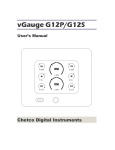
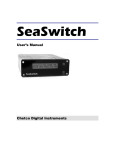
1
SeaView
User’s Manual
Chetco Digital Instruments
Copyright © 2005 Chetco Digital Instruments, Inc.
All rights reserved.
SeaGauge™ is a trademark of Chetco Digital Instruments, Inc.
SeaSwitch™ is a trademark of Chetco Digital Instruments, Inc.
WARNING!
USE THIS UNIT ONLY AS AN AID TO MONITORING ENGINE
PERFORMANCE INFORMATION.
CAUTION
When showing sensor data, this unit will only show information based on the sender used
and its installed position.
The operating and storage temperature for your unit is from -4 degrees to+167 degrees
Fahrenheit (-20 to +75 degrees Celsius). Extended storage temperatures higher or lower than
specified will cause the liquid crystal display to fail. Neither this type of failure nor its
consequences are covered by the warranty. For more information, consult the factory
customer service department.
All features and specifications subject to change without notice.
Chetco Digital Instruments may find it necessary to change or end our policies, regulations,
and special offers at any time. We reserve the right to do so without notice.
All screens in this manual are simulated.
NOTICE!
Free software upgrades will be available on our website at http:// www.seagauge.com as
they are released. Please check our website periodically for these and other information as
they become available.
Thank you for choosing Chetco Digital Instruments
This device complies with Part 15 of the FCC Rules. Operation is subject to the following
two conditions: (1) this device may not cause harmful interference, and (2) this device must
accept any interference received, including interference that may cause undesired operation.
Note:
This equipment has been tested and found to comply with the limits for a Class B digital
device, pursuant to Part 15 of the FCC Rules. These limits are designed to provide
reasonable protection against harmful interference in a residential installation. This
equipment generates, uses and can radiate radio frequency energy and, if not installed and
used in accordance with the instructions, may cause harmful interference to radio
communications. However, there is no guarantee that interference will not occur in a
particular installation. If this equipment does cause harmful interference to radio or
television reception, which can be determined by turning the equipment off and on, the user
is encouraged to try to correct the interference by one or more of the following measures:
• Reorient or relocate the receiving antenna.
• Increase the separation between the equipment and receiver.
• Connect the equipment into an outlet on a circuit different from that to which the receiver
is connected.
• Consult the factory customer service department for help.
SPECIFICATIONS
Operating System:...................................Windows XP and PocketPC 2003
Maximum Update Rate: ......................... 2 per second
NMEA 2.0 Instrumentation Sentences $IIXDR,A $IIXDR,C $IIXDR,D $IIXDR,F
$IIXDR,G $IIXDR,I $IIXDR,P $IIXDR,R $IIXDR,S $IIXDR,T $IIXDR,U $IIXDR,V,
$GPGLL, $SDMTW, $SDDBT, $SDVLW, $SDVHW
Table of Contents
Table of Contents ................................................................................................................................5
Introduction..........................................................................................................................................7
Welcome ...........................................................................................................................................7
Installation.............................................................................................................................................8
PC/Laptop .......................................................................................................................................8
PDA...................................................................................................................................................9
PC/Laptop Layout.............................................................................................................................10
PocketPC PDA Layout .....................................................................................................................12
Functions.............................................................................................................................................18
Connect...........................................................................................................................................18
Data Logging..................................................................................................................................20
Flash ................................................................................................................................................23
NMEA Pages .................................................................................................................................29
Com Ports.......................................................................................................................................30
Baud Rates......................................................................................................................................30
Calibration Tables ..............................................................................................................................31
ASCII TEXT Format ...................................................................................................................33
Intel Hex Format...........................................................................................................................34
One Year Warranty............................................................................................................................35
SEAVIEW SOFTWARE LICENSE AGREEMENT................................................................36
SeaView User’s Manual
6
SeaView User’s Manual
Introduction
Welcome
Thank you for purchasing a Chetco Digital Instruments product. SeaView™ is a software
application utility that provides real-time display of NMEA 0183 instrumentation data on a
Windows PC/Laptop to PocketPC 2003 PDA.. SeaView™ works with SeaGauge™ and
SeaSwitch™ to provide a complete digital instrumentation solution.
Once installed on your PC/Laptop or PDA, SeaView™ accepts NMEA 0183 data from
built-in serial ports, parses the recognized sentences and displays the data in a real-time
viewer window. Up to nine NMEA 0183 instrumentation sentences can be displayed at one
time.
SeaView™ is available for both PC/Laptop and PocketPC 2003 PDA. While both platforms
are similar, there are small differences in screen layout. This manual will describe both
applications and explain the differences where necessary.
7
SeaView User’s Manual
Installation
PC/Laptop
The PC/Laptop version of SeaView is a complete installation script. Just uncompress the
folder and start the “SETUP.EXE” program to install in the default program directory.
8
SeaView User’s Manual
PDA
The PDA version of SeaView is a single application file. All that is needed is to copy to a
appropriate directory on the PDA..
9
SeaView User’s Manual
PC/Laptop Layout
The PC/Laptop version of the SeaView utility is a single screen with a data display area on
the left and a toolbar on the right column. The bottom of the screen contains controls for
setting up the com ports, Baud rates, and capture intervals.
When the application is started you must select the desired com port that NMEA data will
be arriving on. Once selected, the com port setting is saved until changed. After the com
port is configured, use the connect button to establish communications and start display of
incoming NMEA data. The utility will decode the appropriate sentences and place the data
on the display. If no NMEA data is received on the selected com port the display will remain
blank and no updates will occur.
.
10
SeaView User’s Manual
The following table describes the basic functions of the SeaView Utility.
Symbol
Function
Data logging start/stop. A toggle button that turns on data logging
of received NMEA sentences to memory. If enabled. Clicking again
will disable.
Set function. Command the SeaGauge or SeaSwitch to set the
current menu item. Performs same function as bottom button on
SeaGauge or SeaSwitch
Save file location. Sets the file name and folder location to save
logged data or FLASH MEMORY image.
Connect. Establishes a connection to SeaGauge or SeaSwitch
through the currently select serial port. If the serial port is via
Bluetooth module, it will prompt which visible module to use
Update tables and firmware. Used to send new tables or firmware
to connected SeaGauge or SeaSwitch unit. Used to upload new
Calibration and Display Label table. User will be prompted for name
and location of file to upload
Select function. Used to scroll through menus on SeaGauge or
SeaSwitch. Performs same function as top button on units
NMEA Pages. Used to select different NMEA display pages.
Default page is nine NMEA $IIXDR sentences. Toggle of button will
cycle through different compatible NMEA sentence.
Com Port Select. Used to select one of 8 comports (1-8) to listen on
for NMEA data. Physical com ports are 1-4 and virtual comports are
5-8. Most Bluetooth devices will be assigned to a virtual comport.
Check your system properties to determine which one to use. Use the
Up/Down arrows to increase or decrease the Com port number
Data Logging interval. Used to select the time interval between data
capture events. Options are 1 sec up to 1 hour. Use the Up/Down
arrows to increase or decrease the interval
Baud Rate. Used to select the baud rate for the selected com port.
Must match the specified rated for the selected unit.
11
SeaView User’s Manual
PocketPC PDA Layout
The PocketPC version of the SeaView utility is a application with data display area for
viewing real-time decoded NMEA instrumentation data. The bottom of the screen contains
a menu bar for setting up various parameters and configurations
When the application is started you must select the desired com port that NMEA data will
be arriving on. Once selected the com port setting is saved until changed. After the com port
is configured, use the connect button to establish communications and start display of
incoming NMEA data. The utility will decode the appropriate sentences and place the data
on the display. If no NMEA is received on the selected com port the display will remain
blank and no updates will occur.
12
SeaView User’s Manual
Toolbar Menu
Function
File:: Used to start a connection,
select log file locations, select new
calibration tables, Select FLASH
MEMORY image file, and exit
application
Settings: Used to set up various
configuration parameters such as
COM ports and displays.
Help: On-line explaination of varius
functions
Select function. Used to scroll
through menus on SeaGauge or
SeaSwitch. Performs same function as
top button on units
Set function. Command the
SeaGauge or SeaSwitch to set the
current menu item. Performs same
function as bottom button on
SeaGauge or SeaSwitch
Data logging start/stop. A
toggle button that turns on data
logging of received NMEA sentences
to memory. If enabled. Clicking again
will disable.
13
SeaView User’s Manual
File Menu
Function
Connect Submenu: Used to connect with selected serial
port. If serial port is a virtual port, you will be asked to select a
Bluetooth device in range
Save Submenu: Used to specify the file name and path for
logging received NMEA data or file name for FLASH
MEMORY load.
FLASH Submenu: Used to specify the configuration table or
firmware to download to the connected unit. You will be
prompted for a file name and location. If the file is valid, the
utility will start a reprogramming sequence starting at the
address containd in the file
EXIT Submenu: Used to stop the program and remove
from memory. Note that opening any other program will not
terminate the SeaView utility.
Settings Menu
Function
COM Submenu: Used to select desired Com Port
Baud Submenu: Used to select desired Baud Rate
Capture Submenu: Used to set capture interval
Page Submenu: Used to select desired NMEA sentences
Display Submenu: Used to select display skins
14
SeaView User’s Manual
Com Port Menu
Function
Com Port Submenu: Used to select the desired
COM port to listen to for incoming NMEA 0183
data sentences
Baud Rate Menu
Function
Baud Rate Submenu: Used to select the desired
Baud rate to listen for incoming NMEA 0183 data
sentences. Must match the sending device.
15
SeaView User’s Manual
Capture Menu
Function
Capture Interval Submenu: Used to select the
desired capture interval when logging received to
memory.
16
SeaView User’s Manual
Page Menu
Function
IIXDR Submenu: Selects display of up to nine
NMEA 0183 IIXDR instrumentation sentences
MTW Submenu: Used to display water
temperature and depth NMEA 0183 sentences
if present.
VLW Submenu: Used to display speed and
heading NMEA 0183 sentences if present.
GPGLL Submenu: Used to position
(LONG/LAT) NMEA 0183 sentences if
present.
Display Menu
Function
Day Submenu: Used to configure light
background and dark blue numbers for easier
viewing in daylight
Night Submenu: Used to configure black
background and light green numbers for easier
viewing in low-light conditions
17
SeaView User’s Manual
Functions
Connect
Before any data can be displayed, the SeaView utility must connect to a device that transmits
a compatible NMEA 0183 data stream. SeaView uses built-in com ports to listen for NMEA
data.
SeaView can use both physical com ports and virtual com ports. Physical com ports are
usually 1-2 and are wired with standard RS232 cables. Virtual com ports are 5-8 and are used
by wireless Bluetooth modules. Bluetooth support can be built-in as may the case with
PDAs or add-ons which is common for PC/Laptops. In either case – determine which
virtual serial port the Bluetooth is using before trying to connect.
Once a proper com port is selected, choosing the CONNECT option will try to open the
port and initialize listening for a proper data stream. If connection is through a physical port,
data updates should start occurring if the device is transmitting a proper NMEA data stream.
In the case of connecting through a virtual port (Bluetooth), a device selection dialog will
appear asking to choose the appropriate Bluetooth device in range. If more then one device
is in range - choose the correct device.
When making a connection if any other application is using the same com port, the
connection attempt will fail. If this occurs – close the application and retry the connection
attempt.
Connected no data
Connected receiving data
After successful connection the TITLE BAR will display “Connected”. When NMEA data
starts arriving the TITLE BAR will display the name of the device sending data SeaView
will decode compatible NMEA data and display the device labels on the left and sensor data
on the right. SeaView will display the first 7 characters of device labels and the first 4
characters of sensor data.
18
SeaView User’s Manual
If after connecting, no data is received – verify that NMEA data is arriving at the selected
com port. This can be done by using a serial port application such as HyperTerminal to
listen on the selected port. The default settings are 9600 BAUD 8-N-1.
The Connect function is a toggle operation. Selecting Connect again after a successful
connection will break the connection and stop data display.
19
SeaView User’s Manual
Data Logging
SeaView is capable of logging received NMEA 0183 data to memory or drive storage. The
log file contains the received NMEA 0183 sentences appended with a date stamp and record
number. The log file is in simple TEXT format with each field separated by commas. It is
easily imported to other applications.
An example of a short log file follows:.
20050520105141,00000000,$IIXDR,G, 00 ,P,RPM ****0,*26,$IIXDR,G,
85ß,A,TEMP1 **1,*B6$IIXDR,G, 107ß,B,TEMP2 **2,*AE$IIXDR,G,
SHOR,C,TEMP3 **3,*40$IIXDR,G, 8.,D,VOLT1***4,*55$IIXDR,G,
3.,E,VOLT2***5,*5D$IIXDR,G, 12.,F,VOLT3***6,*4C$IIXDR,G, 0 ,G,PSI1
**7,*32$IIXDR,G, 45 ,H,PSI2 **8,*2
20050520105146,00000001,$IIXDR,G, 00 ,P,RPM ****0,*26,$IIXDR,G,
85ß,A,TEMP1 **1,*B6$IIXDR,G, 107ß,B,TEMP2 **2,*AE$IIXDR,G,
SHOR,C,TEMP3 **3,*40$IIXDR,G, 8.,D,VOLT1***4,*55$IIXDR,G,
3.,E,VOLT2***5,*5D$IIXDR,G, 12.,F,VOLT3***6,*4C$IIXDR,G, 0 ,G,PSI1
**7,*32$IIXDR,G, 45 ,H,PSI2 **8,*23
The current date and time is appended to each record with the following format
“YYYYMMDDHHMMSS”. This is followed by an 8 digit record count separated by a
comma. This allows for a unique signature for each record collected.
Before data logging begins, a file name and location must be specified. Use the SAVE FILE
option to select a storage location and file name.
20
SeaView User’s Manual
PDA SAVE FILE
PC SAVE FILE
The NMEA data will be captured by the interval specified. The interval can be from once
per second up once per hour. Set the capture interval before enabling the record function.
21
SeaView User’s Manual
Start recording by selecting the RECORD ICON. It is a toggle function so selecting
RECORD while recording to disable recording. Starting a new recording session will
overwrite the existing file unless the file name is changed. While recording, the TITLE BAR
will add the “recording” status message and indicate the current record number. When
recording is finished the TITLE BAR will revert back to normal.
PDA RECORDING
PC RECORDING
22
SeaView User’s Manual
Flash Memory
The SeaView utility can be used to download new calibration tables to SeaGauge or
SeaSwitch using the FLASH COMMAND option. The unit must be connected and
receiving data before new information can be transferred.
The FLASH COMMAND will start a sequence of steps to copy a valid Calibration Table file
to the selected unit. The fist step is a File Dialog used to select the desired formatted file.
Only properly formatted Calibration Tables or INTEL HEX files can be used to reprogram
the unit. If the utility finds an error in the selected file format, it will stop the process..
23
SeaView User’s Manual
Calibration files use a *.txt extension and can be used with a serial port cable.
FLASH files use a *.hex extension and can only be used with a FLASH MEMORY
programming cable.
After a proper Calibration Table file or firmware file is selected, the second step is to
confirm the operation and verify the SeaGauge or SeaSwitch unit is ready for transfer. After
the file is chosen the target unit will enter programming mode indicated by the display:
READY->
If the YES button on the confirmation dialog is not selected within 10 seconds, the target
unit will terminate programming mode and reset. You must select the YES option within 10
seconds to continue.
24
SeaView User’s Manual
The third step is to confirm erasure of the target memory before loading the new file. Again
if the YES option is not chosen within 10 seconds, the target unit will exit programming
mode and reset.
25
SeaView User’s Manual
The forth step is to erase the target memory and wait for confirmation the erase is complete.
Once the target memory is erased the unit will display
ERASED >
After it is confirmed the target memory is erased proceed by selecting the OK button
26
SeaView User’s Manual
The fifth phase will start transferring file information to the target and display a progress
indicator to indicate the memory locations being updated. The top row of the display will
display the word “FLASH” and the data area will display the current address in hexadecimal
notation. The address will update till all data is transferred.
27
SeaView User’s Manual
The final step will confirm the number of bytes transferred and reset the target. After
flashing a new file it is a good idea to restart both the target unit and the SeaView utility to
be sure both are back in sync.
28
SeaView User’s Manual
NMEA Pages
SeaView can display multiple NMEA 0183 instrumentation sentences. Up to 9 $IIXDR
sentences can be display on a single page. SeaView also supports display of Sonar Depth
($SDDBT), water temperature ($SDMTW), Distance ($SDVLW), Heading ($SDVHW), and
GPS position ($GPGLL).
Data is displayed on one for 4 selectable pages.
Page
Function
1 (default)
Instrumentation – up to 9 $IIXDR sentences. Position is
determined by last character of Instrument label field. SeaGauge and
SeaSwitch transmit a position number in thus field.
2
Depth and Temp. Display current depth and water temperature.
Must be connected to a compatible device capable of outputting
NMEA $SDMTW and $SDDBT sentences such as sonar displays.
3
Heading and Distance. Displays current heading and distance
traveled since last reset. Must be connected to compatible device
capable of out putting NMEA $SDVLW and $SDVHW sentences
such as GPS equipment.
4
Current Lat/Lon. Displays current position. Must be connected to
compatible device capable of out putting NMEA $GPGLL sentences
such as GPS equipment.
29
SeaView User’s Manual
Com Ports
SeaView listens to selected com ports for incoming NMEA data. If no recognized is present,
the current page will not update. Be sure to select the correct com port.
If making a connection with the supplied serial cable, most PC’s will use COM port 1 or 2.
If making a connection via a Bluetooth device, be sure to get the properties of the Bluetooth
interface to determine which virtual COM port it is using and set SeaView to the indicated
port (usually 5 – 8).
Baud Rates
SeaView can be configured to listen at several BAUD rates. Select the Baud rate to match
the sending device.
30
SeaView User’s Manual
Calibration Tables
SeaGauge utilizes eight modifiable calibration tables to convert sensor data into user
readable display information. The internal Analog-to-Digital converter converts sensor
voltages to 10-bit values. The converter can resolve voltages to 3.3/1024 = 3 mVolts. These
values are averaged and then used to lookup 8 character values form a 256 point lookup
table. The use of a lookup table allows for accurate readings from non-linear sensors like
temperature senders. The lookup table also allows for easy modification of display values to
suit individual preferences and senders.
Following is an example of a partial table used to display battery voltage. The actual table has
256 indexed values. The measured voltage has a range from 0 to 3.3 volts. In this example it
is desired to measure battery voltage from 0 to 18 volts so the input voltage from the battery
is scaled down using a voltage divider ratio of 3.3/18 = 0.1833. The scaled down voltage is
converted to an averaged digital value and then used as an index lookup in the table. For
example an Input voltage of 1.178 volts becomes index value 18 in the table which
corresponds to the 8 character display value of 1.1 vdc. Using this method allows the
SeaGauge to display just about any range of values form a large variety of sensors/senders.
Index
1
2
3
4
5
6
7
8
9
10
11
12
13
14
15
16
17
18
19
20
21
22
23
24
25
26
27
Input Voltage
0.065
0.131
0.196
0.262
0.327
0.393
0.458
0.523
0.589
0.654
0.720
0.785
0.851
0.916
0.981
1.047
1.112
1.178
1.243
1.309
1.374
1.439
1.505
1.570
1.636
1.701
1.767
Measured Voltage
0.012968
0.025936
0.038904
0.051872
0.06484
0.077808
0.090776
0.103744
0.116712
0.12968
0.142649
0.155617
0.168585
0.181553
0.194521
0.207489
0.220457
0.233425
0.246393
0.259361
0.272329
0.285297
0.298265
0.311233
0.324201
0.337169
0.350137
Display value
0 vdc
0.1 vdc
0.1 vdc
0.2 vdc
0.3 vdc
0.3 vdc
0.4 vdc
0.5 vdc
0.5 vdc
0.6 vdc
0.7 vdc
0.7 vdc
0.8 vdc
0.9 vdc
0.9 vdc
1.0 vdc
1.1 vdc
1.1 vdc
1.2 vdc
1.3 vdc
1.3 vdc
1.4 vdc
1.5 vdc
1.5 vdc
1.6 vdc
1.7 vdc
1.7 vdc
31
SeaView User’s Manual
Each table has 2048 characters to modify and there are 88 choices for each character for a
total of over 18,000 character choices for each table. For this reason the tables are much too
large to be modified directly from the Setup Mode. However table files can be obtained and
downloaded to the unit to allow for modification of any table. All that is needed is a
computer interface (RS232 or Bluetooth) and a communication program such as
HyperTerminal or the SeaView utility. Contact Checto Digital Instruments for more
information on obtaining additional table files to match particular senders/sensors.
Programming files are ACSII text with 2 or 8 characters per line. Each file is loaded into a
specified starting location according to the following table.
Table
Sensor Labels
Groups
Label Positions
Alarms
Channels
Parameters
Lookup Table 0
Lookup Table 1
Lookup Table 2
Lookup Table 3
Lookup Table 4
Lookup Table 5
Lookup Table 6
Lookup Table 7
Bytes
/line
8
1
1
1
1
1
8
8
8
8
8
8
8
8
Address
E000
E200
E400
E600
E800
EA00
A000
A800
B000
B800
C000
C800
D000
D800
Start
Page
70
71
72
73
74
75
50
54
58
5C
60
64
68
6C
End Page
Erase Command
70
71
72
73
74
75
53
57
5B
5F
63
67
6B
6F
*7070
*7171
*7272
*7373
*7474
*7575
*5053
*5457
*585B
*5C5F
*6063
*6467
*686B
*6C6F
The first line of each file is used to specify the file type and the memory to erase before
loading the new data. GREAT care must be taken to be sure the correct memory locations
are erased else the unit may no longer function and will have to be completely
reprogrammed.
32
SeaView User’s Manual
ASCII TEXT Format
SeaView supports only two types of table formats – 8 characters per line and 1 byte per line.
Multiple characters per line are used for Strings such as display labels and calibration tables.
Single byte per line are used for parameters such as alarms and display groups.
It is very important to use the correct format when editing a table.
The following is an example of the first few lines of a sensor calibration table that uses the 8
character per line format. All characters following the second quote mark “’” are ignored and
used as comments. String must contain 8 characters enclosed by single quotes.
[TABLE][8800][8][256]
db ' 0.0 '
; 000
db ' 0.0 '
; 001
db ' 0.1 '
; 002
db ' 0.1 '
; 003
db ' 0.2 '
; 004
db ' 0.3 '
; 005
db ' 0.3 '
; 006
db ' 0.4 '
; 007
db ' 0.5 '
; 008
db ' 0.5 '
; 009
db ' 0.6 '
; 010
•
•
•
•
The string “TABLE” enclosed by “[“ “]” indicates the file is a ASCII text
The string “[8800]” indicated the starting address of “8800” HEX.
The string “[8]” indicated there are 8 characters per line
The string “[256]” indicates there are 256 lines in the file to download.
The following is an example of an Alarm table that uses the single byte per line format. All
characters following the first comma are ignored and used as comments. A 2 character byte
value in Hex format must follow the “db %” label on each line.
[TABLE][E600][1][128]
db %00, 255
;"OIL " ;0
db %FF,
db %00, 255
;"MPH " ;1
db %FF,
db %00, 255
;"WATER " ;2
db %FF,
db %00, 255
;"RTEMP " ;3
db %FF,
db %00, 255
;"LTEMP " ;4
db %FF,
•
•
•
•
The string “TABLE” enclosed by “[“ “]” indicates the file is a ASCII text
The string “[E600]” indicated the starting address of “E600” HEX.
The string “[1]” indicated there are 8 characters per line
The string “[128]” indicates there are 128lines in the file to download.
33
SeaView User’s Manual
Intel Hex Format
An alternate format used to download program code and data files is the INTEL HEX
format. This format can not be edited and is only used to download firmware updates via the
flash port.
YOU MUST USE A FLASH CABLE TO LOAD INTEL HEX FILES
These files have a *.hex extension are used to update unit firmware. You should backup unit
firmware before attempting an upgrade. This can be accomplished by using the file save
feature and specifying a file type of *.hex. SeaView will copy the current firmware to the
specified file only if a FLASH cable is attached.
A sample listing is shown for informational purposes only. These files may be obtained from
Checto Digital Instruments for firmware and maintenance updates.
[INTELHEX]0164
:1002000001E0E9000FFFE90F0FFE0C002C00A6E251
:10021000006B05B1E00E2AFB2C013C000C001C47D2
:10022000E4E0E442416B0BB0E496E4E2A0E280E05B
:10023000EBF70C001C003C004C0042336B04C34045
:100240003AFC0C011C472C4C3C7A4C005CEDE4E47D
:10025000E642656B0DC26296E6E0A0E0A0E280E4B3
:10026000EBF3B2FFB2EED618A68BFE50EA50EB705D
:10027000EF70EE84EFFE84FFFF84DFCF8F28EE9FC8
:10028000FF38EE8FFE94DFCF70EB70EAAF50EA508C
:10029000EB84DFCF8F94FFFF94EFFE94DFCF50EE1F
:1002A00050EF70EB70EAAF50EA50EB84DFCF8F94E1
•
•
•
The string “INTELHEX” enclosed by “[“ “]” indicates the file is a INTEL text
The string “0164” indicates the start to end memory page to erase
Data following the “:” symbol on each line is HEX program code data
SeaView can accept and load INTEL HEX format files using the normal FLASH menu
options.
34
SeaView User’s Manual
One Year Warranty
“We”, “our”, or “us” refers to Chetco Digital Instruments, the manufacturer of this product. “You” or
“your” refers to the first person who purchases this product as a consumer item for personal, family, or
household use.
We warrant this product against defects or malfunctions in materials and workmanship, and against failure to
conform to this product’s written specifications, all for one year (1) from the date of original purchase by you.
WE MAKE NO OTHER EXPRESS WARRANTYOR REPRESENTATION OF ANY KIND
WHATSOEVER CONCERNING THIS PRODUCT. Your remedies under this warranty will be available so
long as you can show in a reasonable manner that any defect or malfunction in materials or workmanship, or
any nonconformity with the product’s written specifications, occurred within one year from the date of your
original purchase, which must be substantiated by a dated sales receipt or sales slip. Any such defect,
malfunction, or non-conformity which occurs within one year from your original purchase date will either be
repaired without charge or be replaced with a new product identical or reasonably equivalent to this product, at
our option, within a reasonable time after our receipt of the product. If such defect, malfunction, or nonconformity remains after a reasonable number of attempts to repair by us, you may elect to obtain without
charge a replacement of the product or a refund for the product. THIS REPAIR, REPLACEMENT, OR
REFUND (AS JUST DESCRIBED) IS THE EXCLUSIVE REMEDY AVAILABLE TO YOU AGAINST
US FOR ANY DEFECT, MALFUNCTION, OR NON-CONFORMITY CONCERNING THE
PRODUCT OR FOR ANY LOSS OR DAMAGE RESULTING FROM ANY OTHER CAUSE
WHATSOEVER. WE WILL NOT UNDER ANY CIRCUMSTANCES BE LIABLE TO ANYONE FOR
ANY SPECIAL, CONSEQUENTIAL, INCIDENTAL, OR OTHER INDIRECT DAMAGE OF ANY
KIND.
Some states do not allow the exclusion or limitation of incidental or consequential damages, so the above
limitations or exclusions may not apply to you.
This warranty does NOT apply in the following circumstances: (1) when the product has been serviced or
repaired by anyone other than us, (2) when the product has been connected, installed, combined, altered,
adjusted, or handled in a manner other than according to the instructions furnished with the product, (3) when
any serial number has been effaced, altered, or removed, or (4) when any defect, problem, loss, or damage has
resulted from any accident, misuse, negligence, or carelessness, or from any failure to provide reasonable and
necessary maintenance in accordance with the instructions of the owner’s manual for the product.
We reserve the right to make changes or improvements in our products from time to time without incurring
the obligation to install such improvements or changes on equipment or items previously manufactured.
This warranty gives you specific legal rights and you may also have other rights which may vary from state to
state.
REMINDER: You must retain the sales slip or sales receipt proving the date of your original purchase in case
warranty service is ever required.
Chetco Digital Instruments, INC.
14377 Highway 101 South Unit C
Harbor, OREGON 97415
541-661-2051
35
SeaView User’s Manual
SEAVIEW SOFTWARE LICENSE
AGREEMENT
THIS IS A LEGAL AGREEMENT BETWEEN THE END-USER WHOFIRST
PURCHASES THIS PRODUCT AS A CONSUMER ITEM FORPERSONAL, FAMILY,
OR HOUSEHOLD USE (“YOU”) AND CHETCO DIGITAL INSTRUMENTS, INC.,
THE MANUFACTURER OF THIS PRODUCT. (“WE”, “OUR”, OR “US”). USING
THE PRODUCT ACCOMPANIED BY THIS LICENSE AGREEMENT
CONSTITUTES ACCEPTANCE OF THESE TERMS AND CONDITIONS.
1. This License Agreement applies to the microcode and one or more lookup tables that
your product may contain. We refer to these singly as a “SOFTWARE”.
2. The SOFTWARE that your product may contain are licensed, not sold. We grant to you
the nonexclusive, non-assignable right to use these SOFTWARE for monitoring
sensor/sender data, but only as long as you comply with the terms and conditions of this
License Agreement. We reserve the right to terminate this license if you violate any aspect of
this License Agreement.
3. The SOFTWARE housed in your product are protected by the copyright notices
appearing on the product or its screen(s). You may NOT modify, adapt, translate, reverse
engineer, decompile, disassemble, rent, lease, or resell any SOFTWARE, and you may NOT
create derivative works based upon any SOFTWARE or its contents.. Any unauthorized
reproduction, use, or transfer of a SOFTWARE may be a crime and may subject you to
damages and attorney fees.
4. This License Agreement will terminate immediately without prior notice from us if you
fail to comply with or violate any of the provisions of this Agreement. Upon termination,
you will promptly return all products containing one or more SOFTWARE to us.
5. Prices and programs are subject to change without notice.
6. This License Agreement shall be governed by the laws of the State of Oregon and
comprises the complete and exclusive understanding between you and us concerning the
above subject matter.
36
SeaView User’s Manual
How to Obtain Service
We back your investment in quality products with quick, expert service and genuine
replacement parts. If you’re in the United States and you have questions, please contact the
Factory Customer Service Department using our number listed below. You must send the
unit to the factory for warranty service or repair. Please call the factory before sending the
unit. You will be asked for your unit’s serial number (shown above). Use the following
number:
541-661-2051
U.S.A.only. Monday through Friday, except holidays.
Your unit is covered by a full one-year warranty. (See inside for complete warranty details.) If
your unit fails and the failure is not covered by the original warranty, Chetco Digital
Instruments has a flat-rate repair policy that covers your unit and accessories packed with
the unit at the factory. There is a 180-day warranty on all non-warranty repairs from the
factory, which is similar to the original warranty, but is for 180 days rather than one year. For
further details, please call us at the above number.
Remember, non-warranty repairs are subject to Chetco Digital Instruments published flat
rate charges and 180-day warranty.
CHETCO DIGITAL INSTRUMENTS, INC
14377 Highway 101 South Unit C
HARBOR, OR 97415
541-661-2051
http://www.seagauge.com
37