1
Release Version 1.5
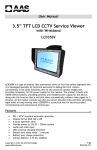
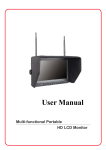
User Manual
Release Version 1.5
[Contents]
1. Specifications & Components ……………………………………………2
1-1.
Specifications
1-2.
Components
2. Precautions ………………………………………………..…………………3
3. Name and functions of parts ……………………………..………………4
3-1.
Inputs & Outputs
3-2.
Display & Menu
4. Operation ………………………………………………………………..……5
4-1.
Connections
4-2.
Video Input
4-3.
Video Test Pattern Signal
4-4.
VGA Input
4-5.
PTZ control thru RS-485
4-6.
Level Meter
5. Menu Setting …………………………………………………..…………6~9
5-1.
MAIN MENU
5-2.
MENU MODE
5-3.
ANGLE MODE
5-4.
PTZ MODE
5-4-1. TX MODE
5-4-2. PROTOCOL
5-5.
Video Pattern Generator
5-6.
Level On / Off
6. Warranty Certificate ………………………………………………………10
1
Release Version 1.5
1. Specifications & Components
1-1. Specifications
Items
LCD
Display Resolution
Size
Pixel Pitch
Brightness (cd)
Top
Viewing Bottom
Angle
Left
Right
Response (ms)
Input
Output
Video Level Range
Finishing
Battery
Power Consumption
Temperature
Humidity
Weight
Dimension *
Specifications
960(W) x 234(H)
5.6"
0.118(W) x 0.362(H)
NOR:500, MAX:625
20°
40°
50°
50°
20
CVBS
NTSC/PAL, 1.0Vp_p
VGA
640x480, 60Hz
FULL COLOR BAR
CVBS
NTSC/PAL 1.0Vp_p(75Ω)
A Level
10 ~ 118 %
F Level
20 ~ 120 %
Tolerance
+/-2%
Cobalt Blue
Li-Ion: 11.1V, 2200mA
(Built-in Protection Circuit)
CVBS : 5.2W
Level Meter : 6.4W
0℃ ~ +50℃
0% ~ 80%
1Kg
185(W) X 120(H) X 50(D)mm
* Without carrying bag
1-2. Components
Monitor
Carrying Bag
2
Charger
Release Version 1.5
2. Precautions
For your easy and convenient using of potable monitor, we would like you
to read this user manual thoroughly before you use it.
z Avoid touching the screen. Skin oils are difficult to remove.
z If the LCD emits smoke, abnormal noise, or a strange odor, immediately turn
it off and contact our service center.
z Warning – To reduce the risk of fire or electric shock, do not expose the LCD
to rain or moisture !
z Please always handle with care. Otherwise, the LCD may fragile in case of
high impact and/or drop it to the ground.
z To clean the screen, wipe the screen with a clean, soft, lint-free cloth. This
removes dust and other particles. If it still is not clean, apply a small amount of
non-ammonia, non-alcohol based glass cleaner onto a clean, soft, lint-free
cloth, and wipe the screen.
z Please do not connect the power to video input/output.
z Please use our charger, which is packed with other component originally. If
you use other charger, it may cause the fire or explosion. (Please contact the
service center in case of red LED light is off while charging.)
z We guarantee the built-in battery six months from the date of purchasing. If
you require the battery additionally, please contact us. (Please do not use
another type of battery on this portable monitor as it may cause the fire or
explosion.)
z Please do not disassemble or make a short at built-in LI-ION battery (11.1V /
2200mA).
z The battery can be explosion in case of a short at the charger and/or reverse
connection of polar.
z We recommend that the portable LCD should be always placed at carrying
bag to protect the scratch of LCD panel.
3
Release Version 1.5
3. Name & functions of parts
3-1. Input & Output
①
No
③
④
⑤
Marking
①
12V
②
RS-485
VGA
③
②
Term
④
Video
⑤
Power
Input
Output
Function
Input DC 12V charger/adaptor or output DC12V to
camera
RS-485 for PTZ control
VGA (640×480/60Hz) Input
With loop through : HI-Z position
Without loop through : 75Ω position
CAMERA or CVBS video signal input
Full color bar signal out
Power ON/OFF
3-2. Display & Menu
⑦ Video Level
No
Marking
LCD Display & Function
Mode
Menu
RS-485
Adjust Angle
②
UP
↑
Tilt_Up / Zoom_Wide
Top
③
DOWN
↓
Tilt_Down / Zoom_Tele
Bottom
④
RIGHT
→
Pan_Right / Focus_Far
Right
⑤
LEFT
←
Pan_Left / Focus_Near
Left
⑥
SET/MENU Set main menu
① : 5.6” TFT-LCD Display Panel
⑦ : Display A level & F level of CVBS video respectively
4
Release Version 1.5
4. Operation
4-1. Connection
4-2. Video input
You can see video at LCD when you connect camera or video signal into
VIDEO input.
4-3. Video test pattern signal output
You can check wiring status, monitor and DVR. (For more details, please
refer to page 9)
4-4. VGA input
Check the output of DVR or VGA(640×480/60Hz) from PC
Support VGA up to 640×480/60Hz
4-5. PTZ control through RS-485
Through RS-485 com port, you can control PTZ Receiver and SPEED
DOME CAMERA.
Support various protocols upon request.
4-6. CVBS video signal level
It displays CVBS video signal level with SYNC and BURST as well as it is
adjustable manually.
5
Release Version 1.5
5. Menu Setting
5-1. Main Menu
•
•
Menu displays when press SET/MENU key as below.
Move the direction key (Up: ↑, Down: ↓, Right: →, Left: ←). There is no press key
for a while, Menu is off automatically.
MAIN MENU
MENU MODE
ANGLE MODE
PTZ
MODE
PATTERN OFF
LEVEL
ON
EXIT
▲▼:MOVE SET:SELECT
•
•
•
•
•
•
MENU MODE: Select input and adjust the brightness, contrast and sharpness.
ANGLE MODE: Display the guide line for adjusting camera angle.
PTZ MODE: Control PTZ receiver and speed dome camera through RS-485.
PATTERN: Check the wiring status, monitor and DVR.
LEVEL : CVBS video signal level on/off
EXIT: Exit MAIN MENU.
5-2. MENU MODE
MENU MODE
INPUT
CVBS
BRIGHT
50
CONT
SHARP
50
2
DEFAULT OFF
▲▼:MOVE◀▶:EDIT SET:EXIT
• INPUT : Select the displaying video (CVBS / VGA).
• BRIGHT : Adjust the brightness (0 ~ 100 steps, default : 50).
• CONT
: Adjust the contrast (0 ~ 100 steps, default : 50).
• SHARP : Adjust the sharpness (0 ~ 100 steps, default : 50).
• DEFAULT: All return to the default setting.
6
Release Version 1.5
5-3. ANGLE MODE
•
•
•
Guide line displays at the window when select Angle Mode.
When press SET (MENU) KEY, left line flicker and then press ◀▶ KEY, decide
the position of left line. When press SET KEY again, right line flicker, and then
press ◀▶ KEY, decide the position of right line. UP & DOWN lines are
adjusted same as above-mentioned.
Press SET key many times, then return to upper mode.
5-4. PTZ MODE
PTZ MODE
PTZ ADDR
001
PROTOCOL SAMSUNG
BAUDRATE 9600
START
EXIT
▲▼:MOVE ◀▶:EDIT SET:ENTER
• PTZ ADDR: Change the address of control device.
• PROTOCOL: Select the model of control device.
• BAUDRATE: Select com speed. (2400, 4800, 9600, 19200bps).
• START: Start to control after applying the setting.
• EXIT: Exit MENU mode.
7
Release Version 1.5
5-4-1. TX MODE
MODE ADDR PROTOCOL BAUD
TX 001
SAMSUNG
9600
▲▼: ZOOM(TILT)
◀▶: FOCUS(PAN)
SET:SHORT PT<-> ZF
LONG
EXIT
• Display the current setting at the top of window.
• Press SET key shortly, then pan/tilt mode and zoom/focus mode toggle.
• Press SET key long, then goes to PTZ mode.
• Do the control following OSD guide.
5-4-2. Built-in Protocol
No
1
2
3
4
5
6
7
8
Manufacturer
SUNGJIN
VICON
DONGYANG UNITECH
DONGYANG
INTER-M
PELCO
SAMSUNG ELECTRONICS
SAMSUNG TECHWIN
Model No.
RECEIVER / MPU
VICON PROTOCOL
DRX-500
DY-255RXC
VRX-2201
D-PROTOCOL
SCC-64X
SPD-1600
Other protocols are available upon request in case the manufacturers provide
us with their protocols in advance.
8
Release Version 1.5
5-5. VIDEO PATTERN GENERATOR
With built-in video pattern generator, it is easy to check the wiring status, monitor
and DVR.
MAIN MENU
MENU MODE
ANGLE MODE
PTZ
MODE
PATTERN
ON
z Select PATTERN ON or OFF by
pressing SET key at the Main Menu.
Full color bar goes out through
output (RCA F) when ON selected
as below pictures.
z To see it in itself, please connect
video input with output via RCA
cable.
EXIT
▲▼:MOVE SET:SELECT
100 100
89
77
72
46
BURST
SYNC
(COLOR MONITOR)
(Signal Level)
5-6. Level On / Off
It displays CVBS video signal level with SYNC & BURST. You can adjust the signal
levels easily while monitoring the display for the optimal video quality. However,
you’d better turn off this function after you complete the adjustment the signal level
to save the battery as it consume about 1.2W when it is operated.
* OFF : Please select “Level ON” by moving ▲KEY & ▼KEY at top Main Menu, and
then press “SET KEY”, then “Level On” change to “Level Off” and the level meter
disappear.
9
Release Version 1.5
6. Warrantee Certificate
This product has passed thorough quality control and test, and if this gets broken
during normal use we provide 12 months warranty service.
Model No.
Serial No.
Distributor
Date you purchased
Place you purchased
One (1) year from the date of purchase
Warranty Period
Purchaser
Name
Add.
Check this warranty first.
Please contact the distributor after checking out any defect in the products.
The standard for repairing, replacement or reimbursement follows Customer.
Warranty content any defect under normal use within the warranty service period
we give you free repair service according to the warranty certificate.
We charge you with the fee of parts and service despite free warranty service
period.
1.
2.
3.
4.
5.
Any breakage made without care.
Breakage or trouble made by natural disaster.
Breakage or trouble made by breaking the product guide or manual.
Breakage or trouble made by wrong power voltage or frequency.
When you want to reassemble for full system or replace parts within
warranty service period.
6. When unauthorized person modified or made damage on the product trying
to repair it, we may charge you with the fee.
Please note that we don’t support the breakage after warranty service period. If
the customer wants to get it repaired, we charge them with the fee.
The specification is subject to change without prior notice to improvement the
quality.
10
Release Version 1.5
11