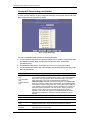
1
SOHOSpeed
ADSL 1port / 4port Ethernet Router
User’s Manual
Revision 2.0
February 2005
SOHOSpeed ADSL Ethernet Router User’s Manual
Copyright
This manual may not be copied, photocopied, transmitted, or translated into language or computer
language, in any form, or by any means, in whole or in part, without the prior written consent by the
manufacturer.
© Copyright 2004 All rights reserved.
Disclaimer
The manufacturer makes no representations or warranties, expressed, statutory or implied, regarding
the fitness or merchantability of this product for any particular purpose. Further, the manufacturer is
no liable for any damages, including but not limited to, lost profits, lost saving, or other incidental or
consequential damages arising out of the use of this product. The manufacturer also reserves the right
to make any improvements or modifications to the product described in this manual at any time,
without notice of these changes.
ii
SOHOSpeed ADSL Ethernet Router User’s Manual
Federal Communications Commission (FCC) NOTICE
This equipment has been tested and found to comply with the limits for a Class B digital device,
pursuant to Part 15 of FCC Rules. These limits are designed to provide reasonable protection against
harmful interference in a residential installation. This equipment generates, uses and can radiate radio
frequency energy and, if not installed and used in accordance with the instructions, may cause harmful
interference to radio communications. However, there is no guarantee that interference will not occur
in a particular installation. If this equipment does cause harmful interference to radio or television
reception, which can be determined by turning the equipment off and on, the user is encouraged to try
to correct the interference by one or more of the following measures:
Reorient of relocate the receiving antenna.
Increase the separation between the equipment and receiver.
Connect the equipment into an outlet on a circuit different from that to which the receiver is
connected.
Consult the dealer or an experienced radio / TV technician for help.
This unit was tested with shielded cables on the peripheral devices. Shielded cables must be used
with the unit to insure compliance. This statement can be deleted if unit was not tested with
shielded cables.
The manufacture is not responsible for any radio or TV interference caused by unauthorized
modifications to this equipment. Such modifications could void the user's authority to operate the
equipment.
This device complies with Part 15 of the FCC rules. Operation is subject to the following two
conditions:
1. This device may not cause harmful interference.
2.
This device must accept any interference that may cause undesired operation.
CAUTION
Always disconnect all telephone lines from the wall outlet before servicing or disassembling this
equipment.
iii
SOHOSpeed ADSL Ethernet Router User’s Manual
IMPORTANT SAFETY INSTRUCTIONS
When using your telephone equipment, basic safety precautions should always be followed to reduce
the risk of fire, electric shock and injury to persons, including the following;
1. Do not use this product near water, for example near a bath tub, wash bowl, kitchen sink or
laundry tub, in a wet basement or near a swimming pool.
2. Avoid using a telephone (other then a cordless type) during an electrical storm. There may be a
remote risk of electric shock from lighting.
3. Do not use the telephone to report a gas leak in the vicinity of the Leak.
4. Use only the power cord and batteries indicated in this manual. Do not dispose of batteries in a
fire. They may explode. Check with local codes for possible special disposal Instructions.
SAVE THESE INSTRUCTIONS
iv
SOHOSpeed ADSL Ethernet Router User’s Manual
Table of Contents
1
INTRODUCTION ................................................................................................................................ 2
FEATURES ......................................................................................................................................................... 2
SYSTEM REQUIREMENTS.................................................................................................................................. 2
2
GETTING TO KNOW THE SOHOSPEED .................................................................................... 4
PARTS CHECK................................................................................................................................................... 4
FRONT PANEL................................................................................................................................................... 4
REAR PANEL..................................................................................................................................................... 5
3
HARDWARE CONNECTION AND PC CONFIGURATION..................................................... 6
CONNECTING YOUR SOHOSPEED................................................................................................................... 6
CONFIGURING YOUR COMPUTERS ................................................................................................................... 7
4
GETTING STARTED WITH THE CONFIGURATION MANAGER..................................... 16
ACCESSING THE CONFIGURATION MANAGER ............................................................................................... 16
FUNCTIONAL LAYOUT.................................................................................................................................... 17
THE HOME PAGE AND SYSTEM VIEW TABLE ................................................................................................ 18
MODIFYING BASIC SYSTEM INFORMATION ................................................................................................... 20
Modifying the Date and Time or Configuring SNTP ............................................................................... 20
Specifying the SOHOSpeed ‘s Name and Network Domain Name......................................................... 21
QUICK CONFIGURATION ................................................................................................................................ 22
COMMITTING YOUR CHANGES AND REBOOTING THE DEVICE ..................................................................... 25
5
CONFIGURING THE LAN AND USB INTERFACES............................................................... 27
CONNECTING YOUR PCS VIA ETHERNET AND/OR USB ................................................................................ 27
CONFIGURING THE LAN (ETHERNET) INTERFACE........................................................................................ 27
CONFIGURING THE USB INTERFACE IP ADDRESS ........................................................................................ 30
6
CONFIGURING WAN INTERFACES.......................................................................................... 32
CONFIGURING THE ATM VC......................................................................................................................... 32
CONFIGURING PPP INTERFACES .................................................................................................................... 35
CONFIGURING EOA INTERFACES ................................................................................................................... 40
CONFIGURING IPOA INTERFACES .................................................................................................................. 44
7
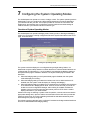
CONFIGURING THE SYSTEM OPERATING MODES........................................................... 47
OVERVIEW OF SYSTEM OPERATING MODES ................................................................................................. 47
CONFIGURING ROUTABLE AND BRIDGEABLE INTERFACES ........................................................................... 48
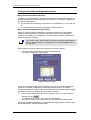
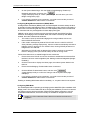
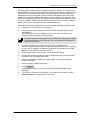
CONFIGURING SPECIAL BRIDGING FEATURES ............................................................................................... 49
vi
SOHOSpeed ADSL Ethernet Router User’s Manual
8
VIEWING SYSTEM IP ADDRESSES AND IP PERFORMANCE STATISTICS ................. 52
VIEWING THE SOHOSPEED’S IP ADDRESSES ............................................................................................... 52
VIEWING IP PERFORMANCE STATISTICS ....................................................................................................... 53
9
CONFIGURING DYNAMIC HOST CONFIGURATION PROTOCOL................................. 54
CONFIGURING DHCP SERVER ....................................................................................................................... 54
CONFIGURING DHCP RELAY ........................................................................................................................ 58
SETTING THE DHCP MODE ........................................................................................................................... 60
10
CONFIGURING DNS SERVER ADDRESSES.................................................................... 61
ABOUT DNS................................................................................................................................................... 61
ASSIGNING DNS ADDRESSES TO PCS ........................................................................................................... 61
CONFIGURING DNS RELAY ........................................................................................................................... 62
11
CONFIGURING IP ROUTES ................................................................................................. 64
VIEWING THE IP ROUTING TABLE ................................................................................................................. 64
ADDING IP ROUTES ....................................................................................................................................... 65
12
CONFIGURING THE ROUTING INFORMATION PROTOCOL ................................. 66
CONFIGURING THE SOHOSPEED’S INTERFACES WITH RIP .......................................................................... 66
VIEWING RIP STATISTICS .............................................................................................................................. 68
13
CONFIGURING NETWORK ADDRESS TRANSLATION ............................................. 69
YOUR DEFAULT NAT SETUP ......................................................................................................................... 69
VIEWING NAT GLOBAL SETTINGS AND STATISTICS .................................................................................... 70
VIEWING NAT RULES AND RULE STATISTICS .............................................................................................. 71
VIEWING CURRENT NAT TRANSLATIONS .................................................................................................... 72
ADDING NAT RULES ..................................................................................................................................... 74
14
CONFIGURING FIREWALL SETTINGS ........................................................................... 82
CONFIGURING GLOBAL FIREWALL SETTINGS ............................................................................................... 82
MANAGING THE BLACKLIST .......................................................................................................................... 84
15
CONFIGURING FILTERS AND BLOCKING PROTOCOLS......................................... 85
CONFIGURING IP FILTERS .............................................................................................................................. 85
CONFIGURING BRIDGE FILTERS ..................................................................................................................... 92
BLOCKING PROTOCOLS .................................................................................................................................. 97
vii
SOHOSpeed ADSL Ethernet Router User’s Manual
16
MANAGING ACCESS TO THE CONFIGURATION PROGRAM................................. 99
MANAGING USER LOGINS.............................................................................................................................. 99
CHANGING LOGIN PASSWORDS ................................................................................................................... 100
CONFIGURING SNMP................................................................................................................................... 101
17
MONITORING SYSTEM STATUS AND PERFORMING DIAGNOSTICS ............... 103
VIEWING SYSTEM ALARMS ......................................................................................................................... 103
VIEWING THE SYSTEM LOG ......................................................................................................................... 104
VIEWING DSL INFORMATION ...................................................................................................................... 105
USING DIAGNOSTICS .................................................................................................................................... 108
18
UPGRADING THE SOFTWARE AND STORING AND RESTORING THE
CONFIGURATION DATA ......................................................................................................................... 112
UPGRADING THE IMAGE ............................................................................................................................... 112
STORING AND RESTORING CONFIGURATION SETTINGS .............................................................................. 114
19
MODIFYING PORT SETTINGS ......................................................................................... 116
MODIFYING THE SOHOSPEED’S PORT NUMBERS ...................................................................................... 116
APPENDIX: TROUBLESHOOTING........................................................................................................ 118
DIAGNOSING PROBLEM USING IP UTILITIES................................................................................................ 119
viii
SOHOSpeed ADSL Ethernet Router User’s Manual
1
Introduction
Congratulations on becoming the owner of the SOHOSpeed ADSL Ethernet bridge/router.
Your LAN (local area network) will now be able to access the Internet using your highspeed ADSL connection.
This User Guide will show you how to install and set up the SOHOSpeed ADSL
Bridge/Router, and how to customize its configuration to get the most out of your new
product.
Features
Internal ADSL modem for high-speed Internet access
10/100Base-T Ethernet router to provide Internet connectivity to all computers on your
LAN
USB port for connecting a USB-enabled PC (Option)
Network address translation (NAT), Firewall, and IP filtering functions to provide
security for your LAN
Network configuration through DHCP Server and DHCP Relay
Services including IP route and DNS configuration, RIP, and IP and DSL performance
monitoring
Configuration program you access via an HTML browser
System Requirements
In order to use the SOHOSpeed ADSL/Ethernet router, you must have the following:
ADSL service up and running on your telephone line, with at least one public Internet
address for your LAN
One or more computers each containing an Ethernet 10Base-T/100Base-T network
interface card (NIC) and/or a single computer with a USB port
An Ethernet hub/switch, if you are connecting the device to more than one computer
on an Ethernet network
For system configuration using the supplied web-based program: a web browser such
as Internet Explorer v5.0 or later, or Netscape v6.1 or later
2
SOHOSpeed ADSL Ethernet Router User’s Manual
2
Getting to Know the SOHOSpeed
Parts Check
In addition to this document, your SOHOSpeed should arrive with the following:
One SOHOSpeed ADSL Ethernet Bridge/Router
One Power adapter and power cord
One USB cable (Optional)
One Ethernet cable (“straight-through” type)
One RJ-11 telephone cord
One CD-ROM (This manual and/or USB Driver)
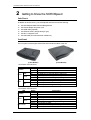
Front Panel
The front panel contains lights called LEDs that indicate the status of the unit.
(1 Port Router)
(4 Port Router)
1 Port Router LED Indicators
LED
POWER
LINK
WAN
DATA
10
LAN
100
Status
Glowing
Dim
Glowing
Dim
Flashing
Dim
Glowing
Flashing
Glowing
Flashing
Description
Power on
Power off
The WAN port is successfully linked with ADSL line
The WAN port is not linked with any ADSL line
The WAN port is receiving/transmitting data
The WAN port is not receiving/transmitting data
The LAN port is connected to a 10M Ethernet device
The LAN port is receiving/transmitting data
The LAN port is connected to a 100M Ethernet device
The LAN port is receiving/transmitting data
4 Port Router LED Indicators
LED
POWER
LINK
WAN
DATA
LAN 1/2/3/4
4
Status
Glowing
Dim
Glowing
Dim
Flashing
Dim
Glowing
Flashing
Dim
Description
Power on
Power off
The WAN port is successfully linked with ADSL line
The WAN port is not linked with any ADSL line
The WAN port is receiving/transmitting data
The WAN port is not receiving/transmitting data
The LAN port is ready
The LAN port is receiving/transmitting data
The LAN port is not connected.
SOHOSpeed ADSL Ethernet Router User’s Manual
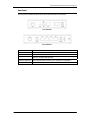
Rear Panel
The rear panel contains the ports for the unit's data and power connections.
1 Port Router
4 Port Router
ADSL
Connects the device to the wall jack for Internet connection
RESET
Resets the device to default configuration values.
USB (Optional)
Connects to the USB port on your PC.
LAN
Connects the device to your PC's Ethernet port, or to the uplink port on your
LAN's hub, using the cable provided.
CONSOLE (Optional)
Using a special cable to connect to your computer for configuration
DC IN
Connects to the supplied power converter cable.
5
SOHOSpeed ADSL Ethernet Router User’s Manual
3 Hardware Connection and PC configuration
Connecting Your SOHOSpeed
In this part, you connect the device to the phone jack, the power outlet, and your computer
or network.
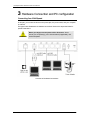
The figure below illustrates the hardware connections. Refer to the steps that follow for
specific instructions.
WARNING
Before you begin, turn the power off for all devices. These
include your computer(s), your LAN hub/switch (if applicable), and
the SOHOSpeed.
Overview of Hardware Connections
6
SOHOSpeed ADSL Ethernet Router User’s Manual
Step 1. Connect the ADSL cable
Connect one end of the provided phone cable to the port labeled ADSL on the rear panel of
the device. Connect the other end to your wall phone jack.
Step 2. Connect the Ethernet cable.
If you are connecting a LAN to the SOHOSpeed ADSL/Ethernet router, attach one end of a
provided Ethernet cable to a regular hub port and the other to the Ethernet port on the
SOHOSpeed.
If you are using the SOHOSpeed with a single computer and no hub, you must use a
“crossover” Ethernet cable (not provided) to attach the PC directly to the device. The
crossover cable is wired differently than the cable you would use to connect to a hub.
When you compare the colored wires on each end of a straight-through cable, they will be
in the same sequence; on crossover cables, they will not. Contact your ISP for assistance.
Step 3. Attach the power connector.
Connect the AC power adapter to the PWR connector labeled DC IN on the back of the
device and plug in the adapter to a wall outlet or power strip.
Step 4. Power up your systems.
Turn on and boot up your computer(s) and any LAN devices such as hubs or switches.
Step 5: Install USB software and connect the USB cable. (USB port is optional)
You can attach a single computer to the device using a USB cable. The USB port is useful
if you have an USB-enabled PC that does not have a network interface card for attaching
to your Ethernet network.
Before attaching the USB cable, you must install a USB driver and configure the computer.
For complete instructions.
Configuring Your Computers
This part provides instructions for configuring the Internet settings on your computers to
work with the SOHOSpeed.
Before you begin
By default, the SOHOSpeed automatically assigns all required Internet settings to your PCs.
You need only to configure the PCs to accept the information when it is assigned.
Note
In some cases, you may want to assign Internet information manually to
some or all of your computers rather than allow the SOHOSpeed to do so.
See ”Assigning static Internet information to your PCs” for instructions.
If you have connected your PC via the USB port, see the USB configuration
instructions.
If you have connected your PC of LAN via Ethernet to the SOHOSpeed, follow the
instructions that correspond to the operating system installed on your PC.
7
SOHOSpeed ADSL Ethernet Router User’s Manual
Windows® 95, 98 PCs:
First, check for the IP protocol and, if necessary, install it:
1.
In the Windows task bar, click the Start button, point to Settings, and then click
Control Panel.
2.
Double-click the Network icon.
The Network dialog box displays with a list of currently installed network components.
If the list includes TCP/IP, and then the protocol has already been enabled. Skip to
step 9.
3.
If TCP/IP does not display as an installed component, click
.
The Select Network Component Type dialog box displays.
4.
Select Protocol, and then click
.
The Select Network Protocol dialog box displays.
5.
Click on Microsoft in the Manufacturers list box, and then click TCP/IP in the
Network Protocols list box.
6.
Click
to return to the Network dialog box, and then click
again.
You may be prompted to install files from your Windows 95/98 installation CD. Follow
the instructions to install the files.
7.
Click
to restart the PC and complete the TCP/IP installation.
Next, configure the PCs to accept IP information assigned by the SOHOSpeed:
8.
Open the Control Panel window, and then click the Network icon.
9.
Select the network component labeled TCP/IP, and then click
If you have multiple TCP/IP listings, select the listing associated with your network
card or adapter.
10.
In the TCP/IP Properties dialog box, click the IP Address tab.
11.
Click the radio button labeled Obtain an IP address automatically.
12.
Click the DNS Configuration tab, and then click the radio button labeled Obtain
an IP address automatically.
13.
Click
twice to confirm and save your changes.
You will be prompted to restart Windows.
14.
Click
.
Windows NT 4.0 workstations:
First, check for the IP protocol and, if necessary, install it:
1.
In the Windows NT task bar, click the Start button, point to Settings, and then
click Control Panel.
2.
In the Control Panel window, double click the Network icon.
3.
In the Network dialog box, click the Protocols tab.
The Protocols tab displays a list of currently installed network protocols. If the list
includes TCP/IP, then the protocol has already been enabled. Skip to step 9.
8
.
SOHOSpeed ADSL Ethernet Router User’s Manual
4.
If TCP/IP does not display as an installed component, click
.
5.
In the Select Network Protocol dialog box, select TCP/IP, and then click
.
You may be prompted to install files from your Windows NT installation CD or other
media. Follow the instructions to install the files.
After all files are installed, a window displays to inform you that a TCP/IP service
called DHCP can be set up to dynamically assign IP information.
6.
Click
to continue, and then click
your computer.
if prompted to restart
Next, configure the PCs to accept IP information assigned by the SOHOSpeed:
7.
Open the Control Panel window, and then double-click the Network icon.
8.
In the Network dialog box, click the Protocols tab.
9.
In the Protocols tab, select TCP/IP, and then click
10.
In the Microsoft TCP/IP Properties dialog box, click the radio button labeled
Obtain an IP address from a DHCP server.
11.
Click
Control Panel.
.
twice to confirm and save your changes, and then close the
Windows 2000 PCs:
First, check for the IP protocol and, if necessary, install it:
1.
In the Windows task bar, click the Start button, point to Settings, and then click
Control Panel.
2.
Double-click the Network and Dial-up Connections icon.
3.
In the Network and Dial-up Connections window, right-click the Local Area
Connection icon, and then select Properties.
The Local Area Connection Properties dialog box displays with a list of currently
installed network components. If the list includes Internet Protocol (TCP/IP), then the
protocol has already been enabled. Skip to step 10.
4.
If Internet Protocol (TCP/IP) does not display as an installed component, click
.
5.
In the Select Network Component Type dialog box, select Protocol, and then
click
6.
.
Select Internet Protocol (TCP/IP) in the Network Protocols list, and then click
.
You may be prompted to install files from your Windows 2000 installation CD or other
media. Follow the instructions to install the files.
7.
If prompted, click
to restart your computer with the new settings.
Next, configure the PCs to accept IP information assigned by the SOHOSpeed:
8.
In the Control Panel, double-click the Network and Dial-up Connections icon.
9.
In Network and Dial-up Connections window, right-click the Local Area
Connection icon, and then select Properties.
9
SOHOSpeed ADSL Ethernet Router User’s Manual
10.
In the Local Area Connection Properties dialog box, select Internet Protocol
(TCP/IP), and then click
.
11.
In the Internet Protocol (TCP/IP) Properties dialog box, click the radio button
labeled Obtain an IP address automatically. Also click the radio button labeled
Obtain DNS server address automatically.
12.
Click
Control Panel.
twice to confirm and save your changes, and then close the
Windows Me PCs
1.
In the Windows task bar, click the Start button, point to Settings, and then click
Control Panel.
2.
Double-click the Network and Dial-up Connections icon.
3.
In the Network and Dial-up Connections window, right-click the Network icon,
and then select Properties.
The Network Properties dialog box displays with a list of currently installed network
components. If the list includes Internet Protocol (TCP/IP), then the protocol has
already been enabled. Skip to step 11.
4.
If Internet Protocol (TCP/IP) does not display as an installed component, click
.
5.
In the Select Network Component Type dialog box, select Protocol, and then
click
.
6.
Select Microsoft in the Manufacturers box.
7.
Select Internet Protocol (TCP/IP) in the Network Protocols list, and then click
.
You may be prompted to install files from your Windows Me installation CD or other
media. Follow the instructions to install the files.
8.
If prompted, click
to restart your computer with the new settings.
Next, configure the PCs to accept IP information assigned by the SOHOSpeed:
9.
In the Control Panel, double-click the Network and Dial-up Connections icon.
10.
In Network and Dial-up Connections window, right-click the Network icon, and
then select Properties.
11.
In the Network Properties dialog box, select TCP/IP, and then click
.
10
12.
In the TCP/IP Settings dialog box, click the radio button labeled Server
assigned IP address. Also, click the radio button labeled Server assigned
name server address.
13.
Click
Control Panel.
twice to confirm and save your changes, and then close the
SOHOSpeed ADSL Ethernet Router User’s Manual
Assigning static Internet information to your PCs
In some cases, you may want to assign Internet information to some or all of your PCs
directly (often called “statically"), rather than allowing the SOHOSpeed to assign it. This
option may be desirable--but not required--if:
You have obtained one or more public IP addresses that you want to always
associate with specific computers (for example, if you are using a computer as a
public web server).
You maintain different subnets on your LAN.
Before you begin, be sure to have the following information on hand. Contact your ISP
if necessary:
The IP address and subnet mask to be assigned to each PC.
The IP address of the default gateway for your LAN. In most cases, this is the
address assigned to the LAN interface on the SOHOSpeed. By default, the LAN
interface is assigned this IP address: 192.168.1.1. (You can change this number,
or another number can be assigned by your ISP.)
The IP address of your ISP’s Domain Name System (DNS) server.
On each PC, follow the instructions relating only to checking for and/or installing the IP
protocol. Once it is installed, continue to follow the instructions for displaying Internet
Protocol (TCP/IP) properties. Instead of enabling dynamic assignment of the IP addresses
for the computer, DNS server, and default gateway, click the radio buttons that enable you
to enter the information manually.
Note
Your PCs must have IP addresses that place them in the same subnet as
the SOHOSpeed’s LAN interface. If the IP addresses you manually assign to
your LAN PCs are in a different subnet than the LAN interface, change the
LAN interface IP address as needed.
Configuring a computer connected to the USB port
If the SOHOSpeed includes a USB port for connecting to a PC, you must install the
provided USB driver software on the PC. The driver enables Ethernet-over-USB
communication with the SOHOSpeed.
1.
2.
3.
Ensure that the USB cable is not connected to the USB port on the PC. The
installation program will prompt you when to connect the cable.
Copy the USB installation files to a temporary directory on the USB computer.
In the folder where you copied the files, double-click on setup.exe to start the
DSL Modem Setup Wizard.
11
SOHOSpeed ADSL Ethernet Router User’s Manual
The Welcome page for the DSL Modem Setup Wizard displays:
DSL Modem Setup Wizard—Welcome! Page
4.
.
Click
The License Agreement page displays:
DSL Modem Setup Wizard—License Agreement Page
5.
Review the terms of the license, and, if you agree to the terms, click
.
12
SOHOSpeed ADSL Ethernet Router User’s Manual
The Installing window displays as the Wizard prepares your system for the installation:
USB Setup Wizard: Installing Page
to continue.
If a Microsoft digital signature dialog box displays, click
The Installer begins copying the necessary installation files to the required locations. When
complete, a window displays, prompting you to connect the USB cable to your computer.
USB Setup Wizard—Prompt for Hardware Plug In
6.
Connect the USB cable to the ADSL-Ethernet router and to your computer.
The provided USB cable provided has a flat connector on one end (called Type A) and a
square connector on the other (Type B). Connect the flat connector to your PC and the
square connector to the SOHOSpeed. See the figure below.
To ADSLEthernet router
To PC
USB Cable Connectors
If a Microsoft digital signature dialog box again displays, click
to continue.
13
SOHOSpeed ADSL Ethernet Router User’s Manual
A Reboot window displays to prompt you reboot your computer. Select “Yes, reboot the
computer now” and click
.
DSL Modem Setup Wizard—Reboot Page
After reboot, the Finished page displays to complete the installation. Click
DSL Modem Setup Wizard—Finished Page
14
SOHOSpeed ADSL Ethernet Router User’s Manual
4 Getting Started with the Configuration
Manager
The SOHOSpeed includes preinstalled program called the Configuration Manager, which
provides an interface to the software installed on the device. It enables you to configure the
device settings to meet the needs of your network. You access it through your web browser
from any PC connected to the SOHOSpeed via the LAN port.
Note
The SOHOSpeed may already be configured to provide Internet connectivity
for your network. If it works properly with the preconfigured settings, then you
may not need to use the Configuration Manager. Contact your ISP to
determine which settings you may need to change, if any.
Accessing the Configuration Manager
The Configuration Manager program is preinstalled into memory on the SOHOSpeed. To
access the program, you need the following:
A PC or laptop connected to the LAN port on the SOHOSpeed.
A web browser installed on the PC. The program is designed to work best with
Microsoft Internet Explorer® version 5.0, Netscape Navigator® version 6.1, or later
versions.
You can access the program from any computer connected to the SOHOSpeed via the
LAN or USB ports.
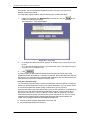
1.
From a LAN computer, open your web browser, type the following URL in the
web address (or location) box, and press <Enter>:
http://192.168.1.1
These are the predefined IP addresses for the LAN
and USB ports on the SOHOSpeed.
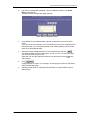
A login screen displays:
2.
Enter your user name and password, and
then click
3.
Note
16
.
The first time you log into the program, use
these defaults:
Default User Name:
root
Default Password:
root
You can change the password at any time while the user name cannot be
changed.
SOHOSpeed ADSL Ethernet Router User’s Manual
Functional Layout
Configuration Manager tasks are grouped into categories, which you can access by clicking
the tabs at the top of each page. You can click on these to display the specific configuration
options.
Tab
Task bar
A separate page displays for each task in the task bar. The left-most task displays by
default when you click on a new tab. The same task may appear in more than one tab,
when appropriate. For example, the LAN Configuration task displays in both the LAN tab
and the Routing tab.
17
SOHOSpeed ADSL Ethernet Router User’s Manual
Commonly used buttons
The following buttons are used throughout the application.
Button
Function
Stores in temporary system memory any changes you have made on the current
page. See “Committing your changes” for instructions on storing changes
permanently.
Redisplays the current page with updated statistics.
When accumulated statistics are displaying, this button resets the statistics
to their initial values.
Launches the online help for the current topic in a separate browser
window. Help is available from any main topic page.
The Home Page and System View Table
The Home page displays when you first access the program or, if another tab is already
displaying, when you click on the Home tab.
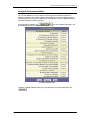
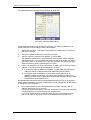
System View Table
18
SOHOSpeed ADSL Ethernet Router User’s Manual
The Home page contains the System View table, which provides a snapshot of your system
configuration. Note that some settings link to the related pages in Configuration Manager
where you can change the data or view details. The following table describes each section
of the System View table.
Table Heading
Description
Device
Displays basic information about the SOHOSpeed hardware and software
versions, the system uptime (since the last reboot), and the preconfigured
operating mode.
DSL
Displays the operational status, version, and performance statistics for the DSL
line. You can click on DSL in the table heading or display the WAN tab to view
additional DSL settings.
WAN Interfaces
Displays the software name(s) and various settings for the device interface(s) that
communicate with your ISP via DSL. Although you only have one physical DSL
port, multiple software-defined interfaces can be configured to use it. Most users
need only one.
For each interface, a "Lower Interface" name, such as aal5-0, should display. You
can click on the lower interface name to view or change the ATM VC settings that
this interface uses.
LAN Interface
Displays the software names and various settings for the device interfaces that
communicate directly with your network. These typically include an Ethernet
interface named eth-0, and may include a USB interface named usb-0. Wireless
LAN interfaces are not shown. For information on modifying properties of these
interfaces.
Services
Summary
Displays the status of various services that the SOHOSpeed performs to help you
manage your network. A green check mark indicates the service is active and a
red X indicates that it is inactive:
NAT: Translates private IP addresses to your public IP address. The type of
NAT interface is indicated (inside/outside).
IP Filter: Allows setting up filtering rules that accept or deny incoming or
outgoing data.
RIP: Enables router-to-router communication
DHCP Relay: Enables dynamic assignment of IP information from your ISP
to your computers.
DHCP Client: Enables dynamic assignment of IP information from your ISP
or another computer on your network to the device’s LAN interface.
DHCP Server: Enables dynamic assignment of IP information from the
device’s built-in DHCP server to your LAN computers.
IGMP: Enables message forwarding from external sources such as your
ISP, based on the Internet Group Management Protocol.
19
SOHOSpeed ADSL Ethernet Router User’s Manual
Modifying Basic System Information
You can modify the system date and time or configure the device to acquire this information
from an ISP server. You can also assign a name to the SOHOSpeed and to the network
domain in which it resides.
Modifying the Date and Time or Configuring SNTP
You can set the system date and time manually or enable the SNTP feature so that the
device acquires this information from an ISP server.
When you set the date and time manually, the information will be held only as long as
the device stays on; if power is turned off or you reboot, the date and time revert to
default values and must again be updated.
When you enable SNTP (Simple Network Time Protocol), the device connects to an
ISP server that provides the date and time information. You cannot use Configuration
Manager to specify the IP address of this server; it must have been included as a
preconfigured software setting. Verify with the ISP that they have provided an SNTP
server address in the configuration before enabling this service.
Note
Setting the SOHOSpeed date and time, whether manually or through SNTP, does
not affect the date and time on your PCs.
Follow these instructions to change the system date and time or enable SNTP:
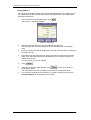
1.
At the bottom of the Home page, click
.
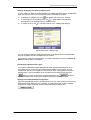
The System - Modify page displays in a separate browser window:
System - Modify Page
20
SOHOSpeed ADSL Ethernet Router User’s Manual
2.
Modify the fields on this page as required. The following table describes each
field:
Option
Description
SNTP
To enable SNTP, click the Enable radio button. The remaining date and time fields
will be dimmed (unavailable for entry).
Date and Time To set the date and time manually, ensure that the SNTP field is set to Disable.
Click the date and time check boxes to select the appropriate values from the dropdown lists. The time displays in military format.
Time Zone,
If you are setting the date and time manually, you can select your time zone from
Daylight
the drop-down list, and then click the appropriate radio button to indicate whether
Savings Time Daylight Savings Time is currently in effect.
After you initially set the time, turning DST on or off will adjust the current displayed
time by one hour in the appropriate direction.
You must remember to change the DST option each spring and fall — it will not
change automatically.
3.
When you are finished modifying the settings, click
, and then click
to return to the System View page.
4.
To save your changes to permanent memory, click the Admin tab, and then click
Commit & Reboot in the task bar.
5.
Click
to save your changes to permanent memory.
Specifying the SOHOSpeed ‘s Name and Network Domain Name
You can specify an easy-to-remember name for the SOHOSpeed and a domain name for
the network on which it resides. These are used only to simplify access to the Configuration
Manager program.
The Name and Domain Name fields display on the System-Modify page.
You can set a name only, or a name and domain name together.
If you specify a name only, then the next time you want to access Configuration
Manager, you can type this name in the location box in your Web browser instead of
typing the numeric IP address. For example, if you named the device myrouter (and left
the Domain Name field blank), then you could type the following in your Web browser
to access Configuration Manager:
http://myrouter
If you also specify a domain name for the ADSL-Ethernet router, the next time you
access Configuration Manager, type the domain name and the device name in your
Web browser. For example, if you entered myrouter in the Name field and
mydomain.com in the Domain Name field, then you would type the following in your
Web browser to access Configuration Manager:
http://myrouter.mydomain.com
After you enter information in these fields, submitting the information. Click the Admin tab,
and then click Commit & Reboot in the task bar to save your changes.
Note
Using a name/domain instead of the IP address to access Configuration Manager
will work only when the DNS relay feature is enabled. DNS Relay is automatically
enabled when the DNS server address configured on your PCs is also the address
assigned to the LAN interface on the SOHOSpeed.
21
SOHOSpeed ADSL Ethernet Router User’s Manual
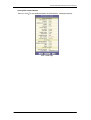
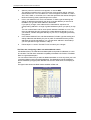
Quick Configuration
This page allows you to configure your Internet connection settings within one page.
Before you attempt to modify any settings, we strongly recommend that you contact your
ISP prior to changing the default configuration.
Quick Configuration Page in Configuration Manager
22
SOHOSpeed ADSL Ethernet Router User’s Manual
The fields are described in the following table. Work with your ISP to determine which
settings you need to change and refer to the relating chapter for more information about
each setting.
Field
Description
General Settings
ATM Interface
Selects the ATM interface you want to use (0). Your system may be configured
with more than one ATM interface if you are using different types of services with
your ISP.
Operation
Mode
Enables or disables the SOHOSpeed. When set to "Disabled", the device cannot
be used to provide Internet connectivity or routing services for your network.
Encapsulation
Determines the type of data link your ISP uses to communicate with your
ADSL/Ethernet router.
VCI and VPI
Determine the unique data path your modem uses to communicate with your ISP.
Bridge
Enables or disables bridging between the SOHOSpeed and your ISP.
IGMP
Used to enable the WAN interface to pass Internet Group Management Protocol
messages it receives to the LAN PCs. You must also enable the LAN or USB
interfaces for IGMP.
IP Address
and Subnet
Mask
If your ISP has provided a public IP address to your LAN, enter the address and
the associated subnet mask in the boxes provided. (Note: In bridge configurations,
the public IP address may be entered on your PC rather than on the
ADSL/Ethernet router; check with your ISP.)
Use DHCP
When enabled, your ISP will assign IP addresses to your WAN interface.
Default Route
When enabled, specifies that the WAN interface IP address specified above will
be used as the default route for your LAN. Whenever one of your LAN computers
attempts to access the Internet, the data will be sent via this interface.
Gateway IP
Address
Specifies the IP address that identifies the ISP server through which your Internet
connection will be routed.
PPP User
Name and
Password
The user name and password you use to log in to your ISP. (Note: this is not the
same as the user name and password you used to log in to Configuration
Manager.)
Use DNS
Specifies whether the DNS server addresses that your LAN will use should be
supplied dynamically each time you connect to the ISP. If you click Disable, you
must configure DNS addresses manually on each PC or on the fields below.
PPP Settings
DNS Settings
Primary/
Secondary
DNS Server
1.
Specifies the primary and secondary domain name system (DNS) server
addresses provided by your ISP.
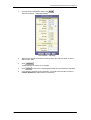
When finished customizing these settings, click
.
The settings are now in effect; however, if you reboot or if the power is disconnected, your
settings will be lost. In step 3, you save the changes to permanent memory:
2.
Click the Admin tab, and then click Commit & Reboot in the task bar.
3.
.
Click
A page will display briefly to confirm your changes, and then you will be
returned to the Commit & Reboot page.
You are now finished customizing basic settings. Read the following section to determine if
you need to change additional settings.
Note
On the Quick Configuration page, you can click
to remove all
existing Quick Configuration settings and return to the default values.
23
SOHOSpeed ADSL Ethernet Router User’s Manual
Default Router Settings
The SOHOSpeed can provide a variety of services to your network. The device is
preconfigured with default settings for use with a typical home or small office network.
The table below lists some of the most important default settings; these and other features
are described fully in subsequent chapters. If you are familiar with network configuration,
review the settings in the table below to verify that they meet the needs of your network.
Refer to the Quick Configuration page instructions or to the document sections referenced
in the table for further instructions. If you are unfamiliar with these settings, try using the
device without modification, or contact your ISP for assistance.
Option
Default Properties
Explanation/Instructions
LAN interfaces — connecting to your network
Ethernet
Static IP address:
192.168.1.1
Subnet mask:
255.255.255.0
DHCP server pool of
addresses:
192.168.1.3 through
192.168.1.34
The LAN interface connects the device to your
Ethernet network. Typically, you will not need to
change the IP address.
The DHCP service is enabled for operation over
this interface, with a pool of private IP addresses
for dynamic assignment to your LAN computers.
USB
Static IP address:
192.168.1.2
Subnet mask: 255.255.255.0
The USB interface can connect to a single USBenabled computer with an IP address in the same
subnet.
WAN interface — connecting to the Internet
ATM VC
VPI = 0
VCI = 35
The VPI and VCI values make up a VC (virtual
circuit) that determines the path your data must
take to connect over the phone lines to the ISP.
These values must be changed as directed by
your ISP.
PPP
interface
PPPoE interface
Login: guest
Password: guest
The PPP interface determines the method of
communication with your ISP and logging in to
their servers. A particular type of PPP interface –
PPP over Ethernet (PPPoE) – is configured by
default, with the ISP login information shown. See
“Configuring PPP Interfaces” for instructions on
modifying this information as required by your ISP.
NAPT rule enabled
Your computers’ private IP addresses (see DHCP
above) will be translated to your public IP address
whenever they access the Internet.
Services
NAT
(Network
Address
Translation)
24
SOHOSpeed ADSL Ethernet Router User’s Manual
Committing Your Changes and Rebooting the Device
Committing your changes
Whenever you use the Configuration Manager to change system settings, the changes are
initially placed in temporary storage. Your changes are made effective when you submit
them, but will be lost if the device is reset or turned off.
To save your changes for future use, you can use the commit function.
Note
Submitting changes saves them only until the device is reset or powered down.
Committing changes saves them permanently.
Follow these steps to commit changes to permanent storage.
Click the Admin tab, and then click Commit & Reboot in the task bar.
The Commit & Reboot page displays:
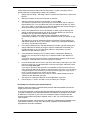
Commit & Reboot Page
Click
. (Disregard the selection in the Reboot Mode drop-down list; it
does not affect the commit process.)
The changes are saved to permanent storage.
The previous settings are copied to backup storage so that they can be recalled if your new
settings do not work properly.
Rebooting the device using Configuration Manager
To reboot the device, display the Commit and Reboot page, select the appropriate reboot
mode from the drop-down menu, and then click
.
25
SOHOSpeed ADSL Ethernet Router User’s Manual
You can select from the following three options when rebooting:
Option
Reboot
Reboot from Default
Configuration
Reboot from Backup
Configuration
Reboot from Last
Configuration
Reboot from Clean
Configuration
Reboot from Minimum
Configuration
WARNING
26
Description
Reboots using the settings currently in memory, including any
changes you made and committed during the current session.
Reboots the device to default settings provided by your ISP or the
manufacturer. Choosing this option erases any custom settings.
Reboots the device using settings stored in backup memory. These
are the settings that were in effect before you committed new settings
in the current session.
Reboots the device using the current settings in permanent memory,
including any changes you just committed.
Reboots the device with no configuration. This option will disable
access to the Configuration Manager, as no LAN interface will be
defined. This option is intended only for technicians who have a serial
port connection to the device and knowledge of its command line
interface.
Reboots the device with only these settings:
o An Ethernet interface is configured with IP address 192.168.1.1
(mask 255.255.255.0).
o The user login is set to the following:
User Name: root
Password: root
Do not reboot the device using the Reset button on the back panel of
the SOHOSpeed to activate new changes. This button resets the
device settings to the manufacturer’s default values. Any custom
settings will be lost.
SOHOSpeed ADSL Ethernet Router User’s Manual
5
Configuring the LAN and USB Interfaces
This chapter describes how to configure the interfaces on the SOHOSpeed that
communicate with your LAN and USB computers.
Connecting Your PCs via Ethernet and/or USB
If you are using the ADSL/Ethernet router with multiple PCs on your LAN, you must
connect the LAN via an Ethernet hub or switch to the device's LAN port, also called the
Ethernet port.
If you are using a single PC with the ADSL/Ethernet router, you have two connection
options:
You can connect the PC directly to the LAN port using a crossover Ethernet cable.
If the PC is USB-enabled, you can connect it directly to the device's USB port. Only
one computer can be connected in this manner.
You can also use the USB and Ethernet ports simultaneously, connecting your LAN via the
Ethernet port and a standalone PC to the USB port.
Note
LAN and USB interfaces are preconfigured and cannot be created using
Configuration Manager. However, you can modify the properties of an existing
interface. If you require a LAN or USB interface that was not preconfigured, contact
your ISP for assistance.
Configuring the LAN (Ethernet) Interface
In order to use the device as a router on your LAN, Internet Protocol (IP) properties must
be assigned to the LAN interface. These properties must identify the interface as residing in
the same subnet as the PCs on your LAN.
Default IP properties are assigned to the LAN interface to enable you to connect to it when
you configure your PCs as described in the Quick Start.
Note
If the IP addresses that you want to assign to your PCs are not in the same subnet
as the default LAN interface, you can use Configuration Manager to change the
LAN interface IP properties accordingly. However, because you must access
Configuration Manager from a PC in the same subnet as the LAN interface, initially
configure one PC as indicated in the Quick Start. Then, access Configuration
Manager and change the LAN IP address as required. When done, change the IP
properties on the PC to so that it is also in the appropriate subnet.
If your network uses a DHCP server (other than the ADSL/Ethernet router) to assign IP
addresses, you can also configure the device to accept and use a LAN IP address
assigned by that server. Similarly, if your ISP performs DHCP serving for your network, you
can configure the device to accept an IP address assigned from the ISP’s server. In this
mode, the ADSL/Ethernet router is considered a DHCP client of your (or your ISP’s) DHCP
server.
Note
The SOHOSpeed itself can function as a DHCP server for your LAN computers,
but not for its own LAN interface.
Follow these steps to change the default LAN IP properties or to configure the LAN
interface as a DHCP client:
27
SOHOSpeed ADSL Ethernet Router User’s Manual
1.
Log into Configuration Manager and click the LAN tab.
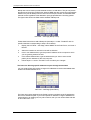
The LAN Configuration page displays:
LAN Configuration Page
Note
Depending on the preconfigured settings, the LAN Configuration or USB
Configuration table may not display. You cannot create these interfaces using
Configuration Manager. Contact your ISP for assistance.
The LAN Configuration table displays the following settings:
28
Setting
Description
System Mode
Identifies the system operating mode for your device, such as Routing mode,
Bridging mode, or both modes simultaneously.
Get LAN
Address
Provides options for how the device’s LAN interface is assigned an IP address:
o Manual indicates that you will be assigning a static IP address, which you can
enter in the fields below.
o External DHCP Server indicates that your ISP will be assigning an IP address
from their own DHCP server, dynamically each time you log on.
o Internal DHCP Server indicates that you have a DHCP server device on your
network that will assign an address to the port.
If you choose either the internal or external server option, the LAN interface is called
a DHCP client of the server.
Note that the public IP address assigned to you by your ISP is not your LAN IP
address. The public IP address identifies the WAN (ADSL) port on your
ADSL/Ethernet router to the Internet. (Or, in bridge configurations, it may be
assigned to your PC.)
LAN IP
Address and
Network Mask
The IP address and network mask for the port.
Speed/Duplex
Speed indicates the speed of the Ethernet communication between the
ADSL/Ethernet router and the LAN PCs or hub. Duplex indicates the type of Ethernet
communication (i.e., full duplex, or half-duplex).
These settings are not user-configurable.
SOHOSpeed ADSL Ethernet Router User’s Manual
IGMP
Indicates whether this interface is enabled with the Internet Group Management
Protocol. When enabled, the Ethernet interface collects and consolidates requests
from the LAN PCs to receive IGMP messages from external computers. The
interface also forwards IGMP messages it receives on its WAN interface to the
appropriate hosts. The WAN interface must also be enabled for the IGMP protocol.
MTU
The Maximum Transmission Unit specifies the size in bytes of the largest Ethernet
packet that the interface will accept. Packets larger than this size will be dropped.
2.
Enter an IP address and mask in the fields provided or enable an external or
internal DHCP server in the Get LAN Address field. Keep these points in mind:
Manually specifying an address: If you are using routing services on you LAN such
as DHCP and NAT, you must assign a fixed LAN IP address and mask to the interface.
The IP address must be in the same subnet as your LAN computers that connect to it.
If you change the LAN IP address, you may need to update the DHCP configuration
so that the addresses that the DHCP server dynamically assigns to your computers
are on the same subnet as the new LAN IP address.
Enabling DHCP: If you choose to have the LAN interface be a DHCP client of an
internal or external server, the LAN Network Mask field will be dimmed and made
unavailable for entry. The LAN IP Address field will remain editable, however. The
address that you specify here will be used as a request to the DHCP server. This is
referred to as a Configured IP Address in Configuration Manager. The configured IP
address is requested during communication with the DHCP server. If the configured IP
address is not available, then system will accept another address from the server.
Even if another number is assigned, the same configured IP address will continue to
display in this field.
3.
If you are using IGMP on your network, click the IGMP Enable radio button.
4.
Click
.
If you changed the LAN IP address while working from a PC that is connected to the
device via Ethernet, then your connection will be terminated.
If you changed the LAN IP address while working from a PC connected to the device
via USB, a page will display to confirm your change and your connection will remain
active.
If you enabled the DHCP service, the ADSL/Ethernet router will initiate a request for an
IP address from your LAN's DHCP server. If a different IP address is assigned than
was previously configured, your current connection will be terminated.
5.
Reconfigure your PCs, if necessary, so that their IP addresses place them in the
same subnet as the new IP address of the LAN interface. See “Configuring Your
Computers” for instructions.
6.
Log into Configuration Manager by typing the new IP address in your Web
browser’s address/location box.
7.
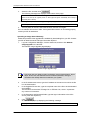
If you want the changes to be permanent, you need to execute the process of
Commit & Reboot on Admin tab to commit them.
29
SOHOSpeed ADSL Ethernet Router User’s Manual
Configuring the USB Interface IP Address
1.
If the LAN Configuration page is not already displaying, click the LAN tab.
If the USB Configuration table does not display below the LAN Configuration table,
then your system does not support a USB connection. Contact your ISP for
assistance.
2.
In the USB Configuration table, enter the IP Address and Network Mask for the
USB interface.
The IP address must place the USB interface in the same subnet as the USB
computer. The USB interface and USB computer can also be in the same subnet
as the LAN interface and the computers attached to it.
For example, if the LAN and USB interfaces are assigned addresses 192.168.1.1
and 192.168.1.2, respectively, then the PCs attached to either port can be
assigned addresses in the range 192.168.1.3 through 192.168.1.254.
3.
If you are using IGMP on your network, click the IGMP Enable radio button.
4.
In the MTU field, enter the Maximum Transmission Unit size in bytes. This
specifies the largest Ethernet packet that the interface will accept. Packets larger
than this size will be dropped.
5.
Click
.
If you changed the USB interface IP address while working from the USB-attached
computer, then the connection will be terminated.
If you were using the Ethernet interface, a page will display to confirm your change
and your connection will remain active.
30
6.
If necessary, reconfigure your USB PC so that its IP address places it in the same
subnet as the new IP address of the USB interface. See “Configuring Your
Computers” for instructions.
7.
Log into Configuration Manager by typing the new USB interface IP address in
your Web browser’s address/location box.
8.
If you want the changes to be permanent, you need to execute the process of
Commit & Reboot on Admin tab to commit them.
SOHOSpeed ADSL Ethernet Router User’s Manual
6 Configuring WAN Interfaces
The SOHOSpeed’s WAN-side interfaces are used to communication via the DSL port.
A WAN interface comprises two layers—a lower-level ATM VC interface and a higher-level
protocol interface:
The ATM VC interface enables the device to communicate using the Asynchronous
Transfer Modeprotocol. The ATM protocol provides a common format for transmitting
data over a variety of hardware systems that make up the backbone of the Internet.
The virtual circuit (VC) properties of the ATM VC interface identify a unique path that
your ADSL/Ethernet router uses to communicate via the ATM-based network with the
telephone company central office equipment.
The higher-level protocol interface(s) operate “on top” of the ATM VC interface. The
higher-level interface handles the protocols needed to log onto and exchange data
with the ISP’s access server. ISPs can use several different protocols, including the
Point-to-Point Protocol (PPP), Ethernet-over-ATM (EoA) protocol, or the Internet
Protocol-over-ATM (IPoA). Be sure to create the specific type of WAN interface your
ISP requires.
The following section describes configuring the AMT interface properties. After you have
defined these properties, you can configure one of the higher level WAN interfaces to
enable communication with your ISP, as described in the subsequent sections.
Configuring the ATM VC
The device is preconfigured with an ATM VC interface called aal5-0. You may need to
change the default VC values associated with the interface to values assigned by your ISP.
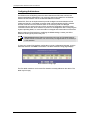
To view the current values, log into Configuration Manager, click the WAN tab, and then
click ATM VC in the task bar. The ATM VC Configuration page displays:
ATM VC Configuration Page
Note
32
The Quick Start instructions also include ATM interface configuration via
Configuration Manager’s Quick Configuration page. You can use either page to
configure the required values.
SOHOSpeed ADSL Ethernet Router User’s Manual
The ATM VC Configuration table displays the following fields.
Field
Description
Interface
The name of the ATM interface to which these VC properties apply. The ATM interface
names identify the type of traffic that can be supported, such as data or voice. Internet
data services typically use an AAL5-type interface.
Vpi, Vci,
and Mux
Type
These settings identify a unique ATM data path for communication between your
ADSL/Ethernet router and your ISP.
Max
Proto
per
AAL5
If you are using an AAL5-type of interface, this setting indicates the number of higherlevel interfaces that the VC can support (the higher-level interfaces can be PPP, EoA, or
IPoA interfaces). Contact your ISP to determine which type they require.
Actions
Displays icons you can click on to modify ( ) and delete ( ) the associated interface.
You cannot delete an ATM interface if another protocol such as PPP, EoA, or IPoA has
been defined to operate over the ATM interface. You must first delete the higher-level
interface.
Modifying ATM VCs
Your device may contain placeholder values that you must change to establish an ATM
connection. Contact your ISP to determine your ATM VC values. Follow these instructions
to modify a preconfigured VC:
1.
From the ATM VC Configuration page, click
in the Actions column for the
interface you want to modify.
The ATM VC Interface – Modify page displays:
ATM VC Interface – Modify Page
2.
Enter the new VPI and VCI values, select the MUX type, or change the maximum
number of protocols that the VC can carry, as directed by your ISP.
3.
Click
4.
On the confirmation page, click
page.
5.
If you want the changes to be permanent, you need to execute the process of
Commit & Reboot on Admin tab to commit them.
.
to return to the ATM VC Configuration
If you already have defined a higher-level PPP, EoA, or IPoA interface that uses this VC,
then you can verify that the new settings work by attempting to access the Internet from a
LAN/USB computer. Contact your ISP for troubleshooting assistance.
33
SOHOSpeed ADSL Ethernet Router User’s Manual
Adding ATM VCs
You can create an ATM VC interface if none has been predefined on your system or if you
use multiple services with your ISP. Each service may require its own VC. Follow these
instructions to add a VC:
1.
From the ATM VC Configuration page, click
The ATM VC – Add page displays:
.
ATM VC – Add Page
34
2.
Select an interface name from the VC Interface drop-down list.
The list begins with the next available ATM VC interface name, in sequential
order.
3.
Enter the VPI and VCI values assigned by your ISP, and select the mux type from
the drop-down list.
4.
In the Max Proto per AAL5 text box, enter the number of higher-level protocols
(PPP, EoA, and IPoA) that the ISP indicated that you will need to configure to
operate over this VC.
For many users, only one is required.
5.
Click
6.
to return to the ATM VC
When the confirmation page displays, click
Configuration page.
The new interface should now display in the ATM VC Configuration table.
7.
If you want the changes to be permanent, you need to execute the process of
Commit & Reboot on Admin tab to commit them.
.
SOHOSpeed ADSL Ethernet Router User’s Manual
Configuring PPP Interfaces
The Point-to-Point Protocol (PPP) is one of several protocols used to enable
communication between ISPs and their customers. PPP handles tasks such as the
following:
Identify the type of service the ISP should provide to a given customer
Identify the customer to the ISP through a username and password login
Enable the ISP to assign an Internet address and other IP information to the
customer’s DSL modem
PPP can be used only when your connection with your ISP is a routed connection (i.e., it
cannot be used for bridged connections). For more information on bridged and routed
connections, see “Configuring the System Operating Mode.”
A PPP interface can be either of two types: PPP over ATM (PPPoA) and PPP over
Ethernet (PPPoE). Although to the end user they function similarly, the ISP’s network may
be configured to handle only one protocol type. Furthermore, an ISP may not use the PPP
protocol at all, instead offering EoA-type connections. Contact your ISP before changing
the preconfigured WAN interface type.
Viewing Your Current PPP Configuration
To view your current PPP setup, log into Configuration Manager, click the WAN tab, and
then click PPP in the task bar. The Point to Point Protocol (PPP) Configuration page
displays:
Point to Point Protocol (PPP) Configuration Page
A PPP interface is configured as a group of software settings associated with an ATM VC
interface. Each PPP interface is given a name, such as ppp-0, ppp-1. Users typically need
only one PPP interface; in some cases, multiple interfaces are created to allow the user to
log on to more than one account with the ISP.)
You can configure the following settings on the PPP Configuration page:
Inactivity TimeOut...: The time in minutes that must elapse before a PPP connection
times-out due to inactivity. This setting applies only to PPP interfaces that are
configured as “start-on-data” interfaces. This type of interface starts up only when it
receives data, and then returns to a down state after the specified amount of time. This
setting works with the following setting to determine what type of data can activate a
start-on-data interface.
Ignore WAN to LAN traffic while monitoring inactivity...: When enabled, data traffic
traveling in the incoming direction—from the WAN interface to the LAN interface—will
not count as activity on the WAN interface for the purposes of determining whether to
make it inactive; i.e., incoming traffic will not activate a start-on-data interface. Only
LAN-to-WAN traffic will start the interface.
35
SOHOSpeed ADSL Ethernet Router User’s Manual
The PPP Configuration Table displays the following fields:
36
Field
Description
Interface
The name of the PPP interface.
VC
The virtual circuit over which this PPP data is sent. The VC identifies the physical path
the data takes to reach your ISP.
Interface
Sec Type
The type of firewall protections that are in effect on the interface (public, private, or
DMZ):
o A public interface connects to the Internet (PPP interfaces are typically public).
Packets received on a public interface are subject to the most restrictive set of
firewall protections defined in the software.
o A private interface connects to your LAN, such as the Ethernet interface. Packets
received on a private interface are subject to a less restrictive set of protections,
because they originate within the network.
o The term DMZ (de-militarized zone), in Internet networking terms, refers to
computers that are available for both public and in-network accesses (such as a
company's public Web server). Packets incoming on a DMZ interface -- whether
from a LAN or external source -- are subject to a set of protections that is in
between public and private interfaces in terms of restrictiveness.
Protocol
The type of PPP protocol used. Your ISP may use PPP-over-Ethernet (PPPoE) or
PPP-over-ATM (PPPoA).
WAN IP
The IP address currently assigned by your ISP to the interface.
Gateway
IP
The IP address, provided by your ISP, of the server that provides you access to the
Internet.
Default
Route
Indicates whether the ADSL/Ethernet router should use the IP address assigned to this
connection as its default route. Can be Enabled or Disabled.
Use DHCP
When set to Enable, the device will acquire additional IP information from the ISP's
DHCP server. The PPP connection itself acquires the device's IP address, mask, DNS
address, and default gateway address. With Use DHCP enabled, the device will
acquire IP addresses for various other server types (WINS, SMTP, POP3, etc. – these
server types are listed on the DHCP Server Configuration page in the LAN tab).
Use DNS
When set to Enable, the DNS address learned through the PPP connection will be
distributed to clients of the device's DHCP server. This option is useful only when the
ADSL/Ethernet Router is configured to act as a DHCP server for your LAN. When set
to Disable, LAN hosts will use the DNS address(es) specified in the DHCP pool and
specified in the DNS configuration.
Oper.
Status
Indicates whether the link is currently up or down or if a specific type of data exchange
is under way (e.g., password authorization or DHCP).
Actions
You can use these icons to modify ( ), delete ( ), and view additional details on
( ) the PPP interface.
Not all settings are available on the PPP Interface - Modify page. To modify the other
settings, you must delete the interface and create a new one. Be sure to submit and
commit your changes if you make modifications.
SOHOSpeed ADSL Ethernet Router User’s Manual
Viewing PPP Interface Details
When you click
to view additional details, the PPP Interface - Detail page displays:
PPP – Detail Page
37
SOHOSpeed ADSL Ethernet Router User’s Manual
In addition to the properties defined, the Detail page displays these fields:
Field
Description
Status
Indicates which of the following interface statuses has been manually selected:
o Start: The connection will be established for use whenever the device is turned on or
rebooted.
o Stop: The PPP interface has been manually disabled and cannot currently be used.
It can only be used after being manually returned to the Start state.
o Start On Data: The PPP connection will be established automatically whenever data
is sent to the interface (e.g., when a LAN user attempts to use the Internet), and will
time-out whenever the interface is idle for a specified amount of time.
Service
Name
(This feature is available with PPPoE interfaces but not with PPPoA interfaces.) The
name of the ISP service you are using with this PPP connection. ISPs may offer different
types of services (for example, for online gaming or business services), each requiring a
different login and other connection properties.
Last Fail
Cause
Indicates the action that ended the previous PPP session:
o No Valid PADO Recvd: The device initiated a PPoE handshake but did not receive a
packet in reply from the ISP.
o No Valid PADS Recvd: After the initial handshake, the device did not receive a
confirmation packet from the ISP.
o Stopped by User: The user stopped the connection (for example, by changing the
Configuration Manager settings for the PPP interface.)
o No Activity: The PPP communication timed out, in accordance with the timeout
period specified on the PPP Configuration page.
o Auth Failure: The ISP could not authorize the connection based on the user name
and/or password provided.
o PADT Recvd: The ISP issued a special packet type to terminate the PPP
connection.
o VC down: The Virtual Circuit between the device and the ISP is down.
o Internal failure: A system software failure occurred.
DNS
The IP address of the DNS server (located with your ISP) used on this PPP connection.
SDNS
The IP address of the secondary DNS server (located with your ISP) used on this PPP
connection.
Security
Protocol
The type of PPP security your ISP uses: PAP (Password Authentication Protocol) or
CHAP (Challenge Handshake Authentication Protocol).
Login
Name
The name you use to log in to your ISP each time this PPP connection is established.
Adding a PPP Interface
Follow this procedure to add a PPP interface.
Note
38
If you need to use more than one PPP connection, you may be able to create
multiple PPP interfaces. The number and type of PPP interfaces you can create
depends on the lower-level ATM VC interface type (LLC Mux or VC Mux), the
Max Protocol setting for the ATM VC interface, the PPP interface type you want
to create (PPPoA or PPPoE), and whether other WAN interface types have
already been configured (EoA or IPoA). Contact your ISP for assistance.
SOHOSpeed ADSL Ethernet Router User’s Manual
1.
From the PPP Configuration Page, click
The PPP Interface – Add page displays:
.
PPP Interface – Add Page
2.
Select a PPP interface name from the drop-down list, and then enter or select
data for each field.
3.
Click
.
A page displays to confirm your changes.
4.
Click
5.
If you want the changes to be permanent, you need to execute the process of
Commit & Reboot on Admin tab to commit them.
to return to the PPP page and view the new interface in the table.
39
SOHOSpeed ADSL Ethernet Router User’s Manual
Configuring EoA Interfaces
The Ethernet-over-ATM (EoA) protocol is often referred to as RFC1483, which is the
Internet specification that defines it. It is commonly used to carry data from an Ethernetbased local area network over the ATM-based wide area network.
Unlike PPP, EoA can be implemented to provide a bridged connection between a DSL
modem and the ISP. In a bridged connection, data is shared between the ISP’s network
and their customer’s as if the networks were on the same physical LAN. Bridged
connections do not use the IP protocol. EoA can also be configured to provide a routed
connection with the ISP, which uses the IP protocol to exchange data. See “Configuring the
System Operating Mode,” for more information on bridged and routed Internet connections.
Before creating an EoA interface or modifying the default settings, contact your ISP to
determine which type of protocol they use.
Note
PPP and EoA: Bridged Internet connections must use an EoA WAN interface.
Routed Internet connections can use an EoA (if configured with an IP address) or
a PPP interface.
To view your current EoA interface configuration, log into Configuration Manager, click the
WAN tab, and then click EOA in the task bar. The RFC1483/EoA Config page displays.
RFC1483/EoA Config Page
The EoA table contains a row for each EoA interface currently defined on the device. The
table may be empty.
40
SOHOSpeed ADSL Ethernet Router User’s Manual
The following table describes the fields on this page:
Field
Description
Interface
The name the software uses to identify the EoA interface.
Interface
Sec Type
The type of security protections in effect on the interface (public, private, or DMZ):
o A public interface connects to the Internet (IPoA interfaces are typically public).
Packets received on a public interface are subject to the most restrictive set of
firewall protections defined in the software.
o A private interface connects to your LAN, such as the Ethernet interface. Packets
received on a private interface are subject to a less restrictive set of protections,
because they originate within the network.
o The term DMZ (de-militarized zone), in Internet networking terms, refers to
computers that are available for both public and in-network accesses (such as a
company's public Web server). Packets incoming on a DMZ interface—whether
from a LAN or external source—are subject to a level of protection that is in
between those for public and private interfaces.
Lower
interface
EoA interfaces are defined in software, and then associated with lower-level software
and hardware structures (at the lowest level, they are associated with a physical
port —the WAN port). This field should reflect an interface name defined in the next
lower level of software over which the EoA interface will operate. This will be an ATM
VC interface, such as aal5-0 .
Config IP
Address
and
Netmask
The IP address and network mask you want to assign to the interface. If the interface
will be used for bridging with your ISP and you will not be using the SOHOSpeed as a
router on your LAN, then you do not need to specify IP information. If you enable
DHCP for this interface, then the Configured IP address will serve only as a request to
the DHCP server. The actual address that is assigned by the ISP may differ if this
address is not available.
Use DHCP
When enabled, this setting instructs the device to accept IP information assigned
dynamically by your ISP’s DHCP server. If the interface will be used for bridging with
your ISP and you will not be routing data through it, leave this checkbox unselected.
Default
Route
Indicates whether the SOHOSpeed uses the IP address assigned to this interface, if
any, as its default route for your LAN. Your system can have only one default route.
Gateway
Address
The external IP address that the ADSL/Ethernet router communicates with via the EoA
interface to gain access to the Internet. This is typically an ISP server.
Status
A green or red ball will display to indicate that the interface is currently up or down,
respectively. You cannot manually enable or disable the interface; a red ball may
indicate a problem with the DSL connection or the connection to the ISPs access
server.
Action
Icons you can click on to edit ( ) or delete ( ) the associated EoA interface.
Not all settings are available on the EoA Interface - Modify page. To modify the other
settings, you must delete the interface and create a new one. Be sure to submit and
commit your changes if you make modifications.
41
SOHOSpeed ADSL Ethernet Router User’s Manual
Adding EoA Interfaces
Follow these instructions to add an EoA interface:
1.
Click the WAN tab, and then click EOA in the task bar.
2.
Click
.
The EoA Interface - Add page displays:
EoA Interface - Add Page
42
3.
Select one of the predefined interface names from the EoA Interface drop down
list.
4.
From the Interface Sec Type drop-down list, select the level of IP Firewall to be
used on this interface.
5.
In the Lower Interface field, select the lower-level interface name over which this
protocol is being configured.
If the interface will be used to provide only a bridged connection to your ISP, skip
to step 8.
6.
If you are creating the EoA interface to provide a routed Internet connection,
enter the IP address for the interface in the Conf. IP Address field, and enter the
network mask.
This address serves as the public IP address for your entire LAN and is usually
assigned by your ISP.
7.
If your ISP will assign the IP address from their DHCP server, click the Enable
radio button in the Use DHCP field.
When DHCP is enabled, the address you entered in the Conf. IP Address field
will be requested from the DHCP server; the server many assign a different
address if necessary.
8.
If you are using the EoA interface to provide a routed connection to your ISP and
you want the EoA interface to serve as the default route for Internet access for
your LAN, ensure that the Default Route: Enable radio button is selected. (If you
have more than on WAN interface, note that only one of them can be specified as
the default route.)
If you are using the interface to provide a bridged connection, then deselect this
field.
9.
In the Gateway IP Address field, enter the address of your ISP’s access server.
10.
Click
.
A confirmation page displays to confirm your changes.
SOHOSpeed ADSL Ethernet Router User’s Manual
11.
Click
to return to the EoA page and view the new interface in the table.
12.
Click the Bridging tab.
The Bridge Configuration page displays:
Bridge Configuration Page
The Bridge Configuration page provides links (shown in red) to the System Mode page,
where you can enable or disable the corresponding bridging services. The Bridge
Configuration page also displays a table for specifying the interfaces that support
bridging. The table may be empty if bridging has not yet been configured.
13.
In the interface table, select all interface names on which you want to perform
.
bridging and click
To enable bridging with your ISP, select the EoA interface and the LAN
interface(s) (eth-0 and/or usb-0).
You can enable bridging on an IP-enabled EoA interface; in this case, the same
interface will be capable of handling both bridged and routed data packets.
14.
Click the Bridging: Enable/Disable link.
The System Mode page displays:
System Mode Page
You can also access the System Mode page from the task bar in the Home tab.
15.
Click the Bridging: Enabled radio button (if not already selected), and then click
.
A page will briefly display to confirm your changes, and will return you to the
Bridge Configuration page.
43
SOHOSpeed ADSL Ethernet Router User’s Manual
16.
If you want the changes to be permanent, you need to execute the process of
Commit & Reboot on Admin tab to commit them.
Configuring IPoA Interfaces
An IPoA interface can be used to exchange IP packets over the ATM network, without
using an underlying Ethernet over ATM (EoA) connection. Typically, this type of interface is
used only in product development and test environments, to eliminate unneeded variables
when evaluating IP protocol processing.
To configure an IPoA interface, log into Configuration Manager, click the WAN tab, and
then click IPoA in the task bar. The IPoA Configuration page displays:
PoA Configuration Page
The table contains a row for each IPoA interface currently defined. The table may initially
be empty. The following table describes the fields on this page:
44
Field
Description
Interface
The name the software uses to identify the IPoA interface
Interface Sec
Type
The type of security protections in effect on the interface (public, private, or
DMZ):
o A public interface connects to the Internet (IPoA interfaces are typically
public). Packets received on a public interface are subject to the most
restrictive set of firewall protections defined in the software.
o A private interface connects to your LAN, such as the Ethernet interface.
Packets received on a private interface are subject to a less restrictive set
of protections, because they originate within the network.
The term DMZ (de-militarized zone), in Internet networking terms, refers to
computers that are available for both public and in-network accesses (such as a
company's public Web server). Packets incoming on a DMZ interface—whether
from a LAN or external source—are subject to a level of protection that is in
between those for public and private interfaces.
RFC 157
Specifies whether the IPoA protocol to be used complies with the IEFT
specification named “RFC 1577 - Classical IP and ARP over ATM" (contact your
ISP if unsure).
Lower interface
IPoA interfaces are defined in software, and then associated with lower-level
software and hardware structures (at the lowest level, they are associated with a
physical port – the WAN port). This field should reflect an interface name
defined in the next lower level of software over which the IPoA interface will
operate. This will be an ATM VC interface, such as aal5-0.
Peer IP
Address
The IP address of the remote computer you will be connecting to via the WAN
interface.
Config IP
Address and
Netmask
The IP address and network mask you want to assign to the interface. If DHCP
is enabled, this address serves as a request to the remote computer’s DHCP
server, which may assign another address.
Gateway
Address
The external IP address that the ADSL/Ethernet router communicates with via
the IPoA interface to gain access to the Internet. This is typically an ISP server.
SOHOSpeed ADSL Ethernet Router User’s Manual
Field
Description
Status
A green or red ball will display to indicate that the interface is currently up or
down, respectively. You cannot manually enable or disable the interface; a
down interface may indicate a problem with the DSL connection, or with the
remote IPoA computer.
Action
Icons you can click on to edit ( ) or delete ( ) the associated IPoA interface.
Not all settings are available on the IPoA Interface - Modify page. To modify the
other settings, you must delete the interface and create a new one. Be sure to
submit and commit your changes if you make modifications.
Adding IPoA Interfaces
Follow these instructions to add an IPoA interface:
1.
.
Display the IPoA page and click
The IPoA Interface – Add page displays:
IPoA Interface – Add Page
2.
Select the next available interface name from the IPoA Interface drop-down list.
3.
In the Configured IP Address and Net Mask text boxes, type the address and
mask that you want to assign to the IPoA interface.
If you enable the DHCP option (in step 6 below), then the IP address you enter
here will serve as a requested address; the DHCP server may assign another
address if necessary.
4.
From the Interface Sec Type drop-down list, select the level of firewall security for
the interface: Public, Private, or DMZ.
5.
In the RFC 1577 field, click the Yes radio button if the interface complies with the
IETF specification RFC 1577 and click
.
6.
If the remote IPoA computer provides a DHCP server, you can click the Enable
radio button in the Use DHCP field to have the IP address dynamically assigned
from the server.
7.
If you want the IPoA interface to serve as the default route for your LAN, click the
Enable radio button in the Default Route field.
Only one WAN interface can be selected as the default route.
8.
In the Gateway IP Address field, enter the address of the Internet computer to
contact to gain initial access to the Internet.
45
SOHOSpeed ADSL Ethernet Router User’s Manual
9.
Click
.
A confirmation page will display to confirm your changes.
10.
Click
to return to the IPoA page and view the new interface in the table.
IPoA interfaces must be mapped to a lower ATM VC interface before they can be used.
Follow these instructions to map and IPoA interface to an ATM VC:
11.
in the row corresponding to the IPoA
In the IPoA interface table, click
interface you want to map.
The IPoA Map Information page displays:
IPoA Interface – Map Page
12.
From the Lower Interface drop-down list, select the ATM VC interface you want to
map the IPoA interface to, and then click
.
to return to the IPoA Configuration page.
13.
Click
14.
If you want the changes to be permanent, you need to execute the process of
Commit & Reboot on Admin tab to commit them.
To view all IPoA-to-ATM VC interface mappings, click
at the bottom of the IPoA
Configuration page (not in the table). The IPoA Interface – Global Map displays:
IPoA Interface – Global Map Page
You can click
is not deleted.
46
in the Action column to delete an IPoA mapping. The IPoA interface itself
SOHOSpeed ADSL Ethernet Router User’s Manual
7 Configuring the System Operating Modes
The SOHOSpeed can operate as a router, a bridge, or both. The system operating mode is
determined by how you configure the LAN and WAN interfaces to exchange data within
your network and with your ISP. This chapter provides an overview of how routers and
bridges work, and explains how to configure the device interfaces and other settings to
meet the needs of your network and ISP connection type.
Overview of System Operating Modes
The SOHOSpeed can operate in Bridging mode, Routing mode, or Routing and Bridging
mode. You can view the currently configured mode in the System View table on the Home
page, as shown below.
Viewing the Operating Mode
The system mode that displays is not configured using a single setting. Rather, it is
determined at system startup based on whether the device’s LAN and WAN interfaces are
configured with IP information (i.e., are “IP-enabled”), and whether the Bridging setting on
the System Mode page is enabled or disabled. The System Mode page is located in the
Home tab.
When the Bridging setting on the System Mode page is disabled, then the system
mode will display as “Routing.”
When the Bridging setting is enabled and at least one LAN or WAN interface is IPenabled, then the system mode will display as “Routing and Bridging.”
When the Bridging setting is enabled and no interfaces are IP enabled, then the device
is considered to be in Bridging Mode. Note, however, that in this case you would not
be able to access Configuration Manager; without being IP-enabled, the Ethernet
interface could not communicate using the Internet protocol HTTP which is used to
display information in your Web browser.
Instead of focusing on selecting a system mode of operation, users should ensure that the
appropriate settings are in place to enable communication with the ISP and to provide the
required LAN services. The correct operating mode will be selected automatically when
these settings are properly configured.
The following sections describe how to configure IP-enabled and bridge-enabled interfaces
and how to enable/disable the Bridging setting.
47
SOHOSpeed ADSL Ethernet Router User’s Manual
Configuring Routable and Bridgeable Interfaces
Making Interfaces Routable (IP-Enabled)
A routable or IP-enabled interface is simply one that has been assigned an IP address. IPenabled interfaces are capable of forwarding IP packets. You can assign IP addresses to
any LAN or WAN interface.
For information about assigning IP information to LAN interfaces (e.g., eth-0 and usb0).
For information about assigning IP information to WAN interfaces.
Making Interfaces Bridgeable (Bridge-Enabled)
When you make an interface bridgeable, you enable the software to receive Ethernet
packets through that interface, for forwarding through the device’s other bridgeable
interfaces. If an interface is not bridgeable, it can only forward IP packets (assuming the
interface has been IP-enabled).
Note
If you create a LAN or WAN interface, it must be IP-enabled, bridge enabled, or
both. An interface that has no IP address and is not made bridgeable will not
pass any data.
Follow these instructions to specify which interfaces can perform bridging.
1.
Lon into Configuration Manager and click the Bridging tab.
The Bridge Configuration page displays:
Bridge Configuration Page
The Bridge Configuration page provides links (shown in red) to the System Mode page,
where you can enable or disable the corresponding bridging services. The Bridge
Configuration page also displays a table for specifying the interfaces that support bridging.
The table may be empty if bridging has not yet been configured.
2.
In the interface table, select all interface names on which you want to perform
.
bridging and click
To enable bridging with your ISP, select the LAN interface
(eth-0 and/or usb-0) and the EoA interface you created for the bridging path.
After creating bridgeable interfaces, you must enable the bridging feature, as described in
the following section, “Enabling Bridging Mode.”
48
SOHOSpeed ADSL Ethernet Router User’s Manual
To make an interface non-bridgeable, display the Bridge Configuration page and click
next to the interface you want to delete. Click
to confirm the deletion. The
interface remains defined in the system, but is no longer capable of performing bridging.
Enabling Bridging Mode
After you have created bridgeable interfaces, you must enable the bridging service on the
system as a whole.
1.
Click the Home tab, and then click System Mode in the task bar.
The System Mode page displays.
System Mode Page
You can also access the System Mode page from Bridging page. Click any of the links that
display in red near the top of the page.
2.
Click the Bridging: Enabled radio button (if not already selected), and then click
.
A page will briefly display to confirm your changes, and will return you to the
System Mode page.
3.
If you want the changes to be permanent, you need to execute the process of
Commit & Reboot on Admin tab to commit them.
The other features shown on the System Mode page are described in “Configuring Special
Bridging Features”.
Configuring Special Bridging Features
Configuring WAN-to-WAN Bridging
WAN-to-WAN bridging refers to the bridging of data between WAN interfaces. This can
occur only when bridging is enabled on the device and it has two or more WAN interfaces.
With WAN-to-WAN bridging enabled, if a packet with an unknown destination address is
received from a WAN interface, that packet is forwarded to all the other ports — including
the other bridge-enabled WAN interface(s).
This ability may not, however, be desirable for all users, due to security concerns and
bandwidth constraints. If this is the case, WAN-to-WAN bridging should be disabled.
Follow this procedure to enable or disable WAN-to-WAN bridging:
1.
Click the Bridging tab.
2.
In the interface table, select all WAN interfaces and any others on which you want
to perform bridging and click
3.
.
Click the WAN-to-WAN bridging: Enable/Disable link.
49
SOHOSpeed ADSL Ethernet Router User’s Manual
4.
On the System Mode Page, click the WAN-to-WAN Bridging: Enabled (or
.
Disabled) radio button, and then click
A page will display briefly to confirm your changes, and will return you to the
Bridge Configuration page.
5.
If you want the changes to be permanent, you need to execute the process of
Commit & Reboot on Admin tab to commit them.
Configuring Bridge/Router AutoSense (BRAS) Mode
In Bridge-Router AutoSense (BRAS) mode, the SOHOSpeed chooses at startup whether
to operate in Routing and Bridging mode or in Bridging-only mode, based on information it
learns while communicating with the LAN PCs. This capability allows units to be delivered
to customers with one preconfiguration for both deployment types.
If BRAS is to be used, the modem must be preconfigured with both PPPoE and EoA
interfaces, and bridging must be enabled. When the modem is booted up with BRAS
enabled, the mode is determined as follows:
1.
The modem comes up with both bridging and routing enabled, with its own
internal PPPoE client active.
2.
If the modem subsequently detects PPPoE traffic from the LAN PC's PPPoE
client (indicating a bridge deployment), then the modem automatically switches to
bridging mode by stopping its own PPPoE client, causing PPPoE packets to be
bridged from the LAN side.
3.
Otherwise (no PPPoE traffic is detected) the modem continues to operate as
before in bridging mode (non-PPPoE traffic) as well as routing mode.
Follow these instructions to enable Bridge-Router AutoSense:
1.
Ensure that both a PPPoE and an EoA interface is established and that the EoA
interface has been made bridgeable (see “Making Interfaces Bridgeable (BridgeEnabled)”).
2.
Click the Home tab to display the Home page, then select System Mode in the
task bar.
3.
Ensure that the Bridging: Enabled radio button is selected.
4.
Click the BRAS: Enabled radio button, and then click
.
A page displays briefly to confirm the change, and the System Mode page
redisplays.
5.
If you want the changes to be permanent, you need to execute the process of
Commit & Reboot on Admin tab to commit them.
Enabling or disabling BRAS takes effect immediately; i.e., a system reboot is not required.
Configuring ZIPB Mode
The SOHOSpeed offers a special type of bridging mode called ZIPB (Zero Installation PPP
Bridge) mode. This mode enables the ISP to simplify the installation process for customers
who will be using the device as a bridge. ZIPB mode also allows customers to use the
embedded firewall features, which are normally not available on bridged connections.
Note
50
Contact your ISP to determine if they offer this connection type before you
configure it.
SOHOSpeed ADSL Ethernet Router User’s Manual
With ordinary DSL modems that use a bridged connection to the ISP, the customer must
install a program on their PC called a PPP client. This program enables the customer to log
in to the ISP’s access server and acquire IP information that the computer needs for all
subsequent Internet communication. In ZIPB mode, the SOHOSpeed uses its own PPP
software to communicate at startup with the ISP. The ISP assigns the IP information to the
device’s PPP interface, which then uses its DHCP server to pass the information on to the
user’s PC. Therefore, the PPP interface and the user’s PC both use the same IP address.
Working with your ISP, follow this procedure to enable ZIPB mode:
Ensure that your PCs are configured to accept IP information assigned by a DHCP server.
1.
Configuring Your Computers,” for instructions.
2.
Ensure that at least one PPPoE or PPPoA interface has been created on the.
SOHOSpeed.
The Status field for the PPP interface must be set to Start on Data. You can
modify an existing interface to set this property.
Note
If you have more than one computer on your LAN and your ISP provides multiple
public IP addresses for those computers, you must establish a PPP interface for
each public IP address.
3.
If it does not already exist, create a DHCP server pool with poolid=0.
The pool should include at least one unique private IP address for each computer
on your LAN. The gateway IP address should be set to the address of the LAN
interface, which must be in the same subnet.
4.
Enable DHCP server, as described in “Setting the DHCP Mode”.
5.
Click the Services tab to display the NAT Configuration page. If the NAT feature
is enabled, click the Disable radio button.
6.
Click the Bridging tab to display the Bridging page, and then click the ZIPB:
Enable radio button.
7.
Click the Bridging: Disable radio button.
8.
Click
.
A page displays briefly to confirm the change, and the System Mode page
redisplays.
9.
If you want the changes to be permanent, you need to execute the process of
Commit & Reboot on Admin tab to commit them.
51
SOHOSpeed ADSL Ethernet Router User’s Manual
8 Viewing System IP Addresses and IP
Performance Statistics
The interfaces on the SOHOSpeed that communicate with other network and Internet
devices are identified by unique Internet protocol (IP) addresses. You can use the
Configuration Manager to view the list of IP addresses that your device uses, and to view
other system and network performance data.
Viewing the SOHOSpeed’s IP Addresses
To view the SOHOSpeed’s IP addresses, click the Routing tab, and then click IP Addr in
the task bar. The IP Address Table page displays:
IP Address Table Page
The table lists the IP addresses, network masks (“Net Mask”), and interface names (“IF
Name”) for each of its IP-enabled interfaces.
The listed IP addresses may include:
The IP address of the device’s LAN (Ethernet) port, called eth-0.
The IP address of the device’s USB interface, named usb-0.
The IP address of the WAN (ADSL line) interface, which your ISP and other external
devices use to identify your network. It may be identified in the Configuration Manager
by the names ppp-0, eoa-0, or ipoa-0, depending on the protocol your device uses to
communicate with your ISP. Your ISP may assign the same address each time, or it
may change each time you reconnect.
The “loopback” IP address, named lo-0, of 127.0.0.1. This special address enables the
device to keep any data addressed directly to it, rather than route the data through the
default interfaces.
If your device has additional IP-enabled interfaces, the IP addresses of these will also
display.
52
SOHOSpeed ADSL Ethernet Router User’s Manual
Viewing IP Performance Statistics
You can view statistics on the processing of Internet protocol packets (a packet is a
collection of data that has been bundled for transmission). You will not typically need to
view this data, but you may find it helpful when working with your ISP to diagnose network
and Internet data transmission problems.
To view global IP statistics, click
figure below shows the IP Global Statistics page:
on the IP Address Table page. The
IP Global Statistics Page
To display updated statistics showing any new data since you opened the page, click
.
53
SOHOSpeed ADSL Ethernet Router User’s Manual
9 Configuring Dynamic Host Configuration
Protocol
You can configure your network and SOHOSpeed to use the Dynamic Host Configuration
Protocol (DHCP). This chapter provides DHCP and instructions for implementing it on your
network.
Configuring DHCP Server
Note
Before you begin, be sure to configure your PCs to accept DHCP information
assigned by a DHCP server. See “Configuring Your Computers,” for instructions.
To set up DHCP server, you first define the ranges of IP addresses that you want to be
distributed to your PCs, called DHCP server address pools.
Guidelines for creating DHCP server address pools
An IP address pool typically includes a range private addresses that you define. LAN
administrators often define private IP addresses for use only on their networks. You also
use DHCP server pools to distribute multiple public IP addresses, if, for example, these are
to be shared among a larger set of LAN computers.
You can create up to two DHCP server address pools. You can define a single pool with
addresses that can be assigned to your LAN PCs (connected via the Ethernet port) and to
a USB-connected computer, as long you have assigned to the USB and Ethernet
interfaces static IP addresses that place them in the same subnet.
For example, assume you assigned the following addresses to the Ethernet and USB
interfaces:
Ethernet interface (eth0):
IP address 192.168.1.1
mask 255.255.255.0
USB interface (usb-0):
IP address 192.168.1.2
mask 255.255.255.0
Then you could create a single pool for assignment to all your PCs:
Pool 0:
192.168.1.3 through 192.168.1.20
mask 255.255.255.0
You can create a second pool – which must be in a different subnet than the first – if either
of these circumstances apply:
You assigned static IP addresses to the device’s Ethernet and USB interfaces
that place them in different subnets (note that this is not required).0
Your LAN configuration includes two subnets. For example, the following pool can
be created to distribute IP addresses over the Wireless LAN interface, which is
assigned IP address 192.168.2.1 by default (i.e., the interface is in a different
subnet than the Ethernet and USB interfaces):
Pool 1: 192.168.2.2 through 192.168.2.10
mask 255.255.255.0
The DHCP server distributes addresses to computers connected to one of its interfaces
only when that interface is in the same subnet as the pool addresses. In the examples
54
SOHOSpeed ADSL Ethernet Router User’s Manual
shown above, the IP addresses in pool 0 would be assigned only over the Ethernet and
USB interfaces, and the addresses in pool 1 would only be assigned only over the Wireless
LAN interface.
Adding DHCP Server Address Pools
Follow these instructions to create an IP address pool:
1.
Log into Configuration Manager, click the LAN tab, and then click DHCP Server
in the task bar.
The DHCP Server Configuration page displays:
DHCP Configuration Page
Depending on your preconfigured settings, the table may display up to two address pools,
each in a row, or may be empty.
2.
Click
.
The DHCP Server Pool – Add page displays:
DHCP Server Pool – Add Page
55
SOHOSpeed ADSL Ethernet Router User’s Manual
3.
56
Enter values for the Start IP Address, End IP Address, and Net Mask fields,
which are required, and any others as needed:
Field
Description
Start/End IP
Addresses
Specifies the lowest and highest addresses in the pool, up to a maximum range of
254 addresses. For example, if the LAN interface is assigned IP address
192.168.1.1, then you could create a pool with address range 192.168.1.2 –
192.168.1.254 for distribution to your LAN computers.
Mac Address
A MAC address is a manufacturer-assigned hardware ID that is unique for each
device on a network. Use this field only if you want to assign a specific IP address
to the computer that uses this MAC address. If you type a MAC address here, you
must have specified the same IP address in both the Start IP Address and End IP
Address fields.
Net Mask
Specifies which portion of each IP address in this range refers to the network and
which portion refers to the host (computer). For a description of network masks
and LAN network masks. You can use the network mask to distinguish which pool
of addresses should be distributed to a particular subnet.
Domain
Name
A user-friendly name that refers to the subnet that includes the addresses in this
pool. This is used for reference only.
Gateway
Address
The address of the default gateway for computers that receive IP addresses from
this pool. If no value is specified, then the appropriate LAN (eth-0) or USB (usb-0)
port address on the device will be distributed to each PC as its gateway address,
depending on how each is connected.
DNS/SDNS
Address
The IP address of the Domain Name System server and Secondary Domain
Name System server to be used by computers that receive IP addresses from this
pool. These DNS servers translate common Internet names that you type into your
web browser into their equivalent numeric IP addresses. Typically, these servers
are located with your ISP.
SMTP...SWI
NS (optional)
The IP addresses of devices that perform various services for computers that
receive IP addresses from this pool (such as the SMTP, or Simple Mail Transfer
Protocol, server which handles e-mail traffic). Contact your ISP for these
addresses.
4.
.
When you are done defining the pool, click
A confirmation page displays briefly to indicate that the pool has been added
successfully. After a few seconds, the DHCP Server Pool – Add page displays
with the newly added pool.
5.
Follow the instructions in “Setting the DHCP Mode” to enable the DHCP Server.
SOHOSpeed ADSL Ethernet Router User’s Manual
Viewing, modifying, and deleting address pools
To view, modify, or delete an existing address pool, display the DHCP Server Configuration
page, and click the icons in the corresponding row in the address pool table.
To delete an IP address pool, click
, then submit and commit your changes.
To view details on an IP address pool, click . A page displays with the same
information that you entered when you added the pool.
To modify the pool, click
. The DHCP Server Pool – Modify page displays:
DHCP Server Pool – Modify Page
You can change the domain name associated with an IP address pool or enable/disable
the pool. By default, a pool is enabled when you create it.
If you want the changes to be permanent, you need to execute the process of Commit &
Reboot on Admin tab to commit them.
Excluding IP addresses from a pool
If you have IP addresses that are designated for fixed use with specific devices, or for
some other reason you do not want to make them available to your network, you can
exclude them from the pool. Display the DHCP Server Pool -- Modify page, as shown in
previous figure. Type each address to be excluded in the Excluded IP field, and click
. When you are done specifying excluded addresses, click
use the Commit function to save your changes to permanent memory.
, and then
Viewing current DHCP address assignments
When the SOHOSpeed functions as a DHCP server for your LAN, it keeps a record of any
addresses currently leased to your computers. To view a table of all current IP address
assignments, display the DHCP Server Configuration page, and then click
.
57
SOHOSpeed ADSL Ethernet Router User’s Manual
A page displays similar to that shown below.
DHCP Server Address Table Page
The DHCP Server Address Table lists any IP addresses that are currently leased to your
computers. For each leased address, the table lists the following information:
Field
Description
IP Address
The address that has been leased from the pool.
Netmas
The network mask associated with the leased address. This identifies the network
ID and host ID portions of the address.
Mac Address
The unique hardware ID of the computer to which the IP address has been
assigned.
Pool Start
The lower boundary of the address pool (shown here to identify the pool from
which the leased address was assigned).
Address
Type
Can be Static or Dynamic. Static indicates that the IP number has been assigned
permanently to the specific hardware device. Dynamic indicates that the number
has been leased temporarily for a specified length of time.
Time
Remaining
The amount of time left for the device to use the assigned address. The default
lease time is 30 days (31536000 seconds).
Configuring DHCP Relay
Some ISPs perform the DHCP server function for their customers’ home/small office
networks. In this case, you can configure the device as a DHCP relay agent. When a
computer on your network requests Internet access, the SOHOSpeed contacts your ISP to
obtain an IP address (and other information), and then forwards that information to the
computer. Follow these instructions to configure DHCP relay:
First, you must configure your PCs to accept DHCP information assigned by a DHCP
server:
1.
Open the Windows Control Panel and display the computer's Networking
properties. Configure the TCP/IP properties to "Obtain an IP address
automatically" (the actual text may vary depending on your operating system).
For detailed instructions, see “ Configuring Your Computers” for instructions.
Next, you specify the IP address of the DHCP server and select the interfaces on your
network that will be using the relay service.
58
SOHOSpeed ADSL Ethernet Router User’s Manual
2.
Log into the Configuration Manager, click the LAN tab, and then click DHCP
Relay in the task bar.
The DHCP Relay Configuration page displays:
DHCP Relay Configuration Page
3.
In the DHCP Server Address fields, type the IP address of your ISP’s DHCP
server.
If you do not have this address, it is not essential to enter it here. Requests for IP
information from your LAN will be passed to the default gateway, which should
route the request appropriately.
4.
.
Select the device’s WAN interface from the drop-down list and click
The WAN interface may be named ppp-0, eoa-0, or ipoa-0. Contact your ISP if
you are unsure which type to use.
(Note that you can also delete an interface from the table by clicking
in the
right column.)
5.
.
Click
A page displays to confirm your changes, and the program returns to the DHCP
Relay Configuration page.
6.
Follow the instructions in “Setting the DHCP Mode” to set the DHCP mode to
DHCP Relay.
59
SOHOSpeed ADSL Ethernet Router User’s Manual
Setting the DHCP Mode
You must enable the appropriate DHCP mode to activate your DHCP relay or DHCP
server settings.
Follow these instructions to set the DHCP mode:
1.
Click the LAN tab, and then click DHCP Mode in the task bar.
The DHCP Configuration page displays:
DHCP Configuration Page
60
2.
From the DHCP Mode drop-down list, choose DHCP Server, DHCP Relay, or None.
If you choose none, your LAN computers must be configured with static IP
addresses.
3.
Click
4.
If you want the changes to be permanent, you need to execute the process of
Commit & Reboot on Admin tab to commit them.
.
SOHOSpeed ADSL Ethernet Router User’s Manual
10
Configuring DNS Server Addresses
About DNS
Domain Name System (DNS) servers map the user-friendly domain names that users type
into their Web browsers (e.g., "yahoo.com") to the equivalent numerical IP addresses that
are used for Internet routing.
When a PC user types a domain name into a browser, the PC must first send a request to
a DNS server to obtain the equivalent IP address. The DNS server will attempt to look up
the domain name in its own database, and will communicate with higher-level DNS servers
when the name cannot be found locally. When the address is found, it is sent back to the
requesting PC and is referenced in IP packets for the remainder of the communication.
Assigning DNS Addresses to PCs
Multiple DNS addresses are useful to provide alternatives when one of the servers is down
or is encountering heavy traffic. ISPs typically provide primary and secondary DNS
addresses, and may provide additional addresses. Your LAN PCs learn these DNS
addresses in one of the following ways:
Statically: If your ISP provides you with their DNS server addresses, you can assign
them to each PC by modifying the PCs' IP properties.
Dynamically from a DHCP pool: You can configure the DHCP Server feature on the
ADSL/Ethernet router and create an address pool that specifies the DNS addresses to
be distributed to the PCs.
In either case, you can specify the actual addresses of the ISP's DNS servers (on the PC
or in the DHCP pool), or you can specify the address of the LAN interface on the
ADSL/Ethernet router (e.g., 192.168.1.1). When you specify the LAN interface IP address,
the device performs DNS relay, as described in the following section.
Note
If you specify the actual DNS server addresses on the PCs or in the DHCP
pool, the DNS relay feature is not used.
61
SOHOSpeed ADSL Ethernet Router User’s Manual
Configuring DNS Relay
When you specify the SOHOSpeed's LAN interface IP address as the DNS address, then
the device automatically performs “DNS relay”; i.e., because the device itself is not a DNS
server, it forwards domain name lookup requests it receives from the LAN PCs to a DNS
server at the ISP. It then relays the DNS server’s response to the PC.
When performing DNS relay, the SOHOSpeed must maintain the IP addresses of the DNS
servers it contacts. It can learn these addresses in either or both of the following ways:
Learned through PPP: If the device uses a PPP connection to the ISP, the primary
and secondary DNS addresses can be learned via the PPP protocol. To use this
method, the "Use DNS" checkbox must be selected in the PPP interface properties.
(See “Configuring PPP Interfaces” for related instructions. Note that you cannot
change this property by modifying an existing PPP interface; you must delete the
interface and recreate it with the new setting.)
Using this option is advantageous in that you will not need to reconfigure the PCs or
ADSL/Ethernet router if the ISP changes their DNS addresses.
Configured on the ADSL/Ethernet router: You can use the device's DNS feature to
specify the ISP's DNS addresses. If the device also uses a PPP interface with the
"Use DNS" property enabled, then these configured addresses can be used in addition
to the two addresses learned through PPP. If "Use DNS" is not enabled, or if a
protocol other than PPP is used (such as EoA), then these configured addresses will
be used as the primary and secondary DNS addresses.
Follow these steps to configure DNS relay:
1.
Configure the LAN PCs to use the ADSL/Ethernet router's LAN IP address as
their DNS server address using either of the following methods:
by assigning the LAN IP address statically to each PC
by inputting the LAN IP address or the address 0.0.0.0 as the DNS address in the
DHCP server pool used by the PCs.
2.
If using a PPP connection to the ISP, click the "Use DNS" check box so that the
DNS server addresses it learns are used for DNS relay.
Or,
If not using a PPP connection (or if you want to specify DNS addresses in
addition to those learned through PPP), configure the DNS addresses on the
ADSL/Ethernet router as follows:
a. Click the Services tab, and then click DNS in the task bar. The DNS
Configuration page displays.
DNS Configuration Page
62
SOHOSpeed ADSL Ethernet Router User’s Manual
b. Type the IP address of the DNS server in an empty row and click
You can enter up to two addresses.
c.
Click the DNS Relay Poll Status check box if you want the software to send
regular test messages to the DNS servers to ensure that they remain up
(recommended). If none of the specified DNS servers respond (including any
acquired by PPP, which do not display in the table), then an alert will display
in the System Log window (see the Admin tab, System Log page).
You can specify the interval in minutes between each DNS poll message in
the DNS Relay Poll Timeout text box.
d. Click the Enable radio button, and then click
3.
.
.
If you want the changes to be permanent, you need to execute the process of
Commit & Reboot on Admin tab to commit them.
DNS addresses that are assigned to LAN PCs prior to enabling DNS relay will
remain in effect until the PC is rebooted. DNS relay will only take effect when a PC's
DNS address is the LAN IP address.
Note
Similarly, if after enabling DNS relay, you specify a DNS address (other than the
LAN IP address) in a DHCP pool or statically on a PC, then that address will be used
instead of the DNS relay address.
63
SOHOSpeed ADSL Ethernet Router User’s Manual
11
Configuring IP Routes
You can use Configuration Manager to define specific routes for your Internet and network
data. This chapter describes basic routing concepts and provides instructions for creating
routes.
Note that most users do not need to define IP routes.
Viewing the IP Routing Table
All IP-enabled computers and routers maintain a table of IP addresses that are commonly
accessed by their users. For each of these destination IP addresses, the table lists the IP
address of the first hop the data should take. This table is known as the device’s routing
table.
To view the SOHOSpeed’s routing table, click the Routing tab. The IP Route page displays
by default:
IP Route Table Page
The IP Route Table displays a row for each existing route. These include routes that were
predefined on the device, routes you may have added, and routes that the device has
identified automatically through communication with other devices.
The routing table should reflect a default gateway, which directs outbound Internet traffic to
your ISP. This default gateway is shown in the row containing destination address 0.0.0.0.
The following table defines the fields in the IP Routing Table.
64
Field
Description
Destination
Specifies the IP address of the destination computer. The destination can specified as
the IP address of a specific computer or an entire network. It can also be specified as
all zeros to indicate that this route should be used for all destinations for which no other
route is defined (this is the route that creates the default gateway).
Netmask
Indicates which parts of the destination address refer to the network and which parts
refer to a computer on the network. The default gateway uses a netmask of 0.0.0.0.
NextHop
Specifies the next IP address to send data to when its final destination is that shown in
the destination column.
IFName
Displays the name of the interface on the device through which data is forwarded to
the specified next hop.
SOHOSpeed ADSL Ethernet Router User’s Manual
Field
Description
Route
Type
Indicates whether the route is direct or indirect. In a direct route, the source and
destination computers are on the same network, and the router attempts to directly
deliver the data to the computer. In an indirect route, the source and destination
computers are on different networks, and the router forwards data to a device on
another network for further handling.
Route
Origin
Displays how the route was defined. Dynamic indicates that the route was created
automatically or predefined by your ISP or the manufacturer. Routes you create are
labeled Local. Other routes may be created automatically (using RIP), or defined
remotely through various network management protocols (LCL or ICMP).
Action
Displays an icon (
) you can click on to delete a route.
Adding IP Routes
Follow these instructions to add an IP route to the routing table.
1.
From the IP Route Table page, click
The IP Route – Add page displays:
.
IP Route – Add Page
2.
Specify the destination, network mask, and gateway or next hop for this route.
To create a route that defines the default gateway for your LAN, enter 0.0.0.0 in
both the Destination and Netmask fields. Enter your ISP’s IP address in the
Gateway/NextHop field.
Note that you cannot specify the interface name, route type or route origin. These
parameters are used only for routes that are identified automatically as the device
communicates with other routing devices. For routes you create, the routing table
displays system default values in these fields.
3.
Click
4.
On the confirmation page, click
5.
The IP Routing Table will now display the new route.
6.
If you want the changes to be permanent, you need to execute the process of
Commit & Reboot on Admin tab to commit them.
.
to return to the IP Route table.
65
SOHOSpeed ADSL Ethernet Router User’s Manual
12
Configuring the Routing Information
Protocol
The SOHOSpeed can be configured to communicate with other routing devices to
determine the best path for sending data to its intended destination. Routing devices
communicate this information using a variety of IP protocols. This chapter describes how to
configure the SOHOSpeed to use one of these, called the Routing Information Protocol
(RIP).
Configuring the SOHOSpeed’s Interfaces with RIP
The following instructions describe how to enable RIP on the SOHOSpeed.
Note
1.
In order for the SOHOSpeed to communicate with other devices using RIP,
you must also enable the other devices to use the protocol. See the product
documentation for those devices.
Log into the Configuration Manager, click the Services tab, and then click RIP in
the task bar.
The RIP Configuration page displays:
RIP Configuration Page
The page contains radio buttons for enabling or disabling the RIP feature and a table listing
interfaces on which the protocol is currently running. The first time you open this page, the
table may be empty.
2.
If necessary, change the Age and Update Time values.
These are global settings for all interfaces that use RIP.
Age is the amount of time in seconds that the device’s RIP table will retain each
route that it learns from adjacent computers.
Update Time specifies how frequently the SOHOSpeed will send out its routing
table to its neighbors.
3.
66
In the IFName column, select the name of the interface on which you want to
enable RIP.
For communication with RIP-enabled devices on your LAN, select the LAN
interface (usually eth-0).
For communication with your ISP or a remote LAN, select the PPP, EoA, or other
WAN interface used for that connection.
SOHOSpeed ADSL Ethernet Router User’s Manual
4.
Select a metric value for the interface.
RIP uses a “hop count” as a way to determine the best path to a given destination
in the network. The hop count is the sum of the metric values assigned to each
port through which data is passed before reaching the destination.
Among several alternative routes, the one with the lowest hop count is
considered the fastest path.
For example, if you assign this port a metric of 1, then RIP will add 1 to the hop
count when calculating a route that passes through this port. If you know that
communication via this interface is slower than through other interfaces on your
network, you can assign it a higher metric value than the others.
You can select any integer from 1 to 15.
5.
Select a Send Mode and a Receive Mode.
The Send Mode setting indicates the RIP version this interface will use when it
sends its route information to other devices.
The Receive Mode setting indicates the RIP version(s) in which information must
be passed to the SOHOSpeed in order for it to be accepted into its routing table.
RIP version 1 is the original RIP protocol. Select RIP1 if you have devices that
communicate with this interface that understand RIP version 1 only.
RIP version 2 is the preferred selection because it supports “classless” IP
addresses (which are used to create subnets) and other features. Select RIP2 if
all other routing devices on the autonomous network support this version of the
protocol.
6.
Click
.
The new RIP entry will display in the table.
7.
Click the Enable radio button to enable the RIP feature.
Note
If you disable the RIP feature, the interface settings you have configured will remain
available for future activation.
8.
.
Click
A page displays to confirm your changes.
9.
If you want the changes to be permanent, you need to execute the process of
Commit & Reboot on Admin tab to commit them.
You can delete an existing RIP entry by clicking
in the Action column.
Note
67
SOHOSpeed ADSL Ethernet Router User’s Manual
Viewing RIP Statistics
From the RIP Configuration page, you can click
to view statistics on
attempts to send and receive route table data over RIP-enabled interfaces on the
SOHOSpeed.
RIP Global Statistics Page
You can click
accumulated data.
68
to reset all statistics to zero and
to display any newly
SOHOSpeed ADSL Ethernet Router User’s Manual
13
Configuring Network Address Translation
This chapter provides Network Address Translation (NAT) instructions for modifying the
SOHOSpeed’s default configuration.
Your Default NAT Setup
By default, NAT is enabled, with a napt rule configured to perform the following translation:
These private IP addresses:
...are translated to:
192.168.1.3
192.168.1.4
.
.
.
Your ISP-assigned
public IP address
192.168.1.34
This default NAT setup assumes that, on each LAN computer, you configured TCP/IP
properties as follows:
You selected the check box that enables them to receive their IP addresses
automatically (that is, to use a DHCP server);
or,
You assigned static IP addresses to your PCs in the range 192.168.1.3 through
192.168.1.34.
If your computers are not configured in one of these ways, you can either change the
IP addresses on your computers to match the NAT setup or delete this NAT rule and add a
new one that matches the addresses you assigned to your computers.
69
SOHOSpeed ADSL Ethernet Router User’s Manual
Viewing NAT Global Settings and Statistics
To view your NAT settings, log into Configuration Manager, and click the Services tab. The
NAT Configuration page displays by default:
NAT Configuration Page
The NAT Configuration page contains the following elements:
The NAT Options drop-down list, which provides access to the NAT Configuration page
and Global Information table, the NAT Rule Configuration page, and the NAT
Translations page.
Enable/Disable radio buttons, which allow you to turn on or off the NAT feature.
The NAT Global Information table, which displays the following settings that apply to all
NAT rule translations:
70
Field
Description
TCP Idle Timeout
(sec)
TCP Close Wait
(sec)
TCP Def Timeout
(sec)
When two computers communicate via the Internet, a TCP-based
communication session is created between them to control the exchange of
data packets. The TCP session can be viewed as being in one of three
states, depending on the types of packets being transferred: the
establishing state, where the connection is being set up, the active state,
where the connection is being used to transfer data, and the closing state,
in which the connection is being shut down. When a NAT rule is in effect on
a TCP session in the active state, the session will timeout if no packets are
received for the time specified in TCP Idle Timeout. When in the closing
state, the session will timeout if no packets are received for the time
specified in TCP Close Wait. When in the establishing state, the session
will timeout if no packets are received for the time specified in TCP Def
Timeout.
UDP Timeout (sec)
Same as TCP Idle Timeout, but for UDP-based communication sessions.
ICMP Timeout (sec)
Same as TCP Idle Timeout, but for ICMP-based communication sessions.
GRE Timeout (sec)
Same as TCP Idle Timeout, but for GRE-based communication sessions.
Default Nat Age
(sec)
For all other NAT translation sessions, the number of seconds after which a
translation session will no longer be valid if no packets are received.
NAPT Port
Start/End
When an NAPT rule is defined, the source ports will be translated to
sequential numbers in this range.
SOHOSpeed ADSL Ethernet Router User’s Manual
If you change any values, click
changes to permanent system memory.
. Then click the Admin tab and commit your
to view accumulated data on how many NAT rules have
You can click
been invoked and how much data has been translated. A page displays similar to the one
shown below.
NAT Rule Global Statistics Pag
The table provides basic information for each NAT rule you have set up. You can click
to restart the accumulation of the statistics at their initial values.
Viewing NAT Rules and Rule Statistics
To view the NAT rules currently defined on your system, select NAT Rule Entry in the NAT
Options drop-down list. The NAT Rule Configuration page displays:
NAT Rule Configuration Page
71
SOHOSpeed ADSL Ethernet Router User’s Manual
The NAT Rule Configuration table displays a row containing basic information for each rule.
For a description of these fields, refer to the instructions for adding rules.
From the NAT Rule Configuration page, you can click
icons in the right column to delete ( ) or view details on (
often a specific NAT rule has been used, click
displays similar to the one shown below.
to add a new rule, or use the
) a rule. To view data on how
in the Action(s) column. A page
NAT Rule Statistics Page
The statistics show how many times this rule has been invoked and how many currently
active sessions are using this rule. You can click
and
to reset the statistics to zeros
to display newly accumulated data.
Viewing Current NAT Translations
To view a list of NAT translations that have recently been performed and which remain in
effect (for any of the defined rules), select NAT Translations from the NAT Options dropdown list. The NAT Translations page displays:
NAT Translations Page
72
SOHOSpeed ADSL Ethernet Router User’s Manual
For each current NAT translation session, the table contains the following fields:
Field
Description
Trans
Index
The sequential number assigned to the IP session used by this NAT translation
session.
Rule ID
The ID of the NAT rule invoked.
Interface
The device interface on which the NAT rule was invoked (from the rule definition).
Protocol
The IP protocol used by the data packets that are undergoing translations (from the
rule definition) Example: TCP, UDP, ICMP.
Alg Type
The Application Level Gateway (ALG), if any, that was used to enable this NAT
translation (ALGs are special settings that certain applications require in order to
work while NAT is enabled).
NAT
Direction
The direction (Inside or Outside) of the translation. A NAT direction is assigned to
each interface; the Ethernet and USB interfaces are defined as inside, and the WAN
interfaces are defined as outside. The NAT direction is determined by the interface
on which the rule is invoked.
Entry Age
The elapsed time, in seconds, of the NAT translation session.
You can click
session:
in the Action column to view additional details about a NAT translation
NAT Translation – Details Page
In addition to the information displayed in the NAT Translations table, this table displays the
following for the selected current translation sessions:
Field
Description
Translated InAddress
The public IP address to which the private IP address was translated.
In Address
The private IP address that was translated.
Out Address
The IP address of the outside destination (web, ftp site, etc.).
In/Out Packets
The number of incoming and outgoing IP packets that have been
translated in this translation session.
In Ports
The actual port number corresponding to the LAN computer.
Out Ports
The port number associated with the destination address.
Translated In Ports
The port number to which the LAN computer’s actual port number was
translated.
73
SOHOSpeed ADSL Ethernet Router User’s Manual
Adding NAT Rules
This section explains how to create rules for each NAT flavor.
Note
You cannot edit existing NAT rules. To change a rule setup, delete it and add a
new rule with the new settings.
The NAPT rule: Translating between private and public IP addresses
Follow these instructions to create a rule for translating the private IP addresses on your
LAN to your public IP address. This type of rule uses the NAT flavor NAPT, which was used
in your default configuration. The NAPT flavor translates private source IP addresses to a
single public IP address. The NAPT rule also translates the source port numbers to port
numbers that are defined on the NAT Global Configuration page.
1.
Click the NAT tab, and then select NAT Rule Entry from the NAT Options dropdown list.
2.
Click
3.
From the Rule Flavor drop-down list, select NAPT.
The page redisplays with only those fields that are appropriate for the NAPT rule
flavor:
to display the NAT Rule – Add page.
NAT Rule – Add Page (NAPT Flavor)
74
4.
Enter a Rule ID.
The Rule ID determines the order in which rules are invoked (the lowest
numbered rule is invoked first, and so on). If you define two or more rules that act
on the same set of IP addresses, be sure to assign the Rule ID so that the higher
priority rules are invoked first. It is recommended that you specify rule IDs as
multiples of 5 or 10 so that, in the future, you can insert a rule between two
existing rules.
When a data packet matches a rule, the data is acted upon according to that rule
and is not subjected to higher-numbered rules.
5.
From the IFName drop-down list, select the interface on the device to which this
rule applies.
Typically, NAT rules are used for communication between your LAN and the
Internet. Because the device uses the WAN interface (which may be named ppp0, eoa-0, or ipoa-0) to connect your LAN to your ISP, it is the usual IFName
selection.
SOHOSpeed ADSL Ethernet Router User’s Manual
6.
In the Local Address From field and Local Address To fields, type the starting and
ending IP addresses, respectively, of the range of private address you use on
your network that you want to be translated.
You can specify that data from all LAN addresses should be translated by typing
0 (zero) in each From field and 255 in each To field. Or, type the same address in
both fields if the rule only applies to one computer.
7.
In the Global Address From and Global Address To fields, type the public IP
address assigned to you by your ISP.
If you have multiple WAN interfaces, in both fields type the IP address of the
interface to which this rule applies. This rule will not be enforced for data that
arrives on other WAN interfaces.
If you have multiple WAN interfaces and want the rule to be enforced on a range
of them, type the starting and ending IP addresses of the range.
8.
Click
9.
to return to the NAT
When a page displays to confirm your change, click
Configuration page.
The new rule should display in the NAT Rule Configuration table.
10.
Ensure that the Enable radio button is selected, and then click
A page displays to confirm your changes.
11.
If you want the changes to be permanent, you need to execute the process of
Commit & Reboot on Admin tab to commit them.
.
.
The RDR rule: Allowing external access to a LAN computer
You can create an RDR rule to make a computer on your LAN, such as a Web or FTP
server, available to Internet users without having to obtain a public IP address for that
computer. The computer’s private IP address is translated to your public IP address in all
incoming and outgoing data packets.
Note
Without an RDR rule (or Bimap rule), the SOHOSpeed blocks attempts by
external computers to access your LAN computers.
The following example illustrates using the RDR rule to provide external access to your
web server:
Your ADSL/Ethernet router receives a packet containing a request for access to your
Web server. The packet header contains the public address for your LAN as the
destination IP address, and a destination port number of 80. Because you have set up
an RDR rule for incoming packets with destination port 80, the device recognizes the
data as a request for Web server access. The device changes the packet's destination
address to the private IP address of your Web server and forwards the data packet to it.
Your Web server sends data packets in response. Before the ADSL/Ethernet router
forwards them on to the Internet, it changes the source IP address in the data packets
from the Web server's private address to your LAN's public address. To an external
Internet user then, it appears as if your Web server uses your public IP address.
75
SOHOSpeed ADSL Ethernet Router User’s Manual
The figure below shows the fields used to establish an RDR rule:
NAT Rule – Add Page (RDR Flavor)
Follow these instructions to add an RDR rule (see steps 1-4 under "The NAPT rule" for
specific instructions corresponding to steps 1 and 2 below):
1.
Display the NAT Rule – Add Page, select RDR as the Rule Flavor, if necessary,
and enter a Rule ID.
2.
Select the interface on which this rule will be effective.
3.
Select a protocol to which this rule applies, or choose ANY.
This selection specifies which type of Internet communication will be subject to
this translation rule. You can select ANY if the rule applies to all data. Or, select
TCP, UDP, ICMP, or a number from 1-255 that represents the Internet Assigned
Numbers Authority (IANA)-specified protocol number.
4.
In the Local Address From and Local Address To fields, type the same private IP
address, or the lowest and highest addresses in a range:
If you type the same IP address in both fields, incoming traffic that matches the
criteria you specify in steps 5 and 6 will be redirected to that IP address.
If you type a range of addresses, incoming traffic will be redirected to any
available computer in that range. This option would typically be used for load
balancing, whereby traffic is distributed among several redundant servers to help
ensure efficient network performance.
These addresses should correspond to private addresses already in use on your network
(either assigned statically to your PCs or assigned dynamically using DHCP, as discussed
in ”Configuring Your Computers”).
5.
76
In the Global Address From and Global Address To fields, type the public IP
address assigned to you by your ISP.
If you have multiple WAN (PPP) interfaces, note that this rule will not be enforced
for data that arrives on WAN interfaces not specified here.
If you have multiple WAN interfaces and want the rule to be enforced on more
than one of them (or all), enter a range of IP addresses that includes them.
SOHOSpeed ADSL Ethernet Router User’s Manual
6.
From the Destination Port From and Destination Port To drop-down lists, select
the port type of the computer you are making publicly available, or leave them set
to Any other port.
If you want to specify a port type that is not available in the drop-down lists, you
can instead type the port ID number in text boxes to the right. You can specify a
range using the From/To fields if you want the rule to apply to a range of port
types, or enter the same port number in both fields.
If you leave the selection set to Any other port, then incoming data will not be
checked for the destination port type.
A port ID identifies the specific function of the computer connected to it, and
therefore can limit the types of data that pass to and from the computer. For
example, Web (HTTP) servers are usually identified by port number 80; packets
containing traffic destined for a Web server will contain this port ID. The Internet
Assigned Numbers Authority (IANA) assigns port numbers for common types of
servers and functions.
7.
If the LAN computer that you are making publicly available is configured to use a
non-standard port number for the type of traffic it receives, type the non-standard
port number in the Local Port field.
This option translates the standard port number in packets destined for your LAN
computer to the non-standard number you specify. For example, if your Web
server uses (non-standard) port 2000, but you expect incoming data packets to
refer to (standard) port 80, you would enter 2000 here (and select HTTP or type
80 in the Destination Port fields). The headers of incoming packets destined for
port 80 will be modified to refer to port 2000. The packet will then be routed
appropriately to the web server.
8.
Follow steps 8-11 under "The NAPT rule" to submit your changes.
The Basic rule: Performing 1:1 translations
The Basic flavor translates the private (LAN-side) IP address to a public (WAN-side)
address, like NAPT rules. However, unlike NAPT rules, Basic rules do not also translate
the port numbers in the packet header; they are passed through untranslated. Therefore,
the Basic rule does not provide the same level of security as the NAPT rule.
The figure below shows the fields used for adding a Basic rule.
NAT Rule – Add Page (Basic Flavor)
Follow these instructions to add a Basic rule (see steps 1-4 under "The NAPT rule" for
specific instructions corresponding to steps 1 and 2 below):
1.
Display the NAT Rule – Add Page, select BASIC as the Rule Flavor, and enter a
Rule ID.
2.
Select the interface on which this rule will be effective.
77
SOHOSpeed ADSL Ethernet Router User’s Manual
3.
Select a protocol to which this rule applies, or choose ANY.
This selection specifies which type of Internet communication will be subject to
this translation rule. You can select ALL if the rule applies to all data. Or, select
TCP, UDP, ICMP, or a number from 1-255 that represents the Internet Assigned
Numbers Authority (IANA)-specified protocol number.
4.
In the Local Address From and Local Address To fields, type the starting and
ending IP addresses that identify the range of private address you want to be
translated. Or, type the same address in both fields.
If you specify a range, each address will be translated in sequence to a
corresponding address in a range of global addresses (which you specify in step
5).
You can create a Basic rule for each specific address translation to occur. The
range of addresses should correspond to private addresses already in use on
your network, whether assigned statically to your PCs, or assigned dynamically
using DHCP.
5.
In the Global Address From and Global Address To fields, type the starting and
ending addresses that identify the pool of public IP addresses that the private
addresses should be translated to. Or, type the same address in both fields (if
you also specified a single address in step 4).
6.
Follow steps 8-11 under "The NAPT rule" to submit your changes.
The Filter rule: Configuring a Basic rule with additional criteria
Like the Basic flavor, the Filter flavor translates public and private IP addresses on a oneto-one basis. The Filter flavor extends the capability of the Basic rule. Refer to “The Basic
Rule” for a general description.
You can use the Filter rule if you want an address translation to occur only when your LAN
computers initiate access to specific destinations. The destinations can be identified by
their IP addresses, port type (which identifies it as a FTP or Web server, for example), or
both.
The figure below shows the fields used to establish a Filter rule.
NAT Rule⎯Add Page (Filter Flavor)
78
SOHOSpeed ADSL Ethernet Router User’s Manual
Follow these instructions to add a Filter rule (see steps 1-4 under "The NAPT rule" for
specific instructions corresponding to steps 1 and 2 below):
1.
Display the NAT Rule – Add Page, select FILTER as the Rule Flavor, and enter a
Rule ID.
2.
Select the interface on which this rule will be effective.
3.
Select a protocol to which this rule applies, or choose ANY.
This selection specifies which type of Internet communication will be subject to
this translation rule. You can select ANY if the rule applies to all data. Or, select
TCP, UDP, ICMP, or a number from 1-255 that represents the Internet Assigned
Numbers Authority (IANA)-specified protocol number.
4.
In the Local Address From and Local Address To fields, type the starting and
ending IP addresses that identify the range of private address you want to be
translated. Or, type the same address in both fields.
If you specify a range, each address will be translated in sequence to a
corresponding address in a range of global addresses (which you specify in step
5).
The address (or range of addresses) should correspond to private address (or
addresses) already in use on your network. These may be assigned statically to
your PCs or dynamically using DHCP.
5.
In the Global Address From and Global Address To fields, type the starting and
ending address that identify the range of public IP addresses to translate your
private addresses to. Or, type the same address in both fields (if you also
specified a single address in step 4).
6.
In the Destination Address From/To fields, specify a destination address (or
range) if you want this rule to apply only to outbound traffic to the address (or
range).
If you enter only the network ID portion of the destination address, then the rule
will apply to outbound traffic from all computers on network.
7.
From the Destination Port From/To drop-down lists, select a port type if you want
the rule to apply only to outbound traffic to servers of this type. Otherwise, leave
them set to Any other port.
If you want to specify a port type that is not available in the drop-down lists, you
can instead type the port ID number in the text boxes to the right. You can specify
a range using the From/To fields if you want the rule to apply to a range of port
types, or enter the same port number in both fields.
If you leave the selection set to Any other port, then outbound data will not be
checked for the destination port type.
See step 6 for creating an RDR rule for an explanation of port IDs.
8.
Follow steps 8-11 under "The NAPT rule" to submit your changes.
The Bimap rule: Performing two-way translations
Unlike the other NAT flavors, the Bimap flavor performs address translations in both the
outgoing and incoming directions.
In the incoming direction, when the specified SOHOSpeed interface receives a packet with
your public IP address as the destination address, this address is translated to the private
IP address of a computer on your LAN. To the external computer, it appears as if the
access is being made to the public IP address, when, in fact, it is communicating with a
LAN computer.
In the outgoing direction, the private source IP address in a data packet is translated to the
LAN’s public IP address. To the rest of the Internet, it appears as if the data packet
originated from the public IP address.
79
SOHOSpeed ADSL Ethernet Router User’s Manual
Bimap rules can be used to provide external access to a LAN device. They do not provide
the same level of security as RDR rules, because RDR rules also reroute incoming packets
based on the port ID. Bimap rules do not account for the port number, and therefore allow
external access regardless of the destination port type specified in the incoming packet.
The figure below shows the fields used to establish a Bimap rule.
NAT Rule – Add Page (Bimap Flavor)
Follow these instructions to add a Bimap rule (see steps 1-4 under "The NAPT rule" for
specific instructions corresponding to steps 1 and 2 below):
1.
Display the NAT Rule – Add Page, select BIMAP as the Rule Flavor, and enter a
Rule ID.
2.
Select the interface on which this rule will be effective.
3.
In the Local Address field, type the private IP address of the computer to which
you are granting external access.
4.
In the Global Address field, type the address that you want to serve as the
publicly known address for the LAN computer.
5.
Follow steps 8-11 under "The NAPT rule" to submit your changes.
The Pass rule: Allowing specific addresses to pass through untranslated
You can create a Pass rule to allow a range of IP addresses to remain untranslated when
another rule would otherwise do so.
NAT Rule – Add Page (Pass Flavor)
The Pass rule must be assigned a rule ID that is a lower number than the ID assigned to
the rule it is intended to pass. In you want a specific IP address or range of addresses to
not be subject to an existing rule, say rule number 5, then you can create a Pass rule with
an ID number from 1 to 4.
80
SOHOSpeed ADSL Ethernet Router User’s Manual
Follow these instructions to add a Pass rule (see steps 1-4 under "The NAPT rule" for
detailed instructions corresponding to steps 1 and 2 below):
1.
Display the NAT Rule – Add Page, select PASS as the Rule Flavor, and enter a
Rule ID.
2.
Select the interface on which this rule will be effective.
3.
In the Local Address From and Local Address To fields, type the lowest and
highest IP addresses that define the range of private address you want to be
passed without translation.
If you want the Pass rule to act on only one address, type that address in both
fields.
4.
Follow steps 7-12 under "The NAPT rule" to submit your changes.
81
SOHOSpeed ADSL Ethernet Router User’s Manual
14
Configuring Firewall Settings
Configuration Manager provides built-in firewall functions, enabling you to protect the
system against denial of service (DoS) attacks and other unwelcome or malicious
accesses to your LAN. You can also specify how to monitor attempted attacks, and who
should be automatically notified.
Configuring Global Firewall Settings
Follow these instructions to configure global firewall settings:
1.
Log into Configuration Manager, click the Services tab, and then click Firewall in
the task bar.
The Firewall Configuration page displays:
Firewall Configuration Page
82
SOHOSpeed ADSL Ethernet Router User’s Manual
2.
Configure the following settings as needed:
Field
Description
Black List Status
If you want the device to maintain a blacklist, click the Enable radio button.
Click the Disable radio button if you do not want to maintain a list. For more
information, see “Managing the Blacklist”.
Black List
Period(min)
Specifies the number of minutes that a computer's IP address will remain on
the blacklist (i.e., all traffic originating from that computer will be blocked from
passing through any interface on the ADSL/Ethernet router).
Attack Protection
Click the Enable radio button to use the built-in firewall protections that
prevent the following common types of attacks:
o IP Spoofing: Sending packets over the WAN interface using an internal
LAN IP address as the source address.
o Tear Drop: Sending packets that contain overlapping fragments.
o Smurf and Fraggle: Sending packets that use the WAN or LAN IP
broadcast address as the source address.
o Land Attack: Sending packets that use the same address as the source
and destination address.
o Ping of Death: Illegal IP packet length.
DoS Protection
Click the Enable radio button to use the following denial of service protections:
o SYN DoS
o ICMP DoS
o Per-host DoS protection
Max Half open
TCP Connection
Sets the percentage of concurrent IP sessions that can be in the half-open
state. In ordinary TCP communication, packets are in the half-open state only
briefly as a connection is being initiated; the state changes to active when
packets are being exchanged, or closed when the exchange is complete.
TCP connections in the half-open state can use up the available IP sessions.
If the percentage is exceeded, then the half-open sessions will be closed and
replaced with new sessions as they are initiated.
Max ICMP
Connection
Sets the percentage of concurrent IP sessions that can be used for ICMP
messages.
If the percentage is exceeded, then older ICMP IP sessions will be replaced
by new sessions as the are initiated.
Max Single Host
Connection
Sets the percentage of concurrent IP session that can originate from a single
computer. This percentage should take into account the number of hosts on
the LAN.
Log Destination
Specifies how attempted violations of the firewall settings will be tracked.
Records of such events can be sent via Ethernet to be handled by a system
utility (Trace) or can e-mailed to specified administrators.
E-mail ID of
Admin 1/2/3
Specifies the e-mail addresses of the administrators who should receive
notices of any attempted firewall violations. Type the addresses in standard
internet e-mail address format, e.g., [email protected].
The e-mail message will contain the time of the violation, the source address
of the computer responsible for the violation, the destination IP address, the
protocol being used, the source and destination ports, and the number
violations occurring the previous 30 minutes. If the ICMP protocol is being
used, then instead of the source and destination ports, the e-mail will report
the ICMP code and type.
3.
Click
.
4.
If you want the changes to be permanent, you need to execute the process of
Commit & Reboot on Admin tab to commit them.
83
SOHOSpeed ADSL Ethernet Router User’s Manual
Managing the Blacklist
If data packets are received that violate the firewall settings or any of the IP filter rules, then
the source IP address of the offending packets can be blocked from such accesses for a
specified period of time. You can enable or disable use of the black list using the settings
described above. The source computer remains on the black list for the period of time that
you specify.
To view the list of currently blacklisted computers, click
at the bottom of
the Firewall Configuration page. The Firewall Blacklisted Hosts page displays:
Firewall Blacklisted Hosts Page
The table displays the following information for each entry:
84
Field
Description
Host IP Address
The IP address of the computer that sent the packet(s) that caused the
violation
Reason
A short description of the type of violation. If the packet violated an IP filter
rule, the custom text from the Log Tag field will display. (See “Creating IP
Filter Rules”.)
IPF Rule ID
If the packet violated an IP filter rule, this field will display the ID assigned to
the rule.
Action(s)
Displays an icon ( ) you can click on to delete the entry from the list, if you
want it to be removed prior to its automatic timed expiration.
SOHOSpeed ADSL Ethernet Router User’s Manual
15
Configuring Filters and Blocking Protocols
This chapter describes Configuration Manager features that enable you to control the data
passing through your network:
The IP filter feature enables you to create rules to block attempts by certain computers
on your LAN to access certain types of data or Internet locations. You can also block
incoming access to computers on your LAN. Although IP filter rules provide a very
flexible and powerful tool to enhance network security and control user activity, they can
also be complex and generally require an advanced understanding of IP protocols.
The bridge filter feature is similar to the IP filter feature but operates at a lower protocol
level. While IP filter rules act on IP data packets (known as “layer 3” data), bridge filter
rules act on Ethernet and similar packets (often referred to as “layer 2” or “MAC layer”
data).
The blocked protocols feature enables you to select from a predefined list the protocol
that you want to block. All data passed to the ADSL/Ethernet router using a blocked
protocol will be discarded, without consideration of the source computer, destination
computer, or the device interface on which it was received.
Configuring IP Filters
When you define an IP filter rule and enable the feature, you instruct the SOHOSpeed to
examine each data packe it receives to determine whether it meets criteria set forth in the
rule. The criteria can include the size of the packet, the network or internet protocol it
carries, the direction in which it is traveling (for example, from the LAN to the Internet or
vice versa), the IP address of the sending computer, the destination IP address, and other
characteristics of the packet data.
If the packet matches the criteria established in a rule, the packet can either be accepted
(forwarded towards its destination), or denied (discarded), depending on the action
specified in the rule.
85
SOHOSpeed ADSL Ethernet Router User’s Manual
Viewing Your IP Filter Configuration
To view your current IP filter configuration, log into Configuration Manager, click the
Services tab, and then click IP Filter in the task bar. The IP Filter Confirmation page
displays:
IP Filter Confirmation Page
The IP Filter Configuration page displays global settings that you can modify and the IP
filter rule table, which shows all currently established rules. See “Creating IP Filter Rules”
for a description of the items that make up a rule. When rules are defined, you can use the
icons that display in the Actions column to edit ( ), delete ( ), and view details on ( )
the corresponding rule.
Configuring IP Filter Global Settings
The IP Filter Configuration page enables you to configure the following global IP filter
settings.
Security Level: This setting determines which IP filter rules take effect, based on the
security level specified in each rule. For example, when High is selected, only those
rules that are assigned a security value of High will be in effect. The same is true for the
Medium and Low settings. When None is selected, IP filtering is disabled.
Private/Public/DMZ Default Action: This setting specifies a default action to be taken
(Accept or Deny) on private, public, or DMZ-type device interfaces when they receive`
packets that do not match any of the filtering rules. You can specify a different default
action for each interface type. (You specify an interface's type when you create the
interface; see the PPP configuration page, for example.)
o
o
o
86
A public interface typically connects to the Internet. PPP, EoA, and IPoA interfaces are
typically public. Packets received on a public interface are subject to the most restrictive set
of firewall protections defined in the software. Typically, the global setting for public interfaces
is Deny, so that all accesses to your LAN initiated from external computers are denied
(discarded at the public interface), except for those allowed by a specific IP filter rule.
A private interface connects to your LAN, such as the Ethernet interface. Packets received
on a private interface are subject to a less restrictive set of protections, because they
originate within the network. Typically, the global setting for private interfaces is Accept, so
that LAN computers have access to the ADSL/Ethernet routers' Internet connection.
The term DMZ (de-militarized zone), in Internet networking terms, refers to computers that
are available for both public and in-network accesses (such as a company's public Web
SOHOSpeed ADSL Ethernet Router User’s Manual
server). Packets received on a DMZ interface — whether from a LAN or external source—
are subject to a set of protections that is in between public and private interfaces in terms of
restrictiveness. The global setting for DMZ-type interfaces may be set to Deny so that all
attempts to access these servers are denied by default; the administrator may then configure
IP filter rules to allow accesses of certain types.
Creating IP Filter Rules
To create an IP filter rule, you set various criteria that must be met in order for the rule to be
invoked. Use these instructions to add a new IP filter rule.
1.
On the IP Filter Configuration page, click
The IP Filter Rule − Add page displays:
.
IP Filter Rule − Add Page
87
SOHOSpeed ADSL Ethernet Router User’s Manual
2.
Enter or select data for each field that applies to your rule. The following table
describes the fields:
Field
88
Description
Rule ID
Each rule must be assigned a sequential ID number. Rules are processed from
lowest to highest on each data packet, until a match is found. It is recommended
that you assign rule IDs in multiples of 5 or 10 (e.g., 10, 20, 30) so that you leave
enough room between them for inserting new rules if necessary.
Action
The action that will be taken when a packet matches the rule criteria. The action can
be Accept (forward to destination) or Deny (discard the packet).
Direction
Specifies whether the rule should apply to data packets that are incoming or
outgoing on the selected interface.
Incoming refers to packets coming from the LAN, and outgoing refers to packets
going to the Internet.
You can use rules that specify the incoming direction to restrict external computers
from accessing your LAN.
Interface
The interface on the SOHOSpeed on which the rule will take effect
In Interface
The interface from which packets must have been forwarded to the interface
specified in the previous selection. This option is valid only for the outgoing direction.
Log Option
When Enabled is selected, a log entry will be created on the system each time this
rule is invoked. The log entry will include the time of the violation, the source address
of the computer responsible for the violation, the destination IP address, the protocol
being used, the source and destination ports, and the number violations occurring in
the previous x minutes. (Logging may be helpful when troubleshooting.) This
information can also be e-mailed to designated administrators. See “Configuring
Firewall Settings” for instructions.
Security
Level
The security level that must be enabled globally for this rule to take affect. A rule will
be active only if its security level is the same as the globally configured setting
(shown on the main IP Filter Configuration page). For example, if the rule is set to
Medium and the global firewall level is set to Medium, then the rule will be active; but
if the global firewall level is set to High or Low, then the rule will be inactive.
Black List
Status
Specifies whether or not a violation of this rule will result in the offending computer's
IP address being added to the blacklist, which blocks the ADSL/Ethernet router from
forwarding packets from that source for a specified period of time. See “Configuring
Firewall Settings” for instructions.
Log Tag
A description of up to 16 characters to be recorded in the log in the event that a
packet violates this rule. Be sure to set the Log Option to Enable if you configure a
Log Tag.
Start/End
Time
The time range during which this rule is to be in effect, specified in military units.
SOHOSpeed ADSL Ethernet Router User’s Manual
Field
Description
Src IP
Address/Dest
IP Address
IP address criteria for the source computer(s) (from which the packet originates) and
the destination computer. In the drop-down list, you can configure the rule to be
invoked on packets containing:
any: any source IP address.
lt: any source IP address that is numerically less than the specified address.
lteq: any source IP address that is numerically less than or equal to the specified
address.
gt: any source IP address that is numerically greater than the specified address.
eq: any source IP address that is numerically equal to the specified address.
neq: any source IP address that is not equal to the specified address.
range: any source IP address that is within the specified range, including its
endpoints.
out of range: any source IP address that is outside the specified range.
self: the IP address of the ADSL/Ethernet router interface on which this rule takes
effect.
bcast: (destination address only) Specifies that the rule will be invoked for any
packets sent to the broadcast address for the receiving interface. (The broadcast
address is used to send packets to all hosts on the LAN or subnet connected to the
specified interface.) When you select this option, you do not need to specify the
address, so the address fields are dimmed.
Protocol
The basic IP protocol criteria that must be met for rule to be invoked. Using the
options in the drop-down list, you can specify that packets must contain the selected
protocol (eq), that they must not contain the specified protocol (neq), or that the rule
can be invoked regardless of the protocol (any). TCP, UDP, and ICMP are common
IP protocols; others can be identified by number from 0-255, as defined by the
Internet Assigned Numbers Authority (IANA).
Apply
Stateful
Inspection
When this option is enabled, packets are monitored for their state (i.e., whether a
packet is the initiating packet or a subsequent packet in an ongoing communication,
etc). This option provides a degree of security by blocking/dropping packets that are
not received in the anticipated state. Such packets can signify an unwelcome
attempt to gain access to a network.
Source/Desti
nation Port
Port number criteria for the source computer(s) (from which the packet originates)
and destination computer(s).
Port numbers identify the type of traffic that the computer or server can handle and
are specified by the Internet Assigned Numbers Authority (IANA). For example, port
number 80 indicates a Web server, 21 indicates an FTP server.
You can choose a port type by name from the drop-down lists or, if not available in
the list, specify the IANA port number in the text boxes. Select Any other port if the
criteria will not be used.
These fields will be dimmed (unavailable for entry) unless you have selected TCP or
UDP as the protocol.
See the description of Src IP Address for the statement options (any, eq, gt, etc.)
TCP Flag
Specifies whether the rule should apply only to TCP packets that contain the
synchronous (SYN) flag, only to those that contain the non-synchronous (NOT-SYN)
flag, or to all TCP packets. This field will be dimmed (unavailable for entry) unless
you selected TCP as the protocol.
ICMP Type
Specifies whether the value in the type field in ICMP packet headers will be used as
criteria. The code value can be any decimal value from 0-255. You can specify that
the value must equal (eq) or not equal (neq) the specified value, or you can select
any to enable the rule to be invoked on all ICMP packets. This field will be dimmed
(unavailable for entry) unless you specify ICMP as the protocol.
ICMP Code
Specifies whether the value in the code field in ICMP packet headers will be used as
criteria. The code value can be any decimal value from 0-255. You can specify that
the value must equal (eq) or not equal (neq) the specified value, or you can select
any to enable the rule to be invoked on all ICMP packets. This field will be dimmed
(unavailable for entry) unless you specify ICMP as the protocol.
89
SOHOSpeed ADSL Ethernet Router User’s Manual
Field
Description
IP Frag Pkt
Determines how the rule applies to IP packets that contain fragments. You can
choose from the following options:
o Yes: The rule will be applied only to packets that contain fragments.
o No: The rule will be applied only to packets that do not contain fragments.
o Ignore: (Default) The rule will be applied to packets whether or not they contain
fragments, assuming that they match the other criteria.
IP Option Pkt
Determines whether the rule should apply to IP packets that have options specified
in their packet headers.
o
o
o
Yes: The rule will be applied only to packets that contain header options.
No: The rule will be applied only to packets that do not contain header options.
Ignore: (Default) The rule will be applied to packets whether or not they contain
header options, assuming that they match the other criteria.
Packet Size
Specifies that the IP filter rule will take affect only on packets whose size in bytes
matches this criterion. (lt = less than, gt = greater than, lteq = less than or equal to,
etc.)
TOD Rule
Status
The Time of Day Rule Status determines how the Start Time/End Time settings are
used.
o Enable: (Default) The rule is in effect for the specified time period.
o Disable: The rule is not in effect for the specified time period, but is effective at
all other times.
3.
When you are done selecting criteria, ensure that the Enable radio button is
.
selected at the top of the page, and then click
After a confirmation page displays, the IP Filter Configuration page will redisplay
with the new rule showing in the table.
If the security level of the rule matches the globally configured setting, a green
ball displays in the Status column for that rule, indicating that the rule is now in
effect. A red ball displays when the rule is disabled or if its security level is
different from the globally configured level.
4.
Ensure that the Security Level and Private/Public/DMZ Default Action settings on
the IP Filter Configuration page are configured as needed, then click
A page displays to confirm your changes.
5.
If you want the changes to be permanent, you need to execute the process of
Commit & Reboot on Admin tab to commit them.
Viewing IP Filter Statistics
For each rule, you can view statistics on how many packets were accepted or denied.
Display the IP Filter Configuration page, and then click
to the rule. The IP Filter Rule – Statistics page displays:
IP Filter Rule – Statistics Page
90
in the row corresponding
.
SOHOSpeed ADSL Ethernet Router User’s Manual
You can click
accumulated data.
to reset the count to zero and
to display newly
Managing Current IP Filter Sessions
When two computers communicate using the IP protocol, an IP session is created for the
duration of the communication. The SOHOSpeed allows a fixed number of concurrent IP
sessions. You can view information about each current IP session and delete sessions (for
security reasons, for example).
To view all current IP sessions, display the IP Filters Configuration page, and then click
. The IP Filter Sessions displays:
IP Filter Sessions Page
The IP Filter Session table displays the following fields for each current IP session:
Field
Description
Session
Index
The ID assigned by the system to the IP session (all sessions, whether or not they
are affected by an IP filter rule, are assigned a session index)
Time to
expire
The number of seconds in which the connection will automatically expire
Protocol
The underlying IP protocol used on the connection, such as TCP, UDP, IGMP, etc.)
I/F
The interface on which the IP filter rule is effective
IP Address
The IP addresses involved in the communication. The first one shown is the initiator
of the communication.
Port
The hardware addresses of the ports involved in the communication
In/Out
Rule Index
The number of the IP filter rule that applies to this session (assigned when the rule
was created)
In/Out
Action
The action (accept, deny, or unknown), being taken on data coming into or going out
from the interface. This action is specified in the rule definition.
Actions
Provides an icon you can click on ( ) to delete the IP session. When you delete a
session, the communication is discontinued.
You can click
to display newly accumulated data.
91
SOHOSpeed ADSL Ethernet Router User’s Manual
Configuring Bridge Filters
Bridge filter rules can be created to control the forwarding of incoming and outgoing data
between your LAN and the Internet and within your LAN. Bridge filter rules make decisions
based on the structure of the "layer 2" data packets (e.g., Ethernet packets) sent or
received on the device interfaces, unlike IP filter rules, which are based on the structure of
"layer 3" (e.g., IP) packets.
Bridge filtering is also referred to as raw filtering.
When the bridge filtering feature is enabled, the bridge/router examines each incoming
layer 2 packet and compares it to the bridge filter rules. The bridge filter rules specify which
bits of the packet are to be examined, and what criteria those bits must meet in order to
qualify as a match for the rule.
When a packet matches a rule, it can either be accepted (forwarded towards its
destination), or denied (discarded), depending on the action specified in the rule.
Note
Bridge filters can be used when the unit is configured in either bridge or router
mode.
Configuring Global Bridge Filter Settings
To display the Bridge Filter Configuration page, click the Services tab, and then click Bridge
Filter in the task bar.
Bridge Filter Configuration Page
The Bridge Filter Configuration page displays a table for viewing, adding, and managing
rules, and enables you to configure global bridge filter settings. For descriptions of the
items in the table, see “Adding Bridge Filter Rules”.
92
SOHOSpeed ADSL Ethernet Router User’s Manual
You can also configure the following global settings on this page:
Field
Description
Enable/Disable
You can click the Enable and Disable radio buttons to activate/deactivate the
service. Although each rule can be independently enabled and disabled, no
rules will be effective unless the Enable radio button is selected here.
Default Action
Your selection in the Default Action drop-down list determines the action to be
taken on all packets that do not match a bridge filter rule. The available options
are:
o Accept: All packets are accepted on all interfaces — except those
specifically denied by a bridge filter rule. (Packets may still be denied due to
firewall or IP filter restrictions.)
o Deny: All packets are denied on all interfaces — except those specifically
accepted by a bridge filter rule.
Do not select CallMgt option — it is for manufacturer use only.
Adding Bridge Filter Rules
Adding and enabling a new bridge filter rule is a multi-step process:
First, you add the rule, which defines general information such as the rule number, the
direction of traffic it applies to, and the action to be taken when a match is detected.
Next, you add one or more subrules, which specify the specific criteria that the bits in
the packet must meet. A packet must match the rule criteria and all criteria in its
subrules in order for the rule action to taken.
Finally, you enable the rule and any subrules that you want to be in effect, and then
enable the bridge filtering service.
Follow this process to add a rule, then proceed to the next set of steps to add subrules:
1.
On the main Bridge Filter page, click
page:
to display the Bridge Filter Rule - Add
Bridge Filter Rule – Add Page
93
SOHOSpeed ADSL Ethernet Router User’s Manual
2.
Enter or select data for each field that applies to your rule, defined as follows:
Field
Description
Rule ID
Each rule must be assigned an ID number. Rules are processed from lowest to
highest on each data packet, until a match is found. Rule numbers up to 99 are
reserved for preconfigured system rules. Rule IDs must start at 1000 or above so that
they do not interfere with system-defined rules. It is also recommended that you assign
rule IDs in multiples of 5 or 10 (e.g., 1000, 1010, 1020) so that you leave enough room
between them for inserting new rules if necessary.
Interface
The interface on which the rule will take effect.
Direction
Specifies whether the rule should apply to packets that are incoming or outgoing on
the selected interface. Incoming refers to packets coming in to the LAN on the
interface, and Outgoing refers to packets going out from the LAN. You can use rules
that specify the incoming direction to restrict external computers from accessing your
LAN.
In Interface
The interface from which packets must be forwarded in order for this rule to be
invoked. For example, if the Interface criteria is set to ppp-0, then the In Interface could
be set to usb-0. This specifies that the rule applies only to packets passed from the
USB computer through the router's PPP interface. This option is valid only for rules
defined for the outgoing direction.
Action
Specifies what the rule will do to a packet when the packet matches the rule criteria.
The action can be Accept (forward to destination) or Deny (discard the packet). Do not
select the CallMgt option.
Log Option
When Enabled is selected, a log entry will be created on the system each time this rule
is invoked. Logging may be helpful when troubleshooting. You can also disable
logging, log only packets that match rules, or log only packets that do not match rules.
This information can be e-mailed to designated administrators. See “Configuring
Firewall Settings” for instructions.
3.
When you are finished, you can enable the rule by clicking the Enable radio
button at the top of the Bridge Filter Rule - Add page.
Note, however, that a newly created rule, even when enabled, will not have any
effect on traffic until at least one subrule has been added and enabled. You can
leave the rule disabled for now (the default) and enable it after configuring
subrules.
4.
Click
and then click
on the confirmation page.
The Bridge Filter Configuration page displays with the new rule at the bottom of
the table.
Now, you can add subrules to specify criteria for the rule:
5.
On the Bridge Filter Configuration page, click
column of the rule for which you want to created a subrule.
The Bridge Filter Subrule - Add page displays:
Bridge Filter Subrule – Add Page
94
in the Action(s)
SOHOSpeed ADSL Ethernet Router User’s Manual
The page displays Enable and Disable radio buttons you use to determine whether this sub
rule is in effect. A rule will be in effect if the rule itself and at least one of its subrules is
enabled.
6.
In the New Subrule Information table, specify the criteria for the rule, as follows:
Field
Description
Subrule ID
A unique ID number for this subrule. These numbers are independent from the main
rule number. The bridge filter processes subrules in sequential order; if a packet fails
to match the criteria of any subrule, then the rule will not be invoked and bridge filter
processing will continue to the next rule.
Offset
The number of bits into a packet, starting from a designated location where the
subrule comparison should begin.
Offset from
The location in a Layer 2 packet where the subrule comparison should begin, taking
into account any offset bits specified in the previous setting. The comparison can
start at the beginning of:
o a Link header (i.e., the start of an Ethernet packet)
o an IP header
o a TCP, UPD, or ICMP header
Mask
The bits of the packet, specified in hexadecimal, starting at the header and offset
location, that should be used when comparing data to this rule. A mask of F0FF, for
example, would look only at the 1st, 3rd, and 4th bits from the starting location.
Cmp. Type
Comparison Type - The method for comparing the selected bits, after the mask is
applied, to a reference value (or range of values) that you specify (see the next
setting). Compared to the reference value, the selected bits can be:
o eq: equal to
o neq: not equal to
o lt: less than
o lteq: less than or equal to
o gt: greater than
o gteq: greater than or equal to
o range: any source IP address that is within the specified range, including its
endpoints.
o any: all packets of any type will match this subrule. This selection makes
irrelevant any other criteria in the subrule.
WARNING: The comparison type any should only be used when all packets of any
type are to be accepted or denied. This selection, combined with a rule type that
denies matching packets, may disable your access to the Web interface.
Lower
Value/Higher
Value
The reference values, in hexadecimal, to which the selected bits will be compared. If
range is selected as the comparison type, enter values in both fields; otherwise
enter a value only in the Lower Value field.
7.
When you are finished entering criteria and are ready to make this subrule
effective, you can click the Enable radio button at the top of the Bridge Filter
Subrule - Add page and then click
and edit the subrule to enable it later.)
A page displays to confirm your changes.
8.
. (You could also leave it disabled
to return to the Bridge Filter Configuration Page. The subrule
Click
should now display in the table beneath the general rule it was added to.
Next, if you have not already done so, you can enable the rule, any of its subrules, and the
bridge filtering service in order to make the rule effective.
On the Bridge Filter Configuration page, a red ball displays in the Oper. Status column of
the table for rules and subrules that are disabled, and a green ball displays for rules that
are enabled. (When creating rules and their subrules, you may have chosen to leave them
disabled - the default.)
95
SOHOSpeed ADSL Ethernet Router User’s Manual
To make a rule active, enable the following three settings:
The Bridge Filter service: At the top of the Bridge Filter Configuration page, click the
Enable radio button.
in the Actions column in the
The rule: On the Bridge Filter Configuration page, click
row for the rule. On the Bridge Filter Rule - Modify page, select the Enable radio button
.
and click
At least one subrule: On the Bridge Filter Configuration page, you can enable a
in the Actions column in the row for the subrule. On the
subrule by editing it. Click
Bridge Filter Subrule - Modify page, select the Enable radio button and click
.
If a rule is enabled but none of its subrules are enabled, then the rule will have no effect on
network traffic. A rule can be in effect, however, when some of its subrules are disabled.
If want your changes to be permanent, be sure to commit them.
Bridge Filter Rule Example
The following instructions create a rule for preventing Telnet access to the device from a
specific WAN interface:
1. Add rule #100 with the following settings:
Interface: ppp-0
Direction: Incoming
Action: Accept
2. Click the Enable radio button at the top of the Bridge Filter Rule - Add page, and
then click
.
3. Add subrule #1 with the following settings:
Offset = 2
Offset from = TCP Header
Mask = 0x0FFF
Cmp Type = eq
Lower Value = 0x0017
(The hexadecimal number 0x0017 is binary port number 23, the well-known port
number for Telnet packets.)
4. Click the Enable radio button at the top of the Bridge Filter Subrule - Add page, and
then click
.
5. If necessary, enable the Bridge Filter Service by clicking the Enable radio button at
the top of the Bridge Filter Configuration page.
All TCP packets incoming on the ppp-0 interface will now be dropped.
Editing and Deleting Rules and Subrules
In the table on the Bridge Filter Rule page, the following items display in the Actions column
for each rule and subrule:
Button
Description
Edits the rule or subrule. The Bridge Filter Rule - Modify or Bridge Filter Subrule Modify page displays. See Adding Bridge Filter Rules for a description of the items on
these pages.
Deletes the rule or subrule. Before deleting a rule, you must first delete all of its
subrules. A page displays to enable you to confirm or cancel the deletion.
96
SOHOSpeed ADSL Ethernet Router User’s Manual
The above icons do not display for rules that are preconfigured by the ISP; these rules and
related statistics can be viewed but not otherwise accessed via the Web-based interface.
Viewing Rule Statistics
You can view statistics for each rule and total statistics for all rules:
in the corresponding Action(s)
To view statistics for an individual rule, click
column on the Bridge Filter Configuration page. The Bridge Filter Rule - Stats page
reports the accumulated number of packets that have been received that match this
rule.
To view the total number of packets received that match any of the rules, click
at the bottom of the Bridge Filter Configuration page. The Bridge - Filter Rule Stats
page, which shows the number of packets that have been received that match any of
the rules.
On either page, you can click
display newly accumulated data.
to reset the count to zero and
to
Blocking Protocols
The Blocked Protocols feature enables you to prevent the ADSL/Ethernet router from
passing any data that uses a particular protocol. Unlike the IP filter feature, you cannot
specify additional criteria for blocked protocols, such as particular users or destinations.
However, when you are certain that a particular protocol is not needed or wanted on your
network, this feature provides a convenient way to discard such data before it is passed.
To display the Blocked Protocols page, click the Services tab, and then click Blocked
Protocols in the task bar. The Blocked Protocols page displays:
Blocked Protocols Page
WARNING
Blocking certain protocols may disrupt or disable your network
communication or Internet access. If you are unfamiliar with how your
network or Internet connection uses these protocols, contact your ISP
before disabling.
97
SOHOSpeed ADSL Ethernet Router User’s Manual
The following list describes each of the available protocols.
Protocol
Description
PPoE
Point-to-Point Protocol over Ethernet. Many DSL modems use PPoE to establish
and maintain a connection with a service provider. PPoE provides a means of
logging in to the ISPs servers so that they can authenticate you as a customer and
provide you access to the Internet. Check with your ISP before blocking this
protocol.
IP Multicast
IP Multicast is an extension to the IP protocol. It enables individual packets to be
sent to multiple hosts on the Internet, and is often used for handling e-mail mailing
lists and teleconferencing/videoconferencing.
RARP
Reverse Address Resolution Protocol. This IP protocol provides a way for
computers to determine their own IP addresses when they only know their
hardware address (i.e., MAC addresses). Certain types of computers, such as
diskless workstations, must use RARP to determine their IP address before
communicating with other network devices.
AppleTalk®
A networking protocol used in for Apple Macintosh® networks.
NetBEUI
NetBIOS Enhanced User Interface. On many LAN operating systems, the
NetBEUI protocol provides the method by which computers identify themselves to
and communicate with each other.
IPX
®
Internetwork Packet Exchange. A networking protocol used on Novell Netware based LANs.
BPDU
Bridge Protocol Data Unit. BPDUs are data messages that are exchanged across
the switches between LANs that are connected by a bridge. BPDU packets
contain information on ports, addresses, priorities, and costs, and are exchanged
across bridges to detect and eliminate loops in a network.
ARP
Address Resolution Protocol. Computers on a LAN use ARP to learn the hardware
addresses (i.e., MAC addresses) of other computers when they know only their IP
addresses.
IPV6
Multicast
IP Multicasting under IP Protocol version 6. See IP Multicast above.
802.1.Q
This IEEE specification defines a protocol for virtual LANs on Ethernet networks. A
virtual LAN is a group of PCs that function as a local area network, even though
the PCs may not be physically connected. They are commonly used to facilitate
administration of large networks.
. After you have
To block a protocol, click the appropriate check box, and click
verified that the device continues to function as expected, if you want the changes to be
permanent, you need to execute the process of Commit & Reboot on Admin tab to
commit them.
98
SOHOSpeed ADSL Ethernet Router User’s Manual
16
Managing Access to the Configuration
Program
This chapter describes how to manage access to the Configuration Manager program,
including creating user logins and passwords and enabling or disabling external access
through the WAN port.
Managing User Logins
The SOHOSpeedis configured with a default user name and password combination, or
login, for accessing Configuration Manager. If you want to allow other users to access the
program, you can create additional user logins and specify their privilege levels. You can
also change the password for the default login or for any logins you create.
The default login allows the user full access to all Configuration Manager features,
including creating up to four additional user logins. You can assign one of the following
privilege levels to each additional login:
Root-level privileges enable users to modify all the features available in Configuration
Manager. The default login has root-level privileges.
Intermediate-level privileges enable users to change their own passwords. They can
also change the PPP interface username and password, and the ATM VC interface
values. (Note, however, that Intermediate users can change these only on the PPP and
ATM VC pages – not on the Quick Configuration page.) These users can view—but not
create or modify— all other system information.
User-level privileges enable users to change their own passwords. They can view—but
not create or modify— all other system information.
To create additional logins or modify existing logins, follow these instructions:
1.
Log into Configuration Manager using the default user name and password, and
then click the Admin tab.
The User Configuration page displays by default:
User Configuration Page
99
SOHOSpeed ADSL Ethernet Router User’s Manual
2.
Click
to display the User Config-Add page:
User Config-Add Page
3.
Type the User ID and Password in the text boxes provided, and then select the
privilege level for this user.
The user name can be up to 128 characters, but cannot contain spaces or
special characters.
The password can also be up to 128 characters. Be sure to retype the password
in the Confirm Password text box, exactly as before, including lowercase and
uppercase characters.
4.
Click
5.
If you want the changes to be permanent, you need to execute the process of
Commit & Reboot on Admin tab to commit them.
.
You cannot change or delete the default login. To delete a subsequently created login, click
in the corresponding Action(s) column in the table on the User Configuration page.
Changing Login Passwords
Users of all privilege levels can modify their own password. Only users with Root privileges
can modify other users’ passwords. Follow these instructions to change a login password.
Note
1.
This user ID and password are used only for logging into the Configuration
Manager; it is not the same as the PPP login you may use to connect to your
ISP.
From the User Configuration page, click
you want to modify.
The User Config-Modify page displays:
next to the login whose password
User Config-Modify Page
2.
100
Type your current password in the Old Password text box.
SOHOSpeed ADSL Ethernet Router User’s Manual
3.
Type your new password in both the New Password and Confirm New text boxes.
The password can be up to 128 ASCII characters long. When logging in, you
must type the new password in the same uppercase and lowercase characters
that you use here.
4.
Click
5.
If you want the changes to be permanent, you need to execute the process of
Commit & Reboot on Admin tab to commit them.
.
Configuring SNMP
The Simple Network Management Protocol (SNMP) enables a host computer to access
configuration, performance, and other system data that resides in a database on the
modem. The host computer is called a management station and the modem is called an
SNMP agent. The data that can be accessed via SNMP is stored in a Management
Information Database (or MIB) on the modem.
When SNMP is enabled, the modem responds to SNMP requests from the host. The host
may ask to read data from the MIB or, when its privileges allow, write data to it.
Privilege levels are defined by the SNMP communities configured on the modem. A
community is a named group of IP addresses. These addresses identify the hosts that are
permitted to act as SNMP management stations for accessing the MIB. Each community
is defined as having either read-only or read/write privileges.
The data stored in the MIB includes the standard items defined for the SNMP protocol and
custom items defined by the ISP. The MIB contents are preconfigured by the ISP and
cannot be managed via the Web-based interface.
A complete SNMP setup includes the following items:
A management station equipped with an SNMP manager client that enables sending
messages to an SNMP agent (e.g., the modem). This configuration is not described
here.
A MIB stored in the modem’s memory. This must be preconfigured in the software
image by the ISP.
The SNMP service enabled on the modem, including defined communities that allow
read-only or read/write accesses from specific hosts. This configuration is described
below.
Creating Communities
1.
Log into Configuration Manager, click the Admin tab, and then click SNMP Config
in the task bar.
The SNMP Configuration page displays:
SNMP Configuration
2.
On the SNMP Configuration page, type a community name in the empty text box
in the left column of the table.
101
SOHOSpeed ADSL Ethernet Router User’s Manual
3.
From the Access column of the table, select the privileges (Read-Only or
Read/Write) to assign to all hosts that are part of this community.
4.
.
Click
A page displays briefly to confirm your changes, and then the SNMP
Configuration page redisplays with the new entry.
Now, you can add hosts to the new community:
Adding Hosts to Communities
5.
In the Action column, click
.
The SNMP - Add Host page displays in a separate window:
SNMP Host – Add Page
6.
Enter the IP address of the host computer you want to add and click
.
A page displays briefly to confirm the addition, and the SNMP - Add Host page
redisplays.
7.
when done.
Continue adding hosts as required and click
The newly added hosts now have access to the MIB with the privilege level
associated with the community.
Viewing Hosts
To view all hosts and the communities to which they are assigned, click
on the main SNMP Configuration page.
Viewing Global SNMP Statistics
To view statistics relating to SNMP packets received and sent and packet errors, click
on the main SNMP Configuration page. The SNMP Global Statistics
page shows the number and type of packets transmitted.
102
SOHOSpeed ADSL Ethernet Router User’s Manual
17
Monitoring System Status and Performing
Diagnostics
This chapter shows you where to find information related to system events (alarms) and
DSL line performance, and how to run a diagnostic program to troubleshoot problems.
Viewing System Alarms
You can use the Configuration Manager to view information about alarms that occur in the
system. Alarms, also called traps, are caused by a variety of system events, including
connection attempts, resets, and configuration changes. This information may be helpful in
working with your ISP to troubleshoot problems you encounter with the device. (Despite
their name, not all alarms indicate problems in the functioning of the system.)
Viewing the Alarm Table
To display the Alarm page, log into the Configuration Manager, click the Admin tab, and
then click Alarm in the task bar. The Alarm page is shown below.
Alarm Page
Each row in the table displays the time and date that an alarm occurred, the type of alarm,
and a brief statement indicating its cause.
You can click on the Refresh Rate drop-down list to select a recurring time interval after
which the page will redisplay with new data.
to display a Windows File Download dialog box that
You can click
enables opening or saving the contents of the log to your PC. The file is assigned the
default name alarm.vlf, and can be viewed with any text editor.
. New entries will begin accumulating and
To remove all entries from the list, click
will display when you click
.
103
SOHOSpeed ADSL Ethernet Router User’s Manual
Viewing the System Log
You can view data generated or acquired by routine system communication with other
devices, such as the results of negotiations with the ISP’s computers for DNS and gateway
IP addresses. This information does not necessarily represent unexpected or improper
functioning and is not captured by the system traps that create alarms.
This information accumulates and displays in a system log window. To view the system log,
click the Admin tab, and then click System Log in the task bar.
System Log page
You can click
to display a Windows File Download dialog box that enables
opening or saving the contents of the log to your PC. The file is assigned the default name
syslog.vlf, and can be viewed with any text editor.
104
SOHOSpeed ADSL Ethernet Router User’s Manual
Viewing DSL Information
To view configuration parameters and performance statistics for theSOHOSpeed’s DSL
line, log into Configuration Manager, and then click the WAN tab. The DSL Status page
displays by default:
DSL Status Page
The DSL Status page displays current information on the DSL line performance. The page
refreshes according to the setting in the Refresh drop-down list, which you can configure.
In the DSL Status table, the Operational Status setting displays a red, orange, or green ball
to indicate that the DSL line is idle, starting up, or up-and-running, respectively. You can
to end the DSL connection. To restart the connection, you can click
click
.
Although you generally will not need to view the remaining data, it may be helpful when
troubleshooting connection or performance problems with your ISP.
to reset all counters to zero, and
You can click
with newly accumulated values.
to redisplay the page
105
SOHOSpeed ADSL Ethernet Router User’s Manual
You can click
to display the DSL Parameters page, which provides data
about the configuration of the DSL line:
DSL Parameters Page
The DSL Parameters and Status table displays settings preconfigured by the product
manufacturer or your ISP.
The Config Data table lists various types of error and defects measurements found on
the DSL line.
You cannot modify this data.
From the DSL Status page, you can also click
statistics.
DSL Statistics Page
106
to display DSL line performance
SOHOSpeed ADSL Ethernet Router User’s Manual
The DSL Statistics page reports error data relating to the last 15-minute interval, the current
day, and the previous day.
At the bottom of the page, the Detailed Interval Statistic table displays links you can click on
to display detailed data for each 15-minute interval in the past 24 hours. For example,
when you click on 1-4, data displays for the 16 intervals (15-minutes each) that make up
the previous 4 hours. The figure below shows an example.
DSL Interval Statistics Page
107
SOHOSpeed ADSL Ethernet Router User’s Manual
Using Diagnostics
The diagnostics feature executes a series of test of your system software and hardware
connections. Use this feature when working with your ISP to troubleshoot problems.
Running the Diagnostics Program
Follow these instructions to begin the diagnostics program:
1.
Log into Configuration Manager, click the Admin tab, and then click Diagnostics
in the task bar.
The Diagnostics page displays.
Diagnostics Page
2.
From the WAN Interface drop-down list, select the name of the WAN interface
you want to test.
3.
Click
.
The diagnostics utility runs a series of test to check whether the device's connections are
up and working. This takes only a few seconds and the results for each test are displayed
on screen (Pass, Fail, or Skipped). A test may be skipped if the program determines that
no suitable interface is configured on which to run the test.
You can click Help to display an explanation of each test. Work with your ISP to interpret
the results of the diagnostic tests.
Using the Ping Utility
Ping is a command you can use to check whether your PC can recognize other computers
on your network and the Internet. A ping command sends a message to the computer you
specify. If the computer receives the message, it sends messages in reply. To use ping,
you must know the IP address or domain name of the computer you want to communicate
with.
108
SOHOSpeed ADSL Ethernet Router User’s Manual
For example, you can test whether the path to the ISP is working if you know the IP
address of their access server.
The Diagnostics page provides a utility for executing ping. Follow these steps:
1.
Display the WAN tab, click Diagnostics in the task bar, and click
bottom of the Diagnostics page.
The Diagnostics - Ping page displays:
at the
Diagnostics – Ping Page
2.
In the Dest IP Address text boxes, type the IP address of the computer you want
to ping.
Or, in the Dest Hostname text box, type the domain name of the target site (such
as yahoo.com or mydomain.net).
3.
Click
.
In a few seconds, the lower table will display values indicating the results after 4 ping
packets have been transmitted. If a connection is detected, the Packets Received value will
also equal 4. If no connection can be detected after 4 attempts, then the Packets Received
value will be 0 and the Percent Packet Loss will be 100%.
Using the Traceroute Utility
You can use the traceroute utility to view the IP addresses of all the hops that an IP packet
makes from the SOHOSpeed on its way to an Internet destination. You can use the results
of a traceroute to determine where a delay or transmission error is occurring.
The traceroute utility sends a specified number of ping or UDP packets (3, by default) to the
first router in the path toward the specified destination computer. These packets carry a
time-to-live (TTL) value of 1. The TTL value is a counter which is reduced by 1 by each
router that receives the packet. The first receiving router reduces the TTL from 1 to 0 and
responds with an ICMP message indicating that the packet has been discarded. The
receipt of this message enables the SOHOSpeed to determine:
that the ping/UDP packets reached the initial router, and
the packet’s approximate time in transit.
109
SOHOSpeed ADSL Ethernet Router User’s Manual
The traceroute utility then sends out packets with a TTL of 2. The First router that receives
the packet reduces the TTL to 1 and routes the packet to the next hop. The second router
that receives the packet reduces the TTL to 0 and responds with an ICMP timeout reply.
The next set of traceroute packets has a TTL of 3, and so on, until the traceroute packets
reach the destination computer. The destination computer replies with an error message
that signals the completion of the traceroute.
To perform a traceroute, you must know the destination IP address or host name. Follow
these steps to perform a traceroute:
1.
From the Diagnostics page, click
The Diagnostic – Traceroute page displays:
.
Diagnostics Page - Traceroute
2.
110
Click either the Destination IP Address or Dest Hostname radio button, and then
type the appropriate data in the corresponding text box.
The destination host name must be in the form of a fully qualified domain name,
such as yahoo.com.
SOHOSpeed ADSL Ethernet Router User’s Manual
3.
In the Config Data section, change any of the following parameters, as needed:
Field
Description
Probe
Message
Type
The traceroute can use ping/UDP messages to conduct the traceroute. Some routers in
the path may not support one or the other method. Try one, and if not working, try the
other.
No. of
Probes per
TTL
The number of redundant packets that will be sent in each transmission (to account for
packets dropped due to connection or server problems).
Maximum
hops
The maximum number of hops that can be discovered in a traceroute before it
terminates.
Traceroute
Timeout
(secs)
The number of seconds after sending ping/UDP packets that the traceroute will timeout if
no reply is received.
Destination
UDP port
When the Probe Message Type is specified as UDP, the traceroute commands includes
an invalid destination UDP port address in the UDP packets. When a packet reaches the
destination, it is dropped and the computer replies with an error message. This error
message is used to identify the completion of the traceroute.
This field specifies the invalid UDP port number to use. This field is not used if the Probe
Message Type is ping.
4.
Click
to begin the trace.
The results display in the window at the bottom of the page and include the IP address of
each router or computer reached, from the first to last hop, and the access time for each
packet sent.
111
SOHOSpeed ADSL Ethernet Router User’s Manual
18
Upgrading the Software and Storing and
Restoring the Configuration Data
All system software is contained in a single file, called an image. The image is stored in
system flash memory and contains the operating system, device drivers, application code,
and configuration data. The configuration data includes all the customizable settings
described in this User’s Manual.
You can upgrade the image by installing a new one provided by your ISP. You can also
save the current configuration data to a file, which you can later restore to system flash.
Upgrading the Image
Your ISP may from time to time notify you that a software upgrade is available. Upgrade
files may be provided to you in two ways:
On a CD-ROM or other media. You can use Configuration Manager to upload the file
from the CD-ROM drive or your PC’s hard drive (or shared network drive) to system
flash.
On remote ISP server. You can use Configuration Manager download the file and load
it to system flash.
Upgrading Using an Image Stored Locally
Follow this procedure if you have obtained an updated image from your ISP and stored the
file on your PC, CD-ROM, or other media.
1.
2.
Insert the media containing the file in your PC’s CD-ROM/disk drive. You can
access the file from there or copy it to your hard drive or to any shared network
drive.
The name of the upgrade file must be either TEImage*.bin or TEPatch*.bin,
where * represents any number of characters.
Log into Configuration Manager, click the Admin tab, and then click Local Image
Upgrade in the task bar.
The Local Image Upgrade page displays.
Local Image Upgrade Page
3.
In the Upgrade File text box, type the path and file name of the file. You can click
to search for it.
112
SOHOSpeed ADSL Ethernet Router User’s Manual
4.
Select the file, and then click
.
The following message box displays at the bottom of the page:
Loading New Software
Please do not interrupt the upgrade process. A status page will appear automatically when loading is
completed (about 1 minute).
When loading is complete, the following message displays (the file name may differ):
File: TEImage.bin successfully saved to flash. Please reboot for the new image to take effect.
5.
Turn off power to the unit, wait a few seconds, and turn it on again.
The new software will now be in effect. If the system fails to boot or is not working properly,
contact your ISP for assistance.
Uploading an Image Stored Remotely
Follow this procedure if the upgrade file is available by downloading from your ISP. Contact
your ISP to obtain the server and logon information required.
1.
Log into Configuration Manager, click the Admin tab, and then click Remote
Image Upgrade in the task bar.
The Remote Image Upgrade page displays.
Remote Image Upgrade Page
Note
If the page does not display a table, but displays only the Upload button, skip to
step 5. In this case, the download server IP address, filename, and logon
information has already been hard-coded into your system.
2.
In the IP Address text boxes, type the IP address of the server from which the file
is to be downloaded.
3.
In the Upgrade File text box, type the complete name of the file to be downloaded
and installed.
The file name can be either TEImage*.bin or TEPatch*.bin, where * represents
any number of characters.
4.
In the Username and Password fields, type the logon information to the ISP's
server (if the ISP requires it).
5.
Click
.
An alert window pops up displaying the following message:
Image upgrade may take a few minutes after which the system will reboot.
113
SOHOSpeed ADSL Ethernet Router User’s Manual
6.
Click
to start the image upgrade.
The file begins downloading from the ISP’s server and loading the image into
flash. When image upgrade is complete, the following message displays:
Remote Image Upgrade Successful...
The system will proceed to reboot itself automatically. Wait 1 minute to allow the
reboot to complete. You must refresh your browser and log in again if you want to
continue using Configuration Manager.
Storing and Restoring Configuration Settings
Many of the SOHOSpeed’s software features, such as those documented in this User’s
Manual, can be configured in various ways to address your needs or your ISP’s
requirements. This configuration data becomes part of the software image. You can extract
configuration data from the software image and save it on your PC as a text file. If you later
change the system configuration, but then want to revert to the previous settings, you can
load the configuration file back to the system.
This feature may be especially useful when you receive an image upgrade file from your
ISP containing software updates. Uploading the new image may overwrite your customized
settings with default values. Before you load the new image, you can store the
configuration settings. Then, after you load the image, you can restore your previous
configuration.
Follow these instructions to save and restore the configuration file:
1.
Ensure that any changes you have made in the current session have been
committed (click the Admin tab, click Commit & Reboot in the task bar, and then
click
2.
.)
In the Admin tab, click Backup/Restore Config in the task bar.
The Backup/Restore Config page displays:
Backup/Restore Config Page
114
SOHOSpeed ADSL Ethernet Router User’s Manual
3.
Perform either of the following:
To save the current configuration, click
.
A Windows dialog box will display to enable you to choose where to save the file.
The file is named commitedcfg.cfg and can be opened with any text editor.
You can change the file name to identify the date or characteristics of the
configuration; however, you must change it back to commitedcfg.cfg before
restoring it.
To restore a saved configuration file, click
.
A Windows dialog box will display to enable you to select the file, which must be
named commitedcfg.cfg, from your PC or network. Double-click the file and then
click
uploaded:
. The following message displays while the file is being
Loading New Software
Please do not interrupt the upgrade process. The system will reboot soon. Please open a new browser
window to continue browsing.
When the system reboots, your connection to the Configuration Manager will be
suspended and may appear to hang. If you want to continue to use Configuration Manager,
wait about 30 seconds and Refresh the browser window (e.g., press <F5> if using Internet
Explorer). You may need to log in again.
115
SOHOSpeed ADSL Ethernet Router User’s Manual
19
Modifying Port Settings
This chapter describes how to modify the Port ID numbers associated with the
SOHOSpeed’s Web, FTP, and Telnet servers.
Modifying the SOHOSpeed’s Port Numbers
In some cases, you may want to assign non-standard port numbers to the HTTP and
Telnet servers that are embedded on the SOHOSpeed. The following scenario is one
example in which changing the HTTP port number may be necessary:
You have an externally visible Web server on your LAN, with a NAT rule (RDR flavor)
that redirects incoming HTTP packets to that Web server. When incoming packets
contain a destination IP address of your public IP address (which is assigned to the
ADSL/Ethernet router’s WAN interface) and the standard Web server port number of 80,
the NAT rule recognizes the port number and redirects the packets to your Web
server’s local IP address.
Assume in this scenario that you also want to enable external access to the
SOHOSpeed’s Configuration Manager, so that your ISP can log in and manager your
system, for example. Accessing Configuration Manager requires accessing the
SOHOSpeed’s own Web server (also called its HTTP server). In this case, you would
want to use the Port Settings feature to assign a non-standard port number to the
SOHOSpeed’s HTTP server. Without a non-standard port number, the NAT rule would
redirect your ISP’s log in attempt to your LAN HTTP server rather than to the HTTP
server on the SOHOSpeed.
Thereafter, when your ISP wants to log on to your Configuration Manager, they would
type your IP address in their browser, followed by a colon and the non-standard port
number, as shown in this example:
http://10.0.1.16:61000
Your ISP may also have special circumstances that require changing the port numbers;
contact them before making any changes here.
116
SOHOSpeed ADSL Ethernet Router User’s Manual
Follow these steps to modify port settings:
1.
Log into Configuration Manager, click the Admin tab, and then click Port
Settings in the task bar.
The Port Settings page is shown below.
Port Settings Page
2.
Type the new port number(s) in the appropriate text box(es) and click
The default port numbers are shown in previous figure. You can enter nonstandard port numbers in the range 61000-62000.
3.
Click Commit & Reboot in the task bar, and click
changes to permanent memory.
4.
On the Commit & Reboot page, click
.
to save your
.
Note that the new settings will not be effective until you reboot the system.
117
SOHOSpeed ADSL Ethernet Router User’s Manual
Appendix: Troubleshooting
This appendix suggests solutions for problems you may encounter in installing or using the
SOHOSpeed, and provides instructions for using several IP utilities to diagnose problems.
Contact Customer Support if these suggestions do not resolve the problem.
Problem
Troubleshooting Suggestion
LEDs
POWER LED does
not illuminate after
product is turned on.
LINK WAN LED
does not illuminate
after phone cable is
attached.
LINK LAN LED does
not illuminate after
Ethernet cable is
attached.
Verify that you are using the power cable provided with the device and that it is
securely connected to the SOHOSpeed and a wall socket/power strip.
Verify that a standard telephone cable like the one provided is securely connected to
the ADSL port and your wall phone jack. Wait 30 seconds to allow the device to
negotiate a connection with your ISP.
Verify that the Ethernet cable is securely connected to your LAN hub or PC and to the
SOHOSpeed. Make sure the PC and/or hub is turned on.
Verify that you are using a straight-through type Ethernet cable to the uplink port on a
hub or a cross-over type cable to a stand-alone PC. If you connected the device to an
ordinary hub port (not Uplink), you must use a straight-through cable. (Hold the
connectors at each end of the cable side-by-side in the same position. If the order of
their color-coded wire pairs is the same, it is a straight-through type.) Contact
Customer Support if your cable is not the correct type.
Verify that your cable is sufficient for your network requirements. A 100 Mbit/sec
network (10BaseTx) should use cables labeled Cat 5. 10Mbit/sec cables may tolerate
lower quality cables.
Internet Access
PC cannot access
Internet
Use the ping utility, discussed in the following section, to check whether your PC can
communicate with the SOHOSpeed’s LAN IP address (by default 192.168.1.1). If it
cannot, check the Ethernet cabling.
If you statically assigned a private IP address to the computer, (not a registered public
address), verify the following:
o
o
o
PCs cannot display
web pages on the
Internet.
118
Check that the gateway IP address on the computer is your public IP
address. If it is not, correct the address or configure the PC to receive IP
information automatically.
Verify with your ISP that the DNS server specified for the PC is valid.
Correct the address or configure the PC to receive this information
automatically.
Verify that a Network Address Translation rule has been defined on the
SOHOSpeed to translate the private address to your public IP address. The
assigned IP address must be within the range specified in the NAT rules.
Or, configure the PC to accept an address assigned by another device. The
default configuration includes a NAT rule for all dynamically assigned
addresses within a predefined pool.
Verify that the DNS server specified on the PCs is correct for your ISP, as discussed in the
item above. You can use the ping utility, discussed in the following section, to test
connectivity with your ISP’s DNS server.
SOHOSpeed ADSL Ethernet Router User’s Manual
Configuration Manager Program
You forgot/lost your
Configuration
Manager user ID or
passwor.
Cannot access the
Configuration
Manager program
from your browser.
Changes to
Configuration
Manager are not
being retained.
If you have not changed the password from the default, try using “root” as both the
user ID and password. Otherwise, you can reset the device to the default
configuration by pressing the Reset button on the back panel of the device (using a
pointed object such as a pen tip). Then, type the default User ID and password shown
above. WARNING: Resetting the device removes any custom settings and returns all
settings to their default values.
Use the ping utility, discussed in the following section, to check whether your PC can
communicate with the SOHOSpeed’s LAN IP address (by default 192.168.1.1). If it
cannot, check the Ethernet cabling.
Verify that you are using Internet Explorer v5.0 or later, or Netscape Navigator v6.1 or later.
Support for Javascript® must be enabled in your browser. Support for Java® may also be
required.
Verify that the PC’s IP address is defined as being on the same subnet as the IP address
assigned to the LAN port on the SOHOSpeed.
Be sure to use the Commit function after any changes.
Diagnosing Problem using IP Utilities
ping
Ping is a command you can use to check whether your PC can recognize other computers
on your network and the Internet. A ping command sends a message to the computer you
specify. If the computer receives the message, it sends messages in reply. To use it, you
must know the IP address of the computer you are trying to communicate with.
On Windows-based computers, you can execute a ping command from the Start menu.
Click the Start button, and then click Run. In the Open text box, type a statement such as
the following:
ping 192.168.1.1
Click
. You can substitute any private IP address on your LAN or a public IP
address for an Internet site, if known.
If the target computer receives the message, a Command Prompt window displays like that
shown below.
Using the ping Utility
If the target computer cannot be located, you will receive the message “Request timed out.”
Using the ping command, you can test whether the path to the SOHOSpeed is working
(using the preconfigured default LAN IP address 192.168.1.1) or another address you
assigned.
119
SOHOSpeed ADSL Ethernet Router User’s Manual
You can also test whether access to the Internet is working by typing an external address,
such as that for www.yahoo.com (216.115.108.243). If you do not know the IP address of a
particular Internet location, you can use the nslookup command, as explained in the
following section.
From most other IP-enabled operating systems, you can execute the same command at a
command prompt or through a system administration utility.
nslookup
You can use the nslookup command to determine the IP address associated with an
internet site name. You specify the common name, and the nslookup command looks up
the name in on your DNS server (usually located with your ISP). If that name is not an entry
in your ISP’s DNS table, the request is then referred to another higher-level server, and so
on, until the entry is found. The server then returns the associated IP address.
On Windows-based computers, you can execute the nslookup command from the Start
menu. Click the Start button, and then click Run. In the Open text box, type the following:
nslookup
Click
. A Command Prompt window displays with a bracket prompt (>). At the
prompt, type the name of the Internet address your are interested in, such as
www.microsoft.com.
The window will display the associate IP address, if known, as shown below.
Using the nslookup Utility
There may be several addresses associated with an Internet name. This is common for
web sites that receive heavy traffic; they use multiple, redundant servers to carry the same
information.
To exit from the nslookup utility, type exit and press <Enter> at the command prompt.
120