1
Battery Info
Your Bluetooth keyboard takes 2 AAA batteries. When your keyboard needs to have it’s
batteries replaced, the red battery light on the left hand corner of the device will blink.
Estimated battery life of 3 months, with 4 contiguous typing hours per day. Note:
keyboard will go into sleep mode when not in use, to preserve battery life.
Mini Keyboard
GTA-0033 GOLDTOUCH WIRELESS BLUETOOTH MINI KEYBOARD
Additional battery indicator light information:
States
Behavior
Power on Green light on for 1 sec
Pairing
Flashing alternating red and green lights for 5 minutes or until paired
Connected
Green light flashes (for .1 seconds) 3 times
Pairing Success
Green light flashes (for .1 seconds) 5 times
Reconnect
Green light flashes (for .5 seconds) 10 times
Low battery
Red light flashes 5 times, every 30 seconds
User Manual
Device Support
As mobile devices continue to expand in the
marketplace, the Bluetooth Mini Keyboard will
endeavor to support all possible devices through
compliance with hardware and wireless standards.
The Bluetooth Mini Keyboard is compatible with
any Bluetooth 3.0 enabled device, including laptops,
tablets, and Playstations.
Various devices also provide different pairing
processes that should be followed using the steps
provided by the device manufacturer.
To obtain support, download guides, and to learn
about additional ergonomic and mobile ergonomic
products from goldtouch, please visit our website at:
www.goldtouch.com.
Windows XP SP2+
Windows Vista, 7
Windows 8
Windows Mobile
Windows Phone
Mac OS X 10.4+
iPad w/ iOS 4.2.1+
iPhone iOS 4.2.1+
Google Android 2.3+*
* Due to the open source nature
of this OS, Goldtouch cannot
warrant support for all Android
devices.
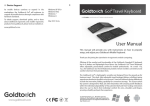
Congratulations on your purchase of a Goldtouch Mini Keyboard.
Thank you for joining the evolution in ergonomic mobile computing.
The Goldtouch Bluetooth Mobile Mini Keyboard provides you the convenience of a
lightweight and stylish wireless keyboard, anywhere you go, no matter what mobile
device you use. The Bluetooth Mini Keyboard is great for quick typing tasks that
don’t require a full sized keyboard, but allows users to avoid awkward touch screen
typing or typing on tiny mobile device keypads.
Excellent Bluetooth Wireless Technology allows the keyboard to connect to PC’s, Mac
OS, Laptops, Tablets, iPhone’s, iPad’s and Playstations.
Let’s face it, the mobile user relies more and more on portable devices with touchscreen
keyboards or tiny keys, but these are simply not practical for performing lengthy and
complex typing tasks.
We thank you for your purchase and wish you years of personal comfort and productivity.
© 2013 Keyovation, LLC. All rights reserved.
Goldtouch, the Goldtouch logo and Productivity
through Prevention® are registered trademarks of
Key Ovation, LLC
FN- Function Features
How to pair your Bluetooth Go! with your device
Bluetooth Pairing with PC
1.
2.
3.
4.
Turn on the power using the power switch on the back
of the keyboard. The Green Battery light will briefly turn on.
Press the Connect button on the back of the Keyboard. When the
keyboard is in pairing mode, the battery light will blink red and
green.
Scan for Bluetooth devices on your PC or tablet.
Once your PC has recognized the device, you will be
presented with a pairing code. Enter the pairing code on
the Bluetooth keyboard and press Enter. Once the keyboard
is connected, the green light will flash three times.
Bluetooth Pairing with MAC
1.
2.
3.
4.
Turn on the power using the power switch on the back
of the keyboard. The Green Battery light will briefly turn on.
Press the Connect button on the back of the keyboard. When the
keyboard is in pairing mode, the battery light will blink red and
green.
Scan for Bluetooth devices on your Mac, iPad or iPhone.
Once your Mac has recognized the device, you will be
presented with a Passkey. Enter the Passkey on the
Bluetooth keyboard and press Enter. Once the keyboard
is connected, the green battery light will flash three times.
Microsoft
Play/Pause
Rewind
2.
3.
4.
5.
Fast Forward
Mute
Volume Down
Volume Up
Apple
Bluetooth Pairing with Android
1.
To activate the FN (Function) features on your Goldtouch Bluetooth keyboard, press and hold the FN key and
select the following:
Turn on the power using the power switch on the back of the
Android
keyboard. The Green Battery light will briefly turn on.
Press the Connect button on the back of the keyboard. When the
keyboard is in pairing mode, the battery light will blink red and
green.
Scan for Bluetooth devices on your Android device.
Once your Android device has recognized the keyboard, you will
first be asked to enter in a Pin Code for your keyboard on your
Android Device. Please note, you may enter any 4 digit Pin number
that you like.
Next, enter the same 4 digit Pin Code (from step 4) on your Goldtouch Keyboard and press Enter.
(We recommend that you write down your Pairing code, or you will need to re-pair if your device
disconnects.)
FN - Embedded Numeric Keypad Feature
To activate the Bluetooth keyboards embedded numeric keypad:
1.
2.
3.
4.
Hold down the FN key, and press Num Lk.
Continue Holding the FN key and press the corresponding numbers/symbols for the embedded
numeric keypad.
When finished, release the FN key and continue typing.
Once you have engaged the Num Lock feature in step 1, simply press and hold the FN key to type
numbers on the embedded numeric keypad.
To Turn off Num Lock, hold down the FN key and press Num Lk.
Key Layout
Multi Media
Function Features
Num Lock
Battery Light
Additional Bluetooth Pairing Instructions
The Goldtouch Bluetooth Mini Keyboard is Bluetooth 3.0 enabled and is compatible with all of your Mac
and PC devices, including your desktop, notebook, tablet, smart phone, Apple TV, Roku, Playstation, Xbox,
PS3, or other smart Bluetooth enabled devices. To pair additional Bluetooth enabled devices like the
Samsung Galaxy and Playstation, please follow the PC pairing directions above.
Once your Bluetooth Mini Keyboard has been paired to your device, it will maintain its connection (even
when you power down your devices). When you power on your Bluetooth device and Mini Keyboard, the
keyboard will briefly go through a Reconnect process (the green battery indicator light will flash for .5
seconds, 10 times during this process). Once you’re reconnected, you can begin working.
Function Key
Embedded Numeric
Keypad
Document
Navigation Keys