1
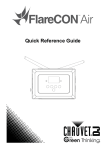
User Manual
For Use With FlareCON™ Air Hardware Interface
Along With Your Smartphone Or Tablet
Contents
About The App ...................................................................................................... 3
Downloading The App........................................................................................... 3
Connecting To The FlareCON™ Air Wi-Fi™ Network .......................................... 3
Using The App ...................................................................................................... 4
Password .......................................................................................................... 4
Create Password .......................................................................................... 4
Change Password......................................................................................... 4
Forgot Password / Hardware Reset .............................................................. 5
The FlareCON™ App Screens ......................................................................... 6
Main Screen .................................................................................................. 7
Network Information Screen ......................................................................... 7
Editor Screen ................................................................................................ 8
Tab Screen Arrow ................................................................................................ 8
Color Bar ............................................................................................................. 8
Save Icon ............................................................................................................ 8
Preset Tab ........................................................................................................ 9
Customizing A Preset Color .......................................................................... 9
Palette Tab ..................................................................................................... 10
Mixer Tab ........................................................................................................ 11
Turning Off The Lights .................................................................................... 11
Contact Us .......................................................................................................... 12
About The App
FlareCON™ app runs on Apple iOS® and Android™ operating systems to control any CHAUVET® DJ
Freedom™ Par or D-Fi™ receiver, as well as any other LED static wash light from your smartphone or
tablet (additional hardware required). The Wi-Fi™ signal is generated from the FlareCON™ Air hardware
interface and no other Wi-Fi™ signals are needed.
The FlareCON™ app sends out 6 color commands – red, green, blue, amber, white and ultraviolet, using
the following DMX channel assignments:
·
·
·
·
·
·
Channel 1 – Red (R)
Channel 2 – Green (G)
Channel 3 – Blue (B)
Channel 4 – Amber (A)
Channel 5 – White (W)
Channel 6 – Ultraviolet (UV)
Please note that lights using different channel assignments other than the one specified above will not
work properly with FlareCON™ or the FlareCON™ Air hardware interface.
®
The FlareCON™ app has built-in selections for the CHAUVET Freedom™ Par series, and also works
with most RGB, RGBA, and RGBAW+UV lights, as long as they are either D-Fi™ compatible or can
®
receive DMX signals via a CHAUVET D-Fi™-to-DMX product.
CHAUVET® DJ static LED wash lights that are DMX-controllable but not D-Fi™-ready can still be
controlled via the FlareCON™ Air with the addition of a D-Fi™ hub http://www.chauvetlighting.com/d-fihub.html.
For additional information about the
http://www.chauvetlighting.com/flarecon.html.
FlareCON™
Air
hardware
interface,
please
visit
Downloading The App
The FlareCON™ app is downloaded from the Google Play Store or the Apple App Store. The
FlareCON™ Air wireless transceiver is not required at the time of downloading or installing the app, but it
is required to control lights. For more information about downloading and installing apps onto your mobile
device, see the documentation that came with your mobile device.
Connecting To The FlareCON™ Air Wi-Fi™ Network
The mobile device running FlareCON™ app must be connected to the FlareCON™ Air Wi-Fi™ network in
order to control any lights. For information about activating the FlareCON™ Air Wi-Fi™ network, see the
FlareCON™ Air QRG available at: http://www.chauvetlighting.com/product-manuals-literature/.
After the FlareCON™ Air network is active, connect the mobile device to the network using the mobile
device’s Wi-Fi™ functions. For information about your mobile device’s Wi-Fi™ functions, see the
documentation that came with your mobile device.
After the mobile device is connected to the FlareCON™ Air Wi-Fi™, its Service Set Identifier (SSID)
name shows in the header of the FlareCON™ app Main screen.
The default FlareCON™ Air Wi-Fi™ name is “CHAUVET DJ,” but this name can be changed.
The mobile device running the FlareCON™ app can be quite a distance from the FlareCON™ Air
because it uses Wi-Fi™ to communicate; however, the tablet or smartphone running FlareCON™ should
be within 100 feet (30.5 m) of FlareCON™ Air. Always install FlareCON™ Air within 600 ft (183 m) of the
products receiving D-Fi™. FlareCON™ Air works best within the line of sight of the D-Fi™ products.
FlareCON™ User Manual Rev. 4
Page 3 of 12
Using The App
The FlareCON™ app controls lights in groups by type using the Preset, Palette, and Mixer tabs to control
the color and intensity.
The FlareCON™ app requires the FlareCON™ Air (sold separately) in order to control lights. It also
requires that all the lights be set to DMX address 001.
The FlareCON™ app controls lights set to DMX address 001 only.
The FlareCON™ app works in combination with other products, and it is important to understand those
®
products, in particular the FlareCON™ Air, the CHAUVET D-Fi™-to-DMX products, and the lights being
controlled by the FlareCON™ app.
·
·
·
·
For information about how the FlareCON™ app and the FlareCON™ Air work together, see
Connecting To The Network.
For information about the FlareCON™ Air, see the FlareCON™ Air manual available at
http://www.chauvetlighting.com/product-manuals-literature/.
For information about configuring CHAUVET® D-Fi™ lights and other D-Fi™ products, see their user
manuals available at http://www.chauvetlighting.com/product-manuals-literature/.
For information about other DMX lights, see their manufacturer’s websites.
Password
For Firmware Version 1.3.1.2 or newer.
For older versions, contact Chauvet Customer Service to arrange for an RMA to upgrade the firmware.
Create Password
On new hardware units with no password:
1.
2.
3.
4.
5.
Navigate to Settings in the app.
Leave Current Password empty.
Enter New Password.
Enter new password again in Repeat Password.
Click Save.
Reconnect to the network in your phone or tablets Wi-Fi™ settings.
Change Password
1.
2.
3.
4.
5.
Navigate to Settings in the app.
Enter Current Password.
Enter New Password.
Enter new password again in Repeat Password.
Click Save.
Reconnect to the network in your phone or tablets Wi-Fi™ settings.
Page 4 of 12
FlareCON™ User Manual Rev. 4
Forgot Password / Hardware Reset
If you cannot remember your password, you can reset the FlareCON™ Air password and start over as if it
were a new unit.
1. Press the <MENU> button until you see the Information Screen.
2. Press <ENTER> to navigate to the SSID Screen.
3. Press <UP> or <DOWN> until the Reset Wifi Screen appears.
4. Press <ENTER>. (You will see the Enter Password Screen)
5. Press <UP>, <DOWN>, <UP>, <DOWN> and <ENTER>. (The screen will return to the
Information Screen, if done properly)
The password has been deleted. Go to Create Password to set up a new password for the FlareCON™
Air.
FlareCON™ User Manual Rev. 4
Page 5 of 12
The FlareCON™ App Screens
The FlareCON™ app has 6 screens. Three of them are general information screens and 3 of them are
tabs used to control the lights.
The 3 general information screens are as follows:
·
·
·
The Main screen shows the status of the wireless connection, and a list of lights.
The Network Information screen shows Wi-Fi™ information.
The Editor screen provides access to the tab screens.
The 3 control tabs are as follows:
·
·
·
The Preset tab has preset colors and user-created colors.
The Palette tab has a color wheel and dimmer.
The Mixer tab has color mixing bars.
The FlareCON™ app screens might appear slightly different from the ones shown in this
manual.
Page 6 of 12
FlareCON™ User Manual Rev. 4
Main Screen
The FlareCON™ app Main screen appears when the application starts. The Main screen shows the
following items:
·
·
·
·
·
·
FlareCON™ logo.
A picture of FlareCON™ Air.
The settings icon that accesses the Network Information screen.
The status of the Wi-Fi™ network, which is either offline or active. When active, it shows the name of
the FlareCON™ Air SSID.
A Wi-Fi™ signal indicator that appears only while actively connected to FlareCON™ Air.
A list of lights that can be controlled.
Picture Of FlareCON™ Air
Wi-Fi™ Signal
Indicator
Settings Icon
Lights
FlareCON™ Air SSID
Network Information Screen
The Network Information screen appears when the settings icon is tapped. The Network Information
screen shows the following information:
·
·
·
·
The SSID which is the FlareCON™ Air Wi-Fi™ network name.
The WI-FI™ communications channel.
The mobile device IP address.
The FlareCON™ Air network subnet mask.
·
·
The Network Information screen is available only when the mobile device is
connected to the FlareCON™ Air’s network.
The FlareCON™ Air generates its own Wi-Fi™ network; No additional Wi-Fi™
network is necessary.
FlareCON™ Air SSID
Wi-Fi™ Communication Channel
Mobile Device IP Address
FlareCON™ Air Network Subnet Mask
FlareCON™ User Manual Rev. 4
Page 7 of 12
Editor Screen
The Editor screen appears when one of the lights is tapped. The Editor screen shows three tabs that
access the control tabs.
The Editor screen always opens with the Preset tab displayed.
The Editor screen contains the following items:
·
·
·
·
·
·
·
A back arrow to go return to the Main screen.
An illustration of and the name of the light.
A number bar that shows the RGB values of the current color.
A color bar that shows the current color of the light and opens the current tab screen.
Three control tabs.
A save icon that saves custom preset colors.
A tab screen arrow that closes the current control tab.
Back Arrow
Color Bar
Picture And
Name Of Light
Save Icon
Number Bar
Tab Screen Arrow
Labels
Preset Tab Grid
Tab Screen Arrow
The tab screen arrow closes the current tab, preventing any accidental pressing of color controls.
Color Bar
The Editor screen color bar opens the current tab and shows the current color of the lights.
Note: In the Mixer tab screen, the color bar does not show the result of mixing in A, W, or UV.
Save Icon
The save icon saves a color created in the Palette or Mixer tabs to a custom color swatch in the Preset
tab. For more information see Customizing A Preset Color.
Page 8 of 12
FlareCON™ User Manual Rev. 4
Preset Tab
The Preset tab shows a grid of color swatches. Tap any swatch and the lights shine in that color. The top
row of the grid can be filled with custom colors. For more information, see Customizing A Preset Color
below.
The preset colors use only RGB. If the lights have A, W, or UV, those colors are not used in the preset
colors.
A custom color can have A, W, and UV if the color was created in the Mixer tab. The custom color cannot
have A, W, or UV if the color was created in the Palette tab screen.
·
·
·
The Preset tab and the Palette tab use only RGB and send only RGB values to the
lights.
The Mixer tab uses RGBAW+UV and sends RGBAW+UV values to the lights.
The color bar shows only RGB mixes.
To access and use the Preset tab, do the following:
1. Make sure that the mobile device running the
FlareCON™ app is connected to the FlareCON™ Air
network and the D-Fi™ lights, and the products are
configured properly.
2. Go to the FlareCON™ app Main screen.
3. Tap the light to control. The Presets editor screen
appears with the preset colors.
4. Tap a color. The lights shine in that color.
Save Icon
Customizable
Colors
Preset
Colors
Customizing A Preset Color
The top row of the Preset tab grid can be used to store custom colors. The custom colors are created in
either the Palette tab or the Mixer tab, and can be assigned to a specific grid swatch by tapping it.
Custom color swatches can be changed by creating a new custom color, saving it again, and then tapping
the swatch to be replaced with the new color.
To put a custom color into the top row, do the following:
Color To
Be Saved
1. Select a color in the Palette or Mixer tab. For more
information, see Palette Tab or Mixer Tab.
Grid Swatch
2. Tap the save icon. A Save and a Cancel button appear
and the next available swatch blinks.
Note: To save the new custom color to a different
swatch, tap the desired swatch. The desired swatch
now blinks.
3. Tap Save. The custom color appears in, and is saved
Save And Cancel
to, the swatch that was blinking.
Buttons
Colors created in the mixer that do not include RGB show as black in the swatch grid,
but show as the correct color coming out of the light.
FlareCON™ User Manual Rev. 4
Page 9 of 12
Palette Tab
The Palette tab shows a color wheel and dimmer. Tap anywhere on the color wheel to make the lights
shine that color. Tap anywhere on the dimmer bar to change the light’s range of intensity. The dimmer bar
emits 0 intensity at the very top and 100% intensity at the very bottom.
·
·
·
The Preset tab and the Palette tab use only RGB and send only RGB values to the
lights.
The Mixer tab uses RGBAW+UV and sends RGBAW+UV values to the lights.
The color bar shows only RGB mixes.
To access and use the Palette tab, do the following:
1. Make sure that the mobile device running the
FlareCON™ app is connected to the FlareCON™ Air
network and the D-Fi™ lights, and the products are
configured properly.
2. Go to FlareCON™ app Main screen.
3. Tap the light to control. The Editor screen appears.
4. Tap on the Palette tab. The color wheel and dimmer bar
appear.
5. Tap at the very bottom on the dimmer bar and the
lights turn on with 100% intensity.
Note: Drag up and down the dimmer bar to change the
intensity of the lights.
6. Tap anywhere on the color wheel. The lights emit that
color.
Note: Drag along the color wheel to change the color of
the lights.
Page 10 of 12
Palette Tab
Color Wheel
Dimmer Bar
FlareCON™ User Manual Rev. 4
Mixer Tab
The Mixer tab shows horizontal bars for each color with a roller bar of numerical values on the same line.
Tap the color bars or roll the roller bars to change the color of the lights.
To increase that color in the mix, do either of the following:
·
·
Drag on the color bar from left to right.
Rotate the roller bar up.
To decrease that color in the mix, do either of the following:
·
·
Drag on the color bar from right to left.
Rotate the roller bar down.
The Mixer tab controls all the colors including A, W, and UV. The color bar does not reflect the A, W, or
UV in the mix, but the lights do shine with the A, W, and UV in the mix as well as the RGB.
·
·
·
The Mixer tab uses RGBAW+UV and sends RGBAW+UV values to the lights.
The Preset tab and the Palette tab use only RGB and send only RGB values to the
lights.
The color bar shows only RGB mixes.
To access and use the Mixer tab, do the following:
1. Make sure that the mobile device running the
FlareCON™ app is connected to the FlareCON™ Air
network and the D-Fi lights, and the products are
configured properly.
2. Go to the FlareCON™ app Main screen.
3. Tap the light to control. The Editor screen appears.
4. Tap on the Mixer tab. The color bars and roller bars
appear.
5. Tap and drag the color bars to the left or to the right to
adjust the color, or tap and rotate the roller bars up or
down to adjust the color. The lights turn that color.
Roller Bars
Color Bars
When mixing colors with A, W, or UV, look at the lights to determine the color. The color
bar does not show the result of mixing A, W, or UV.
Turning Off The Lights
The quickest way to turn off the lights with the FlareCON™ app is to go to the Preset tab and tap the
black swatch at the lower right-hand corner.
To turn off lights from the Palette tab, drag the dimmer bar to the very top.
To turn off lights from the Mixer tab, drag all the color bars all the way to the left, or all the roller bars to 0.
FlareCON™ User Manual Rev. 4
Page 11 of 12
Contact Us
Contact Us
WORLD HEADQUARTERS - Chauvet
General Information
Address:5200 NW 108th Avenue
Sunrise, FL 33351
Voice: (954) 577-4455
Fax:
(954) 929-5560
Toll free:(800) 762-1084
Technical Support
Voice:
(954) 577-4455 (Press 4)
Fax:
(954) 756-8015
Email:
[email protected]
World Wide Web www.chauvetlighting.com
UNITED KINGDOM AND IRELAND - Chauvet Europe Ltd.
General Information
Address:Unit 1C
Brookhill Road Industrial Estate
Pinxton, Nottingham, UK
NG16 6NT
Voice: +44 (0)1773 511115
Fax:
+44 (0)1773 511110
Technical Support
Email: [email protected]
World Wide Web www.chauvetlighting.co.uk
MEXICO - Chauvet Mexico
General Information
Address:Av. Santa Ana 30
Parque Industrial Lerma
Lerma, Mexico C.P. 52000
Voice: +52 (728) 285-5000
Technical Support
Email: [email protected]
World Wide Web www.chauvet.com.mx
Chauvet Europe - Chauvet Europe BVBA
General Information
Address: Stokstraat 18
9770 Kruishoutem
Belgium
Voice: +32 9 388 93 97
Technical Support
Email:
[email protected]
World Wide Web www.chauvetlighting.eu
Outside the U.S., United Kingdom, Ireland, Mexico, or Benelux, contact the dealer of record. Follow their
instructions to request support or to return a product. Visit our website for contact details.
FlareCON™ User Manual Rev. 4
© Copyright 2015 Chauvet
All rights reserved.