1
Kaspersky Endpoint Security 8 for Mac
Administrator’s guide
APPLICATION VERSION: 8.0 CRITICAL FIX 2
Dear User!
Thank you for choosing our product. We hope that this documentation will help you in your work and will provide answers
regarding this software product.
Warning! This document is the property of Kaspersky Lab and all rights to this document are reserved by the copyright
laws of the Russian Federation and international treaties. Illegal reproduction and distribution of this document or parts
hereof will result in civil, administrative or criminal liability by applicable law.
Any type of reproduction and distribution of any materials, including translation thereof, is allowed only with the written
permission of Kaspersky Lab.
This document and graphic images related to it can be used exclusively for information, non-commercial or personal
purposes.
Kaspersky Lab reserves the right to change the document at any time without notice. You can find the latest version of
this document at the Kaspersky Lab website, at http://www.kaspersky.com/docs.
Kaspersky Lab assumes no liability for the content, quality, relevance, or accuracy of any materials used in this
document for which the rights are held by third parties, or for any potential damages associated with the use of such
documents.
This document contains registered trademarks and service marks, which are the property of their respective owners.
Document revision date: 12/24/2010
© 1997-2010 Kaspersky Lab ZAO. All Rights Reserved.
http://www.kaspersky.com
http://support.kaspersky.com
2
KASPERSKY LAB END USER LICENSE
AGREEMENT
IMPORTANT LEGAL NOTICE TO ALL USERS: CAREFULLY READ THE FOLLOWING LEGAL AGREEMENT BEFORE
YOU START USING THE SOFTWARE.
BY CLICKING THE ACCEPT BUTTON IN THE LICENSE AGREEMENT WINDOW OR BY ENTERING
CORRESPONDING SYMBOL(-S) YOU CONSENT TO BE BOUND BY THE TERMS AND CONDITIONS OF THIS
AGREEMENT. SUCH ACTION IS A SYMBOL OF YOUR SIGNATURE AND YOU ARE CONSENTING TO BE BOUND
BY AND ARE BECOMING A PARTY TO THIS AGREEMENT AND AGREE THAT THIS AGREEMENT IS
ENFORCEABLE LIKE ANY WRITTEN NEGOTIATED AGREEMENT SIGNED BY YOU. IF YOU DO NOT AGREE TO
ALL OF THE TERMS AND CONDITIONS OF THIS AGREEMENT, CANCEL THE INSTALLATION OF THE SOFTWARE
AND DO NOT INSTALL THE SOFTWARE.
IF LICENSE CONTRACT OR SIMILAR DOCUMENT ACCOMPANIES SOFTWARE, TERMS OF THE SOFTWARE USE
DEFINED IN SUCH DOCUMENT PREVAIL OVER CURRENT END USER LICENSE AGREEMENT.
AFTER CLICKING THE ACCEPT BUTTON IN THE LICENSE AGREEMENT WINDOW OR AFTER ENTERING
CORRESPONDING SYMBOL(-S) YOU HAVE THE RIGHT TO USE THE SOFTWARE IN ACCORDANCE WITH THE
TERMS AND CONDITIONS OF THIS AGREEMENT.
1. Definitions
1.1. Software means software including any Updates and related materials.
1.2. Rightholder (owner of all rights, whether exclusive or otherwise to the Software) means Kaspersky Lab ZAO, a
company incorporated according to the laws of the Russian Federation.
1.3. Computer(s) means hardware(s), including personal computers, laptops, workstations, personal digital assistants,
‘smart phones’, hand-held devices, or other electronic devices for which the Software was designed where the Software
will be installed and/or used.
1.4. End User (You/Your) means individual(s) installing or using the Software on his or her own behalf or who is legally
using a copy of the Software; or, if the Software is being downloaded or installed on behalf of an organization, such as an
employer, "You" further means the organization for which the Software is downloaded or installed and it is represented
hereby that such organization has authorized the person accepting this agreement to do so on its behalf. For purposes
hereof the term "organization," without limitation, includes any partnership, limited liability company, corporation,
association, joint stock company, trust, joint venture, labor organization, unincorporated organization, or governmental
authority.
1.5. Partner(s) means organizations or individual(s), who distributes the Software based on an agreement and license
with the Rightholder.
1.6. Update(s) means all upgrades, revisions, patches, enhancements, fixes, modifications, copies, additions or
maintenance packs etc.
1.7. User Manual means user manual, administrator guide, reference book and related explanatory or other materials.
2. Grant of License
2.1. You are given a non-exclusive license to store, load, install, execute, and display (to "use") the Software on a
specified number of Computers in order to assist in protecting Your Computer on which the Software is installed, from
threats described in the User Manual, according to the all technical requirements described in the User Manual and
according to the terms and conditions of this Agreement (the "License") and you accept this License:
Trial Version. If you have received, downloaded and/or installed a trial version of the Software and are hereby granted
an evaluation license for the Software, you may use the Software only for evaluation purposes and only during the single
applicable evaluation period, unless otherwise indicated, from the date of the initial installation. Any use of the Software
for other purposes or beyond the applicable evaluation period is strictly prohibited.
Multiple Environment Software; Multiple Language Software; Dual Media Software; Multiple Copies; Bundles. If you use
different versions of the Software or different language editions of the Software, if you receive the Software on multiple
media, if you otherwise receive multiple copies of the Software, or if you received the Software bundled with other
software, the total permitted number of your Computers on which all versions of the Software are installed shall
correspond to the number of computers specified in licenses you have obtained provided that unless the licensing terms
provide otherwise, each acquired license entitles you to install and use the Software on such a number of Computer(s)
as is specified in Clauses 2.2 and 2.3.
3
ADMINISTRATOR'S GUIDE
2.2. If the Software was acquired on a physical medium You have the right to use the Software for protection of such a
number of Computer(s) as is specified on the Software package.
2.3. If the Software was acquired via the Internet You have the right to use the Software for protection of such a number
of Computers that was specified when You acquired the License to the Software.
2.4. You have the right to make a copy of the Software solely for back-up purposes and only to replace the legally owned
copy if such copy is lost, destroyed or becomes unusable. This back-up copy cannot be used for other purposes and
must be destroyed when you lose the right to use the Software or when Your license expires or is terminated for any
other reason according to the legislation in force in the country of your principal residence or in the country where You
are using the Software.
2.5. From the time of the Software activation or after license key file installation (with the exception of a trial version of
the Software) You have the right to receive the following services for the defined period specified on the Software
package (if the Software was acquired on a physical medium) or specified during acquisition (if the Software was
acquired via the Internet):
- Updates of the Software via the Internet when and as the Rightholder publishes them on its website or through other
online services. Аny Updates that you may receive become part of the Software and the terms and conditions of this
Agreement apply to them;
- Technical Support via the Internet and Technical Support telephone hotline.
3. Activation and Term
3.1. If You modify Your Computer or make changes to other vendors’ software installed on it, You may be required by the
Rightholder to repeat activation of the Software or license key file installation. The Rightholder reserves the right to use
any means and verification procedures to verify the validity of the License and/or legality of a copy of the Software
installed and/or used on Your Computer.
3.2. If the Software was acquired on a physical medium, the Software can be used, upon your acceptance of this
Agreement, for the period that is specified on the package commencing upon acceptance of this Agreement.
3.3. If the Software was acquired via the Internet, the Software can be used, upon your acceptance of this Agreement,
for the period that was specified during acquisition.
3.4. You have the right to use a trial version of the Software as provided in Clause 2.1 without any charge for the single
applicable evaluation period (30 days) from the time of the Software activation according to this Agreement provided that
the trial version does not entitle You Updates and Technical support via the Internet and Technical support telephone
hotline.
3.5. Your License to Use the Software is limited to the period of time as specified in Clauses 3.2 or 3.3 (as applicable)
and the remaining period can be viewed via means described in User Manual.
3.6. If You have acquired the Software that is intended to be used on more than one Computer then Your License to Use
the Software is limited to the period of time starting from the date of activation of the Software or license key file
installation on the first Computer.
3.7. Without prejudice to any other remedy in law or in equity that the Rightholder may have, in the event of any breach
by You of any of the terms and conditions of this Agreement, the Rightholder shall at any time without notice to You be
entitled to terminate this License without refunding the purchase price or any part thereof.
3.8. You agree that in using the Software and in using any report or information derived as a result of using this Software,
you will comply with all applicable international, national, state, regional and local laws and regulations, including, without
limitation, privacy, copyright, export control and obscenity law.
3.9. Except as otherwise specifically provided herein, you may not transfer or assign any of the rights granted to you
under this Agreement or any of your obligations pursuant hereto.
4. Technical Support
4.1. The Technical Support described in Clause 2.5 of this Agreement is provided to You when the latest Update of the
Software is installed (except for a trial version of the Software).
Technical support service: http://support.kaspersky.com
4.2. User’s Data, specified in Personal Cabinet/My Kaspersky Account, can be used by Technical Support specialists
only during processing User’s request.
5. Limitations
5.1. You shall not emulate, clone, rent, lend, lease, sell, modify, decompile, or reverse engineer the Software or
disassemble or create derivative works based on the Software or any portion thereof with the sole exception of a nonwaivable right granted to You by applicable legislation, and you shall not otherwise reduce any part of the Software to
human readable form or transfer the licensed Software, or any subset of the licensed Software, nor permit any third party
to do so, except to the extent the foregoing restriction is expressly prohibited by applicable law. Neither Software’s
binary code nor source may be used or reverse engineered to re-create the program algorithm, which is proprietary. All
rights not expressly granted herein are reserved by Rightholder and/or its suppliers, as applicable. Any such
unauthorized use of the Software shall result in immediate and automatic termination of this Agreement and the License
granted hereunder and may result in criminal and/or civil prosecution against You.
5.2. You shall not transfer the rights to use the Software to any third party.
4
KASPERSKY LAB END USER LICENSE AGREEMENT
5.3. You shall not provide the activation code and/or license key file to third parties or allow third parties access to the
activation code and/or license key which are deemed confidential data of Rightholder.
5.4. You shall not rent, lease or lend the Software to any third party.
5.5. You shall not use the Software in the creation of data or software used for detection, blocking or treating threats
described in the User Manual.
5.6. Your key file can be blocked in case You breach any of the terms and conditions of this Agreement.
5.7. If You are using the trial version of the Software You do not have the right to receive the Technical Support specified
in Clause 4 of this Agreement and You don’t have the right to transfer the license or the rights to use the Software to any
third party.
6. Limited Warranty and Disclaimer
6.1. The Rightholder guarantees that the Software will substantially perform according to the specifications and
descriptions set forth in the User Manual provided however that such limited warranty shall not apply to the following: (w)
Your Computer’s deficiencies and related infringement for which Rightholder’s expressly disclaims any warranty
responsibility; (x) malfunctions, defects, or failures resulting from misuse; abuse; accident; neglect; improper installation,
operation or maintenance; theft; vandalism; acts of God; acts of terrorism; power failures or surges; casualty; alteration,
non-permitted modification, or repairs by any party other than Rightholder; or any other third parties’ or Your actions or
causes beyond Rightholder’s reasonable control; (y) any defect not made known by You to Rightholder as soon as
practical after the defect first appears; and (z) incompatibility caused by hardware and/or software components installed
on Your Computer.
6.2. You acknowledge, accept and agree that no software is error free and You are advised to back-up the Computer,
with frequency and reliability suitable for You.
6.3. The Rightholder does not provide any guarantee that the Software will work correctly in case of violations of the
terms described in the User Manual or in this Agreement.
6.4. The Rightholder does not guarantee that the Software will work correctly if You do not regularly download Updates
specified in Clause 2.5 of this Agreement.
6.5. The Rightholder does not guarantee protection from the threats described in the User Manual after the expiration of
the period specified in Clauses 3.2 or 3.3 of this Agreement or after the License to use the Software is terminated for any
reason.
6.6. THE SOFTWARE IS PROVIDED "AS IS" AND THE RIGHTHOLDER MAKES NO REPRESENTATION AND GIVES
NO WARRANTY AS TO ITS USE OR PERFORMANCE. EXCEPT FOR ANY WARRANTY, CONDITION,
REPRESENTATION OR TERM THE EXTENT TO WHICH CANNOT BE EXCLUDED OR LIMITED BY APPLICABLE
LAW THE RIGHTHOLDER AND ITS PARTNERS MAKE NO WARRANTY, CONDITION, REPRESENTATION, OR
TERM (EXPRESSED OR IMPLIED, WHETHER BY STATUTE, COMMON LAW, CUSTOM, USAGE OR OTHERWISE)
AS TO ANY MATTER INCLUDING, WITHOUT LIMITATION, NONINFRINGEMENT OF THIRD PARTY RIGHTS,
MERCHANTABILITY, SATISFACTORY QUALITY, INTEGRATION, OR APPLICABILITY FOR A PARTICULAR
PURPOSE. YOU ASSUME ALL FAULTS, AND THE ENTIRE RISK AS TO PERFORMANCE AND RESPONSIBILITY
FOR SELECTING THE SOFTWARE TO ACHIEVE YOUR INTENDED RESULTS, AND FOR THE INSTALLATION OF,
USE OF, AND RESULTS OBTAINED FROM THE SOFTWARE. WITHOUT LIMITING THE FOREGOING PROVISIONS,
THE RIGHTHOLDER MAKES NO REPRESENTATION AND GIVES NO WARRANTY THAT THE SOFTWARE WILL BE
ERROR-FREE OR FREE FROM INTERRUPTIONS OR OTHER FAILURES OR THAT THE SOFTWARE WILL MEET
ANY OR ALL YOUR REQUIREMENTS WHETHER OR NOT DISCLOSED TO THE RIGHTHOLDER .
7. Exclusion and Limitation of Liability
7.1. TO THE MAXIMUM EXTENT PERMITTED BY APPLICABLE LAW, IN NO EVENT SHALL THE RIGHTHOLDER OR
ITS PARTNERS BE LIABLE FOR ANY SPECIAL, INCIDENTAL, PUNITIVE, INDIRECT, OR CONSEQUENTIAL
DAMAGES WHATSOEVER (INCLUDING, BUT NOT LIMITED TO, DAMAGES FOR LOSS OF PROFITS OR
CONFIDENTIAL OR OTHER INFORMATION, FOR BUSINESS INTERRUPTION, FOR LOSS OF PRIVACY, FOR
CORRUPTION, DAMAGE AND LOSS OF DATA OR PROGRAMS, FOR FAILURE TO MEET ANY DUTY INCLUDING
ANY STATUTORY DUTY, DUTY OF GOOD FAITH OR DUTY OF REASONABLE CARE, FOR NEGLIGENCE, FOR
ECONOMIC LOSS, AND FOR ANY OTHER PECUNIARY OR OTHER LOSS WHATSOEVER) ARISING OUT OF OR IN
ANY WAY RELATED TO THE USE OF OR INABILITY TO USE THE SOFTWARE, THE PROVISION OF OR FAILURE
TO PROVIDE SUPPORT OR OTHER SERVICES, INFORMATON, SOFTWARE, AND RELATED CONTENT
THROUGH THE SOFTWARE OR OTHERWISE ARISING OUT OF THE USE OF THE SOFTWARE, OR OTHERWISE
UNDER OR IN CONNECTION WITH ANY PROVISION OF THIS AGREEMENT, OR ARISING OUT OF ANY BREACH
OF CONTRACT OR ANY TORT (INCLUDING NEGLIGENCE, MISREPRESENTATION, ANY STRICT LIABILITY
OBLIGATION OR DUTY), OR ANY BREACH OF STATUTORY DUTY, OR ANY BREACH OF WARRANTY OF THE
RIGHTHOLDER AND/OR ANY OF ITS PARTNERS, EVEN IF THE RIGHTHOLDER AND/OR ANY PARTNER HAS
BEEN ADVISED OF THE POSSIBILITY OF SUCH DAMAGES.
YOU AGREE THAT IN THE EVENT THE RIGHTHOLDER AND/OR ITS PARTNERS ARE FOUND LIABILE, THE
LIABILITY OF THE RIGHTHOLDER AND/OR ITS PARTNERS SHALL BE LIMITED BY THE COSTS OF THE
SOFTWARE. IN NO CASE SHALL THE LIABILITY OF THE RIGHTHOLDER AND/OR ITS PARTNERS EXCEED THE
FEES PAID FOR THE SOFTWARE TO THE RIGHTHOLDER OR THE PARTNER (AS MAY BE APPLICABLE).
5
ADMINISTRATOR'S GUIDE
NOTHING IN THIS AGREEMENT EXCLUDES OR LIMITS ANY CLAIM FOR DEATH AND PERSONAL INJURY.
FURTHER IN THE EVENT ANY DISCLAIMER, EXCLUSION OR LIMITATION IN THIS AGREEMENT CANNOT BE
EXLUDED OR LIMITED ACCORDING TO APPLICABLE LAW THEN ONLY SUCH DISCLAIMER, EXCLUSION OR
LIMITATION SHALL NOT APPLY TO YOU AND YOU CONTINUE TO BE BOUND BY ALL THE REMAINING
DISCLAIMERS, EXCLUSIONS AND LIMITATIONS.
8. GNU and Other Third Party Licenses
8.1. The Software may include some software programs that are licensed (or sublicensed) to the user under the GNU
General Public License (GPL) or other similar free software licenses which, among other rights, permit the user to copy,
modify and redistribute certain programs, or portions thereof, and have access to the source code ("Open Source
Software"). If such licenses require that for any software, which is distributed to someone in an executable binary format,
that the source code also be made available to those users, then the source code should be made available by sending
the request to [email protected] or the source code is supplied with the Software. If any Open Source Software
licenses require that the Rightholder provide rights to use, copy or modify an Open Source Software program that are
broader than the rights granted in this Agreement, then such rights shall take precedence over the rights and restrictions
herein.
9. Intellectual Property Ownership
9.1. You agree that the Software and the authorship, systems, ideas, methods of operation, documentation and other
information contained in the Software, are proprietary intellectual property and/or the valuable trade secrets of the
Rightholder or its partners and that the Rightholder and its partners, as applicable, are protected by civil and criminal law,
and by the law of copyright, trade secret, trademark and patent of the Russian Federation, European Union and the
United States, as well as other countries and international treaties. This Agreement does not grant to You any rights to
the intellectual property including any the Trademarks or Service Marks of the Rightholder and/or its partners
("Trademarks"). You may use the Trademarks only insofar as to identify printed output produced by the Software in
accordance with accepted trademark practice, including identification of the Trademark owner’s name. Such use of any
Trademark does not give you any rights of ownership in that Trademark. The Rightholder and/or its partners own and
retain all right, title, and interest in and to the Software, including without limitation any error corrections, enhancements,
Updates or other modifications to the Software, whether made by the Rightholder or any third party, and all copyrights,
patents, trade secret rights, trademarks, and other intellectual property rights therein. Your possession, installation or
use of the Software does not transfer to you any title to the intellectual property in the Software, and you will not acquire
any rights to the Software except as expressly set forth in this Agreement. All copies of the Software made hereunder
must contain the same proprietary notices that appear on and in the Software. Except as stated herein, this Agreement
does not grant you any intellectual property rights in the Software and you acknowledge that the License, as further
defined herein, granted under this Agreement only provides you with a right of limited use under the terms and conditions
of this Agreement. Rightholder reserves all rights not expressly granted to you in this Agreement.
9.2. You agree not to modify or alter the Software in any way. You may not remove or alter any copyright notices or
other proprietary notices on any copies of the Software.
10. Governing Law; Arbitration
10.1. This Agreement will be governed by and construed in accordance with the laws of the Russian Federation without
reference to conflicts of law rules and principles. This Agreement shall not be governed by the United Nations
Convention on Contracts for the International Sale of Goods, the application of which is expressly excluded. Any dispute
arising out of the interpretation or application of the terms of this Agreement or any breach thereof shall, unless it is
settled by direct negotiation, be settled by in the International Commercial Arbitration Court at the Russian Federation
Chamber of Commerce and Industry in Moscow, the Russian Federation. Any award rendered by the arbitrator shall be
final and binding on the parties and any judgment on such arbitration award may be enforced in any court of competent
jurisdiction. Nothing in this Section 10 shall prevent a Party from seeking or obtaining equitable relief from a court of
competent jurisdiction, whether before, during or after arbitration proceedings.
11. Period for Bringing Actions
11.1. No action, regardless of form, arising out of the transactions under this Agreement, may be brought by either party
hereto more than one (1) year after the cause of action has occurred, or was discovered to have occurred, except that an
action for infringement of intellectual property rights may be brought within the maximum applicable statutory period.
12. Entire Agreement; Severability; No Waiver
12.1. This Agreement is the entire agreement between you and Rightholder and supersedes any other prior agreements,
proposals, communications or advertising, oral or written, with respect to the Software or to subject matter of this
Agreement. You acknowledge that you have read this Agreement, understand it and agree to be bound by its terms. If
any provision of this Agreement is found by a court of competent jurisdiction to be invalid, void, or unenforceable for any
reason, in whole or in part, such provision will be more narrowly construed so that it becomes legal and enforceable, and
6
KASPERSKY LAB END USER LICENSE AGREEMENT
the entire Agreement will not fail on account thereof and the balance of the Agreement will continue in full force and
effect to the maximum extent permitted by law or equity while preserving, to the fullest extent possible, its original intent.
No waiver of any provision or condition herein shall be valid unless in writing and signed by you and an authorized
representative of Rightholder provided that no waiver of any breach of any provisions of this Agreement will constitute a
waiver of any prior, concurrent or subsequent breach. Rightholder’s failure to insist upon or enforce strict performance of
any provision of this Agreement or any right shall not be construed as a waiver of any such provision or right.
13. Rightholder Contact Information
Should you have any questions concerning this Agreement, or if you desire to contact the Rightholder for any reason,
please contact our Customer Service Department at:
Kaspersky Lab ZAO, 10 build. 1, 1
Moscow, 123060
Russian Federation
Tel: +7-495-797-8700
Fax: +7-495-645-7939
E-mail: [email protected]
Web site: www.kaspersky.com
st
Volokolamsky Proezd
© 1997-2010 Kaspersky Lab ZAO. All Rights Reserved. The Software and any accompanying documentation are
copyrighted and protected by copyright laws and international copyright treaties, as well as other intellectual property
laws and treaties.
7
CONTENT
KASPERSKY LAB END USER LICENSE AGREEMENT ..............................................................................................3
ABOUT THIS GUIDE ................................................................................................................................................... 12
In this document ..................................................................................................................................................... 12
Document conventions ........................................................................................................................................... 14
ADDITIONAL SOURCES OF INFORMATION ............................................................................................................. 15
KASPERSKY ENDPOINT SECURITY 8 ...................................................................................................................... 17
Distribution kit ......................................................................................................................................................... 18
Hardware and software system requirements ........................................................................................................ 18
INSTALLING THE APPLICATION ............................................................................................................................... 19
Preparing for installation ......................................................................................................................................... 19
Installing the application ......................................................................................................................................... 19
Kaspersky Endpoint Security default installation............................................................................................... 20
Kaspersky Endpoint Security custom installation .............................................................................................. 21
Preparing for use after installation .......................................................................................................................... 22
Deleting the application .......................................................................................................................................... 22
LICENSE MANAGEMENT ........................................................................................................................................... 24
About license .......................................................................................................................................................... 24
Viewing license information .................................................................................................................................... 25
Purchasing a license .............................................................................................................................................. 25
Renewing a license ................................................................................................................................................ 26
About End User License Agreement ...................................................................................................................... 27
About the activation code ....................................................................................................................................... 27
About the key file .................................................................................................................................................... 27
Kaspersky Endpoint Security activation .................................................................................................................. 27
Activating the application with an activation code ............................................................................................. 28
Activating the application with a key file ............................................................................................................ 29
APPLICATION INTERFACE ........................................................................................................................................ 30
Kaspersky Endpoint Security icon .......................................................................................................................... 30
Main application window ......................................................................................................................................... 32
Application preferences window ............................................................................................................................. 34
Notification windows and pop-up messages ........................................................................................................... 35
About notifications............................................................................................................................................. 35
Methods of receiving notifications ..................................................................................................................... 35
Configuring receipt of notifications .................................................................................................................... 36
About pop-up messages ................................................................................................................................... 37
Configuring the Kaspersky Endpoint Security interface .......................................................................................... 37
STARTING AND STOPPING THE APPLICATION ...................................................................................................... 39
Closing Kaspersky Endpoint Security ..................................................................................................................... 39
Configuring the automatic startup of Kaspersky Endpoint Security ........................................................................ 39
Configuring the power-saving mode ....................................................................................................................... 40
COMPUTER PROTECTION STATUS ......................................................................................................................... 41
Assessing the computer's protection status ............................................................................................................ 41
8
CONTENT
Security Assistant ................................................................................................................................................... 42
SOLVING TYPICAL TASKS......................................................................................................................................... 43
How to perform a full scan of your computer for viruses ......................................................................................... 43
How to perform a quick scan of your computer ...................................................................................................... 44
How to scan a file, folder or disk for viruses ........................................................................................................... 44
How to configure a scheduled scan of your computer ............................................................................................ 44
How to purchase or renew license .......................................................................................................................... 45
How to update application databases and modules ............................................................................................... 45
How to export the application preferences to Kaspersky Endpoint Security installed on another computer ........... 45
What to do if file access is blocked ......................................................................................................................... 46
What to do if you suspect an object of being infected with a virus .......................................................................... 47
How to restore an object that has been deleted or disinfected by the application .................................................. 47
How to view the report on the application's operation ............................................................................................. 48
What to do when the application's notifications appear .......................................................................................... 48
ADVANCED APPLICATION SETTINGS ...................................................................................................................... 49
Creating a protection scope .................................................................................................................................... 49
Selecting malicious programs to be monitored ................................................................................................. 49
Creating a trusted zone ..................................................................................................................................... 51
File Anti-Virus ......................................................................................................................................................... 53
Disabling file protection ..................................................................................................................................... 54
Restoring protection on your computer ............................................................................................................. 56
Configuring File Anti-Virus ................................................................................................................................ 57
Restoring default file protection settings ........................................................................................................... 62
File protection statistics ..................................................................................................................................... 63
Virus Scan .............................................................................................................................................................. 64
Managing virus scan tasks ................................................................................................................................ 65
Creating a list of objects to scan ....................................................................................................................... 69
Configuring virus scan tasks ............................................................................................................................. 70
Restoring default scan settings ......................................................................................................................... 77
Virus scan statistics .......................................................................................................................................... 78
Updating the application ......................................................................................................................................... 80
Starting update.................................................................................................................................................. 81
Rolling back the last update .............................................................................................................................. 81
Updating from a local source ............................................................................................................................ 82
Configuring the update ...................................................................................................................................... 84
Update statistics................................................................................................................................................ 88
Reports and Storages ............................................................................................................................................. 89
Quarantine ........................................................................................................................................................ 90
Backup Storage ................................................................................................................................................ 92
Reports ............................................................................................................................................................. 94
Configuring reports and storages ...................................................................................................................... 96
WORKING WITH THE APPLICATION FROM THE COMMAND LINE ........................................................................ 99
Viewing Help......................................................................................................................................................... 100
Virus scan ............................................................................................................................................................. 100
Updating the application ....................................................................................................................................... 102
Rolling back the last update.................................................................................................................................. 103
Starting / stopping a protection component or a task ............................................................................................ 103
Statistics on a component's operation or a task ................................................................................................... 104
9
ADMINISTRATOR'S GUIDE
Exporting protection settings ................................................................................................................................ 105
Importing protection settings................................................................................................................................. 105
Activating the application ...................................................................................................................................... 105
Closing the application ......................................................................................................................................... 106
Return codes of the command line ....................................................................................................................... 106
ADMINISTERING THE APPLICATION VIA KASPERSKY ADMINISTRATION KIT .................................................. 107
Standard deployment scheme .............................................................................................................................. 109
Installing software required for the remote administration of Kaspersky Endpoint Security .................................. 110
Installing the Kaspersky Endpoint Security management plugin ..................................................................... 110
Local installation of Network Agent ................................................................................................................. 111
Installation of Network Agent using the SSH protocol ..................................................................................... 112
Updating Network Agent via Kaspersky Administration Kit ............................................................................. 113
Uninstallation of Network Agent ...................................................................................................................... 114
Remote installation of Kaspersky Endpoint Security ............................................................................................ 115
Installing the application using the SSH protocol ............................................................................................ 115
Installing the application via Kaspersky Administration Kit .............................................................................. 116
Removing the application via Kaspersky Administration Kit ............................................................................ 117
Managing Network Agent ..................................................................................................................................... 118
Connecting a client computer to Administration Server manually. Utility tool klmover .................................... 119
Checking the connection between a client computer and Administration Server manually. Utility tool
klnagchk ......................................................................................................................................................... 120
Starting / stopping Network Agent on a client computer ................................................................................. 121
Administering the application ................................................................................................................................ 121
Starting and stopping the application .............................................................................................................. 122
Modifying the application settings ................................................................................................................... 123
Managing tasks .................................................................................................................................................... 135
Starting and stopping tasks ............................................................................................................................. 137
Creating tasks ................................................................................................................................................. 138
New task wizard .............................................................................................................................................. 139
Configuring task settings ................................................................................................................................. 140
Managing policies ................................................................................................................................................. 147
Creating policies ............................................................................................................................................. 147
Policy Creation Wizard .................................................................................................................................... 148
Configuring policy settings .............................................................................................................................. 150
CONTACTING TECHNICAL SUPPORT SERVICE ................................................................................................... 152
APPENDIX ................................................................................................................................................................. 154
List of objects to scan by extension ...................................................................................................................... 154
Permissible file exclusion masks .......................................................................................................................... 156
Allowed exclusion masks according to the Virus Encyclopedia classification ....................................................... 157
GLOSSARY ............................................................................................................................................................... 158
KASPERSKY LAB ...................................................................................................................................................... 163
INFORMATION ABOUT THIRD-PARTY CODE ........................................................................................................ 164
Program code ....................................................................................................................................................... 164
ADOBE ABI-SAFE CONTAINERS 1.0 ............................................................................................................ 165
BOOST 1.39.0 ................................................................................................................................................ 165
CURL 7.19.3 ................................................................................................................................................... 165
EXPAT 1.2 ...................................................................................................................................................... 165
10
CONTENT
FMT.H ............................................................................................................................................................. 166
GROWL 1.1.5 ................................................................................................................................................. 166
INFO-ZIP 5.51................................................................................................................................................. 167
LIBPNG 1.2.8 .................................................................................................................................................. 167
LIBUTF............................................................................................................................................................ 167
LZMALIB 4.43 ................................................................................................................................................. 168
MD5.H ............................................................................................................................................................. 168
MD5.H ............................................................................................................................................................. 168
RFC1321-BASED (RSA-FREE) MD5 LIBRARY ............................................................................................. 168
SHA1.C 1.2 ..................................................................................................................................................... 168
STLPORT 5.2.1 .............................................................................................................................................. 169
TINYXML 2.5.3 ............................................................................................................................................... 169
ZLIB 1.0.8, 1.2.3 ............................................................................................................................................. 169
Development tools ................................................................................................................................................ 169
GCC 4.0.1 ....................................................................................................................................................... 169
Other information .................................................................................................................................................. 173
INDEX ........................................................................................................................................................................ 175
11
ABOUT THIS GUIDE
This document is a guide to the installation, setup and operation of Kaspersky Endpoint Security 8 for Mac, as well as for
remote administration of the application through Kaspersky Administration Kit. This document is intended both for a wide
audience and for system administrators. Users should have a basic knowledge of working with a Mac. They should be
familiar with the interface of the Mac OS X operating system, have basic skills of working with it and be able to use email
programs and the Internet.
The aim of the document is:
to help users to install the application on the computer on their own, and activate and configure it with regard to
their needs;
to help an administrator in solving problems related to remote administration of the application through
Kaspersky Administration Kit;
to provide a quick search of the information on application related issues;
to tell users about additional sources of information about the application and explain how to contact Kaspersky
Lab Technical Support Service.
IN THIS SECTION:
In this document .............................................................................................................................................................. 12
Document conventions .................................................................................................................................................... 14
IN THIS DOCUMENT
The user guide for Kaspersky Endpoint Security 8 is comprised of the following sections:
Additional sources of information
This sections lists sources of additional information about the application and Internet resources where you can discuss
it, share your ideas, ask questions, and receive answers.
Kaspersky Endpoint Security 8
This section contains a description of the application's new features, and brief information on its components and
functionality. It shows the function of each part of the package supplied and a range of services available to registered
users of the application. This section contains hardware and software requirements which the computer must meet for
the installation of Kaspersky Endpoint Security.
Installing the application
This section contains instructions that will help you to install the application on the computer locally. This section also
describes the application uninstall procedure.
License management
This section contains information regarding the basic concepts used in the context of the application licensing. This
section describes how to activate the application, where to view information about the current license, and how to
purchase and renew a license.
12
ABOUT
THIS
GUIDE
Application interface
This section contains description of the basic GUI components of the application: icon and context menu, main
application window, settings window, and notification windows.
Starting and stopping the application
This section provides you with information about how to launch the application and close it.
Computer protection status
This section contains information about how to know whether your computer is protected at the moment, or if its security
is under threat, as well as how to eliminate emerging threats with the help of Security Assistant.
Solving typical tasks
This section describes the tasks encountered by the most users when working with the application as well as the
procedures developed for carrying out these tasks.
Advanced application settings
This section provides detailed information about each application component and describes the operation and
configuration algorithms for each component.
Working with the application from the command line
This section contains description of the use of the application and its components involving the command line.
Administering the application via Kaspersky Administration Kit
This section contains a detailed description of the installation of Kaspersky Endpoint Security onto a remote user
computer, as well as the installation of software required for remote administration of the application through Kaspersky
Administration Kit. This section discusses application deployment over the network and remote administration of the
application through Kaspersky Administration Kit using tasks and group policies.
Contacting Technical Support Service
This section contains instructions for contacting Kaspersky Lab support services.
Appendix
This section includes reference information which complements the document text.
Glossary
This section contains the list of terms used in the document and their definitions.
13
ADMINISTRATOR'S GUIDE
DOCUMENT CONVENTIONS
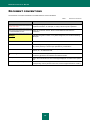
The document conventions described in the table below are used in this Guide.
Table 1.
Document conventions
SAMPLE TEXT
DOCUMENT CONVENTIONS DESCRIPTION
Please note that...
Warnings are highlighted in red and enclosed in frames. Warnings contain
important information, for example, on safety-critical computer operations.
It is recommended to use...
Notes are enclosed in frames. Notes contain additional and reference
information.
Example:
Examples are given in section, on a yellow background, and under the heading
"Example".
...
A virus is...
New terms are marked in italics.
Command-A
Names of keyboard keys appear in a bold typeface.
Key names joined by a "minus" sign represent key combinations.
Enable
To configure a task schedule:
Names of interface components, for example, input fields, menu commands,
buttons, etc., are indicted in bold.
Instructions are marked by the arrow symbol.
Introductory phrases to introductions are marked in italics.
kav update
Text in the command line or text of messages displayed on screen has a special
font.
<IP address of your computer>
Variables are enclosed in angle brackets. Instead of a variable, the
corresponding value is placed in each case, and the angle brackets are omitted.
14
ADDITIONAL SOURCES OF INFORMATION
You can refer to the following sources of information about the application:
application page at the Kaspersky Lab website;
application page at the Technical Support Service website (Knowledge Base);
Kaspersky Lab products users forum;
help system.
Application page at the Kaspersky Lab website
The application web page (http://www.kaspersky.com/endpoint-security-mac) will provide you with general
information about Kaspersky Endpoint Security 8, its features and options. You can purchase Kaspersky Endpoint
Security 8 or extend your license in our eStore.
Application page at the Technical Support Service website (Knowledge Base)
Knowledge Base is a separate section of the Technical Support Service website
(http://support.kaspersky.com/kes8mac), which provides recommendations for using Kaspersky Lab products. This
page contains articles published by Technical Support Service.
These articles provide useful information, recommendations and answers to frequently asked questions related to
the purchase, installation and use of Kaspersky Endpoint Security 8. They are grouped by topics, for example:
"Troubleshooting", "Configuring the update", or "Configuring File Anti-Virus". The articles may answer questions,
which are related not only to Kaspersky Endpoint Security 8 but also to other Kaspersky Lab products; they also
may contain Technical Support Service news.
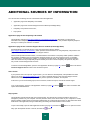
To switch to the Knowledge Base, open the main application window (on page 32), click the
Technical Support Service button in the window that opens.
button and click the
Users forum
If your question does not require an urgent answer, you can discuss it with Kaspersky Lab specialists and other
users in our forum (http://forum.kaspersky.com). It is also a separate section on the Technical Support Service
website and contains Kaspersky Endpoint Security 8 users' questions, feedback, and requests.
In this forum you can view existing topics, leave comments, create new topics, and use the search engine.
To go to this resource, open the main application window (on page 32), click the
opens click the Forum button.
button and in the window that
Help system
The application includes the full help and context help files. The full help file contains information about how to
manage the protection of your computer: view the protection status, scan various areas of your computer for viruses,
perform updates, handle reports and storages. Besides that, the context help file provides you with information about
all windows of the application, listing and describing the settings and tasks related to each of them.
To open the full help, open the main application window (on page 32) and click the
help, open the required window or the tab, and click the
15
button.
button. To open the context
ADMINISTRATOR'S GUIDE
If you cannot find a solution to your problem in the Knowledge Base, in the Users forum, in the help system or
documentation, we recommend that you contact Kaspersky Lab Technical Support Service (see section "Contacting
Technical Support Service" on page 152).
16
KASPERSKY ENDPOINT SECURITY 8
Kaspersky Endpoint Security 8 for Mac (hereinafter Kaspersky Endpoint Security) is intended for use under the Mac OS
X operating system to protect your computer from viruses and malware. The following options are implemented in the
application:
File Anti-Virus
Real-time protection of the computer's file system: interception and analysis of attempts to access the file system;
disinfection, deletion of malicious objects and isolation of potentially infected objects for further analysis.
Virus Scan
Search and deactivation of malicious code at the user's request: search and analysis of malicious and potentially
infected objects in the designated protection areas; disinfection, deletion, or isolation of objects for further analysis.
The most useful virus scan tasks are included in the Kaspersky Endpoint Security package: full computer scan and
quick scan of critical areas.
Update
Updating of databases and modules of Kaspersky Endpoint Security from Kaspersky Lab's update servers and from
Kaspersky Administration Kit Administration Server, creation of backup copies of all the updated files to allow a
future roll back; copying of updates into a local source to allow other networked computers to access them, thereby
reducing Internet traffic.
Quarantine
Moving potentially infected objects to Quarantine: storage of potentially infected objects in the Quarantine folder,
further scan using updated databases, restoration of objects from the storage upon the user's request.
Backup Storage
Creation of a copy of each infected object to store in Backup Storage before disinfecting or deleting it, so that it can
later be restored or further analyzed for investigation.
Reports
Compilation of a detailed report on the performance of each Kaspersky Endpoint Security component.
Notifications
Notification of the user about certain events which occur during the operation of Kaspersky Endpoint Security. You
can select the notification for each event type, whether an audio or pop-up message.
You can change the appearance of the Kaspersky Endpoint Security by using various graphic elements and selected
color solutions.
When working with Kaspersky Endpoint Security, you will be provided with complete information support: application
returns messages on the protection status and offers detailed guidance. Security Assistant (on page 42), included in the
application package, provides a complete picture of the computer's current protection status and troubleshooting options.
17
ADMINISTRATOR'S GUIDE
IN THIS SECTION:
Distribution kit.................................................................................................................................................................. 18
Hardware and software system requirements ................................................................................................................. 18
DISTRIBUTION KIT
You can purchase Kaspersky Endpoint Security (boxed edition) from our resellers or in an online store (such as
www.kaspersky.com, eStore section).
If you buy the boxed version of the program, the package will include:
A sealed envelope containing the installation CD containing the program files and documentation in PDF format.
The end-user license agreement (EULA).
In addition, the package may include:
A printed User Guide (if this item was included in the order) or a Product Guide.
The program activation code, attached to the installation CD envelope.
Registration card (with product serial number).
Before breaking the seal on the installation disk envelope, carefully read through the License Agreement. By unsealing
the envelope with the installation CD, you accept all the provisions of the License Agreement.
When purchasing Kaspersky Endpoint Security online, you download the product from the Kaspersky Lab website, which
includes this documentation. You will be sent a key file or activation code by email once payment has been made.
HARDWARE AND SOFTWARE SYSTEM REQUIREMENTS
For the proper functioning of Kaspersky Endpoint Security, a computer should meet the following minimum requirements:
Intel-based Mac computer (PowerPC processor not supported);
1 GB RAM;
500 MB of free hard drive space;
Mac OS X 10.4.11 operating system, or higher, or Mac OS X Server 10.6.
To install Network Agent required for remote administration of Kaspersky Endpoint Security through Kaspersky
Administration Kit, the user's computer must meet the following minimum requirements:
Intel-based Mac computer (PowerPC processor not supported);
512 MB RAM;
30 MB free hard drive space;
Mac OS X 10.4.11 operating system, or higher, or Mac OS X Server 10.6.
18
INSTALLING THE APPLICATION
This section contains instructions that will help you to install the application on the computer locally. This section also
describes the application uninstall procedure.
The Kaspersky Endpoint Security installation package includes the Installation Assistant and the Uninstall Assistant.
Remote administration of Kaspersky Endpoint Security through Kaspersky Administration Kit requires the Kaspersky
Endpoint Security plugin to be installed on the administrator's workstation, and Network Agent to be installed on the
user's computer (see section "Installing software required for remote administration of Kaspersky Endpoint Security" on
page 110). It is also possible to remotely install Kaspersky Endpoint Security on the user's computer (see section
"Remote installation of Kaspersky Endpoint Security" on page 115).
IN THIS SECTION:
Preparing for installation.................................................................................................................................................. 19
Installing the application .................................................................................................................................................. 19
Preparing for use after installation ................................................................................................................................... 22
Deleting the application ................................................................................................................................................... 22
PREPARING FOR INSTALLATION
Before installing Kaspersky Endpoint Security on your computer, follow these preparatory steps:
Make sure that your computer meets the minimum system requirements (see section "Hardware and software
requirements" on page 18).
Check your computer's connection to the Internet. Internet access is needed to activate the application using
the activation code and to download updates.
Delete any existing anti-virus software to avoid system conflicts and maximize performance.
INSTALLING THE APPLICATION
Two methods of Kaspersky Endpoint Security installation are available:
Default installation (see section "Kaspersky Endpoint Security default installation" on page 20).
The default set of application components will be installed.
Custom installation (see section "Kaspersky Endpoint Security custom installation" on page 21).
Recommended for experienced users and allows customizing installation of components.
19
ADMINISTRATOR'S GUIDE
KASPERSKY ENDPOINT SECURITY DEFAULT INSTALLATION
To perform default installation of Kaspersky Endpoint Security on your computer:
1.
Open the contents of the Kaspersky Endpoint Security installation file. To do this, insert an installation CD into
the disk drive.
If you purchased Kaspersky Endpoint Security in an online store, then an application installation package in .zip
format will be available to download on the Kaspersky Lab website. Extract it and run the .dmg file to view the
package contents.
2.
Launch the Kaspersky Endpoint Security Installation Assistant. To do this, open the Kaspersky Endpoint
Security installation package in the window containing the distribution package.
Follow the Installation Assistant's instructions to install the application.
3.
In the Introduction window, click Continue.
4.
In the Read Me window, read the information about the application.
Make sure that your computer meets the minimum system requirements. To print the information, click the Print
button. To save the information as a text file, click the Save button. To proceed with the installation, click
Continue.
5.
In the License window, you can read the text of the Kaspersky Endpoint Security licensing agreement between
you and Kaspersky Lab. The text of the agreement is available in several languages. To print the text of the
agreement, click the Print button. To save the agreement as a text file, click the Save button.
If you agree with all the clauses in the agreement, click Continue. A window opens to request confirmation of
your consent to the conditions of the licensing agreement. You can perform the following actions:
6.
Proceed with the installation of Kaspersky Endpoint Security. To do so, click the Agree button.
Return to the text of the agreement. To do this, click the Read license button.
Stop the installation. To do so, click the Disagree button.
In the Installation Type window, read the information about the drive on which the application will be installed
and the volume of free disk space required.
To install the application using the recommended settings, click the Install button and enter the administrator's
password to confirm your choice.
To select a different drive for installation, click the Change location button, select a different drive and then
click Continue.
The drive used to install the application must be bootable. The minimum version, or higher, of the operating
system specified in the system requirements (see section "Hardware and software requirements" on page 18)
must be installed on the hard drive.
Wait until the Kaspersky Endpoint Security Installation Assistant installs the application components.
7.
In the Summary window, read the information about the installation process and click the Close button to exit
the Installation Assistant.
Kaspersky Endpoint Security starts up automatically when installation is complete. You do not have to restart
the computer.
20
INSTALLING
THE APPLICATION
KASPERSKY ENDPOINT SECURITY CUSTOM INSTALLATION
To perform custom installation of Kaspersky Endpoint Security on your computer:
1.
Open the contents of the Kaspersky Endpoint Security installation file. To do this, insert an installation CD into
the disk drive.
If you purchased Kaspersky Endpoint Security in an online store, then an application installation package in .zip
format will be available to download on the Kaspersky Lab website. Extract it and run the .dmg file to view the
package contents.
2.
Launch the Kaspersky Endpoint Security Installation Assistant. To do this, open the Kaspersky Endpoint
Security installation package in the window containing the distribution package.
Follow the Installation Assistant's instructions to install the application.
3.
In the Introduction window, click Continue.
4.
In the Read Me window, read the information about the application.
Make sure that your computer meets the minimum system requirements. To print the information, click the Print
button. To save the information as a text file, click the Save button. To proceed with the installation, click
Continue.
5.
In the License window, you can read the text of the Kaspersky Endpoint Security licensing agreement between
you and Kaspersky Lab. The text of the agreement is available in several languages. To print the text of the
agreement, click the Print button. To save the agreement as a text file, click the Save button.
If you agree with all the clauses in the agreement, click Continue. A window opens to request confirmation of
your consent to the conditions of the licensing agreement. You can perform the following actions:
6.
Proceed with the installation of Kaspersky Endpoint Security. To do so, click the Agree button.
Return to the text of the agreement. To do this, click the Read license button.
Stop the installation. To do so, click the Disagree button.
In the Installation Type window, read the information about the drive on which the application will be installed
and the volume of free disk space required.
To select a different drive for installation, click the Change location button, select a different drive and then
click Continue.
The drive used to install the application must be bootable. The minimum version, or higher, of the operating
system specified in the system requirements (see section "Hardware and software requirements" on page 18)
must be installed on the hard drive.
Click the Customize button to select application components for custom installation.
7.
In the window that opens, specify which components are to be installed on the computer. Check the boxes next
to the components that are not to be installed.
Virus Scan. Scans objects in the user-defined scopes.
This component of Kaspersky Endpoint Security is always installed by default.
File Anti-Virus. Scans all objects opened, executed or saved in real-time.
21
ADMINISTRATOR'S GUIDE
Finder Context Menu. Scans objects displayed in Finder. Scans are started from the object context menu.
Connector for Network Agent. Necessary for remote administration of the program through Kaspersky
Administration Kit.
Once the components are selected, click the Install button and enter the administrator's password to confirm
the installation. To return to the default installation settings (see section "Kaspersky Endpoint Security default
installation" on page 20), click the Standart installation button.
Wait until the Kaspersky Endpoint Security Installation Assistant installs the selected application components.
8.
In the Summary window, read the information about the installation process and click the Close button to exit
the Installation Assistant.
Kaspersky Endpoint Security starts up automatically when installation is complete. You do not have to restart
the computer.
PREPARING FOR USE AFTER INSTALLATION
After Kaspersky Endpoint Security has been installed, we recommend that you take the following actions:
Activate Kaspersky Endpoint Security (see section "Kaspersky Endpoint Security activation" on page 27). Using
a licensed version will let you update the application's databases on a regular basis and access Technical
Support Service.
Assess the current protection status (see section "Protection status overview" on page 41) to make sure that
Kaspersky Endpoint Security is set at the right protection level.
Update Kaspersky Endpoint Security (see section "How to update databases and application modules" on
page 45). It is important to keep the Kaspersky Endpoint Security databases up-to-date so that the application is
able to detect and deal with malware.
Run a full computer virus scan (see section "How to perform a full computer virus scan" on page 43).
If you encounter any problems or errors in the operation of the application, open the Kaspersky Endpoint Security
operation report window (see section "Reports" on page 94). The cause may be described in the report. If you cannot
solve the problem on your own, please contact Kaspersky Lab Technical Support Service (see section "Contacting
Technical Support Service" on page 152).
DELETING THE APPLICATION
By uninstalling Kaspersky Endpoint Security, you will expose your computer to a serious risk of infection.
Before uninstalling the application, we recommend that you process all objects stored in Quarantine and Backup
Storage. All stored objects that have not been processed will be deleted without any opportunity to restore them in the
future.
To remove Kaspersky Endpoint Security from your computer:
1.
Open the contents of the Kaspersky Endpoint Security installation file. To do this, insert an installation CD into
the disk drive
If you purchased Kaspersky Endpoint Security in an online store, then an application installation package in .zip
format will be available to download on the Kaspersky Lab website. Extract it and run the .dmg file to view the
22
INSTALLING
THE APPLICATION
package contents.
2.
Launch the Kaspersky Endpoint Security Uninstaller. To do this, select the Kaspersky Endpoint Security
Uninstaller in the window that contains the contents of the installation file.
Follow the steps to uninstall the application.
3.
In the Introduction window, click Continue.
4.
In the Information window, read the important information. To start the uninstallation procedure, click the
Delete button and enter the administrator's password to confirm. Wait until the application removal is complete.
5.
In the Summary window, read the information about the uninstallation process termination and click the Finish
button to exit the Uninstall Assistant.
There is no need to reboot the computer after the Kaspersky Endpoint Security uninstall process.
23
LICENSE MANAGEMENT
This section contains information regarding the basic concepts used in the context of the application licensing. This
section describes how to activate the application, where to view information about the current license, and how to
purchase and renew a license.
IN THIS SECTION:
About license................................................................................................................................................................... 24
Viewing license information ............................................................................................................................................. 25
Purchasing a license ....................................................................................................................................................... 25
Renewing a license ......................................................................................................................................................... 26
About End User License Agreement ............................................................................................................................... 27
About the activation code ................................................................................................................................................ 27
About the key file ............................................................................................................................................................. 27
Kaspersky Endpoint Security activation .......................................................................................................................... 27
ABOUT LICENSE
License – this is the right to use Kaspersky Endpoint Security and the additional related services provided by Kaspersky
Lab and its partners.
Each license is defined by its validity period and type.
License term – a period during which the additional services are offered:
technical support;
update databases and application modules.
The services available depend on the type of license.
There are two types of license:
Trial – a free license with a limited validity period, for example, 30 days, offered as an introduction to Kaspersky
Endpoint Security.
Trial license can be used only once.
If you have a trial license, you may contact Technical Support Service only if your question is about activating
the product or purchasing a commercial license. As soon as the trial license expires, all Kaspersky Endpoint
Security features become disabled. To proceed with the application, you should activate it (see section
"Kaspersky Endpoint Security activation" on page 27).
Commercial – paid license with a limited validity period (for example, one year).
All functions and additional services are available during the validity period of a commercial license.
24
LICENSE
MANAGEMENT
As soon as a commercial license expires, Kaspersky Endpoint Security remains a full-featured application, but
the anti-virus databases are not updated. As before, you will be able to scan your computer for viruses and use
the protection components, but using only the anti-virus databases you had when the license expired. To protect
your computer from infection with new viruses, we recommend that you renew your application license.
After you have activated the application with the commercial license, you can purchase the additional license for
Kaspersky Endpoint Security and activate it. In this case, when the active license expires, the additional license
will automatically replace it, thus allowing the application to keep running without any changes. Only one
additional license can be activated for Kaspersky Endpoint Security.
VIEWING LICENSE INFORMATION
To view information about your current license,
open the main application window (on page 32) and click the
button.
License number and type (commercial or trial), maximum number of hosts, expiration date and time, and days remaining
until the expiration are all displayed in the window that opens (see figure below).
Figure 1. License management
If there is no license, Kaspersky Endpoint Security will notify you of this. If the application is not activated, you can start
the activation procedure (see section "Kaspersky Endpoint Security activation" on page 27). If the trial version of the
application is activated, you can purchase the commercial license (see section "Purchasing a license" on page 25). If
your commercial license expires, you can renew it (see section "Renewing a license" on page 26).
PURCHASING A LICENSE
To purchase a new license:
1.
Open the main application window (on page 32) and click the
2.
In the window that opens (see figure below), click the Purchase button.
25
button.
ADMINISTRATOR'S GUIDE
The web page that opens contains all the information on purchasing a key through Kaspersky Lab eStore or corporate
partners. On purchasing a license at Kaspersky Lab eStore, an activation code for Kaspersky Endpoint Security (see
section "About activation code" on page 27) will be sent to the email address that you have specified in the order form.
Figure 2. Purchasing a license
RENEWING A LICENSE
The application license needs to be renewed when the current license expires. In this case, Kaspersky Endpoint
Security keeps performing all of its operations but anti-virus databases are no longer updated.
To renew your current license:
1.
Open the main application window (on page 32) and click the
button.
2.
In the window that opens (see figure below), click the Renew button.
The web page that opens contains all the information on license renewal through Kaspersky Lab eStore or corporate
partners. On renewing a license at Kaspersky Lab eStore, an activation code for Kaspersky Endpoint Security (see
section "About activation code" on page 27) to the email address that you have specified in the order form.
Kaspersky Lab regularly organizes special pricing offers on license renewals for our products. Check for special offers at
Kaspersky Lab website, in the Products → Sales and special offers section.
Figure 3. License management
26
LICENSE
MANAGEMENT
ABOUT END USER LICENSE AGREEMENT
End User License Agreement – is an agreement between a natural or legal person lawfully in possession of a copy of
Kaspersky Endpoint Security and Kaspersky Lab. The EULA is included in each Kaspersky Lab application. It provides
detailed information on the rights and usage restrictions of Kaspersky Endpoint Security.
ABOUT THE ACTIVATION CODE
Activation code is a code supplied with Kaspersky Endpoint Security commercial license. This code is required for
application activation.
The activation code represents a sequence of Latin characters and digits divided by hyphens into four groups of five
symbols without spaces. For example, 11111-11111-11111-11111.
ABOUT THE KEY FILE
The availability of Kaspersky Endpoint Security is ensured by a key file. You are provided with a key file on the basis of
the activation code (see section "About the activation code" on page 27) obtained when purchasing the application; it
entitles you to use the latter starting from the day of activation. The key file contains information about the license: the
type, date of expiry and number of hosts.
KASPERSKY ENDPOINT SECURITY ACTIVATION
Before activating Kaspersky Endpoint Security, make sure that the current system date value on your computer matches
the actual date and time.
The activation procedure consists of installing a key file (see section "About the key file" on page 27) that Kaspersky
Endpoint Security applies to verify the rights for the use of the application and define the term of its use.
The application is activated using the Activation Assistant. Follow these steps to activate the application.
At any stage in the Activation Wizard you can click the Cancel button to interrupt the activation. The Activation Wizard
will close. If the application has not been activated, all options of Kaspersky Endpoint Security are available, except the
retrieval of updates. The application can be updated only once after installation.
IN THIS SECTION:
Activating the application with an activation code ........................................................................................................... 28
Activating the application with a key file .......................................................................................................................... 29
27
ADMINISTRATOR'S GUIDE
ACTIVATING THE APPLICATION WITH AN ACTIVATION CODE
Use this activation option if you have been provided with an activation code when purchasing the application. Using this
activation code, you will obtain a key file which provides access to the functionality of Kaspersky Endpoint Security
throughout the license validity period.
If you have been provided with an activation code for the trial version of the application, you will receive a free key with a
term of validity limited to the trial license. You can activate the trial version of the application only if this version of
Kaspersky Endpoint Security has never been installed on your computer.
Your computer must be connected to the Internet. If the Internet connection is currently unavailable, you can activate the
trial version later.
To activate the application with your activation code, do the following:
1.
Open the main application window (on page 32) and click the
button.
2.
In the window that opens, click the Activate button. This launches the Activation Assistant. Follow these steps
to activate the application.
3.
In the Activation method window, select Activate using activation code.
4.
In the Enter activation code window, enter the activation code that you received when you purchased
Kaspersky Endpoint Security.
The activation code is a sequence of numbers and letters delimited with hyphens in four groups of five symbols
without spaces, for example: 11AA1-11AAA-1AA11-1A111. Please note that the activation code should only be
entered in Latin characters.
5.
In the Obtaining key file window, wait until the Activation Assistant establishes connection with Kaspersky Lab
servers and sends data for verification. If the activation code is verified, the Assistant downloads and installs the
key file.
Kaspersky Endpoint Security does not download a physical key file (with key extension) from the server, but
receives the relevant information to save in the operating system. To obtain a real key file, you should go
through the registration procedure on the Kaspersky Lab website (http://support.kaspersky.com/).
If the activation code is not verified, the Assistant will display this information on the screen. In this case, contact
the software vendor you purchased Kaspersky Endpoint Security from for details.
6.
In the Key file information window, the Activation Assistant notifies you of the successful completion of the
activation process. In addition, information about the installed key is displayed, including key number, key type
(commercial or trial), and the license key's expiration date. Click the Finish button to close the Activation
Assistant.
28
LICENSE
MANAGEMENT
ACTIVATING THE APPLICATION WITH A KEY FILE
Use this option to activate the application with an existing key file.
If you have selected the activation using a key file, no Internet connection is required. We recommend that you use this
method of application activation if the Internet connection cannot be established, or if it is temporarily unavailable.
To activate the application with an existing key file:
1.
Open the main application window (on page 32) and click the
2.
In the window that opens, click the Activate button. This launches the Activation Assistant. Follow these steps
to activate the application.
3.
In the Activation method window, select Use existing key file.
4.
In the Select key file window, click the Select button and select the key file in the window that opens.
Information about the current key will be displayed in the bottom part of the window, including the key number,
the key type (commercial or trial), and the license key expiration date.
5.
In the Key file information window, the Activation Assistant notifies you of the successful completion of the
activation process. In addition, information about the installed key is displayed, including the key number, key
type, and the license key's expiration date. Click the Finish button to close the Activation Assistant.
29
button.
APPLICATION INTERFACE
This section contains description of the basic GUI components of the application: icon and context menu, main
application window, settings window, and notification windows.
IN THIS SECTION:
Kaspersky Endpoint Security icon ................................................................................................................................... 30
Main application window ................................................................................................................................................. 32
Application preferences window ...................................................................................................................................... 34
Notification windows and pop-up messages ................................................................................................................... 35
Configuring the Kaspersky Endpoint Security interface .................................................................................................. 37
KASPERSKY ENDPOINT SECURITY ICON
Immediately after Kaspersky Endpoint Security is installed, its icon appears in the Menu Bar. This icon is an indicator of
the application's operation. If the icon is active, it means that real-time protection against malware is enabled for the
computer's file system. The inactive icon indicates that the protection is disabled. In addition, the icon's context menu
provides access to the basic commands in Kaspersky Endpoint Security: enabling and updating the computer's file
system protection, launching update task or anti-virus scan, opening the settings window, etc.
By default, the icon is located on the Menu Bar. You can modify the application's preferences so that the Kaspersky
Endpoint Security icon is displayed in the Dock panel or not displayed at all.
To display the application icon in the Dock quick launch panel:
1.
Open the application preferences window (on page 34) and select the Appearance section (see figure below).
2.
In the Show application icon section select the In Dock option.
To remove the application icon:
1.
Open the application preferences window (on page 34) and select the Appearance section (see figure below).
2.
In the Show application icon section, select Nowhere.
30
APPLICATION
INTERFACE
Note that this modification will take place only after Kaspersky Endpoint Security is restarted.
Figure 4. Application preferences window. Appearance
If you selected the option to display the application icon in the menu bar, the icon will not appear in Dock when the
application is started or the main window is opened. The Command-Tab key combination to switch to the application is
also unavailable.
31
ADMINISTRATOR'S GUIDE
If the application icon is disabled, the program will run in background mode. To open the main application window (on
page 32), click the Kaspersky Endpoint Security icon on the list of applications installed on the computer.
Figure 5. Context menu of the Kaspersky Endpoint Security icon in the Menu Bar
Figure 6. Context menu of the Kaspersky Endpoint Security icon in the Dock
MAIN APPLICATION WINDOW
To open the main application window,
click the Kaspersky Endpoint Security icon in the Menu Bar or in the Dock (see figure above), and и select
Kaspersky Endpoint Security from the context menu that opens.
32
APPLICATION
INTERFACE
The basic task of the Kaspersky Endpoint Security main window (see figure below) is to inform the user of the computer's
protection status and any related problems, to provide information about software components (File Anti-Virus, Virus
Scan and Update task), and to ensure access to the main tasks and the settings window.
Figure 7. Kaspersky Endpoint Security 8 main window
There are three possible protection status values (see section "Protection status overview" on page 41), which use a
traffic-light color scheme. The color of the main window indicator shows the current protection status. Green indicates
that your computer's protection is at an optimal level, while yellow and red warn of the presence of various problems
related to Kaspersky Endpoint Security configuration or operation. For more detailed information on these problems and
how to fix them, use the Security Assistant (see section "Security Assistant" on page 42) that opens when you click on
the color indicator.
In addition to the color indicator, the left part of the main window contains a block of text which describes the protection
status, and lists any security threats logged by the Security Assistant. If a virus scan or update task is running,
information on their progress (percentage completion) will also be displayed in the left part of the main window.
The lower part of the window displays summary statistics on the operation of File Anti-Virus and information about the
databases used by the application.
You can update Kaspersky Endpoint Security, start a user-defined virus scan and switch to the license management
area from the main window. To do so, use the following buttons:
Launch Kaspersky Endpoint Security update. At the end of the update the report window (see section
"Reports" on page 94) will show detailed information about the task execution.
Switch to virus scan tasks: Quick Scan, Full Scan, and Virus Scan in an area specified by the user, as
well as all custom virus scan tasks if any of them have been created. At the end of the update the report
window (see section "Reports" on page 94) will show detailed information about the task execution.
Switch to the window that displays information about the current license.
33
ADMINISTRATOR'S GUIDE
The top part of the main window contains a navigation panel with the following buttons:
Open the report window (see section "Reports" on page 94) of Kaspersky Endpoint Security and obtain
access to Quarantine (see section "Quarantine" on page 90) and Backup (see section "Backup Storage"
on page 92).
Open the application preferences window (on page 34).
Open the Kaspersky Endpoint Security help system.
Open the Technical Support window (see section "Contacting Technical Support Service" on page 152).
APPLICATION PREFERENCES WINDOW
The Kaspersky Endpoint Security preferences window (see figure below) can be opened as follows:
by clicking the
button in the main application window (see section "Main application window" on page 32);
by selecting Preferences in the context menu that opens on clicking the Kaspersky Endpoint Security icon (on
page 30) in the Dock or Menu Bar.
Figure 8. Application preferences window. Appearance
The tabs in the top part of the window provide quick access to the following options of the application:
configuration of File Anti-Virus;
configuration of virus scan tasks;
configuration of application updates;
selection of malicious programs to control and creation of a trusted zone;
service settings of Kaspersky Endpoint Security.
34
APPLICATION
INTERFACE
To fine-tune certain settings, you will need to open the second- and third-level settings windows.
button in the
To prevent unauthorized users from modifying the Kaspersky Endpoint Security settings, click the
bottom part of the window. You will need to enter the administrator's username and password to remove the restrictions
on modifying the settings.
button provides access to the Kaspersky Endpoint Security help system with a description of the settings for the
The
current application window.
NOTIFICATION WINDOWS AND POP-UP MESSAGES
Different events can occur during the operation of Kaspersky Endpoint Security. They may be of an informative nature or
contain important information. For example, an event may notify the user of a successful update or of an error in File
Anti-Virus or during a virus scan that requires urgent attention. The application will inform you of new events with
notification windows and pop-up messages.
IN THIS SECTION:
About notifications ........................................................................................................................................................... 35
Methods of receiving notifications ................................................................................................................................... 35
Configuring receipt of notifications .................................................................................................................................. 36
About pop-up messages ................................................................................................................................................. 37
ABOUT NOTIFICATIONS
When active, Kaspersky Endpoint Security notifies you of new events of the following types:
Critical events are events of critical importance, notifications about which should be received since they
indicate problems in the operation of Kaspersky Endpoint Security operation or vulnerabilities in the protection
of your computer: for example, application databases are out of date or license expired.
Functional failure – events that disable Kaspersky Endpoint Security: for example, application databases
corrupted.
Important events are events that should be paid attention to since they reflect important situations in the
operation of Kaspersky Endpoint Security: for example, protection is disabled or the computer has not been
scanned for viruses for a long time.
Information events are reference-type messages, for example, all dangerous objects disinfected.
To keep track of events that occur during operation of Kaspersky Endpoint Security, use the notification service.
METHODS OF RECEIVING NOTIFICATIONS
Notifications can delivered using one or both of the following:
pop-up messages on screen;
audio message.
Kaspersky Endpoint Security supports Growl notifications. If Growl is enabled, it is used to display onscreen messages.
35
ADMINISTRATOR'S GUIDE
CONFIGURING RECEIPT OF NOTIFICATIONS
To receive notifications about events, do the following:
1.
Open the application preferences window (on page 34) and select the Appearance section (see figure below).
Figure 9. Application preferences window. Appearance
2.
Check the Enable notifications box in the Events notification section and switch to advanced settings. To do
so, click the Additional button.
In the window that opens (see figure below), you may configure the following types of notifications about events listed
above:
Pop-up message on screen, which contains information about an event that has occurred.
To use this notification type, check the box in the Balloon field next to the event you want to be notified of.
Audio message.
36
APPLICATION
INTERFACE
If you want this notification to be accompanied by a sound file, check the box in the Sound field next to the
event name.
Figure 10. Configuring receipt of notifications
ABOUT POP-UP MESSAGES
Pop-up messages are displayed on the screen by Kaspersky Endpoint Security to inform you of events that do not
require the obligatory selection of an action. Pop-up messages appear under the application icon in the Menu Bar and
automatically disappear from the screen shortly after.
CONFIGURING THE KASPERSKY ENDPOINT SECURITY
INTERFACE
You can change the appearance of Kaspersky Endpoint Security by creating and using various graphics and color
schemes. All the colors, fonts, icons and texts used in the application interface can be changed.
To enable the graphics shell, do the following:
1.
Open the application preferences window (on page 34) and select the Appearance section (see figure below).
37
ADMINISTRATOR'S GUIDE
2.
In the Skin section, click the Select button and in the window that opens select the folder containing the skin
files.
Figure 11. Application preferences window. Appearance
38
STARTING AND STOPPING THE
APPLICATION
This section provides you with information about how to launch the application and close it.
The application launches immediately after the installation, and the Kaspersky Endpoint Security icon (on page 30)
appears in the Menu Bar.
IN THIS SECTION:
Closing Kaspersky Endpoint Security ............................................................................................................................. 39
Configuring the automatic startup of Kaspersky Endpoint Security ................................................................................. 39
Configuring the power-saving mode ................................................................................................................................ 40
CLOSING KASPERSKY ENDPOINT SECURITY
If you need to close Kaspersky Endpoint Security for any reason, click the Kaspersky Endpoint Security icon (on
page 30) in the Mac OS Menu Bar or in the Dock, and in the menu that opens, select the Quit command. The
application's operation will be stopped, the process will be discarded from the computer's RAM.
After Kaspersky Endpoint Security shuts down, the computer will continue to operate in unprotected mode and may be at
risk of infection.
CONFIGURING THE AUTOMATIC STARTUP OF KASPERSKY
ENDPOINT SECURITY
By default, Kaspersky Endpoint Security starts up automatically when the computer is switched on or rebooted.
To disable automatic start-up, do the following:
1.
Open the application preferences window (on page 34), select the Service tab (see figure below).
39
ADMINISTRATOR'S GUIDE
2.
In the Autorun section uncheck the Launch application at computer startup box.
Figure 12. Application preferences window. Service
Disabling the automatic launch mode of Kaspersky Endpoint Security results in unprotected operation mode of your
computer next time it is turned on, which may expose it to a risk of being infected.
CONFIGURING THE POWER-SAVING MODE
By default, Kaspersky Endpoint Security runs in power-saving mode. In this mode, the virus scan task for which the
schedule is set will not start if a computer is powered with a battery.
To disable the power-saving mode:
1.
Open the application preferences window (on page 34), select the Service tab (see figure below).
2.
In the Battery section, uncheck the Disable scheduled tasks while running on battery power box.
Figure 13. Application preferences window. Service
40
COMPUTER PROTECTION STATUS
Your computer's protection state gives you a summary of your computer's overall security level. These threats include
malicious programs, outdated databases, the disabling of File Anti-Virus, the use of minimum Kaspersky Endpoint
Security protection settings, etc.
The Security Assistant lets you review all the current threats and begin to eliminate them.
IN THIS SECTION:
Assessing the computer's protection status .................................................................................................................... 41
Security Assistant ............................................................................................................................................................ 42
ASSESSING THE COMPUTER'S PROTECTION STATUS
The computer's protection status is displayed in the main application window (see section "Main application window" on
page 32) in the form of a traffic-light color scheme. Depending on the situation, the color scheme of the window will
change. If any security threats are detected, the change of the color is supplemented by a text message.
The main application window's color, acting as a security indicator, can take the following values:
Green. Your computer's protection is at the appropriate level.
This means that the databases have been recently updated, File Anti-Virus is enabled, Kaspersky Endpoint
Security is running with the settings recommended by Kaspersky Lab, and either no malicious objects have
been discovered by a virus scan or all detected malicious objects have been disinfected.
Yellow. Your computer's protection level is reduced.
This protection status indicates certain problems with the performance or settings of Kaspersky Endpoint
Security. Such problems include, for example: slight deviations from the recommended operation settings, or
the Kaspersky Endpoint Security databases have not been updated for several days.
Red. Your computer is at risk of infection.
This state indicates that there are problems which may lead to the infection of your computer and the loss of
data. Such problems include, for example: a failure in File Anti-Virus's operation; the Kaspersky Endpoint
Security databases have not been updated for a long time; malicious objects have been detected and urgently
need to be disinfected, or the application has not been activated.
If there are problems in the protection system, you are advised to fix them immediately. To do this, click the color
indicator in the main window to launch the Security Assistant (on page 42).
41
ADMINISTRATOR'S GUIDE
SECURITY ASSISTANT
Security Assistant is a service that allows users to analyze existing threats and troubleshoot them (see figure below).
To launch the Security Assistant,
click the color indicator in the main application window (see section "Main application window" on page 32).
Figure 14. Security Assistant interface
To browse the list of existing threats, click the Continue or Go Back buttons. A detailed description is provided for each
threat, and the following actions are available:
Eliminate threat immediately.
To eliminate a threat, click the button with the recommended action. For example, if infected objects have been
detected on the computer, the recommended action will be Disinfect infected objects. If the anti-virus
database used by the application are out of date, the recommended action is Update databases. Detailed
information about threats can be found in the report window (see section "Reports" on page 94).
Postpone threat elimination.
If you do not want to eliminate the threat immediately for some reason, you can postpone the action and return
to it later. To do so, use the Postpone button. Note that this feature does not cover such dangerous threats as
persistence of malicious objects that have not been processed, failures in File Anti-Virus operation, or corruption
of Kaspersky Endpoint Security databases.
If you close the Security Assistant without eliminating all serious threats, the color indicator in the main application
window will signalize that there is a problem. If you postpone the elimination of some threats, they will not be present in
the list of active threats when Security Assistant is opened for the next time. However, you can still return to view and
eliminate postponed threats by clicking the View postponed threats button in the last window of the Security Assistant.
42
SOLVING TYPICAL TASKS
This section describes the tasks encountered by the most users when working with the application as well as the
procedures developed for carrying out these tasks.
IN THIS SECTION:
How to perform a full scan of your computer for viruses ................................................................................................. 43
How to perform a quick scan of your computer ............................................................................................................... 44
How to scan a file, folder or disk for viruses .................................................................................................................... 44
How to configure a scheduled scan of your computer ..................................................................................................... 44
How to purchase or renew license .................................................................................................................................. 45
How to update application databases and modules ........................................................................................................ 45
How to export the application preferences to Kaspersky Endpoint Security installed on another computer ................... 45
What to do if file access is blocked ................................................................................................................................. 46
What to do if you suspect an object of being infected with a virus .................................................................................. 47
How to restore an object that has been deleted or disinfected by the application ........................................................... 47
How to view the report on the application's operation ..................................................................................................... 48
What to do when the application's notifications appear ................................................................................................... 48
HOW TO PERFORM A FULL SCAN OF YOUR COMPUTER FOR
VIRUSES
The full scan task created by default is included in Kaspersky Endpoint Security. While running this task, the application
scans all hard drives for viruses.
To launch a full computer scan, do the following:
1.
Open the main application window (on page 32) and click the
2.
In the menu that opens, select the
button.
Full Scan task.
You can view the scan results in the report window (see section "Virus scan statistics" on page 78).
43
ADMINISTRATOR'S GUIDE
HOW TO PERFORM A QUICK SCAN OF YOUR COMPUTER
The quick scan task created by default is included in Kaspersky Endpoint Security. While running this task, the
application performs virus scan of critical areas of your computer, such as folders containing operating system files and
system libraries, which may, when infected with malware, cause corruption of your operating system.
To launch a full computer scan, do the following:
1.
Open the main application window (on page 32) and click the
2.
In the menu that opens, select
button.
Quick scan.
You can view the scan results in the report window (see section "Virus scan statistics" on page 78).
HOW TO SCAN A FILE, FOLDER OR DISK FOR VIRUSES
If you want to scan an individual object (such as a hard drive, folder, file, or removable device) for viruses, use the
integrated Virus Scan task.
To scan an individual object for viruses, do the following:
1.
Open the main application window (on page 32) and click the
button.
2.
In the menu that opens, select the
3.
Create a list of objects to be scanned (see section "Creating a list of objects to scan" on page 69) and click the
Start button to run the virus scan.
Virus Scan task. A window opens to select objects to be scanned.
You can view the scan results in the report window (see section "Virus scan statistics" on page 78).
You can launch a virus scan of any object on your computer from the Finder application if the Finder Contextual Menu
application component has been installed (see section "Kaspersky Endpoint Security custom installation" on
1
page 21). To do this, open the context menu of the object and select Scan for viruses .
HOW TO CONFIGURE A SCHEDULED SCAN OF YOUR
COMPUTER
Timely virus scans ensure your computer is kept secure. You can create a scheduled virus scan using the tasks: Quick
scan and Full scan. In accordance with set mode, the application will automatically perform a scan of the whole
computer or the most critical areas of its file system.
To configure a scheduled Quick Scan or Full Scan task:
1
1.
Open the application preferences window (on page 34) and select the Virus Scan tab.
2.
In the list to the left, select a task name and enable scheduled run of the task in the Run mode section. To edit
the startup schedule, click the Edit button.
3.
In the window that opens, set the frequency with which the scan task will run.
In Mac OS X operating systems (version 10.6 or earlier), the startup procedure may differ.
44
SOLVING
TYPICAL TASKS
You can view the task completion results in the report window (see section "Virus scan statistics" on page 78).
HOW TO PURCHASE OR RENEW LICENSE
If you have installed Kaspersky Endpoint Security without a license, you can purchase one after installation. When your
current license expires, you can renew it. When purchasing or renewing a license, you receive an activation code that
you should use to activate the application (see section "Kaspersky Endpoint Security activation" on page 27).
To purchase a license:
1.
Open the main application window (on page 32) and click the
2.
In the window that opens, click the Purchase button.
button.
The eStore web page opens where you can purchase a license.
To renew a license:
1.
Open the main application window (on page 32) and click the
2.
In the window that opens, click the Renew button.
button.
The eStore web page opens where you can renew a license.
HOW TO UPDATE APPLICATION DATABASES AND
MODULES
Kaspersky Lab updates anti-virus databases and modules of Kaspersky Endpoint Security using dedicated update
servers and Kaspersky Administration Kit Administration Server. Kaspersky Lab's update servers are Kaspersky Lab's
Internet sites to which the Kaspersky Endpoint Security updates are uploaded on regular bases.
An Internet connection is required to download updates from the servers.
By default, Kaspersky Endpoint Security periodically checks for updates on Kaspersky Lab's servers. If Kaspersky
Endpoint Security detects new updates, it downloads them in the background and installs on the computer.
To launch Kaspersky Endpoint Security update manually ,
open the main application window (on page 32) and click the
button.
You can view the scan results in the report window (see section "Virus scan statistics" on page 88).
HOW TO EXPORT THE APPLICATION PREFERENCES TO
KASPERSKY ENDPOINT SECURITY INSTALLED ON
ANOTHER COMPUTER
Kaspersky Endpoint Security allows to export and import its settings. This is useful if, for example, when the application
is installed both on your home and office computers. You can configure the application in a convenient mode at home,
save those settings in a special configuration file on a disk, and then import them quickly onto your office workstation.
The settings are stored in a special configuration file.
45
ADMINISTRATOR'S GUIDE
To save the current Kaspersky Endpoint Security settings to a file Endpoint Security:
1.
Open the application preferences window (on page 34) and select the Service tab.
2.
In the Configuration section, click the Save button. The Save window opens.
3.
In the Save as field enter the file name and select the folder in which it will be saved.
To import the Kaspersky Endpoint Security settings from a configuration file:
1.
Open the application preferences window (on page 34) and select the Service tab.
2.
In the Configuration section, click the Load button and in the window that opens select the file containing the
Kaspersky Endpoint Security settings.
WHAT TO DO IF FILE ACCESS IS BLOCKED
Kaspersky Endpoint Security blocks access to a file or program if File Anti-Virus (on page 53) suspects the object of
being infected or potentially infected by a malicious program, and the Block access option has been selected.
To process the dangerous objects listed on the Detected tab of the report window:
1.
Open the main application window (on page 32) and click the
report window opens.
2.
In the left part of the report window, select Detected. The right part of the window displays a list of dangerous
objects that have been detected with their status.
3.
Press the Disinfect all button. After each object is processed, a notification will appear on screen to prompt for
further action. If you check the Apply to all box in the notification window, the selected action will be applied to
all objects with the same status.
button. The Kaspersky Endpoint Security
To process potentially infected objects in Quarantine:
1.
Open the main application window (on page 32) and click the
report window opens.
button. The Kaspersky Endpoint Security
2.
In the left part of the report window, select Quarantine. The contents of Quarantine are displayed in the righthand part of the window.
3.
Click the Scan all button to scan and cure all potentially infected objects in Quarantine using the current
Kaspersky Endpoint Security databases.
4.
Click the Restore button to restore the files to the folder specified by the user or the folder from which they were
moved to Quarantine (by default).
We recommend that you only restore objects with the false positive status since restoring other objects can
lead to your computer becoming infected.
5.
Click the Delete or Clear all button to delete the selected object from Quarantine or clear Quarantine
completely.
If you are confident that the objects being blocked by File Anti-Virus are safe, include them in a trusted zone by creating
an exclusion rule (see section "Creating a trusted zone" on page 51).
46
SOLVING
TYPICAL TASKS
WHAT TO DO IF YOU SUSPECT AN OBJECT OF BEING
INFECTED WITH A VIRUS
If you suspect an object of being infected, first scan it for viruses (see section "How to scan a file, folder or disk for
viruses" on page 44).
If the virus scan performed by Kaspersky Endpoint Security reveals that the object is not infected, though you suspect
the opposite, move the object to Quarantine. Objects once moved in Quarantine are stored as archives, thus causing no
risk to your computer. After the databases are updated, Kaspersky Endpoint Security will probably be able to clearly
identify and eliminate the threat.
To move an object to Quarantine:
1.
Open the main application window (on page 32) and click the
report window opens.
button. The Kaspersky Endpoint Security
2.
In the left part of the report window, select Quarantine. The contents of Quarantine are displayed in the righthand part of the window.
3.
Click the Add button and in the window that opens select the required file. It is added to the list with the added
by user status.
HOW TO RESTORE AN OBJECT THAT HAS BEEN DELETED
OR DISINFECTED BY THE APPLICATION
We recommend that you avoid restoring deleted and disinfected objects unless it is extremely necessary, because they
may threaten your computer.
Sometimes it is not possible to save objects in their entirety during the disinfection process. If a disinfected file contained
important information that is partly or completely inaccessible following disinfection, you can attempt to restore the
original object from its backup copy.
To restore an object that has been deleted or modified by the application:
1.
Open the main application window (on page 32) and click the
report window opens.
button. The Kaspersky Endpoint Security
2.
In the left part of the report window, select the Backup Storage section. The right part of the window displays
the contents of Backup in the form of a list of copies of objects.
3.
Select the copy of the object you require in the list and click the Restore button. Confirm the action. The object
is restored to its original location with its original name. If there is an object with the same name in the original
location (this situation is possible when restoring an object with a copy created prior to disinfection), a warning
will pop up on screen. You can change the location of the object being restored or rename it.
We recommend that you scan the object for viruses immediately after restoring it. It is possible that the object
will be disinfected using the updated databases without losing its integrity.
47
ADMINISTRATOR'S GUIDE
HOW TO VIEW THE REPORT ON THE APPLICATION'S
OPERATION
Information about events that occur during the operation of File Anti-Virus (see section "File Anti-Virus" on page 53),
during a virus scan (see section "Scanning for viruses" on page 64) or during an update (see section "Updating the
application" on page 80) is displayed in the reports window (see section "Reports" on page 94).
To open the report window,
open the main application window (on page 32) and click the
button.
WHAT TO DO WHEN THE APPLICATION'S NOTIFICATIONS
APPEAR
Application notifications (see section "Notification windows and pop-up messages" on page 35) in the form of pop-up onscreen messages inform you of events that occur during the application's operation, that require your attention.
If such notification is displayed on the screen, you should select one of the suggested options. Optimum option is the one
recommended by Kaspersky Lab experts by default.
48
ADVANCED APPLICATION SETTINGS
This section provides detailed information about each application component and describes the operation and
configuration algorithms for each component.
IN THIS SECTION:
Creating a protection scope ............................................................................................................................................ 49
File Anti-Virus .................................................................................................................................................................. 53
Virus Scan ....................................................................................................................................................................... 64
Updating the application .................................................................................................................................................. 80
Reports and Storages ..................................................................................................................................................... 89
CREATING A PROTECTION SCOPE
The scope of protection for your computer is defined by the following settings:
the list of malware programs which the application protects against;
list of objects in the trusted zone which are excluded from the protection scope.
IN THIS SECTION:
Selecting malicious programs to be monitored ................................................................................................................ 49
Creating a trusted zone ................................................................................................................................................... 51
SELECTING MALICIOUS PROGRAMS TO BE MONITORED
Kaspersky Endpoint Security protects against various types of malware. Regardless of your settings, the application
protects your computer against the most dangerous types of malware such as viruses, Trojans, and hacking tools. These
programs may cause significant damage to your computer. To achieve a greater level of security for your computer, you
can expand the list of threats that the application will detect, turning on monitoring of various potentially dangerous
programs.
Malware and potentially dangerous programs against which Kaspersky Endpoint Security protects you are grouped as
follows:
Viruses, worms, Trojans, hack tools. This group contains the most common and dangerous categories of
malware. This is the minimum admissible security level. In accordance with the recommendations of Kaspersky
Lab experts, Kaspersky Endpoint Security always monitors this group of malware.
Spyware and Adware. This group includes potentially dangerous software that may cause inconvenience to
the user or even cause damage.
Auto-dialers. This group includes programs, which set up hidden dial-up connections, such as adult services
auto-dialers.
49
ADMINISTRATOR'S GUIDE
Other programs. This group includes programs that are not malicious or dangerous, but which under certain
circumstances could be used to cause harm to your computer.
To select the groups of malware against which Kaspersky Endpoint Security will protect your computer:
1.
Open the application preferences window (on page 34) and select the Threats tab (see figure below).
2.
In the Malware categories section, check the boxes next to the names of the malware groups against which
Kaspersky Endpoint Security should protect your computer.
Kaspersky Endpoint Security always protects your computer against viruses, worms, Trojans, and hack tools.
Therefore, it is not possible to uncheck the box for this group.
Depending on the selected groups, Kaspersky Endpoint Security will fully or partially use the anti-virus databases while
File Anti-Virus is running (see section "File Anti-Virus" on page 53) and during virus scans (see section "Scanning for
viruses" on page 64).
If all groups of malware are selected, Kaspersky Endpoint Security provides the maximum level of anti-virus protection
for your computer. If only protection against viruses, worms, Trojans and hacking tools is selected, Kaspersky Endpoint
Security does not control potentially dangerous programs and other malware that may be installed on your computer and
could cause moral or material damage.
Figure 15. Application preferences window. Threats
Kaspersky Lab does not recommend disabling monitoring of spyware, adware and auto-dialers. If Kaspersky Endpoint
Security classifies a program, which you do not consider to be dangerous, as unwanted, you can configure an exclusion
rule for it (see section "Creating a trusted zone" on page 51).
50
ADVANCED
APPLICATION SETTINGS
CREATING A TRUSTED ZONE
Trusted zone is a user-created list of objects that Kaspersky Endpoint Security does not monitor.
The user creates a trusted zone with regard to the objects he/she works with and the programs installed on the
computer. You might need to create such an exclusion list if, for example, Kaspersky Endpoint Security blocks access to
an object or program which you know is safe.
Exclusion rules are sets of conditions under which Kaspersky Endpoint Security does not scan objects. It is possible to
exclude from a scan files of a certain format (see section "List of objects scanned by their extension" on page 154), files
by their mask (see "Permissible file exclusion masks" on page 156), a particular area (for example, a folder or program),
application processes or objects by the type of threat in accordance with the Virus Encyclopedia
(http://www.securelist.com).
An exclusion object will not be scanned when the disk or folder where it is located is being scanned. However, if you
select that object specifically, the exclusion rule will not be applied to it.
Threat type is the status that Kaspersky Endpoint Security assigns to an object during the scan. The status is assigned
based on the classification of malware and riskware listed in the Kaspersky Lab Virus Encyclopedia.
Riskware does not have any malicious features but can be used as an auxiliary component by malicious software, since
such programs can contain holes and errors. This category includes, for example, remote administration programs, IRC
clients, FTP servers, various utilities for stopping processes or hiding them, keyloggers, password macros, and autodialers. Such programs are classified in not-a-virus group. They can be divided into several types such as Adware, Joke,
and Riskware. (for detailed information about unwanted programs detected by Kaspersky Endpoint Security, see the
Virus Encyclopedia (http://www.securelist.com)). Such programs may be blocked after the scan. Since several of them
are popular with users, you have the option of excluding them from the scan.
To create a new exclusion rule or view and modify an existing one, do the following:
1.
Open the application preferences window (on page 34) and select the Threats tab (see figure below).
Figure 16. Application preferences window. Threats
51
ADMINISTRATOR'S GUIDE
2.
Under Exclusions, click the Trusted zone button (see figure above). A window (see figure below) opens,
displaying a list of objects that Kaspersky Endpoint Security will not control when running.
Figure 17. The list of exclusion objects
You can perform the following actions:
Create new exclusion rule.
Click the
button and in the Exclusion rule window that opens (see figure below) set the conditions.
Modify existing exclusion rule.
Select the exclusion rule in the list and click the Edit button. In the Exclusion rule window that opens
(see figure below), modify the conditions.
Temporarily disable exclusion rule.
Select the exclusion rule in the list and uncheck the box next to it. The exclusion rule will be disabled until
the box is checked again.
Delete exclusion rule.
Select the exclusion rule in the list and click the Modify button
.
Creating an exclusion rule
In the Exclusion rule window that opens, specify the conditions for the exclusion rule in accordance with the following
settings:
Object / All objects. Specify a file, folder or file mask (see section "Permissible file exclusion masks" on
page 156) as an exclusion object. You can enter the name / name mask of the object in the field manually or by
clicking the Select button and selecting the object in the window that opens.
If the All objects option is selected, all objects on your computer which are of the threat type specified in the
field below will be excluded from scan.
52
ADVANCED
APPLICATION SETTINGS
Threats type / All threats. The setting allows to exclude objects from scan based on the threat type assigned
according to the Virus Encyclopedia classification. To enter the name of the threat, use the values in the
dropdown list: start with, end with, contain, whole word, and specify the corresponding fragment of the name
in the field to the right of the list. For example, if the start with not-a-virus value is selected, then legal but
potentially dangerous programs will be excluded from scan. Specifying the name of the threat by mask (see
section "Allowed exclusion masks according to the Virus Encyclopedia classification" on page 157) is also
admissible.
If the All threats value is selected, then all objects specified in the Object field above will be excluded from
scan, regardless of the threat type assigned to them.
If both the exclusion object and the threat type are selected, the rule will apply as follows:
If you specify a certain file as the object and a certain status as the threat type, the specified file will only be
excluded if during the scan it is assigned the selected threat status.
If you select an area or folder as the object and a status (or a mask) as the threat type, objects with that
status will be excluded from the scan only in that area or folder.
Component / All components. Select the Kaspersky Endpoint Security components that should apply the rule
being created: File Anti-Virus or Virus Scan.
If the All components option is selected, then all virus scan tasks and File Anti-Virus will use this rule.
Figure 18. Creating an exclusion rule
FILE ANTI-VIRUS
The computer's file system may contain viruses and other malicious programs that have persisted for years, having
initially penetrated the computer from a removable disk drive or from the Internet and never causing any trouble.
File Anti-Virus is the component that monitors the computer's file system in real-time mode. By default, it is launched
during startup of the operating system, persists continuously in RAM, and scans all files that are opened, started or
saved on your computer and all associated disk drives.
File Anti-Virus works with files in the following manner:
1.
The component intercepts every attempt by the user or by any program to access any file.
2.
File Anti-Virus scans the iSwift (see section "Configuring additional settings" on page 60) database for
information about the file. A decision is made whether to scan the file based on the information retrieved.
3.
The file is analyzed for viruses. Malicious objects are detected using the Kaspersky Endpoint Security
databases. These databases contain descriptions of all the currently known malicious programs along with
instructions to neutralize them.
53
ADMINISTRATOR'S GUIDE
Depending on the results of the analysis, the following options of Kaspersky Endpoint Security are available:
If no malicious code is detected in the file, it will immediately become accessible.
If malicious code is detected in a file, File Anti-Virus blocks the file and attempts to disinfect it. After successful
disinfection, the file will become accessible. If disinfection fails, the file will be deleted. A copy of the file will be
moved to Backup Storage (on page 92).
If a malicious code is detected in the file, it is moved to a special storage area known as Quarantine (on
page 90). An attempt can be made later to cure it using the updated anti-virus databases.
By default, Kaspersky Endpoint Security is launched when the operating system starts, and protects your computer
during the entire session. The Kaspersky Endpoint Security icon shows that File Anti-Virus is running (on page 30). If the
icon is active, your computer's protection is enabled; if the icon is inactive, protection is disabled.
IN THIS SECTION:
Disabling file protection ................................................................................................................................................... 54
Restoring protection on your computer ........................................................................................................................... 56
Configuring File Anti-Virus............................................................................................................................................... 57
Restoring default file protection settings.......................................................................................................................... 62
File protection statistics ................................................................................................................................................... 63
DISABLING FILE PROTECTION
Kaspersky Lab strongly recommends that you do not disable Anti-Virus real-time protection since this could lead to your
computer becoming infected and loss of data.
Note that the icon indicates the protection status provided by File Anti-Virus (see section "Anti-virus protection of
computer's file system" on page 53). Disabling or pausing File Anti-Virus does not impact the execution of virus scan
tasks (see section "Scanning for viruses" on page 64) or application updates (see section "Updating the application" on
page 80).
There are several ways to disable File Anti-Virus. However, before doing so you should know why you want to disable
the component.
There is likely to be a different solution to the problem: change the security level (see section "Setting the security level"
on page 57) or disable protection only for certain files by creating an exclusion rule (see section "Creating a trusted zone"
on page 51). For example, if you are working with a database that you believe is free from viruses, just specify the folder
containing its files as an exclusion. You may need to stop File Anti-Virus temporarily if Kaspersky Endpoint Security
conflicts with other programs installed on your computer.
54
ADVANCED
APPLICATION SETTINGS
The following methods can be used to disable File Anti-Virus:
Click the Kaspersky Endpoint Security icon (on page 30) and select Turn Protection Off from the context menu
(see figure below).
Figure 19. Disabling File Anti-Virus
Open the application preferences window (on page 34), select the Protection tab and uncheck the Enable File
Anti-Virus box (see figure below).
Figure 20. Application preferences window. Protection
If you have disabled File Anti-Virus, it will not be turned on automatically when Kaspersky Endpoint Security restarts. You
will need to enable file system protection manually (see section "Enabling file system protection" on page 56).
55
ADMINISTRATOR'S GUIDE
RESTORING PROTECTION ON YOUR COMPUTER
If File Anti-Virus is disabled, it can be enabled only manually at the user's request. In this case, File Anti-Virus will not be
automatically enabled after the system or Kaspersky Endpoint Security restarts.
The following methods can be used to enable File Anti-Virus:
Click the Kaspersky Endpoint Security icon (on page 30) and select Turn Protection On from the context menu
(see figure below).
Figure 21. Enabling File Anti-Virus
Open the application preferences window (on page 34), select the Protection tab and check the Enable File
Anti-Virus box (see figure below).
Figure 22. Application preferences window. Protection
56
ADVANCED
APPLICATION SETTINGS
Use the Security Assistant (see section "Security Assistant" on page 42). You significantly increase the risk of
infecting your computer if you pause or stop protection, therefore this threat is immediately logged by the
Security Assistant.
CONFIGURING FILE ANTI-VIRUS
File Anti-Virus is controlled using the following settings:
Security level.
The security level is a set of parameters that define the balance between the thoroughness and speed of
scanning objects. There are three predefined security levels (see section "Selecting the security level" on
page 57) with settings developed by Kaspersky Lab.
Action on detected object.
This action (see section "Selecting actions on objects" on page 61) defines how Kaspersky Endpoint Security
will react when an infected or potentially infected object is detected.
SELECTING THE SECURITY LEVEL
File Anti-Virus provides protection for your computer's file system at one of the following levels:
Maximum protection provides the most complete scan of the files you open, save, or start.
Recommended contains the settings recommended by Kaspersky Lab.
Maximum Speed - this level enables you to comfortably use other applications that require significant system
resources, since the range of files scanned is smaller.
By default, File Anti-Virus uses the Recommended security level. You can increase or decrease the level of file system
protection by selecting Maximum protection or Maximum speed accordingly, or by modifying the current settings.
To change the defined security level, do the following:
1.
Open the application preferences window (on page 34) and select the Protection tab (see figure below).
2.
In the Security level section, move the slider bar to the required position. Modifying the security level changes
the balance between the scan speed and the total number of files scanned: the fewer files scanned for viruses,
the higher the scan speed.
If none of the preset security levels meets your needs, you can customize the scan settings. You are advised to select
the level closest to your requirements as a basis and then modify its settings. This will change the name of the security
level to Custom.
To modify the settings for the current security level, do the following:
1.
Open the application preferences window (on page 34) and select the Protection tab (see figure below).
2.
In the Security level section, click the Preferences button.
3.
In the window that opens edit the file protection settings:
on the General tab (see section "Specifying the types of files to scan" on page 58), specify the types of
files to be scanned.
on the Protection scope tab (see section "Creating a protection scope" on page 59), specify the drives
or folders that are to be checked by File Anti-Virus.
57
ADMINISTRATOR'S GUIDE
4.
on the Additional tab (see section "Configuring additional settings" on page 60), set the run mode of the
component.
Click OK to save changes.
Figure 23. Application preferences window. Protection
SPECIFYING THE TYPES OF FILES TO SCAN
By specifying the types of files to scan, you define which files by format and size File Anti-Virus will scan for viruses when
they are opened, used and saved. You can also set the scan performance.
To specify the type of objects to be scanned by File Anti-Virus and set the scan performance:
1.
Open the application preferences window (on page 34) and select the Protection tab.
2.
In the Security level section, click the Preferences button.
3.
In the window that opens select the General tab (see figure below) and configure the following settings:
In the File types section, specify which formats of objects should be scanned for viruses by Kaspersky
Endpoint Security when they are opened, run, or saved.
In the Optimization section, set the scan performance.
58
ADVANCED
APPLICATION SETTINGS
In the Compound files section, select which compound files should be scanned for viruses, and set a
restriction on the scan of large-sized objects.
Figure 24. File Anti-Virus. Configuring scan settings
CREATING A PROTECTION SCOPE
By default, File Anti-Virus scans all files at the moment they are accessed, regardless of the media they are stored on,
whether it is a hard disk drive, a CD / DVD-ROM, or a flash card.
To create a list of objects covered by the protection scope, do the following:
1.
Open the application preferences window (on page 34) and select the Protection tab.
2.
In the Security level section, click the Preferences button.
3.
Select the Protection scope tab in the window that opens. (see figure below). The tab displays a list of objects
that will be scanned by File Anti-Virus. By default, all objects located on the hard, removable and network disk
drives connected to your computer are protected.
You can perform the following actions:
Add object to be scanned.
Click the
button and in the window that opens select a folder or file.
Edit an object on the list (only available for user-added objects).
Select the object and click the Edit button. Make the required changes in the window that opens.
59
ADMINISTRATOR'S GUIDE
Temporarily disable scanning of object.
Select the object and uncheck the box next to it. File Anti-Virus will not control this object until the box is
checked again.
Delete an object (only available for user-added objects).
Select the object and click the
button.
Figure 25. File Anti-Virus. Creating a protection scope
To limit the number of protected objects, you can:
specify only the folders, disk drives, or files you want to protect;
create a list of objects that do not need protection (see section "Creating a trusted zone" on page 51);
combine the first and second methods, i.e. create a protection scope and exclude a number of objects from it.
CONFIGURING ADDITIONAL SETTINGS
You can configure the following additional settings for File Anti-Virus: scan mode for file system objects, iSwift to improve
performance, and the component's schedule.
To configure additional settings of File Anti-Virus, do the following:
1.
Open the application preferences window (on page 34) and select the Protection tab.
2.
In the Security level section, click the Preferences button.
60
ADVANCED
3.
APPLICATION SETTINGS
In the window that opens select the Additional tab (see figure below) and configure the following settings:
Select File Anti-Virus operation mode in the Scan mode section.
In the Performance section, select a scan technology.
In the Pause task section, enable the scheduled pausing of File Anti-Virus and configure the schedule.
In the Heuristic analyzer section, configure the use of the heuristic analyzer by File Anti-Virus.
Figure 26. File Anti-Virus. Configuring additional settings
SELECTING ACTIONS ON OBJECTS
If a virus scan reveals that a file is infected or potentially infected, the subsequent behavior of File Anti-Virus depends on
the status of the object and the selected action.
When the scan is complete, the object may be identified as:
malicious, for example, a virus or Trojan;
potentially infected when the scan cannot determine whether the object is infected or not. The application has
probably found in the file a sequence of code from an unknown virus or modified code from a known virus.
By default, all malicious objects undergo disinfection and all potentially infected objects are placed in Quarantine (see
section "Quarantine" on page 90).
To select action which File Anti-Virus needs to perform on detecting an infected or potentially infected object:
1.
Open the application preferences window (on page 34) and select the Protection tab (see figure below).
61
ADMINISTRATOR'S GUIDE
2.
In the Action section, select the File Anti-Virus action.
Figure 27. Application preferences window. Protection
Before disinfecting the object or deleting it, Kaspersky Endpoint Security creates a backup copy and places it in the
backup (on page 92) in case the object needs to be restored, or it becomes possible to disinfect it.
RESTORING DEFAULT FILE PROTECTION SETTINGS
You can restore the File Anti-Virus default settings at any time. Kaspersky Lab considers these settings to be optimal and
has used them in its Recommended security level.
To restore the default File Anti-Virus settings:
1.
Open the application settings window (on page 34) and select the Protection tab (see figure below).
62
ADVANCED
2.
APPLICATION SETTINGS
In the Security level section, click the Default button.
Figure 28. Application preferences window. Protection
FILE PROTECTION STATISTICS
Summary statistics on File Anti-Virus (number of objects scanned since its most recent launch, number of dangerous
objects detected and disinfected, name of the most recently scanned file) are displayed in the bottom part of the main
application window (see section "Main application window" on page 32).
Also, Kaspersky Endpoint Security provides a detailed report of File Anti-Virus operation.
To view the report:
1.
Open the main application window (on page 32) and click the
button.
2.
In the Running tasks section of the report window that opens, select File Anti-Virus.
If File Anti-Virus is currently disabled, you can view a detailed report on the results of its most recent launch in the
Completed tasks section.
If File Anti-Virus returns an error when closing, view the report and try to restart the component. If you cannot solve the
problem on your own, please contact Kaspersky Lab Technical Support Service (see section "Contacting Technical
Support Service" on page 152).
Detailed information about File Anti-Virus is provided in the report window to the right on the following tabs:
The Detected tab lists all dangerous objects detected by File Anti-Virus. For each object the name and path to
the folder where it is stored are displayed, as well as the status it has been assigned by File Anti-Virus. If the
malicious program that has infected the object is revealed, the object is assigned the corresponding status, for
example, virus, Trojan, etc. If the type of malicious effect cannot be established precisely, the object is assigned
the suspicious status. The action taken on the object is also specified next to the status (detected, disinfected).
63
ADMINISTRATOR'S GUIDE
The Events tab provides a full list of events logged during operation of File Anti-Virus, specifying the time,
name, status and cause of each event. The events can have the following statuses:
information (for example, object not processed, skipped by type);
warning (for example, a virus is detected);
comment (for example, archive is password-protected).
The Statistics tab provides information about the total number of scanned objects and, in separate columns,
how many objects out of the total number scanned are archives, how many are dangerous, how many have
been disinfected, how many have been placed in Quarantine, etc.
The Preferences tab lists the main settings used by File Anti-Virus. To configure a component quickly, click the
Change preferences button.
Figure 29. Report window. File Anti-Virus
VIRUS SCAN
In addition to the file system protection provided by File Anti-Virus (see section "File Anti-Virus" on page 53) in real-time
mode, it is extremely important to scan your computer for viruses. This is required to stop the spread of malicious
programs that have gone undetected by File Anti-Virus, because, for instance, the level of protection selected is low.
Kaspersky Endpoint Security comprises the following integrated virus scan tasks:
Virus Scan
Scan individual items for viruses, such as files, folders, disks, plug-and-play devices.
64
ADVANCED
APPLICATION SETTINGS
Full Scan
Search for viruses on your computer with a thorough scan of all hard drives.
Quick Scan
Scans only critical areas of the computer for viruses, including folders with operating system files and system
libraries.
By default, these tasks are executed using the recommended settings. You can edit these settings (see section
"Configuring virus scan tasks" on page 70), or create a schedule for running virus scan tasks (see section "Configuring
the virus scan task schedule" on page 74).
IN THIS SECTION:
Managing virus scan tasks .............................................................................................................................................. 65
Creating a list of objects to scan ..................................................................................................................................... 69
Configuring virus scan tasks ........................................................................................................................................... 70
Restoring default scan settings ....................................................................................................................................... 77
Virus scan statistics ......................................................................................................................................................... 78
MANAGING VIRUS SCAN TASKS
You can run virus scan tasks manually (see section "Launching / pausing virus scan task" on page 65) or automatically,
by a schedule (see section "Configuring the virus scan task schedule" on page 74). You also have the option of creating
user tasks in Kaspersky Endpoint Security(see section "Creating virus scan tasks" on page 67).
LAUNCHING / PAUSING VIRUS SCAN TASK
To start a virus scan task manually, do the following:
1.
Open the main application window (on page 32) and click the
65
button.
ADMINISTRATOR'S GUIDE
2.
In the window that opens (see figure below), select the required task Full Scan, Quick Scan or Virus Scan. If
you have selected the Virus Scan task, Kaspersky Endpoint Security offers you to specify the scan scope. In
addition to the pre-set tasks included in the application, the menu displays the user virus scan tasks (see
section "Creating virus scan tasks" on page 67) that have been created.
Figure 30. Virus scan tasks
Information on currently running tasks is displayed in the left part of the main window, and also in the Running
tasks section of the reports window (see section "Reports" on page 94). Information about executed tasks is
displayed in the Completed tasks section of the report window (see figure below).
To pause a virus scan task, do the following:
1.
Open the main application window (on page 32) and click the
report window opens.
66
button. The Kaspersky Endpoint Security
ADVANCED
2.
APPLICATION SETTINGS
In the Running tasks (see figure below) section select the name of the virus scan task and click the Stop
button. This will pause the scan until you start the task again manually or it starts again automatically according
to the schedule. To restart the scan, click the Start button. A window opens in which Kaspersky Endpoint
Security offers you to resume the scan that has been interrupted, or start it from the beginning.
Figure 31. Report window. Virus Scan
CREATING VIRUS SCAN TASKS
To scan objects in your computer for viruses, not only can you use the virus scan tasks integrated into Kaspersky
Endpoint Security, but also create your own custom tasks. New tasks are created by modifying existing ones.
To create a new virus scan task, please do the following:
1.
Open the application preferences window (on page 34).
67
ADMINISTRATOR'S GUIDE
2.
Select the Virus Scan tab in the list to the left (see figure below) and select Quick Scan task or Full Scan task
whose settings most closely match your requirements.
Figure 32. Application preferences window. The Full Scan task
3.
Click the
command.
button under the list of virus scan tasks and in the window that opens select the Copy
4.
Enter the name of the new task in the window that opens and click OK. A task with the name you have specified
appears in the task list.
The new task inherits all the properties of the task from which it was created. Therefore, you may need to configure some
additional settings:
modify the list of objects to scan (see section "Creating a list of objects to scan" on page 69);
specify the settings (see section "Configuring virus scan tasks" on page 70) to be used to execute the task;
create an automatic run schedule (see section "Configuring the virus scan task schedule" on page 74).
In addition to the pre-set virus scan tasks, Kaspersky Endpoint Security allows you to create up to six user scan tasks.
68
ADVANCED
APPLICATION SETTINGS
You can rename and remove scan tasks.
Only user tasks can be renamed or deleted.
To rename a created task, do the following:
1.
Open the application preferences window (on page 34).
2.
Select the task in the list to the left (see figure above).
3.
Click the
command.
4.
Enter the name of the task in the window that opens and click OK. The task is renamed.
button under the list of virus scan tasks and in the window that opens select the Rename
To delete a created task, do the following:
1.
Open the application preferences window (on page 34).
2.
Select the task in the list to the left (see figure above).
3.
button under the list of virus scan tasks and in the window that opens select the Delete
Click the
command. Confirm the action. The task is deleted from the list.
CREATING A LIST OF OBJECTS TO SCAN
The pre-set Full Scan and Quick Scan tasks already contain lists of objects to scan. The Full Scan task allows you to
scan all files stored on all hard drives of your computer. While running the Quick Scan task, Kaspersky Endpoint
Security only scans vulnerable objects: folders containing operating system files and system libraries.
The Virus scan task requires you to create a list of objects to scan (files, folders, drives, removable devices).
To view the list of objects to scan during execution of the Full Scan and Quick Scan tasks or edit it:
1.
Open the application preferences window (on page 34) and select the Virus Scan tab.
2.
In the list to the left, select the task name: Full Scan or Quick Scan.
3.
To the right under Objects to scan click the Edit button. A window will open containing the list of objects
(see figure below). Edit the list of objects, if necessary.
You can perform the following actions:
Add an object to the list.
Drag an object into the window, click the
button and select a more suitable option (File or folder, All
drives, Quarantine, etc.). If the object being added contains subfolders that should also be scanned, check
the Include subfolders box in the file selection window. If the object being added contains symbolic links
to other objects requiring a scan, check the Include symbolic links box in the file selection window that
opens.
Edit an object on the list (only available for user-added objects).
Select the object and click the Edit button. Make the required changes in the window that opens.
Temporarily disable scanning of object.
69
ADMINISTRATOR'S GUIDE
Select the object and uncheck the box next to it. The virus scan task will not be executed for this object until
the box is checked again.
Delete an object (only available for user-added objects).
Select the object and click the
button.
When creating user tasks (see section "Creating virus scan tasks" on page 67) the same procedure is used to generate
or modify the list of objects to scan.
Figure 33. Creating a list of objects to scan
To select one or several objects to scan while running the Virus Scan task:
1.
Open the main application window (on page 32) and click the
button.
2.
In the menu that opens select the Virus scan task. A window will open in which to create a list of objects
(see figure above). Edit the list using the algorithm described above.
CONFIGURING VIRUS SCAN TASKS
Tasks are executed on your computer according to the following settings:
Security level
The security level is a set of parameters that define the balance between the thoroughness and speed of
scanning objects. There are three preset security levels (see section "Selecting the security level" on page 71)
with settings developed by Kaspersky Lab.
Action on detected object
This action (see section "Selecting actions on objects" on page 73) defines how Kaspersky Endpoint Security
will react when an infected or potentially infected object is detected.
70
ADVANCED
APPLICATION SETTINGS
Run mode
Automatically running virus scan according to a schedule (see section "Configuring the virus scan task
schedule" on page 74) enables you to scan your computer for viruses in due time. Only available for the Quick
Scan, Full Scan tasks, and custom tasks.
Launching task under user account
Launching the task under a privileged user account (see section "Launching scan task under user account" on
page 75) enables you to perform a timely scan, regardless of the rights of the current user. Only available for
the Quick Scan, Full Scan tasks, and custom tasks.
In addition, you can set uniform values for the Security level and Action to be taken on detected objects for all virus
scan tasks (see section "Assigning uniform values for all virus scan tasks" on page 76).
SELECTING THE SECURITY LEVEL
Each scan task ensures objects are scanned at one of the following levels:
Maximum protection - the most complete scan of the entire computer or individual disks, folders, or files. We
recommend this level if you suspect that your computer is infected with a virus.
Recommended contains the settings recommended by Kaspersky Lab.
Maximum Speed - this level enables you to comfortably use other applications that require significant system
resources, since the range of files scanned is smaller.
By default, virus scan tasks are executed at the Recommended security level. You can increase or decrease the
thoroughness of the scan by selecting Maximum protection or Maximum speed accordingly, or by modifying the
current settings.
To modify the security level of a virus scan task, do the following:
1.
Open the application preferences window (on page 34) and select the Virus Scan tab (see figure below).
2.
Select the task in the list to the left.
3.
In the Security level section, move the slider bar to the required position. Changing the security level changes
the balance between the scan speed and the total number of files scanned: the fewer files scanned for viruses,
the higher the scan speed.
If none of the preset security levels meets your needs, you can customize the scan settings. You are advised to select
the level closest to your requirements as a basis and then modify its settings. This will change the name of the security
level to User.
To modify the settings for the current security level, do the following:
1.
Open the application preferences window (on page 34) and select the Virus Scan tab (see figure below).
2.
Select the task in the list to the left.
3.
In the Security level section, click the Preferences button.
71
ADMINISTRATOR'S GUIDE
4.
In the window that opens modify the settings (see section "Defining the types of objects to scan" on page 72)
and click OK to save the changes.
Figure 34. Application preferences window. The Virus Scan task
SPECIFYING THE TYPES OF OBJECTS TO SCAN
By specifying the types of objects to scan, you define the size and format of the files that Kaspersky Endpoint Security
will scan when the task is executed.
To specify the types of objects to scan during the virus scan task, do the following:
1.
Open the application preferences window (on page 34) and select the Virus Scan tab.
2.
Select the task in the list to the left.
3.
In the Security level section, click the Preferences button. In the window that opens (see figure below)
configure the following settings:
In the File types section, specify file formats that should be scanned by Kaspersky Endpoint Security when
running the virus scan tasks.
In the Optimization section, configure the scan performance and use of scan technology.
72
ADVANCED
APPLICATION SETTINGS
In the Compound files section, specify which compound files should be scanned for viruses.
In the Heuristic analyzer section, configure the use of the heuristic analyzer in virus scan tasks.
Figure 35. Virus Scan. Configuring scan settings
SELECTING ACTIONS ON OBJECTS
If a virus scan task reveals that an object is infected or potentially infected, the subsequent behavior of Kaspersky
Endpoint Security depends on the status of the object and the selected action.
When the scan is complete, the object may be identified as:
malicious, for example, a virus or Trojan;
potentially infected when the scan cannot determine whether the object is infected or not. The application has
probably found in the file a sequence of code from an unknown virus or modified code from a known virus.
By default, all malicious objects undergo disinfection and all potentially infected objects are placed in Quarantine (see
section "Quarantine" on page 90).
To select the action that Kaspersky Endpoint Security should perform if an infected or potentially infected object is
detected:
1.
Open the application preferences window (on page 34), select the Virus Scan tab and the name of the task in
the list to the left (see figure below).
73
ADMINISTRATOR'S GUIDE
2.
In the Action section, select an action to be performed by Kaspersky Endpoint Security.
Figure 36. Application preferences window. The Full Scan task
Before disinfecting the object or deleting it, Kaspersky Endpoint Security creates a backup copy and places it in the
backup (on page 92) in case the object needs to be restored, or it becomes possible to disinfect it.
CONFIGURING THE VIRUS SCAN TASK SCHEDULE
All virus scan tasks on your computer can be run manually (see section "Launching / pausing virus scan tasks" on
page 65). In addition, the Quick Scan and Full Scan tasks, and user-created tasks can be run in Kaspersky Endpoint
Security according to a pre-defined schedule.
To configure the startup of the Quick Scan and Full Scan tasks as well as custom virus scan tasks upon a
schedule:
1.
Open the application preferences window (on page 34) and select the Virus Scan tab.
2.
In the list to the left, select the name of a virus scan task and enable the scheduled task run in the Run mode
section. Click the Edit button to configure the task settings.
74
ADVANCED
3.
APPLICATION SETTINGS
In the window that opens (see figure below), set the frequency with which the task will be launched.
Figure 37. Configuring a virus scan task schedule
RUNNING SCAN TASKS UNDER USER ACCOUNT
The application allows the user to run virus scan tasks under a different user account. This ensures that the computer is
scanned in due time, regardless of the rights of the current user. For example, you might need access rights to a certain
object during a scan. By using this feature, you can configure tasks to run under a user account with the necessary
privileges.
This service is disabled by default so that tasks are started under the current account, under which you have been
logged in the operating system.
You can configure the Quick scan and Full scan tasks under a privileged user account, as well as user virus scan tasks
created on their basis.
To specify an account, under which virus scan tasks should be started :
1.
Open the application preferences window (on page 34) select the Virus Scan tab.
2.
In the list to the left, select the name of a virus scan task and enable the scheduled task run in the Run mode
section. Click the Edit button to configure the task under a user account.
75
ADMINISTRATOR'S GUIDE
3.
In the window that opens (see figure below), in the Run as section, select the account, under which the task will
be started, from the dropdown list.
Figure 38. Configuring a virus scan task schedule
ASSIGNING UNIFORM SCAN SETTINGS TO ALL TASKS
By default, virus scan tasks included in the Kaspersky Endpoint Security installation package are run according to the
settings recommended by Kaspersky Lab experts. User tasks created on their basis inherit all the settings. You can not
only modify the settings (see section "Configuring virus scan tasks" on page 70) of each task separately, but assign
uniform values for all virus scan tasks. The Security level and Action settings in the Virus Scan task assigned to scan
a particular object are used as a basis.
To assign uniform scan settings for all tasks:
1.
Open the application preferences window (on page 34) and select the Virus Scan tab (see figure below).
2.
In the list to the left select the Virus Scan task (see figure below).
3.
Select the security level (see section "Selecting the security level" on page 71) that most closely matches your
requirements, modify the settings (see section "Specifying the types of objects to scan" on page 72) and select
the action to take on infected or potentially infected objects (see section "Selecting actions on objects" on
page 73).
76
ADVANCED
4.
APPLICATION SETTINGS
In the Other task preferences section, click the Apply button. Kaspersky Endpoint Security applies the values
of the Security level and Action preferences to other virus scan tasks, including custom ones.
Figure 39. Application preferences window. The Virus Scan task
RESTORING DEFAULT SCAN SETTINGS
You can restore the default virus scan settings at any time. They are considered optimal, recommended by Kaspersky
Lab, and grouped in the Recommended security level.
To restore the default scan settings, do the following:
1.
Open the application preferences window (on page 34), select the Virus Scan tab and then the name of the
required task from the list on the left.
77
ADMINISTRATOR'S GUIDE
2.
Under Security level (see figure below) click the Default button. This restores the recommended task settings.
Figure 40. Application preferences window. The Virus Scan task
VIRUS SCAN STATISTICS
A brief summary on the execution of every current task (in percentages) is provided in the main application window (see
section "Main application window" on page 32).
Also, Kaspersky Endpoint Security provides you with a detailed report of virus scan tasks run.
To view a report on the run of the current task:
1.
Open the main application window (on page 32) and click the
button.
2.
In the Running tasks section of the report window that opens, select the name of the required task.
If the task is already complete, information about the results are provided in the Completed tasks section.
Information about the progress of the current task or brief statistics on the results of the completed task are displayed in
the lower part of the report window. It contains information on the number of objects scanned, the number of malicious
78
ADVANCED
APPLICATION SETTINGS
objects detected and the number of objects to be processed. Scan start time, estimated completion time, and duration
are also displayed.
If any errors occur during the scan, run the task again. If the attempt to re-run the task also results in an error, contact
Kaspersky Lab Technical Support Service (see section "Contacting Technical Support Service" on page 152).
Detailed information about the execution of virus scan tasks is provided in the report window to the right on the following
tabs:
The Detected tab lists all the dangerous objects detected while the task was running. For each object the name
and path to the folder where it is stored are displayed, as well as the status it has been assigned by Kaspersky
Endpoint Security. If the malicious program that has infected the object is revealed, the object is assigned the
corresponding status, for example, virus, Trojan, etc. If the type of malicious effect cannot be established
precisely, the object is assigned the suspicious status. The action taken on the object is also specified next to
the status (detected, disinfected).
The Events tab keeps a full list of events that occur while the virus scan task is running with the time, name,
status and cause of each event. The events can have the following statuses:
information (for example, object not processed, skipped by type);
warning (for example, a virus is detected);
comment (for example, archive is password-protected).
The Statistics tab provides information about the total number of scanned objects and, in separate columns,
how many objects out of the total number scanned are archives, how many are dangerous, how many have
been disinfected, how many have been placed in Quarantine, etc.
The Preferences tab lists the main settings used to run the virus scan task. To configure a component quickly,
click the Change preferences button.
Figure 41. Report window. Virus Scan
79
ADMINISTRATOR'S GUIDE
UPDATING THE APPLICATION
Keeping anti-virus databases up-to-date is vital for the security of your computer. As new viruses, Trojans, and malicious
software emerge daily, it is extremely important to update the application regularly to keep your data permanently
protected.
Kaspersky Endpoint Security update means that the following components will be downloaded and installed on your
computer:
Anti-virus databases
The Anti-virus databases protect the data on your computer. File Anti-Virus (on page 53) and virus scan tasks
(see section "Scanning for viruses" on page 64) use them to find and deal with malicious objects on your
computer. Virus databases are updated hourly with new threats and ways to fight them, so it's important to
update them regularly.
Application modules
In addition to the databases, you can update the internal modules of Kaspersky Endpoint Security. Kaspersky
Lab regularly releases update packages.
Main update sources of Kaspersky Endpoint Security are dedicated Kaspersky Lab update servers and Kaspersky
Administration Kit Administration Server.
An Internet connection is required to download updates from the servers. If the Internet connection is established using a
proxy server, adjust the network settings (see section "Configuring connection to a proxy server" on page 87).
If you cannot access the Kaspersky Lab update servers (for example, your Internet connection is down), contact
Kaspersky Lab Technical Support Service (see section "Contacting Technical Support Service" on page 152) to receive
the Kaspersky Endpoint Security updates on disk in ZIP format.
Updates can be downloaded in one of the following modes:
Automatically. Kaspersky Endpoint Security regularly checks for an update package in the update source.
During a virus outbreak the frequency of the checks may increase and decrease afterwards. If Kaspersky
Endpoint Security detects new updates, it downloads them in the background and installs on the computer. This
is the default mode.
By schedule. Kaspersky Endpoint Security is automatically updated according to a schedule.
Manually. In this case, you launch the Kaspersky Endpoint Security update manually.
During an update the application modules and anti-virus databases are compared with the ones currently available at the
update source. If the most recent version of the databases and modules are installed on your computer, the bottom part
of the main application window (see section "Main application window" on page 32) displays a message that the antivirus databases are up-to-date. If the bases and modules differ from those currently available at the update source, only
the missing components of the update will be installed on your computer. Databases and modules are not copied in their
entirety, which allows increasing update speed and reducing Internet traffic.
Prior to updating the databases and modules, Kaspersky Endpoint Security creates backup copies of them in case you
need to rollback. Update rollback feature (see section "Rolling back the last update" on page 81) may be useful if a new
version of the databases contains an invalid signature that makes Kaspersky Endpoint Security block a safe application.
In case of Kaspersky Endpoint Security database corruption, it is recommended to run the update task to download a
valid set of databases for up-to-date protection.
At the same time as updating Kaspersky Endpoint Security, you can copy the downloaded updates to a local source (see
section "Updating from a local source" on page 82). The service allows you to update Kaspersky Endpoint Security
databases and modules used by the application locally on other computers to reduce Internet traffic.
80
ADVANCED
APPLICATION SETTINGS
IN THIS SECTION:
Starting update ................................................................................................................................................................ 81
Rolling back the last update ............................................................................................................................................ 81
Updating from a local source........................................................................................................................................... 82
Configuring the update .................................................................................................................................................... 84
Update statistics .............................................................................................................................................................. 88
STARTING UPDATE
Updating Kaspersky Endpoint Security in a timely manner keeps your computer protected at a due level. If the anti-virus
databases and modules are not updated, the information on your computer is at serious risk.
The bottom part of the main application window (see section "Main application window" on page 32) displays the latest
information about Kaspersky Endpoint Security updates: the release date of anti-virus databases, the number of records
contained in the databases installed on your computer, and information about their actuality. The number of records in
the databases reflects the number of currently known threats against which the computer is protected.
While using Kaspersky Endpoint Security, you can run the application update at any moment. To do so, click the
button in the main window. Detailed information about the execution of this task is displayed in the report window (see
section "Reports" on page 94).
At the same time as updates are downloaded from the Kaspersky Lab servers or from Kaspersky Administration Kit
Administration Server, they will be copied to a local source (see section "Updating from a local source" on page 82),
given that the service is enabled.
ROLLING BACK THE LAST UPDATE
Every time you run the application update, Kaspersky Endpoint Security first creates a backup copy of the databases and
modules in use, and only after that starts updating them. This operation procedure allows you to return to the previous
version of the databases, if necessary. Update rollback feature may be useful in case a new version of the databases
contain an invalid signature that makes Kaspersky Endpoint Security block a safe application.
In case of Kaspersky Endpoint Security database corruption, it is recommended to run the update task to download a
valid set of databases for up-to-date protection.
To rollback the anti-virus databases, do the following:
1.
Open the application preferences window (on page 34) and select the Update tab (see figure below).
2.
In the Roll back update section, click the Roll back update button.
81
ADMINISTRATOR'S GUIDE
You can view the results of the rollback in the report window (see section "Virus scan statistics" on page 88).
Figure 42. Application preferences window. Update
UPDATING FROM A LOCAL SOURCE
If several computers are connected via a local network, there is no need to download Kaspersky Endpoint Security
updates for each of them separately since this would significantly increase the network traffic. You can use the update
distribution service to locally update the Kaspersky Endpoint Security anti-virus databases and modules used by the
application on other computers, thereby reducing Internet traffic. To do so, set up update distribution as follows:
1.
One of the computers on the network retrieves the Kaspersky Endpoint Security update package from the
Kaspersky Lab web servers or from Kaspersky Administration Kit Administration Server, or from another web
resource hosting the current set of updates. The updates retrieved are placed in a shared folder.
Shared folder should be created in advance.
2.
Other computers on the network refer to the shared folder as the update source.
To enable the update distribution service, do the following:
1.
Open the application preferences window (on page 34) and select the Update tab (see figure below).
82
ADVANCED
2.
APPLICATION SETTINGS
In the Update section, click the Preferences button.
Figure 43. Application preferences window. Update
3.
In the window that opens, select the Additional tab in the window that opens (see figure below). Check
the Copy updates to folder box and click the Select button.
4.
In the standard window that opens, select a shared folder in which retrieved updates should be saved.
Kaspersky Endpoint Security only retrieves its own exclusive update package from Kaspersky Lab update servers or
Kaspersky Administration Kit Administration Server.
Figure 44. Configuring settings for the update distribution service
83
ADMINISTRATOR'S GUIDE
CONFIGURING THE UPDATE
Kaspersky Endpoint Security is only updated in accordance with the following settings:
Run mode
The choice of update mode determines whether the update is launched automatically (recommended by
Kaspersky Lab), manually or scheduled. If the latter option is selected, you should create an update task launch
schedule (see section "Configuring scheduled update task launch" on page 87).
Update object
The update object determines what is to be updated: only the anti-virus databases or the application databases
and the modules. Kaspersky Endpoint Security databases are always updated, and the application modules are
only updated if the corresponding box is checked (see section "Selecting the update mode and objects" on
page 84).
Update source
Update source is a resource that contains actual files of anti-virus databases and modules for Kaspersky
Endpoint Security. Update sources can be HTTP and FTP servers, local or network folders.
Network settings
To download updates from Kaspersky Lab's update servers or sources other than local or network folders, your
computers needs to be connected to the Internet. If the Internet connection is established using a proxy server,
you should adjust the network settings (see section "Configuring connection to a proxy server" on page 87).
SELECTING THE UPDATE MODE AND OBJECTS
When configuring the update settings of Kaspersky Endpoint Security, it is very important to define the update object and
run mode.
To configure the update task run schedule:
1.
Open the application preferences window (on page 34) and select the Update tab (see figure below).
2.
In the Run mode section, select the update task run mode.
To allow the application to copy and install not only anti-virus databases but also application modules when running
the update:
1.
Open the application settings window (on page 34) and select the Update tab (see figure below).
2.
In the Update section, check the Update application modules box.
84
ADVANCED
APPLICATION SETTINGS
If module updates are available during execution of the update task, Kaspersky Endpoint Security retrieves and
applies them after rebooting your computer. The downloaded module updates will not be installed until the
computer restarts. If the next application update becomes available before the computer is restarted and the
program module updates downloaded earlier are installed, the databases are only updated.
Figure 45. Application preferences window. Update
SELECTING AN UPDATE SOURCE
The update source is a resource containing current files in the Kaspersky Endpoint Security anti-virus databases and
modules. Update sources can be HTTP and FTP servers, local or network folders.
The main update source is Kaspersky Lab's update servers. These are special websites where updates of databases
and internal modules for all Kaspersky Lab products are stored. Kaspersky Administration Kit Administration Server is
also employed as update source for Kaspersky Endpoint Security.
If you cannot access Kaspersky Lab's update servers (for example, there is no Internet connection), contact Technical
Support Service to receive the updates in ZIP format. You can copy the updates and upload them to an FTP or HTTP
site, or save them in a local or network folder.
When ordering updates on removable media, please specify if you want to receive the updates for internal Kaspersky
Endpoint Security modules as well.
To select an update source for Kaspersky Endpoint Security:
1.
Open the application preferences window (on page 34) and select the Update tab.
2.
In the Update section, click the Preferences button.
3.
In the window that opens, select the Update source tab (see figure below). Edit the list of update sources, if
necessary.
By default, the list of update sources only contains Kaspersky Lab update servers and Kaspersky Administration
85
ADMINISTRATOR'S GUIDE
Kit Administration Server. When running an update, Kaspersky Endpoint Security refers to this list for the
address of the first server on it and attempts to download the updates from this server. If the updates cannot be
downloaded from the selected server, the application tries to connect and retrieve the updates from the next
server. This continues until a connection is successfully established, or until all the available update servers
have been tried. For subsequent updates the application first of all tries to access the server from which the
most recent update was successfully made.
You can perform the following actions:
Add a new update source to the list.
Click the
button and select the most suitable option from the dropdown list (Path – for a local or
network folder or URL – for a HTTP or FTP server). In the window that opens specify the location of the
new update source.
Change the update source.
Select the update source in the list and click the Edit button. Make the required changes in the window that
opens.
Note that such update sources as Kaspersky Lab update servers and Kaspersky Administration Kit
Administration Server cannot be edited or deleted.
Temporarily disable retrieval of updates from the source.
Select the update source in the list and uncheck the box next to it. Kaspersky Endpoint Security will not be
updated from this source until the box is checked again.
Delete update source.
Select the update source in the list and click the
button.
Figure 46. Selecting an update source
86
ADVANCED
APPLICATION SETTINGS
CONFIGURING SCHEDULED UPDATE TASK LAUNCH
By default, Kaspersky Endpoint Security is updated automatically. You can select another update run mode: manual or
scheduled.
To configure the launch of the scheduled update task for Kaspersky Endpoint Security:
1.
Open the application preferences window (on page 34) and select the Update tab.
2.
In the Run mode section, select the option to run a scheduled update and click the Edit button.
3.
In the window that opens (see figure below), set the frequency with which the task will be launched.
Figure 47. Configuring the update task schedule
CONFIGURING CONNECTION TO A PROXY SERVER
If your computer connects to the Internet through a proxy server, configure the settings for it. Kaspersky Endpoint
Security uses these settings for updating anti-virus databases and modules.
To configure a connection to a proxy server, do the following:
1.
Open the application settings window (on page 34) and select the Network tab (see figure below).
2.
In the General section, check the Use proxy server box.
87
ADMINISTRATOR'S GUIDE
3.
In the Proxy server section, configure the proxy server.
Figure 48. Application preferences window. Network
If you are downloading the update from an FTP server, connection to the server is in passive mode by default. If this
connection fails, it will attempt to connect in active mode.
By default, the time assigned to connect to an update server is one minute. If a connection cannot be established, after
this period an attempt is made to connect to the next update source in the list. This continues until a connection is
successfully established, or until all the available update servers have been tried.
UPDATE STATISTICS
Brief statistics on the current update service (release date of anti-virus databases, number of database records,
information about the actuality of databases) are provided in the lower part of the main application window (see section
"Main application window" on page 32).
If you have not previously updated Kaspersky Endpoint Security, there will be no information about the most recent
update.
Also, Kaspersky Endpoint Security provides you with a detailed report on the update task run.
To view a report on the run of the current task:
1.
Open the main application window (on page 32) and click the
button.
2.
In the Running tasks section of the report window that opens, select the Update task.
Information about the results of the latest updates can be viewed in the Completed tasks section.
88
ADVANCED
APPLICATION SETTINGS
Information about the progress of the current task or brief statistics on the results of the completed task are displayed in
the lower part of the report window. If the update is completed successfully, the statistics include information about the
size of the updates copied and installed, the speed with which they were performed, the start and completion time, and
the duration of the task.
If the operation fails, make sure that the update settings are correct and that the update source is available. Restart the
update. If the attempt also results in an error, contact Kaspersky Lab Technical Support Service (see section "Contacting
Technical Support Service" on page 152).
Detailed information about the execution of virus scan tasks is provided in the report window to the right on the following
tabs:
The Events tab lists all operations performed during the update process in sequence, with the names of the
updated objects, the paths to the folders in which they are stored, and the time taken to access them.
The Preferences tab lists the main settings used to perform the update. To configure a component quickly, click
the Change preferences button.
Figure 49. Report window. Update
REPORTS AND STORAGES
Kaspersky Endpoint Security allows you to move potentially infected objects to Quarantine, create copies of infected
objects in Backup Storage before disinfection or deletion, and create detailed reports on any application component's
operation.
89
ADMINISTRATOR'S GUIDE
IN THIS SECTION:
Quarantine ...................................................................................................................................................................... 90
Backup Storage............................................................................................................................................................... 92
Reports............................................................................................................................................................................ 94
Configuring reports and storages .................................................................................................................................... 96
QUARANTINE
Quarantine is a special repository containing the objects that are potentially infected with viruses.
Potentially infected objects are objects suspected by Kaspersky Endpoint Security of being infected with viruses or their
modifications. The potentially infected status can be assigned to an object in the following cases:
The code of the object being analyzed resembles a known threat but is partially altered.
Kaspersky Endpoint Security anti-virus databases contain threats that have been already analyzed by
Kaspersky Lab specialists. If the databases do not yet contain any information about this modification of a
malicious program, Kaspersky Endpoint Security recognizes objects infected with this modification as potentially
infected ones and finds a threat that seems the most similar to this type of infection.
The code of the detected object resembles a malicious program in terms of its structure, but Kaspersky
Endpoint Security does not contain any records similar to it.
It is quite possible that this is a new type of threat, so Kaspersky Endpoint Security classifies that object as a
potentially infected object.
Potentially infected objects can be detected and placed in Quarantine by File Anti-Virus (see section "File Anti-Virus" on
page 53) or during a virus scan (see section "Scanning for viruses" on page 64).
Additionally, you can move an object to Quarantine manually by clicking the Quarantine button in a special notification
(see section "What to do when the application's notifications appear" on page 48) that appears on the screen when a
potentially infected object is detected.
When Kaspersky Endpoint Security moves a potentially infected object to Quarantine, it deletes it from the current folder
and saves it in the Quarantine folder. Files in Quarantine are stored in a special format and are not dangerous.
VIEWING THE CONTENTS OF QUARANTINE
You can view the contents of Quarantine in the Quarantine section in the report window (see figure below).
To view the contents of Quarantine, do the following:
1.
Open the main application window (on page 32) and click the
report window opens.
90
button. The Kaspersky Endpoint Security
ADVANCED
2.
APPLICATION SETTINGS
In the left part of the report window, select Quarantine. The contents of Quarantine are displayed in the righthand part of the window.
Figure 50. Report window. Quarantine
ACTIONS ON QUARANTINED OBJECTS
Kaspersky Endpoint Security allows you to carry out the following actions on potentially infected objects:
Manually move to Quarantine files that you suspect are infected but have not been detected by Kaspersky
Endpoint Security.
To do this, in the Quarantine window (see figure below), click the Add button and select the required file in the
standard window that opens. It is added to the list with the added by user status.
Scan and disinfect all potentially infected quarantined objects , using the current version of Kaspersky Endpoint
Security databases.
To do this, in the Quarantine window (see figure below), click the Scan all button. Scanning and disinfecting any
quarantined object may change its status to false positive or quarantined.
By default, Kaspersky Endpoint Security automatically scans quarantined objects after each update (see section
"Scan of Quarantine after update" on page 92).
Restore files to the folder specified by the user or the folder from which they were moved to Quarantine (by
default).
To restore an object, select it in the Quarantine window (see figure below) and click the Restore button. Confirm
the action. When restoring objects quarantined from archives, mail databases or mail format files, you should
also specify the directory in which they will be restored.
We recommend that you only restore objects with the false positive status since restoring objects with different
statuses may lead to your computer becoming infected.
Delete any object in Quarantine.
91
ADMINISTRATOR'S GUIDE
Only delete objects that cannot be disinfected. To delete an object, select one in the Quarantine window
(see figure below) and click the Delete button. To clear Quarantine storage, click the Clear all button. You can
also configure automatic deletion of the oldest objects in Quarantine (see section "Configuring Quarantine and
Backup Storage" on page 97).
Figure 51. Report window. Quarantine
SCAN OF QUARANTINE AFTER UPDATE
Each package of anti-virus database updates contains new records to protect your computer from the most recent
threats. Kaspersky Lab specialists recommend that you scan potentially infected objects stored in Quarantine
immediately after update (see section "Quarantine" on page 90).
Quarantine stores objects whose contents include malware that was not properly identified by File Anti-Virus or during a
virus scan task. After the databases are updated, Kaspersky Endpoint Security will probably be able to clearly identify
and eliminate the threat.
By default, Kaspersky Endpoint Security scans quarantined objects after each update.
Kaspersky Endpoint Security will not be able to scan quarantined objects immediately after updating the databases if you
are using Quarantine at that moment.
You can disable scan of quarantined objects after each update of the application by unchecking the corresponding box
on the Update tab of the application preferences window.
BACKUP STORAGE
Sometimes it is not possible to save objects in their entirety during the disinfection process. If a disinfected file contained
important information that is partly or completely inaccessible following disinfection, you can attempt to restore the
original object from its backup copy.
Backup copy is a copy of the original dangerous object that is created when first disinfecting or deleting the object, and
saved in Backup Storage.
92
ADVANCED
APPLICATION SETTINGS
Backup Storage is a dedicated storage area containing backup copies of dangerous objects that have been processed or
deleted. The main function of Backup is the ability to restore an original object at any time. Files in Backup are saved in a
special format and are not dangerous for the operating system.
VIEWING THE CONTENTS OF BACKUP
You can view the contents of Backup Storage in the Backup Storage section of the report window (see figure below).
To view the contents of Backup, do the following:
1.
Open the main application window (on page 32) and click the
report window opens.
button. The Kaspersky Endpoint Security
2.
In the left part of the report window, select the Backup Storage section. The contents of Quarantine are
displayed in the right-hand part of the window.
The following information is provided for each backup copy: the full name of the object with the path to its
original location, the time when it was moved, the status assigned after the scan, and its size.
Figure 52. Report window. Backup Storage
ACTIONS ON BACKUP COPIES
Kaspersky Endpoint Security allows you to carry out the following actions on backup copies of objects:
Restore selected backup copies from Quarantine.
To do this, in the Backup Storage window (see figure below), select the backup copy of the required object from
the list and click the Restore button. Confirm the action. The object is restored to its original location with its
original name. If there is an object with the same name in the original location (this situation is possible when
restoring an object with a copy created prior to disinfection), a warning will pop up on screen. You can change
the location of the object being restored or rename it.
93
ADMINISTRATOR'S GUIDE
We recommend that you scan the object for viruses immediately after restoring it. It is possible that the object
will be disinfected using the updated databases without losing its integrity.
We do not recommend that you restore backup copies of objects unless absolutely necessary. This could lead
to an infection on your computer.
Delete backup copies of objects in Quarantine.
We recommend that you periodically view Quarantine and clear it. To delete an object, select it in the
Quarantine window (see figure below) and click the Delete button. To clear Backup completely, click the Clear
all button. You can also configure automatic deletion of the oldest objects in Backup Storage (see section
"Configuring Quarantine and Backup Storage" on page 97).
Figure 53. Report window. Backup Storage
REPORTS
Kaspersky Endpoint Security can provide a detailed report on its overall operation with a list of all events that occurred
while it was running. Besides that, a dedicated detailed report will be created for each application component: File AntiVirus (see section "File protection statistics" on page 63), virus scan tasks (see section "Virus scan statistics" on
page 78), and update tasks (see section "Update statistics" on page 88).
94
ADVANCED
APPLICATION SETTINGS
To open the report window,
open the main application window (on page 32) and click the
button.
Figure 54. The Kaspersky Endpoint Security report window.
The report window contains the following sections:
Reports. Statistical information about dangerous objects detected and objects placed in Quarantine and
Backup Storage, and a list of events logged during operation. All statistics are divided into subsections:
Detected. This is a list of all dangerous and suspicious objects detected by File Anti-Virus and virus scan
tasks. To disinfect the dangerous objects immediately, click the Disinfect all button. To remove the records
on detected objects from the report, click the Clear button. Note that this will not remove the dangerous and
suspicious objects from your computer.
Events. List of all events logged during Kaspersky Endpoint Security operation. To delete information from
the list, click the Clear all button.
Quarantine. A list of objects moved to Quarantine (see section "Quarantine" on page 90).
Backup Storage. A list of objects placed in Backup Storage (on page 92).
Running tasks. List of tasks being performed by Kaspersky Endpoint Security at the moment. If no task is
active and File Anti-Virus is disabled, the list will be empty.
Completed tasks. This a list of completed tasks. You may view all completed tasks or the twenty most recent
ones. To clear the list, click the
all completed tasks command.
button in the bottom-left corner of the report window and select the Delete
From the report window you can manage the operation of File Anti-Virus, virus scans and update tasks: start and stop
them. To do so, use the corresponding buttons in the component or task report window.
Kaspersky Endpoint Security allows saving the operation report in text format. This may be required if File Anti-Virus or
another task returned a runtime error that cannot be deleted by the user. In such case, you can contact Kaspersky Lab
95
ADMINISTRATOR'S GUIDE
Technical Support Service (see section "Contacting Technical Support Service" on page 152). In this case, you need to
send a text report to Technical Support Service so that our specialists can study the problem in detail and fix it as quickly
as possible.
To export a report on the operation of Kaspersky Endpoint Security to a text file:
1.
Select the required report or task in the report window.
2.
In the bottom-left corner of the window click the
button, select the Export command, and in the window
that opens specify the filename and the folder in which it will be saved.
CONFIGURING REPORTS AND STORAGES
On the Reports tab of the application preferences window (see section "Application preferences window" on page 34),
you can adjust the settings for the creation and storage of reports as well as set the maximum storage time for objects in
Quarantine and Backup Storage.
CONFIGURING THE REPORT SETTINGS
To configure the settings for creating and saving reports, do the following:
1.
Open the application preferences window (on page 34) and select the Reports tab (see figure below).
2.
In the Reports section, adjust the following settings:
Allow informational events to be logged.
As a rule, these events are not important for security. To log these events in the report, check Log noncritical events box.
Save only important events in the report that occurred during the most recent task.
This saves disk space by reducing the size of the report. If the Keep only recent events box is checked,
the information in the report will be updated every time you restart the task: in this case important
information (such as records about malicious objects detected) will be saved, and non-critical information
will be overwritten.
Set the storage period for reports.
96
ADVANCED
APPLICATION SETTINGS
The default storage duration for reports is 30 days. Then the reports will be deleted. You can change the
maximum storage period or remove this restriction.
Figure 55. Application preferences window. Reports
CONFIGURING QUARANTINE AND BACKUP STORAGE
By default, the storage term for objects in Quarantine and Backup is 30 days; when it expires, objects are deleted. You
can change the maximum storage period for objects or remove this restriction at all.
To configure the settings for storing objects, do the following:
1.
Open the application preferences window (on page 34) and select the Reports tab (see figure below).
97
ADMINISTRATOR'S GUIDE
2.
In the Quarantine and Backup Storage section, check the Delete objects after box and specify the period
after which objects in storage are automatically deleted.
Figure 56. Application preferences window. Reports
98
WORKING WITH THE APPLICATION FROM
THE COMMAND LINE
You can manage Kaspersky Endpoint Security using the command line.
Command prompt syntax:
kav <command> [parameters]
The following commands can be used as a <command>:
help – helps with command syntax and list of commands;
scan – scans objects for malware;
update – starts the application update;
rollback – rolls back the most recent update of Kaspersky Endpoint Security (administrator rights are required
for executing this command);
start – starts a component or a task;
stop – stops a component or a task (administrator rights are required for executing this command);
status – displays the current status of a component or a task;
statistics – displays the operation statistics for a component or a task on the screen;
export – exports the settings of a component or a task;
import – imports the settings of a component or a task (administrator rights are required for executing this
command);
addkey – activates the application using a key file (administrator rights are required for executing this
command);
exit – closes the application (administrator rights are required for executing this command).
Each command has its own range of settings.
99
ADMINISTRATOR'S GUIDE
IN THIS SECTION:
Viewing Help ................................................................................................................................................................. 100
Virus scan ..................................................................................................................................................................... 100
Updating the application ................................................................................................................................................ 102
Rolling back the last update .......................................................................................................................................... 103
Starting / stopping a protection component or a task .................................................................................................... 103
Statistics on a component's operation or a task ............................................................................................................ 104
Exporting protection settings ......................................................................................................................................... 105
Importing protection settings ......................................................................................................................................... 105
Activating the application............................................................................................................................................... 105
Closing the application .................................................................................................................................................. 106
Return codes of the command line ................................................................................................................................ 106
VIEWING HELP
Use this command to view the application command line syntax:
kav [ -? | help ]
To get help on the syntax of a specific command, you can use one of the following commands:
kav <command> -?
kav help <command>
VIRUS SCAN
Command line modified to run the virus scan of a specified area has the following general appearance:
kav scan [<object scanned>] [<action>] [<file types>] [<exclusions>] [<report
settings>] [<advanced settings>]
To scan for viruses, you can also use the tasks created in the application by starting the one you need from the
command line (see section "Starting / stopping a protection component or a task" on page 103). The task will be run with
the settings specified in the Kaspersky Endpoint Security interface.
Settings description
<object to scan> – this parameter gives the list of objects that are scanned for malicious code. The parameter may
include several space-separated values from the list provided:
<files> – list of paths to the files and / or folders to be scanned. You can enter an absolute or relative path to the file.
Items on the list are separated by a space. Comments:
100
WORKING
WITH THE APPLICATION FROM THE COMMAND LINE
if the name of an object or the path to it includes the space or special characters (such as $, &, @), it
should be put in single quotes, or the character being excluded should be separated with the backslash on
its left side;
if reference is made to a specific folder, all files and folders in this folder are scanned.
-all – full computer scan.
-remdrives – all removable drives.
-fixdrives – all local drives.
-netdrives – all network drives.
-quarantine – objects moved to Quarantine;
-@:<filelist.lst> – path to a file containing a list of objects and folders to be scanned. The file should be in text format
and each scan object must be listed on a separate line. Only an absolute path to the file is allowed to be entered.
If no list of objects to be scanned is specified, Kaspersky Endpoint Security starts the Virus Scan task with the settings
selected in the application interface.
<action> – this parameter determines what action will be taken with malicious objects detected during the scan. If this
parameter has not been defined, the default action is the one with the value for -i8. The following values are possible:
-i0 – take no action on the object; simply record information about it in the report;
-i1 – treat infected objects and if disinfection is impossible, skip;
-i2 – disinfect infected objects, if disinfection is impossible – delete; do not delete containers except the containers
with an executable header (sfx archives);
-i3 – treat infected objects and if disinfection fails, delete. Delete all compound objects completely if infected parts
cannot be deleted;
-i4 – delete infected objects. Delete all compound objects completely if the infected parts cannot be deleted;
-i8 – prompt the user for action if an infected object is detected. This is the default setting;
-i9 – prompt the user for action at the end of the scan.
<file types> – this parameter defines the file types that are subject to an anti-virus scan. By default, if this parameter is
not defined, only infected files by contents are scanned. The following values are possible:
-fe – only scan infected files by extension;
-fi – only scan infected files by content (by default);
-fa – scan all files.
-<exclusions> – this parameter defines objects that are excluded from the scan. You can enumerate several parameters
from the list below, separating them with the space:
-e:a – do not scan archives;
-e:b – do not scan email databases;
-e:m – do not scan emails in text format;
-e:<mask> – do not scan objects by mask (see section "Permissible file exclusion masks" on page 156);
-e:<seconds> – skip objects that are scanned for longer than the time specified in the <seconds> parameter;
101
ADMINISTRATOR'S GUIDE
-es:<size> – skip objects with size that exceeds the specified value (in MB).
<report settings> – this parameter determines the format of the report on scan results. You can use an absolute or
relative path to the file for saving the report. If the setting is not defined, scan results are displayed on screen, and all
events are shown.
-r:<report_file> – only log important events in this file;
-ra:<report_file> – log all events in this file.
<advanced settings> – settings that define the use of anti-virus scanning technologies and of the settings configuration
file:
-iSwift=<on|off> – enable / disable the use of iSwift technology;
-c:<configuration_file_name> – defines the path to the configuration file that contains the application preferences
for the virus scan task. You can enter an absolute or relative path to the file. If the parameter is not specified, the
values set in the application interface are used together with the values already specified in the command line.
Example:
Run the scan of the folders ~/Documents, /Applications, and the file named my test.exe:
kav scan ~/Documents /Applications 'my test.exe'
Scan the objects listed in the file object2scan.txt, using the configuration file scan_setting.txt for the job. Use the
scan_settings.txt configuration file. When the scan is complete, create a report to log all events:
kav scan -@:objects2scan.txt -c:scan_settings.txt -ra:scan.log
A sample configuration file:
-netdrives -@:objects2scan.txt -ra:scan.log
UPDATING THE APPLICATION
The syntax for updating the application modules and anti-virus databases from the command line is as follows:
kav update [<update_source>] [-app=<on|off>] [<report_settings>]
[<advanced_settings>]
Settings description
<update_source> – HTTP, FTP server, or network or local folder for downloading updates. If a path is not selected, the
update source will be taken from the application update settings.
-app=<on|off> – enable / disable application modules update.
<report settings> – this parameter determines the format of the report on scan results. You can use an absolute or
relative path to the file. If the setting is not defined, scan results are displayed on screen, and all events are shown. The
following values are possible:
-r:<report_file> – only log important events in this file;
-ra:<report_file> – log all events in this file.
<advanced settings> – settings that define the use of the settings configuration file.
102
WORKING
WITH THE APPLICATION FROM THE COMMAND LINE
-c:<configuration_file_name> – defines the path to the configuration file that contains the application preferences
for the update. You can enter an absolute or relative path to the file. If this parameter is not defined, the values set in
the application interface are used.
Example:
Update the application databases from the default source, logging all events in the report:
kav update -ra:avbases_upd.txt
Update the Kaspersky Endpoint Security modules using the settings of updateapp.ini configuration file:
kav update -app=on -c:updateapp.ini
ROLLING BACK THE LAST UPDATE
Command syntax:
kav rollback [<report_settings>]
Administrator rights are required for executing this command.
Settings description
<report settings> – this parameter determines the format of the report on scan results. You can use an absolute and
relative path to the file. If the setting is not defined, scan results are displayed on screen, and all events are shown.
-r:<report_file> – only log important events in this file;
-ra:<report_file> – log all events in this file. You can use an absolute or relative path to the file. If the setting is not
defined, scan results are displayed on screen, and all events are shown.
Example:
kav rollback -ra:rollback.txt
STARTING / STOPPING A PROTECTION COMPONENT OR A
TASK
The start command syntax:
kav start <profile|task_name> [<report_settings>]
The stop command syntax:
kav stop <profile|task_name>
Administrator rights are required for executing this command.
103
ADMINISTRATOR'S GUIDE
Settings description
<report settings> – this parameter determines the format of the report on scan results. You can use an absolute and
relative path to the file. If the setting is not defined, scan results are displayed on screen, and all events are shown. The
following values are possible:
-r:<report_file> – only log important events in this file;
-ra:<report_file> – log all events in this file. You can use an absolute or relative path to the file. If the setting is not
defined, scan results are displayed on screen, and all events are shown.
The <profile|task_name> setting can have one of the following values:
file_monitoring (fm) – File Anti-Virus;
scan_my_computer (full) – full computer scan task;
scan_objects – objects scan;
scan_quarantine – quarantine scan;
scan_critical_areas (quick) – quick computer scan task;
updater – update task;
rollback – updates rollback task.
You can also specify the name of a user-created virus scan task as the value of this setting.
Components and tasks started from the command prompt are run with the settings configured in the application
interface.
Example:
To enable File Anti-Virus, type the following in the command prompt:
kav start fm
To stop the full scan task from the command prompt, enter the following:
kav stop scan_my_computer
STATISTICS ON A COMPONENT'S OPERATION OR A TASK
The status command syntax:
kav status [<profile|task_name>]
The statistics command syntax:
kav statistics <profile|task_name>
Settings description
The <profile|task_name> setting can have one of the values specified for the start / stop command. (see section
"Starting / stopping a protection component or a task" on page 103)
104
WORKING
WITH THE APPLICATION FROM THE COMMAND LINE
If the status command is run without specifying the value of the <profile|task_name> setting, the current statuses of all
tasks and application components will be displayed on the screen. For the statistics command, the value of the
<profile|task_name> setting is obligatory.
EXPORTING PROTECTION SETTINGS
Command syntax:
kav export <profile|task_name> <file_name>
Settings description
<profile|task_name> – one of the values listed for the start / stop command is specified (see section "Starting / stopping
a protection component or a task" on page 103).
<file_name> – path to the file to which the application settings are being exported. An absolute or a relative path may be
specified.
Example:
kav export fm fm_settings.txt – text format
IMPORTING PROTECTION SETTINGS
Command syntax:
kav import <file_name>
Administrator rights are required for executing this command.
Settings description
<file_name> – path to the file from which the application settings are being imported. An absolute or a relative path may
be specified.
Example:
kav import settings.dat
ACTIVATING THE APPLICATION
Kaspersky Endpoint Security can be activated using the key file.
Command syntax:
kav addkey <file_name>
Administrator rights are required for executing this command.
Settings description
<file_name> – key file for the application with the key extension.
105
ADMINISTRATOR'S GUIDE
Example:
kav addkey 1AA111A1.key
CLOSING THE APPLICATION
Command syntax:
kav exit
Administrator rights are required for executing this command.
RETURN CODES OF THE COMMAND LINE
The general codes may be returned by any command from the command line. The return codes include general codes
as well as codes specific to a certain task.
General return codes:
0 – operation completed successfully;
1 – invalid setting value;
2 – unknown error;
3 – task completion error;
4 – task cancelled.
Virus scan task return codes:
101 – all dangerous objects processed;
102 – dangerous objects detected.
106
ADMINISTERING THE APPLICATION VIA
KASPERSKY ADMINISTRATION KIT
Kaspersky Administration Kit -is a system designed for centralized management of key administrative tasks in the
domain of corporate network security systems. This system is based on the applications included in Kaspersky Open
Space Security. Kaspersky Administration Kit supports all network configurations that use the TCP/IP protocol.
The application is a tool for corporate network administrators and anti-virus security officers.
Kaspersky Endpoint Security is one of the Kaspersky Lab products that can be administered via the interface of the
application (on page 30), command line (see section "Working with the application from the command line" on page 99),
or Kaspersky Administration Kit.
The Administration Console (see figure below) allows you to administer the application through Kaspersky Administration
Kit. It provides a standard MMC-integrated interface and allows the administrator to perform the following functions:
install Kaspersky Endpoint Security remotely on networked computers;
configure Kaspersky Endpoint Security remotely on networked computers;
update anti-virus databases and application modules as well as roll back the last update;
run virus scan tasks on networked computers;
activate the application remotely using a key file;
view statistics and create reports on the operation of Kaspersky Endpoint Security on networked computers.
107
ADMINISTRATOR'S GUIDE
Figure 57. Kaspersky Administration Kit Administration Console
The appearance of the Kaspersky Administration Kit main window depends on the version of the operating system
installed on the administrator's computer.
Concepts and terms
When working via Kaspersky Administration Kit, Kaspersky Endpoint Security is administered using the policy settings,
task settings, and application settings adjusted by the administrator.
Named action performed by the application is referred to as task. The following task types exist in accordance with the
functions that a task performs:
scanning for viruses;
updating the application;
rolling back the last update;
installing a key file.
Each task is assigned a set of application parameters. The set of application parameters common for all task types
makes up the application settings. Application settings specific for each individual task type make up the corresponding
task settings. Application settings and task settings do not overlap.
The key feature of centralized administration is the grouping of remote computers on the network and managing them by
creating and configuring group policies.
Policy is a collection of application settings for a group, as well as collections of restrictions on modifying those settings
when configuring the application or tasks on an individual client computer. A policy includes settings for configuring all
108
ADMINISTERING
THE APPLICATION VIA
KASPERSKY ADMINISTRATION KIT
the features of the application, except for the settings that have been customized for a specific task type. Schedule
settings are an example.
Thus, policies include the following settings:
settings common to all task types (application settings);
settings common to all tasks of a single task type (major part of task settings).
This means that a policy for Kaspersky Endpoint Security with protection and virus scan tasks includes all application
settings required for running both task types; however, it includes neither, for example, a run schedule for virus scan
tasks nor the settings that define the scan scope.
IN THIS SECTION:
Standard deployment scheme....................................................................................................................................... 109
Installing software required for the remote administration of Kaspersky Endpoint Security .......................................... 110
Remote installation of Kaspersky Endpoint Security ..................................................................................................... 115
Managing Network Agent .............................................................................................................................................. 118
Administering the application ........................................................................................................................................ 121
Managing tasks ............................................................................................................................................................. 135
Managing policies ......................................................................................................................................................... 147
STANDARD DEPLOYMENT SCHEME
Take the following steps to manage Kaspersky Endpoint Security via Kaspersky Administration Kit:
1.
Deploy Administration Server in the network;
2.
Install Administration Console and the Kaspersky Endpoint Security management plugin (see section "Installing
the Kaspersky Endpoint Security management plugin" on page 110) on the Kaspersky Administration Kit
administrator's workstation.
3.
Install Network Agent and Kaspersky Endpoint Security on Mac computers.
2
Network Agent can be installed locally (see section "Local installation of Network Agent" on page 111) or
remotely, using the SSH protocol (see section "Installation of Network Agent using the SSH protocol" on
page 112).
Also, you can install Kaspersky Endpoint Security locally (see section "Installing the application" on
page 19), remotely, using the SSH protocol (see section "Installing the application using the SSH protocol"
on page 115), or remotely via Kaspersky Administration Kit, using an existing installation package (see
section "Installing the application via Kaspersky Administration Kit" on page 116).
If Kaspersky Anti-Virus for Mac is already installed on the computer, you should remove it from them before installing
Kaspersky Endpoint Security.
2
For more information, see the Kaspersky Administration Kit Deployment Guide.
109
ADMINISTRATOR'S GUIDE
INSTALLING SOFTWARE REQUIRED FOR THE REMOTE
ADMINISTRATION OF KASPERSKY ENDPOINT SECURITY
To manage Kaspersky Endpoint Security remotely via Kaspersky Administration Kit, you should install the following
applications:
Kaspersky Endpoint Security management plugin – to the Kaspersky Administration Kit administrator's
workspace where the Administration Console is installed.
Network Agent – on Mac computers in a corporate network.
IN THIS SECTION:
Installing the Kaspersky Endpoint Security management plugin ................................................................................... 110
Local installation of Network Agent ............................................................................................................................... 111
Installation of Network Agent using the SSH protocol ................................................................................................... 112
Updating Network Agent via Kaspersky Administration Kit ........................................................................................... 113
Uninstallation of Network Agent .................................................................................................................................... 114
INSTALLING THE KASPERSKY ENDPOINT SECURITY MANAGEMENT
PLUGIN
Before installing the Kaspersky Endpoint Security management plugin, you should close Administration Console on the
Kaspersky Administration Kit administrator's workstation.
To install the Kaspersky Endpoint Security management plugin on the administrator's workstation:
1.
Open the contents of the Kaspersky Endpoint Security installation file. To do this, insert an installation CD into
the disk drive. In the window with the contents of the installation package, open the AdminKit Deployment
folder.
If you purchased Kaspersky Endpoint Security in an online store, then an application installation package in .zip
format will be available to download on the Kaspersky Lab website. Extract it and run the .dmg file to view the
package contents.
2.
Open the AdminKit Console Plugin folder and the subfolder with the application version in the required
localization language.
3.
Open the executable file klcfginst.exe. Wait until the application is installed.
After the installation is complete, the Kaspersky Endpoint Security management plugin will be added to the list of plugins
3
installed for managing applications .
3
For more information, see the Kaspersky Administration Kit Reference Guide.
110
ADMINISTERING
THE APPLICATION VIA
KASPERSKY ADMINISTRATION KIT
LOCAL INSTALLATION OF NETWORK AGENT
To perform the local installation of Network Agent on a user's computer:
1.
Open the contents of the Network Agent distribution package. To do this, insert an installation CD into the disk
drive.
If you purchased Kaspersky Endpoint Security in an online store, then an application installation package in .zip
format will be available to download on the Kaspersky Lab website. Extract it and run the .dmg file to view the
package contents.
2.
Start the dedicated program for Network Agent installation. To do this, in the window with the distribution
package contents, open the Kaspersky Network Agent installation package.
Confirm the installation launch in the request window. Then follow the Installation Assistant's instructions to
install the application.
3.
In the Introduction window, click Continue.
4.
In the Read Me window, read the information about the application.
Make sure that the user's computer meets the minimum system requirements. To print the information, click
the Print button. To save the information as a text file, click the Save button. To proceed with the installation,
click Continue.
5.
In the License window, read through the text of the Kaspersky Endpoint Security License Agreement concluded
by you and Kaspersky Lab. The text of the agreement is available in several languages. To print the text of the
agreement, click the Print button. To save the agreement as a text file, click the Save button.
If you agree with all the clauses in the agreement, click Continue. A window opens to request confirmation of
your consent to the conditions of the licensing agreement. You can perform the following actions:
6.
proceed with the installation of Network Agent by clicking the Agree button;
return to the license agreement text by clicking the Read license button;
stop the installation by clicking the Disagree button.
In the Preferences window, in the Server field, specify the IP address or DNS name of the server on which
Kaspersky Administration Kit is installed, then fill in the Port field to specify the number of the port for nonencrypted connection to the server, and then fill in the SSL port field to specify the number of the port for SSL
connection to the server.
If you do not want to use the SSL for connection with the server, uncheck the Use SSL box. To proceed with the
installation, click Continue.
7.
In the Installation Type window, read the information about the drive on which the application will be installed.
To install the application using the recommended settings, click the Install button and enter the administrator's
password to confirm your choice.
To select a different drive for installation, click the Change location button, select a different drive and then
click Continue.
The drive used to install the application must be bootable. The minimum version, or higher, of the operating
system specified in the system requirements (see section "Hardware and software requirements" on page 18)
must be installed on the hard drive.
Wait until the Kaspersky Endpoint Security Installation Assistant installs the application components.
111
ADMINISTRATOR'S GUIDE
8.
In the Summary window, read the information about the installation process and click the Close button to exit
the Installation Assistant.
INSTALLATION OF NETWORK AGENT USING THE SSH PROTOCOL
Before installing Network Agent on a remote computer using the SSH protocol, make sure that the following
requirements are met:
4
Kaspersky Administration Kit Administration Server is deployed in the corporate network .
The Administration Console is installed on the Kaspersky Administration Kit administrator's workspace.
The Network Agent installation package is created and stored in the shared folder of Administration Server .
5
To perform the installation of Administration Agent on a remote computer using the SSH protocol:
1.
Enable the Remote enter service on your Mac.
2.
On the administrator's workstation, run the SSH client and establish the connection to a remote Mac computer.
3.
Connect the shared folder of Administration Server as a network drive on the remote computer. To do this, enter
the following commands in the SSH terminal of the client:
mkdir /Volumes/KLSHARE
mount_smbfs //<admin_login>:<password>@<AK_server_address>/KLSHARE
/Volumes/KLSHARE
Parameter description:
4.
<admin_login> – name of the administrator account on Administration Server;
<password> – password of the administrator on Administration Server;
<AK_server_address> – IP address of the server on which Kaspersky Administration Kit is installed.
Run the installation script. To do this, enter the following commands in the SSH terminal of the client:
cd /Volumes/KLSHARE/Packages/<klnagent_package_folder>
where <klnagent_package_folder> is the folder in which the Network Agent installation package is stored.
sudo ./install.sh - r <server> [-s <action>] [-p <port number>] [-l <SSL port
number>]
Parameter description:
4
5
<action> – setting, which defines if encryption will be used when establishing the connection between
Network Agent and Administration Server. If the value is "0", non-encrypted connection will be used. If the
value is "1", the connection will be established via the SSL protocol (default value);
<server> – IP address or DNS name of the server on which Kaspersky Administration Kit is installed;
<port number> – number of the port via which the non-encrypted connection to Administration Server will
be established. The port 14000 is used by default;
<SSL port number> – number of the port via which the encrypted connection to Administration Server will
be established using the SSL protocol. By default, port 13000 will be used.
For more information, see the Kaspersky Administration Kit Deployment Guide.
For more information, see the Kaspersky Administration Kit Reference Guide.
112
ADMINISTERING
THE APPLICATION VIA
KASPERSKY ADMINISTRATION KIT
Administrator rights are required for executing this command.
5.
Disconnect the network drive on the remote computer. To do this, enter the following command in the SSH
terminal of the client:
umount /Volumes/KLSHARE
6.
Check if Network Agent is operable on the remote computer. To do this, enter the following commands in the
SSH terminal of the client:
cd /Library/Application\ Support/Kaspersky\ Lab/klnagent/Binaries/
sudo ./klnagchk
If the check is successful, Network Agent functions properly.
UPDATING NETWORK AGENT VIA KASPERSKY ADMINISTRATION KIT
Before launching the update of Network Agent installed on a remote computer, make sure that the following
requirements are met:
6
Kaspersky Administration Kit Administration Server is deployed in the corporate network .
The Administration Console is installed on the Kaspersky Administration Kit administrator's workspace.
Network Agent is installed on the Mac.
The installation package for updating Network Agent is created and stored in the shared folder of Administration
7
Server .
In the installation package properties window, on the Connection tab, you should specify the IP address or
DNS name of Administration Server in the Server address field, the number of the port for non-encrypted
connection to the server - in the Port number field, and the number of the port for connection to the server
using SSL - in the SSL port number field. If you do not want to use SSL for connection to the server, uncheck
the Use SSL connection box.
8
The Mac computer is added to the Managed computers group of Administration Server (optional) .
You can update Network Agent installed on a remote computer using Kaspersky Administration Kit, by creating and
launching the remote application installation task.
To create the task for remote installation of the application on a remote computer using Kaspersky Administration
Kit:
1.
Start Kaspersky Administration Kit Administration Console.
2.
Expand the Administration Server node and select the Tasks for specific computers folder.
3.
In the taskbar, click the Create Task link to run the Task Creation Wizard. Follow its instructions to create the
remote installation task.
4.
In the Task name window, in the Name field, enter the name of the task and click the Next button.
5.
In the Task type window, select the Application deployment task for Kaspersky Administration Kit and click
the Next button.
6.
In the Installation package window, select an installation package for Network Agent and click the Next button.
6
For more information, see the Kaspersky Administration Kit Deployment Guide.
For more information, see the Kaspersky Administration Kit Reference Guide.
8
For more information, see the Kaspersky Administration Kit Administrator Guide.
7
113
ADMINISTRATOR'S GUIDE
7.
In the Installation method window, select Push install as the remote installation method and click the Next
button.
8.
In the Settings window, click the Next button.
9.
In the Restart window, select the Do not restart the computer option and click the Next button.
You do not have to restart the computer after Network Agent is updated.
10. In the Computer relocation window, select the group, into which Kaspersky Administration Kit should relocate
the user's computer after Network Agent is updated. If the computer does not need to be relocated into another
administration group, select Do not move computers automatically. Click the Next button.
11. In the Select target computers window, select the option for choosing the most appropriate computers for the
application installation. You can install the application:
based on data obtained using Windows Networking;
based on addresses of computers entered manually.
Click the Next button.
12. In the Client computers window, specify the computers for which the remote application installation task should
be created according to the option selected at the previous step. Click the Next button.
13. In the Account window, click the Next button.
14. In the Task scheduling settings window, select a task run mode: manually or by a schedule. To do this, select
the value that will define the frequency of the task run from the dropdown list, and specify the time of the task
run. Click the Next button.
15. The last window of the wizard will inform you that you have successfully created a task. Click the Finish button
to close the Assistant.
The task that you have created will appear in the console tree, in the Tasks for specific computers folder.
UNINSTALLATION OF NETWORK AGENT
To uninstall Network Agent from your computer:
1.
Open the content of the Network Agent installation package. To do this, insert an installation CD into the disk
drive.
If you purchased Kaspersky Endpoint Security in an online store, then an application installation package in .zip
format will be available to download on the Kaspersky Lab website. Extract it and run the .dmg file to view the
package contents.
2.
Start the Network Agent Uninstallation Assistant. To do this, select Kaspersky Network Agent Uninstaller in
the window with the distribution package contents.
Follow the Uninstaller's instructions.
3.
In the Introduction window, click Continue.
4.
In the Information window, read the important information. To start the uninstallation procedure, click the
Delete button and enter the administrator's password to confirm. Wait until the application removal is complete.
5.
In the Completion window, read the information about the uninstallation process termination and click the
Finish button to exit the Uninstall Assistant.
114
ADMINISTERING
THE APPLICATION VIA
KASPERSKY ADMINISTRATION KIT
REMOTE INSTALLATION OF KASPERSKY ENDPOINT
SECURITY
You can use the following methods to install Kaspersky Endpoint Security onto a user's computer:
locally (see section "Installing the application" on page 19);
remotely, using the SSH protocol (see section "Installing the application using the SSH protocol" on page 115);
remotely via Kaspersky Administration Kit (see section "Installing the application via Kaspersky Administration
Kit" on page 116).
This section also describes the application uninstall procedure via Kaspersky Administration Kit (see section "Removing
the application via Kaspersky Administration Kit" on page 117).
IN THIS SECTION:
Installing the application using the SSH protocol .......................................................................................................... 115
Installing the application via Kaspersky Administration Kit ............................................................................................ 116
Removing the application via Kaspersky Administration Kit .......................................................................................... 117
INSTALLING THE APPLICATION USING THE SSH PROTOCOL
Before installing Kaspersky Endpoint Security on a remote computer, make sure that the following conditions are met:
9
Kaspersky Administration Kit Administration Server is deployed in the corporate network .
The Administration Console is installed on the Kaspersky Administration Kit administrator's workspace.
An installation package for Kaspersky Endpoint Security is created and stored in the shared folder of
10
Administration Server .
A key file for Kaspersky Endpoint Security is stored in the shared folder of Administration Server (optional).
To install Kaspersky Endpoint Security on a remote computer using the SSH protocol:
1.
Enable the Remote enter service on your Mac.
2.
On the administrator's workstation, run the SSH client and establish the connection to a remote Mac computer.
3.
Connect the shared folder of Administration Server as a network drive on the remote computer. To do this, enter
the following commands in the SSH terminal of the client:
mkdir /Volumes/KLSHARE
mount_smbfs //<admin_login>:<password>@<AK_server_address>/KLSHARE
/Volumes/KLSHARE
Parameter description:
9
<admin_login> – name of the administrator account on Administration Server;
<password> – password of the administrator on Administration Server;
For more information, see the Kaspersky Administration Kit Deployment Guide.
For more information, see the Kaspersky Administration Kit Reference Guide.
10
115
ADMINISTRATOR'S GUIDE
4.
<AK_server_address> – IP address of the server on which Kaspersky Administration Kit is installed.
Run the installation script. To do this, enter the following commands in the SSH terminal of the client:
cd /Volumes/KLSHARE/Packages/<kes_package_folder>
sudo ./install.sh
where <kes_package_folder> is the folder in which the installation package for Kaspersky Endpoint Security is
stored.
Administrator rights are required for executing this command.
5.
Disconnect the network drive on the remote computer. To do this, enter the following command in the SSH
terminal of the client:
umount /Volumes/KLSHARE
INSTALLING THE APPLICATION VIA KASPERSKY ADMINISTRATION
KIT
Before installing Kaspersky Endpoint Security on a remote computer, make sure that the following conditions are met:
11
Kaspersky Administration Kit Administration Server is deployed in the corporate network .
The Administration Console is installed on the Kaspersky Administration Kit administrator's workspace.
Network Agent is installed on the Mac.
An installation package for Kaspersky Endpoint Security is created and stored in the shared folder of
12
Administration Server .
A key file for Kaspersky Endpoint Security is stored in the shared folder of Administration Server (optional).
The Mac computer is added to the Managed computers group of Administration Server (optional) .
13
Installation of Kaspersky Endpoint Security on a remote computer via Kaspersky Administration Kit involves creating and
further running of the remote application installation task.
To create a task for remote installation of Kaspersky Endpoint Security on a remote computer via Kaspersky
Administration Kit:
1.
Start Kaspersky Administration Kit Administration Console.
2.
Expand the Administration Server node and select the Tasks for specific computers folder.
3.
In the taskbar, click the Create Task link to run the Task Creation Wizard. Follow its instructions to create a task
for the remote installation of Kaspersky Endpoint Security.
4.
In the Task name window, in the Name field, enter the name of the task and click the Next button.
5.
In the Task type window, select the Application deployment task for Kaspersky Administration Kit and click
the Next button.
6.
In the Installation package window, select an installation package for Kaspersky Endpoint Security and click
the Next button.
11
For more information, see the Kaspersky Administration Kit Deployment Guide.
For more information, see the Kaspersky Administration Kit Reference Guide.
13
For more information, see the Kaspersky Administration Kit Administrator Guide.
12
116
ADMINISTERING
THE APPLICATION VIA
KASPERSKY ADMINISTRATION KIT
7.
In the Installation method window, select Push install as the remote installation method and click the Next
button.
8.
In the Settings window, configure the remote installation of the application and click the Next button.
9.
In the Advanced window, specify an additional installation package for joint installation of the applications, if
required. Click the Next button.
10. In the Restart window, select the Do not restart the computer option and click the Next button.
You don't need to restart the computer after installing the application.
11. In the Select target computers window, select the option for choosing the most appropriate computers for the
application installation. You can install the application:
based on data obtained using Windows Networking;
based on addresses of computers entered manually.
Click the Next button.
12. In the Client computers window, specify the computers for which the remote application installation task should
be created according to the option selected at the previous step. Click the Next button.
13. In the Account window, click the Next button.
14. In the Task scheduling settings window, select a task run mode: manually or by a schedule. To do this, select
the value that will define the frequency of the task run from the dropdown list, and specify the time of the task
run. Click the Next button.
15. The last window of the wizard will inform you that you have successfully created a task. Click the Finish button
to close the Assistant.
The task that you have created will appear in the console tree, in the Tasks for specific computers folder.
REMOVING THE APPLICATION VIA KASPERSKY ADMINISTRATION KIT
Removing Kaspersky Endpoint Security from a remote computer may lead to a risk of infection.
Before removing Kaspersky Endpoint Security from a remote computer, make sure the following conditions are met:
14
Kaspersky Administration Kit Administration Server is deployed in the corporate network .
The Administration Console is installed on the Kaspersky Administration Kit administrator's workspace.
Network Agent and Kaspersky Endpoint Security are installed on the Mac computer.
You can remove Kaspersky Endpoint Security from a client computer via Kaspersky Administration Kit by creating and
further running a task for remote application uninstallation.
To create a task for remote uninstallation of Kaspersky Endpoint Security from a client computer via Kaspersky
Administration Kit:
14
1.
Start Kaspersky Administration Kit Administration Console.
2.
Expand the Administration Server node and select the Tasks for specific computers folder.
For more information, see the Kaspersky Administration Kit Deployment Guide.
117
ADMINISTRATOR'S GUIDE
3.
In the taskbar, click the Create Task link to run the Task Creation Wizard. Follow its instructions to create a task
for the remote installation of Kaspersky Endpoint Security.
4.
In the Task name window, in the Name field, enter the name of the task and click the Next button.
5.
In the Task type window, select Kaspersky Administration Kit and Product deinstallation task from the list in
the Advanced folder. Click the Next button.
6.
In the Settings window, select Kaspersky Endpoint Security 8 for Mac from the dropdown list and click the
Next button.
7.
In the Remote uninstall method window, select Forced uninstall as the application uninstallation method and
click the Next button.
8.
In the Settings window, adjust the settings for the remote uninstallation of the application and click the Next
button.
9.
In the Restart window, select the Do not restart the computer option and click the Next button.
You don't need to restart computer after removing Kaspersky Endpoint Security.
10. In the Client computers window, specify the computers for which a task of remote uninstallation of the
application will be created. Click the Next button.
11. In the Account window, click the Next button.
12. In the Task scheduling settings window, select a task run mode: manually or by a schedule. To do this, select
the value that will define the frequency of the task run from the dropdown list, and specify the time of the task
run. Click the Next button.
13. The last window of the wizard will inform you that you have successfully created a task. Click the Finish button
to close the Assistant.
The task that you have created will appear in the console tree, in the Tasks for specific computers folder.
MANAGING NETWORK AGENT
Network Agent can be managed using the command line on the user's computer.
Kaspersky Administration Kit allows you to connect a client computer to Administration Server manually using the
klmover utility tool and to check the connection between a client computer and Administration Server using the
klnagchk.exe utility tool.
You can also pause the operation of Network Agent and then resume it.
IN THIS SECTION:
Connecting a client computer to Administration Server manually. Utility tool klmover .................................................. 119
Checking the connection between a client computer and Administration Server manually. Utility tool klnagchk .......... 120
Starting / stopping Network Agent on a client computer ................................................................................................ 121
118
ADMINISTERING
THE APPLICATION VIA
KASPERSKY ADMINISTRATION KIT
CONNECTING A CLIENT COMPUTER TO ADMINISTRATION SERVER
MANUALLY. UTILITY TOOL KLMOVER
To connect a client computer to Administration Server,
activate the command line of the client computer to run the klmover utility tool included in the Administration Agent
distribution package.
When Network Agent is installed, this utility tool is stored in a folder named /Library/Application Support/Kaspersky
Lab/klnagent/Binaries. Depending on the current settings, it performs the following actions when run from the command
line:
connects Network Agent to Administration Server with the specified settings;
logs the results of the operation into the specified file or displays them on the screen.
Before running the utility tool, open the folder named /Library/Application Support/Kaspersky Lab/klnagent/Binaries.
Utility command line syntax:
sudo ./klmover [-logfile <file name>] [-address <server address>] [-pn <port number>]
[-ps <SSL port number>] [-nossl] [-cert <path to certificate file>] [-silent] [dupfix]
The administrator rights are required to run the utility.
Parameter description:
-logfile <file name> – log the results of the utility run into the specified file; if the setting is not selected, results and error
messages are displayed on the screen.
-address <server address> – address of Administration Server for connection; you can specify the IP address or DNS
name of the server as this address.
-pn <port number> – number of the port via which non-encrypted connection to Administration Server will be
established; the port 14000 is used by default.
-ps <SSL port number> – number of the port via which encrypted connection to Administration Server will be
established using the SSL protocol. The port 13000 is used by default.
-nossl – use non-encrypted connection to Administration Server; if no key is specified, connection between Network
Agent and Administration Server will be established using the encrypted SSL protocol.
-cert <path to certificate file> – use the specified certificate file for authentication on a new Administration Server. If this
setting is not selected, Network Agent will receive a certificate at the first connection to Administration Server.
-silent – run the utility in silent mode.
-dupfix – this setting is used if Network Agent has been installed using a method that differs from the usual one (with the
distribution package) - for example, by recovering it from an ISO disk image.
You are advised to run the utility, specifying the values of all of the settings.
Example:
sudo ./klmover -logfile klmover.log -address 192.0.2.12 -ps 13001
119
ADMINISTRATOR'S GUIDE
CHECKING THE CONNECTION BETWEEN A CLIENT COMPUTER AND
ADMINISTRATION SERVER MANUALLY. UTILITY TOOL KLNAGCHK
To check the connection between a client computer and Administration Server,
activate the command line of the client computer to run the klnagchk utility tool included in the Network Agent
distribution package.
When Network Agent is installed, this utility tool is stored in a folder named /Library/Application Support/Kaspersky
Lab/klnagent/Binaries. Depending on the current settings, it performs the following actions when run from the command
line:
displays the values of the settings, which are selected for the connection established between Network Agent
installed on the client computer and Administration Server, or log them into the specified file;
logs the operational statistics of Network Agent (since the last startup of the component) and the results of the
utility run into the specified file, or displays the information on the screen;
makes an attempt to establish connection between Network Agent and Administration Server;
if no connection can be established, sends an ICMP packet to check the status of the computer on which
Administration Server is installed.
Before running the utility tool, open the folder named /Library/Application Support/Kaspersky Lab/klnagent/Binaries.
Utility command line syntax:
sudo ./klnagchk [-logfile <file name>] [-sp] [-savecert <path to certificate file>]
[-restart]
The administrator rights are required to run the utility.
Settings description
-logfile <file name> – log the values of the settings of connection between Network Agent and Administration Server
and the results of the utility run into the specified file; if this setting is not selected, the settings of the connection to the
server, results and error messages are displayed on the screen.
-sp – display the password, which is used to authenticate the user on the server, on the screen, or record it into a log file;
this setting is used if the connection to Administration Server involves a proxy server. By default, this setting is not used.
-savecert <file name> – save the certificate for authentication on Administration Server in the specified file.
-restart – restart Network Agent after the utility stops running.
Example:
sudo ./klnagchk -logfile klnagchk.log -sp
120
ADMINISTERING
THE APPLICATION VIA
KASPERSKY ADMINISTRATION KIT
STARTING / STOPPING NETWORK AGENT ON A CLIENT COMPUTER
You can stop and start Network Agent again on the user's computer by using the command line.
To stop Network Agent,
activate the command line of the client computer to run the launchctl utility tool with the unload command.
Command syntax
launchctl unload /Library/LaunchDaemons/com.kaspersky.klnagent.plist
To start Network Agent,
activate the command line of the client computer to run the launchctl utility tool with the load command.
Command syntax
launchctl load /Library/LaunchDaemons/com.kaspersky.klnagent.plist
Administrator rights are required to stop and start Network Agent.
ADMINISTERING THE APPLICATION
Kaspersky Administration Kit provides you with the option of remotely running and stopping Kaspersky Endpoint Security
on an individual client computer, as well as adjusting the general application settings: enabling and disabling the
protection of the computer's file system, configuring the display of the Kaspersky Endpoint Security icon, configuring the
settings for reports and storages.
To proceed to the application settings:
1.
Start Kaspersky Administration Kit Administration Console .
2.
Expand the Administration Server node.
3.
In the Managed computers folder, select the folder with the name of the group that contains the client
computer, and then select the Client computers subfolder.
4.
In the results panel on the right, select the computer on which Kaspersky Endpoint Security is installed.
5.
Right-click the area to open the context menu, select the Properties item. The properties window on the client
computer will open.
6.
On the Applications tab (see figure below), in the list of all Kaspersky Lab applications installed on the
computer, select Kaspersky Endpoint Security 8 for Mac.
The following control buttons are located under the list of applications:
Events. Clicking this button opens the Events window which displays the list of events that have occurred
on the client computer and logged on the Administration Server;
Statistics. Clicking this button opens the Statistics window which displays the actual statistical data on the
application's operation;
Properties. Clicking this button opens the application settings window (see section "Modifying the
application settings" on page 123).
121
ADMINISTRATOR'S GUIDE
Figure 58. The properties window of the client computer. The Applications tab
IN THIS SECTION:
Starting and stopping the application ............................................................................................................................ 122
Modifying the application settings ................................................................................................................................. 123
STARTING AND STOPPING THE APPLICATION
You can run and stop Kaspersky Endpoint Security on a remote client computer using the General tab of the application
settings window.
The top part of the window displays the name of the application, information about the current version, installation date,
date of last update, current status (whether it is run or stopped on the local computer), and information about the status
of the application databases.
To stop or run Kaspersky Endpoint Security installed on a remote computer:
1.
Open the properties window on the client computer (see section "Managing the application" on page 121) on the
Applications tab.
2.
Select Kaspersky Endpoint Security 8 for Mac from the list of all Kaspersky Lab applications installed on the
computer and click the Properties button.
122
ADMINISTERING
3.
THE APPLICATION VIA
KASPERSKY ADMINISTRATION KIT
In the application properties window that opens (see figure below), select the General tab and click the Stop
button to stop the application or the Start button to run it. Wait until Kaspersky Administration Kit performs the
action on the remote client computer.
After Kaspersky Endpoint Security is stopped on the remote computer, it keeps functioning in unprotected mode, which
may lead to a risk of infection.
Figure 59. Application settings window. The General tab
MODIFYING THE APPLICATION SETTINGS
You can use the Settings tab of the application settings window to view and edit the application settings on the remote
client computer (see figure below).
123
ADMINISTRATOR'S GUIDE
15
The Licenses and Events tabs are standard in Kaspersky Administration Kit .
Figure 60. Application settings window. The Settings tab. Protection
If a policy, which prohibits redefining specific settings, has been created for the application, those settings cannot be
edited when adjusting the application settings.
ENABLING AND DISABLING FILE PROTECTION
Kaspersky Lab strongly recommends that you do not disable real-time protection ensured by File Anti-Virus on a remote
computer, because this may lead to infection and to loss of data.
To disable File Anti-Virus on a remote computer:
15
1.
Open the properties window on the client computer (see section "Managing the application" on page 121) on the
Applications tab.
2.
Select Kaspersky Endpoint Security 8 for Mac from the list of all Kaspersky Lab applications installed on the
computer and click the Properties button.
3.
In the application settings window that opens, select the Settings tab.
4.
Select Protection from the dropdown list in the top part of the window.
For more information, see the Kaspersky Administration Kit Reference Guide.
124
ADMINISTERING
5.
THE APPLICATION VIA
KASPERSKY ADMINISTRATION KIT
In the General section (see figure below), uncheck the Enable protection box and click the Apply button.
To enable File Anti-Virus on a remote computer:
1.
Open the properties window on the client computer (see section "Managing the application" on page 121) on the
Applications tab.
2.
Select Kaspersky Endpoint Security 8 for Mac from the list of all Kaspersky Lab applications installed on the
computer and click the Properties button.
3.
In the application settings window that opens, select the Settings tab.
4.
Select the Protection item from the dropdown list in the top part of the window.
5.
In the General section (see figure below), check the Enable protection box and click the Apply button.
Figure 61. Application settings window. The Settings tab. Protection
ALSO SEE:
File Anti-Virus .................................................................................................................................................................. 53
CONFIGURING THE AUTOMATIC STARTUP OF KASPERSKY ENDPOINT
SECURITY
By default, Kaspersky Endpoint Security is started automatically on a remote computer when it is turned on, or after the
operating system is restarted.
125
ADMINISTRATOR'S GUIDE
To disable the automatic start-up of Kaspersky Endpoint Security installed on a remote computer:
1.
Open the properties window on the client computer (see section "Managing the application" on page 121) on the
Applications tab.
2.
Select Kaspersky Endpoint Security 8 for Mac from the list of all Kaspersky Lab applications installed on the
computer and click the Properties button.
3.
In the application settings window that opens, select the Settings tab.
4.
Select the Protection item from the dropdown list in the top part of the window.
5.
In the General section (see figure above), uncheck the Launch application at computer startup box and click
the Apply button.
Disabling the automatic launch mode of Kaspersky Endpoint Security results in your computer operating in unprotected
mode next time it is turned on, which increases its risk of becoming infected.
CREATING A TRUSTED ZONE
To create a new exclusion rule or view and modify an existing rule for Kaspersky Endpoint Security installed on a
remote computer:
1.
Open the properties window on the client computer (see section "Managing the application" on page 121) on the
Applications tab.
2.
Select Kaspersky Endpoint Security 8 for Mac from the list of all Kaspersky Lab applications installed on the
computer and click the Properties button.
3.
In the application settings window that opens, select the Settings tab.
4.
Select the Protection item from the dropdown list in the top part of the window.
5.
In the Trusted zone section (see figure above), click the Configure button. The Trusted zone window
(see figure below) opens, displaying a list of objects that Kaspersky Endpoint Security will not control when
running.
126
ADMINISTERING
THE APPLICATION VIA
KASPERSKY ADMINISTRATION KIT
Figure 62. The Trusted zone window
You can perform the following actions:
Create new exclusion rule.
Click the Add button and in the Exclusion rule window that opens (see figure below) set the conditions.
Modify existing exclusion rule.
Select the exclusion rule in the list and click the Edit button. In the Exclusion rule window that opens
modify the conditions.
Temporarily disable exclusion rule.
Select the exclusion rule in the list and uncheck the box next to it. The exclusion rule will be disabled until
the box is checked again.
Delete exclusion rule.
Select an exclusion rule from the list and click the Delete button.
Creating an exclusion rule
In the Exclusion rule window that opens, specify the conditions for the exclusion rule in accordance with the following
settings:
Object. Check the Object box in the Settings field if a file, folder, or file mask has been specified as an
exclusion object. To specify the name / name mask of an object, click the Object: link in the Description field to
open the Object name window, and enter the name of a file, folder, or file mask.
Classification. Check the Classification box in the Settings field to exclude objects from the scan based on
the type of threat as listed in the Virus Encyclopedia. To specify the name / name mask of a threat, click the
127
ADMINISTRATOR'S GUIDE
Classification: link to open the Classification window, and enter the name or mask of a threat as listed in the
Virus Encyclopedia.
Feature. To specify the features of Kaspersky Endpoint Security that should be covered by the rule being
created, click the Feature: link in the Description field to open the Excluding features / tasks, and check the
boxes next to the names of the features: File Anti-Virus or Virus Scan.
Figure 63. The Exclusion rule window
ALSO SEE:
Creating a trusted zone ................................................................................................................................................... 51
SELECTING MALICIOUS PROGRAMS TO BE MONITORED
To select the groups of malware against which Kaspersky Endpoint Security will protect a remote computer:
1.
Open the properties window on the client computer (see section "Managing the application" on page 121) on the
Applications tab.
2.
Select Kaspersky Endpoint Security 8 for Mac from the list of all Kaspersky Lab applications installed on the
computer and click the Properties button.
3.
In the application settings window that opens, select the Settings tab.
4.
Select the Protection item from the dropdown list in the top part of the window.
5.
In the Malware categories section (see figure below), check the boxes next to the names of the malware
groups against which Kaspersky Endpoint Security should protect your computer.
128
ADMINISTERING
THE APPLICATION VIA
KASPERSKY ADMINISTRATION KIT
Kaspersky Endpoint Security protects your computer against viruses, worms, Trojans, and hacking tools.
Therefore, it is not possible to uncheck the box for this group. Kaspersky Lab does not recommend disabling
monitoring of spyware, adware and auto-dialers. If Kaspersky Endpoint Security classifies a program, which you
do not consider to be dangerous, as unwanted, you can configure an exclusion rule for it (see section "Creating
a trusted zone" on page 126).
Figure 64. Application settings window. The Settings tab. Protection
ALSO SEE:
Selecting malicious programs to be monitored ................................................................................................................ 49
CONFIGURING THE POWER-SAVING MODE
By default, Kaspersky Endpoint Security runs in power-saving mode. In this mode, the virus scan task for which the
schedule is set will not start if a computer with the application installed on it is powered with a battery.
To disable the power-saving mode on a remote computer:
1.
Open the properties window on the client computer (see section "Managing the application" on page 121) on the
Applications tab.
2.
Select Kaspersky Endpoint Security 8 for Mac from the list of all Kaspersky Lab applications installed on the
computer and click the Properties button.
3.
In the application settings window that opens, select the Settings tab.
129
ADMINISTRATOR'S GUIDE
4.
Select the Protection item from the dropdown list in the top part of the window.
5.
In the Additional section (see figure above), uncheck the Disable scheduled tasks while running on battery
power box.
CONFIGURING RECEIPT OF NOTIFICATIONS
To configure the receipt of notifications of events that occur on a remote computer:
1.
Open the properties window on the client computer (see section "Managing the application" on page 121) on the
Applications tab.
2.
Select Kaspersky Endpoint Security 8 for Mac from the list of all Kaspersky Lab applications installed on the
computer and click the Properties button.
3.
In the application settings window that opens, select the Settings tab.
4.
Select the Interaction with user item from the dropdown list in the top part of the window.
5.
In the Events notification section (see figure below), check the Enable notifications box and proceed to the
advanced configuration. To do so, click the Additional button.
In the window that opens, you can configure the following types of notifications about the events listed above:
Pop-up message on screen, which contains information about an event that has occurred.
To use this notification type, check the box in the Balloon field next to the event you want to be notified of.
Audio message.
If you want a notification to be accompanied by a sound file, check the box in the Sound field next to the event
name.
130
ADMINISTERING
THE APPLICATION VIA
KASPERSKY ADMINISTRATION KIT
Figure 65. Application settings window. The Settings tab. Interaction with user
ALSO SEE:
Notification windows and pop-up messages ................................................................................................................... 35
CONFIGURING THE KASPERSKY ENDPOINT SECURITY ICON DISPLAY
By default, the Kaspersky Endpoint Security icon is located in the Menu Bar. You can edit the application settings so that
the application icon is displayed in the Dock of the remote computer or not displayed at all.
To display the application icon in the Dock quick launch panel:
1.
Open the properties window on the client computer (see section "Managing the application" on page 121) on the
Applications tab.
2.
Select Kaspersky Endpoint Security 8 for Mac from the list of all Kaspersky Lab applications installed on the
computer and click the Properties button.
3.
In the application settings window that opens, select the Settings tab.
4.
Select the Interaction with user item from the dropdown list in the top part of the window.
5.
In the Show application icon section (see figure above) select the In Dock option.
131
ADMINISTRATOR'S GUIDE
To disable the display of the application icon on a remote computer:
1.
Open the properties window on the client computer (see section "Managing the application" on page 121) on the
Applications tab.
2.
Select Kaspersky Endpoint Security 8 for Mac from the list of all Kaspersky Lab applications installed on the
computer and click the Properties button.
3.
In the application settings window that opens, select the Settings tab.
4.
Select the Interaction with user item from the dropdown list in the top part of the window.
5.
In the Show application icon section (see figure above) select the Nowhere option.
Note that this modification will only take place after Kaspersky Endpoint Security is restarted.
ALSO SEE:
Kaspersky Endpoint Security icon ................................................................................................................................... 30
CONFIGURING THE REPORT SETTINGS
To configure the settings for creating and saving reports on the operation of Kaspersky Endpoint Security installed
on a remote computer:
1.
Open the properties window on the client computer (see section "Managing the application" on page 121) on the
Applications tab.
2.
Select Kaspersky Endpoint Security 8 for Mac from the list of all Kaspersky Lab applications installed on the
computer and click the Properties button.
3.
In the application settings window that opens, select the Settings tab.
4.
Select the Reports and Storages item from the dropdown list in the top part of the window.
5.
In the Reports section (see figure below), configure the following settings:
Allow informational events to be logged.
As a rule, these events are not important for security. To log these events in the report, check Log noncritical events box.
Save only important events in the report that occurred during the most recent task.
This saves disk space by reducing the size of the report. If the Keep only recent events box is checked,
the information in the report will be updated every time you restart the task: in this case important
information (such as records about malicious objects detected) will be saved, and non-critical information
will be overwritten.
Set the storage period for reports.
The default storage duration for reports is 30 days. Then the reports will be deleted. You can change the
maximum storage period or remove this restriction.
132
ADMINISTERING
THE APPLICATION VIA
KASPERSKY ADMINISTRATION KIT
Figure 66. Application settings window. The Settings tab. Reports and storage areas
CONFIGURING QUARANTINE AND BACKUP STORAGE
You can set a time limit on the storage of objects in Quarantine and Backup Storage on a remote computer. By default,
the storage period is 30 days, after which objects are deleted. You can change the maximum storage period for objects
or remove this restriction.
To configure the settings for storing objects, do the following:
1.
Open the properties window on the client computer (see section "Managing the application" on page 121) on the
Applications tab.
2.
Select Kaspersky Endpoint Security 8 for Mac from the list of all Kaspersky Lab applications installed on the
computer and click the Properties button.
3.
In the application settings window that opens, select the Settings tab.
4.
Select the Reports and Storages item from the dropdown list in the top part of the window.
5.
In the Quarantine and Backup Storage section (see figure above), check the Delete objects after box and
specify the period after which objects are automatically deleted from the storages.
133
ADMINISTRATOR'S GUIDE
CONFIGURING CONNECTION TO A PROXY SERVER
If the remote client computer connects to the Internet through a proxy server, the settings must be configured for it.
Kaspersky Endpoint Security uses these settings for updating anti-virus databases and modules.
To configure the remote computer's connection to a proxy server:
1.
Open the properties window on the client computer (see section "Managing the application" on page 121) on the
Applications tab.
2.
Select Kaspersky Endpoint Security 8 for Mac from the list of all Kaspersky Lab applications installed on the
computer and click the Properties button.
3.
In the application settings window that opens, select the Settings tab.
4.
Select the Network settings item from the dropdown list in the top part of the window.
5.
Check the Use proxy server box (see figure below) and edit the following settings for connecting to a proxy
server:
the use of proxy server settings, specified in the Mac OS X preferences or defined by the user of proxy
server address and port;
the option of using a proxy server when updating the application from a local or network folder;
authentication settings for connection to a proxy server.
If you are downloading the update from an FTP server, connection to the server is in passive mode by default. If this
connection fails, it will attempt to connect in active mode.
134
ADMINISTERING
THE APPLICATION VIA
KASPERSKY ADMINISTRATION KIT
By default, the time assigned to connect to an update server is one minute. If a connection cannot be established, after
this period an attempt is made to connect to the next update source in the list. This continues until a connection is
successfully established, or until all the available update servers have been tried.
Figure 67. Application settings window. The Settings tab. Network configuration
MANAGING TASKS
16
This section provides information about how to manage tasks for Kaspersky Endpoint Security .
A list of system tasks is created for each networked computer when the application is installed. This list includes
protection tasks (File Anti-Virus), several virus scan tasks (Full Scan, Quick Scan), and update tasks (update of the
application databases and modules and update rollback).
You can manage the schedule for system tasks and configure the settings for them. System tasks cannot be deleted.
You can also create user tasks, such as virus scan tasks, application update tasks, update rollback tasks, and the key
file installation task.
You can take the following actions
16
17
17
on user tasks:
adjust the settings of a task;
track the execution of a task;
For more information, see the Kaspersky Administration Kit Administrator Guide.
For more information, see the Kaspersky Administration Kit Reference Guide.
135
ADMINISTRATOR'S GUIDE
copy and move tasks from one group to another, or delete tasks using the context menu;
import and export tasks.
To view the list of tasks created for a client computer:
1.
Start Kaspersky Administration Kit Administration Console .
2.
Expand the Administration Server node.
3.
In the Managed computers folder, select the folder with the name of the group that contains the client
computer, and then select the Client computers subfolder.
4.
In the results panel on the right, select the computer on which Kaspersky Endpoint Security is installed.
5.
Right-click the area to open the context menu, select the Properties item. The properties window on the client
computer will open.
6.
Select the Tasks tab (see figure below) to view the complete list of tasks created for the client computer.
The following control buttons are located under the list of tasks:
Add. Clicking this button opens the New task wizard (on page 139). You can create a new task for
Kaspersky Lab applications installed on the computer.
Delete. Clicking this button opens a window that requests confirmation of the action, after which the task
selected from the list is deleted.
Results. Clicking this button opens the Task results window.
Properties. Clicking this button opens the View Task Settings window. You can view the task settings and
edit them, if necessary.
136
ADMINISTERING
THE APPLICATION VIA
KASPERSKY ADMINISTRATION KIT
Figure 68. The properties window of the client computer. The Tasks tab
IN THIS SECTION:
Starting and stopping tasks ........................................................................................................................................... 137
Creating tasks ............................................................................................................................................................... 138
New task wizard ............................................................................................................................................................ 139
Configuring task settings ............................................................................................................................................... 140
STARTING AND STOPPING TASKS
Tasks are only started on a remote computer if Network Agent is running. If Network Agent stops running, run of all
active tasks is interrupted.
Tasks are started and stopped automatically, according to a schedule, or manually using the context menu commands
and from the View Task Settings window.
To manually start or stop the task run:
1.
Open the properties window on the client computer (see section "Managing the application" on page 121) on the
Tasks tab (see figure above).
137
ADMINISTRATOR'S GUIDE
2.
Select the required task from the list and right-click to open the required option – Start or Stop.
or
Select the required task from the list and click the Properties button. On the General tab in the task properties
window that opens, start or stop the task run using the respective buttons.
CREATING TASKS
When working with Kaspersky Endpoint Security via Kaspersky Administration Kit, you can create the following types of
tasks:
local tasks, defined for individual client computers;
group tasks defined for client computers that belong to administration groups;
tasks for computers that are defined for computers outside of administration groups;
Kaspersky Administration Kit tasks are specific tasks for the Update Server: update download tasks, backup
tasks, and report sending tasks.
Computer group tasks are only performed on the selected set of computers. A task will not be run for new client
computers which are added to a group that includes computers for which a remote installation task has already
been created. You should create a new task or make corresponding changes to the settings of the existing one.
To create a local task:
1.
Open the properties window on the client computer (see section "Managing the application" on page 121) on the
Tasks tab (see figure above).
2.
Click the Add button. The New task wizard opens (on page 139). Follow the instructions to create a new task for
the client computer.
To create a group task, carry out the following steps:
1.
Start Kaspersky Administration Kit Administration Console .
2.
Expand the Administration Server node.
3.
In the Managed computers folder, select the folder with the name of the group containing the computers for
which you want to create a task, then select the Group tasks subfolder.
4.
Click the Create Task link in the taskbar to open the New task wizard. Follow its instructions to create a new
group task. The specifics of creating group tasks are covered in the Kaspersky Administration Kit Reference
Guide.
To create a task for specific computers (Kaspersky Administration Kit task):
1.
Start Kaspersky Administration Kit Administration Console.
2.
Select the Tasks for specific computers folder (Kaspersky Administration Kit tasks).
3.
Click the Create Task link in the taskbar to open the New task wizard. Follow its instructions to create a new
task for specific computers or a task for Kaspersky Administration Kit. The specifics of creating Kaspersky
Administration Kit tasks or tasks for specific computers are covered in the Kaspersky Administration Kit
Reference Guide.
138
ADMINISTERING
THE APPLICATION VIA
KASPERSKY ADMINISTRATION KIT
NEW TASK WIZARD
You can create new tasks from Kaspersky Lab applications installed on a separate client computer using New task
wizard.
The wizard comprises a series of screens (steps) that you can navigate using the Back and the Next buttons; to close
the wizard once it has completed its work, use the Finish button. To stop the wizard at any stage, use the Cancel button.
To open the New task wizard:
1.
Open the properties window on the client computer (see section "Managing the application" on page 121) on the
Tasks tab.
2.
Click the Add button.
STEP 1. ENTERING GENERAL DATA ON THE TASK
In the Task name window, in the Name field, specify the name of the task being created.
STEP 2. SELECTING AN APPLICATION AND DEFINING THE TASK TYPE
In the Task type window, select the Kaspersky Lab application, for which the task is created: Kaspersky Endpoint
Security 8 for Mac or Network Agent, then select the type of the task to be created. The following types of tasks can be
created for Kaspersky Endpoint Security:
Update – retrieves and installs update packages for the application.
Roll back update – rolls back the last update of the application.
Virus Scan – task of scan of the user-specified areas for viruses.
Key file installation – task of installation of a new license key file.
The Change Administration Server
18
task can be created for Network Agent.
STEP 3. CONFIGURING SETTINGS FOR THE SELECTED TASK TYPE
Depending on the task type selected during the previous step, the contents of the settings window may vary.
Virus Scan
In the Virus Scan window, carry out the following actions:
1.
Create a list of objects to scan for the virus scan task. If necessary, you can add objects to the list and remove
them. Click the Next button to proceed with the configuration.
2.
Specify the action that Kaspersky Endpoint Security should perform if an infected or potentially infected object is
detected.
Update
In the Update window, you should specify the source from which updates will be downloaded to run the update task for
anti-virus databases and application modules. By default, the update is carried out from the Administration Server and
Kaspersky Lab update servers. Edit the list of update sources, if necessary.
18
For more information, see the Kaspersky Administration Kit Reference Guide.
139
ADMINISTRATOR'S GUIDE
Roll back update
The rollback update task contains no specific settings.
Installing a key file
In the License management window, click the Browse button and specify the path to a key file in the standard window
that opens. If the key file is added as a key file for an additional license, check the Add key file as backup one box. The
backup license takes effect when the active license key expires.
Information about the installed key file (key number, key type, and expiration date) is displayed below.
Changing the Administration Server.
In the Settings window, specify the settings that Network Agent installed on client computers should use to connect to a
19
new Administration Server.
STEP 4. CONFIGURING A SCHEDULE
In the Task scheduling settings window, select a task run mode: manually or by a schedule.
To do this, select the value that will define the frequency of the task run from the dropdown list, and specify the time of
the task run.
STEP 5. COMPLETING TASK CREATION
The last window of the wizard will inform you that you have successfully created a task. Click the Finish button to close
the Assistant.
CONFIGURING TASK SETTINGS
Adjusting the settings of a Kaspersky Endpoint Security task via the Kaspersky Administration Kit interface is similar to
configuring the task via the local interface of the application. The list of exceptions includes the user-specific settings, as
well as the settings, which are specific to Kaspersky Administration Kit, such as settings that allow (or block) the user to
manage the local virus scan task.
If a policy, has been created for the application, that prohibits redefining certain settings, these settings cannot be edited
when configuring tasks.
20
All tabs of the task properties window, except for the Settings tab, are standard for Kaspersky Administration Kit . The
Settings tab contains specific settings for Kaspersky Endpoint Security, which may vary depending on the selected task
type.
To view and edit the settings of a local task:
1.
Open the properties window on the client computer (see section "Managing the application" on page 121) on the
Tasks tab.
2.
Select the required task from the list and click the Properties button. The task properties window opens
(see figure below).
To view and edit the settings of group tasks:
1.
19
20
Start Kaspersky Administration Kit Administration Console .
For more information, see the Kaspersky Administration Kit Reference Guide.
For more information, see the Kaspersky Administration Kit Reference Guide.
140
ADMINISTERING
THE APPLICATION VIA
KASPERSKY ADMINISTRATION KIT
2.
Expand the Administration Server node.
3.
In the Managed computers folder, select the folder with the name of the required group, then select the Group
tasks subfolder.
4.
Select the required task from the console tree to view and edit its properties.
The taskbar will display comprehensive information about the task and links in order to manage the task run and
edit its settings. Further information about creating group tasks can be found in the Kaspersky Administration Kit
Reference Guide.
To view and edit the settings for specific computers (Kaspersky Administration Kit task):
1.
Start Kaspersky Administration Kit Administration Console.
2.
Select the Tasks for specific computers folder (Kaspersky Administration Kit tasks).
3.
Select the required task from the console tree to view and edit its properties.
The taskbar will display comprehensive information about the task and links in order to manage the task run and
edit its settings. Further information about Kaspersky Administration Kit tasks for sets of computers can be
found in the Kaspersky Administration Kit Reference Guide.
Figure 69. The File Anti-Virus task properties window. The Settings tab
141
ADMINISTRATOR'S GUIDE
CONFIGURING FILE ANTI-VIRUS
To view and edit File Anti-Virus settings:
1.
Open the properties window on the client computer (see section "Managing the application" on page 121) on the
Tasks tab.
2.
Select File Anti-Virus task from the list and click the Properties button.
3.
In the task properties window that opens, on the Settings tab (see figure above), edit the following settings:
Enable or disable File Anti-Virus on the remote computer using the corresponding box.
In the Security level section, set the protection level for the file system of the remote computer by moving
the slider up or down the scale, or click the Options button to edit the settings of the current security level.
In the Settings: File Anti-Virus window that opens (see figure below), edit the file protection settings:
on the General tab, specify which object formats should be scanned for viruses by Kaspersky Endpoint
Security when they are opened, run, or saved (the File types section), adjust the scan performance,
and select a scan technology (the Optimization section), then select which compound files should be
scanned for viruses, and set a restriction on the scan of large-sized objects (the Compound files
section);
on the Protection scope tab, specify disks or folders that should be controlled by File Anti-Virus. By
default, all objects located on the hard, removable and network disk drives connected to your computer
are protected. You can add an object to scan, modify an object on the list, temporarily disable scanning
of an object on the list, or remove an object;
on the Advanced tab, select a triggering operating mode for File Anti-Virus (the Scan mode section),
enable a scheduled pause of File Anti-Virus, and configure the schedule (the Pause task section),
then configure the usage of the heuristic analyzer by File Anti-Virus (the Heuristic analyzer section).
In the Action section, select the action that File Anti-Virus should carry out if an infected or potentially
infected object is detected.
142
ADMINISTERING
THE APPLICATION VIA
KASPERSKY ADMINISTRATION KIT
Figure 70. The Settings: File Anti-Virus window
CONFIGURING VIRUS SCAN TASKS
To view and edit the settings of a virus scan task:
1.
Open the properties window on the client computer (see section "Managing the application" on page 121) on the
Tasks tab.
2.
Select a virus scan task from the list and click the Properties button.
3.
In the task properties window that opens, on the Settings tab (see figure below), edit the following settings:
In the Security level section, set the level at which the virus scan task should scan objects on a remote
computer by moving the slider up or down the scale, or click the Settings button to edit the current security
level settings. In the window that opens (see figure below), modify the security level settings:
on the General tab, specify which file formats should be scanned by Kaspersky Endpoint Security
when running virus scan tasks (the File types section), adjust the scan performance (the Optimization
section), and select which compound files should be scanned for viruses (the Compound files
section);
on the Advanced tab configure using scan technology and resuming a stopped task (the Advanced
options section), and using of the heuristic analyzer in virus scan tasks (the Heuristic analyzer
section).
In the Action section, select the action that Kaspersky Endpoint Security should carry out when an
infected or potentially infected object is detected;
143
ADMINISTRATOR'S GUIDE
In the Objects to scan section, specify the objects that should be scanned by Kaspersky Endpoint Security
when running the task. You can add an object to scan to the list, temporarily disable scanning of an object
on the list, or remove an object.
Figure 71. The "Quick Scan" task properties window. The Settings tab
144
ADMINISTERING
THE APPLICATION VIA
KASPERSKY ADMINISTRATION KIT
Figure 72. The Settings: Quick Scan window
CONFIGURING THE UPDATE TASK
To view and edit the update task settings:
1.
Open the properties window on the client computer (see section "Managing the application" on page 121) on the
Tasks tab.
2.
Select the required task from the list and click the Properties button.
3.
In the task properties window that opens, on the Settings tab (see figure below), edit the following settings:
In the Update parameters section, specify if the application update process should cover both anti-virus
databases and application modules. To do this, check the Update program modules box. You can also
select an update source and configure the distribution of updates into a local source. To do this, click the
Settings button. The Update Settings window opens (see figure below), here you can:
on the Update source tab, specify the source where updates for the anti-virus databases and
application modules should be downloaded. By default, the update is carried out from the
Administration Server and Kaspersky Lab update servers. You can add a new update source to the list,
change the update source, temporarily disable the retrieval of updates from the source, and remove
the update source from the list;
on the Additional tab, enable the service of update copying to a local source and specify the path to a
shared folder in which all retrieved updates will be stored.
In the Action after update section, specify if the Kaspersky Endpoint Security should run a scan of objects
moved to Quarantine after the application is updated.
145
ADMINISTRATOR'S GUIDE
Figure 73. The Update task properties window. The Settings tab
Figure 74. The Update Settings window
146
ADMINISTERING
THE APPLICATION VIA
KASPERSKY ADMINISTRATION KIT
MANAGING POLICIES
Setting up policies allows you to apply universal application and task settings to client computers that belong to a single
administration group.
21
This section provides information about how to create and configure policies for Kaspersky Endpoint Security .
When creating and configuring a policy, you can fully or partially block the settings from being edited in the policies of
nested groups, task settings, and application settings. To do this, click the
button. It should change to
for settings
that are locked.
You can carry out the following actions on policies:
create policies;
configure policies;
copy and move policies from one group to another as well as remove policies using the context menu;
import and export policy settings.
To open the list of policies created for Kaspersky Endpoint Security:
1.
Start Kaspersky Administration Kit Administration Console.
2.
Expand the Administration Server node.
3.
In the Managed computers folder select the folder with the name of the group that includes the required client
computer.
4.
In the selected group, select the Policies subfolder. The console tree will contain all policies that have been
created for this group.
IN THIS SECTION:
Creating policies ............................................................................................................................................................ 147
Policy Creation Wizard .................................................................................................................................................. 148
Configuring policy settings ............................................................................................................................................ 150
CREATING POLICIES
When working with Kaspersky Endpoint Security via Kaspersky Administration Kit, you can create policies for the
application.
To create a policy, carry out the following steps:
21
1.
Start Kaspersky Administration Kit Administration Console .
2.
Expand the Administration Server node.
For more information, see the Kaspersky Administration Kit Administrator Guide.
147
ADMINISTRATOR'S GUIDE
3.
In the Managed computers folder select the folder with the name of the group that includes the required client
computer.
4.
In the selected group, select the Policies subfolder. The console tree will contain all policies that have been
created for this group.
5.
Click the Create a policy link in the taskbar to run the Policy Creation Wizard (on page 148). Follow the steps to
create a new policy for Kaspersky Endpoint Security.
POLICY CREATION WIZARD
You can add new policies to determine a uniform application and task configuration for client computers within an
administration group by using the New policy wizard.
The wizard comprises a series of screens (steps) that you can navigate using the Back and the Next buttons; to close
the wizard once it has completed its work, use the Finish button. To stop the wizard at any stage, use the Cancel button.
STEP 1. ENTERING GENERAL DATA ON THE POLICY
In the Policy name window, in the Name field, specify the name of the policy to be created.
STEP 2. SELECTING AN APPLICATION
In the Application window, select the Kaspersky Lab application that the policy has been created for: Kaspersky
Endpoint Security 8 for Mac.
STEP 3. SELECTING A POLICY STATUS
22
In the Create a policy window, select a status of the policy
statuses can be assigned to a policy:
active policy;
inactive policy;
policy for mobile user.
that will be assigned to it after creation. The following
Several policies can be created for a group of computers for a single application, but only one of them can be the current
(active) policy.
STEP 4. CONFIGURING WEB TRAFFIC SETTINGS
In the Protection window, enable or disable the protection components that will be used by the policy.
All protection components are enabled by default. To disable any of the components, uncheck the appropriate box. To
configure advanced settings for a protection component, select it from a list and click Settings.
22
For more information, see the Kaspersky Administration Kit Reference Guide.
148
ADMINISTERING
THE APPLICATION VIA
KASPERSKY ADMINISTRATION KIT
ALSO SEE:
Enabling and disabling file protection ............................................................................................................................ 124
Configuring the automatic startup of Kaspersky Endpoint Security ............................................................................... 125
Creating a trusted zone ................................................................................................................................................. 126
Selecting malicious programs to be monitored .............................................................................................................. 128
Configuring the power-saving mode .............................................................................................................................. 129
Configuring File Anti-Virus............................................................................................................................................. 142
STEP 5. ADJUSTING THE VIRUS SCAN SETTINGS
In the Virus Scan window, adjust the default settings that should be applied to virus scan tasks.
ALSO SEE:
Configuring virus scan tasks ......................................................................................................................................... 143
STEP 6. CONFIGURING UPDATE SETTINGS
In the Update window, specify the default settings that should be applied to update tasks.
ALSO SEE:
Configuring the update task .......................................................................................................................................... 145
STEP 7. NETWORK CONFIGURATION
In the Network settings window, enter the settings to be used for connection to a proxy server.
If you do not want to use a proxy server to connect to the Internet while updating anti-virus databases and application
modules, uncheck the Use proxy server box.
If this box is checked, you can modify the following settings for connecting to a proxy server:
the use of proxy server settings, specified in the Mac OS X preferences or defined by the user of proxy server
address and port;
the option of using a proxy server when updating the application from a local or network folder;
authentication settings for connection to a proxy server.
ALSO SEE:
Configuring connection to a proxy server ...................................................................................................................... 134
149
ADMINISTRATOR'S GUIDE
STEP 8. CONFIGURING USER INTERACTION SETTINGS
In the Interaction with user window, specify how the user will interact with Kaspersky Endpoint Security on a remote
computer.
You can configure delivery of notifications to the user and change the appearance of the Kaspersky Endpoint Security
icon on a remote computer.
ALSO SEE:
Configuring receipt of notifications ................................................................................................................................ 130
Configuring the Kaspersky Endpoint Security icon display............................................................................................ 131
STEP 9. CONFIGURING REPORTS AND STORAGES
In the Reports and Storages window, configure the settings for creating reports and storage as well as the settings for
items in Quarantine and Backup Storage.
ALSO SEE:
Configuring the report settings ...................................................................................................................................... 132
Configuring Quarantine and Backup Storage ................................................................................................................ 133
STEP 10. COMPLETING CREATION OF A POLICY
The last window in the wizard will inform you that you have successfully created a policy. Click the Finish button to close
the Assistant.
The policy that you have created will be displayed in the console tree in the Policies folder for the corresponding
administration group.
You can edit the settings of the policy created and restrict modifications to these settings using the
and
buttons
for each group of settings. If the
icon is displayed, the user of the client computer will not be able to edit the settings.
Settings marked with the
icon can be edited by the user.
The policy will be applied to client computers after the first synchronization of the clients with Administration Server.
CONFIGURING POLICY SETTINGS
Kaspersky Administration Kit allows you to make changes to the policy created, and block any modifications to its
settings in the policies of nested groups, application settings, and task settings. The policy settings can be edited in the
policy properties window, on the Settings tab (see figure below).
23
All tabs in the policy properties window, except for the Settings tab, are standard for Kaspersky Administration Kit .
The policy settings for Kaspersky Endpoint Security include the application settings (see section "Modifying the
application settings" on page 123) and task settings (see section "Configuring task settings" on page 140).
23
For more information, see the Kaspersky Administration Kit Administrator Guide.
150
ADMINISTERING
THE APPLICATION VIA
KASPERSKY ADMINISTRATION KIT
To view and edit policies, carry out the following steps:
1.
Start Kaspersky Administration Kit Administration Console .
2.
Expand the Administration Server node.
3.
In the Managed computers folder select the folder with the name of the group that includes the required client
computer.
4.
In the selected group, select the Policies subfolder. The console tree will contain all policies that have been
created for this group.
5.
Select the policy you need from the console tree in order to view and edit its properties.
The task panel will display comprehensive information on the policy and links for managing the policy status and
configuring settings.
Figure 75. The Policy Properties window. The Settings tab
151
CONTACTING TECHNICAL SUPPORT
SERVICE
If you have purchased Kaspersky Endpoint Security, you can receive information from Technical Support Service either
by phone or via the Internet. Technical Support Service specialists will answer your questions on installing and using the
application, and if your computer has been infected they will help you to remove the problem.
To view information about the ways you can receive support for Kaspersky Endpoint Security,
open the main application window (on page 32) and click the
button.
Before contacting Technical Support, please read the support rules (http://support.kaspersky.com/support/rules).
If you encounter a problem when using Kaspersky Endpoint Security, first of all check to see if a solution can be found in
the documentation, help system, Knowledge Base on the Kaspersky Lab Technical Support Service website, or on the
users forum (see section "Additional sources of information" on page 15). If you do not find a solution to your problem,
we recommend that you contact Kaspersky Lab Technical Support Service.
Please note that you must be a registered user of the commercial version of Kaspersky Endpoint Security to use this
service. No support is provided to users of trial versions.
If you activate Kaspersky Endpoint Security using an activation code, registration of the user will be carried out by the
Activation Assistant (see section "Kaspersky Endpoint Security activation" on page 27).
If you activate Kaspersky Endpoint Security using a key file, go through the registration procedure on the Technical
Support Service website (http://support.kaspersky.com/).
Following registration you will receive a Customer ID and password that are required to access your Personal Cabinet on
the Technical Support Service website. In your Personal Cabinet, you can take the following actions:
send requests to Technical Support Service before registration;
exchange messages with Technical Support Service without using email;
monitor requests in real time;
view a complete history of all your queries;
obtain a backup copy of the key file.
Email query to Technical Support Service
To contact Technical Support, open the web form available at the Helpdesk
(http://support.kaspersky.com/helpdesk.html). On the Technical Support Service page that opens, enter your Personal
Cabinet and fill in the form.
You can send your query in Russian, English, German, French, or Spanish.
To send your query by email, specify the Customer ID and password that you received during registration at the
Technical Support Service website.
Describe the problem you have encountered in the web form, providing as much detail as possible. Specify the following
in the required fields:
152
CONTACTING TECHNICAL SUPPORT SERVICE
Type of query. Select the subject that best matches the problem you have encountered, such as "Product
installation / uninstallation problem" or "Virus scan / removal problem". If you have not found an appropriate
topic, select "General question".
Application product name and version number.
Text of query. Describe the problem in as much detail as possible.
Customer ID and password. Enter the Customer ID and password you received during registration on the
Technical Support Service website.
Email address. Technical Support Service will send an answer to your query at this email address.
A Technical Support Service specialist will reply to your query in your Personal Cabinet and at the email address you
have specified in your request.
Technical support telephone service
If you encounter a problem, which requires an urgent assistance, you can call your nearest Technical Support office.
Before contacting specialists at the Russian speaking (http://support.kaspersky.ru/support/support_local) or international
(http://support.kaspersky.com/support/international) Technical Support, please have all relevant information to hand
(http://support.kaspersky.com/support/details) regarding your computer and the anti-virus application installed on it. This
will help our support staff solve your problem more quickly.
Creating a trace file
During Kaspersky Endpoint Security runtime, errors may arise, most likely due to conflicts between Kaspersky Endpoint
Security and software installed on your computer. Kaspersky Lab Technical Support specialists may ask you to create a
trace file to help diagnostics and to resolve your problem.
To create a trace file:
1.
Open the application settings window and select the Reports tab.
2.
In the Traces section, check the Enable trace logs box.
3.
Restart Kaspersky Endpoint Security to start the tracing process.
You should only use this option when instructed to do so by a Kaspersky Lab Technical Support specialist.
Trace logs can occupy a significant amount of space on your hard drive. When you are done with trace logs, it is
recommended that you disable the generation of new ones by unchecking the Enable trace logs box on the Reports
tab. After that, restart Kaspersky Endpoint Security.
153
APPENDIX
This section of the Guide contains reference information about the file formats of scanned files and permissible masks
when configuring Kaspersky Endpoint Security.
IN THIS SECTION:
List of objects to scan by extension ............................................................................................................................... 154
Permissible file exclusion masks ................................................................................................................................... 156
Allowed exclusion masks according to the Virus Encyclopedia classification ............................................................... 157
LIST OF OBJECTS TO SCAN BY EXTENSION
During configuration of File Anti-Virus (see section "Specifying the types of files to scan" on page 58) or a virus scan task
(see section "Specifying the types of files to scan" on page 72), if you select Scan programs and documents (by
extension), objects with the extensions below will be scanned for viruses:
com – Microsoft Windows executable file of size not larger than 64 KB;
exe – executable file, Microsoft Windows self-unpacking archive;
sys – Microsoft Windows system file;
prg – program text for dBase, Clipper or Microsoft Visual FoxPro, or a WAVmaker program;
bin – Microsoft Windows binary file;
bat – Microsoft Windows batch file;
cmd – Microsoft Windows NT command file (as bat file for DOS), OS/2;
dpl – Borland Delphi packed library;
dll – Microsoft Windows dynamic-link library;
scr – Microsoft Windows screen-saver file;
cpl – Microsoft Windows control panel module;
ocx – Microsoft OLE (Object Linking and Embedding) object;
tsp – Microsoft Windows program that works in time-share mode;
drv – driver for a Microsoft Windows device;
vxd – driver for a Microsoft Windows virtual device;
pif – Microsoft Windows file with information about a program;
lnk – Microsoft Windows link file;
reg – Microsoft Windows system registry key file;
154
APPENDIX
ini – Microsoft Windows initialization file;
cla – Java class;
vbs – Visual Basic script;
vbe – BIOS video extension;
js, jse – JavaScript source text;
htm – hypertext document;
htt – Microsoft Windows hypertext template;
hta – hypertext program for Microsoft Internet Explorer;
asp – Active Server Pages script;
chm – compiled HTML file;
pht – HTML file with embedded PHP scripts;
php – script embedded in HTML files;
wsh – Microsoft Windows Script Host file;
wsf – Microsoft Windows script;
the – Microsoft Windows 95 desktop theme file;
hlp – help file in Win Help format;
eml – Microsoft Outlook Express email message;
nws – new Microsoft Outlook Express email message;
msg – Microsoft Mail email message;
plg – email message;
mbx – extension for saved Microsoft Office Outlook message;
doc* – Microsoft Office Word document, including: doc – Microsoft Office Word document, docx – Microsoft
Office Word 2007 document supporting XML language, docm – Microsoft Office Word 2007 document
supporting macros;
dot* – Microsoft Office Word document template, including: dot – Microsoft Office Word document template,
dotx – Microsoft Office Word 2007 document template, dotm – Microsoft Office Word 2007 document template
supporting macros;
fpm – database program, Microsoft Visual FoxPro start file;
rtf – Rich Text Format document;
shs – Shell Scrap Object Handler object;
dwg – AutoCAD drawing database;
msi – Microsoft Windows Installer package;
otm – VBA project for Microsoft Office Outlook;
155
ADMINISTRATOR'S GUIDE
pdf – Adobe Acrobat document;
swf – Shockwave Flash package object;
jpg, jpeg, png – file in format for storing compressed images;
emf – file in Enhanced Metafile format. Next generation of Microsoft Windows metafile;
ico – object icon file;
ov? - MS DOS executable files;
xl* – Microsoft Office Excel documents and files, including: xla – Microsoft Office Excel extension, xlc – chart, xlt
– document template, xlsx – Microsoft Office Excel 2007 workbook, xltm – Microsoft Office Excel 2007
workbook supporting macros, xlsb – Microsoft Office Excel 2007 workbook in binary (not XML) format, xltx –
Microsoft Office Excel 2007 template, xlsm – Microsoft Office Excel 2007 template supporting macros, xlam –
Microsoft Office Excel 2007 add-in supporting macros;
pp* – Microsoft Office PowerPoint documents and files, including: pps – Microsoft Office PowerPoint slide, ppt –
presentation, pptx – Microsoft Office PowerPoint 2007 presentation, pptm – Microsoft Office PowerPoint 2007
presentation supporting macros, potx – Microsoft Office PowerPoint 2007 presentation template, potm –
Microsoft Office PowerPoint 2007 presentation template supporting macros, ppsx – Microsoft Office PowerPoint
2007 slide show, ppsm – Microsoft Office PowerPoint 2007 slide show supporting macros, ppam – Microsoft
Office PowerPoint 2007 add-in supporting macros;
md* – Microsoft Office Access documents and files, including: mda - Microsoft Office Access workgroup, mdb database, etc.;
sldx – Microsoft Office PowerPoint 2007 slide;
sldm – Microsoft Office PowerPoint 2007 slide supporting macros;
thmx – Microsoft Office 2007 theme.
The actual file format may differ from that indicated in the file extension.
PERMISSIBLE FILE EXCLUSION MASKS
There are several ways to create file masks when creating file exclusion lists:
1.
2.
3.
Masks without file paths:
*.zip – all files with the .zip extension;
*.zi? – all files with the zi? extension where ? can represent any single character;
test – all files named test.
Masks with absolute file paths:
/dir/* or /dir/ – all files in the /dir/ folder;
/dir/*.zip – all files with the .zip extension in /dir/ folder;
/dir/*.zi? – all files with the zi? extension in the /dir/ folder where ? can represent any single character;
/dir/test – all files with the test name in the /dir/ folder and all subfolders.
Masks with relative file paths:
156
APPENDIX
dir/* or dir/ – all files in all folders called dir/;
dir/*.zip – all files with the zip extension in all dir/ folders;
dir/*.zi? – all files with the zi? extension in all dir/ folders where ? can represent any single character;
dir/test – all files with the test name in all dir/ folders and all subfolders.
The * exclusion mask can only be used if you also assign a threat type to exclude, using the nomenclature of the Virus
Encyclopedia. The result is that the application will not look for the specified threat in any objects. Using this mask
without selecting a threat type essentially disables monitoring.
ALLOWED EXCLUSION MASKS ACCORDING TO THE VIRUS
ENCYCLOPEDIA CLASSIFICATION
When adding a new threat exclusion using the Virus Encyclopedia classification, you can specify:
Full name of the threat as stated in the Virus Encyclopedia on www.securelist.com (www.securelist.com) (e.g.,
not-a-virus:RiskWare.RemoteAdmin.RA.311 or Flooder.Win32.Fuxx).
The threat name by mask. For example:
not-a-virus* – exclude legal but potentially dangerous programs from the scan, as well as joke programs;
*Riskware.* – exclude riskware from the scan;
*RemoteAdmin.* - exclude all remote administration programs from the scan.
You can view examples of threat names in the report window on the Detected tab, Quarantine, Backup Storage, and
pop-up on-screen messages (see section "Notification windows and pop-up messages" on page 35) informing you of
detected dangerous objects.
157
GLOSSARY
A
ACTIVATING THE APPLICATION
Conversion of the application into full-function mode. The user should use a license to activate the application.
ACTIVE LICENSE
The license currently used for the operation of a Kaspersky Lab application. The license defines the expiration date for
full functionality and the license policy for the application. The application cannot have more than one license with the
active status.
ADDITIONAL LICENSE
A license that has been added for the operation of a Kaspersky Lab application but has not been activated. The
additional license enters into effect when the active license expires.
ADMINISTRATION SERVER
Kaspersky Administration Kit component that centralizes the storage of information about Kaspersky Lab applications
installed in the corporate network and about the management of those applications.
ADMINISTRATION SERVER CLIENT (CLIENT COMPUTER)
A computer, server or workstation with Network Agent and managed Kaspersky Lab applications installed.
ADMINISTRATION GROUP
A set of computers grouped together in accordance with the performed functions and the Kaspersky Lab applications
installed on those machines. Computers are grouped for their convenient management as one single entity. A group can
include other groups. A group can contain group policies for each application installed in it and the appropriate group
tasks.
ARCHIVE
File "containing" one or several other objects which may also be archives.
B
BACKUP STORAGE
Special storage designed to save backup copies of objects created before their first disinfection or deletion.
BLOCKING THE OBJECT
Denying access to an object from external applications. A blocked object cannot be read, executed or changed.
D
DANGEROUS OBJECT
An object containing a virus. You are advised not to access these objects, because it may result in an infection of your
computer. Once an infected object is detected, we recommend that you disinfect it using one of the Kaspersky Lab
applications, or delete it if disinfection is not possible.
DATABASE UPDATES
One of the functions performed by a Kaspersky Lab application that enables it to keep protection current. In doing so, the
databases are downloaded from the Kaspersky Lab update servers onto the computer and are automatically connected
to the application.
158
GLOSSARY
DATABASES
Databases created by Kaspersky Lab's experts and containing a detailed description of all current threats to computer
security as well as methods used for their detection and disinfection. These databases are constantly updated by
Kaspersky Lab as new threats appear.
E
EXCLUSION
Exclusion is an object excluded from the scan by a Kaspersky Lab application. You can exclude files of certain formats,
file masks, a certain area (for example, a folder or a program), application processes, or objects by threat type, according
to the Virus Encyclopedia classification from the scan. Each task can be assigned a set of exclusions.
F
FALSE ALARM
Situation when Kaspersky Lab's application considers a non-infected object as infected due to its code similar to that of a
virus.
FILE MASK
Representation of a file name and extension using wildcards. The two standard wildcards used in file masks are * and ?,
where * represents any number of any characters and ? stands for any single character. Using these wildcards, you can
represent any file. Note that the name and extension are always separated by a period.
G
GROUP POLICY
see Policy
GROUP TASK
A task defined for an administration group and performed on all client computers within this group.
GROWL TECHNOLOGY
All-purpose system for notifying the user of the Mac OS X operating system. It supports customizable notification modes:
in addition to pop-up notifications, the system features voice, SMS, and email notifications.
The appearance of notifications generated using Growl can be configured in the Other section of the System Preferences
panel into which Growl is automatically integrated after installation.
H
HEURISTIC ANALYZER
Threat detection technology for threats that cannot be detected using Kaspersky Lab databases. It allows detecting
objects suspected of being infected with an unknown virus or a new modification of known viruses.
The use of a heuristic analyzer detects up to 92% of threats. This mechanism is fairly effective and very rarely leads to
false positives.
Files detected by the heuristic analyzer are considered suspicious.
159
ADMINISTRATOR'S GUIDE
I
INFECTABLE OBJECT
An object which, due to its structure or format, can be used by intruders as a "container" to store and distribute a
malicious object. As a rule, they are executable files, for example, files with the .com, .exe, .dll extensions, etc. The risk
of activating malicious code in such files is fairly high.
INFECTED OBJECT
Object containing a malicious code. It is detected when a section of the object's code completely matches a section of
the code of a known threat. Kaspersky Lab does not recommend using such objects since they may infect your
computer.
K
KASPERSKY ADMINISTRATION KIT ADMINISTRATOR
The person managing the application operations via the Kaspersky Administration Kit system of remote centralized
administration.
KASPERSKY LAB UPDATE SERVERS
A list of Kaspersky Lab HTTP and FTP servers from which the application downloads databases and module updates to
your computer.
M
MAXIMUM PROTECTION
Security level for your computer corresponding to the most complete protection that the application can provide. At this
protection level, all files on the computer, removable storage media, and network drives are scanned for viruses if
connected to the computer.
N
NETWORK AGENT
Component of Kaspersky Administration Kit that coordinates interaction between Administration Server and Kaspersky
Lab applications installed on a network node (a workstation or a server). This component supports all Windows
applications included in Kaspersky Lab products. Dedicated versions of the Network Agent exist for Kaspersky Lab's
Novell, Unix and Mac applications.
NETWORK PORT
TCP and UDP parameter that determines the destination of data packets in IP format that are transmitted to a host over
a network and makes it possible for various programs running on a single host to receive data independently of each
other. Each program processes data received via a certain port (this is sometimes referred to as the program "listening"
to that port).
For some common network protocols, there are usually standard port numbers (for example, web servers usually receive
HTTP requests on TCP port 80); however, generally, a program can use any protocol on any port. Possible values: 1 to
65535.
O
OBJECT DISINFECTION
The method used for processing infected objects, which results in the complete or partial recovery of data, or the
decision that the objects cannot be disinfected. Objects are disinfected using the database records. Part of the data may
be lost during disinfection.
160
GLOSSARY
OLE OBJECT
An attached object or an object embedded into another file. Kaspersky Lab application allows the scanning of OLE
objects for viruses. For example, if you insert a Microsoft Office Excel table into a Microsoft Office Word document, the
table will be scanned as an OLE object.
P
POLICY
A set of application settings in an administration group managed by Kaspersky Administration Kit. Application settings
can differ in various groups. A specific policy is defined for each application in a group. A policy includes the settings for
the complete configuration of all application features.
POTENTIALLY INFECTED OBJECT
An object that contains modified code of a known virus or code that resembles code of a virus, but is not yet known to
Kaspersky Lab. Potentially infected files are detected using heuristic analyzer.
PROTECTION
The application's operating mode under which objects are scanned for the presence of malicious code in real time.
The application intercepts all attempts to open any object (read, write, or execute) and scans the object for threats.
Uninfected objects are passed on to the user; objects containing threats or suspected of containing them are processed
pursuant to the task settings (they are disinfected, deleted or quarantined).
PROTECTION STATUS
The current status of protection, summarizing the degree of a computer's security.
Q
QUARANTINE
A specific folder, where all possibly infected objects are placed, which were detected during scans or by real-time
protection.
R
RECOMMENDED LEVEL
Level of security based on the application settings recommended by Kaspersky Lab experts to provide the optimal level
of protection for your computer. This level is set to be used by default.
RESTORATION
Moving an original object from Quarantine or Backup Storage to the folder where it was originally found before being
moved to Quarantine, disinfected, or deleted, or to a different folder specified by the user.
S
SUSPICIOUS OBJECT
An object that contains modified code of a known virus or code that resembles code of a virus, but is not yet known to
Kaspersky Lab. Suspicious objects are detected using the heuristic analyzer.
161
ADMINISTRATOR'S GUIDE
T
TASK FOR A SET OF COMPUTERS
A task assigned for a set of client computers from arbitrary administration groups within a logical network and performed
on those hosts.
U
UNKNOWN VIRUS
A new virus about which there is no information in the databases. Generally unknown viruses are detected by the
application in objects using the heuristic analyzer, and those objects are classified as potentially infected.
UPDATE
The procedure of replacing/adding new files (databases or application modules) retrieved from the Kaspersky Lab
update servers.
UPDATE PACKAGE
File package for updating the software. It is downloaded from the Internet and installed on your computer.
162
KASPERSKY LAB
Kaspersky Lab software is internationally renowned for its protection against viruses, malware, spam, network and
hacker attacks, and other threats.
In 2008, Kaspersky Lab was rated among the world’s top four leading vendors of information security software solutions
for end users (IDC Worldwide Endpoint Security Revenue by Vendor). Kaspersky Lab is the preferred developer of
computer protection systems among home users in Russia, according to the COMCON survey "TGI-Russia 2009".
Kaspersky Lab was founded in Russia in 1997. Today, it is an international group of companies headquartered in
Moscow with five regional divisions that manage the company's activity in Russia, Western and Eastern Europe, the
Middle East, Africa, North and South America, Japan, China, and other countries in the Asia-Pacific region. The
company employs more than 2000 qualified specialists.
Products. Kaspersky Lab’s products provide protection for all systems—from home computers to large corporate
networks.
The personal product range includes anti-virus applications for desktop, laptop, and pocket computers, and for
smartphones and other mobile devices.
Kaspersky Lab delivers applications and services to protect workstations, file and web servers, mail gateways, and
firewalls. Used in conjunction with Kaspersky Lab’s centralized management system, these solutions ensure effective
automated protection for companies and organizations against computer threats. Kaspersky Lab's products are certified
by the major test laboratories, are compatible with the software of many suppliers of computer applications, and are
optimized to run on many hardware platforms.
Kaspersky Lab’s virus analysts work around the clock. Every day they uncover hundreds of new computer threats, create
tools to detect and disinfect them, and include them in the databases used by Kaspersky Lab applications. Kaspersky
Lab's Anti-Virus database is updated hourly; and the Anti-Spam database every five minutes.
Technologies. Many technologies that are now part and parcel of modern anti-virus tools were originally developed by
Kaspersky Lab. It is no coincidence that many other developers user the Kaspersky Anti-Virus kernel in their products,
including: SafeNet (USA), Alt-N Technologies (USA), Blue Coat Systems (USA), Check Point Software Technologies
(Israel), Clearswift (UK), CommuniGate Systems (USA), Critical Path (Ireland), D-Link (Taiwan), M86 Security (USA),
GFI (Malta), IBM (USA), Juniper Networks (USA), LANDesk (USA), Microsoft (USA), NETASQ (France), NETGEAR
(USA), Parallels (Russia), SonicWALL (USA), WatchGuard Technologies (USA), ZyXEL Communications (Taiwan).
Many of the company’s innovative technologies are patented.
Achievements. Over the years, Kaspersky Lab has won hundreds of awards for its services in combating computer
threats. For example, in 2010 Kaspersky Anti-Virus received several top Advanced+ awards in a test administered by
AV-Comparatives, a respected Austrian anti-virus laboratory. But Kaspersky Lab's main achievement is the loyalty of its
users worldwide. The company’s products and technologies protect more than 300 million users, and its corporate
clients number more than 200,000.
Kaspersky Lab official site:
http://www.kaspersky.com
Virus Encyclopedia:
http://www.securelist.com/en/
Anti-Virus Lab:
mailto:[email protected]
(only for sending potentially infected files in archives)
http://support.kaspersky.ru/virlab/helpdesk.html?LANG=en
(for sending requests to virus analysts)
Kaspersky Lab web forum:
http://forum.kaspersky.com
163
INFORMATION ABOUT THIRD-PARTY CODE
Third-party code was used during the application development.
IN THIS SECTION:
Program code................................................................................................................................................................ 164
Development tools ........................................................................................................................................................ 169
Other information .......................................................................................................................................................... 173
PROGRAM CODE
Third-party program code was used during the application development.
IN THIS SECTION:
ADOBE ABI-SAFE CONTAINERS 1.0 .......................................................................................................................... 165
BOOST 1.39.0............................................................................................................................................................... 165
CURL 7.19.3 ................................................................................................................................................................. 165
EXPAT 1.2 .................................................................................................................................................................... 165
FMT.H ........................................................................................................................................................................... 166
GROWL 1.1.5................................................................................................................................................................ 166
INFO-ZIP 5.51 ............................................................................................................................................................... 167
LIBPNG 1.2.8 ................................................................................................................................................................ 167
LIBUTF .......................................................................................................................................................................... 167
LZMALIB 4.43 ............................................................................................................................................................... 168
MD5.H ........................................................................................................................................................................... 168
MD5.H ........................................................................................................................................................................... 168
RFC1321-BASED (RSA-FREE) MD5 LIBRARY ........................................................................................................... 168
SHA1.C 1.2 ................................................................................................................................................................... 168
STLPORT 5.2.1 ............................................................................................................................................................. 169
TINYXML 2.5.3 .............................................................................................................................................................. 169
ZLIB 1.0.8, 1.2.3............................................................................................................................................................ 169
164
INFORMATION
ABOUT THIRD-PARTY CODE
ADOBE ABI-SAFE CONTAINERS 1.0
Copyright (C) 2005, Adobe Systems Incorporated
--------------------------------------------------------------------Permission is hereby granted, free of charge, to any person obtaining a copy of this software and associated
documentation files (the "Software"), to deal in the Software without restriction, including without limitation the rights to
use, copy, modify, merge, publish, distribute, sublicense, and/or sell copies of the Software, and to permit persons to
whom the Software is furnished to do so, subject to the following conditions:
The above copyright notice and this permission notice shall be included in all copies or substantial portions of the
Software.
THE SOFTWARE IS PROVIDED "AS IS", WITHOUT WARRANTY OF ANY KIND, EXPRESS OR IMPLIED, INCLUDING
BUT NOT LIMITED TO THE WARRANTIES OF MERCHANTABILITY, FITNESS FOR A PARTICULAR PURPOSE AND
NONINFRINGEMENT. IN NO EVEN SHALL THE AUTHORS OR COPYRIGHT HOLDERS BE LIABLE FOR ANY
CLAIM, DAMAGES OR OTHER LIABILITY, WHETHER IN AN ACTION OF CONTRACT, TORT OR OTHERWISE,
ARISING FROM, OUT OF OR IN CONNECTION WITH THE SOFTWARE OR THE USE OR OTHER DEALINGS IN
THE SOFTWARE.
BOOST 1.39.0
Copyright (C) 2008, Beman Dawes
---------------------------------------------------------------------
CURL 7.19.3
Copyright (C) 1996 - 2009, Daniel Stenberg ([email protected])
--------------------------------------------------------------------COPYRIGHT AND PERMISSION NOTICE
Copyright (c) 1996 - 2009, Daniel Stenberg, <[email protected]>.
All rights reserved.
Permission to use, copy, modify, and distribute this software for any purpose with or without fee is hereby granted,
provided that the above copyright notice and this permission notice appear in all copies.
THE SOFTWARE IS PROVIDED "AS IS", WITHOUT WARRANTY OF ANY KIND, EXPRESS OR IMPLIED, INCLUDING
BUT NOT LIMITED TO THE WARRANTIES OF MERCHANTABILITY, FITNESS FOR A PARTICULAR PURPOSE AND
NONINFRINGEMENT OF THIRD PARTY RIGHTS. IN NO EVENT SHALL THE AUTHORS OR COPYRIGHT HOLDERS
BE LIABLE FOR ANY CLAIM, DAMAGES OR OTHER LIABILITY, WHETHER IN AN ACTION OF CONTRACT, TORT
OR OTHERWISE, ARISING FROM, OUT OF OR IN CONNECTION WITH THE SOFTWARE OR THE USE OR OTHER
DEALINGS IN THE SOFTWARE.
Except as contained in this notice, the name of a copyright holder shall not be used in advertising or otherwise to
promote the sale, use or other dealings in this Software without prior written authorization of the copyright holder.
EXPAT 1.2
Copyright (C) 1998 - 2000, Thai Open Source Software Center Ltd
165
ADMINISTRATOR'S GUIDE
--------------------------------------------------------------------Permission is hereby granted, free of charge, to any person obtaining a copy of this software and associated
documentation files (the "Software"), to deal in the Software without restriction, including without limitation the rights to
use, copy, modify, merge, publish, distribute, sublicense, and/or sell copies of the Software, and to permit persons to
whom the Software is furnished to do so, subject to the following conditions:
The above copyright notice and this permission notice shall be included in all copies or substantial portions of the
Software.
THE SOFTWARE IS PROVIDED "AS IS", WITHOUT WARRANTY OF ANY KIND,
EXPRESS OR IMPLIED, INCLUDING BUT NOT LIMITED TO THE WARRANTIES OF
MERCHANTABILITY, FITNESS FOR A PARTICULAR PURPOSE AND NONINFRINGEMENT.
IN NO EVENT SHALL THE AUTHORS OR COPYRIGHT HOLDERS BE LIABLE FOR ANY CLAIM, DAMAGES OR
OTHER LIABILITY, WHETHER IN AN ACTION OF CONTRACT, TORT OR OTHERWISE, ARISING FROM, OUT OF
OR IN CONNECTION WITH THE SOFTWARE OR THE USE OR OTHER DEALINGS IN THE SOFTWARE.
FMT.H
Copyright (C) 2002, Lucent Technologies
--------------------------------------------------------------------Permission to use, copy, modify, and distribute this software for any purpose without fee is hereby granted, provided that
this entire notice is included in all copies of any software which is or includes a copy or modification of this software and
in all copies of the supporting documentation for such software.
THIS SOFTWARE IS BEING PROVIDED "AS IS", WITHOUT ANY EXPRESS OR IMPLIED WARRANTY. IN
PARTICULAR, NEITHER THE AUTHORS NOR LUCENT TECHNOLOGIES MAKE ANY REPRESENTATION OR
WARRANTY OF ANY KIND CONCERNING THE MERCHANTABILITY OF THIS SOFTWARE OR ITS FITNESS FOR
ANY PARTICULAR PURPOSE.
GROWL 1.1.5
Copyright (C) 2004, The Growl Project
--------------------------------------------------------------------Redistribution and use in source and binary forms, with or without modification, are permitted provided that the following
conditions are met:
1. Redistributions of source code must retain the above copyright notice, this list of conditions and the following
disclaimer.
2. Redistributions in binary form must reproduce the above copyright notice, this list of conditions and the following
disclaimer in the documentation and/or other materials provided with the distribution.
3. Neither the name of Growl nor the names of its contributors may be used to endorse or promote products derived from
this software without specific prior written permission.
THIS SOFTWARE IS PROVIDED BY THE COPYRIGHT HOLDERS AND CONTRIBUTORS "AS IS" AND ANY
EXPRESS OR IMPLIED WARRANTIES, INCLUDING, BUT NOT LIMITED TO, THE IMPLIED WARRANTIES OF
MERCHANTABILITY AND FITNESS FOR A PARTICULAR PURPOSE ARE DISCLAIMED. IN NO EVENT SHALL THE
COPYRIGHT OWNER OR CONTRIBUTORS BE LIABLE FOR ANY DIRECT, INDIRECT, INCIDENTAL, SPECIAL,
EXEMPLARY, OR CONSEQUENTIAL DAMAGES (INCLUDING, BUT NOT LIMITED TO, PROCUREMENT OF
SUBSTITUTE GOODS OR SERVICES; LOSS OF USE, DATA, OR PROFITS; OR BUSINESS INTERRUPTION)
166
INFORMATION
ABOUT THIRD-PARTY CODE
HOWEVER CAUSED AND ON ANY THEORY OF LIABILITY, WHETHER IN CONTRACT, STRICT LIABILITY, OR
TORT (INCLUDING NEGLIGENCE OR OTHERWISE) ARISING IN ANY WAY OUT OF THE USE OF THIS
SOFTWARE, EVEN IF ADVISED OF THE POSSIBILITY OF SUCH DAMAGE.
INFO-ZIP 5.51
Copyright (C) 1990-2007, Info-ZIP
--------------------------------------------------------------------For the purposes of this copyright and license, "Info-ZIP" is defined as the following set of individuals:
Mark Adler, John Bush, Karl Davis, Harald Denker, Jean-Michel Dubois, Jean-loup Gailly, Hunter Goatley, Ed Gordon,
Ian Gorman, Chris Herborth, Dirk Haase, Greg Hartwig, Robert Heath, Jonathan Hudson, Paul Kienitz, David
Kirschbaum, Johnny Lee, Onno van der Linden, Igor Mandrichenko, Steve P. Miller, Sergio Monesi, Keith Owens,
George Petrov, Greg Roelofs, Kai Uwe Rommel, Steve Salisbury, Dave Smith, Steven M. Schweda, Christian Spieler,
Cosmin Truta, Antoine Verheijen, Paul von Behren, Rich Wales, Mike White.
This software is provided "as is", without warranty of any kind, express or implied. In no event shall Info-ZIP or its
contributors be held liable for any direct, indirect, incidental, special or consequential damages arising out of the use of or
inability to use this software.
Permission is granted to anyone to use this software for any purpose, including commercial applications, and to alter it
and redistribute it freely, subject to the above disclaimer and the following restrictions:
1.
Redistributions of source code (in whole or in part) must retain the above copyright notice, definition, disclaimer,
and this list of conditions.
2.
Redistributions in binary form (compiled executables and libraries) must reproduce the above copyright notice,
definition, disclaimer, and this list of conditions in documentation and/or other materials provided with the
distribution. The sole exception to this condition is redistribution of a standard UnZipSFX binary (including
SFXWiz) as part of a self-extracting archive; that is permitted without inclusion of this license, as long as the
normal SFX banner has not been removed from the binary or disabled.
3.
Altered versions--including, but not limited to, ports to new operating systems, existing ports with new graphical
interfaces, versions with modified or added functionality, and dynamic, shared, or static library versions not from
Info-ZIP--must be plainly marked as such and must not be misrepresented as being the original source or, if
binaries, compiled from the original source. Such altered versions also must not be misrepresented as being
Info-ZIP releases--including, but not limited to, labeling of the altered versions with the names "Info-ZIP" (or any
variation thereof, including, but not limited to, different capitalizations), "Pocket UnZip," "WiZ" or "MacZip"
without the explicit permission of Info-ZIP. Such altered versions are further prohibited from misrepresentative
use of the Zip-Bugs or Info-ZIP e-mail addresses or the Info-ZIP URL(s), such as to imply Info-ZIP will provide
support for the altered versions.
4.
Info-ZIP retains the right to use the names "Info-ZIP," "Zip," "UnZip," "UnZipSFX," "WiZ," "Pocket UnZip,"
"Pocket Zip," and "MacZip" for its own source and binary releases.
LIBPNG 1.2.8
Copyright (C) 2004, 2006-2009, Glenn Randers-Pehrson
---------------------------------------------------------------------
LIBUTF
Copyright (C) 2002, Lucent Technologies
167
ADMINISTRATOR'S GUIDE
--------------------------------------------------------------------Permission to use, copy, modify, and distribute this software for any purpose without fee is hereby granted, provided that
this entire notice is included in all copies of any software which is or includes a copy or modification of this software and
in all copies of the supporting documentation for such software.
THIS SOFTWARE IS BEING PROVIDED "AS IS", WITHOUT ANY EXPRESS OR IMPLIED WARRANTY. IN
PARTICULAR, NEITHER THE AUTHORS NOR LUCENT ECHNOLOGIES MAKE ANY REPRESENTATION OR
WARRANTY OF ANY KIND CONCERNING THE MERCHANTABILITY OF THIS SOFTWARE OR ITS FITNESS FOR
ANY PARTICULAR PURPOSE.
LZMALIB 4.43
---------------------------------------------------------------------
MD5.H
Copyright (C) 1999, Aladdin Enterprises
---------------------------------------------------------------------
MD5.H
Copyright (C) 1990, RSA Data Security, Inc
--------------------------------------------------------------------License to copy and use this software is granted provided that it is identified as the "RSA Data Security, Inc. MD5
Message-Digest Algorithm" in all material mentioning or referencing this software or this function.
License is also granted to make and use derivative works provided that such works are identified as "derived from the
RSA Data Security, Inc. MD5 Message-Digest Algorithm" in all material mentioning or referencing the derived work.
RSA Data Security, Inc. makes no representations concerning either the merchantability of this software or the suitability
of this software for any particular purpose. It is provided "as is" without express or implied warranty of any kind.
These notices must be retained in any copies of any part of this documentation and/or software.
RFC1321-BASED (RSA-FREE) MD5 LIBRARY
Copyright (C) 1999, 2002, Aladdin Enterprises
---------------------------------------------------------------------
SHA1.C 1.2
---------------------------------------------------------------------
168
INFORMATION
ABOUT THIRD-PARTY CODE
STLPORT 5.2.1
Copyright (C) 1994, Hewlett-Packard Company
Copyright (C) 1996-1999, Silicon Graphics Computer Systems, Inc.
Copyright (C) 1997, Moscow Center for SPARC Technology
Copyright (C) 1999-2003, Boris Fomitchev
--------------------------------------------------------------------This material is provided "as is", with absolutely no warranty expressed or implied. Any use is at your own risk.
Permission to use or copy this software for any purpose is hereby granted without fee, provided the above notices are
retained on all copies. Permission to modify the code and to distribute modified code is granted, provided the above
notices are retained, and a notice that the code was modified is included with the above copyright notice.
TINYXML 2.5.3
Copyright (C) 2000-2006, Lee Thomason
---------------------------------------------------------------------
ZLIB 1.0.8, 1.2.3
Copyright (C) 1995-2010, Jean-loup Gailly and Mark Adler
DEVELOPMENT TOOLS
Third-party development tools and other resources were used during the application development.
IN THIS SECTION:
GCC 4.0.1 ..................................................................................................................................................................... 169
GCC 4.0.1
Copyright (C) 1987, 1989, 1992, 1993, 1994, 1995, 1996, 1997, 1998, 1999, 2000, 2001, 2002, 2003, 2004, 2005 Free
Software Foundation, Inc
--------------------------------------------------------------------GNU GENERAL PUBLIC LICENSE
Version 2, June 1991
Copyright (C) 1989, 1991 Free Software Foundation, Inc.
51 Franklin Street, Fifth Floor, Boston, MA 02110-1301, USA
169
ADMINISTRATOR'S GUIDE
Everyone is permitted to copy and distribute verbatim copies of this license document, but changing it is not allowed.
Preamble
The licenses for most software are designed to take away your freedom to share and change it. By contrast, the GNU
General Public License is intended to guarantee your freedom to share and change free software--to make sure the
software is free for all its users. This General Public License applies to most of the Free Software Foundation's software
and to any other program whose authors commit to using it. (Some other Free Software Foundation software is covered
by the GNU Lesser General Public License instead.) You can apply it to your programs, too.
When we speak of free software, we are referring to freedom, not price. Our General Public Licenses are designed to
make sure that you have the freedom to distribute copies of free software (and charge for this service if you wish), that
you receive source code or can get it if you want it, that you can change the software or use pieces of it in new free
programs; and that you know you can do these things.
To protect your rights, we need to make restrictions that forbid anyone to deny you these rights or to ask you to
surrender the rights. These restrictions translate to certain responsibilities for you if you distribute copies of the software,
or if you modify it.
For example, if you distribute copies of such a program, whether gratis or for a fee, you must give the recipients all the
rights that you have. You must make sure that they, too, receive or can get the source code. And you must show them
these terms so they know their rights.
We protect your rights with two steps: (1) copyright the software, and (2) offer you this license which gives you legal
permission to copy, distribute and/or modify the software.
Also, for each author's protection and ours, we want to make certain that everyone understands that there is no warranty
for this free software. If the software is modified by someone else and passed on, we want its recipients to know that
what they have is not the original, so that any problems introduced by others will not reflect on the original authors'
reputations.
Finally, any free program is threatened constantly by software patents. We wish to avoid the danger that redistributors of
a free program will individually obtain patent licenses, in effect making the program proprietary. To prevent this, we have
made it clear that any patent must be licensed for everyone's free use or not licensed at all.
The precise terms and conditions for copying, distribution and modification follow.
TERMS AND CONDITIONS FOR COPYING, DISTRIBUTION AND MODIFICATION
0. This License applies to any program or other work which contains a notice placed by the copyright holder saying it
may be distributed under the terms of this General Public License. The "Program", below, refers to any such program or
work, and a "work based on the Program" means either the Program or any derivative work under copyright law: that is
to say, a work containing the Program or a portion of it, either verbatim or with modifications and/or translated into
another language. (Hereinafter, translation is included without limitation in the term "modification".) Each licensee is
addressed as "you".
Activities other than copying, distribution and modification are not covered by this License; they are outside its scope.
The act of running the Program is not restricted, and the output from the Program is covered only if its contents constitute
a work based on the Program (independent of having been made by running the Program). Whether that is true depends
on what the Program does.
1. You may copy and distribute verbatim copies of the Program's source code as you receive it, in any medium, provided
that you conspicuously and appropriately publish on each copy an appropriate copyright notice and disclaimer of
warranty; keep intact all the notices that refer to this License and to the absence of any warranty; and give any other
recipients of the Program a copy of this License along with the Program.
You may charge a fee for the physical act of transferring a copy, and you may at your option offer warranty protection in
exchange for a fee.
2. You may modify your copy or copies of the Program or any portion of it, thus forming a work based on the Program,
and copy and distribute such modifications or work under the terms of Section 1 above, provided that you also meet all of
these conditions:
a) You must cause the modified files to carry prominent notices stating that you changed the files and the date of any
change.
170
INFORMATION
ABOUT THIRD-PARTY CODE
b) You must cause any work that you distribute or publish, that in whole or in part contains or is derived from the
Program or any part thereof, to be licensed as a whole at no charge to all third parties under the terms of this License.
c) If the modified program normally reads commands interactively when run, you must cause it, when started running for
such interactive use in the most ordinary way, to print or display an announcement including an appropriate copyright
notice and a notice that there is no warranty (or else, saying that you provide a warranty) and that users may redistribute
the program under these conditions, and telling the user how to view a copy of this License. (Exception: if the Program
itself is interactive but does not normally print such an announcement, your work based on the Program is not required to
print an announcement.)
These requirements apply to the modified work as a whole. If identifiable sections of that work are not derived from the
Program, and can be reasonably considered independent and separate works in themselves, then this License, and its
terms, do not apply to those sections when you distribute them as separate works. But when you distribute the same
sections as part of a whole which is a work based on the Program, the distribution of the whole must be on the terms of
this License, whose permissions for other licensees extend to the entire whole, and thus to each and every part
regardless of who wrote it.
Thus, it is not the intent of this section to claim rights or contest your rights to work written entirely by you; rather, the
intent is to exercise the right to control the distribution of derivative or collective works based on the Program.
In addition, mere aggregation of another work not based on the Program with the Program (or with a work based on the
Program) on a volume of a storage or distribution medium does not bring the other work under the scope of this License.
3. You may copy and distribute the Program (or a work based on it, under Section 2) in object code or executable form
under the terms of Sections 1 and 2 above provided that you also do one of the following:
a) Accompany it with the complete corresponding machine-readable source code, which must be distributed under the
terms of Sections 1 and 2 above on a medium customarily used for software interchange; or,
b) Accompany it with a written offer, valid for at least three years, to give any third party, for a charge no more than your
cost of physically performing source distribution, a complete machine-readable copy of the corresponding source code,
to be distributed under the terms of Sections 1 and 2 above on a medium customarily used for software interchange; or,
c) Accompany it with the information you received as to the offer to distribute corresponding source code. (This
alternative is allowed only for noncommercial distribution and only if you received the program in object code or
executable form with such an offer, in accord with Subsection b above.)
The source code for a work means the preferred form of the work for making modifications to it. For an executable work,
complete source code means all the source code for all modules it contains, plus any associated interface definition files,
plus the scripts used to control compilation and installation of the executable. However, as a special exception, the
source code distributed need not include anything that is normally distributed (in either source or binary form) with the
major components (compiler, kernel, and so on) of the operating system on which the executable runs, unless that
component itself accompanies the executable.
If distribution of executable or object code is made by offering access to copy from a designated place, then offering
equivalent access to copy the source code from the same place counts as distribution of the source code, even though
third parties are not compelled to copy the source along with the object code.
4. You may not copy, modify, sublicense, or distribute the Program except as expressly provided under this License. Any
attempt otherwise to copy, modify, sublicense or distribute the Program is void, and will automatically terminate your
rights under this License. However, parties who have received copies, or rights, from you under this License will not have
their licenses terminated so long as such parties remain in full compliance.
5. You are not required to accept this License, since you have not signed it. However, nothing else grants you permission
to modify or distribute the Program or its derivative works. These actions are prohibited by law if you do not accept this
License. Therefore, by modifying or distributing the Program (or any work based on the Program), you indicate your
acceptance of this License to do so, and all its terms and conditions for copying, distributing or modifying the Program or
works based on it.
6. Each time you redistribute the Program (or any work based on the Program), the recipient automatically receives a
license from the original licensor to copy, distribute or modify the Program subject to these terms and conditions. You
may not impose any further restrictions on the recipients' exercise of the rights granted herein. You are not responsible
for enforcing compliance by third parties to this License.
171
ADMINISTRATOR'S GUIDE
7. If, as a consequence of a court judgment or allegation of patent infringement or for any other reason (not limited to
patent issues), conditions are imposed on you (whether by court order, agreement or otherwise) that contradict the
conditions of this License, they do not excuse you from the conditions of this License. If you cannot distribute so as to
satisfy simultaneously your obligations under this License and any other pertinent obligations, then as a consequence
you may not distribute the Program at all. For example, if a patent license would not permit royalty-free redistribution of
the Program by all those who receive copies directly or indirectly through you, then the only way you could satisfy both it
and this License would be to refrain entirely from distribution of the Program.
If any portion of this section is held invalid or unenforceable under any particular circumstance, the balance of the section
is intended to apply and the section as a whole is intended to apply in other circumstances.
It is not the purpose of this section to induce you to infringe any patents or other property right claims or to contest
validity of any such claims; this section has the sole purpose of protecting the integrity of the free software distribution
system, which is implemented by public license practices. Many people have made generous contributions to the wide
range of software distributed through that system in reliance on consistent application of that system; it is up to the
author/donor to decide if he or she is willing to distribute software through any other system and a licensee cannot
impose that choice.
This section is intended to make thoroughly clear what is believed to be a consequence of the rest of this License.
8. If the distribution and/or use of the Program is restricted in certain countries either by patents or by copyrighted
interfaces, the original copyright holder who places the Program under this License may add an explicit geographical
distribution limitation excluding those countries, so that distribution is permitted only in or among countries not thus
excluded. In such case, this License incorporates the limitation as if written in the body of this License.
9. The Free Software Foundation may publish revised and/or new versions of the General Public License from time to
time. Such new versions will be similar in spirit to the present version, but may differ in detail to address new problems or
concerns.
Each version is given a distinguishing version number. If the Program specifies a version number of this License which
applies to it and "any later version", you have the option of following the terms and conditions either of that version or of
any later version published by the Free Software Foundation. If the Program does not specify a version number of this
License, you may choose any version ever published by the Free Software Foundation.
10. If you wish to incorporate parts of the Program into other free programs whose distribution conditions are different,
write to the author to ask for permission. For software which is copyrighted by the Free Software Foundation, write to the
Free Software Foundation; we sometimes make exceptions for this. Our decision will be guided by the two goals of
preserving the free status of all derivatives of our free software and of promoting the sharing and reuse of software
generally.
NO WARRANTY
11. BECAUSE THE PROGRAM IS LICENSED FREE OF CHARGE, THERE IS NO WARRANTY FOR THE PROGRAM,
TO THE EXTENT PERMITTED BY APPLICABLE LAW. EXCEPT WHEN OTHERWISE STATED IN WRITING THE
COPYRIGHT HOLDERS AND/OR OTHER PARTIES PROVIDE THE PROGRAM "AS IS" WITHOUT WARRANTY OF
ANY KIND, EITHER EXPRESSED OR IMPLIED, INCLUDING, BUT NOT LIMITED TO, THE IMPLIED WARRANTIES
OF MERCHANTABILITY AND FITNESS FOR A PARTICULAR PURPOSE. THE ENTIRE RISK AS TO THE QUALITY
AND PERFORMANCE OF THE PROGRAM IS WITH YOU. SHOULD THE PROGRAM PROVE DEFECTIVE, YOU
ASSUME THE COST OF ALL NECESSARY SERVICING, REPAIR OR CORRECTION.
12. IN NO EVENT UNLESS REQUIRED BY APPLICABLE LAW OR AGREED TO IN WRITING WILL ANY COPYRIGHT
HOLDER, OR ANY OTHER PARTY WHO MAY MODIFY AND/OR REDISTRIBUTE THE PROGRAM AS PERMITTED
ABOVE, BE LIABLE TO YOU FOR DAMAGES, INCLUDING ANY GENERAL, SPECIAL, INCIDENTAL OR
CONSEQUENTIAL DAMAGES ARISING OUT OF THE USE OR INABILITY TO USE THE PROGRAM (INCLUDING
BUT NOT LIMITED TO LOSS OF DATA OR DATA BEING RENDERED INACCURATE OR LOSSES SUSTAINED BY
YOU OR THIRD PARTIES OR A FAILURE OF THE PROGRAM TO OPERATE WITH ANY OTHER PROGRAMS),
EVEN IF SUCH HOLDER OR OTHER PARTY HAS BEEN ADVISED OF THE POSSIBILITY OF SUCH DAMAGES.
END OF TERMS AND CONDITIONS
How to Apply These Terms to Your New Programs
If you develop a new program, and you want it to be of the greatest possible use to the public, the best way to achieve
this is to make it free software which everyone can redistribute and change under these terms.
172
INFORMATION
ABOUT THIRD-PARTY CODE
To do so, attach the following notices to the program. It is safest to attach them to the start of each source file to most
effectively convey the exclusion of warranty; and each file should have at least the "copyright" line and a pointer to where
the full notice is found.
one line to give the program's name and an idea of what it does.
Copyright (C) yyyy name of author
This program is free software; you can redistribute it and/or modify it under the terms of the GNU General Public License
as published by the Free Software Foundation; either version 2 of the License, or (at your option) any later version.
This program is distributed in the hope that it will be useful, but WITHOUT ANY WARRANTY; without even the implied
warranty of MERCHANTABILITY or FITNESS FOR A PARTICULAR PURPOSE. See the GNU General Public License
for more details.
You should have received a copy of the GNU General Public License along with this program; if not, write to the Free
Software Foundation, Inc., 51 Franklin Street, Fifth Floor, Boston, MA 02110-1301, USA.
Also add information on how to contact you by electronic and paper mail.
If the program is interactive, make it output a short notice like this when it starts in an interactive mode:
Gnomovision version 69, Copyright (C) year name of author
Gnomovision comes with ABSOLUTELY NO WARRANTY; for details
type `show w'. This is free software, and you are welcome
to redistribute it under certain conditions; type `show c'
for details.
The hypothetical commands `show w' and `show c' should show the appropriate parts of the General Public License. Of
course, the commands you use may be called something other than `show w' and `show c'; they could even be mouseclicks or menu items--whatever suits your program.
You should also get your employer (if you work as a programmer) or your school, if any, to sign a "copyright disclaimer"
for the program, if necessary. Here is a sample; alter the names:
Yoyodyne, Inc., hereby disclaims all copyright interest in the program `Gnomovision'
(which makes passes at compilers) written
by James Hacker.
signature of Ty Coon, 1 April 1989
Ty Coon, President of Vice
This General Public License does not permit incorporating your program into proprietary programs. If your program is a
subroutine library, you may consider it more useful to permit linking proprietary applications with the library. If this is what
you want to do, use the GNU Lesser General Public License instead of this License.
OTHER INFORMATION
Additional information about third-party code.
173
ADMINISTRATOR'S GUIDE
Agava-C program library, developed by OOO "R-Alpha", is used to check digital signature.
The Software may include some software programs that are licensed (or sublicensed) to the user under the GNU
General Public License (GPL) or other similar free software licenses which, among other rights, permit the user to copy,
modify and redistribute certain programs, or portions thereof, and have access to the source code ("Open Source
Software"). If such licenses require that for any software, which is distributed to someone in an executable binary format,
that the source code also be made available to those users, then the source code should be made available by sending
the request to [email protected] or the source code is supplied with the Software.
174
INDEX
A
Actions on objects ...................................................................................................................................... 61, 73, 91, 93
Activating the application
with a key file .......................................................................................................................................................... 29
Activating the application with an activation code ........................................................................................................ 28
Activation Assistant .......................................................................................................................................... 27, 28, 29
Activation code ....................................................................................................................................................... 27, 28
Administration groups................................................................................................................................................. 158
Administration Server ................................................................................................................................................. 158
Archives ................................................................................................................................................................. 58, 72
B
Backup Storage............................................................................................................................................................ 92
C
Custom installation ....................................................................................................................................................... 21
D
Databases ........................................................................................................................................................ 80, 81, 84
automatic update .............................................................................................................................................. 84, 87
manual update .................................................................................................................................................. 81, 84
Default installation ........................................................................................................................................................ 20
Deployment ................................................................................................................................................................ 109
F
File Anti-Virus
enabling / disabling ................................................................................................................................... 54, 56, 124
heuristic analysis .................................................................................................................................................... 60
protection scope ..................................................................................................................................................... 59
restoring default settings......................................................................................................................................... 62
scan of compound files ........................................................................................................................................... 58
scan optimization .................................................................................................................................................... 58
scan technology...................................................................................................................................................... 60
security level ........................................................................................................................................................... 57
statistics on component operation .......................................................................................................................... 63
I
Importing / exporting the settings ................................................................................................................................. 45
Infected object ............................................................................................................................................................ 160
Installation
custom .................................................................................................................................................................... 21
default ..................................................................................................................................................................... 20
remote .................................................................................................................................................................. 115
K
Key file ................................................................................................................................................................... 27, 29
L
Launch
automatic launch of the application ................................................................................................................ 39, 125
virus scan tasks ...................................................................................................................................................... 65
175
ADMINISTRATOR'S GUIDE
License ......................................................................................................................................................................... 24
active .................................................................................................................................................................... 158
M
Main application window .............................................................................................................................................. 32
Malicious programs ...................................................................................................................................................... 49
Management plugin
installing................................................................................................................................................................ 110
N
Network
proxy server ............................................................................................................................................................ 87
Network Agent............................................................................................................................................................ 162
installation..................................................................................................................................................... 111, 112
removal ................................................................................................................................................................. 114
Notifications.................................................................................................................................................................. 35
P
Policies ............................................................................................................................................... 147, 148, 150, 161
Protection scope .................................................................................................................................................. 49, 126
Q
Quarantine ................................................................................................................................................................... 90
R
Remote install ............................................................................................................................................................ 115
Reports................................................................................................................................................................... 94, 96
Restoring an object .......................................................................................................................................... 47, 91, 93
S
Scan scope .......................................................................................................................................................... 69, 143
Security Assistant ............................................................................................................................................. 32, 41, 42
Security level
File Anti-Virus ......................................................................................................................................................... 57
virus scan ............................................................................................................................................................... 71
Storages
Backup.................................................................................................................................................................... 92
Quarantine .............................................................................................................................................................. 90
T
Tasks.................................................................................................................................................................. 135, 139
group tasks ........................................................................................................................................................... 159
Threat types ................................................................................................................................................................. 49
Trusted zone
exclusion rule.................................................................................................................................................. 51, 126
U
Update
manual run.............................................................................................................................................................. 81
proxy server ............................................................................................................................................................ 87
rolling back the last update ..................................................................................................................................... 81
scanning files in Quarantine ................................................................................................................................... 92
scheduled run ......................................................................................................................................................... 87
statistics .................................................................................................................................................................. 88
update object .......................................................................................................................................................... 84
update source ......................................................................................................................................................... 85
Update source ........................................................................................................................................................ 82, 85
176
INDEX
Update task start .......................................................................................................................................................... 81
V
Virus Scan .................................................................................................................................................................... 64
heuristic analysis .................................................................................................................................................... 72
list of objects to scan .............................................................................................................................................. 69
operation statistics .................................................................................................................................................. 78
restoring default settings......................................................................................................................................... 77
scan of compound files ........................................................................................................................................... 72
scan optimization .................................................................................................................................................... 72
scan technology...................................................................................................................................................... 72
scheduled run ......................................................................................................................................................... 74
security level ........................................................................................................................................................... 71
Viruses ......................................................................................................................................................................... 49
177