1
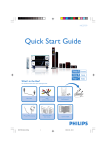
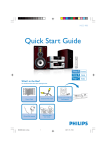
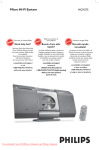
Wireless Music Center
WAC3500
WAC3500D
Quick start guide
1
2
Downloaded From DvDPlayer-Manual.com Philips Manuals
Connect
Enjoy
What’s in the box
Wireless Music Center WAC3500
Wireless Music Center
WAC3500
WAC3500D
Wireless Music Center
Quick start guide
1
2
Wireless Music Center
WAC3500
WAC3500D
Connect to your PC
WAC3500
WAC3500D
Connect Philips Wireless Music Center to your PC
to perform the following:
• Access music files stored on your PC from the
UPnP source of Philips Music Center.
• Manage the music content stored on Philips Music
Center from your PC
• Update Gracenote® music recognition service
database on the Center for the latest disc information
• Upgrade firmware of Philips Music Center
User manual
Connect
Enjoy
The minimum PC requirements to
connect to Philips Music Center:
• Windows 2000 SP4 or above / XP
(Home or Professional)
• Pentium III 500MHz processor or higher
• 256MB RAM
• CD-ROM Drive
• Ethernet Adapter (for wired connection)/ Wireless
Network Adaptor 802.11 b/g
(for wireless connection)
• 500MB free hard disk space
Eng
Remote control
2 x AAA batteries
PC Suite CD
Eng
Quick start guide
User manual
1 x Ethernet cable
Connect to your PC
1 x FM wire antenna
1 x AC Power cord
Before using the remote control:
• Insert batteries into the remote control as shown
3
1
2
iPod docking cradle + 8 x iPod dock adaptor
(for WAC3500D)
Downloaded From DvDPlayer-Manual.com Philips Manuals
A
Connect
Rear connections
1
Connect the speaker cables
2
Connect the FM antenna
3
Connect the AC power cord of the Center
1
3
2
Connect the iPod dock (for WAC3500D)
ETHERNET
L
AUX IN
WIFI ANTENNA
R
Tip:
• See the User Manual
for how to connect
other equipment to the
Center
DOCK
IN
R
L
SPEAKERS
75Ω FM ANTENNA
~ AC MAINS
Downloaded From DvDPlayer-Manual.com Philips Manuals
B
1
Enjoy
Playing CDs
For playback on the Center, you can use:
• All pre-recorded audio CDs
• All finalized audio CDR and CDRW discs
• MP3/WMA/M4A-CDs (CD-R/CD-RW with MP3/WMA/M4A files)
1
To switch on the Center, press STANDBY-ON/ECO
POWER y
2
a. Press OPEN • CLOSEç on the set to open the CD
compartment
b. Insert a disc with the printed side facing up
c. Press OPEN • CLOSEç again to close the
compartment
• Display shows Reading CD
• List of CD tracks appears
(For CD recorded with MP3/WMA/M4A music files:
To enter a track list, press 2 on a highlighted file folder)
3
Use the navigation controls 3 4 1 2 to select a track or
album
MP3-CD/CD
4
Press OK / 2; to start playback
AUX
HD
FM TUNER
MARK/UNMARK
REC
5
VIEW
HOME
SEARCH
MENU
OK
To stop playback, press STOP 9
CLEAR
6
To remove the CD, press OPEN • CLOSEç
SCROLL
VOL
MUTE
Tip:
• WAC3500 allows you to check if the current CD information can be found in the latest Gracenote® music recognition service database via the Internet. For details, see User
Manual 12 Gracenote CD Information
Downloaded From DvDPlayer-Manual.com Philips Manuals
B
2
Enjoy
Building a music library
Build your music library on the hard disk in the Center by Recording from CDs,
Importing MP3/WMA/M4A files from PC or Recording from Radio or external source.
Recording from CDs
1
Insert a CD into the CD loader on the Center
(For details, see Section B1)
• Display shows Reading CD
• List of CD tracks appears
(For CD recorded with MP3/WMA/M4A music
files: To enter a track list, press 2 on a highlighted
filefolder)
2
In the track list screen, press REC 0
• List of tracks with checkboxes
appears
3
To start recording the whole CD, press REC 0.
(To rip part of the CD, press 2 or MARK•UNMARK to
select/deselect the tracks to be recorded, and then press REC 0.
To select/deselect all tracks, press and hold
MARK•UNMARK)
• CD-Rec appears. Display shows the album name of the track
being recorded
• Center will return to CD mode when recording is complete
4
To record from another CD, repeat Steps 1 to 3 above
IMPORTANT!
• It takes some time to convert the recorded CD music to
MP3 files. Always press and hold STANDBY-ON y to switch
the set to ECO POWER (power-saving mode) before removing its power plug to avoid losing tracks.
• To import MP3/WMA/M4A files from PC, see the manual
Connect to your PC.
• To record from Radio or external source, see User Manual
6.5 Building music library on the Center.
Downloaded From DvDPlayer-Manual.com Philips Manuals
B
3
Enjoy
Playing Harddisk (HD)
You can centrally store up to 1500 audio CDs in the 80GB hard disk on the Center
1
To switch on the Center, press STANDBYON/ECO POWER y
2
Press HOME and use the navigation controls 3 4
1 2 to select HD source (or press HD on the
remote control)
3
Use the navigation controls 3 4 1 2 to select
your playback options (Demo tracks are stored
under All tracks)
4
Press OK / 2; to start playback
5
To change your playback option,
a. Press 1 once or more to enter previous option lists
b. Use the navigation controls 3 4 1 2 to select
c. Press OK / 2; or 2 to confirm
6
To stop playback, press STOPÇ
Tip:
• Available storage space for music is around 75GB, due to
capacity reserved for system purpose
Downloaded From DvDPlayer-Manual.com Philips Manuals
B
4
Enjoy
Searching for your desired tracks/albums
Search by keywords
The keyword should be the first letter or first word of the title of the track you wish to
search for. By inputting a keyword, you can quickly find all the items containing the word.
1
Use the navigation controls 3 4 1 2 to enter the desired
option list under tracks, albums, artists or playlists
AUX
MARK/UNMARK
REC
2
Press SEARCH on the remote control
• A text box appears
3
a. Press the alphanumeric keys repeatedly to input the
keywords (maximum 8 characters)
b. To delete the entry before cursor, press ∞ (CLEAR)
c. Press 1 or 2 to move the cursor backward / forward
OK
CLEAR
SCROLL
VOL
MUTE
SLEEP
REPEAT
SHUFLE
1
.,?!’@-_:;/
2
abc
3
def
SMART EQ
DBB
INCR SURR
4
ghi
5
jkl
6
MNO
SAME ARTIST
SAME GENRE
RDS/NEWS
1
pqrs
2
tuv
Downloaded From DvDPlayer-Manual.com Philips Manuals
3
wxyz
MUSIC FOLLOWS ME
0
Press OK / 2; to start searching
• Display shows: Searching .... Searching starts from the
beginning of the current option list
• The matched items appear at the front of the list
SEARCH
MENU
MUSIC BROADCAST
4
VIEW
B
5
Enjoy
Playing or recording to USB devices
Play music from USB devices
You can use USB flash memory (USB 2.0 or USB1.1) and USB flash players
(USB 2.0 or USB1.1) with the Center.
1
Insert the USB plug of the USB device into the
socket
on the Center
2
Press HOME and use the navigation controls 3 4 1 2
to select Portable > USB
• The icon
appears
• List of music tracks appears
3
Use the navigation controls 3 4 1 2 to select your playback
options
4
Press OK / 2; to start playback
Transfer music to USB devices
1
Check that the USB device is properly connected to the
Center. Press HOME to enter HD mode
2
Press the navigation controls 3 or 4 and 2 to select your
option and enter its corresponding list of tracks (if necessary)
3
Press REC 0, then press MARK•UNMARK to select or deselect the tracks to be recorded. (To select/deselect all tracks,
press and hold MARK•UNMARK)
4
Press REC 0 to start recording.
• The display shows transferring ... The number of tracks
transferred/to be transferred appears
•
Transferred
tracks are saved under MUSIC in the USB device
Downloaded From DvDPlayer-Manual.com Philips Manuals
B
6
Enjoy
Playing iPod player
1
Check that your iPod player is properly connected to the
Center (See Section A)
MP3-CD/CD
2
Check that the Center is switched on or is already in standby
mode
AUX
4
iPod player:
a. turn down the volume to avoid noise distortion
b. press the PLAY key to start playback
5
To adjust the volume, press VOL+/- or use the sound controls
on your iPod
Downloaded From DvDPlayer-Manual.com Philips Manuals
FM TUNER
MARK/UNMARK
REC
3
Press HOME to enter the main menu and use the navigation
controls 3 or 4 and 2 to select Portable > iPod
HD
VIEW
HOME
SEARCH
MENU
OK
CLEAR
SCROLL
VOL
MUTE
B
7
Enjoy
Listening to Radio
Listen to FM Radio
1
Press HOME and use the navigation controls 3 4 1 2 to
select Radio > FM Tuner (or press FM TUNER on the
remote control)
MP3-CD/CD
AUX
3
a. Press 2 to enter the list of preset stations
b. Use the navigation controls 3 or 4 followed by 2 to select
the desired station
Downloaded From DvDPlayer-Manual.com Philips Manuals
FM TUNER
MARK/UNMARK
REC
2
a. Press MENU
b. Press 3 or 4 and 2 to select Autostore radio
• The display shows: Autostore Please wait...
After all available stations are stored, the first autostored
preset station will play automatically
• You can store up to 60 preset radio stations in the memory
(including a maximum of 10 RDS stations).
HD
VIEW
HOME
SEARCH
MENU
OK
CLEAR
SCROLL
VOL
MUTE
B
8
Enjoy
Expandable features
You can add up to 5 Philips Wireless Music Stations (sold separately) to the center to
build up your wireless music system.With this system, you will have the freedom to
enjoy your favorite music anywhere at home.
My Room, My Music
Anyone - or everyone - can have access to the entire CD
collection and enjoy what they want, when they want - in the
room of their choice
Music Follows Me
This feature allows you to enjoy music as you move from room
to room, without having to navigate and start playback of your
chosen tracks all over again. (For details, see User Manual 15.
Expandable features)
Music Broadcast
This feature lets you send your choice of music to every
Wireless Music Station in your home simultaneously - at the
touch of a button. (For details, see User Manual 15.
Expandable features)
Downloaded From DvDPlayer-Manual.com Philips Manuals
Need help?
www.philips.com/support
or
call our helpdesk
Country
Helpdesk
Tariff / min
Keep ready
0820 901115
070 253 010
3525 8761
09 2290 1908
08 9165 0006
0180 5 007 532
0 0800 3122 1223
01 601 1161
199 404 042
26 84 30 00
0900 0400 063
2270 8250
2 1359 1440
902 888 785
08 632 0016
02 2310 2116
0906 1010 017
© Royal Philips Electronics N.V. 2007
All rights reserved.
3141 075 21941
www.philips.com
Downloaded From DvDPlayer-Manual.com Philips Manuals