1
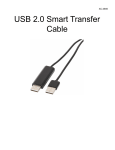
USB 2.0 Smart KM Link User Manual English LINK-E2KM Overview Congratulations on your purchase of the LINK-E2KM, a USB file transfer cable. Nowadays, more and more people own more than two computers. Due to space limitations, most people choose NetBooks or Tablet PCs as their second computer. LINK-E2KM provides a simple and easy solution which lets you share the keyboard and mouse usage with another computer. In addition, LINK-E2KM also supports clipboard sharing and high-speed file transfer between two computers. System Requirements PC running Microsoft Windows 2000 SP3 / Win XP / Vista / Win 7 (32-bit or 64-bit) Intel Pentium II Processor or later 512MB RAM or higher Hard disk space requirement of at least 100MB Built-in USB port 1.1 or 2.0 Features No installation CD is required, simply plug-and-play. Keyboard and mouse sharing. Single cable solution for files transfer. Clipboard sharing. Drag-and-drop user-friendly interface. Package Contents LINK-E2KM This manual Specifications Model No. Data Transfer Rate LEDs Compliant Version Connector Power Mode Cable Length Housing LINK-E2KM Over 15 Mbps 2 USB 2.0 / 1.1 USB Type A Male x 2 Bus 2m Plastic If the “User Account Control” window appears on the screen, click Yes to continue. 5. Getting Started With simple plug-and-play feature, you can easily connect the two computers via the USB port. Follow these steps to configure LINK-E2KM connection and start with its application: 1. Connect one end of the LINK-E2KM to a standard USB port on one of the two computers you are connecting. 2. Connect the other end of the LINK-E2KM to a USB port on the second computer. You are now ready to operate the LINK‐E2KM application. A pop‐up message appears at the bottom right of the screen. 6. 3. 4. Wait until Windows has finished installing the device driver software on both computers. Windows may ask you to select Auto play options. Click on the option “Run SKLoader.exe”. Troubleshooting: If the LINK-E2KM application fails to start automatically, do any of the following: Check that each connector on the USB cable is correctly inserted on your two computers. Go to My Computer and double-click the LINK-E2KM icon to start the application. Changing the Settings Changing the Settings To customize the LINK-E2KM settings, click the LINK-E2KM icon ( at the bottom ight of the screen. Select Preferences. ) Use Mouse Middle Button Click the middle button of the mouse to switch the keyboard and mouse control from one computer to another. Use Mouse Move Off the Edge of Screen Select this option to switch the control of keyboard and mouse from one computer to another by moving the mouse off the edge of the screen. Select the desired position. Click on the pull-down menu to see more options. The Preferences Setup screen is displayed. Keyboard & Mouse Control Switching Settings This option allows you to switch the control of keyboard and mouse from one computer to another. Select one of the following options: Turn Off Disable keyboard and mouse switch. Click Specified Screen Hot Area Select this option to set a "hot area". When the “hot area” is clicked, the keyboard and mouse control switches from one computer to another. To specify the “hot area”, click View and Specify Area. Then drag the orange frame to the location that you want to specify as “hot area”. When done, click OK. This function is designed for touch panel computers. Just touch the “hot area” to switch the keyboard and mouse control from one computer to another. Other settings You can set the following for three settings: Hotkey Press both [Alt+S] buttons on the keyboard to activate the control switching. Clipboard Share Options If you check on “Resident This Application”, the program automatically starts up after you plug in the device. To enable the temporarily disable clipboard sharing and KM (keyboard and mouse) control functions by double-clicking the LINK-E2KM icon ( ) at the bottom right of the screen, check “Double Clicking System Tray Icon to Turn On/Off Sharing Temporarily”. This option allows you to enable or disable the clipboard sharing. With clipboard sharing feature, you can easily copy or paste clipboard contents between the two computers. Turn Off Disable keyboard and mouse switch. Auto Share Enable the automatic sharing between the two computers. Sharing Keyboard and Mouse After you have configured the settings on the previous section, now you can start using your computers. If you set Use Mouse Move Off the Edge of Screen > Left Side of this PC, move the mouse until the edge of the left side screen. The cursor is now at your second computer and you can start using your second computer with the mouse. Event Notifications This option allows you to set the type of notification when receiving or sending clipboard data or switching the keyboard or mouse control to another computer. You can set either to play sound or to display a popup balloon tip. To switch the key board usage to another computer: 1. 2. 3. File Transferring With the keyboard and mouse sharing function, it is easy to manage files between the two computers. Simply drag and drop the file or folder between the two computers to transfer files. Move the cursor to your second computer. Open any editing software such as WORD, EXCEL, Power Point, etc. Use your first computer keyboard to enter the text on the file. Clipboard Sharing With the clipboard sharing feature, you can easily edit, copy or paste clipboard contents between the two PCs. 1. Open the “source” file and right-click on the image that you want to copy, and select Copy. 2. Move the cursor to the other PC, and open the “destination” file. 3. Move the cursor to the location that you want to place the picture, and right-click, then select Paste.