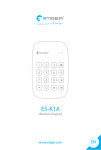
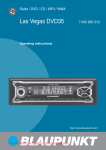
1
USER MANUAL smartENGINE 30 RELEASE DATE: 15/06/2010 Disclaimer The instructions in this document have been carefully checked for accuracy and are presumed to be reliable. Smart I Electronics Systems Pvt Ltd. and its writers assume no responsibility for inaccuracies and reserve the right to modify and revise this document without notice. It is Smart I’s goal to supply accurate and reliable documentation. If you discover a discrepancy in this document, please e-mail your comments to [email protected] smartENGINE User Manual : Version : 2.11 Release Manual Update Date : 24/01/2015 smartENGINE 30 Ver : 3.0.56 Version : 2.10 Date : 15/06/2010 SE30 Ver : 3.0.4 Page No: 1 Contents Installation of smartENGINE ...................................................................................................................................... 5 1.Login Screen: ........................................................................................................................................................ 8 1.1. Main Screen. .................................................................................................................................................. 8 1.2. Downloading Data: ......................................................................................................................................... 9 1.3. Main Menu: .................................................................................................................................................. 11 2.Location Master: .................................................................................................................................................. 11 3.Form Access Rights: ............................................................................................................................................. 13 4.Create Login: ....................................................................................................................................................... 14 5.Controller Access Rights: ...................................................................................................................................... 15 6.Create Controller Login: ........................................................................................................................................ 17 7.Designation Master: .............................................................................................................................................. 19 8.Department Master: ............................................................................................................................................. 19 9.Group Master: ...................................................................................................................................................... 20 10.Employee Master: ............................................................................................................................................... 21 10.1.Adding an Employee: .................................................................................................................................... 22 10.2.Adding Finger using Hampster:...................................................................................................................... 23 10.3.Activating Employee: .................................................................................................................................... 25 10.4.Modify Employee: ......................................................................................................................................... 30 10.5.Delete Employee: ......................................................................................................................................... 30 10.6.Add unknown swipe: .................................................................................................................................... 31 10.7.Advance Activation/Deactivation: ................................................................................................................... 31 11.Duress Registration: ........................................................................................................................................... 34 12.Adding & Configuring Controller. .......................................................................................................................... 36 12.1.Setting Controller Type: ................................................................................................................................ 37 12.2.Setting Slave ID: .......................................................................................................................................... 37 12.3.Entering IP Address of controller: .................................................................................................................. 38 12.4.Configuring for Secure Download: ................................................................................................................. 38 12.5.Select Model Type: ....................................................................................................................................... 39 12.6.Enter Response Time: ................................................................................................................................... 39 12.7.Set Swipe Frequency: ................................................................................................................................... 40 12.8.Setting Access Type Mode : .......................................................................................................................... 40 12.9.Setting APB Status: ...................................................................................................................................... 40 12.10.Setting APB Type: ....................................................................................................................................... 40 13.Configuring Readers: .......................................................................................................................................... 40 14.Add Handheld Controller ..................................................................................................................................... 44 14.1.Add Handheld Controller ............................................................................................................................... 44 Version : 2.11 Date : 22/01/2015 SE30 Ver : 3.0.56 Page No: 2 14.Set Controller: .................................................................................................................................................... 47 14.1.Setting Time Zone: ....................................................................................................................................... 47 14.2.Set Reader Information: ............................................................................................................................... 48 14.3.Synchronization of Date and Time: ................................................................................................................ 48 14.4.Initializing the Controller: .............................................................................................................................. 49 14.5.Set Controller Number: ................................................................................................................................. 49 14.6.Reset Controller: .......................................................................................................................................... 50 14.7.Set Swipe Frequency: ................................................................................................................................... 50 14.8.Set Secure Download:................................................................................................................................... 50 14.9.Set APB: ...................................................................................................................................................... 50 15.Creating Time Zone: ........................................................................................................................................... 50 15.1.Default Time Zone ........................................................................................................................................ 52 16. Defining&Creating Access level: .......................................................................................................................... 54 16.1. Adding a new Access Level Number .............................................................................................................. 55 16.2. Setting or Changing Time Zone in Access Levels: ........................................................................................... 57 16.3. Modifying all Access Level No. simultaneously: .............................................................................................. 58 17. Access Groups ................................................................................................................................................... 59 17.1. Creating Access Group: ................................................................................................................................ 60 17.2. Modifying Access Group: .............................................................................................................................. 62 17.3. Deleting Access Group: ................................................................................................................................ 62 18. Creating Email Recipient for Critical Events : ........................................................................................................ 62 19.Settings: ............................................................................................................................................................ 63 19.1. Initial Settings: ............................................................................................................................................ 64 Setting Database Type: ........................................................................................................................................ 65 Setting Communication Type: ............................................................................................................................... 65 Setting Application Type: ...................................................................................................................................... 66 Setting Auto Backup for Database: ........................................................................................................................ 66 Setting Photo Path: .............................................................................................................................................. 66 Setting Transaction Count and Refresh Controller:.................................................................................................. 67 Setting Card Digit: ............................................................................................................................................... 67 Setting Time Difference for Synchronizing the Controllers: ...................................................................................... 68 19.2. Fire and Tamper Settings: ............................................................................................................................ 68 19.3.LCD Messages: ............................................................................................................................................. 69 Setting Banner Message: ...................................................................................................................................... 69 Setting Global Message: ....................................................................................................................................... 69 Setting Local Message: ......................................................................................................................................... 69 19.4.LOCK/UNLOCK: ............................................................................................................................................ 70 Version : 2.11 Date : 15/01/2015 SE30 Ver : 3.0.56 Page No: 3 19.5.Setting File Format: ...................................................................................................................................... 70 19.6.Data Format: ............................................................................................................................................... 71 Data Export: ........................................................................................................................................................ 74 20.Holiday Settings: ................................................................................................................................................ 74 20.1. Holiday Transfer: ......................................................................................................................................... 75 21. Time Synchronization: ....................................................................................................................................... 76 22. Setting User Defined Event Message : ................................................................................................................. 77 23. Setting Readers for Attendance: ......................................................................................................................... 78 24. Online Status: ................................................................................................................................................... 79 25.Reports: ............................................................................................................................................................ 80 1. Access Reports. ............................................................................................................................................... 80 Selecting Employees Report Filtration: ................................................................................................................... 83 25.2. Employee Report: ........................................................................................................................................ 94 25.3.Audit Report: ............................................................................................................................................... 95 25.4. History Report: ............................................................................................................................................ 96 26.Utility: ............................................................................................................................................................... 97 26.1.Template Upload Download ........................................................................................................................... 97 26.1. Template Management: ............................................................................................................................... 98 Procedure to Downloading Finger Templates: ........................................................................................................ 98 Procedure for Uploading Finger Template: ........................................................................................................... 100 26.2. Services: ................................................................................................................................................... 101 26.3. Backup Utility: ........................................................................................................................................... 102 26.4. Restore Utility: .......................................................................................................................................... 103 26.5.Compare Utility: ......................................................................................................................................... 103 26.6.Mass Uploading: ......................................................................................................................................... 106 26.6.1. Denial User ............................................................................................................................................ 106 26.7. Backup and Delete: ................................................................................................................................... 109 26.8.Server Data Path: ....................................................................................................................................... 110 26.9. Re-Indexing: ............................................................................................................................................. 112 26.10. Read Controllers Parameters: ................................................................................................................... 112 26.11.Import Employee Data: ............................................................................................................................. 114 28.Detect Firmware: .............................................................................................................................................. 118 29.About US ...................................................................................................................................................... 118 Version : 2.11 Date : 22/01/2015 SE30 Ver : 3.0.56 Page No: 4 Installation of smartENGINE Minimum Requirements of Computer:1 Platform WINDOWS 2000 Professional\XP. Windows 98 will require extra utility (MDAC). 2 PC Hardware PIII and above, 128 MB RAM 3 Comm Port RS232 Comm Port For Controller Connectivity, TCP/IP 4 CD drive For installation only 5 Hard Disk 200 MB Installation space + @ 1 GB data storage space 6 Monitor Resolution 1024 By 768 Pixels Steps To Install The Application:1) The smartENGINE Folder contains two folders: a) Setup. b) Support Files. 2) Open the Setup Folder. 3) Double click on Setup.exe. Following screen will be displayed. Click on next to continue the setup. 4) Click on ‘Browse’ to select the directory to install the application. The default directory is C:/Program Files/Download Engine Version : 2.11 Date : 15/01/2015 SE30 Ver : 3.0.56 Page No: 5 5) Click on ‘Next to continue. Following screen will be displayed. 6) Select appropriate option:a) Typical:- This will install the server copy of the setup. This will contain executable files with database and ini files b) Compact:- This will install the client copy of the setup. This will contain only executable file. 7) Type the name of the folder, which will be listed in Program files. Version : 2.11 Date : 22/01/2015 SE30 Ver : 3.0.56 Page No: 6 8) Click on ‘Next’ to continue. 9) To abort installation in between, click on ‘Cancel’. To change any previous settings click on ‘Back’. 10) Click on ‘Finish to complete the setup. To directly open the application, select the check box for launching the application and then click on ‘Finish’. Version : 2.11 Date : 15/01/2015 SE30 Ver : 3.0.56 Page No: 7 1.Login Screen: Select location from location box, enter valid user name in USERNAME text box, enter valid password in PASSWORD text box, and click on OK button. The password can be changed through the Create Login Form. NOTE 1: The Default - Location is: ADMIN; User Name is: admin; Password is: admin 1.1. Main Screen. After Login the main screen shows Location, User who has login, the database type whether MS Access, MS SQL, Version : 2.11 Date : 22/01/2015 SE30 Ver : 3.0.56 Page No: 8 1.2. Downloading Data: To download the transactions from the controller click on ‘Start Download’ button from the main screen. For selective controllers’ download click on ‘Select controller to download Data’ button. Following screen will be opened: Version : 2.11 Date : 15/01/2015 SE30 Ver : 3.0.56 Page No: 9 While downloading the data the employees’ employee code, card number and other details will be displayed on the screen. In case of events like ‘FIRE’ or ‘FORCE OPEN’ a pop up will be shown on the screen. While downloading the data log files are generated in the application path. The Encrypt transaction folder will contain the raw data while the transaction folder will contain the transactions as required by the user for attendance software. The format will be as specified in the DATA FORMAT Form. Version : 2.11 Date : 22/01/2015 SE30 Ver : 3.0.56 Page No: 10 1.3. Main Menu: 2.Location Master: Version : 2.11 Date : 15/01/2015 SE30 Ver : 3.0.56 Page No: 11 This smartENGINE supports Multi Location operations i.e. the organization may be having offices at different geographical locations and the attendance records of all these offices needs to be maintained at a single location i.e. Head Office. In such a case one needs to define every location in the software from where the attendance or access records are to be downloaded from the controllers installed at those locations. After installation of smartENGINE there is no Default Location created, in order to proceed further for Adding employees, Adding Controllers etc, the user must create at least one location, else the software will not allow adding any controller. 2.1. Adding New Location Follow these steps: MAIN MENU -> MASTERS -> LOCATION MASTER. Click on ADD button, enter new location name in location name text box, and click on save Button. Whenever a new Location is added, 8 or 64 Time Zones are created for that Location depending upon the settings (To view Time Zones refer MAIN MENU -> CONFIGURATION -> TIME ZONE) 2.2. Modify location: Select location which is to be modified, click on modify button, modify location name, click on save button. 2.3. Delete location: Select location name, which is to be delete, click on delete button. It deletes from access level and location name combo box of employee master. If any employee saved in location in that case location cannot be deleted. Version : 2.11 Date : 22/01/2015 SE30 Ver : 3.0.56 Page No: 12 NOTE: If any employee is saved in a location, in that case location cannot be deleted. 3.Form Access Rights: Follow these steps: MAIN MENU -> MASTERS -> FORM RIGHTS The purpose of this form is to create a GROUP with name, within which the permissions/restrictions can be given or decided on selected or all forms in the software i.e. smartENGINE. Once the group is created with permission/restriction on forms, this Group can be assigned to THE NEW USER CREATED with CREATE LOGIN FORM. Version : 2.11 Date : 15/01/2015 SE30 Ver : 3.0.56 Page No: 13 3.1.Adding Group: Click on add button, enter new Group name in Group name text box, Tick or Untick as the case may be against the form, After finishing the selection click on Save button. 3.2.Modify Group: Click on modify button, Tick/Untick against the form as the case may be. After finishing with modification, click on save button. 3.3.Delete group: Select Group to delete. Click on delete button. 4.Create Login: Follow these steps: MAIN MENU -> MASTERS -> CREATE LOGIN The purpose of this form is to create a user to login with rights - permissions/restrictions – to operate on some or all forms. Select location name, group name (Created in Form Rights), enter new user name, enter password, again enter password to confirm then click on save button. Version : 2.11 Date : 22/01/2015 SE30 Ver : 3.0.56 Page No: 14 Whenever a particular user logs into a particular Location through LOGIN Screen ,the user will able to view employee details, controllers’ details of that location only. After three unsuccessful attempts the user will be locked i.e. the user will not be allowed to login unless the admin unlocks the user through Create login form. The status column with LOCK in the form indicates that the particular user is lock. Select the user and click on Unlock. This feature is available only with Admin user. 5.Controller Access Rights: This form contains the details of various Admin Group which holds different rights and permissions for setting the controller’s different parameters. There are 6 Levels of Pre-defined Admin Users as shown in the given below table with their respective Rights and Permission. Sr.No Menus Type Super Admin Servicing + User admin Servicing Admin Admin User Admin Search User Admin 1 Normal Mode 2 Admin Mode 3 Change Pin 4 Add User 5 Delete User 6 Search User 7 Set Time & Date 8 Add Finger to ID 9 Help 10 Initialize 11 Slave ID 12 Add Change or Delete Admin Users 13 Set Sensor mode 14 Door Open Time Page No: 15 Version : 2.11 Date : 15/01/2015 SE30 Ver : 3.0.56 15 Set Sensor Security level 16 Facility Code 17 Set Controller Type 18 Add Card Type 19 Set IP address 20 Display Current System Parameters 21 Set 5/10 digit card no format 22 Controller No 23 Set Employee IN count 24 Serial Reader En/Ds 25 Service menu Version : 2.11 Date : 22/01/2015 SE30 Ver : 3.0.56 Page No: 16 6.Create Controller Login: In this form the Administrator can create the login for the controllers by assigning them the Controller Access Rights as above. The login created may be given access for the controllers operation by setting their access type as shown in the below figure. The Admin create through Controller Login Form needs to be activated on the controllers. The Access type are assigned to the Admin during activating, depending on the type of controllers on which the Access Rights are to given. Refer the figure for more information. Version : 2.11 Date : 15/01/2015 SE30 Ver : 3.0.56 Page No: 17 Version : 2.11 Date : 22/01/2015 SE30 Ver : 3.0.56 Page No: 18 7.Designation Master: Designation Master is for defining the designation of the employees. The designation defined in the master is then assigned to the Employee in the Employee Master. 8.Department Master: Department Master is for defining the Department of the employees. The Department defined in the master is then assigned to the employee in the Employee Master. Version : 2.11 Date : 15/01/2015 SE30 Ver : 3.0.56 Page No: 19 9.Group Master: Follow these steps: MAIN MENU -> MASTERS -> GROUP The purpose of this form is to create Groups to assign to employees in the Employee Master. The Groups helps in filtration during reports viewing and also during batch assignments. Under the Group the employees may be from different Department and of Different Designation. Click on add button, enter Group Name, click on save button. By default there is one default group available for assignment. The user may create new Group if required. Version : 2.11 Date : 22/01/2015 SE30 Ver : 3.0.56 Page No: 20 10.Employee Master: Follow these Steps: MAIN MENU -> MASTERS -> EMPLOYEE MASTERS The purpose of this form is to add the employees and its details as required by the system. Version : 2.11 Date : 15/01/2015 SE30 Ver : 3.0.56 Page No: 21 10.1.Adding an Employee: Click on Add button, a) Enter Employee Name - Enter employee name in EMPLOYEE NAME text box. b) Enter Employee Code – This could be Alphanumeric and maximum 20 digits or Characters. Special characters / and – are allowed. c) Enter Card No – The card no is User id with which the employee has been enrolled or added on Controller i.e. the card no entered in the employee master and the user id of the employee on the Controller has to be same. The Card no entered may be 5/8/10 digits as set in the INITIAL SETTINGS. Important NOTE: The Card Digits no set in the software 5/8/10 must be same as set on the controllers through *995 function key.. d) Enter Facility Code: If the Card Digit no. in the INITIAL SETTINGS is to 8 digits then the user has to enter the Facility code of the card with which the user has been enrolled/activated/Registered on the controller. e) Get Card: Instead of manually entering the card no in the column Get Card is used to enter card no of last card flashed on the controller. The CSN No of the last card flashed will appear in the column of the selected Controller Name (User friendly Controller Name defined while adding a Controller) from the selected Location. This helps to avoid making a mistake while manually entering the card no. This is also helpful when entering card no of smart cards, on which the CSN numbers are not printed. f) Expiry Date: Enter expiry date to restrict the user from granting/permitting access. This expiry date can be changed; in this case the user has to be activated again for the New Expiry date to take effect on the controller. For the Expiry date to take effect tick mark the check box. g) Restrict on Holiday: If tick marked the employee/s will be restricted access on the Holidays. The Holidays are to be defined in the Holiday Master. (Refer Menu->Settings->Holiday) h) Escort Card: This feature is used to make a card as Escort Card which release APB (Anti-Passback) error for one time. i) Display At Unit: This feature is used to display Employee Name; Employee Code or Card Number on the LCD of the Controller. The user has to Enter the Name/Code or Card no in this text field. Version : 2.11 Date : 22/01/2015 SE30 Ver : 3.0.56 Page No: 22 j) PIN NO: Enter PIN NO (Password) for the user to grant access on door or mark attendance with Access Type set as Finger + PIN; Card + PIN etc. k) Mobile No: Enter User’s Mobile no if any. l) Email: Enter User’s email id if any. m) Location: Select the Location to which the user belongs from the list. n) Designation: Select Designation from the list. o) Department: Select Department from the list. p) Group: Select Group from the list. q) Set Message: The selected message from the list will be displayed on the controller’s display whenever that user flash the card or places the finger for marking attendance or for granting access. The messages in the list are the pre-defined messages defined under LCD Messages tab of Controller Settings Form. r) APB Status: Set the APB status for the user as Enable if the Anti – Passback is to be effective or else set to Disable. s) Adding/Displaying photo Click on the Browse Button to select the photograph of the employee to display. The path of Folder where the photograph is stored is first defined in the Initial Settings. This photo will be displayed while downloading the transactions. After Entering all the required details click on SAVE button to store the details in the database. The employee will appear in the DEACTIVATE List as shown below. If the Application Type is set as Attendance in the initial settings, then the employee will appear in ACTIVE list. Other filters are as follows: Pending Active employees: While activating Employee if Controller is offline or connection breaks employee goes to pending activate list, Pending Deactivate employees: while deactivating employee on controller if controller is offline or connection breaks employee goes to pending deactivate list. Old employees: If we delete any Employee, Employee goes to Old employee list, Denial List: If we restrict any employee from mass uploading form that employee will be visible in this list. 10.2.Adding Finger using Hampster: After all Employee details are added the employee will be saved. To add finger by hampster as follows: Version : 2.11 Date : 15/01/2015 SE30 Ver : 3.0.56 Page No: 23 Note: - It is necessary to install Hampster and load its dlls before using this form. Refer Hampster installation manual before connecting hamster. Place the finger on the hamster and click on respective finger. The finger will get scanned and will be saved in the database. Note:- The finger will be scanned only if the finger quality is above 60%. Otherwise message shall be displayed. In case same finger is already scanned from hampster or downloaded from the controller, appropriate message is displayed. You can add atmost 5 finger from hampster or controller. The downloaded finger can be uploaded on the controller using template upload form Deleting Template from Hampster:Version : 2.11 Date : 22/01/2015 SE30 Ver : 3.0.56 Page No: 24 Selected finger can be deleted from the database using Delete Template button. 10.3.Activating Employee: Version : 2.11 Date : 15/01/2015 SE30 Ver : 3.0.56 Page No: 25 Select All or Selective employee/s from DEACTIVATE list, click on ACTIVATE button, it gives list of controllers. Following figure will appear. Select controllers from the list on which employees are to be ACTIVATED. Select Access group from the list for the user on the Particular Controller. (Refer Creating Access group) Select the card Type - As shown in the table below Click on OK button. SR No. 1 Access Type Card/UID + Finger The user has two options to either flash the card or Enter UID from the Keypad and then place the finger on the Finger Print Sensor for Verification Product Access Type Mode BIOsmart Advance Card + Finger The user has to both flash the card and then place the finger on the Finger Print Sensor for Verification BIOsmart Advance Card Only or (UID + PIN) The user has 2 options to either Flash card only OR Enter UID and the PIN from the Keypad SmartSINGLE Or BIOsmart Advance 2 3 Definition Version : 2.11 Date : 22/01/2015 SE30 Ver : 3.0.56 Page No: 26 4 The user has to flash the card or Enter UID from the Keypad and then place the finger on the Finger Print Sensor for Verification. If the Finger is rejected then Card/UID + Finger: PIN BIOsmart Advance the user is asked to Enter PIN 5 6 Card only (UID+PIN) or Finger Card only or Finger 7 Finger + PIN 8 9 10 BIOsmart or smartSINGLE The User has 2 options either flash card or Place finger on the finger print sensor BIOsmart or for smartSINGLE identification. Here the user will not be allowed to enter UID and PIN from the Keypad. The user has to Place finger on the finger print sensor and then enter PIN from the keypad UID + PIN The user has to first enter UID and then enter PIN from the keypad Card + PIN The user has to flash the card and then enter PIN from the keypad Card/UID + PIN + Finger Version : 2.11 or The user has 3 options either Flash Card or Enter UID and PIN from Keypad or Directly place Finger on the Finger Print Sensor for Identification The user has to either flash card or enter UID from the keypad and then enter valid PIN and then place the finger on the fingerprint sensor Date : 15/01/2015 SE30 Ver : 3.0.56 BIOsmart Advance Advance Advance BIOsmart or smartSINGLE Advance BIOsmart or smartSINGLE Advance/Normal with PIN BIOsmart Advance/Normal with PIN Page No: 27 11 Card/UID only 12 Card only 13 Card only Or UID + Finger 14 Card/UID + PIN The user has 2 options either flash BIOsmart or the card or enter UID from SmartSINGLE keypad The user can be granted access only with card BIOsmart or smartSINGLE Normal/Normal with PIN Normal/Normal with PIN The user can be granted access with BIOsmart or Card only or by enter SmartSINGLE UID from keypad and then placing Finger Normal with PIN The user has to either flash the card or Enter UID and then enter Normal with PIN BIOsmart or SmartSINGLE PIN 15 Card/(UID + PIN) + Finger 16 UID from PINPROX Reader The user has to either flash the card or enter UID and PIN and Place Finger. The user has to enter UID from the keypad of PINPROX Reader BIOsmart SmartXS – 2 reader Controller Normal with PIN PINPROX 17 Card Only from PINPROX Reader The user has to flash the card on the PINPROX Reader SmartXS – 2 Reader Controller PINPROX 18 Card + PIN from PINPROX Reader The user has to flash the Card and then enter the PIN from the PINPROX Reader SmartXS – 2 Reader Controller PINPROX 19 UID only or Card + PIN The user will either enter UID from the Keypad or will Flash the card and will enter the PIN from the keypad SmartXS – 2 Reader Controller PINPROX While the cards are being activated the grid appears as under; Version : 2.11 Date : 22/01/2015 SE30 Ver : 3.0.56 Page No: 28 These details can be exported to excel worksheet. After Activation process is over the employees appear in Active List as shown below. Version : 2.11 Date : 15/01/2015 SE30 Ver : 3.0.56 Page No: 29 10.4.Modify Employee: Select employee, click on modify button, make changes, click on save button. After modification the employee must activated again. 10.5.Delete Employee: Select employee, click on delete button, It display list of controller select controllers from which we want to delete employee, click on ok button. The deleted employee appears in Old Employee list, it is not deleted permanently. The deleted employee can be activated again. Or can be deleted permanently from the OLD LIST. Version : 2.11 Date : 22/01/2015 SE30 Ver : 3.0.56 Page No: 30 10.6.Add unknown swipe: The purpose of this form is to ADD the employee to whom the card may have been issued but his/her details are not added in the employee master of the SmartENGINE. In this case whenever this employee swipes on the controller his/her card no will appear in Unknown Swipe list from where his/her details can be added and saved. Again the new entry will appear in Deactivate Employee list from where the employee needs to be ACTIVATED. 10.7.Advance Activation/Deactivation: Version : 2.11 Date : 15/01/2015 SE30 Ver : 3.0.56 Page No: 31 With this form the user can View the Access Group; Access Type with which the employee was activated on a particular controller. The user can also filter the list of employees to view based on Group; Department; Designation; Location. The form is also use for batch Activation or Deactivation or assigning/Setting similar Expiry Date or setting of similar messages and also for assigning similar Group for a particular group of employees again based on the above type of filtration. The employees can be Activated with either with the previous Access Group and Card Type or with New Access Group or Card Type. Version : 2.11 Date : 22/01/2015 SE30 Ver : 3.0.56 Page No: 32 Version : 2.11 Date : 15/01/2015 SE30 Ver : 3.0.56 Page No: 33 11.Duress Registration: Follow these Steps: MAIN MENU -> Masters -> Duress Registration Version : 2.11 Date : 22/01/2015 SE30 Ver : 3.0.56 Page No: 34 The user is registered with the Duress Finger or Card on the controller so that in the event of Forceful intrusion of an inmate into the premises with the help of an employee, the employee has to make use of the duress finger or card to grant access. At the same time a Duress event will be generated which can generate an Alarm to inform the intrusion has taken place. A separate finger with separate card no has to be registered for duress apart from a regular finger for granting access or marking attendance of same employee. Select the employee code from the list whose duress registration needs to be done. The employee who’s duress registration to be done must be a regular employee whose employee details has been already entered in the Employee Master The Duress Finger needs to be activated on the controller to take effect. Version : 2.11 Date : 15/01/2015 SE30 Ver : 3.0.56 Page No: 35 12.Adding & Configuring Controller. Follow these Steps: MAIN MENU -> CONFIGURATION -> CONTROLLER In order to download the transactions/logs stored in the controller’s memory and also to configure the controllers, the smartENGINE needs to communicate with the controllers. To make this possible the said controllers needs to be added and configured in the smartENGINE as under: Version : 2.11 Date : 22/01/2015 SE30 Ver : 3.0.56 Page No: 36 Select Location: Select Location from the list. This location is where the controller is physically installed as shown below. These locations are added through Location Master. 12.1.Setting Controller Type: Select the Controller Type. The Controller Type is to differentiate between the controllers working in with Serial Communication and TCP/IP Or UDP. Handheld works with serial communication. 12.2.Setting Slave ID: The slave id has to be same as the one assigned on the Controller through *91 function key. If the slave ids mismatch, the smartENGINE will not communicate with the controller. Refer Hardware Manual to set or to check Slave Id on the Controller. Setting Controller Number. : Enter Unique Controller no. (Controller number can be at most 9999). Enter user friendly Controller Name: This will help user identify the controller’s place of installation and in other related operation to be done on the controller. Version : 2.11 Date : 15/01/2015 SE30 Ver : 3.0.56 Page No: 37 12.3.Entering IP Address of controller: Enter IP Address of the Device. The IP address should match with the actual IP address entered on the Device. If the IP address differs from the one on the device there will be no communication between the device and the smartENGINE. Enter Port No: If Communication Type is TCP-IP Enter Port No as 1234 or any other port no as required. If Communication Type is UDP Enter UDP Port as 2001 (default) or any other port no as required. 12.4.Configuring for Secure Download: Enable this feature for securely downloading the data into single database. Enter the Server IP of the PC on which the database of smartENGINE resides. If data downloading is attempted from any other PC other than the SERVER IP address then in this case the data from the controller will not be downloaded. All the other functionalities can be carried out from any other PC where the smartENGINE clients are installed. Mail Status: This is to enable the controllers for sending a mail on a configured email id for selective events generated by the controller. Version : 2.11 Date : 22/01/2015 SE30 Ver : 3.0.56 Page No: 38 Mail Server Configuration: This is to configure the mail server for sending the email on selective events. 12.5.Select Model Type: 1. 2. Select which type of controller is installed. 2 Door 2 Reader: It can have at most 2 readers to control 2 doors. 4Door 4 Reader: It can have at most 4 Readers to control 4 doors. Setting Nos. of Readers for the controller:- This will decide maximum number of readers a controller can have. If you select maximum reader count to 5, all time zones and access level no will be automatically added for 5 readers. 12.6.Enter Response Time: Version : 2.11 Date : 15/01/2015 SE30 Ver : 3.0.56 Page No: 39 This parameter needs to be set only when the response i.e. reply time is very high and the controller shows offline or time out 12.7.Set Swipe Frequency: This feature is for setting the time interval between two successive swipes made by the same card no. 12.8.Setting Access Type Mode : Normal Type : When an external readers connected are the normal Readers without Keypad then the controllers selected shall be NORMAL. The Access Type assigned to the user shall be Card only type. The Normal Type is Selectable when the controller Model Type is 4 Doors 4 Readers. Advance Type: This is visible when the Model Type selected is 2 Doors 2 Readers. The Access type set when activating the cards shall be configurable viz Card + Finger; Finger only; Finger + PIN etc. This is applicable to BIOsmart/smartSINGLE (SBN130/SBN930/STN930) PINPROX : When connecting the card readers with Keypad then the controller type set must be PINPROX. 12.9.Setting APB Status: Can be set to Enable or Disable for the Anti-Passback to set on the selected Reader. 12.10.Setting APB Type: There are two types of Anti Passback that can be set on a controller. Setting Soft Anti Passback : Whenever an Anti Passback is generate for a card the user will still be granted access but an event shall be generated as an Soft Anti Passback. Setting Hard Anti Passback : In this type of Anti Passback the user’s Access will be restricted and also an anti passback event will be registered in the controller. 13.Configuring Readers: Version : 2.11 Date : 22/01/2015 SE30 Ver : 3.0.56 Page No: 40 When a controller is added depending upon the max number of reader selected from the controller’s form the channels will be added with reader names as Reader1, Reader2 etc .prefix with controller name. The user can give user-friendly names to reader Name for easy identification e.g. Reader1 as IN and Reader2 as OUT. The Controller Channel no. is not editable. But can be deleted or added later on. The Reader Open Time can be set for the duration of the reader to remain open after the valid card is flashed. The range is from 00 to 99 sec. This is done channel wise. The Door Open Time Limit is set for the controller to response in case if the door remains open longer than the set duration. In such a case an event is generated and downloaded as Door Open Long Time On and a reset event as Door Open Long Time Off after the door is closed. DOTL Status can either be enabled or Disabled. In case if the DOTL Status is set to Disable the DOTL event will not be generated even though the Magnetic contact is connected to the controller. Free Time Zone on Selective Reader of a controller can be Enabled or Disabled. Free Time Zone is set for the Lock on the Door to remain unlocked for a set Duration and at a preset time through Time Zone settings. This is useful when there is maximum flow of human traffic on that door i.e. during beginning of the shift or during lunchtime. Only one free time zone in a day per controller can be set. PIN Status : Can be set to enabled or Disabled. If set to enabled the PIN given to the user for Card type Finger + PIN or Card + PIN then in this case the system will prompt the User to enter the PIN. If Version : 2.11 Date : 15/01/2015 SE30 Ver : 3.0.56 Page No: 41 Disabled then the system shall not prompt for PIN where the user flashes the card or places the finger for authentication. In/Out, Share lock, APB, Facility code, Free Time zone setting: 4 Doors 4 Readers 2 Doors 2 Readers Reader 1 Reader 2 a) Default all Readers will be IN a) By Default Reader1 will be IN a) By Default Reader 2 will be IN b) It is modifiable by the user to set to OUT b) It is modifiable by the user to set it to OUT b) It is modifiable by the user to Set it OUT b) It is modifiable by the user to Set it OUT c) In case share lock is set to Even Reader, it will be changed to OUT c) In case share lock is set to a particular Even reader its paired Odd reader will be changed to IN Reader. c) In case Share lock is set to reader 2 then reader 1 will be set to IN Reader. c) In case share lock is set to reader 2 its corresponding reader 1 will be changed to IN Reader. a) It is visible. a) It is invisible. The grid will display whatever is set for even reader a) It is not visible. a) It is visible. b) By Default Share lock is disabled b) By Default Share lock is disabled b) By default share lock is Disabled. b) By default share lock is disabled. a)If the APB Status at controller Level is set to Enable It is visible at Reader Level a) If the APB Status at controller Level is set to Enable It is visible at Reader Level. a) If the APB Status at controller Level is set to Enable It is visible at Reader Level. a) If the APB Status at controller Level is set to Enable It is visible at Reader Level Even Readers (R2, R4) Odd Readers (R1, R3) a) Default all Readers will be IN IN/OUT Share lock APB Status at Reader Level Version : 2.11 Date : 22/01/2015 SE30 Ver : 3.0.56 Page No: 42 b) APB for odd readers will be released on swiping on Even Readers and APB on even readers will release on swiping on Odd readers b) APB for odd readers will be released on swiping on Even Readers and APB on even readers will release on swiping on Odd readers b) APB for reader 1 will be released on swiping on Reader 2 and APB on reader 2 will release on swiping on reader 1 APB for reader 1 will be released on swiping on Reader 2 and APB on reader 2 will release on swiping on reader 1 Free Time Zone Facility Code a) It is visible. a) It is visible. b) Any Time Zone can be set as Free Time Zone b) Any Time Zone can b) Any Time Zone be set as Free Time can be set as Free Zone Time Zone b) Any Time Zone can be set as Free Time Zone a) It is visible. a) It is visible. a) It is visible. Version : 2.11 a) It is visible. a) It is visible. Date : 15/01/2015 SE30 Ver : 3.0.56 a) It is visible. Page No: 43 14.Add Handheld Controller 14.1.Add Handheld Controller Steps to add Handheld Controller: Since Handheld is working on Serial communication we don’t have to define IP Address Select Configuration->Controllers ->Click on Add button -> select Location -> select Controller Type as Handheld -> Enter Slave ID and Controller No.,Enter the name of Handheld ->click on save button Version : 2.11 Date : 22/01/2015 SE30 Ver : 3.0.56 Page No: 44 Version : 2.11 Date : 15/01/2015 SE30 Ver : 3.0.56 Page No: 45 This HHT controller do not seen in set controller form as it do not need to set Version : 2.11 Date : 22/01/2015 SE30 Ver : 3.0.56 Page No: 46 14.Set Controller: This form is used to set the setting from the software to the controller. 14.1.Setting Time Zone: After defining or creating Time Zones, it has to be activated or uploaded on the controllers to take effect. Click on Time Zone Button to set Time Zone. List of Time Zone will appear as shown in below figure. Select All or a particular Time Zone to be uploaded. Click OK button. Version : 2.11 Date : 15/01/2015 SE30 Ver : 3.0.56 Page No: 47 There are 8 or 64 time zones but 7th time zone we cannot modify. Free time zone is set to open the door for certain duration of time for e.g. Open door for lunch time etc. The user can see the confirmation as under after Time Zones are uploaded successfully. 14.2.Set Reader Information: After setting Reader and controller information in the smartEngine, the information to take effect needs to be activated or uploaded on the respective controllers. Select the controller and click on Set Reader Info button. Whenever or every time after making changes to the Reader and controller information, it has to be activated or uploaded as explained above. 14.3.Synchronization of Date and Time: To synchronize Date and Time on the controller with the Computer’s system select the controller from the list and then click on Synchronize Date and Time button. A screen for entering password will appear. The Version : 2.11 Date : 22/01/2015 SE30 Ver : 3.0.56 Page No: 48 password is same as the one with which the user logged in. Click on OK button. The software will ask for confirmation, click on Yes button. A confirmation will appear informing that the Date and Time as been updated on the selected controllers. For more clarification refer below figures. 14.4.Initializing the Controller: When all the data or information set on the controllers needs to be deleted completely, the controller must be initialized. Click on Initialize button. Enter Password. A confirmation screen will appear. Give the confirmation. After the controllers are initialized its IP address and slave ID automatically will set to default values. 14.5.Set Controller Number: This will set the assigned controller number from the controller form on the controller. Version : 2.11 Date : 15/01/2015 SE30 Ver : 3.0.56 Page No: 49 14.6.Reset Controller: The controller can be reset from the software. Resetting the controller is not similar to Initializing of the controller. 14.7.Set Swipe Frequency: The value for Swipe Frequency entered in the Reader tab needs to set on the controller to take effect. 14.8.Set Secure Download: The Data can be securely downloaded as explained earlier can only take effect if set on the controller. 14.9.Set APB: The Anti Passback can only take effect if set on the controller. Set Mail Server Config : The configuration set for mail server for the controller to send mail needs to be uploaded on the controller. Set Email ids: The emails ids created through Email setting Tab needs to be uploaded on the controllers. 15.Creating Time Zone: Version : 2.11 Date : 22/01/2015 SE30 Ver : 3.0.56 Page No: 50 To allow or restrict the Entry/Exit of an employee or a group of employee in an area or premises within set or predefined time limit is known as Time Zone. This Time zone is assigned against the controller in Access Level NO (Creating Access Level No is explained in detail under Access Level Heading) The time zone created needs to be uploaded or activated on the controllers as explained above under Setting Time Zones. When a Location is created or defined its corresponding default Time Zone is also created. There are 8 or 64 Time Zones created. Every Time Zone has seven weekdays from Sunday to Saturday. Each day has 4 Time Slots. Every Time Slot has Start Time and End Time. The Default Start Time and End Time on all days are 00:00 hrs and 23:59 hrs i.e. 24 hrs allowed. The Start Time and End Time in each Time Zone Slab indicates as under Start Time End Time Remark Slot 1 00:00 23:59 Allowed Entry for all 24 hrs Slot 1 00:00 00:00 Restricted Entry for all 24 hrs. Slot 1 09:00 18:00 Allowed Entry between 09:00 and 18:00 hrs only. Entry will be Restricted before 09:00 and After 18:00 hrs. Slot 1 13:00 13:30 If Free Time Zone is set as this, then the door will remain open between these Timings only. The Free Time Zone must be enabled to take effect. Start Time End Time Remark Slot 1 07:00 10:00 Allowed Entry between 07:00AM & 10:00 AM Slot 2 12:00 15:00 Allowed Entry between 12:00PM & 15:00 Restricted Entry from 10:01 upto 14:59. Slot 3 18:00 21:00 Allowed Entry between 18:00 hrs upto 21:00 Hrs. Entry will be Restricted before 15:01 upto 17:59 hrs. Slot 4 23:00 00:00 Allowed Entry between 23:00 hrs upto 00:00 Hrs. Entry will be Restricted before 21:01 upto 22:59 hrs. And from 00:01 upto 06:59 Entry will be restricted. Version : 2.11 Date : 15/01/2015 SE30 Ver : 3.0.56 Page No: 51 15.1.Default Time Zone The Time Zones can be given user-friendly names for easy references as shown below. E.g. The Time Zone Time1 can be renamed as 24 hrs Allowed. The figures shown below explain how a user can configure the Time Zones as per the requirement. Version : 2.11 Date : 22/01/2015 SE30 Ver : 3.0.56 Page No: 52 Version : 2.11 Date : 15/01/2015 SE30 Ver : 3.0.56 Page No: 53 16. Defining&Creating Access level: Whenever a Controller is added in the software its corresponding default access level No 1 is created. A new Access Level No can also be defined. The purpose of creating an access level NO is that the user defines the movements of the employee in terms of Allowing or Restricting the Entry in a particular area or premises of the Complex or Office, within a preset or predefined time frame known as Time Zone. Version : 2.11 Date : 22/01/2015 SE30 Ver : 3.0.56 Page No: 54 Every Access Level No created consists of all the controllers defined in the software. A Default Time Zone is assigned against each channel of the controller as shown in the figure. This default Time Zone assigned against each channel of the controller can be changed as per the requirement. 16.1. Adding a new Access Level Number Clicking on Add will open a form like below: Version : 2.11 Date : 15/01/2015 SE30 Ver : 3.0.56 Page No: 55 Select the location and the controller for which the access level number is to be defined. Select Access Level number from the combo box. Version : 2.11 Date : 22/01/2015 SE30 Ver : 3.0.56 Page No: 56 Assign the time zone as per your requirement. (Time Zones are created in Time Zone form) Click on Save to save the record The user can create 128 Access Levels No with various combinations of assigning Time Zone to the controller. This Access Levels No will appear in the List for forming of access group which will be later assigned to the employee at the time of activation. 16.2. Setting or Changing Time Zone in Access Levels: Select the Access Level to modify. Click on Modify Button to modify the Selected Access Level. Click on the Time Zone of the controller to be modified. Select the Time Zone from the List as shown in the Figure. Version : 2.11 Date : 15/01/2015 SE30 Ver : 3.0.56 Page No: 57 After Selecting the Time Zone Click on Save Button. 16.3. Modifying all Access Level No. simultaneously: Select the time zone from the orange column so that it will assign time zone to the selected access level numbers from the entire column. Version : 2.11 Date : 22/01/2015 SE30 Ver : 3.0.56 Page No: 58 17. Access Groups This form is used to club together all access level no and form a group to assign it to Employees. Version : 2.11 Date : 15/01/2015 SE30 Ver : 3.0.56 Page No: 59 17.1. Creating Access Group: Note: - By default one access group is created while adding a controller. 1) Click on Add 2) Enter proper Access Group Name 3) Select access level no form the combo box Version : 2.11 Date : 22/01/2015 SE30 Ver : 3.0.56 Page No: 60 4) Click on Save. The access group will be saved in the list Version : 2.11 Date : 15/01/2015 SE30 Ver : 3.0.56 Page No: 61 17.2. Modifying Access Group: 1) Select access group from the combo 2) Change the access group name and access level no from the grid 3) Click on Save 17.3. Deleting Access Group: 1) 2) 3) Select Access Group which is to be deleted. Click on Delete The record will be deleted only if no employees are assigned the access group. 18. Creating Email Recipient for Critical Events : The following steps needs to be followed for creating email recipient for critical events. 1. 2. 3. 4. 5. 6. 7. 8. 9. Select Email Setting Tab from Configuration Form Click on Add button. Select the controllers from which the emails must be send on critical events. Please note the selected controllers must be initially configured for sending mails. Refer Controllers settings Tab in Configuration Form. Select the Users from the list for whom the critical events needs to be selected from Event list along side. Select the events to be assigned to the user. Once the event is assigned to a particular user the same event cannot be assigned to any other user. Max 16 emails ids can be assigned to a single controller. All events can be assigned to a single user. The assigned events cannot be assigned to any other user. After the above steps click on Save button. Select Set Controller Tab and Select the controllers and click on Set Email Ids. If this step is not executed then the controller will not send the mails. Version : 2.11 Date : 22/01/2015 SE30 Ver : 3.0.56 Page No: 62 19.Settings: Version : 2.11 Date : 15/01/2015 SE30 Ver : 3.0.56 Page No: 63 19.1. Initial Settings: Company Name: Enter company name in company text box, then click on save button This company name saved will reflect in every report. When exported to excel this name will appear on the header of excel sheet. Version : 2.11 Date : 22/01/2015 SE30 Ver : 3.0.56 Page No: 64 Setting Database Type: Select database Type as Access or SQL. If database type is Sql enter the Server name, the user name and the Password where the Sql database is mounted. There is a separate procedure to follow for restoring the Sql database. In case the database type is SQL then its server name along with the user name and password is to be mentioned as shown in Figure. Setting Communication Type: Select communication type (Tcp-Ip). Version : 2.11 Date : 15/01/2015 SE30 Ver : 3.0.56 Page No: 65 Setting Application Type: Select application type Access or Attendance. If Application type Access is selected, all access related feature would appear like Access Level, Time Zones etc. If Application type Attendance is selected the Access related features are hidden. When new employee is added in the employee master they will appear in Active list instead of Deactivate List. Setting Auto Backup for Database: Select option Yes or No. If selected YES then software will take backup after number of days setand at predefined set time Setting Photo Path: This is the path of the folder where the photographs of the employees to be displayed in the employee master are saved. Version : 2.11 Date : 22/01/2015 SE30 Ver : 3.0.56 Page No: 66 Setting Transaction Count and Refresh Controller: Transaction count can set to configure the numbers of transaction to be downloaded at a stretch Maximum value is 14. Refresh Controller is to configure the timing for polling the controller after the set duration in case if the controller is offline. It can set in Minutes and Seconds. Setting Card Digit: Select the Card Digits from the list. Care to be taken while selecting the card digits, the cards digits set must same as the one set on the controller through *995 function Keys. Version : 2.11 Date : 15/01/2015 SE30 Ver : 3.0.56 Page No: 67 Setting Time Difference for Synchronizing the Controllers: This to check the Real Time Clock i.e. time synchronization all controllers in the loop or on the network. These settings will synchronize the RTC after the preset duration. 19.2. Fire and Tamper Settings: Fire, Tamper Settings: Enable Fire Intrusion: When a Fire Panel is connected on the controller’s Fire inputs points and in case of emergency like Fire, the fire panel will send signal to the Fire inputs on the controller, all the doors connected with EML locks will get released. For this feature to take effect it has to be enabled from the software. The same feature can be disabled from the software by clicking on Disable Fire Intrusion. Enable Tamper: On Clicking Enable Tamper button, the buzzer will start alarming in case of tampering of the unit. Disable Fire/Tamper: On Clicking Disable Fire/Tamper button, the fire and tamper settings will be reset. Version : 2.11 Date : 22/01/2015 SE30 Ver : 3.0.56 Page No: 68 19.3.LCD Messages: This feature is used to set the messages to be displayed on the LCD of the controller. There are three types of messages that can be set to display on the controller. These messages can be displayed on the selective or on all the controllers in the list. The controllers need to be selected from the list on which these messages are to be displayed. The messages are to be added on the controllers by clicking on Add Message. Setting Banner Message: By default the Banner message displayed on the controller is WELCOME. This can be changed to any other message viz the company’s name. After setting the user defined Banner message, it has to enable to display on LCD of controller. Clicking on Disable button Under Banner Message can disable it. The default WELCOME will be displayed again. Setting Global Message: Whenever any employee makes a swipe on the controller a common message will be displayed after the controller verifies whether the swipe was from a valid employee or card. Setting Local Message: The user can define 44 different local messages that can be displayed. This message can then be assigned to the selective employee in the employee master against the set message. All the defined messages will appear in the list, the user has to select the appropriate message to be displayed when that particular employee swipes on the controller. Version : 2.11 Date : 15/01/2015 SE30 Ver : 3.0.56 Page No: 69 19.4.LOCK/UNLOCK: The Selective door can be Unlock and lock from the software in case of emergency or when that particular door needs to be open for certain duration of time in case of loading or unloading of consignments etc. When click on Unlock the selected door will remain unlock as long as it is not locked again. When clicked on Lock button the door will be locked and will not be opened even on swiping a valid card. Clicking on Normal will get back the door to its original position. 19.5.Setting File Format: This form is used to create a text file with user defined text file name, in which the downloaded data from the controller will be stored. These data can be later on be imported by a third party application. Version : 2.11 Date : 22/01/2015 SE30 Ver : 3.0.56 Page No: 70 Enter user defined File in the Filename Column. Select the Delimiter from the list – Delimiter is used as a separator between the file name and the date format. Select Default date format from the list. Or the user has the option of creating the user defined date format – used only in the naming convention of file. The data downloaded will be stored in the Database as well as in the text file created. The swipes of a particular date will be stored in the text file of the corresponding date. Whenever the data is downloaded this text will be created on its own. The user has not to create the text file. The text file has to be defined just once as explained above. 19.6.Data Format: This form is used to define in what format the data has be stored in the text file created previously. The user will import the raw data downloaded from this text file for the third party application. Version : 2.11 Date : 15/01/2015 SE30 Ver : 3.0.56 Page No: 71 Address: Stores the address of the unit (Slave id of the unit) Controller NO:- Will display the controller number from the database Location ID:- Will display the location id from the database Card No.: Stores the card no – This depends on the how many digits card no the user wants to store whether 5 digits/8 digits or 10 digits – select this option from above. EmpCode: On selection of Empcode, the employee code assigned to the employee is stored in the text file. Date: Stores date of the swipe made – Select the format of the date from above. There are two formats the user can select from i.e. Default or Customize. Time: Stores the time of the swipe mad – Select the time format from above Channel No.: Stores the channel no on which the swipe was made – The user can select either default OR I/O Or Other depending upon what type of output is required. Access Code: Stores the access code of the event downloaded. Trans Count: Stores the no of transaction pending to be downloaded. Version : 2.11 Date : 22/01/2015 SE30 Ver : 3.0.56 Page No: 72 All the above data are not mandatory. Only select the one that is needed to import into the third party application. Refer above figure for creating data format of text file. The above is the default data format of smartENGINE. Selective Event for Log file: The data string in the text file will be made only of the selected events from the list. Version : 2.11 Date : 15/01/2015 SE30 Ver : 3.0.56 Page No: 73 Data Export: The data can be exported to CSV; excel; Text; XML formats. The user can create user defined data format of the fields from the list. The user has an opportunity to create different file formats which can be saved and viewed at later dates. 20.Holiday Settings: Holiday Setting: The user can set holidays on the controllers and can restrict the access of the employees on the holidays set. This restriction can be imposed on the selective employees, by ticking on the Restrict Holiday in the employee master. Version : 2.11 Date : 22/01/2015 SE30 Ver : 3.0.56 Page No: 74 20.1. Holiday Transfer: After defining the holidays in the holiday master, these holidays can be set on the other controllers also as shown in the below figure. Version : 2.11 Date : 15/01/2015 SE30 Ver : 3.0.56 Page No: 75 21. Time Synchronization: This feature will show the current time and date on the controllers and synchronize all controller with same date and time by clicking on the synchronize button. if the controller time is less than the user defined time then the RTC of that controller will be set automatically referring the systems time through service. In case the controller time is more than the user defined time, then the pop up for synchronization will be displayed. Time difference will be checked only once in a day. Version : 2.11 Date : 22/01/2015 SE30 Ver : 3.0.56 Page No: 76 22. Setting User Defined Event Message : The user can set the user defined events messages that can be displayed on the LCD of the Controllers. The maximum characters for a single event message are 13 and other 3 characters displays the event code. The entering the user defined events messages the user has to click on the button Set & Save for the new messages to take effect on the controllers. Version : 2.11 Date : 15/01/2015 SE30 Ver : 3.0.56 Page No: 77 23. Setting Readers for Attendance: The user can assign the readers for marking attendance of an employee at the employee level. Version : 2.11 Date : 22/01/2015 SE30 Ver : 3.0.56 Page No: 78 24. Online Status: This form shows the online status of the controller when connected to the computer. From this the user can ascertain whether the said controller is communicating with the computer. Version : 2.11 Date : 15/01/2015 SE30 Ver : 3.0.56 Page No: 79 25.Reports: smartENGINE generates 3 types of Reports as displayed below: 1. Access Reports. 2. Employee Reports 3. Audit Reports 4. History Reports 25.1. Access Reports: Under Access Report the different types of reports generated are shown below: a.Access: The Access type report shows the swipes of the employees, which are downloaded from the controller’s memory into the database of the smartENGINE. Version : 2.11 Date : 22/01/2015 SE30 Ver : 3.0.56 Page No: 80 These reports can be viewed as under: i. For a particular Month or on selective date range. ii. For a particular Employee. iii. Of a particular Controller/Door iv. Of a particular Location v. For a particular Group. After selecting required filters as above click on DISPLAY DATA for the data to be displayed in the Grid. The data displayed can be exported either to excel worksheet or a text file by clicking on EXPORT button. If TEXT FORMAT is selected then whether the text files to be generated should be as per the data format selected as explained section 8.7 then select USE DATA FORMAT. Otherwise all the data displayed in the grid will be exported to the text file. Version : 2.11 Date : 15/01/2015 SE30 Ver : 3.0.56 Page No: 81 Selecting Date Range for Report Filtration: Selecting Controller /Doors for Report Filtration: Version : 2.11 Date : 22/01/2015 SE30 Ver : 3.0.56 Page No: 82 Selecting Employees Report Filtration: The reports can be viewed based on filtration on Group; Department; Designation of Active; Deactive or Deleted Employees. Version : 2.11 Date : 15/01/2015 SE30 Ver : 3.0.56 Page No: 83 Version : 2.11 Date : 22/01/2015 SE30 Ver : 3.0.56 Page No: 84 b. Event Type Report: The controller stores different events besides valid and invalid Punches/Swipes. These events can be viewed through EVENT type reports. Version : 2.11 Date : 15/01/2015 SE30 Ver : 3.0.56 Page No: 85 c. First In Last Out: The purpose of this form is to display the first and the last swipe of the controller irrespective of door. Version : 2.11 Date : 22/01/2015 SE30 Ver : 3.0.56 Page No: 86 d. IO Entry: This report shows all IN Entries and OUT Entries made by the employees. It also shows the number of IN entries and OUT entries. Refer last column of the grid IN-OUT Count. e. Unknown Transaction: This report shows the invalid punches made on the controller/s. The condition in which the employee’s card is enrolled or added on the controller but not adde d in the employee master of the smartENGINE then these punches will appear in unknown transaction report. Version : 2.11 Date : 15/01/2015 SE30 Ver : 3.0.56 Page No: 87 f.LUNCH IN-LUNCH OUT: In this report the Lunch in and the Lunch out swipe time of the controller. Version : 2.11 Date : 22/01/2015 SE30 Ver : 3.0.56 Page No: 88 Immediate Report: In this report, we can search report by filtrations 1) Before: select Date and define time, it will show the reports before that time duration. 2) After: It will show the report of that day after defined time. 3) Between: It will show the report in between the defined time. 4) Available: it will show the report of In punch till selected time. Version : 2.11 Date : 15/01/2015 SE30 Ver : 3.0.56 Page No: 89 Immediate Report: Before Version : 2.11 Date : 22/01/2015 SE30 Ver : 3.0.56 Page No: 90 Immediate Report: After Version : 2.11 Date : 15/01/2015 SE30 Ver : 3.0.56 Page No: 91 Immediate Report: Between Version : 2.11 Date : 22/01/2015 SE30 Ver : 3.0.56 Page No: 92 Immediate Report: Available Version : 2.11 Date : 15/01/2015 SE30 Ver : 3.0.56 Page No: 93 25.2. Employee Report: This report shows the list of all the employees entered into the employee master of the smartENGINE. Version : 2.11 Date : 22/01/2015 SE30 Ver : 3.0.56 Page No: 94 Employee Activation Status Report: This report gives details of the Employee along with their access levels and time zones. 25.3.Audit Report: Audit shows system Log and Event Log, system Log is related software Changes and Event log related to controller changes. It also shows the changes made by a particular user who operate this software. Version : 2.11 Date : 15/01/2015 SE30 Ver : 3.0.56 Page No: 95 25.4. History Report: With this report the user can view only the reports from any of the smartEngine.mdb file that is chosen from the given below form. Below given figure explains how to set path for selecting database for viewing History Reports. Version : 2.11 Date : 22/01/2015 SE30 Ver : 3.0.56 Page No: 96 Note: - This is available only with Ms-Access database 26.Utility: 26.1.Template Upload Download 26.2. Service Settings 26.3. BackUp 26.4. Restore 26.5. Compare 26.6. Mass Uploading 26.7. Backup Delete 26.8. Server Connection Path 26.9. Re-Indexing 26.10. Read Controller Parameters 26.11. Import Employee Data 26.12. Handheld Download Utility Version : 2.11 Date : 15/01/2015 SE30 Ver : 3.0.56 Page No: 97 26.1. Template Management: This is the utility wherein the user download all the fingerprints enrolled on a particular BIOsmart and then uploads the same fingerprints on the other BIOsmart. The list of employees in this utility will appear only when entered and activated in the employee master. Procedure to Downloading Finger Templates: i. ii. iii. iv. v. vi. Select Download Select Employee Type whether Normal; Duress; Escort. Click on Display employees. All the employees will be displayed in the grid Select the employee/s who’s finger prints are to be downloaded Click on Download button Another window will appear select the controller from the list from the where the fingerprints are to be downloaded. vii.Click on OK Version : 2.11 Date : 22/01/2015 SE30 Ver : 3.0.56 Page No: 98 Version : 2.11 Date : 15/01/2015 SE30 Ver : 3.0.56 Page No: 99 Procedure for Uploading Finger Template: i. ii. iii. iv. v. vi. vii. viii. Select Upload. Select Employee Type whether Normal; Duress; Escort. Select the controllers from the list, whose employee/s finger print/s, are to be uploaded on the other Biometric controllers. In case the fingers are to be uploaded from the hamster, select hamster from the controller list. Click on Display Templates. All the templates of the Employees downloaded from the controller or hamster will be displayed in the list. Click on Upload button Another window will appear from the user has to select the controller from the list where the fingerprints are to be uploaded. Click on OK Version : 2.11 Date : 22/01/2015 SE30 Ver : 3.0.56 Page No: 100 26.2. Services: This is used to configure the smartENGINE to download the transactions/logs from the controller manually or automatically. Select ‘Manual’ to manually download the transaction. Select ‘Use Services’ to Auto download the transactions. The service will be placed in the systems tray. Right clicking on the service will show following screen: Version : 2.11 Date : 15/01/2015 SE30 Ver : 3.0.56 Page No: 101 Clicking on open will open the downloading screen which will be downloading the transactions continuously Create schedule will open form: This form is used to design a Activate-Deactivate schedule. The cards in Pending Activate or Pending Deactivate (Refer Employee master for details) will get activated/deactivated in the scheduled time if the controller gets connected later. The cards will be moved to Activate or Deactivate list accordingly. 26.3. Backup Utility: This utility is used to take backup of the entire database of smartENGINE. The user has to select the source and destination path where the backup database is to be saved/stored. It is highly recommended to always take the backup of the database on daily basis. Store or save the backup database date wise. Version : 2.11 Date : 22/01/2015 SE30 Ver : 3.0.56 Page No: 102 26.4. Restore Utility: This utility is used to restore the database, which was taken as a backup through backup utility. The user has to select the database from the list and then the path where the database is to be restored. 26.5.Compare Utility: This utility is useful when a user wants to know the status – Activation or Deactivation – of a particular or all employees on a particular or all controllers’ location wise. The compare utility compares the status Activation or Deactivation - of the employee between the database and the controller/s. Version : 2.11 Date : 15/01/2015 SE30 Ver : 3.0.56 Page No: 103 Synchronize Database: On clicking this button the database will be treated as master and all the controllers will get synchronize as per the status in the database. I.e. if an employee state is deactivated in the database but activated on the controller. The employee will get deactivated on the controller after clicking on the Synchronize database button. If there is any extra card it will get deleted from the controller after clicking on Synchronize database. If any employee is activated on the database and deactivated on the controller after clicking on ‘Synchronize database’ the status of the employee on the controller/s will be activated. Compare Online shows the status – activated or deactivated – of the employee/s on the controller/s. The Extra Card in online status shows that a card exists or is added on the controller, which is not added in the employee master of the smartEngine. Version : 2.11 Date : 22/01/2015 SE30 Ver : 3.0.56 Page No: 104 Compare online-offline shows the status – activated or deactivated - between the database and the controller/s Version : 2.11 Date : 15/01/2015 SE30 Ver : 3.0.56 Page No: 105 26.6.Mass Uploading: This feature is used to activate all employees at same instance. The advantage of this feature is that the activation process is faster. 26.6.1. Denial User This feature is used to restrict the Users in bulk on the controller. This is used when we want to restrict the user for access. Version : 2.11 Date : 22/01/2015 SE30 Ver : 3.0.56 Page No: 106 Version : 2.11 Date : 15/01/2015 SE30 Ver : 3.0.56 Page No: 107 Version : 2.11 Date : 22/01/2015 SE30 Ver : 3.0.56 Page No: 108 26.7. Backup and Delete: This feature is used to delete the old data and create the backup before deletion, So that the deleted data report can still be generated through HISTORY REPORT. Version : 2.11 Date : 15/01/2015 SE30 Ver : 3.0.56 Page No: 109 26.8.Server Data Path: This feature is used to give path of the database on the server and access the server database from a client where the smartENGINE client version is installed. It should select the smartENGINE path Version : 2.11 Date : 22/01/2015 SE30 Ver : 3.0.56 Page No: 110 Version : 2.11 Date : 15/01/2015 SE30 Ver : 3.0.56 Page No: 111 26.9. Re-Indexing: This feature is use to assign the employee code to already downloaded data wherein the employee details were not entered in the employee master before downloading the data from the controllers. 26.10. Read Controllers Parameters: There are several controllers parameters set on the controllers for its proper functioning. This feature is useful and helpful while trouble shooting the improper functioning of any controller’s feature. Select the controller click on Read Parameters. All the parameter read from the controller will appear in a grid as shown in the figure. This can be saved in a file for later viewing. Version : 2.11 Date : 22/01/2015 SE30 Ver : 3.0.56 Page No: 112 Version : 2.11 Date : 15/01/2015 SE30 Ver : 3.0.56 Page No: 113 26.11.Import Employee Data: This option is use to import the employee details viz Employee Name; Employee Code; Card No etc from the excel worksheet into application database. This is to enable the user to import employee details in bulk instead of entering each employee details in employee master which is time consuming. Version : 2.11 Date : 22/01/2015 SE30 Ver : 3.0.56 Page No: 114 Steps to Import Employees from Excel: 1. Select option Import Employee Date from Utility Menu. 2. Select the Excel file from where the employee data is to be imported. 3. Select the Sheet from which the data is to be imported. 4. Map the excel columns with the Database field as show above. 5. Click on import Data. Version : 2.11 Date : 15/01/2015 SE30 Ver : 3.0.56 Page No: 115 27. Handheld Download: This utility downloads the transactions from the handheld. If record of a handheld is present in the database then this option is available. After Selecting Handheld Download utility from Utility, it open following form Version : 2.11 Date : 22/01/2015 SE30 Ver : 3.0.56 Page No: 116 Select comport & click on Start Downloading button it will download the transaction from Handheld device as follows; After completion of transaction it shows confirmation message as follows; Version : 2.11 Date : 15/01/2015 SE30 Ver : 3.0.56 Page No: 117 28.Detect Firmware: This form shows the firmware of the controllers installed. Select the controllers from the list and click on GET FIRMWARE. The firmware version column will show the firmware string. 29.About US Using this form you can get Version of smartENGINE application with Model Number. Version : 2.11 Date : 22/01/2015 SE30 Ver : 3.0.56 Page No: 118