1
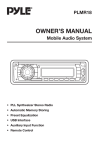
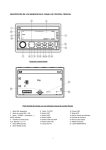
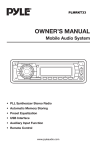
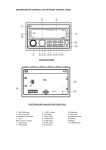
PLMR18 OWNER’S MANUAL Mobile Audio System PLL Synthesizer Stereo Radio Automatic Memory Storing Preset Equalization USB/ SD Interface 3.5mm Jack input www.pyleaudio.com 1 CONTENTS Installation ........................................... 3 Take out screw before installation ......... 3 DIN Front-Mount ................................. 3 Installing the unit ............................... 3 Removing the unit ............................. 4 Wiring Connection .............................. 5 Operation ............................................. 6 Location of keys .................................... 6 Switching on/off the unit ........................ 7 Sound adjustment ................................. 7 Liquid crystal display ............................. 7 Auxiliary input ....................................... 7 Reset function ....................................... 7 Radio operation .................................... 8 Switching to radio mode .................... 8 Selecting the frequency band ............ 8 Selecting station ................................ 8 Automatic memory storing& program scanning ............................. 8 Station storing ................................... 8 USB play operation ............................... 8 Selecting tracks in single step ........... 8 Selecting directory up/down .............. 8 Pausing playing ................................. 8 Previewing all tracks.......................... 8 Repeating the same track ................. 9 Playing all tracks in random .............. 9 SD operation ......................................... 9 Remote control ................................... 10 Specification ....................................... 11 Trouble shooting ................................. 12 2 INSTALLATION Notes: Choose the mounting location where the unit will not interfere with the normal driving function of the driver. Before finally installing the unit, connect the wiring temporarily and make sure it is all connected up properly and the unit and the system work properly. Use only the parts included with the unit to ensure proper installation. The use of unauthorized parts can cause malfunctions. Consult with your nearest dealer if installation requires the drilling of holes or other modifications of the vehicle. Install the unit where it does not get in the driver’s way and cannot injure the passenger if there is a sudden stop, like an emergency stop. If installation angel exceeds 30°from horizontal, the unit might not give its optimum performance. Be sure you test all connections first, and then follow these steps to install the unit. 1. Make sure the ignition is turned off, and then disconnect the cable from the vehicle battery’s negative (-) terminal. 2. Disconnect the wire harness and the antenna. 3. Mount the sleeve by inserting the sleeve into the opening of the dashboard and bend open the tabs located around the sleeve with a screwdriver. Not all tabs will be able to make contact, so examine which ones will be most effective. Bending open the appropriate tabs behind the dashboard to secure the sleeve in place. Dashboard Tabs Screwdriver 30 Avoid installing the unit where it would be subject to high temperature, such as from direct sunlight, or from hot air, from the heater, or where it would be subject to dust, dirt or excessive vibration. Sleeve 4. Reconnect the wire harness and the antenna and be careful not to pinch any wires or cables. 5. Slide the unit into the sleeve until it locks into place. 6. To further secure the unit, use the supplied metal strap to secure the back of the unit in place. Use the supplied hardware (Hex Nut (M5mm) and Spring Washer) to attach one end of the strap to the mounting bolt on the back of the unit. If necessary, bend the metal strap to fit your vehicle’s mounting area. Then use the supplied hardware (Tapping DIN FRONT-MOUNT Installation Opening This unit can be installed in any dashboard having an opening as shown below: 53mm 182mm Installing the unit 3 INSTALLATION Screw (5x25mm) and Plain Washer) to attach the other end of metal strap to a solid metal part of the vehicle under the dashboard. This strap also helps ensure proper electrical grounding of the unit. Note to install the short threading terminal of the mounting bolt to the back of the unit and the other long threading terminal to the dashboard. Spring Washer Hex Nut Metal Strap Mounting Bolt Plain Washer Tapping Screw 7. Reconnect the cable to the vehicle battery’s negative (-) terminal. Then replace the outer trim ring. Removing the unit 1. Make sure the ignition is turned off, then disconnect the cable from the vehicle battery’s negative (-) terminal. 2. Remove the metal strap attached the back of the unit (if attached). 3. Lift the top of the outer trim ring then pull it out to remove it. 4. Insert both of the supplied keys into the slots at the middle left and right sides of the unit, then pull the unit out of the dashboard. 4 WIRING CONNECTION ISO CONNECTION 5 OPERATION LOCATION OF KEYS 1. 2. 3. 4. 5. 6. 7. 8. 9. 10. 8/ (SEEK DOWN) button PUSH/SEL/ENT 9/ (SEEK UP) button IR\ LCD PWR/MODE AS/PS SD interface USB interface AUX IN 11. 12. 13. 14. 15. 16. 17. 18. 19. 6 0/DISP 7/BAND 6DIR+ 5 DIR4RDM 3 RPT 2 INT 1PAU Reset function OPERATION SWITCHING ON/OFF THE UNIT Press PWR button (6) to turn on the unit. When the unit is on. Press and hold for 2 seconds to turn off the unit. LIQUID CRYSTAL DISPLAY Exhibit current frequency and activated functions on the display . LOCAL function Press SEL knob several times till appear “DX”. Rotating the audio knob (2) to switch it to local mode. In LOC mode the unit will reduce the receiving sensitivity when you search station. That means you can receive the station that sound is good. It will ignores the station that sound is not good. In DX mode it will increase the receiving sensitivity when you search the station. That means you can receive more stations. SOUND ADJUSTMENT Press SEL button (2) to select the desired adjustment mode. The adjustment mode will be changed in the following order: →BAS-TRE-BAL-FAD-LOUD-EQ-DX-STEREO-VOL BAS: bass TRE: treble BAL: balance FAD: fader LOUD: loudness EQ: equalization DX: distance ST:stereo VOL: volume STEREO /MONO function In STEREO item rotating the audio knob (2) to choose STEREO or MONO mode. In STEREO mode you can receive FM stereo signal. In MONO mode the stereo station will be switched to monochrome. Sometimes when the signal is not good. If you change it to MONO mode. The noise will be reduced. By rotating the audio knob (2) it is possible to adjust the desired sound quality. Press and hold SEL for 2 seconds. You can choose the area between USA and EUROPE by rotating the knob (2). AUXILIARY INPUT The unit can be connected to a portable audio player through the AUX IN jack (10). EQ FUNCTION In EQ item you can select the preset EQ mode by rotating the audio knob (2) as below: POP--CLASS ---ROCK ---EQ OFF RESET FUNCTION RESET button (19) must be activated with either a ballpoint pen or thin metal object. The RESET button is to be activated for the following reasons: - Initial installation of the unit when all wiring is completed. - All the function buttons do not operate. - Error symbol on the display. Note: if press RESET button (19), the unit can’t work yet, please use a cotton swab soaked in isopropyl alcohol to clean the socket on the front panel. SHOW THE TIME Press DISP button (11) to show the time for several seconds. After several seconds it will return to show the information. SET THE TIME Press and hold DISP button (11) for 2 seconds the HH digit will flash. Rotating the audio knob (2) to change the hour. After that press audio knob (2) the “MM” will flash. Rotating the audio knob (2) to change the minute. Then press DISP button to confirm. 7 OPERATION preset number for several seconds with release mute, then searches again. RADIO OPERATION SWITCHING TO RADIO MODE Press MODE button (6) to select radio mode, the radio mode appears in the display together with the memory band and frequency. MANUALLY STORING STATION AND RECALL PRESET STATION To receive a station, Press one of the preset button(1~6) for 2 seconds. The current station is stored into the number button. press the preset button (1~6) to directly listen the station that saved in the corresponding preset button. SELECTING THE FREQUENCY BAND At radio mode, press 7/BAND button (12) to select the desired band. The reception band will change in the following order: →FM1→FM2→FM3→AM1→AM2 SELECTING STATION button (3) or 8/ button (1) Press 9/ to activate automatic seek function. It will search up/down a station automatically. Press for 2 seconds until “MANUAL” appears on the display, the manual tuning mode is selected. In this mode you can turn up/down a step frequency one by one till searched a station. If both buttons have not been pressed for several seconds, they will return to seek tuning mode and “AUTO” appears on the display. AUTOMATIC MEMORY STORING & PROGRAM SCANNING - Automatic memory storing USB PLAY OPERATION On the front panel of the unit, there is an USB interface (9). You can connect an USB driver through this interface (9). When you connect an USB driver through the interface, the unit will search the MP3 files or WMA files in the USB driver and start to play MP3 or WMA files automatically. If in other mode, you can also press MODE button (6) to select USB mode. It supports the MP3/WMA file in the device. The operation please refer to the following instruction. SELECTING SONGS IN SINGLE STEP Press button (3) or button (1) to move to the following song or the previous song. Song number shows on display. Press and hold button (3) or button (1) for 2 seconds to fast forward or fast reverse. Song playing starts from when you release the button. Press AS/PS button (7) for 87.5MHz frequency and checks the signal strength until one cycle search is finished. And then 18 stations are stored into the corresponding preset number button. In the first cycle it will in LOCAL mode to receive the stronger station. If it is less than 18 pcs station it will searching stations in 2nd cycle in DX (distance) mode. - Program scanning Press AS/PS button (7) to scan preset station. The radio is holding at that SELECTING DIRECTORY UP/DOWN Press DIR- button (14) or DIR+ button (13) to select previous directory or next directory. PAUSING PLAYING Press PAU button (18) to pause playing. Press it again to resume playing. PREVIEWING ALL FILES Press INT button (17) to INTRO each file. Press again to stop intro and start to play. 8 OPERATION REPEATING PLAYING Press RPT button (16) to continuously repeat the same file. Press it again to repeat all files. CAUTION: When there are important files in the USB Device or SD card, do not connect it to the main unit to play, because any wrong operation may cause files loss. And our company assumes no responsibility for this. PLAYING IN RANDOM ORDER press RDM button (15) to play all files in random order. Press it again to cancel the function. SELECTING SONGS BY AS/PS BUTTON Press AS/PS button (7) to active the file search mode. It will show “TRKSCH” for 1 second then show “ T-- -- --”. In this moment rotate VOL knob(2) to select the song number and press SEL(2) to confirm. The unit searches the track and plays. Also you can directly enter the song number and press SEL (2) to confirm. The number definition is below: 1 PAU: 1 2 INT : 2 3 RPT : 3 4 RDM: 4 5 DIR- : 5 6 DIR+ : 6 7/BAND: 7 8/ 9/ :8 :9 0/DISP: 0 If enter the wrong number. You can press AS/PS button to delete the wrong number. SD OPERATION There is a SD interface (8) on the front panel of the unit. When you insert a SD card in the SD interface, the unit will search the MP3 files or WMA files in the card and start to play automatically. The operation is the same with the USB play operation described above. If in other mode, you can also press MODE button (6) to select SD mode. 9 REMOTE CONTROL (OPTIONAL) FUNCTION KEY & CONTROL Power ON/OFF Button. 1. 2. 3. 4. 5. VOL+ BAND SEL 6. 7. EQ 1/ 8. 4/RDM 9. 6/+10/DIR+: 10. 5/-10/DIR-: 11. 3/RPT 12. 2/INT 13. 14. 15. DISP VOL- 16. AMS 17. 18. MODE Volume up button. Band Select Button. Sound Mode Select Button Radio mode: seek/turn down station. MP3 mode: skip to the previous file or fast reverse. Press it to select desired audio equalization. Radio mode: Preset number 1. MP3 mode: Pause/playing file. Radio mode: Preset number 4 MP3 mode: Turn on/off the random function. Radio mode: Preset number 6. MP3 mode: press for next directory. Long press for +10 songs function). Radio mode: Preset number 5. MP3 mode: press for previous directory. Long press for -10 songs function) Radio mode: Preset number 3. MP3 mode: Repeat one/all. Radio mode: Preset number 2. MP3 mode: Turn on/off the INTRO function. Press DISP to show the time. Volume down button. Radio mode: seek/turn up station. MP3 mode: skip to the next file or fast forward. Same as the AS/PS function. See page 10 MP3 mode: File search function. Press to mute the sound. Press it again to recover the Sound. Press to change the source. 10 SPECIFICATIONS GENERAL PLMR18 Stereo Radio Headunit Receiver, Aux (3.5mm) MP3 Input, USB Flash & SD Card Readers, Remote Control (White) Features: In-Dash Console Headunit System USB Flash & SD Memory Card Readers MP3 Digital Audio File Compatibility AM/FM Radio - 30 Station Memory Presets Aux (3.5mm) Input Connector Jack Ability to Connect Additional External Devices (Smartphones, MP3 Players, Tablets) Rear RCA (L/R) Output Connector Jacks LCD Digital Display Panel Bass, Treble, Balance, Fader Adjustment EQ Audio Configuration Random/Repeat Audio File Functions Includes Wireless Remote Control Technical Specs: Single DIN Universal Standard Size MPX/PLL Tuning Radio Digital Audio File Compatibility: MP3, WMA Maximum USB/SD Card Support Size: 32GB Tone Controls: +/-10dB Power Output: 4 x 50 Watt Stereo Separation: >45dB Current Drain: 10A (Max.) Power: DC 12V TROUBLE SHOOTING Before going through the checklist, check wiring connection. If any of the problems persist after checklist has been made, consult your nearest service dealer. Symptom Cause Solution The car ignition switch is not on. If the power supply is connected to the car accessory circuits, but the engine is not moving, switch the ignition key to “ACC”. The fuse is blown. Replace the fuse. Volume is in minimum Adjust volume to a desired level. Wiring is connected. Check wiring connection. No power. No sound. not properly The operation keys do not work. The built-in microcomputer is not operating properly due to noise. Press the reset button. The radio does not Work. The radio station automatic selection does not work. The antenna cable is not connected. Insert the antenna cable firmly. The signals are too weak. Select a station manually. 12