1
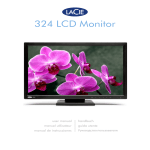
LaCie 324 LCD Monitor
User Manual
Table of Contents
page 1
Table of Contents
1. Introduction
6
1.1. Features...................................................................................................................................................... 7
1.2. Monitor Specifications.................................................................................................................................. 8
1.3. Box Content................................................................................................................................................ 9
1.4. About the LCD Stand Pin............................................................................................................................ 10
1.5. Views of the Monitor.................................................................................................................................. 11
2. Getting Connected
13
2.1. Connecting the Monitor to Your Computer.................................................................................................. 14
2.2. Connecting Headphones or Speakers.......................................................................................................... 15
2.3. Connecting USB Devices............................................................................................................................ 15
2.4. Ergonomic Adjustments.............................................................................................................................. 16
2.4.1. Raise and Lower Monitor Screen....................................................................................................... 16
2.4.2. Screen Tilt....................................................................................................................................... 16
2.4.3. Swivel............................................................................................................................................. 16
2.5. Installing an Alternative Stand or Attachment................................................................................................ 17
3. Monitor Operation
18
3.1. About Zoom Modes and Aspect Ratio.......................................................................................................... 19
3.2. Using the Picture-in-Picture (PiP) Function.................................................................................................... 20
3.2.1. Turning PiP On/Off ......................................................................................................................... 20
3.2.2. Adjusting the Position of the PiP......................................................................................................... 20
3.2.3. Modifying the PiP Size...................................................................................................................... 20
3.2.4. Switching Audio Output to Speakers.................................................................................................. 21
3.2.5. Switching Input Source Displayed on the PiP....................................................................................... 21
4. Settings and Adjustments
22
4.1. Settings and Adjustments (Basic Operation).................................................................................................. 23
4.2. Advanced Settings...................................................................................................................................... 24
4.2.1. PiP Settings...................................................................................................................................... 24
4.2.2. DVI/VGA Settings............................................................................................................................ 25
4.2.3. HDMI Video Settings........................................................................................................................ 26
4.2.4. Other Settings................................................................................................................................. 28
5. Troubleshooting
29
6. Contacting Customer Support
31
Before You Contact Technical Support................................................................................................................ 31
LaCie Customer Support Contacts...................................................................................................................... 32
7. Warranty Information
33
LaCie 324 Monitor
User Manual
Copyrights
Copyright © 2011 LaCie. All rights reserved. No part of this publication may
be reproduced, stored in a retrieval system, or transmitted in any form or by any
means, electronic, mechanical, photocopying, recording or otherwise, without
the prior written consent of LaCie.
Changes
Forward
page 2
and correct the interference by one or
more of the following measures:
Manufacturer’s Declaration for CE Certification
✦✦ Reorient or relocate the receiving an-
We, LaCie, solemnly declare
that this product conforms to the following European directives: 2004/108/EC
(EMC), and 2006/95/EC (Safety)
tenna.
✦✦ Increase the separation between the
equipment and receiver.
✦✦ Connect the equipment into an out-
let on a circuit different from that to
which the receiver is connected.
✦✦ Consult the dealer or an experienced
The material in this document is for information only and subject to change without notice. While reasonable efforts have
been made in the preparation of this
document to assure its accuracy, LaCie
assumes no liability resulting from errors
or omissions in this document, or from the
use of the information contained herein.
LaCie reserves the right to make changes
or revisions in the product design or the
product manual without reservation and
without obligation to notify any person of
radio/TV technician for help.
✦✦ Use only shielded cables to connect
I/O devices to this equipment.
Use the attached specified cables with the
LaCie 324 monitor so as not to interfere
with radio and television reception.
1. The power supply cord you use must
have been approved by and comply with
the safety standards of U.S.A. and meet
the following condition.
such revisions and changes.
Power supply
chord
Non shield type,
3-conductor
LaCie 324 LCD Monitor
Length
2.0 m
Tested to comply with FCC
standards for home or office
use
Plug shape
FCC Declaration of Conformity:
LaCie S.A.
33 Bld du Général Martial Valin
75015 Paris
France
CAUTION: Modifications not authorized by the manufacturer may void the
user’s authority to operate this device.
CAUTION: A shielded-type power cord
is required in order to meet FCC emission
limits and also to prevent interference to
the nearby radio and television reception.
It is essential that only the supplied power
cord be used.
(USA)
NOTE: This equipment has been tested
and found to comply with the limits for
a Class B digital device, pursuant to Part
15 of the FCC Rules. These limits are
designed to provide reasonable protection against harmful interference in a
residential installation. This equipment
generates, uses and can radiate radio
frequency energy and, if not installed and
used in accordance with the instructions,
may cause harmful interference to radio
communications. However, there is no
guarantee that interference will not occur
in a particular installation. If this equipment does cause harmful interference to
radio or television reception, which can
be determined by turning the equipment
off and on, the user is encouraged to try
2. Please use the supplied shielded video
signal cable. Use of other cables and
adapters may cause interference with
radio and television reception.
U.S. Responsible Party:
LaCie, LTD
Address:
22985 NW Evergreen Pkwy.
Hillsboro, OR 97124
Tel. No.:
(503) 844-4503
110427v1.1
LaCie 324 Monitor
User Manual
Forward
page 3
Safety Precautions and Maintenance
✦✦ DO NOT OPEN THE MONITOR. There
are no user serviceable parts inside and
opening or removing covers may expose
you to dangerous shock hazards or other risks. Refer all servicing to qualified
service personnel.
✦✦ Do not spill any liquids into the cabinet
or use your monitor near water.
✦✦ Do not insert objects of any kind into the
cabinet slots, as they may touch dangerous voltage points, which can be harmful or fatal or may cause electric shock,
fire or equipment failure.
✦✦ Do not place any heavy objects on the
power cord. Damage to the cord may
cause shock or fire.
✦✦ Do not place this product on a sloping
or unstable surface, as the monitor may
fall, causing serious damage.
✦✦ Do not place any objects onto the monitor and do not use the monitor outdoors.
✦✦ The inside of the fluorescent tube located within the LCD monitor contains
mercury. Please follow the bylaws or
rules of your municipality to dispose of
the tube properly.
✦✦ Do not bend power cord.
✦✦ Do not use monitor in high temperatures, humid, dusty, or oily areas.
✦✦ Do not cover vent on monitor.
Immediately unplug your monitor from
the outlet and refer servicing to qualified
personnel under the following conditions:
✦✦ When the power supply cord or plug is
damaged.
✦✦ If liquid has been spilled, or objects
have fallen into the monitor.
✦✦ If the monitor has been exposed to rain
or water.
✦✦ If the monitor has been dropped or the
cabinet damaged.
✦✦ If the monitor does not operate normally
by following operating instructions.
✦✦ If glass is broken, handle with care.
✦✦ If monitor or glass is broken, do not
come in contact with the liquid crystal
and handle with care.
✦✦ Allow adequate ventilation around the
monitor so that heat can properly dissipate. Do not block ventilated openings
or place the monitor near a radiator or
other heat sources. Do not put anything
on top of monitor.
✦✦ The power cable connector is the prima-
✦✦ Image Persistence occurs when a re-
sidual or “ghost” image of a previous
image remains visible on the screen.
Unlike CRT monitors, LCD monitors’
image persistence is not permanent, but
constant images being displayed for a
long period of time should be avoided.
To alleviate image persistence, turn off
the monitor for as long as the previous
image was displayed. For example, if an
image was on the monitor for one hour,
the monitor should be turned off for one
hour to erase the image.
✦✦ When operating the LaCie 324 LCD
Monitor with a 220-240V AC power
source in Europe, use the power cord
provided with the monitor.
✦✦ In the UK, a BS approved power cord
with a moulded plug has a Black (five
Amps) fuse installed for use with this
equipment.
✦✦ If a power cord is not supplied with this
equipment please contact your supplier.
✦✦ When operating the LaCie 324 LCD
ry means of detaching the system from
the power supply. The monitor should
be installed close to a power outlet
which is easily accessible.
Monitor with a 220-240V AC power
source in Australia, use the power cord
provided with the monitor. If a power
cord is not supplied with this equipment
please contact your supplier.
✦✦ Handle with care when transporting.
✦✦ For all other cases, use a power cord
Save packaging for transporting.
✦✦ Image Persistence: Please be aware that
LCD Technology may experience a phenomenon known as Image Persistence.
that matches the AC voltage of the
power outlet and has been approved by
and complies with the safety standard of
your particular country.
LaCie 324 Monitor
User Manual
Forward
page 4
Health and Ergonomic Precautions
Correct placement and adjustment of
the monitor can reduce eye, shoulder
and neck fatigue. Check the following
when you position the monitor:
✦✦ For optimum performance, allow 20
minutes for warm-up.
✦✦ Adjust the monitor height so that the
top of the screen is at or slightly below
eye level. Your eyes should look slightly downward when viewing the middle
of the screen.
✦✦ Position your monitor no closer than
40 cm and no further away than 70 cm
from your eyes. The optimal distance is
50 cm.
✦✦ Rest your eyes periodically by focus-
✦✦ Adjust the monitor’s brightness and
✦✦ Position the monitor at a 90° angle
✦✦ Use a document holder placed close to
ing on an object at least 20 feet away.
Blinkoften.
to windows and other light sources to
minimize glare and reflections. Adjust
the monitor tilt so that ceiling lights do
not reflect on your screen.
✦✦ If reflected light makes it hard for you
to see your screen, use an anti-glare
filter.
✦✦ Clean the LCD monitor surface with
a lint-free, non-abrasive cloth. Avoid
using any cleaning solution or glass
cleaner!
To maximize ergonomics benefits, we
recommend the following:
✦✦ Adjust the brightness until the background raster disappears.
✦✦ Do not position the contrast control to
its maximum setting.
✦✦ Use the preset size and position controls with standard signals.
contrast controls to enhance readability.
the screen.
✦✦ Position whatever you are looking at
most of the time (the screen or reference material) directly in front of you to
minimize turning your head while you
are typing.
✦✦ Avoid displaying fixed patterns on the
monitor for long periods of time to
avoid image persistence (after-image
effects).
✦✦ Use the preset color setting.
✦✦ Use non-interlaced signals with a vertical refresh rate between 60-75 Hz.
✦✦ Do not use primary color blue on a
dark background, as it is difficult to see
and may produce eye fatigue to insufficient contrast.
LaCie 324 Monitor
User Manual
Within the European
Union
EU-wide legislation, as implemented in each Member
State, requires that waste electrical and
electronic products carrying the mark
(above) must be disposed of separately
from normal household waste. This includes monitors and electrical accessories, such as signal cables or power
Forward
page 5
cords. When you need to dispose of
your LaCie display products, please follow the guidance of your local authority,
or ask the shop where you purchased
the product, or if applicable, follow any
agreements made between yourself and
LaCie.
ropean Union Member States.
Outside the European Union
If you wish to dispose of used electrical
and electronic products outside the European Union, please contact your local
authority so as to comply with the correct
disposal method.
The mark on electrical and electronic
products only applies to the current Eu-
Manufacturer’s Recycling and Energy Information
LaCie is strongly committed to environmental protection and sees recycling as
one of the company’s top priorities in
trying to minimize the burden placed on
the environment. We are engaged in developing environmentally friendly products, and always strive to help define
and comply with the latest independent
standards from agencies.
Recycling programs information:
Sweden - http://www.el-retur.se
Germany - http://www.recyclingpartner.de/
Holland - http://www.mirec.nl/
Energy saving:
This monitor features an advanced energy saving capability. When a VESA Display Power
Management Signaling (DPMS) Standard signal is sent to the monitor, the Energy Saving
mode is activated. The monitor enters a single Energy Saving mode.
Mode
Power Consumption
LED color
Normal operation
140W
Blue
Energy saving mode
Less than 2W
Orange
Off
Less than 1W
N/A
LaCie 324 Monitor
User Manual
1. Introduction
Thank you for purchasing a LaCie 324 LCD Monitor.
Designed for creative professionals, this LCD monitor features a
24-inch wide-gamut LCD panel, 10-bit gamma correction and
full HD support for the best video experience available. With
DCDi® by Faroudja video enhancement technologies and full
hardware calibration support, this monitor is ideal for work on
both still and moving images. The optional LaCie blue eye colorimeter and blue eye pro software are the ideal tools to tune
your monitor for the most realistic rendering of your images.
The LaCie 324 also includes a convenient audio jack to connect your headphones or speakers and three powered USB 2.0
ports for all your USB devices.
Quick Links
Click to jump to a section:
✦✦ Getting Connected
✦✦ Monitor Operation
✦✦ Troubleshooting
Introduction
page 6
LaCie 324 Monitor
User Manual
Introduction
page 7
1.1. Features
Wide-Gamut S-PVA panel technology offers an industry-leading 92% NTSC Gamut that allows the LaCie 324 monitor to display a
large range of vibrant colors previously unattainable by LCD monitors. This technology also offers an excellent balance between contrast
(1000:1) and brightness (400 cd/m2 typ.) and an expansive viewing angle of 178°.
10-bit Gamma Correction ensures a smooth rendering of color gradients such as those commonly found in photography and digital
art.
Hardware Calibration
The LaCie 324 can be hardware-calibrated with appropriate calibration tools. We recommend using LaCie blue eye pro, optimized for
LaCie monitors.
Full High Definition Support
The monitor supports 1080p, 1080i, 720p and 720i resolutions and features two HDCP-compatible HDMI input ports to connect a variety
of full HD sources for the best video experience available.
DCDi® by Faroudja
DCDi® by Faroudja is a suite of video enhancement technologies that produce exceptional image quality:
✦✦ Reduces “jagged edges” (typical with interlaced video signals)
✦✦ TrueLife™ improved detail rendering
✦✦ Adaptive contrast
✦✦ Motion-adaptive Noise Reduction
Supports up to 4 video sources with simultaneous viewing of 2 sources through the Picture-in-Picture (PiP) function.
Large 24-inch (61 cm) diagonal size and wide 16:10 format enhances productivity by reducing the need for scrolling through documents and switching windows. View full 1:1 scale display of two full pages with additional space for application palettes and tool bars.
High 1920x1200 resolution is ideal for high resolution graphics applications.
Convenient audio line out serves as headphone or speaker connector.
Convenient USB hub located on the rear left side of front panel for connection of USB devices such as LaCie external hard drives or the
LaCie blue eye pro calibrator.
Ergonomic stand enables height, swivel, and tilt adjustments.
VESA 100 mounting interface
The monitor can be attached to any VESA 100 compatible attachment.
LaCie 324 Monitor
User Manual
Introduction
page 8
1.2. Monitor Specifications
Technology
Display Diagonal
Active Display Area
Wide-Gamut S-PVA
24 inches (61 cm)
518.4 (H) x 324 (V) mm
Some systems may not support all modes listed.
Primary mode : 1920 x 1200 at 60 Hz – LaCie recommends this resolution for optimal display performance.
Resolution
Secondary modes : 720x400@70Hz, 823x624@75Hz, 1280x960@60Hz, 640x480@60 Hz/67Hz/
72Hz/75Hz, 800x600@56Hz/60Hz/72Hz/75Hz, 1600x1200@60Hz, 1024x768@60Hz/70Hz/75Hz,
1280x1024@60Hz/75Hz, 1440x900@60Hz, 720x480, 1280x720, 1920x540, 1920x1080@60Hz,
640x400@56Hz, 848x480@60Hz, 1280x720@60Hz, 1280x768@60Hz, 1360x768@60Hz
Pixel pitch
0.270 mm, 89 PPI
Gamut
92% NTSC
Color depth
16,777,216
Gamma correction
Luminance
10 bit
400 cd/m2 (typical)
Contrast ratio
1000:1 (typical)
Response time
Rise time + Fall time : 16ms (typical) 8ms G to G
Viewing angles
Left/Right ±178°, Up/Down ±178°
Connections
Power consumption
Weight
Ergonomy
Mini D-Sub, DVI-D, 2xHDMI
140W typical, <2W in power save mode
10.8 kg, 7.9 kg without stand, 13.4 kg with packaging and accessories
Up / Down 29° to -5°, Left / Right 350°, Height : 70 mm
Operating Conditions
Temp 5° to 35°, Humidity 10% to 90%, Altitude 0 to 10,000 ft.
Storing Conditions
Temp 20° to 60°, Humidity 10% to 90%, Altitude 0 to 40,000 ft.
Certifications
CE, FCC-B, EnergyStar, GOST-R, CSA, ISO 13406-2, PSB, WEEE, ROHS
*Interpolated Resolutions: When resolutions are shown that are lower than the pixel count of the LCD module, text may appear different. This
is normal and necessary for all current flat panel technologies when displaying non-native resolutions full screen. In flat panel technologies,
each dot on the screen is actually one pixel, so to expand resolutions to full screen, an interpolation of the resolution must be done.
LaCie 324 Monitor
User Manual
Introduction
page 9
1.3. Box Content
Your box contains the LaCie 324 LCD Monitor and items 2 -9,
listed below:
➀➀ LaCie 324 LCD Monitor
➁➁ DVI-D cable
➂➂ HDMI-HDMI cable
➃➃ Audio jack cable
➄➄ AC power cable
➅➅ USB host cable
➆➆ Cable management accessory
➇➇ CD-ROM with User Manual and monitor ICC profiles
➈➈ Quick Install Guide
1
2
3
4
5
IMPORTANT INFO: Please keep the product box and packing materials, including the LCD stand pin, and store in a safe
area in case you need to safely transport your product in the
future. In the event that the monitor should need to be repaired
or serviced, it must be returned in its original packaging.
7
6
8
9
324 LCD Monitor
Quick Install Guide
LaCie 324 Monitor
User Manual
1.4. About the LCD Stand Pin
The monitor’s LCD stand is secured during transport using a pin
near the base of the stand. Please follow the procedure below
to remove it.
1. Take the monitor out of the box and remove cushioning material. Do not remove the pin yet.
2. Place the monitor on a desk or other horizontal surface. Do
not remove the pin yet.
CAUTION: If the pin is removed while the product is on its
side, the stand may extend forcefully, causing it to hit the body
of the handler or to fall, resulting in personal injury or damage
to the product.
3. Peel off the seal and remove the pin.
Be sure to keep the pin in an easily accessible location, as it
may be required in the future when repacking this product for
transport.
When transporting the monitor in the future, adjust the LCD to
its lowest position and insert the pin into the LCD stand base to
lock it in place. The monitor can then be inserted back into the
cushioning material and into its box.
Introduction
page 10
LaCie 324 Monitor
User Manual
Introduction
page 11
1.5. Views of the Monitor
Front View
Refer to the diagram below for the names and functions of each component of the monitor.
3
7
1
➀➀ Display – Displays images
➁➁ Power indicator – Turns blue when power is turned ON;
Turns orange when in IDLE or POWER SAVE mode
➂➂ Power key – Turns power ON and OFF
➃➃ INPUT key – When menu is OFF, switches from DVI to
VGA to HDMI1/2 video signal source; When menu is ON,
used to select menu items
➄➄ Left arrow / Right arrow – When menu screen is ON,
used to select menu items
➅➅ Up arrow / Down arrow – When menu screen is ON:
used to select menu items
➆➆ Menu key – Displays the on-screen display (OSD) menu
6
5
4
2
LaCie 324 Monitor
User Manual
Introduction
page 12
Rear View
Refer to the diagram below for the names and functions of each component of the monitor.
4
5
1
1
AC IN
6
2
DVI-D
HDMI
7
AUDIO IN
PC-DIGITAL
D-SUB
8
10
9
AUDIO IN
PC-ANALOG
LINE OUT
USB
1
3
2
➀➀ Theft-prevention
slot – Connects commercial security
cables when necessary
➁➁ LCD stand base – The stand base is removable; the 4screw attachment can be used to attach any alternative
VESA-100 standard LCD attachment. See section 2.5. Installing an Alternative Stand or Attachment.
➂➂ Cable management accessory – Used to collect and organize cables. See the NOTE in section 2.1. Connecting
the Monitor to Your Computer.
➃➃ AC-IN connector – Connects the power cable
➄➄ HDMI (1, 2) – Connects video devices
➅➅ PC-Digital –
✦✦ DVI-D – Connects your computer’s digital (DVI) output
connector
✦✦ Audio IN – Connects your computer’s audio output
terminal
➆➆ PC-Analog –
✦✦ D-SUB – Connects your computer’s RGB output connector
✦✦ Audio IN – Connects your computer’s audio output terminal.
➇➇ Line out – Connects headphones or speakers
➈➈ USB upstream (1 port) – Connects your computer’s USB
connector using USB cable (included).
➉➉ USB downstream (3 ports) – Connects USB-compatible
peripherals (mouse, keyboard, etc.).
LaCie 324 LCD Monitor
User Manual
2. Getting Connected
Installing your LaCie 324 LCD Monitor is easy, requiring only a
few simple connections:
✦✦ 2.1. Connecting the Monitor to Your Computer
✦✦ 2.2. Connecting Headphones or Speakers
✦✦ 2.3. Connecting USB Devices
✦✦ 2.4. Ergonomic Adjustments
✦✦ 2.5. Installing an Alternative Stand or Attachment
Getting Connected
page 13
LaCie 324 LCD Monitor
User Manual
Getting Connected
page 14
2.1. Connecting the Monitor to Your Computer
To attach the LCD monitor to your system, follow these instructions:
2c
1. Power off your computer.
2. Connect the signal cable (see Fig. 2.1-A):
2a. For a PC or MAC with DVI digital output:
1
AC IN
2
HDMI
Connect the DVI signal cable to the DVI connector on your
computer. Connect the other end of the DVI cable to the monitor’s DVI input. Tighten all screws.
2b. For a PC or MAC with Analog output:
Connect a 15-pin mini D-SUB to D-SUB signal cable (not included) to the 15-pin mini D-SUB connector on your computer.
Connect the other end of this cable to the monitor’s D-SUB
(VGA) input.
Figure 2.1-A
2c. For a video source with HDMI output:
Connect the HDMI signal cable to the HDMI connector on your
computer. Connect the other end of this cable to the monitor’s
HDMI 1 or HDMI 2 input.
TECHNICAL NOTE: Up to 4 video sources can be connected
to the monitor at the same time using the DVI, VGA, HDMI 1
and HDMI 2 input ports.
3. Connect the included audio cable to the monitor’s AUDIO
IN port. If you are connecting two computers to the monitor,
you can connect two audio cables to the monitor’s AUDIO
IN ports. Video sources connected through HDMI require no
additional audio cable.
4. Connect the other end of the audio cable to the AUDIO OUT
terminal on your PC or Mac.
NOTE: To keep the cables neatly organized, place them into
the cable management accessory that clips into place on the
back of the LCD stand (Fig. 2.1-B).
5. Connect one end of the power cord to the AC inlet on the
back of the monitor and the other end to a power outlet.
6. Push the power key to turn on the monitor, and turn on your
computer.
Figure 2.1-B
2a
3
2b
3
DVI-D
AUDIO IN
D-SUB
AUDIO IN
PC-DIGITAL
PC-ANALOG
LINE OUT
LaCie 324 LCD Monitor
User Manual
Getting Connected
page 15
2.2. Connecting Headphones or Speakers
To connect headphones or speakers:
Simply plug your headphones or speakers into the LINE OUT
port located on the rear of the monitor (Fig. 2.2).
1
AC IN
2
DVI-D
2.3. Connecting USB Devices
HDMI
AUDIO IN
PC-DIGITAL
D-SUB
AUDIO IN
PC-ANALOG
USB devices can be connected to the USB connectors located
on the side of the monitor.
To connect USB Devices:
1. Connect the USB host cable to a USB terminal on your computer and to the USB host port on the monitor (Fig. 2.3). The
monitor’s USB hub is now connected to your computer.
Figure 2.2
2. Connect USB peripherals to the USB connectors located on
the side of the monitor (Fig. 2.3).
1
AC IN
2
HDMI
DVI-D
AUDIO IN
PC-DIGITAL
D-SUB
AUDIO IN
PC-ANALOG
LINE OUT
Figure 2.3
USB
LINE OUT
USB
LaCie 324 LCD Monitor
User Manual
Getting Connected
page 16
2.4. Ergonomic Adjustments
CAUTION: Use care when raising, lowering, titling or swiveling the monitor screen.
2.4.1. Raise and Lower Monitor Screen
To raise or lower screen, place hands on each side of the monitor and raise or lower to the desired height (Fig. 2.4.1).
Figure 2.4.1
2.4.2. Screen Tilt
Grasp the top and bottom sides of the monitor screen with your
hands and adjust the tilt as desired (Fig. 2.4.2).
Figure 2.4.2
2.4.3. Swivel
Grasp both sides of the monitor screen with your hands and
adjust the swivel as desired (Fig. 2.4.3).
NOTE: The base of the LaCie 324 monitor is designed to
swivel on a hard, flat surface. The entire unit turns, not just the
display.
Figure 2.4.3
LaCie 324 LCD Monitor
User Manual
Getting Connected
page 17
2.5. Installing an Alternative Stand or Attachment
The base of the LaCie 324 can be disconnected to attach a
flexible monitor arm or other attachment compliant with VESA
100 standards. Prepare the arm and screws required for installation beforehand.
Remove monitor stand for mounting
To prepare the monitor for alternate mounting purposes:
1. Power off the monitor and your computer.
2. Disconnect all cables including the power cable.
3. Place hands on each side of the monitor and lift up to the
highest position.
4. Place monitor face down on a non-abrasive surface. To prevent any scratching or damage, spread a soft cloth underneath the LCD panel during this operation.
5. Remove the 2 mounting screws accessible through the holes
in the stand (Fig. 2.5-A).
6. Slide out and remove both parts of the VESA cover from the
stand (Fig. 2.5-A).
Figure 2.5-A
7. Place one hand around the base and remove the remaining
2 mounting screws (Fig. 2.5-B).
The monitor can now be mounted using an alternative attachment. If the stand needs to be re-attached, simply reverse this
process.
Attaching the alternative stand or attachment
Attach the stand or arm attachment using the 4 screws from the
stand removal.
IMPORTANT INFO:
✦✦ For safety reasons, please make sure that the monitor arm
can stably support the weight of this monitor (approx. 8.3
kg/18.3 lb.).
✦✦ To avoid damage to the monitor and stand when mounting,
please use only M4x10 screws such as those included with
the monitor.
✦✦ Refer to the alternative stand’s documentation for instructions
specific to that attachment.
Figure 2.5-B
LaCie 324 LCD Monitor
User Manual
3. Monitor Operation
Refer to the following sections for information on viewing video
on your LaCie 324 LCD Monitor:
✦✦ 3.1. About Zoom Modes and Aspect Ratio
✦✦ 3.2. Using the Picture-in-Picture Function
✧✧ 3.2.1. Turning PiP ON/OFF
✧✧ 3.2.2. Adjusting the Position of the PiP
✧✧ 3.2.3. Modifying PiP Size
✧✧ 3.2.4. Switching Audio Output to Speakers
✧✧ 3.2.5. Switching Input Source Displayed on the PiP
Monitor Operation
page 18
LaCie 324 LCD Monitor
User Manual
Monitor Operation
page 19
3.1. About Zoom Modes and Aspect Ratio
Aspect Ratio refers to the ratio of the vertical length to horizontal length (number of pixels) of the display or image.
NOTE: Refer to the user manuals of your devices for the aspect
ratios of their input sources.
The LaCie 324 supports the following aspect ratios:
✦✦ 16:9
NOTE: Refer to the On-Screen Manual for PC-Analog and PCDigital input aspect ratios.
✦✦ 16:10
✦✦ 4:3
Virtually all video sources available today use one of these three
aspect ratios. 16:10 is the native format of the LaCie 324 LCD
Monitor, corresponding to a 1920 x 1200 resolution computer
video signal. When using a 4:3 or 16:9 video source, such as
an HD Video source or a 1600 x 1200 computer video signal,
the monitor can apply a zoom transformation to adjust the signal to the monitor.
The four zoom modes are Real, SmartZoom, Zoom and Dx2D and they have the following behavior:
Mode
Aspect Ratio
REAL
Applies no modification and
displays real input signal
resolution in the center of the
display
Smart Zoom
Maintains the aspect ratio of
the source and upscales it to
1600 x 1200 or 1920 x 1080
Zoom
Upscales the source to 1920
x 1080, maximizing its size;
some distortion may occur
because aspect ratio is not
respected
Dx2D
Extends both sides of panorama display to magnify to
1920 x 1200
4:3 Video
16:9 Video
LaCie 324 LCD Monitor
User Manual
Monitor Operation
page 20
3.2. Using the Picture-in-Picture (PiP) Function
A secondary video source can be displayed while a computer
display source is active on the main display. The following explains how to use the on-screen menu to operate this function.
To access the Picture-in-Picture menu, press MENU, select “PiP”
with the INPUT key and the PiP Settings screen appears.
3.2.1. Turning PiP On/Off
Toggle the PiP function ON/OFF on the PiP Settings screen by
pressing the Left/Right arrows on the front panel of the Monitor.
3.2.2. Adjusting the Position of the PiP
The position of the Sub-Display can be adjusted by doing the
following : When the PiP function is ON, toggle the PiP Position function by using the Left/Right arrows on the front panel
of the Monitor. The PiP position changes each time either arrow is pressed in the following order : Upper right - Lower right
- Lower left - Upper left - Upper right.
3.2.3. Modifying the PiP Size
When the Sub-Display is ON, toggle the PiP Size function by
using the Left/Right arrows on the front panel of the Monitor.
The PiP size changes each time either arrow is pressed in the
following order : Small - Medium - Large - Small.
The dimensions of the Picture-in-Picture depend on the original video source aspect ratio PiP Size mode applied. For
your reference, they can be found in the following table:
Aspect Ratio of Source
Large
Medium
Small
4:3
800 x 600
640 x 480
480 x 360
5:4
800 x 600
640 x 480
480 x 360
16:9
800 x 450
640 x 360
480 x 270
16:10
800 x 450
640 x 360
480 x 270
LaCie 324 LCD Monitor
User Manual
Monitor Operation
page 21
3.2.4. Switching Audio Output to Speakers
When you toggle the PiP Audio Select function , the audio output to headphone/speakers port switches from PiP audio to
main display audio and vice versa.
3.2.5. Switching Input Source Displayed
on the PiP
Toggle the PiP Input Select function. The input source displayed
on the Sub-Display changes in the following order : PC-Digital
- HDMI-1 - HDMI-2 - PC- Analog
The configurations in which the PiP is operable with the LaCie
324 are summarized in the following table:
Main Display
PiP
PC-Digital
PC-Analog, HDMI-1, HDMI-2
PC-Analog
PC-Digital, HDMI-1, HDMI-2
LaCie 324 LCD Monitor
User Manual
4. Settings and Adjustments
Refer to the following sections for information on making settings and adjustments to your LaCie 324 LCD Monitor:
✦✦ 4.1. Settings and Adjustments (Basic Operations)
✦✦ 4.2. Advanced Settings
✧✧ 4.2.1. Picture-in-Picture Settings
✧✧ 4.2.2. DVI/VGA Settings
✧✧ 4.2.3. HDMI Settings
✧✧ 4.2.4. Other Settings
Settings and Adjustments
page 22
LaCie 324 LCD Monitor
User Manual
Settings and Adjustments
page 23
4.1. Settings and Adjustments (Basic Operation)
A variety of adjustments and settings can be performed using
the Settings / Adjust Menu (herein referred to as “menu”) displayed on the screen.
To enter the Settings / Adjust Menu, press the MENU key. To
exit this menu, press the INPUT key.
Adjustments and settings can be made using the following keys
located on the front of the monitor:
Key Name
Functions
✦✦ Displays the menu
menu
✦✦ Selects the RETURN function
✦✦ Will lock the menu when held for approximately 3 seconds to lock/unlock the menu.
(When menu is off)
Up and Down arrows
When menu screen is ON: used to navigate in the menu items
Left and Right arrows
When menu screen is ON: used to navigate in the menu items
When menu screen is ON: used to select menu items
INPUT
When menu is OFF: toggles between PC-Digital, PC-Analog, HDMI1 and HDMI2 inputs
Adjusts automatically when held down for a long period of time (during PC-Analog input)
LaCie 324 LCD Monitor
User Manual
Settings and Adjustments
page 24
4.2. Advanced Settings
4.2.1. Picture-in-Picture (PiP) Settings
NOTE: This menu is not visible when the main display source
is HDMI.
1920 x 1200
PC-Digital
PiP
H: 73 kHz V: 59Hz
PIP Mode
On
Input
PC-A
Size
L
Off
HDMI-1
HDMI-2
M
S
Position
0
Transparency
AudioSelect
Main
Sub
Return
Select
ADJUST
Item
PiP Mode
Source*
Size*
Position*
Menu: Return
Description
Turns PiP ON/OFF (Turn ON to view the PiP)
Selects PiP input source – PC-Digital, PC-Analog, HDMI-1, HDMI-2
Toggles PiP size
Designates PiP position
Transparency*
Sets degree of PiP transparency
Output Audio*
Toggles audio source between PiP source and main display source
Return
Returns to the main menu
*Not shown when the PiP is OFF
LaCie 324 LCD Monitor
User Manual
Settings and Adjustments
page 25
4.2.2. DVI/VGA Settings
1920 x 1200
PC-Digital
Screen Mode
H: 73 kHz V: 59Hz
Text
On
ECO
Video
Brightness
35
Contrast
0
Color Temp
Gamma
NOTE: The contents of the video settings menu
depend on which video input is active.
Off
6500
1.6
1.8
Aspect Ratio
Smart Zoom
Over Speed
On
2.0
2.2
2.4
Off
Return
Select
INPUT:OK
Menu: Exit
Item
Description
Screen mode
This function toggles between six preset display modes called Standard, Cinema, CG, Photo, Text and
DTP. Each of these modes optimizes image quality for specific uses by adjusting Luminance, Brightness,
Contrast, Tint, Saturation, Sharpness. Please find below the default settings corresponding to these modes.
These settings can be changed. The Cinema mode is best for viewing video content. The CG mode is best
in the context of animation or gaming applications.
ECO
Brightness
Contrast
Color Temperature
Gamma
The ECO mode reduces power consumption.
Adjusts screen brightness
Adjusts screen contrast
Toggles between five preset color temperatures. The first four are 5000K (yellowish), 6500K (neutral),
7200K, 9300K (blueish). The last is a user mode where color temperature can be adjusted manually.
Adjusts gamma to standard values
Aspect Ratio
Toggles between Real, Smart Zoom, Zoom, Dx2D (Panorama) zoom modes. Refer to the “About Zoom
Modes and Aspect Ratio” section on page X
Over Speed
This function toggles the Over Speed Mode ON and OFF. When Over Speed Mode is ON, the display’s
refresh rate is accelerated by limiting its image processing functions.
Return
Returns to the Main Menu
LaCie 324 LCD Monitor
User Manual
Settings and Adjustments
page 26
4.2.3. HDMI Video Settings
HDMI-1
Sceen Mode
Video
STD
Brightness
35
Contrast
0
Luminance
50
Tint
0
Color
55
Sharpness
5
Aspect Ratio
Smart Zoom
Over Speed
On
Off
ACC
On
Off
Noise Reduction
Off
Low
Middle
High
Adapt
Execute
Hue
Return
Select
INPUT:OK
Menu: Exit
Item
Description
Screen mode
This function toggles between three preset display modes called Standard, Cinema, CG, Photo, Text and
DTP. Each of these modes optimizes image quality for specific uses by adjusting Luminance, Brightness,
Contrast, Tint, Saturation, Sharpness. Please find below the default settings corresponding to these modes.
These settings can be changed. The Cinema mode is best for viewing video content. The CG mode is best
in the context of animation or gaming applications.
Brightness
Contrast
Luminance
Adjusts screen Brightness
Adjusts screen contrast
Adjusts the Brightness of the screen
Tint
Adjusts redness of colors on the screen.
Color
Adjusts density of colors on the screen.
Aspect Ratio
Toggles between Real, Smart Zoom, Zoom, Dx2D (Panorama) zoom modes. Refer to section 3.1. About
Zoom Modes and Aspect Ratio
Over Speed Mode
This function toggles the Over Speed mode ON and OFF. When Over Speed mode is ON, the display’s
refresh rate is accelerated by limiting its image processing functions.
ACC
The Adaptive Contrast Control function automatically adjusts contrast to prevent loss of detail when viewing extremely dark or extremely bright scenes.
Noise Reduction
Enabling the noise reduction function will limit screen noise and contour fuzziness.
LaCie 324 LCD Monitor
User Manual
Hue
Settings and Adjustments
page 27
This function allows you to independently adjust the chromaticity of the 6 Primary colors: red, green, blue,
cyan, magenta, yellow.
Adjusts red
Red
Left: moves the chromaticity of Red towards magenta
Right: moves the chromaticity of Red towards yellow
Adjusts yellow
Yellow
Left: moves the chromaticity of Yellow towards red
Right: moves the chromaticity of Yellow towards green
Adjusts green
Green
Left: moves the chromaticity of Green towards yellow
Right: moves the chromaticity of Green towards cyan
Adjusts cyan
Cyan
Left: moves the chromaticity of Cyan towards green
Right: moves the chromaticity of Cyan towards blue
Adjusts blue
Blue
Left: moves the chromaticity of Blue towards cyan
Right: moves the chromaticity of Blue towards magenta
Adjusts magenta
Magenta
Left: moves the chromaticity of Magenta towards blue
Right: moves the chromaticity of Magenta towards red
Return
Returns to the Main Menu
Screen Mode Presets
Standard
Cinema
CG
Photo
Text
DTP
Brightness
35
35
35
35
35
35
Contrast
0
-10
0
0
0
-100
Color Temperature
6500
6500
7200
6500
7200
5000
Gamma
2.2
2.2
1.8
2.2
2.2
1.8
LaCie 324 LCD Monitor
User Manual
Settings and Adjustments
page 28
4.2.4. Other Settings
1920 x 1200
PC-Digital
H: 73 kHz V: 59Hz
Smooth
3
Block NR
3
On
Information
Off
Language
English
MenuPosition
Others
Execute
MenuTimeOut
55
Transparency
3
Border Color
0
Priority
PC-Analog
FactoryReset
PC-Manual
Execute
Off
Sound
PC-Digital
Low
High
Return
Select
INPUT:OK
Menu: Exit
Item
Smooth
Block NR
Information
Language
Description
Adjusts the sharpness of the monitor image
Reduces block noise generated when playing MPEG or other compressed movie formats
Sets ON/OFF for display
When set to ON, input source name and input signal information is displayed at all times
Sets menu screen language to English, French, Italian, German or Spanish
MenuPosition
Specifies the position of the menu on the screen
MenuTimeOut
Sets menu display time
Transparency
Sets the degree of background transparency of the menu screen
Border Color
This function adjusts from black to white the color of the areas of the screen surrounding the video content
Priority
FactoryReset
Sets the type of input signal used when more than one input is connected
Returns all setting values to factory default settings NOTE: The Language setting is not reset.
Sound
Toggles volume of monitor key sounds.
Return
Returns to the main menu
LaCie 324 LCD Monitor
User Manual
Troubleshooting
page 29
5. Troubleshooting
If your LaCie 324 Monitor is not working correctly, please refer to the following checklist to determine the source of the
problem. If you have gone through all of the points on the
checklist and your monitor still does not work properly, please
check the FAQs that are regularly published on our website –
www.lacie.com.
Manual Updates
One of these FAQs may provide an answer to your specific
question. If you need further assistance, please contact your
LaCie reseller or LaCie Customer Support (see section 6. Contacting Customer Support for details).
If your user manual does not reflect the configuration of the
product you purchased, please check our web site for the most
current version of the user manual.
Problem
No picture
LaCie strives to give you the most up-to-date, comprehensive
user manuals available on the market. It is our goal to provide
you with a friendly, easy-to-use format that will help you quickly
install and utilize the many functions of your new device.
www.lacie.com
Solution
✦✦ The signal cable should be completely connected to the display card/computer.
✦✦ The display card should be completely seated in its slot.
✦✦ Front power button and computer power switch should be in the ON position.
✦✦ Check to make sure that the resolution selected in the operating system is supported by the monitor (please consult display card or system manual to change graphics mode).
✦✦ Check the monitor and your display card with respect to compatibility and recommended settings.
✦✦ Check the signal cable connector for bent or pushed-in pins.
✦✦ Verify that you have selected the right video input port (you can cycle through the video ports by
hitting the INPUT key on the front panel of your monitor).
Power key does not respond
Unplug the monitor power cord from the AC outlet to turn off and reset the monitor.
LED on monitor is not lit
Power button should be in the ON position and power cord should be connected.
Image Persistence
Please be aware that LCD monitors may experience a phenomenon known as “image persistence.”
Image persistence occurs when a residual or “ghost” image of a previous image remains visible on
the screen. Unlike CRT monitors, LCD monitors’ image persistence is not permanent, but constant
images being displayed for a long period of time should be avoided. To alleviate image persistence,
turn off the monitor for as long as the previous image was displayed. For example, if an image was
on the monitor for one hour and a residual image remains, the monitor should be turned off for
one hour to erase the image.
NOTE: As with all personal display devices, LaCie recommends displaying moving images and using a moving screen saver at regular intervals whenever the screen is idle or turning off the monitor
when not in use.
OSD warning OUT OF RANGE
is displayed and image is
displayed only roughly (pixels
are missing)
Either signal clock or resolution is too high. Choose one of the supported modes.
LaCie 324 LCD Monitor
User Manual
Problem
Troubleshooting
page 30
Solution
OSD warning OUT OF RANGE
or INPUT NOT SUPPORTED is
displayed on a blank screen
Signal frequency is out of range. Choose one of the supported modes.
Image is unstable or unfocused
✦✦ Signal cable should be completely attached to the computer.
✦✦ Use the OSD Image Adjust controls to focus and adjust display by increasing or decreasing the
Fine total. When the display mode is changed, the OSD Image Adjust settings may need to be
readjusted.
✦✦ Make sure your video card is compatible with recommended signal timings of the monitor.
✦✦ If your text is garbled, change the video mode to non-interlaced and use 60Hz refresh rate.
Display image is not sized
properly
Use the OSD Video Settings or HDMI Settings / Aspect Ratio control to adjust the image size.
No signal
Make certain the computer is not in a power-saving mode (touch the keyboard or mouse). If video
does not return to the screen, turn the power off and on again.
No sound coming out of the
headphones or speakers
✦✦ Verify that your headphone or speaker cable is properly plugged into the audio out port
✦✦ If your audio is coming from your computer verify that the computer-to-monitor audio cable is
Make sure your display video card and system are compatible with the selected mode of the monitor (please consult display video card or system manual to change graphics mode.)
properly plugged into your computer sound card (green connector) as well as the monitor’s line
in audio port located next to the video signal input port you are using.
✦✦ The volume may be too low. Verify in your operating system’s sound options that volume is not
too low.
✦✦ The audio output may be muted. Verify in your operating system’s sound options that the sound
has not been muted.
LaCie 324 LCD Monitor
User Manual
Contacting Customer Support
page 31
6. Contacting Customer Support
Before You Contact Technical Support
Read the User Manual and review the Troubleshooting section. If you have asked yourself all of the pertinent questions in the troubleshooting checklist, and you still can’t get your LaCie monitor to work properly, contact us via the contacts on the next page. Before contacting
us, make sure that you are in front of your computer and that you have the following information on hand:
Information
LaCie 324 Monitor serial number
Where to Find Information
Located on a sticker at the back of monitor.
Macintosh/PC model
Operating system version
Mac users: Click on the Apple icon in the menu bar and select About
This Mac.
Processor speed
Windows users: Right click My Computer and select Properties >
General.
Computer memory
The brand and model of the graphics board used in your
computer
Mac users: Click on the Apple icon in the finder bar and select
About this Mac. Select More Info... The Apple System Profiler will
launch and will list your internal and external peripherals.
Windows users: Right click My Computer and select Properties >
Hardware.
LaCie 324 LCD Monitor
User Manual
Contacting Customer Support
page 32
LaCie Customer Support Contacts
LaCie Asia, Singapore, and Hong Kong
Contact us at:
http://www.lacie.com/asia/contact/
LaCie Australia
Contact us at:
http://www.lacie.com/au/contact/
LaCie Belgium
Contact us at:
http://www.lacie.com/be/contact/ (Français)
LaCie Canada
Contact us at:
http://www.lacie.com/caen/contact/ (English)
LaCie Denmark
Contact us at:
http://www.lacie.com/dk/contact
LaCie Finland
Contact us at:
http://www.lacie.com/fi/contact/
LaCie France
Contact us at:
http://www.lacie.com/fr/contact/
LaCie Germany
Contact us at:
http://www.lacie.com/de/contact/
LaCie Italy
Contact us at:
http://www.lacie.com/it/contact/
LaCie Japan
Contact us at:
http://www.lacie.com/jp/contact/
LaCie Netherlands
Contact us at:
http://www.lacie.com/nl/contact/
LaCie Norway
Contact us at:
http://www.lacie.com/no/contact/
LaCie Spain
Contact us at:
http://www.lacie.com/es/contact/
LaCie Sweden
Contact us at:
http://www.lacie.com/se/contact
LaCie Switzerland
Contact us at:
http://www.lacie.com/chfr/contact/ (Français)
LaCie United Kingdom
Contact us at:
http://www.lacie.com/uk/contact
LaCie Ireland
Contact us at:
http://www.lacie.com/ie/contact/
LaCie USA
Contact us at:
http://www.lacie.com/contact/
LaCie International
Contact us at:
http://www.lacie.com/intl/contact/
LaCie 324 LCD Monitor
User Manual
Warranty Information
page 33
7. Warranty Information
LaCie warrants your monitor against any defect in material and workmanship, under normal use, for the period designated on your warranty certificate. In the event this product is found to be defective within the warranty period, LaCie will, at its option, repair or replace the
defective product. This warranty is void if:
✦✦ The monitor was operated/stored in abnormal use or maintenance conditions;
✦✦ The monitor is repaired, modified or altered, unless such repair, modification or alteration is expressly authorized in writing by
LaCie;
✦✦ The monitor was subjected to abuse, neglect, lightning strike, electrical fault, improper packaging or accident;
✦✦ The monitor was installed improperly;
✦✦ The serial number of the monitor is defaced or missing;
✦✦ The broken part is a replacement part such as a pickup tray, etc.
✦✦ The tamper seal on the monitor casing is broken.
LaCie will not, under any circumstances, be liable for direct, special or consequential damages such as, but not limited to, damage or loss
of property or equipment, loss of profits or revenues, cost of replacement goods, or expense or inconvenience caused by service interruptions.
Under no circumstances will any person be entitled to any sum greater than the purchase price paid for the monitor.
To obtain warranty service, call LaCie Technical Support. You will be asked to provide your LaCie product’s serial number, and you may
be asked to furnish proof of purchase to confirm that the monitor is still under warranty.
All monitors returned to LaCie must be securely packaged in their original box and shipped with postage prepaid.
IMPORTANT INFO: Register online for free technical support: www.lacie.com/register