1
Operation Manual
DIPCHECK®
Electronic Gauging System for Road Tankers
by: Dr.R.Decker version:2.51
dated: 02.03.2006
This document and all ideas described therein are the entire property of DEZIDATA GmbH and must not be
forwarded to third parties without our express, written consent.
Failing to observe this restriction may lead to a request for compensation of the resulting losses!
Industriestraße 10
D-94469 Deggendorf
Tel +49-991-29090-0
Fax +49-991-29090-29
eMail [email protected]
WWW http://dezidata.de
Geschäftsführer:
Siegfried Zisler
Dr.rer.nat. Rainer Decker
Registergericht
Deggendorf HRB 2040
Ust-ID: DE 812 607 748
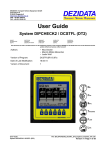
Picture 1 Keyboard and display of the TANK TRUCK MANAGER
Postbank Nürnberg
BLZ 760 100 85
Kto.Nr. 49 52-858
Sparkasse Deggendorf
BLZ 741 500 00
Kto.Nr. 380 007 187
Operation Manual DIPCHECK®
[dated:08.03.06, file:q302bedienengl4]
page 2 of 24
1 General
DipCheck is an electronic system to precisely determine the liquid volume loaded in the compartments of tank trucks.
Any loading or delivery is registered by controlling or monitoring the bottom valves and other devices on board of the truck.
DipCheck is pattern approved by the German PTB (Physikalisch-Technische Bundesanstalt) under
the approval sign
4.412
99.05
In combination with a suitable measuring container (=compartments of a tank truck), DIPCHECK
may be used for legal trade.
2 Operation by the Driver
2.1 Keyboard
Picture 1 shows the keyboard and the display of the Tank Truck Manager (TTM) which is used as
the command center of DipCheck®. The keyboard consists of a numeric block to the right, and special symbol keys to the left, which have the following meaning:
(Key #1) Initiates a delivery transaction. During setup, also used to switch
DELIVERY
products.
LOADING
(Key #2) Initiates a loading transaction. During setup, also used to switch products
END
HELP/MODE
(Key #3) Terminates delivery and loading transaction, as well as many other
data entry
Calls a brief “help screen” to show what can be done in the actual situation
PRE-SET
Activates a quantity pre-set for delivery or loading from/to a compartment
PRINT
Request of printout of several documents (if a printer is installed)
MEMO
Recall one of the previous 450 delivery/loading transactions
PANIC
Close all bottom valves (if they are controlled by DipCheck).
SET-UP
Call the setup menu
AUTO
Display various status screens
Next screen
Previous screen
Numeric block
Erase last numeric entry
CE
Acknowledge the number just entered
=
Numeric input keys, while the cursor is positioned on a numeric data field. Otherwise,
1,2,....,9,0
the keys 1..7 (reduced range for vehicles with less than 7 compartments) can be used
to select the compartment for detailed view. The key 0 is used to return to overview.
Enter a negative sign for numeric values
+/decimal separator for entering decimal fractions
,
Operation Manual DIPCHECK®
⇐,
[dated08.03.06:, file:q302bedienengl4]
page 3 of 24
Cursor control keys. These are not only used to shift the cursor left and right, but also
between the (max) three data lines by “rolling over” the line ends.
2.2 Power Up the System
Before any measurement can be performed with DipCheck, the system has to be powered up, using
the central power switch, usually located in the driver’s cabin.
NOTE: Leave the system switched off while on the road. Switch it off for 5 seconds before
any transaction if it was inadvertently left on.
After a few seconds, the program starts up with a logo screen, which is displayed while the system
is performing an extensive self check (see Picture 2):
Picture 2 Logo Display after Power-Up
When the self-tests have been terminated (after approx. 10 s), the version of the software is displayed:
Picture 3 Version Display afteer Power-Up
After about 3-5 seconds, a short “help text” is shown:
Picture 4 Short From Help Text
By pressing the [END] key or automatically after approx. 3-5 seconds, the actual loading status of
the compartments of the tank truck is displayed (see Picture 5).
2.3 Display of Loading Status
In the basic state, the system always displays the loading status of all compartments of the vehicle.
The following picture shows an examples for a four compartment vehicle.
Picture 5 Loading Status Display
The liquid volume contained in each compartment is displayed as a black column, the height of
which corresponds to the percentage of the total volume for this compartment. In the upper text line,
the product loaded (or previously loaded, if the compartment is empty) is displayd. The numeric values in the second row are the volume in cubic metres (or thousands of litres).
Finally, a small rectangle symbol at the bottom of each compartment area shows the filling status of
the pipework below the bottom valve (if the sensors are installed). If the rectangle is “hollow” (as
shown in the picture for compartments 2, 3 and 4), the pipework is empty, whereas in case of a “full”
rectangle, which disappears in case of the partially filled compartment 1 of the example, the pipework is at least partially filled.
-3-
Operation Manual DIPCHECK®
[dated08.03.06:, file:q302bedienengl4]
page 4 of 24
By pressing the numeric key that corresponds to the compartment number ([1]..[4] in the example,
up to [4]), a detail screen may be called, which shows the precise measuring results of any desired
compartment (see ):
Picture 6 Detail Screen in Idle State
The detail screen shows the tank number, the product loaded, the precise level (in millimetres), the
volume (in litres) calculated from this level, and the actual temperature (measured below the compartment). Note that the level and all values calculated from it are instantaneous values, which do
not compensate for any surface waves - hence the accuracy is limited.
Pressing any numeric key corresponding to the desired compartment number calls up the detail
view for that compartment.
Note regarding the numbering of compartments:
The numbering convention is usually so that compartment one is closest to the driver’s
cabin. The compartment sequence on the overview display may be configured (depending on the mounting location of the TTM) so that number one is shown leftmost (when
mounted on the left side of the vehicle) or vice-versa (recommended when TTM is
mounted on the right hand side).
Pressing the key [0] leaves the detail view and the system returns to the overview.
The key [?] causes a brief help text to be displayed which disappears automatically after 3-5 seconds.
2.4 Delivery
A delivery is initiated by pressing the key [DELIVERY] (upper left corner) while the overview screen
is displayed (if in a detail view, press [0] before). The following display appears:
Picture 7 Info Screen "Averaging..."
The system now tries to determine a precise level by averaging the liquid levels measured every
second, while at the same time observing the wave height. During this process, which may last several minutes, depending on the strength of the waves, a graphic display shows the observed wave
height:
Picture 8 Wave Level Display
The example shows that the level in compartment one is still too high. The weight and measures
authorities require the level to stay within a 3 mm interval during the past 10 measurements for each
compartment.
After successful completion of the initial gauging, the following hint appears for a few seconds:
Picture 9 Help Screen during Delivery
If the bottom valves are controlled by the system, they are now enabled and may be opened, using
the pneumatic controls of the vehicle. During the delivery a similar display as the compartment
-4-
Operation Manual DIPCHECK®
[dated08.03.06:, file:q302bedienengl4]
page 5 of 24
overview is shown, but now instead of the loaded quantity, the figures show the delivered quantity.
Thus, the indicated quantities are “0,0” initially, as shown in the following picture:
Picture 10 Overview Display During Delivery (or Loading)
As in the basic state, pressing a numeric key corresponding to the desired compartment number, a
detail screen may be called.
Picture 11 First Detail Screen during Delivery
The value Vt is the volume delivered since the beginning of the current transaction. From that value,
using the average temperature of the product quantity already delivered (shown under “Tm”), the
temperature-compensated volume “Vo” is calculated by the TTM.
Using the key [ ], it is also possible to display the actual quantity still within the compartment:
Picture 12 Residual Quantity within the Compartment
On this screen, the value after “Vt” is the quantity (uncompensated) still loaded, “H” shows the level
of product, and “Ta” is the actual temperature measured in the pipework below the compartment.
Using the key [ ], the first detail may be recalled.
Pressing the key [0], the delivery overview is again displayed.
When the deliveries from all desired compartments have been completed, press the key [END].
Should the bottom valves still be open, they are now closed, before the system repeats the averaging process as described before. Since waves are usually not produced during delivery, the final
gauging is usually performed considerably faster. The same screens as shown under Picture 7 and
Picture 8 appear in sequence, before the measurement is completed.
From the volumes at the initial and final gauging, the system now computes for each compartment
the quantities by which the contents has changed, and displays them, starting with compartment 1:
Picture 13 Display for compartment without change
In the example, no significant change of the product level has been observed for compartment 1. To
display the delivered volumes of other compartments, simply press the corresponding number key:
Picture 14 Display of Quantity Delivered from a Compartment
If a printer is connected to the system, and if a delivery note shall be printed, press [PRINT] while
any of the compartment quantities is indicated. Any number of copies of the delivery note may be
produced by repeatedly pressing that key. See under 2.7 for an example and an explication0 of the
delivery document.
Press the [END] key to finalize the delivery and return to the overview screen.
-5-
Operation Manual DIPCHECK®
[dated08.03.06:, file:q302bedienengl4]
page 6 of 24
2.5 Loading
Loading is performed in a rather similar way as delivering. Press the [LOAD] key to start loading,
which starts the initial gauging process. Unless there is residual product in the compartments, the
averaging should finish quickly (no products
no waves).
During the loading transaction, the products loaded may be entered by first selecting the desired
compartment, typing in the appropriate number key [1] ,,, [7], for example [1]:
Picture 15 Entering the Products during Loading
Using the keys [<] and [>], the desired product may be selected. As soon as it is displayed in the
upper right corner, the next compartment may be selected and the process repeated, or the product
input may be terminated, by pressing [0], which brings up the overview again. Any errors of the
product assignment may be corrected at any time during the loading procedure.
When loading is done, press the [END] key in order to finalize the transaction. The final gauging
takes now place – in this case, it might take a minute until the waves produced during loading have
been calmed down. When this is done, the TTM displays the loaded quantities for the first compartment as shown in Picture 14. Other compartments may be inspected, and a loading ticket may
be printed as described above in 2.4.
2.6 Trip Data
Pressing the key [AUTO] during display of the loading status overview, the following input screen
appears:
Picture 16 Input of Trip Information
The most recently entered values are shown and may now be changed by the following procedure:
1. Using the keys [>] and [<], the cursor (i.e. the black rectangle) can be moved over the number
to be modified
2. If the cursor is not in the proper line, it can be moved to the next line by “overrunning” the line
end with the [>]. Similarly, moving the cursor with the [<] beyond the start of a line causes it to
reappear at the end of the preceding line. Moving the cursor past the end of the last line will
cause it to reappear at the top left corner (and vice versa).
3. Using the numeric keypad, type in the desired number. The figures appear at the cursor location, asterisks indicate the width of the field available. A greater number than permitted may be
entered, but will lead to the display of a number like “9999”.
4. Any typing error may be corrected with the key [CE] and starting over.
5. The value just typed in appears at the proper place and is now stored.
6. Any errors may be corrected by repeating the above procedure.
The value for the vehicle number cannot be modified on this screen. Use the password protected
Setup for this purpose.
To return to the basic state (loading status overview), press either [END] or [AUTO].
2.7 Printing a Delivery (or Loading) Ticket
-6-
Operation Manual DIPCHECK®
[dated08.03.06:, file:q302bedienengl4]
page 7 of 24
Provided that the system is equipped with a printer, and if at least in one compartment a significant
change has been detected during a transaction, a ticket may be printed. Insert a blank document
into the printer and press the button [PRINT] during the display of the quantity delivered from (or
loaded into) one of the compartments (e.g. as shown in Picture 14). Below an example is shown:
1
2
3
4
5
6
7
8
9
10
DELIVERY NOTE #
2 DELIVERY
1. copy of document
Date
: 16.09.1999 15:16 - 15:21
K Prd bef. after Dif.Vt V(15øC)
--------------------------------*1 HEL 9240- 5806- 3434 3409 L*
2 DI 5907- 4961946
939 L
*3 HEL 5205- 2001- 3204 3181 L*
Product sums:
HEL
6638 6590 L
Picture 17 Example of a delivery ticket
Please find a detailed explanation of the contents of the ticket below:
1
Title of the document with the unique transaction number generated by the TTM, and with
the kind of transaction (Delivery or Loading)
2
Number of the copy (not on the original printout)
3
Date and time of the start and of the end of the transaction
followed by driver and vehicle number (if not both are zero) (not printed here)
4,5
Header line for the subsequent quantity list
6
Home Heating Oil has been delivered from Compartment 1, starting at a volume of 9240 litres down to a volume of 5806 litres. The “-“ sign right after the quantity show that the product detector mounted in the pipework below the bottom valve was dry before and after the
delivery. In the column “Dif.Vt” the difference of the initial and the final quantity is calculated
(3434 l). When temperature compensation for the product is activated (as this is the case for
home heating oil), an additional quantity appears on that line, which is Vo or the delivered
volume at 15°C. The entire line is enclosed in asterisks “*” to indicate that the values are
measured and/or calculated by an approved system.
7
Similar to line 6, but please note the missing asterisks, which is in this case due to the fact
that the delivered quantity of 939 litres is smaller than the minimum deliverable quantity for
this compartment.
8
Explanation as for line 6
9,10
If the same product is delivered from more than one compartment, the sum of the quantities
is calculated and printed out at the bottom of the document.
2.8 Status Report
At any time during the display of the loading status, using the key [PRINT], a status sheet may be
printed onto a blank form (to be inserted into the printer beforehand), which shows the actual loading state of the vehicle. shows an example for such a printout.
The meaning of the lines are explained below:
1
Title line
2
Date and time at which the document was generated
-7-
Operation Manual DIPCHECK®
3
Vehicle number
4
Driver number
5-7
Listing header line
8
In compartment 1, the level of the
product T4 is 0,0 millimetres, the raw
volume calculated from the level is 22
litres. The temperature (of the pipework
below the compartment, not of the
product!) is 25,0 centigrade. The specific gravity of the product is 833,9 kg/m³
(this is not an approved measured
value!), and the speed of sound is 1398
m/s. The volume corrected for inclination (see line 13) is 22 litres..
[dated08.03.06:, file:q302bedienengl4]
page 8 of 24
1
2
3
4
5
6
7
8
9
10
11
12
13
9-11 as line 8, but for the other compartments of the vehicle.
13
The inclination (tilt) of the vehicle at the moment of the measurement was 0,03° in longitudinal direction (angle positive means “nose up”), and -0,78° in transversal direction (angle
positive means “right side up”)
Note: the values of the status sheet are not approved (and thus not enclosed in asterisks). The
quantities are not based on an averaged level measurement and might therefore be inaccurate.
2.9 Parameter Printouts
2.9.1 User Parameters
At any given time, a list of user parameters may be output. A detailed explanation of how to modify these parameters can be
found in the chapter “Set-Up”. We recommend to print such a list
after every modification in order to document the new status and
to re-check the modifications done.
To print a user parameter list, first insert an empty form into the
printer. From the status overview, press the key [SETUP], then
[END] (a password is optional, but not required). Then press [ ]
twice until the screen shown in x (“Min.Vol.Change”) appears.
Then press [PRINT].
A document similar to the one shown to the right is output.
Password is a key number (which may be modified by any user
who knows the actual password) that is needed to modify user
parameters. It is only printed if it was entered during the procedure above, otherwise the line will not appear. The number indicated (“16794325“) is the password at the time of delivery
Help persistence is the number of seconds that short hints appearing after a change of state of the system will be displayed.
Vehicle number is an arbitrary ID number for the vehicle, which
will be printed on the delivery tickets when it is different from
zero.
-8-
Picture 18 User Parameter List
Operation Manual DIPCHECK®
[dated08.03.06:, file:q302bedienengl4]
page 9 of 24
Driver number and Trip number will be printed on the delivery ticket when they are different from
zero. These values are unprotected, i.e. they may be entered by the driver at any time during the
trip. They have no influence on the software and only serve for information.
Language is the communication language of the system used on the screen as well as on printouts,
Product assignment shows the products currently loaded (or most recently being loaded) in the
compartments. The product number given refers to the subsequent list of Product names. In the example document, home heating oil is loaded in all four compartment.
Product name shows the abbreviations and names assigned to the products. The names shown
correspond to the standard assignment according to DIN 26051-1. Up to 20 user-defined products
may be configured.
HW and SW-Options show which drivers and special functions of the system are enabled. Each
digit in the string is either 0 (meaning that the appropriate option is disabled), or 1, if the option is
enabled. The purpose of the digits may be interrogated within the set-up menu (see ??). The example shows that no software options are activated, and that “Printer” and “Service station polling” are
enabled.
2.9.2 Parameters under weights and measures control
While the user parameter may be modified by any person
knowing the password, the weights and measures parameters may only be modified during the initial verification
of the TTM. A master reset is needed if one of these parameters must be modified, which is done by separating
the power supply unit at the rear of the TTM from the display part for a few seconds. All parameters will be lost after that procedure, and will have to be re-entered manually. In addition, the electronic seal counter in the dip controller will be incremented after a master reset.
It is possible, however, to inspect and/or print the parameters at any time, even without knowing the password.
The calibration data consist of a general set of values, and
one diptable per compartment, which also contains any
compartment-specific data, as e.g. the smallest deliverable
quantity.
To print the weights and measures controlled parameters,
press [SETUP], then [END] (password does not need to
be entered). Then repeatedly press [ ] until the screen
with the “TTM software version” appears (see ??). Now
insert paper into the printer and press [PRINT]. A list as
shown in picture 20 is now generated. The values shown
are briefly explained below
Diptable is a brief name which may be entered during the
initial verification, e.g. for the purpose of identifying the vehicle. The text is only for information and has no influence
on the measured data.
Inclin.tab. shows – if an inclination table is specified – the
name of the correction table, which is type specific, and
which is used to correct the volume of the primary diptable
when the vehicle is not located on a flat surface.
-9-
CALIBRATION DATA 06.09.1999 15:03
Dip table: NOT EUROTANK!
Incl. table: Eurotank: Neste ET33345
PD4000 Softw.Version :
1.11
TTM Serial No
:
9933092
Compartm.Count
:
5
Compartm.Controller :
5
No of products
:
9
Min.Average Count
: 10
Max.perm.Wave Height :
3,0 mm
Max.Break duration
:
5 s
Max.duration w/o power: 10 s
Min. Vol. Change
: 0,0010
Controller S/N
: 990917Mx
Contr.Firmware Vers : 2.02
Electronic Seal
:
0
Comp.Count.Corr.
:
9
CRC Flash-ROM
: 49432
Nr Mo Avg. Min.
-- - ----- ----1 2 845,0 800,0
2 2 835,0 800,0
3 2 740,0 700,0
4 2 750,0 700,0
5 2 757,0 700,0
6 2 751,0 700,0
7 2 801,0 700,0
8 1 839,0 800,0
9 2 883,0 800,0
-- - ----- ----CRC Checksum
Manifold channel
Max.D.Tempko.
----- ------900,0 0,00100
900,0 0,00000
900,0 0,00100
900,0 0,00000
900,0 0,00000
900,0 0,00000
900,0 0,00500
900,0 0,00500
950,0 0,00500
----- ------:
:
0
ToC
---15,0
15,0
15,0
15,0
15,0
15,0
15,0
15,0
15,0
---0
Inclin. sensor positions:
C: X:
0 Y:
0 Z:
0
F: X: 500 Y:
0 Z:
0
R: X:
0 Y: 500 Z:
0
Picture 19 W&M parameter printout
Operation Manual DIPCHECK®
[dated08.03.06:, file:q302bedienengl4]
page 10 of 24
Software-Vers. TTM shows the version of the TTM software in use. The PTB type approval is valid
for versions between 1.10 and 1.19. The TTM serial number is programmed into a non-alterable
memory of the TTM at the time of production. Changing the TTM could thus always be recognized,
even if all other parameters are re-entered identically.
Compartment count and Controller-Compcnt specify the number of compartments programmed into
the TTM (i.e. relevant for the graphic display and for monitoring), as well as for the dip controller. It
might be necessary to program a greater value into the dip controller, e.g. if collector monitoring is
enabled.
Product count is the total number of products configured.
Min.averaging count. and max.perm.wave ampli specify how many subsequent measurements are
to be averaged and all of which have to be between the given amplitude range, in order to be accepted as valid gauging result.
Max. comms.interrupt specifies how many seconds an interruption of the communication between
TTM and dip controller will be accepted, and Max. PowerOff-Dur, how many seconds of power failure will be accepted during a transaction. Should one of these disturbances last longer than the
given limit, the transaction will automatically be closed and stored and printed accompanied by an
appropriate error message.
Min.Volume Change specifies the fraction of the total compartment volume, by which the volume
has to change during a transaction in order to be considered as meaningful. If the decrease or increase of the volume is smaller, the quantity will be considered as zero, and the compartment will
not appear on the delivery ticket. The value „0,001“ means that a volume difference of at least 0,1%
(or 8 l in an 8000 l compartment) must be observed in order to make the change meaningful.
Smaller differences are suppressed in order to get rid of insignificant “noise”, which may be causes
by small changes of the inclination, or temperature changes during a transaction.
Serial number contr und Softw.vers.cont. refer to the dip controller of the system. These values will
automatically be read from the dip controller and stored in the TTM, on order to be able to detect the
exchange of a controller. An error message will be issued for each transaction, should one of these
values not match with the dip controller data read out before each transaction.
Electronic seal is a counter in the dip controller which can only be incremented. The TTM increments it at the time of sealing, or if significant dip controller parameters, as e.g. the compartment
count, the incrementation is done in the dip controller. With the current software version of the TTM,
the electronic seal is not significant, as a parameter modification is impossible at all.
Similarly, the value of the CRC-value is not significant at the current stage.
The parameters of the nine basic products programmed into the TTM, which are significant for the
calculation of the temperature compensated volume, and which may only be altered at the time of
the initial verification, are listed in the table. In this table, Nr. refers to the “metrology product code”
assigned by the PTB and also fixed in the “TDL-Standard” (DIN 26051-1). It is unique for a type of
product, which “behaves” identical for the purpose of temperature compensation (e.g. 1=Home
heating oil, 2=Diesel and so on). M shows the calculation method being used for temperature compensation (and if compensation is done for this product at all, see ??).
Manifold chan shows if manifold monitoring is enabled. In this case, the value is greater than zero,
and specifies the number of the dip controller temperature sensor input that is being used to monitor
the manifold use.
Inclination sensor co-ordinates is a table which is relevant only if inclination correction is enabled.
All co-ordinates are given in millimetres. They are specified with respect to a reference point thought
to be located at the center of the liquid surface of the “center sensor”. A detailed description can be
found under ??.
- 10 -
Operation Manual DIPCHECK®
page 11 of 24
[dated08.03.06:, file:q302bedienengl4]
2.9.3 Diptables
For each compartment, a diptable must empirically be determined by a calibration procedure. This
is done once during the initial verification of the system. The result is a table, shown in picture 21,
and stored in the TTM in a non-alterable way. The lines of the list are explained below
Date shows date and time of the print-out (no meaning regarding the parameters or the time of the
calibration)
Elektronic seal is a counter value explained in the previous paragraph.
Max. Volume is the maximum volume in the compartment. It is used for internal computations and
should be the highest value observed rounded up to the next multiple of 100 or 500 litres.
Max.level is a similar value, corresponding to the sensor height, rounded up to the next multiple of
50 or 100 m.
Smallest meas.quant. is the value fixed at the time of the initial
verification according to the approval of DipCheck®. Currently,
the smallest measurable quantity is a quarter of the max. permitted compartment loading volume (the value might be smaller than
the parameter “max. volume”, and is usually close to the uppermost point of the diptable.
Pipework vol is the volume in litres that is contained in the pipework between the bottom valve and API coupler. The diptable is
measured using bottom loading, and thus includes this volume.
Since the pipework becomes empty during the first delivery, the
volume must be taken into account (in case of the first delivery, by
adding it to the difference volume).
Sensor no. and P-NET Address specify from which sensor connected to which controller the gauging levels of this compartment
may be read in. (in principle, any connection is possible, even if it
is strongly recommended to use input 1 of the controller for compartment 1 and so on).
The diptable which follows, consists of the following columns:
Nr. is a sequence number with no specific significance (just to
make sure that all points are printed)
Levl,mm is the level at which the volume has been measured
during the calibration
Volume,L is the volume being in the compartment at that level
(has been entered during calibration)
Diptable for Comp.# 1
Date
: 06.09.1999
15:01
Electronic Seal :
0
Max. Volume
Max.Height
Min.deliv.Qty
Pipework volume
Sensor No.
P-NET Address
No.
--01
02
03
04
05
06
07
08
09
10
11
12
13
14
15
16
17
18
19
20
21
22
23
24
25
26
:
:
:
:
:
:
8500 L
1950,0 mm
2000 L
0 L
1
16
Level,mm Volume, L
------- --------0,0
0,0
122,3
183,7
157,2
273,9
192,3
378,5
251,7
580,0
304,2
780,9
352,4
981,1
418,6
1278,9
467,5
1511,7
559,9
1979,4
652,0
2478,1
740,6
2978,9
825,4
3478,6
910,1
3981,1
993,7
4478,9
1077,5
4980,2
1162,1
5478,7
1249,3
5981,6
1319,9
6379,5
1374,1
6670,8
1436,4
6979,8
1475,8
7177,2
1518,0
7380,4
1560,6
7577,9
1605,1
7772,4
1657,7
7986,8
L/mm
---1,50
2,59
2,98
3,39
3,83
4,15
4,50
4,76
5,06
5,41
5,65
5,89
5,93
5,96
5,98
5,89
5,77
5,64
5,37
4,96
5,01
4,82
4,64
4,37
4,08
L/mm is a “calculated” column containing the gradient (litres per
Picture 20 Dip Table Printout
millimetre) of the dip curve at this point, and which only serves as a
means to verify the data of the diptable. Since a part of the values is
entered manually, errors may occur, which, if they are significant, can safely be detected by inspecting the “L/mm” column. Independent of the shape of the tank (cylinder, box-shaped, or other),
the gradient of the curve varies only very, very slowly and smoothly. It never “jumps”, i.e. goes up
and down within a few points. If such a variation is detected, an error has been introduced that
should be eliminated in order to avoid measuring errors during operation. The value must steadily
and monotonously increase from small values at the bottom of the compartment, reach a maximum
at the middle of the compartment, and then again decrease steadily until the top of the table.
- 11 -
Operation Manual DIPCHECK®
[dated08.03.06:, file:q302bedienengl4]
page 12 of 24
2.10 Optional Functions and Data Input
2.10.1 Quantity Predetermination
Hint:
Though this function is always available, entering any pre-set values is only meaningful if the system is installed as to directly control the bottom valves of the tank container. Otherways, entering a
quantity pre-set will not have any consequences and is thus useless.
After the initial gauging of a delivery of a loading, a quantity may be pre-set for each compartment.
When this quantity has been delivered (or been loaded), the bottom valves are automatically closed
by the TTM. Use one of the keys [1]..[7] to select the detail view for the desired compartment.
Now press [PRE-SET] and observe the following screen:
Picture 21 Quantity Preset - first disable delivery!
It shows that the system already has enabled the bottom valve, which is always automatically done
right after the initial gauging – simply because most of the deliveries are without quantity pre-set.
Therefore the delivery has first to be stopped, by hitting the [END] key. If a pre-set value shall be
entered for all or at least for most of the compartments, the key [PANIC] may be used to stop all
deliveries at once.
Now press [PRE-SET] again, which calls the following screen:
Picture 22 Entering a Quantity Pre-set Value
The cursor will automatically be positioned on the field for the pre-set value. During a delivery, a
value which corresponds to the volume in the compartment at the time of the initial gauging, increased by hundred litres is displayed as “default value”. For a loading transaction, the default value
is the total compartment volume, minus 5%.
Any value may now be entered, followed by the [=] key. The bottom valve of this compartment is
now enabled, and its “open” status will be shown in the overview.
The process may be repeated for the other compartments, or even for the same one, should the
value entered need to be corrected, or a delivery be continued after the pre-set has been reached.
Using the key [0], the overview display is called.
2.10.2 Entering a Customer (or Depot) Number
If desired, a customer (or depot) number by be printed on the delivery (or loading) ticket, which may
later help to identify the documents. This number will also be memorised in the TTM. The customer
number may be entered after pressing the key [9] while the overview or while a detailed view of one
compartment is being displayed, but this must be done before the initial gauging is performed. The
following screen appears then:
- 12 -
Operation Manual DIPCHECK®
[dated08.03.06:, file:q302bedienengl4]
page 13 of 24
Picture 23 Entering a Customer Number
Any number, up to eight digits long, may now be entered, terminated by [=]. In case of an erroneous
number, the process may be repeated.
Typing [END] returns to the screen previously displayed.
2.10.3 Recall Memory Data
The system contains a memory for the results of the most recent 300 transactions. Each transaction
(loading or delivery) may consist of up to seven separate quantities (depending on the number of
compartments of the system).
The transaction memory my be recalled by simply pressing [MEMO], which lets the following screen
with the header data of the most recent transaction appear:
Picture 24 Memory Recall - Last Transaction
The header data of a transaction consists of
-
The number of the transaction (identical with delivery note number),
-
The customer number (if not input, “00000000” appears, as shown)
-
Date and time of the start of the transaction (initial gauging terminated)
-
The duration of the transaction (time between initial and final transaction), in minutes
-
And, if applicable, as shown in the picture above, a global error mark, if one or more of the
measurements are disturbed (the word “Error” is displayed in the lower right corner).
Using the keys [ ] and [ ], the transaction memory may be browsed and any earlier transactions be
selected.
While the header data are displayed, hitting one of the numeric keys [1]...[7] selects the details data
of this transaction for the desired compartment. If for the selected compartment a significant change
has been observed during the selected transaction, a screen similar to the following one will appear:
Picture 25 Memory Recall - Single Compartment
Using key [0], the header data will be displayed again.
If the key [PRINT] is pressed while the header or the compartment data of a transaction are displayed, a copy of the appropriate ticket will be printed (best to insert paper into the printer before
doing so!).
The memory inspection is finished by hitting hte key [MEMO] again.
- 13 -
Operation Manual DIPCHECK®
[dated08.03.06:, file:q302bedienengl4]
page 14 of 24
2.11 Diagnostic Features
At any time, from the basic state (compartment overview) of the TTM, one of the following diagnostic screens may be called. Though harmless, the functions are not needed during normal operation,
and should thus only be activated on request of a technician.
All of the diagnostic screens described below are called from the “trip data” input screen (see
Picture 16, para 2.6) by a single keystroke. The trip data screen is called by use of the [AUTO] key.
2.11.1 Temperature Compensation Calculator
While the trip data screen is displayed, press [DELIVERY] and the following screen appears, which
may also be used during metrological tests:
Picture 26 Temperature Compensation Calculator
By entering one of the values described below, any volume of any temperature and of any type of
liquid can be compensated for the influence of the temperature (expansion or contraction). The volume of the liquid, as if it had the so-called base temperature will be computed. The base temperature may be freely selected as well.
Prod.Gr.: B
desired product group (input value, may be selected by use of [ ] and [ ])
To:
Base temperature (numeric input value)
Do:
specific gravity of the product at base temperature (numeric input value)
T:
product temperature (numeric input value)
Vt:
“raw” volume (at the temperature T) (numeric input value)
Vo:
Volume compensated to base temperature (will be re-computed by the TTM after
any change of the given input values
To modify any of the input values, select the appropriate numeric field, using the cursor control keys
[<] and [>], then enter the desired numeric value, followed by [=]. The new value for Vo will instantaneously appear.
Press the [END] button when through to return to the overview.
2.11.2 Inclination Correction
From within the trip data screen, press [LOAD] in order to call the following screen:
Hint:
the data displayed are manually entered and are thus not related to the actual filling state or the inclination situation of the vehicle!
Picture 27 Inclination Correction Calculator
Input values
comp:
Number of the compartment for which the inclination correction is performed. The desired
compartment may be selected by use of [ ] and [ ].
WL:
Angle for longitudinal inclination (positive if driver’s cabine is elevated)
WQ:
Angle for transversal inclination (positive if right hand side is elevated)
Levl:
Liquid level in this tank (measured along the sensor axis) in mm
Computed values
Vt
Volume in horizontal position, computed using the internal diptable
- 14 -
Operation Manual DIPCHECK®
[dated08.03.06:, file:q302bedienengl4]
Vkor
Volume corrected for the given inclination angles WL and WQ.
Korr
relative inclination correction in %, according to the formula 100*(Vkor-Vt)/Vt
page 15 of 24
2.11.3 Inclinometer Display
From the trip data screen, press the key [?] in order to obtain the display of the actual measuring
results of the inclination sensor:
Picture 28 Inclinometer Result Display
The meaning of the values is
Long, Tran
Inclination angles for longitudinal and transversal inclination of the vehicle. See
2.11.2 an explanation of the definition of these angles.
Press [END] when through.
2.11.4 Display of Approval Signs („Digital Type Label “)
From within the “trip data display”, press the key [PRE-SET] to obtain the following display of the
approval signs for the system:
Picture 29 Digital Type Label
Values shown:
♦ To the left, the type of device (“DipCheck”) and the manufacturer name are shown.
♦ In the middle, the approval sign of the (national) type approval of the PTB for DipCheck is displayed,
♦ and to the left, the approval sign of the measuring container is shown (in the example, there is
no approval yet, thus the manufacturer is indicated)
Press [END] when ready.
- 15 -
Operation Manual DIPCHECK®
[dated08.03.06:, file:q302bedienengl4]
page 16 of 24
3 Configuration
This chapter describes all operations that may be necessary during the installation of the system.
The parameters which may be changed belong to either of the following two groups:
1. weights and measures parameters (may only be modified while in “calibration mode”)
2. User parameters – may be changed by any person who knows the password
3.1 Entering Setup
Simply press the key [SETUP] to get into setup. First, a password will have to be entered, if any of
the user parameters are to be changed.
Note:
While in calibration mode, it is not necessary to enter a password – the system is
unprotected. It is also not necessary to enter a password, if parameters are only to
be inspected, but not modified.
3.2 Password page
Picture 30 Password Entry Screen
Password:
After positioning of the cursor, the “password” (a string of up to eight digits) may be
entered here and terminated with [=].
Seal:
Value of the electronic seal counter of the dip controller.
Sealed:
The value indicated here is zero while the system is in “calibration mode”. If any
value different from zero is entered in this field, the calibration mode is irrevocably
terminated, that is all parameters under weights and measures control can not be
modified.
The only way to break this sealing is a master reset (unscrew and remove the power
supply box at the rear of the TTM), which will bring the unit back to calibration mode.
But after a master reset, all parameter modifications including the dip tables
will be lost!!!
The password screen must be acknowledged with the key [END] (if parameters are to be modified,
the password has to be entered first).
3.3 Time and Date
After the password screen, the time and date of the real-time clock built into the TTM are displayed:
Picture 31 Entry of Time and Date
If necessary, any of the numbers may be changed by positioning the cursor over the appropriate
number, enter the new value and terminate with [=].
From this screen, all other setup screens may be reached, using the keys [ ] and [ ].
- 16 -
Operation Manual DIPCHECK®
[dated08.03.06:, file:q302bedienengl4]
page 17 of 24
3.4 Diptables
Picture 32 Diptable - Display of Compartment no
This screen is displayed only for a few seconds to indicate the compartment number of which the
diptable is displayed. It may be recalled at any time by pressing the [?] key.
3.5 Display of Diptable
When a diptable is already stored, it will be displayed after the compartment number screen.
Switching between the compartments is done by pressing the appropriate numeric key [1]..[7] (up
to the hightest compartment number only). Printing of the dip table may be initiated by pressing
[PRINT].
Picture 33 Diptable Display
Using the keys [<] and [>], all points of the diptable may be displayed.
The meaning of the values is explained below:
1st column:
Number of the point (starting from “01” up to at max “64”)
2nd column:
Height of liquid level measured during calibration
Volume value which belongs to the level on the same line
3rd column:
4th column:
Gradient of the Height/Volume curve, measured in l/mm. This value is a calculated value only and may be used to check the plausibility of the calibration curve. The Gradient of “real tanks” never changes rapidly, and should in
the lower half increase monotonously, and decrease monotonously in the
upper half of the curve.
3.6 Volume Change, Password and Help Persistence
Picture 34 Volume Change, Password, Help Persistence
Min. Vol. Change:
Password:
Help persistence:
Default value 0,001 (= 1 ‰ of the total tank volume). If the volume
change observed between start and end of a transaction is smaller than
this value, the compartment contents is assumed to be unchanged.
a new password may be entered here. The value “16794325” shows the
default password after a master reset.
Time in seconds after which help texts and hints disappear automatically
3.7 Manifold Monitoring, Language and User Product Count
Picture 35 Select Manifold, Language, Product Count
- 17 -
Operation Manual DIPCHECK®
Manifold Channel:
Language:
User product count:
[dated08.03.06:, file:q302bedienengl4]
page 18 of 24
0= no monitoring of manifold during transactions. Otherwise the channel
number of the temperature input must be entered, which is used to monitor
the use of the manifold.
Use the keys [LOAD] and [UNLOAD] to select the desired language for the
user dialogue. The cursor position is irrelvant for this selection. Having made
a new choice for the language, press [END] and then power down the unit to
initialise the new language buffer.
Number of user definable products (valid only if software option “user product” has been activated.
3.8 Define Product Properties
3.8.1 Standard Products
Using this and the next screen, the properties and the delivery mode of each of the products may be
defined. In this section, we deal with the standard products, i.e. with the software option “user defined products” disabled.
Picture 36 Standard Product Properties
The meaning of the data displayed is described below:
01 HEL
is the physical product currently selected.
No:01
is the user product code currently selected. If the option “user defined products” is
enabled, these two figures may be different (see next section). Otherwise, they are
always equal (user product = physical product)
In order to select the next/previous product number, place the cursor over the numeric value after “No.” in Picture 36 and press the buttons [LOAD]/[UNLOAD] until
the desired product is displayed. The properties of this product may now be modified.
Abbrev:
This abbreviation for the product may be up to four characters long and is used on
the screen as well as on delivery notes to indicate which product is loaded, resp. has
been delivered. For
0001
This is a user-defined “order number” for this product.
The text following (“home heating oil”) is the long name for this product.
The first group of physical product properties are listed in the third line:
Base temp: Default value is 15°C, but any reasonable temperature in the range 0°..30°C may be
entered here
Meth.:
describes the method used for temperature compensation:
0 – product disabled, drive may not select this product
1 – only uncompensated delivery
2 – Product group “B” (benzine, gasoline, home heating oil)
3 – linear compensation (e.g. “bio-gasoline”)
4 – Product group “D” (lubricants)
5 – Product group “X” (liquefied propane or butane gas)
In case of methods 2, 4 and 5, the correction is calculated according to DIN 51757.
A second screen with further properties of the physical product may be called by pressing [AUTO]:
Picture 37 Physical Product Properties
- 18 -
Operation Manual DIPCHECK®
[dated08.03.06:, file:q302bedienengl4]
page 19 of 24
In the upper left corner, the text “01 HEL” refers to the physical product, the parameters of which are
shown. These are:
Densit:
temperature compensation according to DIN 51757 is performed using the specific
gravity or density of the product at 15°C. This value may be entered here. The range
given for the appropriate product group in DIN 51757 must be taken into account.
Note that this coefficient is only used for methods 2, 4 and 5.
Min. D.
is the lower limit, and
Max D.
is the upper limit of the density, if this value is entered manually. These two parameters are only meaningful if manual density input is activated. In this case, the density
coefficient will be checked against these limits and rejected if it is outside the given
(max,min) interval.
Temp. Coeff.: In case of “linear compensation (method 3), this factor is being used to calculate the
temperature compensated volume.
3.8.2 User Defined Products
If there is more than one type of the same product which are metrologically identical, but need to be
distinguished on the delivery note, this feature may be used. First, the software option “user defined
products” must be enabled (see 3.14).
Picture 38 User Defined Product "HEL2"
It is then possible, as shown in Picture 38, to select for any of the user defined products the underlying “physical product”, by moving the cursor into the upper left corner and pressing the keys
[LOAD] or [UNLOAD]. In the example of “home heating oil 2” shown above, which might be an additivated version of the standard product, the physical product is “home heating oil”. Each physical
product exists only once, though several user defined products may be defined which “point” to one
common physical product.
For each user defined product, the up to four letters given after Abbrev may freely be selected by
moving the cursor one step to the left of the character to be changed, and then pressing one of the
keys [LOAD] or [UNLOAD], until the desired letter is displayed. The cursor may then moved one
step to the left with [>] and the process repeated for the next character.
Similarly, up to four digit for a “user defined product order number” may be entered by positioning
the cursor over the numeric field at the left end of line 2.
The text given after the order number may be changed as well, using the procedure described
above for the “Abbrev” field.
Each user defined product must be assigned to a physical product – otherwise it would not be possible to perform temperature compensation, or to select the proper parameters for the meter (if applicable).
3.9 TTM-Software Version, Compartment Count, Physical Product Count
Picture 39 TTM SW-Version, Comp. & Product Count
- 19 -
Operation Manual DIPCHECK®
[dated08.03.06:, file:q302bedienengl4]
page 20 of 24
PD4000 Softw.-Vers: The number shows the version of the TTM software actually installed in the
device – in the example above, it is V1.12.
Tank Count.:
This is the number of compartments displayed on the TTM and for selection
by the numeric keys [1]..[4] (in the example shown above),.
No of comp:
This is the number of channels programmed into the dip controller. Normally,
this number is the same as the tank count, but under special conditions, e.g. if
an additional temperature sensor input is needed for manifold monitoring, the
number may be higher than the tank count.
No of products:
Number of different physical products which may be selected by the driver.
The value 9 is the default.
3.10 Inclination Sensor Co-ordinates and Inhibit Time
Picture 40 Inclination Sensor Parameters
The sketch in Fehler! Verweisquelle konnte nicht gefunden werden. show a typical arrangement
of the three tubes of the sensor, view from the top.
3.11 Averaging Count, Wave Height and Max. Duration of Power Failure
Picture 41 Averaging Count, Wave Height, Max duration of Power Filures
Min. Average Count:
(default value: 10) Number of subsequent measuring results which all
must be within a range of ± half of the wave level given in the next parameter. These values are averaged to yield the final value.
Max. perm. Wave Height: (default: 10 s) Maximum permissible duration of power failure during a
transaction. Should a power failure last longer than this time, an error
message “Power failure” will be generated, printed and memorised with
the data of the appropriate transaction.
Discon.:
(default: 5 s) Maximum permissible duration of a data line interruption
during a transaction between TTM and dip controller. If such an interrupt lasts longer than this time, an error message will be generated,
printed and memorised with the data of the appropriate transaction.
3.12 Status Display of Dip Controller
Picture 42 Status Display of Dip Controller
Dip contr.: SW-Ver:
1.94 or 2.0x (according to PTB approval)
- 20 -
Operation Manual DIPCHECK®
[dated08.03.06:, file:q302bedienengl4]
page 21 of 24
Serial number:
e.g. 80212.005 – this number is electronically stored in the dip controller and
may be read out at any time.
Seal Counter:
In the dip controller, an electronic counter is incremented every time when
the “electronic seal” is broken and a parameter is modified.
These values are read out and stored in the non-volatile memory of the TTM at the time of sealing.
Before every transaction, these stored values are compared with those in the “real” dip controller.
Any deviation will lead to an error message both on the screen as well as on the printout (if any is
generated).
3.13 Hardware-Options
Picture 43 Hardware Configuration Options
This screen may be used to configure the hardware options of the system, as e.g. printer, inclination
sensor and other peripherals.
Using the keys [<] and [>], one of the 16 options may be chosen. The meaning of the selected bit
(marked by the cursor) will be shown in the bottom line.
Pressing the keys [1] or [0] will activate or deactivate the option chosen.
The complete list of all selectable options follows.
3.14 Software Options
Picture 44 Software Configuration Options
This screen may be used to configure the software options of the system, as e.g. temperature compensation, and other functions.
Using the keys [<] and [>], one of the 16 options may be chosen. The meaning of the selected bit
(marked by the cursor) will be shown in the bottom line.
Pressing the keys [1] or [0] will activate or deactivate the option chosen.
The complete list of all selectable options follows.
Temperature Comp.
This option is only used to control the printout of tickets. The compensation method configured for each product takes precedence over this
option. If the option is set, only Vt or Vo is printed (depending on the
compensation method of the product). If the option is not set, and if the
product is configured as “temperature compensated”, both Vo and Vt
are printed.
Inclination correction
Activates the inclination correction for the vehicle. The proper inclination
correction table must be compiled into the system.
Mirror compartments
if activated, the compartments on the overview are displayed from right
to left (compartment 1 rightmost). If the TTM is mounted on the right
side of the vehicle, mirroring may be useful.
Print temp. and density
not yet supported
User defined products
when activated, additional products may be defined by the user: e.g.
several gasoline products (“standard”, “sulphur free”, “winter”) may be
- 21 -
Operation Manual DIPCHECK®
[dated08.03.06:, file:q302bedienengl4]
page 22 of 24
defined, which are internally treated as the same product (e.g. for temperature compensation). On the delivery note, these products are distinguished.
3.15 Digital Input Status
Picture 45 Status of digital Inputs of PLC
This screen shows the status of the up to 24 digital inputs of the PLC (if a PLC is connected to the
system and if the hardware option “PLC” is enabled). The cursor is merely used to obtain the
meaning of the digital signal that has been selected by placing the cursor over the corresponding
digit.
3.16 Digital Output Status and Manipulation
Picture 46 Status of digital outputs
This screen is used to indicate and to modify the state of the digital outputs of the PLC (if one is
connected to the system). The cursor may be placed over any of the digits in the second row. In the
third line, the meaning of the digital output is indicated, as well as the current status (YES if it active,
and NO if it is not). Typing a [1] causes the selected output to become active, and typing [0] will turn
it off again.
- 22 -
Operation Manual DIPCHECK®
[dated08.03.06:, file:q302bedienengl4]
page 23 of 24
4 Table of Contents
1
2
General ........................................................................................................................................2
Operation by the Driver ................................................................................................................2
2.1
2.2
2.3
2.4
2.5
2.6
2.7
2.8
2.9
Keyboard ................................................................................................................................................. 2
Power Up the System.............................................................................................................................. 3
Display of Loading Status........................................................................................................................ 3
Delivery.................................................................................................................................................... 4
Loading .................................................................................................................................................... 6
Trip Data .................................................................................................................................................. 6
Printing a Delivery (or Loading) Ticket .................................................................................................... 6
Status Sheet ............................................................................................................................................ 7
Parameter Printouts................................................................................................................................. 8
User Parameters...........................................................................................................................................................8
2.9.2 Parameters under weights and measures control............................................................................................9
2.9.3 Diptables........................................................................................................................................................11
2.10 Optional Functions and Data Input........................................................................................................ 12
2.10.1 Quantity Predetermination .............................................................................................................................12
2.10.2 Entering a Customer (or Depot) Number .......................................................................................................12
2.10.3 Recall Memory Data ......................................................................................................................................13
2.11 Diagnostic Features............................................................................................................................... 14
2.11.1
2.11.2
2.11.3
2.11.4
3
Temperature Compensation Calculator .........................................................................................................14
Inclination Correction .....................................................................................................................................14
Inclinometer Display.......................................................................................................................................15
Display of Approval Signs („Digital Type Label “)...........................................................................................15
Configuration..............................................................................................................................16
3.1
3.2
3.3
3.4
3.5
3.6
3.7
3.8
Entering Setup....................................................................................................................................... 16
Password page...................................................................................................................................... 16
Time and Date ....................................................................................................................................... 16
Diptables................................................................................................................................................ 17
Display of Diptable................................................................................................................................. 17
Volume Change, Password and Help Persistence ............................................................................... 17
Manifold Monitoring, Language and User Product Count ..................................................................... 17
Define Product Properties ..................................................................................................................... 18
3.8.1
3.8.2
Standard Products .........................................................................................................................................18
User Defined Products...................................................................................................................................19
3.9 TTM-Software Version, Compartment Count, Physical Product Count ................................................ 19
3.10 Inclination Sensor Co-ordinates and Inhibit Time ................................................................................. 20
3.11 Averaging Count, Wave Height and Max. Duration of Power Failure ................................................... 20
3.12 Status Display of Dip Controller ............................................................................................................ 20
3.13 Hardware-Options ................................................................................................................................. 21
3.14 Software Options ................................................................................................................................... 21
3.15 Digital Input Status ................................................................................................................................ 22
3.16 Digital Output Status and Manipulation ................................................................................................. 22
4
Table of Contents.......................................................................................................................23
5
Table of Pictures ........................................................................................................................24
- 23 -
Operation Manual DIPCHECK®
[dated08.03.06:, file:q302bedienengl4]
page 24 of 24
5 Table of Pictures
Picture 1 Keyboard and display of the TANK TRUCK MANAGER .......................................................................................1
Picture 2 Logo Display after Power-Up.................................................................................................................................3
Picture 3 Version Display afteer Power-Up...........................................................................................................................3
Picture 4 Short From Help Text ............................................................................................................................................3
Picture 5 Loading Status Display ..........................................................................................................................................3
Picture 6 Detail Screen in Idle State .....................................................................................................................................4
Picture 7 Info Screen "Averaging..."......................................................................................................................................4
Picture 8 Wave Level Display ...............................................................................................................................................4
Picture 9 Help Screen during Delivery .................................................................................................................................4
Picture 10 Overview Display During Delivery (or Loading) ...................................................................................................5
Picture 11 First Detail Screen during Delivery ......................................................................................................................5
Picture 12 Residual Quantity within the Compartment..........................................................................................................5
Picture 13 Display for compartment without change.............................................................................................................5
Picture 14 Display of Quantity Delivered from a Compartment..............................................................................................5
Picture 15 Entering the Products during Loading..................................................................................................................6
Picture 16 Input of Trip Information .......................................................................................................................................6
Picture 17 Example of a delivery ticket .................................................................................................................................7
Picture 18 Status Sheet Printout..................................................................................... Fehler! Textmarke nicht definiert.
Picture 22 Quantity Preset - first disable delivery! ..............................................................................................................12
Picture 23 Entering a Quantity Pre-set Value ......................................................................................................................12
Picture 24 Entering a Customer Number .............................................................................................................................13
Picture 25 Memory Recall - Last Transaction ......................................................................................................................13
Picture 26 Memory Recall - Single Compartment ................................................................................................................13
Picture 27 Temperature Compensation Calculator .............................................................................................................14
Picture 28 Inclination Correction Calculator.........................................................................................................................14
Picture 29 Inclinometer Result Display ...............................................................................................................................15
Picture 30 Digital Type Label..............................................................................................................................................15
Picture 31 Password Entry Screen .....................................................................................................................................16
Picture 32 Entry of Time and Date.......................................................................................................................................16
Picture 33 Diptable - Display of Compartment no ...............................................................................................................17
Picture 34 Diptable Display.................................................................................................................................................17
Picture 35 Volume Change, Password, Help Persistence ...................................................................................................17
Picture 36 Select Manifold, Language, Product Count .......................................................................................................17
Picture 37 Standard Product Properties .............................................................................................................................18
Picture 38 Physical Product Properties...............................................................................................................................18
Picture 39 User Defined Product "HEL2"............................................................................................................................19
Picture 40 TTM SW-Version, Comp. & Product Count .......................................................................................................19
Picture 41 Inclination Sensor Parameters...........................................................................................................................20
Picture 43 Averaging Count, Wave Height, Max duration of Power Filures .........................................................................20
Picture 44 Status Display of Dip Controller.........................................................................................................................20
Picture 45 Hardware Configuration Options........................................................................................................................21
Picture 46 Software Configuration Options ..........................................................................................................................21
Picture 47 Status of digital Inputs of PLC ............................................................................................................................22
Picture 48 Status of digital outputs ......................................................................................................................................22
- 24 -