1
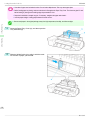
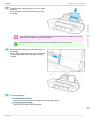
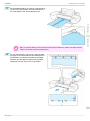
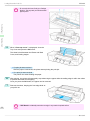
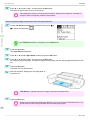
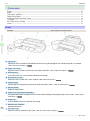
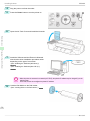
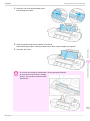
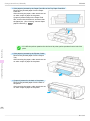
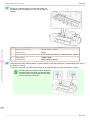
Large Format Printer
Basic Guide
Preface
Safety Precautions ...................................................... 2
Manuals for this printer ................................................... 6
Handling Paper
Handling rolls .................................................................. 9
Handling sheets ............................................................ 17
Consumables and Maintenance
Ink Tanks ...................................................................... 26
Printheads .................................................................... 33
Maintenance Cartridge ................................................. 40
Cleaning the Printer ...................................................... 46
Printer Parts
Operations and Display Screen .................................... 50
Printer parts .................................................................. 60
Printer Relocation
Preparing to Transfer the Printer .................................. 66
Software Installation
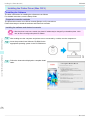
Installing the Printer Driver (Windows) ......................... 74
Installing the Printer Driver (Mac OS X) ....................... 76
Convenient Printer Driver Features .............................. 78
Adjustments for Better Print Quality
Adjusting the Printhead ................................................ 85
Adjusting the feed amount ............................................ 87
Troubleshooting
Problems Regarding Paper .......................................... 90
Printing does not start ................................................... 99
The printer stops during a print job ............................. 100
Problems with the printing quality ............................... 101
Cannot print over a network ........................................ 112
Installation problems ................................................... 114
Other problems ........................................................... 116
Error Message
Manuals for this printer
Setup Guide
Basic Guide
Messages regarding paper ......................................... 120
Messages regarding ink .............................................. 129
Messages regarding printing or adjustment ................ 131
Messages regarding printheads ................................. 134
Messages regarding the maintenance cartridge ......... 136
Other Messages ......................................................... 137
Error Messages .......................................................... 139
User's Guide Electronic manual
Paper Reference Guide Electronic manual
Read this manual before attempting to operate the printer.
Keep this manual in a handy location for future referencing.
ENG
ver1.00
2012-06-26
Safety Precautions
iPF6400
Preface
Safety Precautions
Safety Precautions ........................................................................................................................................................... 2
Legal Notices ...................................................................................................................................................................... 4
Safety Precautions
Preface
Follow the warnings and precautions below to use the printer safely. Do not perform any operations or procedures
other than as described in this manual. Doing so may result in unexpected accidents and can cause a fire or electrical shocks.
Printer location
Safety Precautions
• Do not set up the printer in any location exposed to alcohol, thinner, or other volatile liquids. If these substances come
Warning
into contact with electrical components inside the printer, there is a risk of fire or electrical shock.
• Never install the printer on an unstable or vibrating surface. If it falls over, this could cause personal injury.
Caution
• Never set up the printer in a location that is exposed to high humidity or large amounts of dust, or exposed to direct
sunlight, high temperature, or open flame. This could cause a fire or electrical shock. Use the printer location in an
environment where temperature and humidity are within the ranges of 15 °C to 30 °C (59 °F to 86 °F) and 10 to 80% RH
(with no condensation).
• Never place the printer on a heavy wool or shag carpet. The fibers may enter the printer and cause a fire.
• Keep the area around the power outlet clear of items so that you can disconnect the power cable immediately if the
printer starts operating abnormally. In the event of a printer malfunction, remove the power cable from the outlet as soon
as possible to prevent fire and electrical shocks.
• Do not install the printer near sources of strong electromagnetic fields, whether equipment that generates such fields or
places where such fields occur. This could damage the printer or cause malfunction.
Power Supply
• Never handle the power cable with wet hands. Doing so may cause electrical shock.
Warning • Insert the power cable securely and completely into the power source. If the power cable is not inserted completely, this
could cause a fire or electrical shock.
• Do not use any power cable other than the one provided. This could cause a fire or electrical shock. Never use the
power cable with any other electrical device.
• Never cut the power cable or attempt to modify it, and never stretch it or bend it forcefully. Never place a heavy object
on the power cable. Damaged sections of the power cable could cause a short circuit and may cause a fire or electrical
shock.
• Never connect the power cable to a power strip or any power source shared by other electrical devices. This could
cause a fire or electrical shock.
• Never knot the power cable or wrap it around itself. This could cause a fire or electrical shock.
• Periodically disconnect the power cable and use a dry cloth to wipe away dust that has collected on the plug and the
area around the power outlet. Leaving the power cable plugged in and not cleaned for a long period, especially in an
area subject to dust, oil, and humidity, could cause the insulation material to deteriorate and lead to a fire.
2
Basic Guide
Safety Precautions
iPF6400
• Always grip the plug to remove the power cable from the power outlet. Pulling on the power cable could damage the
Caution
cable and lead to a fire or electrical shock.
• Never use an extension cord. This could cause a fire or electrical shock.
• Never use any power source other than 100–120 / 220–240 V AC. This could cause a fire or electrical shock. The printer operating conditions are described below. Use the printer under the following conditions.
Power supply voltage: 100–120 / 220–240 V AC
Power supply frequency: 50/60 Hz
• If the printer emits smoke or strange odors, continuing to use the printer may cause a fire or electrical shock. Switch the
Warning
printer off immediately and remove the power plug from the power outlet. Contact the nearest service center.
• For cleaning, use a cloth dampened in water. Never use flammable solvents such as alcohol, benzene, or thinner. If
these substances come into contact with electrical components inside the printer, there is a risk of fire or electrical
shock.
Safety Precautions
Cleaning the Printer
Warning
Preface
In an Emergency
• Always disconnect the power cable from the outlet before cleaning the printer. If the printer is switched on accidentally,
Caution
moving parts inside the printer may cause personal injuries.
Pacemakers
• This printer generates a low-level magnetic field. Anyone wearing a pacemaker who experiences discomfort while workWarning
ing around the printer should leave the area. Consult a physician before continuing to work around the printer.
Moving the Printer
• Moving the printer requires at least three people, holding it on both sides and from behind. Be careful to avoid back
Caution
strain and other injuries.
• When moving the printer, firmly grasp the Carrying Handles under each side and in back. The printer may be unsteady if
you hold it at other positions, which poses a risk of injury from dropping the printer.
Printhead, Ink Tanks, and Maintenance Cartridge
• Always store consumables in a safe location out of the reach of small children. If a child licks or ingests ink accidentally,
Caution
seek medical assistance immediately.
• If ink accidentally gets in your eyes, immediately rinse with water.
If ink gets on your skin, immediately clean it off with soap and water.
If irritation persists in your eyes or on your skin, contact a physician immediately.
• Avoid dropping or shaking printheads, ink tanks, and maintenance cartridges. Spilled ink can stain clothing and the work
area.
• Never touch the electrical contacts of the Printhead after printing. The contacts become extremely hot and can cause
minor burns.
3
Basic Guide
Legal Notices
iPF6400
Other
• Never disassemble the printer or attempt repairs. There are high voltage parts inside the printer that can cause a fire or
Warning
electrical shock.
• Never use flammable sprays around the printer. The gas of flammable sprays can cause a fire or electrical shock, if it
contacts high voltage points inside the printer.
• After removing the Cutter Unit, never touch the cutting edge (a). This could cause personal injury.
Preface
Safety Precautions
• Never place anything on the printer such as small metal objects (paper clips, staples), liquids, any type of liquid containCaution
er that contains flammable liquids (alcohol, benzene, etc.). If such objects fall into the printer, this could cause a fire or
electrical shock.
• Never insert your hand into the printer while it is printing. Moving parts inside the printer can cause injuries.
• To prevent a fire hazard or dangerous electric shock, if a foreign object falls into or a liquid spills into the printer, press
the Power button immediately to switch the printer off, unplug the printer power cable from the outlet, and then call for
service. If you continue to use the printer, this could cause a fire or electrical shock.
• Connect the interface cable correctly. To avoid damage, before connection make sure that the shape of the cable conImportant
nector matches the connection point on the printer.
• During printing, turn on the ventilation system in the room.
• We recommend ensuring ample space for installation.
Legal Notices
FCC Regulations (U.S.A)
Canon Large Format Printer
iPF6400
This device complies with Part 15 of the FCC Rules. Operation is subject to the following two conditions: (1) This
device may not cause harmful interference, and (2) this device must accept any interference received, including
interference that may cause undesired operation.
Note: This equipment has been tested and found to comply with the limits for class B digital device, pursuant to
Part 15 of the FCC Rules. These limits are designed to provide reasonable protection against harmful interference
in a residential installation.
This equipment generates, uses and can radiate radio frequency energy and, if not installed and used in accordance with the instructions, may cause harmful interference to radio communications.However, there is no guarantee that interference will not occur in a particular installation. If this equipment does cause harmful interference to
radio or television reception, which can be determined by turning the equipment off and on, the user is encouraged
to try to correct the interference by one or more of the following measures:
• Reorient or relocate the receiving antenna.
• Increase the separation between the equipment and receiver.
4
• Connect the equipment into an outlet on a circuit different from that to which the receiver is connected.
• Consult the dealer or an experienced radio/TV technician for help.
Use of shielded cable is required to comply with Class B limits in Subpart B of Part 15 of FCC Rules.
Do not make any changes or modifications to the equipment unless otherwise specified in the manual.
Basic Guide
iPF6400
Legal Notices
If such changes or modifications should be made, you could be required to stop operation of the equipment.
Canon U.S.A. Inc.
One Canon Plaza, Lake Success, NY 11042, U.S.A.
Tel No. 516-328-5600
For CA, USA Only
Included battery contains Perchlorate Material - special handling may apply.
See http://www.dtsc.ca.gov/hazardouswaste/perchlorate/ for detail.
• Canon, the Canon logo, and imagePROGRAF are trademarks or registered trademarks of CANON INC.
Preface
Trademarks
• Microsoft and Windows are trademarks of Microsoft Corporation, registered in the U.S. and other countries.
• Macintosh is trademark of Apple Inc., registered in the U.S. and other countries.
Copyright
• Unauthorized reproduction of this user manual in whole or part is prohibited.
Safety Precautions
• Other company and product names in this manual are trademarks or registered trademarks of their respective
owners.
Legal Notice
• It is illegal to reproduce currency, bills, negotiable securities and other documents prohibited by law. Reproduction of such items may be subject to criminal prosecution.
• It is illegal to reproduce legal certificates, licenses, travel tickets, and certain public and private documents prohibited from reproduction by law. Reproduction of such items may be subject to criminal prosecution.
• Please note that intellectual property protected by copyright may not be reproduced without the express permission of the copyright holder except for personal or household use under limited circumstances.
5
Basic Guide
Manuals for this printer
iPF6400
Manuals for this printer
Manuals for this printer ................................................................................................................................................. 6
Viewing the Electronic manuals .................................................................................................................................. 6
About This User Manual ................................................................................................................................................ 7
Manuals for this printer
This printer has the following manuals.
Name
Contents
Preface
Manuals for this printer
Setup Guide
Instructions for unpacking and setting up the printer, and for installing the software and electronic manuals.
Basic Guide
Descriptions of basic printer operations.
User's Guide
Detailed instructions for using the printer.
Paper Reference Guide
This guide describes about the types and specifications of the
available media on the printer.
Setup Guide
Basic Guide
User's Guide
Medium
Printed Manuals
Electronic manuals
Paper Reference Guide
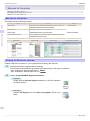
Viewing the Electronic manuals
Install the Electronic manuals on your computer before viewing the manuals.
1
2
Install the Electronic manuals with the software.
Note that the driver installation procedure varies depending on the type of connection.
(See "Installing the Software (Windows).") →P.74
(See "Installing the Software (Mac OS X).") →P.76
Display imagePROGRAF Support Information.
• Windows
Double-click the iPFxxxx Support desktop icon. (iPFxxxx indicates
the printer model.)
• Mac OS X
Click the iPF Support icon in the Dock (Launchpad in OS10.7 and
later).
6
Basic Guide
About This User Manual
iPF6400
3
When the imagePROGRAF Support Information
is displayed, click the User Manual icon or the Paper Reference Guide icon.
Preface
• Click Visit the imagePROGRAF webpage in Stay Informed to access the imagePROGRAF web site.
About This User Manual
• Symbols
The following symbols are used in this user manual to indicate safety information and explanations on restrictions or precautions in use.
Warning
Indicates warning items for which operating error poses a risk of death or serious injury. To ensure safe use,
always follow these warnings.
Caution
Indicates caution items for which operating error poses a risk of injury. To ensure safe use, always follow these
cautions.
Important
Indicates important information and restrictions that definitely are to be followed during operation. Be sure to
read this information to prevent troubles, malfunctions, or damage to equipment or property by operating errors.
Note
Indicates helpful reference information and supplemental information on particular topics.
Manuals for this printer
Note
• Button names and user interface elements
Key and button names on the control panel and user interface elements in software (such as menus and buttons) are indicated as follows in this user manual.
Control panel buttons
Example: Press the OK button.
Control panel messages
Example: Head Cleaning is displayed.
Software interface items
(menus and buttons)
Example: Click OK.
Keyboard keys
Example: Press the Tab key.
• Cross-reference
Other pages or manuals that provide related information are indicated as follows in this user manual.
Cross-reference in the same user manual
Example: see "Turning the Printer On and Off." →User's Guide
Click the link to jump to the corresponding page.
Cross-reference in related manuals
Example: See the Paper Reference Guide .
Other cross-reference
Example: See the printer driver help.
• Figures and software screens
• Figures in this user manual may be different from the actual appearance of the printer in some cases.
Basic Guide
7
About This User Manual
iPF6400
• Screens depicted in this user manual for the printer driver or other software may be different from the actual screens because of subsequent updates.
• May we request
• The information in this user manual is subject to change without notice.
• We strive to ensure accuracy of information in this user manual, but if you notice errors or omissions,
please contact us.
Preface
Manuals for this printer
8
Basic Guide
Loading Rolls on the Roll Holder
iPF6400
Handling Paper
Handling rolls
Loading Rolls on the Roll Holder ................................................................................................................................ 9
Loading Rolls in the Printer ........................................................................................................................................ 11
Removing the Roll from the Printer ........................................................................................................................ 14
Loading Rolls on the Roll Holder
Using Rolls with a 2-inch Paper Core
Handling Paper
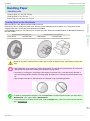
When printing on rolls, attach the Roll Holder to the roll.
Rolls have a two- or three-inch paper core. Use the correct attachment for the paper core. The printer comes
equipped with the 2-Inch Paper Core Attachment installed.
For borderless printing on A1 (594 mm) or A2 (420 mm) rolls, attach the included Spacer for Borderless Printing to
the Roll Holder.
Using Rolls with a 3-inch Paper Core
Roll Holder Side
Holder Stopper
Roll Holder Side
For 2-inch paper cores
No Attachment Needed
For 3-inch paper cores
3-Inch Paper Core Attachment
Handling rolls
Holder Stopper
• Set the roll on a table or other flat surface so that it does not roll or fall. Rolls are heavy, and dropping a roll may cause
injury.
Caution
• When handling the roll, be careful not to soil the printing surface. This may affect the printing quality. We recommend
Important
wearing clean cloth gloves when handling rolls to protect the printing surface.
• Use scissors or a cutting tool to cut the edge of the roll paper if it is uneven, dirty, or has tape residue. Otherwise, it
may cause feeding problems and affect the printing quality. Be careful not to cut through any barcodes printed on the
roll.
• Align the edges of the paper on both ends of the roll. Otherwise, it may cause feeding problems.
• For details on supported sizes and types of rolls, see Paper Sizes or the Paper Reference Guide. (See "Paper Sizes.")
Note
→User's Guide
(See "Types of Paper.") →User's Guide
• To view instructions as you attach the Roll Holder, press the Navigate button. (See "How to View Instructions with Navigate.") →User's Guide
9
Basic Guide
Loading Rolls on the Roll Holder
iPF6400
Follow steps 3 and 4. →User's Guide (HTML)
Handling Paper
1
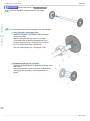
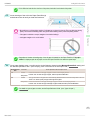
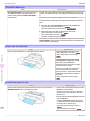
Remove the Holder Stopper from the Roll Holder.
2
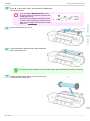
Insert the attachments for the roll paper on the Roll Holder.
Handling rolls
• Using rolls with a 3-inch paper core
Attach the included 3-Inch Paper Core Attachment
on the Roll Holder.
Align the triangular part (b) of the 3-Inch Paper
Core Attachment (a) with the triangular part (c) of
the Roll Holder as shown, and insert the 3-Inch Paper Core Attachment into the Roll Holder.
Use the Holder Stopper for 3-inch paper cores.
• Borderless printing on A1 or A2 rolls
Attach the included Spacer for Borderless Printing to the
Roll Holder.
Insert the protrusions (b) of the Spacer for Borderless
Printing (a) into the holes (c) of the Roll Holder, as
shown.
10
Basic Guide
Loading Rolls in the Printer
iPF6400
3
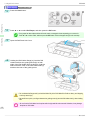
With the Roll Holder resting horizontally and the
edge of the roll paper facing forward as shown, insert the roll in the Roll Holder from the left. Insert
the roll firmly until it touches the flange (a) of the
Roll Holder, leaving no gap.
Handling Paper
Important
4
er upright may damage the Roll Holder.
Handling rolls
• Always have the Roll Holder resting horizontally when loading rolls. Attempting to load rolls with the Roll Hold-
Insert the Holder Stopper from the left in the Roll Holder as shown. Push it firmly in until the flange (a) of the
Holder Stopper touches the roll.
Attach the appropriate Holder Stopper for the size of
the paper core.
Loading Rolls in the Printer
Follow these steps to load rolls in the printer.
• Always load rolls when the printer is on. If the printer is off when you load a roll, the paper may not be advanced
Important
correctly when you turn the printer on.
• Before loading a roll, confirm whether the inside of the Top Cover or the Ejection Guide is soiled. If soiled, we recommend cleaning in advance. (See "Cleaning Inside the Top Cover.") →P.46
11
Basic Guide
Loading Rolls in the Printer
iPF6400
→User's Guide (HTML)
Handling Paper
1
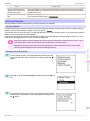
Press the Load button.
2
Press ▲ or ▼ to select Roll Paper, and then press the OK button.
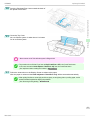
• If any paper has been advanced that will not be used, a message is shown requesting you to remove it.
Note
Press ▲ or ▼ to select "Yes", and then press the OK button. Remove the paper and go to the next step.
Handling rolls
3
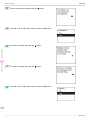
Open the Roll Feed Unit Cover.
4
Holding the Roll Holder flange (a), load the Roll
Holder shaft into the guide grooves (b) on both
sides of the Roll Holder Slot. At this time, load the
shaft so that the color of the Roll Holder shaft (c)
matches the color of the guide groove.
• Do not release the flanges until you load the holder fully in the Roll Holder Slot. Rolls are heavy, and dropping
Caution
a roll may cause injury.
• Be careful not to pinch your fingers between the guide grooves (b) and the Roll Holder shaft (c) when loading
rolls.
• Do not force the Roll Holder into the printer with the right and left ends reversed. Otherwise, it may damage
12
Important
the printer or Roll Holder.
Basic Guide
Loading Rolls in the Printer
iPF6400
• If it is difficult to load rolls from the front of the printer, load rolls from the back of the printer.
Note
5
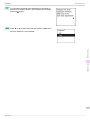
Insert the edge of the roll in the Paper Feed Slot (a)
and advance the roll until you hear the feed tone.
Important
quality. We recommend wearing clean cloth gloves when handling rolls to protect the printing surface.
Handling Paper
• Be careful not to soil the printing surface of roll paper as you insert it in the slot. This may affect the printing
• If the paper is wrinkled or warped, straighten it out before loading it.
Handling rolls
• Load paper straight so it is not fed askew.
• Regardless of whether the leading edge of the roll paper is inserted into the Paper Feed Slot, if "No paper
Note
6
loaded." is displayed, pull the roll paper out from the Paper Feed Slot once and then repeat step 5.
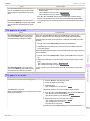
Once paper feeding starts, you will need to do the following, based on the ManageRemainRoll setting and
the barcode printed on rolls. (See "Keeping Track of the Amount of Roll Paper Left.") →User's Guide
ManageRemainRoll
Off
Barcodes
Printed
Not printed
On
Printer Operation After the Paper is Fed
A menu for selection of the type of paper is shown on the Display Screen.
Press ▲ or ▼ to select the type of paper, and then press the OK button.
Printed
The type and amount of paper left is automatically detected based on the barcode printed on the roll.
There is no need to specify the type and length of the paper.
Not printed
A menu for selection of the type and length of paper is shown on the Display Screen.
Press ▲ or ▼ to select the type and length of paper loaded, and then press the OK button.
• For details on types of paper to select, see the Paper Reference Guide. (See "Types of Paper.")
Note
→User's Guide
13
Basic Guide
Removing the Roll from the Printer
7
iPF6400
Close the Roll Feed Unit Cover.
Handling Paper
• Cut the edge of the roll using the Paper Cutting function if the edge is creased or soiled. (See "Specifying the
Important
Cutting Method for Rolls.") →User's Guide
• Adjusting the printhead alignment with the type of paper to be used in printing may enhance printing quality.
Handling rolls
Note
(See "Automatic Adjustment to Straighten Lines and Colors.") →P.85
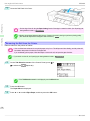
Removing the Roll from the Printer
Remove rolls from the printer as follows.
• Once a roll has been advanced, do not pull the paper out by force. This will prevent further feeding, and the printer will
Important
be unable to keep track of the amount of roll paper left.
If you accidentally pull out paper, follow these steps to remove the roll, and open the paper feed slot.
• If you need to cut the roll, see "Specifying the Cutting Method for Rolls."
→User's Guide
Note
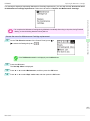
1
On the Tab Selection screen of the Control Panel, press ◀ or
▶ to select the
(Paper tab) .
• If the Tab Selection screen is not displayed, press the Menu button.
Note
2
3
Press the OK button.
The Paper Menu is displayed.
Press ▲ or ▼ to select Eject Paper, and then press the OK button.
14
Basic Guide
Removing the Roll from the Printer
iPF6400
4
Press ▲ or ▼ to select "Yes", and then press the OK button.
The roll is rewound.
• If you have selected ManageRemainRoll > On in
Important
Open the Roll Feed Unit Cover.
6
Using both hands, rotate the Roll Holder toward the
back to rewind the roll.
Handling rolls
5
Handling Paper
the Control Panel menu, a barcode is printed on the
leading edge of the roll.
Do not remove the roll before the barcode is printed.
You will be unable to keep track of the amount of roll
paper left. (See "Keeping Track of the Amount of Roll
Paper Left.") →User's Guide
• If it is difficult to perform operations from the front of the printer, perform operations from the back of the printer.
Note
7
Holding the Roll Holder flange (a), remove the holder from the Roll Holder Slot.
15
Basic Guide
Removing the Roll from the Printer
iPF6400
• For instructions on removing rolls from the Roll Holder, see "Removing Rolls From the Roll Holder."
Note
8
→User's Guide
Close the Roll Feed Unit Cover.
Handling Paper
• To load new paper in the printer at this point, see "Loading Rolls in the Printer."
→P.11
Handling rolls
Note
16
Basic Guide
Loading Sheets in the Feed Slot
iPF6400
Handling sheets
Loading Sheets in the Feed Slot .............................................................................................................................. 17
Removing Sheets ............................................................................................................................................................ 23
Loading Sheets in the Feed Slot
When printing on individual sheets, load the sheet in the Top Paper Feed Slot. However, for heavyweight paper
such as POP board, load the sheet in the Front Paper Feed Slot.
• If a print job was received
Sheets are automatically selected, and the media type and size specified by the print job are shown on the
Display Screen.
1
Press ▲ or ▼ to select Load Paper, and then press the OK button.
Load the sheet in the Top Paper Feed Slot or Front Paper Feed Slot, depending on the type of paper specified by the print job.
• If a type of paper other than POP Board is selected
Loading Sheets in the Top Paper Feed Slot →P.17
• If POP Board is selected
Loading Heavyweight Sheets in the Front Paper Feed Slot →P.20
Handling sheets
2
Handling Paper
Selecting the Paper Source and Type of Paper
• If no print job was received
1
Press the Load button.
2
Press ▲ or ▼ to select Manual Paper, and then press the OK button.
• If any paper has been advanced that will not be used, a message is shown requesting you to remove it.
Note
3
Press ▲ or ▼ to select "Yes", and then press the OK button. Remove the paper and go to the next step.
Press ▲ or ▼ to select the type of paper, and then press the OK button.
When printing on heavyweight paper, select POP Board and load the sheet in the Front Paper Feed Slot.
(See "Loading Heavyweight Sheets in the Front Paper Feed Slot.") →P.20
When printing on other types of paper, select the type of paper and load the sheet in the Top Paper Feed
Slot. (See "Loading Sheets in the Top Paper Feed Slot.") →P.17
• For details on types of paper to select, see the Paper Reference Guide. (See "Types of Paper.")
Note
→User's Guide
Loading Sheets in the Top Paper Feed Slot
→User's Guide (HTML)
Basic Guide
17
Loading Sheets in the Feed Slot
iPF6400
• One sheet of paper can be loaded at a time. Do not load multiple sheets. This may cause paper jams.
Important
• Before feeding paper or printing, make sure the sheet is flat against the Paper Tray Cover. The sheet may jam if it curls
before feeding or printing and the trailing edge drops toward the front.
• Paper that is wrinkled or warped may jam. If necessary, straighten the paper and reload it.
• Load the paper straight. Loading paper askew will cause an error.
• Store unused paper in the original package, away from high temperature, humidity, and direct sunlight.
Handling Paper
Note
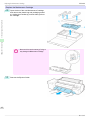
Open the Paper Tray Cover (a), and then open the
Tray Extension (b).
2
Slide the Width Guide (a) to align it with the mark
for the size of paper you will load.
Handling sheets
1
18
Basic Guide
Loading Sheets in the Feed Slot
iPF6400
3
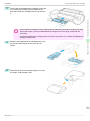
Load one sheet, printing-side up, in the Top Paper
Feed Slot.
Insert the paper until it touches the far end of the
tray lightly.
Handling Paper
• If you load a sheet larger than A2, the sheet may fall behind the printer under its own weight. Put your hand
under the sheet to support it and prevent it from falling.
• If it is difficult to load rolls from the front of the printer, load them from the back of the printer.
Note
4
5
Handling sheets
Important
Move the Width Guide (a) to match the size of paper loaded.
Set the Width Guide against the edge of the paper
to prevent the paper from becoming crooked or
wrinkled.
Press the OK button.
• If a print job was received
After the paper is advanced, the printer starts printing the print job.
• If no print job was received
The printer now starts feeding the paper.
19
Basic Guide
Loading Sheets in the Feed Slot
iPF6400
Loading Heavyweight Sheets in the Front Paper Feed Slot
→User's Guide (HTML)
• Always load POP Board in the Front Paper Feed Slot for printing. Loading it in other ways may impair operation and
Important
damage the printer.
• One sheet of paper can be loaded at a time. Do not load multiple sheets. This may cause paper jams.
• Straighten paper if it is warped before loading it.
Handling Paper
• Load the paper straight. Loading paper askew will cause an error.
• Once you load the paper, you cannot shift it sideways. Load the paper straight.
• Store unused paper in the original package, away from high temperature, humidity, and direct sunlight.
Note
Handling sheets
1
If the message "Leave 70cm (28") space behind
printer." is displayed, check the space behind the
printer, pull up the four Front Tray Guides above
the Ejection Guide, and press the OK button.
• Sufficient space behind the printer is required when loading paper in the Front Paper Feed Slot. For details on
Note
2
the installation space required, see "Specifications." →User's Guide
After "Open top cover." is displayed, open the Top
Cover.
20
Basic Guide
Loading Sheets in the Feed Slot
iPF6400
3
Set the leading edge of one sheet, printing-side up,
on the Front Tray Guides, and insert the sheet in
the Front Paper Feed Slot, keeping it level.
Handling Paper
Important
4
Handling sheets
• When you insert the sheet in the Front Paper Feed Slot, keep the sheet level, relative to the paper feed slot.
Failure to do this may scratch the printing surface.
As you look inside the Top Cover, insert the leading edge of the sheet between the Platen and Paper Retainer (a), keeping it parallel to the Paper
Retainer (a), and align the paper with the Paper
Alignment Line (b) of the Front Tray Guides.
21
Basic Guide
Loading Sheets in the Feed Slot
iPF6400
• Do not touch the Linear Scale (a) or Carriage
Important
Shaft (b). This may stain your hands and damage the printer.
Handling Paper
Handling sheets
5
When "Close top cover." is displayed, close the
Top Cover and press the OK button.
The sheet is held between the Platen and Back
Cover, and feeding begins.
• If a print job was received
After the paper is advanced, the printer starts printing the print job.
• If no print job was received
The printer now starts feeding the paper.
6
7
After printing, the printer will temporarily stop advancing the paper while the trailing edge is still in the rollers
to prevent the sheet from dropping.
Once you press the OK button, the paper can be removed.
Remove the sheet, keeping the front edge level as
you pull it out.
• If POP Board is accidentally removed at an angle, it may scratch the printed surface.
22
Important
Basic Guide
Removing Sheets
iPF6400
8
9
Press the OK button.
Lift the four Front Tray Guides above the Ejection
Guide, store them toward the front, and then press
the OK button.
Handling Paper
Handling sheets
Removing Sheets
Remove sheets from the printer as follows.
• Removing sheets from the top paper feed slot →P.23
• Removing heavyweight sheets from the front paper feed slot →P.24
Removing sheets from the top paper feed slot
1
On the Tab Selection screen of the Control Panel, press ◀ or
▶ to select the Paper tab (
).
• If the Tab Selection screen is not displayed, press the Menu button.
Note
2
3
Press the OK button.
The Paper Menu is displayed.
Press ▲ or ▼ to select Eject Paper, and then press the OK button.
23
Basic Guide
Removing Sheets
4
iPF6400
Press ▲ or ▼ to select "Yes", and then press the OK button.
The paper is ejected from the front of the printer.
• If the trailing edge of a sheet is not ejected, pull the sheet out, keeping the front edge level. Accidentally reImportant
moving the sheet at an angle may scratch the printed surface.
Removing heavyweight sheets from the front paper feed slot
Handling Paper
1
On the Tab Selection screen of the Control Panel, press ◀ or
▶ to select the Paper tab (
).
Handling sheets
• If the Tab Selection screen is not displayed, press the Menu button.
Note
2
3
4
5
6
Press the OK button.
The Paper Menu is displayed.
Press ▲ or ▼ to select Eject Paper, and then press the OK button.
Press ▲ or ▼ to select "Yes", and then press the OK button.
As the printer ejects the paper, the paper is stopped momentarily with the trailing edge still held in the rollers.
Press the OK button.
The sheet can now be removed.
Remove the sheet, keeping the front edge level as
you pull it out.
• If POP Board is accidentally removed at an angle, it may scratch the printed surface.
Important
7
Press the OK button.
• Always remove the sheet before pressing the OK button. If you do not remove the sheet before step 7, it may
Important
go back inside the printer, leaving roller marks across the trailing edge of paper.
24
Basic Guide
iPF6400
8
Removing Sheets
Lift the four Front Tray Guides above the Ejection
Guide, store them toward the front, and then press
the OK button.
Handling Paper
Handling sheets
25
Basic Guide
Ink Tanks
iPF6400
Consumables and Maintenance
Ink Tanks
Ink Tanks ............................................................................................................................................................................ 26
Replacing Ink Tanks ....................................................................................................................................................... 26
Consumables and Maintenance
Ink Tanks
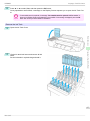
When purchasing, check the Model number.
Shape
Colors
Ink Tanks
Matte black
PFI-106 MBK
Black
PFI-106 BK
Cyan
PFI-106 C
Magenta
PFI-106 M
Yellow
PFI-106 Y
Photo cyan
PFI-106 PC
Photo magenta
PFI-106 PM
Red
PFI-106 R
Green
PFI-106 G
Blue
PFI-106 B
Gray
PFI-106 GY
Photo gray
PFI-106 PGY
Shape
Note
Model number
Colors
Ink Type
Pigment ink
Model number
Matte black
PFI-206 MBK
Black
PFI-206 BK
Cyan
PFI-206 C
Magenta
PFI-206 M
Yellow
PFI-206 Y
Photo cyan
PFI-206 PC
Photo magenta
PFI-206 PM
Red
PFI-206 R
Green
PFI-206 G
Blue
PFI-206 B
Gray
PFI-206 GY
Photo gray
PFI-206 PGY
Capacity
130 ml (4.4 fl oz)
Ink Type
Pigment ink
• For instructions on Ink Tank replacement, see "Replacing Ink Tanks."
• The provided Starter Ink Tanks contain 90 ml (3.0 fl oz) each.
Capacity
300 ml (10.2 fl oz)
→P.26
Replacing Ink Tanks
Compatible ink tanks
26
For information on supported ink tanks, see "Ink Tanks." →P.26
Replacement ink tanks in 130 ml (4.4 fl oz) and 300 ml (10.2 fl oz) capacities are supported.
Basic Guide
Replacing Ink Tanks
iPF6400
• Depending on the color, you can also use ink tanks of different capacities.
Note
Precautions when handling ink tanks
Take the following precautions when handling ink tanks.
• There may be ink around the ink supply section of ink tanks you removed. Handle ink tanks carefully during replaceImportant
ment. The ink may stain clothing.
• Do not install used ink tanks in another model of printer.
This will prevent correct ink level detection, which may damage the printer or cause other problems.
• We recommend using up an Ink Tank in the course of printing within six months after breaking the seal. Printing quality
Consumables and Maintenance
• For safety, keep ink tanks out of the reach of children.
• If ink is accidentally ingested, contact a physician immediately.
Caution
may be affected if you use older ink tanks.
• Do not leave the printer without ink tanks installed for extended periods (a month or more). Residual ink may become
Confirm the message
Ink Tanks
clogged inside the printer and affect printing quality.
When the ink level becomes low, a message is displayed on the Display Screen.
According to the message, replace the ink tank or prepare a new ink tank. (See "When to Replace Ink Tanks.")
→User's Guide
If a message requests you to replace an Ink Tank, press the OK button. In this case, you can skip the step Access
the menu for ink tank replacement. Follow the instructions in Remove the ink tanks.
• Do not remove an Ink Tank during initialization immediately after turning on the printer, or during printhead cleaning.
Important
Ink may leak out.
• Ink Tank replacement is possible even during printing, when print jobs are being canceled, or when paper is being adNote
vanced.
27
Basic Guide
Replacing Ink Tanks
iPF6400
Access the menu for Ink Tank replacement
1
On the Tab Selection screen of the Control Panel, press ◀ or
▶ to select the Ink tab (
).
Consumables and Maintenance
• If the Tab Selection screen is not displayed, press the Menu button.
Note
2
3
Press the OK button.
The Ink Menu is displayed.
Ink Tanks
Press ▲ or ▼ to select Rep. Ink Tank, and then press the OK button.
A message on the Display Screen requests you to open the Ink Tank Cover. Remove the Ink Tank at this
point.
Remove the Ink Tanks
→User's Guide (HTML)
1
Open the Ink Tank Cover and check the ink lamps.
Ink lamps flash when there is little ink left.
28
Basic Guide
Replacing Ink Tanks
iPF6400
Press the tip of the Ink Tank Lock Lever of the color
for replacement horizontally and lift the Ink Tank
Lock Lever to open it.
3
Hold the Ink Tank by the grips and remove it. Press
the OK button.
Consumables and Maintenance
2
Ink Tanks
• If there is still ink in the Ink Tank you removed, store it with the
Important
ink holes (a) facing up. Otherwise, ink may leak and cause stains.
Put the Ink Tank in a plastic bag and seal it.
• Dispose of used ink tanks according to local regulations.
Note
29
Basic Guide
Replacing Ink Tanks
iPF6400
Installing Ink Tanks
1
Before opening the pouch, gently agitate the Ink Tank seven or eight times. Agitate the ink in the Ink Tank by slowly
rotating the Ink Tank upside-down and right side up repeatedly.
Consumables and Maintenance
• After installing an ink tank, do not remove and shake it. Doing so may cause the ink to leak out.
Ink Tanks
Important
2
• If you do not agitate the Ink Tank, the ink may settle, which may affect printing quality.
Open the pouch and remove the Ink Tank.
• Never touch the ink holes or electrical contacts. This may cause stains, damage the Ink Tank, and affect printImportant
ing quality.
30
Basic Guide
Replacing Ink Tanks
iPF6400
3
Press the OK button and install the Ink Tank into
the holder as shown, with the ink holes facing
down.
Consumables and Maintenance
Important
4
or orientation is incorrect.
If the Ink Tank does not fit in the holder, do not force
it in. Make sure that the color of the Ink Tank Lock
Lever matches the color of the Ink Tank and check
the orientation of the Ink Tank before reinstalling it.
Ink Tanks
• Ink tanks cannot be installed in the holder if the color
Push the Ink Tank Lock Lever closed until it clicks
into place.
31
Basic Guide
Replacing Ink Tanks
iPF6400
• If a 130 ml (4.4 fl oz) ink tank is installed facing
Important
Consumables and Maintenance
5
the wrong direction, the rotating part of the Ink
Tank Lock Lever come out of place.
If this happens, open the Ink Tank Lock Lever to
return it to the proper position.
Make sure the Ink Lamp is lit in red.
Ink Tanks
• If the Ink Lamp is not lit, reinstall the tank.
Note
6
Close the Ink Tank Cover.
32
Basic Guide
Printhead
iPF6400
Printheads
Printhead ............................................................................................................................................................................ 33
Replacing the Printhead ............................................................................................................................................... 33
Printhead
Shape
Model number
PF-05
→P.33
Printheads
• For instructions on replacing the Printhead, see "Replacing the Printhead."
Consumables and Maintenance
When purchasing, check the Model number.
Note
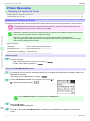
Replacing the Printhead
When to replace the Printhead
This printer is equipped with two printheads.
Replace one or both printheads in the following situations.
• If the printing quality does not improve even after one or two cycles of Head Cleaning B from the printer menu
Replace any printheads with poor printing performance.
• If the Display Screen indicates "Open top cover and replace the left printhead."
Replace the Printhead on the left side.
• If the Display Screen indicates "Open top cover and replace the right printhead."
Replace the Printhead on the right side.
• If your Canon dealer has advised Printhead replacement
Replace the Printhead as directed.
Compatible printheads
For information on compatible printheads, see "Printhead." →P.33
Precautions when handling the Printhead
Take the following precautions when handling the Printhead.
• For safety, keep the Printhead out of the reach of children.
• If ink is accidentally ingested, contact a physician immediately.
Caution
• Do not touch the Printhead immediately after printing. The Printhead becomes extremely hot, and there is a risk of
burns.
33
Basic Guide
Replacing the Printhead
iPF6400
• There may be ink around the nozzles of the Printhead you remove. Handle the Printhead carefully during replacement.
Important
The ink may stain clothing.
• Do not open the Printhead pouch until immediately before installation. After removing the Printhead from the pouch,
install it right away. If the Printhead is left after the pouch is opened, the nozzles may dry out, which may affect printing
quality.
Consumables and Maintenance
Access the menu for Printhead replacement
• When replacing the Printhead immediately after printing, wait a few minutes before replacing it. The metal parts of the
Printhead become hot during printing, and there is a risk of burns from touching these parts.
Caution
• Your hands may become dirty during Printhead replacement. Use the gloves provided with the new Printhead for reImportant
placement.
• Prepare a new Ink Tank when ink levels are low.
Note
Printheads
1
• When the remaining capacity of Maintenance cartridge is low, prepare a new Maintenance cartridge.
Remove any paper that has been advanced by selecting Eject Paper in the Control Panel menu.
• When using a roll, rewind it.
(See "Removing the Roll from the Printer.") →P.14
• When using sheets, remove the sheet.
(See "Removing Sheets.") →P.23
2
Clean inside the Top Cover. (See "Cleaning Inside the Top Cover.") →P.46
3
On the Tab Selection screen of the Control Panel, press ◀ or
▶ to select the Settings/Adj. tab (
).
• If the Tab Selection screen is not displayed, press the Menu button.
Note
4
5
Press ▲ or ▼ to select Maintenance, and then press the OK button.
6
Press ▲ or ▼ to select Replace P.head, and then press the OK button.
7
8
34
Press the OK button.
The Set./Adj. Menu is displayed.
Press ▲ or ▼ to select the Printhead for replacement.
Select Printhead L when replacing the left printhead and Printhead R when replacing the right printhead.
Make sure your selection is correct.
Press the OK button.
The ink begins to be drawn in, and instructions appear on the Display Screen after this has finished.
It takes about three minutes for the ink to be drawn in.
Basic Guide
iPF6400
Replacing the Printhead
Replace the Printhead
Open the Top Cover.
Instructions are now shown on the Display Screen
regarding Printhead replacement.
2
If the Printhead Fixer Cover or Printhead Fixer Lever is dirty, use a damp cloth that you have wrung
out completely to wipe it clean.
Consumables and Maintenance
1
Printheads
35
Basic Guide
Replacing the Printhead
iPF6400
• Do not touch the Linear Scale (a) or Carriage
Important
Shaft (b). Touching these parts may damage
them.
Consumables and Maintenance
Printheads
• Never touch the metal contacts of the Carriage. This may damage the printer.
3
Pull the Printhead Fixer Lever forward all the way
to open it completely.
4
Pull up the Printhead Fixer Cover to open it completely.
36
Basic Guide
Replacing the Printhead
iPF6400
5
Remove the Printhead and press the OK button.
Consumables and Maintenance
• Dispose of the used Printhead in accordance with local regulations.
Note
Holding the new Printhead by the grips (a), remove it
from the pouch.
Printheads
6
• When handling the Printhead, always hold it by the grips (a). Never touch the nozzles (b) or metal contacts
Important
(c). This may damage the Printhead and affect printing quality.
• Never touch the ink supply section (d). This may
cause printing problems.
37
Basic Guide
Replacing the Printhead
7
iPF6400
While firmly holding the Printhead you have removed, use your other hand to remove the orange
Protective Part (a). Squeeze the grips (c) of Protective Part (b) and pull it down to remove it.
Consumables and Maintenance
• The inside surface of the Protective Part (a) and Protective Part (b) is coated with ink to protect the nozzles.
Important
Be careful not to touch these surfaces when removing the caps.
• The Printhead contains ink to protect the nozzles. We recommend removing Protective Part (b) as you hold it
over the Printhead package or safely out of the way to avoid spilling ink and staining your clothes or the surrounding area. If ink accidentally spills, wipe off the ink with a dry cloth.
Printheads
• If you need to put a Printhead somewhere temporarily before installation, do not keep the nozzles and metal
contacts facing down. If the nozzles or metal contacts are damaged, it may affect the printing quality.
• Do not reattach the Protective Part or protective material. Dispose of these materials in accordance with local
regulations.
8
With the nozzles facing down and the metal contacts toward the back, insert the Printhead into the
Carriage. Carefully push the printhead firmly into
the Carriage, ensuring that the nozzles and metal
contacts do not touch the carriage.
9
Pull the Printhead Fixer Cover down toward the
front to lock the Printhead in place.
38
Basic Guide
Replacing the Printhead
iPF6400
Push the Printhead Fixer Lever toward the back of
the printer until it clicks.
11
Close the Top Cover.
Ink now fills the system. It takes about 11 minutes
for ink to fill the system.
Consumables and Maintenance
10
Printheads
• Never remove an Ink Tank while the system is filling with ink.
Important
• The procedure is now finished if you have set Rep.P.head Print to Off in the Control Panel menu.
Note
12
In this case, execute the Initial adjustmt of Head Posi. Adj. from the Control Panel menu.
(See "Adjustment When Installing the Printhead.") →User's Guide
Follow the instructions on the Display Screen to advance the paper.
After the paper is advanced the Initial adjustmt of Head Posi. Adj. will be executed automatically.
• When printing fine lines or text at high precision on glossy or semi-glossy photo or proofing paper, set the
Note
optimal Printhead height before aligning the printhead.
(See "Enhancing Printing Quality.") →User's Guide
39
Basic Guide
Maintenance Cartridge
iPF6400
Maintenance Cartridge
Maintenance Cartridge ................................................................................................................................................. 40
Replacing the Maintenance Cartridge ................................................................................................................... 40
Maintenance Cartridge
Consumables and Maintenance
When purchasing, check the Model number.
Shape
Model number
MC-16
• For instructions on replacing the Maintenance Cartridge, see "Replacing the Maintenance Cartridge."
→P.40
Note
Maintenance Cartridge
Replacing the Maintenance Cartridge
Compatible maintenance cartridges
For information on compatible maintenance cartridges, see "Maintenance Cartridge." →P.40
Precautions when handling the Maintenance Cartridge
Take the following precautions when handling the Maintenance Cartridge.
• For safety, keep the Maintenance Cartridge out of the reach of children.
• If ink is accidentally ingested, contact a physician immediately.
Caution
• Do not remove the Maintenance Cartridge except to replace it. Ink may leak out.
Important
• To prevent ink from leaking from a used Maintenance Cartridge, avoid dropping the cartridge or storing it at an angle.
Otherwise, ink may leak and cause stains.
• Ink adheres to the top of the Maintenance Cartridge after it has been used. Handle the Maintenance Cartridge carefully
during replacement. The ink may stain clothing.
Confirm the message
When the Maintenance Cartridge is almost empty, a message is shown on the Display Screen. According to the
message, replace the Maintenance Cartridge or prepare a new Maintenance Cartridge. (See "When to Replace the
Maintenance Cartridge.") →User's Guide
40
Basic Guide
Replacing the Maintenance Cartridge
iPF6400
If a message is displayed requesting Maintenance Cartridge replacement, you can skip the step Access the menu
for Maintenance Cartridge replacement. Follow the instructions in Replace the Maintenance Cartridge.
Important
cleaning, or when ink is being absorbed. Ink may leak out.
Access the menu for Maintenance Cartridge replacement
1
Consumables and Maintenance
• Do not replace the Maintenance Cartridge during initialization immediately after turning on the printer, during Printhead
On the Tab Selection screen of the Control Panel, press ◀ or
).
Maintenance Cartridge
▶ to select the Settings/Adj. tab (
• If the Tab Selection screen is not displayed, press the Menu button.
Note
2
Press the OK button.
The Set./Adj. Menu is displayed.
3
Press ▲ or ▼ to select Maintenance, and then press the OK button.
4
Press ▲ or ▼ to select Repl. maint cart, and then press the OK button.
41
Basic Guide
Replacing the Maintenance Cartridge
iPF6400
Replace the Maintenance Cartridge
1
Open the box of the new Maintenance Cartridge
and remove the plastic bag and packaging material. Holding the handles (a) on both sides, pull out
the cartridge.
Consumables and Maintenance
Maintenance Cartridge
• Never touch the metal contacts (a). Doing so
Important
2
may damage the Maintenance Cartridge.
Remove the Ejection Guide.
42
Basic Guide
Replacing the Maintenance Cartridge
iPF6400
3
Pull out the used Maintenance Cartridge by the grip
(a). Holding the cartridge by the handles (b) on
both sides, keep the cartridge level as you remove
it.
Important
removal and storage. If you drop a used Maintenance Cartridge or store it at an angle, ink may leak and
cause stains.
• The remaining Maintenance Cartridge capacity is recorded on each printer. Do not install a used Maintenance
Cartridge in another printer.
Keep the used Maintenance Cartridge level as you
put it in the plastic bag that was in the box, as
shown.
5
Expel excess air from the plastic bag as you seal
the zipper. Fold the bag in half.
Maintenance Cartridge
4
Consumables and Maintenance
• Used maintenance cartridges are heavy. Always grasp the cartridge firmly and keep the cartridge level during
43
Basic Guide
Replacing the Maintenance Cartridge
6
iPF6400
Put the used Maintenance Cartridge and packaging
material in the box, just as the new Maintenance
Cartridge was originally packaged, and store the
used cartridge keeping it level.
Consumables and Maintenance
Maintenance Cartridge
• Always put the used Maintenance Cartridge back in the box and store the box on a flat surface. Otherwise,
Important
ink may leak and cause stains.
• In accordance with active and ongoing environmental programs, Canon supports recycling of used mainteNote
nance cartridges. Follow the instructions provided with the new Maintenance Cartridge that describe how to
process the used Maintenance Cartridge.
7
Holding the handles (a) on both sides of the new
Maintenance Cartridge, insert it completely, keeping it level.
8
Hold the Ejection Guide on both sides by the near
end. Aligning the Ejection Guide with the guides
(a), insert it into the printer until it locks in place.
44
Basic Guide
iPF6400
9
Replacing the Maintenance Cartridge
Press the OK button.
The Maintenance Cartridge is now initialized.
Consumables and Maintenance
Maintenance Cartridge
45
Basic Guide
Cleaning Inside the Top Cover
iPF6400
Cleaning the Printer
Cleaning Inside the Top Cover .................................................................................................................................. 46
Cleaning the Printhead ................................................................................................................................................. 48
Cleaning Inside the Top Cover
Consumables and Maintenance
Clean inside the Top Cover about once a month to maintain better printing quality and help prevent problems.
Also clean inside the Top Cover in the following situations to ensure optimal operation.
•
•
•
•
•
•
•
•
If the printed surface or the underside of paper is dirty after printing
After you have used up a roll
After borderless printing
After printing on small paper
After printing on paper that generates a lot of cutting debris
If you have replaced the roll
After printing on paper that generates a lot of paper dust
If the message "Blue platen switch is dirty." is displayed
• If the Platen inside the Top Cover becomes dirty, it may soil the underside of paper. We recommend cleaning the PlatCleaning the Printer
Important
en after borderless printing or printing on small paper.
• If the Ejection Guide is dirty, it may soil the edge of the paper when the paper is cut. We recommend cleaning the
Ejection Guide even if it does not appear dirty, because it may actually be covered with paper dust.
1
On the Tab Selection screen of the Control Panel, press ◀ or
▶ to select the Settings/Adj. tab (
).
• If the Tab Selection screen is not displayed, press the Menu button.
Note
2
3
4
5
Press the OK button.
The Set./Adj. Menu is displayed.
Press ▲ or ▼ to select Maintenance, and then press the OK button.
Press ▲ or ▼ to select Clean Platen, and then press the OK button.
A message on the Display Screen requests you to open the Top Cover.
Open the Top Cover.
46
Basic Guide
Cleaning Inside the Top Cover
iPF6400
6
If paper dust has accumulated in the Vacuum holes
(a) on the Platen or in the Borderless Printing Ink
Grooves (b), use the Cleaning Brush (c), provided
with the printer, to wipe it away.
Consumables and Maintenance
Cleaning the Printer
• If the Cleaning Brush is dirty, rinse it in water.
Note
7
Using a damp cloth that you have wrung out completely, wipe inside the Top Cover to clean it. Wipe
away any ink residue on the Platen (a) as a whole,
on the Paper Retainer (b), Borderless Printing Ink
Grooves (c), and blue Switch (d).
• Never use flammable solvents such as alcohol, benzene, or thinner. If these substances come into contact
Warning
with electrical components inside the printer, there is a risk of fire or electrical shock.
47
Basic Guide
Cleaning the Printhead
iPF6400
• Do not use a dry cloth to wipe inside the Top Cover. This may create a static charge, which may attract dust
Important
and affect the printing quality.
• Do not touch the Linear Scale (a) or Carriage
Shaft (b). This may stain your hands and damage the printer.
Consumables and Maintenance
Cleaning the Printer
8
Close the Top Cover.
Cleaning the Printhead
If printing is faint, cleaning the Printhead may improve results.
Choose one of two Printhead cleaning modes (Head Cleaning A or Head Cleaning B), depending on the problem
to resolve.
• Head Cleaning A
Use this mode if printing is faint or contains foreign substances. This method of cleaning consumes the least
amount of ink.
It takes about six minutes to complete.
• Head Cleaning B
Use this mode if no ink is ejected at all, or if Head Cleaning A does not solve the problem.
It takes about seven minutes to complete.
• Do not remove the Maintenance Cartridge or ink tanks during either Head Cleaning A or Head Cleaning B.
Caution
48
Basic Guide
Cleaning the Printhead
iPF6400
• If printing does not improve after Head Cleaning B, try repeating Head Cleaning B once or twice. If this still does not
Note
improve printing, the Printhead may have reached the end of its useful life. Contact your Canon dealer for assistance.
• Nozzles are periodically checked to ensure they are clear. Configure the settings on the Control Panel menu in Nozzle
Check. (See "Menu Settings.") →User's Guide
Perform cleaning as follows.
On the Tab Selection screen of the Control Panel, press ◀ or
▶ to select the Settings/Adj. tab (
).
• If the Tab Selection screen is not displayed, press the Menu button.
Consumables and Maintenance
1
Note
Press the OK button.
The Set./Adj. Menu is displayed.
3
Press ▲ or ▼ to select Maintenance, and then press the OK button.
4
Press ▲ or ▼ to select Head Cleaning, and then press the OK button.
5
6
Cleaning the Printer
2
Press ▲ or ▼ to select Head Cleaning A or Head Cleaning B, and then press the OK button.
Head cleaning is now executed.
Print a test pattern to check the nozzles, and determine whether cleaning has cleared the nozzles. (See
"Checking for Nozzle Clogging.") →User's Guide
49
Basic Guide
Control Panel
iPF6400
Printer Parts
Operations and Display Screen
Control Panel .................................................................................................................................................................... 50
Menu Operations ............................................................................................................................................................ 51
Menu Structure ............................................................................................................................................................... 55
Control Panel
Printer Parts
Operations and Display Screen
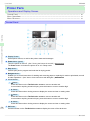
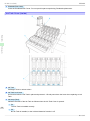
a Display Screen
Shows printer menus, as well as the printer status and messages.
b Power button (green)
Turns the printer on and off. (See "Turning the Printer On and Off.") →User's Guide
The Power button is lit when the printer is on or in Sleep mode.
c Stop button
Cancels print jobs in progress and ends the ink drying period.
d Navigate button
Enables you to check instructions for loading and removing paper or replacing ink tanks or printheads, as well
as other operations. (See "How to View Instructions with Navigate.") →User's Guide
e Arrow buttons
• ◀ button
Press this button on the Tab Selection screen to move to another tab.
In menu items requiring numerical input, press this button to move to another digit.
• ▲ button
Press this button when viewing menus to display the next menu item or setting value.
• ▶ button
Press this button on the Tab Selection screen to move to another tab.
In menu items requiring numerical input, press this button to move to another digit.
• ▼ button
Press this button when viewing menus to display the next menu item or setting value.
50
f OK button
Press this button on the Tab Selection screen to display the menu of the tab shown.
Basic Guide
Menu Operations
iPF6400
Pressing this button in menu items of each tab for which
is displayed at left will move to the lower level of
the menu item, enabling you to execute menu commands or set menu values.
Also press this button if the Display Screen indicates to press the OK button.
g Back button
Displays the screen before the current screen.
h Menu button
Displays the Tab Selection screen. (See "Menu Settings.") →User's Guide
i Cut button
Pressing this button when rolls are loaded cuts the paper, if you have specified Automatic or Eject in Cutting
Mode in the Control Panel menu. (See "Specifying the Cutting Method for Rolls.") →User's Guide
j Feed button
Pressing this button when rolls are loaded enables you to reposition the paper. (See "Feeding Roll Paper Manually.") →User's Guide
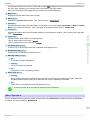
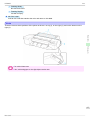
m Roll Media lamp (green)
Lit when rolls are selected as the paper source.
n Message Lamp (orange)
• On
A warning message is displayed.
• Flashing
An error message is displayed.
Operations and Display Screen
l Cut Sheet lamp (green)
Lit when Tray or Front Paper Feed Slot is selected as the paper source.
Printer Parts
k Load button
Press this button when loading or replacing paper.
(See "Loading Rolls in the Printer.") →P.11
(See "Loading Sheets in the Feed Slot.") →P.17
• Off
The printer is off or is operating normally.
o Data Lamp (green)
• Flashing
During printing, the Data lamp flashes when the printer is receiving or processing print jobs. Otherwise,
this lamp flashes when the print job is paused or the printer is updating the firmware.
• Off
There are no active print jobs when the Data lamp is off.
• To recover from Sleep mode, any button can be pressed on the Control Panel.
Note
Menu Operations
To view available menus organized on tabs, select a tab on the Tab Selection screen and press the OK button.
For details, see "Menu Settings." →User's Guide
51
Basic Guide
Menu Operations
iPF6400
• Menus (when the Ink tab is selected and the OK button is pressed)
• If the Tab Selection screen is not displayed, press the Menu button.
Note
Printer Parts
Simply press buttons on the Control Panel to access menus on various tabs from the Tab Selection screen and
set or execute Menu items.
The following section describes menu operations.
•
•
•
•
Accessing menus →P.52
Specifying menu items →P.53
Specifying numerical values →P.53
Executing menu commands →P.54
Operations and Display Screen
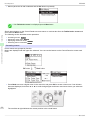
Accessing menus
Printer menus are grouped by function.
Menus are displayed with the upper line selected. You can use the buttons on the Control Panel to access each
menu.
• Press Back to access a higher menu in the menu list, and press OK to access a lower one. If not all menu
items are displayed, hold down ▲ or ▼ to scroll through higher and lower menu items. Items you select are
highlighted.
52
The scroll bar at right indicates the current position in the overall menu.
Basic Guide
Menu Operations
iPF6400
• Lower menus are available if
is displayed at left next to the second and subsequent rows. To access the
lower menus, select the menu and press the OK button.
Specifying menu items
Menu items can be set as follows.
Press ▲ or ▼ to select the desired setting, and then press the OK
button.
After two seconds, the display reverts to the upper level menu.
Printer Parts
1
Operations and Display Screen
• If a confirmation message is displayed regarding the setting you entered, press the OK button. The setting is
Note
applied, and the printer is now in Standby.
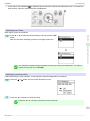
Specifying numerical values
Follow these steps to enter numbers. In this example, network settings items are entered.
1
Press the ◀ or ▶ button to move to the next field for input.
2
Press the ▲ or ▼ button to enter the value.
• Hold down ▲ or ▼ to increase or decrease the value continuously.
Note
53
Basic Guide
Menu Operations
3
iPF6400
Repeat steps 1 and 2 to complete the settings, and then press the OK button.
• If a confirmation message is displayed regarding the setting you entered, press the OK button. The setting is
Note
applied, and the printer is now in Standby.
Executing menu commands
Menu commands can be executed as follows.
1
Press ▲ or ▼ to select the action to execute, and then press the OK button.
The menu command is now executed.
Printer Parts
Operations and Display Screen
54
Basic Guide
Menu Structure
iPF6400
Menu Structure
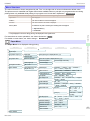
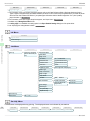
The menu structure is shown categorized by tab. The * on the right side of an item indicates the default value.
The printer menu is classified into regular menu items available when no print job is in progress and menu during
printing items only available while printing is in progress. see "Printer Menu Operations." →User's Guide
Regular menu
Menu during printing
Paper Menu
Not displayed
Ink Menu
The same Ink Menu as normal is displayed.
Job Menu
The same Job Menu as normal is displayed.
Set./Adj. Menu
A limited Set./Adj. Menu containing the following items is displayed.
•
•
Adj. Fine Feed (*1)
Printer Info
*1: Only displayed in the menu during printing. Not displayed in the regular menu.
Printer Parts
For instructions on menu operations, see "Menu Operations." →P.51
For details on menu items, see "Menu Settings." →User's Guide
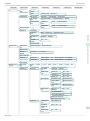
Paper Menu
The Paper Menu is not displayed during printing.
Second Level
Third Level
Load Paper
Eject Paper
Roll Paper ┋ Manual Paper
Chg. Paper Type (*1)
Roll Paper
Fourth Level
Fifth Level
(The paper type is displayed here.) (*1)
Manual Paper
Chg. Paper Size
Manual PaperSize
(The size of paper is displayed here.) (*2)
CustomPaperSize
Roll Length (*3)
ManageRemainRoll
Off *┋ On
Paper Details
(The paper type is displayed here.) (*1)
Skew Check Lv.
Automatic *┋ Highest ┋ High ┋ Standard ┋
Low ┋ Lowest ┋ Super Low
High Accuracy ┋ Standard *┋ Loose ┋ Off
Cutting Mode (*5)
Automatic ┋ Eject ┋ Manual
Cut Speed
Fast ┋ Standard ┋ Slow
Trim Edge First
Automatic ┋ Off ┋ On (Preset Len) ┋ On(Input
Length) ┋ Manual
Off ┋ On
Head Height
CutDustReduct.
NearEnd RollMrgn
Automatic *┋ Strongest ┋ Strong ┋ Standard
┋ Weak ┋ Weakest
Dry time
Off *┋ 1 sec. ┋ 3
sec. ┋ 5 sec. ┋ 7
sec. ┋ 9 sec.
Area (*4)
Entire area *┋ Leading edge
Off ┋ 30 sec. ┋ 1 min. ┋ 3 min. ┋ 5 min. ┋ 10
min. ┋ 30 min. ┋ 60 min.
3mm ┋ 20mm
NearEnd Sht Mrgn
3mm ┋ 20mm
BordlessOversize
Standard *┋ Little
Manual Feed
Front ┋ Top
VacuumStrngth
Scan Wait Time
Roll DryingTime
Return Defaults
Paper Details
Basic Guide
(Set the length and width)
(Set the length)
Operations and Display Screen
First Level
55
Menu Structure
iPF6400
First Level
Second Level
Keep Paper Type
Third Level
Fourth Level
Fifth Level
Off *┋ On
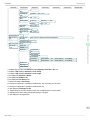
*1: For information on the types of paper the printer supports, refer to the Paper Reference Guide. (See Paper Reference Guide .)
Types of paper in the printer driver and related software (as well as on the Control Panel) are updated when you install the printer
driver from the User Software CD-ROM or if you update paper information with the Media Configuration Tool. (See "Updating
paper information.") →User's Guide
*2: For information on the sizes of paper the printer supports, see "Paper Sizes." →User's Guide
*3: Available only if ManageRemainRoll is On.
*4: Leading edge is not available as a setting option in the Paper Detailed Settings dialog box of the printer driver.
*5: see "Specifying the Cutting Method for Rolls." →User's Guide
Ink Menu
Printer Parts
First Level
Rep. Ink Tank
Head Cleaning A
Operations and Display Screen
Job Menu
First Level
Second Level
Job Log
(Choose from information
about the latest three print
jobs.)
Third Level
Fourth Level
Fifth Level
Document Name
User Name
Page Count
Job Status
OK ┋ CANCELED
Print Start Time
yyyy/mm/dd hh:mm:ss
Print End Time
yyyy/mm/dd hh:mm:ss
Print Time
xxxsec.
Output Img. Size
(The image size is displayed)
Media Type
Paper Consumed
Paper Length
Paper Width
Interface
USB ┋ Network
Ink Consumed
Tot.Ink Consumed
xxx.xxx ml
xxx.xxx ml
Print settings
(The ink color is displayed here.)
Head Height
Temp./Humidity
Adjustment req.
Print Job Log
Pause Print
Off *┋ On
Set./Adj. Menu
Limited items are displayed during printing. The displayed items are indicated by annotations.
56
First Level
Test Print
Second Level
Third Level
Fourth Level
Fifth Level
Sixth Level
Seventh Level
Nozzle Check ┋ Status Print ┋ Interface Print ┋ Paper Details ┋ Print Job Log ┋ Menu Map
Basic Guide
Menu Structure
iPF6400
First Level
Adjust Printer
Second Level
Head Posi.
Adj.
Feed Priority
Third Level
Sixth Level
Other
Initial adjustmt ┋ Manual (*1)
Adj. Priority
Automatic *┋ Print Quality ┋ Print Length
Adj. Quality
(*2)
Adjust Length
(*3)
Auto(GenuinePpr) ┋ Auto(OtherPaper) ┋ Manual
AdjustmentPrint
Change Settings
A:High ┋ B:Standard/Draft
A:High ┋ B:Standard/Draft
Date ┋ Paper Type ┋ Adjustment Type
Printer Parts
Disabled ┋ Enabled *
Off *┋ On
Head Cleaning A ┋ Head Cleaning B
Replace
P.head
Repl. maint cart
Printhead L ┋ Printhead R
Head Info
Printhead L
ProductName: ┋ s/n: ┋ Days elapsed: ┋ Count [Mdot]:
Printhead R
ProductName: ┋ s/n: ┋ Days elapsed: ┋ Count [Mdot]:
EOP Timer
(*8)
TCP/IP (*8)
10 sec. ┋ 30 sec. ┋ 1 min. ┋ 2 min. ┋ 5 min. ┋ 10 min. *┋ 30 min. ┋ 60
min.
IPv4 (*8)
IPv4 Mode
Automatic ┋ Manual *
(*8)
Protocol (*4)
DHCP (*8)
On ┋ Off *
(*8)
BOOTP (*8)
On ┋ Off *
IPv4 Settings
DNS Settings
(*9)
RARP (*8)
On ┋ Off *
IP Address (*9)
xxx.xxx.xxx.xxx
Operations and Display Screen
Head Cleaning
Nozzle Check
Clean Platen
Interface Setup (*8)
Seventh Level
Auto Adjust
Calibration
Log
Use Adj. Value
Set Exec.
Guide
Return Defaults
Maintenance
Fifth Level
Standard
Simple
Adj Far Ed Feed
Calibration
Fourth Level
Subnet Mask
xxx.xxx.xxx.xxx
(*9)
Default G/W
xxx.xxx.xxx.xxx
(*9)
DNS Dync upOn ┋ Off *
date (*9)
Pri. DNS SrvAddr (*9)
Sec. DNS SrvAddr (*9)
DNS Host Name (*9)
DNS Domain Name (*9)
IPv6 (*8)
Basic Guide
IPv6 Support
(*8)
IPv6 StlessAddrs (*8)
(*10)
DHCPv6 (*8)
(*10)
On ┋ Off *
On *┋ Off
57
On ┋ Off *
Menu Structure
First Level
iPF6400
Second Level
Third Level
Fourth Level
DNS Settings
(*9)(*10)
Fifth Level
Sixth Level
DNS Dync update (*9)
Statefull Addr
(*9)
Stateless Addr
(*9)
Pri. DNS SrvAddr (*9)
Seventh Level
On ┋ Off *
On ┋ Off *
Sec. DNS SrvAddr (*9)
DNS Host Name (*9)
DNS Domain Name (*9)
Printer Parts
Operations and Display Screen
NetWare (*8)
NetWare (*8)
On ┋ Off *
Auto Detect ┋ Ethernet 2 ┋ Ethernet 802.2 *┋ Ethernet 802.3
┋ Ethernet SNAP
BinderyPServer ┋ RPrinter ┋ NDSPServer *┋ NPrinter
AppleTalk (*8)
Frame Type
(*5)(*8)
Print Service
(*5)(*8)
On ┋ Off *
Auto Detect
(*8)
Comm.Mode
(*6)(*8)
Ethernet Type
(*6)(*8)
Spanning
Tree (*8)
MAC Address
(*8)
On *┋ Off
Ethernet Driver (*8)
10 Base-T *┋ 100 Base-TX ┋ 1000 Base-T
Not Use *┋ Use
xxxxxxxxxxxx
Interface Print (*8)
Return Defaults (*8)
System Setup
Sleep Timer
(*11)
Shut Down
Timer
Buzzer
5 min. *┋ 10 min. ┋ 15 min. ┋ 20 min. ┋ 30 min. ┋ 40 min. ┋ 50 min. ┋ 60
min. ┋ 210 min.
Off ┋ 5 min. ┋ 10 min. ┋ 30 min. ┋ 1 hour ┋ 4 hours ┋ 8 hours *┋ 12
hours
Off ┋ On *
Contrast Adj.
-4,-3,-2,-1,0*,+1,+2,+3,+4
Date & Time
(*8)
Date
Time
yyyy/mm/dd
hh:mm
(*7)(*8)
yyyy/mm/dd *┋ dd/mm/yyyy ┋ mm/dd/yyyy
Date Format
(*8)
Language
Time Zone
(*8)
Length Unit
Detect Mismatch
Paper Size
Basis
58
Half Duplex *┋ Full Duplex
English┋日本語┋Français┋Italiano┋Deutsch┋Español┋Русский┋中文(簡
体字)┋한국어
0:London (GMT) ┋ +1:Paris,Rome ┋ +2:Athens,Cairo ┋ +3:Moscow ┋
+4:Eerevan,Baku ┋ +5:Islamabad ┋ +6:Dacca ┋ +7:Bangkok ┋ +8:Hong
Kong ┋ +9:Tokyo,Seoul ┋ +10:Canberra ┋ +11:NewCaledonia ┋ +12:Wellington ┋ -12:Eniwetok ┋ -11:Midway is. ┋ -10:Hawaii(AHST) ┋ -9:Alaska(AKST) ┋ -8:Oregon (PST) ┋ -7:Arizona(MST) ┋ -6:Texas (CST) ┋
-5:NewYork(EST) ┋ -4:Santiago ┋ -3:Buenos Aires ┋ -2: ┋ -1:Cape Verde
meter *┋ feet/inch
Pause ┋ Warning ┋ None *
Roll Selection
1
Roll Selection
2
ISO A3 (297mm) *┋ 300mm Roll
10in. (254mm) *┋ JIS B4 (257mm)
Basic Guide
Menu Structure
iPF6400
First Level
Second Level
Keep Paper
Size
TrimEdge Reload
Rep.P.head
Print
Nozzle Check
Third Level
Fourth Level
Fifth Level
Sixth Level
Seventh Level
Off *┋ On
Automatic ┋ Off *┋ On
Off ┋ On *
Frequency
Standard *┋ 1 page
Warning
Off *┋ On
Use RemoOn *┋ Off
teUI (*8)
Reset PaprSetngs (*8)
Show Job Log
(*8)
Off ┋ On *
Admin. Menu
(*9)
Change Pass(The screen for setting the password is displayed)
word (*9)
Init.Admin.Pswd (*9)
Printer Parts
Prep.MovePrinter
Adj. Fine Feed (*12)(*13)
Paper Info
Ink Info
Head Info
ProductName:
s/n:
Days elapsed:
Count [Mdot]:
Printhead L
ProductName: ┋ s/n: ┋ Days elapsed: ┋ Count [Mdot]:
Printhead R
ProductName: ┋ s/n: ┋ Days elapsed: ┋ Count [Mdot]:
System Info
Operations and Display Screen
Printer Info
(*12)
Error Log
Other Counter
*1: Available after you have used Standard or Initial adjustmt in Head Posi. Adj. once.
*2: Available if Adj. Priority is Automatic or Print Quality.
*3: Available if Adj. Priority is Automatic or Print Length.
*4: Not displayed if IPv4 Mode is Manual.
*5: Not displayed if NetWare is Off.
*6: Not displayed if Auto Detect is On.
*7: Follows the setting in Date Format.
*8: Viewing and configuration is possible for administrators, and only viewing for other users.
*9: Viewing and configuration is possible for administrators only.
*10: Not displayed if IPv6 Support is Off.
*11: Default setting for the time to enter the power save mode/Sleep mode is recommended.
*12: Displayed as the menu during printing while printing is in progress.
*13: Not displayed in the regular menu.
59
Basic Guide
Front
iPF6400
Printer parts
Front .....................................................................................................................................................................................
Back ......................................................................................................................................................................................
Top Cover (Inside) ..........................................................................................................................................................
Paper Feed Slots .............................................................................................................................................................
Inside the Roll Feed Unit Cover ................................................................................................................................
Carriage ..............................................................................................................................................................................
Ink Tank Cover (Inside) .................................................................................................................................................
Vents ....................................................................................................................................................................................
60
61
61
62
63
63
64
65
Front
Standard
With the Ejection Guide removed
Printer Parts
Printer parts
a Top Cover
Open this cover to install the Printhead and remove any jammed paper from inside the printer, as needed.
(See "Top Cover (Inside).") →P.61
b Paper Tray Cover
Open this cover to load a sheet in the Top Paper Feed Slot. (See "Paper Feed Slots.") →P.62
c Roll Feed Unit
Load rolls in this unit. You can also load sheets manually.
d Roll Feed Unit Cover
Open this cover to load rolls. (See "Inside the Roll Feed Unit Cover.") →P.63
e Control Panel
Use this panel to operate the printer and check the printer status. (See "Control Panel.") →P.50
f Ejection Guide
Supports output paper.
g Output Tray (Front Paper Feed Slot)
All printed documents are ejected from this slot. When loading heavyweight paper, insert it here. (See "Paper
Feed Slots.") →P.62
h Cutter Unit
A round-bladed cutter for automatic roll cutting.
60
i Maintenance Cartridge
Absorbs excess ink.
j Ink Tank Cover
Open this cover to replace an Ink Tank. (See "Ink Tank Cover (Inside).") →P.64
Basic Guide
iPF6400
Back
Back
Printer Parts
b LAN connector (Gigabit Ethernet)
Connect a LAN cable to this port.
Printer parts
a USB Port
Connect a USB cable to this port. The printer is compatible with Hi-Speed USB connections.
c Power Supply Connector
Connect the power cord to this connector.
d Carrying Handles (5)
When carrying the printer, hold it by these handles under both sides.
Top Cover (Inside)
a Carriage
Mounts the Printhead, and moves to the left and right. This is an important part for printing. (See "Carriage.")
→P.63
Basic Guide
61
Paper Feed Slots
iPF6400
b Carriage Shaft
The Carriage slides along this shaft.
c Paper Retainer
Important in supplying the paper. This retainer holds paper as it is fed.
d Platen
The Printhead moves across the platen to print. Vacuum holes on the platen hold paper in place.
e Borderless Printing Ink Grooves
For catching ink outside the edges of paper during borderless printing.
f Cleaning Brush
When cleaning inside the printer under the Top Cover, use this brush to sweep away paper dust on the Platen.
Also use the brush to move the blue Switch on the Platen.
Printer Parts
g Linear Scale
The linear scale serves a key role in detecting the Carriage position. Be careful not to touch this part when
cleaning inside the Top Cover or clearing paper jams.
h Switch
Set the switch to the side opposite ● if the edges of printed images are blurred. Set the switch to the ● side
before borderless printing. (See "Setting the Blue Switch on the Platen.") →P.106
Printer parts
Paper Feed Slots
a Tray Extension
When loading a sheet manually, open this tray after opening the Paper Tray Cover.
b Width Guide
When loading a sheet, move the guide to match the paper size.
c Top Paper Feed Slot
When loading a sheet, insert it here.
d Front Paper Feed Slot (Output Tray)
When loading a heavyweight sheet, insert it here. All printed documents are ejected from this slot.
62
e Front Tray Guides
Lift all of the guides before printing on heavyweight paper. When feeding heavyweight paper, rest the sheet on
these guides, align it to the right, and insert the leading edge up to the Paper Alignment Line.
Basic Guide
iPF6400
Inside the Roll Feed Unit Cover
f Paper Alignment Line
Load heavyweight sheets parallel to this line.
Inside the Roll Feed Unit Cover
Printer Parts
Printer parts
a Roll Holder
Load the roll on this holder.
b Holder Stopper
Secure rolls on the Roll Holder with this part.
c Roll Holder Slot
Slide the Roll Holder into this slot.
Carriage
a Printhead Fixer Cover
Holds the Printhead in place. Do not open this part except during Printhead replacement.
b Printhead
The printhead is equipped with ink nozzles. It serves a key role in printing.
Basic Guide
63
Ink Tank Cover (Inside)
iPF6400
c Printhead Fixer Lever
Locks the Printhead Fixer Cover. Do not open this part except during Printhead replacement.
Ink Tank Cover (Inside)
Printer Parts
Printer parts
a Ink Tank
Cartridges of ink in various colors.
b Ink Tank Lock Lever
A lever that locks the Ink Tank in place and protects it. Lift and press down the lever when replacing an Ink
Tank.
c Ink Lamp (Red)
Indicates the state of the Ink Tank as follows when the Ink Tank Cover is opened.
64
• On
The Ink Tank is installed correctly.
• Off
No Ink Tank is installed, or the ink level detection function is off.
Basic Guide
Vents
iPF6400
• Flashing Slowly
Not much ink is left.
• Flashing Rapidly
Ink tank is empty.
d Ink Color Label
Load an Ink Tank that matches the color and name on this label.
Vents
There are vents at three positions of the printer as shown: on top (1), on the right (2), and on the bottom on the
right (3).
Printer Parts
Printer parts
Important
• Do not block these vents.
• Also, avoid setting paper or other light objects near the vents.
65
Basic Guide
Preparing to Transfer the Printer
iPF6400
Printer Relocation
Preparing to Transfer the Printer
Preparing to Transfer the Printer ............................................................................................................................ 66
Reinstalling the Printer ................................................................................................................................................. 70
Preparing to Transfer the Printer
To protect the internal parts in transit, always follow these steps before transferring the printer to a new location.
• Avoid tilting the printer excessively during transit. This may cause ink in the printer to leak and cause stains. If it is
Important
necessary to tilt the printer in transit, contact your Canon dealer.
• Depending on the state of the printer, part replacement may be necessary when preparing to transfer the printer (that is,
Printer Relocation
Note
when you execute the printer menu item to prepare for transfer).
• This work is not necessary when carrying the printer or moving it while mounted on the optional stand.
When carrying the printer, always have three or more people securely hold the Carrying Handles in the left and right
sides of the base and keep the printer level.
Items to Prepare
Preparing to Transfer the Printer
Setup Guide
Used for reference when packing the printer
Packaging material
Used to pack the printer
New Maintenance Cartridge (2)
Used to draw in ink
Remove paper
1
Remove the paper.
• Rolls (See "Removing the Roll from the Printer.") →P.14
• Sheets (See "Removing Sheets.") →P.23
Access the Prep.MovePrinter menu
1
2
If the Display Screen shows a message instructing you to replace the Maintenance Cartridge, replace the
Maintenance Cartridge.
(See "Replacing the Maintenance Cartridge.") →P.40
On the Tab Selection screen of the Control Panel, press ◀ or
▶ to select the Settings/Adj. tab (
).
• If the Tab Selection screen is not displayed, press the Menu button.
Note
3
66
4
Press the OK button.
The Set./Adj. Menu is displayed.
Press ▲ or ▼ to select Prep.MovePrinter, and then press the OK button to display the confirmation
screen.
Basic Guide
Preparing to Transfer the Printer
iPF6400
5
Press ▲ or ▼ to select Yes, and then press the OK button.
Once preparations are finished, a message on the Display Screen requests you to open the Ink Tank Cover.
• If consumables must be replaced, the message "Consumables must be replaced. Call for service." is
Important
shown on the Display Screen and preparation is not possible. If this message is displayed, press the OK
button and contact your Canon dealer for assistance.
Remove the Ink Tank
Open the Ink Tank Cover.
2
Lift the ink tank lock levers and remove all ink
tanks.
Put the ink tanks in a plastic bag and seal it.
Printer Relocation
1
Preparing to Transfer the Printer
67
Basic Guide
Preparing to Transfer the Printer
iPF6400
• Store the ink tanks you removed with the ink holes (a) facing up.
Important
Printer Relocation
3
Otherwise, ink may leak and cause stains.
Close all ink tank lock levers, and then close the
Ink Tank Cover.
At this point, ink is drawn out from inside the tubes.
Preparing to Transfer the Printer
• Do not remove the Maintenance Cartridge unless a replacement message appears.
Important
4
Removing the Maintenance Cartridge while the ink is bring drawn in may cause the ink to leak out.
When the process is finished, "Completed! Turn
Power Off!!" is displayed.
Press the Power button and turn off the printer.
Pack the printer
Refer to the Setup Guide for details on packing the printer and installing it after transfer.
1
Disconnect the power cord and interface cable.
• Unplug the power cord once the power is turned off. Unplugging the printer before it is off and moving it may
Important
cause damage. If you accidentally unplug the printer before turning it off, plug it in again, reinstall the ink tank,
and perform the procedure again.
68
Basic Guide
Preparing to Transfer the Printer
iPF6400
2
Open the Top Cover.
3
Pinch the Belt together, insert it between the Belt
Stopper, and affix the Belt Stopper to the Carriage
Shaft.
Printer Relocation
Preparing to Transfer the Printer
• Do not touch the Linear Scale (a) or Carriage
Important
Shaft (b). This may stain your hands and damage the printer.
• Here, the Belt Stopper is the one that was removed and stored after initial installation.
Note
Basic Guide
69
Reinstalling the Printer
iPF6400
Printer Relocation
4
Close the Top Cover.
5
If any options are attached to the printer, remove them from the printer and pack them.
6
Tape down printer covers to secure them, in the reverse order of tape removal during installation.
7
Repack the Roll Holder, Holder Stopper, and printer in shipping materials, and then package them in a
shipping box.
Reinstalling the Printer
Preparing to Transfer the Printer
The basic workflow for reinstalling the printer is as follows.
For detailed instructions, see the Setup Guide.
Assemble the stand (optional)
1
If you are using the optional Stand, assemble the
Stand by referring to the Printer Stand Setup Guide
included with the Stand.
• The Stand must be assembled by at least two people on a flat surface. Attempting assembly by yourself poses
Caution
a risk of injury or bending the Stand.
• When assembling the Stand, lock the casters. In addition, always unlock the casters before moving the assembled Stand. Attempting to move the stand when the casters are locked poses a risk of injury or damage to
the location site.
70
Basic Guide
Reinstalling the Printer
iPF6400
Install the printer
1
Install the printer on a table or other flat surface.
If you will use the printer on an optional Stand, assemble the Stand before mounting the printer on it,
and then secure it with the Main Unit Securing
Bolts.
Caution
Printer Relocation
• Moving the printer requires at least three people. Be careful to avoid back strain and other injuries.
• When moving the printer, firmly grasp the Carry-
2
Remove tape and packaging material attached to
the printer. Also open the Top Cover and remove
stoppers and spacers inside the printer.
3
Connect the power cord to the Power Supply Connector on the back of the printer.
Preparing to Transfer the Printer
ing Handles. The printer may be unsteady if you
hold it at other positions, which poses a risk of injury from dropping the printer.
71
Basic Guide
Reinstalling the Printer
iPF6400
4
Plug the power cord into the outlet.
5
Press the Power button to turn the printer on.
6
Open the Ink Tank Cover and install the ink tanks.
Printer Relocation
Preparing to Transfer the Printer
7
Install the Software and the Electronic Manuals.
Note that the driver installation procedure varies
depending on the type of connection.
(See "Installing the Software (Windows).")
→P.74
(See "Installing the Software (Mac OS X).")
→P.76
• When the printer is connected to a network (via TCP/IP), the printer's IP address may be changed if you reinImportant
8
stall the printer.
In this case, be sure to reconfigure the printer's IP address.
Load the Roll Media on the Roll Holder.
(See "Loading Rolls on the Roll Holder.") →P.9
72
Basic Guide
iPF6400
9
Reinstalling the Printer
Load the Roll Media in the printer.
(See "Loading Rolls in the Printer.") →P.11
Printer Relocation
Preparing to Transfer the Printer
73
Basic Guide
Installing the Software (Windows)
iPF6400
Software Installation
Installing the Printer Driver (Windows)
Installing the Software
The basic instructions for installing the software are as follows.
For detailed instructions, see the Setup Guide.
Supported connection methods
The printer driver works over USB or network (TCP/IP) connections.
The driver installation procedure varies depending on the type of connection.
Follow these steps to install the software and Electronic manuals.
Installing the software and electronic manuals
• When setting up a USB connection, connect the USB cable during printer driver installation following the instructions
Software Installation
Important
displayed.
If you accidentally connect the USB cable first, the printer driver may not be installed correctly.
• When the printer is connected to a network (via TCP/IP), the printer's IP address may be changed if you reinstall the
printer. In this case, be sure to reconfigure the printer's IP address.
1
Turn the computer on.
When setting up a TCP/IP (network) connection, after making sure the printer is on, connect the LAN cable
to the Ethernet port on the back of the printer and to your network hub port.
Installing the Printer Driver (Windows)
2
Insert the provided User Software CD-ROM for the
appropriate operating system in the CD-ROM drive.
3
Follow the instructions displayed to complete installation.
74
Basic Guide
Installing the Software (Windows)
iPF6400
• For USB connections, when the dialog box at
Important
4
right is displayed, make sure the printer is on
and connect the printer and computer with the
USB cable.
Next, install the Electronic manuals.
When the Install User Manual dialog box is displayed, insert the provided User Manuals CD-ROM in the
CD-ROM drive and follow the instructions displayed to complete installation.
Installing the Printer Driver (Windows)
5
Software Installation
On the Finish window, select Restart my computer now and click Restart.
Software settings take effect after the computer restarts.
75
Basic Guide
Installing the Software (Mac OS X)
iPF6400
Installing the Printer Driver (Mac OS X)
Installing the Software
The basic instructions for installing the software are as follows.
For detailed instructions, see the Setup Guide.
Supported connection methods
The printer driver works over USB or network (Bonjour or IP) connections.
Follow these steps to install the software and Electronic manuals.
Installing the software and electronic manuals
• When the printer is used over a network, the printer's IP address may be changed if you reinstall the printer. In this
Important
Software Installation
1
case, be sure to reconfigure the printer's IP address.
After making sure the computer and printer are not connected by a cable, turn the computer on.
Installing the Printer Driver (Mac OS X)
2
Insert the provided User Software CD-ROM for the
appropriate operating system in the CD-ROM drive.
3
Follow the instructions displayed to complete installation.
76
Basic Guide
iPF6400
4
Installing the Software (Mac OS X)
After installation, click Quit.
Installation of the software is now finished.
Next, connect the printer and computer.
6
After confirming the printer is on, connect the printer to your computer or the network.
Click Next and follow the instructions displayed to
register the printer to set up and update the paper
information.
Next, install the Electronic manuals.
Insert the provided User Manuals CD-ROM in the CD-ROM drive and follow the instructions displayed to
complete installation.
Installing the Printer Driver (Mac OS X)
7
Software Installation
5
77
Basic Guide
Print Preview
iPF6400
Convenient Printer Driver Features
Print Preview .....................................................................................................................................................................
Rotate Page 90 degrees (Converse Paper) ........................................................................................................
Borderless Printing ........................................................................................................................................................
Large-Format Printing ...................................................................................................................................................
Enlarged/Reduced Printing ........................................................................................................................................
Other Methods of Printing: Printing from Print Plug-Ins ...............................................................................
78
80
81
82
83
84
Print Preview
Using the print preview function enables the following.
Software Installation
•
Check an image of the document as arranged on
the paper, in the position it will be printed.
You can reduce printing costs by checking how
documents will be printed beforehand, without the
need to print them.
•
Change the layout orientation relative to the paper.
You can save paper by correcting the direction in
which the document is arranged on the paper, if
necessary.
Convenient Printer Driver Features
Configuring Settings in Windows
1.
2.
Access the Main sheet.
Select the Open Preview When Print Job Starts
check box.
3.
Check details in the Information dialog box displayed next and click OK to close the Information
dialog box.
4.
After you click OK, when you print a job, the imagePROGRAF Preview window will be displayed.
• Under some settings and in some environments, PageComposer may be started.
Note
78
Basic Guide
iPF6400
Print Preview
Configuring Settings in Mac OS X
1.
In the File menu of the source application, choose
the appropriate menu item for printer settings to
display the Print dialog box.
2.
Access the Main pane.
3.
Select the Print Preview check box.
4.
After you click Print, the Canon imagePROGRAF
Preview window will be displayed.
Software Installation
Convenient Printer Driver Features
79
Basic Guide
Rotate Page 90 degrees (Converse Paper)
iPF6400
Rotate Page 90 degrees (Converse Paper)
You can conserve roll paper by specifying particular
settings as suitable for your original.
When you print an original that is in portrait orientation, the original is rotated 90 degrees before printing
if it fits within the roll width. This enables you to conserve paper.
• If the page would exceed the roll paper width after rotation, you can use this function with Scale to fit Roll Paper Width to
Note
print rotated pages.
Configuring Settings in Windows
Software Installation
1.
2.
Access the Page Setup sheet.
Select the Rotate Page 90 degrees (Conserve
Paper) check box.
Convenient Printer Driver Features
Configuring Settings in Mac OS X
1.
2.
Access the Page Setup pane.
Select the Rotate Page 90 degrees check box.
80
Basic Guide
iPF6400
Borderless Printing
Borderless Printing
In regular printing, a margin required by the printer is
added around the original. With borderless printing,
you can print documents without the margin, so that
the printed image covers the entire surface of the paper.
Borderless printing is only available with rolls.
Configuring Settings in Windows
1.
2.
4.
5.
Select Fit Paper Size, Scale to fit Roll Paper
Width, or Print Image with Actual Size.
1.
2.
3.
4.
Access the Page Setup pane.
Convenient Printer Driver Features
Configuring Settings in Mac OS X
Software Installation
3.
Access the Page Setup sheet.
Select the Borderless Printing check box to display the Information dialog box.
Click the width of the loaded roll in the Roll Paper
Width list.
Click OK to close the Information dialog box.
Select the Enlarged/Reduced Printing check box.
Select the Borderless Printing check box.
Select either Fit Paper Size or Fit Roll Paper
Width.
81
Basic Guide
Large-Format Printing
iPF6400
Large-Format Printing
You can create vertical or horizontal banners by printing originals in banner formats on rolls.
Originals created in Microsoft Word or other applications in your preferred size can be enlarged to fill the
width of roll paper by completing simple printer driver
settings.
The printer supports roll printing up to a maximum
length of 18.0 m (19.7 yd).
Configuring Settings in Windows
Software Installation
1.
2.
3.
4.
5.
Access the Page Setup sheet.
Click Size Options and register the original size.
Select the Enlarged/Reduced Printing check box.
After you click Fit Roll Paper Width, the Information dialog box is displayed.
Click the width of the loaded roll in the Roll Paper
Width list, and then click OK.
Convenient Printer Driver Features
Configuring Settings in Mac OS X
1.
2.
Access the Page Setup pane.
Make sure the width of the loaded roll is displayed
in Roll Width.
3.
Make sure the size of the original you have prepared is displayed in Page Size.
If you have not registered Custom Paper Sizes,
resize the original to fit the roll width.
4.
5.
Select the Enlarged/Reduced Printing check box.
Click Fit Roll Paper Width.
82
Basic Guide
iPF6400
Enlarged/Reduced Printing
Enlarged/Reduced Printing
Originals can be printed at larger or smaller sizes, as
desired.
Configuring Settings in Windows
1.
2.
3.
In the Page Size list, click the size of the original as
specified in the source application.
Select the Enlarged/Reduced Printing check box.
Select Fit Paper Size, Fit Roll Paper Width, or
Scaling.
1.
2.
3.
4.
5.
Access the Page Setup pane.
Make sure the width of the loaded roll is displayed
in Roll Width.
Make sure the size of the original you have prepared is displayed in Page Size.
Select the Enlarged/Reduced Printing check box.
Convenient Printer Driver Features
Configuring Settings in Mac OS X
Software Installation
4.
5.
Access the Page Setup sheet.
Click the width of the loaded roll in the Roll Paper
Width list.
Select Fit Paper Size, Fit Roll Paper Width, or
Scaling.
83
Basic Guide
Other Methods of Printing: Printing from Print Plug-Ins
iPF6400
Other Methods of Printing: Printing from Print Plug-Ins
Using print plug-ins, you can print directly from applications such as Adobe Photoshop and Digital Photo Professional.
The main features of Print Plug-In are as follows.
• You can automatically detect the color space of Adobe RGB or sRGB-use images, etc., and automatically set
optimal profiles. Thus, you can print without the trouble of configuring settings.
• You can directly process image data on Adobe Photoshop, and forward the image data to a printer. In this
way, you can process 16-bit image data in addition to 8-bit image data.
• You can print an image with adjustment values such as the color balance, brightness, and contrast varying in
steps and select your preferred adjustment values.
• You can create and print a layout image for finishing by mounting in a frame with the image extended to the
sides of the frame by using the Layout Plug-In that is installed at the same time as the Print Plug-In for Photoshop.
• Loss of gradation in dark areas can be reduced by performing black point compensation.
Software Installation
• You can perform printing press simulation printing by specifying the printing press profile.
Starting from Adobe Photoshop
1.
2.
3.
4.
Start Adobe Photoshop.
Open the image that you wish to print.
If required, select the print range.
Convenient Printer Driver Features
Select Export (or Data Export) from the File menu
and then select the output plug-in that matches
your printer.
The imagePROGRAF Print Plug-In for Photoshop
window is displayed.
Starting from Digital Photo Professional
1.
2.
3.
4.
Start Digital Photo Professional.
Open the RGB color image that you want to print.
If required, select the print range.
Select Plug-in printing from the File menu and
then select the output plug-in that matches your
printer.
The imagePROGRAF Print Plug-In for Digital Photo
Professional window is displayed.
84
Basic Guide
Automatic Adjustment to Straighten Lines and Colors
iPF6400
Adjustments for Better Print Quality
Adjusting the Printhead
Automatic Adjustment to Straighten Lines and Colors
If vertical lines in printed documents are warped or colors are out of alignment, execute Head Posi. Adj.. The printer will print and read a test pattern, and the Printhead position will be adjusted automatically.
There are two modes for automatic Printhead adjustment: Standard and Simple.
• Standard
Execute if vertical lines in printed material are warped or colors are out of alignment.
Furthermore, if Simple does not improve printing, try Standard.
Adjustments for Better Print Quality
• Simple
Executes simple adjustment in a short time.
Execute this when frequently adjusting the printhead, such as during daily inspection.
• This function is not available with CAD Tracing Paper, CAD Translucent Matte Film, or CAD Clear Film.
• If adjustment is not possible as expected using special media, try another type of paper, or try Manual adjustment.
(See "Manual Adjustment to Straighten Lines and Colors.") →User's Guide
• Because the results of adjustment vary depending on the type of paper used for adjustment, use the same type of paper
Note
as you will use for printing.
• If Standard does not improve printing, try adjusting the printhead manually.
(See "Manual Adjustment to Straighten Lines and Colors.") →User's Guide
Adjusting the Printhead
Important
• If the printhead position was not adjusted during initial setup or when the printhead was replaced, execute Initial adjustmt.
(See "Adjustment When Installing the Printhead.") →User's Guide
• Advanced adjustment can enable superior printing quality when printing fine lines or text at high precision on glossy or
semi-glossy photo or proofing paper.
(See "Enhancing Printing Quality.") →User's Guide
Items to Prepare
When Using Rolls
An unused roll at least 254.0 mm (10.00 in) wide
When Using Sheets
Standard : Six sheets of unused paper, A4/Letter size (or one sheet when using A2)
Simple : One sheet of unused paper, A4/Letter size
Perform adjustment as follows.
1
Load paper.
• Loading Rolls on the Roll Holder →P.9
• Loading Rolls in the Printer →P.11
• Loading Sheets in the Feed Slot →P.17
Basic Guide
85
Automatic Adjustment to Straighten Lines and Colors
iPF6400
• Always make sure the loaded paper matches the type of paper specified on the printer. Adjustment cannot be
Important
2
completed correctly unless the loaded paper matches the settings.
On the Tab Selection screen of the Control Panel, press ◀ or
▶ to select the Settings/Adj. tab (
).
• If the Tab Selection screen is not displayed, press the Menu button.
Adjustments for Better Print Quality
Note
3
Press the OK button.
The Set./Adj. Menu is displayed.
4
Press ▲ or ▼ to select Adjust Printer, and then press the OK button.
5
Press ▲ or ▼ to select Head Posi. Adj., and then press the OK button.
6
Adjusting the Printhead
7
Press ▲ or ▼ to select Standard or Simple, and then press the OK button.
A test pattern is printed for adjustment.
Adjustment is now finished if you have printed on a roll.
If you are printing on cut sheets, a confirmation message is displayed on the Display Screen asking you
whether to continue printing.
Press the OK button and follow the instructions on the Display Screen.
86
Basic Guide
Selecting a Feed Amount Adjustment Method
iPF6400
Adjusting the feed amount
Selecting a Feed Amount Adjustment Method ................................................................................................. 87
Automatic Banding Adjustment ............................................................................................................................... 88
Selecting a Feed Amount Adjustment Method
There are two methods of adjusting the paper feed amount, Print Quality and Print Length, either of which will be
applied during printing.
Since the method that is applied during printing is determined from the value of the Adj. Priority setting, configure
the Adj. Priority to match the print target.
• Print Quality : Adjusts the feed amount to reduce banding across the sheet in printed documents.
Adj. Quality settings are applied. When Adj. Fine Feed is executed, the Adj. Fine Feed settings are applied
in addition to the Adj. Quality settings.
• Automatic : Print Quality or Print Length is selected, depending on Print Priority as selected in the printer
driver at the time of printing.
• Either A:High or B:Standard/Draft in the Adjust Length menu is applied, depending on printer driver settings at the
Note
time of printing.
Follow these steps to configure the settings.
1
Load the paper.
2
On the Tab Selection screen of the Control Panel, press ◀ or
▶ to select the Settings/Adj. tab (
).
Adjusting the feed amount
• Loading Rolls on the Roll Holder →P.9
• Loading Rolls in the Printer →P.11
• Loading Sheets in the Feed Slot →P.17
Adjustments for Better Print Quality
• Print Length : Adjusts the feed amount for better accuracy of lines in printed documents.
The settings of A:High or B:Standard/Draft in Adjust Length are applied.
• If the Tab Selection screen is not displayed, press the Menu button.
Note
3
Press the OK button.
The Set./Adj. Menu is displayed.
4
Press ▲ or ▼ to select Adjust Printer, and then press the OK button.
5
Press ▲ or ▼ to select Feed Priority, and then press the OK button.
6
Press ▲ or ▼ to select Adj. Priority, and then press the OK button.
7
Press ▲ or ▼ to select Automatic, Print Quality, or Print Length, and then press the OK button.
87
Basic Guide
Automatic Banding Adjustment
iPF6400
Automatic Banding Adjustment
If printed images are affected by banding in different colors across the sheet, execute Adj. Quality for automatic
adjustment of the paper feed amount.
There are two modes of automatic adjustment to correct banding: Auto(GenuinePpr) and Auto(OtherPaper). In
either mode, the printer prints and reads a test pattern for automatic adjustment of the feed amount.
• Auto(GenuinePpr)
Use this mode with paper identified in the Paper Reference Guide.
(See "Types of Paper.") →User's Guide
• Auto(OtherPaper)
Use this mode with paper not in the Paper Reference Guide, or if Auto(GenuinePpr) does not eliminate banding.
(See "Types of Paper.") →User's Guide
• Adjustment is not possible with Auto(GenuinePpr) and Auto(OtherPaper) when using highly transparent media.
Adjustments for Better Print Quality
Important
In this case, use Manual adjustment.
(See "Manual Banding Adjustment.") →User's Guide
• We recommend executing the adjustment if you have changed the paper type or paper size.
Note
• Always check the Adj. Priority values before using Auto(GenuinePpr) or Auto(OtherPaper).
(See "Selecting a Feed Amount Adjustment Method.") →P.87
• If additional fine-tuning is necessary after Auto(GenuinePpr) and Auto(OtherPaper), execute Adj. Fine Feed.
(See "Fine-Tuning the Paper Feed Amount.") →User's Guide
• Use Adjust Length to ensure that lines in CAD drawings are printed at exactly the right length.
(See "Adjusting Line Length.") →User's Guide
• This may take some time, depending on the type of paper.
Adjusting the feed amount
Items to Prepare
When Using Rolls
An unused roll at least 254.0 mm (10.00 in) wide
When Using Sheets
Auto(GenuinePpr) : One sheet of unused paper, A4/Letter size
Auto(OtherPaper) : Two sheets of unused paper, A4/Letter size (or one sheet when using A2)
Perform adjustment as follows.
1
Load the paper.
• Loading Rolls on the Roll Holder →P.9
• Loading Rolls in the Printer →P.11
• Loading Sheets in the Feed Slot →P.17
• Always make sure the loaded paper matches the type of paper specified in the settings. Adjustment cannot
Important
2
be completed correctly unless the loaded paper matches the settings.
On the Tab Selection screen of the Control Panel, press ◀ or
▶ to select the Settings/Adj. tab (
88
).
• If the Tab Selection screen is not displayed, press the Menu button.
Note
Basic Guide
iPF6400
3
Press the OK button.
The Set./Adj. Menu is displayed.
4
Press ▲ or ▼ to select Adjust Printer, and then press the OK button.
5
Press ▲ or ▼ to select Feed Priority, and then press the OK button.
6
Press ▲ or ▼ to select Adj. Quality, and then press the OK button.
7
Press ▲ or ▼ to select Auto(GenuinePpr) or Auto(OtherPaper), and then press the OK button.
A test pattern is printed for adjustment.
Adjustment is now finished if you have printed on a roll or a sheet of A2 size or larger.
If you are printing on sheets smaller than A2 size for Auto(OtherPaper), a confirmation message is shown
on the Display Screen requesting you to continue printing.
Press the OK button and follow the instructions on the Display Screen.
Adjustments for Better Print Quality
8
Automatic Banding Adjustment
Adjusting the feed amount
89
Basic Guide
Clearing Jammed Paper (Paper Feed Slot)
iPF6400
Troubleshooting
Problems Regarding Paper
Clearing Jammed Paper (Paper Feed Slot) .........................................................................................................
Clearing Jammed Roll Paper ......................................................................................................................................
Clearing a Jammed Sheet, Fed Manually ..............................................................................................................
Roll paper cannot be inserted into the paper feed slot .................................................................................
Cannot load sheets ........................................................................................................................................................
Paper is not cut neatly .................................................................................................................................................
Paper is not cut ...............................................................................................................................................................
Depression on the leading edge is left ..................................................................................................................
Margins are wide .............................................................................................................................................................
90
91
94
97
97
97
97
98
98
Clearing Jammed Paper (Paper Feed Slot)
Follow these steps to clear jams deep in the Paper Feed Slot →P.90 or to remove any scraps left in the slot
when you are clearing jams →P.90 .
Clear any jammed paper deep in the Paper Feed Slot
If paper is jammed deep in the Paper Feed Slot, remove the Roll Feed Unit and clear the paper jam as follows.
1
Troubleshooting
2
Problems Regarding Paper
3
Turn the printer off before removing the Roll Feed Unit from the printer. (See "Removing the Roll Feed
Unit.") →User's Guide
Remove the jammed paper from the Paper Feed
Slot.
Attach the Roll Feed Unit to the printer. (See "Installing the Roll Feed Unit.") →User's Guide
Remove scraps left in the Paper Feed Slot
Follow these steps to remove any scraps left in the Paper Feed Slot after you clear jammed sheets or roll paper.
1
2
3
4
Press the Load button.
Press ▲ or ▼ to select Manual Paper, and then press the OK button.
A menu for selection of the type of paper is displayed.
Select POP Board and press the OK button.
Instructions for feeding POP Board are now displayed on the Control Panel, but follow this procedure to
remove the jammed paper.
Open the Top Cover.
90
Basic Guide
Clearing Jammed Roll Paper
iPF6400
5
Fold an A4 sheet lengthwise four times and insert it
through the gap of the Back Cover. Push the scrap
out toward the Platen.
6
Remove the scrap when it is pushed out onto the Platen.
7
If any scraps remain inside the paper feed slot, repeat steps 5 and 6.
8
Close the Top Cover.
9
Turn the printer off. (See "Turning the Printer On and Off.") →User's Guide
• For instructions on removing scraps from the paper feed slot after clearing jammed roll paper, see "Clearing Jammed
Important
Open the Roll Feed Unit Cover. Use commercially
available scissors or the like to cut the paper of the
loaded roll.
Problems Regarding Paper
1
Paper (Paper Feed Slot)." →P.90
Troubleshooting
Clearing Jammed Roll Paper
If paper from a roll becomes jammed, "Paper jam" is shown on the Display Screen of the Control Panel. Remove
the jammed paper as follows.
• When cutting paper, be careful to avoid injury or damage to the printer.
Caution
• If it is difficult to perform operations from the front of the printer, perform operations from the back of the printer.
Note
2
Press the OK button.
91
Basic Guide
Clearing Jammed Roll Paper
3
iPF6400
Remove the jammed paper.
• If paper is jammed inside the Top Cover
→User's Guide (HTML)
1.
Troubleshooting
2.
3.
Open the Top Cover and move the Carriage to the side.
Clear any jammed paper from inside the Top Cover.
After removing the paper, make sure there are no other scraps of paper in the printer.
Close the Top Cover.
Problems Regarding Paper
92
Basic Guide
Clearing Jammed Roll Paper
iPF6400
• Do not move the Carriage over jammed paper. This may damage the Printhead.
Important
• Do not touch the Linear Scale (a) or Carriage
Shaft (b). This may stain your hands and damage the printer.
→User's Guide (HTML)
1.
2.
Open the Roll Feed Unit Cover.
→P.90
Problems Regarding Paper
Remove the jammed paper from the Paper Feed Slot.
After removing the paper, make sure there
are no other scraps of paper in the printer.
If paper is jammed deep in the Paper
Feed Slot, remove the roll feed unit, and
then clear the paper jam. (See "Clearing
Jammed Paper (Paper Feed Slot).")
Troubleshooting
• If paper from a roll is jammed by the Paper Feed Slot
• If it is difficult to perform operations from the front of the printer, perform operations from the back of
Note
the printer.
93
Basic Guide
Clearing a Jammed Sheet, Fed Manually
iPF6400
• If the paper is jammed by the Ejection Guide
Remove the jammed paper from the Output
Tray.
After removing the paper, make sure there are
no other scraps of paper in the printer.
4
Press the OK button.
Troubleshooting
Clearing a Jammed Sheet, Fed Manually
If a sheet you have fed manually becomes jammed, "Paper jam" is shown on the Display Screen of the Control
Panel. Remove the jammed paper as follows.
Problems Regarding Paper
1
Press the OK button.
2
Remove the jammed paper.
• If paper is jammed inside the Top Cover
→User's Guide (HTML)
94
Basic Guide
Clearing a Jammed Sheet, Fed Manually
iPF6400
1.
2.
Clear any jammed paper from inside the Top Cover.
After removing the paper, make sure there are no other scraps of paper in the printer.
Close the Top Cover.
Important
• Do not touch the Linear Scale (a) or Carriage
Shaft (b). This may stain your hands and damage the printer.
Problems Regarding Paper
• Do not move the Carriage over jammed paper. This may damage the Printhead.
Troubleshooting
3.
Open the Top Cover and manually move
the Carriage to the side.
95
Basic Guide
Clearing a Jammed Sheet, Fed Manually
iPF6400
• If the paper is jammed by the Paper Feed Slot of the Top Paper Feed Slot
Remove the jammed paper from the Paper
Feed Slot.
After removing the paper, make sure there are
no other scraps of paper in the printer.
If paper is jammed deep in the Paper Feed
Slot, remove the roll feed unit, and then clear
the paper jam. (See "Clearing Jammed Paper
(Paper Feed Slot).") →P.90
• If it is difficult to perform operations from the front of the printer, perform operations from the back of the
Troubleshooting
Note
printer.
• If the paper is jammed by the Ejection Guide
Remove the jammed paper from the Output
Tray.
After removing the paper, make sure there are
no other scraps of paper in the printer.
Problems Regarding Paper
• If paper is jammed in the back of the printer
Remove the jammed paper from the back of
the printer.
After removing the paper, make sure there are
no other scraps of paper in the printer.
96
Basic Guide
Roll paper cannot be inserted into the paper feed slot
iPF6400
3
Press the OK button.
Roll paper cannot be inserted into the paper feed slot
Cause
Corrective Action
The roll paper is warped.
Straighten out curls and reload the roll.
Paper is jammed by the paper feed slot.
Remove the jammed paper.
(See "Clearing Jammed Roll Paper.") →P.91
(See "Clearing a Jammed Sheet, Fed Manually.") →P.94
After a roll was advanced, the paper was manually pulled out by force, closing
the Paper Feed Slot.
Remove the roll and open the paper feed slot.
(See "Removing the Roll from the Printer.") →P.14
Cannot load sheets
Corrective Action
Press the Load button and select the paper source.
Troubleshooting
Cause
The paper source selection is incorrect.
Paper is not cut neatly
Cause
Corrective Action
Straighten out any curling by the edges of the paper.
Paper rises by the ends of the cut position before
it is cut.
Reload the paper correctly.
You are using paper that cannot be cut with the
Cutter Unit.
Specify Manual in Cutting Mode in the Control Panel menu and use scissors or a
cutting tool to cut the roll after printing.
(See "Specifying the Cutting Method for Rolls.") →User's Guide
Cut Speed is not configured correctly in the Control Panel menu.
Change the Cut Speed setting in the Control Panel menu.
(See "Menu Structure.") →P.55
During cutting, printed documents fall out at an
angle.
In the Control Panel menu, set Cutting Mode to Eject. Hold documents after printing, as they are cut.
(See "Specifying the Cutting Method for Rolls.") →User's Guide
Problems Regarding Paper
The paper is bent or curled at the cut position.
Paper is not cut
Cause
Corrective Action
The printed document became caught on a foreign object by the
Output Tray, which lifted the document. The Cutter passed under
the paper.
Remove the foreign object by the Output Tray to enable the printer to
eject the printed document, keeping it level.
In the printer driver, No or Print Cut Guideline is specified in
Automatic Cutting.
Specify Yes in Automatic Cutting in the printer driver.
In the Control Panel menu, Cutting Mode is set to Eject or Manual.
If the Cutting Mode is Eject, press the Cut button to cut the paper.
If the Cutting Mode is Manual, cut rolls with scissors or the like.
97
Basic Guide
Depression on the leading edge is left
iPF6400
Depression on the leading edge is left
Cause
Keeping a roll in the printer for a long time without printing on it may leave a depression on the
leading edge.
Corrective Action
When printing quality is most important, we recommend setting TrimEdge Reload to
On or Automatic so that the paper edge is automatically cut before printing.
(See "Menu Structure.") →P.55
Margins are wide
Cause
Corrective Action
Rolls are advanced a specific amount before cutting to prevent problems with cutting and paper ejection.
This operation is normal.
Troubleshooting
Problems Regarding Paper
98
Basic Guide
The Data lamp on the Control Panel does not light up
iPF6400
Printing does not start
The Data lamp on the Control Panel does not light up .................................................................................. 99
The printer does not respond even if print jobs are sent ............................................................................ 99
Ink Filling.. is displayed .................................................................................................................................................. 99
The display screen indicates Agitating... .............................................................................................................. 99
The Data lamp on the Control Panel does not light up
Cause
Corrective Action
The printer is not on.
Make sure the power cord is securely plugged in, all the way. Press the Power button to turn on the printer.
The target printer was not
selected when printing.
In Windows, select the printer by clicking Select Printer or Printer in the printing dialog box and try printing
again.
In Mac OS X, open the dialog box of the printer driver, select the printer from the list of Printer, and try
printing again.
The print job is paused.
In Windows, restart the print job as follows.
1.
2.
Select the printer icon in the Printers and Faxes (or Printers) window.
Clear Pause Printing in the File menu to restart the print job.
In Mac OS X, restart the print job as follows.
Click Print & Fax. (This is identified as Printer Setup Utility or Print Center in other versions of Mac
OS X.)
2.
Select the printer, and then Resume Printer (or Start Jobs) in the Printers menu to restart the print job.
The printer does not respond even if print jobs are sent
Corrective Action
In the Control Panel menu, Pause Print is On.
Set Pause Print to Off.
(See "Pausing Printing.") →User's Guide
Ink Filling.. is displayed
Cause
Corrective Action
The printer was forced off during operation.
Wait until the system has been filled with ink.
Printing does not start
Cause
Troubleshooting
1.
The display screen indicates Agitating...
Cause
Ink agitation is in progress.
Corrective Action
Please wait until ink agitation is finished.
The time for agitation varies depending on how long the printer has been off. (Between about 30 seconds and
two minutes.)
99
Basic Guide
An error message is shown on the Display Screen
iPF6400
The printer stops during a print job
An error message is shown on the Display Screen ....................................................................................... 100
The printer ejects blank, unprinted paper ......................................................................................................... 100
An error message is shown on the Display Screen
Cause
Corrective Action
An error message is displayed during printing.
Check the error message and take action as necessary.
(See "Error Messages.") →P.139
The last portion of roll paper was used during a print job, and paper
could not be advanced because the trailing edge is taped to the roll.
Remove the used roll and insert a new roll.
(See "Removing the Roll from the Printer.") →P.14
(See "Removing Rolls From the Roll Holder.") →User's Guide
(See "Loading and Printing on Rolls.") →User's Guide
The printer ejects blank, unprinted paper
Cause
Corrective Action
Troubleshooting
The leading edge of the roll paper was
cut to straighten it.
The leading edge of rolls may be cut to straighten it if Trim Edge First is set to a value other
than Off in the Control Panel menu.
(See "Cutting the Leading Edge of Roll Paper Automatically.") →User's Guide
The Printhead nozzles are clogged.
Print a test pattern to check the nozzles and make sure the Printhead is in good condition for
printing.
(See "Checking for Nozzle Clogging.") →User's Guide
A print job was received from an incompatible printer driver.
Use the correct imagePROGRAF printer driver for the printer and try printing again.
The printer is damaged.
Contact your Canon dealer for assistance.
The printer stops during a print job
100
Basic Guide
Printing is faint
iPF6400
Problems with the printing quality
Printing is faint ...............................................................................................................................................................
Paper rubs against the printhead ..........................................................................................................................
The edges of the paper are dirty ..........................................................................................................................
The surface of the paper is dirty ...........................................................................................................................
The back side of the paper is dirty .......................................................................................................................
Roller marks are left across the trailing edge of paper ...............................................................................
Immediately after borderless printing, the trailing edge margin is soiled during regular printing ............................
Printed colors are inaccurate ..................................................................................................................................
Banding in different colors occurs .......................................................................................................................
Colors in printed images are uneven ...................................................................................................................
Image edges are blurred or white banding occurs ........................................................................................
Setting the Blue Switch on the Platen ..........................................................................................................
The contrast becomes uneven during printing ...............................................................................................
The length of printed images is inaccurate in the feeding direction .....................................................
Images are printed crooked .....................................................................................................................................
Documents are printed in monochrome ............................................................................................................
Line thickness is not uniform ..................................................................................................................................
Lines or colors are misaligned ................................................................................................................................
Borders appear during borderless printing ......................................................................................................
101
101
102
103
103
103
103
104
104
105
106
106
109
109
109
110
110
110
111
Printing is faint
Corrective Action
The Printhead nozzles are clogged.
Print a test pattern to check the nozzles and see if they are clogged.
(See "Checking for Nozzle Clogging.") →User's Guide
Because the printer was left without ink
tanks installed for some time, ink has
become clogged in the ink supply system.
After the ink tanks have been installed for 24 hours, run Head Cleaning B from the Control
Panel.
(See "Cleaning the Printhead.") →P.48
Paper is jammed inside the Top Cover.
Follow the steps below to remove the jammed piece of paper inside the Top Cover.
1.
Open the Top Cover and make sure the Carriage is not over the Platen.
2.
Remove any scraps of paper inside the Top Cover.
(See "Clearing Jammed Roll Paper.") →P.91
(See "Clearing a Jammed Sheet, Fed Manually.") →P.94
3.
Close the Top Cover.
The ink was not dry when paper was
cut.
Specify a longer drying period in the Control Panel menu, in Paper Details > Roll DryingTime.
(See "Menu Settings.") →User's Guide
Printing may be faint if Print Quality in
Advanced Settings in the printer driver
is set to Standard or Draft.
In Advanced Settings of the printer driver, choose Highest or High in Print Quality.
Printing in Draft or Standard mode is faster and consumes less ink than in Highest or High
modes, but the printing quality is lower.
(See "Giving Priority to Particular Graphic Elements and Colors for Printing.") →User's Guide
You are printing on paper that tends to
generate dust when cut.
In the Control Panel menu, set CutDustReduct. in Paper Details to On.
(See "Reducing Dust from Cutting Rolls.") →User's Guide
Problems with the printing quality
Print on the printing surface.
Troubleshooting
Cause
You may be printing on the wrong side
of the paper.
Paper rubs against the printhead
Cause
The type of paper specified in the printer
driver does not match the type loaded in
the printer.
Basic Guide
Corrective Action
Load paper of the same type as you have specified in the printer driver.
(See "Loading Rolls in the Printer.") →P.11
(See "Loading Sheets in the Feed Slot.") →P.17
101
The edges of the paper are dirty
iPF6400
Cause
The type of paper specified in the printer
driver does not match the type loaded in
the printer.
Corrective Action
Make sure the same type of paper is specified in the printer driver as you have loaded in the
printer.
1.
2.
Press the Stop button and stop printing.
Change the type of paper in the printer driver and try printing again.
Paper has been loaded incorrectly, causing it to wrinkle.
Reload the paper.
(See "Loading Rolls in the Printer.") →P.11
(See "Loading Sheets in the Feed Slot.") →P.17
The Printhead is set too low in the Control Panel menu.
In the Control Panel menu, set Head Height to Automatic.
(See "Troubleshooting Paper Abrasion and Blurry Images.") →User's Guide
You are printing on heavyweight paper
or paper that curls or wrinkles easily after
absorbing ink.
When printing on Canon Heavyweight Coated Paper or other paper-based media, choose a
VacuumStrngth setting of Strong or Strongest in the Control Panel menu. If rubbing still occurs, in the Control Panel menu, use a higher Head Height setting.
(See "Adjusting the Vacuum Strength.") →User's Guide
(See "Troubleshooting Paper Abrasion and Blurry Images.") →User's Guide
When printing on CAD Tracing Paper or other film-based media, choose a VacuumStrngth
setting of Standard, Strong, or Strongest in the Control Panel menu. If rubbing still occurs, in
the Control Panel menu, use a higher Head Height setting.
(See "Adjusting the Vacuum Strength.") →User's Guide
(See "Troubleshooting Paper Abrasion and Blurry Images.") →User's Guide
Troubleshooting
When printing on paper 0.1 mm (0.004 in) thick or less, choose a VacuumStrngth setting of
Weakest in the Control Panel menu. If rubbing still occurs, in the Control Panel menu, use a
higher Head Height setting.
(See "Adjusting the Vacuum Strength.") →User's Guide
(See "Troubleshooting Paper Abrasion and Blurry Images.") →User's Guide
If edges of the paper curl and become soiled when printing on rolls of glossy photo paper, in
Paper Detailed Settings in the printer driver, set Near End Margin to 20mm.
Problems with the printing quality
When you have loaded paper, the paper
you have loaded does not match the
type selected on the Control Panel.
Be sure to select the correct type of paper in the Control Panel menu when loading paper.
(See "Loading Rolls in the Printer.") →P.11
(See "Loading Sheets in the Feed Slot.") →P.17
The edges of the paper are dirty
Cause
Corrective Action
The Platen has become dirty after borderless printing or printing on small paper.
Open the Top Cover and clean the Platen.
(See "Cleaning Inside the Top Cover.") →P.46
The type of paper as specified on the
printer does not match the type specified
in the printer driver.
Make sure the same type of paper is specified on the printer as in the printer driver.
(See "Changing the Type of Paper.") →User's Guide
Make sure the same paper type is specified in the printer driver as on the printer.
1.
2.
102
Press the Stop button and stop printing.
Change the type of paper in the printer driver and try printing again.
The paper is wrinkled or warped.
Straighten out the wrinkles or curls and reload the paper. Do not use paper that has been
printed on previously.
(See "Loading Rolls in the Printer.") →P.11
(See "Loading Sheets in the Feed Slot.") →P.17
A cut line is printed because CutDustReduct. is On in the Control Panel menu to
reduce cutting dust.
If this function is not needed, set CutDustReduct. to Off in the Control Panel menu.
(See "Menu Settings.") →User's Guide
The Printhead is set too low in the Control
Panel menu.
In the Control Panel menu, set Head Height to Automatic.
(See "Troubleshooting Paper Abrasion and Blurry Images.") →User's Guide
You are printing on heavyweight paper or
paper that curls or wrinkles easily after absorbing ink.
When printing on Canon Heavyweight Coated Paper or other paper-based media, choose a
VacuumStrngth setting of Strong or Strongest in the Control Panel menu. If rubbing still
occurs, in the Control Panel menu, use a higher Head Height setting.
(See "Adjusting the Vacuum Strength.") →User's Guide
Basic Guide
The surface of the paper is dirty
iPF6400
Cause
You are printing on heavyweight paper or
paper that curls or wrinkles easily after absorbing ink.
The Ejection Guide is soiled.
Corrective Action
(See "Troubleshooting Paper Abrasion and Blurry Images.") →User's Guide
When printing on CAD Tracing Paper or other film-based media, choose a VacuumStrngth
setting of Standard, Strong, or Strongest in the Control Panel menu. If rubbing still occurs,
in the Control Panel menu, use a higher Head Height setting.
(See "Adjusting the Vacuum Strength.") →User's Guide
(See "Troubleshooting Paper Abrasion and Blurry Images.") →User's Guide
Clean the Ejection Guide.
(See "Cleaning the Printer Exterior.") →User's Guide
The surface of the paper is dirty
Cause
Corrective Action
The Paper Retainer is soiled.
Clean the Paper Retainer.
(See "Cleaning Inside the Top Cover.") →P.46
You are using a paper that does
not dry easily.
In the Control Panel menu, set Roll DryingTime to at least 1 min.
(See "Menu Settings.") →User's Guide
When paper that does not dry easily is used for printing, it may curl during printing and touch the Output Tray.
In this case, in the Control Panel menu, complete the settings for Dry time and Area in Scan Wait
Time.
However, note that printing will now take longer.
(See "Menu Settings.") →User's Guide
Cause
Corrective Action
Open the Top Cover and clean the Platen.
(See "Cleaning Inside the Top Cover.") →P.46
The Platen suction is too strong.
In the Control Panel menu, reduce the level of VacuumStrngth.
(See "Adjusting the Vacuum Strength.") →User's Guide
BordlessOversize is set to Standard in the Control Panel menu.
Set BordlessOversize to Little in the Control Panel menu.
(See "Menu Settings.") →User's Guide
Roller marks are left across the trailing edge of paper
Cause
Corrective Action
The paper was removed without pressing the OK button
after printing from the Front Paper Feed Slot.
Following the instructions displayed, press the OK button, and after removing
the paper, press the OK button again.
Wipe the rollers to clean them.
(See "Cleaning Inside the Top Cover.") →P.46
(See "Cleaning the Paper Retainer.") →User's Guide
Problems with the printing quality
The Platen has become dirty after borderless printing or printing on
small paper.
Troubleshooting
The back side of the paper is dirty
Immediately after borderless printing, the trailing edge margin is soiled during regular printing
Cause
Corrective Action
Depending on your printing environment, after borderless printing in which the leading and trailing edge
of the roll is cut automatically, any ink adhering to the
cutter unit may rub off on the next printed document.
Follow these steps to change the Between Pages setting of Drying Time to a value between about 30 seconds and 3 minutes before trying borderless printing
again.
1.
On the Main sheet of the printer driver, click Advanced Settings by Media
Type.
2.
Select an ink drying time in the list for the Between Pages setting of Drying
Time.
103
Basic Guide
Printed colors are inaccurate
iPF6400
Printed colors are inaccurate
Cause
Troubleshooting
Problems with the printing quality
104
Corrective Action
Color adjustment has not been activated in the Advanced Settings of the printer driver.
In the Advanced Settings of the printer driver, access Color Settings in Color
Mode to adjust colors.
(See "Main Sheet (Windows).") →User's Guide
(See "Main Pane (Mac OS X).") →User's Guide
Colors have not been adjusted on the computer or
monitor.
Refer to the computer and monitor documentation to adjust the colors.
The Printhead nozzles are clogged.
Print a test pattern to check the nozzles and see if they are clogged.
(See "Checking for Nozzle Clogging.") →User's Guide
In the Windows printer driver, Application Color
Matching Priority is not selected.
Click Special Settings on the Layout sheet of the printer driver and select Application Color Matching Priority in the dialog box.
(See "Layout Sheet (Windows).") →User's Guide
There may be a slight difference in how colors are
printed after Printhead replacement because of individual variation among printheads.
Execute color calibration.
(See "Color Calibration Using the Printer Sensor.") →User's Guide
Printhead characteristics gradually change through
repeated use, and colors may change.
Execute color calibration.
(See "Color Calibration Using the Printer Sensor.") →User's Guide
Color may change slightly even on the same model of
printer if you use a different version of the firmware or
printer driver, or when you print under different settings or in a different printing environment.
Follow these steps to prepare the printing environment.
Adjust the settings of the color management software, referring to the software
documentation as needed.
1.
Use the same version of firmware or printer driver.
(See "Updating the Firmware.") →User's Guide
2.
Specify the same value for all settings items.
3.
Execute color calibration.
(See "Color Calibration Using the Printer Sensor.") →User's Guide
Banding in different colors occurs
Cause
The paper feed amount is out of adjustment.
Corrective Action
Adjust the feed amount.
(See "Adjusting the Feed Amount.") →User's Guide
If printed sheets are affected by banding in different colors by the trailing edge (about 20–30
mm (0.8–1.2 in) from the edge), try adjusting the feed amount of the trailing edge of sheets.
(See "Adjusting Color on the Trailing Edge of Sheets.") →User's Guide
Printing does not proceed smoothly because print jobs are interrupted during
transmission.
Exit other applications and cancel other print jobs.
In the Control Panel menu, Adj. Priority is set to Print Length.
Setting Adj. Priority to Print Quality in the Control Panel menu and adjusting the feed amount
may improve results.
(See "Adjusting the Feed Amount.") →User's Guide
The Printhead is out of alignment.
Adjust the Printhead alignment.
(See "Automatic Adjustment to Straighten Lines and Colors.") →P.85
The Printhead nozzles are clogged.
Print a test pattern to check the nozzles and see if they are clogged.
(See "Checking for Nozzle Clogging.") →User's Guide
Streaks may occur if you set the Print
Quality too low.
Choose a higher level of Print Quality in the Advanced Settings of the printer driver and try
printing again.
Printing in Draft or Standard mode is faster and consumes less ink than in Highest or High
modes, but the printing quality is lower.
(See "Giving Priority to Particular Graphic Elements and Colors for Printing.") →User's Guide
The type of paper specified in the printer driver does not match the type loaded in the printer.
Load paper of the same type as you have specified in the printer driver.
(See "Loading Rolls in the Printer.") →P.11
(See "Loading Sheets in the Feed Slot.") →P.17
Basic Guide
Colors in printed images are uneven
iPF6400
Cause
The type of paper specified in the printer driver does not match the type loaded in the printer.
Corrective Action
Make sure the same type of paper is specified in the printer driver as you have loaded in the
printer.
1.
2.
Press the Stop button and stop printing.
Change the type of paper in the printer driver and try printing again.
Colors in printed images are uneven
Cause
Corrective Action
Line Drawing/Text is selected when printing images in many solid colors.
In Print Priority in the Advanced Settings of the printer driver, choose Image.
You are printing on paper that curls easily.
Printed colors may appear uneven on the leading edge of paper that is susceptible to curling. Select a stronger level in VacuumStrngth in the Control Panel menu to increase suction
against the paper, or specify a leading margin of 20 mm (0.79 in) or more.
(See "Adjusting the Vacuum Strength.") →User's Guide
Printed colors may be uneven if you set
the Print Quality too low.
Choose a higher level of Print Quality in the Advanced Settings of the printer driver.
Printing in Fast or Standard mode is faster and consumes less ink than in Highest quality
or High modes, but the printing quality is lower.
(See "Giving Priority to Particular Graphic Elements and Colors for Printing.")
→User's Guide
Select Unidirectional Printing in the Advanced Settings of the printer driver.
When borderless printing is used, the edge
of the paper is cut during printing. Thus,
ink density may be slightly uneven at the
leading edges.
Specify No in Automatic Cutting in the printer driver before printing. In this case, the paper
can be printed without borders on the left and right sides only. Cut the printed document
ejected from the printer, and then use scissors or a cutting tool to cut away the edges on the
top and bottom.
Choose a higher level of Print Quality in the Advanced Settings of the printer driver.
(See "Giving Priority to Particular Graphic Elements and Colors for Printing.")
Troubleshooting
Color may be uneven between dark and
light image areas.
→User's Guide
Adjust the Printhead alignment.
(See "Automatic Adjustment to Straighten Lines and Colors.") →P.85
Allowing printed documents to dry on top
of each other may cause uneven colors.
To avoid uneven colors, we recommend drying each sheet separately.
Density may be uneven if you use Glossy
Paper or Canon Coated Paper.
In Advanced Settings of the printer driver, choose Highest quality or High in Print Quality.
The type of paper specified in the printer
driver does not match the type loaded in
the printer.
Load paper of the same type as you have specified in the printer driver.
(See "Loading Rolls in the Printer.") →P.11
(See "Loading Sheets in the Feed Slot.") →P.17
Make sure the same type of paper is specified in the printer driver as you have loaded in the
printer.
1.
2.
Press the Stop button and stop printing.
Change the type of paper in the printer driver and try printing again.
Colors may be uneven at the trailing edge
when you print on heavyweight sheets
even if you execute Adj Far Ed Feed.
For heavyweight sheets or similar paper, execute Adj Far Ed Feed with the Front Tray
Guides raised. Also keep the Front Tray Guides raised during printing.
Lower the Front Tray Guides when printing on paper other than heavyweight sheets.
Scan Wait Time > Area in the Control
Panel menu is set to Leading edge.
When Scan Wait Time > Area is set to Leading edge, colors may be uneven 110–140 mm
from the leading edge. (The position varies depending on the Print Quality setting.)
In this case, select Scan Wait Time > Area > Entire area.
However, note that printing will now take longer.
(See "Menu Settings.") →User's Guide
When you load paper in the Front Paper
Feed Slot and print, colors may be uneven
at the leading edge of the paper.
Choose a higher level of Print Quality in the Advanced Settings of the printer driver.
Printing in Fast or Standard mode is faster and consumes less ink than in Highest quality
or High modes, but the printing quality is lower.
Basic Guide
Problems with the printing quality
The Printhead is out of alignment.
105
Image edges are blurred or white banding occurs
iPF6400
Cause
Corrective Action
(See "Giving Priority to Particular Graphic Elements and Colors for Printing.")
→User's Guide
When you load paper in the Front Paper
Feed Slot and print, colors may be uneven
at the leading edge of the paper.
Straighten the paper if it is warped, and then load it straight into the printer.
(See "Loading Sheets in the Feed Slot.") →P.17
Image edges are blurred or white banding occurs
Cause
The Platen suction is too strong.
Corrective Action
In the Control Panel menu, reduce the level of VacuumStrngth.
(See "Adjusting the Vacuum Strength.") →User's Guide
Close the blue Switch on the platen so that it matches the paper size.
(See "Setting the Blue Switch on the Platen.") →P.106
Incorrect Printhead alignment value.
When printing fine lines or text at high precision on glossy or semi-glossy photo or proofing paper,
set the optimal Printhead height before aligning the printhead.
(See "Enhancing Printing Quality.") →User's Guide
In the Control Panel menu, set Head Height to a lower height.
(See "Troubleshooting Paper Abrasion and Blurry Images.") →User's Guide
The type of paper specified in the
printer driver does not match the
type loaded in the printer.
Load paper of the same type as you have specified in the printer driver.
(See "Loading Rolls in the Printer.") →P.11
(See "Loading Sheets in the Feed Slot.") →P.17
Troubleshooting
Make sure the same type of paper is specified in the printer driver as you have loaded in the printer.
1.
2.
Press the Stop button and stop printing.
Change the type of paper in the printer driver and try printing again.
Setting the Blue Switch on the Platen
If printed documents exhibit the following symptoms, adjust the setting of the blue Switch on the Platen.
Problems with the printing quality
• Image edges are blurred
• Image edges are affected by white banding
• Always set all of the blue Switches on the Platen to the ● side for borderless printing. If the Switch are not set correctly,
Important
1
the print quality may deteriorate.
Remove any loaded paper that will not be used.
• Rolls (See "Removing the Roll from the Printer.") →P.14
• Sheet (See "Removing Sheets.") →P.23
2
Open the Top Cover.
106
Basic Guide
iPF6400
3
Remove the Cleaning Brush (a).
4
Using the back of the Cleaning Brush, move the first
Switch to the side opposite ●.
Setting the Blue Switch on the Platen
Troubleshooting
Problems with the printing quality
107
Basic Guide
Setting the Blue Switch on the Platen
5
Refer to the following table to confirm the number on
the Platen (a) that corresponds to the size of paper for
printing.
Number
Troubleshooting
Problems with the printing quality
6
iPF6400
Dimensions
Paper Size
2
254 mm (10 in) or 257 mm
10"x12", 8"x10", or JIS B4
3
355 mm (14 in)
14"x17"
4
406 mm (16 in), 420 mm, or 432 mm (17 in)
16-in. Roll (406.4mm), ISO A2, 17-in. Roll (431.8mm), or ANSI C
5
515 mm (20 in)
JIS B2 or JIS B3
6
610 mm (24 in)
ISO A1, ISO A2, or 20"x24"
Using the back of the Cleaning Brush, move the Switch to the side opposite ●, corresponding to the size of
the paper for printing.
In this case, note that you will move the switch in the opposite direction from the direction in step 4.
• The Switch only moves number 1 and the number that
Note
matches the paper size. Set all of the switches where
the number does not match the paper size in switches
number 2 and higher to the ● side.
108
Basic Guide
The contrast becomes uneven during printing
iPF6400
7
Close the Top Cover.
The contrast becomes uneven during printing
Cause
Corrective Action
The paper feed amount is out of adjustment.
Adjust the feed amount.
(See "Adjusting the Feed Amount.") →User's Guide
The type of paper specified in the printer driver
does not match the type loaded in the printer.
Load paper of the same type as you have specified in the printer driver.
(See "Loading Rolls in the Printer.") →P.11
(See "Loading Sheets in the Feed Slot.") →P.17
Make sure the same type of paper is specified in the printer driver as you have loaded
in the printer.
Press the Stop button and stop printing.
Change the type of paper in the printer driver and try printing again.
The length of printed images is inaccurate in the feeding direction
Cause
Troubleshooting
1.
2.
Corrective Action
Set Adj. Priority to Print Length in the Control Panel menu, and then execute Adjust
Length.
(See "Adjusting the Feed Amount.") →User's Guide
The type of paper specified in the printer driver does not match the type loaded in the
printer.
Load paper of the same type as you have specified in the printer driver.
(See "Loading Rolls in the Printer.") →P.11
(See "Loading Sheets in the Feed Slot.") →P.17
Make sure the same type of paper is specified in the printer driver as you have loaded in
the printer.
1.
2.
Press the Stop button and stop printing.
Change the type of paper in the printer driver and try printing again.
Problems with the printing quality
In the Control Panel menu, Adj. Priority is
set to Print Quality.
Images are printed crooked
Cause
Corrective Action
In the Control Panel menu, Skew Check Lv. is set to Loose or
Off.
In the Control Panel menu, set Skew Check Lv. to Standard.
(See "Menu Settings.") →User's Guide
In the Control Panel menu, Width Detection is set to Off.
Set Width Detection to On in the Control Panel menu.
(See "Menu Settings.") →User's Guide
Roll paper is loaded askew.
If there is a gap between the roll paper and roll holder, reload the roll.
(See "Loading Rolls on the Roll Holder.") →P.9
(See "Loading Rolls in the Printer.") →P.11
109
Basic Guide
Documents are printed in monochrome
iPF6400
Documents are printed in monochrome
Cause
Corrective Action
In the Advanced Settings of the printer driver,
Monochrome or Monochrome (Photo), is specified in Color Mode.
In the Advanced Settings of the printer driver, specify Color in Color Mode and try
printing again.
The Printhead nozzles are clogged.
Print a test pattern to check the color ink nozzles and see if they are clogged.
(See "Checking for Nozzle Clogging.") →User's Guide
Line thickness is not uniform
Cause
Corrective Action
In the Special Settings dialog box of
the Windows printer driver, Fast
Graphic Process is selected.
Access the printer driver Properties dialog box from Print in the File menu of the source application, and follow these steps to print.
1.
2.
Clear the option Open Preview When Print Job Starts on the Main sheet.
3.
Click the Special Settings button on the Layout sheet to display the Special Settings dialog
box, and then clear the option Fast Graphic Process.
Clear the option Page Layout on the Layout sheet.
Troubleshooting
The blue Switch on the platen is set
incorrectly.
Move the Switch numbered corresponding to the size of paper for printing opposite to the ● position.
(See "Setting the Blue Switch on the Platen.") →P.106
The type of paper specified in the
printer driver does not match the type
loaded in the printer.
Load paper of the same type as you have specified in the printer driver.
(See "Loading Rolls in the Printer.") →P.11
(See "Loading Sheets in the Feed Slot.") →P.17
Make sure the same type of paper is specified in the printer driver as you have loaded in the
printer.
1.
2.
Problems with the printing quality
Incorrect Printhead alignment value.
Press the Stop button and stop printing.
Change the type of paper in the printer driver and try printing again.
When printing fine lines or text at high precision on glossy or semi-glossy photo or proofing paper, set the optimal Printhead height before aligning the printhead.
(See "Enhancing Printing Quality.") →User's Guide
In the Control Panel menu, use a lower Head Height setting.
(See "Troubleshooting Paper Abrasion and Blurry Images.") →User's Guide
Depending on the type of paper, the
thickness of printed lines may be noticeably inconsistent.
Specify Proof in Print Priority in the printer driver.
(See "Giving Priority to Particular Graphic Elements and Colors for Printing.") →User's Guide
Lines or colors are misaligned
Cause
The Printhead is not being aligned correctly.
Corrective Action
Adjust the Printhead alignment.
(See "Automatic Adjustment to Straighten Lines and Colors.") →P.85
(See "Manual Adjustment to Straighten Lines and Colors.") →User's Guide
When printing fine lines or text at high precision on glossy or semi-glossy photo or proofing
paper, set the optimal Printhead height before aligning the printhead.
(See "Enhancing Printing Quality.") →User's Guide
In the Control Panel menu, use a lower Head Height setting.
(See "Troubleshooting Paper Abrasion and Blurry Images.") →User's Guide
The type of paper specified in the printer
driver does not match the type loaded in
the printer.
110
Load paper of the same type as you have specified in the printer driver.
(See "Loading Rolls in the Printer.") →P.11
(See "Loading Sheets in the Feed Slot.") →P.17
Make sure the same type of paper is specified in the printer driver as you have loaded in the
printer.
Basic Guide
Borders appear during borderless printing
iPF6400
Cause
Corrective Action
The type of paper specified in the printer
driver does not match the type loaded in
the printer.
1.
2.
Depending on the type of paper, printed
lines may be noticeably misaligned.
Specify Proof in Print Priority in the printer driver.
(See "Giving Priority to Particular Graphic Elements and Colors for Printing.") →User's Guide
Press the Stop button and stop printing.
Change the type of paper in the printer driver and try printing again.
Borders appear during borderless printing
Cause
Corrective Action
When executing borderless printing on A1 (594 mm)
or A2 (420 mm) rolls, the Spacer for Borderless Printing was not attached to the Roll Holder.
For borderless printing on A1 (594 mm) or A2 (420 mm) rolls, attach the included
Spacer for Borderless Printing to the Roll Holder.
(See "Loading Rolls on the Roll Holder.") →P.9
The paper selected for borderless printing at actual
size was wider than the actual page size.
For borderless printing at actual size, use roll paper that has the same width as
the actual page size.
(See "Borderless Printing at Actual Size.") →User's Guide
There are spaces (margins) on the document.
Make sure there are no register marks or transparent objects on the document.
Your application is configured to include spaces (margins).
Check to see if your application is configured to include spaces (margins).
BordlessOversize is set to Little on the Control Panel menu.
Set BordlessOversize to Standard on the Control Panel menu.
(See "Menu Settings.") →User's Guide
Troubleshooting
Problems with the printing quality
111
Basic Guide
Cannot connect the printer to the network
iPF6400
Cannot print over a network
Cannot connect the printer to the network ...................................................................................................... 112
Cannot print over a TCP/IP network .................................................................................................................... 112
Cannot print over a NetWare network ................................................................................................................ 112
Cannot print over AppleTalk or Bonjour networks ........................................................................................ 113
Cannot connect the printer to the network
Cause
Corrective Action
The Ethernet cable is
not connected correctly to the printer's
Ethernet port.
1.
Make sure the printer is connected to the network with the correct Ethernet cable, and then turn the printer on.
For instructions on connecting the cable, refer to the Setup Guide.
2.
Make sure the Link indicator is lit.
The top and bottom indicators are lit if the printer is connected via 1000Base-T. The bottom indicator is green if
the printer is connected via 100BASE-TX, and the top indicator is orange if connected via 10BASE-T.
If the Link indicator is not lit, check the following points.
Troubleshooting
•
Make sure the hub is on.
•
Make sure the end of the Ethernet cable is connected correctly.
Insert the Ethernet cable until it clicks and locks in place.
•
Make sure there is no problem with the Ethernet cable.
If there is any problem, replace the Ethernet cable.
•
Check the communication mode with the hub.
Although the printer normally detects the hub communication mode and transmission rate automatically (in
auto negotiation mode), sometimes the hub settings cannot be detected. In this case, configure the connection method manually, specifying the communication mode in use.
(See "Configuring the Communication Mode Manually.") →User's Guide
Cannot print over a TCP/IP network
Cannot print over a network
Cause
Corrective Action
The printer's IP address is not configured correctly.
Make sure the printer's IP address is configured correctly.
(See "Configuring the IP Address Using imagePROGRAF Device Setup Utility.") →User's Guide
(See "Configuring the IP Address Using the Printer Control Panel.") →User's Guide
The printer's TCP/IP network settings
are not configured correctly.
Make sure the printer's TCP/IP network settings are configured correctly.
(See "Configuring the Printer's TCP/IP Network Settings With RemoteUI.") →User's Guide
The computer you are trying to print
from is not configured correctly.
Make sure the computer's TCP/IP network settings are configured correctly.
(See "Configuring the Printer Driver Destination (Windows).") →User's Guide
(See "Configuring the Destination in TCP/IP Networks (Macintosh).") →User's Guide
Cannot print over a NetWare network
Cause
112
Corrective Action
The printer's NetWare settings
are not configured correctly.
Make sure the printer's NetWare settings are configured correctly. In particular, make sure a valid
frame type is selected.
(See "Configuring the Printer's NetWare Network Settings With RemoteUI.") →User's Guide
The computer you are trying to
print from is not configured correctly.
Make sure the computer's NetWare settings are configured correctly.
(See "Configuring NetWare Network Settings.") →User's Guide
The NetWare server and services are not configured correctly.
Check the following points.
1.
Make sure the NetWare file server is running.
2.
Make sure there is enough free disk space on the NetWare file server. Insufficient disk space may
prevent you from processing large print jobs.
Basic Guide
Cannot print over AppleTalk or Bonjour networks
iPF6400
Cause
The NetWare server and services are not configured correctly.
The printer was turned off and
on when not disconnected from
the server.
Corrective Action
3.
Start NWADMIN or PCONSOLE and confirm that the print service is configured correctly and the
print queue is available.
4.
If data transmission to a printer on another subnet fails, deactivate NCP burst mode in that printer's
network protocol settings.
5.
If the printer is used in queue server mode, specify Other/Unknown as the printer type.
Leave the printer off for at least 30 seconds, and then restore power.
Cannot print over AppleTalk or Bonjour networks
Cause
Corrective Action
The AppleTalk protocol is not enabled on the printer.
Activate AppleTalk on the printer.
(See "Configuring the Printer's AppleTalk Network Settings.") →User's Guide
The computer you are trying to
print from is not configured correctly.
Make sure the computer's AppleTalk settings are configured correctly.
(See "Configuring the Destination for AppleTalk Networks (Macintosh).") →User's Guide
(See "Configuring the Destination for Bonjour Network (Macintosh).") →User's Guide
The computer and printer are not
on the same network.
Due to the nature of Bonjour, you cannot print if the printer is on another network behind a router.
Make sure the computer and printer are on the same network. For information about network settings,
ask your network administrator.
Troubleshooting
Cannot print over a network
113
Basic Guide
Removing Installed Printer Drivers
iPF6400
Installation problems
Removing Installed Printer Drivers
Follow these steps to remove installed printer drivers and utilities.
Removing printer drivers (Windows)
Remove the printer driver as follows.
• The following instructions are for Windows XP. The method of removing printer drivers varies depending on the version
Note
1
of Windows.
From the Windows start menu, select Programs > Canon Printer Uninstaller > imagePROGRAF Printer
Driver Uninstaller to display the Delete Printer window.
2
Select the printer in the list and click Delete.
3
Click Yes after the Warning message is displayed.
4
Make sure that the printer has been removed from the list, and then click Exit.
Troubleshooting
Removing printer drivers and imagePROGRAF Printmonitor (Macintosh)
Remove the printer driver or imagePROGRAF Printmonitor as follows.
1
2
Insert the User Software CD-ROM provided with the printer in the CD-ROM drive.
Start the printer driver installer included in the User Software CD-ROM.
Open the OS X folder and double-click iPF Driver Installer X.
Installation problems
3
In the upper left menu, choose Uninstall, and then click Uninstall.
4
Follow the instructions on the screen to remove the printer driver or imagePROGRAF Printmonitor.
Removing imagePROGRAF Status Monitor (Windows)
Remove imagePROGRAF Status Monitor as follows.
• The following instructions are for Windows XP. The method of removing printer drivers varies depending on the version
Note
of Windows.
1
Select Control Panel from the start menu.
2
Select Add or Remove Programs.
3
Select imagePROGRAF Status Monitor, and then click the Change/Remove button.
Removing imagePROGRAF Device Setup Utility (Windows)
Remove imagePROGRAF Device Setup Utility as follows.
• The following instructions are for Windows XP. The method of removing printer drivers varies depending on the version
114
Note
of Windows.
Basic Guide
iPF6400
1
Removing Installed Printer Drivers
From the Windows start menu, select Programs > imagePROGRAF Device Setup Utility > Uninstaller
(imagePROGRAF Device Setup Utility) to start the wizard.
2
In the wizard window, click Delete, and then click Next.
3
Follow the instructions on the screen to remove imagePROGRAF Device Setup Utility.
Troubleshooting
Installation problems
115
Basic Guide
The printer does not go on
iPF6400
Other problems
The printer does not go on ...................................................................................................................................... 116
If the Printer Makes a Strange Sound ................................................................................................................. 116
Messages advising to check the maintenance cartridge are not cleared ........................................... 116
The printer consumes a lot of ink ......................................................................................................................... 116
Ink Level Detection ....................................................................................................................................................... 117
The printer does not go on
Cause
Corrective Action
The printer is unplugged.
Plug the power cord into the outlet, and then turn on the printer.
The specified voltage is not supplied.
Check the voltage of the outlet and breaker.
(See "Specifications.") →User's Guide
If the Printer Makes a Strange Sound
Cause
Corrective Action
The printer
makes a sound
during operation.
The following sounds do not indicate a problem with the printer.
Troubleshooting
There is a sound of suction from the Platen.
To prevent paper from rising, paper is held against the Platen by suction from Vacuum holes under it.
•
Roll paper makes a fluttering sound during printing.
There may be a fluttering sound when large paper is advanced.
•
You suddenly hear the sound of cleaning operations.
At regular intervals, for printer maintenance, cleaning operations will begin automatically, even if the printer is in
Sleep mode.
•
You suddenly hear the sound of ink agitation.
At regular intervals, to ensure optimal printing quality, the ink is agitated automatically, even if the printer is in Sleep
mode. Ink agitation takes about 30 seconds.
The ink is also agitated automatically under the following conditions. Note that other operations are not possible
while "Agitating..." is displayed on the control panel.
Other problems
•
•
•
•
After the printer is turned on
After data transmission
After ink tank replacement
In other cases, contact your Canon dealer.
Messages advising to check the maintenance cartridge are not cleared
Cause
Corrective Action
The printer has not detected the new Maintenance
Cartridge that was used to replace the old one.
Remove the new Maintenance Cartridge you have just installed and insert it again
firmly.
(See "Replacing the Maintenance Cartridge.") →P.40
The printer consumes a lot of ink
Cause
116
Corrective Action
Many full-page color images are
printed.
In print jobs such as photos, images are filled with color. This consumes a lot of ink. This does not
indicate a problem with the printer.
Head Cleaning B in the Control
Panel menu is executed frequently.
Head Cleaning B in the Control Panel menu consumes a lot of ink. This does not indicate a problem
with the printer. Unless the printer has been moved or stored for a long period or you are troubleshooting Printhead problems, we recommend not performing Head Cleaning B, to the extent possible.
Basic Guide
Ink Level Detection
iPF6400
Cause
Corrective Action
You have just finished initial installation, when more ink is consumed to fill the system.
After initial installation or at the first-time use after transfer, ink flows into the system between the Ink
Tank and Printhead, which may cause the ink level indicators to drop to 80%. This does not indicate a
problem with the printer.
The Printhead nozzles are clogged.
Check for nozzle clogging.
(See "Checking for Nozzle Clogging.") →User's Guide
Ink Level Detection
Ink level detection will be deactivated if you load ink tanks once emptied.
Ink level detection
Ink tanks specified for this printer feature an ink level detection function to prevent the ink from running out during
printing, which prevents printer damage. (See "Ink Tanks.") →P.26
This function will not work correctly if you use refill ink tanks. As a result, printing stops. Thus, before using refill ink
tanks, you must cancel the ink level detection.
Printing with the ink level detection canceled may lead to printer damage and printing problems. Canon Inc. is not
liable for any damage that may occur as a result of refilling ink.
• After ink level detection has been released, this function cannot be reactivated for currently loaded Ink Tank. To use ink
Important
level detection again, replace the Ink Tank with new ones specified for use with the printer.
• Repeatedly removing and inserting an Ink Tank may damage the connection between the Ink Tank and the printer,
which may cause ink leakage from the Ink Tank and damage the printer.
On the Display Screen, a message indicates that the ink level
cannot be detected. After checking the message, press the ▶
button.
2
Press ▲ or ▼ to select Information, and then press the OK button.
3
A confirmation message is shown on the Display Screen about
releasing ink level detection. After checking the message, press
the ▶ button.
Other problems
1
Troubleshooting
Releasing ink level detection
117
Basic Guide
Ink Level Detection
After checking the message, press the ▶ button.
5
Press ▲ or ▼ to select Yes, and then press the OK button.
6
Check the message and press the ▶ button.
7
Check the message and press the ▶ button.
8
Press ▲ or ▼ to select Yes, and then press the OK button.
Troubleshooting
4
iPF6400
Other problems
118
Basic Guide
iPF6400
9
A confirmation message about updating ink information is
shown on the Display Screen. After checking the message,
press the ▶ button.
10
Press ▲ or ▼ to select Yes, and then press the OK button.
Ink Level Detection
Ink level detection is now released.
Troubleshooting
Other problems
119
Basic Guide
Paper mismatch
iPF6400
Error Message
Messages regarding paper
Paper mismatch ............................................................................................................................................................
MediaType Mismatch ..................................................................................................................................................
The paper is too small. ...............................................................................................................................................
The paper is too small. ...............................................................................................................................................
PaprWidth Mismatch ...................................................................................................................................................
Paper size not detected. ............................................................................................................................................
Insufficient paper for job ..........................................................................................................................................
This paper cannot be used. ......................................................................................................................................
Cannot execute this command. Use other paper. ..........................................................................................
120
120
121
121
122
122
122
123
131
Roll printing is selected. .............................................................................................................................................
Roll printing is selected, but manual paper is loaded. ..................................................................................
The roll is empty. ...........................................................................................................................................................
Roll feed unit error. ......................................................................................................................................................
No Roll Unit. ....................................................................................................................................................................
123
123
123
124
124
Manual printing is selected. ..................................................................................................................................... 124
Manual printing is selected, but a roll is loaded. ............................................................................................. 124
Wrong paper feed slot for manual paper. ......................................................................................................... 124
Error Message
Paper jam. ........................................................................................................................................................................
Paper loaded askew. ....................................................................................................................................................
Paper not aligned with right guide. .......................................................................................................................
Cannot detect papr .....................................................................................................................................................
Cannot feed paper. ....................................................................................................................................................
Cannot cut paper. .......................................................................................................................................................
End of paper feed. .......................................................................................................................................................
125
125
125
126
126
126
127
Borderless printng not possible. ............................................................................................................................ 127
Roll paper is not securely in contact with roll holder. ................................................................................... 128
Messages regarding paper
Paper mismatch
Cause
Corrective Action
You tried to print a test pattern for printer adjustment
on several sheets, but sheets of different types or
sizes of paper were used.
When printing a test pattern for adjustment, use sheets of the same size and type
of paper, in the required quantity.
Press ▲ or ▼ to select Change Paper, press the OK button, and replace the paper.
(See "Loading and Printing on Sheets.") →User's Guide
The printer now starts printing the test pattern.
Press ▲ or ▼ to select Stop Printing, and then press the OK button.
MediaType Mismatch
Cause
When Detect Mismatch in the Control Panel
menu is set to Pause, the type of paper loaded
does not match the type specified in the printer
driver.
Corrective Action
Follow these steps to ensure the paper type matches on the printer and in the printer
driver.
1.
Press ▲ or ▼ to select Stop Printing, and then press the OK button.
2.
Change the paper type setting in the printer driver to the type loaded in the printer
and try printing again.
Follow these steps to ensure the paper type matches on the printer and in the printer
driver.
120
1.
Press ▲ or ▼ to select Change Paper, and then press the OK button.
Basic Guide
The paper is too small.
iPF6400
Cause
Corrective Action
When Detect Mismatch in the Control Panel
menu is set to Pause, the type of paper loaded
does not match the type specified in the printer
driver.
2.
Replace the loaded paper with paper of the type and size you have specified in
the printer driver.
(See "Loading and Printing on Rolls.") →User's Guide
(See "Loading and Printing on Sheets.") →User's Guide
Press ▲ or ▼ to select Print, and then press the OK button to resume printing.
However, note that this error may cause paper jams and affect the printing quality.
When Detect Mismatch in the Control Panel
menu is set to Warning, the type of paper loaded
does not match the type specified in the printer
driver.
You can continue to print, but note that this error may cause problems in the printing
results.
The paper is too small.
Cause
Corrective Action
When Detect Mismatch in the Control Panel
menu is set to Pause, paper smaller than the
size specified in the printer driver is loaded.
Press ▲ or ▼ to select Print, and then press the OK button to resume printing.
However, note that this error may cause paper jams and affect the printing quality.
Adjust the paper size setting in the printer driver to match the size loaded in the printer
as follows.
1.
Press ▲ or ▼ to select Stop Printing, and then press the OK button.
2.
Change the paper size setting in the printer driver to the size loaded in the printer
and try printing again.
Replace the loaded paper with paper of a size that matches the size setting in the printer driver as follows.
Press ▲ or ▼ to select Change Paper, and then press the OK button to stop printing.
2.
Replace the loaded paper to match the settings in the printer driver and try printing
again.
(See "Loading and Printing on Rolls.") →User's Guide
(See "Loading and Printing on Sheets.") →User's Guide
You can continue to print, but note that this error may cause problems in the printing
results.
The paper is too small.
Cause
A sheet has come out of the printer during printing.
The loaded paper is too small.
(When you have attempted to print a test print sheet or other
printer status information.)
Corrective Action
1.
2.
Press the OK button and remove the sheet.
3.
Reload the paper.
(See "Loading Sheets in the Feed Slot.") →P.17
Confirm the paper size and setting.
Messages regarding paper
When Detect Mismatch in the Control Panel
menu is set to Warning, paper smaller than the
size specified in the printer driver is loaded.
Error Message
1.
Replace the roll with a roll 10 inches in width or larger as follows.
1.
Press ▲ or ▼ to select Change Paper, and then press the OK button.
(See "Removing the Roll from the Printer.") →P.14
(See "Removing Rolls From the Roll Holder.") →User's Guide
2.
Replace the roll with a roll 10 inches wide or larger.
(See "Loading Rolls on the Roll Holder.") →P.9
(See "Loading Rolls in the Printer.") →P.11
The printer will resume printing.
Press ▲ or ▼ to select Stop Printing, and then press the OK button.
121
Basic Guide
PaprWidth Mismatch
iPF6400
PaprWidth Mismatch
Cause
Corrective Action
When Detect Mismatch in the Control Panel menu is
set to Pause, the width of the loaded roll does not
match the width specified in Fit Roll Paper Width in
the printer driver.
Press ▲ or ▼ to select Print, and then press the OK button to resume printing.
However, note that this error may cause paper jams and affect the printing quality.
Press ▲ or ▼ to select Stop Printing, and then press the OK button.
Follow these steps to replace the roll to match the width specified in the printer
driver.
1.
Press ▲ or ▼ to select Change Paper, and then press the OK button.
(See "Removing the Roll from the Printer.") →P.14
(See "Removing Rolls From the Roll Holder.") →User's Guide
2.
Replace with paper of the width configured in the printer driver.
(See "Loading Rolls on the Roll Holder.") →P.9
(See "Loading Rolls in the Printer.") →P.11
The printer now starts printing the print job.
Make sure the roll width selected in the dialog box displayed when you select Fit
Roll Paper Width in the printer driver matches the width of the roll loaded in the
printer, and then try printing again.
Paper size not detected.
Cause
Paper has been loaded askew, or warped paper has been loaded.
Corrective Action
Error Message
Press the OK button and reload the paper.
(See "Loading Rolls in the Printer.") →P.11
(See "Loading Sheets in the Feed Slot.")
→P.17
If "Not finished printing. Finish printing
remaining jobs?" is displayed on the Display Screen, press the OK button.
Printing will resume, starting from the page
on which the error occurred.
Messages regarding paper
If this error recurs after you reload the roll,
remove the Roll Holder from the printer,
push the roll firmly in until it touches the Roll
Holder flange, and reload the Roll Holder in
the printer.
(See "Loading Rolls on the Roll Holder.")
→P.9
Insufficient paper for job
Cause
The printer has received a print job longer than the amount of roll paper left when
ManageRemainRoll in the Control Panel menu is On.
Corrective Action
Press ▲ or ▼ to select Print, and then press the
OK button to resume printing.
However, the roll paper may run out during the
print job and you may not be able to print all of
the document.
Press ▲ or ▼ to select Change Paper, and then
press the OK button.
Change the Paper Source of the printer driver,
or replace the roll with a roll that has enough paper for the print job, and then print.
(See "Removing the Roll from the Printer.")
122
→P.14
(See "Loading Rolls in the Printer.") →P.11
Basic Guide
This paper cannot be used.
iPF6400
Cause
Corrective Action
The printer has received a print job longer than the amount of roll paper left when
ManageRemainRoll in the Control Panel menu is On.
Press ▲ or ▼ and select Stop Printing or press
the Stop button to stop printing.
This paper cannot be used.
Cause
Corrective Action
Paper that is too large for the printer has been loaded.
Press the OK button and load paper of the correct size.
(See "Paper Sizes.") →User's Guide
Paper that is too small for the printer has been loaded.
Press the OK button and load paper of the correct size.
(See "Paper Sizes.") →User's Guide
Paper has been loaded that is too small to print the
test pattern for printhead adjustment or nozzle
checking.
Press the OK button and load unused paper A4/Letter (vertical) or larger. More
than one sheet may be required depending on the adjustment.
Roll printing is selected.
Cause
Corrective Action
Press ▲ or ▼ to select Load Roll Paper, and then press the OK button. Load the roll,
and then print.
(See "Loading Rolls on the Roll Holder.") →P.9
(See "Loading Rolls in the Printer.") →P.11
Press ▲ or ▼ and select Stop Printing or press the Stop button to stop printing.
Cause
A print job for rolls was received when a sheet is
loaded.
Corrective Action
Follow these steps to load and print on a roll.
1.
Press ▲ or ▼ to select Eject Paper, press the OK button, and remove the sheet.
(See "Removing Sheets.") →P.23
2.
Load a new roll.
(See "Loading Rolls in the Printer.") →P.11
The printer now starts printing the print job.
Messages regarding paper
Roll printing is selected, but manual paper is loaded.
Error Message
You have attempted to print on a roll, but no
roll is loaded.
Press ▲ or ▼ to select Stop Printing, and then press the OK button.
The roll is empty.
Cause
The roll is empty.
Basic Guide
Corrective Action
Follow these steps to replace the used roll with a new roll of the same type and size.
1.
Press the OK button and remove the roll.
(See "Removing the Roll from the Printer.") →P.14
(See "Removing Rolls From the Roll Holder.") →User's Guide
2.
Load the new roll.
(See "Loading Rolls on the Roll Holder.") →P.9
(See "Loading Rolls in the Printer.") →P.11
3.
If no barcode was printed on the roll, specify the type of paper.
(See "Changing the Type of Paper.") →User's Guide
123
Roll feed unit error.
iPF6400
Cause
Corrective Action
The roll is empty.
There is remaining
roll paper, but because it could not
be advanced, it
could not be detected.
4.
When you have selected ManageRemainRoll > On in the control panel menu and a barcode is not printed on
the roll, also specify the paper length.
(See "Specifying the Paper Length.") →User's Guide
5.
If "Not finished printing. Finish printing remaining jobs?" is shown on the Display Screen, press the OK
button.
Printing will resume, starting from the page on which the error occurred.
If no message appears, printing will continue from the next page.
The unused portion of the roll is heavy, and this is placing a burden on the printer. It may be helpful to change the
printing mode, which will change the paper feed timing.
Choose a higher level of Print Quality in the Advanced Settings of the printer driver.
(See "Giving Priority to Particular Graphic Elements and Colors for Printing.") →User's Guide
Roll feed unit error.
Cause
Corrective Action
The Roll Feed Unit is not working.
Turn off the printer, remove the Roll Feed Unit momentarily, and then reinstall it.
(See "Removing the Roll Feed Unit.") →User's Guide
(See "Installing the Roll Feed Unit.") →User's Guide
If the message is displayed again despite these measures, contact your Canon dealer for assistance.
No Roll Unit.
Cause
Corrective Action
Error Message
The printer has received a print job, but the Roll Feed Unit is not installed.
Press the Stop button and stop printing.
1.
2.
Turn the printer off and install the Roll Feed Unit.
Turn the printer on and resend the print job.
Manual printing is selected.
Messages regarding paper
Cause
Corrective Action
You have attempted to print on a sheet, but no
sheet is loaded.
Press ▲ or ▼ to select Load Paper, and then press the OK button. Load a sheet, and
then print.
(See "Loading and Printing on Sheets.") →User's Guide
Press ▲ or ▼ and select Stop Printing or press the Stop button to stop printing.
Manual printing is selected, but a roll is loaded.
Cause
A print job for printing on sheets
was sent when a roll is loaded.
Corrective Action
1.
Press ▲ or ▼ to select Remove Roll Paper, and then press the OK button to stop printing.
2.
After removing the roll, load and print on a sheet of the type and size of paper you have specified in
the printer driver.
(See "Removing the Roll from the Printer.") →P.14
(See "Loading and Printing on Sheets.") →User's Guide
Press ▲ or ▼ to select Stop Printing, and then press the OK button to stop printing.
Wrong paper feed slot for manual paper.
Cause
124
The Paper Feed Slot used to load the
sheet is different from the Paper Feed
Slot specified in Paper Source in the
printer driver.
Corrective Action
Load the sheet in the Paper Feed Slot matching the printer driver Paper Source setting as
follows.
1.
Press ▲ or ▼ to select Eject Paper, and then press the OK button to stop printing.
The sheet is now ejected.
Basic Guide
Paper jam.
iPF6400
Cause
Corrective Action
The Paper Feed Slot used to load the
sheet is different from the Paper Feed
Slot specified in Paper Source in the
printer driver.
2.
Load the paper in the Paper Feed Slot specified in the printer driver.
The printer will resume printing.
Change the printer driver Paper Source setting to match the Paper Feed Slot where the
sheet is loaded as follows.
1.
Press ▲ or ▼ to select Stop Printing, and then press the OK button.
2.
In the printer driver, change the Paper Source setting to match the Paper Feed Slot where
the sheet is loaded, and then resend the print job.
Paper jam.
Cause
Corrective Action
A paper jam occurred in the
printer during
printing.
1.
2.
Cut the paper on the upper side of the Paper Feed Slot.
3.
Remove the jammed paper.
(See "Clearing Jammed Paper (Paper Feed Slot).") →P.90
(See "Clearing Jammed Roll Paper.") →P.91
(See "Clearing a Jammed Sheet, Fed Manually.") →P.94
4.
Load the paper.
(See "Loading Rolls in the Printer.") →P.11
(See "Loading Sheets in the Feed Slot.") →P.17
5.
If "Not finished printing. Finish printing remaining jobs?" is shown on the Display Screen, press the OK button.
Printing will resume, starting from the page on which the error occurred.
Press the OK button.
Cause
Paper loaded crooked was detected when the paper was advanced.
Corrective Action
Press the OK button and reload the paper.
(See "Loading Rolls in the Printer.") →P.11
(See "Loading Sheets in the Feed Slot.")
If this error recurs after you reload the roll,
remove the Roll Holder from the printer,
push the roll firmly in until it touches the Roll
Holder flange, and reload the Roll Holder in
the printer.
(See "Loading Rolls on the Roll Holder.")
→P.9
Messages regarding paper
→P.17
Error Message
Paper loaded askew.
• To disable this message (if it is displayed repeatedly despite reloading paper, for example), choose Off or Loose in the
Important
Skew Check Lv. setting of the printer menu. However, this may cause jams and printing problems because paper may
be askew when printed. Also, the Platen may become soiled, which may soil the back of the next document when it is
printed.
Paper not aligned with right guide.
Cause
Skew Check Lv. on the Control Panel menu is set to something other than Off and
the paper is not aligned with the guide on the right during loading.
Corrective Action
Follow these steps to reload the sheet.
1.
Press the OK button to clear the error.
2.
Reload the paper.
(See "Loading Sheets in the Feed Slot.") →P.17
125
Basic Guide
Cannot detect papr
iPF6400
Cannot detect papr
Cause
Corrective Action
The printer could not detect the paper.
Reload the paper as follows.
1.
Remove the paper and press the OK button.
2.
Reload the paper.
(See "Loading Sheets in the Feed Slot.") →P.17
(See "Loading Rolls in the Printer.") →P.11
Cannot feed paper.
Cause
Paper could not be advanced correctly during
feeding.
Error Message
Paper could not be advanced correctly during
ejection.
Corrective Action
1.
Press the OK button.
2.
Remove the paper.
(See "Clearing Jammed Roll Paper.") →P.91
(See "Clearing a Jammed Sheet, Fed Manually.") →P.94
3.
Load the paper.
(See "Loading Rolls in the Printer.") →P.11
(See "Loading Sheets in the Feed Slot.") →P.17
4.
If "Not finished printing. Finish printing remaining jobs?" is shown on the Display Screen, press the
OK button.
Printing will resume, starting from the page on which the error occurred.
1.
Press the OK button.
2.
Remove the paper.
(See "Clearing Jammed Roll Paper.") →P.91
(See "Clearing a Jammed Sheet, Fed Manually.") →P.94
Cannot cut paper.
Cause
Messages regarding paper
126
There are sheets left on the
Ejection Guide.
Corrective Action
1.
2.
Press the OK button and remove the paper.
3.
If "Not finished printing. Finish printing remaining jobs?" is shown on the Display Screen, press
the OK button.
Printing will resume, starting from the page on which the error occurred.
Load paper.
(See "Loading Rolls in the Printer.") →P.11
There is a foreign object by the
Output Tray, obstructing the
Cutter Unit.
1.
Lift the Top Cover and remove the foreign object.
2.
If "Not finished printing. Finish printing remaining jobs?" is shown on the Display Screen, press
the OK button.
Printing will resume, starting from the page on which the error occurred.
You are not using the printer
under the recommended environmental conditions for the
paper.
Use the printer only where the recommended environmental conditions for the paper are met. Note that
various environmental conditions are recommended for various types of paper. For details on the recommended environmental conditions, see the Paper Reference Guide.
(See Paper Reference Guide .)
You are using paper that is not
compatible with automatic cutting.
1.
Specify Manual as the cutting method and use scissors or a cutting tool to cut the roll.
(See "Specifying the Cutting Method for Rolls.") →User's Guide
For information about paper that is compatible with automatic cutting, see the Paper Reference
Guide.
(See Paper Reference Guide .)
2.
Press the OK button and remove the paper.
Basic Guide
End of paper feed.
iPF6400
Cause
In other cases, the Cutter Unit
may be damaged.
Corrective Action
Contact your Canon dealer for assistance.
End of paper feed.
Cause
Although an attempt was made to advance the paper manually, it reached the
limit position that can be advanced.
Corrective Action
Canceling manual advancing.
(See "Feeding Roll Paper Manually.") →User's Guide
Borderless printng not possible.
Cause
The print job received specifies a
type or width of paper that is not
compatible with borderless printing.
Corrective Action
Follow these steps to change the settings of the print job to enable borderless printing.
1.
Press ▲ or ▼ to select Stop Printing, and then press the OK button.
2.
Make sure the correct printer driver for the printer is selected and try printing again.
For information on types of paper compatible with borderless printing, refer to the Paper Reference Guide.
(See Paper Reference Guide .)
Select None when you have set Detect Mismatch on the control panel to Warning.
However, note that this error may cause paper jams and affect the printing quality.
Press ▲ or ▼ to select Print With Border, and then press the OK button to continue printing. The
document will be printed with a border.
Press ▲ or ▼ to select Stop Printing, and then press the OK button.
Replace the paper with paper compatible for borderless printing as follows.
Press ▲ or ▼ to select Change Paper, and then press the OK button.
(See "Removing the Roll from the Printer.") →P.14
(See "Removing Rolls From the Roll Holder.") →User's Guide
2.
Replace the paper with paper compatible for borderless printing.
(See "Loading Rolls on the Roll Holder.") →P.9
(See "Loading Rolls in the Printer.") →P.11
The printer now starts printing the print job.
For information on types of paper compatible with borderless printing, refer to the Paper Reference Guide.
(See Paper Reference Guide .)
Press ▲ or ▼ to select Print With Border, and then press the OK button to continue printing. The
document will be printed with a border.
Because paper expands or contracts depending on the environment
of use, it may become narrower or
wider than the supported width for
borderless printing.
Press the OK button to stop printing.
Use each type of paper only where the recommended environmental conditions are met. For details on environmental conditions for various paper, see the Paper Reference Guide.
(See Paper Reference Guide .)
The paper is loaded askew.
Press ▲ or ▼ to select Change Paper and straighten the paper so that the edges are between the
ink grooves for borderless printing.
Insert the roll firmly until it touches the flange of the Roll Holder.
For borderless printing on A1 (594 mm or 23.4 in) or A2 (420 mm or 16.5 in) rolls, attach the included Spacer for Borderless Printing to the Roll Holder.
(See "Loading Rolls on the Roll Holder.") →P.9
Messages regarding paper
1.
Error Message
The loaded paper is a size not compatible with borderless printing.
Select None when you have set Detect Mismatch in the Control Panel menu to Warning.
However, note that this error may affect the printing quality.
Select None when you have set Detect Mismatch in the Control Panel menu to Warning.
However, note that this error may affect the printing quality.
Press ▲ or ▼ to select Print With Border, and then press the OK button to continue printing. The
document will be printed with a border.
Press ▲ or ▼ and select Stop Printing or press the Stop button to stop printing.
Basic Guide
127
Roll paper is not securely in contact with roll holder.
iPF6400
Roll paper is not securely in contact with roll holder.
Cause
Skew Check Lv. on the Control Panel menu is set to something other than Off and the roll paper is not placed securely in the Roll Holder during loading.
Corrective Action
Follow these steps to reload the roll.
1.
Press the OK button and remove the roll holder from the printer.
2.
Insert the roll firmly on the Roll Holder until it touches the flange.
(See "Loading Rolls on the Roll Holder.") →P.9
3.
Load the Roll Holder in the printer.
Error Message
Messages regarding paper
128
Basic Guide
Ink insufficient.
iPF6400
Messages regarding ink
Ink insufficient. ...............................................................................................................................................................
No ink left. ........................................................................................................................................................................
Remaining level of the ink cannot be correctly detected. Check ink tank. .........................................
Cannot detect ink level correctly. Close tank cover. .....................................................................................
129
129
129
129
Close Ink Tank Cover ..................................................................................................................................................
Ink tank is empty. ..........................................................................................................................................................
Not much ink is left. .....................................................................................................................................................
Check if ink tank is set, and its color and direction. .....................................................................................
The following ink tanks cannot be recognized. ...............................................................................................
Do not pull out ink tank. ............................................................................................................................................
129
130
130
130
130
130
Ink insufficient.
Cause
Corrective Action
The ink level is low, so you cannot print, clean the Printhead,
or do other operations that require ink.
Press the OK button and replace the Ink Tank that is low with a new Ink
Tank.
(See "Replacing Ink Tanks.") →P.26
No ink left.
Cause
Corrective Action
There is no ink left.
There are no ink colors with × displayed above the remaining ink indicator.
Press the OK button, open the Ink Tank Cover, and replace the Ink Tank for the
color that is out of ink.
(See "Replacing Ink Tanks.") →P.26
Cause
Ink level detection cannot work correctly if
you use refill ink tanks.
Corrective Action
The refill ink tank can no longer be used. See the section Ink level detection and take the
appropriate action. (See "Ink Level Detection.") →P.117
Cause
Corrective Action
The remaining ink level could not be correctly detected.
Close the Ink Tank Cover.
The buzzer stops sounding.
Next, "No ink left." is displayed and see "No ink left.." →P.129
Close Ink Tank Cover
Cause
The Ink Tank Cover is open.
Messages regarding ink
Cannot detect ink level correctly. Close tank cover.
Error Message
Remaining level of the ink cannot be correctly detected. Check ink tank.
Corrective Action
Close the Ink Tank Cover.
129
Basic Guide
Ink tank is empty.
iPF6400
Ink tank is empty.
Cause
Corrective Action
There is no ink left in an ink tank.
There are no ink colors with × displayed above the remaining ink indicator in the
Ink tab top screen.
(See "Checking Ink Tank Levels.") →User's Guide
Open the Ink Tank Cover, and replace the Ink Tank for
the color that is out of ink.
(See "Replacing Ink Tanks.") →P.26
Not much ink is left.
Cause
Corrective Action
Not much ink is left.
Prepare a new Ink Tank.
We recommend replacing the Ink Tank with a new Ink Tank at this point if you plan to print large-format or highquantity jobs.
Check if ink tank is set, and its color and direction.
Cause
Corrective Action
There is no Ink Tank of the indicated color in the printer.
Load the Ink Tank.
(See "Replacing Ink Tanks.") →P.26
There is a problem with the Ink Tank.
Replace it with a new Ink Tank.
(See "Replacing Ink Tanks.") →P.26
The following ink tanks cannot be recognized.
Error Message
Cause
Corrective Action
An Ink Tank that is incompatible with the printer is loaded.
Load an Ink Tank that is compatible with the printer.
(See "Replacing Ink Tanks.") →P.26
Do not pull out ink tank.
Cause
Messages regarding ink
The Ink Tank was removed using an incorrect procedure.
Corrective Action
Install the Ink Tank that was removed.
The buzzer stops sounding.
Next, replace the Ink Tank using the procedure on the Display Screen in the Control Panel.
130
Basic Guide
Cannot execute this command. Use other paper.
iPF6400
Messages regarding printing or adjustment
Cannot execute this command. Use other paper. .......................................................................................... 131
Cannot print as specified. ......................................................................................................................................... 131
Cannot adjust printhead. ........................................................................................................................................... 134
Cannot calibrate. ...........................................................................................................................................................
Excessive temperature or humidity. .....................................................................................................................
Please execute common calibration. ....................................................................................................................
Please commn calibrt using above paper. .........................................................................................................
Please calibrate using above paper. .....................................................................................................................
131
132
132
132
132
Before borderless printing, move the blue platen switch. .......................................................................... 132
Borderless printng not possible. ............................................................................................................................ 127
Blue platen switch is dirty. ........................................................................................................................................ 133
Move the blue platen switch No.xx to the right. (xx represents a number) ........................................ 133
Cannot adjust paper feed. ........................................................................................................................................ 133
Check printed document. .......................................................................................................................................... 133
Cannot execute this command. Use other paper.
Cause
Corrective Action
Paper compatible with
color calibration is not
loaded.
1.
Press the OK button to clear the error.
2.
Load paper that is compatible with color calibration.
See the Paper Reference Guide.
(See Paper Reference Guide .)
Cannot print as specified.
Cause
Corrective Action
Replace the paper with paper of A4/Letter (vertical) size or larger as follows.
1.
Press ▲ or ▼ to select Change Paper, press the OK button, and remove the paper.
(See "Removing Sheets.") →P.23
2.
Switch to paper A4/Letter (vertical) or larger.
(See "Loading and Printing on Sheets.") →User's Guide
The printer will resume printing.
Press ▲ or ▼ to select Stop Printing, and then press the OK button.
Cannot calibrate.
Cause
Corrective Action
The paper for printing a test pattern is soiled. Otherwise, you have loaded colored paper.
Press the OK button to clear the error.
Load unused paper compatible with color calibration.
(See Paper Reference Guide .)
The test pattern was printed too faintly.
Press the OK button to clear the error.
Take steps to remedy faint printing.
(See "Printing is faint.") →P.101
Direct sunlight or strong lighting may be shining on the
printer and causing the sensor to malfunction.
Press the OK button to clear the error.
Take steps to ensure the printer is not used when exposed to direct sunlight or
strong lighting.
Messages regarding printing or adjustment
The loaded paper is too small.
(When you have attempted to print a test print
sheet or other printer status information.)
Error Message
Always make sure the loaded paper matches the type of paper in the printer paper settings. Adjustment cannot
be completed correctly unless the loaded paper matches the settings.
131
Basic Guide
Excessive temperature or humidity.
iPF6400
Excessive temperature or humidity.
Cause
Corrective Action
The temperature or humidity where the
printer is installed is out of the acceptable
range for operation.
Press ▲ or ▼ to select Stop, and then press the OK button to stop printing.
Use the printer under suitable environmental conditions. Also note that various environmental
conditions are recommended for various types of paper. For details on the recommended environmental conditions, see the Paper Reference Guide.
(See Paper Reference Guide .)
Press ▲ or ▼ to select Continue, and then press the OK button to continue with color calibration. However, note that correct adjustment may not be possible.
Please execute common calibration.
Cause
Corrective Action
There is not even one Common calibration execution result.
Note that this is displayed when all of the following are satisfied.
Execute Common calibration.
(See "Color Calibration Using the Printer
Sensor.") →User's Guide
•
If Set Exec. Guide is On in the Control Panel menu.
•
If the printer is loaded with a type of paper on which color calibration cannot be executed.
Set Set Exec. Guide to Off on the Control
Panel menu.
(See "Menu Structure.") →P.55
Please commn calibrt using above paper.
Cause
Corrective Action
Error Message
It is now recommended that you execute Common calibration.
Note that this is displayed when Set Exec. Guide in the Control Panel menu is set to On and any of the
following is true.
•
If the printer is loaded with a type of paper on which color calibration cannot be executed and the predefined conditions since executing the Common calibration the last time have been reached.
•
Although a media type that color calibration can be executed on is loaded in the printer, there is no
record or performing color calibration on that media, and the designated criteria from executing Common calibration the last time have been reached.
Execute Common calibration.
(See "Color Calibration Using
the Printer Sensor.")
→User's Guide
Set Set Exec. Guide to Off
on the Control Panel menu.
(See "Menu Structure.")
→P.55
Messages regarding printing or adjustment
Please calibrate using above paper.
Cause
Corrective Action
It is now recommended that you execute Unique calibration.
Note that this is displayed when Set Exec. Guide in the Control Panel menu is set to On and any of the
following is true.
•
If the printer is loaded with a type of paper on which color calibration can be executed, but there is no
record of having executed color calibration on that paper or a record of having executed Common calibration other any other type of paper.
•
If the printer is loaded with a type of paper on which color calibration can be executed, there is a record
of having executed color calibration on that paper, and the predefined conditions since executing the
color calibration the last time have been reached.
Execute Unique calibration.
(See "Color Calibration Using the Printer Sensor.")
→User's Guide
Set Set Exec. Guide to Off
on the Control Panel menu.
(See "Menu Structure.")
→P.55
Before borderless printing, move the blue platen switch.
Cause
The blue Switch on the platen was set to the side opposite ●
when a borderless print job was received.
Corrective Action
Before borderless printing, set the blue Switch on the platen to the ● side.
(See "Setting the Blue Switch on the Platen.") →P.106
132
Basic Guide
Blue platen switch is dirty.
iPF6400
Blue platen switch is dirty.
Cause
Corrective Action
The blue Switch on the platen is dirty.
Open the Top Cover and clean the blue Switch on the platen.
(See "Cleaning Inside the Top Cover.") →P.46
Move the blue platen switch No.xx to the right. (xx represents a number)
Cause
Corrective Action
The printer has detected that the blue Switch on the platen needed in
maintenance during printing is set away from the ● mark.
Set blue platen Switch of the indicated number toward the ● side.
(See "Setting the Blue Switch on the Platen.") →P.106
Cannot adjust paper feed.
Cause
Corrective Action
The Printhead nozzles are clogged.
Execute Adj. Quality again, as follows.
Press the OK button to clear the error.
2.
Print a test pattern to check the nozzles.
(See "Checking for Nozzle Clogging.") →User's Guide
3.
Clean the Printhead if the nozzles are clogged.
(See "Cleaning the Printhead.") →P.48
4.
Execute Adj. Quality again.
(See "Automatic Banding Adjustment.") →P.88
Press the OK button to clear the error, and then adjust the feed amount manually.
(See "Manual Banding Adjustment.") →User's Guide
Check printed document.
Cause
Corrective Action
The Printhead nozzles are becoming clogged.
If printing is faint, clean the Printhead.
(See "Cleaning the Printhead.") →P.48
Error Message
Highly transparent film is loaded that cannot be used
for automatic feed amount adjustment.
1.
Messages regarding printing or adjustment
133
Basic Guide
Cannot adjust printhead.
iPF6400
Messages regarding printheads
Cannot adjust printhead. ........................................................................................................................................... 134
PHeads: wrong pos. .....................................................................................................................................................
Wrong x printhead. (x is L, R, or not displayed) ..............................................................................................
x printhead error (x is L, R, or not displayed) ..................................................................................................
Cannot recognize print head x. (x is L, R, or not displayed) ......................................................................
Execute printhead cleaning. .....................................................................................................................................
134
134
134
135
135
Cannot adjust printhead.
Cause
Corrective Action
The Printhead nozzles are clogged.
The Printhead cannot be aligned;
highly transparent film is loaded.
Execute Head Posi. Adj. again, as follows.
1.
Press the OK button to clear the error.
2.
Print a test pattern to check the nozzles.
(See "Checking for Nozzle Clogging.") →User's Guide
3.
Clean the Printhead if the nozzles are clogged.
(See "Cleaning the Printhead.") →P.48
4.
Execute Head Posi. Adj. again.
(See "Automatic Adjustment to Straighten Lines and Colors.") →P.85
Press the OK button to clear the error.
We recommend using a type of paper that you often use, other than film, for Printhead adjustment.
(See "Automatic Adjustment to Straighten Lines and Colors.") →P.85
Error Message
PHeads: wrong pos.
Cause
Corrective Action
The printheads are installed in the
wrong positions.
Open the Top Cover and switch the Printhead used once in the right side to the right side. Switch
the Printhead used once in the left side to the left side.
Messages regarding printheads
Wrong x printhead. (x is L, R, or not displayed)
Cause
Corrective Action
An incompatible Printhead has been installed.
Open the Top Cover. Replace the Printhead L with a new one if Printhead L is displayed and the Printhead R if
Printhead R is displayed. If neither left or right is indicated, replace both Printhead L and Printhead R with new
ones.
(See "Replacing the Printhead.") →P.33
x printhead error (x is L, R, or not displayed)
Cause
There is a problem with the Printhead.
Corrective Action
Follow these steps to replace the Printhead.
1.
Open the Top Cover.
2.
Replace the Printhead L with a new one if Printhead L is displayed and the Printhead R if Printhead R is displayed.
If neither left or right is indicated, replace both Printhead L and Printhead R with new ones.
(See "Replacing the Printhead.") →P.33
Follow these steps to replace the Printhead.
134
1.
2.
Turn off the printer, wait a while, and then turn it on again.
3.
Replace the left printhead with a new one if Printhead L is displayed and the right one if Printhead R is displayed. If
neither left or right is indicated, replace both printheads.
(See "Replacing the Printhead.") →P.33
Open the Top Cover.
Basic Guide
Cannot recognize print head x. (x is L, R, or not displayed)
iPF6400
Cannot recognize print head x. (x is L, R, or not displayed)
Cause
Corrective Action
No Printhead is installed.
The Printhead cannot be
recognized because it is
not installed correctly.
Follow these steps to install the Printhead.
1.
Open the Top Cover.
2.
Install the Printhead L if Printhead L is displayed and the Printhead R if Printhead R is displayed. If neither
left or right is indicated, install both Printhead L and Printhead R.
(See "Replacing the Printhead.") →P.33
Follow these steps to reinstall the Printhead.
1.
Open the Top Cover.
2.
Reinstall the Printhead L if Printhead L is displayed and the Printhead R if Printhead R is displayed. If neither left nor right is indicated, re-install both Printhead L and Printhead R.
(See "Replacing the Printhead.") →P.33
Execute printhead cleaning.
Cause
The Printhead nozzles are clogged.
Corrective Action
Follow these steps to clean the Printhead.
1.
Stop printing by pressing ▲ or ▼ to select Stop Printing.
2.
Clean the Printhead.
(See "Cleaning the Printhead.") →P.48
Press ▲ or ▼ to select Print, and then press the OK button to resume printing. However, note that this error may
affect the printing quality.
If OK is shown on the Display Screen, clean the Printhead.
Press the OK button on the Control Panel to stop printing.
2.
Clean the Printhead.
(See "Cleaning the Printhead.") →P.48
If the message is still displayed when printing, replace the Printhead.
(See "Replacing the Printhead.") →P.33
Messages regarding printheads
1.
Error Message
If the message is still displayed when printing, replace the Printhead.
(See "Replacing the Printhead.") →P.33
135
Basic Guide
No maintenance cartridge.
iPF6400
Messages regarding the maintenance cartridge
No maintenance cartridge. ....................................................................................................................................... 136
Wrong maintenance cartridge. ............................................................................................................................... 136
Maint. cart. The level is low ......................................................................................................................................
No Maintenance Cartridge capacity. ....................................................................................................................
Maintenance cartridge full. .......................................................................................................................................
Maintenance cartridge problem. ............................................................................................................................
136
136
136
136
No maintenance cartridge.
Cause
Corrective Action
The Maintenance Cartridge is not installed.
Install the Maintenance Cartridge.
(See "Replacing the Maintenance Cartridge.") →P.40
Wrong maintenance cartridge.
Cause
Corrective Action
A Maintenance Cartridge for a different model of printer is installed.
Replace it with the Maintenance Cartridge for your particular model.
(See "Maintenance Cartridge.") →P.40
Maint. cart. The level is low
Cause
Corrective Action
The Maintenance Cartridge is almost full.
You can continue to print, but prepare a new Maintenance Cartridge to use when the message for
replacement is displayed.
Error Message
No Maintenance Cartridge capacity.
Cause
Corrective Action
The Maintenance Cartridge cannot absorb enough
ink for Printhead cleaning or other operation.
After confirming that the printer has stopped operating, replace the Maintenance
Cartridge.
(See "Replacing the Maintenance Cartridge.") →P.40
Messages regarding the maintenance cartridge
Maintenance cartridge full.
Cause
Corrective Action
The Maintenance Cartridge is full.
After confirming that the printer has stopped operating, replace the Maintenance Cartridge.
(See "Replacing the Maintenance Cartridge.") →P.40
Maintenance cartridge problem.
Cause
Corrective Action
An incompatible or used Maintenance Cartridge has been installed.
Install an unused Maintenance Cartridge specified for use with the printer.
(See "Replacing the Maintenance Cartridge.") →P.40
136
Basic Guide
GARO Wxxxx (x represents a number)
iPF6400
Other Messages
GARO Wxxxx (x represents a number) ............................................................................................................... 137
ERROR Exxx-xxxx (x represents a letter or number) .................................................................................... 137
Hardware error. xxxxxxxx-xxxx (x represents a letter or number) .......................................................... 137
Prepare for parts replacement. .............................................................................................................................. 137
Parts replacement time has passed. .................................................................................................................... 138
Unknown file. .................................................................................................................................................................. 138
Calibration There is a problem with the multi-sensor. .................................................................................. 138
Multi-sensor error ......................................................................................................................................................... 138
Roll feed unit error. ...................................................................................................................................................... 124
No Roll Unit. .................................................................................................................................................................... 124
GARO Wxxxx (x represents a number)
Cause
Corrective Action
There is a problem with the print job.
Try printing again, using the correct printer driver.
It is also possible to continue printing in this state.
However, you may not be able to obtain the desired printing results.
ERROR Exxx-xxxx (x represents a letter or number)
Cause
Corrective Action
An error requiring service may have occurred.
Write down the error code and message, turn off the printer, and contact your Canon
dealer for assistance.
Error Message
Cause
Corrective Action
The last portion of roll paper was used during a print job. The paper was
not advanced because the trailing edge is taped to the roll.
Turn off the printer and remove the roll from the printer before
restoring power.
Fastening tape or the Belt Stopper has not been removed inside the Top
Cover.
Turn off the printer, open the Top Cover and remove the tape
or the Belt Stopper before restoring power.
An error requiring service may have occurred.
Turn off the printer and wait at least three seconds before restoring the power.
If the message is displayed again, write down the error code
and message, turn off the printer, and contact your Canon
dealer for assistance.
Other Messages
Hardware error. xxxxxxxx-xxxx (x represents a letter or number)
Prepare for parts replacement.
Cause
It is almost time to replace consumables for
which service is required.
Basic Guide
Corrective Action
If "Parts replacement time has passed." is displayed, you can continue to use the printer
for some time.
Contact your Canon dealer for assistance.
137
Parts replacement time has passed.
iPF6400
Parts replacement time has passed.
Cause
Corrective Action
It is past the recommended time to replace consumables for which service is required.
Contact your Canon dealer for assistance.
Unknown file.
Cause
Corrective Action
Data sent to keep the printer up to date (such as paper
information) is in the wrong format.
Check the data. Turn off the printer and wait a while before restoring power, and
then resend the data.
You have uploaded firmware for a different model.
Check the firmware version. Turn off the printer and wait a while before restoring power, and then resend the firmware.
If the message is displayed again, contact your Canon dealer for assistance.
Calibration There is a problem with the multi-sensor.
Cause
The performance of a sensor inside the printer may be
impaired.
Corrective Action
Press the OK button and cancel calibration. Contact your Canon dealer for assistance.
Multi-sensor error
Cause
Corrective Action
Error Message
Direct sunlight or strong lighting may be shining on the
printer and causing the sensor to malfunction.
Take steps to ensure the printer is not used when exposed to direct sunlight or
strong lighting.
The performance of a sensor inside the printer may be
impaired.
Turn off the printer and wait at least three seconds before restoring the power.
If the message is displayed again, contact your Canon dealer for assistance.
Other Messages
138
Basic Guide
iPF6400
Error Messages
Before borderless printing, move the blue platen switch. .......................................................................... 132
Blue platen switch is dirty. ........................................................................................................................................ 133
Borderless printng not possible. ............................................................................................................................ 127
Calibration There is a problem with the multi-sensor. ..................................................................................
Cannot adjust paper feed. ........................................................................................................................................
Cannot adjust printhead. ...........................................................................................................................................
Cannot calibrate. ...........................................................................................................................................................
Cannot cut paper. .......................................................................................................................................................
Cannot detect ink level correctly. Close tank cover. .....................................................................................
Cannot detect papr .....................................................................................................................................................
Cannot execute this command. Use other paper. ..........................................................................................
Cannot feed paper. ....................................................................................................................................................
Cannot print as specified. .........................................................................................................................................
Cannot recognize print head x. (x is L, R, or not displayed) ......................................................................
Check if ink tank is set, and its color and direction. .....................................................................................
Check printed document. ..........................................................................................................................................
Close Ink Tank Cover ..................................................................................................................................................
138
133
134
131
126
129
126
131
126
131
135
130
133
129
Do not pull out ink tank. ............................................................................................................................................ 130
End of paper feed. .......................................................................................................................................................
ERROR Exxx-xxxx (x represents a letter or number) ....................................................................................
Excessive temperature or humidity. .....................................................................................................................
Execute printhead cleaning. .....................................................................................................................................
127
137
132
135
GARO Wxxxx (x represents a number) ............................................................................................................... 137
Ink insufficient. ............................................................................................................................................................... 129
Ink tank is empty. .......................................................................................................................................................... 130
Insufficient paper for job .......................................................................................................................................... 122
136
136
136
124
124
120
133
138
No ink left. ........................................................................................................................................................................
No Maintenance Cartridge capacity. ....................................................................................................................
No maintenance cartridge. .......................................................................................................................................
No Roll Unit. ....................................................................................................................................................................
Not much ink is left. .....................................................................................................................................................
129
136
136
124
130
Paper jam. ........................................................................................................................................................................
Paper loaded askew. ....................................................................................................................................................
Paper mismatch ............................................................................................................................................................
Paper not aligned with right guide. .......................................................................................................................
Paper size not detected. ............................................................................................................................................
PaprWidth Mismatch ...................................................................................................................................................
Parts replacement time has passed. ....................................................................................................................
PHeads: wrong pos. .....................................................................................................................................................
Please calibrate using above paper. .....................................................................................................................
Please commn calibrt using above paper. .........................................................................................................
Please execute common calibration. ....................................................................................................................
Prepare for parts replacement. ..............................................................................................................................
125
125
120
125
122
122
138
134
132
132
132
137
Remaining level of the ink cannot be correctly detected. Check ink tank. ......................................... 129
Basic Guide
Error Messages
Maint. cart. The level is low ......................................................................................................................................
Maintenance cartridge full. .......................................................................................................................................
Maintenance cartridge problem. ............................................................................................................................
Manual printing is selected, but a roll is loaded. .............................................................................................
Manual printing is selected. .....................................................................................................................................
MediaType Mismatch ..................................................................................................................................................
Move the blue platen switch No.xx to the right. (xx represents a number) ........................................
Multi-sensor error .........................................................................................................................................................
Error Message
Hardware error. xxxxxxxx-xxxx (x represents a letter or number) .......................................................... 137
139
iPF6400
Roll
Roll
Roll
Roll
feed unit error. ......................................................................................................................................................
paper is not securely in contact with roll holder. ...................................................................................
printing is selected, but manual paper is loaded. ..................................................................................
printing is selected. .............................................................................................................................................
124
128
123
123
The following ink tanks cannot be recognized. ...............................................................................................
The paper is too small. ...............................................................................................................................................
The paper is too small. ...............................................................................................................................................
The roll is empty. ...........................................................................................................................................................
This paper cannot be used. ......................................................................................................................................
130
121
121
123
123
Unknown file. .................................................................................................................................................................. 138
Wrong maintenance cartridge. ............................................................................................................................... 136
Wrong paper feed slot for manual paper. ......................................................................................................... 124
Wrong x printhead. (x is L, R, or not displayed) .............................................................................................. 134
x printhead error (x is L, R, or not displayed) .................................................................................................. 134
Error Message
Error Messages
140
Basic Guide
Index
A
Adjust Length ..................................................................... 87
Adjust Printer ...................................................................... 87
Adobe RGB .......................................................................... 84
C
Clean Platen ........................................................................ 46
Cleaning .............................................. 3, 33, 46, 48, 62, 107
Clearing a Jammed Sheet .................................................. 94
Cutting Mode ...................................................................... 51
D
Device Setup Utility .......................................................... 114
E
Ejection Guide ........................................................ 20, 25, 42
F
Feed Priority ........................................................................ 87
Front Paper Feed Slot ........................................... 17, 51, 62
G
GARO Wxxxx (x represents a number) .......................... 137
Printer menu ....................................................................... 52
Printhead ............................................... 3, 33, 48, 61, 63, 85
R
Removing printer drivers ................................................. 114
Removing the Roll ............................................................... 14
Replace P.head ................................................................... 34
Replacing Ink Tanks ........................................................... 26
Roll Feed Unit ........................................... 12, 15, 63, 90, 91
Roll Holder ................................................... 9, 12, 15, 63, 72
Rotate Page 90 degrees .................................................... 80
S
Selecting the Paper Source ............................................... 17
Spacer for Borderless Printing ........................................... 9
Strange Sound .................................................................. 116
Support Information ............................................................. 6
sRGB .................................................................................... 84
T
Top Paper Feed Slot .................................................... 17, 62
W
When to replace ................................................................. 33
H
Hardware error ................................................................. 137
Head Cleaning ..................................................................... 48
Head Cleaning A ................................................................. 48
Head Cleaning B ................................................................. 48
Holder Stopper ................................................................... 63
I
If a message is displayed ................................................... 41
Ink level .............................................................................. 117
Ink level detection ............................................................. 117
L
Large-Format Printing ........................................................ 82
M
Maintenance Cartridge ......................................... 3, 40, 136
Menu Operations ................................................................ 51
Menu Structure ................................................................... 55
N
Navigate ............................................................................... 50
NetWare network .............................................................. 112
P
Paper Feed Slot ............................................... 13, 17, 62, 90
Power .................................................................. 2, 50, 61, 71
Preparing to Transfer the Printer ..................................... 66
Print Priority ........................................................................ 87
141
iPF6400 Basic Guide
ENG
Canon Inc.
30-2, Shimomaruko 3-chome, Ohta-ku, Tokyo 146-8501, Japan
Canon U.S.A., Inc.
One Canon Plaza, Lake Success, NY 11042 U.S.A
Canon Europe Ltd.
3 The Square, Stockley Park, Uxbridge, Middlesex, UB11 1ET United Kingdom
Canon (China) Co., Ltd.
15F Jinbao Building No.89 Jinbao Street, Dongcheng District, Beijing 100005, China
Canon Australia Pty. Ltd.
1 Thomas Holt Drive, North Ryde, Sydney, N.S.W.2113, Australia
© CANON INC. 2012