1
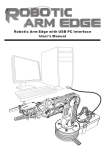
Robotic Arm Edge with USB PC Interface
User's Manual
Robotic Arm Edge with USB PC Interface
User's Manual
CONTENTS
Product Introduction
01
Warning
01
Caution
01
1.SET UP (For Windows XP
32-bit version)
1-1.Hardware and system requirements
02
1-2.Install USB Driver
02
1-3.Install MAIN PROGRAM
07
2.SET UP (For Windows VISTA
32-bit version)
2-1.Hardware and system requirements
12
2-2.Install USB Driver
12
2-3.Install MAIN PROGRAM
18
3.SET UP (For Windows 7
32-bit version)
3-1.Hardware and system requirements
24
3-2.Install USB Driver
25
3-3.Install MAIN PROGRAM
31
4.HOW TO PLAY
4-1.Start the program
37
4-2.Opening animation
37
4-3.Menu
37
4-4.Basic mode
38
4-5.Program mode
39
4-6.Program mode operation guide
40
5.TROUBLESHOOTING
5-1. For Windows XP
47
5-2. For Windows VISTA
50
5-3. For Windows 7
54
5-4. USB port connection
55
5-5. Gearbox movement
55
Product Introduction
This kit allows your existing Robotic Arm Edge to communicate
with your personal computer through the USB port.
It is compatible with Windows XP / Vista / 7 (works only with 32-bit version)
operating system.
Software includes below functions:
●BASIC mode: Use your keyboard or mouse to have real time manual
control of the arm.
●PROGRAM mode: Create,edit,load,or save programmable files.
It creates a fun way of learning and experimenting with your Robotic
Arm Edge through your computer.
Warning
All rights reserved, reproduction in any manner in whole or in part
without permission of OWI Inc. is prohibited.
Caution
To prevent damage to the board, kindly avoid the following:
◆high humidity.
◆direct sunlight.
◆static electricity.
◆reach of small children.
◆liquid or flammable objects.
Never disassemble or reassemble the interface board
as it may cause short circuit, injury or electric shock.
01
1.SET UP (For Windows XP
32-bit version )
1-1.Hardware and system requirements
OS : Windows XP (works only with 32-bit version)
CPU : Pentium3, 1.0GHz or higher
Memory : 256MB or higher
Hardware Disk Space : 100MB or more
Display : Super VGA (800x600) or higher
Color monitor with high color 16-bit or higher
1-2.Install USB Driver
A.Insert the disk into your CD-ROM drive.
B.Connect Robotic Arm Edge and PC with the USB cable.
C.Turn ON the Robotic Arm Edge.
Turn ON
02
D.Install USB Driver.
Step1 (If this message does not show on your screen then go to
Troubleshooting 5-1 .)
Step2 (If this window does not show on your screen then go straight to step 3.)
Step3
1
2
03
Step4 Browse...
2
1
Step5 Choose your CD-ROM and USB Driver folder.
1
2
04
Step6 Check the path and go Next.
1
2
Step7 Wizard searches..
05
Step8 Continue Anyway.
Step9 Finish USB DRIVER install.
Step10 Showing Below of the screen.
06
1-3.Install MAIN PROGRAM
Step1 Choose “My Computer”.
Step2 Click your CD-ROM icon.
07
Step3 Choose “Robotic Arm Edge” folder.
Step4 Click “ Setup ” icon.
Step5 Click “OK” to continue.
08
Step6 Click “Next” to continue.
Step7 Fill in your name or company and click “Next” to continue.
1
2
09
Step8 Click “Next” to continue.
Step9 Click “Next” to continue.
Step10 Click “Next” to continue.
10
Step11 Wait...
Step12 Click “Close” to continue.
Step13 Finish setup.
11
2.SET UP (For Windows VISTA 32-bit version)
2-1.Hardware and system requirements
OS : Windows VISTA (works only with 32-bit version)
CPU : Pentium3, 1.0GHz or higher
Memory : 256MB or higher
Hardware Disk Space : 100MB or more
Display : Super VGA (800x600) or higher
Color monitor with high color 16-bit or higher
2-2.Install USB Driver
A.Insert the disk into your CD-ROM drive.
B.Connect Robotic Arm Edge and PC with the USB cable.
C.Turn ON the Robotic Arm Edge.
Turn ON
12
D.Install USB Driver.
Step1 Choose the first choice.(If this message does not show on your screen
then go to Troubleshooting 5-2)
Step2 Click “Continue” to go next.
13
Step3 Choose the third choice.
Step4 Choose the second choice.
14
Step5 Click”Browse”.
Step6 Click your CD-ROM and choose USB Driver folder. Click “OK” to continue.
1
2
15
Step7 Check the path and go Next.
1
2
Step8 Choose the second choice.
16
Step9 Wait...
Step10 Close.
Step11 Showing Below of the screen.
17
2-3.Install MAIN PROGRAM
Step1 Go to computer choice.
2
1
Step2 Click your CD-ROM icon.
18
Step3 Choose “Robotic Arm Edge” folder.
Step4 Click “ Setup” icon.
Step5 Choose the second choice.
19
Step6
Click “Next” to continue.
Step7 Fill in your name or company and go next.
1
2
20
Step8
Click “Next” to continue.
Step9
Click “Next” to continue.
21
Step10
Click “Next” to continue.
Step11 Wait...
22
Step12 Close.
Step13 Finish setup.
23
3.SET UP (For Windows 7
32-bit version )
3-1.Hardware and system requirements
OS : Windows 7 (works only with 32-bit version)
CPU : Pentium3, 1.0GHz or higher
Memory : 256MB or higher
Hardware Disk Space : 100MB or more
Display : Super VGA (800x600) or higher
Color monitor with high color 16-bit or higher
3-2.Install USB Driver
A.Insert the disk into your CD-ROM drive.
B.Connect Robotic Arm Edge and PC with the USB cable.
C.Turn ON the Robotic Arm Edge.
Trun ON
24
D. Install USB Driver.
Step1 Wait......
Step2 Please ignore this message.
Step3 Please ignore this message.
25
Step4 Move your mouse to the list of “Computer”. Click right button of your mouse.
Step5 Choose “Properties”.
26
Step6 Click “Device Manager”.
Step7 Move your mouse to “Unknown device” which is under “other devices”,
and click right button of your mouse and choose “Update Driver Software”.
27
Step8 Choose the second choice.
Step9 Click “Browse” .
Step10 Choose your CD-ROM and USB driver folder. Click “OK” to continue.
1
2
28
Step11 Check the path and go Next.
1
2
Step12 Choose the second choice.
29
Step13 Installing driver software. Please wait.
Step14 Choose “Close” to finish USB driver installation.
30
3-3.Install MAIN PROGRAM
Step1 Go to “Computer” choice.
2
1
Step2 Click your CD-ROM icon.
31
Step3 Choose “Robotic Arm Edge “ folder.
Step4 Click “ Setup ” icon.
Step5 Click “Yes” to go next .
32
Step6
Click “Next” to continue.
Step7 Fill in your name or company and go next.
1
2
2
33
Step8
Click “Next” to continue.
Step9
Click “Next” to continue.
34
Step10
Click “Next” to continue.
Step11 Wait...
35
Step12 Click “ Close ” to go next.
Step13 Finish setup.
36
4.HOW TO PLAY
4-1.Start the program
Click “Robot Arm Edge”icon on your desktop to start the program.
Robot Arm
Edge
4-2.Opening animation
Click “PLAY” to get into the program.
4-3.MENU
Choose a mode to play.
【MENU】
BASIC mode
PROGRAM mode
Quit
37
4-4.BASIC MODE
Motion area
Label
Back to menu
Control button
Status
Control mode for
Keyboard or Mouse
Mouseover effect: Scroll the mouse wheel to operate motor .
38
4-5.PROGRAM MODE
Control button
Data display
Label
File area
Data box
Program display
area
Motion
area
Program tools
Write data area
Status
Control mode for
Keyboard or Mouse
Write data area
ENTER : Fix the total operation time in the program display area.
CLEAR : The timer is reset to “0”.
File area
NEW : Create a new file.
OPEN : Open a saved file.
SAVE : Save a created program.
CLOSE : The display goes back to Menu
Program tools
START : The program in the program display area is executed.
STOP : The program under execution is stopped.
REWIND : Reversed for the time specified in the program display area and
Robotic Arm Edge goes back to the original position.
DELETE : Selected command in the program display area is deleted.
39
4-6.PROGRAM MODE OPERATION GUIDE
Step1 Choose “PROGRAM” .
Step2 Begin to program your Robotic Arm Edge. C hoose any of the motor gear
in Motion area. For example, choose “M1”gear and use “Control button”
to change the time you want the Robotic Arm Edge to be moved. The time
is shown at the “Data display”area.
Control
button
2
Data
display
area
1
40
Step3 Press “ENTER” to write the data in “Data box”.
Step4 The data in “Data box”.
Data box
Data box
41
Step5 Keep to choose another motor gear. Choose “M1” and “M3” gear and
change the data.
4
2
3
1
Step6 Press “ENTER” . The data is written into the “Data box” at the same time.
42
Step7 IF you want to insert a movement before the data in the Data Box .
Click “INSERT” at “ Write data area ”.
Write data area
Step8 Change the time with the motors you want to change.
2
4
3
1
43
Step9 Press “ENTER” . The data is inserted into the “Data box” at the same time.
Step10 To overwrite the data. Click “OVERWRITE” at “ Write data area ”.
44
Write data area
Step11 Change the time with the motors you want to change.
4
2
3
1
Step12 Press “ENTER” . The data is changed at the same time . And the choice
of “OVERWRITE” in“ Write data area ” is changed back to “ADD TO LIST”
automatically.
45
Step13 To see the movement you have been set . Press “START” in
“Program tools” area.
Program
tools
Step14 The movement data will show on screen at the same time while
the Robotic Arm Edge is moving.
46
5.TROUBLESHOOTING
5-1 ( For Windows XP 32-bit version ) Begin to play or during playing,if you
connect the PC with USB is no response. Please try following steps.
Step1 Move your mouse to “My Computer”.
2
1
Step2 Click right button of your mouse and choose”Properties”.
47
Step3 Click “Hardware”.
48
Step4 Click”Device Manager”.
49
Step5 Go to “Other devices\USB Device” and click right button of
your mouse. Choose “Update Driver”.
OWI
Step6 It will go to Step1 on page03. Please follow the
instruction to solve your problem.
5-2 ( For Windows VISTA 32-bit version ) Begin to play or during playing,if you
connect the PC with USB is no response.Please try following steps.
Step1 Move your mouse to “My Computer”.
OWI
2
1
50
Step2 Click right button of your mouse and choose”Properties”.
Step3 Click “System protection”.
51
Step4 Click “Continue”.
Step5 Click “Hardware”.
52
Step6 Click”Device Manager”
Step7 Go to “Other devices\USB Device” and click right button of
your mouse. Choose “Update Driver Software...”.
OWI
53
Step8 Choose the second choice. It will go to Step1 on page13.
Please follow the instruction to solve your problem.
OWI
5-3 ( For Windows 7 32-bit version ) Begin to play or during playing,if you
connect the PC with USB is no response.
Please go to Step1 on page25.
Please follow the instruction to solve your problem.
54
5-4 If there is no "Other devices" shown on your computer.
Please reconnect your Robotic Arm Edge with computer or change
other USB port of your computer.
OWI
5-5 If the gearbox dose not work smoothly. Please Check motor
wire connection.
55