1
User Manual
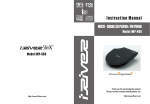
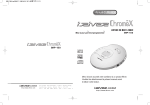
MULTI - CODEC CD PLAYER
Model iMP-50
Model
iMP-350
Model
iMP-50
Thank you for purchasing an iRiver Product.
Please read this manual carefully before use.
http://www.iRiver.com
http://www.iRiver.com
INTRODUCING THE IRIVER WEBSITES
UNIQUE FEATURES OF IMP-50
URL : http://www.iRiver.com
Multi-Codec CD Player
: Supporting MP3, WMA, and ASF format as well as standard Audio CD.
Provides information on our products, company and customer support.
Firmware Upgrade
: Provides the latest updated features via firmware upgrade.
New formats such as AAC, MP3 Pro and so on can be supported in the future with a
simple upgrade method. Player features such as add on, modification, and
continuous improvement of disc recognition are always provided.
Unique "Firmware (System software) Upgrade" feature provides premium disc
readability and various optional add-on features. The firmware is continually
upgraded to support new CODECs that will be introduced in the future.
Provides product registration that enables user to get online customer service.
You can receive the newest information, firmware upgrade notice, etc. via
newsletters by registering your e-mail address.
Recognize Discs in Packet Write or Multi session Format completely
What is Packet Write?
It is the function that can save or delete favorite musics of CD-RW disc as a hard disk
drive.
What is Multi Session?
Generally it is not easy to save musics over 150 titles in a CD-RW disc.
It can easily play the music saved at several times using Multi Session function.
Graphic LCD supporting Multiple Languages
: iMP-50 comes with graphic LCD which can support multiple languages, including:
English, French, Spanish, German, Italian, other alphabet-oriented fonts, Korean,
Japanese (Katakana, Hiragana, Kanji) and others. A total of 36 languages are
supported.
iRiver Limited does not assume any responsibility for errors or omissions in
this document or make any commitment to update the information contained
herein. iRiver is a registered trademark of iRiver Limited in the Republic of
Korea and/or other countries and is used under license.
All other brand and product names are trademarks of their respective
companies or organization.
All other product names may be trademarks of the companies with which
they are associated.
1999~2003 iRiver Limited, All right reserved
Microsoft Windows Media and the Windows logo are trademarks or registered trademarks
of Microsoft Corporation in the United States and /or other countries.
WinAmp and WinAmp logo are registered trademark of NullSoft Inc.
Strong Anti-Shock protection
: 40 Sec for standard Audio CD/120Sec for MP3 (44.1KHz, 128kbps standard)/240
Sec for WMA(44.1KHz, 64kbps)
Enhanced Anti-shock mode
: By applying iRiver's own special algorithm, the iMP-50 provides better performance
against shock. iRiver maximized the anti-shock function at the beginning of songs by
adopting pre-buffering.
Longer playing hours
: With MP3(128kbps) files, the iMP-50 can play for 16 hours.
WinAmp Playlist playback support
: iMP-50 supports Winamp Playlist as long as it has the filename extension .m3u
(maximum 20 lists)
: iMP-50 supports 9 Equalizer Patterns.
Various Control Options Available in the Graphic User Interface
1
2
LOCATING CONTROLS
TABLE OF CONTENTS
FRONT
OPEN
1.Locating the controls
Player Front, Inside.............................................................. 4
Player Side and LCD Window.............................................. 5
2. Getting started
VOLUME -
Playing Disc Media............................................................... 6~7
BACK)
STOP)
VOLUME +
NEXT)
PLAY/PAUSE
3. Useful Features
Navigation............................................................................
Mode (Playing mode/ Enhanced Anti-shock function) .........
Program Mode......................................................................
+10/EQ Function..................................................................
Bookmark.............................................................................
Menu Function......................................................................
8
9
10~11
12
13
14~23
NAVI/FUNCTION
INSIDE
CD LID
4. Additional Information
Additional Features..............................................................
Power Supply.......................................................................
FAQ......................................................................................
Trouble shooting...................................................................
Precautions..........................................................................
Reference.............................................................................
Accessories..........................................................................
Product specifications..........................................................
Regulatory Information.........................................................
Safety Warning.....................................................................
3
24~25
26~27
28~33
34~35
36~37
38
39
40
41
42
BATTERY COVER
4
PLAYING DISC MEDIA
LOCATING THE CONTROLS
SIDE
EARPHONE
Put the lid upward, slide the open
button on the side of the player.
Insert the disc with disc label side
up.
Close the lid.
After turning over the player, play
using operation button. Turn over the
player to operate.
Connect the earphone.
Switch the HOLD button to off.
OPEN
HOLD
MODE
+10/EQ
PROGRAM
CD LID
DC IN 4.5V
Display Information
Track Number
Played time
Playback mode
Hold
Battery indicator
Folder name(ALBUM)
Artist and song title
With Hold button on, you can't
operate the player.
Volume/EQ/Level Meter
File Format
Bit Rate
Sample Rate
Program/Play list
5
6
NAVIGATION
PLAYING DISC
Navigation function allows you to navigate through the files in the CD.
Pressing NAVI/FUNCTION button shows you the list of songs and current song.
PREV
NEXT
PLAY/PAUSE
Play PREVIOUS Folder(RW Skip)
Use BACK(
), NEXT(
)button to
find the song you want to listen.
Use STOP( ) button to exit to the
upper folder.
: To move to the Upper folder.
STOP
GO Forward Quickly
Play NEXT Track
PREV
Selecting folder and move to upper folder
The next figure shows the status when you move to upper folder.
To move the cursor, use the PREV, NEXT button and to enter the Chosen
Folder, use the Play(
) button.
Go Backward Quickly
NEXT
Play PREVIOUS Track
Power Off
: To enter the folder
Play NEXT Folder(FF Skip)
Playing
MP 44 128 L
3 KHZ KBPS R
File Format displays as below.
7
ASF
WMA
Audio CD
MP3
: The song will be played when you press the play button.
8
PROGRAM MODE
MODE (PLAYING MODE/ ENHANCED ANTI-SHOCK FUNCTION)
You can enjoy various ways of playing by using playback mode.
For the user's setting, please refer to Page 21.
USE PROGRAM MODE TO SELECT SONGS IN A PARTICULAR ORDER (I.E.
PROGRAM YOUR FAVORITE SONGS).
Selection of Program/Playlist
Whenever you press the
MODE button, it shows
you the changed icon.
REPEAT
Playback plays lists if the disc contains
Winamp playlist.( .m3u) (Refer to page 26~27).
HOW TO PROGRAM:
Play a single track repeatedly.
To set program, press PROG
button at stop mode.
Play all tracks in the directory and stop.
Play all tracks in the directory repeatedly.
Play all tracks in the disc repeatedly.
Shift to Program mode
Program function only works at stop mode.
While playing, PROG button works as interval repeat (Repeat
)
SHUFFLE
Randomly play all tracks in the disc repeatedly and stop.
To select a song you want to reserve to program,
press
,
button or +10 button(you can use
NAVI/FUNCTION).
Play a single track repeatedly.
Randomly play all tracks in the directory repeatedly and stop.
Randomly play all tracks in the directory repeatedly.
Randomly pay all tracks in the disc repeatedly.
INTRO
Intro: Plays beginning 10 seconds of each track in sequential order.
Intro Highlight: Plays 10 seconds from the spot 1minute was played for each track in
sequential order. (For example, song A plays 10 seconds from 1 minute into the song,
so the highlight ends at 1minute 10 seconds. Then song B plays 10 seconds from 1
minute into the song, so the highlight ends at 1minute 10 seconds, and so forth with
each track.)
iRiver Shock Free
While the iRiver Shock Free mode is ON, the player has stronger
resistance against external shock and prevents sound skipping
caused by sudden movement. However, it may show the lower
readability of disc having inferior recording status. In this case,
we recommend releasing the iRiver Shock Free mode.
9
Pressing the Mode button for a few
seconds while playing will set the
Enhanced Anti-shock on and off.
The order of
programmed track
The order of track
in the CD
To reserve all the songs in a certain folder, use NAVI/FUNCTION button and select the folder
using
or
button and then press PROG button. (It can not reserve the folder within
a folder)
TO REMOVE A PROGRAMMED SONG
Select the song to be deleted and press the Mode button. The program list will be updated
automatically.
10
+10/EQ FUNCTION
PROGRAM MODE
Program Play
+10 function
To play programmed songs, press
button.
The P icon represents
the status of program.
EQ function
To change EQ, press +10/EQ button for 2 seconds. Everytime you press the
button, the EQ mode scrolls in sequential order.
Escape from Program Mode
While playing
At stop mode
To skip to the next 10th song from you are currently
at, press +10/EQ button.
Double click stop button
Click stop button
Interval Repeat
While playing, you can use interval repeat to listen your favorite interval.
While playing, one click of
PROG button selects the
beginning point (A point)
While playing, another click
of PROG button selects
the end point (B point)
It will repeat the interval A-B section.
Player has only +10 button, not -10 button.
To move -10 songs, you need to set the control in Function. Move to
the control and select fast skip. When you set FF/RW skip to 10,
you can go back -10 songs by pressing
button once and hold
it.
Can't I set the equalizer?
When you program songs, using the NEXT/ BACK or +/- button will show you the
songs that aren't programmed.
11
You can set your own equalizer. For details, please refer to the User
EQ of manual functions.(page.23)
12
FUNCTION
BOOKMARK
THE MAIN MENU
BOOKMARK
This is the function for quick search by using BOOKMARK.
Bookmark function is activated under the Study mode.
Long Click of PROGRAM button will add/delete/move the bookmark.
Bookmarks can be reserved up to 20 on a disc.
Bookmark Add : After long Click of PROGRAM button and click PROG/EQ
button shortly to add the present location into the bookmark.
Bookmark Delete : After long Click of PROGRAM button and click MODE button
to delete the present location from bookmark. Whenever
you press MODE button, the bookmark will be deleted in
backward sequence.
Function control is subject to change with different firmware versions.
You can configure your own settings.
GENERAL
beep volume
resume
fade in
language
sort
load default
CONTROL
fast skip
scan speed
auto pause
cd esp
mp3 buffer
adapter volume
sound balance
eq limit
tag auto eq
DISPLAY
lcd contrast
visualization
scroll type
tag information
time
battery indicator
MODE
repeat
shuffle
intro
study
name
TIMER
sleep
pwr off
User EQ
bass boost
bass corner freq
treble boost
treble corner boost
Menu can be varied depending on the firmware version.
HOW TO USE MENU
Moving to bookmark : After long Click of PROGRAM button and press
or
button to move to the next or previous
bookmark.
Pressing NAVI/FUNCTION button will show you
the figures. It is composed of 6 main menus with
sub menus.
Main Menu
Sub Menu
To change the setting, select the sub menu.
13
14
FUNCTION(GENERAL)
FUNCTION
Move between function menus
GENERAL
BEEP VOLUME
: Configure beep sound (ON/OFF) with
volume level.
,
button will move to the
Previous and Next menu.
To move among menus, press
,
button.
Enter to Sub menu
PREV
NEXT
Navigate using
,
buttons
and press
button.
A sub menu will be displayed like
the one at right.
How to set user's preference
Use
,
button to select.
RESUME
: You can select how to resume the track lastly
played. “Track #ON” plays the initial of the song
when you power on. “Track Time ON” plays the spot
in the song.
SOUND FADE IN
: When activated, volume gradually increases when
you begin to play. It prevents your ears from sudden
loudness.
LANGUAGE(supports 36 languages)
: Song title and ID3 tag information from the CD is
dependent on the PC operation system that it is made
into.
(For example, if a CD is burnt in Japanese Windows,
the language setting should be Japanese)
Exit from the sub menu
Press button to exit from sub menu.
Pressing the button again will move
you to the main menu.
As shown in the figure at right,
pressing the button will
completely exit from the main
menu.
SORT
: It is useful when you sort files on CD .
If DIR structure is like as right picture, the
setting order is like as follows.
BREADTH FIRST :
DEPTH FIRST :
PHYSICAL ADDR. : It is sorted as the sequence of
recording order independent of DIR structure.
* You should set sort at stop mode.
CD ANTI-SH
CD
:
ROOT
Ex)
180
MP3
15
16
(1
FUNCTION(DISPLAY/TIMER)
FUNCTION(GENERAL/DISPLAY)
TIME
NORMAL : DISPLAYS ELAPSED TIME.
REMAIN : DISPLAYS REMAINING TIME.
LOAD DEFAULT VALUE
: Initialize to original factory setting.
Button operation is as below
(Select Default Menu)
(move to YES)
(Select YES : INITIALIZATION)
With VBR file, the time may not be accurate.
BATTERY INDICATOR
Adjust level of battery indicator.
If select lower number, the level of battery indicator
is higher. And if select higher number, the level of
battery indicator is lower.
DISPLAY
LCD CONTRAST
: Adjust LCD contrast.
To adjust LCD contrast, press
,
button.
TIMER(Set Auto Power Off)
VISUALIZATION
: Visualizes audio signal at play mode.
You can choose between Level Meter and WaveForm.
LEVEL METER
WAVEFORM
PROGRESSIVE
50%
SCROLL TYPE
Vertical : Scroll goes from top to bottom
Horizontal : Scroll goes from left to right.
SLEEP POWER OFF
: Automatically power off after fixed time(Time
range can be set from 0 to 99 minutes).
By using
button, you can select beep sound
to ON or OFF.
BEEP
OFF
ON
Use
or
button to adjust time.
This function works in both to adjust time.
When the power is off, the sleep power off setting goes back to Zero setting.
STOP POWER OFF
: Automatically power off at stop mode.
Time range can be made from 1~60 minutes.
TAG INFORMATION
ON : Displays track with ID3 tag information or with
lyrics if there are lyrics.
OFF : Displays track with file name.
and
button can be used for time setting.
When you set off the tag information, the track is played
and the next track can be displayed with ID3 tag information.
CAPTION OFF : You can turn off lyric display of synchronized MP3. You can select tag
information display preference using
or
button.
17
18
FUNCTION (CONTROL)
FUNCTION(CONTROL)
FF/RW SKIP(FAST SKIP)
Off : The skip does not activate.
10: Plays the previous 10th or the next 10th song.
Directory: Jump to the Previous/Next directory.
FF/RW SCAN SPEED
: The fast scan speed can range from 1x/2x/4x/6x.
It is useful when studying a language.
PAUSE(AUTO PAUSE)
When Auto Pause is ON, you will need to press Play
button after the disc loads. Auto Pause also pauses
the disc after each song and you will need to press
Play to play.
CD ESP
: This is the function to prevent the cutting sound with
the Standard Audio CD from external shock by
preserving the song is playing. To enjoy the original
sound, 10 SEC will be favorable and to prevent the
cutting sound where the shock is expected, 40 SEC will be favorable. However,
with the 40 SEC CD ANTI-SHOCK, the sound may not be good enough comparing to
the 10 SEC CD ANTI-SHOCK due to the compression of AUDIO. With MP3 File, it
always works as 120 SEC.
MP3 BUFFER
Only applies to MP3/WMA/ASF files.
30 SEC: Anti-shock protection lasts between
30~120 seconds.
60 SEC: Anti-shock protection lasts between
60~120 seconds.
FUNCTION (CONTROL)
ADAPTER VOLUME
ON: When the Adapter is connected, the volume
always remains at level 35.
OFF: No use of Adapter volume.
It is useful when playing in a car.
SOUND BALANCE
When the lever on the Sound Balance bar is moved
to L (Left, 0),the sound outputs at the left earphone.
When the lever is moved to R (Right, 40) the sound
outputs at the right earphone. The default value is
20 and the sound outputs the same level at both
earphone.
EQ LIMIT
ON : Limit the control of equalizer frequency to
prevent distortion of sound.
OFF : You can enjoy original sound though
distortion of sound may occur.
TAG AUTO EQ
Can automatically change EQ by reading the genre of
TAG Information.
OFF : EQ setted by user is operated.
You can select EQ by genre as follows :
tag auto eq
Pop : Pop, Instrumental Pop, Pop-Folk, Pop/Funk
Rock : Classic Rock, Rock, Altern Rock, Instrumental Rock, Southern Rock,
Rock & Roll, Hard Rock, Folk Rock, Gothic Rock, Progressive Rock,
Psychedelic Rock, Symphonic Rock, Slow Rock, Punk Rock
Jazz : Jazz, Jazz+Funk, Acid Jazz
Dance : Dance, Eurodance, Dance Hall
Classic : Classical, Opera, Chamber Music, Sonata, Symphony
Metal : Metal, Death Metal, Heavy Metal
Ubass : Bass, Booty Bass
Note : 60 SEC BUFFER provides stronger shock protection than 30 SEC BUFFER;
however, it consumes more power.
19
20
FUNCTION (MODE)
FUNCTION(MODE)
MODE(PLAYBACK MODE)
REPEAT MODE / SHUFFLE MODE
: The setting value changes when you press
the MODE button.
Only the selected play mode will be applied when
you press the MODE button.
(For details, please refer to Page. 9 )
INTRO MODE
INTRO MODE plays the beginning 10 seconds of
each track.
INTRO HIGHLIGHT plays the first 10 seconds from
the spot 1 minute was played for each track in
sequential order.
MODE
+
+
+
+
F.scan
REPEAT MODE
F.skip
1
DIR
speed
DIR ALL
ALL
scroll
Select the character by using
What is FIRMWARE?
: It is the operating system that
works in the iMP-50.
iRiver provides you with the latest
and best features through
Firmware Upgrade.
Visit www.iriver.com to upgrade
your Firmware.
21
and
button.
MODE
+
+
+
+
SHUFFLE MODE
F.scan
F.skip
SHUFFLE
1
DIR
speed
DIR
ALL
scrollALL
MODE
+
+
+
+
INTRO MODE
F.scan
OFF
F.skip
ON
speed
HIGHLIGHT ON
scroll
STUDY MODE(LANGUAGE STUDY) :
5 SEC / 10 SEC: When you press STOP, it goes
back 5 or 10 seconds.
BEEP: When BEEP is ON, it beeps whenever
you press the button.
Upgrade your firmware at
www.iRiver.com
NAME
: You can input your name or text.
(maximum 12 bytes in English)
How to UPGRADE?
1. Download the latest firmware upgrade file from
www.iRiver.com.
2. Execute the file after extraction.
3. Make upgrade disc containing the IMP-50.hex file.
4. Connect the adapter to the iMP-50.
5. Insert the CD into the iMP-50 and play the CD.
6. Check whether your LCD window shows “Firmware
Upgrade”
7. When the power goes off automatically, the upgrade is done.
8. Play your Music Disc and confirm the firmware version
information displayed during loading.
Press NAVI/FUNCTION button to input the character.
To move the cursor in the name window, please use + and - on
Volume button.
To delete the character, use MODE button.
It scrolls by order of Korean/ALPHABET/Special Character by
pressing STOP button.(Special characters are only available
when “Language” is set to Korean.)
To save the text and exit, use PLAY button
The saved text is displayed during initial loading of disc and at stop mode
during play.
When initial loading
When stop the playback
22
FUNCTION(USER EQ)
USER EQ MODE SETTING
BASS BOOST
: Bass Boost lever ranges 0 to 12dB.
ADDITIONAL FEATURES
How to use WINAMP PLAYLIST
Make a PLAYLIST (
.M3U) using WINAMP
Winamp execution picture
BASS CORNER FREQUENCY
: You can set Bass Boost frequencies to 50Hz,
100Hz and 200Hz.
Bass boost function is effective under the frequency
range configured (maximized at 200Hz).
1. Launch WINAMP and add songs to make a list.
2. Click "LIST OPTS" located on the right bottom
and click "SAVE LIST"
TREBLE BOOST
: Treble boost level ranges 0dB to 12dB.
Click the SAVE LIST button.
3. Name the file name (ex: iriver.m3u) and
click "SAVE" to save the list.
TREBLE CORNER FREQUENCY
: You can set Treble boost frequencies to 2 KHz,
4 KHz and 7 KHz.
Treble boost function is effective over the frequency
range configured (maximized at 2 KHz).
Make a disc with the
.3mu and the files added to the playlist.
Load the disc into iMP-50.
Press PROGRAM button at stop mode and LCD
displays as in the figure at right.
You can find the playlist you want to play by using
the
,
button.
23
24
ADDITIONAL FEATURES
ABOUT POWER SUPPLY (ADAPTER)
Using AC POWER ADAPTER
Press
button to play the tracks
in the order of the playlist.
Use only the AC Power Adapter supplied with the player.
Connect the Adapter to 4.5V DC jack on the player and AC outlet.
PL icon indicates PLAY LIST .
A total of 20 playlists can be recognized.
RESERVATION FUNCTION
Press NAVI/FUNCTION button during playback to select the next
song to be played, then press PROG button to reserve that song.
EG.
Press NAVI/FUNCTION
button during playback,
To move, use
and
and to select, use
25
button
Caution!
Disconnect Adapter when not in use
26
ABOUT POWER SUPPLY (BATTERY)
Using general batteries:
Open the battery cover on the inside of the player.
FAQ
PLAYER
How long does Anti-Shock last?
With MP3 files, Anti-Shock lasts 120 seconds. With Audio CD, it does 40 seconds.
Insert batteries(AA size x 2ea) matching + and - and close the battery cover.
Why does mechanism noise occur?
When loading a CD or searching a Music, CD Pick-up makes noise moving at high
speed. This is not malfunction. But if you hear mechanism noise through earphones
or occurs excessive noise, get customer service.
Does backup CD reduce the lifetime of the Lens?
There is no connection between a blank CD and the lifetime of the lens.
Why doesn't the player recognize a CD burnt at high speed?
There are some CD-RWs burnt at a high speed. The others have no problem with
reading CD. In general, it is recommended to record the CD with 1~2 level lower than
the highest burning speed.
Manganese batteries are not recommended as they run out
quickly.
For optimum playback time, Alkaline batteries are
recommended.
CAUTION!
Do not mix rechargeable batteries with dry batteries.
Do not use different types of batteries together.
When the batteries are not to be used for a long time, remove them.
If electrolyte leaks, wipe off any residue in the battery compartment and
insert new batteries.
27
28
FAQ
RECORDING
How do I download MP3 files?
You need to record MP3 files onto a CD-R or CD-RW disc to play in the iMP-50
player.
In general, there are two kinds of blank CDs.
CD-R (CD Recordable): Recordable but not reusable.
CD-RW (CD-ReWriteable) : Recordable and can be used again after erasing.
There are several ways to burn a CD. A CD is burned into session unit (the data is
stored from the center of the CD).
FAQ
How do I make a CD from a Language Study tape?
To convert the tape's information into CD requires many items, including:
Sound Edit program (Goldwave, Cooledit), stereo cable to connect each side, and a
player to play the Tape.
Connect Stereo cable to earphone output on the player and Line in socket of
Computer Sound Card or Mic socket; then record the sound using the Sound Edit
Program.
I recorded a CD but it contains less than 20 songs.
When you burn a CD with MP3 file, you need to confirm that it is recorded in DATA
format. It means the CD is burnt in Audio CD format, it can record just less than 20
songs.
The player can’t read songs and I get 'No disc' message.
Single session: Close session after burning once.
Multi session: Do not close session after burning that allows you to burn again.
The burning way of deleting/recording data in CD like a hard disc is called packet
writing. CD-R is used single-session / multi-session and CD-RW is used packet
writing. iRiver player can recognize pack-written CD-RW.
What do I need to burn MP3 files?
You need a CD recorder, recording software program, and blank CD. For details,
refer to the “SUPPORT” at iRiver's homepage.
29
CD readability depends on several factors:
1. CD-Media
2. The Burning/Recording Speed
3. The CD surface
When you burn a CD, burning speed does matter as well as CD surface. When you
burn a CD at a high speed, the data writing may not be reliable. In that case, it is
recommended to burn a CD at a lower speed or to use brand media.
Can I add songs to the CD I already burned?
Using multi-session or packet writing allows you to add songs to the CD.
30
FAQ
PLAYING
How do I listen to a spot on the track I last listened to?
The iMP-50 provides a RESUME function. Go to Function, General and enter into
RESUME menu. You can set Track Time or Track #. The iMP-50 can remember the
last 10 CDs you played.
How many playlists can the iMP-50 play?
The iMP-50 can play up to 20 playlists( .m3u)
How many songs can the iMP-50 play?
The iMP-50 can recognize 999 songs and 255 directories with subdirectory.
The sound cuts out when the player skips.
If the player is shaken in a sudden or violent manner, or shaken excessively, skipping
may occur. Under normal circumstances, skipping will not occur. Please carry and
handle the player under normal circumstances (i.e., without excessive shaking).
It takes a long time to load a CD.
Using Multi-sessioned or Packet Written CD may affect the loading time rather than
using Single sessioned CD because the data is scattered in the CD.
To reduce the loading time, it is recommended you to burn in Single-session. You
may contact Customer Service if it takes longer than 1 minute to load a singlesessioned CD or a Standard Audio CD.
It always stops after playing one song.
Does the iMP-50 play ra, wav format?
Check whether the Auto Pause function is ON. If so, turn Auto Pause OFF.
The playable formats on the iMP-50 are MP3, ASF and WMA files.
The ra and wav formats can not be played in this player.
Supporting formats such as ra and wav are under consideration in the future.
I hear a 'hiccup' sound while the song is playing.
I don't see the title and it only displays Audio Track.
The iMP-50 can display the information that the song contains. With MP3 files, the tag
information may not be correct and with Standard Audio CD, it displays only Audio
Track.
To see the song title, you need to burn the CD using CD-TEXT function.
31
FAQ
Check the status of the file. What is likely happening is that the file has broken,
especially if you hear the same sound in the same spot. In this case, it is
recommended you to record the file again or download a different file.
Can I change the playing order?
The iMP-50 supports m3u file lists. Also, the Program function allows you to select
your preferred songs.
32
FAQ
I can't hear ASF file.
There are two kinds of ASF files, Audio and Video. The iMP-50 supports Audio ASF
file only.
Is the sound better if I convert an MP3 file into WAV?
TROUBLE SHOOTING
Should any problem continue after you have checked these symptoms,
please contact iRiver sales representatives.
No Power On
Check whether the batteries have been inserted in
proper polarity (+ and -).
Check whether the HOLD switch on the player or
remote is ON (Switch to OFF position).
Check whether the player lid is open.
Check whether the batteries ran out.
Loading stopped or
'No DISC' displayed on
LCD
Check whether the CD is dirty or defective (clean it
or change to new CD).
Check whether the CD is inserted with the label
side up.
Check whether dirt are attached in optical lens
(remove the dirt with a soft cloth).
Check whether moisture condensation has
occurred (leave the CD player aside for several
hours until the moisture evaporates).
Check whether the CD is inserted.
Problem may occur due to the characteristic
deviation between CD-RW recorder and CD-R/RW
disc (burn the disc in low speed).
Use packet write disc with full formatting done.
There are two groups of audio data, compressed and uncompressed. MP3 is a
diminished compression format in the compressed group, meaning it is not possible to
create the original audio file 100%, partly due to the fact that there are frequencies
missing. Once it is lost, there is no way to recover the lost part.
What kind of media can the iMP-50 support?
Standard Audio CD (8Cm, 12 Cm), CD-R, CD-RW DATA CD with MP3, ASF and
WMA.
The iMP-50 also supports Mixed CD (Data Track + Audio Track), CD-Extra (Audio
Track + Data Track), Multi-sessioned and packet written CD.
What is VBR?
VBR is "Variable Bit Rate". Some MP3 encoders support VBR. When enabled, the
compressor will use a bit rate that will fit the actual passage. If it is a complex part,
having much more variation in the sound, it will use a high bit rate. If there is less
variation in sound, it will use a lower bit rate. Usually, the average bit rate will not be
as high as a same-quality MP3 with CBR (Constant Bit Rate). However, there is
shortcoming that it's hard to keep track of the actual position that may not be
favorable when studying language.
33
No Sound or noise is
heard
Check whether VOLUME is set to “0”. Connect the
earphone plug firmly.
Check whether the plug is dirty (clean the plug with
a dry and soft cloth).
Corrupted MP3, WMA file may have a noise or
sound cut off.
Excessive jolting may affect MP3, WMA, and audio
CD discs to proper playback.
34
TROUBLE SHOOTING
Should any problem continue after you have checked these symptoms,
please contact iRiver sales representatives.
AC adapter does not work.
Check that the voltage is correct.
Check whether the DC plug is connected to the
proper jack.
Battery lifetime differs.
Check whether Manganese batteries are in the
player.
Please use Alkaline batteries for longer battery
lifetime.
Characters in LCD are
corrupted.
Check Menu Display Language and check
whether the right language has been selected.
PRECAUTIONS
On Handling Disc
On handling Disc
Avoid touching the surface (bright side) where data is
stored.
Disc Cleaning
Avoid cleaning the disc surface. If necessary, clean the
disc surface with a soft cloth following the directions
described.
Do not stick papers or tape labels onto the surface
(bright side).
Avoid using chemicals to clean the surface.
On Safety
Should any solid objects or liquid fall into the CD player, unplug it and have it checked
by qualified personnel before operating it any further.
Do not put objects in the DC IN 4.5V jack (External Power output).
Use only the adapter provided with the player to ensure proper safety.
35
36
PRECAUTIONS
REFERENCE
On Player
Do not leave the CD player near heat sources, in a place subject to direct
sunlight, excessive dust or sand, moisture, rain, mechanical shock, unleveled
surface, or in a car with its windows closed.
Keep the lens on the CD player clean and do not touch it. If you do so, the lens
may be damaged and the CD player will not operate properly.
Do not put any heavy objects on top of the CD player. The CD player and the CD
may be damaged.
Do not wrap the player with cloth or blanket that may cause malfunction.
CDs damaged with dirt or scratches may make a popping noise, sound clipping or
cut off while playing.
A track with damaged or corrupted parts is skipped or forwarded to NEXT track.
Playback files with extension MP3, WMA, ASF.
Directories and files are sorted in alphabetical orders.
Use Navigation mode to select the tracks wanted.
Total 255 directories and 999 tracks (Including playlist) within a disc can be
recognized.
Track information is displayed either filename or ID3 TAG information.
On Headphones and Earphones
CD-TEXT discs are displayed with track names within the TOC (Table of contents)
of the disc.
Road Safety
Do not use headphones/earphones while driving, cycling, or operating any motorized
vehicle. It may create a traffic hazard and is illegal in some areas. It can also be
potentially dangerous to play your headsets at high volume while walking, especially
at pedestrian crossings. You should exercise extreme caution or discontinue use in
potentially hazardous situations.
Battery indicator may varies depending on battery type.
iRiver does not support MP3, WMA and ASF files with 48 KHz sample rate.
Preventing hearing damage
Avoid using headphones/earphones at high volume. Hearing experts advise against
listening to continuous, loud and extended play. If you experience a ringing in your
ears, reduce volume or discontinue use.
Consideration for others
Keep the volume at a moderate level. This will allow you to hear outside sound and to
be considerate of the people around you.
37
38
ACCESSORIES
Earphone and Earphone Sponge
SPECIFICATIONS
User Manual
Category
…›
¿º
»
TI
MUL
‚
ER
PLAY P- 5 0
CD
DEC el iM
- CO M od
…‡
·.
·ˇ
˙ ·ˇ·.
r
¤» ¶ł
.k
…› –„
co
…¯ ‰ˆ
˙ˇ
r.
¿'`
ve
˙ˇ » ¿º
Ri
.i
»–‚ ‚‰¯¨˜
ww
˙
—
/w
`ƒ
:/
”» ‚ƒ
…›
tp
‚
ht
Audio
…‡
»
¿º
(CD)
Batteries(Two)
39
Item
Frequency/Range
Headphone output
S/N ratio
Frequency
Characteristics
NO of channels
Specifications
20Hz~20KHz
7mW(L) + 7mW(R) at 16 Max. Volume
85dB(CD-DA), 85dB(MP3 CD)
2dB
STEREO(L+R)
CD-DA, CD-Text(8cm / 12cm)
CD Type
CD-ROM Mode 1, Mode 2 Form1
CD support
Enhanced CD, Mixed CD
Packet Write, ISO9660, Joliet, Romeo,
CD-R/RW Readability
Multi-Session
MPEG 1/2/2.5 Layer 3, WMA ,ASF
File TYPE
File support Bit Rate
Support 8Kbps ~ 320 Kbps
ID3 VI , ID3 V2 2.0, ID3 V2 3.0
Tag
Power supply
1.5 V AA Battery 2 EA
Approx. 130(W) x 140(L) x 28(H)mm
Dimension
General
Approx. 220g( Excluding batteries)
Weight
Operational Temperature 0 ~ 40
16 Hrs
Maximum MP3/WMA
Playback Time Audio CD
7 Hrs
40
REGULATORY INFORMATION
Federal Communications Commission(FCC)
The device manufactured and found to comply with limits for a Class B computing
device according to the specifications in FCC rules Part 15. Operation is subject to
the following two conditions;
1. This device may not cause harmful interference, and
2. This device must accept any interference received, including interference
that may cause undesired operation.
3. If your device needs repairs, you must arrange for the manufacturer to
make them if you are to keep the device's FCC registration valid.
This equipment, like other electronic equipment, generates and uses radio frequency
energy. If not installed and used according to the instructions in this manual, this
equipment may cause interference with your radio and television reception.
If you think this equipment is causing interference with your radio or television
reception, try turning the equipment off and on. If the interference problems stop when
the equipment is switched off, then the equipment is probably causing the
interference. You may be able to correct the problem by doing one or more of the
following:
- Adjust the position of the radio or TV antenna
- Move away the device from the radio or TV
SAFETY WARNING
CLASS 1 LASER PRODUCT
KLASSE 1 LASER PRODUKT
LUOKAN 1 LASER LAITE
KLASS 1 LASER APPARAT
PRODUCTO LASER CLASE 1
Use of controls, adjustments or performance
of procedures other than those specified
herein may result in hazardous radiation
exposure.
CAUTION-INVISIBLE LASER RADIATION
WHEN OPEN AND INTER LOCKS
DEFEATED, AVOID EXPOSURE TO
BEAM.
WARNING
To prevent fire or shock hazard, do not expose the unit to rain or
moisture.
To avoid electrical shock, do not open the cabinet. Refer servicing to
qualified personnel only.
Certain countries may regulate disposal of the battery used to power
this product. Please consult with your local authority.
Listening for many hours at maximum volume may damage your
hearing.
If necessary, consult your dealer or an experienced radio or television technician. You
may find this booklet helpful:"How to Identify and Resolve Radio and TV Interference
Problems"(Stock No. 004-000-00345-4), prepared by the FCC and available from the
U.S Government Printing Office, Washington, DC 20402. See individual devices FCC
ID and registration numbers.
For the customers in Europe
The CE mark on the CD player is valid only for products marketed in
the European Union.
41
42