1
User manual
Organ offer form
Web version (GUI – graphical user interface)
1. Log into YASWA
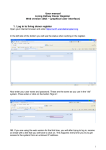
Open your internet browser and enter https://sc37.scandiatransplant.org
Now enter your user name and password. These are the same as you use in
the “old” system. Press enter or click on the button 'Sign in'.
NB. If you are using the web version for the first time or from a unknown IP
address, you will after trying to log in, receive an email. The email will contain
a link that you will have to click on and then you will have access to the
system.
1
2. Enter the organ offer form
First thing is to enter the 'organ offer' menu.
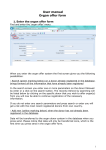
When you enter the organ offer system the first screen gives you the following
possibilities:
−
Search (green marking below) on a donor already registered in the
database – brings forward all the information that have already been
registered.
In the search screen you enter one or more parameters on the donor followed
by enter or a click on the search button. The records retrieve by searching will
be listed below by clicking on the specific donor that you wish to offer organ(s)
from you will now be able to continue registration of the necessary
informations.
If you do not enter any search parameters and press search or enter you will
get a list with the most recent registered donors from own country.
−
Add new (yellow marking below) when the donor has not already been
registered in the database
2
3. Registration of organ offer information
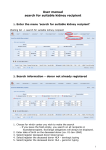
1. Choose if the organ offer should be send internal Scandiatransplant
(Send to SCTP), out of Scandiatransplant (send to others (EU)) or both.
If you at first wish to send the offer to Scandiatransplant and then find out
later on that the offer can be send to external organisations, you just alter √
from 'send to SCTP' to 'send to others (EU)' and press save.
2. Select the organs you wish to offer
3. Select if the organ(s) is from a heart beating or non-heart beating donor
4. Move between the sub menus to enter and chose from 'list of values' the
donor information you wish to register.
.
If a value is not within the reference value it will be encircle with a read line.
If you place the mouse within the box, you will get a help text shown.
When saving you will get warned that the value is not within the reference
value, but you will be able to save the information anyway.
Now and then please click on the save button. If you have done registrations
that have not been saved yet the 'save button' will be displayed in black
writing. If no alterations have been made the writing will be light grey.
TIP!
You can always start entering data on a donor – leave the system – and then
later return to enter more data. However for the initial registration the
following fields are mandatory 'send to SCTP/EU' , 'organ type' , age, sex,city
3
(hospital), cause of death, 'start of op. is planned at' and ''we need your
answer within' .
3. Preview and send organ offer
If you wish to check the information that you have registered before sending
the offer, you can press the preview button (yellow above). By pressing
preview you get the pdf as a pop-up in an new window.
If you wish to remove a value you delete and save, if you wish to alter a value
do so by overwriting followed by saving.
When you have check the registered information and you wish to send the
offer press the send button. The organ offer will now be send to all registered
receivers by email and a sms notification.
4