1
TABLE OF CONTENTS
QUICK START GUIDE
CAMERA OVERVIEW
SETTING UP
HOW TO USE
CAUTIONS AND WARRANTY
CONTACT
2
4
6
14
21
26
USER MANUAL
QUICK START
Quick Start
1 Slide the door up to open.
2 Insert the microSD card.
3 Insert the battery.
4 Slide the Record Slider
forward to record. Slide it back
to stop recording.
HDMI
HDMI
S/N:
S/N:
30
QUICK START
S/N:
S/N:
Contour+2 User Manual
S/N:
31
CAMERA OVERVIEW
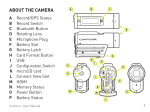
CAMERA DIAGRAM KEY
A Battery Status
B Memory Status
C GPS Status
D Record Status
E Record Slider
F Record Slider Lock
G Bluetooth Button
and Status
H Rotating Lens
I Microphone Jack
J Battery Slot
K Battery Latch
L Card Format Button
M USB Port
N 1-2 Switch
O Connect View Slot
P microSD Card Slot
Q HDMI Port
R Microphone
S Laser Line
32
D
F
E
G
A
B
C
H
U
I
I
I
L
M
M
M
CAMERA OVERVIEW
L
M
J
J
T
T
P
P
Q
WATERPROOF CASE DIAGRAM KEY
E
T Status Button
U TRails Lock
V TRails
W Cover Latch
O
D
R
D
T
T
U
U
U
V
W
Contour+2 User Manual
O
E
U
V
R
Q
T
T
K
K
Q
Q
H
H
N
N
S
S
W
33
SETTING UP
SETTING UP
Download Contour Connect mobile app for your Android or iOS device
(available on Google Play and the iTunes App Store) or Contour Storyteller on
your PC/Mac. The link below will help you set up your camera to make sure
it is registered, ensure your camera has the latest GPS Assist file, update the
time on your camera, and get the settings dialed to your custom configuration.
Go to http://contour.com/startPLUS
34
SETTING UP
S/N:
Charging The Battery
+ Slide the door up to open and insert the battery.
(As indicated on pg. 2).
+ Connect your camera to a PC/Mac using the supplied USB Cable.
(As indicated above).
+ The Battery Status LED indicates the charge level of the battery. It will
change colors from red, to yellow, to green as the battery charges.
+ Charge is fully complete when the Battery Status LED turns green.
This can take up to three hours.
Contour+2 User Manual
35
SETTING UP
Do not attempt to
format the microSD
Card if the battery
is not charged.
Also do not remove
the battery when
formatting the
microSD Card.
Formatting The microSD Card
Format the microSD Card prior to recording so your camera is able to
properly read and write to it. Caution: formatting the card will erase
everything on it.
Check that the Record Slider is in the off position. Open the back of your
camera then press and hold the Format Button until the camera beeps
(three to five seconds). The microSD Card LED will flash while the card is
formatting and then turn solid green when the format is complete.
The Contour+2 is compatible with:
+ SDSC (standard capacity) microSD Cards up to a capacity of 2GB.
+ SDHC (high capacity) class 4, 6, or 10 microSD Cards up to a
maximum capacity of 32GB.
36
SETTING UP
Camera Status
Press and release the Status Button on the back of your camera to activate
the Laser Line, and display status of Battery, Memory, and GPS. The camera
will power off after 15 seconds or if you press the Status Button again.
Battery Status LED
Green: 50% or more.
Yellow: 20 to 50%.
Red: 20% or less.
Red Flashing: The
battery is almost fully
discharged.
No LED: The battery is
fully drained and must
be charged.
Contour+2 User Manual
Memory Status LED
Green: 50% or more.
Yellow: 20 to 50%.
Red: 20% or less.
Red Flashing and
continuous beeps: The
microSD Card cannot
be read by the camera
because the card is full,
missing, or not
properly formatted.
GPS Status LED
Green Flashing:
Searching for satellites.
Green Solid: GPS Position
Fix obtained, and data can
be recorded to video.
No LED: The GPS system
is deactivated.
37
SETTING UP
Adjusting Camera Settings
1-2 Switch
The 1-2 Switch on the back of your camera allows you to preset your
Contour+2 with two different configurations that can be easily changed in
the field. The settings for each switch position can be set up using Contour
Storyteller or by using the Contour Connect mobile app on your Android or
iOS device.
Camera Settings
Some of the camera settings you can adjust are: Resolution and Frame
Rate, Exposure Level, Sharpness, Contrast, Audio Level, White Balance,
GPS Sample Rate, GPS Power, and Auto-Shut Off.
Record times will depend on the quality, capacity of the microSD Card,
the resolution you have selected, the battery charge, and
the temperature.
38
SETTING UP
Recording
+ Start Recording: Move the Record Slider Lock so that the red square is
not showing and then slide the Record Slider forward. Your camera will
power on, beep once, and the Record Status LED will turn red, indicating
that the camera is now recording a video.
+ Stop Recording: Slide the Record Slider back. Your camera will beep
twice, and the Record Status LED will switch off, indicating that your
camera has stopped recording and is powered off.
+ Record Slider Lock: The small switch on top of the Record Slider is used
to keep the Record Slider from turning on or off. To move the Record Slider
forward or back, have the Record Slider Lock moved so that the red square is
not showing. To prevent the Record Slider from moving in either the record or
off positions, move the Record Slider Lock so that the red square is visible.
Contour+2 User Manual
39
SETTING UP
Mounting Your Camera
Getting the best shot depends only on your creativity. Contour offers a
wide range of mounts that let you put the camera just about anywhere,
so be creative.
Remember that your Contour+2 has a wide-angle lens and objects that are
far away will seem smaller than you expect in your videos.
Alignment
Your Contour+2 has a Laser Line that helps ensure you have the horizon
properly aligned in your videos. To use, activate the Laser Line by
pressing the Status Button; place your hand in front of the Laser Line or
aim it on to a flat surface a few feet in front of you and rotate the lens (up
to 270°) until the Laser Line is horizontal.
Use the Contour Connect mobile app to see a live preview of your shot via
Bluetooth connection on your Android or iOS device.
When mounting the camera on your helmet or goggles, you may
discover that you look down more than you thought. It may take a few
practice videos to find the right alignment.
40
SETTING UP
Adhesive Mounts
Clean and dry the mounting surface before applying an adhesive mount. We
suggest cleaning the surface with a small amount of alcohol and applying the
mount at room temperature. Let the adhesive cure for 24 hours before use.
Waterproof Case
+ Press firmly to position your camera at the back of the case and close
the Cover Latch to lock tight.
+ Press the Status Button on the back of the case to activate the camera's
Status Button.
+ Start and stop recording with top Record Slider.
+ When using the TRail mounts, engage the TRail Lock on the same side
as the mount for extra security.
Waterproof Case Maintenance & Storage
Inspect the rubber seal for damage prior to each use. Keep the rubber seal
free of dirt and do not use sharp objects to remove the rubber seal. Store
your Waterproof Case unlatched to avoid damage to the rubber seal, and
never store it in direct sunlight. After salt-water use, soak the case in fresh
water for up to an 1 hour.
Contour+2 User Manual
41
HOW TO USE
USING YOUR GPS
Your Contour+2 has a GPS Receiver built in to capture your current
location, speed, and elevation with every video.
How it Works
Whenever you press the Status Button, the Bluetooth Button, or begin
recording, the GPS Receiver is turned on and begins calculating a
Position Fix for your current position. As soon as it has a Position Fix your
Contour+2 can start recording GPS data.
Your Contour+2 will still record video even if the GPS system has not
obtained a Position Fix. However, no GPS data will be captured until the
Contour+2 has obtained a Position Fix.
Getting a Position Fix
Getting a Position Fix for the first time each day takes at least 40 seconds,
and may take longer in less optimal conditions. After an initial Position Fix
has been obtained, it will be easier for your camera to get a Position Fix
again later that same day.
42
HOW TO USE
Pressing the Status Button turns the GPS on for a few minutes to help
ensure that GPS data will be captured before you begin recording. The GPS
Status LED will change from flashing to solid green when a Position Fix is
obtained. A flashing green LED means it is still trying to get a Position Fix.
You can also reduce the time it takes to get an initial Position Fix by
connecting the camera to Contour Storyteller or the Contour Connect
mobile app. This allows a GPS Assist file to be installed onto the camera.
The files contains current data that can help the GPS system obtain an
initial Position Fix faster (often 10 seconds or less). Once the GPS Assist
file is installed it is valid for up to 14 days. After this you will need to
connect to Contour Storyteller or the Contour Connect mobile app again to
get a new GPS Assist file.
If your Contour+2 has obtained a Position Fix within the last two to four
hours and a charged battery has remained in the camera, then the camera
will typically obtain a Position Fix again within a few seconds of pressing
the Status Button or sliding the Record Slider forward. If the battery has
been removed or completely drained, the camera will have to start from
scratch to obtain a Position Fix.
Contour+2 User Manual
43
HOW TO USE
HOW TO GET THE BEST GPS PERFORMANCE
Your Contour+2 is most efficient in obtaining a Position Fix when it is under
an open sky. Some factors that can improve the camera’s ability to get a
Position Fix include:
+ Be outdoors. GPS will not work indoors or under overhead obstructions.
+ Avoid tall buildings, cliffs, or objects blocking the view to the sky or horizon.
+ Avoid being in a natural or urban canyon where the satellite signals can
bounce around before getting to the camera.
+ Stay out from under trees with thick foliage overhead.
+ Keep the camera stationary until a Position Fix is acquired.
+ Do not have the Record Slider (where the GPS antenna is located)
obscured by clothing, other equipment, or the user’s body.
+ Make sure that no other devices nearby are emitting electronic noise
that could interfere with the camera’s antenna.
+ Connect the camera to Contour Storyteller or the Contour Connect
mobile app so that it can get an updated GPS Assist file.
44
HOW TO USE
Troubleshooting the GPS system
Under ideal conditions (see Getting A Position Fix pg 14), your Contour+2
can obtain an initial Position Fix within 10 seconds. If your camera has not
obtained a Position Fix within two minutes, follow these steps:
+ Connect to Contour Storyteller or the Contour Connect mobile app to
install the latest GPS Assist file to the camera.
+ Take your Contour+2 outside and ensure you're under an open sky.
+ Press and release the Status Button.
+ The GPS Status LED will flash green and should turn solid green within
40 seconds.
Contour+2 User Manual
45
HOW TO USE
ADDITIONAL FEATURES
Bluetooth
The Contour+2 allows you to connect to your iOS and Android devices right
out of the box via Bluetooth 2.1 + EDR, and a Connect View card preinstalled in the camera. Bluetooth can be used to preview your shot, check
the status of the camera prior to recording, adjust the camera’s settings,
and remotely control recording. For additional information about using
your camera with Bluetooth, visit http://contour.com
External Microphone
In addition to the standard internal microphone, your Contour+2 has a 2.5mm
jack on the bottom of the camera that can be used for an external microphone
or to capture audio from an airplane or automotive comm system.
Since many external mics and comm systems use a 3.5mm jack, we have
included a small adaptor cable with the Contour+2 that will convert from
3.5mm to 2.5mm.
The mic jack is located on the bottom of the camera under a small rubber
cover. Pull that cover open and insert your mic plug or the mic adaptor. The
gain level for the external mic can be set in Contour Storyteller or using the
Contour Connect mobile app.
46
HOW TO USE
You can use many types of micophones with the Contour+2 and different mics
work better for different conditions. This is not a powered port. If you wish to
use a powered mic, the mic will need to use an external power source.
Live Streaming / Playback
The Contour+2 has the ability to stream HD video using the HDMI port on
the back of the camera. This allows the camera to connect to a wireless
transmitter or any other HDMI capable device and provide a real time view
from the camera.
+ Connect an HDMI cable between the camera’s HDMI port and a video
display, recorder, or transmitter.
+ When the camera is powered on by pressing the Status Button or sliding
the Record Switch forward, video will start streaming through the HDMI
port. The video will continue to stream while the camera is recording.
+ To play back video, connect an HDMI cable between the camera's HDMI port
and an HDMI display. Use the Status Button and Record Slider or the Contour
Connect mobile app, to select and play movies directly from the camera.
+ For additional information on how to use the live streaming and play
back features, visit http:// help.contour.com
Contour+2 User Manual
47
HOW TO USE
Downloading Files Directly From The Camera
In addition to using Contour Storyteller to download videos from your camera,
this can also be done manually without the use of Contour Storyteller.
+
+
+
+
Connect the camera to any PC or Mac using the supplied USB cable.
The camera will be listed as a removable device.
Navigate to the camera on your computer.
Video and still image files are located in the \DCIM\100MEDIA directory
Video files can be copied to your computer and played with any .MOV
video player (e.g. QuickTime, Windows Media Player (Windows 7 only),
Storyteller, or VLC).
Caring for your Camera
The Contour+2 requires very little additional care, but there are a few
things you can do to keep your camera running at it’s best.
+
+
+
+
48
Use only a damp, lint-free cloth to clean your camera.
Store your camera in a dry location.
Do not let dirt or moisture get inside the back door of your camera.
Connect your camera to Contour Storyteller or the Contour Connect
mobile app to check for any available firmware updates.
CAUTIONS AND WARRANTY
CAUTIONS AND WARRANTY
This Important Product Information Guide
contains regulatory, safety, handling, disposal
and recycling information, as well as the 1 year
limited warranty for your Contour+2 camera.
Warning: Failure to follow these safety
instructions could result in fire, electric shock, or
other injury or damage.
Read all safety information below and operating
instructions before using Contour+2 camera to avoid
injury. For detailed operating instructions and the latest
Important Product Information Guide, go to:
http://contour.com/support
Battery and Handling
The lithium-ion battery may present a hazard
if mistreated. Do not disassemble, crush, or
puncture the lithium-ion battery. Do not immerse
battery in water and store in a cool dry place
when not in use. Do not use or leave battery near
a heat source or in direct sunlight. Contour+2
uses a rechargeable lithium-ion, 3.7V, 1050mAh
battery. Do not use batteries other than those
specifically designed for the Contour+2. Use of
any other battery may invalidate the warranty
provided by Contour, Inc. and may present a risk
of fire or explosion.
Contour+2 User Manual
Charging
To charge, only use the Contour USB Cable
with a high power USB port on a computer or
other device that is compliant with the USB
2.0 or 1.1 standards, or a Contour wall, car, or
battery charger.
Disposal information
Do not dispose of either the Contour+2 camera
or lithium-ion battery in a fire. Dispose of
batteries in accordance with local laws and
regulations.
Leash Use:
DO NOT ATTACH THE LEASH TO THE
CAMERA WHEN THE CAMERA IS MOUNTED
ON HELMET OR GOGGLES, WHEN THE
CAMERA WILL BE USED IN HIGH WINDS
OR AT HIGH VELOCITIES, OR IN ANY OTHER
CIRCUMSTANCES WHEREBY THE CAMERA
COULD CAUSE INJURY OR HARM IN THE
EVENT THAT IT COMES LOOSE FROM THE
MOUNT AND REMAINS TETHERED BY THE
LEASH. BY ATTACHING THE LEASH TO THE
CAMERA, YOU AGREE TO WAIVE ANY CLAIMS
AGAINST CONTOUR, INC. AND ANY OF ITS
AFFILIATES, AGENTS, EMPLOYEES, OFFICERS
OR DIRECTORS ARISING FROM THE USE OF
THE LEASH.
49
CAUTIONS AND WARRANTY
Correct Disposal of this product
This marking indicates that this product should not be disposed with
other household wastes throughout the EU. To prevent possible harm to
the environment or human health from uncontrolled waste disposal,
recycle it responsibly to promote the sustainable reuse of material
resources. To return your used device, please use proper return and
collection systems or contact the retailer where the product was
purchased. They can take this product for environmental safe recycling.
FCC information
Contour+2 Camera
Model: 1700
This device complies with
Part 15 of the FCC Rules.
Bluetooth information
FCC ID: QOQWT21A
IC ID: 5123A-BGTWT21N
ACN: 135 810 098
Operation is subject to the following two conditions:
+ Device may not cause harmful interference
+ Device must accept any interference received,
including interference that may cause
undesired operation.
Warning:
Changes or modification to this unit not expressly
approved by party responsible for compliance
could void the user’s authority to operate the
equipment. Note: This equipment has been
tested and found to comply with the limits for
a Class B digital device, pursuant to Part 15 of
the FCC Rules. These limits are designed to
provide reasonable protection against harmful
interference in a residential installation.
This equipment generates, uses, and can radiate
50
radio frequency energy and if not installed and
used in accordance with instructions, it may
cause harmful interference to radio communications. There is no guarantee that interference will
not occur in a particular installation. If this equipment does cause harmful interference to radio
or television reception, which can be determined
by turning the equipment off and on, the user is
encouraged to try to correct the interference by
one or more of the following measures:
+ Reorient or relocate the receiving antenna.
+
Increase separation between equipment
and receiver.
+
Connect the equipment into an outlet on
a circuit different from that to which the
receiver is connected.
+
Consult the dealer or an experienced radio/
TV technician for help.
The CE symbol on your Contour+2
camera indicates that it is in
compliance with the Electromagnetic
Compatibility (EMC) directive, and Limits and
Methods of Measurement of Radio Interference
Characteristics of ITE.
CAUTIONS AND WARRANTY
Industry Canada
This Class B device meets all requirements of
the Canadian Interference-Causing Equipment
Regulations. Cet appareil numerique de la classe
B respecte toutes les exigences du Reglement
sur le materiel broulleur du Canada.
Repairing or Modifying
Never attempt to repair or modify a Contour+2
camera yourself. Disassembling Contour+2
camera, including the removal of external
screws, may cause damage that is not covered
under the warranty. The Contour+2 camera does
not contain any user-replaceable parts, except
the microSD Card and battery.
Laser Notice
Contour+2 is a Class II laser device. Laser
radiation is emitted from the Contour+2 when
using the Laser Line for alignment. Please use
caution and do not stare directly into the beam or
point it at others.
RoHS
Contour+2 cameras comply with the European
Union’s R0HS directive 2002/95/EC and similar
regulations that may be adopted by other
countries for European Sales.
Contour+2 User Manual
CONTOUR, INC. LIMITED WARRANTY
Contour, Inc. (“Manufacturer”) warrants
to the original end user (“Purchaser”) that
for the one year (“Warranty Period”), the
Contour+2 camera (excluding any third
party software) and accessories (“Product”)
will be free from defects in materials and
workmanship when properly installed and used
for its intended purpose and in its intended
operating environment. This warranty does
not apply to any Product that has been: (i)
altered, repaired or modified or (ii) damaged
or destroyed by accidents or similar events
or by any intentional, reckless or negligent
acts or omissions of any party. In the event
of a defect, return the Product to the original
place of purchase or Manufacturer, but only
after instructed to do so by Manufacturer.
Purchaser shall ship and bear the cost of
shipping the Product to Manufacturer and
Manufacturer shall bear the cost of shipping
the Product back to Purchaser after the
completion of service under this limited
warranty. Purchaser’s exclusive remedy
and Manufacturers entire liability under this
warranty will be for Manufacturer at its option
to repair or replace the Product or refund
purchase price less any rebates. Manufacturer
does not warrant against loss of any data
51
CAUTIONS AND WARRANTY
(including data stored on Product returned to
Manufacturer for service), and assumes no
liability for such loss. Purchaser assumes all
liability, and as such releases Manufacturer from
any liability, for any accident, injury, damage,
death, loss, illegal activity or any other claim that
may occur resulting from or during use of the
Product, whether or not such use is foreseeable
by Manufacturer.
ALL IMPLIED WARRANTIES OF
MERCHANTABILITY OR FITNESS FOR A
PARTICULAR PURPOSE ARE LIMITED TO THE
DURATION OF THE APPLICABLE EXPRESS
WARRANTY. ALL OTHER EXPRESS OR IMPLIED
CONDITIONS, REPRESENTATIONS AND
WARRANTIES, INCLUDING ANY IMPLIED
WARRANTY OF NON-INFRINGEMENT, ARE
DISCLAIMED. Some jurisdictions do not allow
limitations on how long an implied warranty
lasts, so the above limitation may not apply to
Purchaser. This warranty gives Purchaser specific
legal rights, and Purchaser may also have other
rights which vary by jurisdiction.
All third party software provided with the Product is
provided “AS IS”. Purchaser assumes the entire risk
as to the quality, performance, accuracy and effect
of such software, and should it prove defective,
Purchaser, and not Manufacturer, assumes the
entire cost of all necessary servicing or repair.
52
TO THE EXTENT NOT PROHIBITED BY LAW,
IN NO EVENT WILL MANUFACTURER BE
LIABLE FOR ANY LOST DATA, REVENUE
OR PROFIT, OR FOR SPECIAL, INDIRECT,
CONSEQUENTIAL, INCIDENTAL OR PUNITIVE
DAMAGES, HOWEVER CAUSED REGARDLESS
OF THE THEORY OF LIABILITY, ARISING
OUT OF OR RELATED TO THE USE OF OR
INABILITY TO USE THE PRODUCT, EVEN IF
MANUFACTURER HAS BEEN ADVISED OF
THE POSSIBILITY OF SUCH DAMAGES. IN NO
EVENT WILL MANUFACTURER’S LIABILITY
EXCEED THE AMOUNT PAID BY PURCHASER
FOR THE PRODUCT.
The foregoing limitations will apply even if
any warranty or remedy provided under this
Agreement fails of its essential purpose.
Some jurisdictions do not allow the exclusion
or limitation of incidental or consequential
damages, so the above limitation or exclusion
may not apply to Purchaser.
CAUTIONS AND WARRANTY
Contour Disclaimer
All purchasers, users, and any or all parties
involved or engaging in the use of Contour, Inc.
(“Contour”) products agree to the following:
+ Contour does not promote or endorse high risk,
careless and/or dangerous actions when using
its products.
+ Contour is not liable for any use or misuse of
Contour Products or any video captured that
may be considered illegal.
Contour Hands-free Camera and/or associated
software and other Contour products are
protected by copyright, international treaties, and
various patents, including: U.S. patents: D616006
and D621435. Other patents are registered or
pending in the U.S. and in various countries
around the world.
Visit contour.com for a list of applicable patents.
All trademarks and registered trademarks
mentioned herein are recognized as the property
of their respective holders. Contour+2 is a product
+ Contour is not responsible for any illegal actions of Contour, Inc. in Seattle, Washington.
taken while recording, attempting to record,
http://contour.com ©2012 Contour, Inc.
or editing video that was captured with our
All rights reserved
products.
+ Contour Products’ primary purpose is recording
legal sports activities as seen by all Local,
State, Federal, and Country laws.
Contour+2 User Manual
53
CONTACT
WE ARE HERE TO HELP
If service is required on your camera or accessory, contact our Technical
Support team for troubleshooting and to obtain an RMA Number (Return
Materials Authorization) if needed. You may be asked to provide a proof of
purchase at this time.
Please do not send any product back to Contour without first obtaining an
RMA Number or Sales Return Authorization directly from Contour. Contour
will, at its sole discretion, replace or repair the product.
Email: [email protected]
Web: http://contour.com/support
54