1
Voicemail Settings
Time Profiles
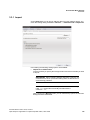
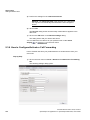
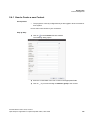
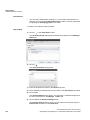
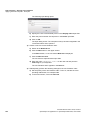
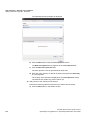
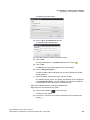
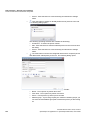
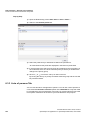
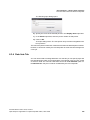
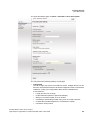
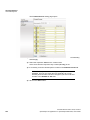
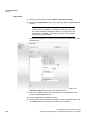
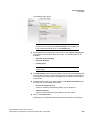
The configuration page with available group settings opens.
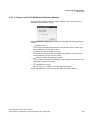
3) Click the Recording link next to Record group name.
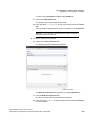
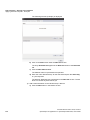
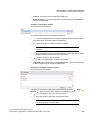
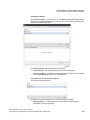
The Recordings dialog opens.
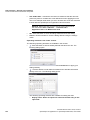
4) Enter the number of the telephone from which you want to record the group
name.
5) Then click on OK.
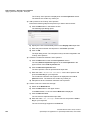
The Recordings dialog closes. Your phone rings and you can start your
recording.
6) Click on Record and record the desired name.
7) Click on Exit.
You have now finished recording.
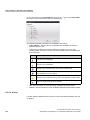
8) Click on Save.
The name you have recorded has been backed up.
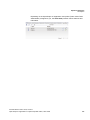
The Recording link next to Record group name is no longer displayed. The
Name recorded column on the Groups page now features the corresponding
check box ticked.
NOTICE: The group name recording procedure is identical with
the recording procedure.
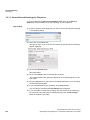
7.4.3 How to Delete a Group
How to remove a private group from the list of groups:
Step by Step
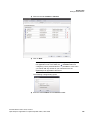
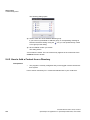
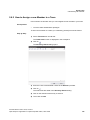
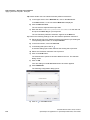
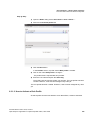
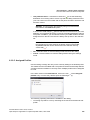
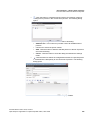
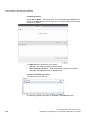
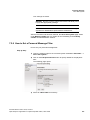
1) Open the groups-settings page via menu > Voicemail > Groups.
2) Click the radio button that precedes the desired group to select the group.
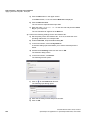
3) Click the Delete group button. A security check appears.
4) Confirm the security check.
The selected group has been deleted.
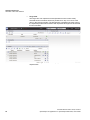
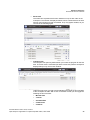
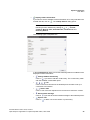
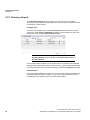
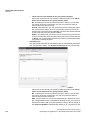
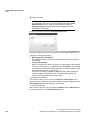
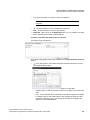
7.5 Time Profiles
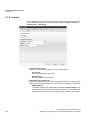
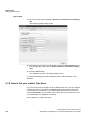
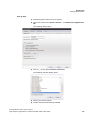
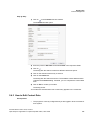
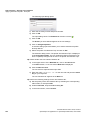
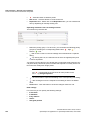
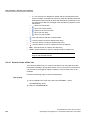
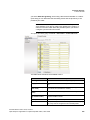
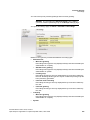
With help of a time profile you can define when and with which greetings your
mailbox should react to incoming calls.
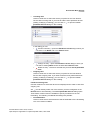
NOTICE: The greetings that can be integrated in the time profile
of this dialog must first be created via the Recordings feature.
276
A31003-S5070-U102-8-7619, 01/2014
OpenScape UC Application V7 OpenScape Web Client, User Guide