1
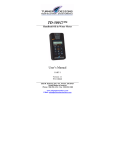
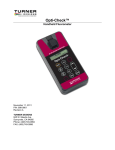
Picofluor™
Handheld Fluorometer
User’s Manual
Dated: 03/19/2003
Version: 1.2
P/N 998-0853
Table of Contents
1.
Introduction
1.1 Description ................................................4
1.2 Inspection and Setup ..................................4
1.3 General Information and Precautions..........5
2.
Quick View Diagrams.....................................6
3.
Instrument Parameters
3.1 Firmware Flowchart...................................7
3.2 Instrument Power Up .................................9
3.3 Fluorescence Channels...............................9
3.4 Calibration Standard Value ........................9
3.5 Calibration ...............................................10
3.6 Sample Analysis ......................................10
3.7 Internal Data Logging (IDL) ....................11
3.7.1
Activate Data Logging ...............11
3.7.2
Download Data ..........................11
3.7.3
Erase Data..................................11
3.8 Diagnostic Information ............................12
4.
General Considerations for Analysis
4.1 Handling Samples....................................13
4.2 Linear Range and Quenching ...................14
4.3 Temperature Considerations.....................15
4.4 Positioning Samples.................................15
4.5 Data Quality ............................................15
5.
Warranty
5.1 Terms ......................................................16
5.2 Warranty Service .....................................17
5.3 Out-of-Warranty Service..........................18
Picofluor™ User’s Manual
2
Appendices:
A. Instrument Specifications
A1. General Specifications.............................19
A2. Optical Specifications..............................19
B. Internal Data Logging
B1. Shipping Checklist ..................................20
B2. Hardware Requirements ..........................20
B3. Installation ..............................................20
B4. Connecting..............................................20
B5. Troubleshooting .....................................21
Picofluor™ User’s Manual
3
1. Introduction
1.1 Description
The Picofluor™ is a dual-channel fluorometer
designed for quick, easy and accurate fluorescence
measurements. When properly calibrated with a
known standard, the Picofluor™ can be used to
determine concentrations of unknown samples.
1.2 Inspection and Setup
1.2.1 Inspection
Upon receiving your instrument, please inspect
everything carefully and make sure all accessories
are present. All shipments include:
•
•
•
•
The Picofluor™
The User’s Manual
4 AAA batteries
Internal Data Logging (IDL) package
• PC interface cable
• Spreadsheet Interface Software (1CD)
1.2.2 Setup
Before the Picofluor™ can be used, the supplied
batteries must be installed.
1.
2.
3.
On the back of the instrument, loosen the
screw and remove the battery panel (see
Section 2 for diagram).
Install the 4 AAA batteries into the
appropriate spaces.
Replace the battery panel and tighten the
screw. The panel has an o-ring, which creates
a watertight seal. The battery panel may be
difficult to install if there is no lubrication on
Picofluor™ User’s Manual
4
the o-ring. Use a silicon based grease to
lightly lubricate the o-ring if necessary.
1.3 General Information and Precautions
•
The sample compartment cannot accept glass
or quartz cuvettes but readily accepts
methacrylate or polystyrene cuvettes.
•
A minimum volume of 2 mL in a 10 x 10 mm
cuvette is required for best results.
•
A minimum volume of 75µL in a Minicell
adaptor is required.
•
Avoid having any air bubbles in your sample.
They can significantly affect the fluorescent
reading.
Picofluor™ User’s Manual
5
2. Quick View Diagrams
Battery Panel
O - ring
Picofluor™ User’s Manual
6
3. Instrument Parameters
3.1 Firmware Flowchart
Turner Designs
TD HH1B 0500 5
5 second warm up
Indicates which channel
is active
XXX.X
Fluorescence reading
Indicates activity of
IDL
A
Home Screen
Press <A/B> to toggle
between
XXX.X
A
Press <READ>
Press <CAL>
Calib.
A
<ENT> to start
A
READING
Insert Blank
then press <ENT>
WAIT XXX.X
A
Reading Blank
XX.X
A
and
XXX.X
B
XXX.X
Press <STD VAL>
Cal Val: XXX.X
<UP/DOWN> A
Insert Cal Soln
then press <ENT>
Reading Cal Soln
XX.X
Press <DIAG>
then <ENT> to
toggle between
Logging Points
Left: XXX
Calibration
Completed <ENT>
If <ENT> is not pressed
within 5 seconds,
this screen will appear
and
%FS-Blk: X.XX
%FS-STD: XX.XX
Abort Cal?
<UP>Yes <DOWN>No
Picofluor™ User’s Manual
7
Press <DATA>
Datalogger:
<DATA> to toggle
Press <DATA> 1X
Status: Stop
<ENT> to toggle
Press <DATA> 2X
Press <DATA> 3X
Download data:
5X<ENT> to start
Erase Data
5X<ENT> to start
Download data:
All downloaded
Erase Data
All data erased
<ENT>
Status: Logging
<ENT> to toggle
If there is no data logged, this
screen will appear
Data logger has
no valid data!
Picofluor™ User’s Manual
8
3.2 Instrument Power Up
To turn on the Picofluor™, press the <ON/OFF>
button. The instrument takes 5 seconds to warm
up. After the warm-up, the Picofluor™ is ready
for operation.
3.3 Fluorescence Channels
Choose the appropriate channel for your analysis.
To do this, press the <A/B> button to toggle
between the 2 channels. The activated channel
will be displayed in the lower left corner of the
Home screen.
Model 8000-003
UV
= Ultra Violet excitation
Blue
= Blue LED excitation
Model 8000-004
RHOD = Green LED excitation
Blue
= Blue LED excitation
See Appendix A for Optical (Wavelength)
Specifications
3.4 Calibration Standard Value
Before performing a calibration, assign a numeric
value between 1 and 999 for your standard
solution.
1.
2.
Press the <STD VAL> button.
Use the up and down arrows to adjust the
standard value. Holding this button down
will activate faster scrolling.
Picofluor™ User’s Manual
9
3.
When finished, Press <ESC> or <ENT> to
accept the value and return to the Home
screen.
3.5 Calibration
We recommend that you always calibrate before
performing any sample analysis.
1.
2.
3.
4.
5.
Press the <CAL> button.
Press <ENT> to start the calibration.
Insert your blank and press <ENT>. The
Picofluor™ will average the blank
fluorescence for 10 seconds.
Insert the calibration standard and press
<ENT>. The Picofluor™ will average the
standard fluorescence for 10 seconds.
Press <ENT> when the calibration is
complete to accept the calibration. If <ENT>
is not pressed within 10 seconds, you will be
asked if you want to abort the calibration.
Press the up or down arrow to abort or accept
the calibration respectively.
If at anytime during steps 1-4 you want to stop the
calibration, press <ESC>. This will return you to
the Home screen and default back to the previous
calibration.
3.6 Sample Analysis
1.
2.
3.
Insert your sample.
Press either <READ> button. The instrument
will autorange, then measure and average the
fluorescence signal over a 5-second interval.
The result will be displayed at the top and
center of the Home screen.
Picofluor™ User’s Manual
10
4.
The top left corner will display “WAIT” for 5
seconds. Once “WAIT” disappears, another
sample reading can be performed.
3.7 Internal Data Logging (IDL)
Your Picofluor™ can log up to 1000 data points.
The DATA screens control logging, downloading
and erasing of data.
3.7.1 Activate Data Logging
1. Press the <DATA> button 2 times.
2. Press <ENT> to toggle between logging
and stop.
3. Press <ESC> when finished to return to
the Home screen.
3.7.2 Download Data
1. Connect the Picofluor™ to the serial port
of your PC using the provided interface
cable.
2. Open the Spreadsheet Interface Software.
(See Appendix B for computer
requirements and installation).
3. Press the <DATA> button 3 times.
4. Press <ENT> 5 times to start the data
download.
5. Press <ESC> when finished to return to
the Home screen.
3.7.3 Erase Data
1. Press the <DATA> button 4 times.
2. Press <ENT> 5 times to erase all logged
data.
3. Press <ESC> when finished to return to
the Home screen.
Picofluor™ User’s Manual
11
3.8 Diagnostic Information
1.
2.
3.
4.
Press <DIAG> to access the diagnostic
screens.
The first screen shows the number of data
points available for internal data logging.
Press <ENT> to toggle to the %FS (Full
Scale) values from the calibration blank and
standard.
Press <ESC> when finished to return to the
Home screen.
Picofluor™ User’s Manual
12
4. General Considerations for Analysis
4.1 Handling Samples
1.
Take care not to spill samples into the sample
chamber. Promptly wipe any spills.
2.
The Picofluor™ is very sensitive and even
small amounts of material from a previous
sample may result in errors. Use a clean
cuvette for each reading. Thorough and
proper cleaning of cuvettes between sample
readings is essential, and is especially
important if you are using the same cuvette
for samples and the blank.
3.
Fill the cuvette at least 50% full; significant
error will result if it is not filled enough.
4.
The cuvette MUST BE CLEAN AND DRY
on the outside when taking readings. Moisture
and condensation on the outside can result in
error.
5.
Minute bubbles in samples will cause errors
in the readings. Take care not to introduce
bubbles into samples. Particular care must be
taken with the Minicell adaptor. Slight
tapping on the outside cuvette wall will often
help dissipate bubbles.
Picofluor™ User’s Manual
13
4.2 Linear Range and Quenching
The linear range is the concentration range in
which the readout of the Picofluor™ is directly
proportional to the concentration of the
fluorophore. The linear range begins with the
smallest detectable concentration and spans to an
upper limit (concentration) that is dependent upon
the properties of the fluorescent material, the
filters used, and the path length. See the diagram
below.
7
Fluorescence
6
5
4
3
2
1
0
0
2
4
6
8
10
12
Fluorophore conc.
A nonlinear relationship is seen at higher
concentrations where the fluorescence signal
increases at decreasing rates in comparison to the
change in concentration. At even higher
concentrations, readings will begin to decrease
even though the sample concentrations are
increasing. This effect is known as "signal
quenching."
Picofluor™ User’s Manual
14
Linearity may be checked by diluting a sample 1:1
or some other convenient ratio (be sure to use an
appropriate blank for the dilutions). If the sample
is within the linear range, the reading will
decrease in direct proportion to the dilution. If the
reading does not decrease in direct proportion to
the dilution or if the reading increases, the sample
is beyond the linear range of your fluorophore.
4.3 Temperature Considerations
Fluorescence is temperature sensitive. As the
temperature of the sample increases, the
fluorescence decreases. For greatest accuracy,
read the blank, standard, and samples at the same
temperature.
4.4 Positioning Samples
For low concentration samples, cuvettes often will
give slightly different measurements depending
upon their orientation in the sample compartment.
This is due to defects in the shape of the cuvette
that are not visible to the human eye. We
recommend that the cuvette be marked at the top
and positioned in the sample compartment the
same way each time to minimize error.
4.5 Data Quality
The Picofluor™ is only as accurate as the
standards that are used to calibrate it. This is why
it is important to take care when preparing
standards, samples, and blank. One should follow
good laboratory practices when preparing all
solutions and reagents.
Picofluor™ User’s Manual
15
5. Warranty
5.1 Terms
Turner Designs warrants the Picofluor™
Fluorometer and accessories to be free from
defects in materials and workmanship under
normal use and service for a period of one year
from the time of initial purchase, with the
following restrictions:
1. The instrument and accessories must be
installed, powered, and operated in compliance
with the directions in this Picofluor™ User’s
Manual and directions accompanying the
accessories.
2. Damage resulting from measurement of
samples found to be incompatible with the
materials used in the sample system is not
covered.
3. Damage resulting from contact with corrosive
materials or atmosphere is not covered.
4. Damage from salts, proteins and other
moderately corrosive materials that are not
promptly removed from the instrument are not
covered.
5. Damage caused by modification of the
instrument by the customer is not covered.
Picofluor™ User’s Manual
16
5.2 Warranty Service
To obtain service during the warranty period, the
owner shall take the following steps:
1. Write or call the Turner Designs Customer
Service or Applications Departments and
describe as precisely as possible the nature of
the problem.
2. Make minor adjustments or tests as suggested
by Turner Designs personnel.
3. If proper performance is not obtained, ship the
instrument, prepaid, to Turner Designs. The
instrument will be repaired and returned free of
charge for all customers in the contiguous
continental United States.
For customers outside of the contiguous continental United States, and who have purchased
our equipment from one of our authorized
distributors, contact the distributor. If you have
purchased direct, contact Turner Designs. We will
repair the instrument at no charge, but we will not
pay for shipment, documentation, etc. These
charges will be billed at cost.
NOTE! Under no conditions should the instrument
or accessories be returned without notice. Prior
correspondence is needed:
a.
b.
To ensure that the problem is not a trivial one,
easily handled in your laboratory, with
consequent savings to everyone.
To specifically determine the nature of the
problem, so that repair can be rapid, with
particular attention paid to the defect you
have noted.
Picofluor™ User’s Manual
17
5.3 Out-of-Warranty Service
Proceed exactly as for Warranty Service, above. If
our service department can assist you by phone or
correspondence, we will be glad to, at no charge.
Repair service will be billed on a basis of time and
materials. A complete statement of time spent and
materials used will be supplied. Shipment to
Turner Designs should be prepaid. Your bill will
include return shipment freight charges.
Address for Shipment:
Turner Designs
845 W. Maude Ave.
Sunnyvale, CA 94085
Picofluor™ User’s Manual
18
Appendix A: Instrument Specifications
A1. General Specifications
Specification
Size
Weight
Dynamic range
Resolution
LCD Display
Case
Temperature
Detectors
Calibration Type
Alarms
Cuvette Type
Warm Up Time
Automatic Power
Down
Description
1.75” x 3.5” x 7.25”
(4.45 cm x 8.9 cm x 18.4 cm)
14 oz (0.4 kg)
4 orders of magnitude
12 bits
2 x 16 characters
Meets IP 67 Standard; dustproof
and waterproof
41—104 oF; 5—40 oC
Photodiodes: measurement
capability from 300—1000 nm
Single-point and blank
Low battery, circuit failure,
high blank
10 x 10 mm plastic
5 seconds
After 90 seconds of inactivity
A2. Optical Specifications
Light
Source
Excitation
Optics
Emission
Optics
Limit of
Detection
UV LED
Blue LED
Green LED
365-395 nm
475+15 nm
525±20 nm
>430 nm
515±20 nm
>570 nm
<50 pM
Fluorescein
<200 pM
Rhodamine
Picofluor™ User’s Manual
19
Appendix B: Internal Datalogging
B1. Shipping Checklist
Instruments with internal data logging will also
receive in their shipment:
• Interface cable
• Spreadsheet Interface Software (1 CD)
Both of these items are necessary for retrieving
the stored data in the Picofluor™.
B2. Hardware Requirements
•
•
•
PC with Windows 95 or later
MS Excel 5.0 or later
At least 1 available serial port
B3. Installation
1.
2.
3.
4.
Exit all Windows programs.
Insert CD and run the setup program.
The setup wizard will install the necessary
files. When the setup is complete, an icon
named “Spreadsheet Interface Software” will
be found in the “Programs” menu.
Restart your computer.
B4. Connecting
1.
2.
3.
Using the provided cable, connect the 9 pin
adapter of the cable into the available serial
port of your computer.
Plug the opposite end of the cable into the
base of the Picofluor™.
Open the Spreadsheet Interface Software.
Picofluor™ User’s Manual
20
4.
5.
6.
Click on the box to the right of the COM port
icon to select the appropriate COM port. This
is usually COM port 1.
Click on “Start”. The program will find and
open MS Excel and should be ready for data
transfer. The boxes left of the COM port and
MS Excel should both be green.
Follow the directions from Section 3.7 for
collecting and downloading data from the
Picofluor™. Data will automatically appear
in the excel spreadsheet. BE SURE to save
this data BEFORE closing the software.
B5. Troubleshooting
Difficulties can arise when parameters are set
incorrectly or connections with the cable are not
tight enough. Here are some common problems.
1.
2.
Box to the left of the COM port is red. This
means that the COM port is not available.
Causes:
a. Another instrument or program (such as
palm pilot/ hot sync) could be occupying
the port, making it unavailable. Make
sure to close all programs of this type
before downloading data
b. The port selected is incorrect. Follow
step 4 of connecting to choose another
COM port.
All lights are green, but no data transferred,
even though the instrument says “All data
downloaded”.
a. The connection between the instrument
and the computer is bad. Check and
tighten the cable connections. Make sure
both ends of the cable are plugged in
tightly.
Picofluor™ User’s Manual
21