1
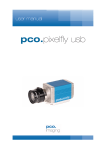
user manual pco.ultraviolet pco. Target Audience: This camera is designed for use by technicians, engineers, and scientists. In case of any questions or comments, please contact us at PCO. telephone +49 (0) 9441 2005 50 fax +49 (0) 9441 2005 20 email [email protected] postal address PCO AG Donaupark 11 93309 Kelheim, Germany The cover photo shows an exemplary PCO camera system. The lens is sold separately. Copyright © 2014 PCO AG (called PCO in the following text), Kelheim, Germany. All rights reserved. PCO assumes no responsibility for errors or omissions in these materials. These materials are provided as is without warranty of any kind, either expressed or implied, including but not limited to, the implied warranties of merchantability, fitness for a particular purpose, or non-infringement. PCO further does not warrant the accuracy or completeness of the information, text, graphics, links or other items contained within these materials. PCO shall not be liable for any special, indirect, incidental, or consequential damages, including without limitation, lost revenues or lost profits, which may result from the use of these materials. The information is subject to change without notice and does not represent a commitment on the part of PCO in the future. PCO hereby authorizes you to copy documents for non – commercial use within your organization only. In consideration of this authorization, you agree that any copy of these documents, which you make, shall retain all copyright and other proprietary notices contained herein. Each individual document published by PCO may contain other proprietary notices and copyright information relating to that individual document. Nothing contained herein shall be construed as conferring by implication or otherwise any license or right under any patent or trademark of PCO or any third party. Except as expressly provided, above nothing contained herein shall be construed as conferring any license or right under any PCO copyright. Note that any product, process, or technology in this document may be the subject of other intellectual property rights reserved by PCO, and may not be licensed hereunder. Released November 2014 © PCO AG pco.ultraviolet User Manual V2.00 © PCO AG, Germany TABLE OF CONTENTS 1 INTRODUCTION 4 ADVANTAGES OF THE PCO.ULTRAVIOLET 2 SAFETY INSTRUCTIONS 5 SAVE MONEY, REDUCE STRESS, STAY HEALTHY 3 SYSTEM COMPONENTS 6 WHAT'S IN THE BOX 4 INSTALLATION 7 4.1 CAMERA DRIVER 7 4.2 CAMWARE 8 5 QUICK START 9 5.1 PREPARATION 9 5.2. START 9 5.3. YOUR FIRST IMAGE 6 CAMERA CONTROL 10 11 6.1 THE CAMERA CONTROL WINDOW 11 6.2 THE TIMING TAB 12 6.3 THE SENSOR (SIZE) TAB 13 6.4 THE SENSOR (MISC.) TAB 14 6.5 THE RECORDING TAB 16 7 CAMWARE FEATURES 17 7.1 IF NO CAMERA IS DETECTED (DEMO MODE) 17 7.2 OVERVIEW 18 7.3 THE FILE MENU 19 7.4 THE CAMERA MENU 23 7.5 THE ACQUISITION MENU 24 7.6 THE VIEW MENU 25 7.7 THE WINDOW MENU 27 7.8 THE HELP MENU 27 7.9 THE LOCAL MENU 28 7.10 ADDITIONAL FEATURES 29 2 APPENDIX 30 A1 TECHNICAL DATA 31 A2 MECHANICAL DIMENSIONS 32 A3 PINOUT OF RJ11 CONNECTOR 33 A4 EXTERNAL DEVICES 33 A4.1 TRIGGER INTERFACE 33 A4.2 USB 2.0/3.0 FOL EXTENDER 34 A5 IMAGE FILE FORMATS 35 A6 SERVICE AND MAINTENANCE 37 A7 CUSTOMER SERVICE AND TROUBLE SHOOTING 38 ABOUT PCO 39 3 1. INTRODUCTION 1. INTRODUCTION Advantages of the pco.ultraviolet Features This high performance 14 bit CCD camera system has an extraordinary quantum efficiency of up to 40% at a wavelength of 193nm. This sensitivity is true sensor performance, without any additional coating. At the heart of the camera is a FPGA processor allowing for sophisticated control and accurate timing of the CCD and associated electronics. In addition, a proprietary offset control algorithm has been developed which provides very high offset stability, regardless of ambient temperature or signal changes, ensuring accurate and repeatable quantitative data over long periods of time. The camera’s main features are: • • • • • • • • excellent resolution of 1392 x 1040 pixel superior UV sensitivity of up to 40% QE @ 193nm superior low noise of 7 … 9 e- rms @ 12 MHz 14 bit dynamic range: 1750:1 (65dB), 3000:1 (69,5dB) binning excellent DSNU at long exposure times optimal offset stability and control (< 1 count) hot pixel correction integrated USB2.0 interface Areas of Application • • • • • • • • • • • • • • UV detection hyperspectral imaging wafer inspection mask inspection scientific imaging low light level imaging combustion imaging high resolution microscopy machine vision industrial applications spectroscopy industrial OEM applications material testing luminescence spectroscopy 4 2. SAFETY INSTRUCTIONS Please read the safety instructions completely. Never operate the camera in humid or dusty environments or in places with high amounts of X-ray radiation. Humidity, dust or Xrays could damage the camera. To avoid the risk of water condensation, protect the camera against extreme changes of ambient temperature. If condensation enters the camera, there is the risk of electric shock. To prevent damage to the camera, the system must be kept stable and protected against strong jolts or vibrations. The socket at the bottom of the camera is to be used for mounting purposes only. Electric shock warning – Never slide any items through slits or holes into the camera because of the risk of electric shock if the voltage parts inside are touched. Each time the camera is used, check the power cable for any damage. Never position the cable in a way that it could become a tripping hazard. Do not force the lens onto the camera. To protect the lens connector thread from damage, use minimal force when attaching a lens to the camera. If any of the following conditions apply, immediately switch off the camera, separate it from the power line and contact our customer support: If the power cable or the power plug seems to be worn or damaged. If liquids have penetrated the device. If, after thoroughly reviewing the instruction manual, the device is still not operating properly. If the camera has been dropped or the casing is damaged. 5 3. SYSTEM COMPONENTS 3. SYSTEM COMPONENTS The camera system includes the following parts. Camera Head C-mount optical connection: The distance between the front edge of the c-mount and the sensor is 17.52 mm. For standard c-mount lenses and adapters. DC Power Jack (connect to power supply) USB 2.0 Connector (connect to PC) RJ11 (connect to I/O device) Serial Number Tag Mounting Thread 1/4"- 20 UNC Trigger Interface (I/O Device) Proprietary RJ11-BNC connector for Trigger/Busy/Exposure signals Power Supply AC to 12V/DC power supply USB Cable USB-A/USB-B cable (5 m) Digital Camera Tools (USB storage device content) • CamWare: software for camera control & image acquisition • Camera driver & tools • Software development kit (SDK) & demo programs in C and C++ 6 4. INSTALLATION You will find all necessary files on the accompanying USB storage device. You may also download the newest versions of our software, camera driver and third party software drivers from our Website (www.pco.de). Minimum system requirements: • • • • • Clock speed > 1.6 GHz RAM > 512 MB Windows 7 1280 x 1024 pixel resolution display USB 2.0 4.1 CAMERA DRIVER Please start the USB 2.0 driver installation from your pco.usb flash drive. Don’t connect the camera to your computer before driver is completely installed. Run the provided installation file (DI_USB2_[WindowsOS]_[Version No].EXE) and follow the instructions of the installation wizard. 1 After finishing 2 the driver installation wizard please connect your pco.ultraviolet camera to its power supply and via enclosed USB 2.0 cable to your computer. The first time the camera is connected via USB to your computer, Windows will notify the user that a new device has been detected. 2 1 7 4. INSTALLATION 4.2 CAMWARE The CamWare Windows application software enables you to control every camera parameter or setting. Images can be displayed on a monitor and may be downloaded and stored. The USB storage device contains the installation files for the software for latest Windows operating systems in 32 & 64 bit. After a successful installation, you will find the program file Digital Camera Toolbox in your program directory and a CamWare32/64 button on your desktop. Other helpful tools are also installed in the same directory. To uninstall the CamWare program, please use the Software feature under Windows’ System Control. Please follow the installation wizard -1 Install CamWare as Admin to install to program folder, instead it will be installed only to user folder. -2 Then choose install directory. -3 Choose components: Select additional drivers for Camera Link Interface (not available for pco.ultraviolet). -4 After the next two screens installation is complete. 1 2 3 4 8 5. QUICK START In order to get familiar with your new camera and software it might be helpful, if you first aim at an object that is easy to focus and that can be seen at standard light conditions. 5.1 PREPARATION • Computer is turned on • Installation is finished (see chapter 4) • An appropriate lens is attached (remove cap) or the camera is attached properly to the microscope, spectrograph or other scientific device • Camera is connected to the PC • Camera is connected to the power supply and ready 5.2 START Start CamWare and the graphical user interface will start up: NOTE Always install latest CamWare version to be able to use full function of your pco camera. 9 5. QUICK START 5.3 YOUR FIRST IMAGE Please follow the instructions: 1• CamWare must be started. 2• Open view window (b/w or color). 3• Start live preview. 4• Apply auto range peak. 5• You may adjust exposure time, aperture and focus. 6• Now you should clearly see the object in the window. If you need to change exposure time (e.g. the image is still either too dark or too bright), please go to chapter 6.1. If you want to record and save images, please see chapter 6 and chapter 7 for detailed information. (Screenshot shows color camera) NOTE Live preview: Useful for fast and easy camera adjustment and focusing. This command disables the Camera Control window if it is opened (except exposure time setting). 10 6. CAMERA CONTROL The Camera Control window in CamWare is the main interface for all camera settings. For further CamWare features please see chapter 7. 6.1 THE CAMERA CONTROL WINDOW The camera control window can be opened by selecting the proper command in the Camera Menu or by the corresponding button in the toolbar. 1 The camera control dialog always adapts to the camera type connected. For the pco.ultraviolet the camera control settings are spread over four property sheets 1 , which will be explained below. Changes to the camera control sheets must be completed by pressing the Accept button 2 . 3 In the information field 3 you can see some information about the camera. Click into the info field to change the displayed views. 2 There are three available views of the information field 3 Camera type Actual temperature Image size and frame rate NOTE If the Accept button is not pressed, these changes will be ignored and lost. If the changes are within the allowed condition limits of the camera, a message is sent to the computer, the button disappears and the green lamp will be highlighted. The camera control dialog automatically adjusts settings in case they are out of limits. 11 6. CAMERA CONTROL 6.2 THE TIMING TAB Trigger Mode 1 1 Auto Sequence The camera will optimize the image recording to achieve the best possible frame rate. In the auto sequence exposure control mode, the camera determines the fastest possible frame rate depending on the adjusted exposure time and the required readout time. After a start command is given, the sequential recording is started until a stop command is given. 2 Soft Trigger Single images can be recorded with this CamWare command. The single image can be acquired by pressing the Single Trigger button. This button appears after pressing the Start Record button (see 7.2). Other signals cannot influence this operating mode. External Exp. Start The image acquisition is triggered by an external signal. It is also possible to force a software trigger for a test image with the Single Trigger button. In the External Exp. Start exposure control mode, single image recording is started by the rising edge of the voltage signal at the BNC input (see A3, A4). pixelclock intrinsic + trigger acknowledge delay 12 MHz 5.8µs trigger busy exposure ttd tid ttd: trigger acknowledge delay tread: readout time texp tread tid: intrinsic delay texp: exposure time External Exp. Ctrl (not available for pco.ultraviolet) 12 Timing 2 The exposure time (delay time is not available for pco.ultraviolet) can be adjusted in steps of 1μs. camera type exposure time pco.ultraviolet 1µs … 60s The jitter of the actual exposure start edge: < 14ns. 6.3 THE SENSOR (SIZE) TAB Binning 1 1 Binning combines neighboring pixels (in either the horizontal or vertical direction) to form super pixels. It increases the light signal of the resulting pixels and decreases the spatial resolution of the total image, which is recorded. Since the readout is done only once for all binned pixels, the signal to noise ratio increases. Vertical binning will also increase the readout speed. (x2 vertical binning = double frame rate) 2 3 Available Binning Modes: H1xV1, H1xV2, H1xV4, H2xV1, H2xV2, H2xV4, H4xV1, H4xV2, H4xV4 Region of Interest (not available for pco.ultraviolet) 2 The ROI (Region of interest) selects only a part of the sensor to be read out, in order to speed up the frame rate and to save memory. Sensor Format 3 This sensor implementation provides the option to either read out the standard size of 1392 x 1040 pixels (effective pixels recommended by the sensor manufacturer) or an alternative size of 800 x 600 pixel (center mode). 13 6. CAMERA CONTROL 6.4 THE SENSOR (MISC.) TAB Pixelclock 1 2 3 7 1 8 4 The pixelclock sets the clock frequency and therefore the image sensor readout speed. The pixelclock of the pco.ultraviolet is set to 12 MHz since it provides low readout noise and a sufficient frame rate. 5 6 Resolution 1392 x 1040 800 x 600 12 MHz 7.3 fps 11.7 fps A/D Converter (not available for pco.ultraviolet) 2 Double Image / Doubleshutter 3 This feature is widely used for particle image velocimetry (PIV) measurements and is an standard feature of the pco.ultraviolet. The first exposure time texp1 can be any exposure time of the available range of the pco.ultraviolet camera. The second exposure time texp2 can not be directly adjusted. The length of the second exposure is exactly determined by the readout time of the first image. The interframing time titf denotes the transition time between end of exposure #1 and start of exposure #2. See also appendix A3. 12 MHz 5.8 µs 1 µs … 60s 140 ms (full resolution) 1 µs ttd + tid texp tread titf trigger busy exposure ttd tid texp1 titf texp2 tread A ttd: trigger acknowledge delay 14 tread B tid: intrinsic delay IR Sensitivity 4 Not available for pco.ultraviolet. Offset Control 5 Offset control is done automatically for optimal results. User control is disabled. B/W Noise Filter 6 In the pco.ultraviolet an optimal hot pixel correction is already integrated. For exp. times > 1s you might need extra Hot Pixel List Conversion Factor 7 The conversion factor defines how many charges (electrons), which have been generated by light in each pixel, are necessary to generate one count (one intensity level) in the digital image. Therefore, the conversion factor describes the gain when converting electrons into a digital value. The pco.ultraviolet has two conversion factors namely 0.8e- and 1.4e- / count which both can be used in standard and binning mode. As mentioned in 6.3. binning is available for the pco.ultraviolet. The usable extended fullwell-capacity rises in binning mode from 14000 to 24000e-. In standard mode it makes sense to keep 0.8e-/count; if you change the conversion factor to 1,4e- you can’t use the high dynamic of 16384 grey scale. In binning mode you can use both conversion factors: If you have a lowlight scene the 0.8e-/count mode helps you to spread the few available information – in normal light scenes it makes sense to use 1.4e-/count for full dynamic availability. Electronics Temperature 8 A digital temperature compensation is integrated instead of a space consuming thermo-electrical cooling unit. No additional fan is necessary. 15 6. CAMERA CONTROL 6.5 THE RECORDING TAB Recorder Mode 1 Function is pco.ultraviolet. 1 3 not available for Changes have to be made at 7.5 Recorder Settings: Sequential Wrap Recording sets Ring Buffer, if disabled Sequence is active. In Sequence mode the recording stops when RAM space is full. In Ring Buffer mode the camera will stop only by a stop command 2 Acquire Mode 2 Function is not available for pco.ultraviolet. Timestamp 3 A time stamp can be placed into the upper left corner of the image. It can be either off, binary or binary with text. The time resolution is 1μs. In binary mode the first 16 pixels will be filled with the time stamp information (binary code). The numbers are coded in BCD with one byte per pixel, which means that every pixel can hold 2 digits. If the pixels have more resolution as 8 bits, then the BCD digits are right bound adjusted and the upper bits are zero. For further information please refer to the SDK. In binary and ASCII mode text will be placed into the image replacing the content of the image (271x 8 pixels). Time step shows the end of exposure time. Three different information is stamped onto the image: number of the image 1, date 2 and time 3 . 1 2 3 Recording with the pco.ultraviolet CamWare will use free working space (RAM) on your computer. The maximum number of images depends solely on the RAM size of the computer. For further details on recording and saving images see the following chapters: 7.2; 7.3; 7.5 . Multiple cameras can be connected to one PC, but only one camera can record images under CamWare (multiple cameras with SDK). 16 7. CAMWARE FEATURES PCO’s excellent software for camera control, image acquisition and archiving of images in various file formats. You will find a Help file under the common Help (?) menu. There are some features explained in the Help file that are not applicable for this camera version. 7.1 IF NO CAMERA IS DETECTED (DEMO MODE) When CamWare is started, it automatically recognizes the camera type of the connected and running cameras. CamWare will start in Demo Mode, if your camera is switched off or no camera is connected In this mode all image processing features are available, but all camera settings are deactivated. The user only has to tell CamWare what type of image he wants to open. For that purpose, the Demo Mode Setup window opens and asks for the corresponding input. Need Help? If this window pops up because you have trouble running the camera, please see instructions in appendix A6. Resolution The drop down list displays the existing image sensor spatial resolutions of all PCO camera systems. Please select the specific resolution and bit depth of the images to be opened. If double shutter images have been recorded and should be opened, Double Shutter Mode should be checked. Color With the radio buttons, the user can specify whether the image type is monochrome (b/w) or color. Alignment These two radio buttons adjust whether MSB (most significant bit) aligned (upper) or LSB (least significant bit) aligned (lower) images have been stored (see page 19, File Settings). Settings to view the b16 files of the pco.ultraviolet Resolution 1392x1040 bit 14 17 DoubleShutter <no> Color b/w Alignment upper 7. CAMWARE FEATURES 7.2 OVERVIEW Menu Bar See chapter 7.3- 7.8 Local Menu Mouse right-click is explained in chapter 7.9 Toolbar Prints the currently displayed image or comment window Opens a b/w | color display window Opens the camera control window (see chapter 6) Opens the convert control (see chapter 7.6) Auto range peak/crop (see chapter 7.6 Convert Control) Live preview (see chapter 5.2) Soft trigger: captures a single image (see chapter 6.2) Cursor display Cursor: pixel position and intensity value Continuous auto range crop scaling Recorder Record START / STOP / PLAY Opens the recorder settings window (see 7.5) Replay navigation Image Browser: overview of the recorded images (see 7.6) Multi Frame Window (see chapter 7.6) 18 7.3 THE FILE MENU NOTE Be aware of the different storage abilities of the formats, for example *.bmp - the bitmap format only allows for 8bit values to be stored and therefore the image content of a 16 bit image is reduced, if stored as bitmap. Open RAW File (single image only) This command should be used to import a single image into the currently active image window. Only files with the extension and format of *.b16 (=PCO proprietary binary image format) and *.tif (16 bit TIFF image format) can be imported. If the recorder is enabled, each imported image will be transferred to the buffer shown in the picture number. The image itself will be fitted to the current image size. If the recorder is disabled, the current image sizes will be set to the parameters of the imported image. Open RAW File Set (only for pco.hsfc pro camera) Open RAW Recorder Sequence (image sequence from one camera) This command is used to import a sequence of images. If more than one camera is connected and an image window is currently open, the sequence will be loaded to the active window. If no image window is open, the images will be loaded to camera #1. This command opens the Open file dialog box. Only files with the extension and the format of *.b16 and *.tif (TIFF16) can be imported. Save RAW File (single image only) This command should be used to save the image, which is displayed in the active window. The command opens the Save file dialog box. The image file can be saved in 16bit *.b16 and *.tif format. If more than one camera is connected, it is possible to save all current images by selecting Export all images in the Save file dialog box. With this feature it is possible to save one image of each active camera within one process step (it is not necessary to repeat the save process for each camera). The Save command will not be available, if no image window is open. Save RAW Set (only for pco.hsfc pro camera) Save RAW Recorder Sequence (image sequence from one camera) The Save Recorder command should be used to save or export image sequences. If more than one camera is connected and an image window is currently open, the record of the active window will be saved. The command opens the Save recorder file dialog box. The Save Recorder command will not be available, if no image window is open. Export File (not reloadable!) Use this command to export the image of the active image window. This command will open the Export Image dialog box. Files with the extensions fts, tif, bmp, asc, jpg, and jp2 can be exported. This item will not be visible, if no image window is open 19 7. CAMWARE FEATURES Export Recorder Sequence (not reloadable!) Use this command to export a sequence of images. If more than one camera is connected and an image window is currently open, the record of the window which has got the input focus will be saved. If no image window is open the Export Recorder Sequence menu does not appear. This command will open the Export recorder box. Files with the extensions fts, tif, bmp, asc, avi, mpg, jpg, jp2, and wmv can be exported (see Appendix A5). Print Setup The Print Setup command opens the Windows Print Setup dialog box for adjustments and settings of the connected printer(s). Print Preview The Print Preview command opens a Print Preview window. Print Opens the Windows Print dialog box. This command opens the Options dialog, allowing special settings. File Settings Tiff File Settings: Align to MSB Here you can select the alignment of the pixel value, if the pixel depth is less than 16bit (e.g. MSB: each pixel value is shifted from bit 12-1 to bit 16-5 in case of 12bit). This removes the dark image effect inside other image applications. Tiff File Settings: RAW 16bit RGB Here you can select whether the 16bit RGB tiff file is saved with 16bit raw or white balanced data. If this item is checked, each 16bit RGB pixel value is saved as raw 16bit RGB (48bit) value, without white balancing. Saving to 16bit RGB can be done by selecting the color display window, export recorder, selecting 8bit-tiff and checking Save 16bit RGB. ASCII file separator Here you can select an appropriate separator for the ASCII file format. JPEG File Settings Here you can select the quality of the saved jpeg/jp2 files: high quality saves images with 100% quality (otherwise 85% quality). Preserve Last Record If checked, a message box will pop up in case the user may overwrite or loose data. 20 Use six digits for filename If you record a sequence of *.b16 files and choose direct record to file CamWare is always using six digits for filename (e.g. t_123456.b16). View Settings Image Browser Here you can select between showing all image files inside the browser window either b/w or color. Setting b/w will result in a faster refresh, (valid only for color sensor). Convert (Min/Max) (Continuous Auto Range Crop, see chapter 7.6 under Convert Control BW) This option enables the automatic min/max function during record and replay. Disable this feature if the application stops responding during this mode (due to operating system capacity problems). Marker Use this command to display a crosshair in the center. It is possible to adjust length and color of the crosshair. Paint Images This option enables the update of (both double shutter images or) multiple camera images during record and replay. Disable this feature if the application stops responding during this mode (due to operating system performance problems). Toolbar Toolbar Opens the corresponding toolbars (see 7.2) Math. Functions With the math window you have the ability to build the difference between a reference image and the actual image. If you activate math every new image acquired will be subtracted from the reference image or vice versa. last acquired image will be copied to reference buffer a reference picture will be acquired and copied to reference buffer add offset to avoid negative values, which would not be visible enable / disable math function Replay Speed Bar The faster replay speed is useful if large sets of image data need to be scanned. 21 7. CAMWARE FEATURES Misc Infotext Use this command to show or hide the start-up information dialog box. Synchronous Scrolling If this item is checked all opened image windows will be scrolled at the same time and in the same manner. View Embedded Image Info (not available) Multi Win Picture Order With the Multi Window you have the ability to view the images of all active cameras in one window. You can select between camera order oriented or image time oriented order. Image time oriented means that the sequence of images depends on the individual time stamp of each image. Camera order oriented means that the first image shown is from camera 1, then camera 2 and so on. Logfile This option enables the logging of errors and system info. Enable this feature in order to create a support file, which can help to find out troubles with the camera (see A6 ) Load lookup Table (for monochrome cameras) With the Pseudo LUT (Lookup-Table) feature you can load any LUT with one of four different formats and you can view the result in the color view window. Use one of the attached predefined LUTs or define your own. Direct Record to File This command is intended for cameras with internal memory. With this command you can preset a certain number of images to be stored. If the camera captures images faster than the computer can save to disk, then you will lose images. The displaying of the images doesn't interfere with the record process. Record with Flowfile This command should be used to load a flow file. A flow file contains lines with a delay and an exposure time. Each line corresponds to one image to be acquired. If the flow file has 15 delay and exposure times than 15 images will be acquired. Before the image is snapped, the corresponding time values will be sent to the camera. This affects the possible image frame rate, as additional time is required for setting the values between two images. Please see the sample flow files in the application directory (e.g. flow.txt). Exit This command exits the program and closes all channel dialog windows. Window positions, settings and sizes are stored in the windows registry and will be loaded again at next start-up. 22 7.4 THE CAMERA MENU Camera Control Use this command to open the camera control window (see 6.1). Load Camera Settings With this command you can reload camera settings which have been previously saved. You can reload only a file which has been made with the same camera configuration as it was found by the application at start-up. Save Camera Settings This command saves the actual camera settings of all connected cameras. NOTE A Timestamp (see 6.5.) is recognized as Hot Pixel. Deactivate Timestamp function before starting Hot Pixel correction. Create Hot Pixel List Use this command to create a Hotpixel-File. To remove hot pixels from the image you have to create a hot pixel file first. If you have already a hot pixel file you only have to enable hot pixel correction. The new value of the hot pixel will be calculated from the values of the neighbouring pixels. You only can create a hot pixel-file if the last exposure was longer than 5s. This command will open the hot pixel dialog. You have to type in the desired count of hot pixels first. Then press the Get Hotpixel button. After this the hot pixel list will be created, using the last acquired image. Now you have the possibility to save the hot pixel list for later use. All list box items with a checkmark will be saved to the hot pixel file. You can select or deselect a group of items by highlighting a group and pressing the checkmark in front of one of the highlighted items. Additionally you can open a local menu inside the list box by pressing the right mouse button. You can verify your selection by scrolling through the list and by a comparison to the average value shown in the dialog. Hotpixel Correction You can enable or disable the hot pixel correction. If hot pixel correction is disabled, a file dialog will be opened, in which you have to select the correct hot pixel file for the corresponding camera. If you have more than one camera connected you have to select the correct camera number first. If hot pixel correction is enabled this feature will be switched off. Auto Exposure Starts some exposures and tries to find an exposure time that captures images with grey values between 1400 and 1500. It readjusts the lookup tables in order to display the images with the new settings best. For low light conditions only. Close Disconnects camera and switches CamWare to Demo Mode. In case of multiple cameras, all cameras must be closed in order for CamWare to switch to Demo Mode. Rescan Disconnect and reconnect camera. Setup (not available for pco.ultraviolet) 23 7. CAMWARE FEATURES 7.5 THE ACQUISITION MENU Live Preview The Live Preview is useful for fast and easy adjusting and focusing of the camera. The active window will be updated. To see another window, simply click on the window. This option is not available in double shutter mode. Acquire Picture (not available) Records single images in case of sensicam cameras. Acquire Sequence Starts recording images into the system memory according to Trigger Mode selection (see 6.2). During the recording, the camera controls are locked. Rec. Memory Settings This sets the number of images recorded in one sequence. The maximum is defined by approved RAM size. Recorder Settings This command opens the Recorder Settings dialog window. The Play Settings are referred to the camera. If more than one camera is connected, the camera number is retrieved from the image window that has received the input focus (is active). If no image window is opened, the dialog is referred to camera 1. If the Set to all checkbox is checked the settings apply to all connected cameras. The Global Settings are valid for all connected cameras. Averaging If in the Avg. dropdown list a value not equal to 1 is selected, the corresponding number of images is averaged in the buffer, reducing the statistically independent noise. Another option to reduce the noise is the activation of the Infinite impulse response IIR lowpass filter. This filter takes 90% of the previous image and 10% of the new image to create images with clearly reduced noise. Image (actual) = Image (act - 1) * 0.9 + Image (new) * 0.1. Replay Speed Slider The slider can be used to adjust the sequence replay speed, from slow (turtle) to fast (rabbit). Seq. Wrap Rec Sequential Wrap Recording sets Recorder Mode to Ring Buffer. If disabled Sequence is active (see 6.5). Seq. Wrap Play The play button starts the display for a sequence as defined by the first image/last image fields and will loop until the stop button is pressed. Reverse Play If checked, it is possible to play the recorded images in reverse order. 24 7.6 THE VIEW MENU B/W Window Use this command to open a b/w display window. Color Window Use this command to open a color display window. Convert Control BW The user can influence how the 14 bit intensity values (x-axis) of the original image are converted into 8 bit values (y-axis) in different ways. BW Settings (includes histogram of original data) It is possible to hide the histogram of original data 1 and to switch tab/histogram 2 . 4 1 Green sliders in histogram 3 left slider = Min controller (corresponds to value 0 of the 8 bit display). Values below that mark are set to 0, i.e. displayed as black. right slider = Max controller (corresponds to value 255). Values above that mark are set to 255, i.e. displayed as white. 2 3 The values in-between are converted into a value between 0 and 255 according to Contrast and Gamma settings. See the small graph 4 , which reflects the calculation. Converted Hist This tab shows converted data. you the histogram of How the Auto Range applies Auto Range Peak searches for the minimum and maximum 14 bit intensity values of the image. Given these number the converter scales the 8 bit display (256) within these two values. Auto Range Crop sets the converter to ignore the extreme intensity values of the image and scales the display in a smaller range. Thus dark or bright light spots, reflections, etc. are cut off. Min/Max (Automatic) = Continuous Auto Range Crop 25 7. CAMWARE FEATURES Proc. Config (Process configuration) Due to proprietary high-end algorithms used for these image processing features, no detailed description is given here 1 3 2 4 1 switch on in order to significantly reduce processing time 2 pixel color correction 3 non local means algorithm 4 adaptive to brightness and patterns GPU Processing In order to benefit from all of CamWare’s advanced processing features, we highly recommend a NVIDIA CUDA-enabled graphics processing unit (GPU). AMD's ATI graphics processing units are not recommended. Find a list of CUDA-enabled products here: • https://developer.nvidia.com/cuda-gpus Get the CUDA driver here: • https://developer.nvidia.com/cuda-downloads Make sure: • that the CUDA driver is successfully installed. • that the GPU has at least 512MB memory. CamWare Image Processing Pre Processing • Noise Reduction Post Processing • Offset, Gain (Min/Max) • Gamma, Contrast color (not available) monochrome Browser The Recorder Browser gives an overview of the images in the Recorder, and helps you in an easy way to select a new current image. Simply click on the desired image to make it the current image. It may then be viewed in the Black/White and Color Window. The Browser window can show up to 40 pictures per page, thus enables an easy overview of the recorded images. You can switch between the single pages by double clicking inside the Browser window or with the local menu (right mouse button). Skip #images allows for convenient overview at large numbers of images. You can view e.g. every 10th or 50th image only. Multi Window (not available for pco.ultraviolet) Embedded Image Info (not available for pco.ultraviolet) 26 7.7 THE WINDOW MENU Cascade Show all windows overlapped. Tile Tile windows vertically or horizontally. Arrange Icons Rearranges all minimized topic icons on the desktop. Close All Close all windows. 7.8 THE HELP MENU Contents Opens the main page of the program help. Search for Help on Opens an index list for help. About CamWare This window shows program information and contains helpful support links. In case of a camera problem, support files (see 7.3 Options/Misc/Logfile) may be generated, which can be automatically attached to the email. The support files contain relevant hardware information, the log files and the PCO related registry entries. These files are moved into a zip-archive called CWSupport.zip, which can be found in the application folder. 27 7. CAMWARE FEATURES 7.9 THE LOCAL MENU The local menu is opened by clicking the right mouse button inside the client area of an image window. Image Properties Opens an information bubble with main image properties and activates the in-image display. It does not overwrite image data. Camera Control Opens the Camera Control window (see chapter 6). Convert Control BW/Color Opens the corresponding Convert Control windows (see chapter 7.6). Zoom Changes the zoom used to display the image. Auto Range Peak/Crop Displays the image in a predefined scaling (see chapter 7.6). Auto Balance Color (only available for color sensor) The white balance feature, which corresponds to the white balance button in the Convert Control Color (see chapter 7.6). Auto Exposure Auto Exposure feature (see chapter 7.4). Flip The image will be flipped before display. Mirror The selected image will be mirrored before display. Rotate The image will be rotated by 90° counter clockwise (left) or clockwise (right) before it is shown in the image window. Line Tool Select Line Tool to show a graph, which shows the intensity of the pixels under the red line shown in the image window. The selection of this menu item determines the location of the first point. After this you can move the mouse to the second point, which can be selected by a left click. Now a Line Diagram opens and the length of the line (unit: pixel) is shown in a bubble and displayed in the window. Copy To Clipboard Copies the active image to clipboard (only as 8 bit image file). 28 7.10 ADDITIONAL FEATURES Setting Contrast Area by Mouse You can control the minimum and maximum values used for the conversion from 14 bit to 8 bit with the mouse. Move the mouse cursor into a region which should be shown with maximum contrast. Press the shift and the left mouse button. Hold down the mouse button while increasing the size of the selection rectangle with mouse moves. After releasing the mouse button the coordinates of the rubber band window act as a border for calculating the minimum and maximum values. Fold Up Window 1 The Convert Control windows can be minimized / folded up 1. Just move the pointer over the bar and the window will unfold again 2 . 2 29 0 APPENDIX APPENDIX 30 A1 TECHNICAL DATA Subject to change, please refer to current data sheet available on our website. 31 A2 MECHANICAL DIMENSIONS A2 MECHANICAL DIMENSIONS All dimensions given in millimeter. NOTE C-Mount flange focal distance: 17,52 mm Input Window Filter Attention: The pco.ultraviolet does not have an input window to protect the sensor, if the lens is removed you have direct access to the sensor surface. Therefore, please be very careful when removing or changing optical components. To clean the sensor surface only use proper compressed air or contact your local PCO distributor for further cleaning instructions 32 A3 PINOUT OF RJ11 CONNECTOR Pin 1 2 3 4 5 6 Description GND Trigger in Busy out not used Exposure out +12V (alternative power supply) Pin Position Timing & Signals busy = TRUE: busy = FALSE: exposure = TRUE: camera is recording or sensor readout in progress external trigger is ready to accept exposure of image sensor In Auto Sequence trigger mode the busy signal is always set to TRUE, while the exposure signal indicates the real exposure of the image sensor. In External Exp. Start trigger mode the camera is ready to accept a new trigger signal on PIN #5 (trigger) when the busy signal is set to FALSE. After a successful trigger event the busy signal stays TRUE until the exposure is finished and the image is completely read out. A4 EXTERNAL DEVICES A4.1 TRIGGER INTERFACE What Connect the trigger interface to the RJ11-Connector of your camera. It is equipped with three BNC outs (Trigger / Busy / Exposure). The trigger interface is just a connection adapter from RJ 11 to BNC without any electronics. For more information confirming trigger modes see A3 and 6.2 33 A4 EXTERNAL DEVICES A4.2 USB 2.0/3.0 FOL EXTENDER The Adnaco-SU1 is a FOL Extender for USB 1.1./2.0/3.0 devices. It contains two components: the Adnaco-UT1 (USB Converter) with power supply and the AdnacoUF1 (active USB 3.0 FOL cable (integrated electrical optical converter with length of 10, 30, 50 and 100m). The UT1 transmits signals from USB 1.1/2.0/3.0 to USB 3.0 and has two Type-A USB connectors named Host and Device and a 5.0V power supply device. The Host connector has to be linked with the UF1 USB 3.0 FOL cable and this cable has to be connected directly to the computer. The Device connector has to be connected with the pco.ultraviolet camera. If you confuse the connections, the camera will not be identified by your computer. There shouldn’t be any damages to your devices if you confuse the connections. The UF1 is a pure USB 3.0 cable and is built up symmetrically and therefore it is not possible to confuse the connections or to connect the pco.ultraviolet (which has a USB Type-B connector) with this cable. This system only works at a computer with USB 3.0, your camera will not be identified if you connect it to a USB 2.0 connector. The Adnaco-SU1 is an optical insulator and also gives you the opportunity to physically extend the transmission path between camera and computer. Absolute requirement: pco usb driver version 1.05. It is not working properly with older versions. Performance If you use a USB 2.0 device at the Adnacu SU-1 a maximum data transfer rate of 24.5 Mbytes/s will be reached. Cable length USB Configuration Without SU-1 SU-1 10m cable SU-1 100m cable 1 * : e.g. pco.edge 34 USB 3.0*1 357 Mbytes/s USB 2.0*2 40.1 Mbytes/s 352 Mbytes/s 330 Mbytes/s *2: e.g. pco.pixelfly usb 24.5 Mbytes/s 23.4 Mbytes/s A5 IMAGE FILE FORMATS There are different file formats available for saving camera images with CamWare. b16 The b16 16 bit format is similar to the bmp format. However, 16 bit pixel values are used instead of 8 bit pixel values. The file format consists either of a Basic Header (6 Long-parameter) or of an Extended Header (32 Long-parameter), the latter of which is optionally for additional information. There might follow a variable comment field (ASCII code). Finally, there is the actual data set that is saved linearly (as in the case of BMP files). With the exception of the first value, all parameters are Long Integers (4 Byte). The first 6 parameters must always exist. The rest of the parameters, as well as the comment field, are optional. 1 2 3 4 5 6 7 8 9 10 Parameter PCOfile size header length image width image height extended header color mode b/w min b/w max b/w linlog Function the first 4 byte are the characters PCOfile size in byte header size + comment filed in byte image width in pixel image height in pixel -1 (true), extended header follows 0 = black/with camera, 1 = color camera black/white LUT-setting, minimum value black/white LUT-setting, maximum value black/white LUT-setting, 0 = linear, 1 = logarithmic red LUT-setting, minimum value red LUT-setting, maximum value green LUT-setting, minimum value green LUT-setting, maximum value blue LUT-setting, minimum value blue LUT-setting, maximum value color LUT-setting, 0 = linear, 1 = logarithmic 11 red min 12 red max 13 green min 14 green max 15 blue min 16 blue max 17 color linlog 18 internal use 266 Comment file in ASCII characters with variable length of 0…XX. The length of the comment filed must be documented in the header length field. 16 bit pixel data line 1, pixel 1 line 1, pixel 2 … value of the first pixel value of the second pixel … We recommend that all images should be saved first in the b16 or TIFF format. The advantage is to have the b16 or tiff images available all the time. You will always have the maximum 16 bit information. Please note that not all image analysis programs can accommodate 16 bit data. The 8 bit format saves only the information displayed on the monitor screen. The 16 bit information will be lost and cannot be displayed later. pcoraw This 16 bit PCO file format is based on the new BigTIFF format, thus allowing for file size > 4GB. A new PCO proprietary compression scheme is added in case it is necessary. 35 A5 IMAGE FILE FORMATS Standard File Formats TIFF Tag Image File Format, version 6.0 and lower. There is a 16bit monochrome and color image format. BMP Windows Bitmap Format, b/w or color 8 bit format-images, which have been saved in BMP format can be loaded later only as 8 bit images, i.e. part of the original information (16 bit) is lost. FTS Flexible Image Transport System, Version 3.1. There is a 16 bit image format. The NASA/Science Office of Standards and Technology (NOST) has defined this format. Some programs use the FIT extension for this format. ASCII 16 bit format, some mathematical programs prefer ASCII data. JPG JPEG (named after the Joint Photographic Experts Group who created the standard) is a commonly used method of lossy compression for photographic images. The degree of compression can be adjusted, allowing a selectable tradeoff between storage size and image quality. JP2 JPEG 2000 is a wavelet-based image compression standard and coding system. It was created by the Joint Photographic Experts Group committee in the year 2000 with the intention of superseding their original discrete cosine transform-based JPEG standard (created 1992). AVI Audio Video Interleave is a multimedia container format introduced by Microsoft in November 1992 as part of its Video for Windows technology. MPG MPEG-1, similar to JPEG, is a standard for lossy compression of video and audio developed by the Moving Picture Experts Group (MPEG). WMV Windows Media Video (WMV) is a compressed video compression format for several proprietary codecs developed by Microsoft. The original video format, known as WMV, was originally designed for Internet streaming applications, as a competitor to RealVideo. 36 A6 SERVICE AND MAINTENANCE Service The camera is designed to operate with no need of special adjustments or periodic inspections. Maintenance Unplug the camera from any power supply before cleaning it. Use a soft, dry cloth for cleaning the camera. Do not use liquid cleaners or sprays. The lens is best cleaned with pressurized air or with liquid cleaners such as pure alcohol or with special optical cleaners that are available at high quality photo stores. Never use aggressive cleaning liquids such as gasoline, acetone, spirits or nitro cleanser. Every time the input window is cleaned, there is the possibility of surface damage. Do not clean the input window unless it is absolutely necessary. Be careful and avoid scratches and damage to the input window surface. Use a cotton swab dipped in pure alcohol or optical cleaning liquid and wipe only on the glass surface. Do not get any cleaning liquid on the metallic parts such as the lens thread, because tiny detached particles may scratch the surface. Always store the camera with the protective cap or with a lens mounted to avoid dust and dirt on the input window! Camera Disposal The camera includes electronic devices, which can contain materials harmful to the environment. If the camera is to be discarded, please dispose of it in an environmentally responsible manner and use recycling facilities, where available. 37 A7 CUSTOMER SERVICE AND TROUBLE SHOOTING A7 CUSTOMER SERVICE AND TROUBLE SHOOTING If you have a question, which is not adequately addressed in this manual, please contact PCO or your local dealer. To speed your request, we need the following information: • • • • • • • • • • Short description of the problem Description of your application Camera settings Type and version of camera software being used Camera serial number Operating system (PC) Processor type (PC) Memory Graphic card Graphic card setup Please use the email options under the Help menu (see 7.8) How to create a logfile: • Enable log files: File Menu Options MISC (see 7.3.) • Reboot your pco.ultraviolet • Repeat the workflow which produces the faults. • Open the About Camware window (Menu ? ->about) and click at the support links to send an email directly to PCO-Support (see 7.8) • Or visit our website: http://www.pco.de/support/ Repair Before sending the camera for repair, first contact your local dealer or PCO respectively. When shipping the camera for repair, be certain to carefully pack the camera with proper shipping materials. If possible use the original packaging. Use the protection cap to protect the camera on the lens thread. Firmware, Software and Driver Update You will find all necessary software and drivers on the accompanying USB storage device. For the latest versions please check our website: http://www.pco.de/de/software/pcoultraviolet 38 ABOUT PCO pco. In 1987, PCO was founded with the objective to develop and to produce specialized, fast and sensitive video camera systems, mainly for scientific applications. Meanwhile the product range of PCO cameras covers digital camera systems with high dynamic range, high resolution, high-speed and low noise, which are sold in the scientific and industrial market all over the world. Currently PCO is one of the leading manufacturers of scientific cameras. Worldwide representatives, together with our own sales department and technical support assure that we keep in touch with our customers and their needs. The actual wide range of specialized camera systems is the result of technical challenge and product specific know-how. A design according to advanced techniques, a high standard of production and strict quality controls guarantee a reliable operation of the cameras. Our own developments in conjunction with an excellent contact to leading manufacturers of image sensors ensure our access to state-of-the-art CCD- and CMOS-technology for our cameras. Since 2001, PCO is located in its own facility building in Kelheim at the shore of the beautiful and international river Danube. Here in the county Bavaria, which is well known for its excellent support and conditions for high technology companies, we share the benefits of the simple access to high performance products and services in the surrounding area. Kelheim itself is a historical town, first documented in 866. The small city is founded at the confluence of the Danube and the Altmühl, which has been converted into the Rhine-Main-Danube bypass channel for water transport. Located in Danube-valley, it is the heart of a beautiful river and forest covered lime plateau landscape. It´s landmark, the Hall of Liberation, was built by Ludwig I. in 1863 on the Mount Michael and is visible from all over the city and valley. The beautiful Danube-Gorge, which is protected as natural monument since 1840, is located between Kelheim and the famous abbey Weltenburg. 39 pco.