1
User’s Manual: Callisto 821 Annex A
User’s Manual: Callisto 821 Annex A
III. Login
Chapter 2
Web Interface Management
I. Overview
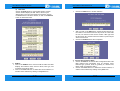
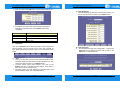
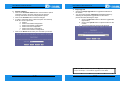
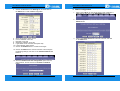
The window Enter Network Password will pop up while
starting the configuration. With the window open, type admin
for both the Username and the Password. You can also edit
the Username and Password or add new users. (For further
details, see G. Admin: 1. User Config)
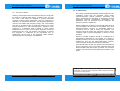
The Web management is provided in order to manage the ADSL
device as easily as possible. It provides a very user-friendly
configuration and graphical interface through a Web based platform.
You can configure a bridge or a router, as you feel appropriate. In the
section below, each configuration item is described in detail.
II.
Preparation
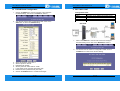
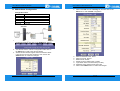
1) Please refer the hardware installation procedure to install
modem.
2) You should configure the PC to the same IP subnet as the
modem.
For example: The modem: 192.168.1.1
Your PC: 192.168.1.x
3) Let your PC access the modem, and make sure that the
PING function is working properly. The default IP address
of this modem could be found in the default settings
section.
4) Open the Web browser (Internet explorer or Netscape),
enter the default IP address “192.168.1.1” for the website
address to access the web management page.
5) The Login dialog box will pop up first.
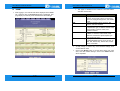
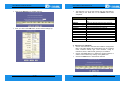
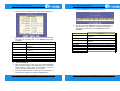
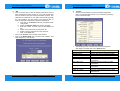
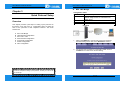
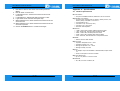
After you log into the web interface, you will notice that it is
divided into seven different sections, or tabs. From this point
on, each tab is described in detail along with instructions for
configuration. The seven tabs are:
13 / 66
14 / 66
A.
B.
C.
D.
E.
F.
G.
Home
LAN
WAN
Bridging
Routing
Services
Admin