1
OPERATOR'S MANUAL
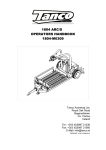
WELDON FLATS MACHINE 2002
OPERATOR’S MANUAL
By
Precision Abrasive Machinery, Inc.
14200 W. COMMERCE RD. * P.O. BOX 43 * DALEVILLE, INDIANA 47334
(765) 378-3315 * FAX (765) 378-3316
October 15, 2002
Chapter 1 : GENERAL INFORMATION
TABLE OF CONTENTS
•
GENERAL INFORMATION
SEE PAGE 1-1
•
OPERATOR INTERFACE SCREENS AND EXPLANATION;
SEE PAGE 2-1
•
ENGINEERING PARAMETER SETUP AND TEST;
SEE PAGE 3-1
•
AC TECH VARIABLE SPEED MOTOR DRIVE SETUP;
SEE PAGE 4-1
•
PROGRAM SEQUENCE OF THE MACHINE;
SEE PAGE 5-1
•
ERROR CODE PRINT OUT;
SEE PAGE 6-1
1-1
OPERATOR'S MANUAL
Chapter 2 : OPERATOR SCREENS
GP #1, Main Menu
WELDON FLATS 2002
MAIN MENU
F2 = SETUP ROUTINES -- Vice & Workhead
F3 = MANUAL OUTPUTS & JOG
F4 = FAULTS if Flashing-->
No Faults
FAULTS !!
ALARM
SETUP
MAN
FAULT
_____
ENG'R
F1
F2
F3
F4
F5
F6
This is the Main Menu Screen for the WELDON FLATS Machine.
When the
machine is powered up either by choice or power failure, the "FAULTS!"
prompt will be flashing.
The Operator then needs to press the 'FAULT'
Button (F3) and follow the prompts from the FAULT Screen.
When ALL Faults
have been solved, the Operator will return back to this Screen.
The
"FAULTS!" prompt will be gone and "No Faults" prompt will be seen.
Next the Operator will be able to select:
F1 ALARM - Press this key to clear any Input Over-Limits Value made by
Operator.
F2 SETUP – Press this key for SETUP ROUTINES – Vice & Indexing.
(Seepage 2-2)
F3 MAN – Press this key for MANUAL OUTPUTS & JOG. (Seepage 2-70)
F3 FAULT - Press this key to view and clear any FAULTS if the red
pilot lamp is flashing. (Seepage 2-78)
F5 Key not used.
F6 ENG’R - Press this key for the Special Engineering Setup section.
(Seepage 3-1)
2-1
OPERATOR'S MANUAL
GP #2, Operator Setup Routines
OPERATOR SETUP ROUTINES
F2 = WORK HEAD - Routines
F3 = VICE - Routines
F5 = Timers/Counters
MENU
HEAD
F1
F2
_____
F3
VICE
F4
T/C
F5
_____
F6
F1 MENU - Press this key to return to the Main Menu. (Seepage 2-1)
F2 HEAD - Press this key to select the Work Head routines. These
routines are for Weldon flat tools using auto loading or hand
loading procedures. (Seepage 2-3)
F3 Not used.
F4 VICE - Press this key to select the vice routines for Weldon flats
or Whistle Stops. (Seepage 2-41)
F5 Key not used.
F6 T/C - Press this key to select the Timers and Counters section.
(Seepage 2-68)
2-2
OPERATOR'S MANUAL
GP #3, Work Head Routines
WORK HEAD ROUTINES FOR WELDON FLATS
Auto Loading or Hand Loading Options
F3 = Setup LOADER & UNLOADER
F4 = WORK HEAD - AUTO LOAD OR HAND LOAD
MENU2
_____
F1
F2
LOAD
F3
_____
HEAD
F4
F5
_____
F6
F1 MENU2 - Press this key to return to the Operator Setup Routines
menu. (Seepage 2-2)
F2 Key not used.
F3 LOAD -- Press this key for the screens to setup the Loader and
Unloader positions. This is used to align the X and Y-axis to the
Loader and Unloader assembly.
Also, use this to set the length
of the tool extending from the collet. (Seepage 2-4)
F4 Key not used.
F5 HEAD - Press this key for the screens to setup the Work Head
Routines. This includes the auto loading or the hand loading
option. (Seepage 2-13)
F6 Key not used.
2-3
OPERATOR'S MANUAL
GP #4, Setup Loader & Unloader for Work Head
Setup LOADER & UNLOADER for Work Head
F1 = Back to Setup Menu
F3 = Setup LOADER
F5 = Setup UNLOADER
BACK
F1
_____
LOAD
F2
F3
_____
UNLOD
_____
F4
F5
F6
F1 BACK - Press this key to return to the Work Head Routines for
Weldon flats. (Seepage 2-3)
F2 Key not used.
F3 LOAD -- Press this key for the screen to setup the Loader
positions.
This is used to set the length of the tool from the
collet and for the proper alignment to the loader assembly.
(Seepage 2-5)
F4 Not used.
F5 UNLOD - Press this key for the screen to setup the Unloader
positions.
This is used to set the proper alignment to the
Unloader assembly.
(Seepage 2-9)
F6 Key not used.
2-4
OPERATOR'S MANUAL
GP #5, Loader Instructions for Work Head
LOADER Instructions for Work Head
Use this Routine to align the X and Y
Axis to the Loader Assembly and adjust
the Tool Extension from the Collet.
BACK
F1
_____
_____
_____
_____
NEXT
F2
F3
F4
F5
F6
F1 BACK - Press this key to return to the Setup Loader and Unloader
menu. (Seepage 2-4)
F2 Not used.
F3 Not used.
F4 Not used.
F5 Not used.
F6 NEXT – Press this key for the next screen to setup the Loader
Pneumatics. (Seepage 2-6)
2-5
OPERATOR'S MANUAL
GP #6, Setup Loader Pneumatics for Work Head
Setup LOADER Phneumatics for Work Head
F2 : Toggle COLLET = [OPEN/CLOSED]
F3 : Toggle EJECTOR LOW = [BACK/FORWARD]
F4 : Toggle PUSHER = [OUT/IN]
F6 : For X and Y Axis
BACK
F1
COLET
EJECT
PUSHR
_____
F2
F3
F4
F5
AXIS
F6
F1 BACK - Press this key to go back to the Setup Loader Instructions
screen. (Seepage 2-5)
F2 COLET – Press this key to toggle the Collet either Open or Closed.
The Collet needs to be OPEN to load the tool.
The status will
show the state of the pneumatic valve of either “Open or Closed”.
F3 EJECT - Press this key to toggle the Ejector Low Pressure either
“Back or Forward”.
to load the tool.
The Ejector Low Pressure needs to be forward
The status will show the state of the
pneumatic valve of either “Back or Forward”.
F4 PUSHR - Press this key to toggle the Pusher either back or forward.
First, the Pusher needs to be in its Back position to align the X
and Y-axis.
Then check the alignment by toggling the Pusher to
its IN position.
The status will show the state of the pneumatic
valve of either “Back or Forward”.
F5 Not used.
F6 AXIS – Press this key to go to the next screen to setup the
Loader’s X and Y-axis positions. (Seepage 2-7)
2-6
OPERATOR'S MANUAL
GP #7, Setup Loader X Axis for Work Head
X Axis
Setup LOADER Position
F2 : Set FEED RATE = x.xxx In/sec
Rate Range : 0.001 to 1.000 In/sec
Stored Pos= xx.xxxx In
X ABS= x.xxxx In
F5 : GoTo Stored Load Position.
BACK
RATE
F1
F2
STORE
_____
F3
F4
GOTO
F5
Y-AXI
F6
F1 BACK - Press this key to go back to Setup Loader Pneumatic screen.
(Seepage 2-6)
F2 RATE – Press this key to access the X-axis Feed Rate and then enter
the desired value.
The rate range is 0.001 to 1.000 In/Sec.
F3 STORE - Press this key to access the Stored Loader Position value.
Then enter the value displayed by the ABS (absolute value)
position or a modified value.
F4 Key not used.
F5 GOTO – Press this key to send the axis the stored loading position.
F6 Y-AXI – Go to the next screen to setup the Loader’s Y-axis
position. (Seepage 2-8)
Note: Then use the JOG IN or JOG OUT push buttons to control the axis.
2-7
OPERATOR'S MANUAL
GP #8, Setup Loader Y Axis for Work Head
Y Axis
Setup LOADER Position
F2 : Set FEED RATE = x.xxx In/sec
Rate Range : 0.001 to 1.000 In/sec
Stored Pos= x.xxxx In
Y ABS= x.xxxx In
F5 : GoTo Stored Position.
BACK
RATE
F1
F2
STORE
_____
F3
F4
GOTO
F5
_____
F6
F1 BACK -- Back to Setup Loader X-Axis screen. (See page 2-7)
F2 RATE – Press this key to access the Y-axis Feed Rate and then enter
the desired value.
The rate range is 0.001 to 1.000 In/Sec.
F3 STORE - Press this key to access the Stored Loader Position value.
Then enter the value displayed by the ABS (absolute value)
position or a modified value.
F4 Key not used.
F5 GOTO – Press this key to send the axis the stored loading position.
F6 Key not used.
Note: Then use the JOG IN or JOG OUT push buttons to control the axis.
2-8
OPERATOR'S MANUAL
GP #9, Unloader Instructions for Work Head
UNLOADER Instructions for Work Head
Use this Routine to align the X and Y
Axis to the Unloader Assembly.
BACK
F1
_____
_____
_____
_____
NEXT
F2
F3
F4
F5
F6
F1 BACK - Press this key to go back to Setup Loader and Unloader
screen. (Seepage 2-4)
F2 Key not used.
F3 Key not used.
F4 Key not used.
F5 Key not used.
F6 NEXT – Press this key to go to the next screen to setup the
Unloader Pneumatics.
(Seepage 2-10)
2-9
OPERATOR'S MANUAL
GP #10, Setup Unloader Pneumatics for Work Head
Setup UNLOADER Phneumatics for Work Head
F2 : Toggle COLLET = [OPEN/CLOSED]
F4 : Toggle EJECTOR High =[BACK/FORWARD]
F6 : For X and Y Axis
BACK
F1
COLET
F2
EJECT
_____
AXIS
F4
F5
F6
F3
F1 BACK - Press this key to go back to Setup Unloader Instructions
screen. (Seepage 2-9)
F2 COLET – Press this key to toggle the Collet either Open or Closed.
First, the Collet needs to be open to load the tool if one is not
in place.
Then, the Collet will need to be closed with the tool
in place.
Next, after the X and Y-axis are aligned the collet
can be opened to release the tool.
The status will show the
state of the pneumatic valve of either “Open or Closed”.
F3 Not used.
F4 EJECT - Press this key to toggle the Ejector High Pressure either
back or forward. After the Shuttle is IN and the X and Y-axis are
aligned and the collet is opened.
Then, the Ejector High
Pressure will need to be forward to unload the tool.
The status
will show the state of the pneumatic valve of either “Back or
Forward”.
F5 Key not used.
F6 AXIS – Go to the next screen to setup the Unloader X and Y-axis.
(Seepage 2-11)
2-10
OPERATOR'S MANUAL
GP #11, Setup Unloader X Axis for Work Head
X Axis
Setup UNLOADER Position
F2 : Set FEED RATE = x.xxx In/sec
Rate Range : 0.001 to 1.000 In/sec
Stored Pos= xx.xxxx In
X ABS= x.xxxx In
F5 : GoTo Stored Unload Position.
BACK
RATE
F1
F2
STORE
_____
F3
F4
GOTO
F5
Y-AXI
F6
F1 BACK -- Press this key to go back to Setup Unloader Pneumatic
screen. (Seepage 2-10)
F2 RATE – Press this key to access the X-axis Feed Rate and then enter
the desired value.
The rate range is 0.001 to 1.000 In/Sec.
F3 STORE - Press this key to access the Stored Loader Position value.
Then enter the value displayed by the ABS (absolute value)
position or a modified value.
F4 Key not used.
F5 GOTO – Press this key to send the axis the stored unloading
position.
F6 Y-AXI – Press this key to go to the next screen to setup the
Unloader Y-axis. (Seepage 2-12)
Note: Then use the JOG IN or JOG OUT push buttons to control the axis.
2-11
OPERATOR'S MANUAL
GP #12, Setup Unloader Y Axis for Work Head
Y Axis
Setup UNLOADER Position
F2 : Set FEED RATE = x.xxx In/sec
Rate Range : 0.001 to 1.000 In/sec
Stored Pos= x.xxxx In
X ABS= x.xxxx In
F5 : GoTo Stored Unload Position.
BACK
RATE
F1
F2
STORE
_____
F3
F4
GOTO
F5
_____
F6
F1 BACK -- Press this key to go back to Setup Unloader X-Axis screen.
(Seepage 2-11)
F2 RATE – Press this key to access the Y-axis Feed Rate and then enter
the desired value.
The rate range is 0.001 to 1.000 In/Sec.
F3 STORE - Press this key to access the Stored Loader Position value.
Then enter the value displayed by the ABS (absolute value)
position or a modified value.
F4 Key not used.
F5 GOTO – Press this key to send the axis the stored unloading
position.
F6 Key not used.
Note: Then use the JOG IN or JOG OUT push buttons to control the axis.
2-12
OPERATOR'S MANUAL
GP #13, WORK HEAD MENU - Weldon Flats Routines
WORK HEAD MENU - WELDON FLAT ROUTINES
F3 : SINGLE Weldon
F5 : DOUBLE Weldon Flat Setup
MENU3
_____
SINGL
F1
F2
F3
_____
F4
DBL
_____
F5
F6
F1 MENU3 - Press this key to return to Operator Setup Routines. (See
page 2-3)
F2 Key not used.
F3 SINGL - Press this key for the screen to setup the Work Head for a
Single Weldon Flat on the tool.
(Seepage 2-14)
F4 Not used.
F5 DBL --- Press this key for the screen to setup two Weldon Flats
that requires one wheel width to form a center flat and an end
flat on the tool.
(Seepage 2-27)
F6 Not used.
2-13
OPERATOR'S MANUAL
GP #14, Work Head - Setup Single Weldon Flat
Setup Work
F3 = Setup
F4 = Setup
F5 = Setup
F6 = Setup
Head - SINGLE Weldon Flat
X-AXIS Position
Y-AXIS Position
Z-AXIS Position
Work Head Cycle
MENU5
_____
--X--
--Y--
--Z--
F1
F2
F3
F4
F5
NEXT
F6
F1 MENU4 - Press this key to go back to Work Head Weldon Flats
Routines’ menu. (Seepage 2-13)
F2 Key not used.
F3 --X-- - Press this key for the screen to setup the X-AXIS position
to grind the single Weldon Flat. (Seepage 2-15)
F4 --Y-- - Press this key for the screen to setup the Y-AXIS starting
and finish positions. (Seepage 2-16)
F5 --Z-- - Press this key for the screen to setup the Z-AXIS touch off
position and finish depth. (Seepage 2-17)
F6 NEXT – Press this key to go to the next screen to setup the Single
Weldon Flat tool cycle. (Seepage 2-18)
2-14
OPERATOR'S MANUAL
GP #15, Setup X—Axis Work Head Single Weldon Flat
Setup X-AXIS - Single Weldon
ABS = xx.xxxx In Stored Pos=
Edge: xx.xxxx In
F3 : STORE
F5 : Set FEED RATE = x.xxx
Rate Range = 0.001 to 1.000
BACK
EDGE
F1
F2
STORE
_____
F3
F4
Flat
xx.xxxx In
Position
In/sec
In/sec
RATE
F5
_____
F6
F1 BACK - Press this key to go back to Setup Work Head Single Weldon
Flat menu. (Seepage 2-14)
F2 EDGE - Press this key to access the operator’s Edge reference
position value. This reference value can be used to represent the
distance from the Collet to the back edge of the wheel face.
The
program’s calculations do not use the operator’s Edge reference
value.
F3 STORE -- Press this key to access the X-axis stored position value.
Jog the X-axis to the proper grind position and then enter the
ABS value to the stored position value.
This value can also be
revised without axis in setup position.
F4 Key not used.
F5 RATE – Press this key to access the X-axis Feed Rate and then enter
the desired value.
The rate range is 0.001 to 1.000 In/Sec.
F6 Key not used.
Note: Then use the JOG IN or JOG OUT push buttons to control the axis.
Additional, the operator may want to move the Z-axis down to close
proximity of contact to the top surface of the tool to be more
accurate with the X-axis position. To do this, back up to the menu
and select the Z-axis and then return this screen.
2-15
OPERATOR'S MANUAL
GP #16, Setup Y—Axis Work Head Single Weldon Flat
Setup Y-AXIS - Single Weldon Flat
ABS = xx.xxxx In START Pos= xx.xxxx In
Tangent xx.xxxx" FINISH Pos= xx.xxxx In
F5 : Set FEED RATE = x.xxx In/sec
Rate Range = 0.001 to 1.000 In/sec
BACK
TAN
START
FINIS
F1
F2
F3
F4
RATE
F5
_____
F6
F1 BACK - Press this key to go back to Setup Work Head Single Weldon
Flat menu. (Seepage 2-14)
F2 TAN - Press this key to access the operator’s Tangent reference
position value. This reference value can be used to represent the
Wheel and Collet vertical centers position.
The program’s
calculations do not use the operator’s Tangent reference value.
F3 START - Press this key to copy the Y-axis ABS position to the Yaxis starting position.
The starting position is the value that
the auto cycle uses.
Important: this position should be on the far side of the wheel.
F4 FINIS - Press this key to copy the Y-axis ABS position to the Yaxis finish position.
The finish position is the value that the
auto cycle uses.
Important: this position should be on the operator side of the wheel.
F5 RATE – Press this key to access the Y-axis Feed Rate and then enter
the desired value.
The rate range is 0.001 to 1.000 In/Sec.
F6 Key not used.
Note: Then use the JOG IN or JOG OUT push buttons to control the axis.
2-16
OPERATOR'S MANUAL
GP #17, Setup Z—Axis Work Head Single Weldon Flat
Setup Z-AXIS - Single Weldon Flat
TOUCH OFF (-)Position = xx.xxxx In
ABS = xx.xxxx In
DEPTH = xx.xxxx In
F5 : Set FEED RATE = x.xxx In/sec
Rate Range = 0.001 to 1.000 In/sec
BACK
F1
_____
TOUCH
DEPTH
F2
F3
F4
RATE
F5
_____
F6
F1 BACK - Press this key to go back to Setup Work Head Single Weldon
Flat menu. (Seepage 2-14)
F2 Key not used.
F3 TOUCH – Press this key to access the Z-axis “Negative touch off
position” value and enter a value from the numeric keys.
Jog
axis down slow until the wheel touches the tool outside diameter.
Then use this function to enter the correct value to the
“Negative touch off position”.
Use the ABS position to determine
the correct value to place in the “Negative touch off position”.
F4 DEPTH - Press this key to access the Z-axis “Finish DEPTH Value”
and enter a value from the numeric keys.
Calculate this “depth
value” from the information given by the tool print. This will be
the distance from the outside diameter of the tool the flat
portion to be formed.
F5 RATE – Press this key to access the Z-axis Feed Rate and then enter
the desired value.
The rate range is 0.001 to 1.000 In/Sec.
F6 Key not used.
Note: Then use the JOG IN or JOG OUT push buttons to control the axis.
2-17
OPERATOR'S MANUAL
GP #18, Setup Cycle Counters - Work Head Single Weldon Flat
COUNTERS, Work Head Single Weldon Flat
F2 : Cycle Count Down =[?]
Value = xxx
F3 : Cycle Count Down PRESET = xxx
F5 : ADJUST PARTS Counter? = xxxxx
BACK
F1
TOGGL
-PRE-
_____
PARTS
F2
F3
F4
F5
NEXT
F6
F1 BACK - Press this key to go back to Setup Work Head Single Weldon
Flat menu. (Seepage 2-14)
F2 TOGGL – Press this key to toggle the state of the Count Down
Counter to either “NO and RESET” or “YES”.
This function will allow the machine to complete the number of
desired tool cycles, determined by the preset value, and then do
a cycle stop. This can be used to allow the machine to run after
an operator shift is complete or for extended time periods
without an operator.
F3 -PRE- - Press this key to enter a “Preset value” for the count down
counter to use. This value must be a positive number, for
example (1 to 100).
F4 Key not used.
F5 PARTS – Press this key to adjust the inventory Parts Counter to a
value of (0) zero or to a corrected good part value. This part
counter is designed for the operator to keep track of his/her
inventory for each shift or long time run of a job.
F6 NEXT – Go to the next screen for more Work Head cycle setup
screens. (Seepage 2-19)
2-18
OPERATOR'S MANUAL
GP #19, Cycle Information Work Head Single Weldon Flat
Work Head - 1 Weldon Flat - Cycle Info
Note: The CLEAN UP PASS, if selected,
is an additional finish pass to polish
the tool. Select YES/NO and Feed Rates
F4 = Home Z, X, Y
BACK
F1
_____
_____
F2
F3
HOME
F4
_____
F5
NEXT
F6
This screen has on board information about the Clean Up Pass.
F1 BACK -- Press this key to go back to setup cycle counters for the
Work Head Single Weldon Flat. (Seepage 2-18)
F2 Key not used.
F3 Key not used.
F4 HOME - Press this key to command the entire Axis to find home or go
home, which ever is needed.
F5 Key not used.
F6 NEXT – Press this key to Go to the next screen for more Work Head
cycle setup screens. (Seepage 2-20)
2-19
OPERATOR'S MANUAL
GP #20, Setup Cycle for Work Head Single Weldon Flat
Setup CYCLE - Work Head - 1 Weldon Flat
F2 : Number of Grind PASSES = xx Passes
F3 "Y" GRIND Feed Rate =
x.xxxx In/sec
F4 "Y" CLEAN UP Pass Rate= x.xxxx In/sec
F5 : Do Clean Up Pass ? = [NO/YES]
BACK
PASS
F1
F2
GRIND
CLEAN
N/Y
NEXT
F3
F4
F5
F6
F1 BACK - Press this key to go back 1 screen to Setup Work Head Single
Weldon Flats. (Seepage 2-19)
F2 PASS - Press this key to access the value for the number of grind
passes to be done on each side.
The total plunge depth of the Z-
axis will be equally divided by the value in the “Grind Passes”.
Example: [(-Z-axis touch off – Z-axis finish depth) / Grind Passes] =
Z-axis depth increments.
F3 GRIND - Press this key to access the value for the Y-axis Grind
feed rate in Inches per second.
The valid values are 0.0001 In/sec to 0.1250 In/sec maximum.
F4 CLEAN - Press this key to access the value for the Y-axis Clean Up
Pass feed rate in Inches per second.
The valid values are 0.0001 In/sec to 0.1250 In/sec maximum.
F5 N/Y - Press this key to select a clean up pass of Yes or No.
F6 NEXT - Press this key to go to the next Cycle setup screen.
(Seepage 2-21)
2-20
OPERATOR'S MANUAL
GP #21, Work Head, Select Cycle for Single Weldon Flat
SELECT CYCLE -- Work Head Routine
1 Weldon Flat
F3 : SINGLE & AUTO CYCLE /w AUTO LOAD
F4 : HAND LOAD CYCLE
F5 : HOME Axis Z, X, Y
BACK
F1
_____
F2
AUTO
HAND
HOME
F3
F4
F5
_____
F6
F1 BACK - Press this key to go back to Setup Cycle for the Work Head
Single Weldon Flats. (Seepage 2-20)
F2 Key not used.
F3 AUTO – Press this key to go to the Single Cycle mode screen and the
Auto Cycle mode screen with automatic loading. (Seepage 2-22)
F4 HAND - Press this key to go to the Hand Load cycle for the Work
Head Single Weldon Flat. (Seepage 2-25)
F5 HOME - Press this key to command the entire Axis to find home or go
home, which ever is needed.
F6 Key not used.
2-21
OPERATOR'S MANUAL
GP #22, Work Head- Setup Auto Cycle Weldon Flat
F1
F3
F4
F6
:
:
:
:
BACK
F1
WORK HEAD - Setup Auto Cycle
BACK 1 Screen & STOP CYCLE
GRIND Wheel Speed =
xxxx FPM
CLEAN UP Wheel Speed = xxxx FPM
SINGLE & AUTO CYCLE /w AUTO LOAD
_____
GRIND
CLEAN
_____
SINGL
F2
F3
F4
F5
F6
F1 BACK - Press this key to go back 1 screen to Setup Cycle for the
Work Head Single Weldon Flats and also do a “Cycle Stop”.
(Seepage 2-21)
F2 Key not used.
F3 GRIND - Press this key to access the value for the Grinding Wheel
Head Speed in feet per minute.
F4 CLEAN - Press this key to access the value for the Clean Up Wheel
Head Speed in feet per minute.
F5 Key not used
F6 SINGL – Press this key to go to the Single Cycle mode screen and
the Auto Cycle mode screen with automatic loading. (Seepage 2-23)
2-22
OPERATOR'S MANUAL
GP #23, Single Cycle Work Head Single Weldon Flat
SINGLE CYCLE - Work Head 1
F1 = STOP CYCLE
F4 =
F3 = COOLANT =[stat] Part
X:xx.xxxx
Y:xx.xxxx
Z:xx.xxxx
STOP
F1
START
F2
COOL
BACK
F3
F4
Weldon Flat
Back 1 Screen
Count = xxxxx
Cycle = xx:xx
[FAULTS!]
FAULT
F5
AUTO
F6
F1 STOP – Press this key to Stop Cycle.
F2 START - Press this key to start the Single Cycle mode.
F3 COOL – Press this key to toggle the coolant solenoid between auto
and off.
F4 BACK - Press this key to go back one screen to Setup Work Head
Single Weldon Flats. (Seepage 2-22)
F5 FAULT – Press this key if the word “FAULTS!” is flashing to view
the fault section.
F6 AUTO -– Press this key to advance to the Work Head Auto Cycle with
auto loading screen. (Seepage 2-24)
2-23
OPERATOR'S MANUAL
GP #24, Auto Cycle Work Head Single Weldon Flat
AUTO CYCLE - Work Head - 1 Weldon Flat
F1 = STOP CYCLE
WHEEL = xxxx FPM
F3 : COOLANT =[stat] Part Count = xxxxx
X:xx.xxxx
Y:xx.xxxx
Cycle = xx:xx
Z:xx.xxxx
[FAULTS!]
STOP
START
F1
F2
COOL
F3
_____
FAULT
SINGL
F4
F5
F6
F1 STOP – Press this key to Stop Auto Cycle mode.
F2 START - Press this key to start the Auto Cycle mode.
F3 COOL – Press this key to toggle the coolant solenoid between auto
and off.
F4 Key not used.
F5 FAULT – Press this key if the word “FAULTS!” is flashing to view
the fault section.
F6 SINGL - Press this key to return to the Single Cycle mode. (Seepage
2-23)
2-24
OPERATOR'S MANUAL
GP #25, Work Head- Setup Hand Cycle Weldon Flat
F1
F3
F4
F6
WORK HEAD - Setup Hand Load Cycle
:
BACK 1 Screen & STOP CYCLE
: GRIND Wheel Speed =
xxxx FPM
: CLEAN UP Wheel Speed = xxxx FPM
: HAND LOAD CYCLE
BACK
F1
_____
GRIND
CLEAN
_____
F2
F3
F4
F5
HAND
F6
F1 BACK - Press this key to go back 1 screen to Setup Cycle for the
Work Head Single Weldon Flats and also do a “Cycle Stop”.
(Seepage 2-21)
F2 Key not used.
F3 GRIND - Press this key to access the value for the Grinding Wheel
Head Speed in feet per minute.
F4 CLEAN - Press this key to access the value for the Clean Up Wheel
Head Speed in feet per minute.
F5 Key not used.
F6 HAND - Press this key to go to the Hand Load cycle for the Work
Head Single Weldon Flat. (Seepage 2-26)
2-25
OPERATOR'S MANUAL
GP #26, Hand Load Cycle Work Head Single Weldon Flat
HAND LOAD CYCLE Work Head 1 Weldon Flat
F1 = STOP CYCLE
F5: COLLET =[status]
F3 : COOLANT =[stat] Part Count = xxxxx
X:xx.xxxx
Y:xx.xxxx
Cycle = xx:xx
Z:xx.xxxx
[FAULTS!]
STOP
F1
START
F2
COOL
F3
FAULT
COLET
F4
F5
BACK
F6
F1 STOP – Press this key to Stop Cycle.
F2 START - Press this key to start the Single Cycle mode.
F3 COOL – Press this key to toggle the coolant solenoid between auto
and off.
F4 FAULT – Press this key if the word “FAULTS!” is flashing to view
the fault section.
F5 COLET - Press this key to “Open” or “Close” the collet to hand load
the Index Head.
F6 BACK - Press this key to go back one screen to Setup Hand Load
Index Head. (Seepage 2-25)
2-26
OPERATOR'S MANUAL
GP #27, Work Head - Setup Double Weldon Flats
Setup Work
F3 = Setup
F4 = Setup
F5 = Setup
F6 = Setup
Head - DOUBLE Weldon Flat
X-AXIS Position
Y-AXIS Position
Z-AXIS Position
Work Head Cycle
MENU5
_____
--X--
--Y--
--Z--
F1
F2
F3
F4
F5
NEXT
F6
F1 MENU4 - Press this key to go back to Work Head Weldon Flats
Routines’ menu. (Seepage 2-13)
F2 Key not used.
F3 --X-- - Press this key for the screen to setup the X-AXIS position
to grind the single Weldon Flat. (Seepage 2-28)
F4 --Y-- - Press this key for the screen to setup the Y-AXIS starting
and finish positions. (Seepage 2-30)
F5 --Z-- - Press this key for the screen to setup the Z-AXIS touch off
position and finish depth. (Seepage 2-31)
F6 NEXT – Press this key to go to the next screen to setup the Double
Weldon Flats tool cycle. (Seepage 2-32)
2-27
OPERATOR'S MANUAL
GP #28, Setup X—Axis Work Head Double Weldon Flat
Setup X-AXIS - Double
ABS = xx.xxxx In Has 2
Edge: xx.xxxx
F3 :
F5 : Set FEED RATE =
Rate Range = 0.001 to
BACK
EDGE
PAGE
F1
F2
F3
Weldon Flats
Stored Positions
Goto Store PAGE
x.xxx In/Sec
1.000 In/sec
_____
F4
RATE
F5
_____
F6
F1 BACK - Press this key to go back to Setup Work Head Double Weldon
Flats menu screen. (Seepage 2-27)
F2 EDGE - Press this key to access the operator’s Edge reference
position value. This reference value can be used to represent the
distance from the Collet to the back edge of the wheel face.
The
program’s calculations do not use the operator’s Edge reference
value.
F3 PAGE - Press this key to access the screen to store the desired
positions for the flats. (Seepage 2-29)
F4 Key not used.
F5 RATE – Press this key to access the X-axis Feed Rate and then enter
the desired value.
The rate range is 0.001 to 1.000 In/Sec.
F6 Key not used.
Note: Then use the JOG IN or JOG OUT push buttons to control the axis.
Additional, the operator may want to move the Z-axis down to close
proximity of contact to the top surface of the tool to be more
accurate with the X-axis position. To do this, back up to the menu
and select the Z-axis and then return this screen.
2-28
OPERATOR'S MANUAL
GP #29, X-axis Store positions, Work Head Double Weldon Flat
Store Positions;
X ABS = xx.xxxx In
F3 : Store X INNER Position = xx.xxxx In
F4 : Store X END
Position = xx.xxxx In
BACK
F1
_____
INNER
END
_____
_____
F2
F3
F4
F5
F6
F1 BACK - Press this key to go back 1 screen to setup Double Weldon
Flat X Axis. (Seepage 2-28)
F2 Key not used.
F3 INNER - Press this key to access the inner flat value and then
enter the desired position.
F4 END --- Press this key to access the end flat value and then enter
the desired position.
F5 Key not used.
F6 Key not used.
2-29
OPERATOR'S MANUAL
GP #30, Setup Y—Axis Work Head Double Weldon Flat
Setup Y-AXIS - Double Weldon Flat
ABS = xx.xxxx In START Pos= xx.xxxx In
Tangent xx.xxxx" FINISH Pos= xx.xxxx In
F5 : Set FEED RATE = x.xxx In/sec
Rate Range = 0.001 to 1.000 In/sec
BACK
TAN
START
FINIS
F1
F2
F3
F4
RATE
F5
_____
F6
F1 BACK - Press this key to go back to Setup Work Head Double Weldon
Flats menu screen. (Seepage 2-27)
F2 TAN - Press this key to access the operator’s Tangent reference
position value. This reference value can be used to represent the
Wheel and Collet vertical centers position.
The program’s
calculations do not use the operator’s Tangent reference value.
F3 START - Press this key to copy the Y-axis ABS position to the Yaxis starting position.
The starting position is the value that
the auto cycle uses.
Important: this position should be on the far side of the wheel.
F4 FINIS - Press this key to copy the Y-axis ABS position to the Yaxis finish position.
The finish position is the value that the
auto cycle uses.
Important: this position should be on the operator side of the wheel.
F5 RATE – Press this key to access the Y-axis Feed Rate and then enter
the desired value.
The rate range is 0.001 to 1.000 In/Sec.
F6 Key not used.
Note: Then use the JOG IN or JOG OUT push buttons to control the axis.
2-30
OPERATOR'S MANUAL
GP #31, Setup Z—Axis Work Head Double Weldon Flat
Setup Z-AXIS - Double Weldon Flat
TOUCH OFF (-)Position = xx.xxxx In
ABS = xx.xxxx In
DEPTH = xx.xxxx In
F5 : Set FEED RATE = x.xxx In/sec
Rate Range = 0.001 to 1.000 In/sec
BACK
F1
_____
TOUCH
DEPTH
F2
F3
F4
RATE
F5
_____
F6
F1 BACK - Press this key to go back to Setup Work Head Double Weldon
Flats menu screen. (Seepage 2-27)
F2 Key not used.
F3 TOUCH – Press this key to access the Z-axis “Negative touch off
position” value and enter a value from the numeric keys.
Jog
axis down slow until the wheel touches the tool outside diameter.
Then use this function to enter the correct value to the
“Negative touch off position”.
Use the ABS position to determine
the correct value to place in the “Negative touch off position”.
F4 DEPTH - Press this key to access the Z-axis “Finish DEPTH Value”
and enter a value from the numeric keys.
Calculate this “depth
value” from the information given by the tool print. This will be
the distance from the outside diameter of the tool the flat
portion to be formed.
F5 RATE – Press this key to access the Z-axis Feed Rate and then enter
the desired value.
The rate range is 0.001 to 1.000 In/Sec.
F6 Key not used.
Note: Then use the JOG IN or JOG OUT push buttons to control the axis.
2-31
OPERATOR'S MANUAL
GP #32, Setup Cycle Counters - Work Head Double Weldon Flat
COUNTERS, Work Head Double Weldon Flat
F2 : Cycle Count Down =[?]
Value = xxx
F3 : Cycle Count Down PRESET = xxx
F5 : ADJUST PARTS Counter? = xxxxx
BACK
F1
TOGGL
-PRE-
_____
PARTS
F2
F3
F4
F5
NEXT
F6
F1 BACK - Press this key to go back to Setup Work Head Double Weldon
Flats menu screen. (Seepage 2-27)
F2 TOGGL – Press this key to toggle the state of the Count Down
Counter to either “NO and RESET or YES”.
This function will allow the machine to complete the number of
desired tool cycles, determined by the preset value, and then do
a cycle stop. This can be used to allow the machine to run after
an operator shift is complete or for extended time periods
without an operator.
F3 -PRE- - Press this key to enter a “Preset value” for the count down
counter to use. This value must be a positive number, for
example (1 to 100).
F4 Key not used.
F5 PARTS – Press this key to adjust the inventory Parts Counter to a
value of (0) zero or to a corrected good part value. This part
counter is designed for the operator to keep track of his/her
inventory for each shift or long time run of a job.
F6 NEXT – Go to the next screen for more Work Head cycle setup
screens. (Seepage 2-33)
2-32
OPERATOR'S MANUAL
GP #33, Cycle Information Work Head Double Weldon Flat
Work Head - 2 Weldon Flats - Cycle Info
Note: The CLEAN UP PASS, if selected,
is an additional finish pass to polish
the tool. Select YES/NO and Feed Rates
F4 = Home Axis Z, X, Y
BACK
F1
_____
_____
F2
F3
HOME
F4
_____
F5
NEXT
F6
This screen has on board information about the Clean Up Pass.
F1 BACK - Press this key to go back to setup counters for the Work
Head Double Weldon Flats. (Seepage 2-32)
F2 Not used.
F3 Not used.
F4 HOME - Press this key to command the entire Axis to find home or go
home, which ever is needed.
F5 Not used.
F6 NEXT – Press this key to Go to the next screen for more Work Head
cycle setup screens. (Seepage 2-34)
2-33
OPERATOR'S MANUAL
GP #34, Setup Cycle for Work Head Double Weldon Flats
Setup CYCLE - Work Head - 2 Weldon Flats
F2 : Number of Grind PASSES = [xx]
F3 "Y" GRIND Feed Rate =
x.xxxx In/sec
F4 "Y" CLEAN UP Pass Rate= x.xxxx In/sec
F5 : Do Clean Up Pass ? = [NO/YES]
BACK
PASS
F1
F2
GRIND
CLEAN
F3
N/Y
F4
NEXT
F5
F6
F1 BACK - Press this key to go back 1 screen to setup the Work Head
Double Weldon Flats. (Seepage 2-33)
F2 PASS - Press this key to access the value for the number of grind
passes to be done on each side.
The total plunge depth of the Z-
axis will be equally divided by the value in the “Grind Passes”.
Example: [(-Z-axis touch off – Z-axis finish depth) / Grind Passes] =
Z-axis depth increments.
F3 GRIND - Press this key to access the value for the Y-axis Grind
feed rate in Inches per second.
The valid values are 0.0001 In/sec to 0.1250 In/sec maximum.
F4 CLEAN - Press this key to access the value for the Y-axis Clean Up
Pass feed rate in Inches per second.
The valid values are 0.0001 In/sec to 0.1250 In/sec maximum.
F5 N/Y - Press this key to select a clean up pass of Yes or No.
F6 NEXT – Press this key to go to the next Work Head cycle setup
screen. (Seepage 2-35)
2-34
OPERATOR'S MANUAL
GP #35, Work Head, Select Cycle for Double Weldon Flats
SELECT CYCLE -- Work Head Routines
2 Weldon Flats
F3 : SINGLE & AUTO CYCLE /w AUTO LOAD
F4 : HAND LOAD CYCLE
F5 : FIND HOME for All Axis
BACK
F1
_____
F2
AUTO
HAND
F3
F4
FHOME
_____
F5
F6
F1 BACK - Press this key to go back to Setup Cycle for the Work Head
Double Weldon Flats. (Seepage 2-34)
F2 Key not used.
F3 AUTO – Press this key to go to the Work Head Single Cycle mode and
view screen. (Seepage 2-36)
F4 HAND - Press this key to go to the Hand Load cycle for the Work
Head Double Weldon Flats. (Seepage 2-39)
F5 FHOME - Press this key to command the entire Axis to find home.
F6 Not used.
2-35
OPERATOR'S MANUAL
GP #36, Work Head- Setup Auto Cycle Weldon Flat
F1
F3
F4
F6
:
:
:
:
BACK
F1
WORK HEAD - Setup Auto Cycle
BACK 1 Screen & STOP CYCLE
GRIND Wheel Speed =
xxxx FPM
CLEAN UP Wheel Speed = xxxx FPM
SINGLE & AUTO CYCLE /w AUTO LOAD
_____
GRIND
CLEAN
_____
SINGL
F2
F3
F4
F5
F6
F1 BACK - Press this key to go back 1 screen to Setup Cycle for the
Work Head Double Weldon Flats and also do a “Cycle Stop”.
(Seepage 2-35)
F2 Key not used.
F3 GRIND - Press this key to access the value for the Grinding Wheel
Head Speed in feet per minute.
F4 CLEAN - Press this key to access the value for the Clean Up Wheel
Head Speed in feet per minute.
F5 Key not used
F6 SINGL – Press this key to go to the Single Cycle mode screen and
the Auto Cycle mode screen with automatic loading. (Seepage 2-37)
2-36
OPERATOR'S MANUAL
GP #37, Single Cycle - Work Head Double Weldon Flats
SINGLE CYCLE - Work Head 2
F1 = STOP CYCLE
F4 =
F3 = COOLANT =[stat] Part
X:xx.xxxx
Y:xx.xxxx
Z:xx.xxxx
STOP
F1
START
F2
COOL
BACK
F3
F4
Weldon Flats
Back 1 Screen
Count = xxxxx
Cycle = xx:xx
[FAULTS!]
FAULT
F5
AUTO
F6
F1 STOP – Press this key to Stop Cycle.
F2 START - Press this key to start the Single Cycle mode.
F3 COOL – Press this key to toggle the coolant solenoid between auto
and off.
F4 BACK - Press this key to go back one screen to the Work Head Double
Weldon Flats. (Seepage 2-36)
F5 FAULT – Press this key if the word “FAULTS!” is flashing to view
the fault section.
F6 AUTO -– Press this key to advance to the Work Head Auto Cycle mode
and view screen. (Seepage 2-38)
2-37
OPERATOR'S MANUAL
GP #38, Auto Cycle - Work Head Double Weldon Flats
AUTO CYCLE - Work Head - 2 Weldon Flats
F1 = STOP CYCLE
WHEEL = xxxx FPM
F3 = COOLANT =[stat] Part Count = xxxxx
X:xx.xxxx
Y:xx.xxxx
Cycle = xx:xx
Z:xx.xxxx
[FAULTS!]
STOP
F1
START
F2
COOL
F3
_____
FAULT
SINGL
F4
F5
F6
F1 STOP – Press this key to Stop Auto Cycle mode.
F2 START - Press this key to start the Auto Cycle mode.
F3 COOL – Press this key to toggle the coolant solenoid between auto
and off.
F4 Key not used.
F5 FAULT – Press this key if the word “FAULTS!” is flashing to view
the fault section.
F6 SINGL - Press this key to return to the Work Head Single Cycle
mode. (Seepage 2-37)
2-38
OPERATOR'S MANUAL
GP #39, Work Head- Setup Hand Cycle Weldon Flat
F1
F3
F4
F6
WORK HEAD - Setup Hand Load Cycle
:
BACK 1 Screen & STOP CYCLE
: GRIND Wheel Speed =
xxxx FPM
: CLEAN UP Wheel Speed = xxxx FPM
: HAND LOAD CYCLE
BACK
F1
_____
GRIND
CLEAN
_____
F2
F3
F4
F5
HAND
F6
F1 BACK - Press this key to go back 1 screen to Setup Cycle for the
Work Head Double Weldon Flats and also do a “Cycle Stop”.
(Seepage 2-35)
F2 Key not used.
F3 GRIND - Press this key to access the value for the Grinding Wheel
Head Speed in feet per minute.
F4 CLEAN - Press this key to access the value for the Clean Up Wheel
Head Speed in feet per minute.
F5 Key not used.
F6 HAND - Press this key to go to the Hand Load cycle for the Work
Head Single Weldon Flat. (Seepage 2-40)
2-39
OPERATOR'S MANUAL
GP #100, Hand Load Cycle Work Head Double Weldon Flat
HAND LOAD CYCLE Work Head 2 Weldon Flats
F1 = STOP CYCLE
F5: COLLET =[status]
F3 = COOLANT =[stat] Part Count = xxxxx
X:xx.xxxx
Y:xx.xxxx
Cycle = xx:xx
Z:xx.xxxx
[FAULTS!]
STOP
F1
START
F2
COOL
F3
FAULT
COLET
F4
F5
BACK
F6
F1 STOP – Press this key to Stop Cycle.
F2 START - Press this key to start the Single Cycle mode.
F3 COOL – Press this key to toggle the coolant solenoid between auto
and off.
F4 FAULT – Press this key if the word “FAULTS!” is flashing to view
the fault section.
F5 COLET - Press this key to open or close the collet to hand load the
Index Head.
F6 BACK - Press this key to go back one screen to Setup Hand Load
Index Head. (Seepage 2-39)
2-40
OPERATOR'S MANUAL
GP #40, VICE MENU for Weldon Flat Routines
VICE MENU - WELDON FLAT ROUTINES
F3 : SINGLE Weldon / Whistle Setup
F4 : DOUBLE Weldon Flat Setup
F5 : WIDE End Double Weldon Flat Setup
MENU2
_____
SINGL
DBL
WIDE
F1
F2
F3
F4
F5
_____
F6
F1 MENU2 - Press this key to return to Operator Setup Routines. (See
page 2-2)
F2 Key not used.
F3 SINGL - Press this key for the screen to setup a Single Weldon Flat
or Whistle Stop on the tool.
This is a vice routine and uses a
single cycle operation. (Seepage 2-42)
F4 DBL --- Press this key for the screen to setup two Weldon Flats
that requires one wheel width to form a center flat and an end
flat on the tool.
This is a vice routine and uses a single cycle
operation. (Seepage 2-50)
F5 WIDE -- Press this key for the screen to setup two Weldon Flats
that requires one wheel width to form a center flat and more than
one wheel width to form the end flat on a large tool.
This is a
vice routine and uses a single cycle operation. (Seepage 2-59)
F6 Not used.
2-41
OPERATOR'S MANUAL
GP #41, Vice - Setup XYZ, Single Weldon Flat
Setup VICE for SINGLE Weldon Flat
F3 = Setup X-AXIS Position
F4 = Setup Y-AXIS Position
F5 = Setup Z-AXIS Position
MENU6
_____
--X--
--Y--
--Z--
F1
F2
F3
F4
F5
NEXT
F6
F1 MENU6 - Press this key to go back to Weldon / Whistle Stop Routine
menu. (Seepage 2-41)
F2 Key not used.
F3 --X-- - Press this key for the screen to setup the X-AXIS position
to grind the Weldon Flat. (Seepage 2-43)
F4 --Y-- - Press this key for the screen to setup the Y-AXIS starting
and finish positions. (Seepage 2-44)
F5 --Z-- - Press this key for the screen to setup the Z-AXIS touch off
position and finish depth. (Seepage 2-45)
F6 NEXT – Press this key to go to the next screen to setup the Single
Weldon / Whistle Stop tool cycle. (Seepage 2-46)
2-42
OPERATOR'S MANUAL
GP #42, Vice Setup X-axis, Single Weldon Flat
Setup VICE X-AXIS Single Weldon Flat
ABS = xx.xxxx In Stored Pos= xx.xxxx In
Edge: xx.xxxx
F3 : STORE Position
F5 : Set FEED RATE = x.xxx In/Sec
Rate Range = 0.001 to 1.000 In/sec
BACK
EDGE
F1
F2
STORE
_____
F3
F4
RATE
F5
_____
F6
F1 BACK - Press this key to go back to setup Single Weldon Flat /
Whistle Stop menu. (Seepage 2-42)
F2 EDGE - Press this key to access the operator’s Edge reference
position value. This reference value can be used to represent the
distance from the Vice side to the back edge of the wheel face.
The program’s calculations do not use the operator’s Edge
reference value.
F3 STORE - Press this key to access the X-axis stored position value.
Jog the X-axis to the proper grind position and then enter the
ABS value to the stored position value.
This value can also be
revised without axis in setup position.
F4 Key not used.
F5 RATE – Press this key to access the X-axis Feed Rate and then enter
the desired value.
The rate range is 0.001 to 1.000 In/Sec.
F6 Key not used.
Note: Then use the JOG IN or JOG OUT push buttons to control the axis.
Additional, the operator may want to move the Z-axis down to close
proximity of contact to the top surface of the tool to be more
accurate with the X-axis position. To do this, back up to the menu
and select the Z-axis and then return this screen.
2-43
OPERATOR'S MANUAL
GP #43, Vice Setup Y-axis, Single Weldon / Whistle
Setup VICE Y-AXIS Single Weldon Flat
ABS = xx.xxxx In START Pos= xx.xxxx In
Tan: xx.xxxx
FINISH Pos= xx.xxxx In
F5 : Set FEED RATE = x.xxx In/sec
Rate Range = 0.001 to 1.000 In/sec
BACK
TAN
START
FINIS
F1
F2
F3
F4
RATE
F5
_____
F6
F1 BACK - Press this key to go back to setup Single Weldon Flat /
Whistle Stop menu. (Seepage 2-42)
F2 TAN - Press this key to access the operator’s Tangent reference
position value. This reference value can be used to represent the
Wheel and Vice tool vertical centers position.
The program’s
calculations do not use the operator’s Tangent reference value.
F3 START - Press this key to copy the Y-axis ABS position to the Yaxis starting position.
The starting position is the value that
the auto cycle uses.
Important: this position should be on the far side of the wheel.
F4 FINIS - Press this key to copy the Y-axis ABS position to the Yaxis finish position.
The finish position is the value that the
auto cycle uses.
Important: this position should be on the operator side of the wheel.
F5 RATE – Press this key to access the Y-axis Feed Rate and then enter
the desired value.
The rate range is 0.001 to 1.000 In/Sec.
F6 Key not used.
Note: Then use the JOG IN or JOG OUT push buttons to control the axis.
2-44
OPERATOR'S MANUAL
GP #44, Vice Setup Z-axis, Single Weldon / Whistle
Setup VICE Z-AXIS Single Weldon Flat
TOUCH OFF (-)Position = xx.xxxx In
ABS = xx.xxxx In
DEPTH = xx.xxxx In
F5 : Set FEED RATE = x.xxx In/sec
Rate Range = 0.001 to 1.000 In/sec
BACK
F1
_____
TOUCH
DEPTH
F2
F3
F4
RATE
F5
_____
F6
F1 BACK - Press this key to go back to setup Single Weldon Flat /
Whistle Stop menu. (Seepage 2-42)
F2 Key not used.
F3 TOUCH – Press this key to access the Z-axis “Negative touch off
position” value and enter a value from the numeric keys.
Jog
axis down slow until the wheel touches the tool outside diameter.
Then use this function to enter the correct value to the
“Negative touch off position”.
Use the ABS position to determine
the correct value to place in the “Negative touch off position”.
F4 DEPTH - Press this key to access the Z-axis “Finish DEPTH Value”
and enter a value from the numeric keys.
Calculate this “depth
value” from the information given by the tool print. This will be
the distance from the outside diameter of the tool the flat
portion to be formed.
F5 RATE – Press this key to access the Z-axis Feed Rate and then enter
the desired value.
The rate range is 0.001 to 1.000 In/Sec.
F6 Key not used.
Note: Then use the JOG IN or JOG OUT push buttons to control the axis.
2-45
OPERATOR'S MANUAL
GP #45, Vice Setup Single Weldon Flat Information
VICE - SINGLE Weldon Flat Cycle Info:
Note: The CLEAN UP PASS to be selected
is an additional finish pass to polish
the tool. Select YES/NO and Feed Rates
F4 = Home Axis Z, X, Y
MENU
F1
_____
_____
F2
F3
HOME
F4
_____
F5
NEXT
F6
This screen has on board information about the Clean Up Pass.
F1 MENU - Press this key to go back to setup Single Weldon Flat /
Whistle Stop menu. (Seepage 2-42)
F2 Key not used.
F3 Key not used.
F4 HOME - Press this key to command the entire Axis to find home or go
home, which ever is needed.
F5 Key not used.
F6 NEXT – Press this key to go to the next screen for more setup
information for the Single Weldon Flat / Whistle Stop tool.
(Seepage 2-47)
2-46
OPERATOR'S MANUAL
GP #46, Vice Setup Cycle for Single Weldon / Whistle
Setup VICE CYCLE, Single Weldon Flat
F2 : Number of Grind PASSES = [xx]
F3 "Y" GRIND Feed Rate =
x.xxxx In/sec
F4 "Y" CLEAN UP Pass Rate= x.xxxx In/sec
F5 : Do Clean Up Pass ? = [NO/YES]
BACK
PASS
F1
F2
GRIND
CLEAN
N/Y
NEXT
F3
F4
F5
F6
F1 BACK - Press this key to go back to Single Weldon Flat / Whistle
Stop information. (Seepage 2-46)
F2 PASS -- Press this key to access the value for the number of grind
passes to be done on each side.
The total plunge depth of the Z-
axis will be equally divided by the value in the “Grind Passes”.
Example: [(-Z-axis touch off – Z-axis finish depth) / Grind Passes] =
Z-axis depth increments.
F3 GRIND - Press this key to access the value for the Y-axis Grind
feed rate in Inches per second.
The valid values are 0.0001 In/sec to 0.1250 in/sec maximum.
F4 CLEAN - Press this key to access the value for the Y-axis Clean
Pass feed rate in Inches per second.
The valid values are 0.0001 In/sec to 0.1250 in/sec maximum.
F5 N/Y --- Press this key to select a clean up pass of Yes or No.
F6 NEXT – Press this key to go to the next Cycle setup screen.
(Seepage 2-48)
2-47
OPERATOR'S MANUAL
GP #47, Vice Setup, Single Weldon Flat
SETUP VICE, Single Weldon Flat
F2 : Adjust PARTS Counter? = xxxxx
F3 : GRIND Wheel Speed =
xxxx FPM
F4 : CLEAN UP Wheel Speed = xxxx FPM
F1 : STOP CYCLE & BACK F6 : HAND CYCLE
BACK
F1
PARTS
GRIND
CLEAN
_____
F2
F3
F4
F5
HAND
F6
F1 BACK - Press this key to go back to Setup Cycle for the Single
Weldon Flat and also do a “Cycle Stop”. (Seepage 2-47)
F2 PARTS – Press this key to adjust the inventory Parts Counter to a
value of (0) zero or to a corrected good part value. This part
counter is designed for the operator to keep track of his/her
inventory for each shift or long time run of a job.
F3 GRIND - Press this key to access the value for the Grinding Wheel
Head Speed in feet per minute.
F4 CLEAN - Press this key to access the value for the Clean Up Wheel
Head Speed in feet per minute.
F5 Key not used.
F6 HAND – Press this key for the Vice Single Cycle mode screen.
(Seepage 2-49)
2-48
OPERATOR'S MANUAL
GP #48, Vice Cycle, Single Weldon Flat
Hand Cycle - VICE, 1 Weldon Flat
F1 = STOP CYCLE
WHEEL = rrrr FPM
F3 : COOLANT =[OFF] Part Count = xxxxx
X:xx.xxxx
Y:xx.xxxx
Cycle = xx:xx
Z:xx.xxxx
U:xxx.xx Deg
[FAULTS!]
STOP
F1
START
F2
COOL
F3
_____
FAULT
F4
F5
BACK
F6
F1 STOP – Press this key to stop the Single Cycle mode.
F2 START - Press this key to start the Single Cycle mode.
F3 COOL – Press this key to toggle the coolant solenoid between auto
and off.
F4 Key not used.
F5 FAULT – Press this key if the word “FAULTS!” is flashing to view
the fault section.
F6 BACK - Press this key to and go back one screen to Set up Single
Weldon Flat / Whistle Stop. (Seepage 2-48)
2-49
OPERATOR'S MANUAL
GP #49, Vice - Setup XYZ, Double Weldon Flat
Setup VICE for DOUBLE Weldon Flats
F3 = Setup X-AXIS Position
F4 = Setup Y-AXIS Position
F5 = Setup Z-AXIS Position
MENU6
_____
--X--
--Y--
--Z--
F1
F2
F3
F4
F5
NEXT
F6
F1 MENU6 - Press this key to go back to Weldon Flats Routine menu.
(Seepage 2-41)
F2 Key not used.
F3 --X-- - Press this key for the screen to setup the X-AXIS position
to grind two positions of the Weldon Flats. (Seepage 2-51)
F4 --Y-- - Press this key for the screen to setup the Y-AXIS starting
and finish sweep positions. (Seepage 2-53)
F5 --Z-- - Press this key for the screen to setup the Z-AXIS touch off
position and finish depth. (Seepage 2-54)
F6 NEXT – Go to the next screen to setup the Double Weldon Flat tool
cycle. (Seepage 2-55)
2-50
OPERATOR'S MANUAL
GP #50, Vice Setup X-axis, Double Weldon Flat
Setup VICE
X-AXIS Double Weldon Flats
ABS = x.xxxx In
Has 2 Stored Positions
Edge: x.xxxx
F3 : Goto Store PAGE
F5 : Set FEED RATE = x.xxx In/Sec
Rate Range = 0.001 to 1.000 In/sec
BACK
EDGE
PAGE
F1
F2
F3
_____
F4
RATE
F5
_____
F6
F1 BACK - Press this key to go back to setup Double Weldon Flat menu.
(Seepage 2-50)
F2 EDGE - Press this key to access the operator’s Edge reference
position value. This reference value can be used to represent the
distance from the Vice side to the back edge of the wheel face.
The program’s calculations do not use the operator’s Edge
reference value.
F3 PAGE - Press this key to access the screen to store the desired
positions for the flats. (Seepage 2-52)
F4 Key not used.
F5 RATE – Press this key to access the X-axis Feed Rate and then enter
the desired value.
The rate range is 0.001 to 1.000 In/Sec.
F6 Key not used.
Note: Then use the JOG IN or JOG OUT push buttons to control the axis.
Additional, the operator may want to move the Z-axis down to
close proximity of contact to the top surface of the tool to be more
accurate with the X-axis position. To do this, back up to the menu
and select the Z-axis and then return this screen.
2-51
OPERATOR'S MANUAL
GP #51, Vice X-axis Store positions, Double Weldon Flat
Store Positions;
X ABS = xx.xxxx In
F3 : Store X INNER Position = x.xxxx In
F4 : Store X END
Position = x.xxxx In
BACK
F1
_____
INNER
END
_____
_____
F2
F3
F4
F5
F6
F1 BACK - Press this key to go back 1 screen to setup Double Weldon
Flat X Axis. (Seepage 2-51)
F2 Key not used.
F3 INNER - Press this key to access the inner flat value and then
enter the desired position.
F4 END --- Press this key to access the end flat value and then enter
the desired position.
F5 Key not used.
F6 Key not used.
2-52
OPERATOR'S MANUAL
GP #52, Vice Setup Y-axis, Double Weldon Flat
Setup VICE
Y-AXIS Double Weldon Flat
ABS = xx.xxxx
START Pos= xx.xxxx In
Tan: xx.xxxx
FINISH Pos= xx.xxxx In
F5 : Set FEED RATE = x.xxx In/sec
Rate Range = 0.001 to 1.000 In/sec
BACK
TAN
START
FINIS
F1
F2
F3
F4
RATE
F5
_____
F6
F1 BACK - Press this key to go back to setup Double Weldon Flat menu.
(Seepage 2-50)
F2 TAN - Press this key to access the operator’s Tangent reference
position value. This reference value can be used to represent the
Wheel and Vice tool vertical centers position.
The program’s
calculations do not use the operator’s Tangent reference value.
F3 START - Press this key to copy the Y-axis ABS position to the Yaxis starting position.
The starting position is the value that
the auto cycle uses.
Important: this position should be on the far side of the wheel.
F4 FINIS - Press this key to copy the Y-axis ABS position to the Yaxis finish position.
The finish position is the value that the
auto cycle uses.
Important: this position should be on the operator side of the wheel.
F5 RATE – Press this key to access the Y-axis Feed Rate and then enter
the desired value.
The rate range is 0.001 to 1.000 In/Sec.
F6 Key not used.
Note: Then use the JOG IN or JOG OUT push buttons to control the axis.
2-53
OPERATOR'S MANUAL
GP #53, Vice Setup Z-axis, Double Weldon Flat
Setup VICE
Z-AXIS Double Weldon Flat
TOUCH OFF (-)Position = xx.xxxx In
ABS = xx.xxxx In
DEPTH = xx.xxxx In
F5 : Set FEED RATE = x.xxx In/sec
Rate Range = 0.001 to 1.000 In/sec
BACK
F1
_____
TOUCH
DEPTH
F2
F3
F4
RATE
F5
_____
F6
F1 BACK - Press this key to go back to setup Double Weldon Flat menu.
(Seepage 2-50)
F2 Key not used.
F3 TOUCH – Press this key to access the Z-axis “Negative touch off
position” value and enter a value from the numeric keys.
Jog
axis down slow until the wheel touches the tool outside diameter.
Then use this function to enter the correct value to the
“Negative touch off position”.
Use the ABS position to determine
the correct value to place in the “Negative touch off position”.
F4 DEPTH - Press this key to access the Z-axis “Finish DEPTH Value”
and enter a value from the numeric keys.
Calculate this “depth
value” from the information given by the tool print. This will be
the distance from the outside diameter of the tool the flat
portion to be formed.
F5 RATE – Press this key to access the Z-axis Feed Rate and then enter
the desired value.
The rate range is 0.001 to 1.000 In/Sec.
F6 Key not used.
Note: Then use the JOG IN or JOG OUT push buttons to control the axis.
2-54
OPERATOR'S MANUAL
GP #54, Vice Double Weldon Flat Information
VICE - DOUBLE Weldon Flat Cycle Info:
Note: The CLEAN UP PASS, if selected,
is an additional finish pass to polish
the tool. Select YES/NO and Feed Rates
F4 = Home Z, X, Y
MENU
_____
_____
F1
F2
F3
HOME
F4
_____
F5
NEXT
F6
This screen has on board information about the Clean Up Pass.
F1: MENU - Press this key to go back to Double Weldon Flat setup menu.
(Seepage 2-50)
F2: Not used.
F3: Not used.
F4: HOME - Press this key to command the entire Axis to find home.
F5: Not used.
F6: NEXT – Press this key to go to the next screen for more setup
information for the Double Weldon Flat tool. (Seepage 2-56)
2-55
OPERATOR'S MANUAL
GP #55, Vice Setup Cycle, Double Weldon Flat
Setup VICE CYCLE, Double Weldon Flats
F2 : Number of Grind PASSES = xx Passes
F3 "Y" GRIND Feed Rate =
x.xxxx In/sec
F4 "Y" CLEAN UP Pass Rate= x.xxxx In/sec
F5 : Do Clean Up Pass ? = [NO/YES]
BACK
PASS
F1
F2
GRIND
CLEAN
N/Y
NEXT
F3
F4
F5
F6
F1 BACK - Press this key to go back 1 screen to Double Weldon Flat
information. (Seepage 2-55)
F2 PASS -- Press this key to access the value for the number of grind
passes to be done on each side.
The total plunge depth of the Z-
axis will be equally divided by the value in the “Grind Passes”.
Example: [(-Z-axis touch off – Z-axis finish depth) / Grind Passes] =
Z-axis depth increments.
F3 GRIND - Press this key to access the value for the Y-axis Grind
feed rate in Inches per second.
The valid values are 0.0001 In/sec to 0.1250 in/sec maximum.
F4 CLEAN - Press this key to access the value for the Y-axis Clean
Pass feed rate in Inches per second.
The valid values are 0.0001 In/sec to 0.1250 in/sec maximum.
F5 N/Y --- Press this key to select a clean up pass of Yes or No.
F6 NEXT – Press this key to go to the next Cycle setup screen.
(Seepage 2-57)
2-56
OPERATOR'S MANUAL
GP #56, Vice Setup, Double Weldon Flats
Setup VICE, Double Weldon Flat
F2 : Adjust PARTS Counter? = xxxxx
F3 : GRIND Wheel Speed =
xxxx FPM
F4 : CLEAN UP Wheel Speed = xxxx FPM
F1 : STOP CYCLE & Back F6 : HAND CYCLE
BACK
F1
PARTS
GRIND
CLEAN
_____
F2
F3
F4
F5
HAND
F6
F1 BACK - Press this key to go back to Setup Cycle for the Double
Weldon Flat and also do a “Cycle Stop”. (Seepage 2-56)
F2 PARTS – Press this key to adjust the inventory Parts Counter to a
value of (0) zero or to a corrected good part value. This part
counter is designed for the operator to keep track of his/her
inventory for each shift or long time run of a job.
F3 GRIND - Press this key to access the value for the Grinding Wheel
Head Speed in feet per minute.
F4 CLEAN - Press this key to access the value for the Clean Up Wheel
Head Speed in feet per minute.
F5 Key not used.
F6 VICE – Press this key for the Vice Single Cycle mode screen.
(Seepage 2-58)
2-57
OPERATOR'S MANUAL
GP #57, Vice Cycle Double Weldon Flats
Hand Cycle - VICE, 2 Weldon Flats
F1 = STOP CYCLE
WHEEL = rrrr FPM
F3 : COOLANT =[stat] Part Count = xxxxx
X:xx.xxxx
Y:xx.xxxx
Cycle = xx:xx
Z:xx.xxxx
[FAULTS!]
STOP
F1
START
F2
COOL
F3
_____
FAULT
F4
F5
BACK
F6
F1 STOP – Press this key to stop the Single Cycle mode.
F2 START - Press this key to start the Single Cycle mode.
F3 COOL – Press this key to toggle the coolant solenoid between auto
and off.
F4 Key not used.
F5 FAULT – Press this key if the word “FAULTS!” is flashing to view
the fault section.
F6 BACK - Press this key to and go back one screen for Set up Double
Weldon Flat. (Seepage 2-57)
2-58
OPERATOR'S MANUAL
GP #58, Vice - Setup XYZ, Wide Double Weldon Flat
Setup VICE for WIDE DOUBLE Weldon Flats
Double Weldon Flat with Wide End
F3 = Setup X-AXIS Position
F4 = Setup Y-AXIS Position
F5 = Setup Z-AXIS Position
MENU6
_____
F1
F2
--X--
F3
--Y--
F4
--Z--
F5
NEXT
F6
F1 MENU6 - Press this key to go back to Weldon / Whistle Stop Routine
menu. (Seepage 2-41)
F2: Not used.
F3: --X-- - Press this key for the screen to setup the X-AXIS position
to grind three positions of the Weldon Flats. (Seepage 2-60)
F4: --Y-- - Press this key for the screen to setup the Y-AXIS starting
and finish sweep positions. (Seepage 2-62)
F5: --Z-- - Press this key for the screen to setup the Z-AXIS touch
off position and finish depth. (Seepage 2-63)
F6: NEXT – Go to the next screen to setup the Double Weldon Flat Wide
End tool cycle. (Seepage 2-64)
2-59
OPERATOR'S MANUAL
GP #59, Vice Setup X-axis, Wide Double Weldon Flat
Setup VICE X-AXIS Wide Double Weldon
ABS = xx.xxxx In Has 3 Stored Positions
Edge: xx.xxxx
F3 : Goto Store PAGE
F5 : Set FEED RATE = x.xxx In/Sec
Rate Range = 0.001 to 1.000 In/sec
BACK
EDGE
PAGE
F1
F2
F3
_____
F4
RATE
F5
_____
F6
F1 BACK - Press this key to go back to setup the Wide Double Weldon
Flat menu. (Seepage 2-59)
F2 EDGE - Press this key to access the operator’s Edge reference
position value. This reference value can be used to represent the
distance from the Vice side to the back edge of the wheel face.
The program’s calculations do not use the operator’s Edge
reference value.
F3 PAGE - Press this key to access the screen to store the desired
positions for the flats. (Seepage 2-61)
F4 Key not used.
F5 RATE – Press this key to access the X-axis Feed Rate and then enter
the desired value.
The rate range is 0.001 to 1.000 In/Sec.
F6 Key not used.
Note: Then use the JOG IN or JOG OUT push buttons to control the axis.
Additional, the operator may want to move the Z-axis down to
close proximity of contact to the top surface of the tool to be more
accurate with the X-axis position. To do this, back up to the menu
and select the Z-axis and then return this screen.
2-60
OPERATOR'S MANUAL
GP #60, Vice, X-axis Store Positions Wide Double Weldon Flat
Store Positions;
X ABS
F3 : Store X INNER Position
F4 : Store X END Position 1
F5 : Store X END Position 2
BACK
F1
_____
INNER
F2
F3
=
=
=
=
xx.xxxx
xx.xxxx
xx.xxxx
xx.xxxx
END1
END2
F4
F5
In
In
In
In
_____
F6
F1 BACK - Press this key to go back 1 screen to setup the Wide Double
Weldon Flat X Axis. (Seepage 2-60)
F2 Key not used.
F3 INNER - Press this key to access the inner flat value and then
enter the desired position.
F4 END1 -- Press this key to access the first end flat value and then
enter the desired position.
F5 END2 -- Press this key to access the second end flat value and then
enter the desired position. This value is used when the end tool
surface area is larger than the wheel width.
F6 Key not used.
2-61
OPERATOR'S MANUAL
GP #61, Vice Setup Y-axis, Wide Double Weldon Flat
Setup VICE Y-AXIS WIDE Double Weldon
ABS = xx.xxxx In
START Pos= xx.xxxx In
Tan: xx.xxxx
FINISH Pos= xx.xxxx In
F5 : Set FEED RATE = x.xxx In/sec
Rate Range = 0.001 to 1.000 In/sec
BACK
TAN
START
FINIS
F1
F2
F3
F4
RATE
F5
_____
F6
F1 BACK - Press this key to go back to setup the Wide Double Weldon
Flat menu. (Seepage 2-59)
F2 TAN - Press this key to access the operator’s Tangent reference
position value. This reference value can be used to represent the
Wheel and Vice tool vertical centers position.
The program’s
calculations do not use the operator’s Tangent reference value.
F3 START - Press this key to copy the Y-axis ABS position to the Yaxis starting position.
The starting position is the value that
the auto cycle uses.
Important: this position should be on the far side of the wheel.
F4 FINIS - Press this key to copy the Y-axis ABS position to the Yaxis finish position.
The finish position is the value that the
auto cycle uses.
Important: this position should be on the operator side of the wheel.
F5 RATE – Press this key to access the Y-axis Feed Rate and then enter
the desired value.
The rate range is 0.001 to 1.000 In/Sec.
F6 Key not used.
Note: Then use the JOG IN or JOG OUT push buttons to control the axis.
2-62
OPERATOR'S MANUAL
GP #62, Vice Setup Z-axis, Wide Double Weldon
Setup VICE
Z-AXIS
WIDE Double Weldon
TOUCH OFF (-)Pos= xx.xxxx In
ABS = xx.xxxx In
DEPTH = xx.xxxx In
F5 : Set FEED RATE = x.xxx In/sec
Rate Range = 0.001 to 1.000 In/sec
BACK
F1
_____
TOUCH
DEPTH
F2
F3
F4
RATE
_____
F5
F6
F1 BACK - Press this key to go back to setup the Wide Double Weldon
Flat menu. (Seepage 2-59)
F2 Key not used.
F3: TOUCH – Press this key to access the Z-axis “touch off position”
value and enter a value from the numeric keys.
Jog axis down
slow until the wheel touches the tool outside diameter.
Then use
this function to enter the correct value to the “touch off
position”.
Use the ABS position to determine the correct value
to place in the “touch off position”.
F4 DEPTH - Press this key to access the Z-axis “Finish DEPTH Value”
and enter a value from the numeric keys.
Calculate this “depth
value” from the information given by the tool print. This will be
the distance from the outside diameter of the tool the flat
portion to be formed.
F5 RATE – Press this key to access the Z-axis Feed Rate and then enter
the desired value.
The rate range is 0.001 to 1.000 In/Sec.
F6 Key not used.
Note: Then use the JOG IN or JOG OUT push buttons to control the axis.
2-63
OPERATOR'S MANUAL
GP #63, Vice Wide Double Weldon Flat Information
VICE - WIDE DOUBLE Weldon Flat Info:
Note: The CLEAN UP PASS, if selected,
is an additional finish pass to polish
the tool. Select YES/NO and Feed Rates
F4 = Home Z, X, Y
MENU
F1
_____
_____
F2
F3
HOME
F4
_____
F5
NEXT
F6
This screen has on board information about the Clean Up Pass.
F1: MENU - Press this key to go back to Double Weldon Flat setup menu.
(Seepage 2-59)
F2: Not used.
F3: Not used.
F4: HOME - Press this key to command the entire Axis to find home or
go home, which ever is needed.
F5: Not used.
F6: NEXT – Press this key to go to the next screen for more setup
information for the Double Weldon Flat tool. (Seepage 2-65)
2-64
OPERATOR'S MANUAL
GP #64, Vice Setup Cycle, Wide Double Weldon Flat
Setup VICE CYCLE,
WIDE Double Weldon
F2 : Number of Grind PASSES = xx Passes
F3 "Y" GRIND Feed Rate =
x.xxxx In/sec
F4 "Y" CLEAN UP Pass Rate= x.xxxx In/sec
F5 : Do Clean Up Pass ? = [NO/YES]
BACK
PASS
F1
F2
GRIND
F3
CLEAN
N/Y
F4
NEXT
F5
F6
F1 BACK - Press this key to go back 1 screen to the Wide Double Weldon
Flat information. (Seepage 2-64)
F2 PASS -- Press this key to access the value for the number of grind
passes to be done on each side.
The total plunge depth of the Z-
axis will be equally divided by the value in the “Grind Passes”.
Example: [(-Z-axis touch off – Z-axis finish depth) / Grind Passes] =
Z-axis depth increments.
F3 GRIND - Press this key to access the value for the Y-axis Grind
feed rate in Inches per second.
The valid values are 0.0001 In/sec to 0.1250 in/sec maximum.
F4 CLEAN - Press this key to access the value for the Y-axis Clean
Pass feed rate in Inches per second.
The valid values are 0.0001 In/sec to 0.1250 in/sec maximum.
F5 N/Y --- Press this key to select a clean up pass of Yes or No.
F6: NEXT – Press this key to go to the next Cycle setup screen.
(Seepage 2-66)
2-65
OPERATOR'S MANUAL
GP #65, Vice Setup Wide Double Weldon Flat
Setup VICE, WIDE Double Weldon
F2 : Adjust PARTS Counter? = xxxxx
F3 : GRIND Wheel Speed =
xxxx FPM
F4 : CLEAN UP Wheel Speed = xxxx FPM
F1 : STOP CYCLE & Back F6 : HAND CYCLE
BACK
F1
PARTS
GRIND
CLEAN
_____
F2
F3
F4
F5
HAND
F6
F1 BACK - Press this key to go back to Setup Cycle for the Wide Double
Weldon Flat and also do a “Cycle Stop”. (Seepage 2-65)
F2 PARTS – Press this key to adjust the inventory Parts Counter to a
value of (0) zero or to a corrected good part value. This part
counter is designed for the operator to keep track of his/her
inventory for each shift or long time run of a job.
F3 GRIND - Press this key to access the value for the Grinding Wheel
Head Speed in feet per minute.
F4 CLEAN - Press this key to access the value for the Clean Up Wheel
Head Speed in feet per minute.
F5 Key not used.
F6 HAND – Press this key for the Vice Single Cycle mode screen.
(Seepage 2-67)
2-66
OPERATOR'S MANUAL
GP #66, Vice Cycle, Wide Double Weldon Flat
Hand Cycle VICE, 2 Weldon Flats, 1 Wide
F1 = STOP CYCLE
WHEEL = rrrr FPM
F3 : COOLANT =[stat] Part Count = xxxxx
X:xx.xxxx
Y:xx.xxxx
Cycle = xx:xx
Z:xx.xxxx
[FAULTS!]
STOP
F1
START
F2
COOL
F3
_____
FAULT
F4
F5
BACK
F6
F1 STOP – Press this key to stop the Single Cycle mode.
F2 START - Press this key to start the Single Cycle mode.
F3 COOL – Press this key to toggle the coolant solenoid between auto
and off.
F4 Key not used.
F5 FAULT – Press this key if the word “FAULTS!” is flashing to view
the fault section.
F6 BACK - Press this key to and go back one screen for Set up Double
Weldon Flat. (Seepage 2-66)
2-67
OPERATOR'S MANUAL
GP #68, Timers
Setup TIMERS
F2 = HOLD Unload Ejector ON = x.x Sec
F3 = Delay Collet OPEN = x.x Sec
F4 = Delay Collet CLOSE = x.x Sec
MENU2
F1
HOLD
OPEN
F2
F3
CLOSE
_____
F4
F5
NEXT
F6
F1 MENU2 – Press this key to return to the Setup Menu. (See page 2-2)
F2 HOLD -- Press this key to adjust the time delay for after the
Ejector has moved out. This will allow time for the part to be
ejected.
F3 OPEN - Press this key to adjust the time delay for the Collet to
open. This will create a time delay to insure that the axes
unload and load positions are valid before the collet opens to
release the part or except a part.
F4 CLOSE - Press this key to adjust the time delay for the Collet to
close. This will insure that the tool is fully in place after
the pusher has loaded the part.
F5 Key not used.
F6 NEXT - Press this key for the next timer screen. (Seepage 2-69)
2-68
OPERATOR'S MANUAL
GP #69, Timers Continued
Setup TIMERS & COUNTERS
F2 = Delay Unload Ejector ON = x.x Sec
Start Luber after (10-100) Cycles = xxx
Luber Run Time (2-8 Sec)? = xx Sec
Luber Float Switch status = [status]
BACK
EJECT
_____
F1
F2
F3
CYCLE
F4
SEC
F5
_____
F6
F1 BACK – Press this key to go back to the previous timer screen.
(Seepage 2-68)
F2 EJECT -- Press this key to adjust the time delay for the Ejector to
turn on to eject the part. This will create a time delay to
insure that the collet opened fully to unload or load the part.
F3 Key not used.
F4 CYCLE - Press this to enter the number of machine cycles needed
before starting the Machine lubrication system.
F5 SEC - Press this to give the Machine Oiler the amount of seconds
needed to charge the oil lines. The required amount of seconds
can be from 3 to 10 seconds.
F6 Key not used.
2-69
OPERATOR'S MANUAL
GP #70, Manual Test, Operator Routines
MANUAL TEST, OUTPUTS & JOGS
F2 = PNEUMATICS
F3 = Manual WHEEL HEAD & Coolant
F4 = JOG AXIS; X, Y, Z
F5 = Home Z, X, Y axis
MENU
AIR
WHEEL
JOG
HOME
F1
F2
F3
F4
F5
_____
F6
F1 MENU – Press this key to return to the Main Menu. (Seepage 2-1)
F2 AIR --- Press this key for the screen to select manual control of
the pneumatics. (Seepage 2-71)
F3 WHEEL - Press this key for the screen to select manual control of
the wheel head and coolant solenoid. (Seepage 2-73)
F4 JOG --- Press this key for the screen to select manual jog of the
servo axis. (Seepage 2-74)
F5 HOME – Press this key to command the entire Axis to find home or go
home, which ever is needed.
F6 Key not used.
2-70
OPERATOR'S MANUAL
GP #71, Manual Pneumatics
MANUAL Phneumatic
F2 : Toggle COLLET = [OPEN/CLOSED]
Collet Air Pressure Switch = [OFF/ON]
MENU7
COLET
F1
F2
_____
F3
_____
F4
_____
F5
NEXT
F6
F1 MENU7 – Press this key to return to the Manual menu screen.
(Seepage 2-70)
F2 COLET – Press this key to toggle the Collet either Open or Closed.
The Collet needs to be OPEN to load the tool. The status will
show the state of the pneumatic valve of either “Open or Closed”.
F3 Key not used.
F4 Not used.
F5 Not used.
F6 NEXT – Press this key for the next pneumatic screen. (Seepage 2-72)
2-71
OPERATOR'S MANUAL
GP #72, Manual Pneumatics
MANUAL Pneumatic
F3 : Toggle Ejector LOW = Back--F4 : Toggle EJECTOR HIGH= Back---Low/hi
F5 : Toggle PUSHER = [Out/In]
Pusher Mag In = [Not_In / IN]
BACK
F1
_____
E-LOW
EJ-HI
PUSHR
_____
F2
F3
F4
F5
F6
F1 BACK – Press this key to go back one Manual pneumatic screen.
(Seepage 2-71)
F2 Not used.
F3 E-LOW - Press this key to toggle the Ejector either back or forward
at low pressure. The status will show the state of the pneumatic
valve to be either “Back Low or Forward Low”.
F4 EJ-HI - Press this key to toggle the Ejector either back or forward
at high pressure. The status will show the state of the pneumatic
valve to be either “Back High or Forward High”.
F5 PUSHR - Press this key to toggle the Pusher either back or forward.
First, the Pusher needs to be in its Back position to align the X
and Y-axis. Then check the alignment by toggling the Pusher to
its IN position. The status will show the state of the pneumatic
valve to be either “Back or Forward”.
F6 Not used.
2-72
OPERATOR'S MANUAL
GP #73, Manual Wheel Head & Coolant
MANUAL Wheel Head Motor & Coolant sol.
STOP/Start Wheel Head =[OFF/ON] xxxx FPM
GRIND
Wheel Speed = xxxx FPM
FINISH Wheel Speed = xxxx FPM
F6 = Toggle Coolant Solenoid =[OFF/MAN]
MENU7
F1
STOP
F2
START
F3
GRIND
F4
FINI
COOL
F5
F6
F1 MENU7 – Press this key to return to the Manual menu screen.
(Seepage 2-70)
F2 STOP – Press this key to Stop Wheel Head.
F3 START – Press this key to Start Wheel Head: [Status Wheel Head, OFF
or ON]. The “Manual Wheel Head Speed” will be the “Grind Wheel
Speed” in fpm.
F4 GRIND - Select to enter Hog Wheel Speed "Feet Per Minute"
F5 FINI -- Select to enter Finish Wheel Speed "Feet Per Minute"
F6 COOL – Press this key to manually toggle the coolant solenoid from
“Off” to “On” state and back.
2-73
OPERATOR'S MANUAL
GP #74, Manual Jog Select Axis
X
Y
Z
MENU
F1
No Faults
MANUAL JOG Axis
Axis
[Axis Fault]
Axis
Axis
[Axis Fault]
FAULT
F2
X
F3
[FAULTS!!]
Y
F4
Z
_____
F5
F6
F1 MENU7 – Press this key to return to the Manual menu screen.
(Seepage 2-70)
F2 FAULT - Select if "FAULTS!" or "Axis Fault" prompt is flashing.
F3 X – Press this key to select Manual Jog X-axis. (Seepage 2-75)
F4 Y - Press this key to select Manual Jog Y-axis. (Seepage 2-76)
F5 Z - Press this key to select Manual Jog Z-axis. (Seepage 2-77)
F6 Key not used. Reserved for other axis.
2-74
OPERATOR'S MANUAL
GP #75, Manual Jog X-axis
MANUAL Jog X AXIS
ABS = RR.RRRR In
F2 = Find HOME
F6 = Set Position Zero
F3 : Feed Rate = x.xxx In/sec
[NOT Home][Jog +OT Reached]
[Jog -OT Reached]
Axis status
BACK
HOME
RATE
F1
F2
F3
_____
F4
FAULT
F5
ZERO
F6
F1 BACK – Press this key to return to the Manual Jog Axis menu.
(Seepage 2-74)
F2 HOME – Press this key for the axis to find home the limit.
F3 RATE - Press this key to access the X-axis Feed Rate and then enter
the desired value. The rate range is 0.001 to 1.000 In/Sec.
F4 This key not used.
F5 FAULT – Press this key if the “Axis status” displays a fault.
F6 ZERO – Press this key if axis cannot jog out or find home. This
will set the axis position to 0.0000” and is not in relation to
the home limit.
2-75
OPERATOR'S MANUAL
GP #76, Manual Jog Y-axis
MANUAL Jog Y AXIS
ABS = RR.RRRR In
F2 = Find HOME
F6 = Set Position Zero
F3 : Feed Rate = x.xxx In/sec
[NOT Home][Jog +OT Reached]
[Jog -OT Reached]
Axis status
BACK
HOME
RATE
F1
F2
F3
_____
F4
FAULT
F5
ZERO
F6
F1 BACK – Press this key to return to the Manual Jog Axis menu.
(Seepage 2-74)
F2 HOME – Press this key for the axis to find home the limit.
F3 RATE - Press this key to access the X-axis Feed Rate and then enter
the desired value. The rate range is 0.001 to 1.000 In/Sec.
F4 This key not used.
F5 FAULT – Press this key if the “Axis status” displays a fault.
F6 ZERO – Press this key if axis cannot jog out or find home. This
will set the axis position to 0.0000” and is not in relation to
the home limit.
2-76
OPERATOR'S MANUAL
GP #77, Manual Jog – Z-axis
MANUAL Jog Z AXIS
ABS = RR.RRRR In
F2 = Find HOME
F6 = Set Position Zero
F3 : Feed Rate = x.xxx In/sec
[NOT Home][Jog +OT Reached]
Axis status
[Jog -OT Reached]
BACK
HOME
RATE
F1
F2
F3
_____
F4
FAULT
F5
ZERO
F6
F1 BACK – Press this key to return to the Manual Jog Axis menu.
(Seepage 2-74)
F2 HOME – Press this key for the axis to find home the limit.
F3 RATE - Press this key to access the X-axis Feed Rate and then enter
the desired value. The rate range is 0.001 to 1.000 In/Sec.
F4 This key not used.
F5 FAULT – Press this key if the “Axis status” displays a fault.
F6 ZERO – Press this key if axis cannot jog out or find home. This
will set the axis position to 0.0000” and is not in relation to
the home limit.
2-77
OPERATOR'S MANUAL
GP #79, FAULT Section - MAIN MENU for Fault screens
AXIS
AC MOTORS
AIR
E-STOP
POWER UP
MENU
F1
Fault
Fault
Fault
Error
Error
AXIS
=
=
=
=
=
MOTOR
F2
F3
None
None
None
None
None
[Axis Faults]
[AC Motor Faults]
[Check Air Limits]
[E-Stop DOWN]
[POWER UP Error]
AIR
F4
POWER
ALARM
F5
F6
F1 MENU – Press this key to return to the Main Menu. (Seepage 2-1)
Fault status:
[None] = No faults, take no action.
[Fault Type Flashing] = Fault active, select proper Key.
Fault status is in order of priority.
F2 AXIS --- Select this Key when "Axis Faults" if flashing to view the
type of fault. (Seepage 2-79)
F3 MOTOR -- Select this Key when "AC Motor Faults" is flashing.
(Seepage 2-83)
F4 AIR ---- Select this Key when "Check Air Limits" is flashing.
(Seepage 2-84)
F5 POWER -- Select this Key when "POWER UP ERROR" is flashing.
F6 ALARM -- Select this Key if Alarm Tag is flashing in upper screen
area.
TURN or PULL the E-STOP operator when the "E-Stop DOWN" is flashing.
2-78
OPERATOR'S MANUAL
GP #80, Faults Any Axis
AXIS FAULTS: Select if fault
X Axis Fault = X Axis Ok/Fault
Y Axis Fault = Y Axis Ok/Fault
Z Axis Fault = Z Axis Ok/Fault
MENU8
F1
_____
F2
X
Y
Z
F3
F4
F5
_____
F6
F1 MENU8 – Press this key to return to the Main Fault Screen menu.
(Seepage 2-78)
F2 Not Used.
Status:
None - No Fault, check Axis only if "Faults!" flashing will
not clear. Then check each Axis for Fault code number present.
[ACTIVE] - Select proper Key
F3 X - Select this Key if "Fault" is flashing. (Seepage 2-80)
F4 Y - Select this Key if "Fault" is flashing. (Seepage 2-81)
F5 Z - Select this Key if "Fault" is flashing. (Seepage 2-82)
F6 Key not used.
2-79
OPERATOR'S MANUAL
GP #81, Fault X-axis
X AXIS FAULT: Error Code = RRRRR
[Axis Not Ready]
[Servo Not Enabled]
Drive Not Enabled> F3
Position Not Valid
ABS = RR.RRRR In
BACK
CLEAR
ENABL
SET-0
_____
FHOME
F1
F2
F3
F4
F5
F6
F1 BACK – Press this key to return to the Axis Fault menu screen.
(Seepage 2-79)
F2 CLEAR - If number is not 0000, this clears any Error for this Axis.
Note: The “Error Code Number” on the display is “Decimal Base”.
Convert the Number to a “HEX value” and then see Error Codes
Section.
F3 ENABL - Select this Key if "Drive Not Enabled> F3" is flashing. The
"Drive Not Enabled> F3" changes to "OK" when Key is accepted.
F4 SET-0 - Select this Key if "LOST POSITION> F4" is flashing. This
will set this Axis position to Zero (0.0000).
This is used
instead of “Find Home”, so the axis can be jogged plus and minus
to verify it’s proper direction.
"LOST POSITION> F4" changes to
"OK" when Key is accepted.
F5 Not Used.
F6 FHOME – Press this key to command this Axis only to find it’s home
limit and then set it’s position to Zero.
2-80
OPERATOR'S MANUAL
GP #82, Fault Y-axis
Y AXIS FAULT: Error Code = RRRRR
[Axis Not Ready]
[Servo Not Enabled]
Drive Not Enabled> F3
Position Not Valid
ABS = RR.RRRR In
BACK
CLEAR
ENABL
SET-0
_____
FHOME
F1
F2
F3
F4
F5
F6
F1 BACK – Press this key to return to the Axis Fault menu screen.
(Seepage 2-79)
F2 CLEAR - If number is not 0000, this clears any Error for this Axis.
Note: The “Error Code Number” on the display is “Decimal Base”.
Convert the Number to a “HEX value” and then see Error Codes
Section.
F3 ENABL - Select this Key if "Drive Not Enabled> F3" is flashing. The
"Drive Not Enabled> F3" changes to "OK" when Key is accepted.
F4 SET-0 - Select this Key if "LOST POSITION> F4" is flashing. This
will set this Axis position to Zero (0.0000).
This is used
instead of “Find Home”, so the axis can be jogged plus and minus
to verify it’s proper direction.
"LOST POSITION> F4" changes to
"OK" when Key is accepted.
F5 Not Used.
F6 FHOME – Press this key to command this Axis only to find it’s home
limit and then set it’s position to Zero.
2-81
OPERATOR'S MANUAL
GP #83, Fault Z-axis
Z AXIS FAULT: Error Code = RRRRR
[Axis Not Ready]
[Servo Not Enabled]
[No Z _+OT]
Drive Not Enabled> F3
[No Z _-OT]
Position Not Valid
ABS = RR.RRRR In
BACK
CLEAR
ENABL
SET-0
_____
FHOME
F1
F2
F3
F4
F5
F6
F1 BACK – Press this key to return to the Axis Fault menu screen.
(Seepage 2-79)
F2 CLEAR - If number is not 0000, this clears any Error for this Axis.
Note: The “Error Code Number” on the display is “Decimal Base”.
Convert the Number to a “HEX value” and then see Error Codes
Section.
F3 ENABL - Select this Key if "Drive Not Enabled> F3" is flashing. The
"Drive Not Enabled> F3" changes to "OK" when Key is accepted.
F4 SET-0 - Select this Key if "LOST POSITION> F4" is flashing. This
will set this Axis position to Zero (0.0000).
This is used
instead of “Find Home”, so the axis can be jogged plus and minus
to verify it’s proper direction.
"LOST POSITION> F4" changes to
"OK" when Key is accepted.
F5 Not Used.
F6 FHOME – Press this key to command this Axis only to find it’s home
limit and then set it’s position to Zero.
2-82
OPERATOR'S MANUAL
GP #85, Faults AC Motors
AC MOTORS STATUS
CONTACTOR For SERVO'S: [OK/NOT ENGAGED]
CONTACTOR For AC DRIVE: [OK/NOT ENGAGED]
Variable AC Drive OUTPUT: [OK/FAULT]
Spare Line
BACK
_____
_____
_____
_____
F2
F3
F4
F5
F1
F1: BACK -- Back to Main Fault screen.
_____
F6
(Seepage 2-78)
This screen displays the status for the AC Motor contactors and the
Variable Frequency Drive.
CONTACTOR For SERVO Drives: - This will display "OK" or "NOT ENGAGED".
If Not Engaged is displayed, and then check the AC Contactor.
CONTACTOR For AC Motor Variable Speed Drive: - This will display "OK"
or "NOT ENGAGED". If Not Engaged is displayed, and then check the
AC Contactor.
AC Motor Variable Speed Drive OUTPUT: - This will display "OK" or "NOT
ACTIVE". If Not Active, then check the Woods Drive.
Spare Line:
2-83
OPERATOR'S MANUAL
GP #86, Faults Air System
AIR SYSTEM STATUS -- Check If Not "OK"
Collet Closed-Air Switch: OK Not Closed
Tool Pusher -- In Limit: OK NOT Out
Spare Line
BACK
_____
_____
_____
_____
F2
F3
F4
F5
F1
F1: BACK -- Back to Main Fault screen.
_____
F6
(Seepage 2-78)
Collet Closed-Air Switch: - If "NOT CLOSED" then check Air Switch.
Tool Pusher --- In Limit: - If "NOT OUT" then check Tool Rest Position
Spare Line:
2-84
OPERATOR'S MANUAL
Chapter 3 : Engineering Section
GP #87, Engineering Screen Access
ENGINEERING SECTION
PRESS F1
F1
_____
_____
_____
_____
F1
F2
F3
F4
F5
_____
F6
F1: MENU --- Return to the Main Menu Screen. (Seepage 2-1)
F4: MASKED -- To Engineering Main Screen. (Seepage 3-2)
3-1
OPERATOR'S MANUAL
GP #88, Engineering Main Screen
"ENGINEERING SETUP FUNCTIONS"
F2 = Reset Registers to DEFAULT Values!
F4 = Reset Alarm Tags from Over Values
F6 = More Engineering Pages
MENU
F1
RESET
_____
ALARM
OFF-L
F2
F3
F4
F5
MORE
F6
This screen and the following screens are to be accessed by a
SUPERVISOR or ENGINEERING ONLY!
F1: MENU --- Return to the Main Menu. (Seepage 2-1)
F2: RESET -- Reset All Register Values to PLC CONSTANT (Default)
Values.
F5: Not used.
F4: ALARM -- Reset Any Alarm Tag that Exceeds an Over or Under Value.
F5: OFF-L -- Changes Operator Interface from Run Mode to the
Programming Mode.
F6: MORE --- Go to Change Register Values to customize for each
Machine. (Seepage 3-3)
3-2
OPERATOR'S MANUAL
GP #89, Engineering Screen #2
OVER LOAD RELAY DWELL1 TIMER
Default = 1.0 Sec ; Preset = x.x Sec
SPARE
ENGINEERING Setup Functions page2
BACK
F1
ENG'R
_____
O-L-R
_____
F2
F3
F4
F5
MORE
F6
F1: BACK --- Back 1 Screen. (Seepage 3-2)
F2: ENG'R -- Back to Engineering Screen. (Seepage 3-2)
F3: Not Used.
F4: O-L-R -- Select to Write New Value of 1.0 sec to 2.0 sec.
F5: Not Used.
F6: MORE --- Go to Change Register Values to customize for each
Machine. (See page 3-4)
3-3
OPERATOR'S MANUAL
GP #90, Engineering Screen #3
FLASHER HOLD ON TIMER
Default = 1.5 Sec ; Preset = x.x Sec
FLASHER HOLD OFF TIMER
Default = 1.5 Sec ; Preset = x.x Sec
ENGINEERING Setup Functions page3
BACK
F1
ENG'R
_____
F2
F3
F_ON
F4
F_OFF
MORE
F5
F6
F1: BACK --- Back 1 Screen. (Seepage 3-3)
F2: ENG'R -- Back to Engineering Screen. (Seepage 3-2)
F3: Not Used.
F4: F_ON --- Select to Write New Value.
F5: F_OFF -- Select to Write New Value.
F6: MORE --- Go to Change Register Values to customize for each
Machine. (See page 3-5)
3-4
OPERATOR'S MANUAL
GP #91, Engineering Screen #4
X Axis +Overtravel = xxx.xxxx
Y Axis +Overtravel = xxx.xxxx
Z Axis (-)Overtravel = xxx.xxxx
ENGINEERING Setup Functions page4
BACK
F1
ENG'R
_____
_____
_____
F2
F3
F4
F5
MORE
F6
This screen is used to view the PLC logic over travel values.
These are fixed values by the programmer.
F1: BACK --- Back 1 Screen. (Seepage 3-4)
F2: ENG'R -- Back to Engineering Screen. (Seepage 3-2)
F3: Key not used.
F4: Key not used.
F5: Key not used.
F6: MORE --- Go to Change Register Values to customize for each
Machine. (Seepage 3-6)
3-5
OPERATOR'S MANUAL
GP #92, Engineering Screen #5
AXIS AUTO ENABLE FUNCTION>> [NOT ACTIVE]
F3 = SET ; Axis Auto Enable ACTIVE
F4 = RESET; Axis Auto Enable Not Active
ENGINEERING Setup Functions page5
BACK
F1
ENG'R
F2
SET
F3
RESET
_____
_____
F4
F5
F6
F1: BACK --- Back 1 Screen. (See page 3-5)
F2: ENG'R -- Back to Engineering Screen. (Seepage 3-2)
F3: SET
-- Select to Set the “Servo Auto Enable” Function to Active.
F4: RESET -- Select to Set the “Servo Auto Enable” Function to NOT
Active.
F5: Not used.
F6: Not used.
3-6
OPERATOR'S MANUAL
Chapter 4 : AC TECH DRIVE PARAMETERS
Parameter settings changed for this machine.
AC TECH Model SF275
7.5HP @ 240VAC 3 PHASE
Line Voltage Selection;
Line Voltage Selection;
P01 = 1 (for 220-240 VAC)
P01 = 2 (for 200-208 VAC)
Stop Method;
Standard Speed Source;
P04 = 3 (Ramp to Stop)
P05 = 3 (External 0-10 VDC from PLC)
TB-14 Open Collector;
TB-15 Open Collector;
P06 = 3 (FAULT - Closes if there is no fault)
P13 = 6 (At Set Speed)
Acceleration Time;
Deceleration Time;
P19 = 3.0 Sec
P20 = 3.0 – 5.0 Sec
Minimum Frequency;
Maximum Frequency;
P23 = 00 Hz
P24 = 60 Hz
Current Limit;
P25 = 140% - 150%
[The Electronic Current Limit will time out if percentage has exceeded for 1 minute and trip the
drive into an Overload Fault. The report will be from TB-14]
Motor Overload;
P26 = 68%
[@240 VAC: (MOTOR FLA / 25 Amps) = 68%]
[@208 VAC: (MOTOR FLA / 22 Amps) = 77%]
[P01 must be set to the correct voltage]
Fixed Boost;
P28 = 2.7 (from chart in AC Tech manual)
End of parameter settings: to return to page 1-1
4-1
OPERATOR'S MANUAL
Chapter 5 : Program Sequences
FROM PAGE 1-1
Auto Load & Unload Sequencer for Work Head
%M0081;
%M0082;
%M0083;
%M0084;
%M0085;
%M0086;
%M0087;
%M0088;
%M0089;
%M0090;
AUTO-01;
AUTO-02;
AUTO-03;
AUTO-04;
AUTO-05;
AUTO-06;
AUTO-07;
AUTO-08;
AUTO-09;
AUTO-10;
Auto Load Sequencer, check conditions
Call Unload Subroutine
Call Load Subroutine
Do Grind Sequencer
Reset if Auto Cycle/ Next if Single Cycle
Home Z-axis
Home X & y-axis
Send U-axis to position Zero
Open Collet
Reset Polygon Sequencer
Unload Sequencer
%M0305;
%M0306;
%M0307;
%M0308;
%M0309;
%M0310;
%M0311;
%M0312;
UNLOAD1;
UNLOAD2;
UNLOAD3;
UNLOAD4;
UNLOAD5;
UNLOAD6;
UNLOAD7;
UNLOAD8;
Unload Sequencer, check conditions to start
Move X & Y axis to Unload position
Move Shuttle in & dwell
Dwell to next stage
Ejector High pressure & hold (dwell)
Return Ejector
to next stage
Unload Sequencer done
Load Sequencer
%M0321;
%M0322;
%M0323;
%M0324;
%M0325;
%M0326;
%M0327;
%M0328;
%M0329;
%M0330;
LOAD-S1;
LOAD-S2;
LOAD-S3;
LOAD-S4;
LOAD-S5;
LOAD-S6;
LOAD-S7;
LOAD-S8;
LOAD-S9;
LOADS10;
Load Rod Sequencer, check condition to start
Move X & Y axis to Load position
Dwell and to next stage
Ejector Low pressure and Open Collet
Rod Pusher forward & dwell
Close Collet & dwell
Return Ejector & X-axis to position Zero
Return Rod Pusher & pop new tool from Hopper
Load Sequencer done
spare stage
5-1
OPERATOR'S MANUAL
Program Sequences continued
Hand-Load Sequencer for Vice and Work Head
%M0105;
%M0106;
%M0107;
%M0108;
%M0109;
HAND-S1;
Check if
HAND-S2;
HAND-S3;
HAND-S4;
HAND-S5;
Hand Load Sequencer, check conditions to start
Vice or Collet, if Hand Load Work Head, is closed.
Do Grind Sequencer
Home Z-axis
Home X & Y axis
Reset Hand Load sequencer
Grind Sequencer
%M0113;
%M0114;
%M0115;
%M0116;
%M0117;
%M0118;
%M0119;
%M0120;
%M0121;
%M0122;
GRIND01;
GRIND02;
GRIND03;
GRIND04;
GRIND05;
GRIND06;
GRIND07;
GRIND08;
GRIND09;
GRIND10;
Grind Sequencer, check conditions to start
Increment Tracking counters
Calculate moves
Move X & Y axis to start positions
Move Z-axis to calculated Depth
Move Y axis to finish position
Move Z axis up clearance distance & check if done
If passes are done, setup U-axis or X-axis moves
Repeat sequence if not done
spare stage
5-2
OPERATOR'S MANUAL
Chapter 6 : Appendix B: Servo Axis Error Codes Section
FROM PAGE 1-1
Response Methods
1. Status Only Errors: Set the Module Error Present %I bit and Module
Status Code or Axis
Error Code %AI word, but do not affect motion.
Note
Unless otherwise noted, any command which causes a Status
Only Error is ignored.
2. Stop Normal Errors: Perform an internal abort of any current motion
using current Jog
Acceleration and Jog Acceleration Mode (LINEAR or S–CURVE). The Drive
Enabled and
Axis Enabled %I bits are turned OFF after the configured Drive Disable
Delay.
3. Stop Fast Errors: Instantly abort all motion by setting the servo
velocity command to zero.
The Drive Enabled and Axis Enabled %I bits are turned OFF after the
configured Drive
Disable Delay.
6-1
OPERATOR'S MANUAL
GFK-1464 Appendix B Error Reporting B-3
Table B-1. DSM302 Error Codes
Error Number
(Hexadecimal)
Response Description Error Type
00 None No Error All
Configuration Errors
02 Status Only -- Scaled data too big, maximum value in range used -Axis
03 Status Only -- Home Position > Positive EOT, Positive EOT used -Axis
04 Status Only -- Home Position < Negative EOT, Negative EOT used -Axis
Configuration Parameter Errors
10 Status Only -- Position Loop Time Constant too large, Immediate
command ignored -- Axis
11 Status Only -- Position Loop Time Constant too small, Immediate
command ignored -- Axis
12 Status Only -- Position Loop Time Constant computation overflow,
reduced to non-overflow value -- Axis
1E Status Only -- Immediate command Jog Velocity out of range, command
ignored -- Axis
1F Status Only -- Immediate command Jog Acceleration out of range,
command ignored -- Axis
Program Errors
20 Status Only -- Program Acceleration over range, defaults to 16.7
million cts/sec/sec -- Axis
21 Status Only -- Program Acceleration too small, defaulted to 32
cts/sec/sec -- Axis
22 Status Only -- Scaled Velocity greater than 1 million cts/sec, 1
million cts/sec is used -- Axis
23 Status Only -- Program Velocity is zero, defaulted to 1 count/sec
used -- Axis
24 Stop Normal -- Program Position too large -- Axis
25 Stop Normal -- Unconditional Jump Destination not found -- Axis
26 Stop Normal -- Jump Mask error -- Axis
27 Stop Normal -- Wait Mask error -- Axis
28 Stop Normal -- Parameter Position too large -- Axis
29 Status Only -- Dwell time greater than 60 seconds, 5 seconds used - Axis
Position Increment Errors
2C Status Only -- Position Increment Over range error, increment
ignored -- Axis
Find Home Errors
30 Status Only -- Find Home while Drive Not Enabled error -- Axis
31 Status Only -- Find Home while Program Selected error -- Axis
32 Status Only -- Find Home while Force Digital Servo Velocity error - Axis
6-2
OPERATOR'S MANUAL
33 Status Only -- Find Home while Jog error -- Axis
34 Status Only -- Find Home while Move at Velocity error -- Axis
36 Status Only -- Find Home while Abort bit set error -- Axis
Move at Velocity Errors
39 Status Only -- Move at Velocity while Drive Not Enabled error -Axis
3A Status Only -- Move at Velocity while Program Selected error -Axis
3B Status Only -- Move at Velocity while Home Cycle active error -Axis
3C Status Only -- Move at Velocity while Jog error -- Axis
3D Status Only -- Move at Velocity while Abort All Moves bit is set
error -- Axis
3E Status Only -- Move at Velocity Data greater than 8,388,607 user
units/sec -- Axis
3F Status Only -- Move at Velocity Data greater than 1-million cts/sec
error -- Axis
6-3
OPERATOR'S MANUAL
B-4 Motion Mate™ DSM302 for Series 90™-30 PLCs User's Manual – October
1997 GFK-1464
Table B-1. - Continued - DSM302 Error Codes
Error Number
(Hexadecimal)
Response Description Error Type
Jog Errors
40 Status Only -- Jog while Find Home error -- Axis
41 Status Only -- Jog while Move at Velocity error -- Axis
42 Status Only -- Jog while Force Digital Servo Velocity error -- Axis
43 Status Only -- Jog while Program Selected and not Feed holding
error -- Axis
Force Digital Servo Velocity Errors
47 Status Only -- Force Digital Servo Velocity while Jog error -- Axis
48 Status Only -- Force Digital Servo Velocity while Move at Velocity
error -- Axis
49 Status Only -- Force Digital Servo Velocity while Program Selected
error -- Axis
4A Status Only -- Force Digital Servo Velocity while Follower Enabled
error -- Axis
Set Position Errors
50 Status Only -- Set Position while Program Selected error -- Axis
51 Status Only -- Set Position Data over range error -- Axis
52 Status Only -- Servo Axis 1,2: Set Position while not In Zone error
Aux Axis 3: Set Position while ENC3 Velocity > 128 error-- Axis
53 Status Only -- Attempt to initialize position before digital
encoder passes reference point. -- Axis
54 Status Only -- Digital encoder position invalid, must use Find Home
or Set Position. -- Axis
End of Travel and Count Limit Errors
56 Status Only -- Commanded Position > Positive End of Travel or High
Count Limit -- Axis
57 Status Only -- Commanded Position < Negative End of Travel or Low
Count Limit -- Axis
58 Status Only -- (Absolute Position + Position offset) > Positive End
of Travel or High Count Limit -- Axis
59 Status Only -- (Absolute Position + Position offset) < Negative End
of travel or Low Count Limit -- Axis
Drive Disable Errors
5B Stop Normal -- Drive Disabled while Moving -- Axis
5C Stop Normal -- Drive Disabled while Program Active -- Axis
Software Errors
5F Status Only -- Software Error (Call GE Fanuc Field Service) -- Axis
Program and Subroutine Errors
60 Status Only -- Absolute Encoder Rotary Position Computation error - Axis
61 Stop Normal -- Subroutine not in list -- Axis
6-4
OPERATOR'S MANUAL
62 Stop Normal -- Call Error (subroutine already active) -- Axis
63 Stop Normal -- Subroutine End command found in Program -- Axis
64 Stop Normal -- Program End command found in Subroutine -- Axis
65 Stop Normal -- Sync subroutine encountered by non-sync program -Axis
Program Execution Errors
71 Status Only -- Too many programs requested in same PLC sweep -Module
72 Status Only -- Request Program 0-10 with multi-axis program active
-- Module
73 Status Only -- Request two programs on same sweep with program
active -- Module
74 Status Only -- Request two programs for same axis, lower number
program executed -- Module
75 Status Only -- Empty or Invalid Program requested -- Module
76 Status Only -- AQ Move Command Position Out of Range -- Axis
6-5
OPERATOR'S MANUAL
GFK-1464 Appendix B Error Reporting B-5
Table B-1. - Continued - DSM302 Error Codes
Error Number
(Hexadecimal)
Response Description Error Type
Program Execution Conditions Errors
80 Status Only -- Execute Program while Home Cycle active -- Axis
81 Status Only -- Execute Program while Jog -- Axis
82 Status Only -- Execute Program while Move at Velocity -- Axis
83 Status Only -- Execute Program while Force Digital Servo Velocity - Axis
84 Status Only -- Execute Program while Program Selected -- Axis
85 Status Only -- Execute Program while Abort All Moves bit set -Axis
86 Status Only -- Execute Program while Position Valid not set -- Axis
87 Status Only -- Execute Program while Drive Enabled not set -- Axis
88 Status Only -- Execute Program with active Error Stop (Axis Enabled
off) -- Axis
Program Synchronous Block Errors
8C Status Only -- Sync Block Error during CMOVE -- Axis
8D Status Only -- Sync Block Error during Jump -- Axis
EEPROM Errors
90 Status Only -- Flash EEPROM memory programming failure -- Module
Hardware Limit Switch Errors
A0 Stop Fast -- Limit Switch (+) error -- Axis
A1 Stop Fast -- Limit Switch (–) error -- Axis
Hardware Errors
A8 Stop Fast -- Out of Sync error -- Axis
A9 Stop Fast -- Encoder Loss of Quadrature or Linear Feedback Loss of
Signal error -- Axis
Digital Servo Alarms
B0 Stop Normal -- Main DC power supply over voltage -- Axis
B1 Stop Normal -- Control power under voltage -- Axis
B2 Stop Normal -- Dynamic brake failure Axis
B3 Stop Normal -- Main DC power supply under voltage -- Axis
B4 Stop Normal -- CNV Overload -- Axis
B5 Stop Normal -- Cooling fan failure -- Axis
B6 Stop Normal -- Over current -- Axis
B7 Stop Normal -- Regenerative discharge energy error; resistor
thermal switch open -- Axis
B9 Stop Normal -- Control power under voltage -- Axis
BA Stop Normal -- Error detected by IPM circuit -- Axis
BB Stop Normal -- Main DC power supply under voltage -- Axis
BD Stop Normal -- Cooling fan failure -- Axis
BE Stop Normal -- Over current -- Axis
6-6
OPERATOR'S MANUAL
B-6 Motion Mate™ DSM302 for Series 90™-30 PLCs User's Manual – October
1997 GFK-1464
Table B-1. - Continued - DSM302 Error Codes (Continued)
Error Number
(Hexadecimal)
Response Description Error Type
Encoder Alarms
C0 Stop Fast Servo not ready when MCON command is on - may be caused
by E-STOP input to amplifier. Axis
C1 Status Only -- Serial Encoder Battery Low -- Axis
C2 Stop Normal -- Serial Encoder Battery Failed -- Axis
C3 Stop Normal -- Servo Motor Over Temperature -- Axis
C4 Stop Fast -- Servo Motor Over Current -- Axis
C5 Stop Fast -- Loss of Encoder -- Axis
C6 Stop Fast -- Error in encoder pulse detection -- Axis
C7 Stop Fast -- Encoder counter error -- Axis
C8 Stop Fast -- -- Encoder LED is disconnected -- Axis
C9 Stop Fast -- Encoder CRC checksum failure -- Axis
CA Stop Fast -- Unsupported encoder, linear or Type A -- Axis
CB Stop Fast -- Unsupported encoder, Type C -- Axis
DSP Alarms
D1 Stop Fast -- Over current Detected -- Axis
D2 Stop Fast -- Loss of Analog Feedback -- Axis
D3 Stop Fast -- Over Acceleration Detected -- Axis
D4 Stop Fast -- Over Velocity Detected -- Axis
D5 Status Only -- KpVelFix Too Large -- Axis
D6 Status Only -- IntGainFix Too Large -- Axis
D7 Status Only -- Alpha Calculation Overflow -- Axis
D8 Status Only -- IntGain Calculation Overflow -- Axis
D9 Status Only -- Kp Calculation Overflow -- Axis
DA Stop Fast -- FPGA Error Detected -- Axis
Special Purpose Errors
E0 Status Only Custom Loop Type Mismatch Axis
E2 Stop Fast DSP Interrupt failure Module
Follower Errors
F1 Status Only -- Follower Position Error Limit Encountered -- Axis
F2 Status Only -- Follower Velocity Limit Condition Encountered -Axis
F3 Status Only -- Follower Ratio B value = 0 -- Axis
F4 Status Only -- Follower Ratio B value < 0 -- Axis
F5 Status Only -- Follower Ratio A/B or B/A > 32 -- Axis
Winder Errors
F6 Status Only -- A/B Change Not Allowed in Winder Mode With Follower
Enabled -- Axis
F7 Status Only -- Set Winder Position Immediate Command Out of Zone -Axis
6-7
OPERATOR'S MANUAL
F8 Status Only -- Zone Length Out of Range or Zone Length Change
Exceeded 25% -- Axis
F9 Status Only -- Zone Length Change Not Accepted; Previous Change
Still in Effect -- Axis
Internal Errors
FD Stop Fast -- System software error -- Axis
FE Stop Fast -- Unrecognized encoder, not supported -- Axis
6-8
OPERATOR'S MANUAL
GFK-1464 Appendix B Error Reporting B-7
LED Indicators
There are seven LEDs on the DSM302 module, which provide status
indications. These LEDs are
described below.
STAT Normally ON. FLASHES to provide an indication of operational
errors. Flashes slow
(four times/second) for Status-Only errors. Flashes fast (eight
times/second) for errors
which cause the servo to stop.
ON: When the LED is steady ON, the DSM302 is functioning properly.
Normally,
this LED should always be ON.
OFF: When the LED is OFF, the DSM302 is not functioning. This is the
result of a
hardware or software malfunction which will not allow the module to
power up.
Flashing: When the LED is FLASHING, an error condition is being
signaled.
Constant, CFG LED ON:
The LED flashes slow (four times / second for Status Only errors and
fast (eight
times / second for errors which cause the servo to stop. The
operational error
code will be placed in one of the first four %AI status words and the
Module
Error Present %I status bit will be ON.
Constant, CFG LED Flashing:
If the STAT and CFG LEDs both flash together at a constant rate, the
DSM302
module is in boot mode waiting for a new firmware download. If the
STAT and
CFG LEDs both flash alternately at a constant rate, the DSM302
firmware has
detected a software watchdog timeout due to a hardware or software
malfunction.
Irregular, CFG LED OFF:
If this occurs immediately at power-up then a hardware or software
malfunction
has been detected. The module will blink the STAT LED to display two
error
numbers separated by a brief delay. The numbers are determined by
counting
the blinks in both sequences. Record the numbers and contact GE Fanuc
for
information on correcting the problem.
OK The OK LED indicates the current status of the DSM302 module.
ON: When the LED is steady ON, the DSM302 is functioning properly.
Normally,
6-9
OPERATOR'S MANUAL
this LED should always be ON.
OFF: When the LED is OFF, the DSM302 is not functioning. This is the
result of a
hardware or software malfunction which will not allow the module to
power up.
CFG This LED is ON when a valid module configuration has been received
from
the PLC. Flashes slow (four times/second) during the Motion Program
Store
function. Flashes fast (eight times/second) during the Write User RAM
to
EEPROM operation.
EN1 When this LED is ON, the servo drive for Servo Axis 1 is enabled.
EN2 When this LED is ON, the servo drive for Servo Axis 2 is enabled.
EN3 When this LED is ON, the Force Analog Output command for Aux Axis
3 is active.
EN4 When this LED is ON, the Force Analog Output command for Aux Axis
4 is active.
6-10
Appendix B: Servo Axis Error Codes Section
Response Methods
1. Status Only Errors: Set the Module Error Present %I bit and Module Status Code or Axis
Error Code %AI word, but do not affect motion.
Note
Unless otherwise noted, any command which causes a Status
Only Error is ignored.
2. Stop Normal Errors: Perform an internal abort of any current motion using current Jog
Acceleration and Jog Acceleration Mode (LINEAR or S–CURVE). The Drive Enabled and
Axis Enabled %I bits are turned OFF after the configured Drive Disable Delay.
3. Stop Fast Errors: Instantly abort all motion by setting the servo velocity command to zero.
The Drive Enabled and Axis Enabled %I bits are turned OFF after the configured Drive
Disable Delay.
GFK-1464 Appendix B Error Reporting B-3
Table B-1. DSM302 Error Codes
Error Number
(Hexadecimal)
Response Description Error Type
00 None No Error All
Configuration Errors
02 Status Only -- Scaled data too big, maximum value in range used -- Axis
03 Status Only -- Home Position > Positive EOT, Positive EOT used -- Axis
04 Status Only -- Home Position < Negative EOT, Negative EOT used -- Axis
Configuration Parameter Errors
10 Status Only -- Position Loop Time Constant too large, Immediate command ignored -- Axis
11 Status Only -- Position Loop Time Constant too small, Immediate command ignored -- Axis
12 Status Only -- Position Loop Time Constant computation overflow, reduced to non-overflow value
-- Axis
1E Status Only -- Immediate command Jog Velocity out of range, command ignored -- Axis
1F Status Only -- Immediate command Jog Acceleration out of range, command ignored -- Axis
Program Errors
20 Status Only -- Program Acceleration overrange, defaults to 16.7 million cts/sec/sec -- Axis
21 Status Only -- Program Acceleration too small, defaulted to 32 cts/sec/sec -- Axis
22 Status Only -- Scaled Velocity greater than 1 million cts/sec, 1 million cts/sec is used -- Axis
23 Status Only -- Program Velocity is zero, defaulted to 1 count/sec used -- Axis
24 Stop Normal -- Program Position too large -- Axis
25 Stop Normal -- Unconditional Jump Destination not found -- Axis
26 Stop Normal -- Jump Mask error -- Axis
27 Stop Normal -- Wait Mask error -- Axis
28 Stop Normal -- Parameter Position too large -- Axis
29 Status Only -- Dwell time greater than 60 seconds, 5 seconds used -- Axis
Position Increment Errors
2C Status Only -- Position Increment Overrange error, increment ignored -- Axis
Find Home Errors
30 Status Only -- Find Home while Drive Not Enabled error -- Axis
31 Status Only -- Find Home while Program Selected error -- Axis
32 Status Only -- Find Home while Force Digital Servo Velocity error -- Axis
33 Status Only -- Find Home while Jog error -- Axis
34 Status Only -- Find Home while Move at Velocity error -- Axis
36 Status Only -- Find Home while Abort bit set error -- Axis
Move at Velocity Errors
39 Status Only -- Move at Velocity while Drive Not Enabled error -- Axis
3A Status Only -- Move at Velocity while Program Selected error -- Axis
3B Status Only -- Move at Velocity while Home Cycle active error -- Axis
3C Status Only -- Move at Velocity while Jog error -- Axis
3D Status Only -- Move at Velocity while Abort All Moves bit is set error -- Axis
3E Status Only -- Move at Velocity Data greater than 8,388,607 user units/sec -- Axis
3F Status Only -- Move at Velocity Data greater than 1 million cts/sec error -- Axis
B-4 Motion Mate™ DSM302 for Series 90™-30 PLCs User's Manual – October 1997 GFK-1464
Table B-1. - Continued - DSM302 Error Codes
Error Number
(Hexadecimal)
Response Description Error Type
Jog Errors
40 Status Only -- Jog while Find Home error -- Axis
41 Status Only -- Jog while Move at Velocity error -- Axis
42 Status Only -- Jog while Force Digital Servo Velocity error -- Axis
43 Status Only -- Jog while Program Selected and not Feedholding error -- Axis
Force Digital Servo Velocity Errors
47 Status Only -- Force Digital Servo Velocity while Jog error -- Axis
48 Status Only -- Force Digital Servo Velocity while Move at Velocity error -- Axis
49 Status Only -- Force Digital Servo Velocity while Program Selected error -- Axis
4A Status Only -- Force Digital Servo Velocity while Follower Enabled error -- Axis
Set Position Errors
50 Status Only -- Set Position while Program Selected error -- Axis
51 Status Only -- Set Position Data overrange error -- Axis
52 Status Only -- Servo Axis 1,2: Set Position while not In Zone error Aux Axis 3: Set Position while
ENC3 Velocity > 128 error-- Axis
53 Status Only -- Attempt to initialize position before digital encoder passes reference point. -- Axis
54 Status Only -- Digital encoder position invalid, must use Find Home or Set Position. -- Axis
End of Travel and Count Limit Errors
56 Status Only -- Commanded Position > Positive End of Travel or High Count Limit -- Axis
57 Status Only -- Commanded Position < Negative End of Travel or Low Count Limit -- Axis
58 Status Only -- (Absolute Position + Position offset) > Positive End of Travel or High Count Limit
-- Axis
59 Status Only -- (Absolute Position + Position offset) < Negative End of travel or Low Count Limit - Axis
Drive Disable Errors
5B Stop Normal -- Drive Disabled while Moving -- Axis
5C Stop Normal -- Drive Disabled while Program Active -- Axis
Software Errors
5F Status Only -- Software Error (Call GE Fanuc Field Service) -- Axis
Program and Subroutine Errors
60 Status Only -- Absolute Encoder Rotary Position Computation error -- Axis
61 Stop Normal -- Subroutine not in list -- Axis
62 Stop Normal -- Call Error (subroutine already active) -- Axis
63 Stop Normal -- Subroutine End command found in Program -- Axis
64 Stop Normal -- Program End command found in Subroutine -- Axis
65 Stop Normal -- Sync subroutine encountered by non-sync program -- Axis
Program Execution Errors
71 Status Only -- Too many programs requested in same PLC sweep -- Module
72 Status Only -- Request Program 0-10 with multi-axis program active -- Module
73 Status Only -- Request two programs on same sweep with program active -- Module
74 Status Only -- Request two programs for same axis, lower number program executed -- Module
75 Status Only -- Empty or Invalid Program requested -- Module
76 Status Only -- AQ Move Command Position Out of Range -- Axis
GFK-1464 Appendix B Error Reporting B-5
Table B-1. - Continued - DSM302 Error Codes
Error Number
(Hexadecimal)
Response Description Error Type
Program Execution Conditions Errors
80 Status Only -- Execute Program while Home Cycle active -- Axis
81 Status Only -- Execute Program while Jog -- Axis
82 Status Only -- Execute Program while Move at Velocity -- Axis
83 Status Only -- Execute Program while Force Digital Servo Velocity -- Axis
84 Status Only -- Execute Program while Program Selected -- Axis
85 Status Only -- Execute Program while Abort All Moves bit set -- Axis
86 Status Only -- Execute Program while Position Valid not set -- Axis
87 Status Only -- Execute Program while Drive Enabled not set -- Axis
88 Status Only -- Execute Program with active Error Stop (Axis Enabled off) -- Axis
Program Synchronous Block Errors
8C Status Only -- Sync Block Error during CMOVE -- Axis
8D Status Only -- Sync Block Error during Jump -- Axis
EEPROM Errors
90 Status Only -- Flash EEPROM memory programming failure -- Module
Hardware Limit Switch Errors
A0 Stop Fast -- Limit Switch (+) error -- Axis
A1 Stop Fast -- Limit Switch (–) error -- Axis
Hardware Errors
A8 Stop Fast -- Out of Sync error -- Axis
A9 Stop Fast -- Encoder Loss of Quadrature or Linear Feedback Loss of Signal error -- Axis
Digital Servo Alarms
B0 Stop Normal -- Main DC power supply overvoltage -- Axis
B1 Stop Normal -- Control power undervoltage -- Axis
B2 Stop Normal -- Dynamic brake failure Axis
B3 Stop Normal -- Main DC power supply undervoltage -- Axis
B4 Stop Normal -- CNV Overload -- Axis
B5 Stop Normal -- Cooling fan failure -- Axis
B6 Stop Normal -- Over current -- Axis
B7 Stop Normal -- Regenerative discharge energy error; resistor thermal switch open -- Axis
B9 Stop Normal -- Control power undervoltage -- Axis
BA Stop Normal -- Error detected by IPM circuit -- Axis
BB Stop Normal -- Main DC power supply undervoltage -- Axis
BD Stop Normal -- Cooling fan failure -- Axis
BE Stop Normal -- Over current -- Axis
B-6 Motion Mate™ DSM302 for Series 90™-30 PLCs User's Manual – October 1997 GFK-1464
Table B-1. - Continued - DSM302 Error Codes (Continued)
Error Number
(Hexadecimal)
Response Description Error Type
Encoder Alarms
C0 Stop Fast Servo not ready when MCON command is on - may be caused by E-STOP
input to amplifier.
Axis
C1 Status Only -- Serial Encoder Battery Low -- Axis
C2 Stop Normal -- Serial Encoder Battery Failed -- Axis
C3 Stop Normal -- Servo Motor Over Temperature -- Axis
C4 Stop Fast -- Servo Motor Over Current -- Axis
C5 Stop Fast -- Loss of Encoder -- Axis
C6 Stop Fast -- Error in encoder pulse detection -- Axis
C7 Stop Fast -- Encoder counter error -- Axis
C8 Stop Fast -- -- Encoder LED is disconnected -- Axis
C9 Stop Fast -- Encoder CRC checksum failure -- Axis
CA Stop Fast -- Unsupported encoder, linear or Type A -- Axis
CB Stop Fast -- Unsupported encoder, Type C -- Axis
DSP Alarms
D1 Stop Fast -- Over current Detected -- Axis
D2 Stop Fast -- Loss of Analog Feedback -- Axis
D3 Stop Fast -- Over Acceleration Detected -- Axis
D4 Stop Fast -- Over Velocity Detected -- Axis
D5 Status Only -- KpVelFix Too Large -- Axis
D6 Status Only -- IntGainFix Too Large -- Axis
D7 Status Only -- Alpha Calculation Overflow -- Axis
D8 Status Only -- IntGain Calculation Overflow -- Axis
D9 Status Only -- Kp Calculation Overflow -- Axis
DA Stop Fast -- FPGA Error Detected -- Axis
Special Purpose Errors
E0 Status Only Custom Loop Type Mismatch Axis
E2 Stop Fast DSP Interrupt failure Module
Follower Errors
F1 Status Only -- Follower Position Error Limit Encountered -- Axis
F2 Status Only -- Follower Velocity Limit Condition Encountered -- Axis
F3 Status Only -- Follower Ratio B value = 0 -- Axis
F4 Status Only -- Follower Ratio B value < 0 -- Axis
F5 Status Only -- Follower Ratio A/B or B/A > 32 -- Axis
Winder Errors
F6 Status Only -- A/B Change Not Allowed in Winder Mode With Follower Enabled -- Axis
F7 Status Only -- Set Winder Position Immediate Command Out of Zone -- Axis
F8 Status Only -- Zone Length Out of Range or Zone Length Change Exceeded 25% -- Axis
F9 Status Only -- Zone Length Change Not Accepted; Previous Change Still in Effect -- Axis
Internal Errors
FD Stop Fast -- System software error -- Axis
FE Stop Fast -- Unrecognized encoder, not supported -- Axis
GFK-1464 Appendix B Error Reporting B-7
LED Indicators
There are seven LEDs on the DSM302 module which provide status indications. These LEDs
are
described below.
STAT Normally ON. FLASHES to provide an indication of operational errors. Flashes slow
(four times/second) for Status-Only errors. Flashes fast (eight times/second) for errors
which cause the servo to stop.
ON: When the LED is steady ON, the DSM302 is functioning properly. Normally,
this LED should always be ON.
OFF: When the LED is OFF, the DSM302 is not functioning. This is the result of a
hardware or software malfunction which will not allow the module to power up.
Flashing: When the LED is FLASHING, an error condition is being signaled.
Constant, CFG LED ON:
The LED flashes slow (four times / second for Status Only errors and fast (eight
times / second for errors which cause the servo to stop. The operational error
code will be placed in one of the first four %AI status words and the Module
Error Present %I status bit will be ON.
Constant, CFG LED Flashing:
If the STAT and CFG LEDs both flash together at a constant rate, the DSM302
module is in boot mode waiting for a new firmware download. If the STAT and
CFG LEDs both flash alternately at a constant rate, the DSM302 firmware has
detected a software watchdog timeout due to a hardware or software
malfunction.
Irregular, CFG LED OFF:
If this occurs immediately at power-up then a hardware or software malfunction
has been detected. The module will blink the STAT LED to display two error
numbers separated by a brief delay. The numbers are determined by counting
the blinks in both sequences. Record the numbers and contact GE Fanuc for
information on correcting the problem.
OK The OK LED indicates the current status of the DSM302 module.
ON: When the LED is steady ON, the DSM302 is functioning properly. Normally,
this LED should always be ON.
OFF: When the LED is OFF, the DSM302 is not functioning. This is the result of a
hardware or software malfunction which will not allow the module to power up.
CFG This LED is ON when a valid module configuration has been received from
the PLC. Flashes slow (four times/second) during the Motion Program Store
function. Flashes fast (eight times/second) during the Write User RAM to
EEPROM operation.
EN1 When this LED is ON, the servo drive for Servo Axis 1 is enabled.
EN2 When this LED is ON, the servo drive for Servo Axis 2 is enabled.
EN3 When this LED is ON, the Force Analog Output command for Aux Axis 3 is active.
EN4 When this LED is ON, the Force Analog Output command for Aux Axis 4 is active.